Qdos Training Ltd 2014 - DR Level 1 Word Processing
Qdos Training Ltd
Level 1 ECDL
Module 3
Word Processing
Learner handbook
Qdos Training Ltd 2014 - DR Page 2 of 12 Level 1 Word Processing
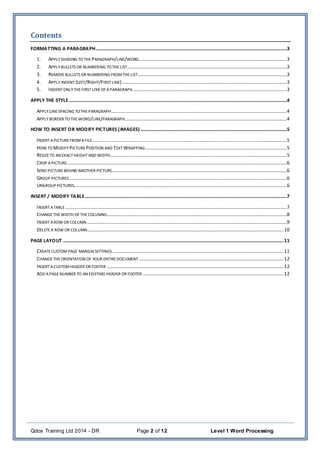
Contents
FORMATTING A PARAGRAPH..............................................................................................................................................................3
1. APPLY SHADING TO THE PARAGRAPH/LINE/WORD...........................................................................................................................3
2. APPLY BULLETS OR NUMBERING TO THELIST....................................................................................................................................3
3. REMOVEBULLETS OR NUMBERING FROMTHELIST...........................................................................................................................3
4. APPLY INDENT (LEFT/RIGHT/FIRSTLINE) ........................................................................................................................................3
5. INDENT ONLYTHEFIRST LINEOF APARAGRAPH................................................................................................................................3
APPLY THE STYLE....................................................................................................................................................................................4
APPLY LINESPACING TO THEPARAGRAPH.................................................................................................................................................4
APPLY BORDER TO THEWORD/LINE/PARAGRAPH......................................................................................................................................4
HOW TO INSERT OR MODIFY PICTURES (IMAGES).........................................................................................................................5
INSERT APICTURE FROM AFILE.................................................................................................................................................................5
HOW TO MODIFY PICTURE POSITION AND TEXT WRAPPING.....................................................................................................................5
RESIZETO AN EXACTHEIGHTAND WIDTH..................................................................................................................................................5
CROP APICTURE......................................................................................................................................................................................6
SEND PICTURE BEHIND ANOTHER PICTURE.................................................................................................................................................6
GROUP PICTURES....................................................................................................................................................................................6
UNGROUP PICTURES................................................................................................................................................................................6
INSERT / MODIFY TABLE.......................................................................................................................................................................7
INSERT ATABLE .......................................................................................................................................................................................7
CHANGETHEWIDTH OF THECOLUMNS.....................................................................................................................................................8
INSERT AROW OR COLUMN .....................................................................................................................................................................9
DELETE A ROW OR COLUMN..................................................................................................................................................................10
PAGE LAYOUT ......................................................................................................................................................................................11
CREATECUSTOMPAGE MARGIN SETTINGS .............................................................................................................................................11
CHANGETHEORIENTATION OF YOUR ENTIRE DOCUMENT .......................................................................................................................12
INSERT ACUSTOMHEADER OR FOOTER ..................................................................................................................................................12
ADD APAGENUMBER TO AN EXISTING HEADER OR FOOTER ....................................................................................................................12
Qdos Training Ltd 2014 - DR Page 3 of 12 Level 1 Word Processing
Formatting a Paragraph
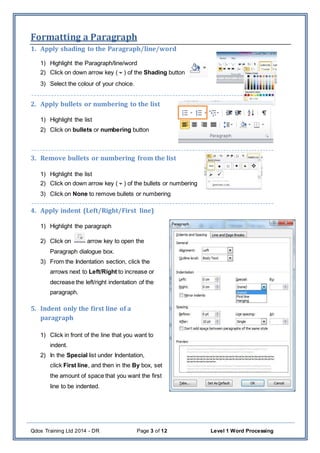
1. Apply shading to the Paragraph/line/word
1) Highlight the Paragraph/line/word
2) Click on down arrow key () of the Shading button
3) Select the colour of your choice.
2. Apply bullets or numbering to the list
1) Highlight the list
2) Click on bullets or numbering button
3. Remove bullets or numbering from the list
1) Highlight the list
2) Click on down arrow key () of the bullets or numbering
3) Click on None to remove bullets or numbering
4. Apply indent (Left/Right/First line)
1) Highlight the paragraph
2) Click on arrow key to open the
Paragraph dialogue box.
3) From the Indentation section, click the
arrows next to Left/Right to increase or
decrease the left/right indentation of the
paragraph.
5. Indent only the first line of a
paragraph
1) Click in front of the line that you want to
indent.
2) In the Special list under Indentation,
click First line, and then in the By box, set
the amount of space that you want the first
line to be indented.
Qdos Training Ltd 2014 - DR Page 4 of 12 Level 1 Word Processing
Apply the style
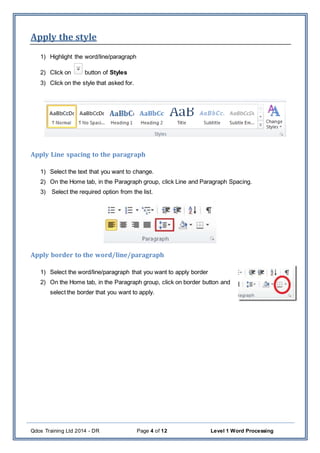
1) Highlight the word/line/paragraph
2) Click on button of Styles
3) Click on the style that asked for.
Apply Line spacing to the paragraph
1) Select the text that you want to change.
2) On the Home tab, in the Paragraph group, click Line and Paragraph Spacing.
3) Select the required option from the list.
Apply border to the word/line/paragraph
1) Select the word/line/paragraph that you want to apply border
2) On the Home tab, in the Paragraph group, click on border button and
select the border that you want to apply.
Qdos Training Ltd 2014 - DR Page 5 of 12 Level 1 Word Processing
How to insert or modify pictures (images)
Insert a picture from a file
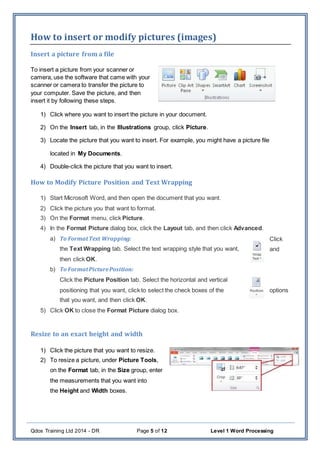
To insert a picture from your scanner or
camera, use the software that came with your
scanner or camera to transfer the picture to
your computer. Save the picture, and then
insert it by following these steps.
1) Click where you want to insert the picture in your document.
2) On the Insert tab, in the Illustrations group, click Picture.
3) Locate the picture that you want to insert. For example, you might have a picture file
located in My Documents.
4) Double-click the picture that you want to insert.
How to Modify Picture Position and Text Wrapping
1) Start Microsoft Word, and then open the document that you want.
2) Click the picture you that want to format.
3) On the Format menu, click Picture.
4) In the Format Picture dialog box, click the Layout tab, and then click Advanced.
a) To FormatText Wrapping: Click
the Text Wrapping tab. Select the text wrapping style that you want, and
then click OK.
b) To FormatPicturePosition:
Click the Picture Position tab. Select the horizontal and vertical
positioning that you want, click to select the check boxes of the options
that you want, and then click OK.
5) Click OK to close the Format Picture dialog box.
Resize to an exact height and width
1) Click the picture that you want to resize.
2) To resize a picture, under Picture Tools,
on the Format tab, in the Size group, enter
the measurements that you want into
the Height and Width boxes.
Qdos Training Ltd 2014 - DR Page 6 of 12 Level 1 Word Processing
Crop a picture
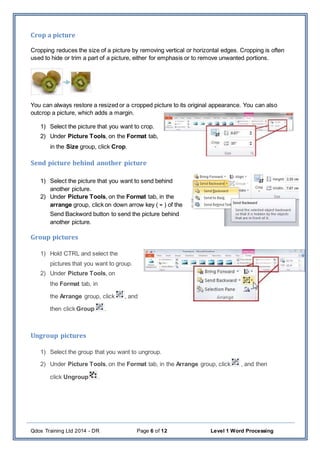
Cropping reduces the size of a picture by removing vertical or horizontal edges. Cropping is often
used to hide or trim a part of a picture, either for emphasis or to remove unwanted portions.
You can always restore a resized or a cropped picture to its original appearance. You can also
outcrop a picture, which adds a margin.
1) Select the picture that you want to crop.
2) Under Picture Tools, on the Format tab,
in the Size group, click Crop.
Send picture behind another picture
1) Select the picture that you want to send behind
another picture.
2) Under Picture Tools, on the Format tab, in the
arrange group, click on down arrow key () of the
Send Backword button to send the picture behind
another picture.
Group pictures
1) Hold CTRL and select the
pictures that you want to group.
2) Under Picture Tools, on
the Format tab, in
the Arrange group, click , and
then click Group .
Ungroup pictures
1) Select the group that you want to ungroup.
2) Under Picture Tools, on the Format tab, in the Arrange group, click , and then
click Ungroup .
Qdos Training Ltd 2014 - DR Page 7 of 12 Level 1 Word Processing
Insert / modify table
Type Business Trip Budget and apply Heading 1.
Insert a table
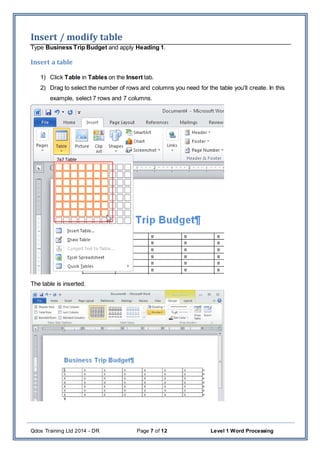
1) Click Table in Tables on the Insert tab.
2) Drag to select the number of rows and columns you need for the table you'll create. In this
example, select 7 rows and 7 columns.
The table is inserted.
Qdos Training Ltd 2014 - DR Page 8 of 12 Level 1 Word Processing
Change the width of the columns
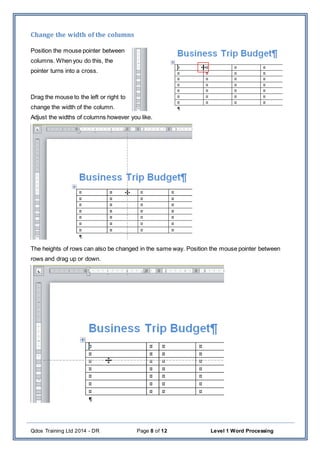
Position the mouse pointer between
columns. When you do this, the
pointer turns into a cross.
Drag the mouse to the left or right to
change the width of the column.
Adjust the widths of columns however you like.
The heights of rows can also be changed in the same way. Position the mouse pointer between
rows and drag up or down.
Qdos Training Ltd 2014 - DR Page 9 of 12 Level 1 Word Processing
Insert a row or column
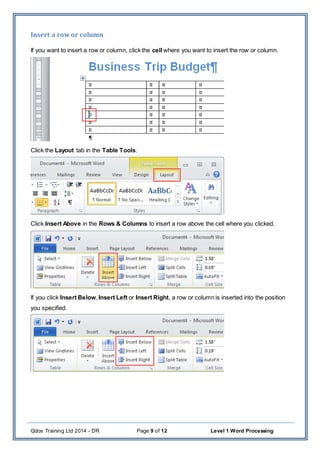
If you want to insert a row or column, click the cell where you want to insert the row or column.
Click the Layout tab in the Table Tools.
Click Insert Above in the Rows & Columns to insert a row above the cell where you clicked.
If you click Insert Below, Insert Left or Insert Right, a row or column is inserted into the position
you specified.
Qdos Training Ltd 2014 - DR Page 10 of 12 Level 1 Word Processing
Delete a row or column
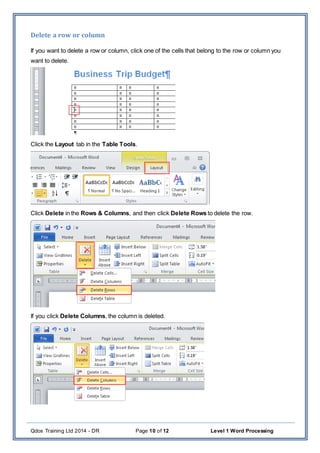
If you want to delete a row or column, click one of the cells that belong to the row or column you
want to delete.
Click the Layout tab in the Table Tools.
Click Delete in the Rows & Columns, and then click Delete Rows to delete the row.
If you click Delete Columns, the column is deleted.
Qdos Training Ltd 2014 - DR Page 11 of 12 Level 1 Word Processing
Page layout
Create custom page margin settings
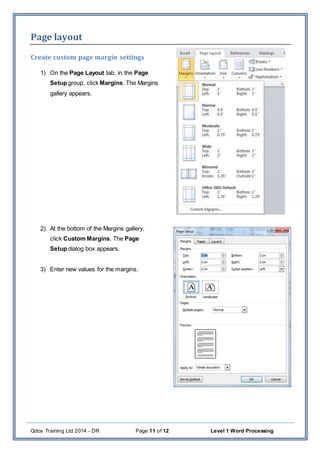
1) On the Page Layout tab, in the Page
Setup group, click Margins. The Margins
gallery appears.
2) At the bottom of the Margins gallery,
click Custom Margins. The Page
Setup dialog box appears.
3) Enter new values for the margins.
Qdos Training Ltd 2014 - DR Page 12 of 12 Level 1 Word Processing
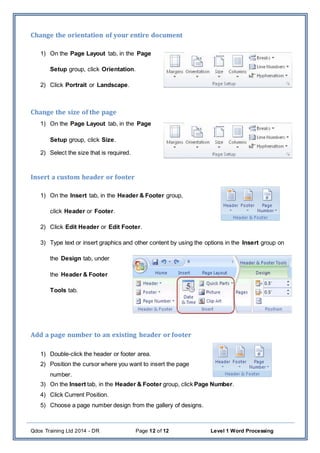
Change the orientation of your entire document
1) On the Page Layout tab, in the Page
Setup group, click Orientation.
2) Click Portrait or Landscape.
Change the size of the page
1) On the Page Layout tab, in the Page
Setup group, click Size.
2) Select the size that is required.
Insert a custom header or footer
1) On the Insert tab, in the Header & Footer group,
click Header or Footer.
2) Click Edit Header or Edit Footer.
3) Type text or insert graphics and other content by using the options in the Insert group on
the Design tab, under
the Header & Footer
Tools tab.
Add a page number to an existing header or footer
1) Double-click the header or footer area.
2) Position the cursor where you want to insert the page
number.
3) On the Insert tab, in the Header & Footer group, click Page Number.
4) Click Current Position.
5) Choose a page number design from the gallery of designs.

Level-1-ECDL-Word-2010---Learner-Handbook

  • 1.
    Qdos Training Ltd2014 - DR Level 1 Word Processing Qdos Training Ltd Level 1 ECDL Module 3 Word Processing Learner handbook
  • 2.
    Qdos Training Ltd2014 - DR Page 2 of 12 Level 1 Word Processing Contents FORMATTING A PARAGRAPH..............................................................................................................................................................3 1. APPLY SHADING TO THE PARAGRAPH/LINE/WORD...........................................................................................................................3 2. APPLY BULLETS OR NUMBERING TO THELIST....................................................................................................................................3 3. REMOVEBULLETS OR NUMBERING FROMTHELIST...........................................................................................................................3 4. APPLY INDENT (LEFT/RIGHT/FIRSTLINE) ........................................................................................................................................3 5. INDENT ONLYTHEFIRST LINEOF APARAGRAPH................................................................................................................................3 APPLY THE STYLE....................................................................................................................................................................................4 APPLY LINESPACING TO THEPARAGRAPH.................................................................................................................................................4 APPLY BORDER TO THEWORD/LINE/PARAGRAPH......................................................................................................................................4 HOW TO INSERT OR MODIFY PICTURES (IMAGES).........................................................................................................................5 INSERT APICTURE FROM AFILE.................................................................................................................................................................5 HOW TO MODIFY PICTURE POSITION AND TEXT WRAPPING.....................................................................................................................5 RESIZETO AN EXACTHEIGHTAND WIDTH..................................................................................................................................................5 CROP APICTURE......................................................................................................................................................................................6 SEND PICTURE BEHIND ANOTHER PICTURE.................................................................................................................................................6 GROUP PICTURES....................................................................................................................................................................................6 UNGROUP PICTURES................................................................................................................................................................................6 INSERT / MODIFY TABLE.......................................................................................................................................................................7 INSERT ATABLE .......................................................................................................................................................................................7 CHANGETHEWIDTH OF THECOLUMNS.....................................................................................................................................................8 INSERT AROW OR COLUMN .....................................................................................................................................................................9 DELETE A ROW OR COLUMN..................................................................................................................................................................10 PAGE LAYOUT ......................................................................................................................................................................................11 CREATECUSTOMPAGE MARGIN SETTINGS .............................................................................................................................................11 CHANGETHEORIENTATION OF YOUR ENTIRE DOCUMENT .......................................................................................................................12 INSERT ACUSTOMHEADER OR FOOTER ..................................................................................................................................................12 ADD APAGENUMBER TO AN EXISTING HEADER OR FOOTER ....................................................................................................................12
  • 3.
    Qdos Training Ltd2014 - DR Page 3 of 12 Level 1 Word Processing Formatting a Paragraph 1. Apply shading to the Paragraph/line/word 1) Highlight the Paragraph/line/word 2) Click on down arrow key () of the Shading button 3) Select the colour of your choice. 2. Apply bullets or numbering to the list 1) Highlight the list 2) Click on bullets or numbering button 3. Remove bullets or numbering from the list 1) Highlight the list 2) Click on down arrow key () of the bullets or numbering 3) Click on None to remove bullets or numbering 4. Apply indent (Left/Right/First line) 1) Highlight the paragraph 2) Click on arrow key to open the Paragraph dialogue box. 3) From the Indentation section, click the arrows next to Left/Right to increase or decrease the left/right indentation of the paragraph. 5. Indent only the first line of a paragraph 1) Click in front of the line that you want to indent. 2) In the Special list under Indentation, click First line, and then in the By box, set the amount of space that you want the first line to be indented.
  • 4.
    Qdos Training Ltd2014 - DR Page 4 of 12 Level 1 Word Processing Apply the style 1) Highlight the word/line/paragraph 2) Click on button of Styles 3) Click on the style that asked for. Apply Line spacing to the paragraph 1) Select the text that you want to change. 2) On the Home tab, in the Paragraph group, click Line and Paragraph Spacing. 3) Select the required option from the list. Apply border to the word/line/paragraph 1) Select the word/line/paragraph that you want to apply border 2) On the Home tab, in the Paragraph group, click on border button and select the border that you want to apply.
  • 5.
    Qdos Training Ltd2014 - DR Page 5 of 12 Level 1 Word Processing How to insert or modify pictures (images) Insert a picture from a file To insert a picture from your scanner or camera, use the software that came with your scanner or camera to transfer the picture to your computer. Save the picture, and then insert it by following these steps. 1) Click where you want to insert the picture in your document. 2) On the Insert tab, in the Illustrations group, click Picture. 3) Locate the picture that you want to insert. For example, you might have a picture file located in My Documents. 4) Double-click the picture that you want to insert. How to Modify Picture Position and Text Wrapping 1) Start Microsoft Word, and then open the document that you want. 2) Click the picture you that want to format. 3) On the Format menu, click Picture. 4) In the Format Picture dialog box, click the Layout tab, and then click Advanced. a) To FormatText Wrapping: Click the Text Wrapping tab. Select the text wrapping style that you want, and then click OK. b) To FormatPicturePosition: Click the Picture Position tab. Select the horizontal and vertical positioning that you want, click to select the check boxes of the options that you want, and then click OK. 5) Click OK to close the Format Picture dialog box. Resize to an exact height and width 1) Click the picture that you want to resize. 2) To resize a picture, under Picture Tools, on the Format tab, in the Size group, enter the measurements that you want into the Height and Width boxes.
  • 6.
    Qdos Training Ltd2014 - DR Page 6 of 12 Level 1 Word Processing Crop a picture Cropping reduces the size of a picture by removing vertical or horizontal edges. Cropping is often used to hide or trim a part of a picture, either for emphasis or to remove unwanted portions. You can always restore a resized or a cropped picture to its original appearance. You can also outcrop a picture, which adds a margin. 1) Select the picture that you want to crop. 2) Under Picture Tools, on the Format tab, in the Size group, click Crop. Send picture behind another picture 1) Select the picture that you want to send behind another picture. 2) Under Picture Tools, on the Format tab, in the arrange group, click on down arrow key () of the Send Backword button to send the picture behind another picture. Group pictures 1) Hold CTRL and select the pictures that you want to group. 2) Under Picture Tools, on the Format tab, in the Arrange group, click , and then click Group . Ungroup pictures 1) Select the group that you want to ungroup. 2) Under Picture Tools, on the Format tab, in the Arrange group, click , and then click Ungroup .
  • 7.
    Qdos Training Ltd2014 - DR Page 7 of 12 Level 1 Word Processing Insert / modify table Type Business Trip Budget and apply Heading 1. Insert a table 1) Click Table in Tables on the Insert tab. 2) Drag to select the number of rows and columns you need for the table you'll create. In this example, select 7 rows and 7 columns. The table is inserted.
  • 8.
    Qdos Training Ltd2014 - DR Page 8 of 12 Level 1 Word Processing Change the width of the columns Position the mouse pointer between columns. When you do this, the pointer turns into a cross. Drag the mouse to the left or right to change the width of the column. Adjust the widths of columns however you like. The heights of rows can also be changed in the same way. Position the mouse pointer between rows and drag up or down.
  • 9.
    Qdos Training Ltd2014 - DR Page 9 of 12 Level 1 Word Processing Insert a row or column If you want to insert a row or column, click the cell where you want to insert the row or column. Click the Layout tab in the Table Tools. Click Insert Above in the Rows & Columns to insert a row above the cell where you clicked. If you click Insert Below, Insert Left or Insert Right, a row or column is inserted into the position you specified.
  • 10.
    Qdos Training Ltd2014 - DR Page 10 of 12 Level 1 Word Processing Delete a row or column If you want to delete a row or column, click one of the cells that belong to the row or column you want to delete. Click the Layout tab in the Table Tools. Click Delete in the Rows & Columns, and then click Delete Rows to delete the row. If you click Delete Columns, the column is deleted.
  • 11.
    Qdos Training Ltd2014 - DR Page 11 of 12 Level 1 Word Processing Page layout Create custom page margin settings 1) On the Page Layout tab, in the Page Setup group, click Margins. The Margins gallery appears. 2) At the bottom of the Margins gallery, click Custom Margins. The Page Setup dialog box appears. 3) Enter new values for the margins.
  • 12.
    Qdos Training Ltd2014 - DR Page 12 of 12 Level 1 Word Processing Change the orientation of your entire document 1) On the Page Layout tab, in the Page Setup group, click Orientation. 2) Click Portrait or Landscape. Change the size of the page 1) On the Page Layout tab, in the Page Setup group, click Size. 2) Select the size that is required. Insert a custom header or footer 1) On the Insert tab, in the Header & Footer group, click Header or Footer. 2) Click Edit Header or Edit Footer. 3) Type text or insert graphics and other content by using the options in the Insert group on the Design tab, under the Header & Footer Tools tab. Add a page number to an existing header or footer 1) Double-click the header or footer area. 2) Position the cursor where you want to insert the page number. 3) On the Insert tab, in the Header & Footer group, click Page Number. 4) Click Current Position. 5) Choose a page number design from the gallery of designs.