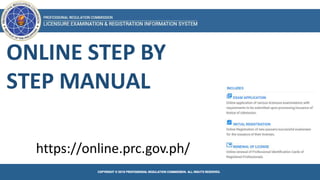
ONLINE STEP BY
STEP MANUAL
https://online.prc.gov.ph/
1
2
3
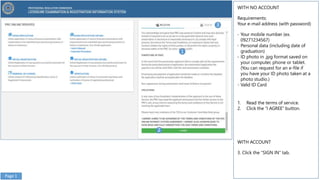
WITH NO ACCOUNT
Requirements:
Your e-mail address (with password)
- Your mobile number (ex.
09271234567)
- Personal data (including date of
graduation)
- ID photo in .jpg format saved on
your computer, phone or tablet.
(You can request for an e-file if
you have your ID photo taken at a
photo studio.)
- Valid ID Card
1. Read the terms of service.
2. Click the “I AGREE” button.
WITH ACCOUNT
3. Click the “SIGN IN” tab.
Page 1
1 2
3
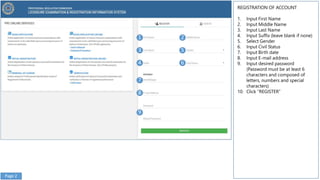
REGISTRATION OF ACCOUNT
1. Input First Name
2. Input Middle Name
3. Input Last Name
4. Input Suffix (leave blank if none)
5. Select Gender
6. Input Civil Status
7. Input Birth date
8. Input E-mail address
9. Input desired password
(Password must be at least 6
characters and composed of
letters, numbers and special
characters)
10. Click “REGISTER”
5
4 6
7
8
9
Page 2
1
2
3
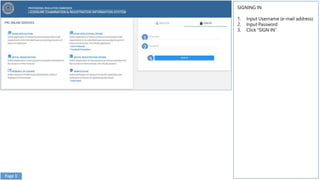
SIGNING IN
1. Input Username (e-mail address)
2. Input Password
3. Click “SIGN IN”
Page 3
1
2
3
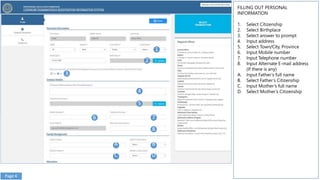
FILLING OUT PERSONAL
INFORMATION
1. Select Citizenship
2. Select Birthplace
3. Select answer to prompt
4. Input address
5. Select Town/City, Province
6. Input Mobile number
7. Input Telephone number
8. Input Alternate E-mail address
(If there is any)
A. Input Father’s full name
B. Select Father’s Citizenship
C. Input Mother’s full name
D. Select Mother’s Citizenship
4
5
6 7
8
A
C
B
D
Page 4
1
2
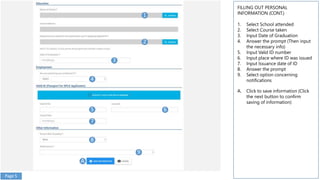
FILLING OUT PERSONAL
INFORMATION (CONT.)
1. Select School attended
2. Select Course taken
3. Input Date of Graduation
4. Answer the prompt (Then input
the necessary info)
5. Input Valid ID number
6. Input place where ID was issued
7. Input Issuance date of ID
8. Answer the prompt
9. Select option concerning
notifications
A. Click to save information (Click
the next button to confirm
saving of information)
3
4
5 6
7
8
9
A
Page 5
1
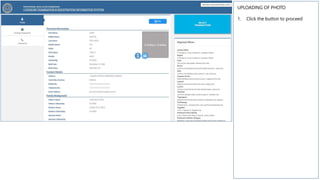
UPLOADING OF PHOTO
1. Click the button to proceed
2
Page 6
1
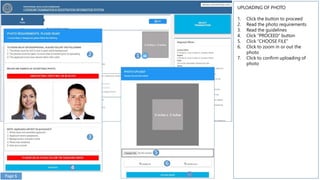
UPLOADING OF PHOTO
1. Click the button to proceed
2. Read the photo requirements
3. Read the guidelines
4. Click “PROCEED” button
5. Click “CHOOSE FILE”
6. Click to zoom in or out the
photo
7. Click to confirm uploading of
photo
2
3
4
5
6
Page 6
1
SELECTING TRANSACTION FOR
APPLICATION OF EXAM
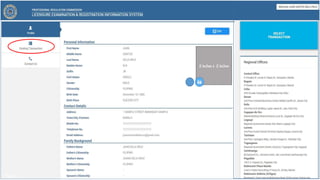
1. Click “SELECT TRANSACTION”
2. Select “EXAMINATION” Tab
3. Select Name of Examination
4. Select Examination Type
5. Select Date of Examination
6. Select Place of Examination
7. Click to confirm selection
2
3 4
5 6
7
Page 7
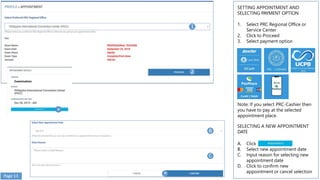
SETTING APPOINTMENT AND
SELECTING PAYMENT OPTION
1. Select PRC Regional Office or
Service Center
2. Click to Proceed
3. Select payment option
Note: If you select PRC-Cashier then
you have to pay at the selected
appointment place.
SELECTING A NEW APPOINTMENT
DATE
A. Click
B. Select new appointment date
C. Input reason for selecting new
appointment date
D. Click to confirm new
appointment or cancel selection
1
2
B
C
Page 13
Examination
A
D
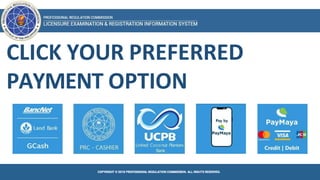
CLICK YOUR PREFERRED
PAYMENT OPTION
1
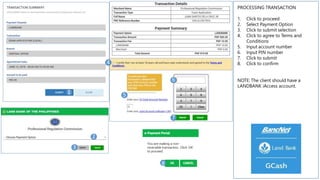
PROCESSING TRANSACTION
1. Click to proceed
2. Select Payment Option
3. Click to submit selection
4. Click to agree to Terms and
Conditions
5. Input account number
6. Input PIN number
7. Click to submit
8. Click to confirm
NOTE: The client should have a
LANDBANK iAccess account.
2
3
4
5
6
8
7
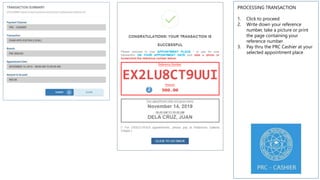
PROCESSING TRANSACTION
1. Click to proceed
2. Write down your reference
number, take a picture or print
the page containing your
reference number
3. Pay thru the PRC Cashier at your
selected appointment place
1
2
PROCESSING TRANSACTION
1. Click to proceed
2. Write down your reference
number, take a picture or print
the page containing your
reference number
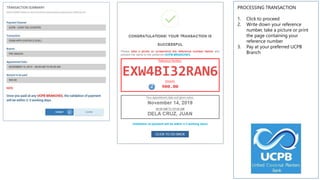
3. Pay at your preferred UCPB
Branch
1
2
PROCESSING TRANSACTION
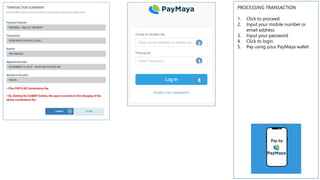
1. Click to proceed
2. Input your mobile number or
email address
3. Input your password
4. Click to login
5. Pay using your PayMaya wallet
2
3
4
1
2
3
4
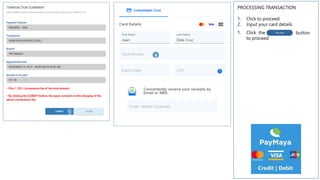
PROCESSING TRANSACTION
button
1. Click to proceed
2. Input your card details
1. Click the
to proceed
2
1
1
2
1
2
Page 6
1
PRINTING DOCUMENT
1. Click to see Existing Transactions
2. Click to see Payment Details
3. Click to Print document
4. Click to start printing
(Proceed to the PRC Regional Office
or Service Center you chose at the
given appointment date to submit all
required documents)
END OF TRANSACTION FOR
APPLICATION OF EXAM
For technical concerns, please email at
prc.helpdesk2@gmail.com
For payment concerns, please email at
customercare@mail.landbank.com or
call at 405-7000
2
3
4
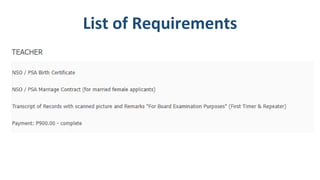
List of Requirements
LERIS-Step-by-Step-Procedure.pptx

LERIS-Step-by-Step-Procedure.pptx

  • 1.
    ONLINE STEP BY STEPMANUAL https://online.prc.gov.ph/
  • 2.
    1 2 3 WITH NO ACCOUNT Requirements: Youre-mail address (with password) - Your mobile number (ex. 09271234567) - Personal data (including date of graduation) - ID photo in .jpg format saved on your computer, phone or tablet. (You can request for an e-file if you have your ID photo taken at a photo studio.) - Valid ID Card 1. Read the terms of service. 2. Click the “I AGREE” button. WITH ACCOUNT 3. Click the “SIGN IN” tab. Page 1
  • 3.
    1 2 3 REGISTRATION OFACCOUNT 1. Input First Name 2. Input Middle Name 3. Input Last Name 4. Input Suffix (leave blank if none) 5. Select Gender 6. Input Civil Status 7. Input Birth date 8. Input E-mail address 9. Input desired password (Password must be at least 6 characters and composed of letters, numbers and special characters) 10. Click “REGISTER” 5 4 6 7 8 9 Page 2
  • 4.
    1 2 3 SIGNING IN 1. InputUsername (e-mail address) 2. Input Password 3. Click “SIGN IN” Page 3
  • 5.
    1 2 3 FILLING OUT PERSONAL INFORMATION 1.Select Citizenship 2. Select Birthplace 3. Select answer to prompt 4. Input address 5. Select Town/City, Province 6. Input Mobile number 7. Input Telephone number 8. Input Alternate E-mail address (If there is any) A. Input Father’s full name B. Select Father’s Citizenship C. Input Mother’s full name D. Select Mother’s Citizenship 4 5 6 7 8 A C B D Page 4
  • 6.
    1 2 FILLING OUT PERSONAL INFORMATION(CONT.) 1. Select School attended 2. Select Course taken 3. Input Date of Graduation 4. Answer the prompt (Then input the necessary info) 5. Input Valid ID number 6. Input place where ID was issued 7. Input Issuance date of ID 8. Answer the prompt 9. Select option concerning notifications A. Click to save information (Click the next button to confirm saving of information) 3 4 5 6 7 8 9 A Page 5
  • 7.
    1 UPLOADING OF PHOTO 1.Click the button to proceed 2 Page 6
  • 8.
    1 UPLOADING OF PHOTO 1.Click the button to proceed 2. Read the photo requirements 3. Read the guidelines 4. Click “PROCEED” button 5. Click “CHOOSE FILE” 6. Click to zoom in or out the photo 7. Click to confirm uploading of photo 2 3 4 5 6 Page 6
  • 9.
    1 SELECTING TRANSACTION FOR APPLICATIONOF EXAM 1. Click “SELECT TRANSACTION” 2. Select “EXAMINATION” Tab 3. Select Name of Examination 4. Select Examination Type 5. Select Date of Examination 6. Select Place of Examination 7. Click to confirm selection 2 3 4 5 6 7 Page 7
  • 10.
    SETTING APPOINTMENT AND SELECTINGPAYMENT OPTION 1. Select PRC Regional Office or Service Center 2. Click to Proceed 3. Select payment option Note: If you select PRC-Cashier then you have to pay at the selected appointment place. SELECTING A NEW APPOINTMENT DATE A. Click B. Select new appointment date C. Input reason for selecting new appointment date D. Click to confirm new appointment or cancel selection 1 2 B C Page 13 Examination A D
  • 11.
  • 12.
    1 PROCESSING TRANSACTION 1. Clickto proceed 2. Select Payment Option 3. Click to submit selection 4. Click to agree to Terms and Conditions 5. Input account number 6. Input PIN number 7. Click to submit 8. Click to confirm NOTE: The client should have a LANDBANK iAccess account. 2 3 4 5 6 8 7
  • 13.
    PROCESSING TRANSACTION 1. Clickto proceed 2. Write down your reference number, take a picture or print the page containing your reference number 3. Pay thru the PRC Cashier at your selected appointment place 1 2
  • 14.
    PROCESSING TRANSACTION 1. Clickto proceed 2. Write down your reference number, take a picture or print the page containing your reference number 3. Pay at your preferred UCPB Branch 1 2
  • 15.
    PROCESSING TRANSACTION 1. Clickto proceed 2. Input your mobile number or email address 3. Input your password 4. Click to login 5. Pay using your PayMaya wallet 2 3 4 1 2 3 4
  • 16.
    PROCESSING TRANSACTION button 1. Clickto proceed 2. Input your card details 1. Click the to proceed 2 1 1 2
  • 17.
  • 18.
    1 PRINTING DOCUMENT 1. Clickto see Existing Transactions 2. Click to see Payment Details 3. Click to Print document 4. Click to start printing (Proceed to the PRC Regional Office or Service Center you chose at the given appointment date to submit all required documents) END OF TRANSACTION FOR APPLICATION OF EXAM For technical concerns, please email at prc.helpdesk2@gmail.com For payment concerns, please email at customercare@mail.landbank.com or call at 405-7000 2 3 4
  • 19.