Nested table in HTML
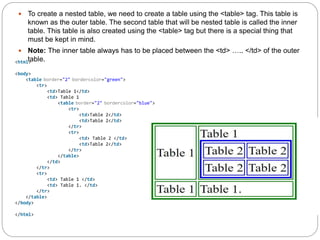
 To create a nested table, we need to create a table using the <table> tag. This table is
known as the outer table. The second table that will be nested table is called the inner
table. This table is also created using the <table> tag but there is a special thing that
must be kept in mind.
 Note: The inner table always has to be placed between the <td> ….. </td> of the outer
table.
<html>
<body>
<table border="2" bordercolor="green">
<tr>
<td>Table 1</td>
<td> Table 1
<table border="2" bordercolor="blue">
<tr>
<td>Table 2</td>
<td>Table 2</td>
</tr>
<tr>
<td> Table 2 </td>
<td>Table 2</td>
</tr>
</table>
</td>
</tr>
<tr>
<td> Table 1 </td>
<td> Table 1. </td>
</tr>
</table>
</body>
</html>
<html>
<body>
<h2 style="color:green">Table Example </h2>
<p><b>Nested tables</b></p>
<table border="2" bordercolor="green">
<tr>
<td>main Table row 1 column 1</td>
<td>main Table column 2
<table border="2" bordercolor="blue">
<tr>
<td>inner Table row 1 column 1</td>
<td>inner Table row 1 column 2</td>
</tr>
<tr>
<td>inner Table row 2 column 1 </td>
<td>inner Table row 2 column 2</td>
</tr>
<tr>
<td>inner Table row 3 column 1 </td>
<td>inner Table row 3 column 2</td>
</tr>
</table>
</td>
</tr>
<tr>
<td> main Table row 2 column 1 </td>
<td> main Table row 2 column 2 </td>
</tr>
</table>
</body>
</html>
HTML Forms
 An HTML form is used to collect user input. The
user input is most often sent to a server for
processing.
 The <form> element is a container for different
types of input elements, such as: text fields,
checkboxes, radio buttons, submit buttons, etc.
The <input> Element
The HTML <input> element is the most used form element.
An <input> element can be displayed in many ways,
depending on the type attribute.
The <input> Element
Type Description
<input type="text"> Displays a single-line text input
field
<input type="radio"> Displays a radio button (for
selecting one of many choices)
<input type="checkbox"> Displays a checkbox (for selecting
zero or more of many choices)
<input type="submit"> Displays a submit button (for
submitting the form)
<input type="button"> Displays a clickable button
Here are the different input types you can use in HTML:
•<input type="button">
•<input type="checkbox">
•<input type="color">
•<input type="date">
•<input type="datetime-local">
•<input type="email">
•<input type="file">
•<input type="hidden">
•<input type="image">
•<input type="month">
•<input type="number">
•<input type="password">
•<input type="radio">
•<input type="range">
•<input type="reset">
•<input type="search">
•<input type="submit">
•<input type="tel">
•<input type="text">
•<input type="time">
•<input type="url">
•<input type="week">
Input Type Text
<input type="text"> defines a single-line text input field:
<form>
<label for="fname">First name:</label><br>
<input type="text" id="fname" name="fname"><br
>
<label for="lname">Last name:</label><br>
<input type="text" id="lname" name="lname">
</form>
Input Type Password
<input type="password"> defines a password field:
<form>
<label for="username">Username:</label><br>
<input type="text" id="username" name="username"><br>
<label for="pwd">Password:</label><br>
<input type="password" id="pwd" name="pwd">
</form>
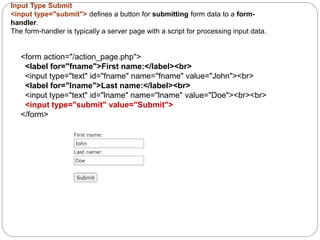
Input Type Submit
<input type="submit"> defines a button for submitting form data to a form-
handler.
The form-handler is typically a server page with a script for processing input data.
<form action="/action_page.php">
<label for="fname">First name:</label><br>
<input type="text" id="fname" name="fname" value="John"><br>
<label for="lname">Last name:</label><br>
<input type="text" id="lname" name="lname" value="Doe"><br><br>
<input type="submit" value="Submit">
</form>
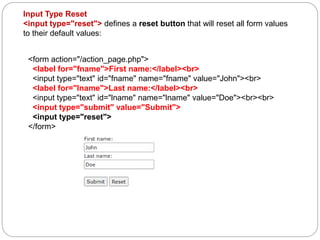
Input Type Reset
<input type="reset"> defines a reset button that will reset all form values
to their default values:
<form action="/action_page.php">
<label for="fname">First name:</label><br>
<input type="text" id="fname" name="fname" value="John"><br>
<label for="lname">Last name:</label><br>
<input type="text" id="lname" name="lname" value="Doe"><br><br>
<input type="submit" value="Submit">
<input type="reset">
</form>
Input Type Radio
<input type="radio"> defines a radio button.
Radio buttons let a user select ONLY ONE of a limited number of choices:
<form>
<input type="radio" id="html" name="fav_language" value="HTML">
<label for="html">HTML</label><br>
<input type="radio" id="css" name="fav_language" value="CSS">
<label for="css">CSS</label><br>
<input type="radio" id="javascript" name="fav_language" value="JavaScri
pt">
<label for="javascript">JavaScript</label>
</form>
Input Type Checkbox
<input type="checkbox"> defines a checkbox.
Checkboxes let a user select ZERO or MORE options of a limited number of choices.
<form>
<input type="checkbox" id="vehicle1" name="vehicle1" value="Bike">
<label for="vehicle1"> I have a bike</label><br>
<input type="checkbox" id="vehicle2" name="vehicle2" value="Car">
<label for="vehicle2"> I have a car</label><br>
<input type="checkbox" id="vehicle3" name="vehicle3" value="Boat">
<label for="vehicle3"> I have a boat</label>
</form>
Input Type Button
<input type="button"> defines a button:
<input type="button" onclick="alert('Hello World!')" value="Click Me!">
On clicking click me button – Hello World will be displayed on web
browser
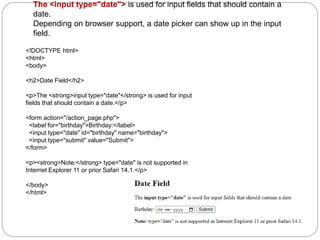
The <input type="date"> is used for input fields that should contain a
date.
Depending on browser support, a date picker can show up in the input
field.
<!DOCTYPE html>
<html>
<body>
<h2>Date Field</h2>
<p>The <strong>input type="date"</strong> is used for input
fields that should contain a date.</p>
<form action="/action_page.php">
<label for="birthday">Birthday:</label>
<input type="date" id="birthday" name="birthday">
<input type="submit" value="Submit">
</form>
<p><strong>Note:</strong> type="date" is not supported in
Internet Explorer 11 or prior Safari 14.1.</p>
</body>
</html>
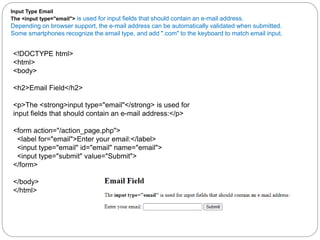
Input Type Email
The <input type="email"> is used for input fields that should contain an e-mail address.
Depending on browser support, the e-mail address can be automatically validated when submitted.
Some smartphones recognize the email type, and add ".com" to the keyboard to match email input.
<!DOCTYPE html>
<html>
<body>
<h2>Email Field</h2>
<p>The <strong>input type="email"</strong> is used for
input fields that should contain an e-mail address:</p>
<form action="/action_page.php">
<label for="email">Enter your email:</label>
<input type="email" id="email" name="email">
<input type="submit" value="Submit">
</form>
</body>
</html>
Input Type Image
The <input type="image"> defines an image as a submit button.
The path to the image is specified in the src attribute.
<!DOCTYPE html>
<html>
<body>
<h2>Display an Image as the Submit button</h2>
<form action="/action_page.php">
<label for="fname">First name: </label>
<input type="text" id="fname" name="fname"><br><br>
<label for="lname">Last name: </label>
<input type="text" id="lname" name="lname"><br><br>
<input type="image" src="img_submit.gif" alt="Submit"
width="48" height="48">
</form>
<p><b>Note:</b> The input type="image" sends the X
and Y coordinates of the click that activated the image
button.</p>
</body>
<body>
<h2>Registration form</h2>
<form>
<fieldset>
<legend>User personal information</legend>
<label>Enter your full name</label><br>
<input type="text" name="name"><br>
<label>Enter your email</label><br>
<input type="email" name="email"><br>
<label>Enter your password</label><br>
<input type="password" name="pass"><br>
<label>confirm your password</label><br>
<input type="password" name="pass"><br>
<br><label>Enter your gender</label><br>
<input type="radio" id="gender" name="gender" value="male"/>Male <br>
<input type="radio" id="gender" name="gender" value="female"/>Female <br/>
<input type="radio" id="gender" name="gender" value="others"/>others <br/>
<br>Enter your Address:<br>
<textarea></textarea><br>
<input type="submit" value="sign-up">
</fieldset>
</form>
</body>
The <fieldset> tag is used to group related
elements in a form. The
<fieldset> tag draws a box around the
related elements.
Type Number
This type of input lets the user insert numbers only.
 <input type="number" placeholder="Enter a
number" />
Type File
This defines a field for file submission.
When a user clicks it, they are prompted to
insert the desired file type, which might be
an image, PDF, document file, and so on.
<input type="file" />
 Type Search
Input with the type of search defines a text field just
like an input type of text. But this time it has the
sole purpose of searching for info. It is different
from type text in that, a cancel button appears
once the user starts typing.
<input type="search" />
 Type Date
You might have registered on a website where you
requested the date of a certain event. The site
probably used an input with the type value set to
date to acheive this.
<input type="date" />
Type Datetime-local
This works like the input type date, but it also lets the user pick a
date with a particular time.
<input type="datetime-local" />
 Type Week
The input type of week lets a user select a specific
week.
<input type="week" />
Type Month
The input with the type of month populates months for the user to pick from
when clicked.
<input type="month" />
Textarea
 There are times when a user will need to fill in
multiple lines of text which wouldn't be suitable in
an input type of text (as it specifies a one-line text
field).
 textarea lets the user do this as it defines multiple
lines of text input. It takes its own attributes such
as cols – for the number of columns, and rows for
the number of rows.
<textarea cols="50" rows="20"></textarea>
Multiple Select Box
 This is like a radio button and checkbox in one
package. It is embedded in the page with two
elements – a select element and an option, which
is always nested inside select.
 By default, the user can only pick one of the
options. But with multiple attributes, you can let
the user select more than one of the options.
<select>
<option value="HTML">Select a Language</option>
<option value="HTML">HTML</option>
<option value="CSS">CSS</option>
<option value="JavaScript">JavaScript</option>
<option value="React">React</option>
</select>
<body bgcolor="white">
<form align="center">
<h3 style="color:black">Personal Details</h3>
Name:
<input type="text" name="name" id="name"><br><br>
Password:
<input type="password" name="password" id="password"><br><br>
E-mail id: <input type="text" name="name" id="name"><br><br>
Gender: <input type="radio" name="radiogroup1" value="radio" id="radiogroup1"> Male
<input type="radio" name="radiogroup1" value="radio" id="radiogroup2"> Female<br><br>
Contact#: <input type="text" name="mobile" id="mobile">
<h3 style="color:black">Educational Qualification</h3>
Degree: <select name="degree" id="degree">
<option selected>-- Select Group --</option>
<option>B.Com</option>
<option>B.sc</option>
<option>B.com Computers</option>
<option>B.A</option>
</select><br>
<br>
Engineering: <select name="eng" id="eng">
<option selected>-- Select Group --</option>
<option>CSE</option>
<option>ECE</option>
<option>CIVIL</option>
<option>EEE</option>
</select><br><br>
Hobbies: <input type="checkbox" name="CheckboxGroup1" value="checkbox" id="CheckboxGroup1">Playing chess
<input type="checkbox" name="CheckboxGroup1" value="checkbox" id="CheckboxGroup2">Reading Books<br><br>
<h3 style="color:black">Address</h3>
<textarea name="textarea" cols="35" rows="5" id="textarea"></textarea><br>
<br>
Attch Resume: <input type="file" name="fileField" id="fileField"><br><br>
<input type="Submit" >
</form>
</body>
</html>
Lecture-5.pptx

Lecture-5.pptx

  • 1.
  • 2.
     To createa nested table, we need to create a table using the <table> tag. This table is known as the outer table. The second table that will be nested table is called the inner table. This table is also created using the <table> tag but there is a special thing that must be kept in mind.  Note: The inner table always has to be placed between the <td> ….. </td> of the outer table. <html> <body> <table border="2" bordercolor="green"> <tr> <td>Table 1</td> <td> Table 1 <table border="2" bordercolor="blue"> <tr> <td>Table 2</td> <td>Table 2</td> </tr> <tr> <td> Table 2 </td> <td>Table 2</td> </tr> </table> </td> </tr> <tr> <td> Table 1 </td> <td> Table 1. </td> </tr> </table> </body> </html>
  • 3.
    <html> <body> <h2 style="color:green">Table Example</h2> <p><b>Nested tables</b></p> <table border="2" bordercolor="green"> <tr> <td>main Table row 1 column 1</td> <td>main Table column 2 <table border="2" bordercolor="blue"> <tr> <td>inner Table row 1 column 1</td> <td>inner Table row 1 column 2</td> </tr> <tr> <td>inner Table row 2 column 1 </td> <td>inner Table row 2 column 2</td> </tr> <tr> <td>inner Table row 3 column 1 </td> <td>inner Table row 3 column 2</td> </tr> </table> </td> </tr> <tr> <td> main Table row 2 column 1 </td> <td> main Table row 2 column 2 </td> </tr> </table> </body> </html>
  • 4.
    HTML Forms  AnHTML form is used to collect user input. The user input is most often sent to a server for processing.  The <form> element is a container for different types of input elements, such as: text fields, checkboxes, radio buttons, submit buttons, etc. The <input> Element The HTML <input> element is the most used form element. An <input> element can be displayed in many ways, depending on the type attribute.
  • 5.
    The <input> Element TypeDescription <input type="text"> Displays a single-line text input field <input type="radio"> Displays a radio button (for selecting one of many choices) <input type="checkbox"> Displays a checkbox (for selecting zero or more of many choices) <input type="submit"> Displays a submit button (for submitting the form) <input type="button"> Displays a clickable button
  • 6.
    Here are thedifferent input types you can use in HTML: •<input type="button"> •<input type="checkbox"> •<input type="color"> •<input type="date"> •<input type="datetime-local"> •<input type="email"> •<input type="file"> •<input type="hidden"> •<input type="image"> •<input type="month"> •<input type="number"> •<input type="password"> •<input type="radio"> •<input type="range"> •<input type="reset"> •<input type="search"> •<input type="submit"> •<input type="tel"> •<input type="text"> •<input type="time"> •<input type="url"> •<input type="week">
  • 7.
    Input Type Text <inputtype="text"> defines a single-line text input field: <form> <label for="fname">First name:</label><br> <input type="text" id="fname" name="fname"><br > <label for="lname">Last name:</label><br> <input type="text" id="lname" name="lname"> </form>
  • 8.
    Input Type Password <inputtype="password"> defines a password field: <form> <label for="username">Username:</label><br> <input type="text" id="username" name="username"><br> <label for="pwd">Password:</label><br> <input type="password" id="pwd" name="pwd"> </form>
  • 9.
    Input Type Submit <inputtype="submit"> defines a button for submitting form data to a form- handler. The form-handler is typically a server page with a script for processing input data. <form action="/action_page.php"> <label for="fname">First name:</label><br> <input type="text" id="fname" name="fname" value="John"><br> <label for="lname">Last name:</label><br> <input type="text" id="lname" name="lname" value="Doe"><br><br> <input type="submit" value="Submit"> </form>
  • 10.
    Input Type Reset <inputtype="reset"> defines a reset button that will reset all form values to their default values: <form action="/action_page.php"> <label for="fname">First name:</label><br> <input type="text" id="fname" name="fname" value="John"><br> <label for="lname">Last name:</label><br> <input type="text" id="lname" name="lname" value="Doe"><br><br> <input type="submit" value="Submit"> <input type="reset"> </form>
  • 11.
    Input Type Radio <inputtype="radio"> defines a radio button. Radio buttons let a user select ONLY ONE of a limited number of choices: <form> <input type="radio" id="html" name="fav_language" value="HTML"> <label for="html">HTML</label><br> <input type="radio" id="css" name="fav_language" value="CSS"> <label for="css">CSS</label><br> <input type="radio" id="javascript" name="fav_language" value="JavaScri pt"> <label for="javascript">JavaScript</label> </form>
  • 12.
    Input Type Checkbox <inputtype="checkbox"> defines a checkbox. Checkboxes let a user select ZERO or MORE options of a limited number of choices. <form> <input type="checkbox" id="vehicle1" name="vehicle1" value="Bike"> <label for="vehicle1"> I have a bike</label><br> <input type="checkbox" id="vehicle2" name="vehicle2" value="Car"> <label for="vehicle2"> I have a car</label><br> <input type="checkbox" id="vehicle3" name="vehicle3" value="Boat"> <label for="vehicle3"> I have a boat</label> </form>
  • 13.
    Input Type Button <inputtype="button"> defines a button: <input type="button" onclick="alert('Hello World!')" value="Click Me!"> On clicking click me button – Hello World will be displayed on web browser
  • 14.
    The <input type="date">is used for input fields that should contain a date. Depending on browser support, a date picker can show up in the input field. <!DOCTYPE html> <html> <body> <h2>Date Field</h2> <p>The <strong>input type="date"</strong> is used for input fields that should contain a date.</p> <form action="/action_page.php"> <label for="birthday">Birthday:</label> <input type="date" id="birthday" name="birthday"> <input type="submit" value="Submit"> </form> <p><strong>Note:</strong> type="date" is not supported in Internet Explorer 11 or prior Safari 14.1.</p> </body> </html>
  • 15.
    Input Type Email The<input type="email"> is used for input fields that should contain an e-mail address. Depending on browser support, the e-mail address can be automatically validated when submitted. Some smartphones recognize the email type, and add ".com" to the keyboard to match email input. <!DOCTYPE html> <html> <body> <h2>Email Field</h2> <p>The <strong>input type="email"</strong> is used for input fields that should contain an e-mail address:</p> <form action="/action_page.php"> <label for="email">Enter your email:</label> <input type="email" id="email" name="email"> <input type="submit" value="Submit"> </form> </body> </html>
  • 16.
    Input Type Image The<input type="image"> defines an image as a submit button. The path to the image is specified in the src attribute. <!DOCTYPE html> <html> <body> <h2>Display an Image as the Submit button</h2> <form action="/action_page.php"> <label for="fname">First name: </label> <input type="text" id="fname" name="fname"><br><br> <label for="lname">Last name: </label> <input type="text" id="lname" name="lname"><br><br> <input type="image" src="img_submit.gif" alt="Submit" width="48" height="48"> </form> <p><b>Note:</b> The input type="image" sends the X and Y coordinates of the click that activated the image button.</p> </body>
  • 17.
    <body> <h2>Registration form</h2> <form> <fieldset> <legend>User personalinformation</legend> <label>Enter your full name</label><br> <input type="text" name="name"><br> <label>Enter your email</label><br> <input type="email" name="email"><br> <label>Enter your password</label><br> <input type="password" name="pass"><br> <label>confirm your password</label><br> <input type="password" name="pass"><br> <br><label>Enter your gender</label><br> <input type="radio" id="gender" name="gender" value="male"/>Male <br> <input type="radio" id="gender" name="gender" value="female"/>Female <br/> <input type="radio" id="gender" name="gender" value="others"/>others <br/> <br>Enter your Address:<br> <textarea></textarea><br> <input type="submit" value="sign-up"> </fieldset> </form> </body> The <fieldset> tag is used to group related elements in a form. The <fieldset> tag draws a box around the related elements.
  • 18.
    Type Number This typeof input lets the user insert numbers only.  <input type="number" placeholder="Enter a number" /> Type File This defines a field for file submission. When a user clicks it, they are prompted to insert the desired file type, which might be an image, PDF, document file, and so on. <input type="file" />
  • 19.
     Type Search Inputwith the type of search defines a text field just like an input type of text. But this time it has the sole purpose of searching for info. It is different from type text in that, a cancel button appears once the user starts typing. <input type="search" />
  • 20.
     Type Date Youmight have registered on a website where you requested the date of a certain event. The site probably used an input with the type value set to date to acheive this. <input type="date" /> Type Datetime-local This works like the input type date, but it also lets the user pick a date with a particular time. <input type="datetime-local" />
  • 21.
     Type Week Theinput type of week lets a user select a specific week. <input type="week" /> Type Month The input with the type of month populates months for the user to pick from when clicked. <input type="month" />
  • 22.
    Textarea  There aretimes when a user will need to fill in multiple lines of text which wouldn't be suitable in an input type of text (as it specifies a one-line text field).  textarea lets the user do this as it defines multiple lines of text input. It takes its own attributes such as cols – for the number of columns, and rows for the number of rows. <textarea cols="50" rows="20"></textarea>
  • 23.
    Multiple Select Box This is like a radio button and checkbox in one package. It is embedded in the page with two elements – a select element and an option, which is always nested inside select.  By default, the user can only pick one of the options. But with multiple attributes, you can let the user select more than one of the options. <select> <option value="HTML">Select a Language</option> <option value="HTML">HTML</option> <option value="CSS">CSS</option> <option value="JavaScript">JavaScript</option> <option value="React">React</option> </select>
  • 24.
    <body bgcolor="white"> <form align="center"> <h3style="color:black">Personal Details</h3> Name: <input type="text" name="name" id="name"><br><br> Password: <input type="password" name="password" id="password"><br><br> E-mail id: <input type="text" name="name" id="name"><br><br> Gender: <input type="radio" name="radiogroup1" value="radio" id="radiogroup1"> Male <input type="radio" name="radiogroup1" value="radio" id="radiogroup2"> Female<br><br> Contact#: <input type="text" name="mobile" id="mobile"> <h3 style="color:black">Educational Qualification</h3> Degree: <select name="degree" id="degree"> <option selected>-- Select Group --</option> <option>B.Com</option> <option>B.sc</option> <option>B.com Computers</option> <option>B.A</option> </select><br> <br> Engineering: <select name="eng" id="eng"> <option selected>-- Select Group --</option> <option>CSE</option> <option>ECE</option> <option>CIVIL</option> <option>EEE</option> </select><br><br> Hobbies: <input type="checkbox" name="CheckboxGroup1" value="checkbox" id="CheckboxGroup1">Playing chess <input type="checkbox" name="CheckboxGroup1" value="checkbox" id="CheckboxGroup2">Reading Books<br><br> <h3 style="color:black">Address</h3> <textarea name="textarea" cols="35" rows="5" id="textarea"></textarea><br> <br> Attch Resume: <input type="file" name="fileField" id="fileField"><br><br> <input type="Submit" > </form> </body> </html>