


INTRODUCTION TO OFFICE WORD
           2007
    BY AYEBAZIBWE KENNETH
     256774185458 / 256702555890
Formatting Paragraphs
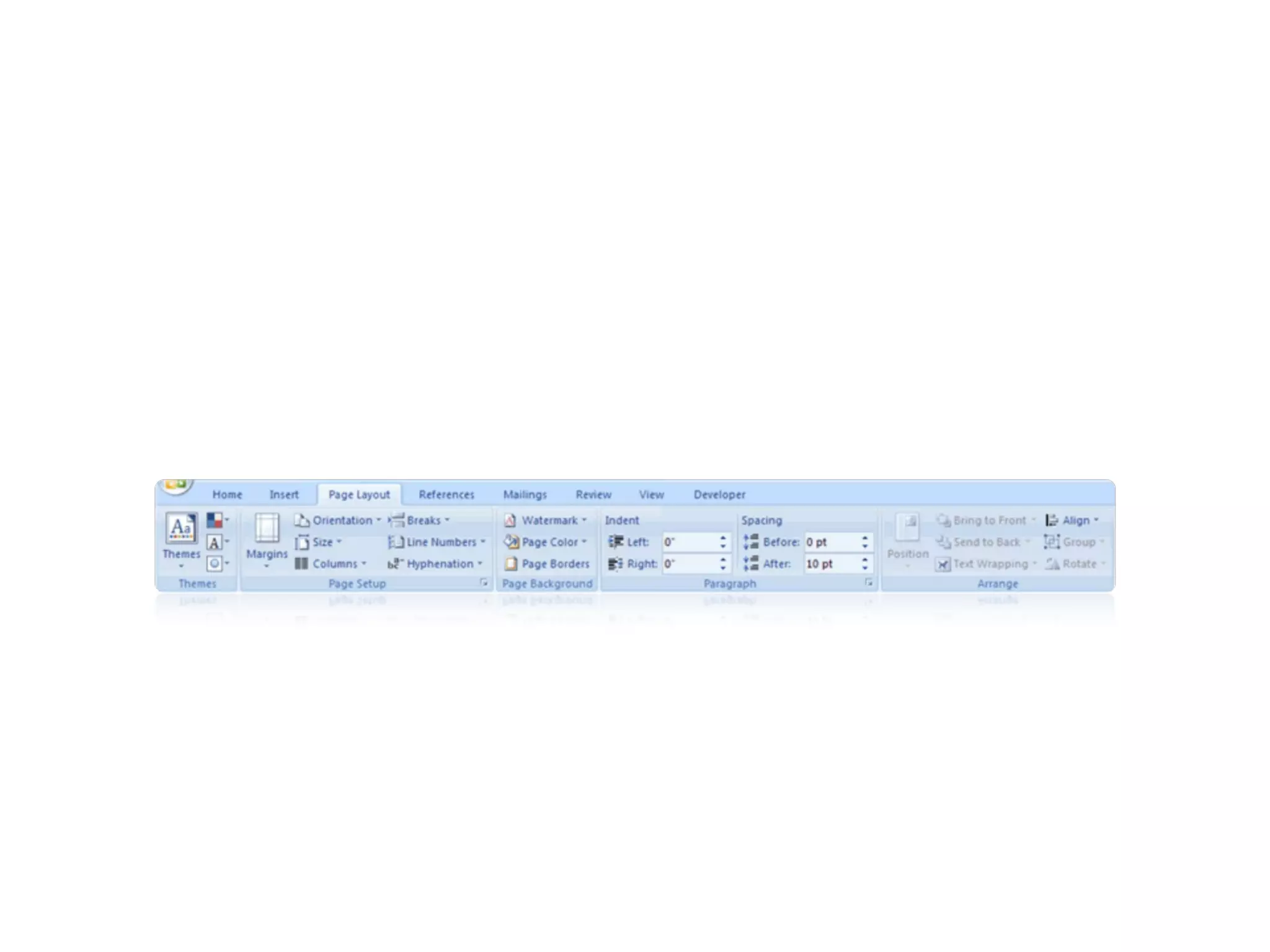
• Formatting paragraphs allows you to change the
  look of the overall document.  You can access
  many of the tools of paragraph formatting by
  clicking the Page Layout Tab of the Ribbon or
  the Paragraph Group on the Home Tab of the
  Ribbon.
Change Paragraph Alignment
• The paragraph alignment allows you to set how you
  want text to appear.  To change the alignment:
• Click the Home Tab
• Choose the appropriate button for alignment on
  the Paragraph Group.
  –   Align Left:  the text is aligned with your left margin
  –   Center:  The text is centered within your margins
  –   Align Right:  Aligns text with the right margin
  –   Justify:  Aligns text to both the left and right margins.
Indent Paragraphs
• Indenting paragraphs allows you set text within a
  paragraph at different margins. There are several
  options for indenting:
• First Line:  Controls the left boundary for the first
  line of a paragraph
• Hanging:  Controls the left boundary of every line
  in a paragraph except the first one
• Left:  Controls the left boundary for every line in a
  paragraph
• Right:  Controls the right boundary for every line
  in a paragraph
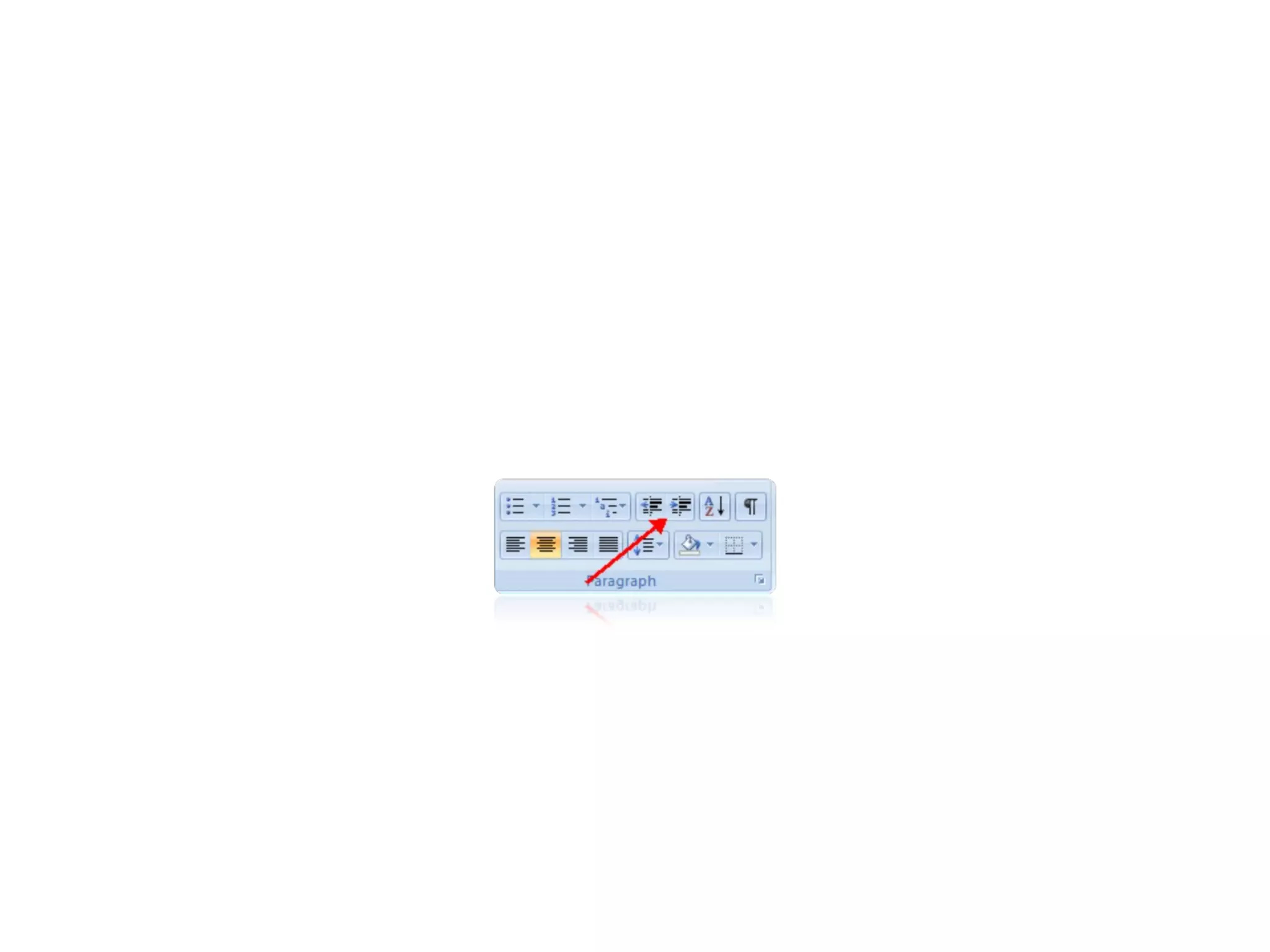
• To indent paragraphs, you can do the following:
• Click the Indent buttons to control the indent. 
• Click the Indent button repeated times to
  increase the size of the indent.
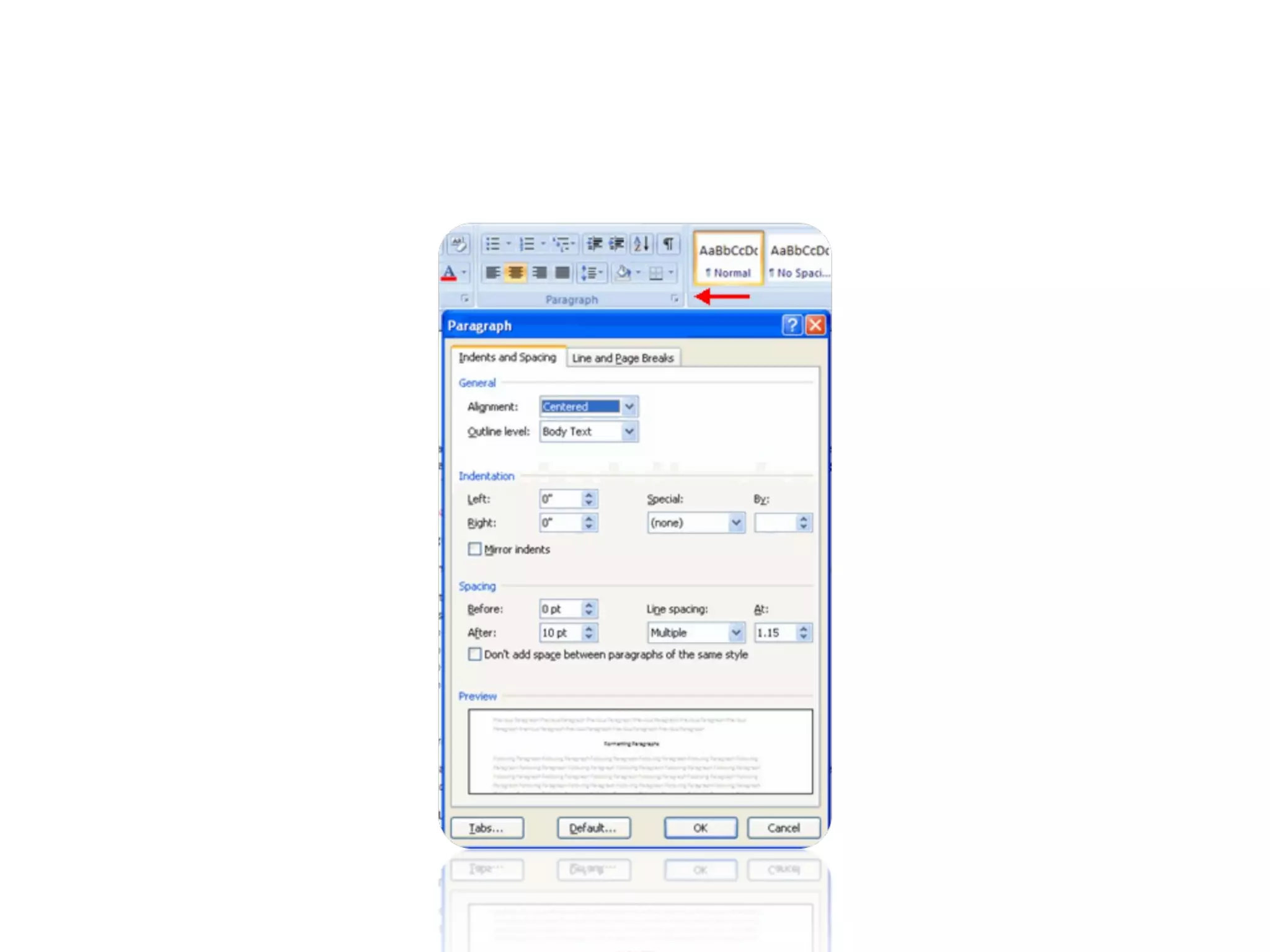
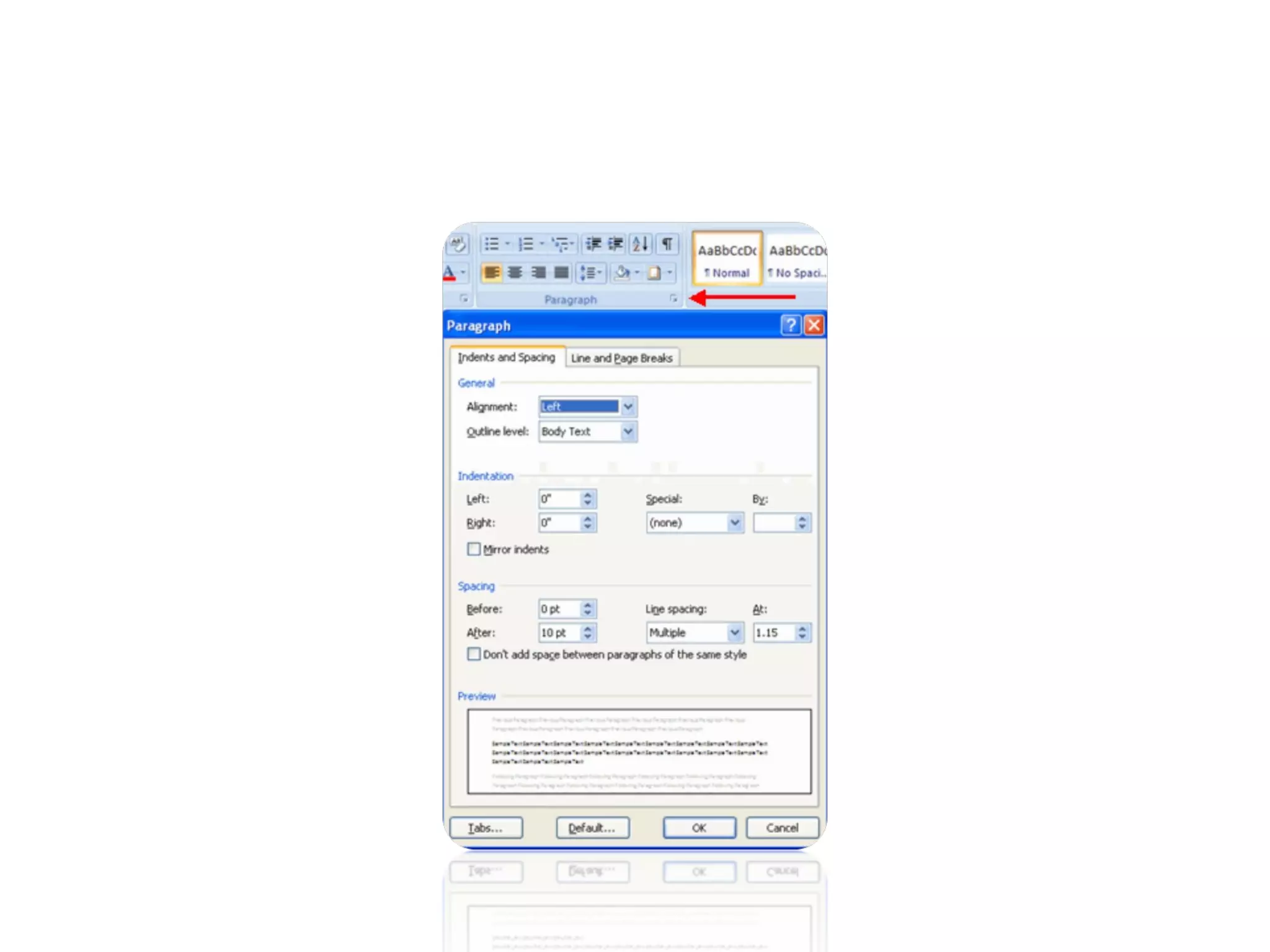
• Click the dialog box of the Paragraph Group
• Click the Indents and Spacing Tab
• Select  your indents
Add Borders and Shading
• You can add borders and shading to paragraphs
  and entire pages.  To create a border around a
  paragraph or paragraphs:
• Select the area of text where you want the
  border or shading.
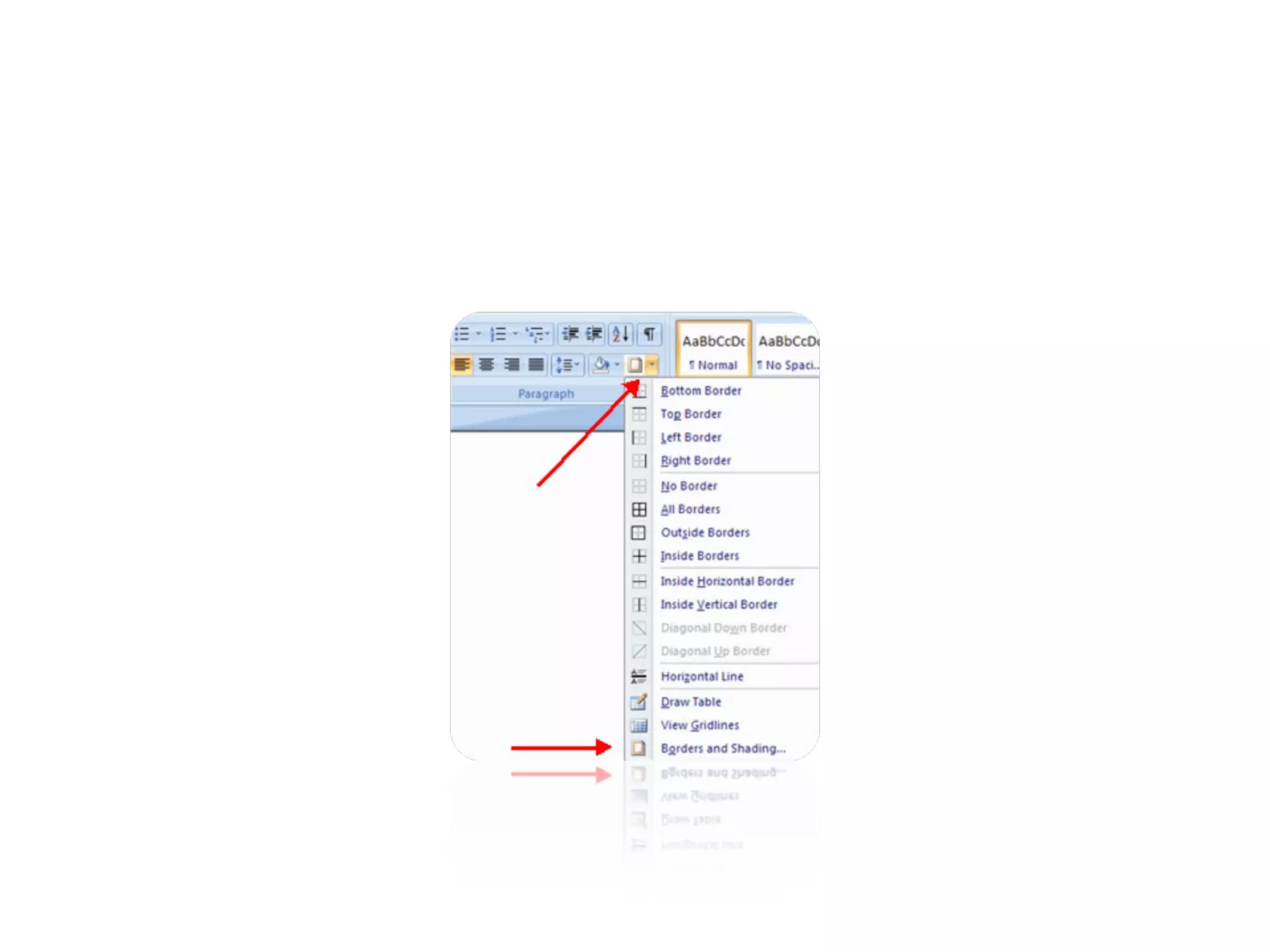
• Click the Borders Button on the Paragraph
  Group on the Home Tab
• Choose the Border and Shading
• Choose the appropriate options
Apply Styles
• Styles are a present collection of formatting that
  you can apply to text. To utilize Quick Styles:
• Select the text you wish to format. 
• Click the dialog box next to the Styles Group
  on the Home Tab. 
• Click the style you wish to apply. 
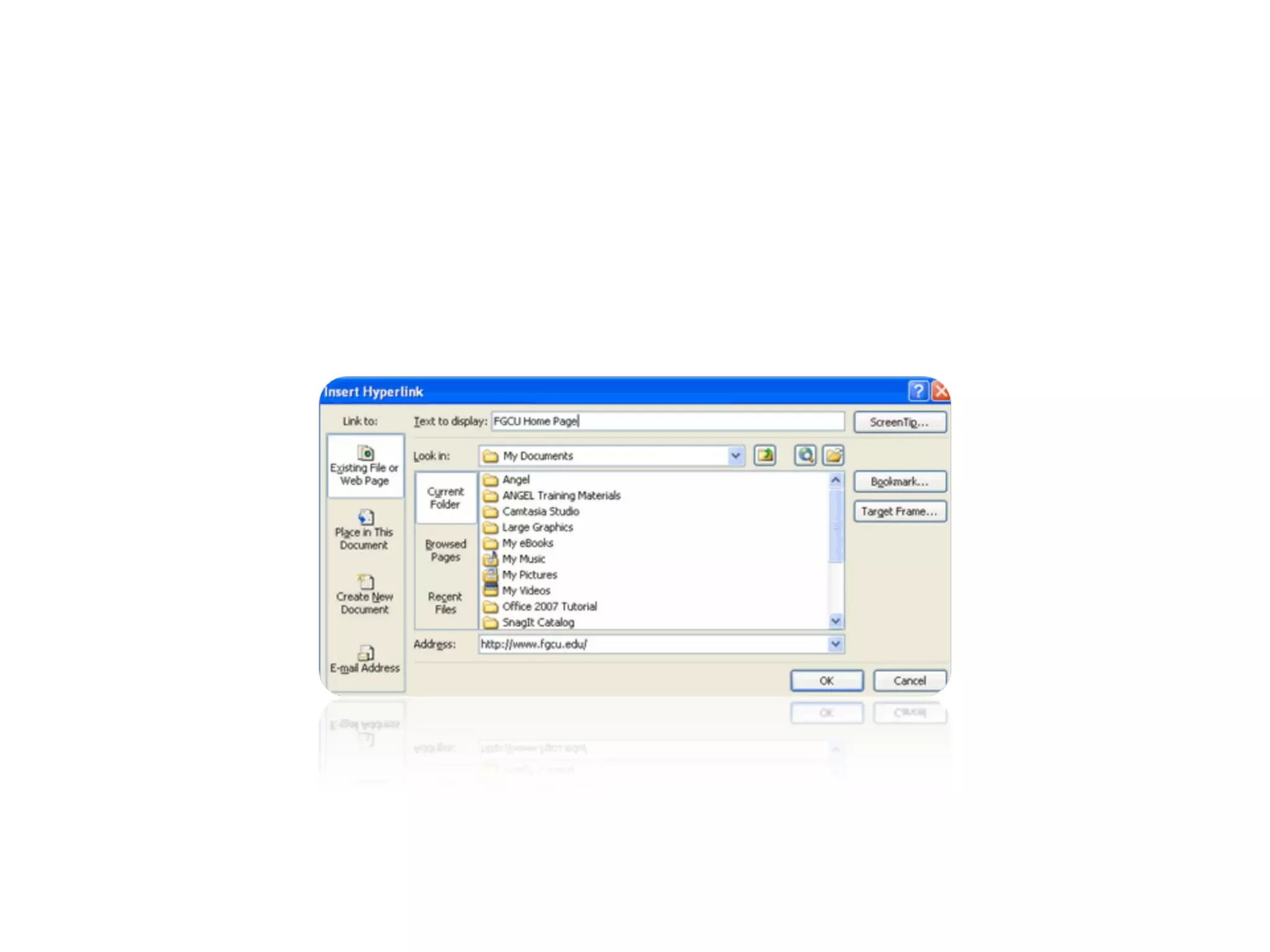
Create Links
• Creating links in a word document allows you to
  put in a URL that readers can click on to visit a
  web page.  To insert a link:
• Click the Hyperlink Button on the Links
  Group of the Insert Tab. 
• Type in the text in the “Text to Display” box
  and the web address in the “Address” box.
Change Spacing Between Paragraphs
              and Lines
• You can change the space between lines and
  paragraphs by doing the following:
• Select the paragraph or paragraphs you wish to
  change.
• On the Home Tab, Click the Paragraph Dialog
  Box
• Click the Indents and Spacing Tab
• In the Spacing section, adjust your spacing
  accordingly
• Questions?
• Thank you for your patience and good luck!

Lecture five

  • 1.
    INTRODUCTION TO OFFICEWORD 2007 BY AYEBAZIBWE KENNETH 256774185458 / 256702555890
  • 2.
    Formatting Paragraphs • Formattingparagraphs allows you to change the look of the overall document.  You can access many of the tools of paragraph formatting by clicking the Page Layout Tab of the Ribbon or the Paragraph Group on the Home Tab of the Ribbon.
  • 5.
    Change Paragraph Alignment •The paragraph alignment allows you to set how you want text to appear.  To change the alignment: • Click the Home Tab • Choose the appropriate button for alignment on the Paragraph Group. – Align Left:  the text is aligned with your left margin – Center:  The text is centered within your margins – Align Right:  Aligns text with the right margin – Justify:  Aligns text to both the left and right margins.
  • 6.
    Indent Paragraphs • Indentingparagraphs allows you set text within a paragraph at different margins. There are several options for indenting: • First Line:  Controls the left boundary for the first line of a paragraph • Hanging:  Controls the left boundary of every line in a paragraph except the first one • Left:  Controls the left boundary for every line in a paragraph • Right:  Controls the right boundary for every line in a paragraph
  • 7.
    • To indentparagraphs, you can do the following: • Click the Indent buttons to control the indent.  • Click the Indent button repeated times to increase the size of the indent.
  • 9.
    • Click thedialog box of the Paragraph Group • Click the Indents and Spacing Tab • Select  your indents
  • 11.
    Add Borders andShading • You can add borders and shading to paragraphs and entire pages.  To create a border around a paragraph or paragraphs: • Select the area of text where you want the border or shading. • Click the Borders Button on the Paragraph Group on the Home Tab • Choose the Border and Shading • Choose the appropriate options
  • 13.
    Apply Styles • Stylesare a present collection of formatting that you can apply to text. To utilize Quick Styles: • Select the text you wish to format.  • Click the dialog box next to the Styles Group on the Home Tab.  • Click the style you wish to apply. 
  • 14.
    Create Links • Creatinglinks in a word document allows you to put in a URL that readers can click on to visit a web page.  To insert a link: • Click the Hyperlink Button on the Links Group of the Insert Tab.  • Type in the text in the “Text to Display” box and the web address in the “Address” box.
  • 17.
    Change Spacing BetweenParagraphs and Lines • You can change the space between lines and paragraphs by doing the following: • Select the paragraph or paragraphs you wish to change. • On the Home Tab, Click the Paragraph Dialog Box • Click the Indents and Spacing Tab • In the Spacing section, adjust your spacing accordingly
  • 19.
  • 20.
    • Thank youfor your patience and good luck!