App Design for Business 
Topic: Display Principles 
Topic Number:4
Key topics / learning outcomes 
of this lecture 
• make informed design decisions 
• learn about Android Versions; 
• understand the xml layout file; 
• learn about the string variable; 
• introduction to common controls; 
2
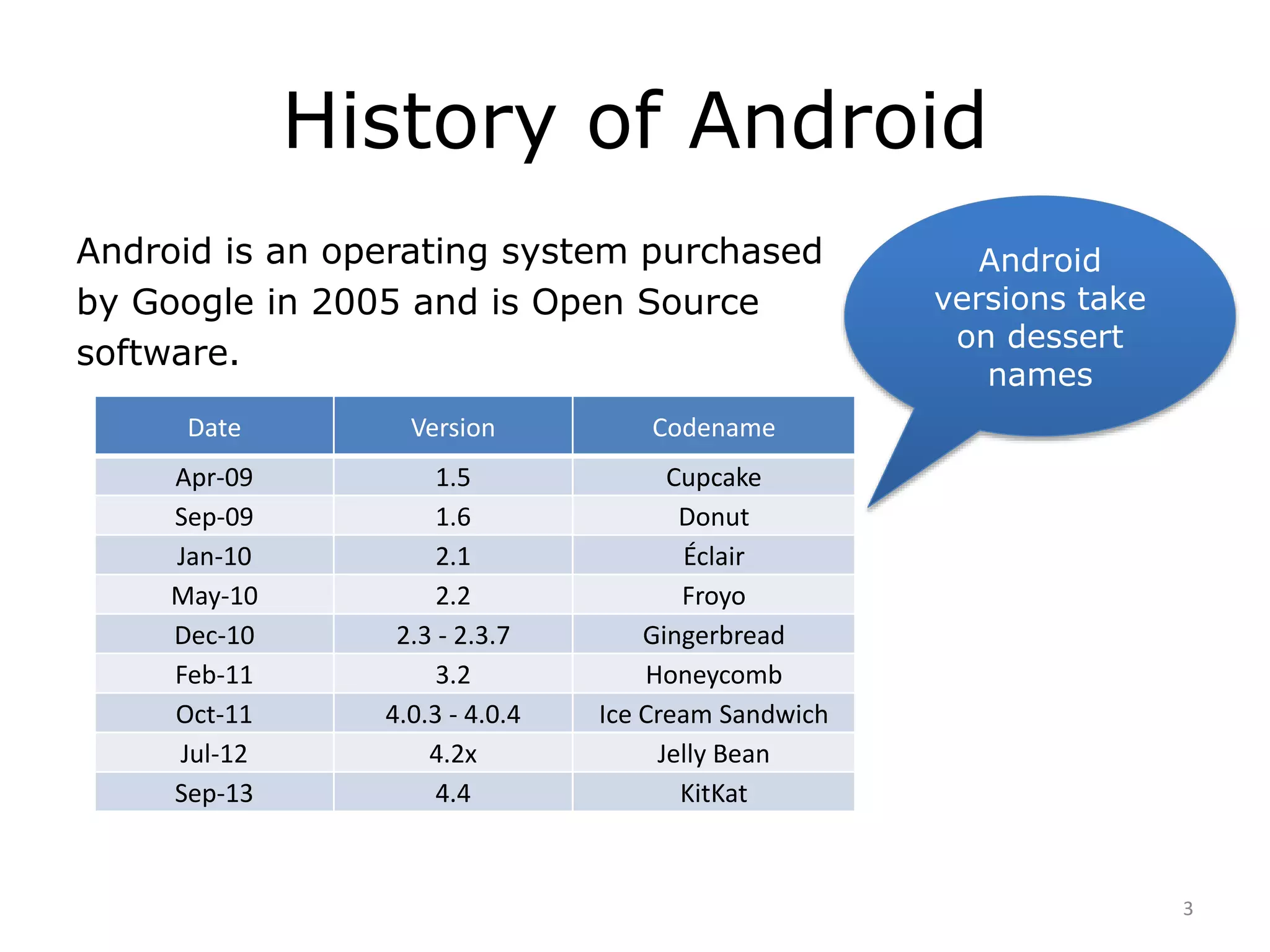
History of Android 
Android is an operating system purchased 
by Google in 2005 and is Open Source 
software. 
3 
Date Version Codename 
Apr-09 1.5 Cupcake 
Sep-09 1.6 Donut 
Jan-10 2.1 Éclair 
May-10 2.2 Froyo 
Dec-10 2.3 - 2.3.7 Gingerbread 
Feb-11 3.2 Honeycomb 
Oct-11 4.0.3 - 4.0.4 Ice Cream Sandwich 
Jul-12 4.2x Jelly Bean 
Sep-13 4.4 KitKat 
Android 
versions take 
on dessert 
names
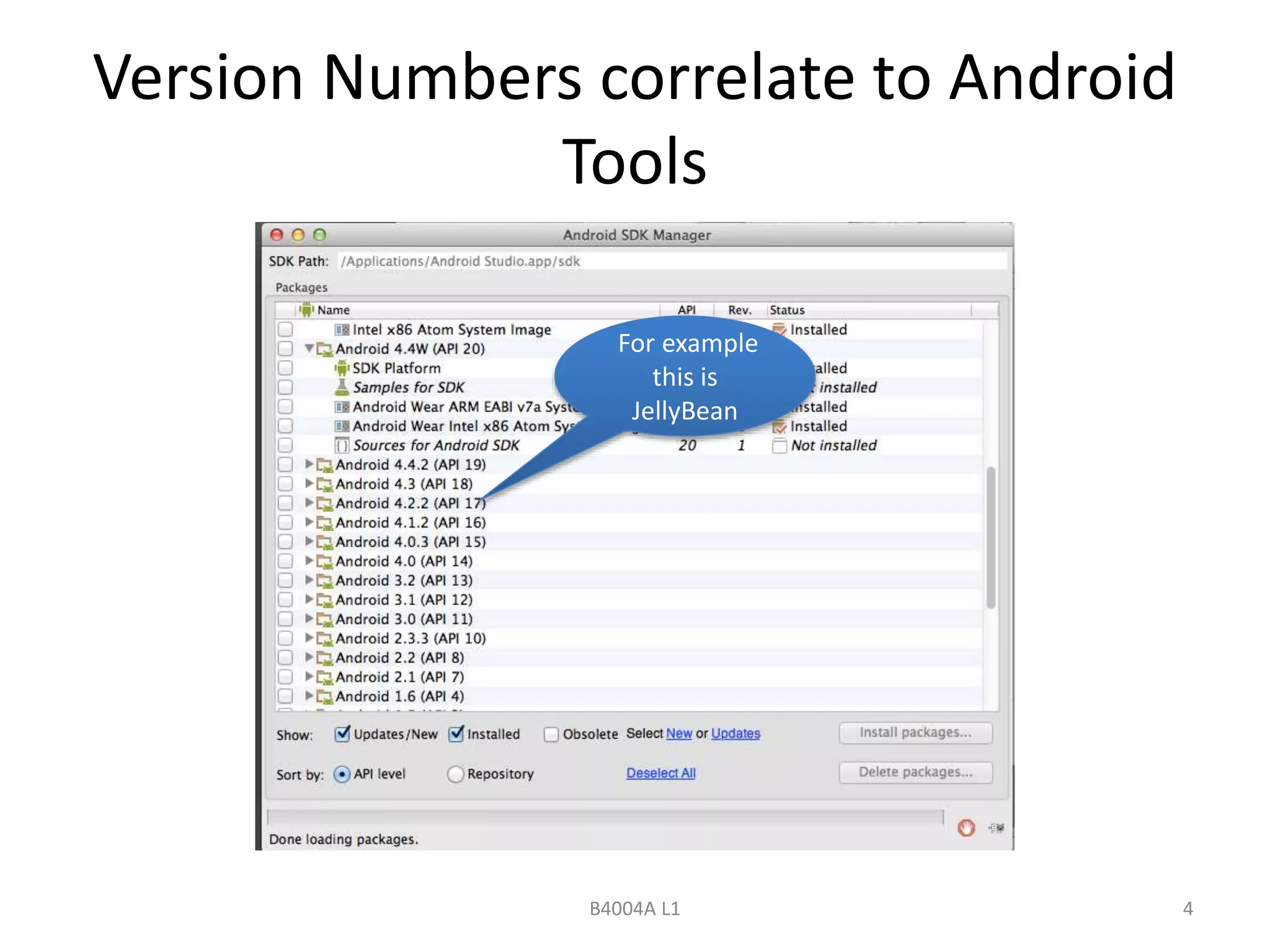
Version Numbers correlate to Android 
Tools 
For example 
this is 
JellyBean 
B4004A L1 4
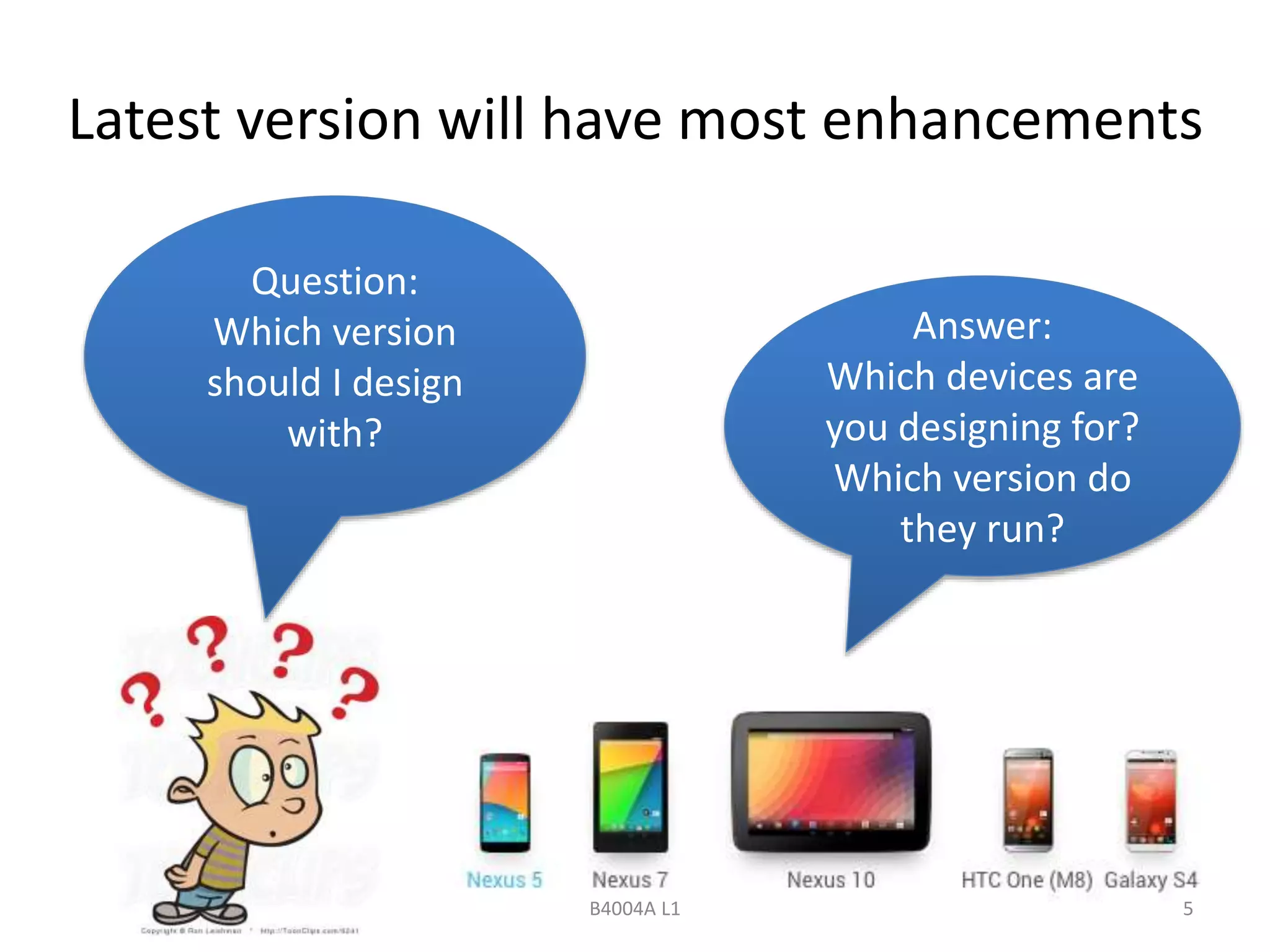
Latest version will have most enhancements 
B4004A L1 5 
Question: 
Which version 
should I design 
with? 
Answer: 
Which devices are 
you designing for? 
Which version do 
they run?
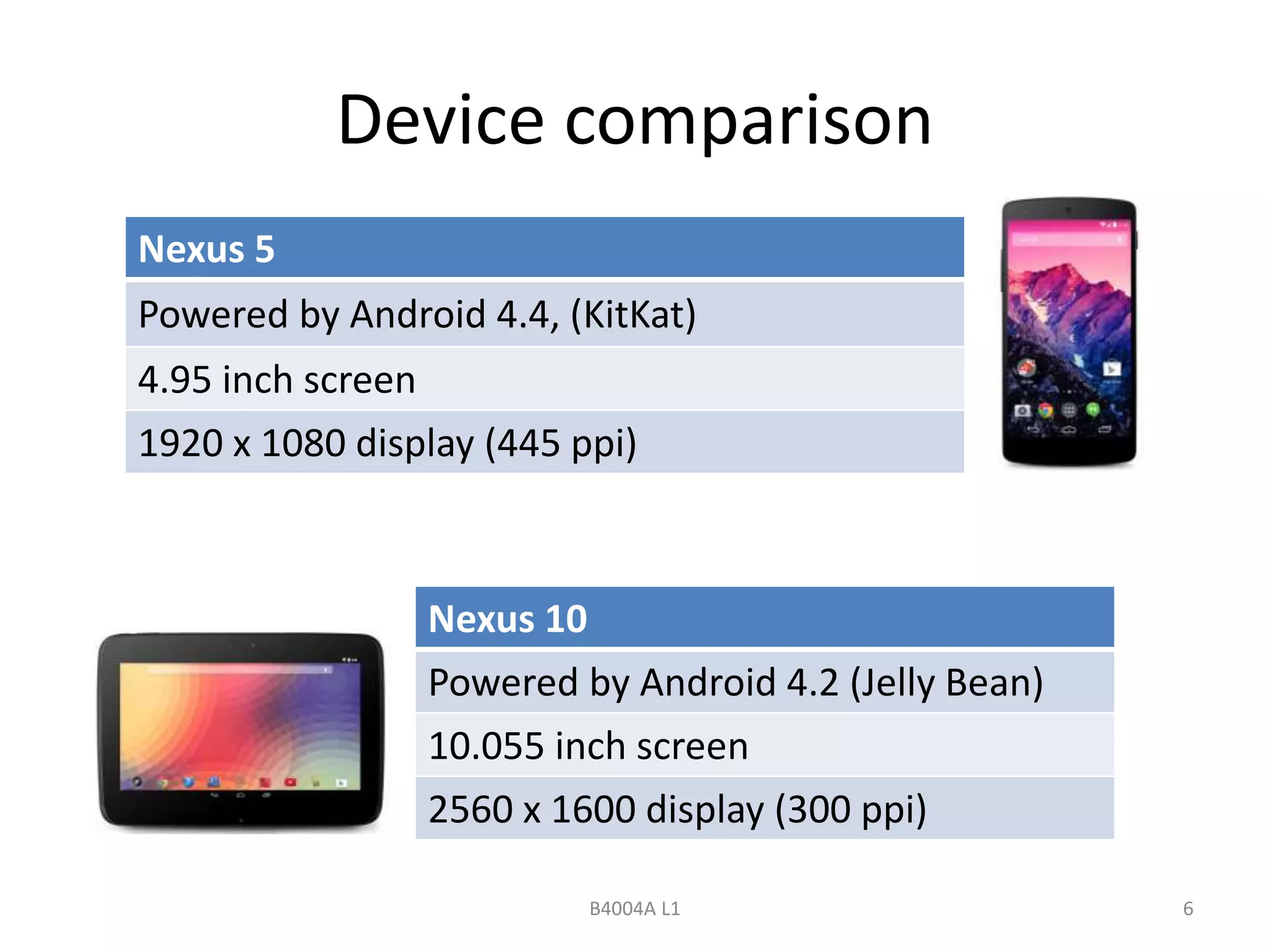
Device comparison 
Nexus 5 
Powered by Android 4.4, (KitKat) 
4.95 inch screen 
1920 x 1080 display (445 ppi) 
Nexus 10 
Powered by Android 4.2 (Jelly Bean) 
10.055 inch screen 
2560 x 1600 display (300 ppi) 
B4004A L1 6
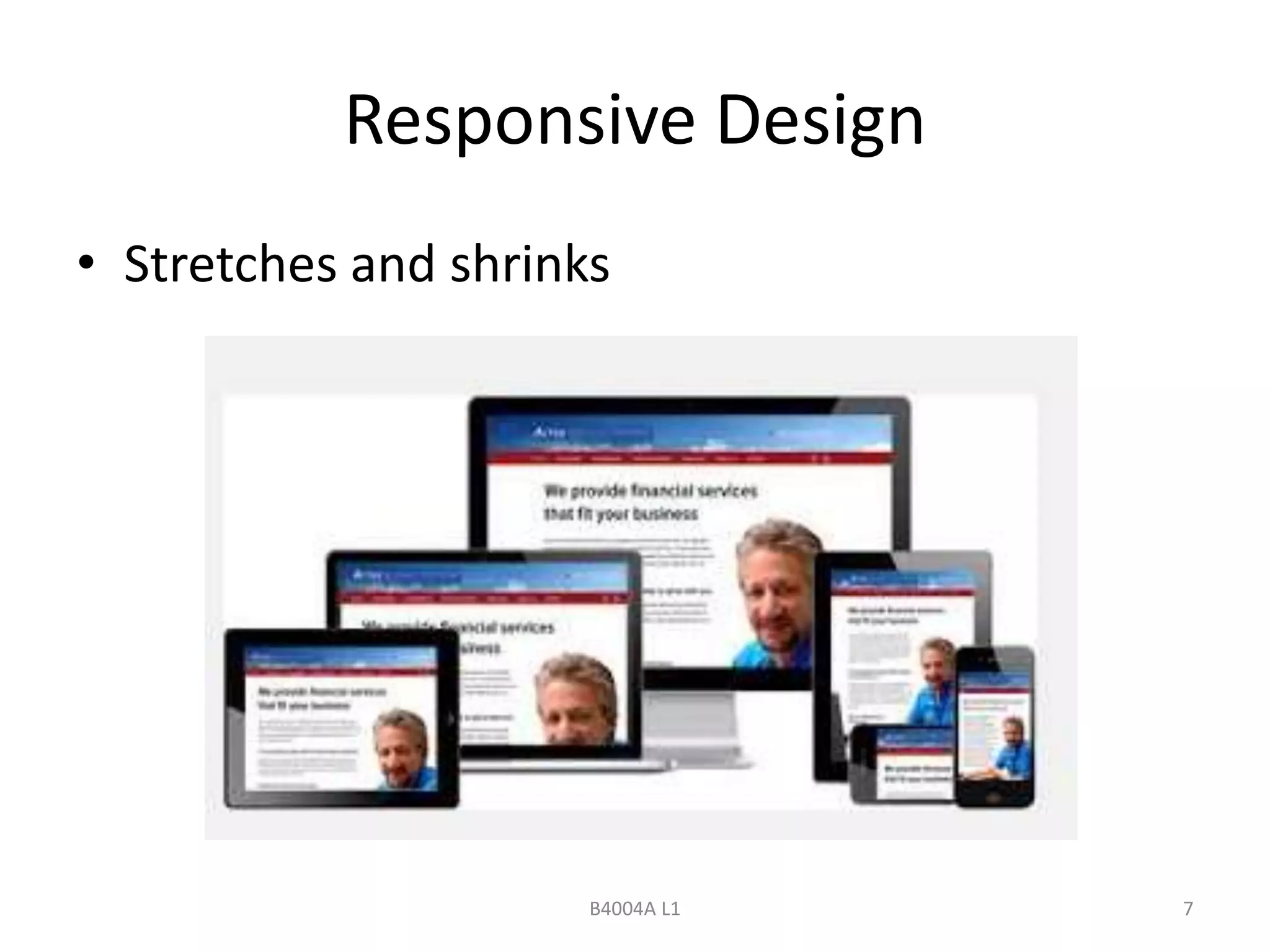
Responsive Design 
• Stretches and shrinks 
B4004A L1 7
Main measurements to use in code 
• px is one pixel; 
• sp is scale-independent pixels; 
• dp is Density-independent pixels (previous 
known as “dip”). 
Best use: 
• Use sp for font sizes; 
• Use dp for everything else. 
B4004A L1 8
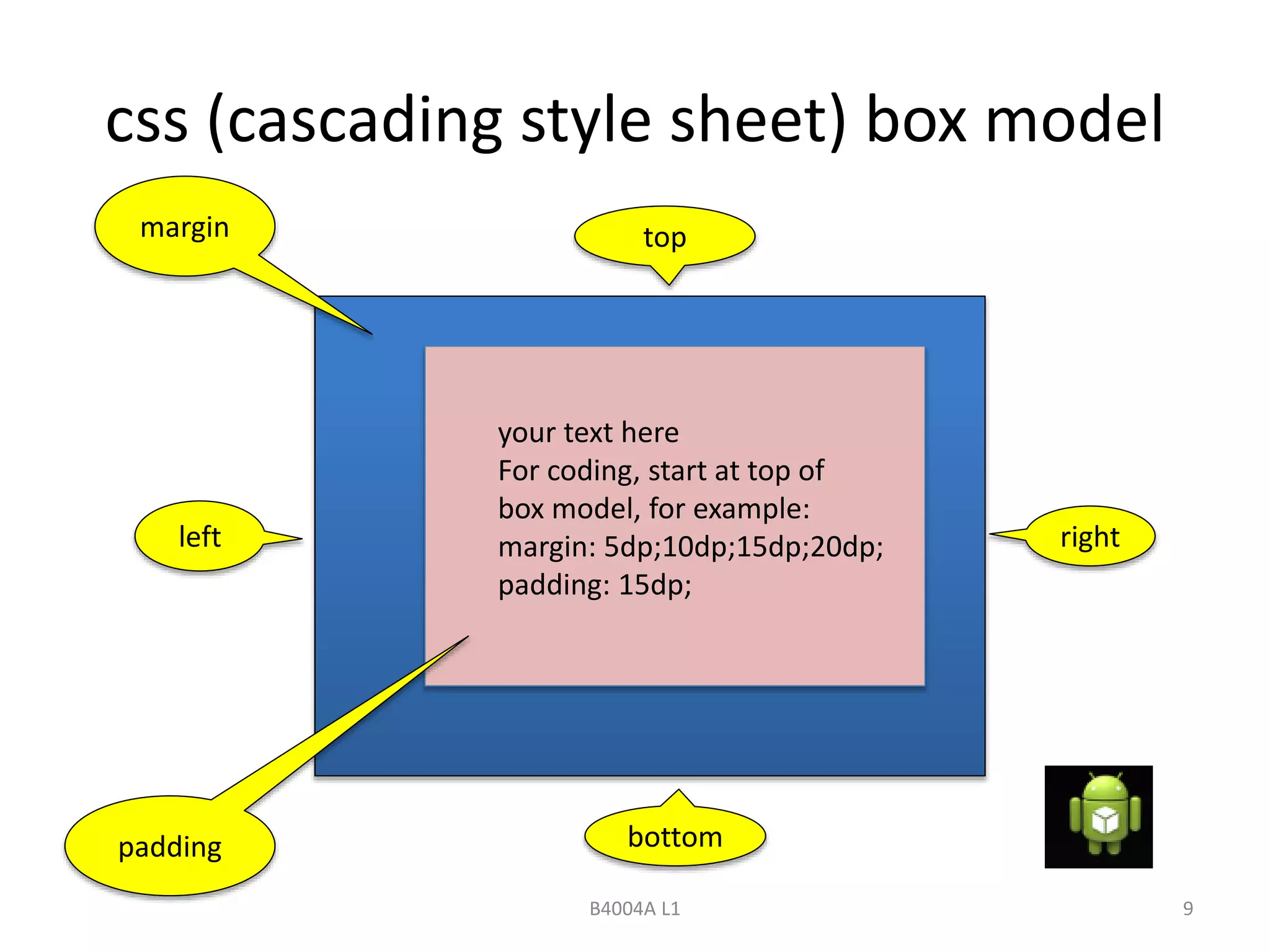
css (cascading style sheet) box model 
top 
left right 
bottom 
B4004A L1 9 
margin 
your text here 
For coding, start at top of 
box model, for example: 
margin: 5dp;10dp;15dp;20dp; 
padding: 15dp; 
padding
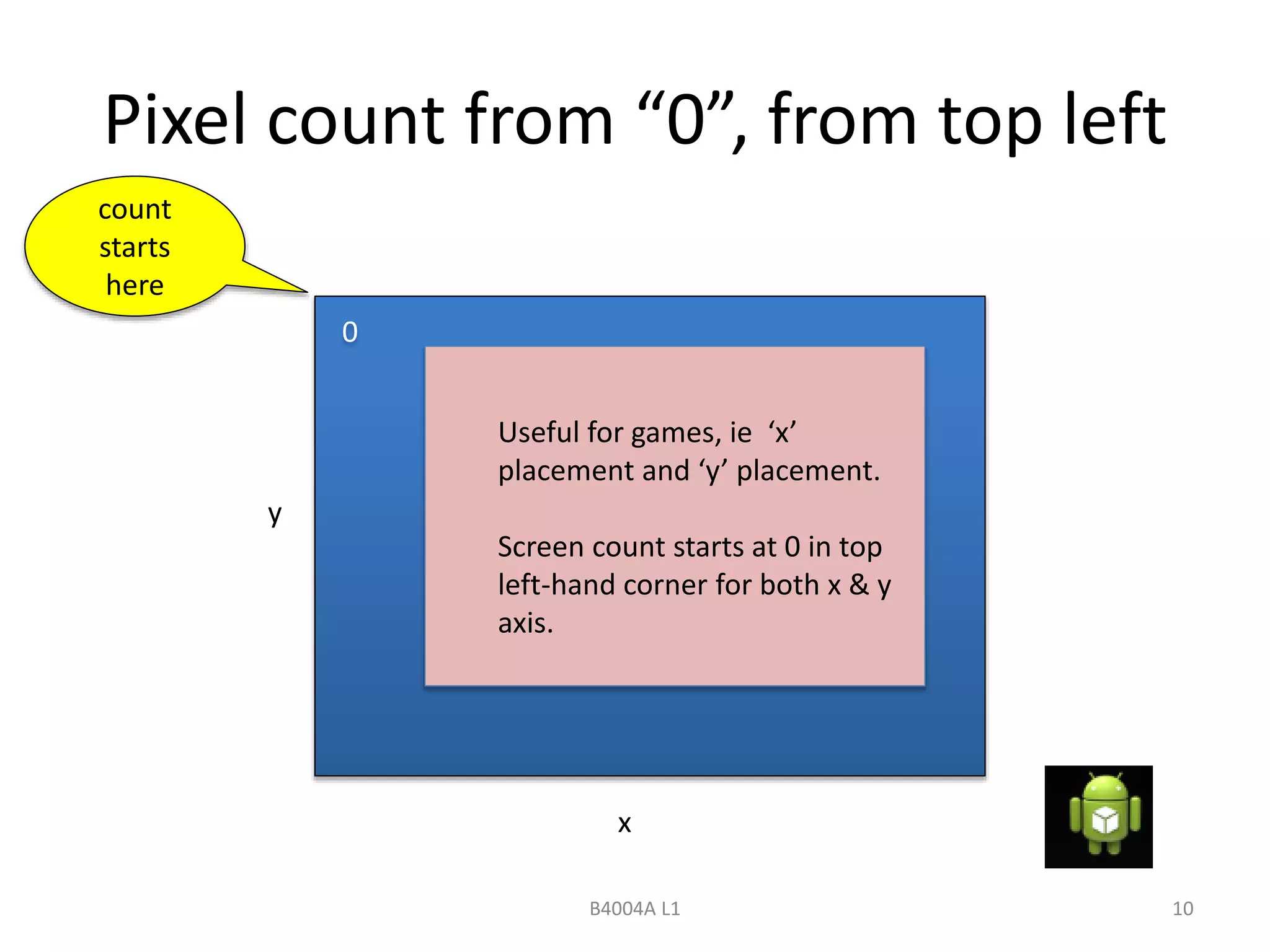
Pixel count from “0”, from top left 
B4004A L1 10 
count 
starts 
here 
Useful for games, ie ‘x’ 
placement and ‘y’ placement. 
Screen count starts at 0 in top 
left-hand corner for both x & y 
axis. 
0 
y 
x
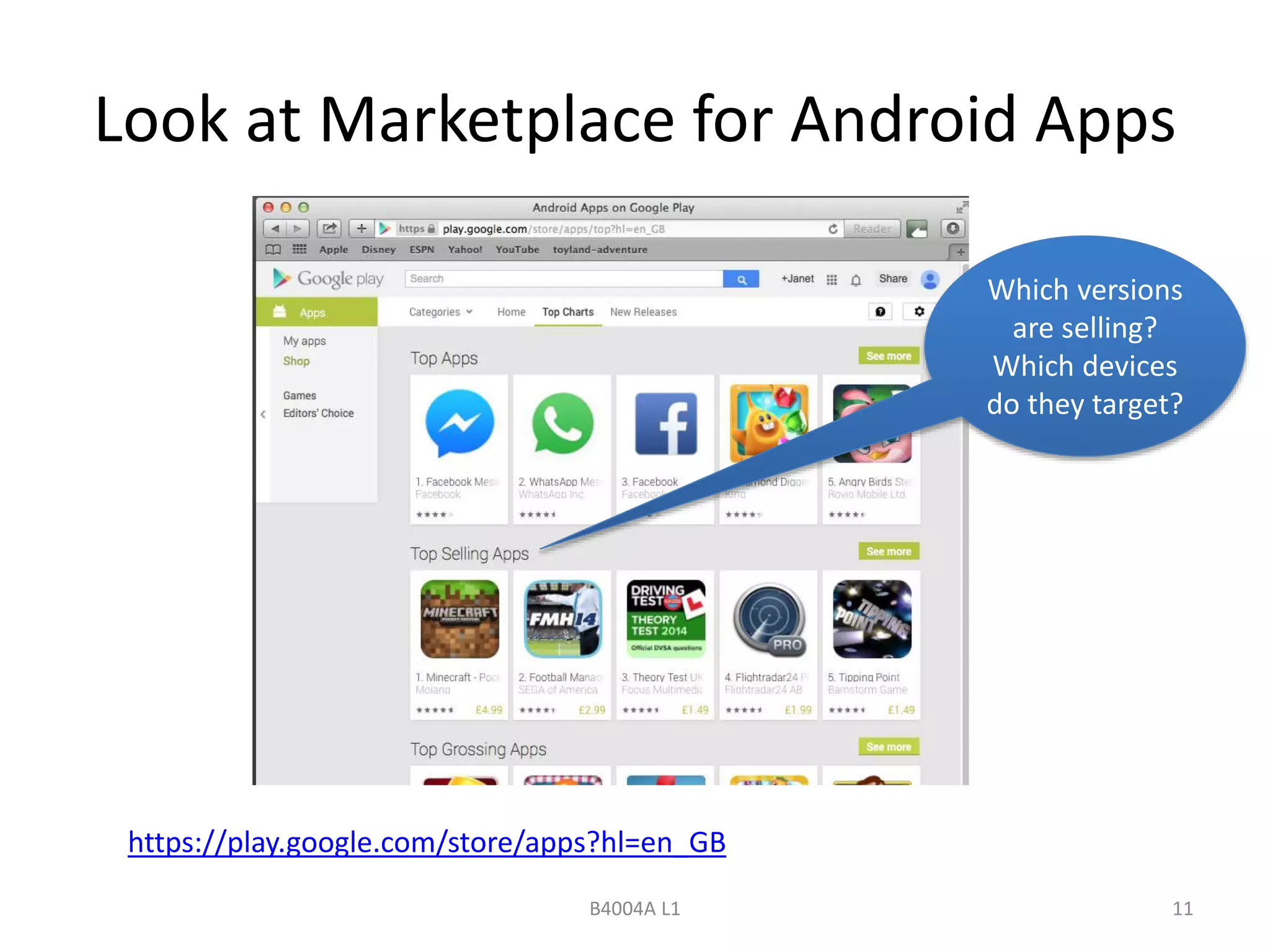
Look at Marketplace for Android Apps 
https://play.google.com/store/apps?hl=en_GB 
Which versions 
are selling? 
Which devices 
do they target? 
B4004A L1 11
How to make the decision … 
• Decide on devices: 
– what is the expected end use? 
• mobile or tablet? 
– selecting only one device? 
• will this decision narrow the market for sales of your app? 
– collate your measurements and parameters 
• Android versions, screen sizes and resolutions; 
– Android version is backwards compatible 
• select the lowest Android version from your chosen devices for 
your app design; 
– Emulator 
• move on to set up the Emulator with the parameters required so 
that the App may be tested to meet the requirements of the end 
use device and operating system. 
B4004A L1 12
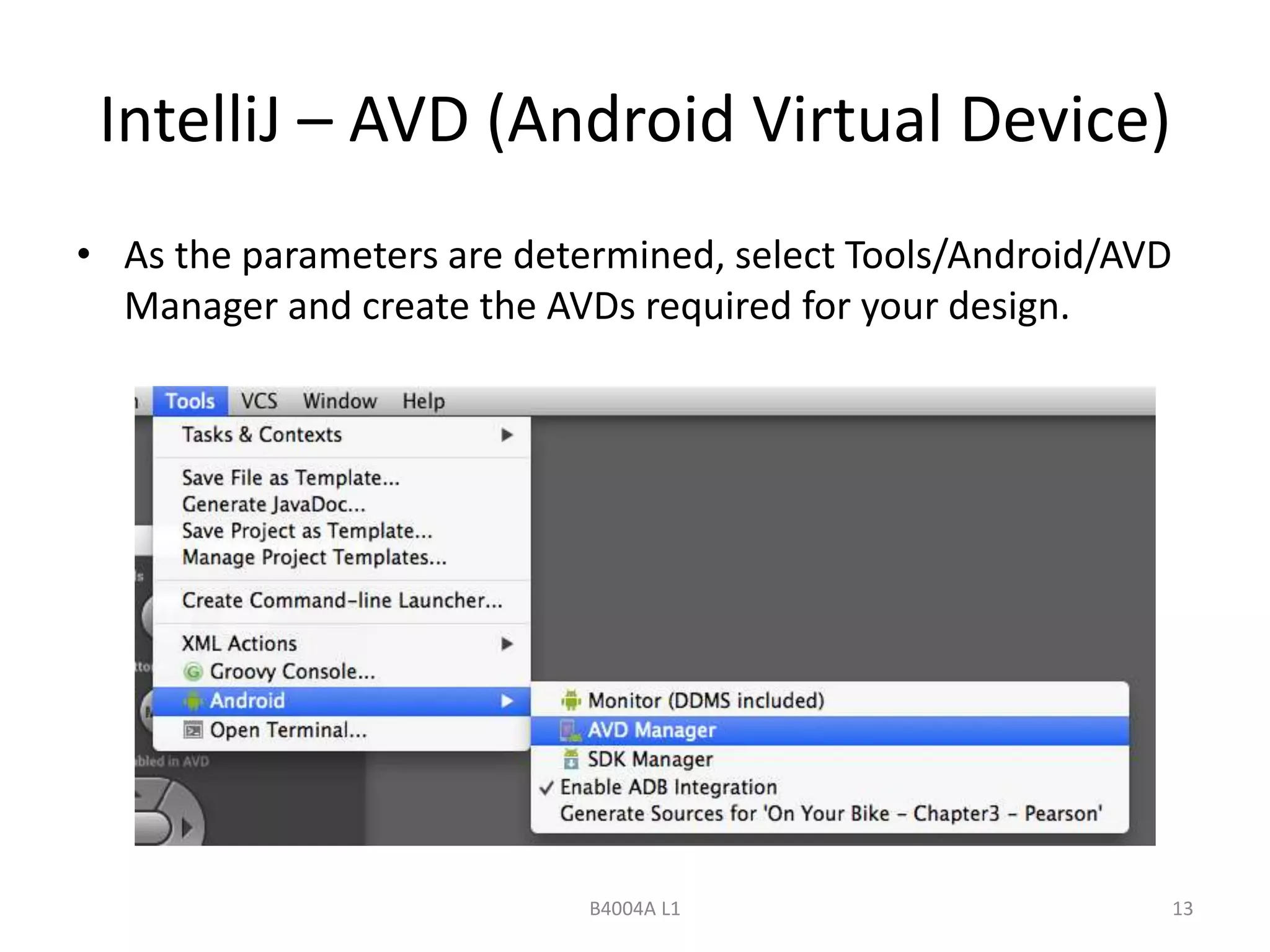
IntelliJ – AVD (Android Virtual Device) 
• As the parameters are determined, select Tools/Android/AVD 
Manager and create the AVDs required for your design. 
B4004A L1 13
End of basic display information 
… next an introduction to files, strings, colours 
and layout … 
B4004A L1 14
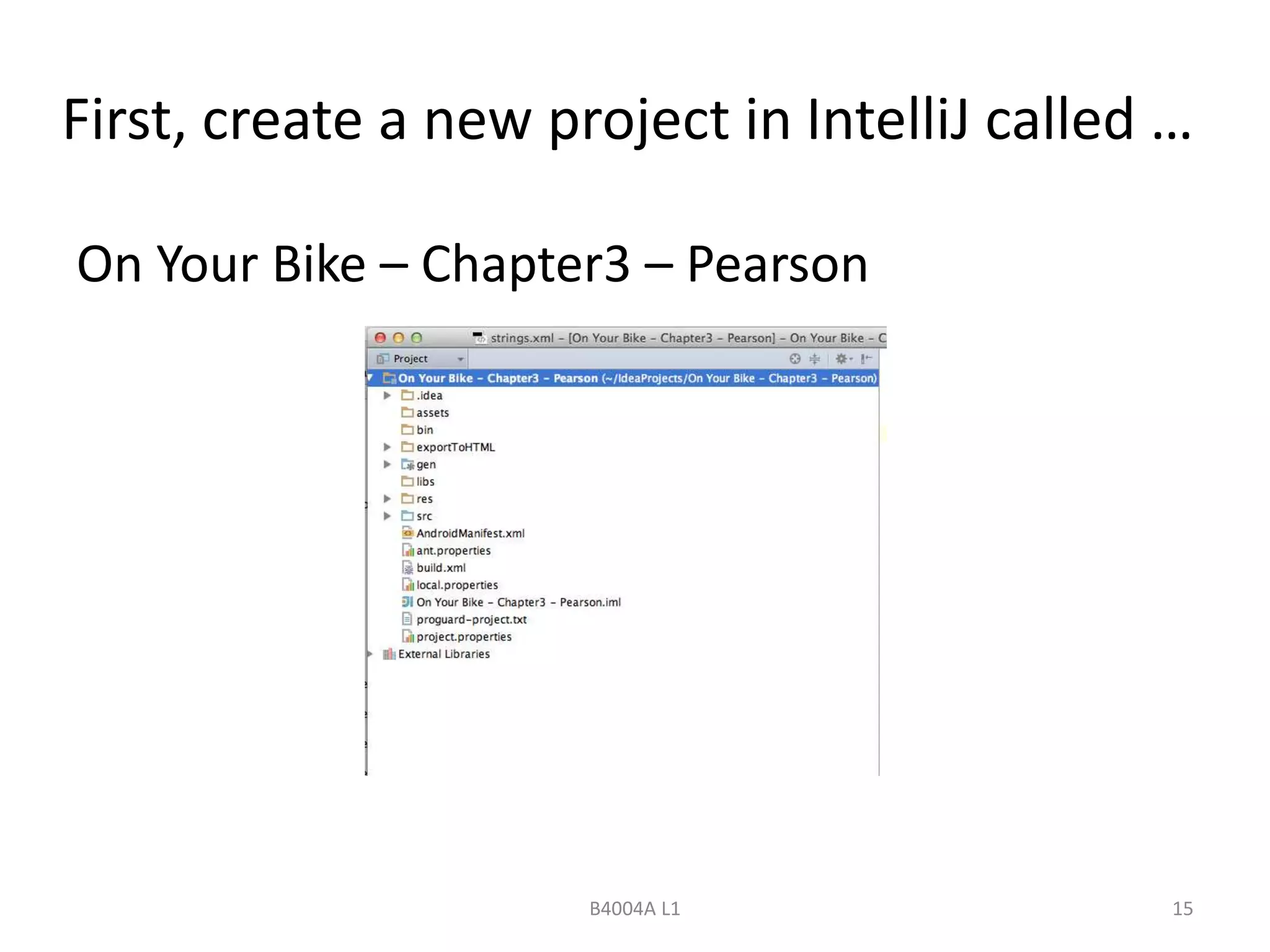
First, create a new project in IntelliJ called … 
On Your Bike – Chapter3 – Pearson 
B4004A L1 15
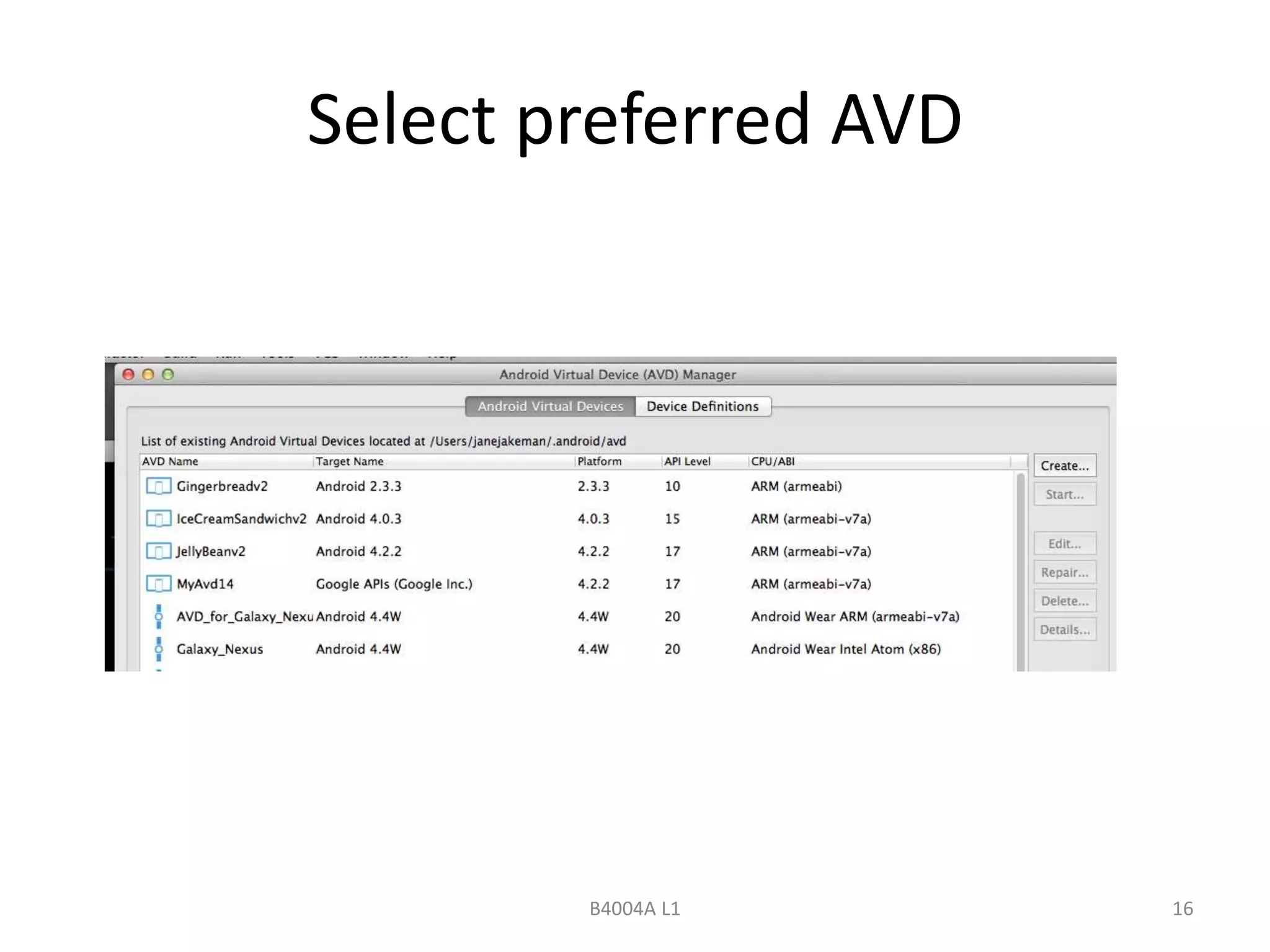
Select preferred AVD 
B4004A L1 16
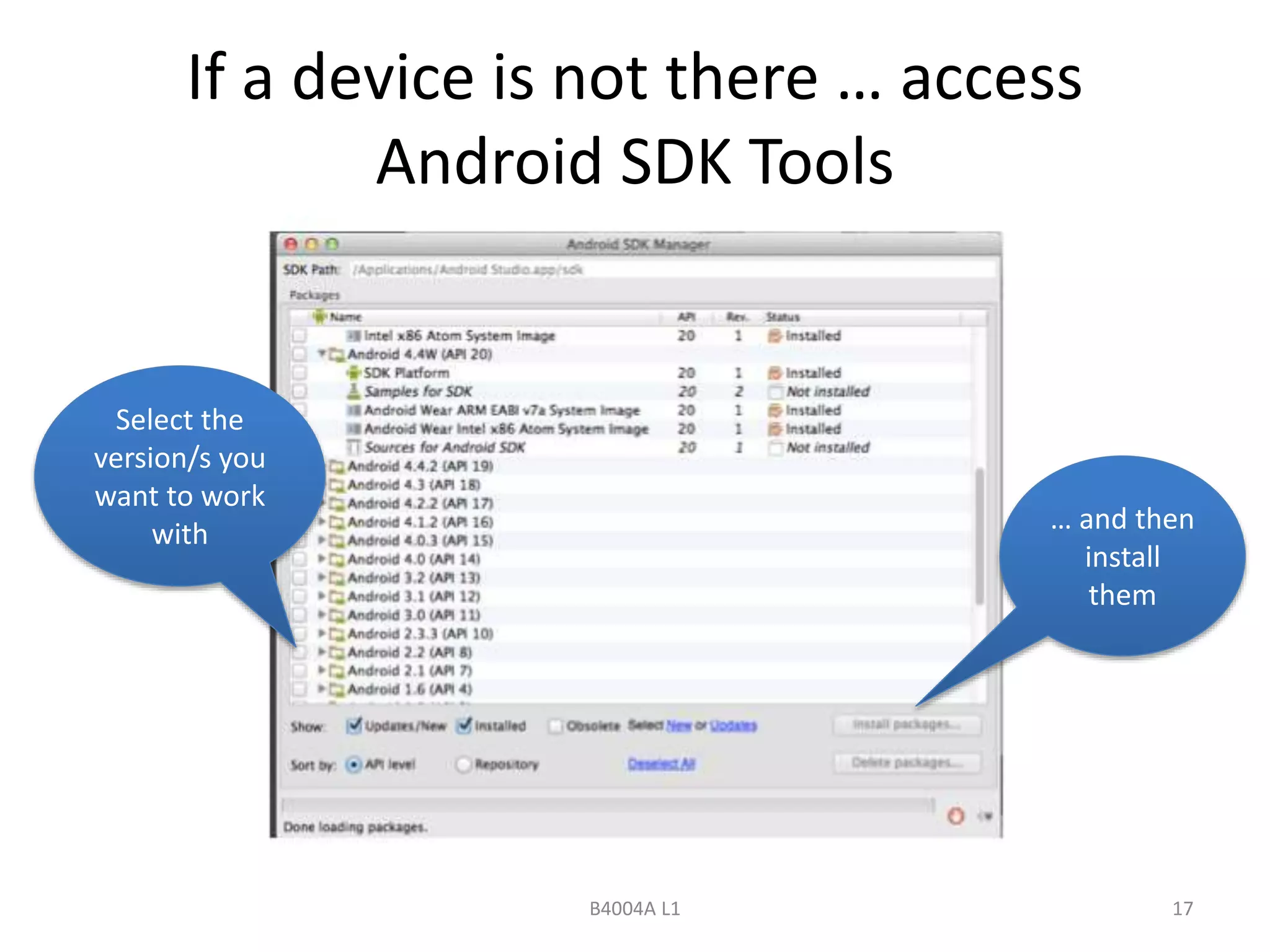
If a device is not there … access 
Android SDK Tools 
B4004A L1 17 
Select the 
version/s you 
want to work 
with … and then 
install 
them
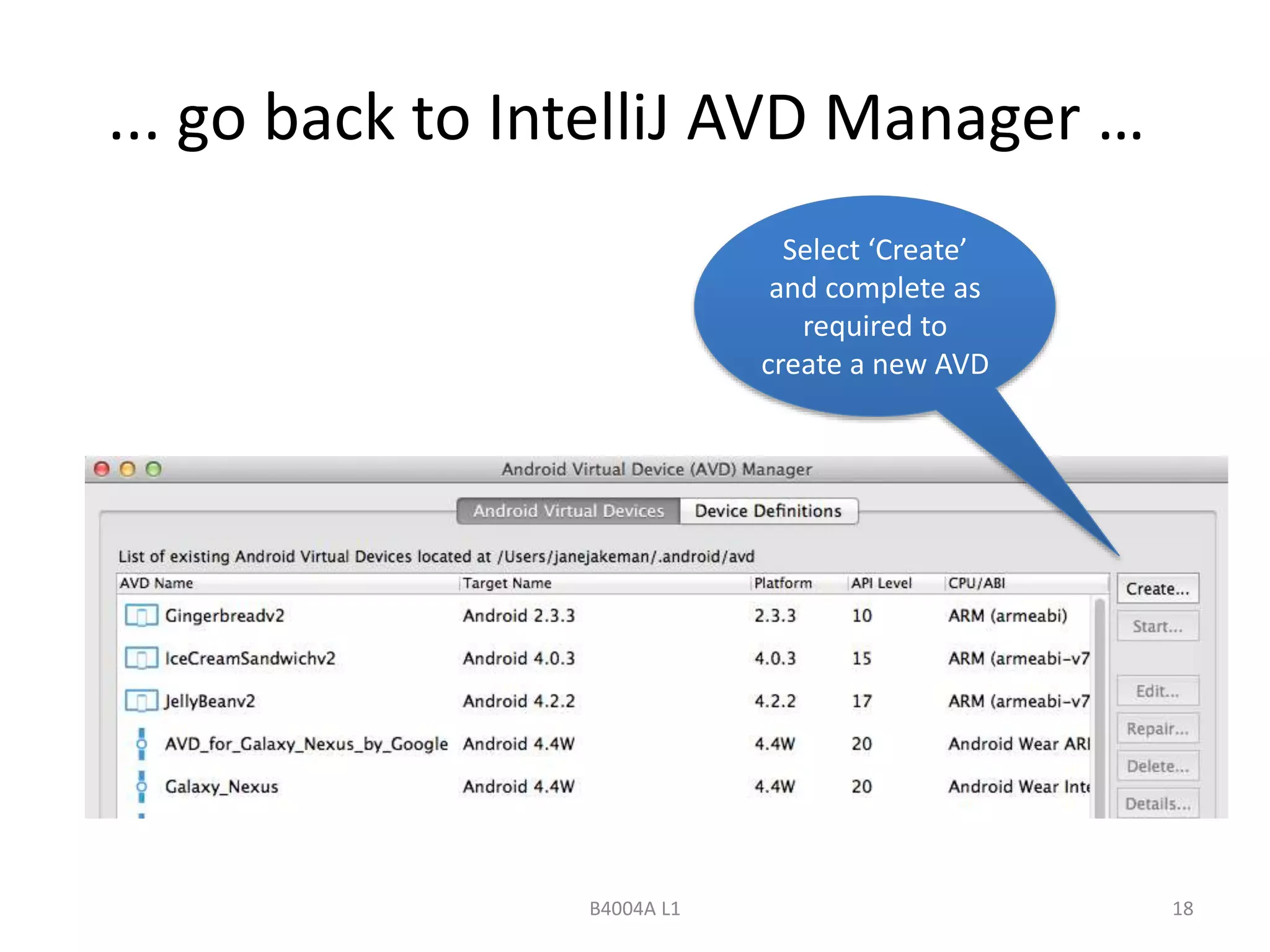
... go back to IntelliJ AVD Manager … 
Select ‘Create’ 
and complete as 
required to 
create a new AVD 
B4004A L1 18
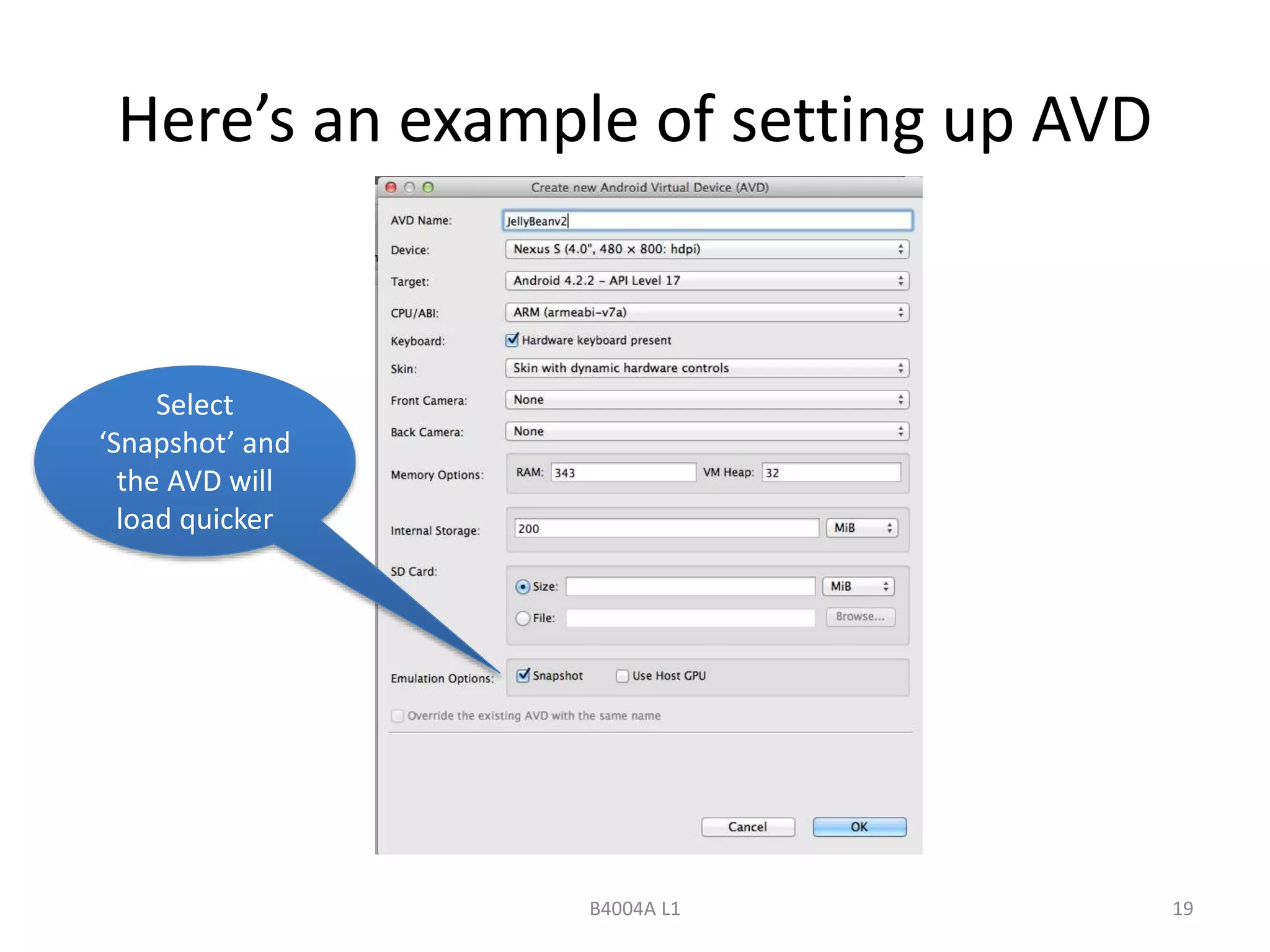
Here’s an example of setting up AVD 
B4004A L1 19 
Select 
‘Snapshot’ and 
the AVD will 
load quicker
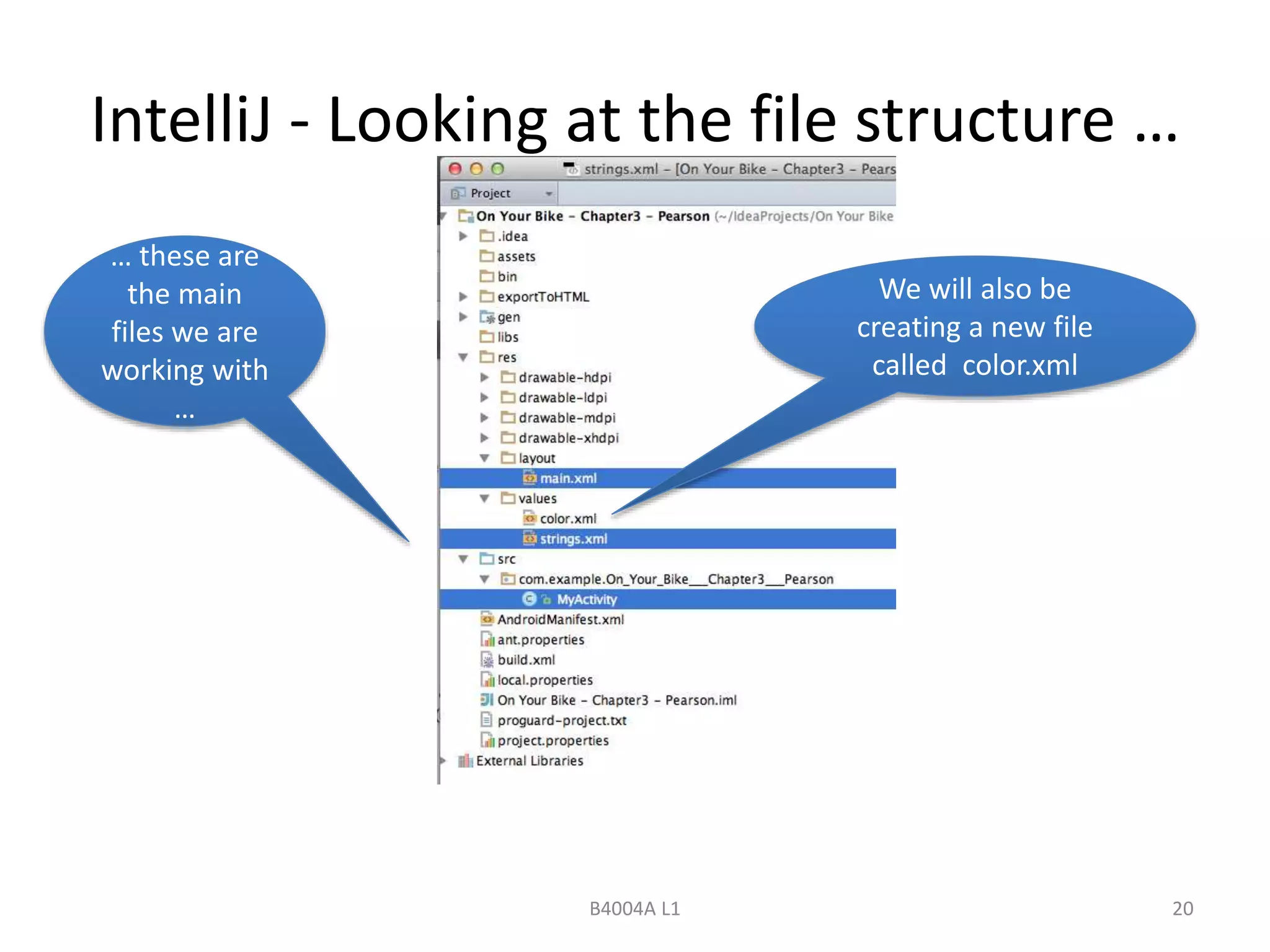
IntelliJ - Looking at the file structure … 
B4004A L1 20 
… these are 
the main 
files we are 
working with 
… 
We will also be 
creating a new file 
called color.xml
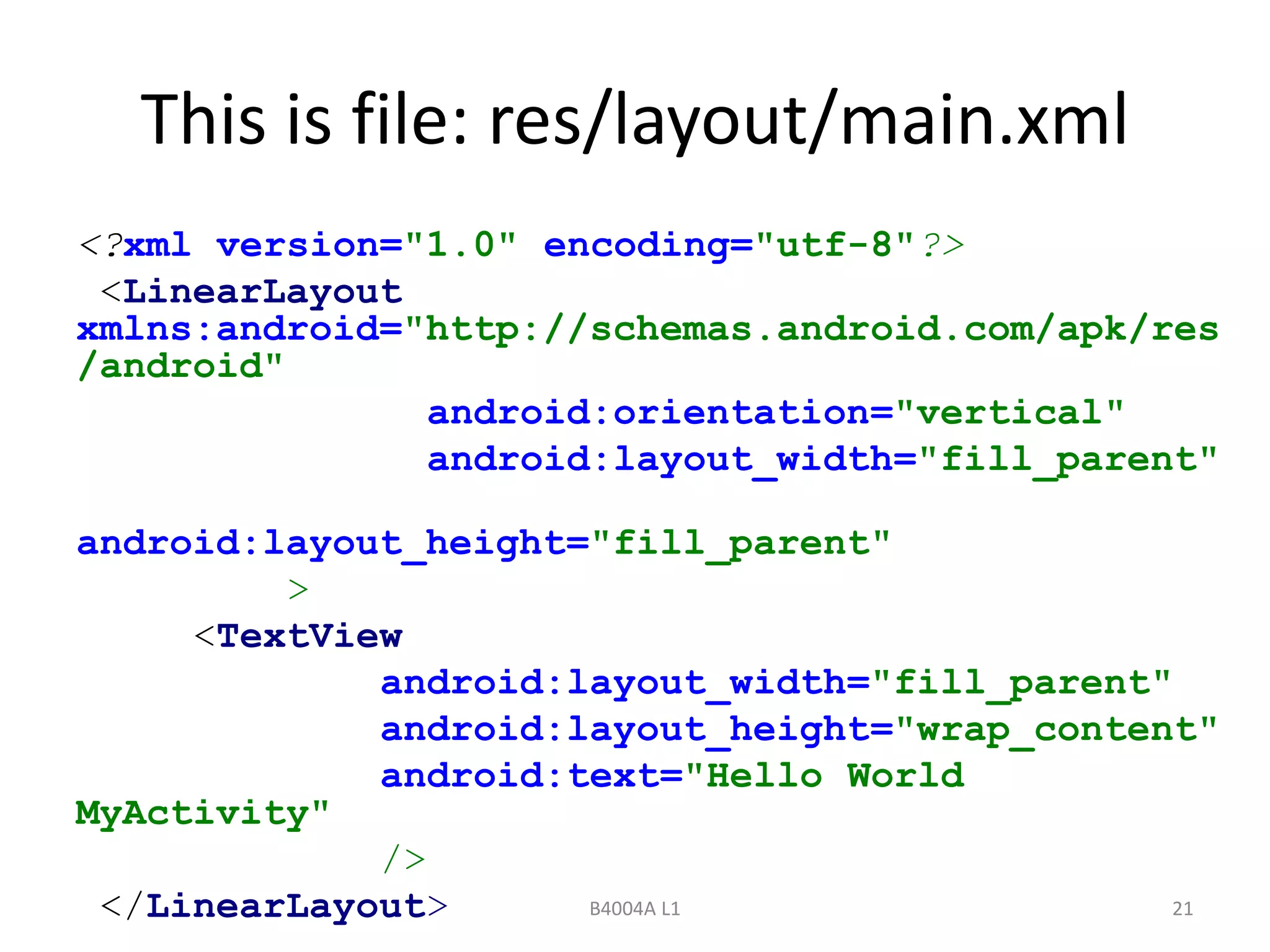
This is file: res/layout/main.xml 
<?xml version="1.0" encoding="utf-8"?> 
<LinearLayout 
xmlns:android="http://schemas.android.com/apk/res 
/android" 
android:orientation="vertical" 
android:layout_width="fill_parent" 
android:layout_height="fill_parent" 
B4004A L1 21 
> 
<TextView 
android:layout_width="fill_parent" 
android:layout_height="wrap_content" 
android:text="Hello World 
MyActivity" 
/> 
</LinearLayout>
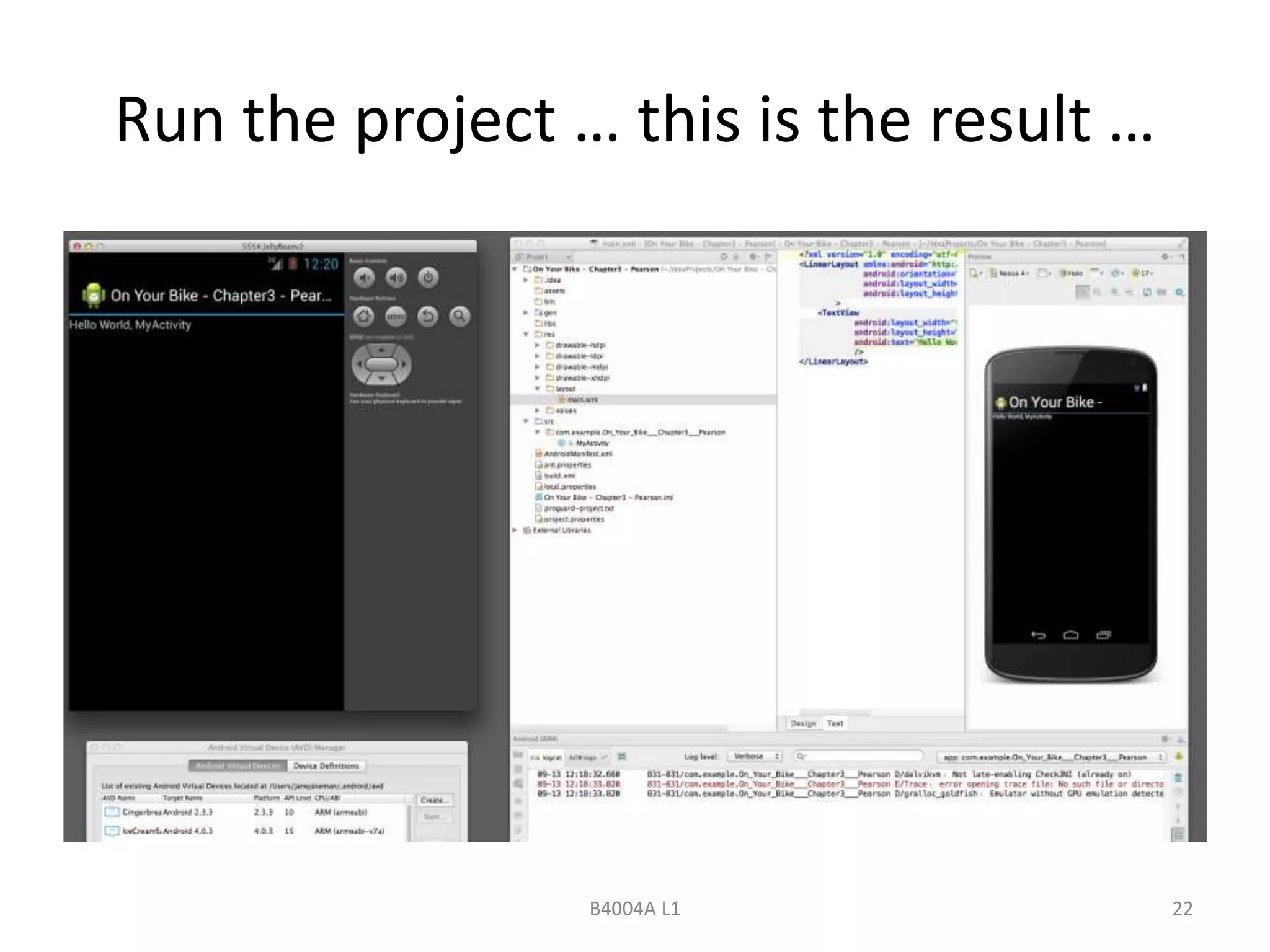
Run the project … this is the result … 
B4004A L1 22
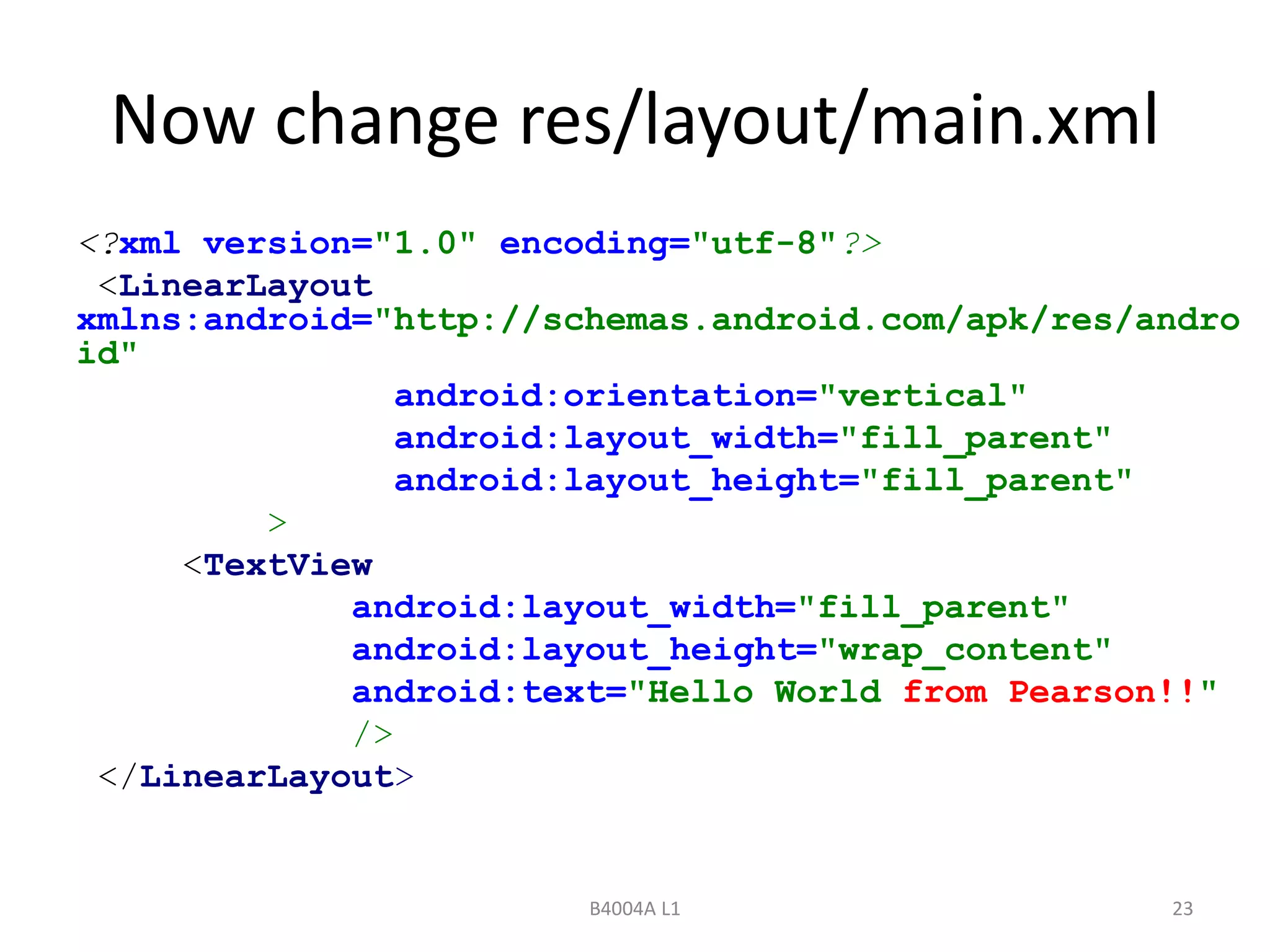
Now change res/layout/main.xml 
<?xml version="1.0" encoding="utf-8"?> 
<LinearLayout 
xmlns:android="http://schemas.android.com/apk/res/andro 
id" 
android:orientation="vertical" 
android:layout_width="fill_parent" 
android:layout_height="fill_parent" 
B4004A L1 23 
> 
<TextView 
android:layout_width="fill_parent" 
android:layout_height="wrap_content" 
android:text="Hello World from Pearson!!" 
/> 
</LinearLayout>
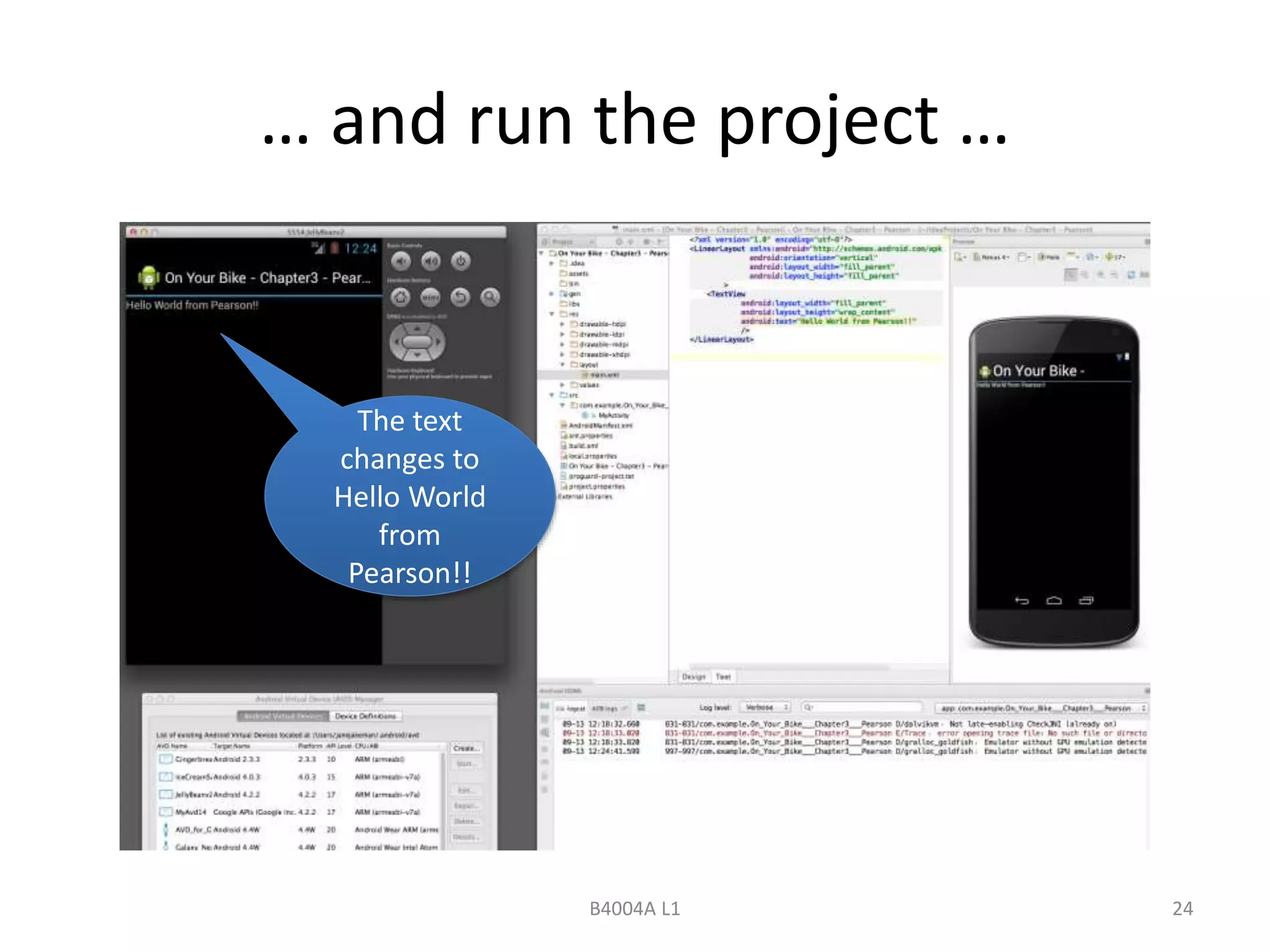
… and run the project … 
B4004A L1 24 
The text 
changes to 
Hello World 
from 
Pearson!!
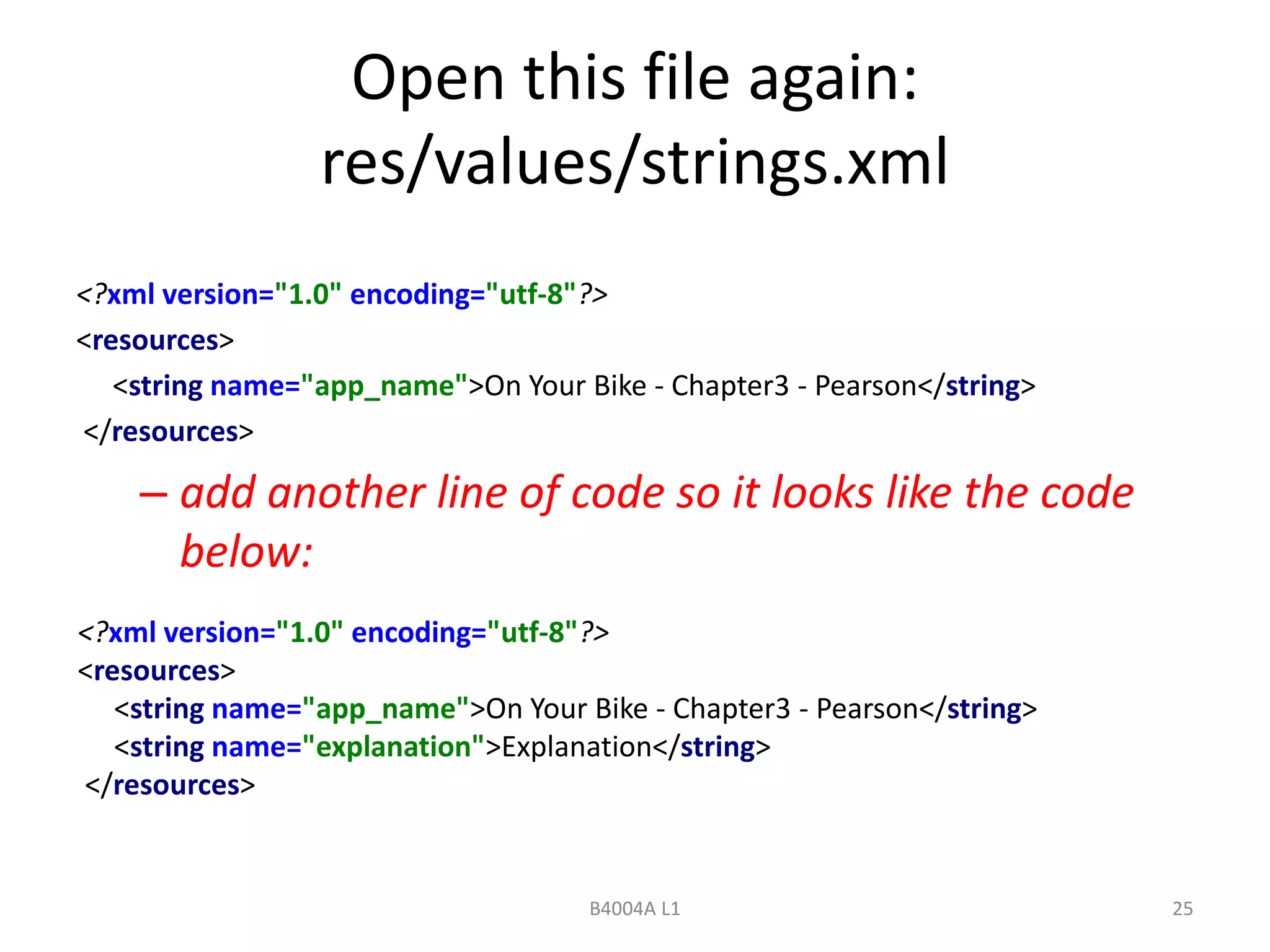
Open this file again: 
res/values/strings.xml 
<?xml version="1.0" encoding="utf-8"?> 
<resources> 
<string name="app_name">On Your Bike - Chapter3 - Pearson</string> 
</resources> 
– add another line of code so it looks like the code 
below: 
<?xml version="1.0" encoding="utf-8"?> 
<resources> 
<string name="app_name">On Your Bike - Chapter3 - Pearson</string> 
<string name="explanation">Explanation</string> 
</resources> 
B4004A L1 25
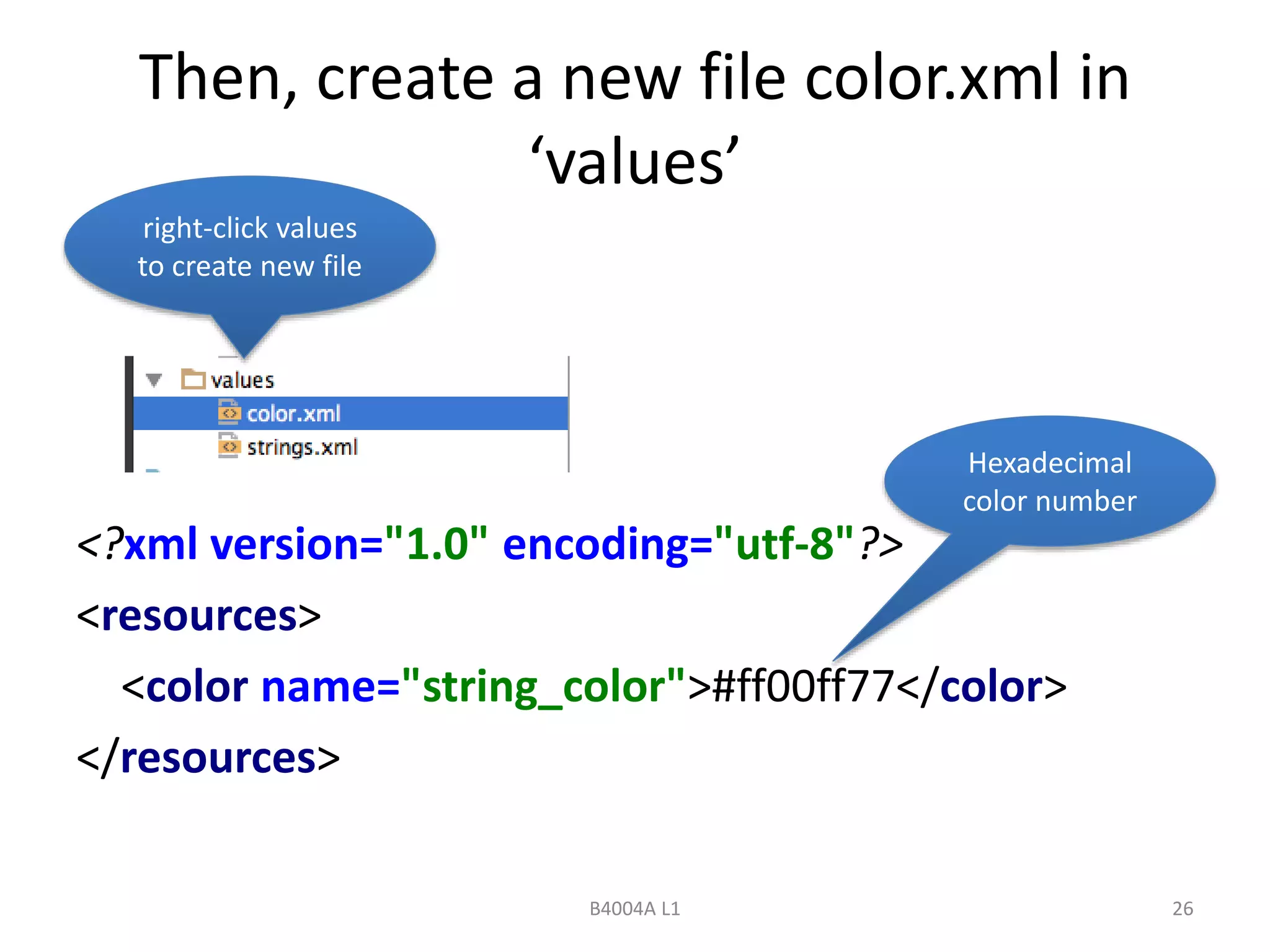
Then, create a new file color.xml in 
‘values’ 
Hexadecimal 
color number 
<?xml version="1.0" encoding="utf-8"?> 
<resources> 
<color name="string_color">#ff00ff77</color> 
</resources> 
B4004A L1 26 
right-click values 
to create new file
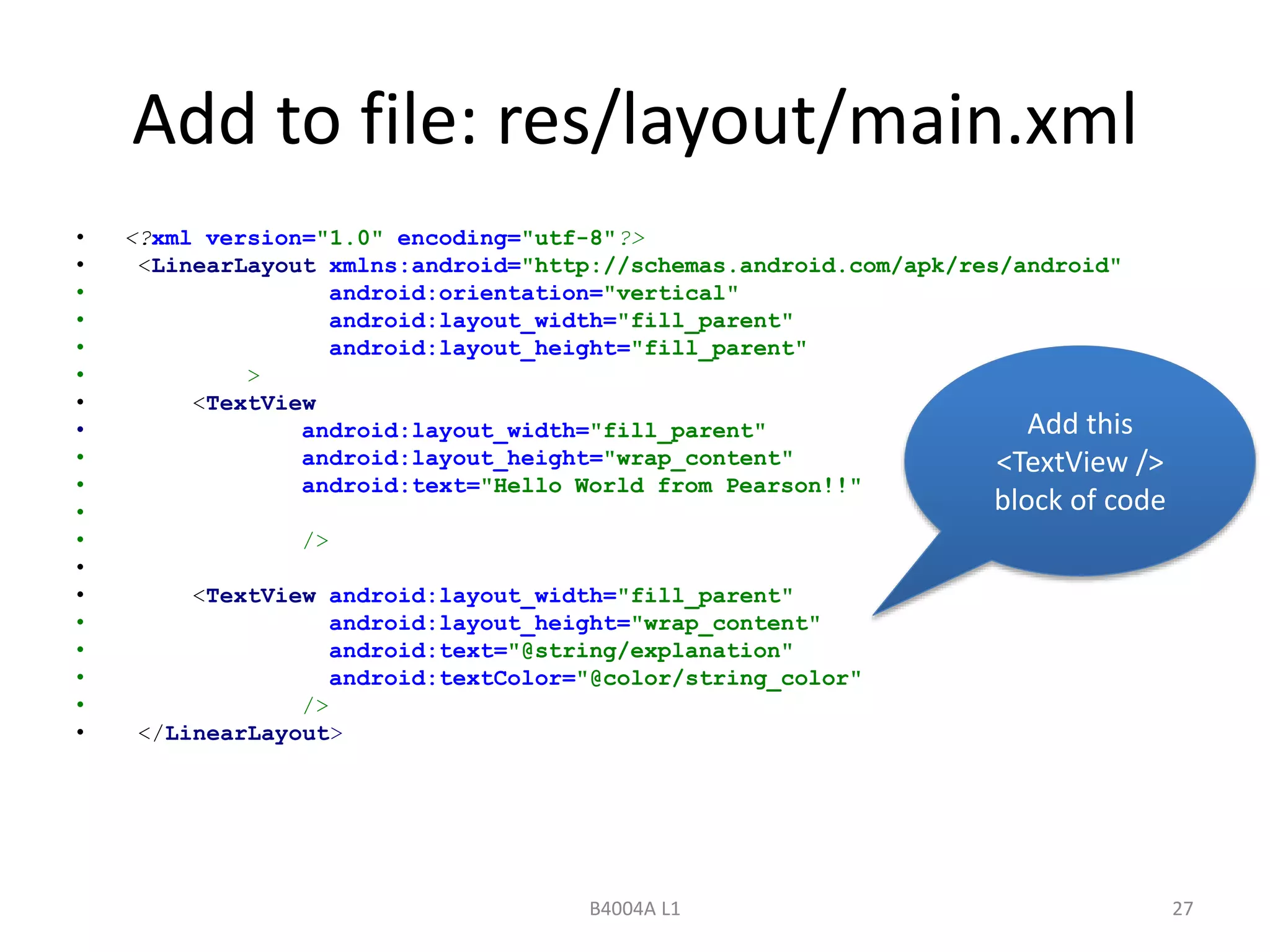
Add to file: res/layout/main.xml 
• <?xml version="1.0" encoding="utf-8"?> 
• <LinearLayout xmlns:android="http://schemas.android.com/apk/res/android" 
• android:orientation="vertical" 
• android:layout_width="fill_parent" 
• android:layout_height="fill_parent" 
• > 
• <TextView 
• android:layout_width="fill_parent" 
• android:layout_height="wrap_content" 
• android:text="Hello World from Pearson!!" 
• 
• /> 
• 
• <TextView android:layout_width="fill_parent" 
• android:layout_height="wrap_content" 
• android:text="@string/explanation" 
• android:textColor="@color/string_color" 
• /> 
• </LinearLayout> 
Add this 
<TextView /> 
block of code 
B4004A L1 27
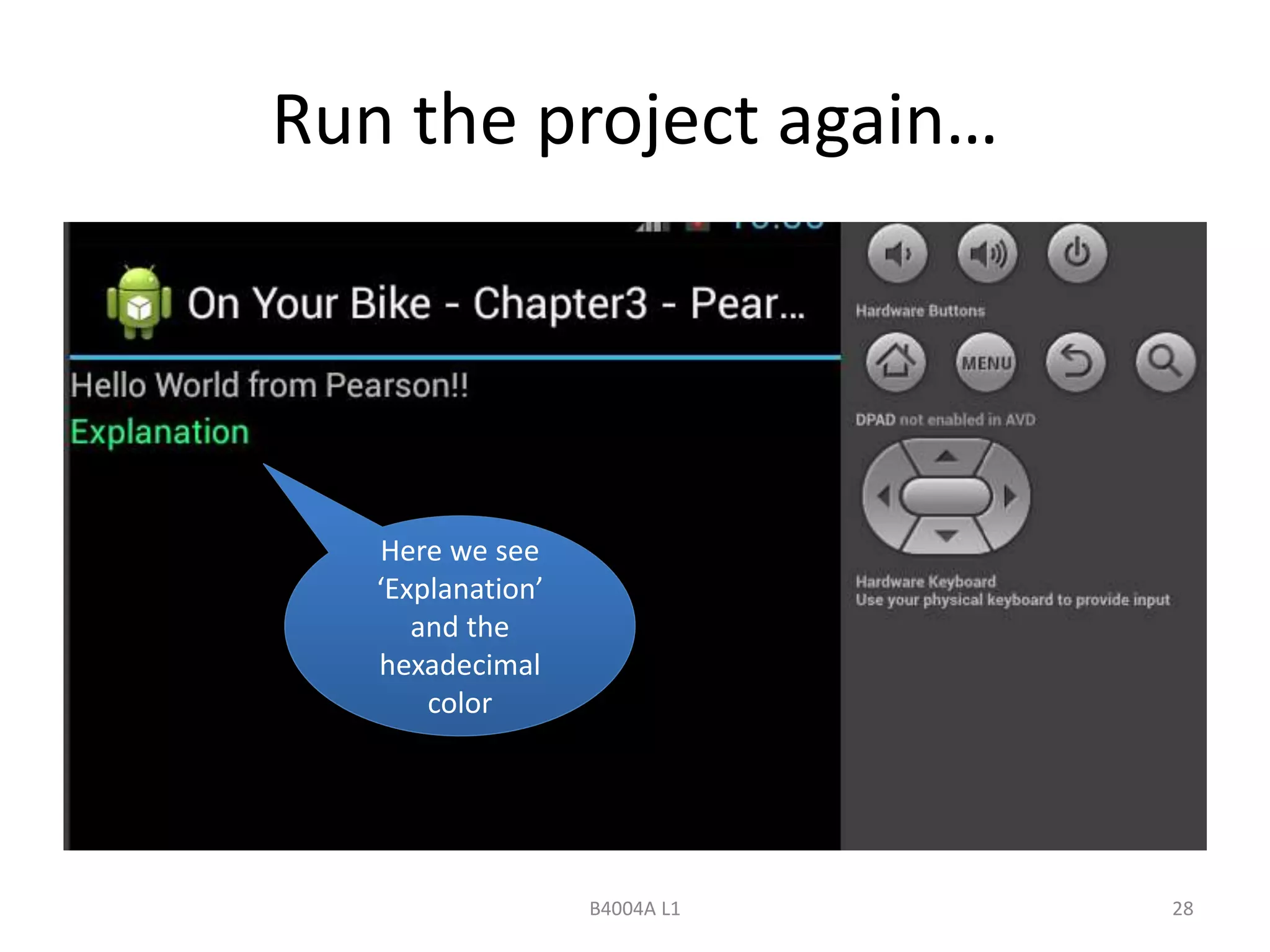
Run the project again… 
B4004A L1 28 
Here we see 
‘Explanation’ 
and the 
hexadecimal 
color
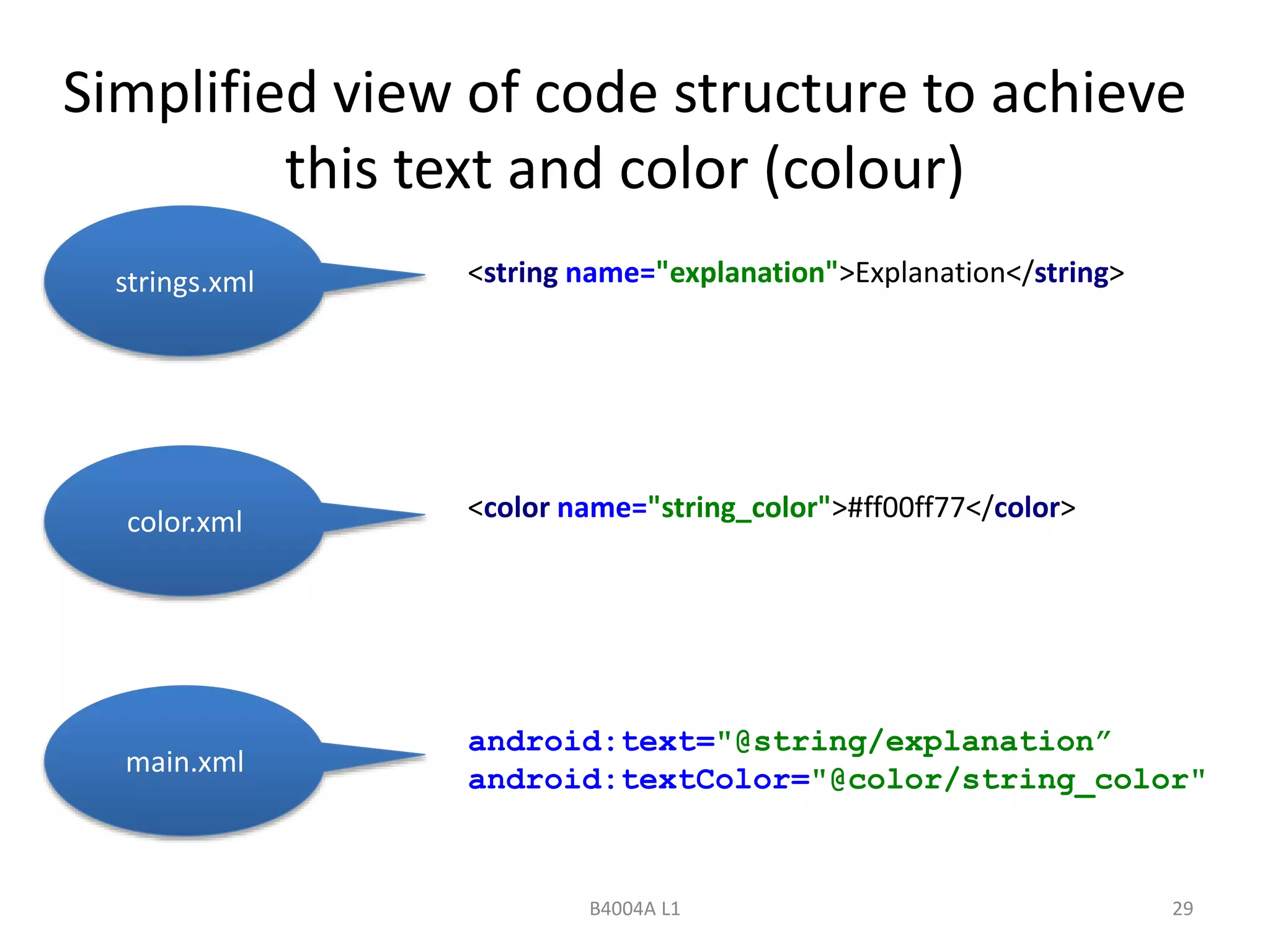
Simplified view of code structure to achieve 
<string name="explanation">Explanation</string> 
<color name="string_color">#ff00ff77</color> 
B4004A L1 29 
strings.xml 
android:text="@string/explanation” 
android:textColor="@color/string_color" 
color.xml 
main.xml 
this text and color (colour)
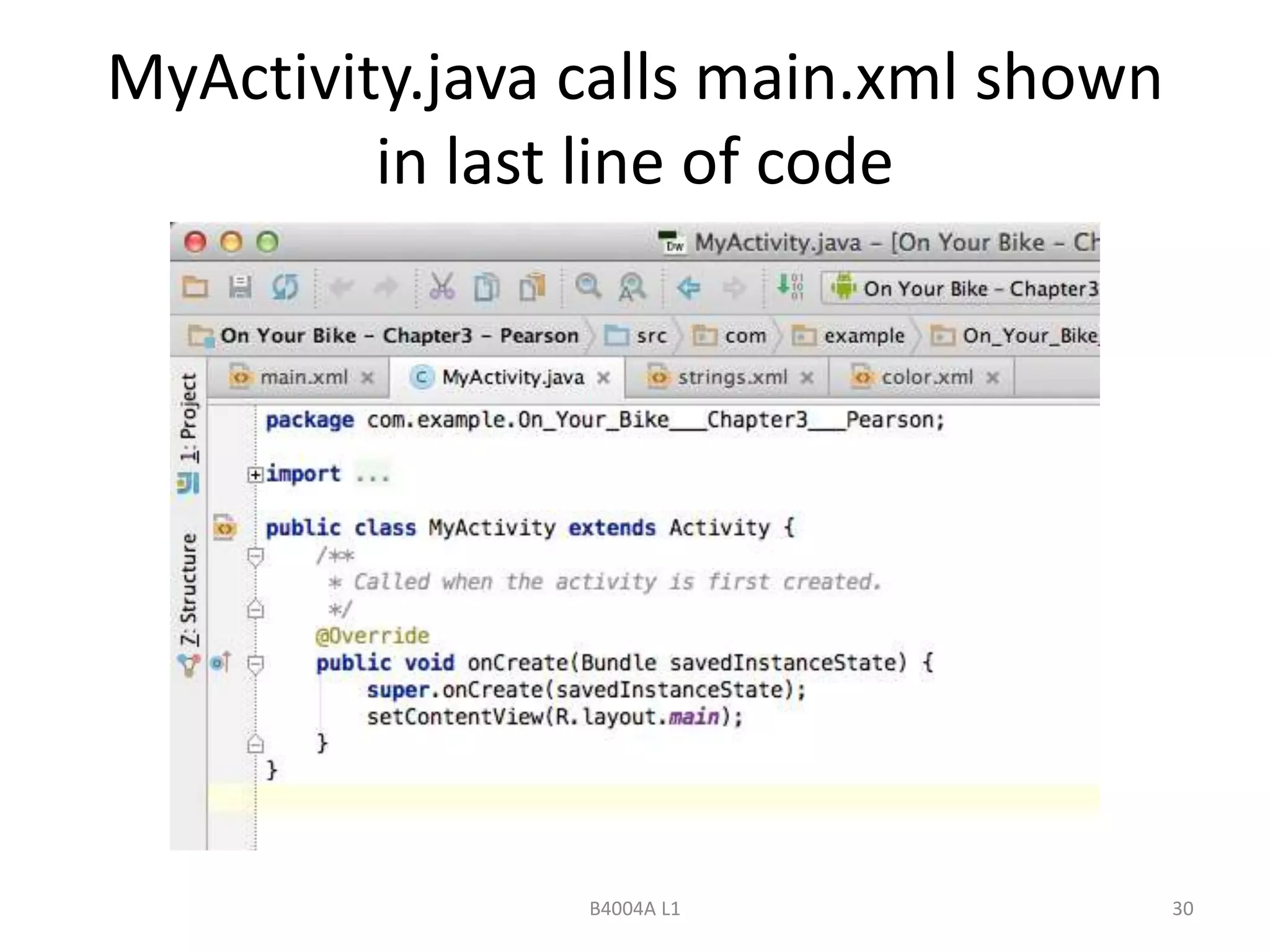
MyActivity.java calls main.xml shown 
in last line of code 
B4004A L1 30
… turning now to the Graphical Interface 
B4004A L1 31
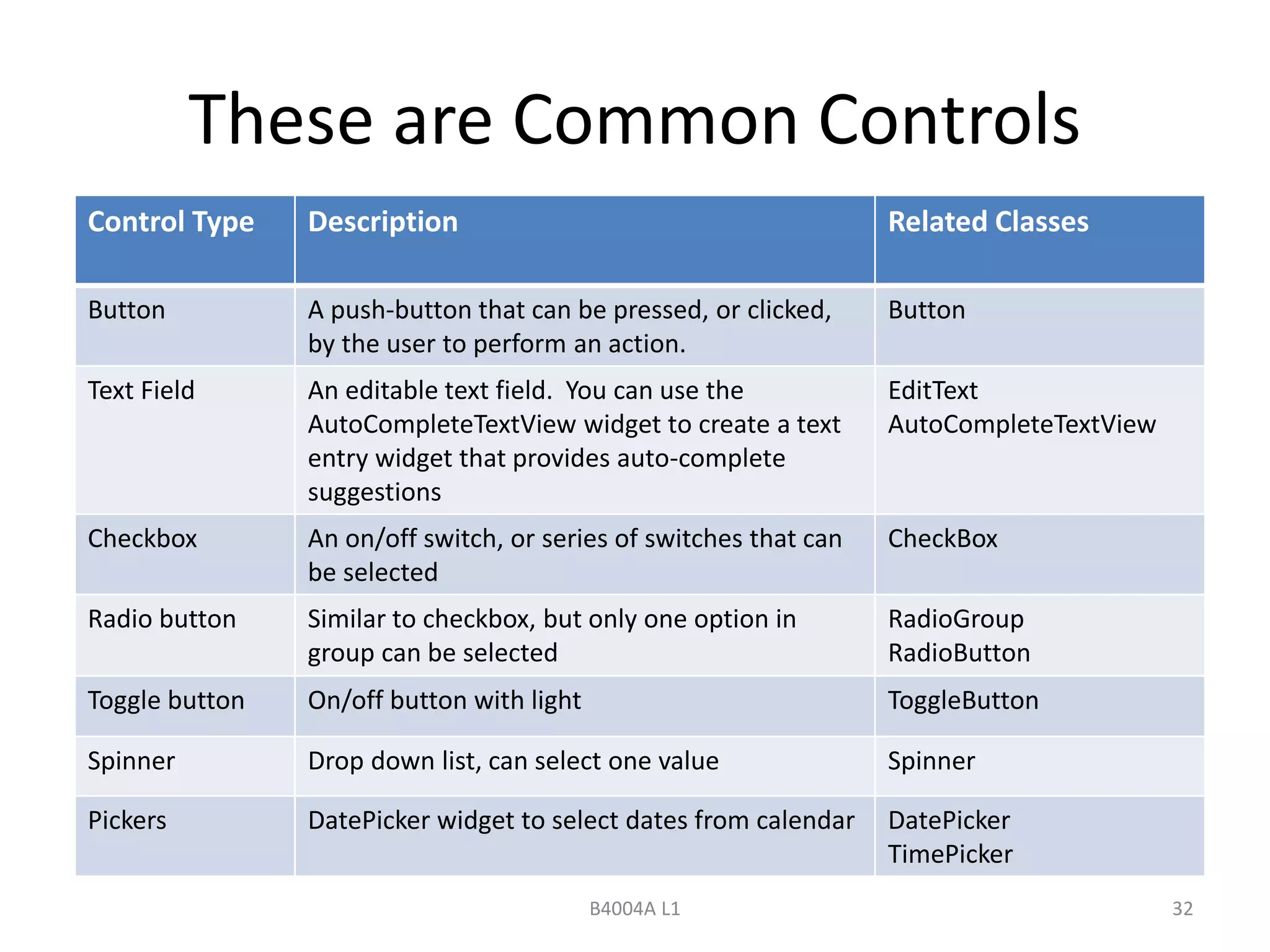
These are Common Controls 
Control Type Description Related Classes 
Button A push-button that can be pressed, or clicked, 
by the user to perform an action. 
Button 
Text Field An editable text field. You can use the 
AutoCompleteTextView widget to create a text 
entry widget that provides auto-complete 
suggestions 
EditText 
AutoCompleteTextView 
Checkbox An on/off switch, or series of switches that can 
be selected 
CheckBox 
Radio button Similar to checkbox, but only one option in 
group can be selected 
RadioGroup 
RadioButton 
Toggle button On/off button with light ToggleButton 
Spinner Drop down list, can select one value Spinner 
Pickers DatePicker widget to select dates from calendar DatePicker 
TimePicker 
B4004A L1 32
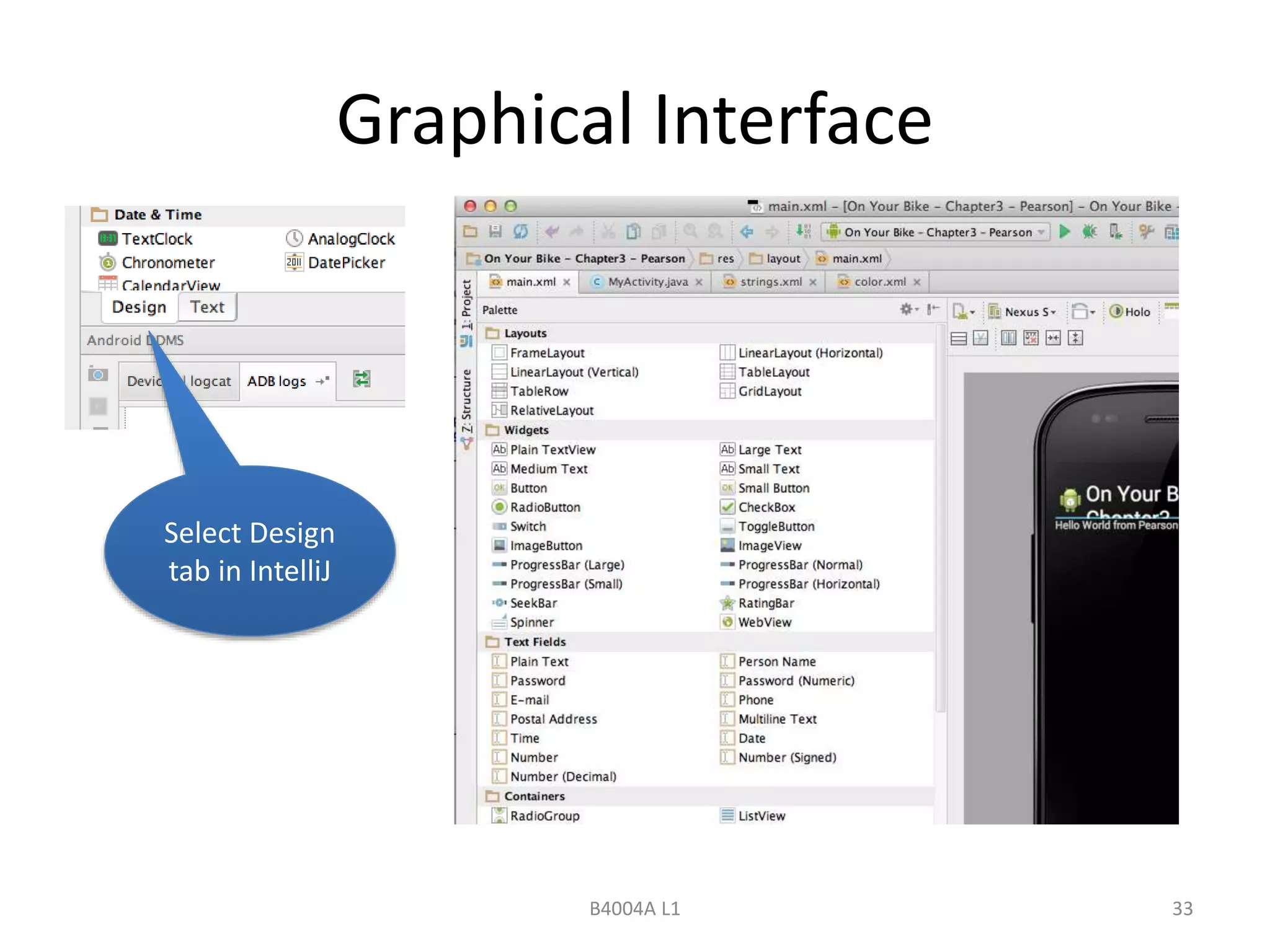
Graphical Interface 
B4004A L1 33 
Select Design 
tab in IntelliJ
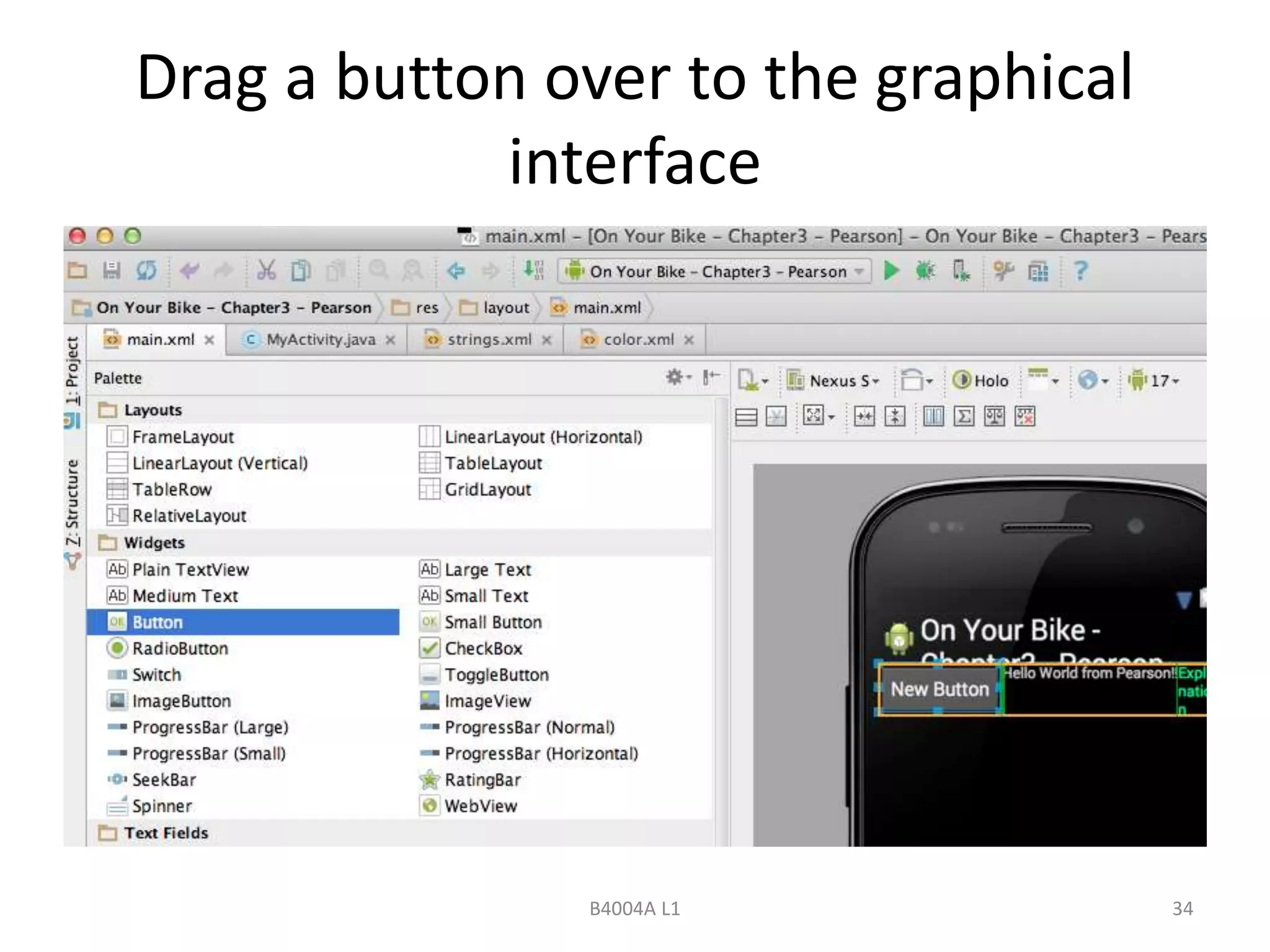
Drag a button over to the graphical 
interface 
B4004A L1 34
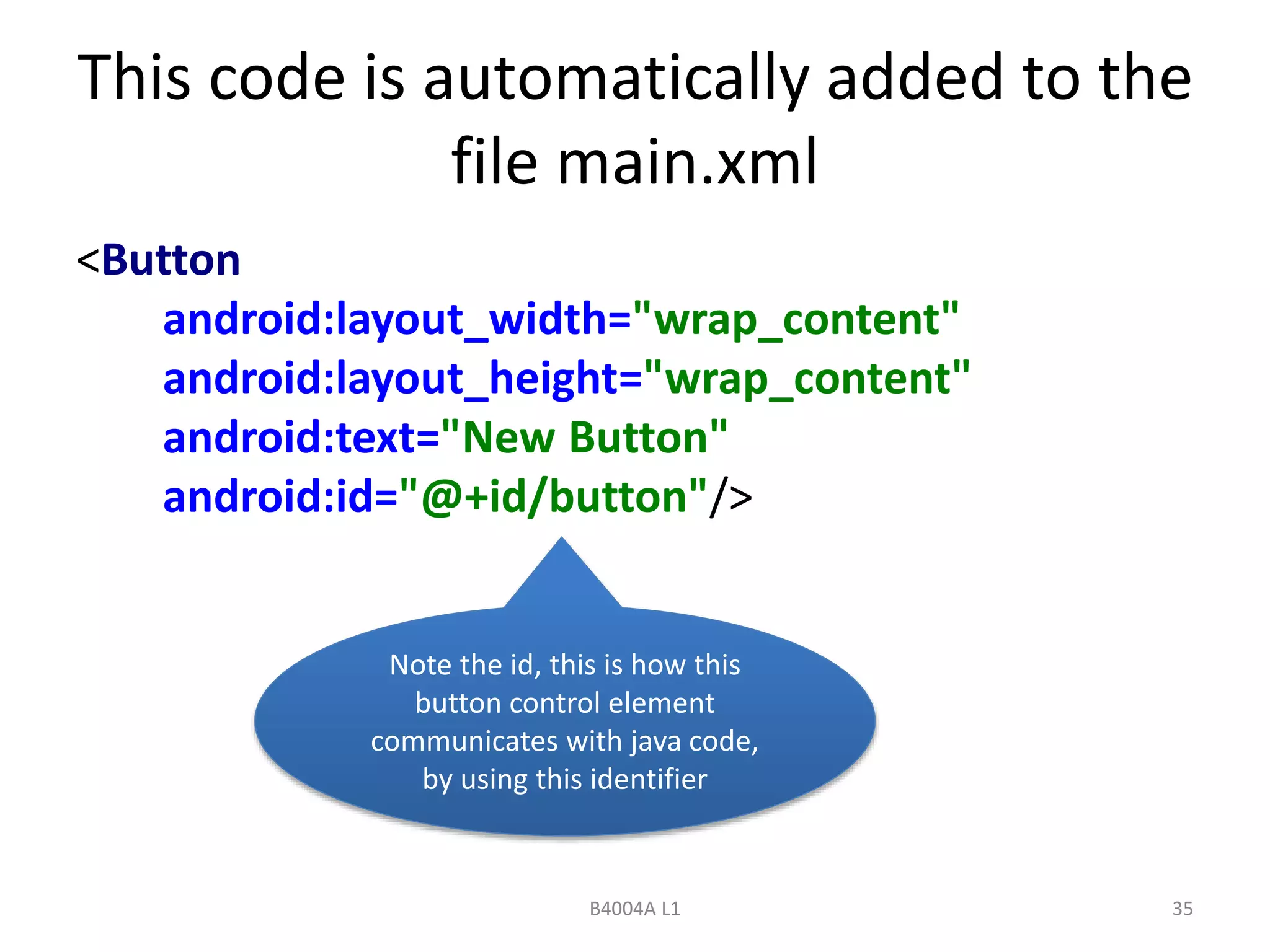
This code is automatically added to the 
file main.xml 
<Button 
android:layout_width="wrap_content" 
android:layout_height="wrap_content" 
android:text="New Button" 
android:id="@+id/button"/> 
Note the id, this is how this 
button control element 
communicates with java code, 
by using this identifier 
B4004A L1 35
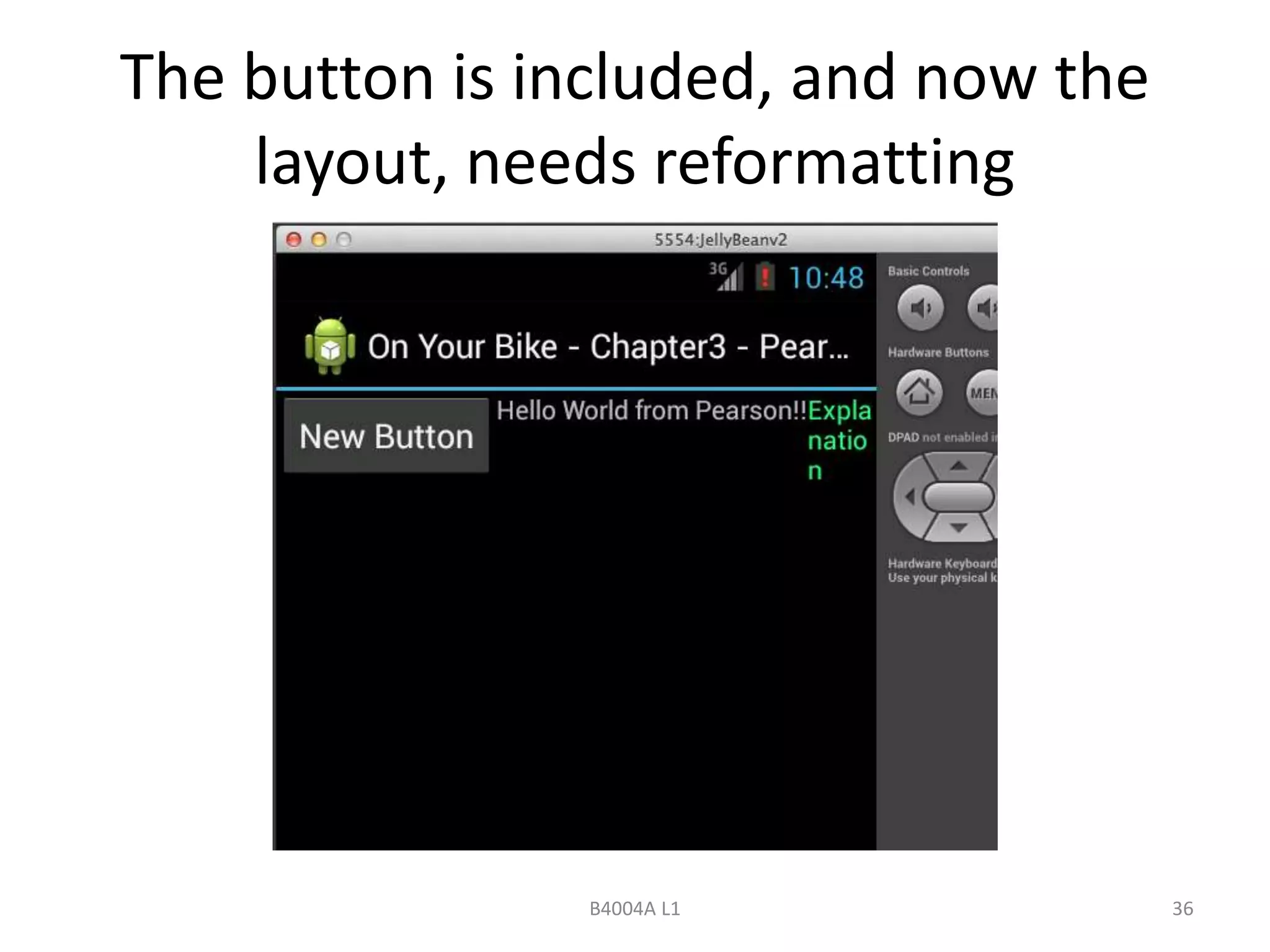
The button is included, and now the 
layout, needs reformatting 
B4004A L1 36
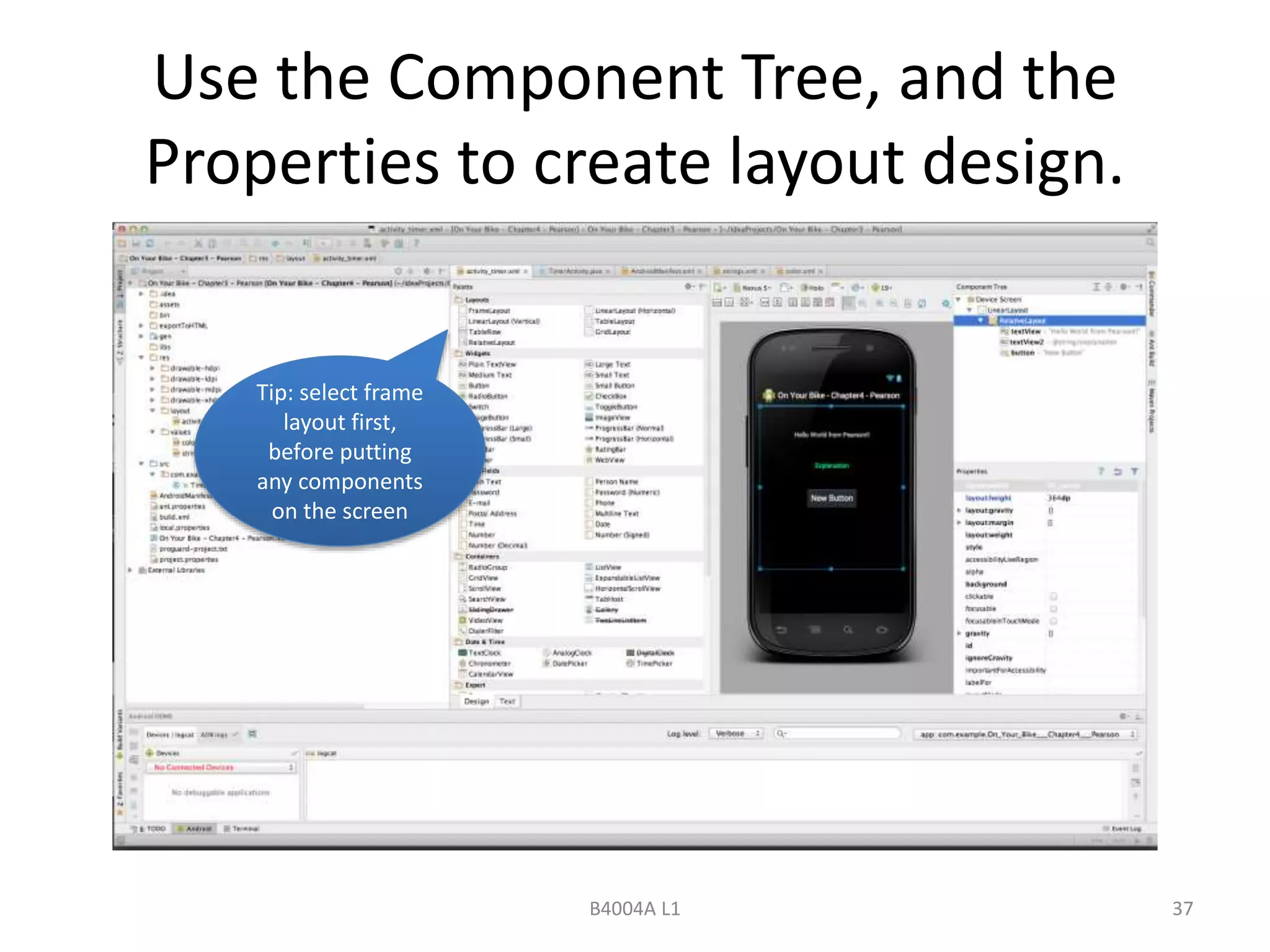
Use the Component Tree, and the 
Properties to create layout design. 
B4004A L1 37 
Tip: select frame 
layout first, 
before putting 
any components 
on the screen
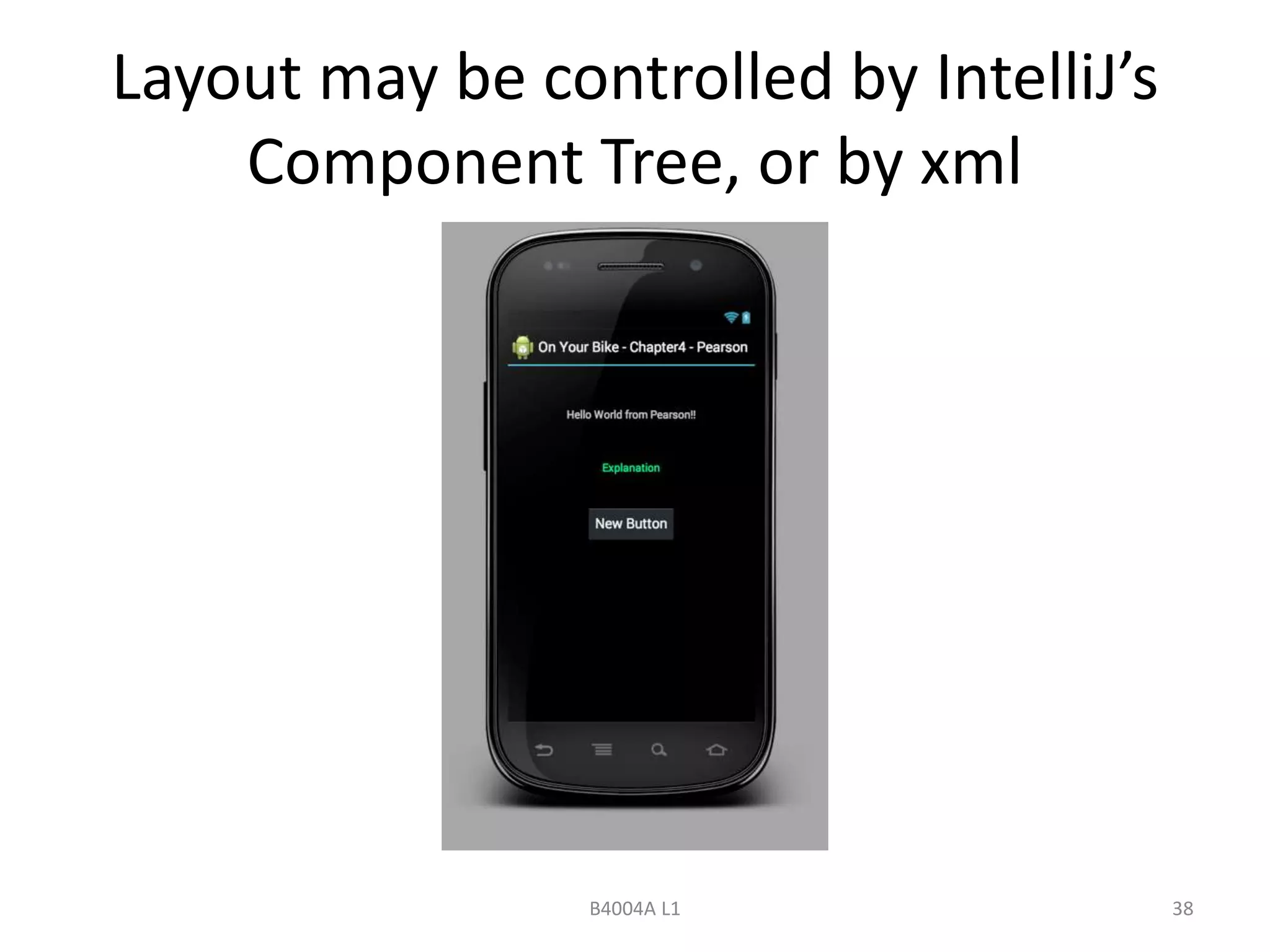
Layout may be controlled by IntelliJ’s 
Component Tree, or by xml 
B4004A L1 38
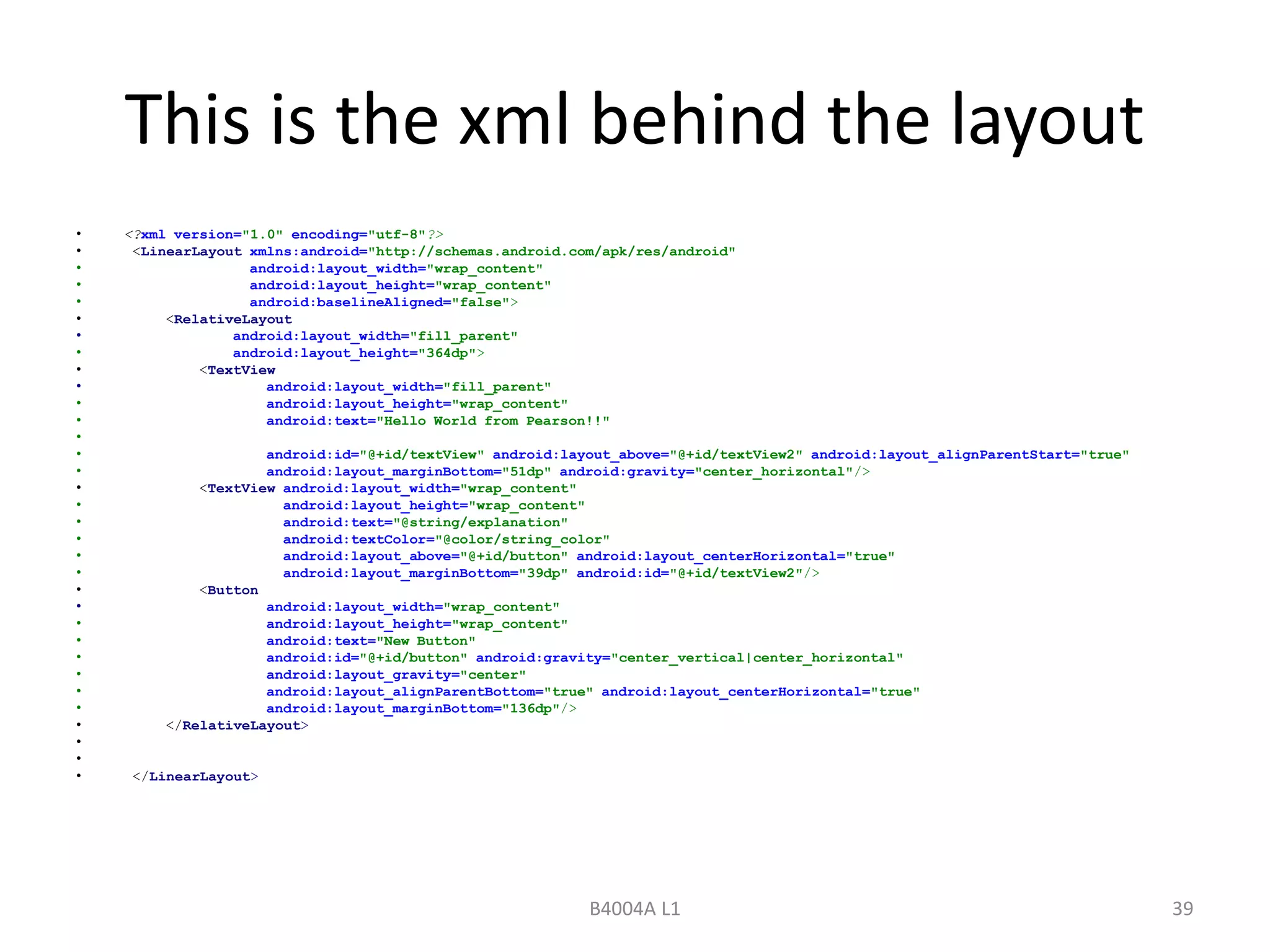
This is the xml behind the layout 
• <?xml version="1.0" encoding="utf-8"?> 
• <LinearLayout xmlns:android="http://schemas.android.com/apk/res/android" 
• android:layout_width="wrap_content" 
• android:layout_height="wrap_content" 
• android:baselineAligned="false"> 
• <RelativeLayout 
• android:layout_width="fill_parent" 
• android:layout_height="364dp"> 
• <TextView 
• android:layout_width="fill_parent" 
• android:layout_height="wrap_content" 
• android:text="Hello World from Pearson!!" 
• 
• android:id="@+id/textView" android:layout_above="@+id/textView2" android:layout_alignParentStart="true" 
• android:layout_marginBottom="51dp" android:gravity="center_horizontal"/> 
• <TextView android:layout_width="wrap_content" 
• android:layout_height="wrap_content" 
• android:text="@string/explanation" 
• android:textColor="@color/string_color" 
• android:layout_above="@+id/button" android:layout_centerHorizontal="true" 
• android:layout_marginBottom="39dp" android:id="@+id/textView2"/> 
• <Button 
• android:layout_width="wrap_content" 
• android:layout_height="wrap_content" 
• android:text="New Button" 
• android:id="@+id/button" android:gravity="center_vertical|center_horizontal" 
• android:layout_gravity="center" 
• android:layout_alignParentBottom="true" android:layout_centerHorizontal="true" 
• android:layout_marginBottom="136dp"/> 
• </RelativeLayout> 
• 
• 
• </LinearLayout> 
B4004A L1 39
… turning to ‘Activities’…. 
B4004A L1 40
App Components 
• Activities 
– an activity represents a single screen; 
• Services 
– a service runs in the background;; 
• Content providers 
– manages persistent data; 
• Broadcast Receivers 
– respond to system-wide broadcast 
announcements; 
B4004A L1 41
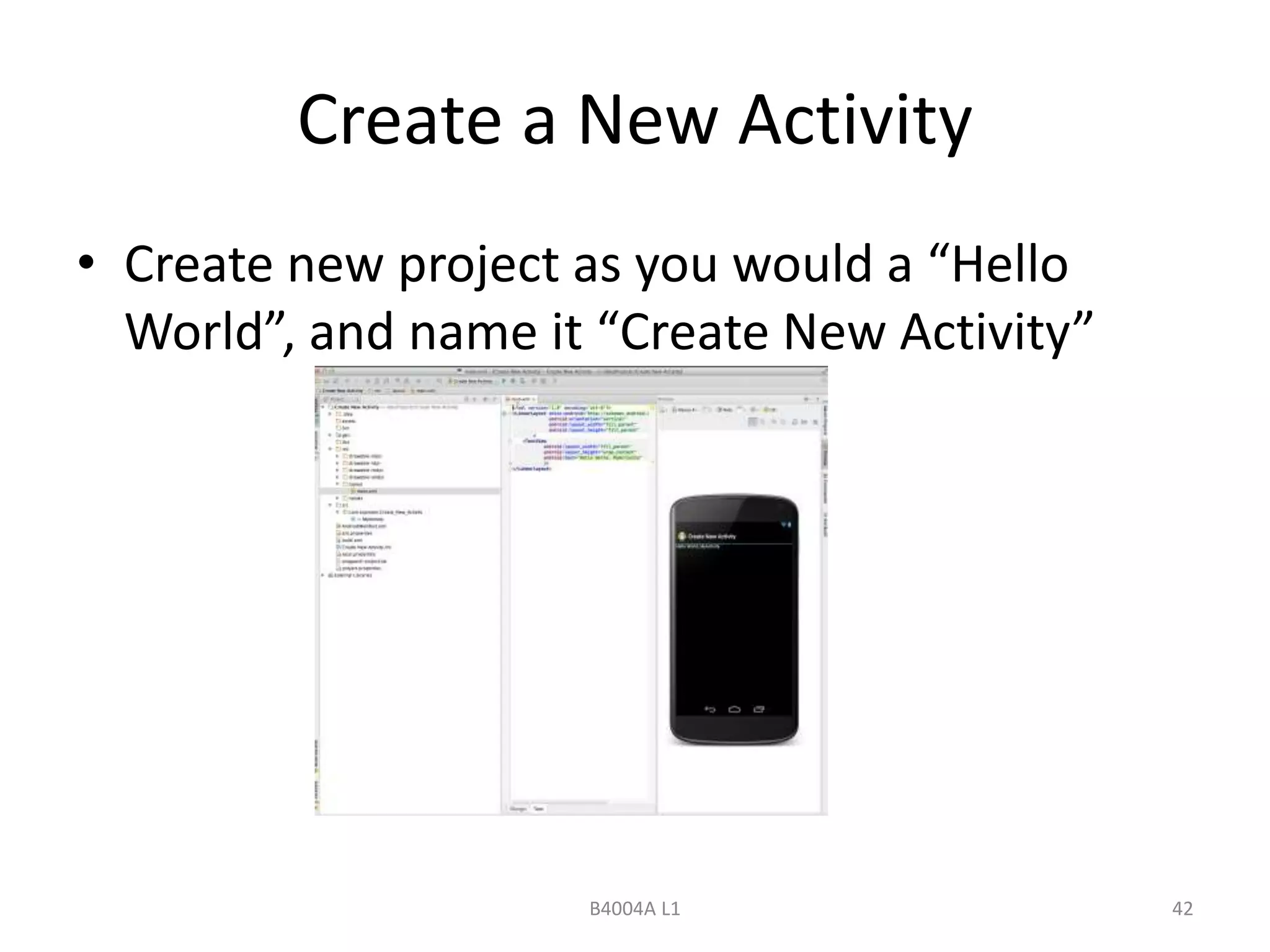
Create a New Activity 
• Create new project as you would a “Hello 
World”, and name it “Create New Activity” 
B4004A L1 42
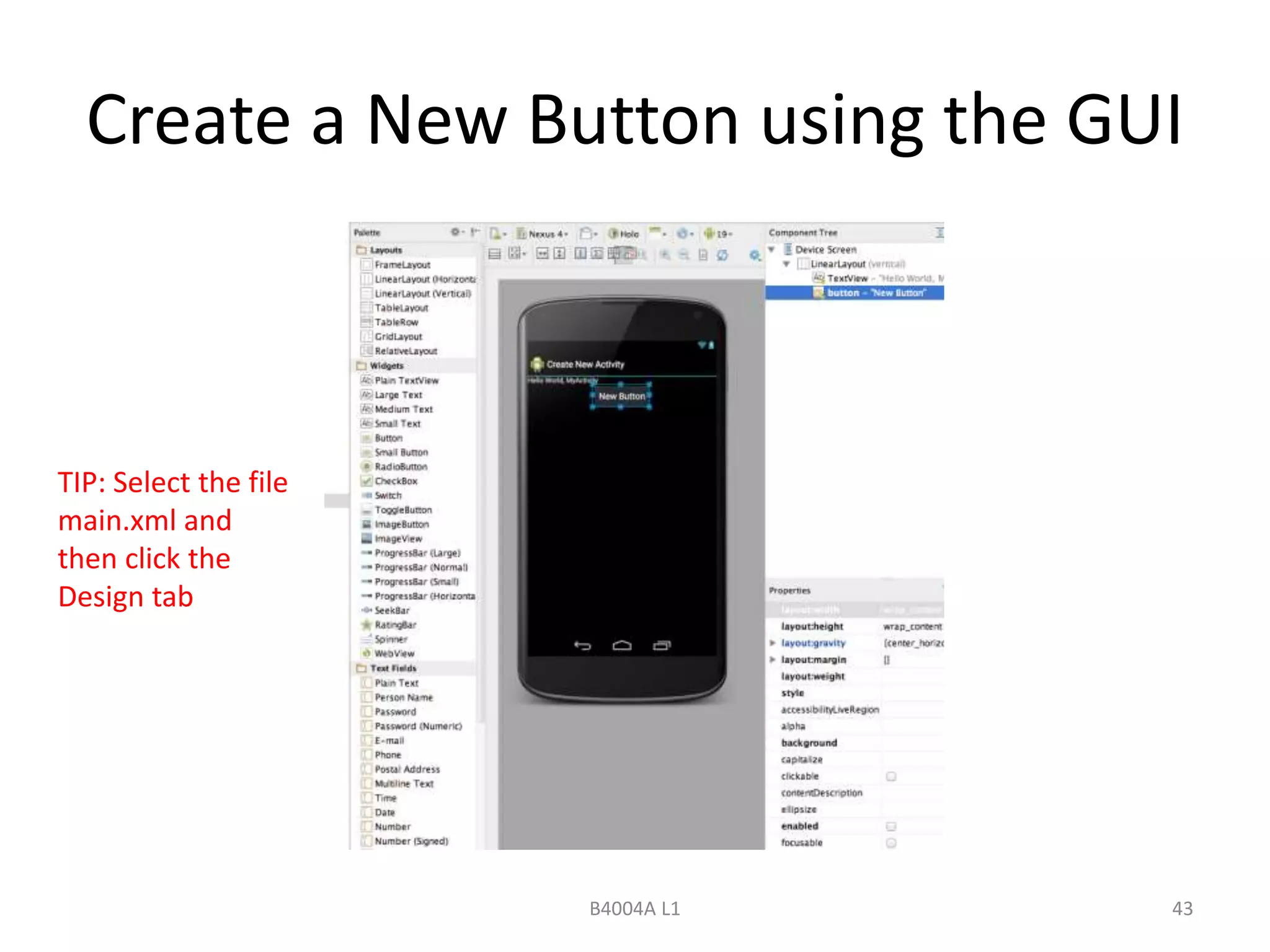
Create a New Button using the GUI 
B4004A L1 43 
TIP: Select the file 
main.xml and 
then click the 
Design tab
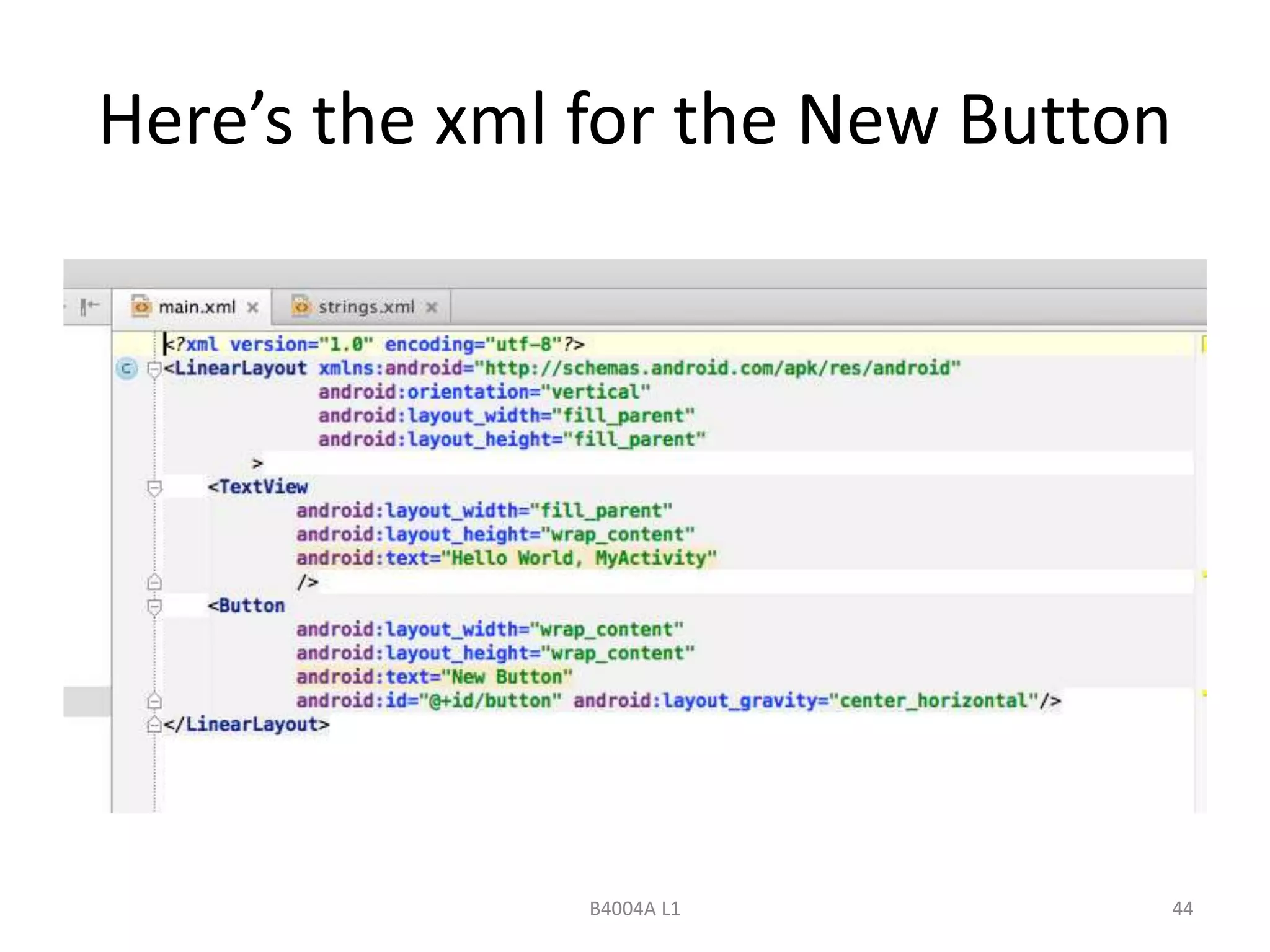
Here’s the xml for the New Button 
B4004A L1 44
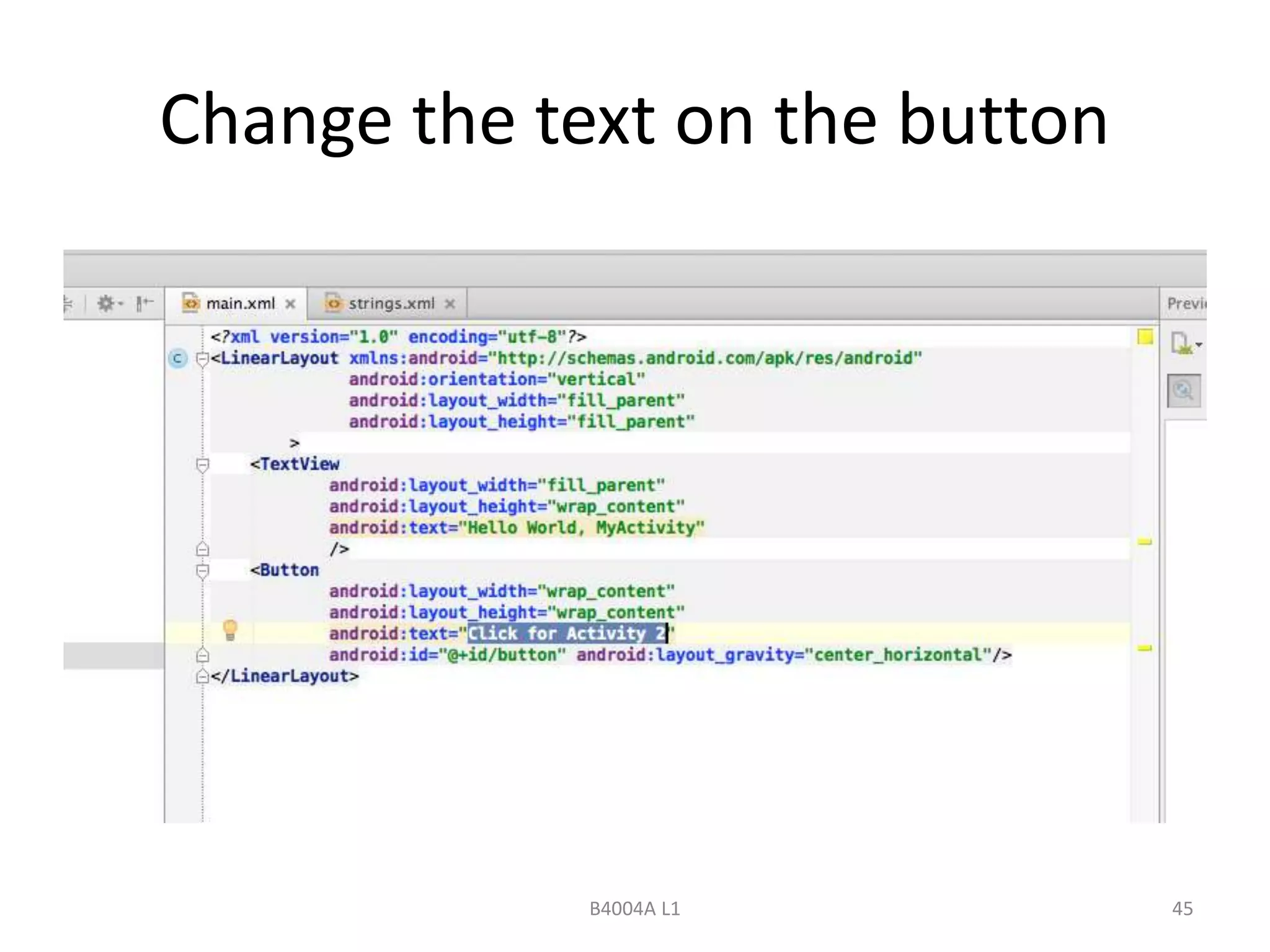
Change the text on the button 
B4004A L1 45
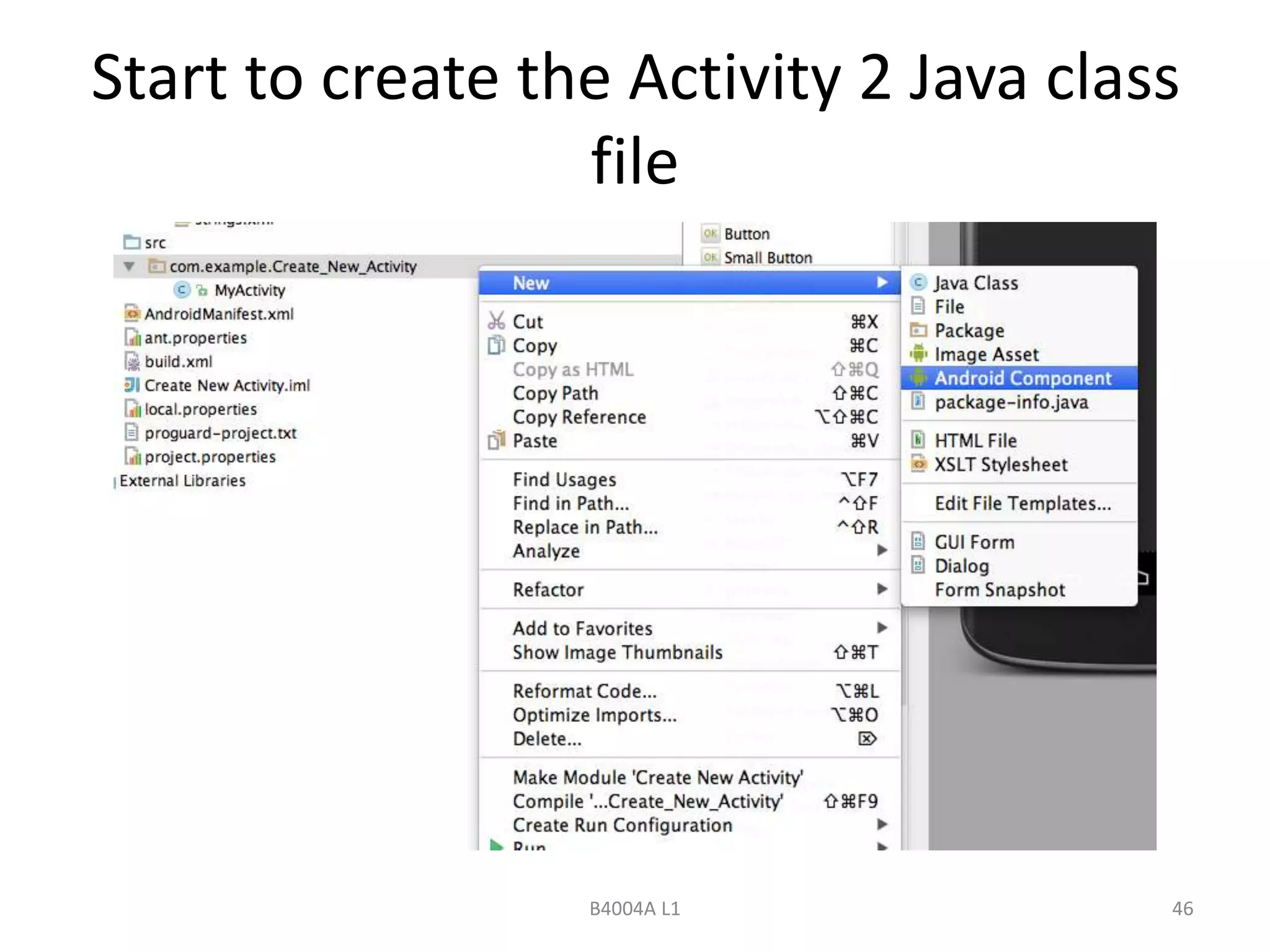
Start to create the Activity 2 Java class 
file 
B4004A L1 46
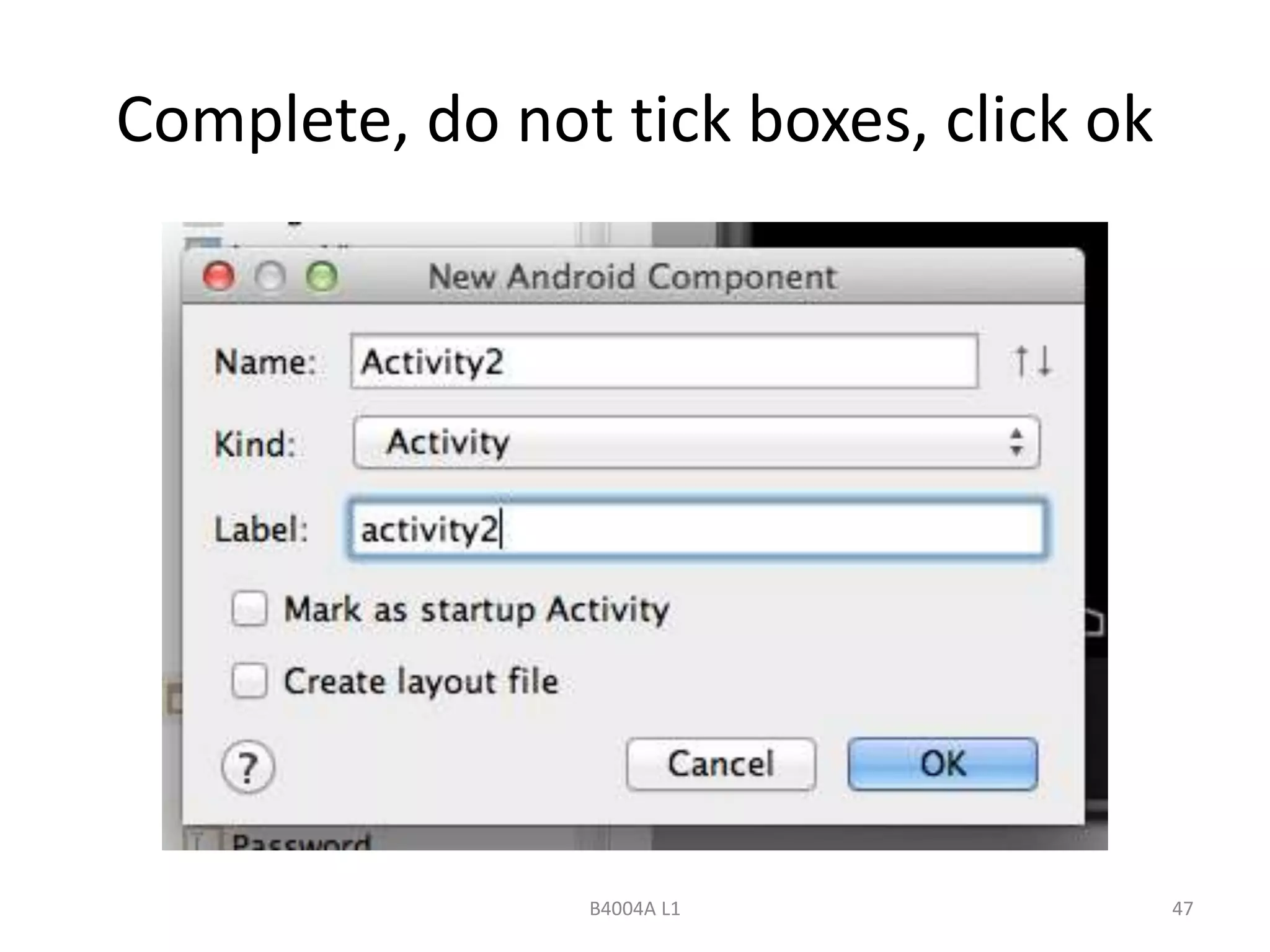
Complete, do not tick boxes, click ok 
B4004A L1 47
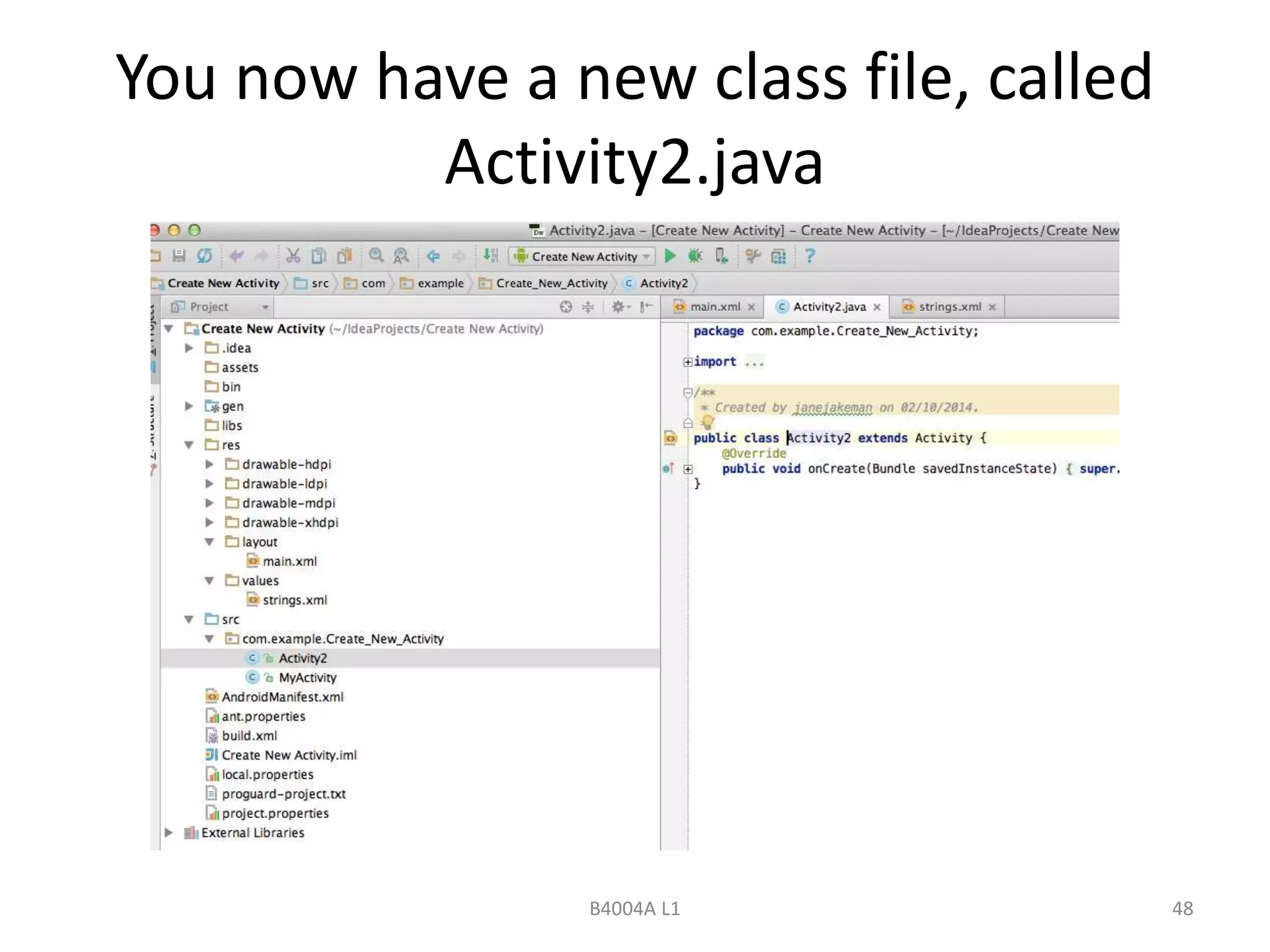
You now have a new class file, called 
Activity2.java 
B4004A L1 48
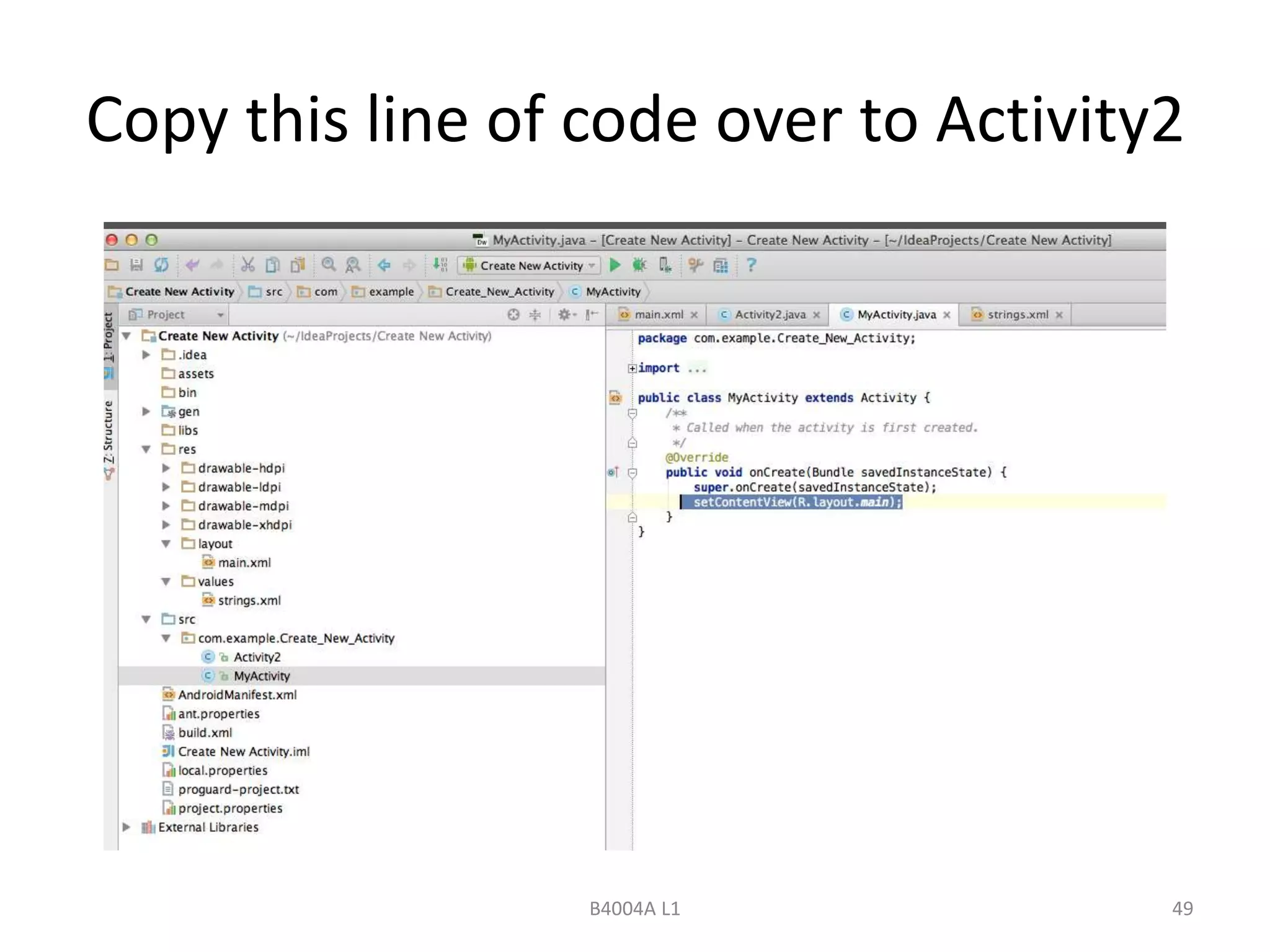
Copy this line of code over to Activity2 
B4004A L1 49
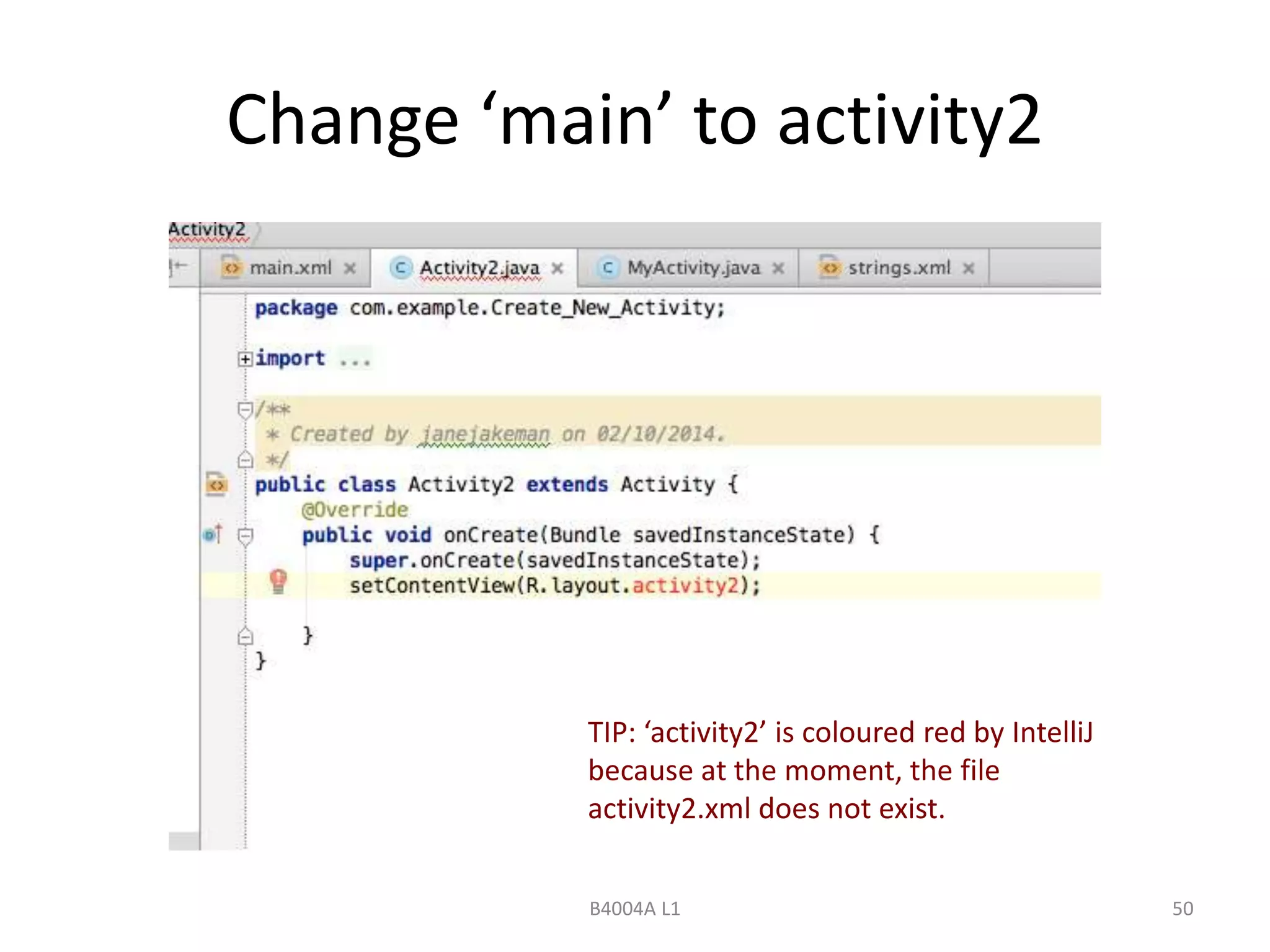
Change ‘main’ to activity2 
TIP: ‘activity2’ is coloured red by IntelliJ 
because at the moment, the file 
activity2.xml does not exist. 
B4004A L1 50
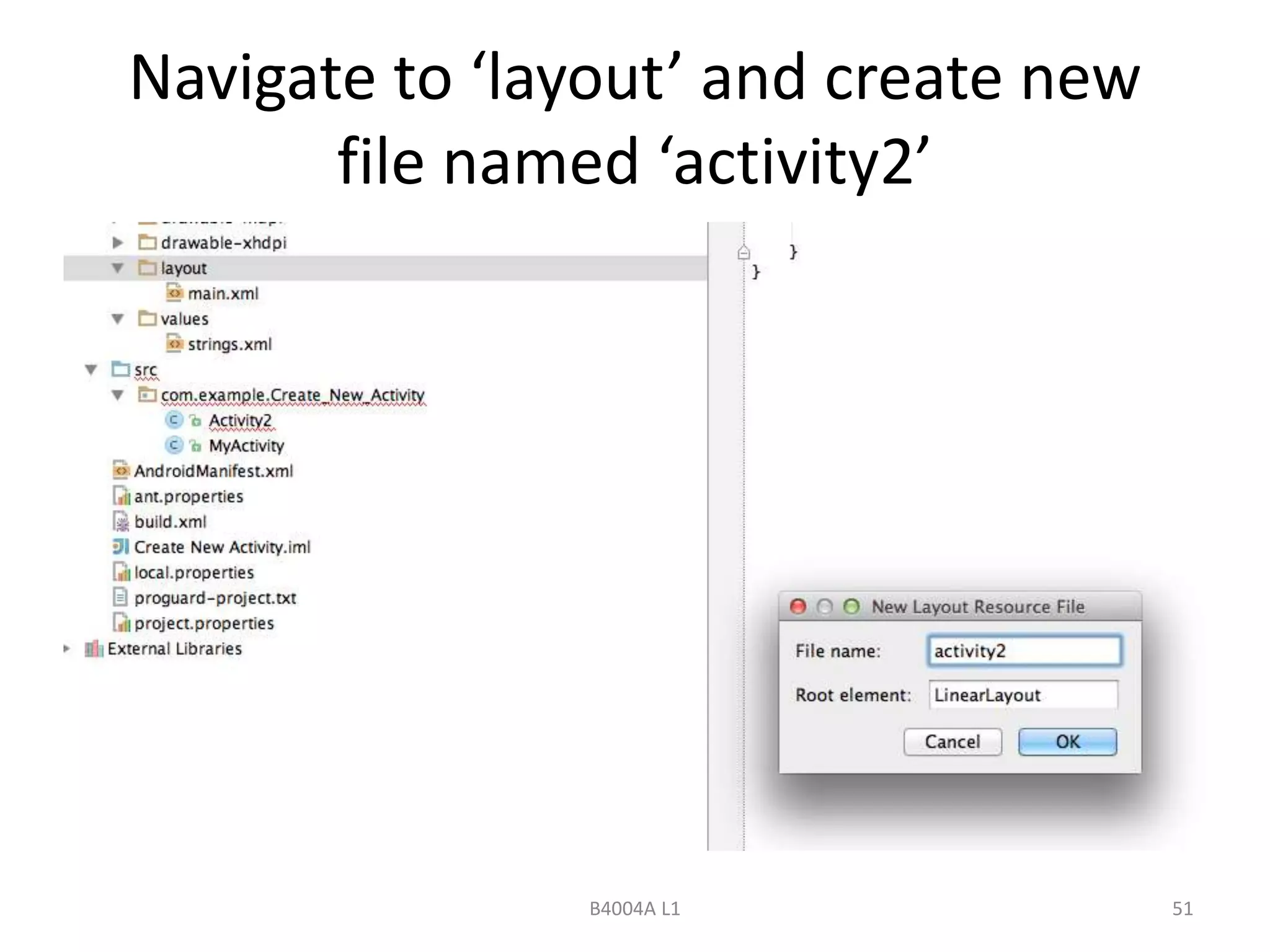
Navigate to ‘layout’ and create new 
file named ‘activity2’ 
B4004A L1 51
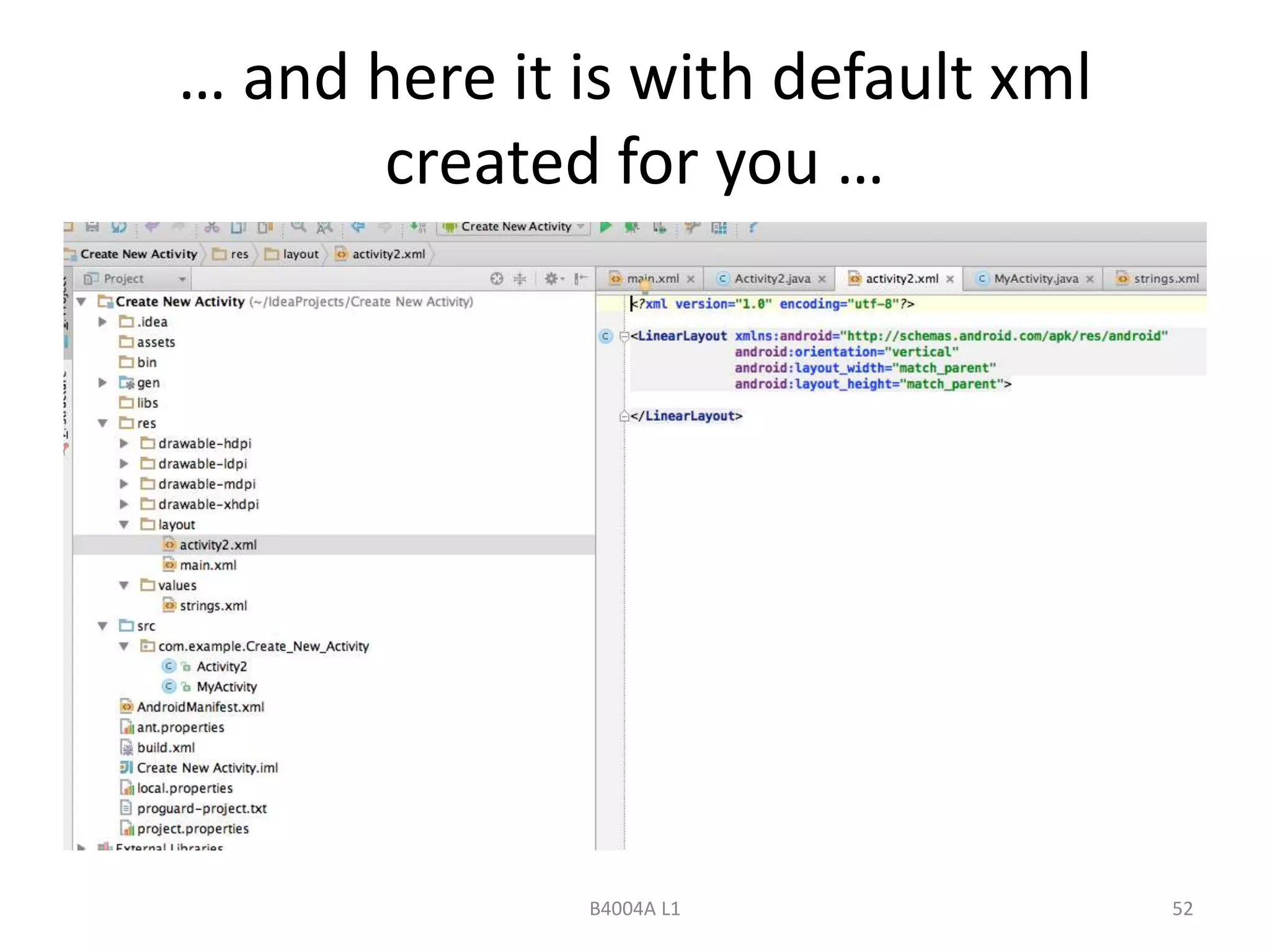
… and here it is with default xml 
created for you … 
B4004A L1 52
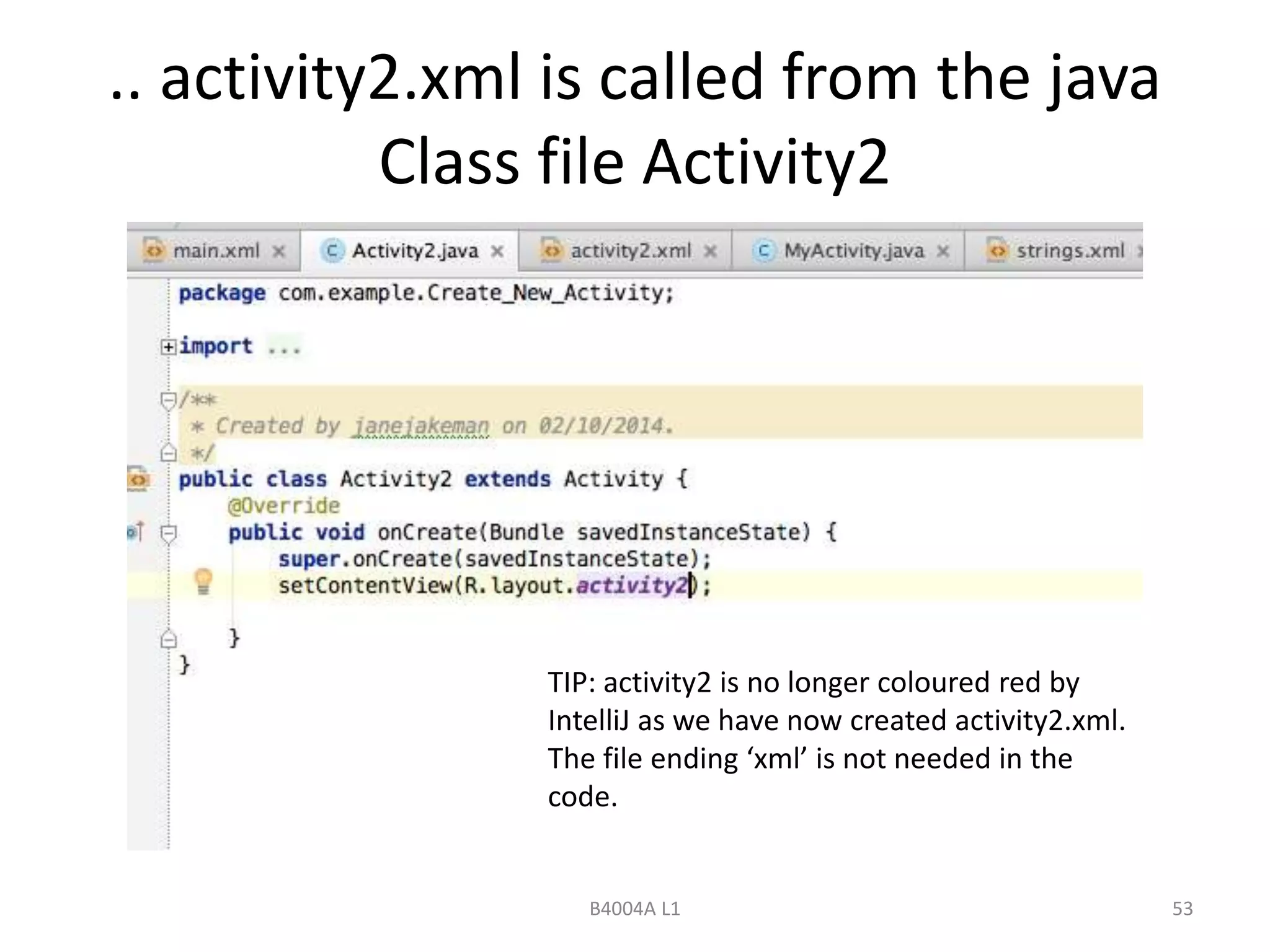
.. activity2.xml is called from the java 
Class file Activity2 
TIP: activity2 is no longer coloured red by 
IntelliJ as we have now created activity2.xml. 
The file ending ‘xml’ is not needed in the 
code. 
B4004A L1 53
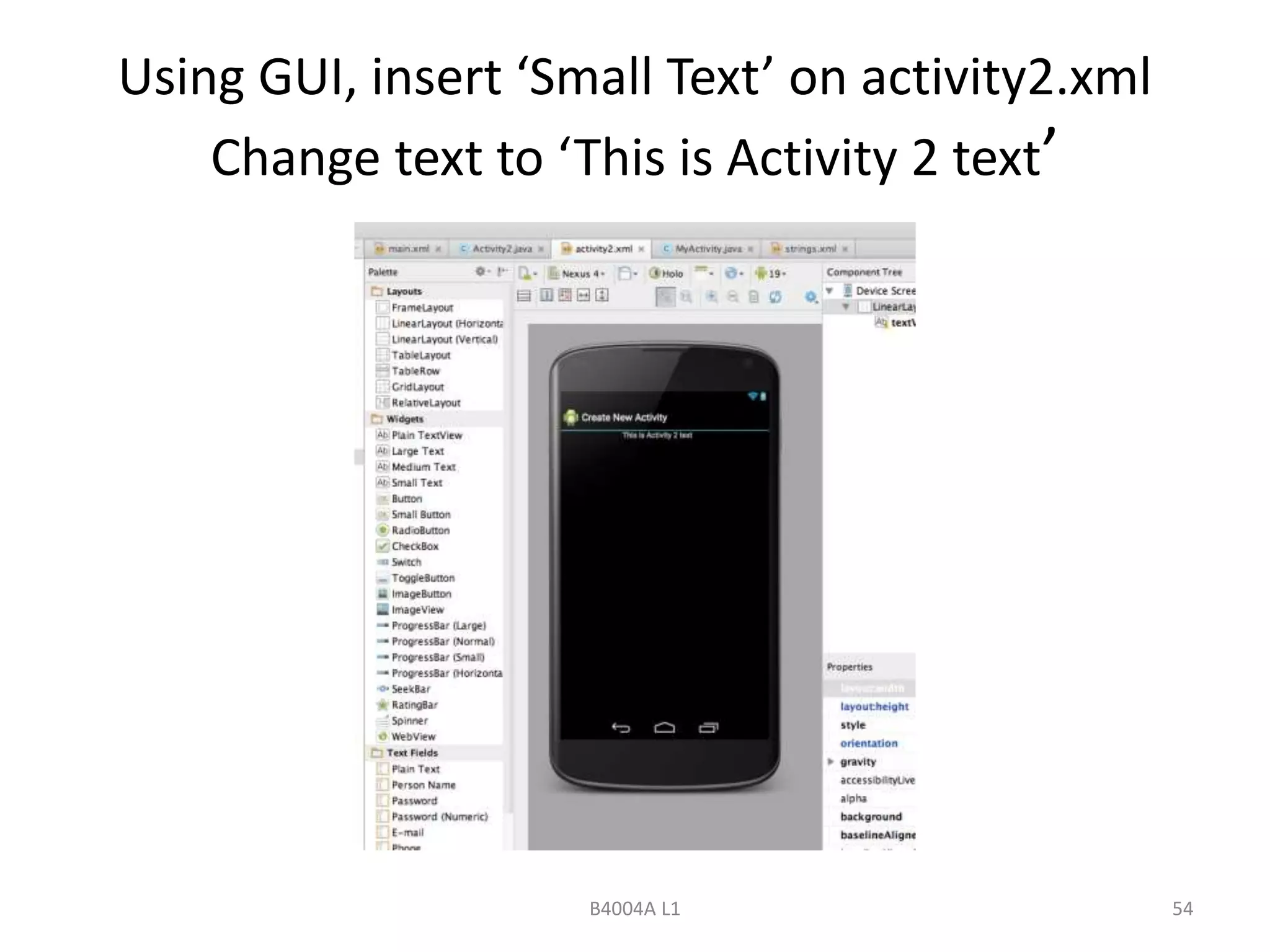
Using GUI, insert ‘Small Text’ on activity2.xml 
Change text to ‘This is Activity 2 text’ 
B4004A L1 54
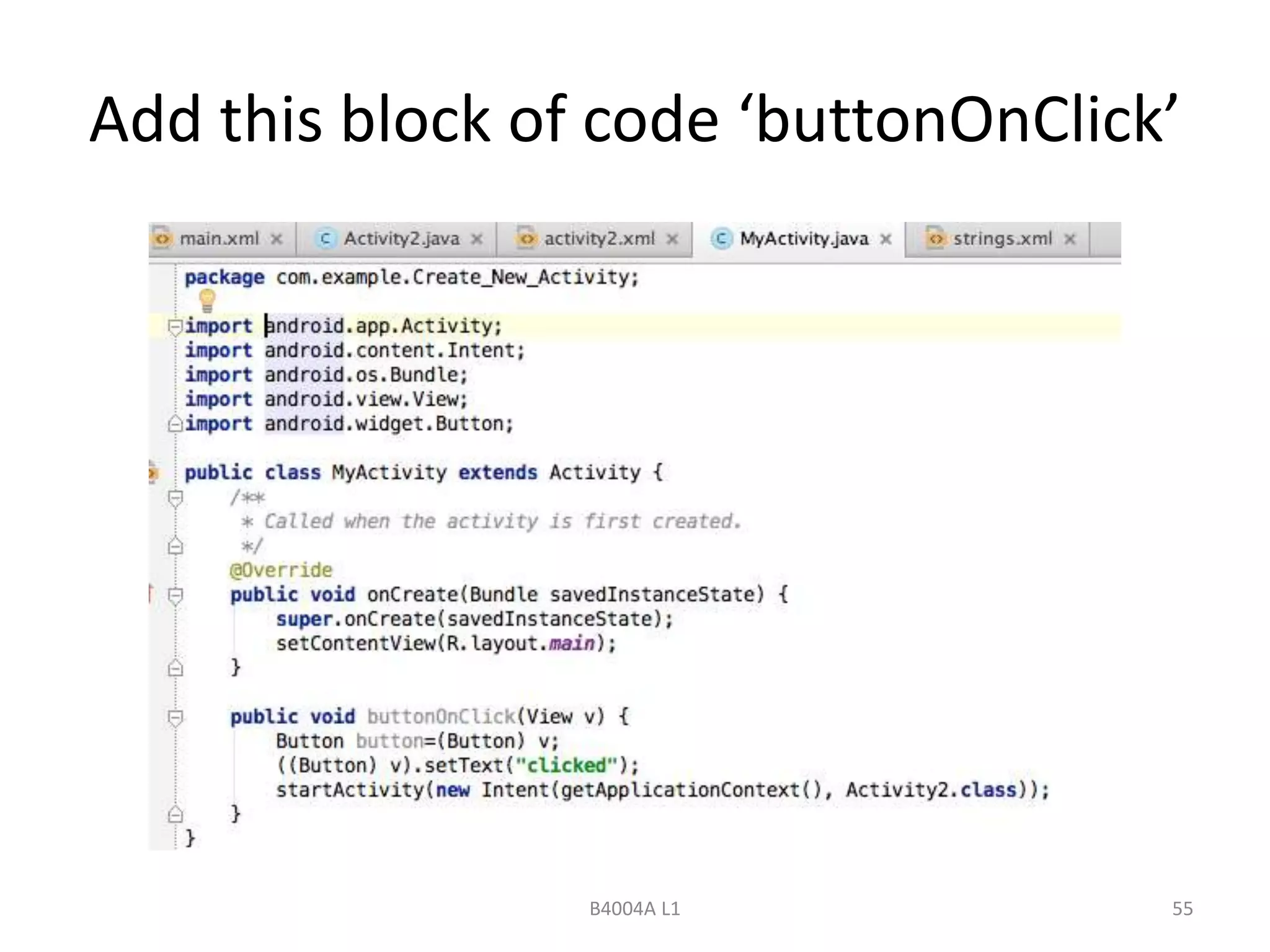
Add this block of code ‘buttonOnClick’ 
B4004A L1 55
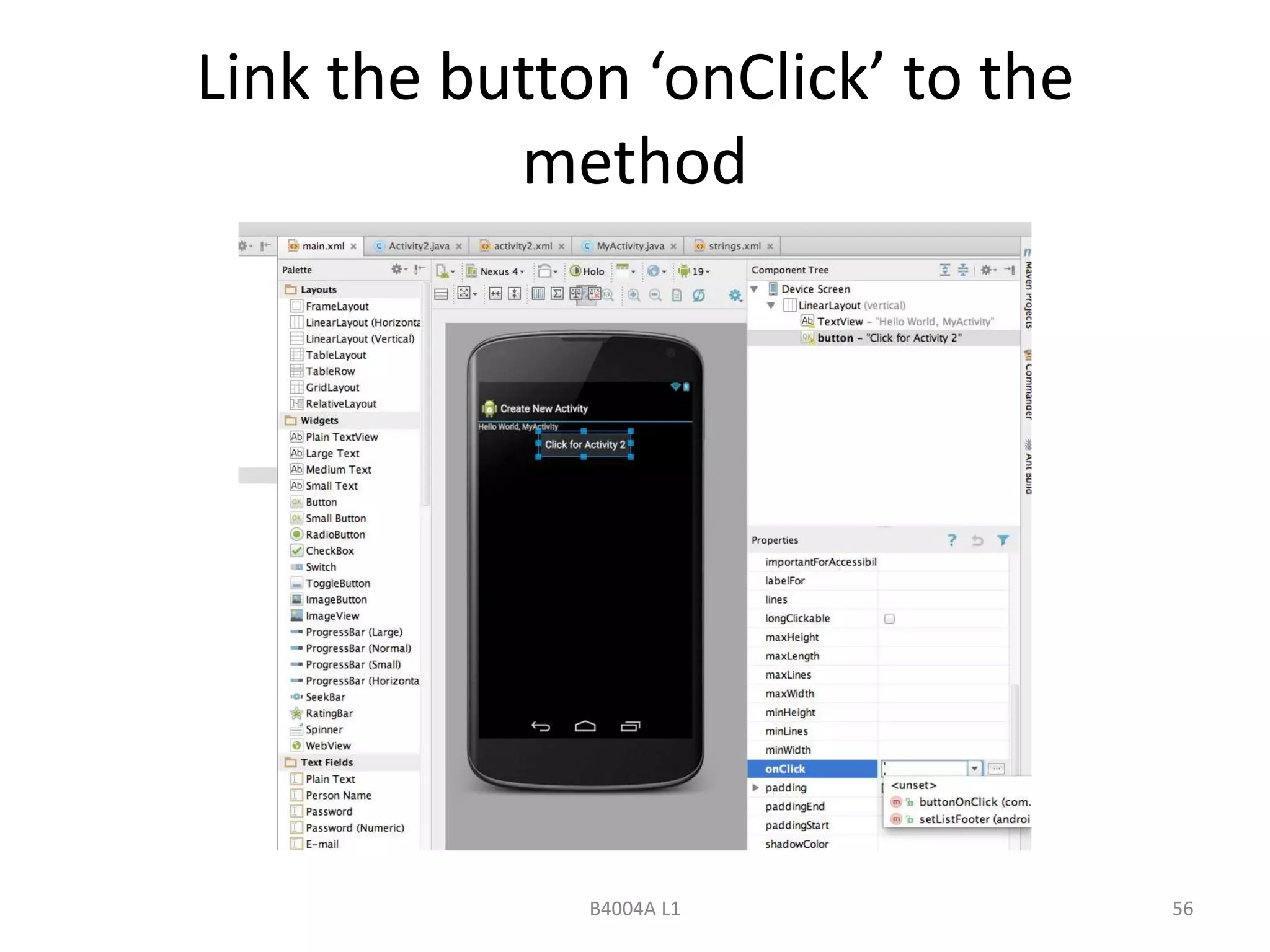
Link the button ‘onClick’ to the 
method 
B4004A L1 56
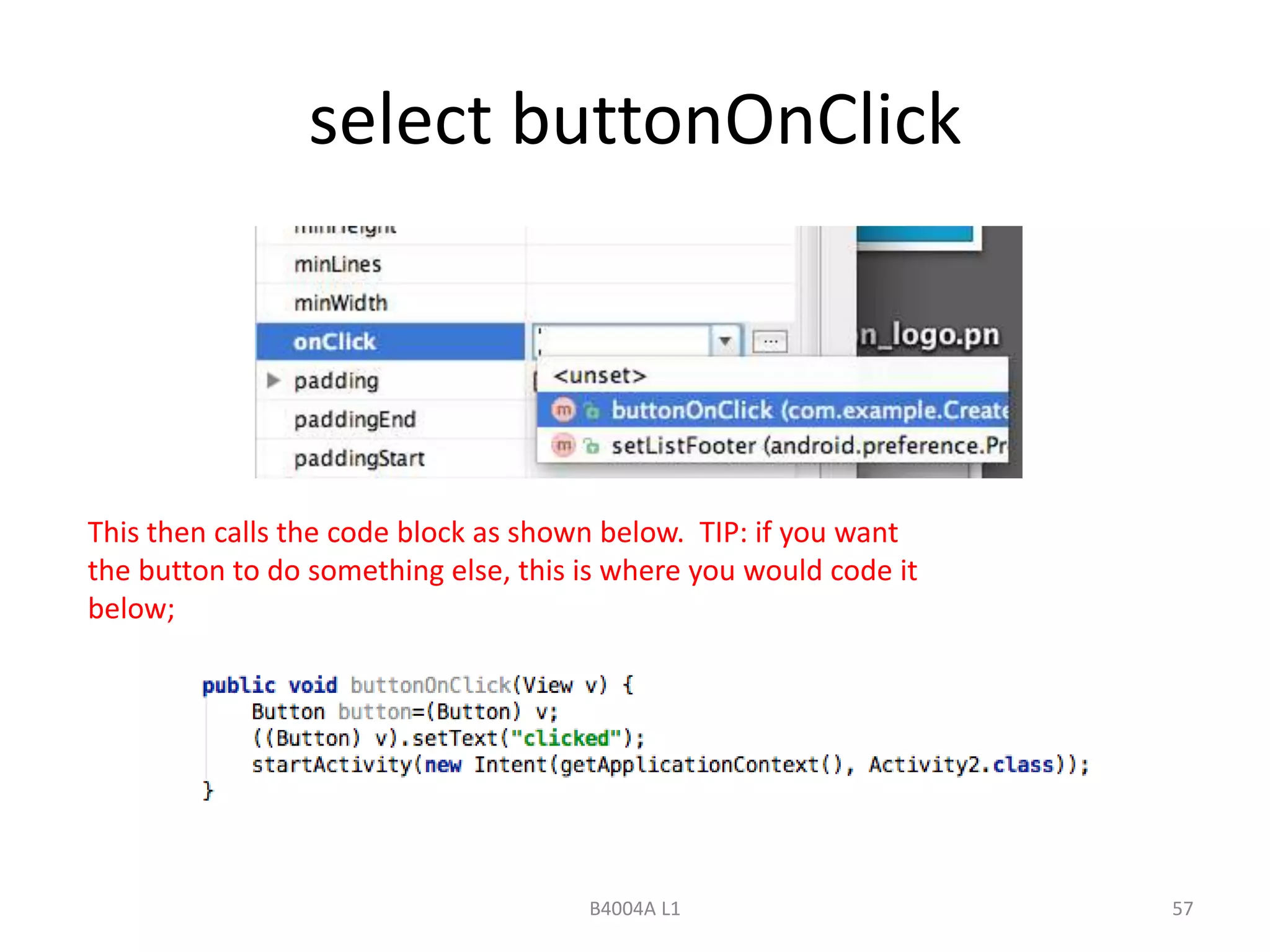
select buttonOnClick 
This then calls the code block as shown below. TIP: if you want 
the button to do something else, this is where you would code it 
below; 
B4004A L1 57
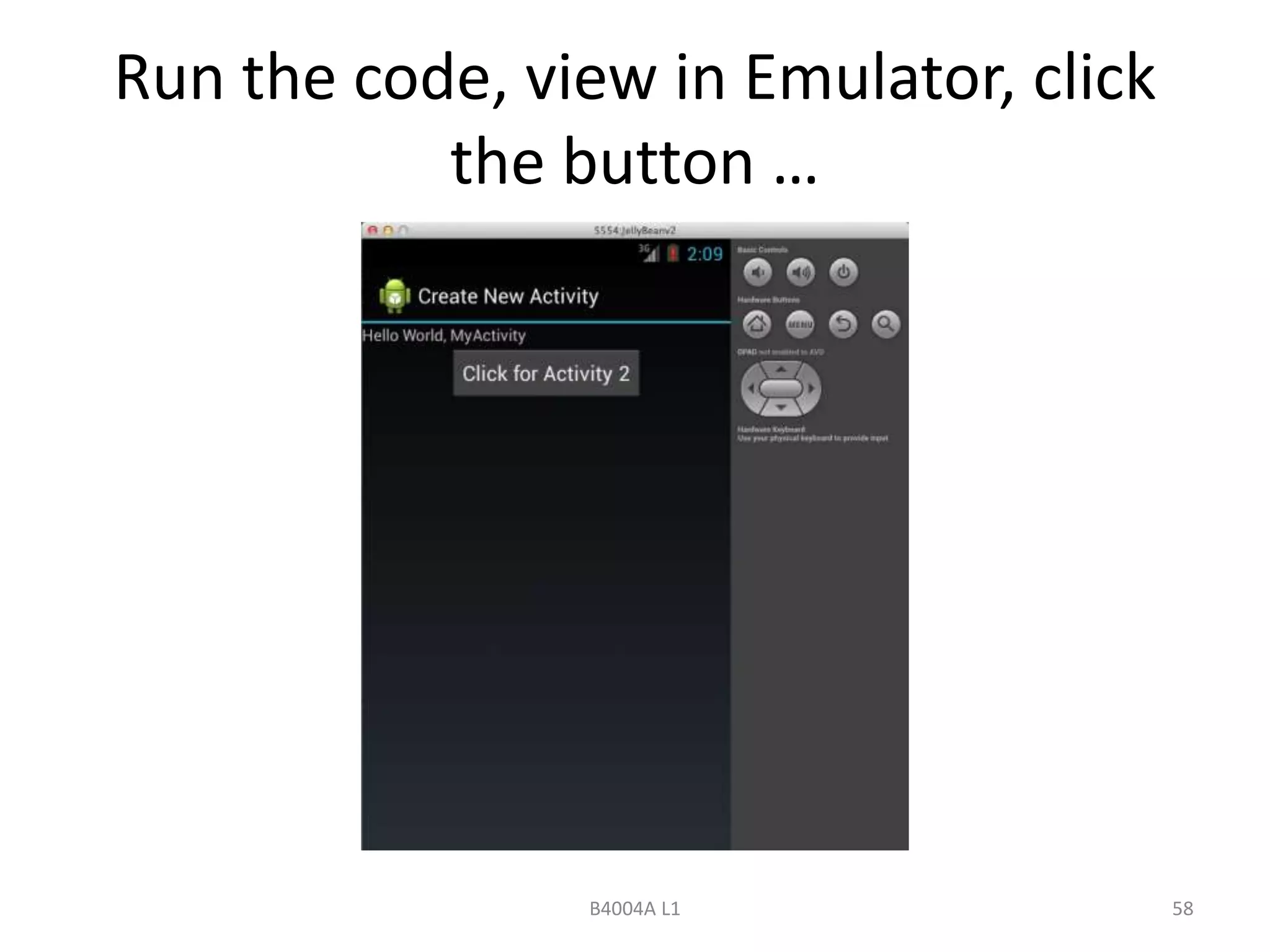
Run the code, view in Emulator, click 
the button … 
B4004A L1 58
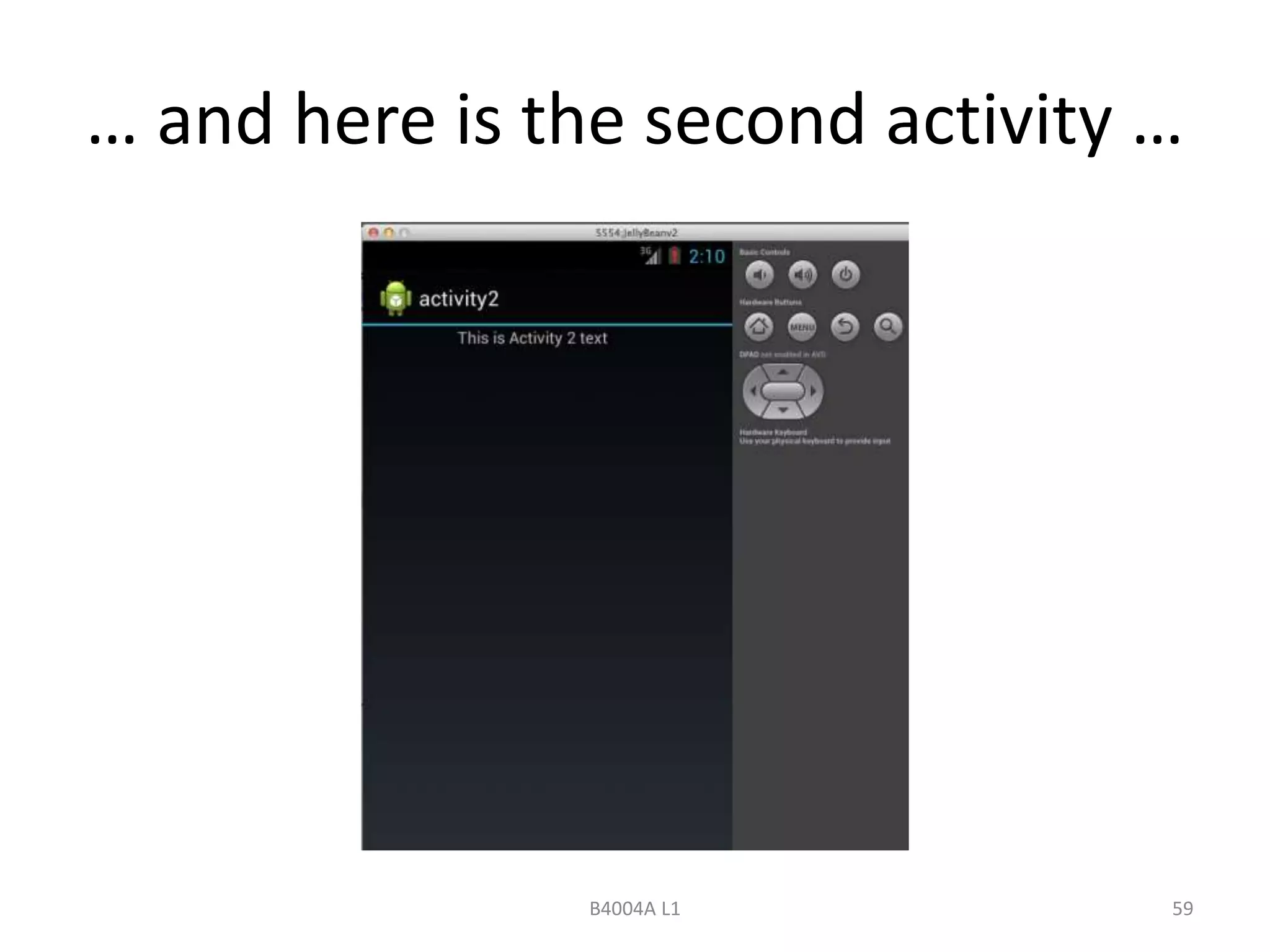
… and here is the second activity … 
B4004A L1 59
Seminar / Workshop 
The Seminar following this lecture provides 
online materials to work through layout 
principles, building an interactive app. 
The Workshop following this lecture will ask 
students to read through layout information 
http://developer.android.com/guide/topics/ui/d 
eclaring-layout.html. 
B4004A L1 60
Essential work for next week 
• Please consult the OLE for details of: 
– Essential readings* 
– Seminar/workshop preparation work* 
– Recommended further readings 
– Any additional learning 
* Essential readings and preparation work must always be completed in time 
for the next session 
61
End of presentation 
© Pearson College 2013
B4004A L1 63

Lecture 4 display_principles

  • 1.
    App Design forBusiness Topic: Display Principles Topic Number:4
  • 2.
    Key topics /learning outcomes of this lecture • make informed design decisions • learn about Android Versions; • understand the xml layout file; • learn about the string variable; • introduction to common controls; 2
  • 3.
    History of Android Android is an operating system purchased by Google in 2005 and is Open Source software. 3 Date Version Codename Apr-09 1.5 Cupcake Sep-09 1.6 Donut Jan-10 2.1 Éclair May-10 2.2 Froyo Dec-10 2.3 - 2.3.7 Gingerbread Feb-11 3.2 Honeycomb Oct-11 4.0.3 - 4.0.4 Ice Cream Sandwich Jul-12 4.2x Jelly Bean Sep-13 4.4 KitKat Android versions take on dessert names
  • 4.
    Version Numbers correlateto Android Tools For example this is JellyBean B4004A L1 4
  • 5.
    Latest version willhave most enhancements B4004A L1 5 Question: Which version should I design with? Answer: Which devices are you designing for? Which version do they run?
  • 6.
    Device comparison Nexus5 Powered by Android 4.4, (KitKat) 4.95 inch screen 1920 x 1080 display (445 ppi) Nexus 10 Powered by Android 4.2 (Jelly Bean) 10.055 inch screen 2560 x 1600 display (300 ppi) B4004A L1 6
  • 7.
    Responsive Design •Stretches and shrinks B4004A L1 7
  • 8.
    Main measurements touse in code • px is one pixel; • sp is scale-independent pixels; • dp is Density-independent pixels (previous known as “dip”). Best use: • Use sp for font sizes; • Use dp for everything else. B4004A L1 8
  • 9.
    css (cascading stylesheet) box model top left right bottom B4004A L1 9 margin your text here For coding, start at top of box model, for example: margin: 5dp;10dp;15dp;20dp; padding: 15dp; padding
  • 10.
    Pixel count from“0”, from top left B4004A L1 10 count starts here Useful for games, ie ‘x’ placement and ‘y’ placement. Screen count starts at 0 in top left-hand corner for both x & y axis. 0 y x
  • 11.
    Look at Marketplacefor Android Apps https://play.google.com/store/apps?hl=en_GB Which versions are selling? Which devices do they target? B4004A L1 11
  • 12.
    How to makethe decision … • Decide on devices: – what is the expected end use? • mobile or tablet? – selecting only one device? • will this decision narrow the market for sales of your app? – collate your measurements and parameters • Android versions, screen sizes and resolutions; – Android version is backwards compatible • select the lowest Android version from your chosen devices for your app design; – Emulator • move on to set up the Emulator with the parameters required so that the App may be tested to meet the requirements of the end use device and operating system. B4004A L1 12
  • 13.
    IntelliJ – AVD(Android Virtual Device) • As the parameters are determined, select Tools/Android/AVD Manager and create the AVDs required for your design. B4004A L1 13
  • 14.
    End of basicdisplay information … next an introduction to files, strings, colours and layout … B4004A L1 14
  • 15.
    First, create anew project in IntelliJ called … On Your Bike – Chapter3 – Pearson B4004A L1 15
  • 16.
    Select preferred AVD B4004A L1 16
  • 17.
    If a deviceis not there … access Android SDK Tools B4004A L1 17 Select the version/s you want to work with … and then install them
  • 18.
    ... go backto IntelliJ AVD Manager … Select ‘Create’ and complete as required to create a new AVD B4004A L1 18
  • 19.
    Here’s an exampleof setting up AVD B4004A L1 19 Select ‘Snapshot’ and the AVD will load quicker
  • 20.
    IntelliJ - Lookingat the file structure … B4004A L1 20 … these are the main files we are working with … We will also be creating a new file called color.xml
  • 21.
    This is file:res/layout/main.xml <?xml version="1.0" encoding="utf-8"?> <LinearLayout xmlns:android="http://schemas.android.com/apk/res /android" android:orientation="vertical" android:layout_width="fill_parent" android:layout_height="fill_parent" B4004A L1 21 > <TextView android:layout_width="fill_parent" android:layout_height="wrap_content" android:text="Hello World MyActivity" /> </LinearLayout>
  • 22.
    Run the project… this is the result … B4004A L1 22
  • 23.
    Now change res/layout/main.xml <?xml version="1.0" encoding="utf-8"?> <LinearLayout xmlns:android="http://schemas.android.com/apk/res/andro id" android:orientation="vertical" android:layout_width="fill_parent" android:layout_height="fill_parent" B4004A L1 23 > <TextView android:layout_width="fill_parent" android:layout_height="wrap_content" android:text="Hello World from Pearson!!" /> </LinearLayout>
  • 24.
    … and runthe project … B4004A L1 24 The text changes to Hello World from Pearson!!
  • 25.
    Open this fileagain: res/values/strings.xml <?xml version="1.0" encoding="utf-8"?> <resources> <string name="app_name">On Your Bike - Chapter3 - Pearson</string> </resources> – add another line of code so it looks like the code below: <?xml version="1.0" encoding="utf-8"?> <resources> <string name="app_name">On Your Bike - Chapter3 - Pearson</string> <string name="explanation">Explanation</string> </resources> B4004A L1 25
  • 26.
    Then, create anew file color.xml in ‘values’ Hexadecimal color number <?xml version="1.0" encoding="utf-8"?> <resources> <color name="string_color">#ff00ff77</color> </resources> B4004A L1 26 right-click values to create new file
  • 27.
    Add to file:res/layout/main.xml • <?xml version="1.0" encoding="utf-8"?> • <LinearLayout xmlns:android="http://schemas.android.com/apk/res/android" • android:orientation="vertical" • android:layout_width="fill_parent" • android:layout_height="fill_parent" • > • <TextView • android:layout_width="fill_parent" • android:layout_height="wrap_content" • android:text="Hello World from Pearson!!" • • /> • • <TextView android:layout_width="fill_parent" • android:layout_height="wrap_content" • android:text="@string/explanation" • android:textColor="@color/string_color" • /> • </LinearLayout> Add this <TextView /> block of code B4004A L1 27
  • 28.
    Run the projectagain… B4004A L1 28 Here we see ‘Explanation’ and the hexadecimal color
  • 29.
    Simplified view ofcode structure to achieve <string name="explanation">Explanation</string> <color name="string_color">#ff00ff77</color> B4004A L1 29 strings.xml android:text="@string/explanation” android:textColor="@color/string_color" color.xml main.xml this text and color (colour)
  • 30.
    MyActivity.java calls main.xmlshown in last line of code B4004A L1 30
  • 31.
    … turning nowto the Graphical Interface B4004A L1 31
  • 32.
    These are CommonControls Control Type Description Related Classes Button A push-button that can be pressed, or clicked, by the user to perform an action. Button Text Field An editable text field. You can use the AutoCompleteTextView widget to create a text entry widget that provides auto-complete suggestions EditText AutoCompleteTextView Checkbox An on/off switch, or series of switches that can be selected CheckBox Radio button Similar to checkbox, but only one option in group can be selected RadioGroup RadioButton Toggle button On/off button with light ToggleButton Spinner Drop down list, can select one value Spinner Pickers DatePicker widget to select dates from calendar DatePicker TimePicker B4004A L1 32
  • 33.
    Graphical Interface B4004AL1 33 Select Design tab in IntelliJ
  • 34.
    Drag a buttonover to the graphical interface B4004A L1 34
  • 35.
    This code isautomatically added to the file main.xml <Button android:layout_width="wrap_content" android:layout_height="wrap_content" android:text="New Button" android:id="@+id/button"/> Note the id, this is how this button control element communicates with java code, by using this identifier B4004A L1 35
  • 36.
    The button isincluded, and now the layout, needs reformatting B4004A L1 36
  • 37.
    Use the ComponentTree, and the Properties to create layout design. B4004A L1 37 Tip: select frame layout first, before putting any components on the screen
  • 38.
    Layout may becontrolled by IntelliJ’s Component Tree, or by xml B4004A L1 38
  • 39.
    This is thexml behind the layout • <?xml version="1.0" encoding="utf-8"?> • <LinearLayout xmlns:android="http://schemas.android.com/apk/res/android" • android:layout_width="wrap_content" • android:layout_height="wrap_content" • android:baselineAligned="false"> • <RelativeLayout • android:layout_width="fill_parent" • android:layout_height="364dp"> • <TextView • android:layout_width="fill_parent" • android:layout_height="wrap_content" • android:text="Hello World from Pearson!!" • • android:id="@+id/textView" android:layout_above="@+id/textView2" android:layout_alignParentStart="true" • android:layout_marginBottom="51dp" android:gravity="center_horizontal"/> • <TextView android:layout_width="wrap_content" • android:layout_height="wrap_content" • android:text="@string/explanation" • android:textColor="@color/string_color" • android:layout_above="@+id/button" android:layout_centerHorizontal="true" • android:layout_marginBottom="39dp" android:id="@+id/textView2"/> • <Button • android:layout_width="wrap_content" • android:layout_height="wrap_content" • android:text="New Button" • android:id="@+id/button" android:gravity="center_vertical|center_horizontal" • android:layout_gravity="center" • android:layout_alignParentBottom="true" android:layout_centerHorizontal="true" • android:layout_marginBottom="136dp"/> • </RelativeLayout> • • • </LinearLayout> B4004A L1 39
  • 40.
    … turning to‘Activities’…. B4004A L1 40
  • 41.
    App Components •Activities – an activity represents a single screen; • Services – a service runs in the background;; • Content providers – manages persistent data; • Broadcast Receivers – respond to system-wide broadcast announcements; B4004A L1 41
  • 42.
    Create a NewActivity • Create new project as you would a “Hello World”, and name it “Create New Activity” B4004A L1 42
  • 43.
    Create a NewButton using the GUI B4004A L1 43 TIP: Select the file main.xml and then click the Design tab
  • 44.
    Here’s the xmlfor the New Button B4004A L1 44
  • 45.
    Change the texton the button B4004A L1 45
  • 46.
    Start to createthe Activity 2 Java class file B4004A L1 46
  • 47.
    Complete, do nottick boxes, click ok B4004A L1 47
  • 48.
    You now havea new class file, called Activity2.java B4004A L1 48
  • 49.
    Copy this lineof code over to Activity2 B4004A L1 49
  • 50.
    Change ‘main’ toactivity2 TIP: ‘activity2’ is coloured red by IntelliJ because at the moment, the file activity2.xml does not exist. B4004A L1 50
  • 51.
    Navigate to ‘layout’and create new file named ‘activity2’ B4004A L1 51
  • 52.
    … and hereit is with default xml created for you … B4004A L1 52
  • 53.
    .. activity2.xml iscalled from the java Class file Activity2 TIP: activity2 is no longer coloured red by IntelliJ as we have now created activity2.xml. The file ending ‘xml’ is not needed in the code. B4004A L1 53
  • 54.
    Using GUI, insert‘Small Text’ on activity2.xml Change text to ‘This is Activity 2 text’ B4004A L1 54
  • 55.
    Add this blockof code ‘buttonOnClick’ B4004A L1 55
  • 56.
    Link the button‘onClick’ to the method B4004A L1 56
  • 57.
    select buttonOnClick Thisthen calls the code block as shown below. TIP: if you want the button to do something else, this is where you would code it below; B4004A L1 57
  • 58.
    Run the code,view in Emulator, click the button … B4004A L1 58
  • 59.
    … and hereis the second activity … B4004A L1 59
  • 60.
    Seminar / Workshop The Seminar following this lecture provides online materials to work through layout principles, building an interactive app. The Workshop following this lecture will ask students to read through layout information http://developer.android.com/guide/topics/ui/d eclaring-layout.html. B4004A L1 60
  • 61.
    Essential work fornext week • Please consult the OLE for details of: – Essential readings* – Seminar/workshop preparation work* – Recommended further readings – Any additional learning * Essential readings and preparation work must always be completed in time for the next session 61
  • 62.
    End of presentation © Pearson College 2013
  • 63.

Editor's Notes

  • #4 Android is a Google owned, open source operating system. It has over 50% of the market share, both in the UK, the US and globally. Source of text below: Wikipedia The version history of the Android mobile operating system began with the release of the Android beta in November 2007. The first commercial version, Android 1.0, was released in September 2008. Android is under ongoing development by Google and the Open Handset Alliance (OHA), and has seen a number of updates to its base operating system since its initial release. Since April 2009, Android versions have been developed under a confectionery-themed code name and released in alphabetical order; the exceptions are versions 1.0 and 1.1 as they were not released under specific code names: Alpha (1.0) Beta (1.1) Cupcake (1.5) Donut (1.6) Eclair (2.0–2.1) Froyo (2.2–2.2.3) Gingerbread (2.3–2.3.7) Honeycomb (3.0–3.2.6) Ice Cream Sandwich (4.0–4.0.4) Jelly Bean (4.1–4.3.1) KitKat (4.4–4.4.4) "L" release (developer preview) On September 3, 2013, Google announced that 1 billion activated devices now use the Android OS worldwide.[1] The most recent major Android update was KitKat 4.4, which was released on October 31, 2013,[2] along with the Nexus 5 smartphone.
  • #5 These are the tools provided within the Android SDK used for Android development.
  • #8 Source of text: Wikipedia Responsive web design (RWD) is a web design approach aimed at crafting sites to provide an optimal viewing experience—easy reading and navigation with a minimum of resizing, panning, and scrolling—across a wide range of devices (from mobile phones to desktop computer monitors).[1][2][3] A site designed with RWD[1][4] adapts the layout to the viewing environment by using fluid, proportion-based grids,[5] flexible images,[6][7][8][9] and CSS3 media queries,[3][10][11] an extension of the @media rule.[12] The fluid grid concept calls for page element sizing to be in relative units like percentages, rather than absolute units like pixels or points.[5] Flexible images are also sized in relative units, so as to prevent them from displaying outside their containing element.[6] Media queries allow the page to use different CSS style rules based on characteristics of the device the site is being displayed on, most commonly the width of the browser. History[edit] The technique of adapting a site's layout to a device's display was first written about by Cameron Adams in 2004.[38] Ethan Marcotte coined the term responsive web design (RWD) in a May 2010 article in A List Apart.[1] He described the theory and practice of responsive web design in his brief 2011 book titled Responsive Web Design. Responsive design was listed as #2 in Top Web Design Trends for 2012 by .net magazine[39] after progressive enhancement at #1. Mashable called 2013 the Year of Responsive Web Design.[40] Many other sources have recommended responsive design as a cost-effective alternative to mobile applications. Forbes featured a piece, 'Why You Need To Prioritize Responsive Design Now' [41] where the importance was made clear that having a mobile version of your website isn’t enough anymore. Jody Resnick, President of Trighton Interactive stated in his interview with Forbes, “Responsive websites simplify internet marketing and SEO. Instead of having to develop and manage content for multiple websites, businesses with responsive sites can take a unified approach to content management because they have only the one responsive site to manage. Resnick predicts, “As the internet transforms further into a platform of services and user interfaces that tie those services together, leveraging this technology in the future will allow companies to integrate a plethora of back-end services, such as Facebook, Twitter, Salesforce.com, and Amazon Web Services, and then present the integrated data back out the front-end iad layer on a responsive design so the application looks great on all devices without custom coding needed for each device or screen size." Some believe that responsive design will be more prevalent than native apps simply because of the browser compatibility and the cost associated with programming the apps.
  • #9 Pixels - corresponds to actual pixels on the screen. in Inches - based on the physical size of the screen. mm Millimeters - based on the physical size of the screen. pt Points - 1/72 of an inch based on the physical size of the screen. dp Density-independent Pixels - an abstract unit that is based on the physical density of the screen. These units are relative to a 160 dpi screen, so one dp is one pixel on a 160 dpi screen. The ratio of dp-to-pixel will change with the screen density, but not necessarily in direct proportion. Note: The compiler accepts both "dip" and "dp", though "dp" is more consistent with "sp". sp Scale-independent Pixels - this is like the dp unit, but it is also scaled by the user's font size preference. It is recommend you use this unit when specifying font sizes, so they will be adjusted for both the screen density and user's preference.
  • #10 CSS Css is a web scripting process, that deals with the ‘display’ of items. Some usual css terms are: font-family font-size border margin padding Css uses a ‘box model’ The blue area is the margin. The pink area is the padding between the text and the edge of the pink area. The box is labelled in this order: top, right, bottom, left;
  • #11 Generally count of pixels start in the top left-hand corner and work their way down (for the y axis) or across (for the x axis) Useful for games, or for placing objects in a certain place on the screen.
  • #14 The Android Virtual Device is set up in the AVD Manager. These will have been set up in previous tutorials. To re-iteratae: You need to decide which version of Android you wish the AVD to run. You need to decide which hardware you wish the AVD to run.
  • #17 You will have already set up your AVDs in a previous tutorial
  • #22 Opening and closing tags
  • #24 This text “Hello World from Pearson!!” could be made a string variable, and the string variable name placed here.
  • #27 Hexadecimal colour: Supported formats are: #RRGGBB #AARRGGBB 'red', 'blue', 'green', 'black', 'white', 'gray', 'cyan', 'magenta', 'yellow', 'lightgray', 'darkgray'
  • #31 The file extension is not used when calling the layout file, in this instance, the filename is layout/main.xml.
  • #39 This layout was achieved by placing a ‘linear layout’ and then putting the controls on a relative layout. The screen will not hold the components without a layout (frame) to hold them.
  • #42 App Components App components are the essential building blocks of an Android app. Each component is a different point through which the system can enter your app. Not all components are actual entry points for the user and some depend on each other, but each one exists as its own entity and plays a specific role—each one is a unique building block that helps define your app's overall behavior. There are four different types of app components. Each type serves a distinct purpose and has a distinct lifecycle that defines how the component is created and destroyed. Here are the four types of app components: Activities An activity represents a single screen with a user interface. For example, an email app might have one activity that shows a list of new emails, another activity to compose an email, and another activity for reading emails. Although the activities work together to form a cohesive user experience in the email app, each one is independent of the others. As such, a different app can start any one of these activities (if the email app allows it). For example, a camera app can start the activity in the email app that composes new mail, in order for the user to share a picture. An activity is implemented as a subclass of Activity and you can learn more about it in the Activities developer guide. Services A service is a component that runs in the background to perform long-running operations or to perform work for remote processes. A service does not provide a user interface. For example, a service might play music in the background while the user is in a different app, or it might fetch data over the network without blocking user interaction with an activity. Another component, such as an activity, can start the service and let it run or bind to it in order to interact with it. A service is implemented as a subclass of Service and you can learn more about it in the Services developer guide. Content providers A content provider manages a shared set of app data. You can store the data in the file system, an SQLite database, on the web, or any other persistent storage location your app can access. Through the content provider, other apps can query or even modify the data (if the content provider allows it). For example, the Android system provides a content provider that manages the user's contact information. As such, any app with the proper permissions can query part of the content provider (such as ContactsContract.Data) to read and write information about a particular person. Content providers are also useful for reading and writing data that is private to your app and not shared. For example, the Note Pad sample app uses a content provider to save notes. A content provider is implemented as a subclass of ContentProvider and must implement a standard set of APIs that enable other apps to perform transactions. For more information, see the Content Providers developer guide. Broadcast receivers A broadcast receiver is a component that responds to system-wide broadcast announcements. Many broadcasts originate from the system—for example, a broadcast announcing that the screen has turned off, the battery is low, or a picture was captured. Apps can also initiate broadcasts—for example, to let other apps know that some data has been downloaded to the device and is available for them to use. Although broadcast receivers don't display a user interface, they may create a status bar notification to alert the user when a broadcast event occurs. More commonly, though, a broadcast receiver is just a "gateway" to other components and is intended to do a very minimal amount of work. For instance, it might initiate a service to perform some work based on the event. A broadcast receiver is implemented as a subclass of BroadcastReceiver and each broadcast is delivered as an Intent object. For more information, see the BroadcastReceiver class. A unique aspect of the Android system design is that any app can start another app’s component. For example, if you want the user to capture a photo with the device camera, there's probably another app that does that and your app can use it, instead of developing an activity to capture a photo yourself. You don't need to incorporate or even link to the code from the camera app. Instead, you can simply start the activity in the camera app that captures a photo. When complete, the photo is even returned to your app so you can use it. To the user, it seems as if the camera is actually a part of your app. When the system starts a component, it starts the process for that app (if it's not already running) and instantiates the classes needed for the component. For example, if your app starts the activity in the camera app that captures a photo, that activity runs in the process that belongs to the camera app, not in your app's process. Therefore, unlike apps on most other systems, Android apps don't have a single entry point (there's no main() function, for example). Because the system runs each app in a separate process with file permissions that restrict access to other apps, your app cannot directly activate a component from another app. The Android system, however, can. So, to activate a component in another app, you must deliver a message to the system that specifies your intent to start a particular component. The system then activates the component for you. Activating Components Three of the four component types—activities, services, and broadcast receivers—are activated by an asynchronous message called an intent. Intents bind individual components to each other at runtime (you can think of them as the messengers that request an action from other components), whether the component belongs to your app or another. An intent is created with an Intent object, which defines a message to activate either a specific component or a specific type of component—an intent can be either explicit or implicit, respectively. For activities and services, an intent defines the action to perform (for example, to "view" or "send" something) and may specify the URI of the data to act on (among other things that the component being started might need to know). For example, an intent might convey a request for an activity to show an image or to open a web page. In some cases, you can start an activity to receive a result, in which case, the activity also returns the result in an Intent (for example, you can issue an intent to let the user pick a personal contact and have it returned to you—the return intent includes a URI pointing to the chosen contact). For broadcast receivers, the intent simply defines the announcement being broadcast (for example, a broadcast to indicate the device battery is low includes only a known action string that indicates "battery is low"). The other component type, content provider, is not activated by intents. Rather, it is activated when targeted by a request from a ContentResolver. The content resolver handles all direct transactions with the content provider so that the component that's performing transactions with the provider doesn't need to and instead calls methods on the ContentResolver object. This leaves a layer of abstraction between the content provider and the component requesting information (for security). There are separate methods for activating each type of component: You can start an activity (or give it something new to do) by passing an Intent to startActivity() or startActivityForResult() (when you want the activity to return a result). You can start a service (or give new instructions to an ongoing service) by passing an Intent to startService(). Or you can bind to the service by passing an Intent to bindService(). You can initiate a broadcast by passing an Intent to methods like sendBroadcast(), sendOrderedBroadcast(), or sendStickyBroadcast(). You can perform a query to a content provider by calling query() on a ContentResolver. For more information about using intents, see the Intents and Intent Filters document. More information about activating specific components is also provided in the following documents: Activities, Services, BroadcastReceiver and Content Providers.