WEB ENGINEERING
Course Code CSI-654
Hypertext Markup Language (HTML)
Part-II
HTML
Table
HTML tables enable to effectively present large amounts of data in rows and columns.
Table Structure
A table is basically a rectangle containing rows and columns. The places where the columns and
rows intersect are called cells. Each cell can hold Web page content.
Cell Spanning
Cells can span two or more columns or rows to form bigger containers for data. For example, a
table may include a title cell at the top that spans multiple columns across the table, or one that
extends downward across several rows.
Tables are defined with the <table> tag.
A table is divided into rows with the <tr> tag, and each row is divided into data cells with the
<td> tag. The <td> stands for "table data," which is the content of a data cell. A data cell can
contain text, images, lists, paragraphs, forms, horizontal rules, tables, etc.
Table Elements
HTML
Table
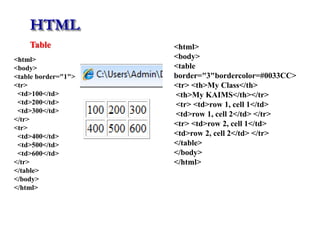
<html>
<body>
<table border="1">
<tr>
<td>100</td>
<td>200</td>
<td>300</td>
</tr>
<tr>
<td>400</td>
<td>500</td>
<td>600</td>
</tr>
</table>
</body>
</html>
<html>
<body>
<table
border="3"bordercolor=#0033CC>
<tr> <th>My Class</th>
<th>My KAIMS</th></tr>
<tr> <td>row 1, cell 1</td>
<td>row 1, cell 2</td> </tr>
<tr> <td>row 2, cell 1</td>
<td>row 2, cell 2</td> </tr>
</table>
</body>
</html>
HTML
Table
Code Example…
HTML
Table (Extend Cells across Columns and Rows)
A larger cell in a table can be create by extending the cell across two or more columns
or rows. The ability to span cells, also called merging cells.
Consider the tag for the cell to extend across columns. Type COLSPAN=“?”,
OR
ROWSPAN=“?” replacing ? with the number of columns to span.
Code Example…
HTML
Table (Cell Padding and Spacing)
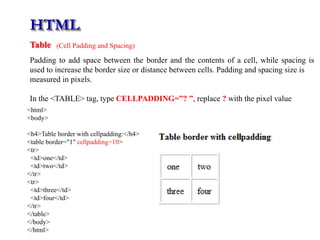
Padding to add space between the border and the contents of a cell, while spacing is
used to increase the border size or distance between cells. Padding and spacing size is
measured in pixels.
In the <TABLE> tag, type CELLPADDING=”? ”, replace ? with the pixel value
<html>
<body>
<h4>Table border with cellpadding:</h4>
<table border="1" cellpadding=10>
<tr>
<td>one</td>
<td>two</td>
</tr>
<tr>
<td>three</td>
<td>four</td>
</tr>
</table>
</body>
</html>
HTML
Table (Cell Padding and Spacing)
In the <TABLE> tag, type CELLSPACING=”? ”, replace ? with the pixel value
<html>
<body>
<h4>Table border with cellpadding:</h4>
<table border="1" cellspacing=10>
<tr>
<td>one</td>
<td>two</td>
</tr>
<tr>
<td>three</td>
<td>four</td>
</tr>
</table>
</body>
</html>
HTML
Table (Tags inside a table)
Code Example…
HTML
Table (Cell Width and Height)
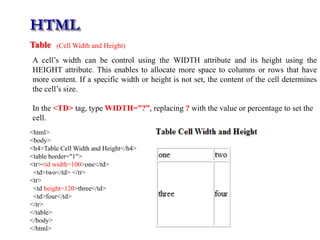
A cell’s width can be control using the WIDTH attribute and its height using the
HEIGHT attribute. This enables to allocate more space to columns or rows that have
more content. If a specific width or height is not set, the content of the cell determines
the cell’s size.
In the <TD> tag, type WIDTH=”?”, replacing ? with the value or percentage to set the
cell.
<html>
<body>
<h4>Table Cell Width and Height</h4>
<table border="1">
<tr><td width=100>one</td>
<td>two</td> </tr>
<tr>
<td height=120>three</td>
<td>four</td>
</tr>
</table>
</body>
</html>
HTML
Table (Column Header)
Type <TH> after the <TR> tag for the row to use as column labels.
<html>
<body>
<h4>Table with Column Header/ Label</h4>
<table border="1">
<tr>
<th>Name</th>
<td>City</td>
<td>Country</td>
</tr>
<tr>
<td>Kazim</td>
<td>multan</td>
<td>Pakistan</td>
</tr>
</table>
</body>
</html>
HTML
Table (Insert background image)
<html>
<title>Table background image</title>
<body>
<h4>A background image</h4>
<table border="1" background="table-background.jpg">
<tr>
<td>First</td>
<td>Row</td>
</tr>
<tr>
<td>Second</td>
<td>Row</td>
</tr>
</table>
</body>
</html>
Code Example…
HTML
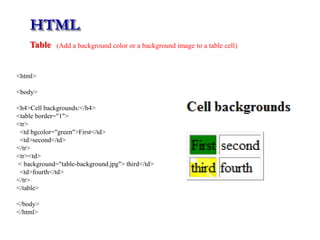
Table (Add a background color or a background image to a table cell)
<html>
<body>
<h4>Cell backgrounds:</h4>
<table border="1">
<tr>
<td bgcolor="green">First</td>
<td>second</td>
</tr>
<tr><td>
< background="table-background.jpg"> third</td>
<td>fourth</td>
</tr>
</table>
</body>
</html>
HTML
Table (Align the content in a table cell)
Code Example…
HTML
Table (Newspaper Style Columns)
The table format may be used to present columns of text on Web page, much like a newspaper.
The text may be organize into two or three columns. Paragraphs of text are contained within each
column. The vertical alignment attribute to make each column align at the top of the table.
Within the <TR> and </TR> tags, type <TD VALIGN=”top”> to start the first column
of text.
Code Example…
HTML
Forms
A form allows a user to enter data that is sent to a server for processing. It is a section of a
document containing normal content, markup, special elements called controls (checkboxes, radio
buttons, menus, etc.), and labels on those controls.
The most important form element is the input element. It is used to select user information. It can
vary in many ways, depending on the type attribute and can be of type text field, checkbox,
password, radio button, submit button, and more.
The <form> tag is used to create an HTML form
<form>
.
input elements
.
</form>
HTML
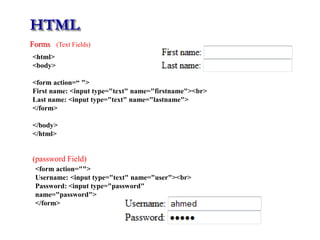
Forms (Text Fields)
<html>
<body>
<form action=“ ">
First name: <input type="text" name="firstname"><br>
Last name: <input type="text" name="lastname">
</form>
</body>
</html>
(password Field)
<form action="">
Username: <input type="text" name="user"><br>
Password: <input type="password"
name="password">
</form>
HTML
Forms (Check Boxes)
<form action="">
<input type="checkbox" name="myclass" value="Web">Web Engineering<br>
<input type="checkbox" name="myclass" value="pm">Project Management
</form>
(Radio buttons)
<form action="">
<input type="radio" name=“myradio" value="male">Male<br>
<input type="radio" name=“myradio" value="female">Female
</form>
HTML
Forms (Drop-down list simple)
(Drop-down list with a pre-selected value)
<form action="">
<select name="subject">
<option value="web">Web Engineering</option>
<option value="pm">Project
Management</option>
<option value="c++">C++</option>
<option value="java">Java</option>
</select></form>
<form action="">
<select name="subject">
<option value="web">Web Engineering</option>
<option value="pm">Project Management</option>
<option value="c++">C++</option>
<option value="java">Java</option>
<option value="DE" selected="select">Digital
Electronic</option>
<option value="DSP">Digital Signal Processing</option>
</select></form>
HTML
Forms (Textarea multi-line text input field)
<html>
<body>
<textarea rows="10" cols="30"> A friend is someone who is there for you when he'd rather be
somewhere else. Only your real friends tell you when your face is dirty. </textarea>
</body>
</html>
HTML
Forms (Button)
<form action="">
<input type="button" value=“Welcome">
</form>
Border around form-data (fieldset)
<form action="">
<fieldset>
<myborder>Personal information:</myborder>
Name: <input type="text" size="30"><br>
E-mail: <input type="text" size="30"><br>
Date of birth: <input type="text" size="10">
</fieldset></form>
HTML
Forms (GET and POST method)
GET method
The method attribute specifies how to send form-data (the form-data is sent to the page specified in
the action attribute). The form-data can be sent as URL variables (with method="get") or as HTTP
post transaction (with method="post").
<form name="myform" action="myform.aspx" method="get">
First name: <input type="text" name="FirstName" value="Nasir"><br>
Last name: <input type="text" name="LastName" value="Qasim"><br>
<input type="submit" value="Submit">
</form>
When Submit button is clicked, the form-data will be sent to a page myform.aspx
Code Example…
HTML
Forms (GET and POST method)
GET method
<form name="input" action="myform.aspx" method="get">
<input type="checkbox" name="myclass" value="web">Web Engineering<br>
<input type="checkbox" name="myclass" value="pm">Project Management
<br><br>
<input type="submit" value="Submit">
</form>
Code Example…
Radio buttonsand submit button
<form name="input" action="myform.aspx" method="get">
<input type="radio" name="mychoice" value="male">Male<br>
<input type="radio" name="mychoice" value="female">Female<br>
<input type="submit" value="Submit">
</form>
Code Example…
HTML
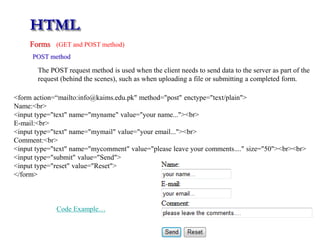
Forms (GET and POST method)
POST method
The POST request method is used when the client needs to send data to the server as part of the
request (behind the scenes), such as when uploading a file or submitting a completed form.
<form action=“mailto:info@kaims.edu.pk" method="post" enctype="text/plain">
Name:<br>
<input type="text" name="myname" value="your name..."><br>
E-mail:<br>
<input type="text" name="mymail" value="your email..."><br>
Comment:<br>
<input type="text" name="mycomment" value="please leave your comments...." size="50"><br><br>
<input type="submit" value="Send">
<input type="reset" value="Reset">
</form>
Code Example…
HTML
Layout
The webpage layout follows a certain basic design structure.
<div> Elements
It is a block level element used for grouping HTML elements. Multiple columns are created by
using <div> or <table> elements
HTML
Layout
<div> Elements
It is a block level element used for grouping HTML elements. Multiple columns are created by
using <div> or <table> elements
Code Example using div Code Example using table
HTML
Frame
Frames allow for multiple .html documents to be displayed inside of one browser window at a
time. Frames can divide the screen into separate windows.
HTML
Frame (frameset)
<html>
<frameset rows="50%,50%">
<frame src="header.htm">
<frameset cols="18%,82%">
<frame src="menu.htm">
<frame src="main.htm">
</frameset>
</frameset>
</html>
Code Example
HTML
Iframe (Inline frame)
It is used to display the embedded data inside a sub window of the browser's window.
Code Example
HTML
Multimedia
Multimedia on the web is sound, music, videos, and animations. Multimedia comes in many
different formats. It can be almost anything, hear or see like text, pictures, music, sound, videos,
records, films, animations, and more.
Multimedia elements (like sounds or videos) are stored in media files. The most common way to
discover the media type is to look at the file extension.
Object
The <object> element supports the HTML helpers (Plug-Ins). A helper application is a program that
can be launched by the browser to help. The helper applications are also called Plug-Ins.
Plug-Ins
The plug-ins are used to display maps, to verify the bank id, to control the input, and much more.
The purpose of the <embed> tag is to embed multimedia elements in HTML pages.
<embed>
HTML
Multimedia (object)
<html>
<body>
<object width="400" height="40"
classid="clsid:d27cdb6e-ae6d-11cf-96b8-444553540000"
codebase="http://fpdownload.macromedia.com/pub/shockwave/cabs/flash/swflash.cab#version=8,0,0,0">
<param name="SRC" value="stars.swf">
<embed src="stars.swf" width="400" height="500"></embed>
</object>
</body>
</html>
Code Example
Playing flash video file
HTML
Multimedia (object)
Code Example
Playing WMV Movie file Using Windows Media Player
<html>
<body>
<object width="100%" height="100%"
type="video/x-ms-asf" url="3d.wmv" data="3d.wmv"
classid="CLSID:6BF52A52-394A-11d3-B153-00C04F79FAA6">
<param name="url" value="3d.wmv">
<param name="filename" value="3d.wmv">
<param name="autostart" value="1">
<param name="uiMode" value="full"><param name="autosize" value="1">
<param name="playcount" value="1">
<embed type="application/x-mplayer2" src="3d.wmv" width="100%" height="100%" autostart="true"
showcontrols="true" pluginspage="http://www.microsoft.com/Windows/MediaPlayer/"></embed>
</object>
</body>
</html>
HTML
Multimedia
Playing Videos in HTML
<html>
<body>
<video width="320" height="240" controls="controls" autoplay="autoplay">
<source src="movie.ogg" type="video/ogg">
<source src="movie.mp4" type="video/mp4">
<source src="movie.webm" type="video/webm">
<object data="movie.mp4" width="320" height="240">
<embed width="320" height="240" src="movie.swf">
</object>
</video>
</body>
</html>
Code Example
HTML
Multimedia
Playing Youtube video in HTML
Code Example
In-order to display display a video in a web page, upload the video to YouTube and insert HTML
code to display the video in web page.
YouTube iFrame
<html>
<body>
<iframe width="420" height="345“ src="http://www.youtube.com/embed/XGSy3_Czz8k">
</iframe>
</body>
</html>
YouTube Embedded
<html>
<body>
<embed width="420" height="345“ src=http://www.youtube.com/v/XGSy3_Czz8k type="application/x-
shockwave-flash">
</embed>
</body>
</html>
Code Example
HTML
Meta Tags
HTML meta tags are page data tags that lie between the open and closing head tags in the HTML
code of a document. The text in these tags is not displayed, but parsable and tells the browsers
specific information about the page.
< head>
< title>my institute< /title>
< meta name="description" content=“institute is an Engineering Educational Institute”>
< meta name=“keyword“= content=“Engineering, Education, Science, multan, pakistan,
B.Sc, Computer, Electronic, Chemical, Science, Mathematics, Physics, Chemistry“>
< /head>
HTML
Redirection
URL redirection/ URL forwarding, is a World Wide Web technique for making a web page
available under more than one URL address. When a web browser attempts to open a URL that has
been redirected, a page with a different URL is opened.
<html>
<head>
<meta http-equiv="Refresh" content="5;url=http://www.kaims.edu.pk"></head>
<body>
<h1>Sorry! We have moved!</h1>
<h2>The new URL is: <a href="http://www.kaims.edu.pk">http://www.kaims.edu.pk</a></h2>
<p>You will be redirected to the new address in five seconds.</p>
<p>If you see this message for more than 5 seconds, please click on the link above!</p>
</body>
</html>
Code Example
THE END

Lect# 1 html part ii

  • 1.
    WEB ENGINEERING Course CodeCSI-654 Hypertext Markup Language (HTML) Part-II
  • 2.
    HTML Table HTML tables enableto effectively present large amounts of data in rows and columns. Table Structure A table is basically a rectangle containing rows and columns. The places where the columns and rows intersect are called cells. Each cell can hold Web page content. Cell Spanning Cells can span two or more columns or rows to form bigger containers for data. For example, a table may include a title cell at the top that spans multiple columns across the table, or one that extends downward across several rows. Tables are defined with the <table> tag. A table is divided into rows with the <tr> tag, and each row is divided into data cells with the <td> tag. The <td> stands for "table data," which is the content of a data cell. A data cell can contain text, images, lists, paragraphs, forms, horizontal rules, tables, etc. Table Elements
  • 3.
    HTML Table <html> <body> <table border="1"> <tr> <td>100</td> <td>200</td> <td>300</td> </tr> <tr> <td>400</td> <td>500</td> <td>600</td> </tr> </table> </body> </html> <html> <body> <table border="3"bordercolor=#0033CC> <tr> <th>MyClass</th> <th>My KAIMS</th></tr> <tr> <td>row 1, cell 1</td> <td>row 1, cell 2</td> </tr> <tr> <td>row 2, cell 1</td> <td>row 2, cell 2</td> </tr> </table> </body> </html>
  • 4.
  • 5.
    HTML Table (Extend Cellsacross Columns and Rows) A larger cell in a table can be create by extending the cell across two or more columns or rows. The ability to span cells, also called merging cells. Consider the tag for the cell to extend across columns. Type COLSPAN=“?”, OR ROWSPAN=“?” replacing ? with the number of columns to span. Code Example…
  • 6.
    HTML Table (Cell Paddingand Spacing) Padding to add space between the border and the contents of a cell, while spacing is used to increase the border size or distance between cells. Padding and spacing size is measured in pixels. In the <TABLE> tag, type CELLPADDING=”? ”, replace ? with the pixel value <html> <body> <h4>Table border with cellpadding:</h4> <table border="1" cellpadding=10> <tr> <td>one</td> <td>two</td> </tr> <tr> <td>three</td> <td>four</td> </tr> </table> </body> </html>
  • 7.
    HTML Table (Cell Paddingand Spacing) In the <TABLE> tag, type CELLSPACING=”? ”, replace ? with the pixel value <html> <body> <h4>Table border with cellpadding:</h4> <table border="1" cellspacing=10> <tr> <td>one</td> <td>two</td> </tr> <tr> <td>three</td> <td>four</td> </tr> </table> </body> </html>
  • 8.
    HTML Table (Tags insidea table) Code Example…
  • 9.
    HTML Table (Cell Widthand Height) A cell’s width can be control using the WIDTH attribute and its height using the HEIGHT attribute. This enables to allocate more space to columns or rows that have more content. If a specific width or height is not set, the content of the cell determines the cell’s size. In the <TD> tag, type WIDTH=”?”, replacing ? with the value or percentage to set the cell. <html> <body> <h4>Table Cell Width and Height</h4> <table border="1"> <tr><td width=100>one</td> <td>two</td> </tr> <tr> <td height=120>three</td> <td>four</td> </tr> </table> </body> </html>
  • 10.
    HTML Table (Column Header) Type<TH> after the <TR> tag for the row to use as column labels. <html> <body> <h4>Table with Column Header/ Label</h4> <table border="1"> <tr> <th>Name</th> <td>City</td> <td>Country</td> </tr> <tr> <td>Kazim</td> <td>multan</td> <td>Pakistan</td> </tr> </table> </body> </html>
  • 11.
    HTML Table (Insert backgroundimage) <html> <title>Table background image</title> <body> <h4>A background image</h4> <table border="1" background="table-background.jpg"> <tr> <td>First</td> <td>Row</td> </tr> <tr> <td>Second</td> <td>Row</td> </tr> </table> </body> </html> Code Example…
  • 12.
    HTML Table (Add abackground color or a background image to a table cell) <html> <body> <h4>Cell backgrounds:</h4> <table border="1"> <tr> <td bgcolor="green">First</td> <td>second</td> </tr> <tr><td> < background="table-background.jpg"> third</td> <td>fourth</td> </tr> </table> </body> </html>
  • 13.
    HTML Table (Align thecontent in a table cell) Code Example…
  • 14.
    HTML Table (Newspaper StyleColumns) The table format may be used to present columns of text on Web page, much like a newspaper. The text may be organize into two or three columns. Paragraphs of text are contained within each column. The vertical alignment attribute to make each column align at the top of the table. Within the <TR> and </TR> tags, type <TD VALIGN=”top”> to start the first column of text. Code Example…
  • 15.
    HTML Forms A form allowsa user to enter data that is sent to a server for processing. It is a section of a document containing normal content, markup, special elements called controls (checkboxes, radio buttons, menus, etc.), and labels on those controls. The most important form element is the input element. It is used to select user information. It can vary in many ways, depending on the type attribute and can be of type text field, checkbox, password, radio button, submit button, and more. The <form> tag is used to create an HTML form <form> . input elements . </form>
  • 16.
    HTML Forms (Text Fields) <html> <body> <formaction=“ "> First name: <input type="text" name="firstname"><br> Last name: <input type="text" name="lastname"> </form> </body> </html> (password Field) <form action=""> Username: <input type="text" name="user"><br> Password: <input type="password" name="password"> </form>
  • 17.
    HTML Forms (Check Boxes) <formaction=""> <input type="checkbox" name="myclass" value="Web">Web Engineering<br> <input type="checkbox" name="myclass" value="pm">Project Management </form> (Radio buttons) <form action=""> <input type="radio" name=“myradio" value="male">Male<br> <input type="radio" name=“myradio" value="female">Female </form>
  • 18.
    HTML Forms (Drop-down listsimple) (Drop-down list with a pre-selected value) <form action=""> <select name="subject"> <option value="web">Web Engineering</option> <option value="pm">Project Management</option> <option value="c++">C++</option> <option value="java">Java</option> </select></form> <form action=""> <select name="subject"> <option value="web">Web Engineering</option> <option value="pm">Project Management</option> <option value="c++">C++</option> <option value="java">Java</option> <option value="DE" selected="select">Digital Electronic</option> <option value="DSP">Digital Signal Processing</option> </select></form>
  • 19.
    HTML Forms (Textarea multi-linetext input field) <html> <body> <textarea rows="10" cols="30"> A friend is someone who is there for you when he'd rather be somewhere else. Only your real friends tell you when your face is dirty. </textarea> </body> </html>
  • 20.
    HTML Forms (Button) <form action=""> <inputtype="button" value=“Welcome"> </form> Border around form-data (fieldset) <form action=""> <fieldset> <myborder>Personal information:</myborder> Name: <input type="text" size="30"><br> E-mail: <input type="text" size="30"><br> Date of birth: <input type="text" size="10"> </fieldset></form>
  • 21.
    HTML Forms (GET andPOST method) GET method The method attribute specifies how to send form-data (the form-data is sent to the page specified in the action attribute). The form-data can be sent as URL variables (with method="get") or as HTTP post transaction (with method="post"). <form name="myform" action="myform.aspx" method="get"> First name: <input type="text" name="FirstName" value="Nasir"><br> Last name: <input type="text" name="LastName" value="Qasim"><br> <input type="submit" value="Submit"> </form> When Submit button is clicked, the form-data will be sent to a page myform.aspx Code Example…
  • 22.
    HTML Forms (GET andPOST method) GET method <form name="input" action="myform.aspx" method="get"> <input type="checkbox" name="myclass" value="web">Web Engineering<br> <input type="checkbox" name="myclass" value="pm">Project Management <br><br> <input type="submit" value="Submit"> </form> Code Example… Radio buttonsand submit button <form name="input" action="myform.aspx" method="get"> <input type="radio" name="mychoice" value="male">Male<br> <input type="radio" name="mychoice" value="female">Female<br> <input type="submit" value="Submit"> </form> Code Example…
  • 23.
    HTML Forms (GET andPOST method) POST method The POST request method is used when the client needs to send data to the server as part of the request (behind the scenes), such as when uploading a file or submitting a completed form. <form action=“mailto:info@kaims.edu.pk" method="post" enctype="text/plain"> Name:<br> <input type="text" name="myname" value="your name..."><br> E-mail:<br> <input type="text" name="mymail" value="your email..."><br> Comment:<br> <input type="text" name="mycomment" value="please leave your comments...." size="50"><br><br> <input type="submit" value="Send"> <input type="reset" value="Reset"> </form> Code Example…
  • 24.
    HTML Layout The webpage layoutfollows a certain basic design structure. <div> Elements It is a block level element used for grouping HTML elements. Multiple columns are created by using <div> or <table> elements
  • 25.
    HTML Layout <div> Elements It isa block level element used for grouping HTML elements. Multiple columns are created by using <div> or <table> elements Code Example using div Code Example using table
  • 26.
    HTML Frame Frames allow formultiple .html documents to be displayed inside of one browser window at a time. Frames can divide the screen into separate windows.
  • 27.
    HTML Frame (frameset) <html> <frameset rows="50%,50%"> <framesrc="header.htm"> <frameset cols="18%,82%"> <frame src="menu.htm"> <frame src="main.htm"> </frameset> </frameset> </html> Code Example
  • 28.
    HTML Iframe (Inline frame) Itis used to display the embedded data inside a sub window of the browser's window. Code Example
  • 29.
    HTML Multimedia Multimedia on theweb is sound, music, videos, and animations. Multimedia comes in many different formats. It can be almost anything, hear or see like text, pictures, music, sound, videos, records, films, animations, and more. Multimedia elements (like sounds or videos) are stored in media files. The most common way to discover the media type is to look at the file extension. Object The <object> element supports the HTML helpers (Plug-Ins). A helper application is a program that can be launched by the browser to help. The helper applications are also called Plug-Ins. Plug-Ins The plug-ins are used to display maps, to verify the bank id, to control the input, and much more. The purpose of the <embed> tag is to embed multimedia elements in HTML pages. <embed>
  • 30.
    HTML Multimedia (object) <html> <body> <object width="400"height="40" classid="clsid:d27cdb6e-ae6d-11cf-96b8-444553540000" codebase="http://fpdownload.macromedia.com/pub/shockwave/cabs/flash/swflash.cab#version=8,0,0,0"> <param name="SRC" value="stars.swf"> <embed src="stars.swf" width="400" height="500"></embed> </object> </body> </html> Code Example Playing flash video file
  • 31.
    HTML Multimedia (object) Code Example PlayingWMV Movie file Using Windows Media Player <html> <body> <object width="100%" height="100%" type="video/x-ms-asf" url="3d.wmv" data="3d.wmv" classid="CLSID:6BF52A52-394A-11d3-B153-00C04F79FAA6"> <param name="url" value="3d.wmv"> <param name="filename" value="3d.wmv"> <param name="autostart" value="1"> <param name="uiMode" value="full"><param name="autosize" value="1"> <param name="playcount" value="1"> <embed type="application/x-mplayer2" src="3d.wmv" width="100%" height="100%" autostart="true" showcontrols="true" pluginspage="http://www.microsoft.com/Windows/MediaPlayer/"></embed> </object> </body> </html>
  • 32.
    HTML Multimedia Playing Videos inHTML <html> <body> <video width="320" height="240" controls="controls" autoplay="autoplay"> <source src="movie.ogg" type="video/ogg"> <source src="movie.mp4" type="video/mp4"> <source src="movie.webm" type="video/webm"> <object data="movie.mp4" width="320" height="240"> <embed width="320" height="240" src="movie.swf"> </object> </video> </body> </html> Code Example
  • 33.
    HTML Multimedia Playing Youtube videoin HTML Code Example In-order to display display a video in a web page, upload the video to YouTube and insert HTML code to display the video in web page. YouTube iFrame <html> <body> <iframe width="420" height="345“ src="http://www.youtube.com/embed/XGSy3_Czz8k"> </iframe> </body> </html> YouTube Embedded <html> <body> <embed width="420" height="345“ src=http://www.youtube.com/v/XGSy3_Czz8k type="application/x- shockwave-flash"> </embed> </body> </html> Code Example
  • 34.
    HTML Meta Tags HTML metatags are page data tags that lie between the open and closing head tags in the HTML code of a document. The text in these tags is not displayed, but parsable and tells the browsers specific information about the page. < head> < title>my institute< /title> < meta name="description" content=“institute is an Engineering Educational Institute”> < meta name=“keyword“= content=“Engineering, Education, Science, multan, pakistan, B.Sc, Computer, Electronic, Chemical, Science, Mathematics, Physics, Chemistry“> < /head>
  • 35.
    HTML Redirection URL redirection/ URLforwarding, is a World Wide Web technique for making a web page available under more than one URL address. When a web browser attempts to open a URL that has been redirected, a page with a different URL is opened. <html> <head> <meta http-equiv="Refresh" content="5;url=http://www.kaims.edu.pk"></head> <body> <h1>Sorry! We have moved!</h1> <h2>The new URL is: <a href="http://www.kaims.edu.pk">http://www.kaims.edu.pk</a></h2> <p>You will be redirected to the new address in five seconds.</p> <p>If you see this message for more than 5 seconds, please click on the link above!</p> </body> </html> Code Example
  • 36.