Adobe Photoshop
Learning
What is ?
is computer program that
allows users to create and edit images
interactively on the computer screen and save
them in one of many raster graphics file formats
(also known as bitmap images) such as JPEG,
PNG, and GIF.
What is Adobe Photoshop?
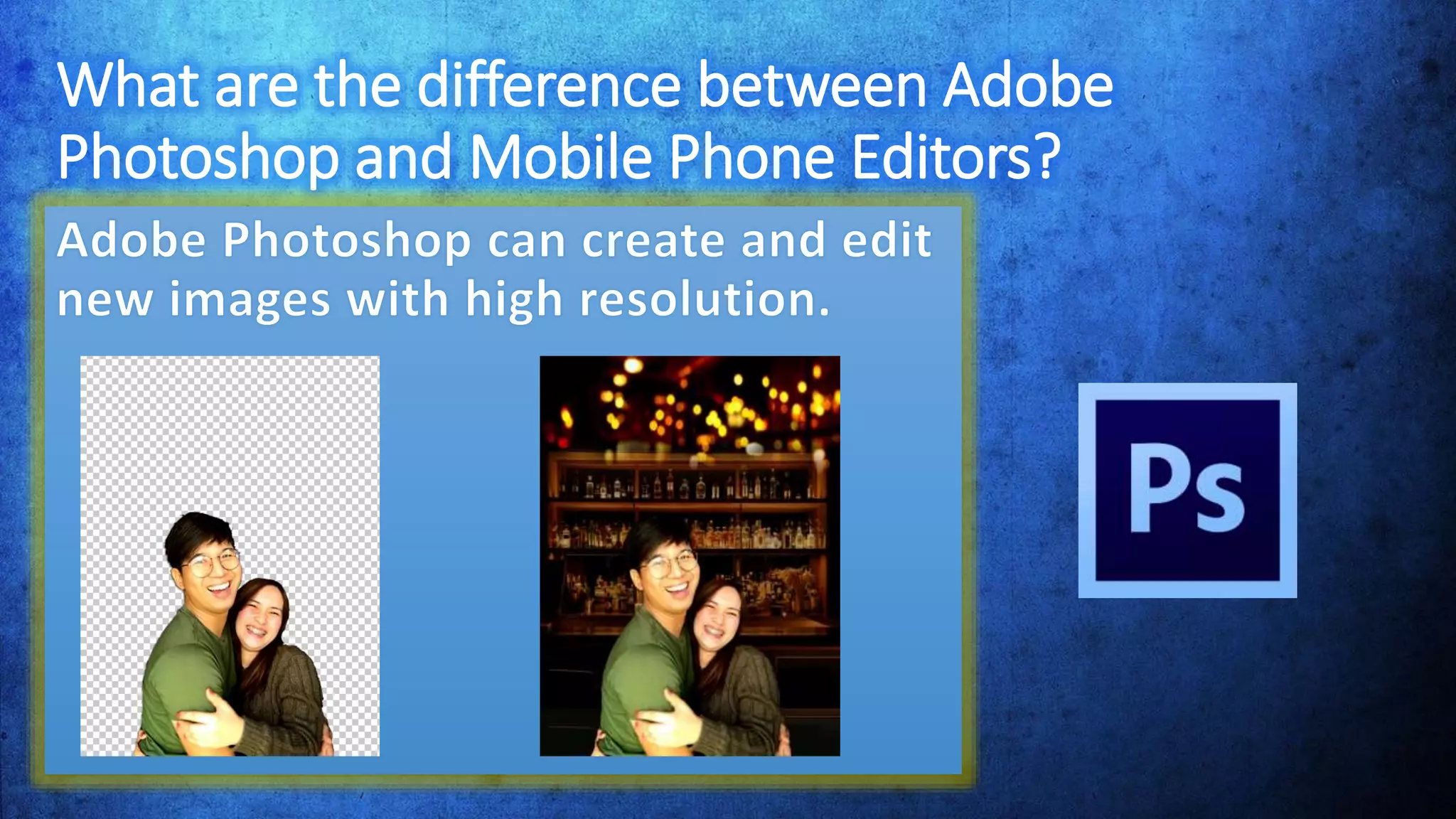
What are the difference between Adobe
Photoshop and Mobile Phone Editors?
What are the difference between Adobe
Photoshop and Mobile Phone Editors?
What are the difference between Adobe
Photoshop and Mobile Phone Editors?
What are the difference between Adobe
Photoshop and Mobile Phone Editors?
What are the difference between Adobe
Photoshop and Mobile Phone Editors?
Let’s try to make a simple poster using Photoshop
First open your Photoshop CS6
Next Click the “File” on upper part of the Photo shop
and Click “Open” then add your designated Picture.
Next select
the image size
on the upper
part screen.
Change the
document size
into inches and
enter your
desired size of
your poster.
Remember :
Always change
the resolution to
300
The image size
will show like
this , to zoom in
or zoom out
used CTRL+ to
zoom in
And CTRL- to
zoom out
Let’s add text .
To add text, left
click the “TEXT
icon” on the left
part of the
screen
The mouse cursor
will change into
box like icon.
Point the cursor
inside the picture
then left click the
picture.
Before you type
a word, change
the color , font ,
and size of your
text
The image will show
like this, to move the
text use the Move Tool
icon on the left side of
the screen. Left click
the icon and drag your
text.
Next add some
plastic covers, left
Click the layer icon
at the right bottom
part of the screen
The image will be
like this, next add
some colors. Click
the “set foreground
color on the left
bottom of the
screen.
Choose you desired
color. Then left click
the paint bucket
tool. The cursor will
have a bucket icon,
left click the
picture.
The image will be
like this. After that
left click the
painted layer and
add some effects.
The image will be
like this. Next
adjust the opacity
of the layer
Lastly, save the poster by clicking the “file” then “save as” and
choose “JPEG” or “PNG” format
APPLICATION
LEARNING PHOTOSHOP

LEARNING PHOTOSHOP

  • 1.
  • 2.
    What is ? iscomputer program that allows users to create and edit images interactively on the computer screen and save them in one of many raster graphics file formats (also known as bitmap images) such as JPEG, PNG, and GIF.
  • 3.
    What is AdobePhotoshop?
  • 4.
    What are thedifference between Adobe Photoshop and Mobile Phone Editors?
  • 5.
    What are thedifference between Adobe Photoshop and Mobile Phone Editors?
  • 6.
    What are thedifference between Adobe Photoshop and Mobile Phone Editors?
  • 7.
    What are thedifference between Adobe Photoshop and Mobile Phone Editors?
  • 8.
    What are thedifference between Adobe Photoshop and Mobile Phone Editors?
  • 11.
    Let’s try tomake a simple poster using Photoshop First open your Photoshop CS6 Next Click the “File” on upper part of the Photo shop and Click “Open” then add your designated Picture.
  • 12.
    Next select the imagesize on the upper part screen. Change the document size into inches and enter your desired size of your poster. Remember : Always change the resolution to 300
  • 13.
    The image size willshow like this , to zoom in or zoom out used CTRL+ to zoom in And CTRL- to zoom out
  • 14.
    Let’s add text. To add text, left click the “TEXT icon” on the left part of the screen The mouse cursor will change into box like icon. Point the cursor inside the picture then left click the picture.
  • 15.
    Before you type aword, change the color , font , and size of your text
  • 16.
    The image willshow like this, to move the text use the Move Tool icon on the left side of the screen. Left click the icon and drag your text.
  • 17.
    Next add some plasticcovers, left Click the layer icon at the right bottom part of the screen
  • 18.
    The image willbe like this, next add some colors. Click the “set foreground color on the left bottom of the screen. Choose you desired color. Then left click the paint bucket tool. The cursor will have a bucket icon, left click the picture.
  • 19.
    The image willbe like this. After that left click the painted layer and add some effects.
  • 22.
    The image willbe like this. Next adjust the opacity of the layer
  • 23.
    Lastly, save theposter by clicking the “file” then “save as” and choose “JPEG” or “PNG” format
  • 25.