Basic Web Page
Creation
• Web page creation using templates
• Web page design using an online
WYSIWYG platform
At the end of this lesson, the students should be able to:
1. create a web page using Microsoft Word;
2. create your own website using a free host;
3. design a website using an online WYSIWYG
platform; and
4. edit and insert elements for their website.
WYSIWYG is the acronym for What
You See Is What You Get. This means
that whatever you type, insert, draw,
place, rearrange, and everything you do
on a page is what the audience will see.
Creating a Website using Microsoft Word
1. Open Microsoft Word.
2. Type anything on the page like “Welcome to my
Website.”
3. Click on File > Save As > Browse.
4. On the Save As dialog box, locate your activities folder
and create a new folder named “Sample Webpage.”
5. Specify the filename “Sample Webpage.”
6. On the Save As type, select “Web Page (*.htm; *.html).”
7. Click the Change
Title button.
8. Input the title
as seen
below, then
click OK then
Save.
9. Check the files on your Sample WebPage folder. You will
see a new folder generated including your htm/html file.
10. Open the Sample WebPage.htm file and you will
see that you just created a webpage using MS Word.
Creating Your Own Website using Jimdo
Jimdo is a WYSIWYG web hosting service. It
offers free, professional, and business web
hosting services. Jimdo also has an iOS and
Android app which you can use to manage
your website whenever you do not have
access to a PC. For this exercise you will
create your own personal website that
focuses on your passion or hobby.
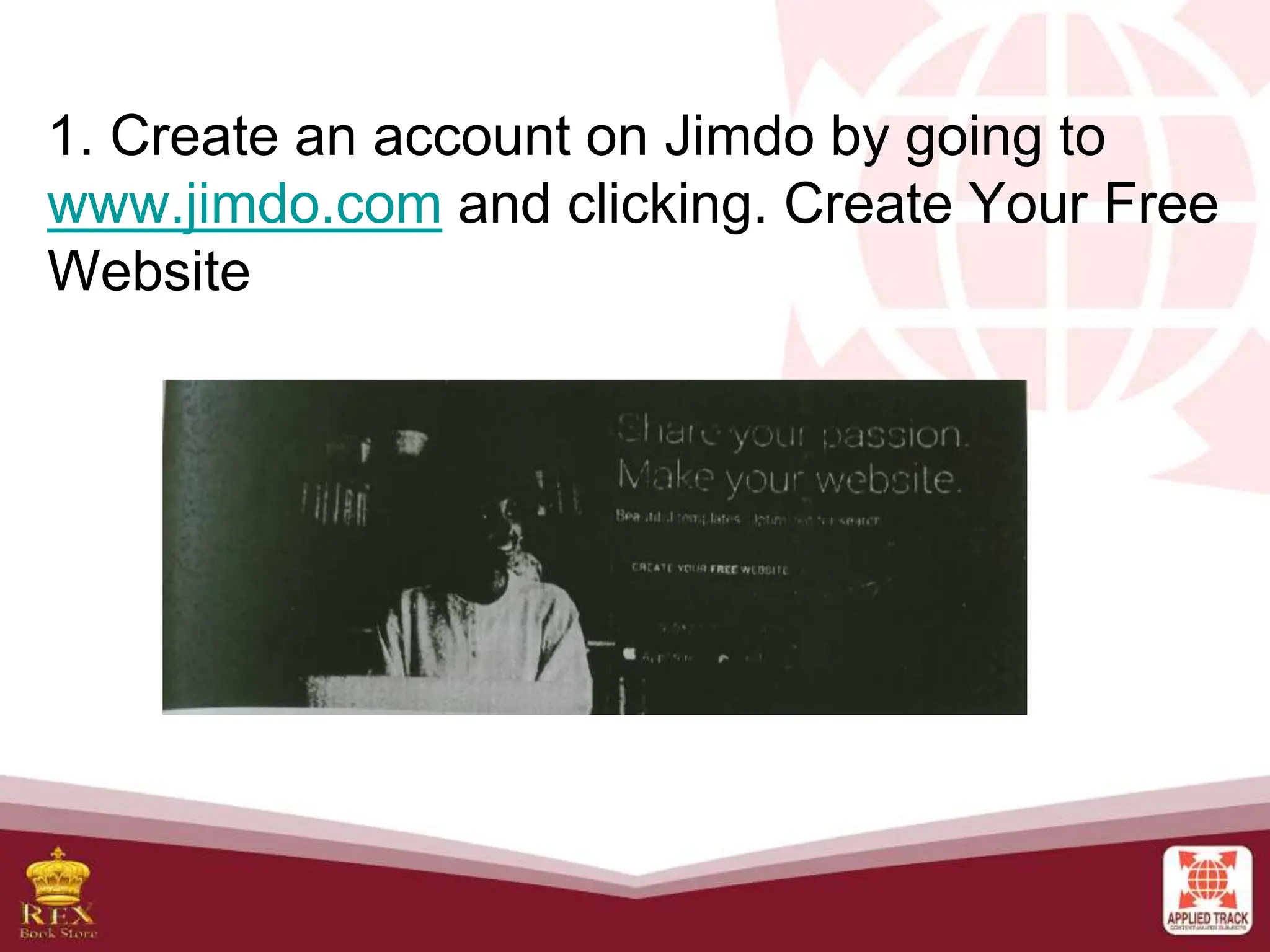
1. Create an account on Jimdo by going to
www.jimdo.com and clicking. Create Your Free
Website
2. You will be instructed to choose a
template. Pick any template that you want.
4. Your website will be generated and soon
you will end up in the site's WYSIWYG.
5. The editor is pretty easy to use. The
center shows the preview of your website.
The design tools are located on the right.
Inserting a Page
1. Hover your mouse pointer over the site
navigator. The Edit Navigation button will
appear.
Editing Elements
Hovering over a text, image, or any element you see
on the website will highlight the element.
Move element up - used to move the element up by
one level
Move element down-used to move the element one
level lower
Delete element - used to remove the element
Copy element -used to copy the element
Drag tool-click and drag the element to a valid part
of the page
Clicking on an element will show clicked:
I. Header
If it is a header, clicking the text will allow you
to edit the more options regarding on what
visual element you text and change its font
size.
II. Image
if it is an image,several options would also
appear. It also allows you to upload an
image directly from your computer or a
Dropbox account.
Sizing Tools- used to make image larger or smaller or
restore to actual size page.
Align Tools - used for left, right, and center alignment page.
Rotate Tools- used to rotate image clockwise or counter-
clockwise page.
View Tools -used to enable enlarge image, link photo, and
remove link (Tip: Enable Enlarge Image will show a small
image on the page and will only be enlarged when a user
clicks it. Link Photo allows you to insert an image from
another website or image host like Photobucket.)
Other Tools- caption and alternative text; allow sharing to
Pinterest (Tip: Alternative Text refers to the text that will be
shown if the image does not load.)
II. Paragraph
if it is a paragraph,you will be treated to
even more options similar to using a word
processor:
Adding Elements
1. To add elements on screen,hover the
mouse pointer over the top or bottom of an
existing element until the Add Element
button appears.
2. Select the visual element you want to
add.
a. Heading - to insert heading type of text
b. Text - to insert a paragraph type of text
c. Photo - to insert a single photo
d. Text with Photo-to insert a photo surrounded
with text
e. Photo Gallery - to insert multiple photos on one
area
f. Horizontal Line - to insert a horizontal line that
acts as a divider
g. Spacing- to add a space with a specified size
h. Columns-to insert columns that devide an
area vertically.
I. Video-to insert video from a video hosting site like YouTube
j. Form-creates a Send Email from for feeback
k. Store item-adds a space for selling an item(online shopping)
l. Share Buttons-adds buttons for the site visitor to share your website
m. Additional Elements-includes other options like Google Maps,file
download, widgets,etc.
3. Edit the element of your liking the click Save.
Site Setting
Templates-changes the design template selected
Style-changes the design style of the page (like color)
Blog-creates a blog for your website Upgrade -upgrades to
JimdoPro or JimdoBusiness
SEO-Search Engine Optimization;used for others to easily
find your site using search engines like Google and Bing
Store-manages the orders made from your website
Statistics-view your site's statistics
Help-accesses Jimdom's are archive
You may use the tools located on the right-hand side of the
screen to get access to these features.
Setting
The Settings option contains important information that
you should edit to make the st out of your Jimdo website.
The Account settings includes changing your password,
email, and personal profile.
The Website options allows you to change
your site title and footer; checks your
storage; creates your privacy policy and your
favicon (the icon of your website shown on a
browser).
The Mobile settings is used to prepare
your page for mobile devices.
The Email and Domain Management
settings is a premium feature. It is used to
manage email accounts for your website.
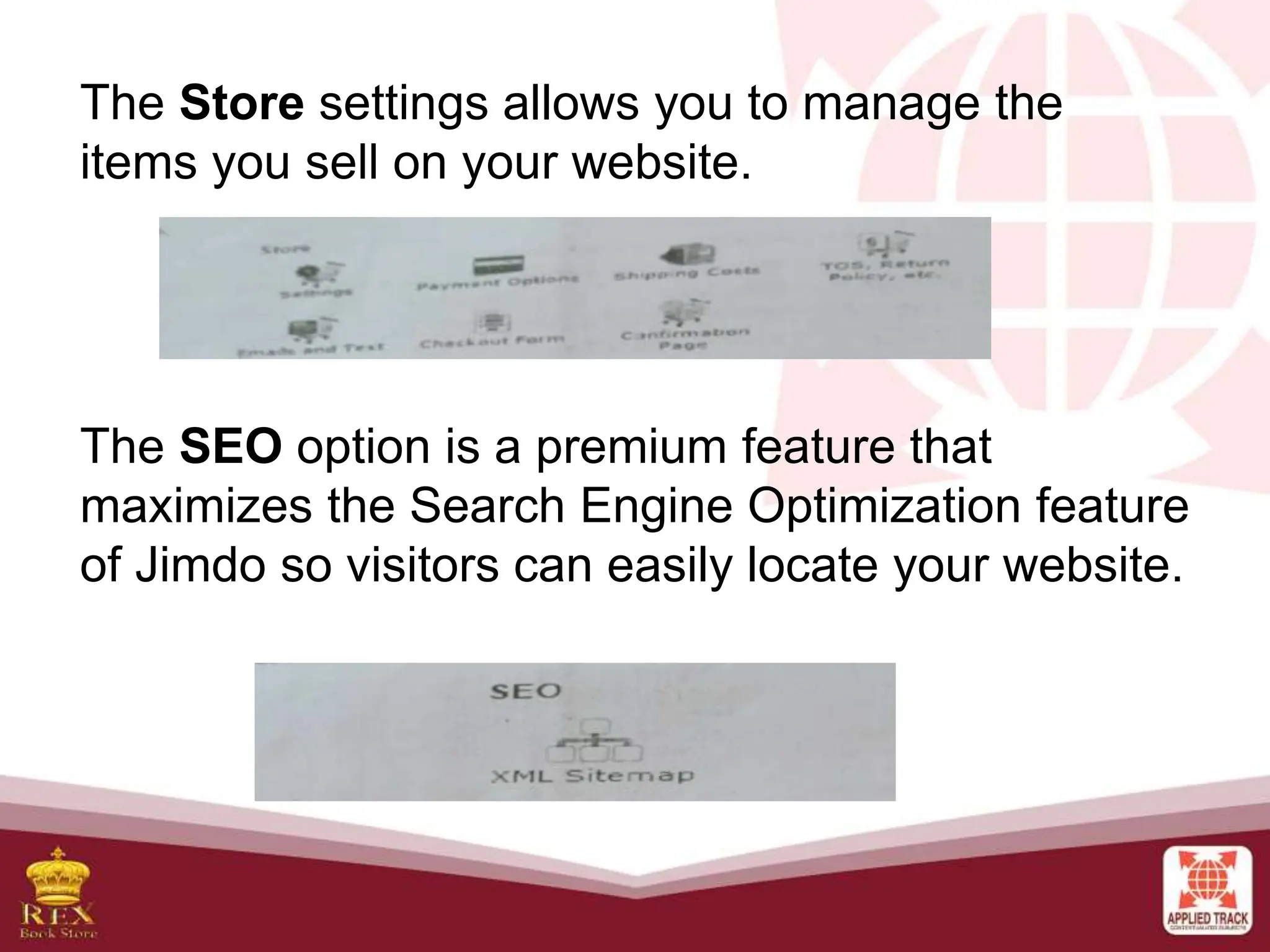
The Store settings allows you to manage the
items you sell on your website.
The SEO option is a premium feature that
maximizes the Search Engine Optimization feature
of Jimdo so visitors can easily locate your website.
The Apps option contains settings for embedded apps on
your website like Dropbox, OR Codes, Google Analytics,
and Twitter.
The Jimdo settings allows you to remove the Jimdo Box on
your website (premium feature) and check Jimdo News.
Once you are done editing the settings, go to your site's
URL using a browser of your choice.
KT Key Terms
WYSIWYG - an editor that allows you to create and
design web pages without any coding knowledge.
HTML - stands for Hypertext Markup Language
CSS stands for Cascading Style Sheets.
Jimdo- a free website provider with a WYSIWYG editor.
Template - a ready-made design for a website.
Heading - the topmost label of a website.
SEO-stands for Search Engine Optimization; a feature
that maximizes the search engine optimization feature so
visitors can easily locate your website.
Lesson Summary
WYSIWYG stands for What You See is What You Get It is an editor
that allows you to create and design web pages without any coding
knowledge. You can use Microsoft Word and Microson Excel as
WYSIWYG editor.
Jimdo is a WYSIWYG web hosting service offering free and paid
services. It has an android and iOS application that let you manage
your site on mobile. Jimdo WYSIWYG editor is easy to use Just click on
an element to edit it. You can also add a page by just hovering over the
navigation bar and clicking edit navigation. You can also go to another
page by simply clicking on the page link like you would normally do
when navigating through website.
Jimdo has tools that will allow you to sell your product online, create
your own photo gallery, add videos, and many more. You can also
maximize search engines by properly tagging your site.
Creating your Own Website using Jimdo
Jimdo is a WYSIWYG web hosting
service. It offers free, professional, and
business web hosting services. Jimdo also
has an iOS and Android app which you can
use to manage your website whenever you
do not have access to a PC.
For this exercise you will create your
own personal website that focuses on your
passion hobby.

L8-Basic-Webpage-Creation.pptx

  • 1.
    Basic Web Page Creation •Web page creation using templates • Web page design using an online WYSIWYG platform
  • 2.
    At the endof this lesson, the students should be able to: 1. create a web page using Microsoft Word; 2. create your own website using a free host; 3. design a website using an online WYSIWYG platform; and 4. edit and insert elements for their website.
  • 3.
    WYSIWYG is theacronym for What You See Is What You Get. This means that whatever you type, insert, draw, place, rearrange, and everything you do on a page is what the audience will see.
  • 4.
    Creating a Websiteusing Microsoft Word 1. Open Microsoft Word. 2. Type anything on the page like “Welcome to my Website.” 3. Click on File > Save As > Browse.
  • 5.
    4. On theSave As dialog box, locate your activities folder and create a new folder named “Sample Webpage.” 5. Specify the filename “Sample Webpage.” 6. On the Save As type, select “Web Page (*.htm; *.html).”
  • 6.
    7. Click theChange Title button. 8. Input the title as seen below, then click OK then Save.
  • 7.
    9. Check thefiles on your Sample WebPage folder. You will see a new folder generated including your htm/html file. 10. Open the Sample WebPage.htm file and you will see that you just created a webpage using MS Word.
  • 8.
    Creating Your OwnWebsite using Jimdo Jimdo is a WYSIWYG web hosting service. It offers free, professional, and business web hosting services. Jimdo also has an iOS and Android app which you can use to manage your website whenever you do not have access to a PC. For this exercise you will create your own personal website that focuses on your passion or hobby.
  • 9.
    1. Create anaccount on Jimdo by going to www.jimdo.com and clicking. Create Your Free Website
  • 10.
    2. You willbe instructed to choose a template. Pick any template that you want.
  • 12.
    4. Your websitewill be generated and soon you will end up in the site's WYSIWYG. 5. The editor is pretty easy to use. The center shows the preview of your website. The design tools are located on the right.
  • 13.
    Inserting a Page 1.Hover your mouse pointer over the site navigator. The Edit Navigation button will appear.
  • 15.
    Editing Elements Hovering overa text, image, or any element you see on the website will highlight the element. Move element up - used to move the element up by one level Move element down-used to move the element one level lower Delete element - used to remove the element Copy element -used to copy the element Drag tool-click and drag the element to a valid part of the page
  • 16.
    Clicking on anelement will show clicked: I. Header If it is a header, clicking the text will allow you to edit the more options regarding on what visual element you text and change its font size.
  • 17.
    II. Image if itis an image,several options would also appear. It also allows you to upload an image directly from your computer or a Dropbox account.
  • 18.
    Sizing Tools- usedto make image larger or smaller or restore to actual size page. Align Tools - used for left, right, and center alignment page. Rotate Tools- used to rotate image clockwise or counter- clockwise page. View Tools -used to enable enlarge image, link photo, and remove link (Tip: Enable Enlarge Image will show a small image on the page and will only be enlarged when a user clicks it. Link Photo allows you to insert an image from another website or image host like Photobucket.) Other Tools- caption and alternative text; allow sharing to Pinterest (Tip: Alternative Text refers to the text that will be shown if the image does not load.)
  • 19.
    II. Paragraph if itis a paragraph,you will be treated to even more options similar to using a word processor:
  • 20.
    Adding Elements 1. Toadd elements on screen,hover the mouse pointer over the top or bottom of an existing element until the Add Element button appears.
  • 21.
    2. Select thevisual element you want to add.
  • 22.
    a. Heading -to insert heading type of text b. Text - to insert a paragraph type of text c. Photo - to insert a single photo d. Text with Photo-to insert a photo surrounded with text e. Photo Gallery - to insert multiple photos on one area f. Horizontal Line - to insert a horizontal line that acts as a divider g. Spacing- to add a space with a specified size h. Columns-to insert columns that devide an area vertically.
  • 23.
    I. Video-to insertvideo from a video hosting site like YouTube j. Form-creates a Send Email from for feeback k. Store item-adds a space for selling an item(online shopping) l. Share Buttons-adds buttons for the site visitor to share your website m. Additional Elements-includes other options like Google Maps,file download, widgets,etc. 3. Edit the element of your liking the click Save.
  • 24.
    Site Setting Templates-changes thedesign template selected Style-changes the design style of the page (like color) Blog-creates a blog for your website Upgrade -upgrades to JimdoPro or JimdoBusiness SEO-Search Engine Optimization;used for others to easily find your site using search engines like Google and Bing Store-manages the orders made from your website Statistics-view your site's statistics Help-accesses Jimdom's are archive
  • 25.
    You may usethe tools located on the right-hand side of the screen to get access to these features. Setting The Settings option contains important information that you should edit to make the st out of your Jimdo website. The Account settings includes changing your password, email, and personal profile.
  • 26.
    The Website optionsallows you to change your site title and footer; checks your storage; creates your privacy policy and your favicon (the icon of your website shown on a browser).
  • 27.
    The Mobile settingsis used to prepare your page for mobile devices. The Email and Domain Management settings is a premium feature. It is used to manage email accounts for your website.
  • 28.
    The Store settingsallows you to manage the items you sell on your website. The SEO option is a premium feature that maximizes the Search Engine Optimization feature of Jimdo so visitors can easily locate your website.
  • 29.
    The Apps optioncontains settings for embedded apps on your website like Dropbox, OR Codes, Google Analytics, and Twitter. The Jimdo settings allows you to remove the Jimdo Box on your website (premium feature) and check Jimdo News. Once you are done editing the settings, go to your site's URL using a browser of your choice.
  • 30.
    KT Key Terms WYSIWYG- an editor that allows you to create and design web pages without any coding knowledge. HTML - stands for Hypertext Markup Language CSS stands for Cascading Style Sheets. Jimdo- a free website provider with a WYSIWYG editor. Template - a ready-made design for a website. Heading - the topmost label of a website. SEO-stands for Search Engine Optimization; a feature that maximizes the search engine optimization feature so visitors can easily locate your website.
  • 31.
    Lesson Summary WYSIWYG standsfor What You See is What You Get It is an editor that allows you to create and design web pages without any coding knowledge. You can use Microsoft Word and Microson Excel as WYSIWYG editor. Jimdo is a WYSIWYG web hosting service offering free and paid services. It has an android and iOS application that let you manage your site on mobile. Jimdo WYSIWYG editor is easy to use Just click on an element to edit it. You can also add a page by just hovering over the navigation bar and clicking edit navigation. You can also go to another page by simply clicking on the page link like you would normally do when navigating through website. Jimdo has tools that will allow you to sell your product online, create your own photo gallery, add videos, and many more. You can also maximize search engines by properly tagging your site.
  • 32.
    Creating your OwnWebsite using Jimdo Jimdo is a WYSIWYG web hosting service. It offers free, professional, and business web hosting services. Jimdo also has an iOS and Android app which you can use to manage your website whenever you do not have access to a PC. For this exercise you will create your own personal website that focuses on your passion hobby.

Editor's Notes

  • #5 Execute the steps simultaneously with the students.