ISO Process
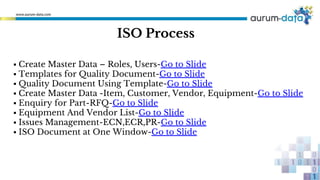
▪ Create Master Data – Roles, Users-Go to Slide
▪ Templates for Quality Document-Go to Slide
▪ Quality Document Using Template-Go to Slide
▪ Create Master Data -Item, Customer, Vendor, Equipment-Go to Slide
▪ Enquiry for Part-RFQ-Go to Slide
▪ Equipment And Vendor List-Go to Slide
▪ Issues Management-ECN,ECR,PR-Go to Slide
▪ ISO Document at One Window-Go to Slide
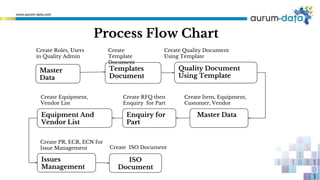
Process Flow Chart
Master
Data
Templates
Document
Quality Document
Using Template
Issues
Management
ISO
Document
Create Roles, Users
in Quality Admin
Create
Template
Document
Create PR, ECR, ECN for
Issue Management
Create Equipment,
Vendor List
Master DataEnquiry for
Part
Equipment And
Vendor List
Create Quality Document
Using Template
Create Item, Equipment,
Customer, Vendor
Create RFQ then
Enquiry for Part
Create ISO Document
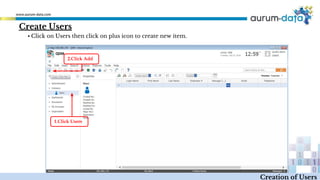
Create Users
1.Click Users
2.Click Add
Creation of Users
▪ Click on Users then click on plus icon to create new item.
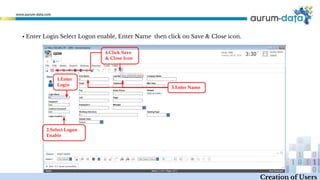
▪ Enter Login Select Logon enable, Enter Name then click on Save & Close icon.
1.Enter
Login
2.Select Logon
Enable
3.Enter Name
4.Click Save
& Close Icon
Creation of Users
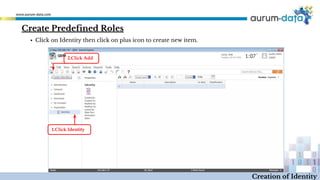
1.Click Identity
2.Click Add
Create Predefined Roles
Creation of Identity
▪ Click on Identity then click on plus icon to create new item.
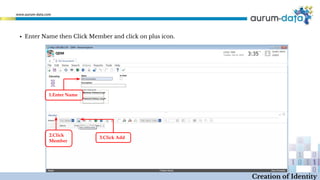
▪ Enter Name then Click Member and click on plus icon.
1.Enter Name
2.Click
Member
3.Click Add
Creation of Identity
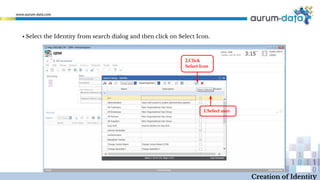
▪ Select the Identity from search dialog and then click on Select Icon.
1.Select user
2.Click
Select Icon
Creation of Identity
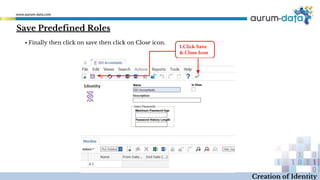
▪ Finally then click on save then click on Close icon.
1.Click Save
& Close Icon
Creation of Identity
Save Predefined Roles
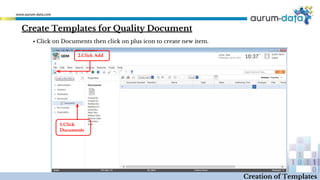
Create Templates for Quality Document
1.Click
Documents
2.Click Add
Creation of Templates
▪ Click on Documents then click on plus icon to create new item.
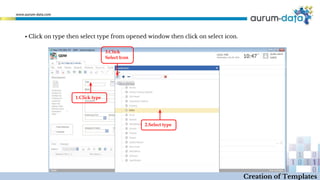
▪ Click on type then select type from opened window then click on select icon.
1.Click type
2.Select type
3.Click
Select Icon
Creation of Templates
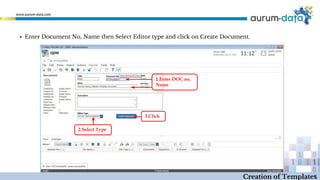
▪ Enter Document No, Name then Select Editor type and click on Create Document.
1.Enter DOC no.
Name
2.Select Type
3.Click
Creation of Templates
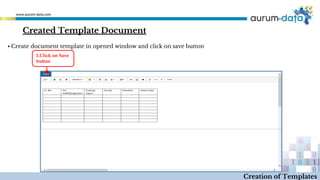
Created Template Document
Creation of Templates
▪ Create document template in opened window and click on save button
1.Click on Save
button
Creation of Templates
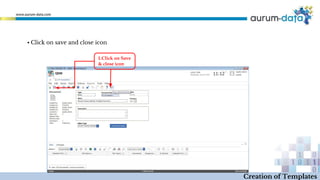
▪ Click on save and close icon
1.Click on Save
& close icon
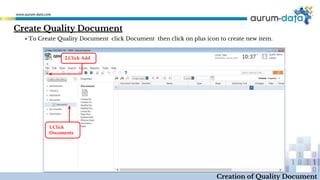
Create Quality Document
1.Click
Documents
2.Click Add
Creation of Quality Document
▪ To Create Quality Document click Document then click on plus icon to create new item.
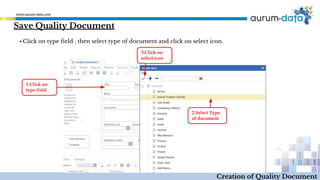
▪ Click on type field , then select type of document and click on select icon.
Creation of Quality Document
Save Quality Document
1.Click on
type field
2.Select Type
of document
3.Click on
select icon
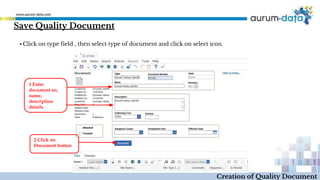
▪ Click on type field , then select type of document and click on select icon.
Creation of Quality Document
Save Quality Document
1.Enter
document no,
name,
description
details
2.Click on
Document button
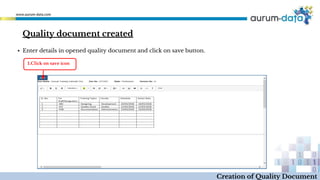
Quality document created
Creation of Quality Document
▪ Enter details in opened quality document and click on save button.
1.Click on save icon
Creation of Quality Document
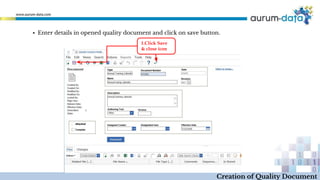
▪ Enter details in opened quality document and click on save button.
1.Click Save
& close icon
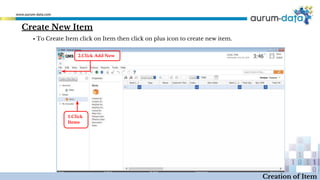
Create New Item
1.Click
Items
2.Click Add New
Creation of Item
▪ To Create Item click on Item then click on plus icon to create new item.
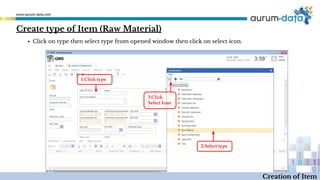
Create type of Item (Raw Material)
1.Click type
2.Select type
3.Click
Select Icon
Creation of Item
▪ Click on type then select type from opened window then click on select icon.
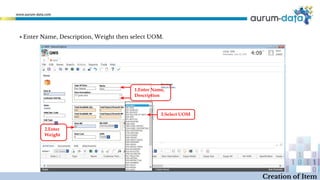
▪ Enter Name, Description, Weight then select UOM.
1.Enter Name,
Description
2.Enter
Weight
3.Select UOM
Creation of Item
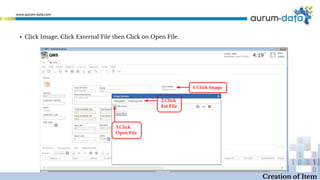
▪ Click Image, Click External File then Click on Open File.
1.Click Image
2.Click
Ext File
3.Click
Open File
Creation of Item
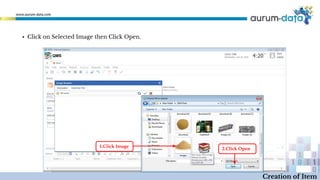
▪ Click on Selected Image then Click Open.
1.Click Image
2.Click Open
Creation of Item
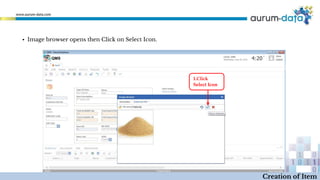
1.Click
Select Icon
Creation of Item
▪ Image browser opens then Click on Select Icon.
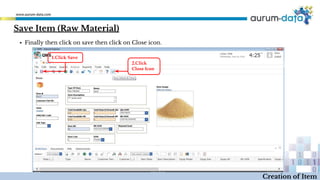
1.Click Save
2.Click
Close Icon
Creation of Item
▪ Finally then click on save then click on Close icon.
Save Item (Raw Material)
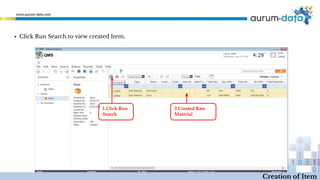
▪ Click Run Search to view created Item.
1.Click Run
Search
2.Created Raw
Material
Creation of Item
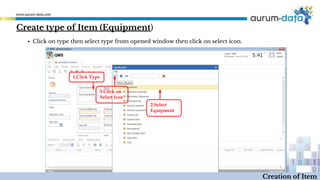
Create type of Item (Equipment)
1.Click Type
2.Select
Equipment
3.Click on
Select Icon
Creation of Item
▪ Click on type then select type from opened window then click on select icon.
Creation of Item
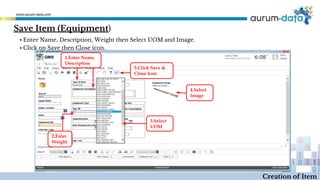
1.Enter Name,
Description
2.Enter
Weight
3.Select
UOM
4.Select
Image
5.Click Save &
Close Icon
▪ Enter Name, Description, Weight then Select UOM and Image.
▪ Click on Save then Close icon.
Save Item (Equipment)
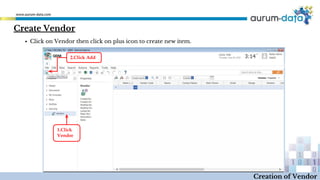
Create Vendor
1.Click
Vendor
2.Click Add
Creation of Vendor
▪ Click on Vendor then click on plus icon to create new item.
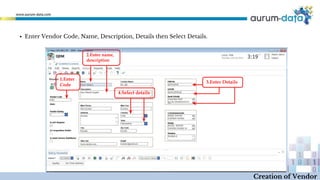
▪ Enter Vendor Code, Name, Description, Details then Select Details.
1.Enter
Code
2.Enter name,
description
4.Select details
3.Enter Details
Creation of Vendor
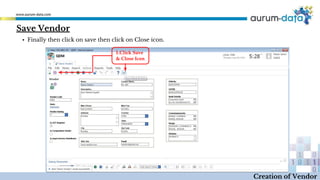
1.Click Save
& Close Icon
Creation of Vendor
▪ Finally then click on save then click on Close icon.
Save Vendor
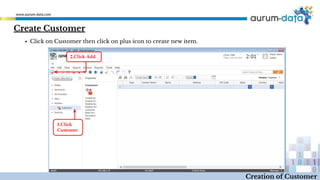
Create Customer
1.Click
Customer
2.Click Add
Creation of Customer
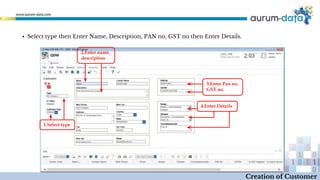
▪ Click on Customer then click on plus icon to create new item.
1.Select type
2.Enter name,
description
3.Enter Pan no.
GST no.
4.Enter Details
Creation of Customer
▪ Select type then Enter Name, Description, PAN no, GST no then Enter Details.
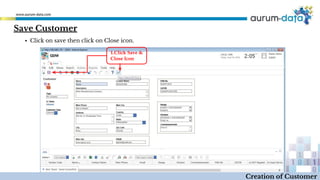
1.Click Save &
Close Icon
Creation of Customer
▪ Click on save then click on Close icon.
Save Customer
Create RFQ
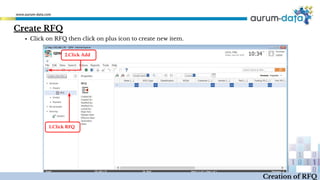
1.Click RFQ
2.Click Add
Creation of RFQ
▪ Click on RFQ then click on plus icon to create new item.
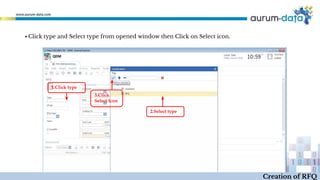
▪ Click type and Select type from opened window then Click on Select icon.
1.Click type
2.Select type
3.Click
Select Icon
Creation of RFQ
Creation of RFQ
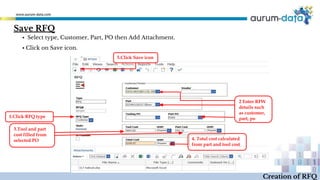
▪ Select type, Customer, Part, PO then Add Attachment.
▪ Click on Save icon.
Save RFQ
1.Click RFQ type
2 Enter RFW
details such
as customer,
part, po
3.Tool and part
cost filled from
selected PO 4. Total cost calculated
from part and tool cost
5.Click Save icon
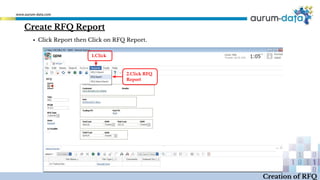
▪ Click Report then Click on RFQ Report.
1.Click
2.Click RFQ
Report
Creation of RFQ
Create RFQ Report
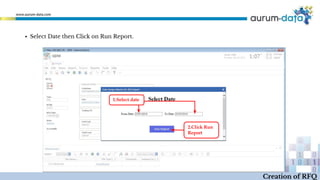
1.Select date
2.Click Run
Report
Creation of RFQ
▪ Select Date then Click on Run Report.
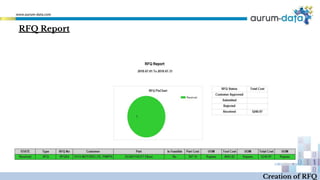
RFQ Report
Creation of RFQ
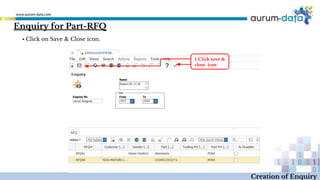
Enquiry for Part-RFQ
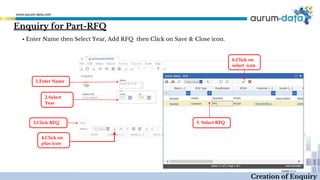
1.Enter Name
2.Select
Year
4.Click on
plus icon
Creation of Enquiry
▪ Enter Name then Select Year, Add RFQ then Click on Save & Close icon.
5. Select RFQ
6.Click on
select icon
3.Click RFQ
Enquiry for Part-RFQ
Creation of Enquiry
▪ Click on Save & Close icon.
1.Click save &
close icon
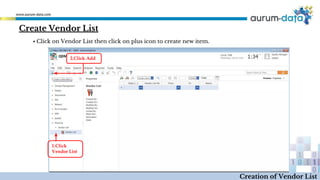
Create Vendor List
1.Click
Vendor List
2.Click Add
Creation of Vendor List
▪ Click on Vendor List then click on plus icon to create new item.
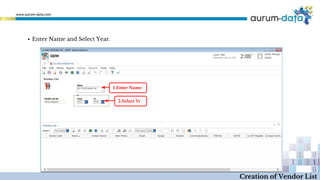
1.Enter Name
2.Select Yr
Creation of Vendor List
▪ Enter Name and Select Year.
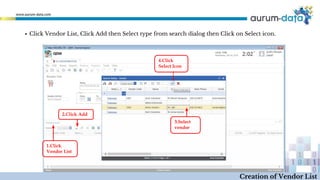
3.Select
vendor
4.Click
Select Icon
1.Click
Vendor List
2.Click Add
Creation of Vendor List
▪ Click Vendor List, Click Add then Select type from search dialog then Click on Select icon.
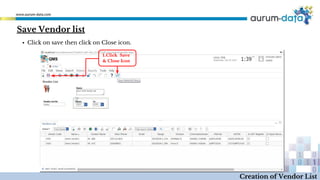
1.Click Save
& Close Icon
Creation of Vendor List
▪ Click on save then click on Close icon.
Save Vendor list
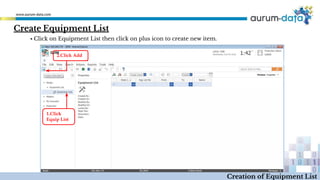
Create Equipment List
1.Click
Equip List
2.Click Add
Creation of Equipment List
▪ Click on Equipment List then click on plus icon to create new item.
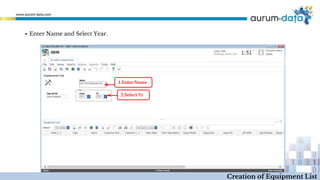
▪ Enter Name and Select Year.
1.Enter Name
2.Select Yr
Creation of Equipment List
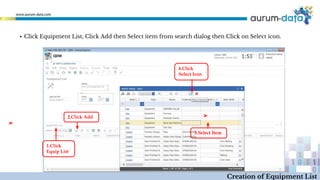
3.Select Item
4.Click
Select Icon
1.Click
Equip List
2.Click Add
▪ Click Equipment List, Click Add then Select item from search dialog then Click on Select icon.
Creation of Equipment List
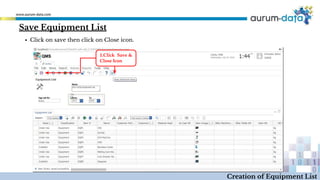
1.Click Save &
Close Icon
Creation of Equipment List
▪ Click on save then click on Close icon.
Save Equipment List
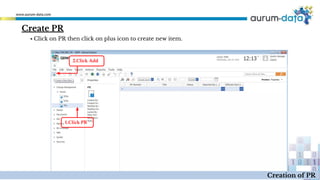
Create PR
1.Click PR
2.Click Add
Creation of PR
▪ Click on PR then click on plus icon to create new item.
Creation of PR
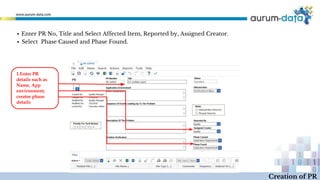
▪ Enter PR No, Title and Select Affected Item, Reported by, Assigned Creator.
▪ Select Phase Caused and Phase Found.
1.Enter PR
details such as
Name, App
environment,
creator phase
details
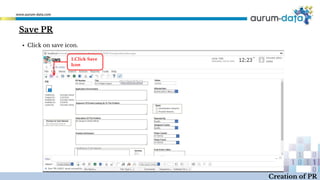
1.Click Save
Icon
Creation of PR
▪ Click on save icon.
Save PR
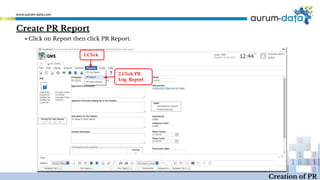
Create PR Report
1.Click
2.Click PR
Log Report
Creation of PR
▪ Click on Report then click PR Report.
Creation of PR
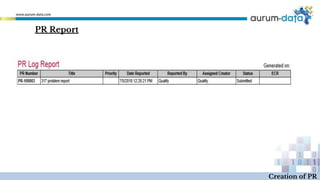
PR Report
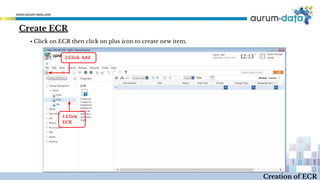
Create ECR
1.Click
ECR
2.Click Add
Creation of ECR
▪ Click on ECR then click on plus icon to create new item.
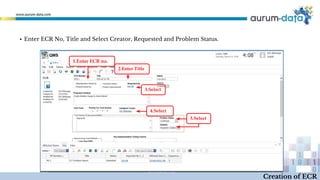
1.Enter ECR no.
2.Enter Title
4.Select
5.Select
3.Select
Creation of ECR
▪ Enter ECR No, Title and Select Creator, Requested and Problem Status.
3.Click Save
Icon
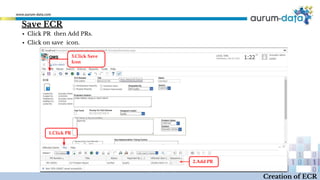
1.Click PR
2.Add PR
Creation of ECR
▪ Click on save icon.
Save ECR
▪ Click PR then Add PRs.
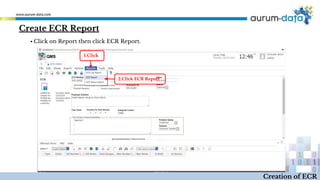
Create ECR Report
1.Click
2.Click ECR Report
Creation of ECR
▪ Click on Report then click ECR Report.
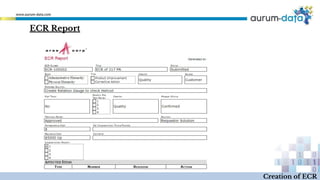
ECR Report
Creation of ECR
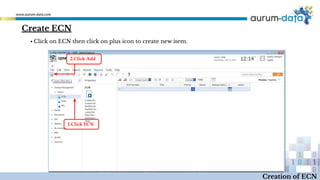
Create ECN
1.Click ECN
2.Click Add
Creation of ECN
▪ Click on ECN then click on plus icon to create new item.
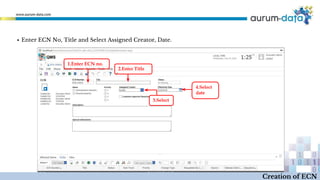
▪ Enter ECN No, Title and Select Assigned Creator, Date.
1.Enter ECN no.
2.Enter Title
4.Select
date
3.Select
Creation of ECN
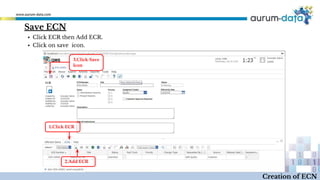
3.Click Save
Icon
1.Click ECR
2.Add ECR
Creation of ECN
▪ Click on save icon.
Save ECN
▪ Click ECR then Add ECR.
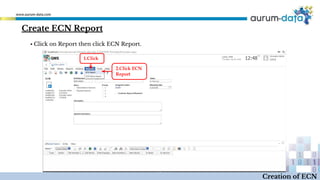
Create ECN Report
1.Click
2.Click ECN
Report
Creation of ECN
▪ Click on Report then click ECN Report.
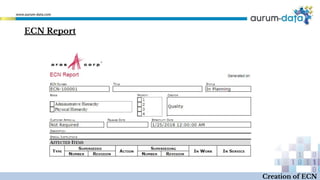
ECN Report
Creation of ECN
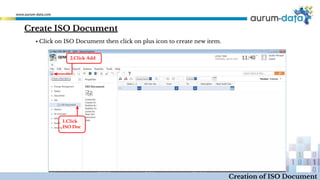
Create ISO Document
1.Click
ISO Doc
2.Click Add
Creation of ISO Document
▪ Click on ISO Document then click on plus icon to create new item.
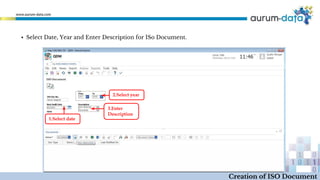
▪ Select Date, Year and Enter Description for ISo Document.
1.Select date
2.Select year
3.Enter
Description
Creation of ISO Document
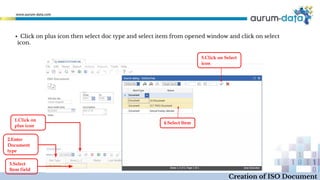
▪ Click on plus icon then select doc type and select item from opened window and click on select
icon.
Creation of ISO Document
1.Click on
plus icon
2.Enter
Document
type
3.Select
Item field
4.Select Item
5.Click on Select
icon
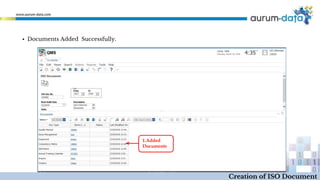
1.Added
Documents
Creation of ISO Document
▪ Documents Added Successfully.
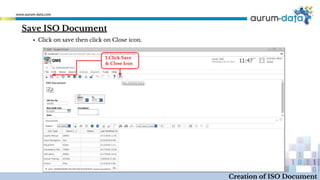
▪ Click on save then click on Close icon.
1.Click Save
& Close Icon
Creation of ISO Document
Save ISO Document
Iso.pptx

Iso.pptx

  • 2.
    ISO Process ▪ CreateMaster Data – Roles, Users-Go to Slide ▪ Templates for Quality Document-Go to Slide ▪ Quality Document Using Template-Go to Slide ▪ Create Master Data -Item, Customer, Vendor, Equipment-Go to Slide ▪ Enquiry for Part-RFQ-Go to Slide ▪ Equipment And Vendor List-Go to Slide ▪ Issues Management-ECN,ECR,PR-Go to Slide ▪ ISO Document at One Window-Go to Slide
  • 3.
    Process Flow Chart Master Data Templates Document QualityDocument Using Template Issues Management ISO Document Create Roles, Users in Quality Admin Create Template Document Create PR, ECR, ECN for Issue Management Create Equipment, Vendor List Master DataEnquiry for Part Equipment And Vendor List Create Quality Document Using Template Create Item, Equipment, Customer, Vendor Create RFQ then Enquiry for Part Create ISO Document
  • 4.
    Create Users 1.Click Users 2.ClickAdd Creation of Users ▪ Click on Users then click on plus icon to create new item.
  • 5.
    ▪ Enter LoginSelect Logon enable, Enter Name then click on Save & Close icon. 1.Enter Login 2.Select Logon Enable 3.Enter Name 4.Click Save & Close Icon Creation of Users
  • 6.
    1.Click Identity 2.Click Add CreatePredefined Roles Creation of Identity ▪ Click on Identity then click on plus icon to create new item.
  • 7.
    ▪ Enter Namethen Click Member and click on plus icon. 1.Enter Name 2.Click Member 3.Click Add Creation of Identity
  • 8.
    ▪ Select theIdentity from search dialog and then click on Select Icon. 1.Select user 2.Click Select Icon Creation of Identity
  • 9.
    ▪ Finally thenclick on save then click on Close icon. 1.Click Save & Close Icon Creation of Identity Save Predefined Roles
  • 10.
    Create Templates forQuality Document 1.Click Documents 2.Click Add Creation of Templates ▪ Click on Documents then click on plus icon to create new item.
  • 11.
    ▪ Click ontype then select type from opened window then click on select icon. 1.Click type 2.Select type 3.Click Select Icon Creation of Templates
  • 12.
    ▪ Enter DocumentNo, Name then Select Editor type and click on Create Document. 1.Enter DOC no. Name 2.Select Type 3.Click Creation of Templates
  • 13.
    Created Template Document Creationof Templates ▪ Create document template in opened window and click on save button 1.Click on Save button
  • 14.
    Creation of Templates ▪Click on save and close icon 1.Click on Save & close icon
  • 15.
    Create Quality Document 1.Click Documents 2.ClickAdd Creation of Quality Document ▪ To Create Quality Document click Document then click on plus icon to create new item.
  • 16.
    ▪ Click ontype field , then select type of document and click on select icon. Creation of Quality Document Save Quality Document 1.Click on type field 2.Select Type of document 3.Click on select icon
  • 17.
    ▪ Click ontype field , then select type of document and click on select icon. Creation of Quality Document Save Quality Document 1.Enter document no, name, description details 2.Click on Document button
  • 18.
    Quality document created Creationof Quality Document ▪ Enter details in opened quality document and click on save button. 1.Click on save icon
  • 19.
    Creation of QualityDocument ▪ Enter details in opened quality document and click on save button. 1.Click Save & close icon
  • 20.
    Create New Item 1.Click Items 2.ClickAdd New Creation of Item ▪ To Create Item click on Item then click on plus icon to create new item.
  • 21.
    Create type ofItem (Raw Material) 1.Click type 2.Select type 3.Click Select Icon Creation of Item ▪ Click on type then select type from opened window then click on select icon.
  • 22.
    ▪ Enter Name,Description, Weight then select UOM. 1.Enter Name, Description 2.Enter Weight 3.Select UOM Creation of Item
  • 23.
    ▪ Click Image,Click External File then Click on Open File. 1.Click Image 2.Click Ext File 3.Click Open File Creation of Item
  • 24.
    ▪ Click onSelected Image then Click Open. 1.Click Image 2.Click Open Creation of Item
  • 25.
    1.Click Select Icon Creation ofItem ▪ Image browser opens then Click on Select Icon.
  • 26.
    1.Click Save 2.Click Close Icon Creationof Item ▪ Finally then click on save then click on Close icon. Save Item (Raw Material)
  • 27.
    ▪ Click RunSearch to view created Item. 1.Click Run Search 2.Created Raw Material Creation of Item
  • 28.
    Create type ofItem (Equipment) 1.Click Type 2.Select Equipment 3.Click on Select Icon Creation of Item ▪ Click on type then select type from opened window then click on select icon.
  • 29.
    Creation of Item 1.EnterName, Description 2.Enter Weight 3.Select UOM 4.Select Image 5.Click Save & Close Icon ▪ Enter Name, Description, Weight then Select UOM and Image. ▪ Click on Save then Close icon. Save Item (Equipment)
  • 30.
    Create Vendor 1.Click Vendor 2.Click Add Creationof Vendor ▪ Click on Vendor then click on plus icon to create new item.
  • 31.
    ▪ Enter VendorCode, Name, Description, Details then Select Details. 1.Enter Code 2.Enter name, description 4.Select details 3.Enter Details Creation of Vendor
  • 32.
    1.Click Save & CloseIcon Creation of Vendor ▪ Finally then click on save then click on Close icon. Save Vendor
  • 33.
    Create Customer 1.Click Customer 2.Click Add Creationof Customer ▪ Click on Customer then click on plus icon to create new item.
  • 34.
    1.Select type 2.Enter name, description 3.EnterPan no. GST no. 4.Enter Details Creation of Customer ▪ Select type then Enter Name, Description, PAN no, GST no then Enter Details.
  • 35.
    1.Click Save & CloseIcon Creation of Customer ▪ Click on save then click on Close icon. Save Customer
  • 36.
    Create RFQ 1.Click RFQ 2.ClickAdd Creation of RFQ ▪ Click on RFQ then click on plus icon to create new item.
  • 37.
    ▪ Click typeand Select type from opened window then Click on Select icon. 1.Click type 2.Select type 3.Click Select Icon Creation of RFQ
  • 38.
    Creation of RFQ ▪Select type, Customer, Part, PO then Add Attachment. ▪ Click on Save icon. Save RFQ 1.Click RFQ type 2 Enter RFW details such as customer, part, po 3.Tool and part cost filled from selected PO 4. Total cost calculated from part and tool cost 5.Click Save icon
  • 39.
    ▪ Click Reportthen Click on RFQ Report. 1.Click 2.Click RFQ Report Creation of RFQ Create RFQ Report
  • 40.
    1.Select date 2.Click Run Report Creationof RFQ ▪ Select Date then Click on Run Report.
  • 41.
  • 42.
    Enquiry for Part-RFQ 1.EnterName 2.Select Year 4.Click on plus icon Creation of Enquiry ▪ Enter Name then Select Year, Add RFQ then Click on Save & Close icon. 5. Select RFQ 6.Click on select icon 3.Click RFQ
  • 43.
    Enquiry for Part-RFQ Creationof Enquiry ▪ Click on Save & Close icon. 1.Click save & close icon
  • 44.
    Create Vendor List 1.Click VendorList 2.Click Add Creation of Vendor List ▪ Click on Vendor List then click on plus icon to create new item.
  • 45.
    1.Enter Name 2.Select Yr Creationof Vendor List ▪ Enter Name and Select Year.
  • 46.
    3.Select vendor 4.Click Select Icon 1.Click Vendor List 2.ClickAdd Creation of Vendor List ▪ Click Vendor List, Click Add then Select type from search dialog then Click on Select icon.
  • 47.
    1.Click Save & CloseIcon Creation of Vendor List ▪ Click on save then click on Close icon. Save Vendor list
  • 48.
    Create Equipment List 1.Click EquipList 2.Click Add Creation of Equipment List ▪ Click on Equipment List then click on plus icon to create new item.
  • 49.
    ▪ Enter Nameand Select Year. 1.Enter Name 2.Select Yr Creation of Equipment List
  • 50.
    3.Select Item 4.Click Select Icon 1.Click EquipList 2.Click Add ▪ Click Equipment List, Click Add then Select item from search dialog then Click on Select icon. Creation of Equipment List
  • 51.
    1.Click Save & CloseIcon Creation of Equipment List ▪ Click on save then click on Close icon. Save Equipment List
  • 52.
    Create PR 1.Click PR 2.ClickAdd Creation of PR ▪ Click on PR then click on plus icon to create new item.
  • 53.
    Creation of PR ▪Enter PR No, Title and Select Affected Item, Reported by, Assigned Creator. ▪ Select Phase Caused and Phase Found. 1.Enter PR details such as Name, App environment, creator phase details
  • 54.
    1.Click Save Icon Creation ofPR ▪ Click on save icon. Save PR
  • 55.
    Create PR Report 1.Click 2.ClickPR Log Report Creation of PR ▪ Click on Report then click PR Report.
  • 56.
  • 57.
    Create ECR 1.Click ECR 2.Click Add Creationof ECR ▪ Click on ECR then click on plus icon to create new item.
  • 58.
    1.Enter ECR no. 2.EnterTitle 4.Select 5.Select 3.Select Creation of ECR ▪ Enter ECR No, Title and Select Creator, Requested and Problem Status.
  • 59.
    3.Click Save Icon 1.Click PR 2.AddPR Creation of ECR ▪ Click on save icon. Save ECR ▪ Click PR then Add PRs.
  • 60.
    Create ECR Report 1.Click 2.ClickECR Report Creation of ECR ▪ Click on Report then click ECR Report.
  • 61.
  • 62.
    Create ECN 1.Click ECN 2.ClickAdd Creation of ECN ▪ Click on ECN then click on plus icon to create new item.
  • 63.
    ▪ Enter ECNNo, Title and Select Assigned Creator, Date. 1.Enter ECN no. 2.Enter Title 4.Select date 3.Select Creation of ECN
  • 64.
    3.Click Save Icon 1.Click ECR 2.AddECR Creation of ECN ▪ Click on save icon. Save ECN ▪ Click ECR then Add ECR.
  • 65.
    Create ECN Report 1.Click 2.ClickECN Report Creation of ECN ▪ Click on Report then click ECN Report.
  • 66.
  • 67.
    Create ISO Document 1.Click ISODoc 2.Click Add Creation of ISO Document ▪ Click on ISO Document then click on plus icon to create new item.
  • 68.
    ▪ Select Date,Year and Enter Description for ISo Document. 1.Select date 2.Select year 3.Enter Description Creation of ISO Document
  • 69.
    ▪ Click onplus icon then select doc type and select item from opened window and click on select icon. Creation of ISO Document 1.Click on plus icon 2.Enter Document type 3.Select Item field 4.Select Item 5.Click on Select icon
  • 70.
    1.Added Documents Creation of ISODocument ▪ Documents Added Successfully.
  • 71.
    ▪ Click onsave then click on Close icon. 1.Click Save & Close Icon Creation of ISO Document Save ISO Document