Introduction
to AutoCAD:
The Interface
BELIR, ALBERT B.
Course Facilitator
“Being proficient with CAD and its user interface can help
make drafting tasks easier based on how familiar you are with
all the tools that are just a click away.”
Computer-Aided Design (CAD)
also known as computer-aided drafting
(CAD) or computer-aided design and
drafting (CADD) , is the use of computer
systems to assist in the creation,
modification, analysis, or optimization
of a design.
Computer-Aided Design (CAD)
Computer-aided drafting
describes the process of creating
a technical drawing with the use
of computer software.
CAD Software Uses
-to increase the productivity
of the designer,
- improve the quality of design,
- improve communications
through documentation and
- to create a database for
manufacturing.
CAD Outputs
The output of CAD must convey
information, such as :
-materials,
-processes,
-dimensions,
-and tolerances,
according to application-specific
conventions.
The Software
AutoCAD is a commercial product
made by Autodesk.
The Interface
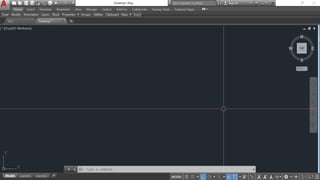
The AutoCAD user interface — or UI as it’s
often referred to
ELEMENTS
Title Bar Command Line
Menus Status Bar
Toolbar Status bar Tray
Info Center Clean Screen icon
Dockable Window
Preparing a Plan
Using CAD
BELIR, ALBERT B.
Course Facilitator
“Being proficient with CAD and its user interface can help
make drafting tasks easier based on how familiar you are with
all the tools that are just a click away.”
Setting Up AutoCAD to Work With
Architectural Drafting Style
Creating a Template File
Creating a User Profile
Creating a Template File
layers
text styles
dimension styles
layouts and
plotting
Your Template file can then be used to open new drawings to
eliminate having to set up these changes again in the future.
Creating a Template File
layers
text styles
dimension styles
layouts and
plotting
Your Template file can then be used to open new drawings to
eliminate having to set up these changes again in the future.
Templates have the filename extension
of *.dwt. The easiest way to make your
standard settings permanent for later
reuse is to create your own Template
File.
THINGS to CONSIDER
List of Layers
with associated line types, colors, and line weights
Text styles
Dimension styles
AutoCAD variable settings
Layout settings
Viewport(s)
Plotting parameters
printer to plot
paper size,
plot scale
drawing orientation
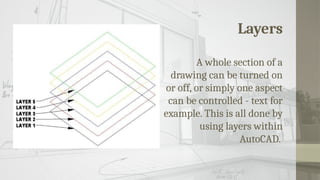
Layers
A whole section of a
drawing can be turned on
or off, or simply one aspect
can be controlled - text for
example. This is all done by
using layers within
AutoCAD.
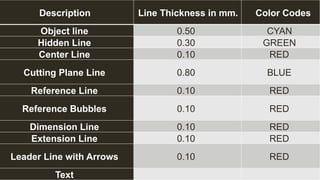
Description Line Thickness in mm. Color Codes
Object line 0.50 CYAN
Hidden Line 0.30 GREEN
Center Line 0.10 RED
Cutting Plane Line 0.80 BLUE
Reference Line 0.10 RED
Reference Bubbles 0.10 RED
Dimension Line 0.10 RED
Extension Line 0.10 RED
Leader Line with Arrows 0.10 RED
Text
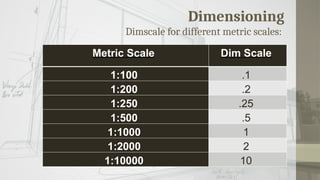
Dimensioning
Dimscale for different metric scales:
Metric Scale Dim Scale
1:100 .1
1:200 .2
1:250 .25
1:500 .5
1:1000 1
1:2000 2
1:10000 10
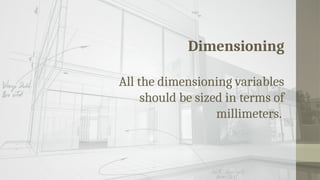
Dimensioning
All the dimensioning variables
should be sized in terms of
millimeters.
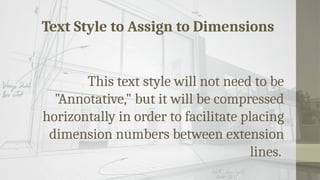
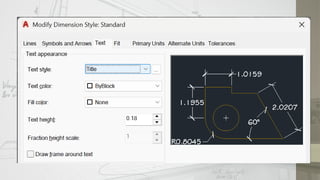
Text Style to Assign to Dimensions
This text style will not need to be
"Annotative," but it will be compressed
horizontally in order to facilitate placing
dimension numbers between extension
lines.
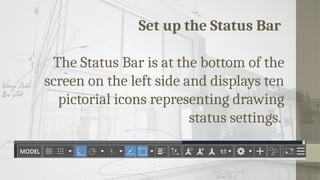
Set up the Status Bar
The Status Bar is at the bottom of the
screen on the left side and displays ten
pictorial icons representing drawing
status settings.
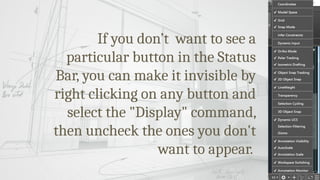
If you don’t want to see a
particular button in the Status
Bar, you can make it invisible by
right clicking on any button and
select the "Display" command,
then uncheck the ones you don't
want to appear.
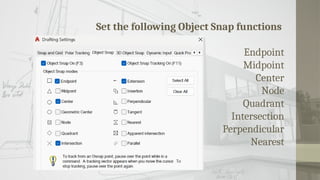
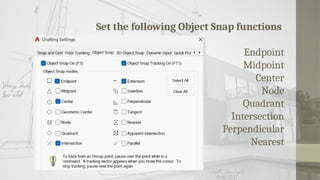
Set the following Object Snap functions
Endpoint
Midpoint
Center
Node
Quadrant
Intersection
Perpendicular
Nearest
Set the following Object Snap functions
Endpoint
Midpoint
Center
Node
Quadrant
Intersection
Perpendicular
Nearest
Standard Printing Specifications
Given this ease of changing sizes, it is
of course common to copy or print a
given document on different sizes of
paper.
Standard Printing Specifications
Given this ease of changing sizes, it is of
course common to copy or print a given
document on different sizes of paper.
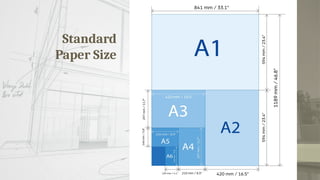
Standard
Paper Size
Create a Layout of
Border and Title Block
Elements of the Layout of Border
and Title Blocks
A unique name
Title informational border
Paper Space and Model Space
Viewpoints


Introduction to AutoCAD Drawing Modifyin

  • 1.
  • 2.
    “Being proficient withCAD and its user interface can help make drafting tasks easier based on how familiar you are with all the tools that are just a click away.”
  • 6.
    Computer-Aided Design (CAD) alsoknown as computer-aided drafting (CAD) or computer-aided design and drafting (CADD) , is the use of computer systems to assist in the creation, modification, analysis, or optimization of a design.
  • 7.
    Computer-Aided Design (CAD) Computer-aideddrafting describes the process of creating a technical drawing with the use of computer software.
  • 8.
    CAD Software Uses -toincrease the productivity of the designer, - improve the quality of design, - improve communications through documentation and - to create a database for manufacturing.
  • 9.
    CAD Outputs The outputof CAD must convey information, such as : -materials, -processes, -dimensions, -and tolerances, according to application-specific conventions.
  • 10.
    The Software AutoCAD isa commercial product made by Autodesk.
  • 11.
    The Interface The AutoCADuser interface — or UI as it’s often referred to ELEMENTS Title Bar Command Line Menus Status Bar Toolbar Status bar Tray Info Center Clean Screen icon Dockable Window
  • 13.
    Preparing a Plan UsingCAD BELIR, ALBERT B. Course Facilitator
  • 14.
    “Being proficient withCAD and its user interface can help make drafting tasks easier based on how familiar you are with all the tools that are just a click away.”
  • 15.
    Setting Up AutoCADto Work With Architectural Drafting Style Creating a Template File Creating a User Profile
  • 16.
    Creating a TemplateFile layers text styles dimension styles layouts and plotting Your Template file can then be used to open new drawings to eliminate having to set up these changes again in the future.
  • 17.
    Creating a TemplateFile layers text styles dimension styles layouts and plotting Your Template file can then be used to open new drawings to eliminate having to set up these changes again in the future.
  • 18.
    Templates have thefilename extension of *.dwt. The easiest way to make your standard settings permanent for later reuse is to create your own Template File.
  • 19.
    THINGS to CONSIDER Listof Layers with associated line types, colors, and line weights Text styles Dimension styles AutoCAD variable settings Layout settings Viewport(s) Plotting parameters printer to plot paper size, plot scale drawing orientation
  • 20.
    Layers A whole sectionof a drawing can be turned on or off, or simply one aspect can be controlled - text for example. This is all done by using layers within AutoCAD.
  • 21.
    Description Line Thicknessin mm. Color Codes Object line 0.50 CYAN Hidden Line 0.30 GREEN Center Line 0.10 RED Cutting Plane Line 0.80 BLUE Reference Line 0.10 RED Reference Bubbles 0.10 RED Dimension Line 0.10 RED Extension Line 0.10 RED Leader Line with Arrows 0.10 RED Text
  • 22.
    Dimensioning Dimscale for differentmetric scales: Metric Scale Dim Scale 1:100 .1 1:200 .2 1:250 .25 1:500 .5 1:1000 1 1:2000 2 1:10000 10
  • 23.
    Dimensioning All the dimensioningvariables should be sized in terms of millimeters.
  • 24.
    Text Style toAssign to Dimensions This text style will not need to be "Annotative," but it will be compressed horizontally in order to facilitate placing dimension numbers between extension lines.
  • 26.
    Set up theStatus Bar The Status Bar is at the bottom of the screen on the left side and displays ten pictorial icons representing drawing status settings.
  • 27.
    If you don’twant to see a particular button in the Status Bar, you can make it invisible by right clicking on any button and select the "Display" command, then uncheck the ones you don't want to appear.
  • 28.
    Set the followingObject Snap functions Endpoint Midpoint Center Node Quadrant Intersection Perpendicular Nearest
  • 29.
    Set the followingObject Snap functions Endpoint Midpoint Center Node Quadrant Intersection Perpendicular Nearest
  • 30.
    Standard Printing Specifications Giventhis ease of changing sizes, it is of course common to copy or print a given document on different sizes of paper.
  • 31.
    Standard Printing Specifications Giventhis ease of changing sizes, it is of course common to copy or print a given document on different sizes of paper.
  • 32.
  • 33.
    Create a Layoutof Border and Title Block Elements of the Layout of Border and Title Blocks A unique name Title informational border Paper Space and Model Space Viewpoints