Introduction to the Online Classroom Center for Distance Education Technology and Distance Education Operation (TADEO) Professional and International Programs University of Guam
What is the online classroom? UOG uses the Moodle Learning Management System to provide an online learning environment. Moodle classrooms use modular templates that allow you to do things like… Deliver lectures and supplemental materials Collect information/assignments Facilitate discussions Administer quizzes and tests Track grades.
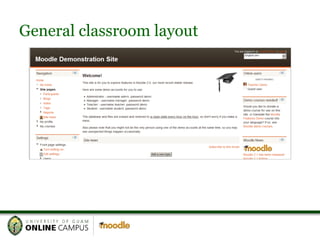
General classroom layout
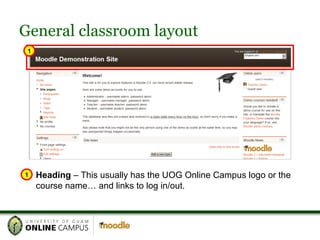
1 1 Heading  – This usually has the UOG Online Campus logo or the course name… and links to log in/out. General classroom layout
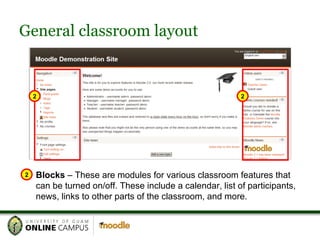
2 2 Blocks  – These are modules for various classroom features that can be turned on/off. These include a calendar, list of participants, news, links to other parts of the classroom, and more. General classroom layout 2
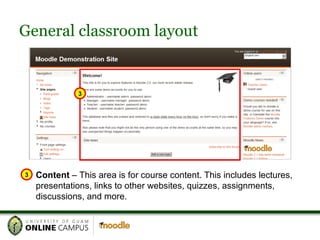
3 3 Content  – This area is for course content. This includes lectures, presentations, links to other websites, quizzes, assignments, discussions, and more. General classroom layout
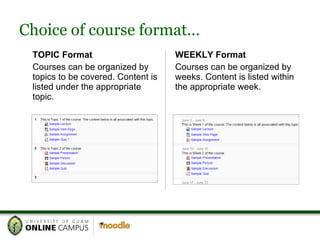
Choice of course format… TOPIC Format Courses can be organized by topics to be covered. Content is listed under the appropriate topic. WEEKLY Format Courses can be organized by weeks. Content is listed within the appropriate week.
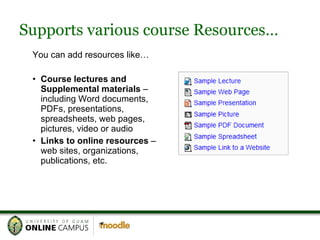
Supports various course Resources… You can add resources like… Course lectures and Supplemental materials  – including Word documents, PDFs, presentations, spreadsheets, web pages, pictures, video or audio Links to online resources  – web sites, organizations, publications, etc.
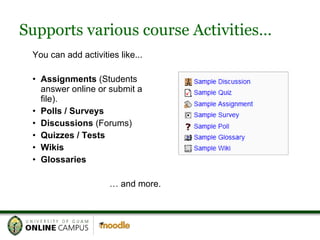
Supports various course Activities… You can add activities like... Assignments  (Students answer online or submit a file). Polls / Surveys Discussions  (Forums) Quizzes / Tests Wikis Glossaries …  and more.
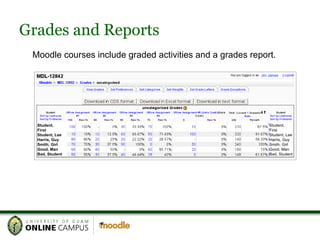
Grades and Reports Moodle courses include graded activities and a grades report. Student, First Student, Lee Harris, Guy Smith, Girl Good, Man Bad, Student Student, First Student, Lee Harris, Guy Smith, Girl Good, Man Bad, Student .. Jim James ...
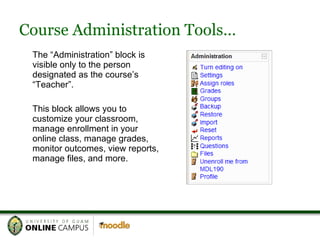
Course Administration Tools… The “Administration” block is visible only to the person designated as the course’s “Teacher”. This block allows you to customize your classroom, manage enrollment in your online class, manage grades, monitor outcomes, view reports, manage files, and more.
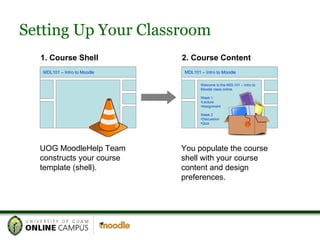
Setting Up Your Classroom MDL101 – Intro to Moodle 1. Course Shell 2. Course Content UOG MoodleHelp Team constructs your course template (shell). You populate the course shell with your course content and design preferences. MDL101 – Intro to Moodle Welcome to the MDL101 – Intro to Moodle class online. Week 1 Lecture Assignment Week 2 Discussion Quiz
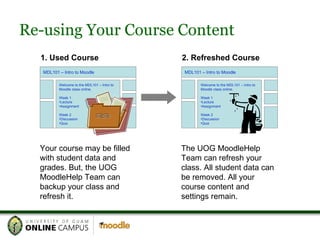
Re-using Your Course Content MDL101 – Intro to Moodle Welcome to the MDL101 – Intro to Moodle class online. Week 1 Lecture Assignment Week 2 Discussion Quiz 1. Used Course 2. Refreshed Course Your course may be filled with student data and grades. But, the UOG MoodleHelp Team can backup your class and refresh it. The UOG MoodleHelp Team can refresh your class. All student data can be removed. All your course content and settings remain. MDL101 – Intro to Moodle Welcome to the MDL101 – Intro to Moodle class online. Week 1 Lecture Assignment Week 2 Discussion Quiz
Resources for Faculty Faculty Resources  in the UOG Online Campus include: Moodle tutorials for designing and facilitating online courses Links to online learning organizations and publications Access to the UOG MoodleHelp Team Provide technical support Provide assistance with instructional design
For more information or for assistance, please contact: UOG MoodleHelp Team [email_address] Center for Distance Education Dean’s Circle – House 6 (671) 735-2620

Intro to Online Classroom for Faculty

  • 1.
    Introduction to theOnline Classroom Center for Distance Education Technology and Distance Education Operation (TADEO) Professional and International Programs University of Guam
  • 2.
    What is theonline classroom? UOG uses the Moodle Learning Management System to provide an online learning environment. Moodle classrooms use modular templates that allow you to do things like… Deliver lectures and supplemental materials Collect information/assignments Facilitate discussions Administer quizzes and tests Track grades.
  • 3.
  • 4.
    1 1 Heading – This usually has the UOG Online Campus logo or the course name… and links to log in/out. General classroom layout
  • 5.
    2 2 Blocks – These are modules for various classroom features that can be turned on/off. These include a calendar, list of participants, news, links to other parts of the classroom, and more. General classroom layout 2
  • 6.
    3 3 Content – This area is for course content. This includes lectures, presentations, links to other websites, quizzes, assignments, discussions, and more. General classroom layout
  • 7.
    Choice of courseformat… TOPIC Format Courses can be organized by topics to be covered. Content is listed under the appropriate topic. WEEKLY Format Courses can be organized by weeks. Content is listed within the appropriate week.
  • 8.
    Supports various courseResources… You can add resources like… Course lectures and Supplemental materials – including Word documents, PDFs, presentations, spreadsheets, web pages, pictures, video or audio Links to online resources – web sites, organizations, publications, etc.
  • 9.
    Supports various courseActivities… You can add activities like... Assignments (Students answer online or submit a file). Polls / Surveys Discussions (Forums) Quizzes / Tests Wikis Glossaries … and more.
  • 10.
    Grades and ReportsMoodle courses include graded activities and a grades report. Student, First Student, Lee Harris, Guy Smith, Girl Good, Man Bad, Student Student, First Student, Lee Harris, Guy Smith, Girl Good, Man Bad, Student .. Jim James ...
  • 11.
    Course Administration Tools…The “Administration” block is visible only to the person designated as the course’s “Teacher”. This block allows you to customize your classroom, manage enrollment in your online class, manage grades, monitor outcomes, view reports, manage files, and more.
  • 12.
    Setting Up YourClassroom MDL101 – Intro to Moodle 1. Course Shell 2. Course Content UOG MoodleHelp Team constructs your course template (shell). You populate the course shell with your course content and design preferences. MDL101 – Intro to Moodle Welcome to the MDL101 – Intro to Moodle class online. Week 1 Lecture Assignment Week 2 Discussion Quiz
  • 13.
    Re-using Your CourseContent MDL101 – Intro to Moodle Welcome to the MDL101 – Intro to Moodle class online. Week 1 Lecture Assignment Week 2 Discussion Quiz 1. Used Course 2. Refreshed Course Your course may be filled with student data and grades. But, the UOG MoodleHelp Team can backup your class and refresh it. The UOG MoodleHelp Team can refresh your class. All student data can be removed. All your course content and settings remain. MDL101 – Intro to Moodle Welcome to the MDL101 – Intro to Moodle class online. Week 1 Lecture Assignment Week 2 Discussion Quiz
  • 14.
    Resources for FacultyFaculty Resources in the UOG Online Campus include: Moodle tutorials for designing and facilitating online courses Links to online learning organizations and publications Access to the UOG MoodleHelp Team Provide technical support Provide assistance with instructional design
  • 15.
    For more informationor for assistance, please contact: UOG MoodleHelp Team [email_address] Center for Distance Education Dean’s Circle – House 6 (671) 735-2620