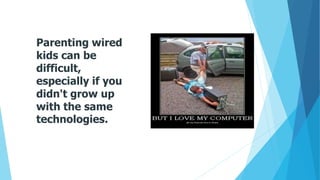
Parenting wired
kids can be
difficult,
especially if you
didn't grow up
with the same
technologies.
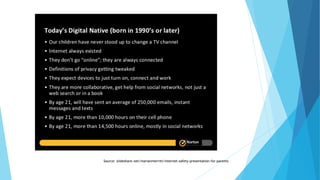
Source: slideshare.net/marianmerritt/internet-safety-presentation-for-parents
• SDOW
• Logging in
• Safe searches
• Social Media
• Phones
• Cyberbullying
Key Parent Issues
SCHOOL DISTRICT OF
WASHINGTON
• Technology Agreement
• Acceptable Use Policy
• Google Account
WHAT WE TEACH IN TECH
• Internet safety Netsmartz, Digital Passport
• Vocabulary
• Keyboarding
• Office products
• 2.0 options
• Coding
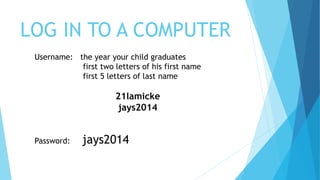
LOG IN TO A COMPUTER
Username: the year your child graduates
first two letters of his first name
first 5 letters of last name
21lamicke
jays2014
Password: jays2014
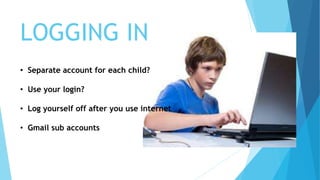
LOGGING IN
• Separate account for each child?
• Use your login?
• Log yourself off after you use internet
• Gmail sub accounts
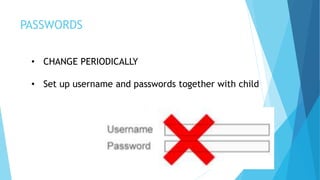
PASSWORDS
• CHANGE PERIODICALLY
• Set up username and passwords together with child
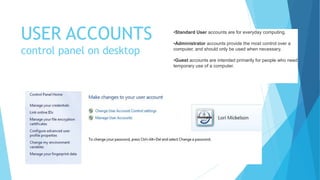
USER ACCOUNTS
control panel on desktop
•Standard User accounts are for everyday computing.
•Administrator accounts provide the most control over a
computer, and should only be used when necessary.
•Guest accounts are intended primarily for people who need
temporary use of a computer.
LOCATION, LOCATION, LOCATION
Designate a
central place
for computer
use
WE’RE ON THE INTERNET –
NOW WHAT?
Safe searches
• kidsclick
• Kidrex
• safesearchkids.com
• Campbellton library link
BE CAREFUL HOW THEY SEARCH
http://www.addictinggames.com/shooting-games/index.jsp
Search: games online
BRAND ENGAGEMENT
getting kids to interact with brands online
KNOWN SITES FOR SAFETY
• PBSKIDS.ORG
• DISCOVERYKIDS.COM
• NATGEOKIDS.COM
Publisher’s website
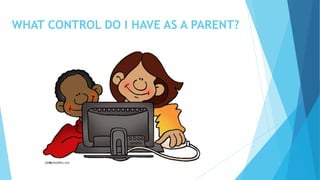
WHAT CONTROL DO I HAVE AS A PARENT?
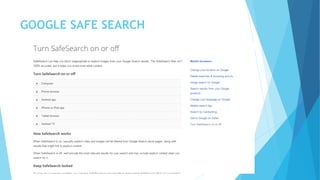
GOOGLE SAFE SEARCH
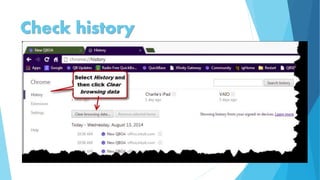
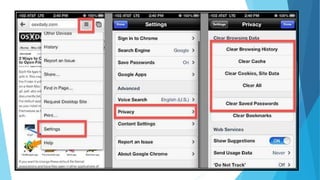
WHERE DID THEY GO?
HISTORY VIEW IN CHROME
Check history
Clear cookies
COOKIES
• When you go online, websites install cookies on your computer
that track your movements.
• Some cookies can be beneficial, such as those that remember
your login names or items in your online shopping cart.
• But some cookies are designed to remember everything you do
online, build a profile of your personal information and habits,
and sell that information to advertisers and other companies.
• Blocking devices after hours
• Parental controls or router
• Router – block or filter the web
• Turn off the house router at night or take it into your bedroom
AFTER HOURS
Charge phone in one place – kitchen –
prevents kids from texting at night
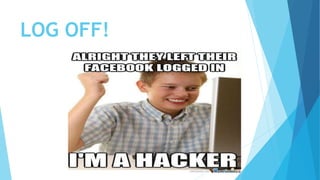
LOG OFF!
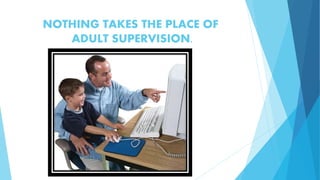
NOTHING TAKES THE PLACE OF
ADULT SUPERVISION.
USING PHONES EMAIL SOCIAL NETWORKS
What age should my kids be before I let them use Instagram,
Facebook, and other social media services?
 ultimately up to you
 most social media websites and apps require that kids be 13 to sign up.
 Children's Online Privacy Protection Act (COPPA), which prevents companies from
collecting certain information from kids under 13.
 13 is generally the age when kids start developing a broader understanding of the world
around them and, along with that, a better sense of what's appropriate to share online.
Digital footprint
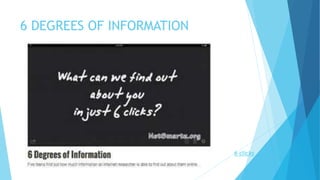
6 DEGREES OF INFORMATION
6 clicks
BE AWARE OF WHAT YOU SAY AND DO
THINK
Facebook
Use privacy settings – family and/or friends only
Tell your kids to think before they post.
Be a friend to your child and follower.
Keep private information private.
Be respectful of others.
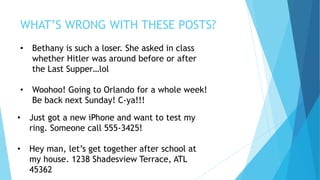
WHAT’S WRONG WITH THESE POSTS?
• Bethany is such a loser. She asked in class
whether Hitler was around before or after
the Last Supper…lol
• Woohoo! Going to Orlando for a whole week!
Be back next Sunday! C-ya!!!
• Just got a new iPhone and want to test my
ring. Someone call 555-3425!
• Hey man, let’s get together after school at
my house. 1238 Shadesview Terrace, ATL

45362
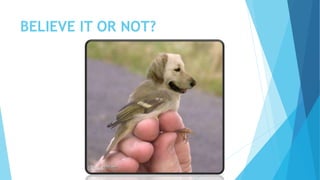
BELIEVE IT OR NOT?
Source: slideshare.net/marianmerritt/internet-safety-presentation-for-parents
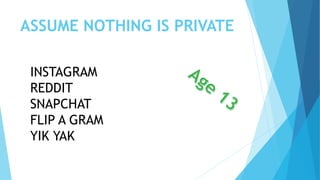
ASSUME NOTHING IS PRIVATE
INSTAGRAM
REDDIT
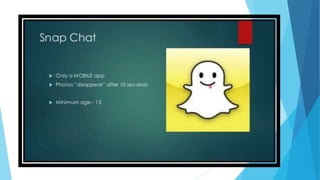
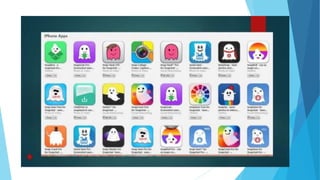
SNAPCHAT
FLIP A GRAM
YIK YAK
cat
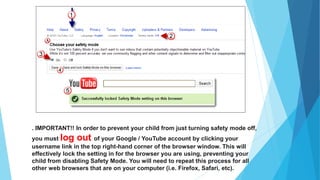
. IMPORTANT!! In order to prevent your child from just turning safety mode off,
you must log out of your Google / YouTube account by clicking your
username link in the top right-hand corner of the browser window. This will
effectively lock the setting in for the browser you are using, preventing your
child from disabling Safety Mode. You will need to repeat this process for all
other web browsers that are on your computer (i.e. Firefox, Safari, etc).
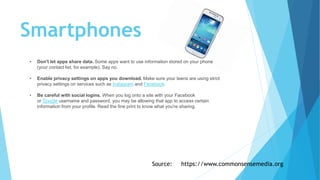
Smartphones
• Don't let apps share data. Some apps want to use information stored on your phone
(your contact list, for example). Say no.
• Enable privacy settings on apps you download. Make sure your teens are using strict
privacy settings on services such as Instagram and Facebook.
• Be careful with social logins. When you log onto a site with your Facebook
or Google username and password, you may be allowing that app to access certain
information from your profile. Read the fine print to know what you're sharing.
Source: https://www.commonsensemedia.org
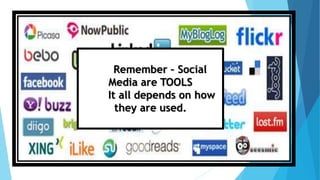
Remember – Social
Media are TOOLS
It all depends on how
they are used.
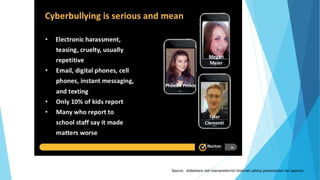
CYBERBULLYING
Source: slideshare.net/marianmerritt/internet-safety-presentation-for-parents
CYBERBULLYING
• Talk about it before it happens
• Set rules and consequences
• Don’t reply, keep copies
• If you see cyberbullying, don’t be a silent bystander. Do
something!
• Involve the school and law enforcement if necessary.
• Don’t dismiss threats of violence or self-harm – report!
• Teach kids coping mechanisms when there’s “drama.”
Source: Marian Merritt, Norton Internet Safety Advocate
SDOW policy on Cyberbullying
Bullying and Cyberbullying (see Board policy JFCF) – Intimidation or harassment of a
student or multiple students perpetuated by individuals or groups. Bullying includes,
but is not limited to: physical actions, including violence, gestures, theft, or damaging
property; oral or written taunts, including name-calling, put-downs, extortion, or
threats; threats of retaliation for reporting such acts; sending or posting harmful or
cruel text or images using the Internet or other digital communication devices; sending
or posting materials that threaten or raise concerns about violence against others,
suicide or self-harm. Students will not be disciplined for speech in situations where the
speech is protected by law.
First Offense:
Principal/Student conference, detention, in-school suspension, or up to 180 days out-of-
school suspension.
Subsequent Offense:
Detention, in-school suspension, up to 180 days out-of-school suspension or expulsion.
Common Sense Media
https://www.commonsensemedia.org/
NetSmartz
http://www.netsmartz.org/Parents
Gmail Instructions
https://www.smore.com/x3j5-gmail-1-create-student-email
Google Safety Center
https://www.google.com/safetycenter/families/start/

Internet Safety for Parents

  • 3.
    Parenting wired kids canbe difficult, especially if you didn't grow up with the same technologies.
  • 4.
  • 5.
    • SDOW • Loggingin • Safe searches • Social Media • Phones • Cyberbullying Key Parent Issues
  • 6.
    SCHOOL DISTRICT OF WASHINGTON •Technology Agreement • Acceptable Use Policy • Google Account
  • 7.
    WHAT WE TEACHIN TECH • Internet safety Netsmartz, Digital Passport • Vocabulary • Keyboarding • Office products • 2.0 options • Coding
  • 8.
    LOG IN TOA COMPUTER Username: the year your child graduates first two letters of his first name first 5 letters of last name 21lamicke jays2014 Password: jays2014
  • 9.
    LOGGING IN • Separateaccount for each child? • Use your login? • Log yourself off after you use internet • Gmail sub accounts
  • 10.
    PASSWORDS • CHANGE PERIODICALLY •Set up username and passwords together with child
  • 11.
    USER ACCOUNTS control panelon desktop •Standard User accounts are for everyday computing. •Administrator accounts provide the most control over a computer, and should only be used when necessary. •Guest accounts are intended primarily for people who need temporary use of a computer.
  • 12.
    LOCATION, LOCATION, LOCATION Designatea central place for computer use
  • 13.
    WE’RE ON THEINTERNET – NOW WHAT?
  • 14.
    Safe searches • kidsclick •Kidrex • safesearchkids.com • Campbellton library link
  • 15.
    BE CAREFUL HOWTHEY SEARCH http://www.addictinggames.com/shooting-games/index.jsp Search: games online
  • 16.
    BRAND ENGAGEMENT getting kidsto interact with brands online
  • 18.
    KNOWN SITES FORSAFETY • PBSKIDS.ORG • DISCOVERYKIDS.COM • NATGEOKIDS.COM
  • 19.
  • 20.
    WHAT CONTROL DOI HAVE AS A PARENT?
  • 21.
  • 22.
  • 23.
  • 24.
  • 25.
  • 26.
    COOKIES • When yougo online, websites install cookies on your computer that track your movements. • Some cookies can be beneficial, such as those that remember your login names or items in your online shopping cart. • But some cookies are designed to remember everything you do online, build a profile of your personal information and habits, and sell that information to advertisers and other companies.
  • 28.
    • Blocking devicesafter hours • Parental controls or router • Router – block or filter the web • Turn off the house router at night or take it into your bedroom AFTER HOURS
  • 29.
    Charge phone inone place – kitchen – prevents kids from texting at night
  • 30.
  • 31.
    NOTHING TAKES THEPLACE OF ADULT SUPERVISION.
  • 32.
    USING PHONES EMAILSOCIAL NETWORKS
  • 34.
    What age shouldmy kids be before I let them use Instagram, Facebook, and other social media services?  ultimately up to you  most social media websites and apps require that kids be 13 to sign up.  Children's Online Privacy Protection Act (COPPA), which prevents companies from collecting certain information from kids under 13.  13 is generally the age when kids start developing a broader understanding of the world around them and, along with that, a better sense of what's appropriate to share online.
  • 35.
  • 36.
    6 DEGREES OFINFORMATION 6 clicks
  • 37.
    BE AWARE OFWHAT YOU SAY AND DO THINK
  • 38.
    Facebook Use privacy settings– family and/or friends only Tell your kids to think before they post. Be a friend to your child and follower. Keep private information private. Be respectful of others.
  • 39.
    WHAT’S WRONG WITHTHESE POSTS? • Bethany is such a loser. She asked in class whether Hitler was around before or after the Last Supper…lol • Woohoo! Going to Orlando for a whole week! Be back next Sunday! C-ya!!! • Just got a new iPhone and want to test my ring. Someone call 555-3425! • Hey man, let’s get together after school at my house. 1238 Shadesview Terrace, ATL 45362
  • 40.
  • 44.
  • 45.
  • 46.
  • 47.
    ASSUME NOTHING ISPRIVATE INSTAGRAM REDDIT SNAPCHAT FLIP A GRAM YIK YAK
  • 50.
  • 51.
    . IMPORTANT!! Inorder to prevent your child from just turning safety mode off, you must log out of your Google / YouTube account by clicking your username link in the top right-hand corner of the browser window. This will effectively lock the setting in for the browser you are using, preventing your child from disabling Safety Mode. You will need to repeat this process for all other web browsers that are on your computer (i.e. Firefox, Safari, etc).

  • 52.
    Smartphones • Don't letapps share data. Some apps want to use information stored on your phone (your contact list, for example). Say no. • Enable privacy settings on apps you download. Make sure your teens are using strict privacy settings on services such as Instagram and Facebook. • Be careful with social logins. When you log onto a site with your Facebook or Google username and password, you may be allowing that app to access certain information from your profile. Read the fine print to know what you're sharing. Source: https://www.commonsensemedia.org
  • 53.
    Remember – Social Mediaare TOOLS It all depends on how they are used.
  • 54.
  • 55.
  • 57.
    CYBERBULLYING • Talk aboutit before it happens • Set rules and consequences • Don’t reply, keep copies • If you see cyberbullying, don’t be a silent bystander. Do something! • Involve the school and law enforcement if necessary. • Don’t dismiss threats of violence or self-harm – report! • Teach kids coping mechanisms when there’s “drama.” Source: Marian Merritt, Norton Internet Safety Advocate
  • 58.
    SDOW policy onCyberbullying Bullying and Cyberbullying (see Board policy JFCF) – Intimidation or harassment of a student or multiple students perpetuated by individuals or groups. Bullying includes, but is not limited to: physical actions, including violence, gestures, theft, or damaging property; oral or written taunts, including name-calling, put-downs, extortion, or threats; threats of retaliation for reporting such acts; sending or posting harmful or cruel text or images using the Internet or other digital communication devices; sending or posting materials that threaten or raise concerns about violence against others, suicide or self-harm. Students will not be disciplined for speech in situations where the speech is protected by law. First Offense: Principal/Student conference, detention, in-school suspension, or up to 180 days out-of- school suspension. Subsequent Offense: Detention, in-school suspension, up to 180 days out-of-school suspension or expulsion.
  • 60.
    Common Sense Media https://www.commonsensemedia.org/ NetSmartz http://www.netsmartz.org/Parents GmailInstructions https://www.smore.com/x3j5-gmail-1-create-student-email Google Safety Center https://www.google.com/safetycenter/families/start/