METROPOLITAN
INTERNATIONAL UNIVERSITY
FACULTY OF SCIENCE AND TECHNOLOGY
DEPARTMENT OF COMPUTER SCIENCE
AND INFORMATION TECHNOLOGY
COURSE NAME: INTRODUCTION TO ICT
COURSE CODE: BIT 1101
ACADEMIC YEAR: 2022/2023
Facilitator: Julius Tuyambaze
Tel: 0778887607 1
6/2/2024 Prepared by Julius
T
2
6/2/2024 Prepared by Julius
T
COURSE OUT LINE
1. INTRODUCTION TO COMPUTER
2. BASIC COMPUTER NETWORK,INTERNET AND ITS
APPLICATION
3. COMPUTER SYSTEM SECURITY
4. MICROSOFT OFFICE APPLICATIONS
5. BASIC INFORMATION SYSTEM
6. FUNDAMENTAL OF COMPUTER PROGRAMMING
3
6/2/2024 Prepared by Julius
T
Objectives of the TOPIC
1. Understanding basic concepts of the Computer.
2. Understanding Major parts of the Computer.
3. Understanding the Computer Memory.
4. Understanding the Computer software's.
5. Understanding the types of Computer.
6. Understanding how to classify Computers.
7. Understanding Computer Booting Skills
Techniques.
8. Understanding the Ms Windows features
Topic: 01
Introduction
4
6/2/2024 Prepared by Julius
T
2
Computers
What is a Computer?
 The definition of Computer varies from one
person to another. However, a few definitions
are given heremake the concepts of Computer
clear.
computer is an electronic machine which
accepts, processes and stores data
automatically following some instructions to
give useful output.
5
7
6/2/2024 Prepared by Julius
T
8
6/2/2024 Prepared by Julius
T
Computer is a machine/tool or device which
accepts data or information in one form and
process it to produce data or information in another
form
Computer is an electronic device/machine that
takes in data, Processes them according to the
given instructions and produces Information that is
useful to the people (user).
What a computer do?
 First
Accepts data such as raw facts, figures,
numbers, letters and symbol
 Then
6
9
6/2/2024 Prepared by Julius
T

Processes data into information (Data that is
organized, meaningful, and useful )
Finally
Produces and stores results
Answer the questions at the top of thescreen. 7
1
6/2/2024 Prepared by Julius
T
0
What can a computer
do?
CNAMS-2015/2016 1
8
1
1/4/2016
6/2/2024 Prepared by Julius
T
Input Keyboard
Process Processor
Output Speaker
Storage Flash
memory card
Thirty years ago a whole office-floor of equipment was
1
n/
4
e/
2
e0
d1
6
edto do the thingC
N
sA
aM
S
m-
2
0
o1
d5
/
e2
0
r1
n6mobile phone can do!1
2
9
6/2/2024 Prepared by Julius
T
What is Computer Literacy?
 Computer Literacy: Means an
understanding of what a computer is and
how it can be used as a resource.
 Means knowledge and understanding of
computers and their uses
 To use a computer, a user must be
computer literate.
Note:
Computer literate is a person having
sufficient knowledge and skill to be able to
use computers
11
6/2/2024 Prepared by Julius
T
Cont…
 Computer literacy can be explained
through the following three-part
definition
1. Awareness: becoming aware of
potential of computers in our society
2. Knowledge: know how computer
work and their function
3. Interaction: become comfortable in
sitting before computer and use it for
some suitable purpose
12
6/2/2024 Prepared by Julius
T
How to get Information fromthe
computer?
13
6/2/2024 Prepared by Julius
T
The following principle is used
IPO (Input- Process -Output)
1. Data is input into the computer
through input devices
2. Computer process the data as per
instructions
3. Computer gives out information
Summary
INPUT OUTPUT
PROCESS
14
6/2/2024 Prepared by Julius
T
What is Data?
table
 Data is a collection of raw facts, figures and statistics
related to an object. Data can be processed to create
useful information.
What is information ?
Information is the processed data. It has meaning than
data. It is used for decision making.
Example of data and information
Data
Johnson, 55,Salome,Mary,34,Sabrina,
5,20,178,100,189,151.
 When these data are processed it gives information as
the Meaningful product as shown on the following
14
1
7
CNAMS-2015/2016
1/4/2016
6/2/2024 Prepared by Julius
T
Example of data and information
NAME AGE HEIGHT
Johnson 4 20
Salome 34 178
Mary 20 189
Sabrina 5 100
data
Johnson,Salome,34,20,Mary178,100,
Sabrina,4,5,189,151,
Process
Information
16
6/2/2024 Prepared by Julius
T
Johnson,Salome,34,20,Mary178,100,
Sabrina,4,5,189,151,
Process
Example of Information
17
6/2/2024 Prepared by Julius
T
 Data collected from census is used to generate
different type of information. The government
can use it to determine the literacy rate in the
country. Government can use the information in
important decision to improve literacy rate.
Differences between data and information
19
0
DATA INFORMATION
Is the collection of facts,
figures and statistics related to
an object
Is a processed data
Is not used in decision making Used in Decision Making
Data has no meaning
1/4/2016 CNAMS-
Information has meaning
2015/2016 2
6/2/2024 Prepared by Julius
T
Data Processing Cycle
The data processing activities can be grouped in
four functional activities:
1. Data input
2. Data Processing
3. Information Output
4. Storage
Thus constituting what is known as a Data
Processing cycle
NOTE: The above functions are performed in a
logical sequence.
19
6/2/2024 Prepared by Julius
T
Diagram of Data processing Cycle
Store & Retrieve
Sorting
Calculating
Comparing
Communicate
& Reproduce
Data &
Informatio
n
Input
data
Collection
Conversion
Storage
Data &
Information
20
6/2/2024 Prepared by Julius
T
The Components of a Computer System
2
2
3
8
6/2/2024 Prepared by Julius
T
The Components of aComputer
2
2
4
9
6/2/2024 Prepared by Julius
T
 Playing games.
 Creating various documents.
 Doing homework.
 Watching movies.
 Listening music
 Browsing on Internet &
 E-mailing.
Uses of computer
23
6/2/2024 Prepared by Julius
T
Characteristic ofa computer
Any computer has the following characteristics;
1. Speed: Apowerful computer is capable of performing about
3-4 million simple instructions per second.
2. Automatic: Once activated, very minimum human being
intervention, Given a job, computer can work on it automatically
without human interventions
3. Accuracy: free from errors, In addition to being fast,
computers are also accurate. Errors that may occur can
almost always be attributed to human error (inaccurate data,
poorly designed system or faulty instructions/programs
written by the programmer)
4. Diligence: Ability to repeat the same activity at the same
speed and accuracy. Computer is free tiredness, It can work
continuously for hours without creating any error .
24
6/2/2024 Prepared by Julius
T
Cont…
5. Versatility:
6. able to adapt or to be adopted to different functions or
activities, Computer is capable of performing almost any task,
if the task can be reduced to a finite series of logical steps
7. Power of Remembering: Computer can store and Recall any
amount of information because of its secondary storage
capability. It forgets or loses certain information only when it is
asked to do so
8. No Feelings: Computers are devoid of emotions. Their
Judgment is based on the instructions given to them in The
form of programs that are written by us (human Beings)
9. Storage-bulky data and information can be storage in very
small devices
10. Electronic-very minimum number of moving parts of
27
CNAMS-2015/2016
1/4/2
t0
h
1
e
6 computer system
6/2/2024 Prepared by Julius
T
Basic Functions ofthe Computer
Acomputer is a device that performs four basic
functions:
1. Inputs data: getting data into the machine
2. Stores data: holding the information before and
after processing.
3. Processes data: Manipulate data at high speed.
4. Output information: Sending the results out to
the user via some display method.
26
6/2/2024 Prepared by Julius
T
Diagram of Computer Process Cycle
Store data into
RAM before
and after
process.After
saving that
data shift into
HDD.
Output
information
(User gets result
by using output
devices.eg
monitor.
Process data
by using
CPU
Input data
By using input
deviceseg.
Keyboard
27
6/2/2024 Prepared by Julius
T
What is Computer System?
28
6/2/2024 Prepared by Julius
T
 A computer system comprises the hardware,
software, Data/information, People and
Procedures.
 By itself, a computer has no intelligence and is
referred to as hardware, which means simply
the physical equipment. Thehardware cannot
be used until it is connected to other elements,
all of which constitute the 5 components of the
computer based information systems.
Majorcomponents of Computer
System
1. Hardware
2. Software
1. Human ware (user/ People)
2. Data/Information
3. Procedures
Hardwar
e
Use
r
29
6/2/2024 Prepared by Julius
T
softwar
e
MajorParts of Computer
3
3
3
9
6/2/2024 Prepared by Julius
T
Roles of People in computer system?
40
3
4
6/2/2024 Prepared by Julius
T
1. People are designer.
2. Manufacturers .
3. Users of computer systems.
Relationship between Parts of a Computer
3
4
5
1
6/2/2024 Prepared by Julius
T
Computer Hardware
 Acomputers hardware is an electronic devices
such as a keyboard, monitor, modem, mouse,
Printer, etc that you can see, touch and feel it.
1. Peripheral devices: are devices outside the
central processing unit but under its control,
they may be input devices, output devices, such
as printers, or storage devices, such as disk
drives
2. Accessories devices: Are the device that
support the proper handling of an electronic
device, such as computer. Example, Computer
bag, computer stand etc. 42
3
6
6/2/2024 Prepared by Julius
T
Computer Hardware
CNAMS-2015/2016
3
7
1/4/2016
6/2/2024 Prepared by Julius
T
Example of Computer Hardware
6/2/2024 Prepared by Julius
T
38
1. Monitor
2. System Unit
3. Mouse
4. CPU
5. RAM
6. HDD
7. Speaker
8. NIC
9. Keyboard
10. VGACable
11. Power Cable
Categories ofComputer Hardware
36
6/2/2024 Prepared by Julius
T
 Computer hardware can be categorized into five
parts namely,
1. Input device
2. Processing device
3. Output device
4. Storage device
5. Communication devices
1.Input Devices
 Is a Computer component which used to enter data
into a Computer system.
Examples; Keyboard, Mouse, Scanner, Digital
Camera, Microphone, Touch pads, Joystick, Webcam,
Light pen e.t.c
Scanner Power Supply Mouse
37
6/2/2024 Prepared by Julius
T
Keyboard
38
6/2/2024 Prepared by Julius T
 Keyboard is an important device that allows a
user to enter text or symbols like letters and
numbers into a computer. It is the main input
device for most computers
Keyboard
Special buttons on the keyboard
Backspac
e
Windowsbutton
Equivalent to
clicking the button
orclicking Ctrl-ESC
Simulates
clicking the
right hand
Enter
{
numbers
The numeric
key pad.Press
Num Lock fo4
r4
9
CTRL-
ALT-
DEL
CNAMS-201m5/o20u1s6e
Cap
s
Lock
Shift
keys
ES
C
Diagram
Tab
key
2
1/4/2016
6/2/2024 Prepared by Julius
T
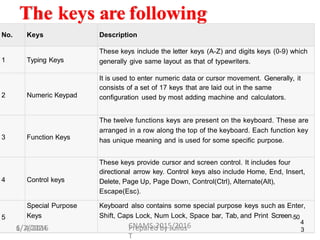
The keys are following
No. Keys Description
1 Typing Keys
These keys include the letter keys (A-Z) and digits keys (0-9) which
generally give same layout as that of typewriters.
2 Numeric Keypad
It is used to enter numeric data or cursor movement. Generally, it
consists of a set of 17 keys that are laid out in the same
configuration used by most adding machine and calculators.
3 Function Keys
The twelve functions keys are present on the keyboard. These are
arranged in a row along the top of the keyboard. Each function key
has unique meaning and is used for some specific purpose.
4 Control keys
These keys provide cursor and screen control. It includes four
directional arrow key. Control keys also include Home, End, Insert,
Delete, Page Up, Page Down, Control(Ctrl), Alternate(Alt),
Escape(Esc).
5
1/
Special Purpose
Keys
4/2016
Keyboard also contains some special purpose keys such as Enter,
Shift, Caps Lock, Num Lock, Space bar, Tab, and Print Screen.50
CNAMS-2015/2016 4
3
6/2/2024 Prepared by Julius
T
ShortExplanation of keyboardkeys (Button)
1. ENTER or RETURN - Moves the cursor down one
line and to the left margin.
2. DEL or DELETE - Deletes the character at cursor
and/or characters to the right of the cursor and all
highlighted (or selected) text.
3. BKSP or BACKSPACE - Deletes the character to the
left of cursor and all highlighted text.
4. SPACE BAR - Moves the cursor one space at a time
to the right
4
51
4
CNAMS-2015/2016
1/4/2016
6/2/2024 Prepared by Julius
T
Cont…
5. SHIFT KEY - Use the shift keys to type capital
letters and to type the upper character on keys with
two characters on them
6. CAPS LOCK - Locks the keyboard so it types
capital letters (a light goes on when caps lock is on)
7. TAB - Moves the cursor five spaces to the right
(number of spaces are usually adjustable).
8. ESC or ESCAPE - Cancels a menu or dialog box
9. ARROW KEYS - Moves the cursor around
document without changing text
5
52
4
10. FUNCTION KEYS or F KEYS -Access commands
by themselves or in combination with the three
1/4/2
c
0o
16
mmand keys; CTC
R
NL
AM
, S
S
-2
H
01
I
5
F
/2
T
01
,6and ALT
6/2/2024 Prepared by Julius
T
The Mouse
 Mouse: Mouse is the pointing device which used to
select different object. It has two buttons (left & Right)
that control the movement of the cursor.
Left button - used to select menu options or
commands by pointing & pressing the button once.
Right button - used to access shortcut menu within
windows and windows application.
Scroll wheel- Used to show the hidden part of the
document in different applications, example In Ms-
Word, Ms-Excel.
43
6/2/2024 Prepared by Julius
T
The Mouse
Diagram
Left
button
Scroll
wheel
Right
button
44
6/2/2024 Prepared by Julius
T
Using the Mouse
1. Left click: Use your first finger to click the left button
once.
2. Right click :Use your second finger to click the right
button once
3. Double click :Use your first finger to click the left
mouse button twice quickly
4. Drag :Click and hold the left mouse button, move the
mouse as necessary then release the left mouse button
5. Scroll wheel :Helps to move up and down a document
in some applications
45
6/2/2024 Prepared by Julius
T
Mouse Actions/Operations
1. Point: To point an item means to move the mouse
pointer so that it's touching the item.
2. Click: Point to the item, then tap (press and release)
the left mouse button.
3. Double-click: Point to the item, and tap the left mouse
button twice in rapid succession - click-click as fast as
you can.
4. Right-click: Point to the item, then tap the mouse
button on the right.
5. Drag: Point to an item, then hold down the left mouse
button as you move the mouse. To drop the item,
release the left mouse button.
46
6/2/2024 Prepared by Julius
T
Scanners
 Scanners: Allow user to copy or transfer photos,
pictures, even some objects to a file on your computer.
It transfers the information to the computer as a
bitmap.
 It will also allow you to scan a page of text using the
OCR (Optical Character Recognition) software to be
able to later edit that text in your word processor.
Twain software makes the scanner
47
6/2/2024 Prepared by Julius
T
Touch Screen
 Touch screen :Is a special kind of screen which
is sensitive to touch. Touching with their finger
the desired icon or menu item displayed on the
screen
48
6/2/2024 Prepared by Julius
T
Bar Code Reader (BCR)
 Abarcode is simply a numeric code represented
as a series of lines. These lines can be read by a
barcode reader/scanner. convert the data into
electrical signal and send them to computer for
processing.
49
6/2/2024 Prepared by Julius
T
Joysticks
Joystick: Used mainly for playing games
Small joysticks can also be found on some mobile
phones.
50
6/2/2024 Prepared by Julius
T
Joysticks, Head Phone & Microphone
51
6/2/2024 Prepared by Julius
T
Light Pen

. Alight pen is a device used as a pointing device to
‗write‘ on the screen of a computer.
5
6
5
2
6/2/2024 Prepared by Julius
T
Touchpad / Track pad
A pointing device found on most laptops
63
5
6
6/2/2024 Prepared by Julius
T
Digital Camera
5
6
7
4
6/2/2024 Prepared by Julius
T
Video Camera
 Like a digital camera, most video cameras do
not directly input data into a computer – the
captured movies are stored on video-tape or
memory cards and later transferred to a
computer.
65
8
6/2/2024 Prepared by Julius
T
Web Cam
 This is a very basic video camera used to feed
live video into a computer. The video data from
a web cam is low quality compared to a full
video camera.
66
5
9
6/2/2024 Prepared by Julius
T
57
6/2/2024 Prepared by Julius
T
Microphone
 An input device that converts sound into a
signal that can be fed into a computer.
58
6/2/2024 Prepared by Julius
T
Other Input Devices
59
6/2/2024 Prepared by Julius
T
 Tracker ball
 Touch sensitive pad
 Graphics tablets (Digitizers)
 Optical Character Readers
 Optical Character Recognition (OCR)
 Magnetic Ink Character Reader (MICR)
 Optical Mark Readers and Optical Mark
Recognition (OMR)
 Punched Card
Other Input Devices
60
6/2/2024 Prepared by Julius
T
 Kimball tag
 Voice Recognition e.g. Microphone
 Electronic Point of Sale (EPOS)
 Electronic Fund Transfer at Point of sale
(EFTPOS)
 Video digitizer
 Digital Camera
 Touch tone Telephones
2. Processing Devices
4
 These are devices used to process (Convert)raw data
into information. In computer system this device is
known as Central Processing Unit (CPU)
CPU: Is a main component of the computer, used to
process the data fed into the computer to get
information that is understood by human.
 Processing data may include the following ;
 Calculating
 Sorting
 Searching
 Storing
1/4/2D01r6awing 72
6
CNAMS-2015/2016
6/2/2024 Prepared by Julius
T
The Central Processing Unit (C P U)
 Is a brain of the computer that process data.
This component is located on the computer
motherboard
84
6
5
6/2/2024 Prepared by Julius
T
The Brain Of The Computer
85
6
6
6/2/2024 Prepared by Julius
T
Parts of the CPU
CONTROLUNIT
(CU)
ARTHIMETIC
LOGIC UNIT
(ALU)
REGISTERS
(IMMEDIATEACCESS STORE)
64
6/2/2024 Prepared by Julius
T
Components / Elements of CPU
1. Control unit (CU)
 Responsible for the following functions;
1. Coordinating the input and output devices.
2. It directs the flow of data from the CPU and input and
output devices.
3. Tell the rest of the computer system how to carry out
a program instructions.
4. Directs the movements of electronic signalsbetween
main memory and logic units.
5. Directs electronic signals between main memory and
the input/output devices.
65
6/2/2024 Prepared by Julius
T
2. Arithmetic/Logic Unit (ALU)
66
6/2/2024 Prepared by Julius
T
 ALU is responsible for the following functions;
1. The ALU performs all calculations and logical
decisions in the computer system. E.g. +, -, /, *
etc and what if analysis in Excel.
2. Control operations of those operations.
3. Registers
 Immediate Access storage(Register): Is a very small
amount of very fast memory that is built into the CPU
(central processing unit) in order to speed up its
operations by providing quick access to commonly
used values Registers are used to store data during the
execution of a program.
 Register is contained in CPU-in arithmetic logic unit.
They are temporary memory that store data
temporarily during processing
 Provides working area for computation
 Hold programs instructions and data from main
memory into registers just before processing. 67
6/2/2024 Prepared by Julius
T
The CPU Speed
68
6/2/2024 Prepared by Julius
T
 The speed of CPU is measured in HERTZ (Hz),
i.e., number of operations can be done per
second. Nowadays, we usually use KHz, MHz,
GHz (e.g.700 KHz, 300 MHz, 3.0 GHz)
Functions of CPU
69
6/2/2024 Prepared by Julius
T
1. Control the sequence of operation
2. Give commands to all parts of the computer
system, Like keyboard, mouse, Printer. etc
3. Interpret and execute program instructions
(software)
4. Communicate with the input device and storage
device
3. Output devices
73
 These are devices that translate information
processed by the computer into a form that
humans can understand.ie are the devices which
enables user of computer to get the result of the
processed data.
 Display the information to the user
 Example:
1. Monitor
2. Printer
3. Speakers
4
1./4/2
P
01
r6
ojector etc. CNAMS-2015/2016
6/2/2024 Prepared by Julius
T
Categories of Output
1. Softcopy:-Is the data that is shown on a display
screen or is in audio or voice e g:-Monitor,
Speakers etcSoft copy:
2. Hardcopy:- Is the printed output e g printer,
plotters etc.Aprinted paper is a good example
of Hard copy output.
Hard copy:Printed on paper or other
permanent media
71
6/2/2024 Prepared by Julius
T
Output devices
Monitor Printer Speaker
72
6/2/2024 Prepared by Julius
T
Monitor
This is the display device for a personal
computer. It display result in a form of
text, graphs, images, video etc.
73
6/2/2024 Prepared by Julius
T
Types of Monitor
74
6/2/2024 Prepared by Julius
T
There are two types of monitor:
1. Cathode Ray Tube monitor (CRT)
2. Flat Panel/LCD (Liquid crystal display)
monitor.
CRT Monitors
 Is Just like a television set. CRT monitors are
heavy and use more electrical power than flat
panel displays, but they are preferred by some
graphic artists for their accurate color rendition,
and preferred by some gamers for faster
response to rapidly changing graphics
75
6/2/2024 Prepared by Julius
T
LCD Monitors
Flat-screen monitors are light in weight and
.they take up very little desk space.
Have little energy consumption and have liquid
that reduce the intensity of contacted rays.
Monitor screen size is measured diagonally
across the screen, in inches.
76
6/2/2024 Prepared by Julius
T
Printer
 This is the output device which produces the
hardcopy (printed) output.
100
8
0
CNAMS-2015/2016
1/4/2016
6/2/2024 Prepared by Julius
T
Types of Printer
78
6/2/2024 Prepared by Julius
T
1. Dot matrix printers
2. Ink Jet Printer
3. Laser Printer
1. Dot Matrix Printers
 Quality is poor, the printers are noisy
79
6/2/2024 Prepared by Julius
T
2. Ink Jet Printer
Its Cheap, high-quality, full-color printing.Also it
is perfect for photographs. Ink-jet printers are
very quiet in use.
80
6/2/2024 Prepared by Julius
T
3. Laser Printer
81
6/2/2024 Prepared by Julius
T
Speakers
This is the output device which produces the
output in a form of sound.

82
6/2/2024 Prepared by Julius
T
Projector
 Projector: This is the hardware device that
enables an image to be projected onto a flat
surface. These devices are commonly used in
meetings and presentations as they allow for a
large image that everyone in a room can see.
83
6/2/2024 Prepared by Julius
T
4. Storage Devices
Are devices used to saves data and programs.
TYPES OF STORAGE DEVICES
Temporary(Primary) storage devices
Permanent (Secondary) Storage Devices
Temporary (Primary) storage devices
Is where the information to be processed is held and anything stored in will be lost
when the power is turned off .
Example: RAM (Random Access Memory)
CNAMS-2015/2016
8
7
1/4/2016
6/2/2024 Prepared by Julius
T
Permanent(secondary)Storage devices
 Is used to hold data and programs permanently
regardless whether power supply to computer is
on/off, it holds/store information permanently for
future use.
 Acomputer commonly has two types of storage:
Internal and External storage devices.
1. An Internal Storage e.g. Hard Disk Drive (HDD)
2. An external / Removable Storage e.g. Floppy
disk, hard disk, magnetic tape, CD-ROM, DVD,
Flash disk etc.
6/2/2024 Prepared by Julius
T
Hard Disk Drive (HDD)
 Hard disk Drive (HDD): This stores all
programs and files, as well as the operating
system. In general, all data, information you
have save in your computer are stored in HDD.
 The capacity of the HDD is a measure of how
much information it can store. There are HDD
which have 10GB, 20GB, and 30GB ,200 GB,
320GB, 500GB,1000GB etc.
6/2/2024 Prepared by Julius
T
HDD
Desktop
Computer HDD
6/2/2024 Prepared by Julius
T
Laptop HDD External HDD
Floppy Disk Drive (FDD)
 Floppy disk drive (FDD): This magnetically reads
and writes information onto floppy diskettes, which are
in form of removable storage media.
 The capacity of the floppy diskette is that it only holds
1.44 MB of information, although most PCs still have a
floppy drive.
6/2/2024 Prepared by Julius
T
Optical Disks
 Optical disk: Is a removable disk on which
data is written and read through the use of laser
beam
 Most of optical disk are used in music industry.
Examples of optical disks are;
1. CD-R (Compact Disk-Recordable).
2. CD-RW (Compact Disk Rewritable).
3. DVD-ROM (Digital Versatile Disk).
6/2/2024 Prepared by Julius
T
CD-ROM drive
 A CD-ROM drive: Is a secondary storage
device that reads information stored on a
compact disc. The CD-ROM is an optical media
that can hold about 700MB
6/2/2024 Prepared by Julius
T
There are two types of CDs
(Compact disk).
1. CD-R (Compact Disc - Recordable).There is
no possibility of rewriting data
.
6/2/2024 Prepared by Julius
T
CD-RW (Compact Disk - Rewritable)
2. CD-RW (Compact Disk - Rewritable).There is
possibility of rewriting data.
6/2/2024 Prepared by Julius
T
DVD ROM
DVD ROM: The DVD (Digital Versatile Disc)
looks like a CD, but the storage capacity is
significantly higher than CDs. DVDs can hold
about 4.7GB of data up to 18 GB of data.
6/2/2024 Prepared by Julius
T
Flash Drive
Flash Drive. AUSB Flash Drive is aportable
solid state memory device that plugs into a
USB port on your computer. They have
many other names (such as key drive, pocket
drive, thumb drive, pen drive).
6/2/2024 Prepared by Julius
T
5. Communication Devices
Network card
6/2/2024 Prepared by Julius
T
Modem
Communication devices used for the purpose of
linking/connecting computers together .It includes
Network cards, fiber optic cable, coaxial cable, twisted
pair ,modem, satellites, switch etc.
Computer Memory
 Computer Memory: Is a device which store
information that is currently being utilized/used
by the operating system, Application software ,
Hardware devices etc.
Types of Computer Memory
 There are two types of computer
memory
i. Primary Memory/Main Memory
ii. Secondary Memory
6/2/2024 Prepared by Julius
T
6/2/2024 Prepared by Julius
T
1.Primary Memory/Main Memory
 The Primary storage unit (main memory) holds
data and instructions between processing steps
and supplies them to the CU andALU during
processing.All data and programs must be
placed into main memory before they can be
processed. The primary storage unit consists of
microelectronic semiconductor memory chips.
This includes RAM (random access memory)
for loading programs and data before execution,
and ROM (read only memory) for permanent
programs that are supplied with the computer
1/4/2h01a6rdware. 122
1
0
1
CNAMS-2015/2016
6/2/2024 Prepared by Julius
T
Cont…
 Main memory is where programs and data are
kept when the processor is actively using them.
It hold data temporary. Main memory is closely
connected to the processor, so moving
instructions and data into and out of the
processor is very fast. Workable example of
main memory is RAM(RandomAccess
Memory)
 RAM is considered as temporary or volatile
memory; this means that the contents of RAM
are lost when the computer power is turned off.
6/2/2024 Prepared by Julius
T
(i)Random Access Memory (RAM)
 RAM: Is the main memory space of your
computer which is considered as temporary or
volatile memory, this means that the contents of
RAM are lost when the Computer power is turned
off.
 The RAM is the workspace of your computer. If
your computer has more RAM, it can open more
and larger programs and documents
simultaneously. The documents you are currently
editing, typing, formatting, and the programs your
computer is using are stored in the RAM. Note:
RAM capacity is expressed in ―Megabytes‖ (MB)
6/2/2024 Prepared by Julius
T
RAM
6/2/2024 Prepared by Julius
T
Characteristics of RAM
6/2/2024 Prepared by Julius
T
1. It is located near the CPU and hence store data
immediately after CPU process them.
2. RAM is a Primary storage.
3. RAM is Volatile storage.
4. RAM has little storage capacity.
5. RAM is a temporarily storage.
6. RAM has high speed compared to ROM
7. It is electrically dependent.
(ii)Read Only Memory (ROM)
 ROM: Is non- volatile memory; this means that
the contents of ROM are not lost when the
computer power is turned off. So ROM stores
data permanently. Data stored in ROM cannot
be altered easily; since it was created by the
manufacture of the computer.ROM has low
speed compared to RAM.
6/2/2024 Prepared by Julius
T
ROM
CNAMS-2015/2016
7
1
1
2
0
8
1/4/2016
6/2/2024 Prepared by Julius
T
Characteristics of ROM
8
129
1
0
1. ROM stores data permanently
2. ROM is non-volatile storage.
3. ROM has low speed compared to RAM
4. Data stored in ROM cannot be altered easily
CNAMS-2015/2016
1/4/2016
6/2/2024 Prepared by Julius
T
Differences between Main memory and
secondary memory
memory
Differences between Main memory and secondary
130
1/d4/e2p01e6ndent. CNAMS-2015/20d16ependent. 1
0
9
Secondary memory
Primary memory
1. Fast
2. Low capacity
3. Works directly with the
processor
4. Store data temporary
5. It is electrically
1. Slow
2. Large capacity
3. Not connected directly
to the processor
4. Store data permanent
5. It is NOT electrically
6/2/2024 Prepared by Julius
T
2. Secondary Memory
1
0
 Secondary storage is used for long term (permanent)
storage of data and programs. The use of secondary
storage devices such as magnetic disks and optical
disks greatly enlarge the storage capacities of
computer systems. Before the contents of secondary
storage can be processed, they must be brought into
the primary (main) storage unit.
 Secondary memory is where programs and data are
kept on a long-term basis. Examples of secondary
memory are HDD,CD‘s, Flash disk.
 When you save your work does not go into ROM. Go
to other storage devices like HDD.
131
1/4/2016 CNAMS-2015/2016
6/2/2024 Prepared by Julius
T
Standard unit of measuring computer storage
capacity
 This includes the unit of measuring Computer
Storage Capacity and size of file or folder.
 Bit: Is a smallest unit of measuring computer
storage capacity and size of information. The
computer stores information as a string of zeros
(0) and ones (1)
 Byte: A byte consists of eight bits.A byte is
equals to one character .Acharacter is a letter,
number, or symbol - it is about anything that
6/2/2024 Prepared by Julius
T
1
1
can be typed on a keyboard. 132
1
Cont…
 Kilobyte (KB): A kilobyte (KB) consists of
1024 bytes, approx 1,000 bytes.
1KB is about 140 words
 Megabyte (MB): Amegabyte (MB) consists of
1024 kilobytes.
 One megabyte equals about 1000 KB
 One megabyte equals about 1,000,000 bytes
 One megabyte equals about 500 pages of text,
or one large book
6/2/2024 Prepared by Julius
T
 Gigabyte (GB): Agigabyte (GB) consists of
1024 megabytes approx 1,000,000,000 bytes. 1
12
Cont…
 One gigabyte equals about 1000 MB
 One gigabyte equals about 1,000,000 KB
 One gigabyte equals about 1,000,000,000 bytes
 One gigabyte equals over 1,000 books of text
Storage Capacity Measurement
1. 1 Byte = 8Bits
2. 1 Character = 1Byte
3. 1 Kilobyte (KB) = 1024 Bytes
4. 1Kilobyte = 1024 Character
5. 1Megabytes (MB) = 1024KB
6. 1Gigabytes (GB) = 1024MB
7. 1Terabytes (TB) = 1024GB
8. 1Petabytes (PB) = 1024 Terabytes
1
13
6/2/2024 Prepared by Julius
T
VARIOUS COMPONENTS OF PC
The System Case/Computer Case/System unit/Chassis
Motherboard/ main board /system board
Central processing unit(CPU)
Memory
Power supply
Fan
Hard disk(HDD)
Floppy disk(FDD)
CD-ROM
MONITOR, KEYBOARD, MOUSE,

1/4/2016 CNAMS-2015/2016
1
1
4
6/2/2024 Prepared by Julius
T
Computer Case/System Case
1
1
5
6/2/2024 Prepared by Julius
T
 Acomputer case (also known as a computer
chassis, cabinet, box, and tower, enclosure,
housing or simply CPU case) is the enclosure
that contains the main components of a
computer. OR
 IS a metal or plastic box that protect the
important components against dust and
damage
 Acomputer case is sometimes incorrectly
referred to as a CPU .
Models of Computer Cases
1. The desktopmodel
Sits on a desk horizontally. The monitor can
be set on top.
 This choice can be a space saver.
1
1
6
6/2/2024 Prepared by Julius
T
2. Tower case Model
The tower model stands upright in a vertical
position that allows easy placement on the floor.
Mini-tower, mid-tower, and full tower cases are
available.
1
1
7
6/2/2024 Prepared by Julius
T
Components inside the computer case
76
CNAMS-2015/2016
1
1
8
1/4/2016
6/2/2024 Prepared by Julius
T
Power
supply
Motherbo
ard,
including
ROM
Proces
sor
RA
M
Hard
disk
PCI
slots
Fan
CD
Drive
Floppy
11
0
6/2/2024 Prepared by Julius
T
Drive
Power
Supply
External
device
connections
to
motherboard
12
0
6/2/2024 Prepared by Julius
T
Fan
Hard drive
and empty
slot
CD
Driv
e
1
Flopp
y
Drive
CNAMS-2015/2016
79
1
2
1/4/2016
6/2/2024 Prepared by Julius
T
Connections to the CPU for Peripherals
Monitor
Serial – on our computers
connects to the UPS for
controlled shutdown
1
2
2
6/2/2024 Prepared by Julius
T
Motherboard
 Motherboard is the largest printed circuit board which
is used to connect all of the computer's essential
components. Motherboard also known as system board,
main board or logic board
 Components of the Motherboard
 The CPU
 The RAM
 Memory sockets
 The expansion slots for additional boards
 The ports for external devices
 The Read Only memory (ROM)
 Adapter cards( Network, modem , Video and Sound Cards
1
2
3
6/2/2024 Prepared by Julius
T
MOTHERBOARD/SYSTEM
BOARD
processorchip
adaptercards
memorychip
memoryslots
motherboard
Expansion
slots for
adaptercards
1
2
4
6/2/2024 Prepared by Julius
T
Computer Software
What is Computer software?
 Software is a set of instructions that control computer
hardware operations. Basically it direct the computer
how to perform tasks.Also called Programs.
 Software: drives hardware to perform certain
functions. Without software the computer is useless.
 The software consists of the programs and associated
data (information) stored in the computer. A program
is a set of instructions that the computer follows to
manipulate data. Without programs, a computer is just
a lot of high-tech hardware that doesn‘t do anything.
6/2/2024 Prepared by Julius
T
Examples of Software's
.
6/2/2024 Prepared by Julius
T
Types of Computer Software
Software can be divided into two groups:
1. System Software
 Operating System
 Utility Programs
 Language translator
2. Application Software
 Word processor e.g. Ms Word
 Spreadsheet e.g. Ms Excel
6/2/2024 Prepared by Julius
T
System software
6/2/2024 Prepared by Julius
T
 System Software is the software that controls
the overall operation of the computer system.
 The system software is basically a software that
enables the application software to interact with
computer and helps the computer to manage its
internal as well as external resources. System
software is needed to run application software.
Types of system software.
6/2/2024 Prepared by Julius
T
1. Operating System
2. Utility Programs
3. LanguageTranslator
Operating System
OS: This is the principal component of system soft
ware in any computer system. It manages the basic
operation of computer system. The Examples of
OS are DOS, Windows, UNIX, LINUX etc.
OS: This is type of Software that manages all
other programs in a computer system. Also it
manages the flow of information through the
computer system.
Generally the OS acts as an interface or a
bridge between the user and the Hardware of
the computer
6/2/2024 Prepared by Julius
T
system software
Operating System (OS)
is a set of programs
that coordinates all
activities among
computer hardware
devices and allows
users to run
applicationsoftware
Utility Programs allow the userto
perform maintenance-type tasks
usually related to managing a
computer, its devices or itsprograms
6/2/2024 Prepared by Julius
T
The OS act as a “Shell” around the hardware
HARDWARE
OperatingSystem
use
Application
software
 For program to work, they need an OS, For users to get useful
work out of the computer they have to use applications programs
and the OS to communicate with the hardware
User
Application
Software
CNAMS-2015/2016
143
1
3
2
1/4/2016
6/2/2024 Prepared by Julius
T
Examples of System Software's
 An operating system is the link between you and the
hardware/software
 DOS
 Windows 3
 Windows 95
 Windows 98
 Windows Millennium
 Windows NT
 Windows 2000
 Windows XP
 Others Operating systems(non-microsoft) are Macintosh and
Linux family including RedHat, Debian, Ubuntu, Fedora etc
6/2/2024 Prepared by Julius
T
Functions of Operating System
6/2/2024 Prepared by Julius
T
 Coordinates all input and output devices during data
processing.
File and folder management
Management of all applications software
Security Management
Memory Management
Process Management
Resources allocation Management
 Provide User Interface
3
5
File and folder management
when a file is saved, the operating system saves it, attaches a name to
it, and remembers where it put the file for future use.
Management of all applications software.
When a user requests a program, the operating system locates the
application and loads it into the primary memory or RAM of the
computer.
Process Management, booting, open, save, copy, send and print
Resource Management.
Installing drivers required for input, output, memory, power,
communication devices. Coordinating among peripherals.
D1o/4w/2n0l1o6ading-Uploading. CNAMS-2015/2016
1
6/2/2024 Prepared by Julius
T
3
6
Communication Management.
User – Application S/W – Hardware.
One computer to other computer in LAN/WAN.
Command interpretation
Memory Management.
Primary RAM-ROM.
Secondary – Hard Disc, CD, DVD, Pen etc.
Security Management.
Virus management.
Alert messages.
Dialogue boxes.
Firewall.
P1
a/s4
s/w2
0
o1
6
rds./Access protectiCoNnAMS-2015/2016
1
6/2/2024 Prepared by Julius
T
Utility Programs
 Utility Programs: These are pre-written programs
supplied by the manufacturer for maintaining day to
day activities of computer system.
Examples of utility programs are:
 Windows Explorer (File/Folder Management)
 Windows Media Player
 Anti-Virus Utilities
 Disk Defragmentation
 Disk Clean
 Backup
 WinZip
3
7

1/4/2
W
016
in RAR 146
1
CNAMS-2015/2016
6/2/2024 Prepared by Julius
T
Some tasks carried out by utility programs
6/2/2024 Prepared by Julius
T
 Renaming files
 Sending files to the Printer
 Deleting files
 Backing up files
 Copying files
 Sorting data
 Repairing damaged files
 Listing files on the a disk
Language Translator
6/2/2024 Prepared by Julius
T
Alanguage translator is a soft ware that
translates a program written by a programmer in
a language such as C, HTML into machine
language (0, 1) which the computer
understands.
2. Application Software
Applications software: Is the software developed to solve
particular problem or task.
Types ofApplication Software's
1. Application packages (e.g. Word processing
software, Spreadsheet software and database software)
2. Integrated Software: This is the collection of
application software which share common set of
commands e.g. word processor, Spreadsheet and
graphics package all in one.
3. Tailor-made Software (Specific Software)
4. General Purpose packages e.g. a word processing
1/4/2p0a16ckage can be usedC
N
bA
yM
S
a-
2
n0
y1
5
/
b2
u0
1
s6
iness 149
1
4
0
6/2/2024 Prepared by Julius
T
Application software
Suite: Popular software applications bundled together
as a single unit
Presentation
Graphics
Spreadsheet
Database
Word
Processing
6/2/2024 Prepared by Julius
T
Application Software's
 Word processing
 MicrosoftWord
 Spreadsheet
 Microsoft Excel
 Database
 MicrosoftAccess
 Web browsing
 Microsoft InternetExplorer
 Accounting
 Sage
6/2/2024 Prepared by Julius
T
Examples of Application Software's
6/2/2024 Prepared by Julius
T
1. Opera (Web Browser
2. Microsoft Word (Word Processing)
3. Microsoft Excel (Spreadsheet software)
4. MySQL (Database Software)
5. Microsoft PowerPoint (Presentation Software)
6. iTunes (Music / Sound Software)
7. VLC Media Player (Audio / Video Software )
8. World of War craft (Game Software)
9. Adobe Photoshop (Graphics Software)
Types of Computer
6/2/2024 Prepared by Julius
T
 Computers come in a variety of different types
designed for different purposes, with different
capabilities and costs. Computers can be
generally classified by size and power as
follows:
1. Microcomputers
2. Mainframe Computers
3. Mini Computer
4. Super Computers
1.Microcomputers/Personal computers
6/2/2024 Prepared by Julius
T
 A microcomputer is a small single-user computer
based on a microprocessor. They are often called
personal computers because they are designed to
be used by one person at a time.
 Personal computers are typically used at home, at
school, or at a business.
 Popular uses for microcomputers include word
processing, surfing the web, sending and
receiving e-mail, spreadsheet calculations,
database management, editing photographs,
creating graphics, and playing music or games.
Types of Microcomputers
1. Personal digital assistant (PDAs)
2. Desktop computers
3. Laptops
4. Palmtop Computers
5. Notebook Computers
6/2/2024 Prepared by Julius
T
Personal Computers
What are the two most popular series of personal
computers?
 PC and compatibles use
the Windows operating
system
 Apple Macintosh uses
the Macintosh
operating system (Mac
OS)
6/2/2024 Prepared by Julius
T
Personal Computers
What is a desktop computer?
 Designed so all of the components fit on or under a
desk or table
6/2/2024 Prepared by Julius
T
Handheld Computers
What is a tablet PC?
 Resembles a letter-sized slate
 Allows you to write on the screen
using a stylus
 Smaller version is the modular
computer
What are Web-enabled handheld computers?
 Allow you to check e-mail and access the Internet
 Web-enabled telephone is a “smart phone”
6/2/2024 Prepared by Julius
T
Handheld Computers
What is a personal digital assistant (PDA)?
 Provides personal organizer functions
 Calendar
 Appointment book
 Address book
 Calculator
 Notepad
CNAMS-2015/2016
0
0
1
165
1/4/2016
6/2/2024 Prepared by Julius
T
2. Mainframe Computers
1
161
5
 A mainframe is a computer which allows
multi-user and capability of supporting many
hundreds or thousands of users at a time.
 This computer has more powerful than
Microcomputers.
 Mainframe computers can be used in Banks,
Large insurance companies, Building societies,
utility companies etc
CNAMS-2015/2016
1/4/2016
6/2/2024 Prepared by Julius
T
Mainframe Computer
6/2/2024 Prepared by Julius
T
3. Minicomputer Computers
6/2/2024 Prepared by Julius
T
 Minicomputers are computers small than
mainframe computers in terms of speed and
size but larger than microcomputer
 Minicomputers are characterized with following
features
 Support multi-user access
 Small in size usually took up to the size of a
large refrigerator or two
 Can process few millions of program
instructions per second
4. Super Computer
6/2/2024 Prepared by Julius
T
 The fastest type of computer. Supercomputers
are used for weather forecasting, animated
graphics (movie films), nuclear energy
research, and petroleum exploration.
 Allows Multi-user and Capability of supporting
hundreds of millions users at a time. This
computer is most powerful and very expensive
compared to all types of computers
Super Computer
CNAMS-2015/2016
5
1
1
6
5
5
1/4/2016
6/2/2024 Prepared by Julius
T
Summary ontypes of computer
6
No. Type Specifications
1
PC (Personal
Computer) Single user computer system. Moderately powerful microprocessor.
2 WorkStation
Single user computer system. Similar to Personal Computer but
have more powerful microprocessor.
3 Mini Computer
Multi-user computer system. Capable of supporting hundreds of
users simultaneously.
4 Main Frame
Multi-user computer system. Capable of supporting hundreds of
users simultaneously. Software technology is different from
minicomputer.
5
1/4/
Supercomputer
2016
An extremely fast computer, which can perform hundreds of
millions of instructions per second.
CNAMS-2015/2016 1661
5
6/2/2024 Prepared by Julius
T
Classification of Computers
6/2/2024 Prepared by Julius
T
Classification of Computers
1.In terms of manufacturer
 Dell computers
 IBM computers
 Hitachi computers
 Compaq computers
 HP computers etc
6/2/2024 Prepared by Julius
T
2.In terms of power and speed
1. Supercomputers: used in military missile speed
weapons (2000 MIPS)
2. Mainframe computers: Most normal computers in
business companies (20-50 MIPS)
3. Mini Computers: Medium size computer (5-10
MIPS)-useful for accounting, payroll/scientific
computation
4. Workstations: used bymainly by engineers and
scientist for sophisticated purposes
5. Microcomputer or personal computers: Small
computer that can fit next o a desk or on desktop. They
are available in desktop, tower, notebook, palm top.
6. Microcontrollers- tiny computers installed in pocket
calculators and microwave ovens. 169
1
5
9
1/4/2016 CNAMS-2015/2016
6/2/2024 Prepared by Julius
T
3.In terms of data type/construction
(technology)
1. Digital computer: display output in
discrete wave form
2. Analog computer: display results ina
continuous wave forms
3. Hybrid computer: combines features of
digital and analog computers
6/2/2024 Prepared by Julius
T
4. Interms of Purpose/Application
6/2/2024 Prepared by Julius
T
1. Special purpose/specific purpose
computer
 Personal/Digital Assistants
 Network Computers
2. General purpose computer
5.Classification according to Size
 Handheld
 Notebook
 Laptop
 Portable
 Desktop
6/2/2024 Prepared by Julius
T
6.Classification-by Use
 Home
 Personal
 Professional
 Workstation
 Multi-user
6/2/2024 Prepared by Julius
T
7.In terms of Generation/History of the
Computers
6/2/2024 Prepared by Julius
T
 1st Generation(1940-1958): they include
ENIAC,IBM 360.701,704
 2nd Generation(1959-1963): Transistors
invented and put into use
 3rd Generation(1964-1970):IC chips
technology employed
 4th Generation (1971-to date):Larger scales
integrated (LSI) and Very large scale (VLSI)
were developed.
Advantages of Using Computer
6/2/2024 Prepared by Julius
T
1. Computers are veryAccurate. (GIGO)
2. Computer Simplify Communication
3. Entertainment through Games and Music
4. Computer creates employment to the people e.g.
Secretaries
5. Improve training e.g. in School, Universities
6. Computers are extremely fast
7. Computers can keep large amounts of information in a
small space
8. Computers can work continuously for 24 hours a day
without being tired
Cont…
6/2/2024 Prepared by Julius
T
9. Diligence-can work continuously for 24 hours
10.Consistency/diligent-always give the same result
without changes
11. Versatility-able to adapt or to be adopted to different
functions or activities
12. Automation-working by itself with little ornor direct
human control.
Disadvantages/Limitations of Computers
167
1. Loss of data. When you use a computer, it is
possible that data can be lost because of hardware
or software damage.
2. Health problems . Eye sight defect and killing of
reproductive cells especially for males
3. Staff needs training to use it.
4. It depends on electricity
5. Destruction of culture/moral decay .adoption of
wearing style and watching pornographic movies
6. Computers can replace people and hence cause
unemployment
7. Computer are not always secure, and
confidential information can be misused
CNAMS-2015/2016
1/4/2016
6/2/2024 Prepared by Julius
T
Application of Computer in Different Area
1. Workplace: Many people use computers to keep
records, analyze data, do research, and manage
projects.
2. Military: for security purpose
3. Hospital: for disease detection and record keeping
4. Learning institution: like colleges, universities,
primary and secondary school for registration and
learning tools.
5. Bank: all transaction in bank done by using computer
6. Industry: for production, order and supply
7. Home: find information, store pictures and music,
track finances, play games, and communicate with
168
CNAMS-2015/2016
1/4/2
o
0t
1h
6ers.
6/2/2024 Prepared by Julius
T
Examples of Computer Usage
What are five categories of computer users?
Home
6/2/2024 Prepared by Julius
T
Small Office/
Home Office (SOHO)
Mobile
Large Business Power
Examples of Computer Usage
6/2/2024 Prepared by Julius
T
What software is available for a home user?
• Web access
• Entertainment
• Communications
• Personal finance management
Examples of Computer Usage
What software is available for a small
office/home office (SOHO) user?
 Local area network (LAN)
 Productivity software
 Specialty software
 Web usage
 E-mail
6/2/2024 Prepared by Julius
T
Examples of Computer Usage
What is available for
a mobile user?
 Hardware
 Software
 Productivity
 Presentation
 Personal
information
manager
Notebook
computers
6/2/2024 Prepared by Julius
T
Handheld computers
Web-enabled
cellularphones
Examples of Computer Usage
6/2/2024 Prepared by Julius
T
What are the needs of the large business user?
 Web access
 Public kiosk
 Telecommuting
 Network
 Productivity software
 Scheduling
Examples of Computer Usage
6/2/2024 Prepared by Julius
T
What are the needs of a power user?
 Speed and large amounts of storage
 Types of power users
 Engineers
 Architects
 Desktop publishers
 Graphic artists
Computer Applications in Society
What are some examples
of computer applications
in society?
 Education
 Finance
 Government
 Healthcare
 Science
 Publishing
 Travel
 Industry
6/2/2024 Prepared by Julius
T
6/2/2024 Prepared by Julius
T
Questions
1. Briefly explain how computer works
2. Briefly explain importance of using computer in
your study
3. What are the characteristics of computer?
4. Give short explanation about types of computer
5. What is computer software? Explain two types of
computer software.
6. Define computer user. Mention five types of
computer user
6/2/2024 Prepared by Julius
T
Questions
1. What is the difference between registry and RAM?
2. Write differences between Primary memory and
secondary memory
3. Critically discuss the impact of using computer in our
life
4. With examples, briefly explain categories of computer
hardware
6/2/2024 Prepared by Julius
T
Question
1. Define the following as applied in computer;
i. Data
ii. Information
iii. Computer literacy
iv. Peripheral device
v. Utility program
2. Why RAM is volatile memory and ROM is non-volatile
memory?
6/2/2024 Prepared by Julius
T
Question
Suppose your friend Mr. Johnson gave you the movie
file into flash disk. The size of the file was 2GB.But
when you send it into your computer the message
appeared as ―thedisk space is full‖ .Mr. Johnson
advice you to delete some folders from your computer
in order to have enough space. You deleted the folder
which has 3GB but when you send again the movie
still it showed the same message.
From the above scenario,
Briefly explain why the file failed to be transferred
from the flash disk into your computer?
Turning ON & Shutting
down the Computer
System
190
CNAMS-2015/2016
1
8
0
1/4/2016
6/2/2024 Prepared by Julius
T
Switching ON the Computer System
6/2/2024 Prepared by Julius
T
1. Make sure all cable is well connected.
2. Switch on electric/power supply/ Switch Socket
3. Switch ON UPS if is connected to your
computer
4. Press on button of the system unit
5. Press ON button of monitor
6. Wait until Booting process complete its task
then you can start to use computer.
Switching OFF the Computer System
6/2/2024 Prepared by Julius
T
1. Make sure no any program is running on the
task bar
2. Click on the start button
3. Click on turn off computer/ shutdown button
4. Press switch on/off button of monitor
5. Switch off UPS
6. Switch of electric circuit.
7. Wait the computer until the monitor will show
black screen
8
3
Features/elements of
windows based on
operating system (OS)
CNAMS-2015/2016
1
1/4/2016
6/2/2024 Prepared by Julius
T
Computer Booting Skills Techniques
What is Booting?
 Booting is the process of turning ON the computer System.
This process includes initializing all your hardware
components in your computer and get them to work
together and to load your default operating system which
will make your computer operational. The Operating
system begins to operate as soon as you turn on or boot the
computer.
 Computer booting is the process of turning on a computer
and starting the operating system. The computer term boot
is short for bootstrap or bootstrap load. Booting is the
process that occurs when you press the power button to
turn your computer on. During this process (which may
8
4
1/4/2t0a1k6ea minute or twoC
mN
A
inM
uS
t-
2
e0
s1
)5
/
2
0
1
6
194
1
6/2/2024 Prepared by Julius
T
During Booting the computer
performs the following:
1. It runs tests to make sure everything
is working correctly.
2. It checks for new hardware.
3. It then starts up the operating system.
185
6/2/2024 Prepared by Julius
T
Key terminologies
1. Aboot loader is a computer program that loads
the main operating system or runtime
environment for the computer after completion
of self-tests.
Sometimes you'll see an instruction to "reboot"
the operating system.
2. Reboot: Is the process to restarting a computer
so as to reload the operating system
(The most familiar way to do these on PCs is
pressing the Ctrl, Alt, and Delete keys at the
6/2/2024 Prepared by Julius
T
same time). 186
Types of Booting
6/2/2024 Prepared by Julius
T
There are two types of computer booting:
1. Cold booting
2. Warm booting.
1.Cold Booting
6/2/2024 Prepared by Julius
T
 Cold booting is the kind of computer booting
where by a user turn on a computer that has
been powered off.If the computer is in off state
and we boot the Computer by pressing the
power switch ‗ON‘ from the system case then it
is called as cold booting.
2. Warm Booting
200
1
8
9
 This is the kind of computer booting where by a
user restart the computer that has been powered
on. If the computer is already ‗ON‘ and we
restart it by pressing the ‗RESET‘ button from
the system box or CTRL, ALTand DEL key
simultaneously from the keyboard then it is
called warm booting.
CNAMS-2015/2016
1/4/2016
6/2/2024 Prepared by Julius
T
Shutting Down the Computer
190
 Shut down is the process of turning off the computer. It is
important to properly shut down Windows when turning off
your computer—as opposed to just hitting the power switch.
Use the Shut Down command on the Start menu when rebooting
or turning off your computer. This allows Windows to save your
work and make sure that no data is lost.
 The following steps should be taken when exiting a Windows
session.
1. Close any program you are running. In most cases, use the Exit
command from the File menu.
2. Click the Start button and click Shut Down.
3. Select from the list of options. The number of options varies
depending on whether you are connected to a network or not.
4. Wait until you receive a message telling you it is ―safe toturn
CNAMS-2015/2016
1/4/2
o
0f
1
f6your computer.‖
6/2/2024 Prepared by Julius
T
The Shut down windows dialog box
6/2/2024 Prepared by Julius
T
Note
 Sometimes you want to log off without
turning your PC off. In this case, do not
choose to ―ShutDown‖ the computer, but
instead choose ―Logoff‖.
6/2/2024 Prepared by Julius
T
Microsoft Windows
Features
6/2/2024 Prepared by Julius
T
Windows
205
1
9
4
6/2/2024 Prepared by Julius
T
Windows-is a graphical user interface (GUI)
kind of operating system.
It is more user friendly than other operating
systems in the market like Ms Dos, Macintosh,
Linux, Unix etc. Windows allow user to do
more with computer than other operating systems
 Is an interface you see when you turn on the
computer system.
 It consist of the cursors, icons, menus etc which allow
the user to interact with the computer and get
s.omething done easily.
Basically Windows provideUser interfaces
which may be:
1. Command – driven
205
1
9
5
6/2/2024 Prepared by Julius
T
2. Menu- driven
3. Graphical User Interface (GUI)
Windows
Notification
area
File
Icons
Desktop
207
1
Status 9
6
Folder CNAMS-2015/2016
1/4/2016
6/2/2024 Prepared by Julius
T
Desktop
 Desktop-This is the first screen of a window to
appear when you turn on a computer and enter
user name and password.
 The desktop is the on-screen work area on
which Windows, Icons, menus & dialog boxes
appear.
 The desktop is the primary user interface of a
computer. When you boot up your computer,
the desktop is displayed once the startup
process is complete.
6/2/2024 Prepared by Julius
T
Elements of Desktop
6/2/2024 Prepared by Julius
T
1. The desktop background/wallpaper
2. Icons of files and folders.
3. Task bar, which is located at the bottom of the
screen by default.
Icons
 Icon: is a small image that represents a file, folder or
program.
 Icons are symbols or pictures that represent items
stored on your computer. Some icons represent folders
(directories or groups), documents, programs, and even
computer hardware.
6/2/2024 Prepared by Julius
T
Types of Icons
1. Document icons: represent the files that you
create using software. Generally, document icons
resemble the program icon that created the file. For
example, a Word document has part of the same logo
as the Word application in which it was created.
6/2/2024 Prepared by Julius
T
2. Original icons/Special icons
 The icons that typically display when you first access
your Windows desktop are My Computer, My
Network Places, the Recycle Bin, and Internet
Explorer.
6/2/2024 Prepared by Julius
T
3. Application icons
 Icons that have a small white arrow in the lower left
corner are Shortcuts. The arrow indicates that the icon
is a shortcut that points to a program, folder, or other
item. A shortcut is a quick way to open a program or
file. Application (program) icons represent the
executable programs (software) available on your
computer. For example: Microsoft Word, Microsoft
PowerPoint, Microsoft Photoshop, and Microsoft
Excel.
6/2/2024 Prepared by Julius
T
Cont…
 Shortcut icon
Icons with an arrow in the lower left corner are
shortcut icons. Click the icon for quick access
to the object they represent (program,
document, printer, and so on).
 Program, folder, and document icons
Program, folder, and document icons do not
have an arrow in the lower left corner. They
represent the actual object and provide direct
access to the object.
6/2/2024 Prepared by Julius
T
4. Folder icons
 Afolder is a tool used to collect related files or folders.
OR folder is a "container" in which you can store
documents. It allows user to organize information and
also it simplify the accessibility of information.
Folders can hold both files and other folders
(subfolders
6/2/2024 Prepared by Julius
T
Cont…
4. Recycle Bin holds deleted files, until you Empty
Recycle.
5. Internet Explorer is Microsoft's version of a Web
browser. This enables user to access internet
6/2/2024 Prepared by Julius
T
Taskbar
 Taskbar: Is a bar commonly located at the
bottom of the desktop that displays the
programs that are currently running (opened
task). This bar also displays the time, volume,
and in later revisions of the Windows operating
system, the Quick Launch Below is an example
of what the taskbar may look like.
Taskbar contains Start button, System tray,
opened task, and Quick launch toolbar.
6/2/2024 Prepared by Julius
T
Elements of aTask bar
6/2/2024 Prepared by Julius
T
1. Desk bands e.g. Internet Explorer
2. The notification area
3. Windows Media Player.
4. Desktop. Contains shortcuts to items contained
on the users desktop.
5. Quick Launch.
Folder, File & Directory
1. File: Is the item which contains information.
File can be text, image, video, audio or
program.
 Definition:Afile is a collection of
information, with a unique name, stored in
your computer or on a removable disk.
2. Folder: Is the container which store files.
3. Directory: Is the location where file are stored229
2
0
8
1/4/2016 CNAMS-2015/2016
6/2/2024 Prepared by Julius
T
What is a Window?
9
 Window is a bordered rectangular screen which displays your
program or document when it is open. or
This is a bordered rectangular screen display, through which a user
uses an opened program to perform a task
There are three major window types:
 Program,
 Document and
 Folder.
 Title Bar
 The title bar is at the top of the window. It displays the
document, program, or folder name, along with the name of
the application that is open (in program windows only).
231
2
0
CNAMS-2015/2016
1/4/2016
6/2/2024 Prepared by Julius
T
Window Control Buttons
210
 The title bar also displays three small buttons
on the right of the title bar, which change the
display of the window:
 minimize,
 maximize
 restore, and
 close buttons.
CNAMS-2015/2016
1/4/2016
6/2/2024 Prepared by Julius
T
Window Control buttons
1. Minimize button
This puts the current window temporarily in the taskbar located at
the bottom of the desktop. Y
ou can return to where you left off
by clicking the program‘s name on the task bar.
2. Maximize button
This makes the current window to fill the whole screen. The window
cannot be resized and it gives you a maximum working area.
3. Restore button
When you maximize a window, the restore button replaces the
maximize button. Clicking the restore button displays the
window in its previous size and location.
4. Close button
The close button (on the right) closes the window. Click the close
button once to completely close the document, application, or
235
2
1
1
1/4/2
f0
o1
l6
der window. CNAMS-2015/2016
6/2/2024 Prepared by Julius
T
Status Bar
 Astatus bar is a small area at the bottom of a
window. It is used by some applications to
display helpful information for the user. For
example, an open folder window on the desktop
may display the number of items in the folder
and how many items are selected.
6/2/2024 Prepared by Julius
T
Examples of Status Bar
6/2/2024 Prepared by Julius
T
1. The status bar of a file manager
2. The status bar of a web browser
3. The status bar of a graphics editor.
4. The status bar of word processor.
Toolbar
6/2/2024 Prepared by Julius
T
 Atoolbar often provides quick access to
functions that are commonly performed within
the program. For example, a formatting toolbar
in a program such as Microsoft Excel
 Row of boxes, often at the top of an application
window that control various functions of the
software
Restart, Hibernate & Stand by the Computer
 Restart/reboot: Is the process of restarting the
computer or electronic device. Rebooting is
sometimes necessary to recover from an error,
re-initialize drivers, or hardware devices.
Types of Reboot
 Hard reboot: is when you turn the computer
completely off and then turn it back on.
 Soft reboot is when the desktop just goes away
and then you get the reboot without having to
turn the computer all the way off.
6/2/2024 Prepared by Julius
T
Stand by
 Sleep mode or Stand by Is a mode the
computer, monitor, or other device enters when
idle for too long. This mode helps conserve
power when a computer or computer device is
not in use without having to sacrifice the time it
would take to turn off and on the computer.
6/2/2024 Prepared by Julius
T
Hibernation (computing)
7
 Is a Power management mode that conserves
power by powering down the system. In
hibernate mode the current state of the system is
saved to the hard drive, and the system will
power down.
 When a user turns the system power back on,
the saved information is read from the hard
disk, restoring the last used settings.
 Hibernate mode is similar to sleep mode,
however in sleep mode the power cannot be
shut off. 244
2
1
1/4/2016 CNAMS-2015/2016
6/2/2024 Prepared by Julius
T
2
1
8
6/2/2024 Prepared by Julius
T
TOPIC TWO
BASIC COMPUTER NETWORK,INTERNET
AND ITS APPLICATION
2
1
9
6/2/2024 Prepared by Julius
T
BASIC COMPUTER NETWORK
COMPUTER NETWORK
Interconnection of two or more computers in order for sharing resources and
information.
TYPES OF COMPUTER NETWORKS
Local Area Network (LAN)
MetropolitanArea Network (MAN)
Wide Area Network (WAN)
1/4/2I0n16ternet) 2
2
0
Prepared by Julius
T
NETWORK -TYPES
1. Local Area Network (LAN)
 A network situated in one geographic location
(a office / school / factory
2. MetropolitanArea Network (MAN)
 A network which connects several LAN‘s /
users spread over a smaller geographic area (a
case of University of Dodoma)
3. Wide Area Network (WAN)
 A network which connects several LAN‘s /
users spread over a larger geographic area
(larger companies, ATM-network,
6/2/2024
2
2
1
6/2/2024 Prepared by Julius
T
.Intranet
 Designed to permit access by users who have
access Privileges to the internal LAN of the
organization, Private network (LAN) used to
share resources in secure environment
Extranets
 Refer to applications and services that are
Intranet based, and use extended, secure access
to external users or enterprises
2
2
2
6/2/2024 Prepared by Julius
T
Networking Devices
Repeater
Hub
Bridge
Switch
Router
Gateway
6/2/2024 Prepared by Julius
T
2
3
Network topology
Network topology is the arrangement of the various elements (links,
nodes, etc.) of a computer network. Essentially, it is the
topological structure of a network and may be depicted
physically or logically.
Types of Network topologies:
1 The Bus topology
2 Hub/Tree topology
3 Star topology
4 Ring topology
5 Mesh topology 2
2
2
4
6/2/2024 Prepared by Julius
T
2
2
5
6/2/2024 Prepared by Julius
T
Bus topology
Single cable connects all network nodes without intervening
connectivity devices
Devices share responsibility for getting data from one point to
another
Terminators stop signals after reaching end of wire
Prevent signal bounce
Inexpensive, not very scalable
Difficult to troubleshoot, not fault-tolerant
Bus (continued)
2
2
6
6/2/2024 Prepared by Julius
T
2
2
7
6/2/2024 Prepared by Julius
T
Advantages and Disadvantages of Bus
Topology
Advantages
This network can still function if one of the computers
malfunctions
Works well for small networks
Relatively inexpensive to implement
Easy to add to it
Disadvantages
The main disadvantage is bad connection to the cable can bring
down the entire network
Management costs can be high
Potential for congestion with network traffic
Ring Topology
Ring topology
Each node is connected to the two nearest nodes so the entire network
forms a circle
One method for passing data on ring networks is token passing
Active topology
Each workstation transmits data
2
2
8
6/2/2024 Prepared by Julius
T
6/2/2024 Prepared by Julius
T
2
9
Advantages and Disadvantages
of Ring Topology
Advantages
This network can still function if one of the computers
malfunctions
Easier to manage; easier to locate a defective node or cable
problem
Well-suited for transmitting signals over long distances on a LAN
Handles high-volume network traffic
Enables reliable communication
Disadvantages
Expensive
Requires more cable and network equipment at the start
Not used as widely as bus topology
•Fewer equipment options
•Fewer options for expansion to high-speed communication 2
Star topology
2
3
0
6/2/2024 Prepared by Julius
T
Star topology
Star topology
Every node on the network is connected through a
central device
2
3
1
6/2/2024 Prepared by Julius
T
2
3
2
6/2/2024 Prepared by Julius
T
Star (continued)
Any single cable connects only two devices
Cabling problems affect two nodes at most
Requires more cabling than ring or bus networks
More fault-tolerant
Easily moved, isolated, or interconnected with other
networks
Scalable
Supports max of 1024 addressable nodes on logical
network
2
3
3
6/2/2024 Prepared by Julius
T
Advantages and disadvantages
of Star Topology
Advantages
Good option for modern networks
Low startup costs
Easy to manage
Offers opportunities for expansion
Most popular topology in use; wide variety of equipment available
Disadvantages
Hub is a single point of failure
The communications in the network will stop if the host computer stops
functioning
Requires more cable than the bus
A Hub/Tree Network
Hub Hub
Hub
Hub
Hub
End node
A Hub / Tree Network
2
3
4
6/2/2024 Prepared by Julius
T
2
3
5
6/2/2024 Prepared by Julius
T
Tree Network
In hub or tree network, the wires that are used to connect different nodes are
collapsed into a central unit, called hub.
Hub does not perform switching function.
It consists of repeaters that retransmitted all the signals from nodes to all other nodes
in the same way.
The multipoint nature of tree topology gives rise to several problems.
1. The access control is fairly difficult to determine the time slot for each node.
2. Another problem with multipoint is signal balancing.
6/2/2024 Prepared by Julius
T
Internet
What is Internet?
 Is the Worldwide collection of networks that connects
millions of computers. OR
Is a global network in which million of computers are connected
together worldwide to facilitate communication among users. E.g.
sending and receiving e-mails, online talking, instant message,
teleconferencing, video conferencing etc. OR
Is the network of the networks that connect government, people,
business etc all over the world
Internet can also be defined as World wide network of computer
making information available to everyone.
6/2/2024 Prepared by Julius
T
These Computers are connected through
1. Telephone lines: telephone lines internet
signals from one place to another and the
signals are translated by modems.
2. Cables in the ground: the use of optical cables
which are laid in the ground then they connect
different devices. optical cables transmit signals
with a speed of light.(3x10⁸m/s)
3. Satellite in space: satellite dishes capture signals
from satellites in space and transmits them to
their required destinations.
6/2/2024 Prepared by Julius
T
Modem
 Amodem is used to translate information transferred
through telephone lines or cable and from satellite
dishes.
 The term stands for modulate and demodulate which
changes the signal from digital, which computers use,
to analog, which telephones use and then back again.
 Ahigh speed connection also requires a modem but
because the information is transferred digitally it isn't
required to change the signal from digital to analog but
is used to create the connection between your
computer and the computer you are connecting with.
Protocol
 Set of rules that determine how data are exchanged
between different computers.
6/2/2024 Prepared by Julius
T
Example of Internet
10 Downing
Street,
London,
England
H
A
Sydney
ouse,
ustralia
d
Jim’s
Skateboa
r s USA,
The Internet
Tanza
State
house,
nia
CNAMS-2015/2016
263
2
4
0
Patel’s Fine
1/4/
S
20
i1
l6
ks, India
6/2/2024 Prepared by Julius
T
Advantages ofusing Internet
1
1. Sharing files
2. Improving customer service
3. Communication
Exchange e-mail
Chat
4. Shopping
5. Learning
6. Entertainment
7. Sharing other devices (printers)
8. Central administration of all devices
9. Supporting network applications like:E-
mail,Database services 264
2
4
1/4/2016 CNAMS-2015/2016
6/2/2024 Prepared by Julius
T
Disadvantages ofusing Internet
1. Viruses threat
Today, Internet is the most popular source of spreading
viruses. Most of the viruses transfer from one
computer to another through e-mail or when
information is downloaded on the Internet. These
viruses create different problems in your computer.
For example, they can affect the performance of your
computer and damage valuable data and software
stored in your computer.
2. Security Problems
The valuable websites can be damaged by hackers and
your valuable data may be deleted. Similarly,
confidential data may be accessed by unauthorized
2
CNAMS-2015/2016
265
2
4
1/4/2
p0
e16
rsons.
6/2/2024 Prepared by Julius
T
Cont…
3. Immorality
Some websites contains immoral materials in the
form of text, pictures or movies etc. These
websites damage the character of new
generation.
4. Filtration of Information
When a keyword is given to a search engine to
search information of a specific topic, a large
number of related links a displayed. In this case,
it becomes difficult to filter out the required
4
3
information.
1/4/2016 266
2
CNAMS-2015/2016
6/2/2024 Prepared by Julius
T
Cont…
5. Accuracy of Information
A lot of information about a particular topic is stored
on the websites. Some information may be incorrect or
not authentic. So, it becomes difficult to select the
correct information. Sometimes you may be confused.
6. Wastage of times
A lot of time is wasted to collect the information on the
Internet. Some people waste a lot of time in chatting or
to play games. At home and offices, most of the people
use Internet without any positive purpose.
7. English language problems
Most of the information on the Internet is available in
4
4
English language. So, some people cannot avail the
1/4/2
f0
a1
c6
ility of Internet. CNAMS-2015/2016
267
2
6/2/2024 Prepared by Julius
T
4
5
Make sure you understand each
terminology!
HTML (Hypertext Markup Language) - The coding language used to create
documents for use on the World Wide Web.
HTTP (Hyper Text Transport Protocol) - the set of rules for exchanging files (text,
graphic images, sound, video, and other multimedia files) on the World Wide Web.
Http is termed as the protocol that facilitate exchanges of electronic files in the
World Wide Web
URL (Uniform Resource Locator) - The Internet address. The prefix of a URL
indicates which area of the Internet will be accessed. URLs look differently
depending on the Internet resource you are seeking.
Examples. http.www.google.com , www.tpsc.ac.tz
Webpage –A web page is a document created with HTML that is part of a group of
hypertext documents or resources available on the World Wide Web.
Collectively, these documents and resources form a web site. Every Web page is
identified by a unique URL.
CNAMS-2015/2016
2
1/4/2016
6/2/2024 Prepared by Julius
T
its1/o4w/2n01p6rotocolcalled HypertextCTNrAaMnsSf-e2r0P15ro/2to0c1o6l(HTTP). 2
4
6
Website –A Web site is a related collection of related Webpages files (World Wide
Web (WWW) files) that includes a beginning file called a home page.
For Example https://www.udom.ac.tz
http - stands for the hypertext transport protocol
www- world wide web
udom- website name
ac- academic( this means, com- commercial, mil-military etc.)(organization name)
tz- Tanzania(country name, so for Kenya .ke, Uganda .ug etc.)
What is home page?
The beginning "page" of any site.
The first page that a Web site presents
Often provides connections to other Web pages
World Wide Web (WWW) is a system of Internet servers that supports hypertext
to access several Internet protocols on a single interface. The World Wide Web has
6/2/2024 Prepared by Julius
T
www
 WWW: is a system of interlinked hypertext documents
accessed via the Internet. With a web browser, one can view
web pages that may contain text, images, videos, and other
multimedia and navigate between them via hyperlinks.
AWeb siteis
a collection of
related Webpages
AWeb page contains
text, graphics, sound,
video, and links to
other Webpages
Y
ou can share
information by
creatingWeb pages
or posting photoson
a photo community
247
CNAMS-2015/2016
1/4/2016
6/2/2024 Prepared by Julius
T
Internet resources
 Apart from the www, the internet ca be used to send
electronic mail ( e-mail) and to transfer files between
computers.
File transfer Protocol( FTP) is a program the allow you
to transfer files between computers on the internet as
distinct from transferring files for immediate
viewing
Download--To copy data from a remote computer (internet) to a
local computer. Or
Transferring a file from a remote computer to your own computer
Upload—To send data from a local computer to a remote computer
(internet).or Sending a file to a remote computer
 Other facilities available on the internet include NEWS
GROUPS for the dissemination of information to interested
groups, and Internet Relay Chat which allows people to
communicate with each other instantly by typing text keyboar2d48-
1/4/2r0a1t6herthan by talking C
oN
nA
tM
hS
e-
2
t0
e1
l5
e/
p2
h0
1
6
one.
6/2/2024 Prepared by Julius
T
Web Browser
249
 is a software application for retrieving, presenting, and
traversing information resources on the World Wide Web.
 A web browser isa software that allows you to view,
navigate and interact with the World Wide Web.
 ABrowser is a program that allows a person to view pages
over the Internet and to navigate/move from one page to
another by the use of links found in the WebPages
Examples of browsers are such as:
1. Mozilla Firefox
2. Opera
3. Safari
4. Netscape Navigator
5. Microsoft InternetExplorer
61
. /4/20
G
1o
6ogle chrome, etc.
Prepared by Julius
T
Opening Internet Explorer
 There are several ways which you can use to Start
Microsoft Internet Explorer
 1st Option
 Click Start Button
 Select All Programs
 Select Microsoft Office
 Click Microsoft Internet Explorer
6/2/2024 Prepared by Julius
T
Opening Internet Explorer
2nd Option
If there is a shortcut to Microsoft Internet
Explorer at the Desktop:
 Double click the Icon
OR
 Right Click the Icon
 Click Open
OR
 Click the Icon once
 Press the Enter Key
6/2/2024 Prepared by Julius
T
Internet explorer window
. Title bar Help menu
Address
(URL)
Web
Status bar
Standard
buttons
CNAMS-2015/2016
284
2
5
2
P1
/
a4
g/
2
e0
1
6
6/2/2024 Prepared by Julius
T
What is a web address? Uniform Resource
Locators (URLS)
6/2/2024 Prepared by Julius
T
 Aweb address is a collection of pages on the
web owned by an individual or organization.
 The first page of a website is the home page
 Every web page has a unique address. This is
known as a URL ( Uniform Resource Locator)
it usually begins with ‗http://www: (http stands
for Hypertext Transfer Protocol and tells a web
browser that it is looking for a web page.)
Addresses or Uniform Resource Locators
(URLs)
6/2/2024 Prepared by Julius
T
 These are addresses of website that you are visiting .The URL or
address is often shown beginning with http; this stands for Hypertext
transfer protocol which is assumed, so it is not necessary to type it,
i.e. http://www.esb.co.tz
The URL/address is usually made up of the following parts;
i)WWW (World Wide Web)
ii) Some letters or characters which
indicate the organization e.g.
www.tpsc.ac.tz
iii)Some letters which describe the type of the organization eg.
www.udom.ac.tz(ac stands for academic)
www.ucc.co.tz(co and com stands for commercial Organization
www.elct.org, www.mwakasege.org (org stands for non profit - making
organization)
iv) Some letters which describes the country e.g. www.bbc.co.uk
NOTE: The parts are separated by full stops and never include space.
6/2/2024 Prepared by Julius
T
Web address cont.
 Most modern browsers have ‗http://‘ stored so
you can start at ‗www‘. Some URLs include:
 http://www.bbc.co.uk
 http://www.bargainholdays.com
 http://www.nhm.ac.uk
 http://www.isvgroup.co/ittest
 The text after the www shows the domain name,
the organization's name- e.g. BBC,
bargainholdays and nhm (Natural History
Museum) the type of site, - e.g. .co and .com are
commercial companies; ac is an academic
community, and the country, - e.g.uk is United
Kingdom.
Structure of aWeb Address
http://www.microsoft.com
6/2/2024 Prepared by Julius
T
Searching Engine
2
5
7
6/2/2024 Prepared by Julius
T
 is a software system that is designed to search for information
on the World Wide Web.
 The information searched may be a mix of web pages, images,
and other types of files.
 Is a means of searching for information that can be found on the
internet.
 For example when accessing a search engine you might
specify that you want to search for information about
‗PolarBears‘ then search engine would return all the URLs
(addresses) it knows about it.
 Allows you to search for relevant information on the Web
2
5
8
6/2/2024 Prepared by Julius
T
Examples of search engines:
1. www.google.com
2. www.yahoo.com
3. www.ask.co.uk
4. www.altavista.com
5. www.cycons.com
6. www.mamma.com
7. www.hotbot.com
8. www.excite.co.uk
9. http://www.Infoseek.com
10. www.baidu.com
11. www.bing.com
12. www.msn.com
Internet Services
259
1. Internet Banking
2. E-government
3. E-Learning
4. E- commerce/E- business
5. E-marketing
6. Voice Over Internet Protocol (VoIP).
7. E-mail
8. Instant Messaging
9./14/2016
Video conferenciCN
ngAMS-2015/2016
6/2/2024 Prepared by Julius
T
2
6
0
6/2/2024 Prepared by Julius
T
Internet Banking
Internet banking is the electronic banking via
the internet.
Internet banking is referred to as the systems
of banking in customers can view their
account details, pay bills and transfer money
by means of the internet.
2
6
1
6/2/2024 Prepared by Julius
T
Advantages and Disadvantages of
Internet Banking
ADVANTAGES
 It is fast
It simplify banking
Activities because users
can have access to their
money anywhere in the
world.
DISADVANTAGES
Theft of money due
to hacking etc.
Expensive to run and
difficult to manage
2
6
2
6/2/2024 Prepared by Julius
T
E-Governance
E-Governance is the application of Information and
Communication Technology (ICT) for delivering
government services, exchange of information
communication transactions, integration various stand-one
systems and services between Government-to-Citizens
(G2C), Government-to-Business(G2B),Government-to-
Government( G2G) as well as back office processes and
interactions within the entire government frame work.
Through the e-Governance, the government services will be
made available to the citizens in a convenient, efficient and
transparent manner.
2
6
3
6/2/2024 Prepared by Julius
T
Advantages and Disadvantages of
E-Governance
ADVANTAGES
It promote transparency
to the government sector
and encourages
democratization
It enforce accountability
Speed, efficiency, and
convenience It help to
improve public services
DISADVANTAGES
It is expensive to run
and manage
Difficult to
implement
6/2/2024 Prepared by Julius
T
6
4
E-learning
E-learning is the computer and network-enabled
transfer of skills and knowledge. E-learning
applications and processes include Web-based
learning, computer-based learning, virtual education
opportunities and digital collaboration.
Content is delivered via the Internet,
intranet/extranet, audio or video tape, satellite TV,
and CD-ROM. It can be self-paced or instructor-led
and includes media in the form of text, image,
animation, streaming video and audio. 2
2
6
5
6/2/2024 Prepared by Julius
T
Advantages and Disadvantages of
E-Learning
ADVANTAGES
Facilitate distance
learning
Simplify access to
learning materials such
as books, journals and
articles
A tutor can a teach
many students at once
DISADVANTAGES
Poor or No face to
face communication
between teacher and
students
It easy for students to
cheat
It requires expensive
facilities and
technology
2
6
6
6/2/2024 Prepared by Julius
T
Post-sale activity
E- commerce
E-commerce is the use of internet to engage in the
exchange, including buying and selling, of products and
services requiring transportation, either physically or
digitally, from location to location.
OR
Is the process of buying and selling goods or services
across the internet
The following are key stage of E-commerce processes
Buyer find seller
Selection of goods
Negotiation
Sale
Payment
Delivery
g
1/l4
o
/2
b
0a
16
l market. 2
6
7
Prepared by Julius
T
Advantages and Disadvantages of
E- commerce
ADVANTAGES
It simplify buying and
selling processes
It promote customer
relations through storing
customer information and
tracing customer buying
history
It enables start-up and
small- and medium-sized
enterprises to reach the
DISADVANTAGES
Computer hacking
Computer theft; Fake
websites that pretends
to sell products while
they don't
6/2/2024
2
6
8
6/2/2024 Prepared by Julius
T
Voice Over Internet Protocol
(VoIP).
Vo IP is a technology that allows users to
make voice calls using a broadband Internet
connection instead of a regular (or analog)
phone line.
2
6
9
6/2/2024 Prepared by Julius
T
Advantages and Disadvantages of
Voice Over Internet Protocol
ADVANTAGES
Cheaper to make
international calls than
the traditional phone.
DISADVANTAGES
Not all VoIP services
connect directly to
emergency services
through 9-1-1.
VoIP providers may or
may not offer directory
assistance/white page
listings
Some VoIP services don't
work during power outages
E-mail
6/2/2024 Prepared by Julius
T
Electronic mail, commonly known as email or e-mail, is
a method of exchanging digital messages from an author
to one or more recipients. Modern email operates across
the Internet or other computer networks. Some early email
systems required that the author and the recipient both be
online at the same time, in common with instant
messaging.
 Email is a messaging system which can be used to
transmit text messages and file attachments,
attachments can be word processing documents,
graphics, video and sound.
E-mail Address
6/2/2024 Prepared by Julius
T
 E-mail addresses are made up of certain
components that help to route it to the proper
recipient, just like postal address on the
envelope. E.g. salama@udom.ac.tz
1. salama is the user name
2. @ is at sign which serves as a divider between
e-mail sections.
3. ac.tz is the domain name which is the name of
the user‘semail system or location
The Advantages of E-mail
1. It's fast - Messages can be sent anywhere
around the world in an instant
2. It's cheap - Transmission usually costs nothing,
or at the most, very little
3. It's simple - Easy to use, after initial set-up
4. It's efficient - Sending to a group can be done
in one step
5. It's versatile - Pictures, power points or other
files can be sent too
6/2/2024 Prepared by Julius
T
The Disadvantages
6/2/2024 Prepared by Julius
T
1. Email can become time consuming for answering
complicated questions and misunderstandings can arise
because cultural differences in the interpretation of
certain words. The telephone is much better for
providing detailed answers or if you feel that the
question is not absolutely clear.
2. Email can compromise the security of an organization
because sensitive information can be easily distributed
accidentally or deliberately. Email should be entrusted
to well trained and trusted staff members.
3. Email can become impersonal or misunderstood.
Application of E-Mail in Daily life
1. Using email for business
Email is a powerful, low-cost communications tool that businesses are using
to market their goods, provide better customer service and work more
efficiently.
2. Marketing by email
Email can provide a cost-effective way of marketing. Customers can be
targeted cheaply and instantly and, unlike other forms of marketing, emails
can be easily and quickly forwarded to colleagues or friends. Encouraging the
recipients of marketing emails to forward them on is known as viral
marketing.
3. Improving customer service
Email can be used to improve customer service. Encouraging customers to
contact you by email can benefit both parties - they do not have to hang on the
phone or make contact in working hours and you do not have to respond
immediately, which can free up staff from answering the phone.
4. Communication with shareholders
Companies can send information to shareholders using email and other kinds
CNAMS-2015/2016
of electronic communication, although they have to send information on pa3
p2
e0
2
r
7
4
if1/
s4
h/
a2
r0
e1
h6
oldersask for it.
6/2/2024 Prepared by Julius
T
Videoconferencing
275
 Videoconferencing is a set of
telecommunication technologies which allow
two or more locations to interact via two-way
video and audio transmissions simultaneously.
CNAMS-2015/2016
1/4/2016
6/2/2024 Prepared by Julius
T
Social Websites/Networks
 There are websites called social websites where people can
share their views as well as exchange ideas. examples of
these social networks are:
1. Face book
2. Twitter
3. What sup
4. Instagram.com
5. Marafiki.com
6. hi5,etc
 Joining in these social network you need to sign up by
giving your email address and choosing a user name and
password which you will be using for logging in.
 After logging in you can find your friends and upload your
pictures.. CNAMS-2015/2016
323
2
7
6
1/4/2016
6/2/2024 Prepared by Julius
T
Review Questions
6/2/2024 Prepared by Julius T
1. What do you understand by computer hardware as used in ICT?
2. There are four broad categories of computer hardware in terms
of functions
A.Describe the four categories
B.List down at least two components from each hardware
category
C. Describe how the listed components function
3. Data, information and instructions (programs or software) are
stored into computer memories
A.Compare and contrast primary memory and secondary memory
B.What is the difference between magnetic disk storage devices
and magnetic tape storage devices
C. What is the difference between CD-ROM, CD-R, and CD-RW
D. What is the difference between RAM and ROM
Review Questions
6/2/2024 Prepared by Julius
T
4. In ICT, in order for computer-related devices to
communicate with one another, telecommunication devices
are necessary
A. What do you understand by telecommunication system?
B. List and describe any telecommunication devices you have
seen or just heard of them
C. These days a good number of organizations have their
computer networks connected to the internet. The connection
to the internet can be via VSAT or leased TTCL line. What is
the difference between the two types of connection to the
internet? Which one is more expensive than the other? Which
one is more reliable?
D. Local area network can be wired or wireless. What is
the difference between the two?
Review Questions
6/2/2024 Prepared by Julius
T
5. What is computer software?
6. What is the difference between computer hardware and
computer software?
7. Computer hardware without software is useless
WHILE computer software without computer
hardware is meaningless. Discuss!
8. What are the main roles of computer system software
or operating like Microsoft Windows or Linux/Unix?
9. What is the difference between operating
system software and applications software?
Review Questions
10. We have discussed Microsoft Windows 7in our subject. What
are the main features of the desktop operating system?
11. Using MSWXP
 How do you set and change desktop/display properties of your
computer screen?
 How do you change point device properties of a conventional
mouse?
 How do you set screen saver? What is it anyway?
 When you attempt to rearrange icons on your desktop they go
back to their previous positions, what might be the problem?
How do you rectify it?
11. There are various versions of Microsoft Windows like XP, NT,
2003, 2000, 7, etc. is there anything in common?Any
significance difference(s)? 327
2
8
0
1/4/2016 CNAMS-2015/2016
6/2/2024 Prepared by Julius
T
Review Questions
6/2/2024 Prepared by Julius
T
13. What is a web browser?
14. Every web page has a unique address. This is known as………
15. What http://www stands for?
16. Write two examples of a domain name
17. There are many ways that you can find information on the web:
mention 2 ofthem
18. Write 5 advantages of network
19. Mention types of network
20. Mention types of server
21. What are network hardware?
22. What are network-devices?
23. What are tools used as network connection devices?
24. What are transmission devices?
25. Give at least 5 network topologies
26. What does a typical URL look like
Review Questions
6/2/2024 Prepared by Julius
T
Qn: Define the term bellow(20 marks)
1. Operating system
2. System software
3. Utility program
4. Internet
5. Recycle bin
6. File directory
7. Folder directory
8. Application software
9. Cold booting
10. Warm booting
Review Questions
6/2/2024 Prepared by Julius
T
28.In briefly explain five types of computer.
29. In brieflyexplain the advantages of using internet
30. Mention at least any five examples ofApplication and
System software's.
31. What are the advantages of using computer in daily
life?
32. What are the bottlenecks of using a computer system?
33. Explain the basic functions of a computer system
34. Mention the functions of a CPU
35. What are the components of any system?
Review Questions
6/2/2024 Prepared by Julius
T
36. If you press a delete button after selecting a file , then the file
will move to
a) Recycle Bin
b) Dust Bin
c) Waste Bin
d) My Documents
37. Software needs to be installed on a computer, usually from
a) CD
b) Floppy
c) Flash
d) External hard disk
Review Questions
6/2/2024 Prepared by Julius
T
38. Booting is the process of turning ON the computer
System. This process includes initializing all your
hardware components in your computer and gets them
to work together and to load your default operating
system which will make your computer operational.
The Operating system begins to operate as soon as you
turn on or boot the computer system.
A. Mention any three processes occurs when the OS is
booting
B. Mention and define two types of booting.
Review Questions
39. Outline any seven(7) advantages of using computer in
our daily life.
40. Name the devices labeled.
CNAMS-2015/2016
6
2
3
3
8
3
1/4/2016
6/2/2024 Prepared by Julius
T
Review Questions
7
334
2
8
41. Mr. Salama has two laptop computers, Dell and
Toshiba, Dell computer is more powerful and
expensive compared to Toshiba computer that means it
store large amount of data and process data very
quickly.
A. Mention any three computer components (hardware)
which made Dell Computer to be more powerful than
Toshiba computer.
B. Advice Mr. Salama on how to protect his laptops
from unauthorized users to access without his
permission.
1/4/2016 CNAMS-2015/2016
6/2/2024 Prepared by Julius
T
Review Questions
6/2/2024 Prepared by Julius
T
288
42. Fill in the word the following abbreviation.
1. USB
2. OS
3. PDF
4. CRT
5. LCD
6. GIGO
7. WYIWYG
8. BIOS
9. UPS
10. ALU
11. CPU
12. VDU
13. HDD
14. RAM
15. ROM
16. CD
17. CD-R
18. CD-RW
19. DVD
Review Questions
289
6/2/2024 Prepared by Julius
T
43. Discuss any five roles of a bio component of a
computer system.
44. List down any two Pros and Cons of using a computer
system
45. Identify at least four areas where do you think the
business activities cannot be done without using
computer. Give one example in each case.
46. Describe Clearly the function of ach component that
makes up the entire computer system.
47. State at least three reasons to support the assertion that
―Without software, the computer is useless‖
END
Prepared by Mr. Salama, Mr. Aruna,
Mr. Alberto and Mr. Steven
CNAMS-2015/2016
2
9
0
1/4/2016
6/2/2024 Prepared by Julius
T

Information and communication technology NOTES.pptx

  • 1.
    METROPOLITAN INTERNATIONAL UNIVERSITY FACULTY OFSCIENCE AND TECHNOLOGY DEPARTMENT OF COMPUTER SCIENCE AND INFORMATION TECHNOLOGY COURSE NAME: INTRODUCTION TO ICT COURSE CODE: BIT 1101 ACADEMIC YEAR: 2022/2023 Facilitator: Julius Tuyambaze Tel: 0778887607 1 6/2/2024 Prepared by Julius T
  • 2.
    2 6/2/2024 Prepared byJulius T COURSE OUT LINE 1. INTRODUCTION TO COMPUTER 2. BASIC COMPUTER NETWORK,INTERNET AND ITS APPLICATION 3. COMPUTER SYSTEM SECURITY 4. MICROSOFT OFFICE APPLICATIONS 5. BASIC INFORMATION SYSTEM 6. FUNDAMENTAL OF COMPUTER PROGRAMMING
  • 3.
    3 6/2/2024 Prepared byJulius T Objectives of the TOPIC 1. Understanding basic concepts of the Computer. 2. Understanding Major parts of the Computer. 3. Understanding the Computer Memory. 4. Understanding the Computer software's. 5. Understanding the types of Computer. 6. Understanding how to classify Computers. 7. Understanding Computer Booting Skills Techniques. 8. Understanding the Ms Windows features
  • 4.
  • 5.
    What is aComputer?  The definition of Computer varies from one person to another. However, a few definitions are given heremake the concepts of Computer clear. computer is an electronic machine which accepts, processes and stores data automatically following some instructions to give useful output. 5 7 6/2/2024 Prepared by Julius T
  • 6.
    8 6/2/2024 Prepared byJulius T Computer is a machine/tool or device which accepts data or information in one form and process it to produce data or information in another form Computer is an electronic device/machine that takes in data, Processes them according to the given instructions and produces Information that is useful to the people (user).
  • 7.
    What a computerdo?  First Accepts data such as raw facts, figures, numbers, letters and symbol  Then 6 9 6/2/2024 Prepared by Julius T  Processes data into information (Data that is organized, meaningful, and useful ) Finally Produces and stores results
  • 8.
    Answer the questionsat the top of thescreen. 7 1 6/2/2024 Prepared by Julius T 0
  • 9.
    What can acomputer do? CNAMS-2015/2016 1 8 1 1/4/2016 6/2/2024 Prepared by Julius T
  • 10.
    Input Keyboard Process Processor OutputSpeaker Storage Flash memory card Thirty years ago a whole office-floor of equipment was 1 n/ 4 e/ 2 e0 d1 6 edto do the thingC N sA aM S m- 2 0 o1 d5 / e2 0 r1 n6mobile phone can do!1 2 9 6/2/2024 Prepared by Julius T
  • 11.
    What is ComputerLiteracy?  Computer Literacy: Means an understanding of what a computer is and how it can be used as a resource.  Means knowledge and understanding of computers and their uses  To use a computer, a user must be computer literate. Note: Computer literate is a person having sufficient knowledge and skill to be able to use computers 11 6/2/2024 Prepared by Julius T
  • 12.
    Cont…  Computer literacycan be explained through the following three-part definition 1. Awareness: becoming aware of potential of computers in our society 2. Knowledge: know how computer work and their function 3. Interaction: become comfortable in sitting before computer and use it for some suitable purpose 12 6/2/2024 Prepared by Julius T
  • 13.
    How to getInformation fromthe computer? 13 6/2/2024 Prepared by Julius T The following principle is used IPO (Input- Process -Output) 1. Data is input into the computer through input devices 2. Computer process the data as per instructions 3. Computer gives out information
  • 14.
  • 15.
    What is Data? table Data is a collection of raw facts, figures and statistics related to an object. Data can be processed to create useful information. What is information ? Information is the processed data. It has meaning than data. It is used for decision making. Example of data and information Data Johnson, 55,Salome,Mary,34,Sabrina, 5,20,178,100,189,151.  When these data are processed it gives information as the Meaningful product as shown on the following 14 1 7 CNAMS-2015/2016 1/4/2016 6/2/2024 Prepared by Julius T
  • 16.
    Example of dataand information NAME AGE HEIGHT Johnson 4 20 Salome 34 178 Mary 20 189 Sabrina 5 100 data Johnson,Salome,34,20,Mary178,100, Sabrina,4,5,189,151, Process Information 16 6/2/2024 Prepared by Julius T Johnson,Salome,34,20,Mary178,100, Sabrina,4,5,189,151, Process
  • 17.
    Example of Information 17 6/2/2024Prepared by Julius T  Data collected from census is used to generate different type of information. The government can use it to determine the literacy rate in the country. Government can use the information in important decision to improve literacy rate.
  • 18.
    Differences between dataand information 19 0 DATA INFORMATION Is the collection of facts, figures and statistics related to an object Is a processed data Is not used in decision making Used in Decision Making Data has no meaning 1/4/2016 CNAMS- Information has meaning 2015/2016 2 6/2/2024 Prepared by Julius T
  • 19.
    Data Processing Cycle Thedata processing activities can be grouped in four functional activities: 1. Data input 2. Data Processing 3. Information Output 4. Storage Thus constituting what is known as a Data Processing cycle NOTE: The above functions are performed in a logical sequence. 19 6/2/2024 Prepared by Julius T
  • 20.
    Diagram of Dataprocessing Cycle Store & Retrieve Sorting Calculating Comparing Communicate & Reproduce Data & Informatio n Input data Collection Conversion Storage Data & Information 20 6/2/2024 Prepared by Julius T
  • 21.
    The Components ofa Computer System 2 2 3 8 6/2/2024 Prepared by Julius T
  • 22.
    The Components ofaComputer 2 2 4 9 6/2/2024 Prepared by Julius T
  • 23.
     Playing games. Creating various documents.  Doing homework.  Watching movies.  Listening music  Browsing on Internet &  E-mailing. Uses of computer 23 6/2/2024 Prepared by Julius T
  • 24.
    Characteristic ofa computer Anycomputer has the following characteristics; 1. Speed: Apowerful computer is capable of performing about 3-4 million simple instructions per second. 2. Automatic: Once activated, very minimum human being intervention, Given a job, computer can work on it automatically without human interventions 3. Accuracy: free from errors, In addition to being fast, computers are also accurate. Errors that may occur can almost always be attributed to human error (inaccurate data, poorly designed system or faulty instructions/programs written by the programmer) 4. Diligence: Ability to repeat the same activity at the same speed and accuracy. Computer is free tiredness, It can work continuously for hours without creating any error . 24 6/2/2024 Prepared by Julius T
  • 25.
    Cont… 5. Versatility: 6. ableto adapt or to be adopted to different functions or activities, Computer is capable of performing almost any task, if the task can be reduced to a finite series of logical steps 7. Power of Remembering: Computer can store and Recall any amount of information because of its secondary storage capability. It forgets or loses certain information only when it is asked to do so 8. No Feelings: Computers are devoid of emotions. Their Judgment is based on the instructions given to them in The form of programs that are written by us (human Beings) 9. Storage-bulky data and information can be storage in very small devices 10. Electronic-very minimum number of moving parts of 27 CNAMS-2015/2016 1/4/2 t0 h 1 e 6 computer system 6/2/2024 Prepared by Julius T
  • 26.
    Basic Functions oftheComputer Acomputer is a device that performs four basic functions: 1. Inputs data: getting data into the machine 2. Stores data: holding the information before and after processing. 3. Processes data: Manipulate data at high speed. 4. Output information: Sending the results out to the user via some display method. 26 6/2/2024 Prepared by Julius T
  • 27.
    Diagram of ComputerProcess Cycle Store data into RAM before and after process.After saving that data shift into HDD. Output information (User gets result by using output devices.eg monitor. Process data by using CPU Input data By using input deviceseg. Keyboard 27 6/2/2024 Prepared by Julius T
  • 28.
    What is ComputerSystem? 28 6/2/2024 Prepared by Julius T  A computer system comprises the hardware, software, Data/information, People and Procedures.  By itself, a computer has no intelligence and is referred to as hardware, which means simply the physical equipment. Thehardware cannot be used until it is connected to other elements, all of which constitute the 5 components of the computer based information systems.
  • 29.
    Majorcomponents of Computer System 1.Hardware 2. Software 1. Human ware (user/ People) 2. Data/Information 3. Procedures Hardwar e Use r 29 6/2/2024 Prepared by Julius T softwar e
  • 30.
  • 31.
    Roles of Peoplein computer system? 40 3 4 6/2/2024 Prepared by Julius T 1. People are designer. 2. Manufacturers . 3. Users of computer systems.
  • 32.
    Relationship between Partsof a Computer 3 4 5 1 6/2/2024 Prepared by Julius T
  • 33.
    Computer Hardware  Acomputershardware is an electronic devices such as a keyboard, monitor, modem, mouse, Printer, etc that you can see, touch and feel it. 1. Peripheral devices: are devices outside the central processing unit but under its control, they may be input devices, output devices, such as printers, or storage devices, such as disk drives 2. Accessories devices: Are the device that support the proper handling of an electronic device, such as computer. Example, Computer bag, computer stand etc. 42 3 6 6/2/2024 Prepared by Julius T
  • 34.
  • 35.
    Example of ComputerHardware 6/2/2024 Prepared by Julius T 38 1. Monitor 2. System Unit 3. Mouse 4. CPU 5. RAM 6. HDD 7. Speaker 8. NIC 9. Keyboard 10. VGACable 11. Power Cable
  • 36.
    Categories ofComputer Hardware 36 6/2/2024Prepared by Julius T  Computer hardware can be categorized into five parts namely, 1. Input device 2. Processing device 3. Output device 4. Storage device 5. Communication devices
  • 37.
    1.Input Devices  Isa Computer component which used to enter data into a Computer system. Examples; Keyboard, Mouse, Scanner, Digital Camera, Microphone, Touch pads, Joystick, Webcam, Light pen e.t.c Scanner Power Supply Mouse 37 6/2/2024 Prepared by Julius T
  • 38.
    Keyboard 38 6/2/2024 Prepared byJulius T  Keyboard is an important device that allows a user to enter text or symbols like letters and numbers into a computer. It is the main input device for most computers
  • 39.
    Keyboard Special buttons onthe keyboard Backspac e Windowsbutton Equivalent to clicking the button orclicking Ctrl-ESC Simulates clicking the right hand Enter { numbers The numeric key pad.Press Num Lock fo4 r4 9 CTRL- ALT- DEL CNAMS-201m5/o20u1s6e Cap s Lock Shift keys ES C Diagram Tab key 2 1/4/2016 6/2/2024 Prepared by Julius T
  • 40.
    The keys arefollowing No. Keys Description 1 Typing Keys These keys include the letter keys (A-Z) and digits keys (0-9) which generally give same layout as that of typewriters. 2 Numeric Keypad It is used to enter numeric data or cursor movement. Generally, it consists of a set of 17 keys that are laid out in the same configuration used by most adding machine and calculators. 3 Function Keys The twelve functions keys are present on the keyboard. These are arranged in a row along the top of the keyboard. Each function key has unique meaning and is used for some specific purpose. 4 Control keys These keys provide cursor and screen control. It includes four directional arrow key. Control keys also include Home, End, Insert, Delete, Page Up, Page Down, Control(Ctrl), Alternate(Alt), Escape(Esc). 5 1/ Special Purpose Keys 4/2016 Keyboard also contains some special purpose keys such as Enter, Shift, Caps Lock, Num Lock, Space bar, Tab, and Print Screen.50 CNAMS-2015/2016 4 3 6/2/2024 Prepared by Julius T
  • 41.
    ShortExplanation of keyboardkeys(Button) 1. ENTER or RETURN - Moves the cursor down one line and to the left margin. 2. DEL or DELETE - Deletes the character at cursor and/or characters to the right of the cursor and all highlighted (or selected) text. 3. BKSP or BACKSPACE - Deletes the character to the left of cursor and all highlighted text. 4. SPACE BAR - Moves the cursor one space at a time to the right 4 51 4 CNAMS-2015/2016 1/4/2016 6/2/2024 Prepared by Julius T
  • 42.
    Cont… 5. SHIFT KEY- Use the shift keys to type capital letters and to type the upper character on keys with two characters on them 6. CAPS LOCK - Locks the keyboard so it types capital letters (a light goes on when caps lock is on) 7. TAB - Moves the cursor five spaces to the right (number of spaces are usually adjustable). 8. ESC or ESCAPE - Cancels a menu or dialog box 9. ARROW KEYS - Moves the cursor around document without changing text 5 52 4 10. FUNCTION KEYS or F KEYS -Access commands by themselves or in combination with the three 1/4/2 c 0o 16 mmand keys; CTC R NL AM , S S -2 H 01 I 5 F /2 T 01 ,6and ALT 6/2/2024 Prepared by Julius T
  • 43.
    The Mouse  Mouse:Mouse is the pointing device which used to select different object. It has two buttons (left & Right) that control the movement of the cursor. Left button - used to select menu options or commands by pointing & pressing the button once. Right button - used to access shortcut menu within windows and windows application. Scroll wheel- Used to show the hidden part of the document in different applications, example In Ms- Word, Ms-Excel. 43 6/2/2024 Prepared by Julius T
  • 44.
  • 45.
    Using the Mouse 1.Left click: Use your first finger to click the left button once. 2. Right click :Use your second finger to click the right button once 3. Double click :Use your first finger to click the left mouse button twice quickly 4. Drag :Click and hold the left mouse button, move the mouse as necessary then release the left mouse button 5. Scroll wheel :Helps to move up and down a document in some applications 45 6/2/2024 Prepared by Julius T
  • 46.
    Mouse Actions/Operations 1. Point:To point an item means to move the mouse pointer so that it's touching the item. 2. Click: Point to the item, then tap (press and release) the left mouse button. 3. Double-click: Point to the item, and tap the left mouse button twice in rapid succession - click-click as fast as you can. 4. Right-click: Point to the item, then tap the mouse button on the right. 5. Drag: Point to an item, then hold down the left mouse button as you move the mouse. To drop the item, release the left mouse button. 46 6/2/2024 Prepared by Julius T
  • 47.
    Scanners  Scanners: Allowuser to copy or transfer photos, pictures, even some objects to a file on your computer. It transfers the information to the computer as a bitmap.  It will also allow you to scan a page of text using the OCR (Optical Character Recognition) software to be able to later edit that text in your word processor. Twain software makes the scanner 47 6/2/2024 Prepared by Julius T
  • 48.
    Touch Screen  Touchscreen :Is a special kind of screen which is sensitive to touch. Touching with their finger the desired icon or menu item displayed on the screen 48 6/2/2024 Prepared by Julius T
  • 49.
    Bar Code Reader(BCR)  Abarcode is simply a numeric code represented as a series of lines. These lines can be read by a barcode reader/scanner. convert the data into electrical signal and send them to computer for processing. 49 6/2/2024 Prepared by Julius T
  • 50.
    Joysticks Joystick: Used mainlyfor playing games Small joysticks can also be found on some mobile phones. 50 6/2/2024 Prepared by Julius T
  • 51.
    Joysticks, Head Phone& Microphone 51 6/2/2024 Prepared by Julius T
  • 52.
    Light Pen  . Alightpen is a device used as a pointing device to ‗write‘ on the screen of a computer. 5 6 5 2 6/2/2024 Prepared by Julius T
  • 53.
    Touchpad / Trackpad A pointing device found on most laptops 63 5 6 6/2/2024 Prepared by Julius T
  • 54.
  • 55.
    Video Camera  Likea digital camera, most video cameras do not directly input data into a computer – the captured movies are stored on video-tape or memory cards and later transferred to a computer. 65 8 6/2/2024 Prepared by Julius T
  • 56.
    Web Cam  Thisis a very basic video camera used to feed live video into a computer. The video data from a web cam is low quality compared to a full video camera. 66 5 9 6/2/2024 Prepared by Julius T
  • 57.
  • 58.
    Microphone  An inputdevice that converts sound into a signal that can be fed into a computer. 58 6/2/2024 Prepared by Julius T
  • 59.
    Other Input Devices 59 6/2/2024Prepared by Julius T  Tracker ball  Touch sensitive pad  Graphics tablets (Digitizers)  Optical Character Readers  Optical Character Recognition (OCR)  Magnetic Ink Character Reader (MICR)  Optical Mark Readers and Optical Mark Recognition (OMR)  Punched Card
  • 60.
    Other Input Devices 60 6/2/2024Prepared by Julius T  Kimball tag  Voice Recognition e.g. Microphone  Electronic Point of Sale (EPOS)  Electronic Fund Transfer at Point of sale (EFTPOS)  Video digitizer  Digital Camera  Touch tone Telephones
  • 61.
    2. Processing Devices 4 These are devices used to process (Convert)raw data into information. In computer system this device is known as Central Processing Unit (CPU) CPU: Is a main component of the computer, used to process the data fed into the computer to get information that is understood by human.  Processing data may include the following ;  Calculating  Sorting  Searching  Storing 1/4/2D01r6awing 72 6 CNAMS-2015/2016 6/2/2024 Prepared by Julius T
  • 62.
    The Central ProcessingUnit (C P U)  Is a brain of the computer that process data. This component is located on the computer motherboard 84 6 5 6/2/2024 Prepared by Julius T
  • 63.
    The Brain OfThe Computer 85 6 6 6/2/2024 Prepared by Julius T
  • 64.
    Parts of theCPU CONTROLUNIT (CU) ARTHIMETIC LOGIC UNIT (ALU) REGISTERS (IMMEDIATEACCESS STORE) 64 6/2/2024 Prepared by Julius T
  • 65.
    Components / Elementsof CPU 1. Control unit (CU)  Responsible for the following functions; 1. Coordinating the input and output devices. 2. It directs the flow of data from the CPU and input and output devices. 3. Tell the rest of the computer system how to carry out a program instructions. 4. Directs the movements of electronic signalsbetween main memory and logic units. 5. Directs electronic signals between main memory and the input/output devices. 65 6/2/2024 Prepared by Julius T
  • 66.
    2. Arithmetic/Logic Unit(ALU) 66 6/2/2024 Prepared by Julius T  ALU is responsible for the following functions; 1. The ALU performs all calculations and logical decisions in the computer system. E.g. +, -, /, * etc and what if analysis in Excel. 2. Control operations of those operations.
  • 67.
    3. Registers  ImmediateAccess storage(Register): Is a very small amount of very fast memory that is built into the CPU (central processing unit) in order to speed up its operations by providing quick access to commonly used values Registers are used to store data during the execution of a program.  Register is contained in CPU-in arithmetic logic unit. They are temporary memory that store data temporarily during processing  Provides working area for computation  Hold programs instructions and data from main memory into registers just before processing. 67 6/2/2024 Prepared by Julius T
  • 68.
    The CPU Speed 68 6/2/2024Prepared by Julius T  The speed of CPU is measured in HERTZ (Hz), i.e., number of operations can be done per second. Nowadays, we usually use KHz, MHz, GHz (e.g.700 KHz, 300 MHz, 3.0 GHz)
  • 69.
    Functions of CPU 69 6/2/2024Prepared by Julius T 1. Control the sequence of operation 2. Give commands to all parts of the computer system, Like keyboard, mouse, Printer. etc 3. Interpret and execute program instructions (software) 4. Communicate with the input device and storage device
  • 70.
    3. Output devices 73 These are devices that translate information processed by the computer into a form that humans can understand.ie are the devices which enables user of computer to get the result of the processed data.  Display the information to the user  Example: 1. Monitor 2. Printer 3. Speakers 4 1./4/2 P 01 r6 ojector etc. CNAMS-2015/2016 6/2/2024 Prepared by Julius T
  • 71.
    Categories of Output 1.Softcopy:-Is the data that is shown on a display screen or is in audio or voice e g:-Monitor, Speakers etcSoft copy: 2. Hardcopy:- Is the printed output e g printer, plotters etc.Aprinted paper is a good example of Hard copy output. Hard copy:Printed on paper or other permanent media 71 6/2/2024 Prepared by Julius T
  • 72.
    Output devices Monitor PrinterSpeaker 72 6/2/2024 Prepared by Julius T
  • 73.
    Monitor This is thedisplay device for a personal computer. It display result in a form of text, graphs, images, video etc. 73 6/2/2024 Prepared by Julius T
  • 74.
    Types of Monitor 74 6/2/2024Prepared by Julius T There are two types of monitor: 1. Cathode Ray Tube monitor (CRT) 2. Flat Panel/LCD (Liquid crystal display) monitor.
  • 75.
    CRT Monitors  IsJust like a television set. CRT monitors are heavy and use more electrical power than flat panel displays, but they are preferred by some graphic artists for their accurate color rendition, and preferred by some gamers for faster response to rapidly changing graphics 75 6/2/2024 Prepared by Julius T
  • 76.
    LCD Monitors Flat-screen monitorsare light in weight and .they take up very little desk space. Have little energy consumption and have liquid that reduce the intensity of contacted rays. Monitor screen size is measured diagonally across the screen, in inches. 76 6/2/2024 Prepared by Julius T
  • 77.
    Printer  This isthe output device which produces the hardcopy (printed) output. 100 8 0 CNAMS-2015/2016 1/4/2016 6/2/2024 Prepared by Julius T
  • 78.
    Types of Printer 78 6/2/2024Prepared by Julius T 1. Dot matrix printers 2. Ink Jet Printer 3. Laser Printer
  • 79.
    1. Dot MatrixPrinters  Quality is poor, the printers are noisy 79 6/2/2024 Prepared by Julius T
  • 80.
    2. Ink JetPrinter Its Cheap, high-quality, full-color printing.Also it is perfect for photographs. Ink-jet printers are very quiet in use. 80 6/2/2024 Prepared by Julius T
  • 81.
    3. Laser Printer 81 6/2/2024Prepared by Julius T
  • 82.
    Speakers This is theoutput device which produces the output in a form of sound.  82 6/2/2024 Prepared by Julius T
  • 83.
    Projector  Projector: Thisis the hardware device that enables an image to be projected onto a flat surface. These devices are commonly used in meetings and presentations as they allow for a large image that everyone in a room can see. 83 6/2/2024 Prepared by Julius T
  • 84.
    4. Storage Devices Aredevices used to saves data and programs. TYPES OF STORAGE DEVICES Temporary(Primary) storage devices Permanent (Secondary) Storage Devices Temporary (Primary) storage devices Is where the information to be processed is held and anything stored in will be lost when the power is turned off . Example: RAM (Random Access Memory) CNAMS-2015/2016 8 7 1/4/2016 6/2/2024 Prepared by Julius T
  • 85.
    Permanent(secondary)Storage devices  Isused to hold data and programs permanently regardless whether power supply to computer is on/off, it holds/store information permanently for future use.  Acomputer commonly has two types of storage: Internal and External storage devices. 1. An Internal Storage e.g. Hard Disk Drive (HDD) 2. An external / Removable Storage e.g. Floppy disk, hard disk, magnetic tape, CD-ROM, DVD, Flash disk etc. 6/2/2024 Prepared by Julius T
  • 86.
    Hard Disk Drive(HDD)  Hard disk Drive (HDD): This stores all programs and files, as well as the operating system. In general, all data, information you have save in your computer are stored in HDD.  The capacity of the HDD is a measure of how much information it can store. There are HDD which have 10GB, 20GB, and 30GB ,200 GB, 320GB, 500GB,1000GB etc. 6/2/2024 Prepared by Julius T
  • 87.
    HDD Desktop Computer HDD 6/2/2024 Preparedby Julius T Laptop HDD External HDD
  • 88.
    Floppy Disk Drive(FDD)  Floppy disk drive (FDD): This magnetically reads and writes information onto floppy diskettes, which are in form of removable storage media.  The capacity of the floppy diskette is that it only holds 1.44 MB of information, although most PCs still have a floppy drive. 6/2/2024 Prepared by Julius T
  • 89.
    Optical Disks  Opticaldisk: Is a removable disk on which data is written and read through the use of laser beam  Most of optical disk are used in music industry. Examples of optical disks are; 1. CD-R (Compact Disk-Recordable). 2. CD-RW (Compact Disk Rewritable). 3. DVD-ROM (Digital Versatile Disk). 6/2/2024 Prepared by Julius T
  • 90.
    CD-ROM drive  ACD-ROM drive: Is a secondary storage device that reads information stored on a compact disc. The CD-ROM is an optical media that can hold about 700MB 6/2/2024 Prepared by Julius T
  • 91.
    There are twotypes of CDs (Compact disk). 1. CD-R (Compact Disc - Recordable).There is no possibility of rewriting data . 6/2/2024 Prepared by Julius T
  • 92.
    CD-RW (Compact Disk- Rewritable) 2. CD-RW (Compact Disk - Rewritable).There is possibility of rewriting data. 6/2/2024 Prepared by Julius T
  • 93.
    DVD ROM DVD ROM:The DVD (Digital Versatile Disc) looks like a CD, but the storage capacity is significantly higher than CDs. DVDs can hold about 4.7GB of data up to 18 GB of data. 6/2/2024 Prepared by Julius T
  • 94.
    Flash Drive Flash Drive.AUSB Flash Drive is aportable solid state memory device that plugs into a USB port on your computer. They have many other names (such as key drive, pocket drive, thumb drive, pen drive). 6/2/2024 Prepared by Julius T
  • 95.
    5. Communication Devices Networkcard 6/2/2024 Prepared by Julius T Modem Communication devices used for the purpose of linking/connecting computers together .It includes Network cards, fiber optic cable, coaxial cable, twisted pair ,modem, satellites, switch etc.
  • 96.
    Computer Memory  ComputerMemory: Is a device which store information that is currently being utilized/used by the operating system, Application software , Hardware devices etc. Types of Computer Memory  There are two types of computer memory i. Primary Memory/Main Memory ii. Secondary Memory 6/2/2024 Prepared by Julius T
  • 97.
  • 98.
    1.Primary Memory/Main Memory The Primary storage unit (main memory) holds data and instructions between processing steps and supplies them to the CU andALU during processing.All data and programs must be placed into main memory before they can be processed. The primary storage unit consists of microelectronic semiconductor memory chips. This includes RAM (random access memory) for loading programs and data before execution, and ROM (read only memory) for permanent programs that are supplied with the computer 1/4/2h01a6rdware. 122 1 0 1 CNAMS-2015/2016 6/2/2024 Prepared by Julius T
  • 99.
    Cont…  Main memoryis where programs and data are kept when the processor is actively using them. It hold data temporary. Main memory is closely connected to the processor, so moving instructions and data into and out of the processor is very fast. Workable example of main memory is RAM(RandomAccess Memory)  RAM is considered as temporary or volatile memory; this means that the contents of RAM are lost when the computer power is turned off. 6/2/2024 Prepared by Julius T
  • 100.
    (i)Random Access Memory(RAM)  RAM: Is the main memory space of your computer which is considered as temporary or volatile memory, this means that the contents of RAM are lost when the Computer power is turned off.  The RAM is the workspace of your computer. If your computer has more RAM, it can open more and larger programs and documents simultaneously. The documents you are currently editing, typing, formatting, and the programs your computer is using are stored in the RAM. Note: RAM capacity is expressed in ―Megabytes‖ (MB) 6/2/2024 Prepared by Julius T
  • 101.
  • 102.
    Characteristics of RAM 6/2/2024Prepared by Julius T 1. It is located near the CPU and hence store data immediately after CPU process them. 2. RAM is a Primary storage. 3. RAM is Volatile storage. 4. RAM has little storage capacity. 5. RAM is a temporarily storage. 6. RAM has high speed compared to ROM 7. It is electrically dependent.
  • 103.
    (ii)Read Only Memory(ROM)  ROM: Is non- volatile memory; this means that the contents of ROM are not lost when the computer power is turned off. So ROM stores data permanently. Data stored in ROM cannot be altered easily; since it was created by the manufacture of the computer.ROM has low speed compared to RAM. 6/2/2024 Prepared by Julius T
  • 104.
  • 105.
    Characteristics of ROM 8 129 1 0 1.ROM stores data permanently 2. ROM is non-volatile storage. 3. ROM has low speed compared to RAM 4. Data stored in ROM cannot be altered easily CNAMS-2015/2016 1/4/2016 6/2/2024 Prepared by Julius T
  • 106.
    Differences between Mainmemory and secondary memory memory Differences between Main memory and secondary 130 1/d4/e2p01e6ndent. CNAMS-2015/20d16ependent. 1 0 9 Secondary memory Primary memory 1. Fast 2. Low capacity 3. Works directly with the processor 4. Store data temporary 5. It is electrically 1. Slow 2. Large capacity 3. Not connected directly to the processor 4. Store data permanent 5. It is NOT electrically 6/2/2024 Prepared by Julius T
  • 107.
    2. Secondary Memory 1 0 Secondary storage is used for long term (permanent) storage of data and programs. The use of secondary storage devices such as magnetic disks and optical disks greatly enlarge the storage capacities of computer systems. Before the contents of secondary storage can be processed, they must be brought into the primary (main) storage unit.  Secondary memory is where programs and data are kept on a long-term basis. Examples of secondary memory are HDD,CD‘s, Flash disk.  When you save your work does not go into ROM. Go to other storage devices like HDD. 131 1/4/2016 CNAMS-2015/2016 6/2/2024 Prepared by Julius T
  • 108.
    Standard unit ofmeasuring computer storage capacity  This includes the unit of measuring Computer Storage Capacity and size of file or folder.  Bit: Is a smallest unit of measuring computer storage capacity and size of information. The computer stores information as a string of zeros (0) and ones (1)  Byte: A byte consists of eight bits.A byte is equals to one character .Acharacter is a letter, number, or symbol - it is about anything that 6/2/2024 Prepared by Julius T 1 1 can be typed on a keyboard. 132 1
  • 109.
    Cont…  Kilobyte (KB):A kilobyte (KB) consists of 1024 bytes, approx 1,000 bytes. 1KB is about 140 words  Megabyte (MB): Amegabyte (MB) consists of 1024 kilobytes.  One megabyte equals about 1000 KB  One megabyte equals about 1,000,000 bytes  One megabyte equals about 500 pages of text, or one large book 6/2/2024 Prepared by Julius T  Gigabyte (GB): Agigabyte (GB) consists of 1024 megabytes approx 1,000,000,000 bytes. 1 12
  • 110.
    Cont…  One gigabyteequals about 1000 MB  One gigabyte equals about 1,000,000 KB  One gigabyte equals about 1,000,000,000 bytes  One gigabyte equals over 1,000 books of text Storage Capacity Measurement 1. 1 Byte = 8Bits 2. 1 Character = 1Byte 3. 1 Kilobyte (KB) = 1024 Bytes 4. 1Kilobyte = 1024 Character 5. 1Megabytes (MB) = 1024KB 6. 1Gigabytes (GB) = 1024MB 7. 1Terabytes (TB) = 1024GB 8. 1Petabytes (PB) = 1024 Terabytes 1 13 6/2/2024 Prepared by Julius T
  • 111.
    VARIOUS COMPONENTS OFPC The System Case/Computer Case/System unit/Chassis Motherboard/ main board /system board Central processing unit(CPU) Memory Power supply Fan Hard disk(HDD) Floppy disk(FDD) CD-ROM MONITOR, KEYBOARD, MOUSE,  1/4/2016 CNAMS-2015/2016 1 1 4 6/2/2024 Prepared by Julius T
  • 112.
    Computer Case/System Case 1 1 5 6/2/2024Prepared by Julius T  Acomputer case (also known as a computer chassis, cabinet, box, and tower, enclosure, housing or simply CPU case) is the enclosure that contains the main components of a computer. OR  IS a metal or plastic box that protect the important components against dust and damage  Acomputer case is sometimes incorrectly referred to as a CPU .
  • 113.
    Models of ComputerCases 1. The desktopmodel Sits on a desk horizontally. The monitor can be set on top.  This choice can be a space saver. 1 1 6 6/2/2024 Prepared by Julius T
  • 114.
    2. Tower caseModel The tower model stands upright in a vertical position that allows easy placement on the floor. Mini-tower, mid-tower, and full tower cases are available. 1 1 7 6/2/2024 Prepared by Julius T
  • 115.
    Components inside thecomputer case 76 CNAMS-2015/2016 1 1 8 1/4/2016 6/2/2024 Prepared by Julius T
  • 116.
  • 117.
  • 118.
  • 119.
    Connections to theCPU for Peripherals Monitor Serial – on our computers connects to the UPS for controlled shutdown 1 2 2 6/2/2024 Prepared by Julius T
  • 120.
    Motherboard  Motherboard isthe largest printed circuit board which is used to connect all of the computer's essential components. Motherboard also known as system board, main board or logic board  Components of the Motherboard  The CPU  The RAM  Memory sockets  The expansion slots for additional boards  The ports for external devices  The Read Only memory (ROM)  Adapter cards( Network, modem , Video and Sound Cards 1 2 3 6/2/2024 Prepared by Julius T
  • 121.
  • 122.
    Computer Software What isComputer software?  Software is a set of instructions that control computer hardware operations. Basically it direct the computer how to perform tasks.Also called Programs.  Software: drives hardware to perform certain functions. Without software the computer is useless.  The software consists of the programs and associated data (information) stored in the computer. A program is a set of instructions that the computer follows to manipulate data. Without programs, a computer is just a lot of high-tech hardware that doesn‘t do anything. 6/2/2024 Prepared by Julius T
  • 123.
  • 124.
    Types of ComputerSoftware Software can be divided into two groups: 1. System Software  Operating System  Utility Programs  Language translator 2. Application Software  Word processor e.g. Ms Word  Spreadsheet e.g. Ms Excel 6/2/2024 Prepared by Julius T
  • 125.
    System software 6/2/2024 Preparedby Julius T  System Software is the software that controls the overall operation of the computer system.  The system software is basically a software that enables the application software to interact with computer and helps the computer to manage its internal as well as external resources. System software is needed to run application software.
  • 126.
    Types of systemsoftware. 6/2/2024 Prepared by Julius T 1. Operating System 2. Utility Programs 3. LanguageTranslator
  • 127.
    Operating System OS: Thisis the principal component of system soft ware in any computer system. It manages the basic operation of computer system. The Examples of OS are DOS, Windows, UNIX, LINUX etc. OS: This is type of Software that manages all other programs in a computer system. Also it manages the flow of information through the computer system. Generally the OS acts as an interface or a bridge between the user and the Hardware of the computer 6/2/2024 Prepared by Julius T
  • 128.
    system software Operating System(OS) is a set of programs that coordinates all activities among computer hardware devices and allows users to run applicationsoftware Utility Programs allow the userto perform maintenance-type tasks usually related to managing a computer, its devices or itsprograms 6/2/2024 Prepared by Julius T
  • 129.
    The OS actas a “Shell” around the hardware HARDWARE OperatingSystem use Application software  For program to work, they need an OS, For users to get useful work out of the computer they have to use applications programs and the OS to communicate with the hardware User Application Software CNAMS-2015/2016 143 1 3 2 1/4/2016 6/2/2024 Prepared by Julius T
  • 130.
    Examples of SystemSoftware's  An operating system is the link between you and the hardware/software  DOS  Windows 3  Windows 95  Windows 98  Windows Millennium  Windows NT  Windows 2000  Windows XP  Others Operating systems(non-microsoft) are Macintosh and Linux family including RedHat, Debian, Ubuntu, Fedora etc 6/2/2024 Prepared by Julius T
  • 131.
    Functions of OperatingSystem 6/2/2024 Prepared by Julius T  Coordinates all input and output devices during data processing. File and folder management Management of all applications software Security Management Memory Management Process Management Resources allocation Management  Provide User Interface
  • 132.
    3 5 File and foldermanagement when a file is saved, the operating system saves it, attaches a name to it, and remembers where it put the file for future use. Management of all applications software. When a user requests a program, the operating system locates the application and loads it into the primary memory or RAM of the computer. Process Management, booting, open, save, copy, send and print Resource Management. Installing drivers required for input, output, memory, power, communication devices. Coordinating among peripherals. D1o/4w/2n0l1o6ading-Uploading. CNAMS-2015/2016 1 6/2/2024 Prepared by Julius T
  • 133.
    3 6 Communication Management. User –Application S/W – Hardware. One computer to other computer in LAN/WAN. Command interpretation Memory Management. Primary RAM-ROM. Secondary – Hard Disc, CD, DVD, Pen etc. Security Management. Virus management. Alert messages. Dialogue boxes. Firewall. P1 a/s4 s/w2 0 o1 6 rds./Access protectiCoNnAMS-2015/2016 1 6/2/2024 Prepared by Julius T
  • 134.
    Utility Programs  UtilityPrograms: These are pre-written programs supplied by the manufacturer for maintaining day to day activities of computer system. Examples of utility programs are:  Windows Explorer (File/Folder Management)  Windows Media Player  Anti-Virus Utilities  Disk Defragmentation  Disk Clean  Backup  WinZip 3 7  1/4/2 W 016 in RAR 146 1 CNAMS-2015/2016 6/2/2024 Prepared by Julius T
  • 135.
    Some tasks carriedout by utility programs 6/2/2024 Prepared by Julius T  Renaming files  Sending files to the Printer  Deleting files  Backing up files  Copying files  Sorting data  Repairing damaged files  Listing files on the a disk
  • 136.
    Language Translator 6/2/2024 Preparedby Julius T Alanguage translator is a soft ware that translates a program written by a programmer in a language such as C, HTML into machine language (0, 1) which the computer understands.
  • 137.
    2. Application Software Applicationssoftware: Is the software developed to solve particular problem or task. Types ofApplication Software's 1. Application packages (e.g. Word processing software, Spreadsheet software and database software) 2. Integrated Software: This is the collection of application software which share common set of commands e.g. word processor, Spreadsheet and graphics package all in one. 3. Tailor-made Software (Specific Software) 4. General Purpose packages e.g. a word processing 1/4/2p0a16ckage can be usedC N bA yM S a- 2 n0 y1 5 / b2 u0 1 s6 iness 149 1 4 0 6/2/2024 Prepared by Julius T
  • 138.
    Application software Suite: Popularsoftware applications bundled together as a single unit Presentation Graphics Spreadsheet Database Word Processing 6/2/2024 Prepared by Julius T
  • 139.
    Application Software's  Wordprocessing  MicrosoftWord  Spreadsheet  Microsoft Excel  Database  MicrosoftAccess  Web browsing  Microsoft InternetExplorer  Accounting  Sage 6/2/2024 Prepared by Julius T
  • 140.
    Examples of ApplicationSoftware's 6/2/2024 Prepared by Julius T 1. Opera (Web Browser 2. Microsoft Word (Word Processing) 3. Microsoft Excel (Spreadsheet software) 4. MySQL (Database Software) 5. Microsoft PowerPoint (Presentation Software) 6. iTunes (Music / Sound Software) 7. VLC Media Player (Audio / Video Software ) 8. World of War craft (Game Software) 9. Adobe Photoshop (Graphics Software)
  • 141.
    Types of Computer 6/2/2024Prepared by Julius T  Computers come in a variety of different types designed for different purposes, with different capabilities and costs. Computers can be generally classified by size and power as follows: 1. Microcomputers 2. Mainframe Computers 3. Mini Computer 4. Super Computers
  • 142.
    1.Microcomputers/Personal computers 6/2/2024 Preparedby Julius T  A microcomputer is a small single-user computer based on a microprocessor. They are often called personal computers because they are designed to be used by one person at a time.  Personal computers are typically used at home, at school, or at a business.  Popular uses for microcomputers include word processing, surfing the web, sending and receiving e-mail, spreadsheet calculations, database management, editing photographs, creating graphics, and playing music or games.
  • 143.
    Types of Microcomputers 1.Personal digital assistant (PDAs) 2. Desktop computers 3. Laptops 4. Palmtop Computers 5. Notebook Computers 6/2/2024 Prepared by Julius T
  • 144.
    Personal Computers What arethe two most popular series of personal computers?  PC and compatibles use the Windows operating system  Apple Macintosh uses the Macintosh operating system (Mac OS) 6/2/2024 Prepared by Julius T
  • 145.
    Personal Computers What isa desktop computer?  Designed so all of the components fit on or under a desk or table 6/2/2024 Prepared by Julius T
  • 146.
    Handheld Computers What isa tablet PC?  Resembles a letter-sized slate  Allows you to write on the screen using a stylus  Smaller version is the modular computer What are Web-enabled handheld computers?  Allow you to check e-mail and access the Internet  Web-enabled telephone is a “smart phone” 6/2/2024 Prepared by Julius T
  • 147.
    Handheld Computers What isa personal digital assistant (PDA)?  Provides personal organizer functions  Calendar  Appointment book  Address book  Calculator  Notepad CNAMS-2015/2016 0 0 1 165 1/4/2016 6/2/2024 Prepared by Julius T
  • 148.
    2. Mainframe Computers 1 161 5 A mainframe is a computer which allows multi-user and capability of supporting many hundreds or thousands of users at a time.  This computer has more powerful than Microcomputers.  Mainframe computers can be used in Banks, Large insurance companies, Building societies, utility companies etc CNAMS-2015/2016 1/4/2016 6/2/2024 Prepared by Julius T
  • 149.
  • 150.
    3. Minicomputer Computers 6/2/2024Prepared by Julius T  Minicomputers are computers small than mainframe computers in terms of speed and size but larger than microcomputer  Minicomputers are characterized with following features  Support multi-user access  Small in size usually took up to the size of a large refrigerator or two  Can process few millions of program instructions per second
  • 151.
    4. Super Computer 6/2/2024Prepared by Julius T  The fastest type of computer. Supercomputers are used for weather forecasting, animated graphics (movie films), nuclear energy research, and petroleum exploration.  Allows Multi-user and Capability of supporting hundreds of millions users at a time. This computer is most powerful and very expensive compared to all types of computers
  • 152.
  • 153.
    Summary ontypes ofcomputer 6 No. Type Specifications 1 PC (Personal Computer) Single user computer system. Moderately powerful microprocessor. 2 WorkStation Single user computer system. Similar to Personal Computer but have more powerful microprocessor. 3 Mini Computer Multi-user computer system. Capable of supporting hundreds of users simultaneously. 4 Main Frame Multi-user computer system. Capable of supporting hundreds of users simultaneously. Software technology is different from minicomputer. 5 1/4/ Supercomputer 2016 An extremely fast computer, which can perform hundreds of millions of instructions per second. CNAMS-2015/2016 1661 5 6/2/2024 Prepared by Julius T
  • 154.
  • 155.
    Classification of Computers 1.Interms of manufacturer  Dell computers  IBM computers  Hitachi computers  Compaq computers  HP computers etc 6/2/2024 Prepared by Julius T
  • 156.
    2.In terms ofpower and speed 1. Supercomputers: used in military missile speed weapons (2000 MIPS) 2. Mainframe computers: Most normal computers in business companies (20-50 MIPS) 3. Mini Computers: Medium size computer (5-10 MIPS)-useful for accounting, payroll/scientific computation 4. Workstations: used bymainly by engineers and scientist for sophisticated purposes 5. Microcomputer or personal computers: Small computer that can fit next o a desk or on desktop. They are available in desktop, tower, notebook, palm top. 6. Microcontrollers- tiny computers installed in pocket calculators and microwave ovens. 169 1 5 9 1/4/2016 CNAMS-2015/2016 6/2/2024 Prepared by Julius T
  • 157.
    3.In terms ofdata type/construction (technology) 1. Digital computer: display output in discrete wave form 2. Analog computer: display results ina continuous wave forms 3. Hybrid computer: combines features of digital and analog computers 6/2/2024 Prepared by Julius T
  • 158.
    4. Interms ofPurpose/Application 6/2/2024 Prepared by Julius T 1. Special purpose/specific purpose computer  Personal/Digital Assistants  Network Computers 2. General purpose computer
  • 159.
    5.Classification according toSize  Handheld  Notebook  Laptop  Portable  Desktop 6/2/2024 Prepared by Julius T
  • 160.
    6.Classification-by Use  Home Personal  Professional  Workstation  Multi-user 6/2/2024 Prepared by Julius T
  • 161.
    7.In terms ofGeneration/History of the Computers 6/2/2024 Prepared by Julius T  1st Generation(1940-1958): they include ENIAC,IBM 360.701,704  2nd Generation(1959-1963): Transistors invented and put into use  3rd Generation(1964-1970):IC chips technology employed  4th Generation (1971-to date):Larger scales integrated (LSI) and Very large scale (VLSI) were developed.
  • 162.
    Advantages of UsingComputer 6/2/2024 Prepared by Julius T 1. Computers are veryAccurate. (GIGO) 2. Computer Simplify Communication 3. Entertainment through Games and Music 4. Computer creates employment to the people e.g. Secretaries 5. Improve training e.g. in School, Universities 6. Computers are extremely fast 7. Computers can keep large amounts of information in a small space 8. Computers can work continuously for 24 hours a day without being tired
  • 163.
    Cont… 6/2/2024 Prepared byJulius T 9. Diligence-can work continuously for 24 hours 10.Consistency/diligent-always give the same result without changes 11. Versatility-able to adapt or to be adopted to different functions or activities 12. Automation-working by itself with little ornor direct human control.
  • 164.
    Disadvantages/Limitations of Computers 167 1.Loss of data. When you use a computer, it is possible that data can be lost because of hardware or software damage. 2. Health problems . Eye sight defect and killing of reproductive cells especially for males 3. Staff needs training to use it. 4. It depends on electricity 5. Destruction of culture/moral decay .adoption of wearing style and watching pornographic movies 6. Computers can replace people and hence cause unemployment 7. Computer are not always secure, and confidential information can be misused CNAMS-2015/2016 1/4/2016 6/2/2024 Prepared by Julius T
  • 165.
    Application of Computerin Different Area 1. Workplace: Many people use computers to keep records, analyze data, do research, and manage projects. 2. Military: for security purpose 3. Hospital: for disease detection and record keeping 4. Learning institution: like colleges, universities, primary and secondary school for registration and learning tools. 5. Bank: all transaction in bank done by using computer 6. Industry: for production, order and supply 7. Home: find information, store pictures and music, track finances, play games, and communicate with 168 CNAMS-2015/2016 1/4/2 o 0t 1h 6ers. 6/2/2024 Prepared by Julius T
  • 166.
    Examples of ComputerUsage What are five categories of computer users? Home 6/2/2024 Prepared by Julius T Small Office/ Home Office (SOHO) Mobile Large Business Power
  • 167.
    Examples of ComputerUsage 6/2/2024 Prepared by Julius T What software is available for a home user? • Web access • Entertainment • Communications • Personal finance management
  • 168.
    Examples of ComputerUsage What software is available for a small office/home office (SOHO) user?  Local area network (LAN)  Productivity software  Specialty software  Web usage  E-mail 6/2/2024 Prepared by Julius T
  • 169.
    Examples of ComputerUsage What is available for a mobile user?  Hardware  Software  Productivity  Presentation  Personal information manager Notebook computers 6/2/2024 Prepared by Julius T Handheld computers Web-enabled cellularphones
  • 170.
    Examples of ComputerUsage 6/2/2024 Prepared by Julius T What are the needs of the large business user?  Web access  Public kiosk  Telecommuting  Network  Productivity software  Scheduling
  • 171.
    Examples of ComputerUsage 6/2/2024 Prepared by Julius T What are the needs of a power user?  Speed and large amounts of storage  Types of power users  Engineers  Architects  Desktop publishers  Graphic artists
  • 172.
    Computer Applications inSociety What are some examples of computer applications in society?  Education  Finance  Government  Healthcare  Science  Publishing  Travel  Industry 6/2/2024 Prepared by Julius T
  • 173.
    6/2/2024 Prepared byJulius T Questions 1. Briefly explain how computer works 2. Briefly explain importance of using computer in your study 3. What are the characteristics of computer? 4. Give short explanation about types of computer 5. What is computer software? Explain two types of computer software. 6. Define computer user. Mention five types of computer user
  • 174.
    6/2/2024 Prepared byJulius T Questions 1. What is the difference between registry and RAM? 2. Write differences between Primary memory and secondary memory 3. Critically discuss the impact of using computer in our life 4. With examples, briefly explain categories of computer hardware
  • 175.
    6/2/2024 Prepared byJulius T Question 1. Define the following as applied in computer; i. Data ii. Information iii. Computer literacy iv. Peripheral device v. Utility program 2. Why RAM is volatile memory and ROM is non-volatile memory?
  • 176.
    6/2/2024 Prepared byJulius T Question Suppose your friend Mr. Johnson gave you the movie file into flash disk. The size of the file was 2GB.But when you send it into your computer the message appeared as ―thedisk space is full‖ .Mr. Johnson advice you to delete some folders from your computer in order to have enough space. You deleted the folder which has 3GB but when you send again the movie still it showed the same message. From the above scenario, Briefly explain why the file failed to be transferred from the flash disk into your computer?
  • 177.
    Turning ON &Shutting down the Computer System 190 CNAMS-2015/2016 1 8 0 1/4/2016 6/2/2024 Prepared by Julius T
  • 178.
    Switching ON theComputer System 6/2/2024 Prepared by Julius T 1. Make sure all cable is well connected. 2. Switch on electric/power supply/ Switch Socket 3. Switch ON UPS if is connected to your computer 4. Press on button of the system unit 5. Press ON button of monitor 6. Wait until Booting process complete its task then you can start to use computer.
  • 179.
    Switching OFF theComputer System 6/2/2024 Prepared by Julius T 1. Make sure no any program is running on the task bar 2. Click on the start button 3. Click on turn off computer/ shutdown button 4. Press switch on/off button of monitor 5. Switch off UPS 6. Switch of electric circuit. 7. Wait the computer until the monitor will show black screen
  • 180.
    8 3 Features/elements of windows basedon operating system (OS) CNAMS-2015/2016 1 1/4/2016 6/2/2024 Prepared by Julius T
  • 181.
    Computer Booting SkillsTechniques What is Booting?  Booting is the process of turning ON the computer System. This process includes initializing all your hardware components in your computer and get them to work together and to load your default operating system which will make your computer operational. The Operating system begins to operate as soon as you turn on or boot the computer.  Computer booting is the process of turning on a computer and starting the operating system. The computer term boot is short for bootstrap or bootstrap load. Booting is the process that occurs when you press the power button to turn your computer on. During this process (which may 8 4 1/4/2t0a1k6ea minute or twoC mN A inM uS t- 2 e0 s1 )5 / 2 0 1 6 194 1 6/2/2024 Prepared by Julius T
  • 182.
    During Booting thecomputer performs the following: 1. It runs tests to make sure everything is working correctly. 2. It checks for new hardware. 3. It then starts up the operating system. 185 6/2/2024 Prepared by Julius T
  • 183.
    Key terminologies 1. Abootloader is a computer program that loads the main operating system or runtime environment for the computer after completion of self-tests. Sometimes you'll see an instruction to "reboot" the operating system. 2. Reboot: Is the process to restarting a computer so as to reload the operating system (The most familiar way to do these on PCs is pressing the Ctrl, Alt, and Delete keys at the 6/2/2024 Prepared by Julius T same time). 186
  • 184.
    Types of Booting 6/2/2024Prepared by Julius T There are two types of computer booting: 1. Cold booting 2. Warm booting.
  • 185.
    1.Cold Booting 6/2/2024 Preparedby Julius T  Cold booting is the kind of computer booting where by a user turn on a computer that has been powered off.If the computer is in off state and we boot the Computer by pressing the power switch ‗ON‘ from the system case then it is called as cold booting.
  • 186.
    2. Warm Booting 200 1 8 9 This is the kind of computer booting where by a user restart the computer that has been powered on. If the computer is already ‗ON‘ and we restart it by pressing the ‗RESET‘ button from the system box or CTRL, ALTand DEL key simultaneously from the keyboard then it is called warm booting. CNAMS-2015/2016 1/4/2016 6/2/2024 Prepared by Julius T
  • 187.
    Shutting Down theComputer 190  Shut down is the process of turning off the computer. It is important to properly shut down Windows when turning off your computer—as opposed to just hitting the power switch. Use the Shut Down command on the Start menu when rebooting or turning off your computer. This allows Windows to save your work and make sure that no data is lost.  The following steps should be taken when exiting a Windows session. 1. Close any program you are running. In most cases, use the Exit command from the File menu. 2. Click the Start button and click Shut Down. 3. Select from the list of options. The number of options varies depending on whether you are connected to a network or not. 4. Wait until you receive a message telling you it is ―safe toturn CNAMS-2015/2016 1/4/2 o 0f 1 f6your computer.‖ 6/2/2024 Prepared by Julius T
  • 188.
    The Shut downwindows dialog box 6/2/2024 Prepared by Julius T
  • 189.
    Note  Sometimes youwant to log off without turning your PC off. In this case, do not choose to ―ShutDown‖ the computer, but instead choose ―Logoff‖. 6/2/2024 Prepared by Julius T
  • 190.
  • 191.
    Windows 205 1 9 4 6/2/2024 Prepared byJulius T Windows-is a graphical user interface (GUI) kind of operating system. It is more user friendly than other operating systems in the market like Ms Dos, Macintosh, Linux, Unix etc. Windows allow user to do more with computer than other operating systems  Is an interface you see when you turn on the computer system.  It consist of the cursors, icons, menus etc which allow the user to interact with the computer and get s.omething done easily.
  • 192.
    Basically Windows provideUserinterfaces which may be: 1. Command – driven 205 1 9 5 6/2/2024 Prepared by Julius T 2. Menu- driven 3. Graphical User Interface (GUI)
  • 193.
  • 194.
    Desktop  Desktop-This isthe first screen of a window to appear when you turn on a computer and enter user name and password.  The desktop is the on-screen work area on which Windows, Icons, menus & dialog boxes appear.  The desktop is the primary user interface of a computer. When you boot up your computer, the desktop is displayed once the startup process is complete. 6/2/2024 Prepared by Julius T
  • 195.
    Elements of Desktop 6/2/2024Prepared by Julius T 1. The desktop background/wallpaper 2. Icons of files and folders. 3. Task bar, which is located at the bottom of the screen by default.
  • 196.
    Icons  Icon: isa small image that represents a file, folder or program.  Icons are symbols or pictures that represent items stored on your computer. Some icons represent folders (directories or groups), documents, programs, and even computer hardware. 6/2/2024 Prepared by Julius T
  • 197.
    Types of Icons 1.Document icons: represent the files that you create using software. Generally, document icons resemble the program icon that created the file. For example, a Word document has part of the same logo as the Word application in which it was created. 6/2/2024 Prepared by Julius T
  • 198.
    2. Original icons/Specialicons  The icons that typically display when you first access your Windows desktop are My Computer, My Network Places, the Recycle Bin, and Internet Explorer. 6/2/2024 Prepared by Julius T
  • 199.
    3. Application icons Icons that have a small white arrow in the lower left corner are Shortcuts. The arrow indicates that the icon is a shortcut that points to a program, folder, or other item. A shortcut is a quick way to open a program or file. Application (program) icons represent the executable programs (software) available on your computer. For example: Microsoft Word, Microsoft PowerPoint, Microsoft Photoshop, and Microsoft Excel. 6/2/2024 Prepared by Julius T
  • 200.
    Cont…  Shortcut icon Iconswith an arrow in the lower left corner are shortcut icons. Click the icon for quick access to the object they represent (program, document, printer, and so on).  Program, folder, and document icons Program, folder, and document icons do not have an arrow in the lower left corner. They represent the actual object and provide direct access to the object. 6/2/2024 Prepared by Julius T
  • 201.
    4. Folder icons Afolder is a tool used to collect related files or folders. OR folder is a "container" in which you can store documents. It allows user to organize information and also it simplify the accessibility of information. Folders can hold both files and other folders (subfolders 6/2/2024 Prepared by Julius T
  • 202.
    Cont… 4. Recycle Binholds deleted files, until you Empty Recycle. 5. Internet Explorer is Microsoft's version of a Web browser. This enables user to access internet 6/2/2024 Prepared by Julius T
  • 203.
    Taskbar  Taskbar: Isa bar commonly located at the bottom of the desktop that displays the programs that are currently running (opened task). This bar also displays the time, volume, and in later revisions of the Windows operating system, the Quick Launch Below is an example of what the taskbar may look like. Taskbar contains Start button, System tray, opened task, and Quick launch toolbar. 6/2/2024 Prepared by Julius T
  • 204.
    Elements of aTaskbar 6/2/2024 Prepared by Julius T 1. Desk bands e.g. Internet Explorer 2. The notification area 3. Windows Media Player. 4. Desktop. Contains shortcuts to items contained on the users desktop. 5. Quick Launch.
  • 205.
    Folder, File &Directory 1. File: Is the item which contains information. File can be text, image, video, audio or program.  Definition:Afile is a collection of information, with a unique name, stored in your computer or on a removable disk. 2. Folder: Is the container which store files. 3. Directory: Is the location where file are stored229 2 0 8 1/4/2016 CNAMS-2015/2016 6/2/2024 Prepared by Julius T
  • 206.
    What is aWindow? 9  Window is a bordered rectangular screen which displays your program or document when it is open. or This is a bordered rectangular screen display, through which a user uses an opened program to perform a task There are three major window types:  Program,  Document and  Folder.  Title Bar  The title bar is at the top of the window. It displays the document, program, or folder name, along with the name of the application that is open (in program windows only). 231 2 0 CNAMS-2015/2016 1/4/2016 6/2/2024 Prepared by Julius T
  • 207.
    Window Control Buttons 210 The title bar also displays three small buttons on the right of the title bar, which change the display of the window:  minimize,  maximize  restore, and  close buttons. CNAMS-2015/2016 1/4/2016 6/2/2024 Prepared by Julius T
  • 208.
    Window Control buttons 1.Minimize button This puts the current window temporarily in the taskbar located at the bottom of the desktop. Y ou can return to where you left off by clicking the program‘s name on the task bar. 2. Maximize button This makes the current window to fill the whole screen. The window cannot be resized and it gives you a maximum working area. 3. Restore button When you maximize a window, the restore button replaces the maximize button. Clicking the restore button displays the window in its previous size and location. 4. Close button The close button (on the right) closes the window. Click the close button once to completely close the document, application, or 235 2 1 1 1/4/2 f0 o1 l6 der window. CNAMS-2015/2016 6/2/2024 Prepared by Julius T
  • 209.
    Status Bar  Astatusbar is a small area at the bottom of a window. It is used by some applications to display helpful information for the user. For example, an open folder window on the desktop may display the number of items in the folder and how many items are selected. 6/2/2024 Prepared by Julius T
  • 210.
    Examples of StatusBar 6/2/2024 Prepared by Julius T 1. The status bar of a file manager 2. The status bar of a web browser 3. The status bar of a graphics editor. 4. The status bar of word processor.
  • 211.
    Toolbar 6/2/2024 Prepared byJulius T  Atoolbar often provides quick access to functions that are commonly performed within the program. For example, a formatting toolbar in a program such as Microsoft Excel  Row of boxes, often at the top of an application window that control various functions of the software
  • 212.
    Restart, Hibernate &Stand by the Computer  Restart/reboot: Is the process of restarting the computer or electronic device. Rebooting is sometimes necessary to recover from an error, re-initialize drivers, or hardware devices. Types of Reboot  Hard reboot: is when you turn the computer completely off and then turn it back on.  Soft reboot is when the desktop just goes away and then you get the reboot without having to turn the computer all the way off. 6/2/2024 Prepared by Julius T
  • 213.
    Stand by  Sleepmode or Stand by Is a mode the computer, monitor, or other device enters when idle for too long. This mode helps conserve power when a computer or computer device is not in use without having to sacrifice the time it would take to turn off and on the computer. 6/2/2024 Prepared by Julius T
  • 214.
    Hibernation (computing) 7  Isa Power management mode that conserves power by powering down the system. In hibernate mode the current state of the system is saved to the hard drive, and the system will power down.  When a user turns the system power back on, the saved information is read from the hard disk, restoring the last used settings.  Hibernate mode is similar to sleep mode, however in sleep mode the power cannot be shut off. 244 2 1 1/4/2016 CNAMS-2015/2016 6/2/2024 Prepared by Julius T
  • 215.
    2 1 8 6/2/2024 Prepared byJulius T TOPIC TWO BASIC COMPUTER NETWORK,INTERNET AND ITS APPLICATION
  • 216.
    2 1 9 6/2/2024 Prepared byJulius T BASIC COMPUTER NETWORK COMPUTER NETWORK Interconnection of two or more computers in order for sharing resources and information. TYPES OF COMPUTER NETWORKS Local Area Network (LAN) MetropolitanArea Network (MAN) Wide Area Network (WAN)
  • 217.
    1/4/2I0n16ternet) 2 2 0 Prepared byJulius T NETWORK -TYPES 1. Local Area Network (LAN)  A network situated in one geographic location (a office / school / factory 2. MetropolitanArea Network (MAN)  A network which connects several LAN‘s / users spread over a smaller geographic area (a case of University of Dodoma) 3. Wide Area Network (WAN)  A network which connects several LAN‘s / users spread over a larger geographic area (larger companies, ATM-network, 6/2/2024
  • 218.
    2 2 1 6/2/2024 Prepared byJulius T .Intranet  Designed to permit access by users who have access Privileges to the internal LAN of the organization, Private network (LAN) used to share resources in secure environment Extranets  Refer to applications and services that are Intranet based, and use extended, secure access to external users or enterprises
  • 219.
    2 2 2 6/2/2024 Prepared byJulius T Networking Devices Repeater Hub Bridge Switch Router Gateway
  • 220.
    6/2/2024 Prepared byJulius T 2 3 Network topology Network topology is the arrangement of the various elements (links, nodes, etc.) of a computer network. Essentially, it is the topological structure of a network and may be depicted physically or logically. Types of Network topologies: 1 The Bus topology 2 Hub/Tree topology 3 Star topology 4 Ring topology 5 Mesh topology 2
  • 221.
  • 222.
    2 2 5 6/2/2024 Prepared byJulius T Bus topology Single cable connects all network nodes without intervening connectivity devices Devices share responsibility for getting data from one point to another Terminators stop signals after reaching end of wire Prevent signal bounce Inexpensive, not very scalable Difficult to troubleshoot, not fault-tolerant
  • 223.
  • 224.
    2 2 7 6/2/2024 Prepared byJulius T Advantages and Disadvantages of Bus Topology Advantages This network can still function if one of the computers malfunctions Works well for small networks Relatively inexpensive to implement Easy to add to it Disadvantages The main disadvantage is bad connection to the cable can bring down the entire network Management costs can be high Potential for congestion with network traffic
  • 225.
    Ring Topology Ring topology Eachnode is connected to the two nearest nodes so the entire network forms a circle One method for passing data on ring networks is token passing Active topology Each workstation transmits data 2 2 8 6/2/2024 Prepared by Julius T
  • 226.
    6/2/2024 Prepared byJulius T 2 9 Advantages and Disadvantages of Ring Topology Advantages This network can still function if one of the computers malfunctions Easier to manage; easier to locate a defective node or cable problem Well-suited for transmitting signals over long distances on a LAN Handles high-volume network traffic Enables reliable communication Disadvantages Expensive Requires more cable and network equipment at the start Not used as widely as bus topology •Fewer equipment options •Fewer options for expansion to high-speed communication 2
  • 227.
  • 228.
    Star topology Star topology Everynode on the network is connected through a central device 2 3 1 6/2/2024 Prepared by Julius T
  • 229.
    2 3 2 6/2/2024 Prepared byJulius T Star (continued) Any single cable connects only two devices Cabling problems affect two nodes at most Requires more cabling than ring or bus networks More fault-tolerant Easily moved, isolated, or interconnected with other networks Scalable Supports max of 1024 addressable nodes on logical network
  • 230.
    2 3 3 6/2/2024 Prepared byJulius T Advantages and disadvantages of Star Topology Advantages Good option for modern networks Low startup costs Easy to manage Offers opportunities for expansion Most popular topology in use; wide variety of equipment available Disadvantages Hub is a single point of failure The communications in the network will stop if the host computer stops functioning Requires more cable than the bus
  • 231.
    A Hub/Tree Network HubHub Hub Hub Hub End node A Hub / Tree Network 2 3 4 6/2/2024 Prepared by Julius T
  • 232.
    2 3 5 6/2/2024 Prepared byJulius T Tree Network In hub or tree network, the wires that are used to connect different nodes are collapsed into a central unit, called hub. Hub does not perform switching function. It consists of repeaters that retransmitted all the signals from nodes to all other nodes in the same way. The multipoint nature of tree topology gives rise to several problems. 1. The access control is fairly difficult to determine the time slot for each node. 2. Another problem with multipoint is signal balancing.
  • 233.
    6/2/2024 Prepared byJulius T Internet
  • 234.
    What is Internet? Is the Worldwide collection of networks that connects millions of computers. OR Is a global network in which million of computers are connected together worldwide to facilitate communication among users. E.g. sending and receiving e-mails, online talking, instant message, teleconferencing, video conferencing etc. OR Is the network of the networks that connect government, people, business etc all over the world Internet can also be defined as World wide network of computer making information available to everyone. 6/2/2024 Prepared by Julius T
  • 235.
    These Computers areconnected through 1. Telephone lines: telephone lines internet signals from one place to another and the signals are translated by modems. 2. Cables in the ground: the use of optical cables which are laid in the ground then they connect different devices. optical cables transmit signals with a speed of light.(3x10⁸m/s) 3. Satellite in space: satellite dishes capture signals from satellites in space and transmits them to their required destinations. 6/2/2024 Prepared by Julius T
  • 236.
    Modem  Amodem isused to translate information transferred through telephone lines or cable and from satellite dishes.  The term stands for modulate and demodulate which changes the signal from digital, which computers use, to analog, which telephones use and then back again.  Ahigh speed connection also requires a modem but because the information is transferred digitally it isn't required to change the signal from digital to analog but is used to create the connection between your computer and the computer you are connecting with. Protocol  Set of rules that determine how data are exchanged between different computers. 6/2/2024 Prepared by Julius T
  • 237.
    Example of Internet 10Downing Street, London, England H A Sydney ouse, ustralia d Jim’s Skateboa r s USA, The Internet Tanza State house, nia CNAMS-2015/2016 263 2 4 0 Patel’s Fine 1/4/ S 20 i1 l6 ks, India 6/2/2024 Prepared by Julius T
  • 238.
    Advantages ofusing Internet 1 1.Sharing files 2. Improving customer service 3. Communication Exchange e-mail Chat 4. Shopping 5. Learning 6. Entertainment 7. Sharing other devices (printers) 8. Central administration of all devices 9. Supporting network applications like:E- mail,Database services 264 2 4 1/4/2016 CNAMS-2015/2016 6/2/2024 Prepared by Julius T
  • 239.
    Disadvantages ofusing Internet 1.Viruses threat Today, Internet is the most popular source of spreading viruses. Most of the viruses transfer from one computer to another through e-mail or when information is downloaded on the Internet. These viruses create different problems in your computer. For example, they can affect the performance of your computer and damage valuable data and software stored in your computer. 2. Security Problems The valuable websites can be damaged by hackers and your valuable data may be deleted. Similarly, confidential data may be accessed by unauthorized 2 CNAMS-2015/2016 265 2 4 1/4/2 p0 e16 rsons. 6/2/2024 Prepared by Julius T
  • 240.
    Cont… 3. Immorality Some websitescontains immoral materials in the form of text, pictures or movies etc. These websites damage the character of new generation. 4. Filtration of Information When a keyword is given to a search engine to search information of a specific topic, a large number of related links a displayed. In this case, it becomes difficult to filter out the required 4 3 information. 1/4/2016 266 2 CNAMS-2015/2016 6/2/2024 Prepared by Julius T
  • 241.
    Cont… 5. Accuracy ofInformation A lot of information about a particular topic is stored on the websites. Some information may be incorrect or not authentic. So, it becomes difficult to select the correct information. Sometimes you may be confused. 6. Wastage of times A lot of time is wasted to collect the information on the Internet. Some people waste a lot of time in chatting or to play games. At home and offices, most of the people use Internet without any positive purpose. 7. English language problems Most of the information on the Internet is available in 4 4 English language. So, some people cannot avail the 1/4/2 f0 a1 c6 ility of Internet. CNAMS-2015/2016 267 2 6/2/2024 Prepared by Julius T
  • 242.
    4 5 Make sure youunderstand each terminology! HTML (Hypertext Markup Language) - The coding language used to create documents for use on the World Wide Web. HTTP (Hyper Text Transport Protocol) - the set of rules for exchanging files (text, graphic images, sound, video, and other multimedia files) on the World Wide Web. Http is termed as the protocol that facilitate exchanges of electronic files in the World Wide Web URL (Uniform Resource Locator) - The Internet address. The prefix of a URL indicates which area of the Internet will be accessed. URLs look differently depending on the Internet resource you are seeking. Examples. http.www.google.com , www.tpsc.ac.tz Webpage –A web page is a document created with HTML that is part of a group of hypertext documents or resources available on the World Wide Web. Collectively, these documents and resources form a web site. Every Web page is identified by a unique URL. CNAMS-2015/2016 2 1/4/2016 6/2/2024 Prepared by Julius T
  • 243.
    its1/o4w/2n01p6rotocolcalled HypertextCTNrAaMnsSf-e2r0P15ro/2to0c1o6l(HTTP). 2 4 6 Website–A Web site is a related collection of related Webpages files (World Wide Web (WWW) files) that includes a beginning file called a home page. For Example https://www.udom.ac.tz http - stands for the hypertext transport protocol www- world wide web udom- website name ac- academic( this means, com- commercial, mil-military etc.)(organization name) tz- Tanzania(country name, so for Kenya .ke, Uganda .ug etc.) What is home page? The beginning "page" of any site. The first page that a Web site presents Often provides connections to other Web pages World Wide Web (WWW) is a system of Internet servers that supports hypertext to access several Internet protocols on a single interface. The World Wide Web has 6/2/2024 Prepared by Julius T
  • 244.
    www  WWW: isa system of interlinked hypertext documents accessed via the Internet. With a web browser, one can view web pages that may contain text, images, videos, and other multimedia and navigate between them via hyperlinks. AWeb siteis a collection of related Webpages AWeb page contains text, graphics, sound, video, and links to other Webpages Y ou can share information by creatingWeb pages or posting photoson a photo community 247 CNAMS-2015/2016 1/4/2016 6/2/2024 Prepared by Julius T
  • 245.
    Internet resources  Apartfrom the www, the internet ca be used to send electronic mail ( e-mail) and to transfer files between computers. File transfer Protocol( FTP) is a program the allow you to transfer files between computers on the internet as distinct from transferring files for immediate viewing Download--To copy data from a remote computer (internet) to a local computer. Or Transferring a file from a remote computer to your own computer Upload—To send data from a local computer to a remote computer (internet).or Sending a file to a remote computer  Other facilities available on the internet include NEWS GROUPS for the dissemination of information to interested groups, and Internet Relay Chat which allows people to communicate with each other instantly by typing text keyboar2d48- 1/4/2r0a1t6herthan by talking C oN nA tM hS e- 2 t0 e1 l5 e/ p2 h0 1 6 one. 6/2/2024 Prepared by Julius T
  • 246.
    Web Browser 249  isa software application for retrieving, presenting, and traversing information resources on the World Wide Web.  A web browser isa software that allows you to view, navigate and interact with the World Wide Web.  ABrowser is a program that allows a person to view pages over the Internet and to navigate/move from one page to another by the use of links found in the WebPages Examples of browsers are such as: 1. Mozilla Firefox 2. Opera 3. Safari 4. Netscape Navigator 5. Microsoft InternetExplorer 61 . /4/20 G 1o 6ogle chrome, etc. Prepared by Julius T
  • 247.
    Opening Internet Explorer There are several ways which you can use to Start Microsoft Internet Explorer  1st Option  Click Start Button  Select All Programs  Select Microsoft Office  Click Microsoft Internet Explorer 6/2/2024 Prepared by Julius T
  • 248.
    Opening Internet Explorer 2ndOption If there is a shortcut to Microsoft Internet Explorer at the Desktop:  Double click the Icon OR  Right Click the Icon  Click Open OR  Click the Icon once  Press the Enter Key 6/2/2024 Prepared by Julius T
  • 249.
    Internet explorer window .Title bar Help menu Address (URL) Web Status bar Standard buttons CNAMS-2015/2016 284 2 5 2 P1 / a4 g/ 2 e0 1 6 6/2/2024 Prepared by Julius T
  • 250.
    What is aweb address? Uniform Resource Locators (URLS) 6/2/2024 Prepared by Julius T  Aweb address is a collection of pages on the web owned by an individual or organization.  The first page of a website is the home page  Every web page has a unique address. This is known as a URL ( Uniform Resource Locator) it usually begins with ‗http://www: (http stands for Hypertext Transfer Protocol and tells a web browser that it is looking for a web page.)
  • 251.
    Addresses or UniformResource Locators (URLs) 6/2/2024 Prepared by Julius T  These are addresses of website that you are visiting .The URL or address is often shown beginning with http; this stands for Hypertext transfer protocol which is assumed, so it is not necessary to type it, i.e. http://www.esb.co.tz The URL/address is usually made up of the following parts; i)WWW (World Wide Web) ii) Some letters or characters which indicate the organization e.g. www.tpsc.ac.tz iii)Some letters which describe the type of the organization eg. www.udom.ac.tz(ac stands for academic) www.ucc.co.tz(co and com stands for commercial Organization www.elct.org, www.mwakasege.org (org stands for non profit - making organization) iv) Some letters which describes the country e.g. www.bbc.co.uk NOTE: The parts are separated by full stops and never include space.
  • 252.
    6/2/2024 Prepared byJulius T Web address cont.  Most modern browsers have ‗http://‘ stored so you can start at ‗www‘. Some URLs include:  http://www.bbc.co.uk  http://www.bargainholdays.com  http://www.nhm.ac.uk  http://www.isvgroup.co/ittest  The text after the www shows the domain name, the organization's name- e.g. BBC, bargainholdays and nhm (Natural History Museum) the type of site, - e.g. .co and .com are commercial companies; ac is an academic community, and the country, - e.g.uk is United Kingdom.
  • 253.
    Structure of aWebAddress http://www.microsoft.com 6/2/2024 Prepared by Julius T
  • 254.
    Searching Engine 2 5 7 6/2/2024 Preparedby Julius T  is a software system that is designed to search for information on the World Wide Web.  The information searched may be a mix of web pages, images, and other types of files.  Is a means of searching for information that can be found on the internet.  For example when accessing a search engine you might specify that you want to search for information about ‗PolarBears‘ then search engine would return all the URLs (addresses) it knows about it.  Allows you to search for relevant information on the Web
  • 255.
    2 5 8 6/2/2024 Prepared byJulius T Examples of search engines: 1. www.google.com 2. www.yahoo.com 3. www.ask.co.uk 4. www.altavista.com 5. www.cycons.com 6. www.mamma.com 7. www.hotbot.com 8. www.excite.co.uk 9. http://www.Infoseek.com 10. www.baidu.com 11. www.bing.com 12. www.msn.com
  • 256.
    Internet Services 259 1. InternetBanking 2. E-government 3. E-Learning 4. E- commerce/E- business 5. E-marketing 6. Voice Over Internet Protocol (VoIP). 7. E-mail 8. Instant Messaging 9./14/2016 Video conferenciCN ngAMS-2015/2016 6/2/2024 Prepared by Julius T
  • 257.
    2 6 0 6/2/2024 Prepared byJulius T Internet Banking Internet banking is the electronic banking via the internet. Internet banking is referred to as the systems of banking in customers can view their account details, pay bills and transfer money by means of the internet.
  • 258.
    2 6 1 6/2/2024 Prepared byJulius T Advantages and Disadvantages of Internet Banking ADVANTAGES  It is fast It simplify banking Activities because users can have access to their money anywhere in the world. DISADVANTAGES Theft of money due to hacking etc. Expensive to run and difficult to manage
  • 259.
    2 6 2 6/2/2024 Prepared byJulius T E-Governance E-Governance is the application of Information and Communication Technology (ICT) for delivering government services, exchange of information communication transactions, integration various stand-one systems and services between Government-to-Citizens (G2C), Government-to-Business(G2B),Government-to- Government( G2G) as well as back office processes and interactions within the entire government frame work. Through the e-Governance, the government services will be made available to the citizens in a convenient, efficient and transparent manner.
  • 260.
    2 6 3 6/2/2024 Prepared byJulius T Advantages and Disadvantages of E-Governance ADVANTAGES It promote transparency to the government sector and encourages democratization It enforce accountability Speed, efficiency, and convenience It help to improve public services DISADVANTAGES It is expensive to run and manage Difficult to implement
  • 261.
    6/2/2024 Prepared byJulius T 6 4 E-learning E-learning is the computer and network-enabled transfer of skills and knowledge. E-learning applications and processes include Web-based learning, computer-based learning, virtual education opportunities and digital collaboration. Content is delivered via the Internet, intranet/extranet, audio or video tape, satellite TV, and CD-ROM. It can be self-paced or instructor-led and includes media in the form of text, image, animation, streaming video and audio. 2
  • 262.
    2 6 5 6/2/2024 Prepared byJulius T Advantages and Disadvantages of E-Learning ADVANTAGES Facilitate distance learning Simplify access to learning materials such as books, journals and articles A tutor can a teach many students at once DISADVANTAGES Poor or No face to face communication between teacher and students It easy for students to cheat It requires expensive facilities and technology
  • 263.
    2 6 6 6/2/2024 Prepared byJulius T Post-sale activity E- commerce E-commerce is the use of internet to engage in the exchange, including buying and selling, of products and services requiring transportation, either physically or digitally, from location to location. OR Is the process of buying and selling goods or services across the internet The following are key stage of E-commerce processes Buyer find seller Selection of goods Negotiation Sale Payment Delivery
  • 264.
    g 1/l4 o /2 b 0a 16 l market. 2 6 7 Preparedby Julius T Advantages and Disadvantages of E- commerce ADVANTAGES It simplify buying and selling processes It promote customer relations through storing customer information and tracing customer buying history It enables start-up and small- and medium-sized enterprises to reach the DISADVANTAGES Computer hacking Computer theft; Fake websites that pretends to sell products while they don't 6/2/2024
  • 265.
    2 6 8 6/2/2024 Prepared byJulius T Voice Over Internet Protocol (VoIP). Vo IP is a technology that allows users to make voice calls using a broadband Internet connection instead of a regular (or analog) phone line.
  • 266.
    2 6 9 6/2/2024 Prepared byJulius T Advantages and Disadvantages of Voice Over Internet Protocol ADVANTAGES Cheaper to make international calls than the traditional phone. DISADVANTAGES Not all VoIP services connect directly to emergency services through 9-1-1. VoIP providers may or may not offer directory assistance/white page listings Some VoIP services don't work during power outages
  • 267.
    E-mail 6/2/2024 Prepared byJulius T Electronic mail, commonly known as email or e-mail, is a method of exchanging digital messages from an author to one or more recipients. Modern email operates across the Internet or other computer networks. Some early email systems required that the author and the recipient both be online at the same time, in common with instant messaging.  Email is a messaging system which can be used to transmit text messages and file attachments, attachments can be word processing documents, graphics, video and sound.
  • 268.
    E-mail Address 6/2/2024 Preparedby Julius T  E-mail addresses are made up of certain components that help to route it to the proper recipient, just like postal address on the envelope. E.g. salama@udom.ac.tz 1. salama is the user name 2. @ is at sign which serves as a divider between e-mail sections. 3. ac.tz is the domain name which is the name of the user‘semail system or location
  • 269.
    The Advantages ofE-mail 1. It's fast - Messages can be sent anywhere around the world in an instant 2. It's cheap - Transmission usually costs nothing, or at the most, very little 3. It's simple - Easy to use, after initial set-up 4. It's efficient - Sending to a group can be done in one step 5. It's versatile - Pictures, power points or other files can be sent too 6/2/2024 Prepared by Julius T
  • 270.
    The Disadvantages 6/2/2024 Preparedby Julius T 1. Email can become time consuming for answering complicated questions and misunderstandings can arise because cultural differences in the interpretation of certain words. The telephone is much better for providing detailed answers or if you feel that the question is not absolutely clear. 2. Email can compromise the security of an organization because sensitive information can be easily distributed accidentally or deliberately. Email should be entrusted to well trained and trusted staff members. 3. Email can become impersonal or misunderstood.
  • 271.
    Application of E-Mailin Daily life 1. Using email for business Email is a powerful, low-cost communications tool that businesses are using to market their goods, provide better customer service and work more efficiently. 2. Marketing by email Email can provide a cost-effective way of marketing. Customers can be targeted cheaply and instantly and, unlike other forms of marketing, emails can be easily and quickly forwarded to colleagues or friends. Encouraging the recipients of marketing emails to forward them on is known as viral marketing. 3. Improving customer service Email can be used to improve customer service. Encouraging customers to contact you by email can benefit both parties - they do not have to hang on the phone or make contact in working hours and you do not have to respond immediately, which can free up staff from answering the phone. 4. Communication with shareholders Companies can send information to shareholders using email and other kinds CNAMS-2015/2016 of electronic communication, although they have to send information on pa3 p2 e0 2 r 7 4 if1/ s4 h/ a2 r0 e1 h6 oldersask for it. 6/2/2024 Prepared by Julius T
  • 272.
    Videoconferencing 275  Videoconferencing isa set of telecommunication technologies which allow two or more locations to interact via two-way video and audio transmissions simultaneously. CNAMS-2015/2016 1/4/2016 6/2/2024 Prepared by Julius T
  • 273.
    Social Websites/Networks  Thereare websites called social websites where people can share their views as well as exchange ideas. examples of these social networks are: 1. Face book 2. Twitter 3. What sup 4. Instagram.com 5. Marafiki.com 6. hi5,etc  Joining in these social network you need to sign up by giving your email address and choosing a user name and password which you will be using for logging in.  After logging in you can find your friends and upload your pictures.. CNAMS-2015/2016 323 2 7 6 1/4/2016 6/2/2024 Prepared by Julius T
  • 274.
    Review Questions 6/2/2024 Preparedby Julius T 1. What do you understand by computer hardware as used in ICT? 2. There are four broad categories of computer hardware in terms of functions A.Describe the four categories B.List down at least two components from each hardware category C. Describe how the listed components function 3. Data, information and instructions (programs or software) are stored into computer memories A.Compare and contrast primary memory and secondary memory B.What is the difference between magnetic disk storage devices and magnetic tape storage devices C. What is the difference between CD-ROM, CD-R, and CD-RW D. What is the difference between RAM and ROM
  • 275.
    Review Questions 6/2/2024 Preparedby Julius T 4. In ICT, in order for computer-related devices to communicate with one another, telecommunication devices are necessary A. What do you understand by telecommunication system? B. List and describe any telecommunication devices you have seen or just heard of them C. These days a good number of organizations have their computer networks connected to the internet. The connection to the internet can be via VSAT or leased TTCL line. What is the difference between the two types of connection to the internet? Which one is more expensive than the other? Which one is more reliable? D. Local area network can be wired or wireless. What is the difference between the two?
  • 276.
    Review Questions 6/2/2024 Preparedby Julius T 5. What is computer software? 6. What is the difference between computer hardware and computer software? 7. Computer hardware without software is useless WHILE computer software without computer hardware is meaningless. Discuss! 8. What are the main roles of computer system software or operating like Microsoft Windows or Linux/Unix? 9. What is the difference between operating system software and applications software?
  • 277.
    Review Questions 10. Wehave discussed Microsoft Windows 7in our subject. What are the main features of the desktop operating system? 11. Using MSWXP  How do you set and change desktop/display properties of your computer screen?  How do you change point device properties of a conventional mouse?  How do you set screen saver? What is it anyway?  When you attempt to rearrange icons on your desktop they go back to their previous positions, what might be the problem? How do you rectify it? 11. There are various versions of Microsoft Windows like XP, NT, 2003, 2000, 7, etc. is there anything in common?Any significance difference(s)? 327 2 8 0 1/4/2016 CNAMS-2015/2016 6/2/2024 Prepared by Julius T
  • 278.
    Review Questions 6/2/2024 Preparedby Julius T 13. What is a web browser? 14. Every web page has a unique address. This is known as……… 15. What http://www stands for? 16. Write two examples of a domain name 17. There are many ways that you can find information on the web: mention 2 ofthem 18. Write 5 advantages of network 19. Mention types of network 20. Mention types of server 21. What are network hardware? 22. What are network-devices? 23. What are tools used as network connection devices? 24. What are transmission devices? 25. Give at least 5 network topologies 26. What does a typical URL look like
  • 279.
    Review Questions 6/2/2024 Preparedby Julius T Qn: Define the term bellow(20 marks) 1. Operating system 2. System software 3. Utility program 4. Internet 5. Recycle bin 6. File directory 7. Folder directory 8. Application software 9. Cold booting 10. Warm booting
  • 280.
    Review Questions 6/2/2024 Preparedby Julius T 28.In briefly explain five types of computer. 29. In brieflyexplain the advantages of using internet 30. Mention at least any five examples ofApplication and System software's. 31. What are the advantages of using computer in daily life? 32. What are the bottlenecks of using a computer system? 33. Explain the basic functions of a computer system 34. Mention the functions of a CPU 35. What are the components of any system?
  • 281.
    Review Questions 6/2/2024 Preparedby Julius T 36. If you press a delete button after selecting a file , then the file will move to a) Recycle Bin b) Dust Bin c) Waste Bin d) My Documents 37. Software needs to be installed on a computer, usually from a) CD b) Floppy c) Flash d) External hard disk
  • 282.
    Review Questions 6/2/2024 Preparedby Julius T 38. Booting is the process of turning ON the computer System. This process includes initializing all your hardware components in your computer and gets them to work together and to load your default operating system which will make your computer operational. The Operating system begins to operate as soon as you turn on or boot the computer system. A. Mention any three processes occurs when the OS is booting B. Mention and define two types of booting.
  • 283.
    Review Questions 39. Outlineany seven(7) advantages of using computer in our daily life. 40. Name the devices labeled. CNAMS-2015/2016 6 2 3 3 8 3 1/4/2016 6/2/2024 Prepared by Julius T
  • 284.
    Review Questions 7 334 2 8 41. Mr.Salama has two laptop computers, Dell and Toshiba, Dell computer is more powerful and expensive compared to Toshiba computer that means it store large amount of data and process data very quickly. A. Mention any three computer components (hardware) which made Dell Computer to be more powerful than Toshiba computer. B. Advice Mr. Salama on how to protect his laptops from unauthorized users to access without his permission. 1/4/2016 CNAMS-2015/2016 6/2/2024 Prepared by Julius T
  • 285.
    Review Questions 6/2/2024 Preparedby Julius T 288 42. Fill in the word the following abbreviation. 1. USB 2. OS 3. PDF 4. CRT 5. LCD 6. GIGO 7. WYIWYG 8. BIOS 9. UPS 10. ALU 11. CPU 12. VDU 13. HDD 14. RAM 15. ROM 16. CD 17. CD-R 18. CD-RW 19. DVD
  • 286.
    Review Questions 289 6/2/2024 Preparedby Julius T 43. Discuss any five roles of a bio component of a computer system. 44. List down any two Pros and Cons of using a computer system 45. Identify at least four areas where do you think the business activities cannot be done without using computer. Give one example in each case. 46. Describe Clearly the function of ach component that makes up the entire computer system. 47. State at least three reasons to support the assertion that ―Without software, the computer is useless‖
  • 287.
    END Prepared by Mr.Salama, Mr. Aruna, Mr. Alberto and Mr. Steven CNAMS-2015/2016 2 9 0 1/4/2016 6/2/2024 Prepared by Julius T