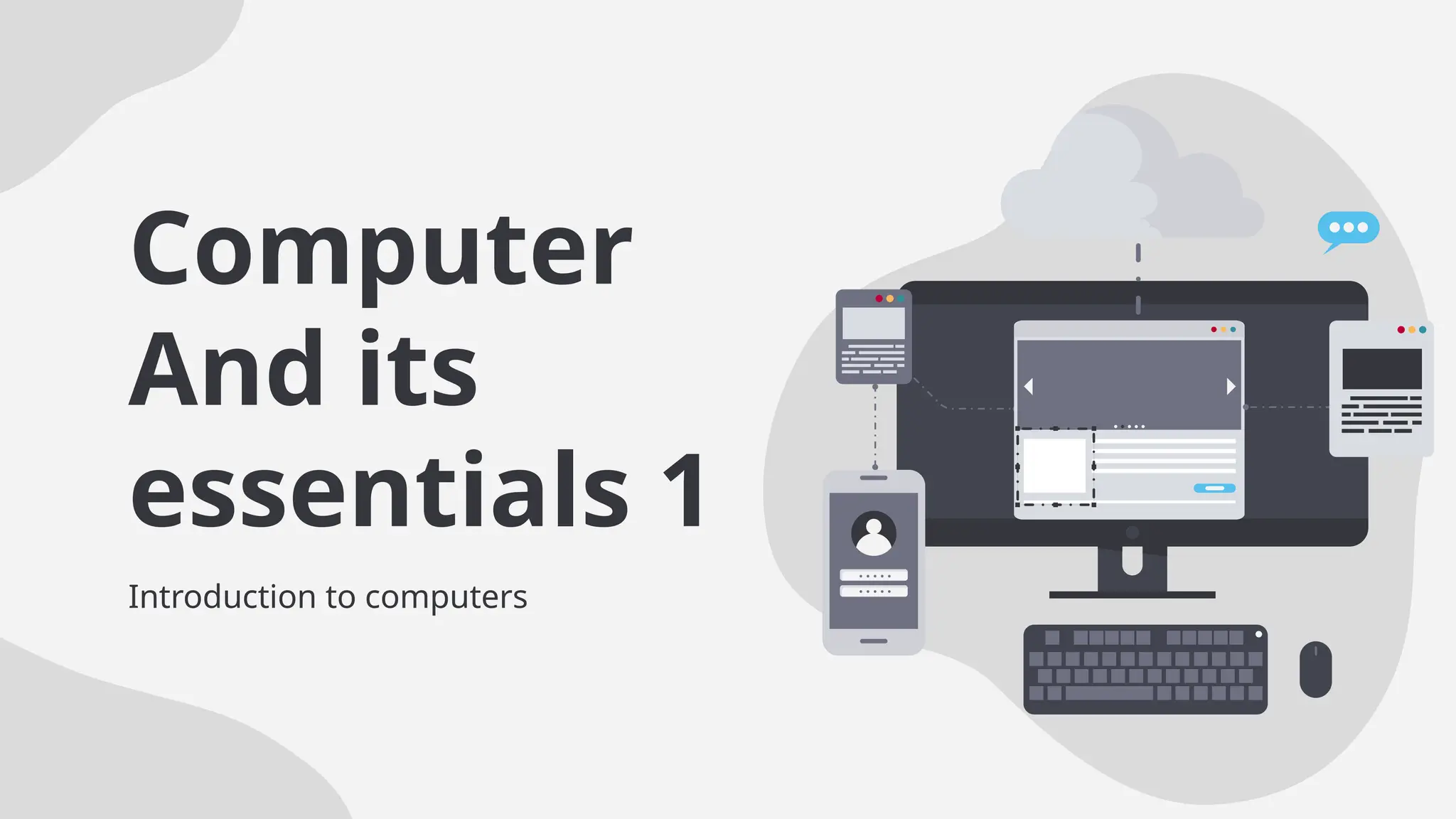
Computer
And its
essentials 1
Introduction to computers
Objectives of
Study
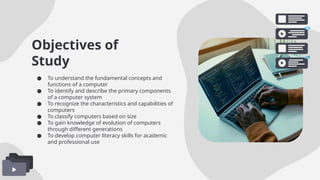
● To understand the fundamental concepts and
functions of a computer
● To identify and describe the primary components
of a computer system
● To recognize the characteristics and capabilities of
computers
● To classify computers based on size
● To gain knowledge of evolution of computers
through different generations
● To develop computer literacy skills for academic
and professional use
Table of contents
01
04
02
05
03
06
Introduction Characteristics of
Computer
Data processing
cycle of computer
Classification of
computers
Generation of
Computers
The primary
components of
Computers
Introduction
01
UNIT 1: Introduction
to Computers
o The word “Computer” comes from the word “TO COMPUTE” which means
to calculate.
o A computer is normally considered to be a calculating device that can
perform arithmetic operations very quickly.
o A computer can also be defined as a device which operates upon data.
o Data can be in form of numbers, letters, symbols, size, and it comes in all
sizes and shapes depending upon the type of computer application.
o A computer can store, process and retrieve data as and when desired.
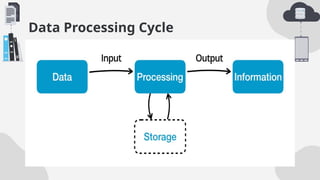
o A computer first gets the data, does the processing and then produces
information.
Main Tasks
Definition of Computer
 Input: receiving data from the user or
other sources
 Processing: manipulating the data based
on instructions
 Output: presenting the processed
information to the user.
 Storage: saving data and instructions for
future use.
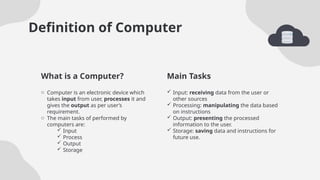
o Computer is an electronic device which
takes input from user, processes it and
gives the output as per user’s
requirement.
o The main tasks of performed by
computers are:
 Input
 Process
 Output
 Storage
What is a Computer?
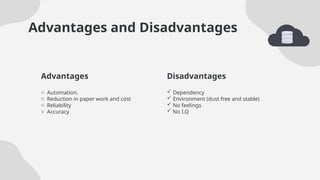
Disadvantages
Advantages and Disadvantages
 Dependency
 Environment (dust free and stable)
 No feelings
 No I.Q
o Automation.
o Reduction in paper work and cost
o Reliability
o Accuracy
Advantages
Basic Computer Terminology
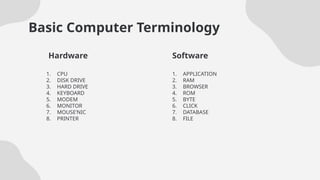
1. APPLICATION
2. RAM
3. BROWSER
4. ROM
5. BYTE
6. CLICK
7. DATABASE
8. FILE
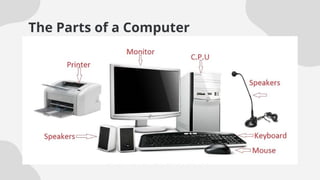
1. CPU
2. DISK DRIVE
3. HARD DRIVE
4. KEYBOARD
5. MODEM
6. MONITOR
7. MOUSE’NIC
8. PRINTER
Hardware Software
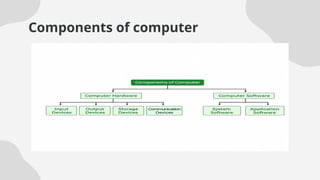
Components of computer
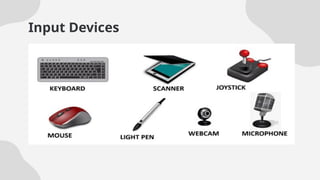
Input Devices
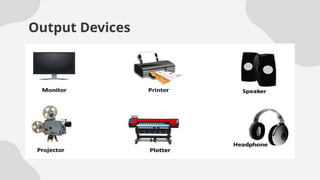
Output Devices
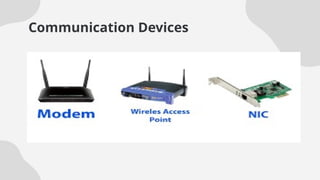
Communication Devices
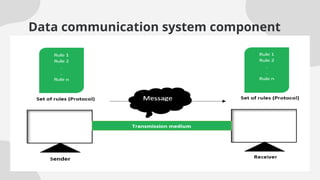
Data communication system component
Elements of Data Communication system
1. Message – The actual data/information to be communicated
(text, audio, video, etc.).
2. Sender – The device that sends the message (e.g., computer,
phone, camera).
3. Receiver – The device that receives the message (e.g.,
computer, phone, workstation).
4. Transmission Medium – The physical path through which
data travels (wired like cables/fibre optics, or wireless like
radio/microwaves).
5. Protocol – A set of rules that govern communication between
devices. Without protocols, communication cannot occur.
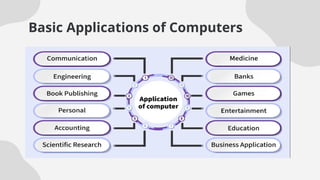
Basic Applications of Computers
Information
Data Vs. Information
 information puts facts into context
 Information is organized
 information depends on data
 Information is sufficient for decision-making
 Information is processed data that makes sense to us e.g
Weather Report: based on the temperature reading a
weather report can be generated, Grade Average: based
on the student grades, the average grade of class can be
derived.
o collection of facts
o Data is unorganized
o Data does not depend on information
o Data is not sufficient for decision-
making
o Data contains numbers, statements, and
characters in a raw from e.g Temperature
readings: 320
c, Students grades 85%,
Data
The Parts of a Computer
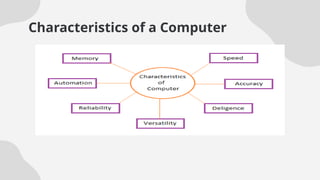
Characteristics of a Computer
Accuracy Diligence
 Computers are highly
accurate
 The degree of accuracy
depends on the model of
the computer.
 Errors can occur but these
are due to human errors,
due to inaccurate data not
due to technological
weakness.
 Unlike human beings, a
computer is free from
monotony, tiredness
and lack of
concentration.
 It can continuously
work for hours without
creating any errors and
without grumbling.
 Computers can store and
recall any amount of data
because of its high storage
capacity of its storage device.
 Even after several years, if the
information is recalled, it will
be as accurate as on the day
when it was stored in the
computer.
Memory
Characteristics of a Computer
Speed No I.Q
 A Computer is very fast
device
 A computer is capable of
performing several billions
simple arithmetic operations
per second
 Computer speed in terms of
seconds is not in milliseconds
but microseconds.
 A computer is not a magical
device, it processes no
intelligence of its own.
 It has zero I.Q
 It has to be told what to do and
in what sequence.
 It cannot takes its own
decisions
 Computers have no feelings because
they are machines
 Based on our own feelings, task,
knowledge and experience we often
make certain judgements in our day
to day lives BUT
 Computer does exactly the way it is
instructed not based on its own
emotions because it has none.
No Feelings
Data Processing Cycle
WEEK 2
WEEK 2
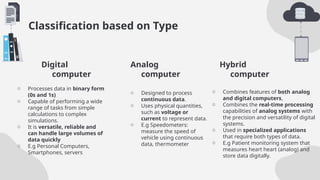
Classification based on Type
o Processes data in binary form
(0s and 1s)
o Capable of performing a wide
range of tasks from simple
calculations to complex
simulations.
o It is versatile, reliable and
can handle large volumes of
data quickly
o E.g Personal Computers,
Smartphones, servers
o Designed to process
continuous data.
o Uses physical quantities,
such as voltage or
current to represent data.
o E.g Speedometers:
measure the speed of
vehicle using continuous
data, thermometer
o Combines features of both analog
and digital computers,
o Combines the real-time processing
capabilities of analog systems with
the precision and versatility of digital
systems.
o Used in specialized applications
that require both types of data.
o E.g Patient monitoring system that
measures heart heart (analog) and
store data digitally.
Digital
computer
Analog
computer
Hybrid
computer
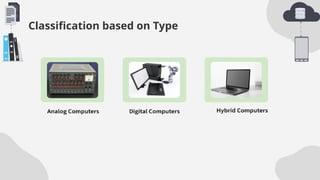
Classification based on Type
Digital
computer
Analog
computer
Hybrid
computer
Main-Frame Computer
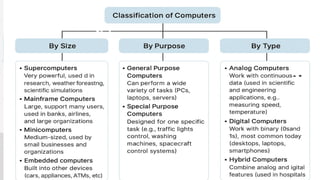
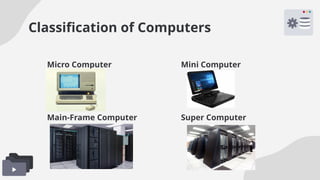
Classification of Computers based on size
o has a microprocessor chip as its central
processing unit(CPU).
o Originated in the late 1970s.
o First micro computer was built with 8-bit
processor
o Also known as a personal computer
o Originated in 1960s, contained 12-bit processor in
1970s
o Small mainframes that perform limited tasks, less
expensive than mainframe
o Capable of supporting 10-100 users
simultaneously
o Also known as supermini computers
o very powerful computer which is capable of
supporting thousands of users simultaneously.
o Used to handle bulk data and information
processing
o They are large, expensive computers with larger
internal storage capacity.
o Capable of processing millions of instructions
per second
o Most powerful and most expensive computer
o Used for complex scientific applications that
requires huge processing power.
o Uses multiprocessor technology to perform
calculations very fast
o The speed is measured in gigaflops, teraflops and
petaflops
Micro Computer Mini Computer
Super Computer
Main-Frame Computer
Classification of Computers
Micro Computer Mini Computer
Super Computer
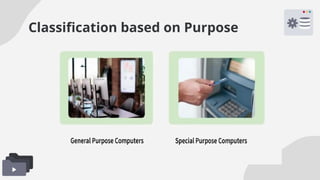
Classification by Purpose
• Handle a wide range of tasks.
• Can run different software
applications.
• Users can install/update programs.
• Examples:
• PCs – word processing,
browsing, gaming.
• Laptops – portable,
multipurpose.
• Workstations – high-
performance (e.g., 3D design,
video editing).
Built for specific tasks only.
Optimized for speed & efficiency in that task.
Often embedded in devices/machines.
Examples:
• Gaming Consoles – Xbox, PlayStation.
• Calculators – arithmetic only.
• Traffic Controllers – manage signals.
• ATMs – banking transactions.
• Microwave Ovens – cooking control.
General-Purpose Computers Special-Purpose Computers
Classification based on Purpose
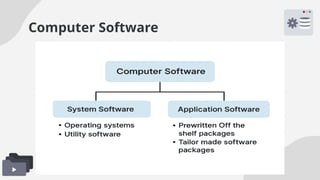
Computer Software
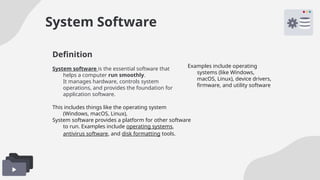
System Software
System software is the essential software that
helps a computer run smoothly.
It manages hardware, controls system
operations, and provides the foundation for
application software.
Examples include operating
systems (like Windows,
macOS, Linux), device drivers,
firmware, and utility software
This includes things like the operating system
(Windows, macOS, Linux),
System software provides a platform for other software
to run. Examples include operating systems,
antivirus software, and disk formatting tools.
Definition
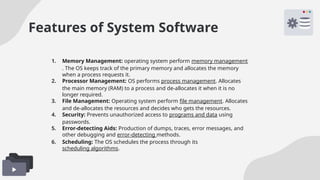
Features of System Software
1. Memory Management: operating system perform memory management
. The OS keeps track of the primary memory and allocates the memory
when a process requests it.
2. Processor Management: OS performs process management. Allocates
the main memory (RAM) to a process and de-allocates it when it is no
longer required.
3. File Management: Operating system perform file management. Allocates
and de-allocates the resources and decides who gets the resources.
4. Security: Prevents unauthorized access to programs and data using
passwords.
5. Error-detecting Aids: Production of dumps, traces, error messages, and
other debugging and error-detecting methods.
6. Scheduling: The OS schedules the process through its
scheduling algorithms.
Activity 1
Operating System
 is a type of system software that manages a computer's hardware and software
resources.
 It provides common services for computer programs.
 An OS acts as a link between the software and the hardware
 It controls and keeps a record of the execution of all other programs that are
present in the computer, including application programs and other system
software.
Tasks Performed by the Operating
System
• Resource Management: The operating system manages and allocates memory, CPU time,
and other hardware resources among the various programs and processes running on the
computer.
• Process Management: The operating system is responsible for starting, stopping, and
managing processes and programs. It also controls the scheduling of processes and
allocates resources to them.
• Memory Management: The operating system manages the computer’s primary memory
and provides mechanisms for optimizing memory usage.
• Security: The operating system provides a secure environment for the user, applications,
and data by implementing security policies and mechanisms such as access controls and
encryption.
• File Management: The operating system is responsible for organizing and managing the
file system, including the creation, deletion, and manipulation of files and directories.
• Device Management: The operating system manages input/output devices such as
printers, keyboards, mice, and displays. It provides the necessary drivers and interfaces to
enable communication between the devices and the computer.
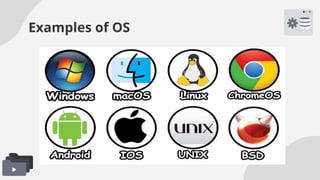
Examples of OS
Utility Software
 is a type of software that is designed to help users manage, maintain, and optimize their
computer systems.
Utility software includes a wide range of tools and applications that perform specific tasks to
improve the performance, security, and functionality of a computer system.
 is a type of software which is used to analyse and maintain a computer
 This software is focused on how OS works on that basis it performs tasks to enable the
smooth functioning of the computer.
 This software may come with OS like windows defender and disk clean-up tools.
 E.G: Antivirus, backup software, file manager, disk management, disk clean-up tool and
disk compression tool all are utility software.
Definition
Importance of Utility Software
1. System maintenance: Utility software provides a range of tools and applications
that help users manage and maintain their computer systems. By regularly using
these tools, users can optimize their system performance, remove unnecessary
files and programs, and keep their system running smoothly.
2. Security: Utility software includes tools such as antivirus and encryption software
that help users protect their computer systems from security threats such as
viruses, malware, and unauthorized access.
3. Efficiency: Utility software can help users optimize their system performance and
reduce the time and effort required to perform routine tasks such as disk clean-
up, file compression, and data backup.
4. Data recovery: Utility software includes backup and recovery tools that can help
users recover lost or deleted data in the event of a system failure or data loss.
5. User experience: Utility software can help users customize their system settings
and preferences to enhance their overall user experience.
Application Software
 is a type of computer program designed to help users perform specific tasks or
functions
 These tasks can range from writing documents and editing photos to managing
finances or browsing the internet.
Unlike system software (which runs the computer itself), application software focuses
on what the user wants to do.
Definition
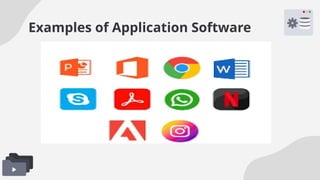
Examples of Application Software
Need for Application Software
o Helps the user in completing specified tasks
o Manages and manipulates data
o Allows users to effectively organize information
Assignment
Prewritten Off the shelf packages
Tailor made software packages
Introduction to Windows
o Is an operating system which
makes the computer system
work.
o Without windows, one cannot
operate the computer.
Definition
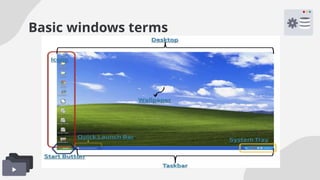
Basic windows terms
Basic Terms of Windows
1. Desktop: is the entire screen on windows 10/11. It is called a desktop because it
looks and functions very much like a neat desk or working table.
2. Icons: are small pictures found on the desktop. These are symbols representing
programs, applications or files. Each icon is a shortcut to an item, file, or program
inside the computer.
3. Start button: it is a button found on the lower left part of the desktop. It is used
to start a program or open a document.
4. Taskbar: it is a rectangular bar found at the lower part of the desktop. It contains
the start button and shows what programs or documents are currently open.
5. Quick launch bar: this provides an easy way to launch a program with just one
click.
6. System tray: this is where you can find icons belonging to some of the programs
that are currently running.
7. Wallpaper: background design of the desktop, you can customize the wallpaper
according to your preference.
Definition
History of Computers
Charles Babbage – “Father of the Computer”; designed the Analytical Engine.
o He was a professor at Mathematics at Cambridge University
o He invented a machine called Differential Engine; which could evaluate accurately,
algebraic expressions and mathematics tables, it was correct up to 20 decimal
places.
o Later, he developed analytical machine, which could perform addition at the rate
of 60 per minute.
o For technical limitations of that age Charles Babbage could not see his invention
operational.
o However, today’s computer has a building block similar to what he proposed.
o With him, his disciple and co-work, Lady Lovelace is remembered with reverence
as the first programmer of the world.
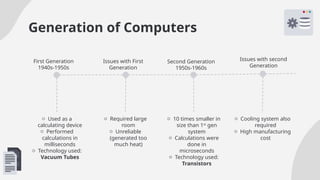
Generation of Computers
o Used as a
calculating device
o Performed
calculations in
milliseconds
o Technology used:
Vacuum Tubes
o Required large
room
o Unreliable
(generated too
much heat)
o 10 times smaller in
size than 1st
gen
system
o Calculations were
done in
microseconds
o Technology used:
Transistors
o Cooling system also
required
o High manufacturing
cost
First Generation
1940s-1950s
Issues with First
Generation
Second Generation
1950s-1960s
Issues with second
Generation
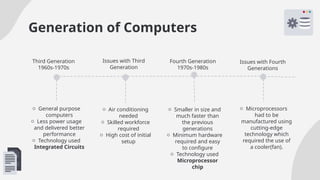
Generation of Computers
o General purpose
computers
o Less power usage
and delivered better
performance
o Technology used
Integrated Circuits
o Air conditioning
needed
o Skilled workforce
required
o High cost of initial
setup
o Smaller in size and
much faster than
the previous
generations
o Minimum hardware
required and easy
to configure
o Technology used
Microprocessor
chip
o Microprocessors
had to be
manufactured using
cutting-edge
technology which
required the use of
a cooler(fan).
Third Generation
1960s-1970s
Issues with Third
Generation
Fourth Generation
1970s-1980s
Issues with Fourth
Generations
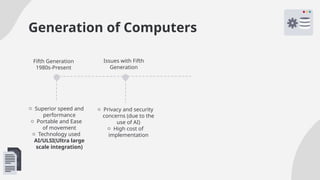
Generation of Computers
o Superior speed and
performance
o Portable and Ease
of movement
o Technology used
AI/ULSI(Ultra large
scale integration)
o Privacy and security
concerns (due to the
use of AI)
o High cost of
implementation
Fifth Generation
1980s-Present
Issues with Fifth
Generation
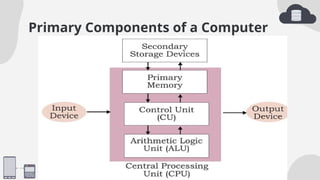
Primary Components of a Computer
Components of a Computer
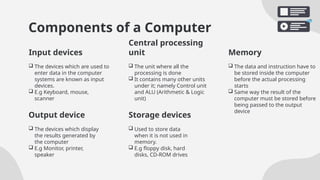
 The devices which are used to
enter data in the computer
systems are known as input
devices.
 E.g Keyboard, mouse,
scanner
 The unit where all the
processing is done
 It contains many other units
under it; namely Control unit
and ALU (Arithmetic & Logic
unit)
 The devices which display
the results generated by
the computer
 E.g Monitor, printer,
speaker
 Used to store data
when it is not used in
memory.
 E.g floppy disk, hard
disks, CD-ROM drives
Input devices
Central processing
unit Memory
 The data and instruction have to
be stored inside the computer
before the actual processing
starts
 Same way the result of the
computer must be stored before
being passed to the output
device
Output device Storage devices
Functions of Computer Components
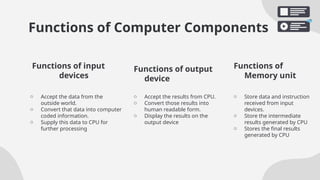
o Accept the data from the
outside world.
o Convert that data into computer
coded information.
o Supply this data to CPU for
further processing
o Accept the results from CPU.
o Convert those results into
human readable form.
o Display the results on the
output device
o Store data and instruction
received from input
devices.
o Store the intermediate
results generated by CPU
o Stores the final results
generated by CPU
Functions of input
devices
Functions of output
device
Functions of
Memory unit
Arithmetic & Logical Unit
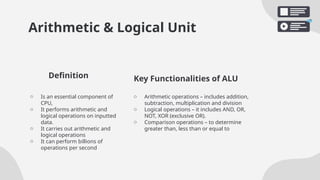
o Is an essential component of
CPU,
o It performs arithmetic and
logical operations on inputted
data.
o It carries out arithmetic and
logical operations
o It can perform billions of
operations per second
o Arithmetic operations – includes addition,
subtraction, multiplication and division
o Logical operations – it includes AND, OR,
NOT, XOR (exclusive OR).
o Comparison operations – to determine
greater than, less than or equal to
Definition Key Functionalities of ALU
Control Unit
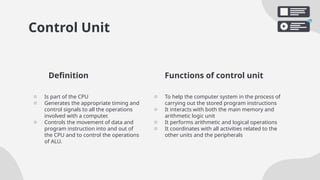
o Is part of the CPU
o Generates the appropriate timing and
control signals to all the operations
involved with a computer.
o Controls the movement of data and
program instruction into and out of
the CPU and to control the operations
of ALU.
o To help the computer system in the process of
carrying out the stored program instructions
o It interacts with both the main memory and
arithmetic logic unit
o It performs arithmetic and logical operations
o It coordinates with all activities related to the
other units and the peripherals
Definition Functions of control unit
Conclusion
Computers have become an essential tool in every
aspect of modern life, from education and business
to healthcare and entertainment. Understanding
their characteristics, classifications and generations
and primary components provides a strong
foundation for further study in technology. With this
knowledge, you are equipped to adapt to
advancements in computing and to use technology
effectively in solving real-world problems.
CREDITS: This presentation template was created by Slidesgo,
and includes icons, infographics & images by Freepik
Thanks!
Do you have any questions?
tholoana.sejane@bothouniversity.com
+26653173479
Tholoana Sejane
Please keep this slide for attribution
Computer and its essentials for computers

  • 1.
  • 2.
    Objectives of Study ● Tounderstand the fundamental concepts and functions of a computer ● To identify and describe the primary components of a computer system ● To recognize the characteristics and capabilities of computers ● To classify computers based on size ● To gain knowledge of evolution of computers through different generations ● To develop computer literacy skills for academic and professional use
  • 3.
    Table of contents 01 04 02 05 03 06 IntroductionCharacteristics of Computer Data processing cycle of computer Classification of computers Generation of Computers The primary components of Computers
  • 4.
  • 5.
    UNIT 1: Introduction toComputers o The word “Computer” comes from the word “TO COMPUTE” which means to calculate. o A computer is normally considered to be a calculating device that can perform arithmetic operations very quickly. o A computer can also be defined as a device which operates upon data. o Data can be in form of numbers, letters, symbols, size, and it comes in all sizes and shapes depending upon the type of computer application. o A computer can store, process and retrieve data as and when desired. o A computer first gets the data, does the processing and then produces information.
  • 6.
    Main Tasks Definition ofComputer  Input: receiving data from the user or other sources  Processing: manipulating the data based on instructions  Output: presenting the processed information to the user.  Storage: saving data and instructions for future use. o Computer is an electronic device which takes input from user, processes it and gives the output as per user’s requirement. o The main tasks of performed by computers are:  Input  Process  Output  Storage What is a Computer?
  • 7.
    Disadvantages Advantages and Disadvantages Dependency  Environment (dust free and stable)  No feelings  No I.Q o Automation. o Reduction in paper work and cost o Reliability o Accuracy Advantages
  • 8.
    Basic Computer Terminology 1.APPLICATION 2. RAM 3. BROWSER 4. ROM 5. BYTE 6. CLICK 7. DATABASE 8. FILE 1. CPU 2. DISK DRIVE 3. HARD DRIVE 4. KEYBOARD 5. MODEM 6. MONITOR 7. MOUSE’NIC 8. PRINTER Hardware Software
  • 9.
  • 10.
  • 11.
  • 12.
  • 13.
  • 14.
    Elements of DataCommunication system 1. Message – The actual data/information to be communicated (text, audio, video, etc.). 2. Sender – The device that sends the message (e.g., computer, phone, camera). 3. Receiver – The device that receives the message (e.g., computer, phone, workstation). 4. Transmission Medium – The physical path through which data travels (wired like cables/fibre optics, or wireless like radio/microwaves). 5. Protocol – A set of rules that govern communication between devices. Without protocols, communication cannot occur.
  • 15.
  • 16.
    Information Data Vs. Information information puts facts into context  Information is organized  information depends on data  Information is sufficient for decision-making  Information is processed data that makes sense to us e.g Weather Report: based on the temperature reading a weather report can be generated, Grade Average: based on the student grades, the average grade of class can be derived. o collection of facts o Data is unorganized o Data does not depend on information o Data is not sufficient for decision- making o Data contains numbers, statements, and characters in a raw from e.g Temperature readings: 320 c, Students grades 85%, Data
  • 17.
    The Parts ofa Computer
  • 18.
  • 19.
    Characteristics of aComputer Accuracy Diligence  Computers are highly accurate  The degree of accuracy depends on the model of the computer.  Errors can occur but these are due to human errors, due to inaccurate data not due to technological weakness.  Unlike human beings, a computer is free from monotony, tiredness and lack of concentration.  It can continuously work for hours without creating any errors and without grumbling.  Computers can store and recall any amount of data because of its high storage capacity of its storage device.  Even after several years, if the information is recalled, it will be as accurate as on the day when it was stored in the computer. Memory
  • 20.
    Characteristics of aComputer Speed No I.Q  A Computer is very fast device  A computer is capable of performing several billions simple arithmetic operations per second  Computer speed in terms of seconds is not in milliseconds but microseconds.  A computer is not a magical device, it processes no intelligence of its own.  It has zero I.Q  It has to be told what to do and in what sequence.  It cannot takes its own decisions  Computers have no feelings because they are machines  Based on our own feelings, task, knowledge and experience we often make certain judgements in our day to day lives BUT  Computer does exactly the way it is instructed not based on its own emotions because it has none. No Feelings
  • 21.
  • 22.
  • 24.
    Classification based onType o Processes data in binary form (0s and 1s) o Capable of performing a wide range of tasks from simple calculations to complex simulations. o It is versatile, reliable and can handle large volumes of data quickly o E.g Personal Computers, Smartphones, servers o Designed to process continuous data. o Uses physical quantities, such as voltage or current to represent data. o E.g Speedometers: measure the speed of vehicle using continuous data, thermometer o Combines features of both analog and digital computers, o Combines the real-time processing capabilities of analog systems with the precision and versatility of digital systems. o Used in specialized applications that require both types of data. o E.g Patient monitoring system that measures heart heart (analog) and store data digitally. Digital computer Analog computer Hybrid computer
  • 25.
    Classification based onType Digital computer Analog computer Hybrid computer
  • 26.
    Main-Frame Computer Classification ofComputers based on size o has a microprocessor chip as its central processing unit(CPU). o Originated in the late 1970s. o First micro computer was built with 8-bit processor o Also known as a personal computer o Originated in 1960s, contained 12-bit processor in 1970s o Small mainframes that perform limited tasks, less expensive than mainframe o Capable of supporting 10-100 users simultaneously o Also known as supermini computers o very powerful computer which is capable of supporting thousands of users simultaneously. o Used to handle bulk data and information processing o They are large, expensive computers with larger internal storage capacity. o Capable of processing millions of instructions per second o Most powerful and most expensive computer o Used for complex scientific applications that requires huge processing power. o Uses multiprocessor technology to perform calculations very fast o The speed is measured in gigaflops, teraflops and petaflops Micro Computer Mini Computer Super Computer
  • 27.
    Main-Frame Computer Classification ofComputers Micro Computer Mini Computer Super Computer
  • 28.
    Classification by Purpose •Handle a wide range of tasks. • Can run different software applications. • Users can install/update programs. • Examples: • PCs – word processing, browsing, gaming. • Laptops – portable, multipurpose. • Workstations – high- performance (e.g., 3D design, video editing). Built for specific tasks only. Optimized for speed & efficiency in that task. Often embedded in devices/machines. Examples: • Gaming Consoles – Xbox, PlayStation. • Calculators – arithmetic only. • Traffic Controllers – manage signals. • ATMs – banking transactions. • Microwave Ovens – cooking control. General-Purpose Computers Special-Purpose Computers
  • 29.
  • 30.
  • 31.
    System Software System softwareis the essential software that helps a computer run smoothly. It manages hardware, controls system operations, and provides the foundation for application software. Examples include operating systems (like Windows, macOS, Linux), device drivers, firmware, and utility software This includes things like the operating system (Windows, macOS, Linux), System software provides a platform for other software to run. Examples include operating systems, antivirus software, and disk formatting tools. Definition
  • 32.
    Features of SystemSoftware 1. Memory Management: operating system perform memory management . The OS keeps track of the primary memory and allocates the memory when a process requests it. 2. Processor Management: OS performs process management. Allocates the main memory (RAM) to a process and de-allocates it when it is no longer required. 3. File Management: Operating system perform file management. Allocates and de-allocates the resources and decides who gets the resources. 4. Security: Prevents unauthorized access to programs and data using passwords. 5. Error-detecting Aids: Production of dumps, traces, error messages, and other debugging and error-detecting methods. 6. Scheduling: The OS schedules the process through its scheduling algorithms.
  • 33.
  • 34.
    Operating System  isa type of system software that manages a computer's hardware and software resources.  It provides common services for computer programs.  An OS acts as a link between the software and the hardware  It controls and keeps a record of the execution of all other programs that are present in the computer, including application programs and other system software.
  • 35.
    Tasks Performed bythe Operating System • Resource Management: The operating system manages and allocates memory, CPU time, and other hardware resources among the various programs and processes running on the computer. • Process Management: The operating system is responsible for starting, stopping, and managing processes and programs. It also controls the scheduling of processes and allocates resources to them. • Memory Management: The operating system manages the computer’s primary memory and provides mechanisms for optimizing memory usage. • Security: The operating system provides a secure environment for the user, applications, and data by implementing security policies and mechanisms such as access controls and encryption. • File Management: The operating system is responsible for organizing and managing the file system, including the creation, deletion, and manipulation of files and directories. • Device Management: The operating system manages input/output devices such as printers, keyboards, mice, and displays. It provides the necessary drivers and interfaces to enable communication between the devices and the computer.
  • 36.
  • 37.
    Utility Software  isa type of software that is designed to help users manage, maintain, and optimize their computer systems. Utility software includes a wide range of tools and applications that perform specific tasks to improve the performance, security, and functionality of a computer system.  is a type of software which is used to analyse and maintain a computer  This software is focused on how OS works on that basis it performs tasks to enable the smooth functioning of the computer.  This software may come with OS like windows defender and disk clean-up tools.  E.G: Antivirus, backup software, file manager, disk management, disk clean-up tool and disk compression tool all are utility software. Definition
  • 38.
    Importance of UtilitySoftware 1. System maintenance: Utility software provides a range of tools and applications that help users manage and maintain their computer systems. By regularly using these tools, users can optimize their system performance, remove unnecessary files and programs, and keep their system running smoothly. 2. Security: Utility software includes tools such as antivirus and encryption software that help users protect their computer systems from security threats such as viruses, malware, and unauthorized access. 3. Efficiency: Utility software can help users optimize their system performance and reduce the time and effort required to perform routine tasks such as disk clean- up, file compression, and data backup. 4. Data recovery: Utility software includes backup and recovery tools that can help users recover lost or deleted data in the event of a system failure or data loss. 5. User experience: Utility software can help users customize their system settings and preferences to enhance their overall user experience.
  • 39.
    Application Software  isa type of computer program designed to help users perform specific tasks or functions  These tasks can range from writing documents and editing photos to managing finances or browsing the internet. Unlike system software (which runs the computer itself), application software focuses on what the user wants to do. Definition
  • 40.
  • 41.
    Need for ApplicationSoftware o Helps the user in completing specified tasks o Manages and manipulates data o Allows users to effectively organize information
  • 42.
    Assignment Prewritten Off theshelf packages Tailor made software packages
  • 43.
    Introduction to Windows oIs an operating system which makes the computer system work. o Without windows, one cannot operate the computer. Definition
  • 44.
  • 45.
    Basic Terms ofWindows 1. Desktop: is the entire screen on windows 10/11. It is called a desktop because it looks and functions very much like a neat desk or working table. 2. Icons: are small pictures found on the desktop. These are symbols representing programs, applications or files. Each icon is a shortcut to an item, file, or program inside the computer. 3. Start button: it is a button found on the lower left part of the desktop. It is used to start a program or open a document. 4. Taskbar: it is a rectangular bar found at the lower part of the desktop. It contains the start button and shows what programs or documents are currently open. 5. Quick launch bar: this provides an easy way to launch a program with just one click. 6. System tray: this is where you can find icons belonging to some of the programs that are currently running. 7. Wallpaper: background design of the desktop, you can customize the wallpaper according to your preference. Definition
  • 46.
    History of Computers CharlesBabbage – “Father of the Computer”; designed the Analytical Engine. o He was a professor at Mathematics at Cambridge University o He invented a machine called Differential Engine; which could evaluate accurately, algebraic expressions and mathematics tables, it was correct up to 20 decimal places. o Later, he developed analytical machine, which could perform addition at the rate of 60 per minute. o For technical limitations of that age Charles Babbage could not see his invention operational. o However, today’s computer has a building block similar to what he proposed. o With him, his disciple and co-work, Lady Lovelace is remembered with reverence as the first programmer of the world.
  • 47.
    Generation of Computers oUsed as a calculating device o Performed calculations in milliseconds o Technology used: Vacuum Tubes o Required large room o Unreliable (generated too much heat) o 10 times smaller in size than 1st gen system o Calculations were done in microseconds o Technology used: Transistors o Cooling system also required o High manufacturing cost First Generation 1940s-1950s Issues with First Generation Second Generation 1950s-1960s Issues with second Generation
  • 48.
    Generation of Computers oGeneral purpose computers o Less power usage and delivered better performance o Technology used Integrated Circuits o Air conditioning needed o Skilled workforce required o High cost of initial setup o Smaller in size and much faster than the previous generations o Minimum hardware required and easy to configure o Technology used Microprocessor chip o Microprocessors had to be manufactured using cutting-edge technology which required the use of a cooler(fan). Third Generation 1960s-1970s Issues with Third Generation Fourth Generation 1970s-1980s Issues with Fourth Generations
  • 49.
    Generation of Computers oSuperior speed and performance o Portable and Ease of movement o Technology used AI/ULSI(Ultra large scale integration) o Privacy and security concerns (due to the use of AI) o High cost of implementation Fifth Generation 1980s-Present Issues with Fifth Generation
  • 50.
  • 51.
    Components of aComputer  The devices which are used to enter data in the computer systems are known as input devices.  E.g Keyboard, mouse, scanner  The unit where all the processing is done  It contains many other units under it; namely Control unit and ALU (Arithmetic & Logic unit)  The devices which display the results generated by the computer  E.g Monitor, printer, speaker  Used to store data when it is not used in memory.  E.g floppy disk, hard disks, CD-ROM drives Input devices Central processing unit Memory  The data and instruction have to be stored inside the computer before the actual processing starts  Same way the result of the computer must be stored before being passed to the output device Output device Storage devices
  • 52.
    Functions of ComputerComponents o Accept the data from the outside world. o Convert that data into computer coded information. o Supply this data to CPU for further processing o Accept the results from CPU. o Convert those results into human readable form. o Display the results on the output device o Store data and instruction received from input devices. o Store the intermediate results generated by CPU o Stores the final results generated by CPU Functions of input devices Functions of output device Functions of Memory unit
  • 53.
    Arithmetic & LogicalUnit o Is an essential component of CPU, o It performs arithmetic and logical operations on inputted data. o It carries out arithmetic and logical operations o It can perform billions of operations per second o Arithmetic operations – includes addition, subtraction, multiplication and division o Logical operations – it includes AND, OR, NOT, XOR (exclusive OR). o Comparison operations – to determine greater than, less than or equal to Definition Key Functionalities of ALU
  • 54.
    Control Unit o Ispart of the CPU o Generates the appropriate timing and control signals to all the operations involved with a computer. o Controls the movement of data and program instruction into and out of the CPU and to control the operations of ALU. o To help the computer system in the process of carrying out the stored program instructions o It interacts with both the main memory and arithmetic logic unit o It performs arithmetic and logical operations o It coordinates with all activities related to the other units and the peripherals Definition Functions of control unit
  • 55.
    Conclusion Computers have becomean essential tool in every aspect of modern life, from education and business to healthcare and entertainment. Understanding their characteristics, classifications and generations and primary components provides a strong foundation for further study in technology. With this knowledge, you are equipped to adapt to advancements in computing and to use technology effectively in solving real-world problems.
  • 56.
    CREDITS: This presentationtemplate was created by Slidesgo, and includes icons, infographics & images by Freepik Thanks! Do you have any questions? tholoana.sejane@bothouniversity.com +26653173479 Tholoana Sejane Please keep this slide for attribution