Oracle® Business Intelligence Applications
Installation Guide for Informatica PowerCenter Users
Release 7.9.6.3
E19038-01


April 2011
Oracle Business Intelligence Applications Installation Guide for Informatica PowerCenter Users Release
7.9.6.3
E19038-01

Copyright © 2009, 2011 Oracle and/or its affiliates. All rights reserved.

This software and related documentation are provided under a license agreement containing restrictions on
use and disclosure and are protected by intellectual property laws. Except as expressly permitted in your
license agreement or allowed by law, you may not use, copy, reproduce, translate, broadcast, modify, license,
transmit, distribute, exhibit, perform, publish, or display any part, in any form, or by any means. Reverse
engineering, disassembly, or decompilation of this software, unless required by law for interoperability, is
prohibited.
The information contained herein is subject to change without notice and is not warranted to be error-free. If
you find any errors, please report them to us in writing.

If this is software or related documentation that is delivered to the U.S. Government or anyone licensing it
on behalf of the U.S. Government, the following notice is applicable:

U.S. GOVERNMENT RIGHTS Programs, software, databases, and related documentation and technical data
delivered to U.S. Government customers are "commercial computer software" or "commercial technical data"
pursuant to the applicable Federal Acquisition Regulation and agency-specific supplemental regulations. As
such, the use, duplication, disclosure, modification, and adaptation shall be subject to the restrictions and
license terms set forth in the applicable Government contract, and, to the extent applicable by the terms of
the Government contract, the additional rights set forth in FAR 52.227-19, Commercial Computer Software
License (December 2007). Oracle America, Inc., 500 Oracle Parkway, Redwood City, CA 94065.
This software or hardware is developed for general use in a variety of information management
applications. It is not developed or intended for use in any inherently dangerous applications, including
applications that may create a risk of personal injury. If you use this software or hardware in dangerous
applications, then you shall be responsible to take all appropriate fail-safe, backup, redundancy, and other
measures to ensure its safe use. Oracle Corporation and its affiliates disclaim any liability for any damages
caused by use of this software or hardware in dangerous applications.

Oracle and Java are registered trademarks of Oracle and/or its affiliates. Other names may be trademarks of
their respective owners.

Intel and Intel Xeon are trademarks or registered trademarks of Intel Corporation. All SPARC trademarks
are used under license and are trademarks or registered trademarks of SPARC International, Inc. AMD,
Opteron, the AMD logo, and the AMD Opteron logo are trademarks or registered trademarks of Advanced
Micro Devices. UNIX is a registered trademark licensed through X/Open Company, Ltd.

This software or hardware and documentation may provide access to or information on content, products,
and services from third parties. Oracle Corporation and its affiliates are not responsible for and expressly
disclaim all warranties of any kind with respect to third-party content, products, and services. Oracle
Corporation and its affiliates will not be responsible for any loss, costs, or damages incurred due to your
access to or use of third-party content, products, or services.
Contents

Preface ................................................................................................................................................................. xi
        Audience...................................................................................................................................................... xii
        Documentation Accessibility .................................................................................................................... xii
        Related Documents .................................................................................................................................... xii
        Conventions ............................................................................................................................................... xiii

1 What’s New in This Release
        1.1           What’s New in Oracle Business Intelligence Applications Installation Guide for
                      Informatica PowerCenter Users................................................................................................ 1-1

Part I         Getting Started

2 Overview of Oracle BI Applications
        2.1           What Is Oracle BI Applications? ...............................................................................................                 2-1
        2.2           Oracle Business Analytics Warehouse Overview ..................................................................                                 2-2
        2.3           Oracle Business Analytics Warehouse Architecture..............................................................                                  2-2
        2.3.1             Oracle Business Analytics Warehouse Architecture Components...............................                                                  2-3
        2.4           Roadmap to Installing and Configuring Oracle BI Applications ........................................                                           2-4
        2.5           Using Oracle BI Repository Documentation...........................................................................                             2-5

Part II Installation and Set Up Steps for Oracle BI Applications

3 Preinstallation and Deployment Requirements for Oracle BI Applications
        3.1           General Guidelines for Setting Up Oracle Business Analytics Warehouse........................ 3-2
        3.2           IBM DB2 UDB-Specific Database Guidelines for Oracle Business Analytics Warehouse 3-4
        3.3           IBM DB2 UDB zOS and OS/390 and z/OS-Specific Database Guidelines for Oracle
                       Business Analytics Warehouse ................................................................................................ 3-5
        3.4           SQL Server-Specific Database Guidelines for Oracle Business Analytics Warehouse ..... 3-6
        3.4.1             Setting the ANSI NULL Option......................................................................................... 3-6
        3.4.2             Modifying the DB Library Options Setting...................................................................... 3-6
        3.4.3             Recommended SQL Server Database Parameters .......................................................... 3-7
        3.5           Teradata-Specific Database Guidelines for Oracle Business Analytics Warehouse ......... 3-8
        3.5.1             Installation of Required JDBC Driver for Teradata Databases ..................................... 3-8
        3.5.2             General Guidelines for Teradata Deployments .............................................................. 3-9
        3.5.3             Best Practices For Teradata Deployments..................................................................... 3-10

                                                                                                                                                                         iii
3.5.3.1          Collect Statistics as a Prerequisite ........................................................................... 3-10
     3.5.3.2          LEFT OUTER JOIN Issue ......................................................................................... 3-10
     3.5.3.3          Group By Versus Distinct......................................................................................... 3-12
     3.5.3.4          Pruning of Mappings and Tables ............................................................................ 3-12
     3.5.3.5          Loader Configurations.............................................................................................. 3-12
     3.5.3.5.1            Tpump.................................................................................................................. 3-12
     3.5.3.5.2            Fastload................................................................................................................ 3-13
     3.6     Oracle-Specific Database Guidelines for Oracle Business Analytics Warehouse........... 3-14
     3.7     Additional Suggestions for Optimizing Oracle Database Performance in Oracle Business
              Analytics Warehouse.............................................................................................................. 3-14
     3.8     Partitioning Guidelines For Large Fact Tables .................................................................... 3-15
     3.8.1       Introduction to Partitioning Large Fact Tables ............................................................ 3-15
     3.8.2       Partitioning Large Fact Tables ........................................................................................ 3-16
     3.8.3       Configuring DAC to Support Partitioned Tables ........................................................ 3-20
     3.8.3.1          Creating Source System Parameters in DAC to Support Partitioned Tables ... 3-20
     3.8.3.2          Creating Index Actions in DAC............................................................................... 3-22
     3.8.3.2.1            How to Create the Index Action to Disable the Local Index Parameter .... 3-22
     3.8.3.2.2            How to Create the Index Action to Enable the Local Index Parameter ..... 3-24
     3.8.3.2.3            How to Create the Index Action to Enable the Local Sub-Partitioned Index
                          Parameter............................................................................................................ 3-25
     3.8.3.2.4            How to Create the Index Action to Create the Local Bitmap Index
                          Parameter............................................................................................................. 3-26
     3.8.3.2.5            How to Create the Index Action to Create the Local B-Tree Index
                          Parameter............................................................................................................. 3-27
     3.8.3.2.6            How to Create the Index Action to Create the Global Unique Index
                          Parameter............................................................................................................. 3-28
     3.8.3.3          Creating Table Actions in DAC............................................................................... 3-29
     3.8.3.3.1            How to Create a Table Action to Gather Statistics on a Partitioned Table 3-29
     3.8.3.3.2            How to Create a Table Action to Gather Statistics on a Partitioned Table for
                          Composite Partitioning .................................................................................... 3-30
     3.8.3.4          Assigning Index Actions to Indexes in DAC......................................................... 3-31
     3.8.3.5          Assigning Table Actions to Tables in DAC ........................................................... 3-32
     3.9     Miscellaneous Information About Oracle BI Applications Deployments ....................... 3-32
     3.9.1       Preconfigured Mapping for the SA System Subject Area........................................... 3-32
     3.9.2       Using Initialization Blocks............................................................................................... 3-34
     3.9.3       Creating Custom Indexes in Siebel Source Databases for Incremental Load
                  Performance...................................................................................................................... 3-34
     3.9.3.1          An Example of Change Capture SQL and Required Indexes ............................. 3-35
     3.9.4       Creating Custom Indexes in Oracle EBS Source Databases for Incremental Load
                  Performance...................................................................................................................... 3-35
     3.9.4.1          Creating Indexes for Category 1 Tables ................................................................. 3-35
     3.9.4.2          Creating Indexes for Category 2 Tables ................................................................. 3-37
     3.9.5       Running an ETL with a Non-English OLTP Data Source........................................... 3-38

4 Installing and Setting Up Oracle BI Applications
     4.1         About Oracle BI Applications Topologies............................................................................... 4-2
     4.1.1          Summary of Oracle Home Locations Used in this Guide.............................................. 4-3
     4.2         High-Level Installation and Setup Task List........................................................................... 4-4


iv
4.3       Mandatory Requirements .......................................................................................................... 4-7
4.3.1         Oracle Business Intelligence Infrastructure Requirements for the Oracle BI
               Applications Installer ......................................................................................................... 4-7
4.3.2         Informatica PowerCenter Requirements.......................................................................... 4-8
4.3.3         Code Page and Data Movement Requirements .............................................................. 4-9
4.4       Preinstallation Tasks................................................................................................................ 4-10
4.4.1         Create Databases for Oracle BI Applications and Informatica PowerCenter
               Components...................................................................................................................... 4-11
4.4.1.1            How to Create the SSE Role ..................................................................................... 4-11
4.4.2         Install and Configure Database Connectivity Software.............................................. 4-12
4.4.2.1            How to Set the NLS_LANG Environment Variable for Oracle Databases ....... 4-13
4.4.2.2            How to Set the DB2CODEPAGE Environment Variable for DB2 Databases ... 4-14
4.4.3         Perform Prerequisites for Informatica PowerCenter Installation.............................. 4-15
4.5       Installing the Oracle BI Applications files............................................................................ 4-15
4.6       Installing and Setting Up Informatica PowerCenter .......................................................... 4-19
4.6.1         Installing Informatica PowerCenter Client Tools (Windows) ................................... 4-21
4.6.2         Installing Informatica PowerCenter Services ............................................................... 4-21
4.6.3         Creating the Informatica Repository Service................................................................ 4-23
4.6.4         Creating the Informatica Integration Service ............................................................... 4-25
4.6.5         Restoring the Pre-built Informatica Repository ........................................................... 4-26
4.6.5.1            Restoring the Pre-built Informatica Repository for Environments in English . 4-26
4.6.5.2            Restoring the Pre-built Informatica Repository on a Non-English Operating
                   System ........................................................................................................................ 4-28
4.6.6         Configuring Informatica PowerCenter Components .................................................. 4-28
4.6.6.1            Setting up the Informatica Domain and Repository in Informatica PowerCenter
                   Client Tools................................................................................................................ 4-28
4.6.6.2            Copying Source Files and Lookup Files................................................................. 4-31
4.6.6.3            Setting PowerCenter Integration Services Relaxed Code Page Validation....... 4-32
4.6.6.4            Setting PowerCenter Integration Services Custom Properties ........................... 4-32
4.6.6.5            Creating the Repository Administrator User in the Native Security Domain . 4-33
4.7       Installing and Setting Up the DAC Platform ....................................................................... 4-35
4.7.1         Installing DAC Using the DAC Installer....................................................................... 4-35
4.7.2         Installing the DAC Server on UNIX............................................................................... 4-37
4.7.3         Installing JDBC Drivers for DAC Database Connectivity .......................................... 4-38
4.7.4         Creating ODBC Database Connections for the DAC Client....................................... 4-39
4.7.4.1            How to Create ODBC Connections for Oracle Databases ................................... 4-40
4.7.4.2            How to Create ODBC Connections for DB2 Databases ....................................... 4-41
4.7.4.3            How to Create ODBC Connections for SQL Server Databases........................... 4-41
4.7.4.4            How to Create ODBC Connections for Teradata Databases ............................... 4-42
4.7.5         Installing pmcmd and pmrep to Enable Communication Between Informatica
               PowerCenter and DAC ................................................................................................... 4-42
4.7.6         Installing DAC Metadata Files........................................................................................ 4-43
4.8       Logging into DAC for the First Time and Importing Metadata into the DAC
          Repository ................................................................................................................................. 4-44
4.8.1         Logging into DAC and Creating a Connection to the DAC Repository................... 4-44
4.8.2         Importing Metadata into the DAC Repository............................................................. 4-46
4.9       Creating the Oracle Business Analytics Warehouse Tables .............................................. 4-49
4.9.1         Creating Data Warehouse Tables ................................................................................... 4-49


                                                                                                                                                         v
4.9.2       Creating Data Warehouse Tables on a Teradata Database......................................... 4-52
     4.10    Configuring the DAC Server.................................................................................................. 4-53
     4.10.1      Configuring the Connection Between the DAC Server and DAC Repository ........ 4-53
     4.10.1.1        How to Configure the DAC Server Repository Connection Using the DAC Client
                      (Windows) ................................................................................................................. 4-53
     4.10.1.2        How to Configure the DAC Server Repository Connection Using
                      serverSetupPrompt Scripts (Windows, UNIX or Linux) .................................... 4-55
     4.10.2      Setting Environment Variables to Enable Communication between the DAC Server on
                  UNIX and Informatica .................................................................................................... 4-55
     4.10.3      Starting the DAC Server .................................................................................................. 4-55
     4.10.4      Activating Join Indexes for Teradata Databases .......................................................... 4-56
     4.11    Configuring DAC Integration Settings ................................................................................. 4-56
     4.11.1      Setting DAC System Properties ...................................................................................... 4-56
     4.11.2      Registering Informatica Services in DAC...................................................................... 4-57
     4.11.3      Setting Physical Data Sources ......................................................................................... 4-61
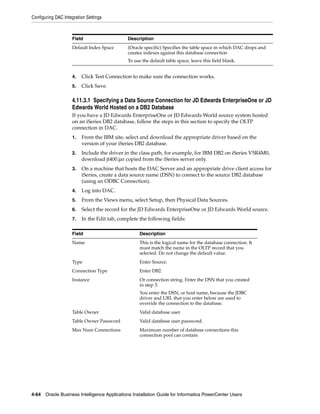
     4.11.3.1        Specifying a Data Source Connection for JD Edwards EnterpriseOne or JD
                      Edwards World Hosted on a DB2 Database                                                                                              4-64
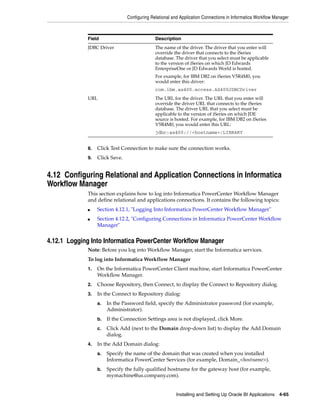
     4.12    Configuring Relational and Application Connections in Informatica Workflow
             Manager..................................................................................................................................... 4-65
     4.12.1      Logging Into Informatica PowerCenter Workflow Manager..................................... 4-65
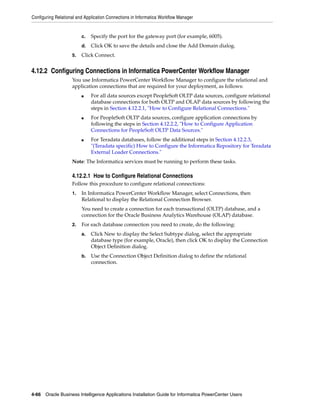
     4.12.2      Configuring Connections in Informatica PowerCenter Workflow Manager .......... 4-66
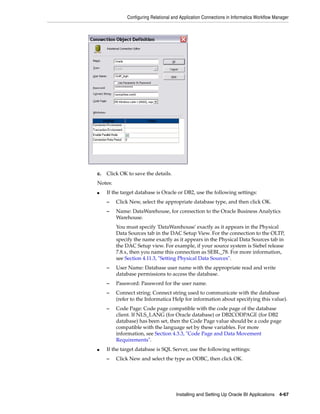
     4.12.2.1        How to Configure Relational Connections............................................................ 4-66
     4.12.2.2        How to Configure Application Connections for PeopleSoft OLTP Data
                     Sources                                                                                                                              4-69
     4.12.2.3        (Teradata specific) How to Configure the Informatica Repository for Teradata
                      External Loader Connections.................................................................................. 4-70
     4.12.2.3.1           How to Specify Loader Connections for Teradata ........................................ 4-70
     4.12.2.3.2           How to Specify Teradata Details at the Workflow Level ............................. 4-70
     4.13    Configuring the SiebelUnicodeDB Custom Property......................................................... 4-72
     4.14    Setting Up DAC to Receive Email Notification ................................................................... 4-73
     4.14.1      Configuring Email Recipients in DAC .......................................................................... 4-73
     4.14.2       Configuring Email in the DAC Server.......................................................................... 4-73
     4.15    Configuring the Oracle BI Repository Connections ........................................................... 4-74
     4.15.1      About the Predefined Connection Pools in the Oracle Business Analytics
                 Warehouse ......................................................................................................................... 4-74
     4.15.2      How to Configure the Oracle BI Repository Connections.......................................... 4-77
     4.15.2.1        How to specify the database type for connection pools ...................................... 4-77
     4.15.2.2        How to specify connection details for connection pools ..................................... 4-78
     4.15.3      How to Configure Oracle BI Repository Variables...................................................... 4-80
     4.15.4      How to Configure Dynamic Data Source Names ........................................................ 4-83
     4.16    Deploying the Metadata Repository and Presentation Catalog........................................ 4-83
     4.17    Applying the Oracle BI Applications Security Policy to the BI Domain ......................... 4-85
     4.18    Additional Configuration Tasks ............................................................................................ 4-86
     4.18.1      Configuring Security-Related Initialization Blocks ..................................................... 4-87
     4.18.2      Setting DAC Source System Parameters ....................................................................... 4-87
     4.18.3      Creating Stored Procedures for DB2-UDB.................................................................... 4-88
     4.18.3.1        How to Verify the Existence of Stored Procedures............................................... 4-88
     4.18.3.2        How to Create DB2 Stored Procedures .................................................................. 4-89
     4.18.4      Siebel-Specific Configuration Tasks............................................................................... 4-89

vi
4.18.4.1       Updating Siebel Transactional Database Schema Definitions ............................ 4-89
     4.18.4.1.1         How to Run the DDLIMP Tool From The Command Line ......................... 4-90
     4.18.4.1.2         How to Apply Siebel CRM Schema Changes For Oracle, DB2/UDB,
                        MSSQL ................................................................................................................. 4-90
     4.18.4.1.3         How to Apply Siebel CRM Schema Changes for DB2 on OS/390 and
                        z/OS ..................................................................................................................... 4-91
     4.18.4.1.4         How to Apply the Siebel CRM Image Table to a Siebel Transactional
                        Database............................................................................................................... 4-92
     4.18.4.1.5         About Delete Triggers ....................................................................................... 4-93
     4.18.4.1.6         How to Verify Siebel (CRM) Schema Changes .............................................. 4-93
     4.18.5     Teradata-Specific Configuration Tasks ......................................................................... 4-93
     4.18.5.1       Setting Up the Code Page File Property for Unicode Environments on Teradata
                    Databases ................................................................................................................... 4-94
     4.18.5.2       Setting Up the HOSTS File for Teradata Installations on Windows .................. 4-94
     4.18.5.3       Setting Up the HOSTS File for Teradata Installations on UNIX......................... 4-94
     4.18.5.4       Teradata-Specific Installation Checklist ................................................................. 4-95
     4.19    About Running A Full Load ETL .......................................................................................... 4-95
     4.19.1     An Example of Running a Full Load ETL ..................................................................... 4-96

Part III     Appendices

A    Supporting Tasks for DAC and Informatica PowerCenter
     A.1         How to Log into DAC ............................................................................................................... A-1
     A.2         About DAC User Account Management................................................................................ A-2
     A.2.1          Creating, Deleting and Inactivating User Accounts ...................................................... A-3
     A.3         How to Set DAC System Properties........................................................................................ A-4
     A.4         How to Start and Stop the DAC Server .................................................................................. A-6
     A.5         Enabling DAC Client Communication with Informatica PowerCenter ............................ A-7
     A.5.1          How to Define the Informatica Domains File Path in the DAC Client Environment
                     Variables.............................................................................................................................. A-8
     A.5.2          How to Verify the DAC Client Is Able to Use pmrep and pmcmd............................. A-8
     A.6         Enabling DAC Server Communication with Informatica PowerCenter ........................... A-9
     A.6.1          How to Set Environment Variables for DAC Server Communication on Windows A-9
     A.6.2          How to Set Environment Variables for DAC Server Communication on UNIX .... A-10
     A.6.3          How to Verify Java JDK Availability and Version ...................................................... A-11
     A.7         About the DAC Server Shell Scripts...................................................................................... A-11
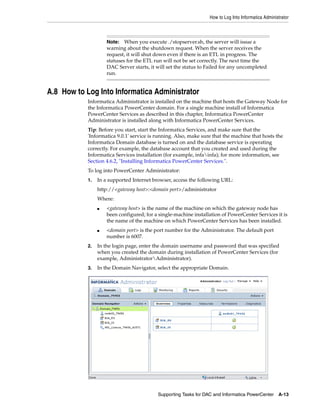
     A.8         How to Log Into Informatica Administrator ....................................................................... A-13

B Localizing Oracle Business Intelligence Deployments
     B.1     Process of Maintaining Translation Tables for Oracle BI.....................................................                                 B-1
     B.1.1       Upgrading Oracle Business Intelligence Seed Data for Non-English Locales...........                                                      B-2
     B.1.1.1         Importing Locale Seed Data Into The Translation Table (W_LOCALIZED
                     _STRING_G).................................................................................................................          B-2
     B.1.2       Externalizing Customer Metadata Strings ......................................................................                           B-3
     B.1.3       Adding Custom Translations to the W_LOCALIZED_STRING_G Table .................                                                           B-4
     B.1.3.1         Adding String Translations for Analytics Metadata ..............................................                                     B-4
     B.2     About Translating Presentation Services Strings ..................................................................                           B-5


                                                                                                                                                            vii
B.3         Changing the Default Currency in Analytics Applications................................................. B-5

C      Integrating Interactive Dashboards and Operational Applications Data
       C.1     Importing Oracle's Siebel Industry Applications Seed Data ...............................................                                      C-1
       C.2     Completing the Initialization in the Siebel Operational Application.................................                                           C-2
       C.2.1      Updating the Siebel Operational Application ................................................................                                C-2
       C.2.2      Reapplying Customized Style Sheets ..............................................................................                           C-3
       C.2.3      How to Configure Oracle Business Intelligence with Oracle's Siebel Web Server
                   Extension (SWSE)...............................................................................................................            C-4
       C.2.4      Creating a Virtual IP Address for the SWSE and Oracle BI Presentation Services...                                                           C-4
       C.2.5      Testing the Virtual IP Configuration for Oracle Business Intelligence and the
                  SWSE.....................................................................................................................................   C-5
       C.2.6      About Configuring Oracle BI Action Links ....................................................................                               C-5
       C.2.7      Accessing Optional Analytics Applications ...................................................................                               C-5
       C.2.8      Process of Customizing Oracle BI Application Home Page and Dashboards...........                                                            C-6
       C.2.8.1        Customizing Oracle BI Content on the Siebel Operational Application Home
                      Page................................................................................................................................    C-6
       C.2.8.2        Determining the Oracle BI Report Path Argument ................................................                                         C-8
       C.2.8.3        Adding Views for Custom Oracle BI Interactive Dashboards..............................                                                  C-8
       C.3     Viewing Information About Preconfigured Dashboards ....................................................                                        C-9
       C.3.1      Exposing Dashboards and Requests ................................................................................                           C-9
       C.3.2      Locating Dashboards, Page Names and Reports ...........................................................                                     C-9

D      Configuring Metadata for Oracle Business Intelligence Applications
       D.1     Metadata Setup Steps for Siebel CRM Sources......................................................................                              D-1
       D.1.1      Updating Oracle Financial Services Analytics Logical Table Sources ........................                                                 D-1
       D.1.2      Developing and Deploying Predictive Scores ................................................................                                 D-2
       D.1.3      Business Intelligence Metadata Requirements for Oracle's Siebel Industry
                  Applications.........................................................................................................................       D-3
       D.1.3.1        Oracle Telecom Sales Analytics, Telecom Service Analytics and Telecom
                      Marketing Analytics...................................................................................................                  D-3
       D.1.3.2        Oracle Pharma Sales Analytics Dimensions ............................................................                                   D-4
       D.1.3.2.1          Positions Dimension ............................................................................................                    D-4
       D.1.3.2.2          Alignments Dimension........................................................................................                        D-5
       D.1.3.2.3          Products Dimension.............................................................................................                     D-5
       D.1.3.2.4          Product Costs Dimension....................................................................................                         D-6
       D.1.3.3        Dimensions Specific to Subject Areas in Oracle Pharma Sales Analytics and
                      Oracle Pharma Marketing Analytics ........................................................................                              D-6
       D.1.3.3.1          Pharma Sales Effectiveness .................................................................................                        D-6
       D.1.3.3.2          Pharma Product Categories ................................................................................                          D-6
       D.1.3.3.3          Pharma Promotional Effectiveness....................................................................                                D-6
       D.1.3.3.4          Pharma Medical Education Effectiveness.........................................................                                     D-7
       D.1.3.3.5          Pharma Objectives Achievement`......................................................................                                D-7

E      Using Oracle Business Analytics Warehouse Exception Reports
       E.1         Understanding Oracle Business Analytics Warehouse Exceptions.................................... E-1
       E.1.1          List of Values Exceptions................................................................................................... E-1


viii
E.1.2      Cost List Exceptions ...........................................................................................................      E-2
    E.1.3      Products Without a Cost List ............................................................................................             E-3
    E.1.4      Exchange Rate Exceptions .................................................................................................            E-3
    E.1.5      Invalid Hierarchy Exceptions ...........................................................................................              E-3
    E.1.6      Circular Hierarchy Exceptions..........................................................................................               E-3
    E.2     Executing Oracle Business Analytics Warehouse Exception Reports................................                                          E-4
    E.2.1      Cleansing Data ....................................................................................................................   E-4
    E.2.2      Using the List of Values View...........................................................................................              E-5
    E.2.3      Using the Exchange Rates View .......................................................................................                 E-5
    E.2.4      Using the Cost List View ...................................................................................................          E-6
    E.2.5      Using the ETL History View .............................................................................................              E-6
    E.2.6      Additional Exceptions........................................................................................................         E-6

F   About the Versioned Informatica Repository
    F.1     Summary of Versioning in the Informatica Repository ....................................................... F-1
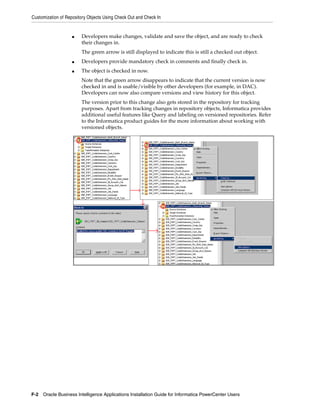
    F.2     Customization of Repository Objects Using Check Out and Check In.............................. F-1

Index


                                                                                                                                                      ix
x
Preface

Oracle Business Intelligence Applications are comprehensive pre-built solutions that
deliver pervasive intelligence across an organization, empowering users at all levels —
from front line operational users to senior management — with the key information
they need to maximize effectiveness. Intuitive and role-based, these solutions
transform and integrate data from a range of enterprise sources, including Siebel,
Oracle, PeopleSoft, JD Edwards, and corporate data warehouses — into actionable
insight that enables more effective actions, decisions, and processes.
Oracle BI Applications are built on Oracle Business Intelligence Suite Enterprise
Edition, a comprehensive next-generation BI and analytics platform.
Oracle BI Applications includes the following:
■   Oracle Financial Analytics
■   Oracle Human Resources Analytics
■   Oracle Supply Chain and Order Management Analytics
■   Oracle Procurement and Spend Analytics
■   Oracle Project Analytics
■   Oracle Sales Analytics
■   Oracle Service Analytics
■   Oracle Contact Center Telephony Analytics
■   Oracle Marketing Analytics
■   Oracle Loyalty Analytics
■   Oracle Price Analytics
For more details on the applications included in this release of Oracle BI Applications,
see the Oracle Business Intelligence Applications Licensing and Packaging Guide. This guide
is included in the Oracle Business Intelligence Media Pack. Also, see the System
Requirements and Supported Platforms for Oracle Business Intelligence Applications,
available at available at
http://www.oracle.com/technology/documentation/bi_apps.html.
This guide contains instructions for installing and setting up Oracle BI Applications
release 7.9.6.3. For a high-level road map of the steps required to install and set up
Oracle BI Applications, see Section 2.4, "Roadmap to Installing and Configuring Oracle
BI Applications."


                                                                                          xi
Oracle recommends reading the Oracle Business Intelligence Applications Release Notes
           before installing, using, or upgrading Oracle BI Applications. The most current version
           of the Oracle Business Intelligence Applications Release Notes is available:
           ■   On the Oracle Technology Network at
               http://www.oracle.com/technology/documentation/bi_apps.html
               (to register for a free account on the Oracle Technology Network, go to
               http://www.oracle.com/technetwork/index.html).


Audience
           This document is intended for BI managers and implementors of Oracle BI
           Applications.


Documentation Accessibility
           Our goal is to make Oracle products, services, and supporting documentation
           accessible to all users, including users that are disabled. To that end, our
           documentation includes features that make information available to users of assistive
           technology. This documentation is available in HTML format, and contains markup to
           facilitate access by the disabled community. Accessibility standards will continue to
           evolve over time, and Oracle is actively engaged with other market-leading
           technology vendors to address technical obstacles so that our documentation can be
           accessible to all of our customers. For more information, visit the Oracle Accessibility
           Program Web site at http://www.oracle.com/accessibility/.

           Accessibility of Code Examples in Documentation
           Screen readers may not always correctly read the code examples in this document. The
           conventions for writing code require that closing braces should appear on an
           otherwise empty line; however, some screen readers may not always read a line of text
           that consists solely of a bracket or brace.

           Accessibility of Links to External Web Sites in Documentation
           This documentation may contain links to Web sites of other companies or
           organizations that Oracle does not own or control. Oracle neither evaluates nor makes
           any representations regarding the accessibility of these Web sites.

           Deaf/Hard of Hearing Access to Oracle Support Services
           To reach Oracle Support Services, use a telecommunications relay service (TRS) to call
           Oracle Support at 1.800.223.1711. An Oracle Support Services engineer will handle
           technical issues and provide customer support according to the Oracle service request
           process. Information about TRS is available at
           http://www.fcc.gov/cgb/consumerfacts/trs.html, and a list of phone
           numbers is available at http://www.fcc.gov/cgb/dro/trsphonebk.html.


Related Documents
           For more information, see the following documents in the Oracle BI Applications
           release 7.9.6.1 documentation set (available at
           http://www.oracle.com/technology/documentation/bi_apps.html):
           ■   Oracle Business Intelligence Applications Release Notes


xii
■    System Requirements and Supported Platforms for Oracle Business Intelligence
               Applications
          ■    Oracle Business Intelligence Applications Configuration Guide for Informatica
               PowerCenter Users
          ■    Oracle Business Intelligence Applications Upgrade Guide for Informatica PowerCenter
               Users
          ■    Oracle Business Intelligence Applications Security Guide
          ■    Oracle Business Analytics Warehouse Data Model Reference
          Also see the Oracle Business Intelligence Data Warehouse Administration Console
          documentation set (available at
          http://www.oracle.com/technology/documentation/bi_dac.html):
          ■    Oracle Business Intelligence Data Warehouse Administration Console Release Notes
          ■    System Requirements and Supported Platforms for Oracle Business Intelligence Data
               Warehouse Administration Console
          ■    Oracle Business Intelligence Data Warehouse Administration Console User’s Guide
          ■    Oracle Business Intelligence Data Warehouse Administration Console Installation,
               Configuration and Upgrade Guide


Conventions
          The following text conventions are used in this document:

          Convention             Meaning
          boldface               Boldface type indicates graphical user interface elements associated
                                 with an action, or terms defined in text or the glossary.
          italic                 Italic type indicates book titles, emphasis, or placeholder variables for
                                 which you supply particular values.
          monospace              Monospace type indicates commands within a paragraph, URLs, code
                                 in examples, text that appears on the screen, or text that you enter.


                                                                                                             xiii
xiv
1
                                  1What’s New in This Release

            This section lists changes in this version of the documentation to support release
            7.9.6.3 of the software.


                    Note:   Some of the information about database platforms and source
                    systems might not apply to this version of Oracle Business Intelligence
                    Applications. For up-to-date information about supported databases
                    and source systems in this version of Oracle Business Intelligence
                    Applications, make sure you read System Requirements and Supported
                    Platforms for Oracle Business Intelligence Applications.
                    Oracle recommends reading the Oracle Business Intelligence Applications
                    Release Notes before installing, using, or upgrading Oracle BI
                    Applications. The most current version of the Oracle Business
                    Intelligence Applications Release Notes is available:
                    ■   On the Oracle Technology Network at
                        http://www.oracle.com/technology/documentation/bi
                        _apps.html (to register for a free account on the Oracle
                        Technology Network, go to
                        http://www.oracle.com/technetwork/index.html).


1.1 What’s New in Oracle Business Intelligence Applications Installation
Guide for Informatica PowerCenter Users
            This guide includes updates to support the following functional changes:
            ■   Oracle Business Intelligence Applications V7.9.6.3 requires Oracle Business
                Intelligence Enterprise Edition V11.1.1.5.0.
            ■   Oracle Business Intelligence Applications V7.9.6.3 requires Informatica
                PowerCenter V9.0.1. Hotfix 2.
            ■   Oracle Business Intelligence Applications V7.9.6.3 requires Oracle Data Warehouse
                Console V10.1.3.4.1.


                                                                     What’s New in This Release   1-1
What’s New in Oracle Business Intelligence Applications Installation Guide for Informatica PowerCenter Users


1-2 Oracle Business Intelligence Applications Installation Guide for Informatica PowerCenter Users
Part I
                                                Part I   Getting Started

Part I helps you get started with Oracle BI Applications. It contains the following
sections:
■   Chapter 2, "Overview of Oracle BI Applications"


        Note:  For a high-level road map for installation and set up steps for
        Oracle BI Applications, see Section 2.4, "Roadmap to Installing and
        Configuring Oracle BI Applications."


        Note:   Some of the information about database platforms and source
        systems might not apply to this version of Oracle Business Intelligence
        Applications. For up-to-date information about supported databases
        and source systems in this version of Oracle Business Intelligence
        Applications, make sure you read System Requirements and Supported
        Platforms for Oracle Business Intelligence Applications.
        Oracle recommends reading the Oracle Business Intelligence Applications
        Release Notes before installing, using, or upgrading Oracle BI
        Applications. The most current version of the Oracle Business
        Intelligence Applications Release Notes is available:
        ■   On the Oracle Technology Network at
            http://www.oracle.com/technology/documentation/bi
            _apps.html (to register for a free account on the Oracle
            Technology Network, go to
            http://www.oracle.com/technetwork/index.html).
2
                  Overview of Oracle BI Applications
                  2


            This chapter provides an overview of Oracle BI Applications. It includes the following
            topics:
            ■   Section 2.1, "What Is Oracle BI Applications?"
            ■   Section 2.2, "Oracle Business Analytics Warehouse Overview"
            ■   Section 2.3, "Oracle Business Analytics Warehouse Architecture"
            ■   Section 2.4, "Roadmap to Installing and Configuring Oracle BI Applications"
            ■   Section 2.5, "Using Oracle BI Repository Documentation"


2.1 What Is Oracle BI Applications?
            Oracle BI Applications is a pre-built business intelligence solution.
            Oracle BI Applications supports Oracle sources, such as Oracle E-Business Suite
            Applications, Oracle’s Siebel Applications, Oracle’s PeopleSoft Applications, Oracle’s
            JD Edwards Applications, and non-Oracle sources, such as SAP Applications. If you
            already own one of the above applications, you can purchase Oracle Business
            Intelligence Enterprise Edition and Oracle BI Applications to work with the
            application.
            Oracle BI Applications also provides complete support for enterprise data, including
            financial, supply chain, workforce, and procurement and spend sources. These
            enterprise applications typically source from both Oracle data sources, such as Oracle
            EBS and PeopleSoft and non-Oracle data sources, such as SAP.
            Oracle BI Applications consists of the components shown in Table 2–1.

            Table 2–1    Oracle BI Applications Components (with Informatica/DAC)
            Component                             Description
            DAC Repository metadata files         This content includes repository objects such as
                                                  tables, subject areas, execution plans, and tasks.
                                                  These files are installed in a ZIP file named
                                                  export.zip, which you must extract.
            Informatica PowerCenter ETL tool      This is a third-party ETL platform that performs the
                                                  extract, transform, and load (ETL) operations for the
                                                  data warehouse.
            Pre-built Informatica content         This content includes ETL repository objects, such as
                                                  mappings, sessions, and workflows, and is contained
                                                  in the Informatica Repository file (Oracle_BI_DW_
                                                  Base.rep).


                                                                 Overview of Oracle BI Applications 2-1
Oracle Business Analytics Warehouse Overview


                   Table 2–1 (Cont.) Oracle BI Applications Components (with Informatica/DAC)
                   Component                               Description
                   Pre-built metadata content              This metadata content is contained in the Oracle BI
                                                           Applications repository file
                                                           (OracleBIAnalyticsApps.rpd).
                   Pre-built reports and dashboard         This content is contained in the Oracle BI
                   content                                 Presentation Catalog.
                   Oracle Business Analytics Warehouse     The pre-built data warehouse that holds data
                                                           extracted, transformed, and loaded from the
                                                           transactional database. For more information, see
                                                           Section 2.2, "Oracle Business Analytics Warehouse
                                                           Overview."


2.2 Oracle Business Analytics Warehouse Overview
                   The Oracle Business Analytics Warehouse is a unified data repository for all
                   customer-centric data, which supports the analytical requirements of the supported
                   source systems.
                   The Oracle Business Analytics Warehouse includes the following:
                   ■    A complete relational enterprise data warehouse data model with numerous
                        pre-built star schemas encompassing many conformed dimensions and several
                        hundred fact tables.
                        For more information about the data warehouse data model, see the Oracle
                        Business Analytics Warehouse Data Model Reference.
                   ■    An open architecture to allow organizations to use third-party analytical tools in
                        conjunction with the Oracle Business Analytics Warehouse using the Oracle
                        Business Intelligence Server.
                   ■    Pre-built data extractors to incorporate data from external applications into the
                        Oracle Business Analytics Warehouse.
                   ■    A set of ETL (extract-transform-load) processes that takes data from a wide range
                        of source systems and creates the Oracle Business Analytics Warehouse tables.
                   ■    The Oracle Business Intelligence Data Warehouse Administration Console (DAC),
                        a centralized console for the set up, configuration, administration, loading, and
                        monitoring of the Oracle Business Analytics Warehouse.


2.3 Oracle Business Analytics Warehouse Architecture
                   High-level analytical queries, like those commonly used in Oracle Business
                   Intelligence, scan and analyze large volumes of data using complex formulas. This
                   process can take a long time when querying a transactional database, which impacts
                   overall system performance.
                   For this reason, the Oracle Business Analytics Warehouse was constructed using
                   dimensional modeling techniques to allow for fast access to information required for
                   decision making. The Oracle Business Analytics Warehouse derives its data from
                   operational applications and uses Informatica PowerCenter to extract, transform, and
                   load data from various supported transactional database systems (OLTP) into the
                   Oracle Business Analytics Warehouse.


2-2 Oracle Business Intelligence Applications Installation Guide for Informatica PowerCenter Users
Oracle Business Analytics Warehouse Architecture


2.3.1 Oracle Business Analytics Warehouse Architecture Components
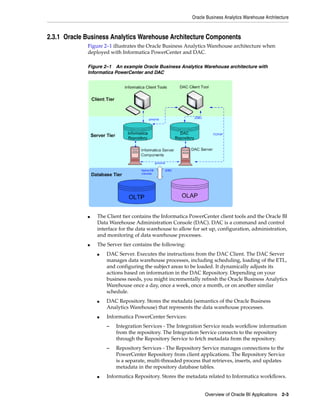
             Figure 2–1 illustrates the Oracle Business Analytics Warehouse architecture when
             deployed with Informatica PowerCenter and DAC.

             Figure 2–1 An example Oracle Business Analytics Warehouse architecture with
             Informatica PowerCenter and DAC


             ■   The Client tier contains the Informatica PowerCenter client tools and the Oracle BI
                 Data Warehouse Administration Console (DAC). DAC is a command and control
                 interface for the data warehouse to allow for set up, configuration, administration,
                 and monitoring of data warehouse processes.
             ■   The Server tier contains the following:
                 ■   DAC Server. Executes the instructions from the DAC Client. The DAC Server
                     manages data warehouse processes, including scheduling, loading of the ETL,
                     and configuring the subject areas to be loaded. It dynamically adjusts its
                     actions based on information in the DAC Repository. Depending on your
                     business needs, you might incrementally refresh the Oracle Business Analytics
                     Warehouse once a day, once a week, once a month, or on another similar
                     schedule.
                 ■   DAC Repository. Stores the metadata (semantics of the Oracle Business
                     Analytics Warehouse) that represents the data warehouse processes.
                 ■   Informatica PowerCenter Services:
                     –   Integration Services - The Integration Service reads workflow information
                         from the repository. The Integration Service connects to the repository
                         through the Repository Service to fetch metadata from the repository.
                     –   Repository Services - The Repository Service manages connections to the
                         PowerCenter Repository from client applications. The Repository Service
                         is a separate, multi-threaded process that retrieves, inserts, and updates
                         metadata in the repository database tables.
                 ■   Informatica Repository. Stores the metadata related to Informatica workflows.


                                                                 Overview of Oracle BI Applications 2-3
Roadmap to Installing and Configuring Oracle BI Applications


                    ■    The Database tier contains the OLTP and OLAP databases.


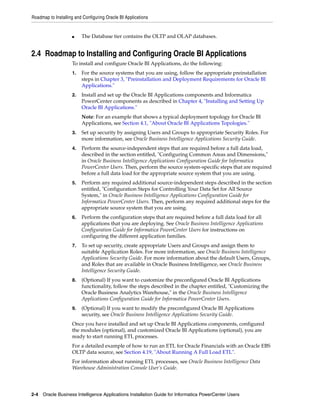
2.4 Roadmap to Installing and Configuring Oracle BI Applications
                    To install and configure Oracle BI Applications, do the following:
                    1.   For the source systems that you are using, follow the appropriate preinstallation
                         steps in Chapter 3, "Preinstallation and Deployment Requirements for Oracle BI
                         Applications."
                    2.   Install and set up the Oracle BI Applications components and Informatica
                         PowerCenter components as described in Chapter 4, "Installing and Setting Up
                         Oracle BI Applications."
                         Note: For an example that shows a typical deployment topology for Oracle BI
                         Applications, see Section 4.1, "About Oracle BI Applications Topologies."
                    3.   Set up security by assigning Users and Groups to appropriate Security Roles. For
                         more information, see Oracle Business Intelligence Applications Security Guide.
                    4.   Perform the source-independent steps that are required before a full data load,
                         described in the section entitled, "Configuring Common Areas and Dimensions,"
                         in Oracle Business Intelligence Applications Configuration Guide for Informatica
                         PowerCenter Users. Then, perform the source system-specific steps that are required
                         before a full data load for the appropriate source system that you are using.
                    5.   Perform any required additional source-independent steps described in the section
                         entitled, "Configuration Steps for Controlling Your Data Set for All Source
                         System," in Oracle Business Intelligence Applications Configuration Guide for
                         Informatica PowerCenter Users. Then, perform any required additional steps for the
                         appropriate source system that you are using.
                    6.   Perform the configuration steps that are required before a full data load for all
                         applications that you are deploying. See Oracle Business Intelligence Applications
                         Configuration Guide for Informatica PowerCenter Users for instructions on
                         configuring the different application families.
                    7.   To set up security, create appropriate Users and Groups and assign them to
                         suitable Application Roles. For more information, see Oracle Business Intelligence
                         Applications Security Guide. For more information about the default Users, Groups,
                         and Roles that are available in Oracle Business Intelligence, see Oracle Business
                         Intelligence Security Guide.
                    8.   (Optional) If you want to customize the preconfigured Oracle BI Applications
                         functionality, follow the steps described in the chapter entitled, "Customizing the
                         Oracle Business Analytics Warehouse," in the Oracle Business Intelligence
                         Applications Configuration Guide for Informatica PowerCenter Users.
                    9.   (Optional) If you want to modify the preconfigured Oracle BI Applications
                         security, see Oracle Business Intelligence Applications Security Guide.
                    Once you have installed and set up Oracle BI Applications components, configured
                    the modules (optional), and customized Oracle BI Applications (optional), you are
                    ready to start running ETL processes.
                    For a detailed example of how to run an ETL for Oracle Financials with an Oracle EBS
                    OLTP data source, see Section 4.19, "About Running A Full Load ETL".
                    For information about running ETL processes, see Oracle Business Intelligence Data
                    Warehouse Administration Console User’s Guide.


2-4 Oracle Business Intelligence Applications Installation Guide for Informatica PowerCenter Users
Using Oracle BI Repository Documentation


2.5 Using Oracle BI Repository Documentation
           When you deploy Oracle BI Applications, you can use the following documentation
           and tools to manage your metadata:
           ■   Oracle BI Repository Documentation
               Using Oracle BI Administration Tool, you can generate repository documentation
               that lists the mapping from the presentation columns to the corresponding logical
               and physical columns. You might use this information for gap-analysis, or to
               create a record of your repository that you can use to compare with other
               repositories.
               To generate repository documentation into a text or comma-separated file, log into
               Oracle BI Administration Tool and choose Tools, then Utilities, then Repository
               Documentation.
               For more information about generating repository documentation, see Oracle
               Fusion Middleware Metadata Repository Builder's Guide for Oracle Business Intelligence
               Enterprise Edition.
           ■   Presentation Catalog
               Using the Catalog Manager, you can view the names of the pre-built dashboards
               and requests in the Presentation Catalog.
               To view the Presentation Catalog, select Catalog Manager from the Windows
               StartProgramsOracle Business Intelligence menu.


                                                               Overview of Oracle BI Applications 2-5
Using Oracle BI Repository Documentation


2-6 Oracle Business Intelligence Applications Installation Guide for Informatica PowerCenter Users
Part II
Part II   Installation and Setup Steps for Oracle BI
                                       Applications

              Part II provides instructions for installing and setting up Oracle BI Applications. It
              contains the following sections:
              ■   Chapter 3, "Preinstallation and Deployment Requirements for Oracle BI
                  Applications"
              ■   Chapter 4, "Installing and Setting Up Oracle BI Applications"


                      Note:  For a high-level road map for installation, configuration, and
                      customization steps for Oracle BI Applications, see Section 2.4,
                      "Roadmap to Installing and Configuring Oracle BI Applications."


                      Note:   Some of the information about database platforms and source
                      systems might not apply to this version of Oracle Business Intelligence
                      Applications. For up-to-date information about supported databases
                      and source systems in this version of Oracle Business Intelligence
                      Applications, make sure you read System Requirements and Supported
                      Platforms for Oracle Business Intelligence Applications.
                      Oracle recommends reading the Oracle Business Intelligence Applications
                      Release Notes before installing, using, or upgrading Oracle BI
                      Applications. The most current version of the Oracle Business
                      Intelligence Applications Release Notes is available:
                      ■   On the Oracle Technology Network at
                          http://www.oracle.com/technology/documentation/bi
                          _apps.html (to register for a free account on the Oracle
                          Technology Network, go to
                          http://www.oracle.com/technetwork/index.html).
3
        Preinstallation and Deployment
               3


Requirements for Oracle BI Applications

          Note:   Some of the information about database platforms and source
          systems might not apply to this version of Oracle Business Intelligence
          Applications. For up-to-date information about supported databases
          and source systems in this version of Oracle Business Intelligence
          Applications, make sure you read System Requirements and Supported
          Platforms for Oracle Business Intelligence Applications. Make sure that
          you also read the Oracle Business Intelligence Applications Release Notes.
          The most up-to-date versions of these documents are located on the
          Oracle Technology Network at
          http://www.oracle.com/technology/documentation/bi_
          apps.html. To register for a free account on the Oracle Technology
          Network, go to
          http://www.oracle.com/technetwork/index.html.


  This section provides information about preparing to install and deploy Oracle BI
  Applications. You should review this information before you begin the installation and
  deployment process. You should also read the general guidelines for setting up the
  Oracle Business Analytics Warehouse and read the appropriate database-specific
  guidelines for the source OLTP databases that you are using.
  You also need to satisfy the database and Informatica PowerCenter requirements that
  are specified in Section 4.3, "Mandatory Requirements."

  Notes
  ■  For information about database-specific settings, see System Requirements and
     Supported Platforms for Oracle Business Intelligence Applications.
  ■   For information about code page settings, refer to the Informatica documentation.

  This section contains the following topics:
  ■   Section 3.1, "General Guidelines for Setting Up Oracle Business Analytics
      Warehouse"
  ■   Section 3.2, "IBM DB2 UDB-Specific Database Guidelines for Oracle Business
      Analytics Warehouse"
  ■   Section 3.3, "IBM DB2 UDB zOS and OS/390 and z/OS-Specific Database
      Guidelines for Oracle Business Analytics Warehouse"


                   Preinstallation and Deployment Requirements for Oracle BI Applications 3-1
General Guidelines for Setting Up Oracle Business Analytics Warehouse


                    ■    Section 3.4, "SQL Server-Specific Database Guidelines for Oracle Business
                         Analytics Warehouse"
                    ■    Section 3.5, "Teradata-Specific Database Guidelines for Oracle Business Analytics
                         Warehouse"
                    ■    Section 3.6, "Oracle-Specific Database Guidelines for Oracle Business Analytics
                         Warehouse"
                    ■    Section 3.7, "Additional Suggestions for Optimizing Oracle Database Performance
                         in Oracle Business Analytics Warehouse"
                    ■    Section 3.8, "Partitioning Guidelines For Large Fact Tables"
                    ■    Section 3.9, "Miscellaneous Information About Oracle BI Applications
                         Deployments"


3.1 General Guidelines for Setting Up Oracle Business Analytics
Warehouse
                    The Oracle Business Analytics Warehouse is a database that contains dimensional
                    schemas. Although it is technically possible to put the Oracle Business Analytics
                    Warehouse in the same database as the transactional database, it is not recommended
                    for performance reasons. The transactional database is structured as an online
                    transaction processing (OLTP) database, whereas the Oracle Business Analytics
                    Warehouse is structured as an online analytical processing (OLAP) database, each
                    optimized for its own purpose. The reasons for not combining the two databases are:
                    ■    The analytical queries interfere with normal use of the transactional database,
                         which is entering and managing individual transactions.
                    ■    The data in a transactional database is normalized for update efficiency.
                         Transactional queries join several normalized tables and will be slow (as opposed
                         to pre-joined, de-normalized analytical tables).
                    ■    Historical data cannot be purged from a transactional database, even if not
                         required for current transaction processing, because you need it for analysis. (By
                         contrast, the analytical database is the warehouse for historical as well as current
                         data.) This causes the transactional database to further slow down.
                    ■    Transactional databases are tuned for one specific application, and it is not
                         productive to use these separate transactional databases for analytical queries that
                         usually span more than one functional application.
                    ■    The analytical database can be specifically tuned for the analytical queries and
                         Extract-Transform-Load (ETL) processing. These are quite different from
                         transactional database requirements.
                    ■    On the transactional database, you should place the S_ETL tables in a separate
                         tablespace. These ETL tables are used by the Oracle Business Analytics Warehouse
                         and should not be part of the routine backup processes.
                         A complete listing of these tables is available in Oracle Business Analytics Warehouse
                         Data Model Reference.
                    ■    To maximize ETL performance for Siebel CRM source systems running on DB2
                         databases, create three indexes on the Siebel OLTP database, using the following
                         SQL commands:


3-2 Oracle Business Intelligence Applications Installation Guide for Informatica PowerCenter Users
General Guidelines for Setting Up Oracle Business Analytics Warehouse


    CREATE INDEX S_AUDIT_ITEM_M100 ON S_AUDIT_ITEM (FIELD_NAME
    ASC, BUSCOMP_NAME DESC) PCTFREE 10 ALLOW REVERSE SCANS
    COLLECT DETAILED STATISTICS;
    CREATE INDEX S_AUDIT_ITEM_M101 ON S_AUDIT_ITEM (RECORD_ID ASC,
    FIELD_NAME DESC) PCTFREE 10 ALLOW REVERSE SCANS COLLECT
    DETAILED STATISTICS;
    CREATE INDEX S_OPTY_M102 ON S_OPTY (ROW_ID ASC, PR_POSTN_ID
    DESC) PCTFREE 10 ALLOW REVERSE SCANS COLLECT DETAILED
    STATISTICS;
The Informatica Repository stores all of the Informatica object definitions for the ETL
mappings that populate the Oracle Business Analytics Warehouse. It is a series of
repository tables that are stored in a database, which can be a transactional, analytical,
or separate database.
The Oracle Business Analytics Warehouse works with relational database management
systems. In addition to the general requirements, there are additional database
management systems (DBMS)-specific requirements depending on the DBMS you are
using.
The following general guidelines will help you set up the data warehouse physical
database for performance and growth:
■   At a minimum, separate the data and index tablespaces. Create more tablespaces
    to separate heavily used tables and their indexes.
■   Use the maximum block and page size available for tablespaces ((for example,
    32K), because it provides good overall performance and also does not impose low
    limits to the maximum size to which the tablespace can grow, as compared to 4K,
    8K,16K sizes.
■   If you are using multiple disk storage systems, stripe the tablespace containers and
    files across as many disks as possible.
■   Raw devices for tablespaces provide better performance as compared to cooked
    file systems.
■   RAID-5 is known to give a good balance of performance and availability.
■   For Oracle databases, size the buffer pools based on content and size (number of
    tables and their sizes) of tablespaces.
■   Allocate about 75 percent of the total available server memory to the database,
    assuming no other application is running on the same server.
During the Oracle Business Analytics Warehouse configuration process, when you
create the data warehouse tables using the procedure Section 4.9.1, "Creating Data
Warehouse Tables," you can create tables in one tablespace and indexes in another
tablespace. However, for performance reasons, it is recommended that you create
tablespaces as described in Table 3–1.

Table 3–1   Recommended Tablespace Configuration
Tablespace Name         List of Tables
DIM_STG                 W_*DS
FACT_STG                W_*FS
DIM                     W_*D and W_*MD
FACT                    W_*F


                  Preinstallation and Deployment Requirements for Oracle BI Applications 3-3
IBM DB2 UDB-Specific Database Guidelines for Oracle Business Analytics Warehouse


                   Table 3–1 (Cont.) Recommended Tablespace Configuration
                   Tablespace Name           List of Tables
                   AGG                       W_*A
                   OTHER                     Remaining W* tables
                   DIM_INDX                  Indexes of W_*D tables
                                             (for example, other tables would include W*G and W*GS tables)
                   FACT_INDX                 Indexes of W_*F tables
                   OTHER_INDX                Remaining indexes of W* tables


                            Note:    To avoid fatal deadlocks during the ETL, make sure that you
                            select the 'Session Level Retry on Deadlock' option in Informatica.


3.2 IBM DB2 UDB-Specific Database Guidelines for Oracle Business
Analytics Warehouse
                   Table 3–2 provides guidelines for parameter settings for DB2 relational database
                   management system (RDBMS) usage. Use these guidelines as a starting point. You will
                   need to make changes based on your specific database sizes, data shape, server size
                   (CPU and memory), and type of storage. The database administrator should make
                   changes to the settings based on performance monitoring and tuning considerations.

                   Table 3–2    Recommended DB2 Parameter Settings
                   Parameter                DB2 UDB V7                DB2 UDB V8 and V9   Notes
                   SHEAPTHRES               400000                    400000
                   ASLHEAPSZ                15                        15
                   RQRIOBLK                 65535                     65535
                   QUERY_HEAP_SZ            16384                     16384
                   JAVA_HEAP_SZ             2048                      2048
                   MAXAGENTS                400                       400
                   NUM_INITAGENTS           10                        10
                   NUM_POOLAGENTS 200                                 200
                   INTRA_PARALLEL           YES                       YES
                   FCM_NUM_                 12288                     12288
                   BUFFERS
                   SHEAPTHRES_SHR           N/A                       =SHEAPTHRES
                   DBHEAP                   16384                     16384
                   CATALOGCACHE_            5558                      5558
                   SZ
                   LOGBUFSZ                 2048                      2048
                   UTIL_HEAP_SZ             10000                     10000


3-4 Oracle Business Intelligence Applications Installation Guide for Informatica PowerCenter Users
IBM DB2 UDB zOS and OS/390 and z/OS-Specific Database Guidelines for Oracle Business Analytics Warehouse


             Table 3–2 (Cont.) Recommended DB2 Parameter Settings
             Parameter               DB2 UDB V7              DB2 UDB V8 and V9       Notes
             NUM_ESTORE_SEGS 16                              NIL                     Restore is not needed
                                                                                     in DB2 V8 64-bit
                                                                                     because the V7 limit
                                                                                     of 1.75 GB addressable
                                                                                     memory has been
                                                                                     lifted.
             ESTORE_SEG_SZ           65536                   NIL
             LOCKLIST                25000                   25000
             APP_CTL_HEAP_SZ         5000                    5000
             SORTHEAP                4000                    4000
             STMTHEAP                40960                   40960
             APPLHEAPSZ              2560                    2560
             PCKCACHESZ              2560                    2560
             STAT_HEAP_SZ            20000                   20000
             DLCHKTIME               10000                   10000
             MAXLOCKS                50                      50
             LOCKTIMEOUT             1200                    1200
             MAXAPPLS                500                     500
             AVG_APPLS               10                      10
             MAXFILOP                500                     500
             GROUPHEAP_              N/A                     70                      New in V8
             RATIO
             APPGROUP_MEM_           N/A                     30000                   New in V8
             SZ
             DATABASE_               N/A                     AUTOMATIC               New in V8
             MEMORY


                      Note:    To avoid fatal deadlocks during the ETL, make sure that you
                      select the 'Session Level Retry on Deadlock' option in Informatica.


3.3 IBM DB2 UDB zOS and OS/390 and z/OS-Specific Database
Guidelines for Oracle Business Analytics Warehouse
             The following requirements apply to IBM DB2 RDBMS usage for zOS and OS/390:
             ■    The Oracle BI Applications communicate with IBM DB2 UDB for z/OS and
                  OS/390 (running on zSeries servers) through IBM DB2 Connect middleware.
                  The following editions of DB2 Connect are supported:
                  –   DB2 Connect Enterprise Edition (EE). This edition is installed on a mid-tier
                      server such as an Informatica Server/Client, DAC, and Oracle Business
                      Intelligence.
                  –   DB2 Connect Unlimited Edition (UE). This edition provides the functionality
                      of DB2 Connect Enterprise Edition but is priced differently.


                                Preinstallation and Deployment Requirements for Oracle BI Applications 3-5
SQL Server-Specific Database Guidelines for Oracle Business Analytics Warehouse


                    ■    The ODBC driver for all connections must use the IBM DB2 ODBC Driver.
                    ■    Make the appropriate connections using the DB2 Client Configuration Assistant.
                    ■    Use the variable settings shown in Table 3–3.

                    Table 3–3    Variable Settings for IBM DB2 UDB zOS and OS/390 Databases
                    Parameter     Recommended Setting         Notes
                    IDTHTOIN 1800
                    CDSSRDEF Any
                    STARJOIN      1                           This setting indicates that star join is enabled. The one
                                                              table with the largest cardinality is the fact table.
                                                              However, if there is more than one table with this
                                                              cardinality, star join is not enabled.


3.4 SQL Server-Specific Database Guidelines for Oracle Business
Analytics Warehouse
                    This section provides guidelines for SQL Server database usage.


                             Note:   The SQL Server database must be created with a collation
                             sequence that supports binary sort order or case-sensitive dictionary
                             sort order. Case-insensitive dictionary sort order is not supported. For
                             example, for binary sort order with the U.S English character set, use
                             the collation 'Latin1_General_BIN'. If you use the default collation
                             setting of 'SQL_Latin1_General_CP1_CI_AS', the database is set to
                             case-insensitive, which is not supported, and causes index creation
                             failures.


                    This section includes the following topics:
                    ■    Section 3.4.1, "Setting the ANSI NULL Option"
                    ■    Section 3.4.2, "Modifying the DB Library Options Setting"
                    ■    Section 3.4.3, "Recommended SQL Server Database Parameters"


3.4.1 Setting the ANSI NULL Option
                    Oracle BI Applications requires that SQL Server databases be created with the ANSI
                    NULL option selected.
                    To set the ANSI NULL option
                    1.   In the SQL Server Enterprise Manager, right-click the appropriate database, and
                         choose Properties.
                    2.   Click the Options tab and select the box for ANSI NULL default.


3.4.2 Modifying the DB Library Options Setting
                    In a SQL Server 2000 environment, when loading Oracle BI Applications tables with
                    international data, or loading more than one language, you need to modify the DB
                    Library Options setting.
                    To modify the DB Library Options setting


3-6 Oracle Business Intelligence Applications Installation Guide for Informatica PowerCenter Users
SQL Server-Specific Database Guidelines for Oracle Business Analytics Warehouse


            1.   From the Microsoft SQL Server program menu, select Client Network Utility.
            2.   Select the DB Library Options tab.
            3.   Clear the option Automatic ANSI to OEM.


                      Note:      SQL Server 2000 automatically tunes many of the server
                      configuration options; therefore, an administrator is required to do
                      little, if any, tuning. Although these configuration options can be
                      modified, the general recommendation is that these options be left at
                      their default values, allowing SQL Server to automatically tune itself
                      based on run-time conditions.


3.4.3 Recommended SQL Server Database Parameters
            If necessary, SQL Server components can be configured to optimize performance, as
            shown in Table 3–4.

            Table 3–4     Recommended Variable Settings for SQL Server Databases
                                              Recommended
            Parameter                         Setting     Notes
            Affinity mask                     0
            Allow updates                     0
            Awe enabled                       0
            C2 audit mode                     0
            Cost threshold for parallelism    5
            Cursor threshold                  –1
            Default full-text language        1033
            Default language                  0
            Fill factor                       95%                For insert-intensive transactions, set Fill
                                                                 Factor between 90 and 95%. For better
                                                                 query performance, set Fill factor to 95 or
                                                                 even 100%.
            Index create memory               1024 KB            Default is 0.
            Lightweight pooling               0
            Locks                             0
            Max degree of parallelism         0                  Default is 0. This turns off parallelism. Max
                                                                 degree of parallelism should be left at 0,
                                                                 which means use parallel plan generation.
                                                                 It should be set to 1 (use only 1 process) if
                                                                 you run multi threaded components (for
                                                                 example, several EIM threads).
            Max server memory                 2000 MB            Default is 2147483647.
            Max text repl size                65536 B
            Max worker threads                100                Default is 255.
            Media retention                   0
            Min memory per query              1024 KB
            Min server memory                 500 MB             Default is 0.


                                 Preinstallation and Deployment Requirements for Oracle BI Applications 3-7
Teradata-Specific Database Guidelines for Oracle Business Analytics Warehouse


                    Table 3–4 (Cont.) Recommended Variable Settings for SQL Server Databases
                                                       Recommended
                    Parameter                          Setting     Notes
                    Nested triggers                    1
                    Network packet size                8192 B            Default is 4096.
                    Open objects                       0
                    Priority boost                     0
                    Query governor cost limit          0                 Modify to 60 only if CPU is high.
                    Query wait                         –1 sec
                    Recovery interval                  0 min
                    Remote access                      1
                    Remote login timeout               20 sec
                    Remote proc trans                  0
                    Remote query timeout               600 sec
                    Scan for startup procs             0
                    Set working set size               0
                    Two-digit year cutoff              2049
                    User connections                   0
                    User options                       0


                    ■    SQL Server memory: Make sure adequate memory is available.
                    ■    Transaction logs and TempDB: Reside on a separate disk from those used by
                         database data.
                    ■    Full load: Full Recovery model for the database.
                    ■    Incremental (Refresh) load: Change from Full to Bulk-Logged Recovery model.


3.5 Teradata-Specific Database Guidelines for Oracle Business Analytics
Warehouse
                    This sections contains the recommended best practices and guidelines for maximizing
                    performance in Teradata deployments. It contains the following topics:
                    ■    Section 3.5.1, "Installation of Required JDBC Driver for Teradata Databases"
                    ■    Section 3.5.2, "General Guidelines for Teradata Deployments"
                    ■    Section 3.5.3, "Best Practices For Teradata Deployments"


3.5.1 Installation of Required JDBC Driver for Teradata Databases
                    The Data Warehouse Administration Console (DAC) requires JDBC drivers for
                    database connectivity. You should only use JDBC drivers that are compatible with the
                    supported databases. For information about supported databases, see System
                    Requirements and Supported Platforms for Oracle Business Intelligence Applications. Since
                    JDBC drivers show variations with different database versions, only drivers that are
                    shipped with the database or downloaded from the database vendor site and are


3-8 Oracle Business Intelligence Applications Installation Guide for Informatica PowerCenter Users
Teradata-Specific Database Guidelines for Oracle Business Analytics Warehouse


              known to be certified for the given database version should be used. Currently,
              third-party JDBC drivers for the databases are not supported.
              If you have a Unicode environment on a Teradata database, you must install the
              Teradata JDBC Driver for Teradata 12.0 or Teradata 13.0. This driver is required for all
              supported versions of Teradata databases, including versions earlier than version 12.
              The Teradata JDBC Driver for Teradata 12.0 and Teradata 13.0 is available at
              http://www.teradata.com/DownloadCenter, under the title Teradata JDBC Driver.


3.5.2 General Guidelines for Teradata Deployments
              The following requirements apply to Teradata database usage:
              ■   If a deadlock issue is encountered, Oracle recommends that you use the 'Execute
                  Serially' option for the specific groups within DAC. For Teradata, this is
                  mandatory. When this option is selected for the task group, you must rebuild and
                  run the Execution Plan that includes that task.
              ■   Install the Teradata Parallel Data Pump (TPump) Teradata Load utility on the
                  machine on which the Informatica Server is installed.
              ■   When installing Informatica PowerCenter, make sure there are no spaces in the
                  Informatica Server directory name or the directory path. The default directory
                  contains spaces that you must remove manually.
              ■   When you install Oracle BI Applications in a Teradata environment, you must load
                  the pre-built Informatica Repository file Oracle_BI_DW_Teradata.rep, which is
                  located in ORACLE_HOMEbiappsdwrepInformaticaRepository.
              ■   In the ODBC configuration for Teradata, set the session Mode to ANSI and
                  DateFormat to AAA, before you create the schema. Tables must be created as case
                  specific. If you do the ODBC configuration after the schema is created, tables
                  might not be created as case specific.
              ■   To avoid overflows if the arithmetic calculation involves any decimal data type
                  more than 18,3 (precision, scale), add the following static source system
                  parameters:
                  –   $$Hint_Tera_Post_Cast = "as Decimal(18,3))"
                  –   $$Hint_Tera_Pre_Cast = "Cast("
                  For more information about setting source system parameters in DAC, see
                  Section 4.18.2, "Setting DAC Source System Parameters."
              ■   Install the reswords.txt file in the server/bin directory for Informatica. When you
                  are configuring the reswords.txt file, note the following points:
                  If any table name or column name contains a database reserved word, such as
                  MONTH or YEAR, the session fails with database errors when the Informatica
                  Integration Service executes SQL against the database. You can create and
                  maintain a reserved words file, reswords.txt, in the server/bin directory. When the
                  Integration Service initializes a session, it searches for reswords.txt. If the file
                  exists, the Integration Service places quotes around matching reserved words
                  when it executes SQL against the database.
                  Use the following rules and guidelines when working with reserved words:
                  –   The Integration Service searches the reserved words file when it generates
                      SQL to connect to source, target, and lookup databases.
                  –   If you override the SQL for a source, target, or lookup, you must enclose any
                      reserved word in quotes.


                               Preinstallation and Deployment Requirements for Oracle BI Applications 3-9
Teradata-Specific Database Guidelines for Oracle Business Analytics Warehouse


                         –   You may need to enable some databases, such as SQL Server, to use SQL-92
                             standards regarding quoted identifiers. Use connection environment SQL to
                             issue the command.
                             For example, use the following command with SQL Server: SET QUOTED_
                             IDENTIFIER ON Sample reswords.txt File.
                         To use a reserved words file, create a file named reswords.txt and place it in the
                         server/bin directory. Create a section for each database that you need to store
                         reserved words for. Add reserved words used in any table or column name. You
                         do not need to store all reserved words for a database in this file. Database names
                         and reserved words in reswords.txt are not case sensitive.
                         A sample reswords.txt file is listed below:
                         [Teradata]
                         MONTH
                         DATE
                         INTERVAL


                             Note:  To avoid fatal deadlocks during ETL processes, make sure that
                             you select the 'Session Level Retry on Deadlock' option in Informatica.


3.5.3 Best Practices For Teradata Deployments
                    This sections contains the recommended best practises for maximizing performance in
                    Teradata deployments, and contains the following topics:
                    ■    Section 3.5.3.1, "Collect Statistics as a Prerequisite"
                    ■    Section 3.5.3.2, "LEFT OUTER JOIN Issue"
                    ■    Section 3.5.3.3, "Group By Versus Distinct"
                    ■    Section 3.5.3.4, "Pruning of Mappings and Tables"
                    ■    Section 3.5.3.5, "Loader Configurations"


                             Note:  The following best practices should be treated as
                             customizations. You should follow standard customization
                             methodology, such as copying the mapping to a custom directory. You
                             should never make these changes directly in the default objects.


                    3.5.3.1 Collect Statistics as a Prerequisite
                    Once the tables have been created in the staging and target databases, you must run
                    the supplied statistics collection. Failure to do so can affect ETL performance and
                    possibly result in a spool space error (error number 2646).
                    DAC does the recollection of statistics as part of the ETL processes. However, DAC
                    issues the collect statistics statement at the table level only (for example, collect
                    statistics on w_org_d), and only for existing statistics.

                    3.5.3.2 LEFT OUTER JOIN Issue
                    Teradata code performance is highly dependent on the specific environment of each
                    installation. A high number of occurrences of a single (or few) values in columns that
                    are involved in joins, whether null or not, may cause skewing of data across Teradata
                    AMPs. The impact of this is increased likelihood of exceeding the "per AMP" spool
                    limit as well as increased CPU usage on one AMP while the other AMPs are much less


3-10 Oracle Business Intelligence Applications Installation Guide for Informatica PowerCenter Users
Teradata-Specific Database Guidelines for Oracle Business Analytics Warehouse


utilized for the query experiencing the skew. This extends the processing time for this
query, and negatively impacts other queries in the system that are competing for CPU
resources on the AMP experiencing the skew.
Depending on the environment, the current code may redistribute the outer table on
the join key, except when the inner table is very small; the Teradata Optimizer may
choose to copy the inner table to all AMPs and not redistribute the outer table.
Excessive nulls or other values in foreign keys will skew data in Teradata during join
operations. If this happens, verify that statistics were defined and collected on the
tables involved. If all the necessary statistics are defined and recently collected, it may
be necessary to rewrite the SQL.
Many fact SIL mappings need to get the dimensional ROW_WID from ROW_
ID/INTEGRATION_ID. For example, W_PER_RANK_FS.ACCNT_ID needs to be
converted to ACCNT_WID before loading into the W_PER_RANK_F table. Since
ACCT_ID is nullable, the join between W_PER_RANK_FS and W_ORG_D is defined
as a LEFT OUTER JOIN.
However, the percentage of NULLs in ACCT_ID column can be as high as 50 percent
or more depending on the data set. When redistributing the W_PER_RANK_FS
according to ACCT_ID, all rows with ACCT_ID = NULL are put onto a single AMP.
Although a Teradata database usually has hundreds of gigabytes of spool space, the
spool space is allocated across hundreds of AMPs. The spool space for each AMP is
limited (for example, to two gigabytes).
When a large percentage of W_PER_RANK_FS is distributed to a single AMP, this can
result in insufficient spool space being available. This happens when too much data is
spooled onto one AMP, not because the spool space is too small.
To work with Teradata's mechanism of parallel processing and resolving the LEFT
OUTER JOIN, SQL must be re-written.
As an example, refer to the following original SQL:
SELECT ... FROM
 W_PER_RANK_FS FS LEFT OUTER JOIN W_ORG_D ORG ON
   FS.ACCNT_ID = ORG.INTEGRATION_ID AND
   FS.DATASOURCE_NUM_ID = ORG.DATASOURCE_NUM_ID

The above SQL should be re-coded to convert the NULLs to some evenly distributed
but non-matched values, as shown in the following SQL example:
SELECT ... FROM
 W_PER_RANK_FS FS LEFT OUTER JOIN
   (SELECT
   FS.INTEGRATION_ID, FS.DATASOURCE_NUM_ID, ORG.ROW_WID, ORG.GEO_WID
    FROM
   W_PER_RANK_FS FS, W_ORG_D ORG
   WHERE
   FS.ACCNT_ID = ORG.INTEGRATION_ID AND FS.DATASOURCE_NUM_ID =
   ORG.DATASOURCE_NUM_ID AND FS.ACCNT_ID IS NOT NULL)
ORG ON
   FS.DATASOURCE_NUM_ID = ORG.DATASOURCE_NUM_I AND
   FS.INTEGRATION_ID = ORG.INTEGRATION_ID
The same SQL re-coding method can be used for other Source Qualifiers that run into
spool space problems.


                 Preinstallation and Deployment Requirements for Oracle BI Applications 3-11
Teradata-Specific Database Guidelines for Oracle Business Analytics Warehouse


                    3.5.3.3 Group By Versus Distinct
                    When there is a low number of distinct values, it is more efficient to use the GROUP
                    BY phrase. Do not use the DISTINCT phrase, unless the number of distinct values is
                    high.

                    3.5.3.4 Pruning of Mappings and Tables
                    If you do not use all of the preconfigured fields supplied, you can improve
                    performance by stripping the extraneous fields from the mappings and tables.

                    3.5.3.5 Loader Configurations
                    This section explains the loaders that are available in Teradata, and how they are used
                    in Oracle Business Intelligence Applications.
                    Teradata has three different types of Teradata loader processes, as follows:
                    ■    Teradata Parallel Data Pump (Tpump) - for more information, see Section 3.5.3.5.1,
                         "Tpump".
                    ■    Fastload - for more information, see Section 3.5.3.5.2, "Fastload".
                    ■    Mload - for more information, refer to the Teradata documentation.
                    Each loader process can be used in two different modes, as follows:
                    ■    Staged Mode: The Informatica process does the following in this order:
                         –   Reads from the source data.
                         –   Creates a data file.
                         –   Invokes the loader process to load the table using the data file created.
                         Advantages: In the event of failures, you can recover using the Teradata recovery
                         process.
                         Disadvantages: Staged mode is slower than Piped mode, and you need more disk
                         space, as it can create large data files.
                    ■    Piped Mode: The Informatica process reads from the source and simultaneously
                         pipes that data to the loader to start loading the target table.
                         Advantages: Quicker than Staged mode, and you do not require large amounts of
                         disk space because no data files are created.
                         Disadvantages: In the event of failures, you cannot recover using the Teradata
                         recovery process (because tpump does row commits unlike fastload and mload).

                    3.5.3.5.1 Tpump TPump is a data loading utility that helps you maintain (update,
                    delete, insert, and atomic upsert) the data in your Teradata database. TPump allows
                    you to achieve near real-time data in your data warehouse.
                    TPump uses standard Teradata SQL to achieve moderate to high data loading rates to
                    the Teradata Database. Multiple sessions and multistatement requests are typically
                    used to increase throughput.
                    Unlike most load utilities, TPump uses row hash locks rather than table level locks.
                    This allows you to run queries while TPump is running. This also means that TPump
                    can be stopped instantaneously.
                    Tpump can be used in the following modes:
                    ■    Tpump_Insert: Use to do inserts.


3-12 Oracle Business Intelligence Applications Installation Guide for Informatica PowerCenter Users
Teradata-Specific Database Guidelines for Oracle Business Analytics Warehouse


■   Tpump_Update: Use to do updates (this mode requires you to define the primary
    key in the Informatica target table definition).
■   Tpump_Upsert: Use to do update otherwise insert (this mode requires you to
    define the primary key in the Informatica target table definition).
■   Tpump_Delete: Use to do deletes (this mode requires you to define the primary
    key in the Informatica target table definition).
Informatica uses the actual target table name to generate the error table and log tables
to be used as part of its control file generation. If you have two instances of Tpump
loading into the same target table at the same time, then you need to modify the
session to use a different error table and log table name.
The Tpump load process in piped mode is useful for incremental loads, and where the
table is not empty. In the event of errors, restart the process and it starts re-loading
from the last committed data.
Refer to Informatica documentation for information about configuring a session to use
Teradata loaders.

3.5.3.5.2 Fastload The Fastload External Loader process is used on empty tables, such
as loading staging tables and in initial loads where the tables are empty. When the
Fastload process starts loading, it locks the target table, which means that processes
(for example, lookups) cannot access that table. One solution to this problem is to
specify dummy SQL for the look up overrides at the session level.

        Tip: If a session fails during a Fastload process, use SQL Assistant to
        run a simple SQL command (for example, count(*)), to determine
        whether the table is locked by a Fastload process.

If a table is locked (for example, for W_ORG_DS), use the following script to release
the lock:
LOGON DATABASEALIAS/USER,PASSWORD
BEGIN LOADING USER.W_ORG_DS
ERRORFILES USER.ET_W_ORG_DS,USER.UV_W_ORG_DS;
END LOADING;

If you save the above text in a file called test.ctl, you would run this process by
entering the following command at a command prompt:
C:fastloadtest.ctl

        Tip: To create a load script for a table, edit the test.ctl script above to
        change the login information, and replace all occurrences of W_ORG_
        DS with the required target table name.

After a load process script runs successfully, you should be able to run the command
'select count(*)' on the target table. If you are not able release the lock, you might need
to drop and re-create the table to remove the lock. If you do so, you must re-create the
statistics.

        Tip: Fastload is typically used in piped mode to load staging tables
        and initial loads. In the event of errors, reload the entire data.


                 Preinstallation and Deployment Requirements for Oracle BI Applications 3-13
Oracle-Specific Database Guidelines for Oracle Business Analytics Warehouse


3.6 Oracle-Specific Database Guidelines for Oracle Business Analytics
Warehouse
                    To configure the Business Analytics Data Warehouse on Oracle databases more easily,
                    refer to the parameter template files init10gR2.ora and init11g.ora. These files are
                    located in <DRIVE>:<Oracle BI Applications install
                    directory>dwrepDocumentation.

                    The parameter template files provide parameter guidelines based on the cost-based
                    optimizer for Oracle 10g and 11g. Use these guidelines as a starting point. You will
                    need to make changes based on your specific database sizes, data shape, server size
                    (CPU and memory), and type of storage. The database administrator should make
                    changes to the settings based on performance monitoring and tuning.
                    Copy the appropriate template file into your $ORACLE_HOME/dbs directory. Then,
                    review the recommendations in the template file, and make the changes based on your
                    specific database configuration. The database administrator should make changes to
                    the settings based on performance monitoring and tuning considerations.


                             Note: The NLS_LENGTH_SEMANTICS parameter enables you to
                             define byte- or character-length semantics. Oracle BI Applications
                             supports BYTE and CHAR values for this parameter. You can add this
                             parameter to the init10gR2.ora and init11g.ora files if you are using
                             MLS characters.


3.7 Additional Suggestions for Optimizing Oracle Database Performance
in Oracle Business Analytics Warehouse
                    This section contains additional suggestions for optimizing performance for Oracle
                    databases.
                    ■    To avoid ORA-00942 errors with a pre-Oracle 11.1 database, you can either enable
                         the native full outer join implementation for all sessions by setting the parameters
                         below as a system parameter, or disable the FULL_OUTER_JOIN_SUPPORTED
                         feature in the RPD.
                         alter session set "_optimizer_native_full_outer_join" = 'FORCE';
                         alter system set "_optimizer_native_full_outer_join" = 'FORCE' scope = both;

                         Note: Enabling the native full outer join implementation in the RDBMS is
                         preferable to disabling the FULL_OUTER_JOIN_SUPPORTED in the RPD.
                    ■    Oracle BI Applications under Oracle support only binary sorting. If you are
                         running an Oracle client, do one of the following:
                         –   Set the NLS_SORT parameter to BINARY.
                         –   Choose a NLS_LANG setting that includes binary.
                         These settings are required for adequate performance from the dedicated Web
                         client.
                    ■    Make sure that cost-based optimization is enabled in the Oracle development, test,
                         and production databases and that statistics are kept up to date. Otherwise, the
                         rule-based optimizer may be used.
                    ■    Create foreign keys in the Oracle database, but configure Oracle to not enforce the
                         foreign key relationship. The existence of foreign keys will allow Oracle to better


3-14 Oracle Business Intelligence Applications Installation Guide for Informatica PowerCenter Users
Partitioning Guidelines For Large Fact Tables


                   optimize certain queries. By turning off enforcement, the database load should not
                   be negatively affected.
               ■   Analyze application for occurrences of highly skewed data that is indexed. Create
                   histogram statistics for these indexes to enable the optimizer to better perform
                   queries.
               ■   To increase data throughput between Oracle BI Server and Oracle, change SDU
                   and TDU settings in listener.ora. The default is 2 KB and can be increased to 8 KB.
               ■   On the server side, edit the listener.ora file. Under the particular SID_LIST entry,
                   modify SID_DESC as follows:
                   SID_LIST_LISTENER =
                      SID_LIST =
                         SID_DESC = (SDU=16384)(TDU=16384)
                            ORACLE_HOME = /.....)
                            SID_NAME = SOLAP)
                      )
                   )

               ■   Make sure the temporary tablespace has adequate space.
               ■   Set the number of log file groups to 4.
               ■   Set the size of each log file to 10 MB.
               ■   On the client side, edit the tnsnames.ora file. Modify the TNS alias by adding
                   SDU= and TDU= as follows:
                   myhost_orcl.world=
                      DESCRIPTION=(SDU=16384)(TDU=16384)
                      ADDRESS = (PROTOCOL = TCP)(HOST=myhost)(PORT=1521))
                   CONNECT_DATA=(SID=ORCL))


3.8 Partitioning Guidelines For Large Fact Tables
               This section explains how to use partitioning to maximize performance in your Oracle
               BI Applications deployment. It contains the following topics:
               ■   Section 3.8.1, "Introduction to Partitioning Large Fact Tables"
               ■   Section 3.8.2, "Partitioning Large Fact Tables"
               ■   Section 3.8.3, "Configuring DAC to Support Partitioned Tables"


3.8.1 Introduction to Partitioning Large Fact Tables
               Taking advantage of range and composite range-range partitioning for fact tables
               reduces index and statistics maintenance time during ETL processes as well as
               improves Web query performance. Because the majority of inserts and updates impact
               the last partition(s), you only need to disable local indexes on a few impacted
               partitions, and then rebuild disabled indexes after the load and compute statistics on
               updated partitions only. Online reports and dashboards should also render results
               faster, since the optimizer builds more efficient execution plans using partitioning
               elimination logic.
               Large fact tables, with more than 20 million rows, can be suitable for partitioning. To
               build an optimal partitioned table with reasonable data distribution, you can consider
               partitioning by month, quarter, year, and so on. You can either identify and partition
               target fact tables before the initial load or convert the populated tables into partitioned
               objects after the full load.


                               Preinstallation and Deployment Requirements for Oracle BI Applications 3-15
Partitioning Guidelines For Large Fact Tables


                     To implement support for partitioned tables in Oracle Business Analytics Data
                     Warehouse, you need to update the DAC metadata and manually convert the
                     candidates into partitioned tables in the target database.
                     To deploy partitioned fact tables
                     1.   Partition the large fact tables. For more information, see Section 3.8.2, "Partitioning
                          Large Fact Tables."
                     2.   Configure DAC to support ETL for partitioned tables. For more information, see
                          Section 3.8.3, "Configuring DAC to Support Partitioned Tables."


3.8.2 Partitioning Large Fact Tables
                     If you have large fact tables that are affecting performance, you can maximize
                     performance by partitioning the fact tables as described in this section.
                     The procedures in this section use an example that converts the fact table W_WRKFC_
                     EVT_MONTH_F into a partitioned table and uses range partitioning by year.
                     To partition large fact tables
                     1.   Identify a partitioning key and decide on a partitioning interval.
                          Choosing the correct partitioning key is the most important factor for effective
                          partitioning, since it defines how many partitions will be involved in Web queries
                          or ETL updates. Review the following guidelines for selecting a column for a
                          partitioning key:
                          ■    Identify eligible columns of type DATE for implementing range partitioning.
                          ■    Connect to the Oracle BI Server repository and check the usage or
                               dependencies on each column in the logical and presentation layers.
                          ■    Analyze the summarized data distribution in the target table by each potential
                               partitioning key candidate and data volumes per time range, month, quarter
                               or year.
                          ■    Based on the compiled data, decide on the appropriate partitioning key and
                               partitioning range for your future partitioned table.
                          ■    The recommended partitioning range for most implementations is a month;
                               however, you may want to consider implementing quarterly or yearly
                               partitioning ranges.
                          ■    These guidelines assume the majority of incremental ETL volume data is made
                               up of new records, which would be stored in one of the two latest partitions.
                               Depending on the range granularity you chose, it is recommended that you
                               rebuild local indexes for the most impacted of the latest partitions, as
                               described below:
                               –    Monthly range. It is recommended that you maintain the two latest
                                    partitions, that is, the current and previous partition.
                               –    Quarterly range. It is only necessary to maintain the current partition.
                               –    Yearly range. It is recommended that you maintain the current partition.
                     2.   Create a partitioned table.
                          You can pre-create a partitioned table prior to the initial load, or load data into the
                          regular table and then create its partitioned copy and migrate the summarized
                          data. If you have already completed the initial load into a regular table and then
                          decided to partition it, you do not need to re-run the initial load.


3-16 Oracle Business Intelligence Applications Installation Guide for Informatica PowerCenter Users
Partitioning Guidelines For Large Fact Tables


You can consider two options to convert a table into a partitioned one:
■   Create the table using the "as select" SQL statement.
    This method is simpler and faster.
■   Create the table using exchange partition syntax and then split the partitions.
    This method is suitable in high-availability data warehouses when you have to
    carry out partitioning with end users accessing the data.
    The syntax in the following SQL commands uses the example of one
    tablespace named USERS:
    a.   Rename the original table.
         SQL> rename W_WRKFC_EVT_MONTH_F to W_WRKFC_EVT_MONTH_F_ORIG;

    b.   Create the partitioned table using the range partitioning by year:
         SQL> create table W_WRKFC_EVT_MONTH_F partition by range (EVENT_YEAR)(
         partition PART_MIN values less than (2006),
         partition PART_2006 values less than (2007),
         partition PART_2007 values less than (2008),
         partition PART_2008 values less than (2009),
         partition PART_2009 values less than (2010),
         partition PART_2010 values less than (2011),
         partition PART_MAX values less than (maxvalue)
         )
         tablespace BIAPPS_DATA
         nologging parallel enable row movement
         as select * from W_WRKFC_EVT_MONTH_F_ORIG;


    Note:   You must use the format YYYY for partitioning by year,
    YYYYQQ for partitioning by quarter, and YYYYMM for partitioning
    by month. Make sure you check the partitioning column data type
    before partitioning the table.
    The EVENT_YEAR column in the example above uses number (4)
    precision, so the table partition values are defined using the format
    YYYY. If you choose the WID column for a partitioning key, then you
    have to define your partition ranges using the format YYYYMMDD.


         You can implement composite range-range partitioning using syntax simi-
         lar to the following. This example uses the Quarter range for partitioning
         and the Year range for sub-partitioning. Because the EXPENDITURE_DT_
         WID column has number(8) precision, the table partition values are
         defined using the format "YYYY" partition by year, "YYYYMM" partition
         by month, and "YYYYMMDD" partition by WID. You must use the correct
         date format for the range: YYYY for year, YYYYQQ for quarter, YYYYM-
         MDD for month. Make sure you check the partitioning column data type
         before you partition a table.
         SQL> create table W_PROJ_EXP_LINE_F
         partition by range    (CHANGED_ON_DT)
         subpartition by range (EXPENDITURE_DT_WID)
         (partition PART_MIN values less then (TO_
         DATE('01-JAN-2008','DD-MON-YYYY'))
         ( subpartition PART_MIN_MIN values less than (19980000)
         , subpartition PART_MIN_1998 values less than (19990000)
         , subpartition PART_MIN_1999 values less than (20010000)


            Preinstallation and Deployment Requirements for Oracle BI Applications 3-17
Partitioning Guidelines For Large Fact Tables


                                    , subpartition PART_MIN_2001 values less than (20020000)
                                    , subpartition PART_MIN_2002 values less than (20030000)
                                    , subpartition PART_MIN_2003 values less than (20040000)
                                    , subpartition PART_MIN_2004 values less than (20050000)
                                    , subpartition PART_MIN_2005 values less than (20060000)
                                    , subpartition PART_MIN_2006 values less than (20070000)
                                    , subpartition PART_MIN_2007 values less than (20080000)
                                    , subpartition PART_MIN_2008 values less than (20090000)
                                    , subpartition PART_MIN_2009 values less than (20100000)
                                    , subpartition PART_MIN_MAX values less than (MAXVALUE)
                                    )
                                    (partition PART_200801 values less then (TO_
                                    DATE('01-APR-2008','DD-MON-YYYY'))
                                    ( subpartition PART_200801_MIN values less than (19980000)
                                    ( subpartition PART_200801_1998 values less than (19990000)
                                    ( subpartition PART_200801_1999 values less than (20010000)
                                    ( subpartition PART_200801_2001 values less than (20020000)
                                    ( subpartition PART_200801_2002 values less than (20030000)
                                    ( subpartition PART_200801_2003 values less than (20040000)
                                    ( subpartition PART_200801_2004 values less than (20050000)
                                    ( subpartition PART_200801_2005 values less than (20060000)
                                    ( subpartition PART_200801_2006 values less than (20070000)
                                    ( subpartition PART_200801_2007 values less than (20080000)
                                    ( subpartition PART_200801_2008 values less than (20090000)
                                    ( subpartition PART_200801_2009 values less than (20100000)
                                    ( subpartition PART_200801_MAX values less than (MAXVALUE)
                                    )
                                    ...
                                    ...
                                    , partition PART_MAX values less than (maxvalue)
                                    ( subpartition PART_MAX_MIN values less than (19980000)
                                    , subpartition PART_MAX_1998 values less than (19990000)
                                    , subpartition PART_MAX_1999 values less than (20010000)
                                    , subpartition PART_MAX_2001 values less than (20020000)
                                    , subpartition PART_MAX_2002 values less than (20030000)
                                    , subpartition PART_MAX_2003 values less than (20040000)
                                    , subpartition PART_MAX_2004 values less than (20050000)
                                    , subpartition PART_MAX_2005 values less than (20060000)
                                    , subpartition PART_MAX_2006 values less than (20070000)
                                    , subpartition PART_MAX_2007 values less than (20080000)
                                    , subpartition PART_MAX_2008 values less than (20090000)
                                    , subpartition PART_MAX_2009 values less than (20100000)
                                    , subpartition PART_MAX_MAX values less than (maxvalue)
                                    )
                                    ) nologging parallel
                                    enable row movement
                                    as (select * from W_PROJ_EXP_LINE_F_ORIG);

                     3.   Drop and rename indexes on the renamed table.
                          SQL> spool drop_ind.sql
                          SQL> SELECT ’DROP INDEX ’|| INDEX_NAME||’;’ FROM USER_INDEXES
                               WHERE TABLE_NAME = ’W_WRKFC_EVT_MONTH_F_ORIG’;
                          SQL> spool off
                          SQL> @drop_ind.sql

                          If you want to keep indexes on the original renamed table until you have
                          successfully completed the partitioning conversion, use the following commands:
                          SQL> spool rename_ind.xql
                          SQL> SELECT 'ALTER INDEX '|| INDEX _NAME ||' rename to '|| INDEX_NAME || '_


3-18 Oracle Business Intelligence Applications Installation Guide for Informatica PowerCenter Users
Partitioning Guidelines For Large Fact Tables


     ORIG; ' FROM USER_INDEXES
     WHERE TABLE_NAME = 'W_WRKFC_EVT_MONTH_F_ORIG';
     SQL> spool off
     SQL> @rename_ind.sql

4.   Create global and local indexes.
     a.   Execute the following queries as the DAC Repository owner:
          SQL> spool indexes.sql
          SQL> SELECT ’CREATE’
               ||DECODE(ISUNIQUE,’Y’,’UNIQUE’)
               ||DECODE(ISBITMAP,’Y’,’BITMAP’)
               ||’INDEX’
               ||I.NAME
               ||’ON’
               ||T.NAME
               ||’(’
               ||MAX(DECODE(POSTN,1,C.NAME||’ASC’))
               ||MAX(DECODE(POSTN,2,’ ,’||C.NAME||’ASC’))
               ||MAX(DECODE(POSTN,3,’ ,’||C.NAME||’ASC’))
               ||MAX(DECODE(POSTN,4,’ ,’||C.NAME||’ASC’))
               ||MAX(DECODE(POSTN,5,’ ,’||C.NAME||’ASC’))
               ||MAX(DECODE(POSTN,6,’ ,’||C.NAME||’ASC’))
               ||MAX(DECODE(POSTN,7,’ ,’||C.NAME||’ASC’))
               ||’) tablespace USERS_IDX ’
               ||DECODE(ISUNIQUE, ’Y’,’GLOBAL’,’LOCAL’)
               ||’ NOLOGGING;’
          FROM W_ETL_TABLE T, W_ETL_INDEX I, W_ETL_INDEX_COL C
          WHERE T.ROW_WID = I.TABLE_WID
                AND T.NAME = ’W_WRKFC_EVT_MONTH_F’
                AND I.ROW_WID = C.INDEX_WID
                AND I.INACTIVE_FLG = ’N’
          GROUP BY T.NAME,I.NAME,ISBITMAP,ISUNIQUE;
          SQL> spool off;

          This script creates indexes with a maximum of seven positions. If you have
          indexes with more than seven column positions, then modify the
          "MAX(DECODE(POSTN...))" statement.
     b.   Run the spooled file indexes.sql in the data warehouse schema. For example:
          SQL> @indexes.sql

5.   Compute statistics on the partitioned table. For example:
     SQL> BEGIN
          dbms_stats.Gather_table_stats(
               NULL
               tabname => ’W_WRKFC_EVT_MONTH_F’,
               CASCADE => true,
               estimate_percent => dbms_stats.auto_sample_size,
               method_opt => ’FOR ALL INDEXED COLUMNS SIZE AUTO’);
          END;

6.   Configure Informatica to support partitioned tables by enabling row movement.
     a.   In Informatica Workflow Manager, from the menu bar select Connections, and
          then Relational.
     b.   In the Relational Connection Browser dialog box, select the DataWarehouse
          connection.


                 Preinstallation and Deployment Requirements for Oracle BI Applications 3-19
Partitioning Guidelines For Large Fact Tables


                          c.   Update the Connection Environment SQL with the following:
                               ALTER SESSION SET SKIP_UNUSABLE_INDEX=TRUE;

                     You now need to configure DAC to support the partitioned tables. For instructions, see
                     Section 3.8.3, "Configuring DAC to Support Partitioned Tables."


3.8.3 Configuring DAC to Support Partitioned Tables
                     Once you have partitioned your fact tables as described in Section 3.8.2, "Partitioning
                     Large Fact Tables," you need to configure DAC to support the partitioned tables. In
                     this process, you first create new source system parameters. Then, you use the DAC
                     Actions feature to create index actions for overriding the default behavior for
                     dropping and creating indexes. You also create a table action for overriding the default
                     action for analyzing tables. After you create the index and table actions, you then need
                     to associate these actions with the appropriate indexes and tables in the DAC
                     Repository.
                     For more information about the DAC Action feature, see Oracle Business Intelligence
                     Data Warehouse Administration Console User’s Guide.


                               Note:   The example in this process shows how to set up rebuilding
                               indexes and maintaining statistics for the last two partitions, that is,
                               the previous and current partitions, for range partitioning by year. You
                               should consider implementing previous and current partitions only
                               for monthly or more granular ranges. If you implement partitions for
                               quarterly or yearly ranges, you only need to maintain the current
                               partition. Maintaining the previous partition for partitioning by a
                               quarter or a year may introduce unnecessary overhead and extend
                               your incremental ETL execution time.


                     To configure DAC to support partitioned tables, you must complete the following
                     procedures:
                     ■    Section 3.8.3.1, "Creating Source System Parameters in DAC to Support Partitioned
                          Tables"
                     ■    Section 3.8.3.2, "Creating Index Actions in DAC"
                     ■    Section 3.8.3.3, "Creating Table Actions in DAC"
                     ■    Section 3.8.3.4, "Assigning Index Actions to Indexes in DAC"
                     ■    Section 3.8.3.5, "Assigning Table Actions to Tables in DAC"
                     For additional information about the DAC Actions feature, see the Oracle Business
                     Intelligence Data Warehouse Administration Console User’s Guide, which is available on
                     the Oracle Technology Network at
                     http://www.oracle.com/technology/documentation/bi_dac.html.

                     3.8.3.1 Creating Source System Parameters in DAC to Support Partitioned Tables
                     Follow this procedure to create source system parameters in DAC to support
                     partitioned tables.
                     To create source system parameters in DAC to support partitioned tables
                     1.   Log into DAC.
                          For instructions on logging into DAC, see Section A.1, "How to Log into DAC."


3-20 Oracle Business Intelligence Applications Installation Guide for Informatica PowerCenter Users
Partitioning Guidelines For Large Fact Tables


2.   Go to the Design view, and select the appropriate custom container from the
     drop-down list.
3.   Click the Source System Parameters tab.
4.   In the toolbar, click New to open a new record.
5.   For yearly partitions:
     a.   Create a parameter with the following values:
          -Name: $$CURRENT_YEAR_WID
          -Data Type: SQL
          -Value: SELECT TO_CHAR(ROW_WID) FROM W_YEAR_D WHERE W_
          CURRENT_CAL_YEAR_CODE = 'Current'
          -Logical Data Source: DBConnection_OLAP
     b.   Create a second parameter with the following values:
          -Name: $$PREVIOUS_YEAR_WID
          -Data Type: SQL
          -Value: SELECT TO_CHAR(ROW_WID) FROM W_YEAR_D WHERE W_
          CURRENT_CAL_YEAR_CODE = 'Previous'
          -Logical Data Source: DBConnection_OLAP
6.   For monthly partitions:
     a.   Create a parameter with the following values:
          -Name: $$CURRENT_MONTH_WID
          -Data Type: SQL
          -Value: SELECT TO_CHAR(ROW_WID) FROM W_MONTH_D WHERE W_
          CURRENT_CAL_MONTH_CODE = 'Current'
          -Logical Data Source: DBConnection_OLAP
     b.   Create a second parameter with the following values:
          -Name: $$PREVIOUS_MONTH_WID
          -Data Type: SQL
          -Value: SELECT TO_CHAR(ROW_WID) FROM W_MONTH_D WHERE W_
          CURRENT_CAL_MONTH_CODE = 'Previous'
          -Logical Data Source: DBConnection_OLAP
7.   For quarterly partitions:
     a.   Create a parameter with the following values:
          -Name: $$CURRENT_QTR_WID
          -Data Type: SQL
          -Value: SELECT TO_CHAR(ROW_WID) FROM W_QTR_D WHERE W_
          CURRENT_CAL_QTR_CODE = 'Current'
          -Logical Data Source: DBConnection_OLAP
     b.   Create a second parameter with the following values:
          -Name: $$PREVIOUS_QTR_WID


                 Preinstallation and Deployment Requirements for Oracle BI Applications 3-21
Partitioning Guidelines For Large Fact Tables


                               -Data Type: SQL
                               -Value: SELECT TO_CHAR(ROW_WID) FROM W_QTR_D WHERE W_
                               CURRENT_CAL_QTR_CODE = 'Previous'
                               -Logical Data Source: DBConnection_OLAP

                     3.8.3.2 Creating Index Actions in DAC
                     This section provides instructions for creating index actions to disable and create
                     indexes on partitioned tables. It includes the following topics:
                     ■    Section 3.8.3.2.1, "How to Create the Index Action to Disable the Local Index
                          Parameter"
                     ■    Section 3.8.3.2.2, "How to Create the Index Action to Enable the Local Index
                          Parameter"
                     ■    Section 3.8.3.2.3, "How to Create the Index Action to Enable the Local
                          Sub-Partitioned Index Parameter"
                     ■    Section 3.8.3.2.4, "How to Create the Index Action to Create the Local Bitmap
                          Index Parameter"
                     ■    Section 3.8.3.2.5, "How to Create the Index Action to Create the Local B-Tree Index
                          Parameter"
                     ■    Section 3.8.3.2.6, "How to Create the Index Action to Create the Global Unique
                          Index Parameter"

                     3.8.3.2.1 How to Create the Index Action to Disable the Local Index Parameter This index
                     action disables local indexes. This example uses the year partition range. If you use
                     quarterly or monthly partition ranges, substitute the correct name for the action and in
                     the SQL, for example, PREVIOUS_MONTH_WID/CURRENT_MONTH_WID or
                     PREVIOUS_QTR_WID/CURRENT_QTR_WID. You must define separate actions for
                     each range you use.
                     1.   Log into DAC.
                          For instructions on logging into DAC, see Section A.1, "How to Log into DAC."
                     2.   Go to the Design view, and select the appropriate custom container from the
                          drop-down list.
                     3.   From the Menu bar, select Tools, then Seed Data, then Actions, then Index Actions.
                     4.   In the Index Actions dialog box, click New.
                          A new record field appears at the top of the list of actions.
                     5.   In the name field, enter "Year Partitioning: Disable Local Index."
                     6.   Click Save.
                     7.   Double-click in the Value field to open the Value dialog box.
                          The Value dialog box appears.
                     8.   Define the SQL script:
                          a.   Click Add.
                               A new record field appears at the top of the list of SQL blocks.


3-22 Oracle Business Intelligence Applications Installation Guide for Informatica PowerCenter Users
Partitioning Guidelines For Large Fact Tables


     b.   Enter the following information in the new record field:

Field                     Description
Name                      Enter: Disable PREVIOUS_YEAR_WID
                          Local Indexes
Type                      Select: SQL
Database Connection       Select: Target
Valid Database Platforms Double-click in the field to open the
                         Supported Database Types dialog box, and
                         select the appropriate database type.


     c.   In the text box on the lower-right side of the window, enter the following SQL:
          alter index getIndexName() modify partition PART_@DAC_
          $$PREVIOUS_YEAR_WID unusable
          Note: Do not use a semicolon (;) at the end of the SQL in the text area.
     d.   Click Save.
9.   Define the SQL:
     a.   Click Add.
          A new record field appears at the top of the list of SQL blocks.
     b.   Enter the following information in the new record field:


                  Preinstallation and Deployment Requirements for Oracle BI Applications 3-23
Partitioning Guidelines For Large Fact Tables


                     Field                                       Description
                     Name                                        Enter: Disable CURRENT_YEAR_WID
                                                                 Local Indexes
                     Type                                        Select: SQL
                     Database Connection                         Select: Target
                     Valid Database Platforms                    Double-click in the field to open the
                                                                 Supported Database Types dialog box, and
                                                                 select the appropriate database type.


                          c.   In the text box on the lower-right side of the window, enter the following SQL:
                               alter index getIndexName() modify partition PART_@DAC_
                               $$CURRECT_YEAR_WID unusable
                          d.   Click Save.

                     3.8.3.2.2 How to Create the Index Action to Enable the Local Index Parameter This index
                     action enables local indexes. This example uses the year partition range. If you use
                     quarterly or monthly partition ranges, substitute the correct name for the action and in
                     the SQL, for example, PREVIOUS_MONTH_WID/CURRENT_MONTH_WID or
                     PREVIOUS_QTR_WID/CURRENT_QTR_WID. You must define separate actions for
                     each range you use.
                     1.   Log into DAC.
                          For instructions on logging into DAC, see Section A.1, "How to Log into DAC."
                     2.   Go to the Design view, and select the appropriate custom container from the
                          drop-down list.
                     3.   From the Menu bar, select Tools, then Seed Data, then Actions, then Index Actions.
                     4.   In the Index Actions dialog box, click New.
                          A new record field appears at the top of the list of actions.
                     5.   In the name field, enter "Year Partitioning: Enable Local Index."
                     6.   Click Save.
                     7.   Double-click in the Value field to open the Value dialog box.
                          The Value dialog box appears.
                     8.   Define the SQL script:
                          a.   Click Add.
                               A new record field appears at the top of the list of SQL blocks.
                          b.   Enter the following information in the new record field:

                     Field                      Description
                     Name                       Enter: Enable PREVIOUS_YEAR_WID
                                                Local Indexes
                     Type                       Select: SQL
                     Database Connection        Select: Target


3-24 Oracle Business Intelligence Applications Installation Guide for Informatica PowerCenter Users
Partitioning Guidelines For Large Fact Tables


Field                      Description
Valid Database Platforms Double-click in the field to open the
                         Supported Database Types dialog box, and
                         select the appropriate database type.


     c.   In the text box on the lower-right side of the window, enter the following SQL:
          alter index getIndexName() rebuild partition PART_@DAC_
          $$PREVIOUS_YEAR_WID nologging
          Note: Do not use a semicolon (;) at the end of the SQL in the text area.
     d.   Click Save.
9.   Define the SQL script:
     a.   Click Add.
          A new record field appears at the top of the list of SQL blocks.
     b.   Enter the following information in the new record field:

Field                                        Description
Name                                         Enter: Enable CURRENT_YEAR_WID
                                             Local Indexes
Type                                         Select: SQL
Database Connection                          Select: Target
Valid Database Platforms                     Double-click in the field to open the
                                             Supported Database Types dialog box, and
                                             select the appropriate database type.


     c.   In the text box on the lower-right side of the window, enter the following SQL:
          alter index getIndexName() rebuild partition PART_@DAC_
          $$CURRECT_YEAR_WID nologging
          Note: Do not use a semicolon (;) at the end of the SQL in the text area.
     d.   Click Save.

3.8.3.2.3 How to Create the Index Action to Enable the Local Sub-Partitioned Index Parameter
This index action is for composite partitioning only. This example uses the year
partition range. If you use quarterly or monthly partition ranges, substitute the correct
name for the action and in the SQL.
1.   Log into DAC.
     For instructions on logging into DAC, see Section A.1, "How to Log into DAC."
2.   Go to the Design view, and select the appropriate custom container from the
     drop-down list.
3.   From the Menu bar, select Tools, then Seed Data, then Actions, then Index Actions.
4.   In the Index Actions dialog box, click New.
     A new record field appears at the top of the list of actions.
5.   In the name field, enter "Year Partitioning: Enable Local Index."
6.   Click Save.


                   Preinstallation and Deployment Requirements for Oracle BI Applications 3-25
Partitioning Guidelines For Large Fact Tables


                     7.   Double-click in the Value field to open the Value dialog box.
                          The Value dialog box appears.
                     8.   Define the SQL script:
                          a.   Click Add.
                               A new record field appears at the top of the list of SQL blocks.
                          b.   Enter the following information in the new record field:

                     Field                      Description
                     Name                       Enter: Enable Local Sub-partitioned Index
                     Type                       Select: Stored Procedure
                     Database Connection        Select: Target
                     Valid Database Platforms Double-click in the field to open the
                                              Supported Database Types dialog box, and
                                              select the appropriate database type.


                          c.   In the text box on the lower-right side of the window, enter the following SQL:
                               DECLARE
                                    CURSOR C1 IS
                                    SELECT DISTINCT SUBPARTITION_NAME
                                    FROM USER_IND_SUBPARTITIONS
                                    WHERE INDEX_NAME=’getIndexName()’ AND STATUS = ’UNUSABLE’;
                               BEGIN
                                  FOR REC IN C1 LOOP
                                    EXECUTE IMMEDIATE ’alter index getIndexName() rebuild subpartition
                               ’||REC.SUBPARTITION_NAME||’’;
                                  END LOOP;
                               END

                               Note: Do not use a semicolon (;) at the end of the SQL in the text area.
                          d.   Click Save.

                     3.8.3.2.4 How to Create the Index Action to Create the Local Bitmap Index Parameter This
                     example uses the year partition range. If you use quarterly or monthly partition
                     ranges, substitute the correct name for the action and in the SQL.
                     1.   Log into DAC.
                          For instructions on logging into DAC, see Section A.1, "How to Log into DAC."
                     2.   Go to the Design view, and select the appropriate custom container from the
                          drop-down list.
                     3.   From the Menu bar, select Tools, then Seed Data, then Actions, then Index Actions.
                     4.   In the Index Actions dialog box, click New.
                          A new record field appears at the top of the list of actions.
                     5.   In the name field, enter "Year Partitioning: Create Local Bitmap Index."
                     6.   Click Save.
                     7.   Double-click in the Value field to open the Value dialog box.
                          The Value dialog box appears.


3-26 Oracle Business Intelligence Applications Installation Guide for Informatica PowerCenter Users
Partitioning Guidelines For Large Fact Tables


8.   Define the SQL script:
     a.   Click Add.
          A new record field appears at the top of the list of SQL blocks.
     b.   Enter the following information in the new record field:

Field                      Description
Name                       Enter: Create Local Bitmap Indexes
Type                       Select: SQL
Database Connection        Select: Target
Valid Database Platforms Double-click in the field to open the
                         Supported Database Types dialog box, and
                         select the appropriate database type.


     c.   In the text box on the lower-right side of the window, enter the following SQL:
          Create bitmap index getIndexName() on getTableName()
          (getUniqueColumns()) tablespace getTableSpace() local
          parallel nologging
          Note: Do not use a semicolon (;) at the end of the SQL in the text area.
     d.   Click Save.

3.8.3.2.5 How to Create the Index Action to Create the Local B-Tree Index Parameter This
example uses the year partition range. If you use quarterly or monthly partition
ranges, substitute the correct name for the action and in the SQL.
1.   Log into DAC.
     For instructions on logging into DAC, see Section A.1, "How to Log into DAC."
2.   Go to the Design view, and select the appropriate custom container from the
     drop-down list.
3.   From the Menu bar, select Tools, then Seed Data, then Actions, then Index Actions.
4.   In the Index Actions dialog box, click New.
     A new record field appears at the top of the list of actions.
5.   In the name field, enter "Year Partitioning: Create Local B-Tree Index."
6.   Click Save.
7.   Double-click in the Value field to open the Value dialog box.
     The Value dialog box appears.
8.   Define the SQL script:
     a.   Click Add.
          A new record field appears at the top of the list of SQL blocks.
     b.   Enter the following information in the new record field:

Field                      Description
Name                       Enter: Create Local B-Tree Index
Type                       Select: SQL


                   Preinstallation and Deployment Requirements for Oracle BI Applications 3-27
Partitioning Guidelines For Large Fact Tables


                     Field                      Description
                     Database Connection        Select: Target
                     Valid Database Platforms Double-click in the field to open the
                                              Supported Database Types dialog box, and
                                              select the appropriate database type.


                          c.   In the text box on the lower-right side of the window, enter the following SQL:
                               Create index getIndexName() on getTableName()
                               (getUniqueColumns()) tablespace getTableSpace() local
                               parallel nologging
                               Note: Do not use a semicolon (;) at the end of the SQL in the text area.
                          d.   Click Save.

                     3.8.3.2.6 How to Create the Index Action to Create the Global Unique Index Parameter This
                     example uses the year partition range. If you use quarterly or monthly partition
                     ranges, substitute the correct name for the action and in the SQL.
                     1.   Log into DAC.
                          For instructions on logging into DAC, see Section A.1, "How to Log into DAC."
                     2.   Go to the Design view, and select the appropriate custom container from the
                          drop-down list.
                     3.   From the Menu bar, select Tools, then Seed Data, then Actions, then Index Actions.
                     4.   In the Index Actions dialog box, click New.
                          A new record field appears at the top of the list of actions.
                     5.   In the name field, enter "Year Partitioning: Create Global Unique Index."
                     6.   Click Save.
                     7.   Double-click in the Value field to open the Value dialog box.
                          The Value dialog box appears.
                     8.   Define the SQL script:
                          a.   Click Add.
                               A new record field appears at the top of the list of SQL blocks.
                          b.   Enter the following information in the new record field:

                     Field                      Description
                     Name                       Enter: Create Global Unique Index
                     Type                       Select: SQL
                     Database Connection        Select: Target
                     Valid Database Platforms Double-click in the field to open the
                                              Supported Database Types dialog box, and
                                              select the appropriate database type.


                          c.   In the text box on the lower-right side of the window, enter the following SQL:


3-28 Oracle Business Intelligence Applications Installation Guide for Informatica PowerCenter Users
Partitioning Guidelines For Large Fact Tables


          Create index getIndexName() on getTableName()
          (getUniqueColumns()) tablespace getTableSpace() global
          parallel nologging
          Note: Do not use a semicolon (;) at the end of the SQL in the text area.
     d.   Click Save.

3.8.3.3 Creating Table Actions in DAC
This section provides instructions for creating table actions to gather statistics on
partitioned tables. It includes the following topic:
■    Section 3.8.3.3.1, "How to Create a Table Action to Gather Statistics on a
     Partitioned Table"

3.8.3.3.1 How to Create a Table Action to Gather Statistics on a Partitioned Table This example
uses the year partition range. If you use quarterly or monthly partition ranges,
substitute the correct name for the action and in the SQL.
1.   Log into DAC.
     For instructions on logging into DAC, see Section A.1, "How to Log into DAC."
2.   Go to the Design view, and select the appropriate custom container from the
     drop-down list.
3.   From the Menu bar, select Tools, then Seed Data, then Actions, then Table Actions.
4.   In the Table Actions dialog box, click New.
     A new record field appears at the top of the list of actions.
5.   In the name field, enter "Year Partitioning: Gather Partition Stats."
6.   Click Save.
7.   Double-click in the Value field to open the Value dialog box.
     The Value dialog box appears.
8.   Define the SQL script:
     a.   Click Add.
          A new record field appears at the top of the list of SQL blocks.
     b.   Enter the following information in the new record field:

Field                      Description
Name                       Enter: Gather Partition Stats
Type                       Select: Stored Procedure
Database Connection        Select: Target
Valid Database Platforms Double-click in the field to open the
                         Supported Database Types dialog box, and
                         select the appropriate database type.


     c.   In the text box on the lower-right side of the window, enter the following SQL:
          DECLARE
               CURSOSR C1 IS
               SELECT DISTINCT UIP.PARTITION_NAME
               FROM USER_IND_PARTITIONS UIP, USER_PART_INDEXES UPI


                   Preinstallation and Deployment Requirements for Oracle BI Applications 3-29
Partitioning Guidelines For Large Fact Tables


                                    WHERE UPI.TABLE_NAME = ’getTableName()’
                                         AND UIP.INDEX_NAME=UPI.INDEX_NAME
                                         AND UIP.STATUS = ’USABLE’
                                         AND UIP.PARTITION_NAME IN
                               (’PART_@DAC_$$CURRENT_YEAR_WID’,’PART_@DAC_$$PREVIOUS_YEAR_WID’);
                               BEGIN
                                  FOR REC IN C1 LOOP
                               DBMS_STATS.GATHER_TABLE_STATS(
                                              NULL,
                                              TABNAME => ’getTableName()’,
                                              CASCADE => TRUE
                                              PARTNAME => REC.PARTITION_NAME
                                           ESTIMATE_PERCENT => DBMS_STATS.AUTO_SAMPLE_SIZE,
                                           GRANULARITY => ’PARTITION’,
                                           METHOD_OPT => ’FOR ALL INDEXED COLUMNS SIZE AUTO’,
                                           DEGREE => DBMS_STATS.DEFAULT_DEGREE);
                                  END LOOP;
                               END

                               Note: Do not use a semicolon (;) at the end of the SQL in the text area.
                          d.   Click Save.

                     3.8.3.3.2 How to Create a Table Action to Gather Statistics on a Partitioned Table for Composite
                     Partitioning If you use quarterly or monthly partition ranges, substitute the correct
                     name for the action and in the SQL.
                     Note: Do not change the Drop and Create Always or Drop and Create Always Bitmap
                     properties for the modified indexes. If you deselect these check boxes, DAC will skip
                     the index actions that are defined.
                     1.   Log into DAC.
                          For instructions on logging into DAC, see Section A.1, "How to Log into DAC."
                     2.   Go to the Design view, and select the appropriate custom container from the
                          drop-down list.
                     3.   From the Menu bar, select Tools, then Seed Data, then Actions, then Table Actions.
                     4.   In the Table Actions dialog box, click New.
                          A new record field appears at the top of the list of actions.
                     5.   In the name field, enter "Quarter Composite Partitioning: Gather Partition Stats."
                     6.   Click Save.
                     7.   Double-click in the Value field to open the Value dialog box.
                          The Value dialog box appears.
                     8.   Define the SQL script:
                          a.   Click Add.
                               A new record field appears at the top of the list of SQL blocks.
                          b.   Enter the following information in the new record field:

                     Field                      Description
                     Name                       Enter: Gather Partition Stats
                     Type                       Select: Stored Procedure


3-30 Oracle Business Intelligence Applications Installation Guide for Informatica PowerCenter Users
Partitioning Guidelines For Large Fact Tables


Field                     Description
Database Connection       Select: Target
Valid Database Platforms Double-click in the field to open the
                         Supported Database Types dialog box, and
                         select the appropriate database type.


     c.   In the text box on the lower-right side of the window, enter the following SQL:
          DECLARE
               CURSOSR C1 IS
               SELECT DISTINCT UIP.PARTITION_NAME
               FROM USER_IND_PARTITIONS UIP, USER_PART_INDEXES UPI
               WHERE UPI.TABLE_NAME = ’getTableName()’
                    AND UIP.INDEX_NAME=UPI.INDEX_NAME
                    AND UIP.STATUS = ’USABLE’
                    AND UIP.PARTITION_NAME IN
          (’PART_@DAC_$$CURRENT_QTR_WID’,’PART_@DAC_$$PREVIOUS_QTR_WID’);
          BEGIN
             FOR REC IN C1 LOOP
          DBMS_STATS.GATHER_TABLE_STATS(
                         NULL,
                         TABNAME => ’getTableName()’,
                         CASCADE => TRUE
                         PARTNAME => REC.PARTITION_NAME
                      ESTIMATE_PERCENT => DBMS_STATS.AUTO_SAMPLE_SIZE,
                      GRANULARITY => ’PARTITION’,
                      METHOD_OPT => ’FOR ALL INDEXED COLUMNS SIZE AUTO’,
                      DEGREE => DBMS_STATS.DEFAULT_DEGREE);
             END LOOP;
          END

          Note: Do not use a semicolon (;) at the end of the SQL in the text area.
     d.   Click Save.

3.8.3.4 Assigning Index Actions to Indexes in DAC
After you create index actions in DAC, you need to assign the index actions to specific
indexes for each of the following index actions you created in the previous procedure:
■    Disable Local Indexes
■    Enable Local Indexes
■    Create Local Bitmap Index
■    Create Local B-Tree Index
■    Create Global Unique Index
To assign index actions to indexes
1.   In the DAC Design view, click the Index tab.
2.   Query for the appropriate indexes on the partitioned tables, based on the index
     action you want to assign.
     Note: Do not include global indexes in the query. Global indexes must not have
     any assigned index action tasks.
3.   Right-click on the list of query results, and select Add Actions.
     The Add Actions dialog box opens.


                  Preinstallation and Deployment Requirements for Oracle BI Applications 3-31
Miscellaneous Information About Oracle BI Applications Deployments


                    4.   In the Action Type field, select the appropriate Action Type.
                    5.   In the Load Type field:
                         Select Incremental for Disable and Enable Local Indexes actions
                         Select Initial for Create Local Bitmap Index, Create Local B-Tree Index, and Create
                         Global Unique Index.
                    6.   In the Action field, double-click to open the Choose Action dialog.
                    7.   Select the appropriate action name.
                    8.   Click OK to close the Add Actions dialog box.

                    3.8.3.5 Assigning Table Actions to Tables in DAC
                    After you create table actions in DAC, you need to assign the table actions to specific
                    tables for each of the table actions you created in the previous procedure.
                    To assign index actions to indexes
                    1.   In the DAC Design view, click the Index tab.
                    2.   Query for the appropriate table, based on the table action you want to assign.
                    3.   Right-click on the list of query results, and select Add Actions.
                         The Add Actions dialog box opens.
                    4.   In the Action Type field, select Analyze Table.
                    5.   In the Load Type field, select Incremental.
                    6.   In the Action field, double-click to open the Choose Action dialog.
                    7.   Select the appropriate action name, for example, <Range> Partitioning: Gather
                         Partition Stats.
                    8.   Click OK to close the Add Actions dialog box.
                    9.   Click OK to close the Add Actions dialog box.
                    Note: Make sure you use the appropriate composite partitioning table action for
                    composite range-range tables.


3.9 Miscellaneous Information About Oracle BI Applications Deployments
                    This section contains the following topics:
                    ■    Section 3.9.1, "Preconfigured Mapping for the SA System Subject Area"
                    ■    Section 3.9.2, "Using Initialization Blocks"
                    ■    Section 3.9.3, "Creating Custom Indexes in Siebel Source Databases for Incremental
                         Load Performance"
                    ■    Section 3.9.4, "Creating Custom Indexes in Oracle EBS Source Databases for
                         Incremental Load Performance"
                    ■    Section 3.9.5, "Running an ETL with a Non-English OLTP Data Source"


3.9.1 Preconfigured Mapping for the SA System Subject Area
                    For Oracle's Siebel Applications customers, Table 3–5 describes the preconfigured
                    mappings for the SA system subject area. Fields that are not available in Oracle's Siebel
                    transactional database will default to values shown in the table.


3-32 Oracle Business Intelligence Applications Installation Guide for Informatica PowerCenter Users
Miscellaneous Information About Oracle BI Applications Deployments


■   Overriding Defaults. You can add user-specific values for these fields, by creating
    an extension table to the S_USER table. to store the user-specific defaults for these
    fields. Additionally, you can change any of the default values. The metadata for
    the following logical table can be modified to include any physical extension table.
    SA User.(User)
    For instructions, refer to the documentation about configuring tables and columns
    for Oracle's Siebel Business Applications.
■   Setting Provider Information. Typically, the cell phone and the fax numbers in the
    Oracle Business Analytics Warehouse do not contain a provider name. Therefore,
    the Pager will typically be a numeric value such as 555-483-3843. To append a
    provider to this address, use the following guidelines:
    –     If the entire company has the same provider, then you can append the
          provider in the column mappings.
    –     If users can have different providers, you need to create an extension table. For
          instructions, refer to the documentation about configuring tables and columns
          for Oracle's Siebel business applications.

Table 3–5    Preconfigured Mappings for the User Table in the SA System Subject Area
Logical
Column           Physical Table    Expression                       Comments
Cell Phone                         ''                               It might be mapped to S_
                                                                    CONTACT.CELL_PH_NUM
                                                                    if this field contains SMTP
                                                                    address.
Cell Phone                         ''                               Defaults to N
Priority
Display Name S_CONTACT             "Real Time            First Name concatenated
                                   OLTP"."".SIEBEL.S_    with Last Name
                                   CONTACT_User.FST_NAME
                                   || ' ' || "Real Time
                                   OLTP"."".SIEBEL.S_
                                   CONTACT_User.LAST_
                                   NAME
Email            S_CONTACT         EMAIL_ADDR
Email Priority                     'HNL'                            Defaults to N
Email Type                         'html'                           Defaults to HTML
Group Name       S_RESP            NAME
Handheld                           ''                               Defaults to an empty string
Priority
Language                           'en'                             Defaults to 'en'
Locale                             'en'                             Defaults to 'en'
Logon            S_USER            LOGIN
Pager                              ''                               It could be mapped to S_
                                                                    CONTACT.PAGER_PH_
                                                                    NUM if this field contains
                                                                    SMTP address
Pager Priority                     ''                               Defaults to N
Time Zone        S_TIMEZONE        NAME


                  Preinstallation and Deployment Requirements for Oracle BI Applications 3-33
Miscellaneous Information About Oracle BI Applications Deployments


3.9.2 Using Initialization Blocks
                    Table 3–6 lists some of the initialization blocks common to all Oracle BI Applications
                    and their purposes. Initialization blocks that are specific to each Oracle BI Applications
                    area are not listed here.
                    To view the initialization blocks provided with Oracle BI Applications, open the
                    Variable Manager in the Oracle Business Intelligence Enterprise Edition
                    Administration Tool. For instructions, see Oracle Business Intelligence Server
                    Administration Guide.

                    Table 3–6     Initialization Blocks and Their Purposes
                    Initialization Block   Purpose
                    Authorization          Calculates user's responsibilities from the database.
                    Authentication         Authenticates against the database and verifies the user exists as a
                                           operational application user.
                    External Metadata      Gets the translated value of metadata strings for the user's locale. This
                    Strings                initialization block is critical to Intelligence Dashboards in international
                                           deployment.
                    LOCALE                 Sets the user's locale specification in the Oracle BI Server.
                    Login Properties       Gets user's login properties, such as full name, from the database. This
                                           initialization block also sets the logging level of the users. By default, the
                                           log level is 0 for all users. If you wish to generate Oracle BI query logs
                                           for all users, this initialization block should be updated by changing the
                                           default value as well as the value in the initialization SQL.
                    Default System         Sets the variable OLTP_LANG_ID by querying the operational
                    Language ID            application database.
                    Organizations for      Queries the operational application database to get the organization
                    Org-based Security     membership for each user. It sets the variable ORGANIZATION.
                    Primary Owner ID       Sets the primary owner ID based on the user login ID.
                    Primary Position ID    Queries the operational application database to set the variable
                                           PRIMARY_POSTN_ID.
                    Warehouse Refresh      Sets several time-based variables such as CURRENT_YEAR.
                    Date
                    ETL Run Date           Retrieves the ETL run date.
                    ETL Default            Retrieves the default currency.
                    Currency


3.9.3 Creating Custom Indexes in Siebel Source Databases for Incremental Load
Performance
                    To maximize performance for Siebel CRM, you can implement indexes using SQL files
                    that are available in the ORACLE_HOMEbiappsdwrep directory. Table 3–7 describes
                    the SQL files that are appropriate for the specified applications.

                    Table 3–7     SQL files for Siebel transactional databases
                    Application Name                                 SQL File Name
                    Horizontal Application                           PerfIndex_Horizontal.sql
                    Industry Application                             PerfIndex_Industry.sql


3-34 Oracle Business Intelligence Applications Installation Guide for Informatica PowerCenter Users
Miscellaneous Information About Oracle BI Applications Deployments


             The SQL files generate indexes on all S_.* tables that are being used by the
             preconfigured applications.


                     Note:  If you move from a test to a production environment, you
                     need to drop the indexes and re-create them in the production
                     environment.


             3.9.3.1 An Example of Change Capture SQL and Required Indexes
             Change capture SQL generates the following SQL:
             Insert into S_ETL_I_IMG_XX (ROW_ID, LAST_UPD)
             AS
             SELECT ROW_ID, LAST_UPD, MODIFICATION_NUM
             From
             S_XXX
             WHERE LAST_UPD > 'LAST REFRESH_DATE – PRUNE DAYS'
             AND NOT EXISTS
             (
             SELECT 'X' FROM S_ETL_R_IMAGE
             WHERE S_ETL_R_IMAGE.ROW_ID = S_XXX.ROW_ID AND
             S_ETL_R_IMG_XX.MODIFICATION_NUM = S_XXX.MODIFICATION_NUM AND
             S_ETL_R_IMG_XX.LAST_UPD = S_XXX.LAST_UPD
             )
             Table 3–8 shows the indexes that, based on the SQL above, are created on the S_
             CONTACT table by the SQL generation scripts.

             Table 3–8   Indexes Created on the S_CONTACT Table in Siebel transactional database
             Index                                       Index Column
             S_CONTACT_W1                                LAST_UPD, ROW_ID_MODIFICATION_NUM
             S_CONTACT_W11                               LAST_UPD


3.9.4 Creating Custom Indexes in Oracle EBS Source Databases for Incremental Load
Performance
             Oracle EBS source database tables contain mandatory LAST_UPDATE_DATE
             columns, which are used by Oracle BI Applications for capturing incremental data
             changes. Some Oracle EBS source tables used by Oracle BI Applications do not have an
             index on the LAST_UPDATE_DATE column because the presence of the index can
             impede performance of the source application.
             There are three categories of Oracle EBS tables as they relate to indexes on the LAST_
             UPDATE_DATE column:
             ■   Category 1: Tables that do not have indexes on the LAST_UPDATE_DATE column
                 but on which indexes can be created without impeding performance.
             ■   Category 2: Tables that have indexes on LAST_UPDATE_DATE columns. These
                 indexes were introduced in Oracle EBS release 12.
             ■   Category 3: Tables that cannot have indexes on the LAST_UPDATE_DATE column
                 because performance will be impeded in the Oracle EBS environment.

             3.9.4.1 Creating Indexes for Category 1 Tables
             The following DDL script creates custom indexes on the LAST_UPDATE_DATE
             column for Category 1 tables, that is, tables in all Oracle EBS releases that do not


                             Preinstallation and Deployment Requirements for Oracle BI Applications 3-35
Miscellaneous Information About Oracle BI Applications Deployments


                    already have this index created and for which there are no known performance
                    implications for creating such indexes.
                    You should run this DDL script if your source system is Oracle EBS release 11i or
                    release 12 and you have experienced slow incremental extraction mapping
                    performance while implementing specific subject areas.
                    Note: If your source system is Oracle EBS release 12, Oracle EBS release 11.5.10, Oracle
                    EBS release 11.5.9 or lower and has been migrated to Oracle Applications Tablespace
                    Model (OATM), then replace <IDX_TABLESPACE> with APPS_TS_TX_IDX.
                    The DDL script is as follows:
                    CREATE index AP.OBIEE_AP_INVOICE_PAYMENTS_ALL ON AP.AP_INVOICE_
                    PAYMENTS_ALL(LAST_UPDATE_DATE) tablespace <IDX_TABLESPACE>;
                    CREATE index AP.OBIEE_AP_PAYMENT_SCHEDULES_ALL ON AP.AP_PAYMENT_
                    SCHEDULES_ALL(LAST_UPDATE_DATE) tablespace <IDX_TABLESPACE>;
                    CREATE index AP.OBIEE_AP_INVOICES_ALL ON AP.AP_INVOICES_
                    ALL(LAST_UPDATE_DATE) tablespace <IDX_TABLESPACE>;
                    CREATE index GL.OBIEE_GL_JE_HEADERS ON GL.GL_JE_HEADERS (LAST_
                    UPDATE_DATE) tablespace <IDX_TABLESPACE>;
                    CREATE index ONT.OBIEE_OE_ORDER_HEADERS_ALL ON ONT.OE_ORDER_
                    HEADERS_ALL(LAST_UPDATE_DATE) tablespace <IDX_TABLESPACE>;
                    CREATE index PER.OBIEE_PAY_INPUT_VALUES_F ON PER.PAY_INPUT_
                    VALUES_F (LAST_UPDATE_DATE) tablespace <IDX_TABLESPACE>;
                    CREATE index PER.OBIEE_PAY_ELEMENT_TYPES_F ON PER.PAY_ELEMENT_
                    TYPES_F (LAST_UPDATE_DATE) tablespace <IDX_TABLESPACE>;
                    CREATE index PO.OBIEE_RCV_SHIPMENT_LINES ON PO.RCV_SHIPMENT_
                    LINES (LAST_UPDATE_DATE) tablespace <IDX_TABLESPACE>;
                    CREATE index PO.OBIEE_RCV_SHIPMENT_HEADERS ON PO.RCV_SHIPMENT_
                    HEADERS (LAST_UPDATE_DATE) tablespace <IDX_TABLESPACE>;
                    CREATE index AR.OBIEE_AR_CASH_RECEIPTS_ALL ON AR.AR_CASH_
                    RECEIPTS_ALL (LAST_UPDATE_DATE)
                    tablespace <IDX_TABLESPACE>;
                    CREATE index WSH.OBIEE_WSH_DELIVERY_DETAILS ON WSH.WSH_DELIVERY_
                    DETAILS (LAST_UPDATE_DATE) tablespace <IDX_TABLESPACE>;
                    CREATE index WSH.OBIEE_WSH_NEW_DELIVERIES ON WSH.WSH_NEW_
                    DELIVERIES (LAST_UPDATE_DATE) tablespace <IDX_TABLESPACE>;
                    Note:
                    ■     Make sure you use FND_STATS to compute statistics on the newly created
                         indexes and update statistics on newly indexed table columns in the Oracle EBS
                         database.
                    ■    All indexes created with the DDL in this section have the prefix OBIEE_. This
                         prefix does not follow standard Oracle EBS index naming conventions. Therefore,
                         Autopatch may fail during future upgrades. In such cases, the indexes with the
                         OBIEE_ prefix should be dropped and Autopatch restarted.


3-36 Oracle Business Intelligence Applications Installation Guide for Informatica PowerCenter Users
Miscellaneous Information About Oracle BI Applications Deployments


3.9.4.2 Creating Indexes for Category 2 Tables
The following DDL creates custom indexes on the LAST_UPDATE_DATE column for
Category 2 tables, that is, tables for which indexes were introduced for the LAST_
UPDATE_DATE column in Oracle release 12.
You should run this DDL script if your source system is Oracle EBS release 11i.
Note: If your source system is Oracle EBS release 11.5.10, Oracle EBS release 11.5.9 or
lower and has been migrated to Oracle Applications Tablespace Model (OATM), then
replace <IDX_TABLESPACE> with APPS_TS_TX_IDX.
The DDL script is as follows:
CREATE index PO.RCV_TRANSACTIONS_N23 ON PO.RCV_TRANSACTIONS
(LAST_UPDATE_DATE) INITIAL 4K NEXT 2M MINEXTENTS 1 MAXEXTENTS 50
PCTINCREASE 0 INITRANS 2 MAXTRANS 255 PCTFREE 10 tablespace
<IDX_TABLESPACE>;
CREATE index PO.PO_DISTRIBUTIONS_N13 ON PO.PO_DISTRIBUTIONS_ALL
(LAST_UPDATE_DATE) INITIAL 4K NEXT 2M MINEXTENTS 1 MAXEXTENTS 50
PCTINCREASE 0 INITRANS 2 MAXTRANS 255 PCTFREE 10 tablespace
<IDX_TABLESPACE>;
CREATE index PO.PO_LINE_LOCATIONS_N11 ON PO.PO_LINE_LOCATIONS_
ALL (LAST_UPDATE_DATE) INITIAL 4K NEXT 2M MINEXTENTS 1
MAXEXTENTS 50 PCTINCREASE 0 INITRANS 2 MAXTRANS 255 PCTFREE 10
tablespace <IDX_TABLESPACE>;
CREATE index PO.PO_LINES_N10 ON PO.PO_LINES_ALL (LAST_UPDATE_
DATE) INITIAL 4K NEXT 4K MINEXTENTS 1 MAXEXTENTS 50 PCTINCREASE
0 INITRANS 2 MAXTRANS 255 PCTFREE 10 tablespace <IDX_
TABLESPACE>;
CREATE index PO.PO_REQ_DISTRIBUTIONS_N6 ON PO.PO_REQ_
DISTRIBUTIONS_ALL (LAST_UPDATE_DATE) INITIAL 4K NEXT 250K
MINEXTENTS 1 MAXEXTENTS 50 PCTINCREASE 0 INITRANS 4 MAXTRANS 255
PCTFREE 10 tablespace <IDX_TABLESPACE>;
CREATE index PO.PO_REQUISITION_LINES_N17 ON PO.PO_REQUISITION_
LINES_ALL (LAST_UPDATE_DATE) INITIAL 4K NEXT 250K MINEXTENTS 1
MAXEXTENTS 50 PCTINCREASE 0 INITRANS 4 MAXTRANS 255 PCTFREE 10
tablespace <IDX_TABLESPACE>;
CREATE index PO.PO_HEADERS_N9 ON PO.PO_HEADERS_ALL (LAST_UPDATE_
DATE) INITIAL 4K NEXT 1M MINEXTENTS 1 MAXEXTENTS 50 PCTINCREASE
0 INITRANS 2 MAXTRANS 255 PCTFREE 10 tablespace <IDX_
TABLESPACE>;
CREATE index PO.PO_REQUISITION_HEADERS_N6 ON PO.PO_REQUISITION_
HEADERS_ALL (LAST_UPDATE_DATE) INITIAL 4K NEXT 250K MINEXTENTS 1
MAXEXTENTS 50 PCTINCREASE 0 INITRANS 4 MAXTRANS 255 PCTFREE 10
tablespace <IDX_TABLESPACE>;
CREATE index AR.RA_CUSTOMER_TRX_N14 ON AR.RA_CUSTOMER_TRX_ALL
(LAST_UPDATE_DATE) INITIAL 4K NEXT 4M MINEXTENTS 1 MAXEXTENTS 50
PCTINCREASE 0 INITRANS 4 MAXTRANS 255 PCTFREE 10 tablespace
<IDX_TABLESPACE>;
Note: Make sure you use FND_STATS to compute statistics on the newly created
indexes and update statistics on newly indexed table columns in the Oracle EBS
database.


                Preinstallation and Deployment Requirements for Oracle BI Applications 3-37
Miscellaneous Information About Oracle BI Applications Deployments


3.9.5 Running an ETL with a Non-English OLTP Data Source
                    To run an ETL with a non-English OLTP data source, you must make a copy of an
                    appropriate source system container, and configure the language, country, and
                    continent parameters.
                    To run an ETL with a non-English OLTP data source
                    1.   In DAC, select File, then New Source System to display the New Source System
                         Container dialog box.
                    2.   Select the Create as a Copy of Existing Container radio button.
                    3.   From the Existing Containers drop-down list, select the container that you want to
                         copy, then click OK.
                    4.   Go to the Design view.
                    5.   Ensure that you have selected the correct container from the Containers
                         drop-down list.
                    6.   Select the Source System Parameters tab.
                    7.   Use the Edit tab below the list of Source System Parameters to change the value of
                         the following parameters in the list:
                         ■    $$DFLT_LANG (Default Language) – For example, for a Japanese data source,
                              change this value to JPN.
                         ■    (optional) $$DFLT_COUNTRY (Default Country)
                         ■    (optional) $$DFLT_CONTINENT (Default Continent)
                         Tip: To find out the value to specify for the $$DFLT_LANG parameter, issue the
                         query 'select VAL from S_SYS_PREF where SYS_PREF_CD=<ETL value>' against
                         the OLTP database. For example, to find out the default ETL language, issue the
                         following command:
                         select VAL from S_SYS_PREF where SYS_PREF_CD='ETL Default
                         Language';
                    8.   Create a new ETL plan for the new source system container, and edit its
                         parameters, as follows:
                         a.   Click the Execute tab.
                         b.   Click the Execution Plans subtab.
                         c.   Click New to create a new blank execution tab and use the subtabs below (for
                              example, Subject Areas, Parameters, Ordered Tasks) to specify the execution
                              plan details.
                         d.   Click Save.
                    9.   Click Run Now to run the new ETL plan (or use the Schedule tab to specify when
                         you want to run the new execution plan).


3-38 Oracle Business Intelligence Applications Installation Guide for Informatica PowerCenter Users
4
      4Installing and Setting Up Oracle BI
                              Applications

This section explains how to install and set up the Oracle BI Applications components.
It contains the following main topics:
■   Section 4.1, "About Oracle BI Applications Topologies"
■   Section 4.2, "High-Level Installation and Setup Task List"
■   Section 4.3, "Mandatory Requirements"
■   Section 4.4, "Preinstallation Tasks"
■   Section 4.5, "Installing the Oracle BI Applications files"
■   Section 4.6, "Installing and Setting Up Informatica PowerCenter"
■   Section 4.7, "Installing and Setting Up the DAC Platform"
■   Section 4.8, "Logging into DAC for the First Time and Importing Metadata into the
    DAC Repository"
■   Section 4.9, "Creating the Oracle Business Analytics Warehouse Tables"
■   Section 4.10, "Configuring the DAC Server"
■   Section 4.11, "Configuring DAC Integration Settings"
■   Section 4.12, "Configuring Relational and Application Connections in Informatica
    Workflow Manager"
■   Section 4.13, "Configuring the SiebelUnicodeDB Custom Property"
■   Section 4.14, "Setting Up DAC to Receive Email Notification"
■   Section 4.15, "Configuring the Oracle BI Repository Connections"
■   Section 4.16, "Deploying the Metadata Repository and Presentation Catalog"
■   Section 4.17, "Applying the Oracle BI Applications Security Policy to the BI
    Domain"
■   Section 4.18, "Additional Configuration Tasks"
■   Section 4.19, "About Running A Full Load ETL"
For information about supported Windows versions, see System Requirements and
Supported Platforms for Oracle Business Intelligence Applications.


                                           Installing and Setting Up Oracle BI Applications 4-1
About Oracle BI Applications Topologies


4.1 About Oracle BI Applications Topologies
                    Oracle BI Applications and Informatica PowerCenter can be deployed flexibly across a
                    wide range of topologies on different platforms and combinations of platforms.
                    This section describes a typical topology for an Oracle BI Applications deployment, as
                    illustrated in Figure 4–1.

                    Figure 4–1 Typical Topology for an Oracle BI Applications Deployment


                    In Figure 4–1, note the following:
                    ■    Installation
                         –    Machine A (Windows-only)
                              Machine A is a machine that has installed Oracle Business Intelligence
                              Enterprise Edition, on which you run the Oracle BI Applications installer to
                              install the Oracle BI Applications files.
                              Note: The instance of Oracle Business Intelligence Enterprise Edition does not
                              need to be the functional version of Oracle Business Intelligence Enterprise
                              Edition that you will use to deploy dashboards in your live system. This
                              instance is only required to enable the Oracle BI Applications installer to
                              install the Oracle BI Applications files onto a machine.
                              After the Oracle BI Applications files have been installed on Machine A, the
                              DAC Client is installed on Machine B, and the DAC Server is installed on
                              Machine C.
                              In addition, the following files are copied from the installation machine
                              (Machine A) to the Business Intelligence Deployment Tier (Machine Group F)
                              as follows:


4-2 Oracle Business Intelligence Applications Installation Guide for Informatica PowerCenter Users
About Oracle BI Applications Topologies


                        - The OracleBIAnalyticsApps.rpd file is copied from Machine A to the
                        machine that runs the BI Server in Machine Group F.
                        For more information about copying the RPD file to the BI Server, see
                        Section 4.16, "Deploying the Metadata Repository and Presentation Catalog.".
                         - The Presentation Catalog files (in EnterpriseBusinessAnalytics.zip) are
                        copied from Machine A to the machine that runs the Presentation Catalog in
                        Machine Group F.
                        For more information about deploying the Presentation Catalog, see
                        Section 4.16, "Deploying the Metadata Repository and Presentation Catalog.".
             ■      ETL Tier (Functional)
                    –   Machine B (Windows-only)
                        Runs the DAC Client and Informatica PowerCenter Client Tools.
                    –   Machine C (Windows, UNIX, Linux)
                        Runs the DAC Server and Informatica PowerCenter Services.
                    –   Machine D (Windows, UNIX, Linux)
                        Hosts the transactional (OLTP) database.
                    –   Machine E (Windows, UNIX, Linux)
                        Hosts the Oracle Business Analytics Warehouse database.
             ■      BI Deployment Tier (Functional)
                    The BI Deployment tier is used to deploy the business intelligence dashboards.
                    –   Machine Group F (Windows, UNIX, Linux)
                        Machine Group F is a group of machines that runs the Oracle Business
                        Intelligence Enterprise Edition components. For example, one machine might
                        run the BI Server and another machine might run the BI Presentation Services.
                        For more information about copying the RPD file and Presentation Catalog
                        Services to appropriate Oracle BI EE machines, see Step 3 in Section 4.2,
                        "High-Level Installation and Setup Task List".


4.1.1 Summary of Oracle Home Locations Used in this Guide
             The table below defines the Oracle Home locations for the components in an Oracle BI
             Applications deployment.

             Table 4–1     Summary of Home Locations

                 Oracle Home Directory                     Description
                 DAC_HOME                                  Location of the DAC Server installation (for
                                                           example, orahome10gR3_
                                                           1bifoundation).
                 DOMAIN_HOME                               Location of the Oracle BI Domain (for
                                                           example,MW_HOMEuser_
                                                           projectsdomainsbifoundation_domain.
                 INFA_HOME                                 User-specified location of the Informatica
                                                           installation directory on the machine that
                                                           hosts Informatica PowerCenter Services (for
                                                           example,informatica9.0.1).


                                                      Installing and Setting Up Oracle BI Applications 4-3
High-Level Installation and Setup Task List


                     Table 4–1 (Cont.) Summary of Home Locations

                      Oracle Home Directory                          Description
                      MW_HOME                                        User-specified location of the Oracle Fusion
                                                                     Middleware home (for example,FM1_11g).
                      ORACLE_HOME                                    Location of the Oracle BI EE Infrastructure
                                                                     home (for example, MW_HOMEOracle_
                                                                     BI1).
                                                                     Note: The Oracle BI Applications installer
                                                                     installs into ORACLE_HOMEbiapps.
                      ORACLE_INSTANCE                                Location of the Oracle Instance home (for
                                                                     example, MW_HOMEinstancesinstance1).


4.2 High-Level Installation and Setup Task List
                     This section contains a high-level task list of the tasks you must complete to install and
                     set up Oracle BI Applications.
                     Note: The steps in the following list form Step 2 in Section 2.4, "Roadmap to Installing
                     and Configuring Oracle BI Applications".
                     You must complete these tasks in the order listed below.
                     1.   Before you start, do the following:
                          a.   Follow the appropriate preinstallation steps in Chapter 3, "Preinstallation and
                               Deployment Requirements for Oracle BI Applications."
                          b.   On the target installation machine, make sure that you have a valid Oracle
                               Middleware Home (MW_HOME) that contains a valid Oracle BI EE
                               Infrastructure Home (ORACLE_HOME). For more information about Home
                               locations, see Section 4.1.1, "Summary of Oracle Home Locations Used in this
                               Guide.".
                               You must make sure that:
                               - The BI EE system is installed and configured using the Simple or Enterprise
                               installation type from the Oracle BI EE installation.
                               - The WebLogic Administration Server and NodeManager needs to be
                               running. The Oracle BI Applications installer validations check that the
                               WebLogic Administration Server and NodeManager are running. If these two
                               processes are not running, then the Oracle BI Applications installation will not
                               proceed.
                          c.   Make sure that you satisfy the Informatica PowerCenter requirements that are
                               specified in Section 4.3.2, "Informatica PowerCenter Requirements."
                          d.   Make sure that you satisfy the Code Page requirements that are specified in
                               Section 4.3.3, "Code Page and Data Movement Requirements."
                          e.   Make sure that you perform the mandatory preinstallation tasks that are
                               specified in Section 4.4, "Preinstallation Tasks." The preinstallation tasks are
                               the following:
                               - Section 4.4.1, "Create Databases for Oracle BI Applications and Informatica
                               PowerCenter Components"
                               - Section 4.4.2, "Install and Configure Database Connectivity Software"
                               - Section 4.4.3, "Perform Prerequisites for Informatica PowerCenter
                               Installation"

4-4 Oracle Business Intelligence Applications Installation Guide for Informatica PowerCenter Users
High-Level Installation and Setup Task List


2.   Run the Oracle BI Applications 7.9.6.3 installer on a Windows machine that
     contains a valid Oracle BI EE Infrastructure Home (ORACLE_HOME). For more
     information, see Section 4.5, "Installing the Oracle BI Applications files."
     a.   Make sure that a complete installation of Oracle Business Intelligence
          Enterprise Edition is installed on the machine on which you want to install
          Oracle BI Applications. For more information, see Section 4.3.1, "Oracle
          Business Intelligence Infrastructure Requirements for the Oracle BI
          Applications Installer."
          Note: This instance of Oracle Business Intelligence Enterprise Edition does not
          need to be the functional version that you will use to deploy dashboards in
          your live system. This instance is only required to enable the Oracle BI
          Applications installer to install the Oracle BI Applications files on a machine.
3.   Install Informatica PowerCenter Services and Client Version 9.0.1 Hotfix 2
     software and set up the Informatica components for use with Oracle BI
     Applications. For more information, see Section 4.6, "Installing and Setting Up
     Informatica PowerCenter."


          Note:    Informatica PowerCenter Client must be co-located with DAC
          Client. Informatica PowerCenter Server must be co-located with DAC
          Server.


          Note: See the System Requirements and Supported Platforms for Oracle
          Business Intelligence Applications for information about additional hot
          fixes or emergency bug fixes that may be required to support the
          current version of Informatica.


     a.   Install Informatica PowerCenter Client as described in Section 4.6.1, "Installing
          Informatica PowerCenter Client Tools (Windows)."
     b.   Install Informatica PowerCenter Services as described in Section 4.6.2,
          "Installing Informatica PowerCenter Services."
          During the installation, you are prompted to create an Informatica Domain
          using a suitable database account. For information about creating a suitable
          database account, see Section 4.4.1, "Create Databases for Oracle BI
          Applications and Informatica PowerCenter Components".
     c.   Create the Informatica Repository Service as described in Section 4.6.3,
          "Creating the Informatica Repository Service."
     d.   Create the Informatica Integration Service as described in Section 4.6.4,
          "Creating the Informatica Integration Service."
     e.   Restore the Pre-built Informatica Repository as described in Section 4.6.5,
          "Restoring the Pre-built Informatica Repository."
     f.   Configure the Informatica PowerCenter components as described in
          Section 4.6.6, "Configuring Informatica PowerCenter Components."
4.   Restore the pre-built Informatica Repository file provided with Oracle BI
     Applications. This file includes ETL repository objects, such as mappings, sessions,
     and workflows. For more information, see Section 4.6.5, "Restoring the Pre-built
     Informatica Repository."


                                          Installing and Setting Up Oracle BI Applications 4-5
High-Level Installation and Setup Task List


                     5.   Install the DAC Client and Server Platform. The DAC Platform is installed by the
                          Oracle Data Warehouse Administration Console (DAC) installer. For more
                          information, see Section 4.7, "Installing and Setting Up the DAC Platform."


                               Note:    Informatica PowerCenter Client must be co-located with DAC
                               Client. Informatica PowerCenter Server must be co-located with DAC
                               Server.


                          a.   (On Windows) Install DAC as described in Section 4.7.1, "Installing DAC
                               Using the DAC Installer."
                          b.   (On UNIX) Install DAC as described in Section 4.7.2, "Installing the DAC
                               Server on UNIX."
                          c.   Install JDBC Drivers for DAC as described in Section 4.7.3, "Installing JDBC
                               Drivers for DAC Database Connectivity."
                          d.   Create ODBC Connections for the DAC Client as described in Section 4.7.4,
                               "Creating ODBC Database Connections for the DAC Client."
                          e.   Install Informatica pmcmd and pmrep as described in Section 4.7.5, "Installing
                               pmcmd and pmrep to Enable Communication Between Informatica
                               PowerCenter and DAC."
                          f.   Install DAC Metadata files as described in Section 4.7.6, "Installing DAC
                               Metadata Files."
                     6.   Log into DAC and Import Metadata into the DAC Repository. For more
                          information, see Section 4.8, "Logging into DAC for the First Time and Importing
                          Metadata into the DAC Repository."
                     7.   Create the Oracle Business Analytics Warehouse tables. For more information, see
                          Section 4.9, "Creating the Oracle Business Analytics Warehouse Tables."
                     8.   Configure the DAC Server. For more information, see Section 4.10, "Configuring
                          the DAC Server."
                     9.   Configure DAC Integration Settings. For more information, see Section 4.11,
                          "Configuring DAC Integration Settings."
                     10. Create Relational Connections in Informatica Workflow Manager, as specified in
                          Section 4.12, "Configuring Relational and Application Connections in Informatica
                          Workflow Manager."
                     11. Configure the Oracle BI Repository connections, as specified in Section 4.15,
                          "Configuring the Oracle BI Repository Connections."
                     12. Copy the Oracle BI Applications RPD and Presentation Catalog to a suitable
                          Oracle BI EE Machine and deploy them. For more information, see Section 4.16,
                          "Deploying the Metadata Repository and Presentation Catalog."
                     13. Configure the SiebelUniCodeDB Custom Property, as specified in Section 4.13,
                          "Configuring the SiebelUnicodeDB Custom Property."
                     14. Set up DAC to receive email notification. For more information, see Section 4.14,
                          "Setting Up DAC to Receive Email Notification."
                     15. If your deployed BI EE system with Oracle BI Applications is different from the BI
                          EE system used to install Oracle BI Applications, then you must apply the security
                          policy to the BI Domain on the deployed BI EE system by following the steps in


4-6 Oracle Business Intelligence Applications Installation Guide for Informatica PowerCenter Users
Mandatory Requirements


                  Section 4.17, "Applying the Oracle BI Applications Security Policy to the BI
                  Domain.".
                  If your deployed BI EE system with Oracle BI Applications is the same as the BI
                  EE system used to install Oracle BI Applications, then the Oracle BI Applications
                  installer performs this configuration automatically.
              16. Perform required post-installation tasks that are specific to your deployment, as
                  follows.
                  ■   Section 4.18.1, "Configuring Security-Related Initialization Blocks."
                  ■   Section 4.18.2, "Setting DAC Source System Parameters."
                  ■   Section 4.18.3, "Creating Stored Procedures for DB2-UDB."
                  ■   Section 4.18.4, "Siebel-Specific Configuration Tasks."
                  ■   Section 4.18.5, "Teradata-Specific Configuration Tasks."
                  For more information, see Section 4.18, "Additional Configuration Tasks."


                      Notes:
                      After you have completed the steps listed above, and completed all
                      required configuration steps and customizations as described in Oracle
                      Business Intelligence Applications Configuration Guide, you are ready to
                      perform a full load of your OLTP data. For an example of performing
                      a full load of OLTP data, see Section 4.19, "About Running A Full
                      Load ETL." For detailed information about using DAC to perform ETL
                      processes, see Oracle Business Intelligence Data Warehouse Administration
                      Console User’s Guide.
                      After installing Oracle Business Intelligence Applications, you need to
                      use Fusion Middleware Control to set the appropriate Presentation
                      Services settings. For information about extending and scaling a
                      deployment, see Oracle Fusion Middleware System Administrator's Guide
                      for Oracle Business Intelligence Enterprise Edition.


4.3 Mandatory Requirements
              This section includes mandatory requirements that you must satisfy before you can
              deploy Oracle BI Applications.
              This section contains the following topics:
              ■   Section 4.3.1, "Oracle Business Intelligence Infrastructure Requirements for the
                  Oracle BI Applications Installer"
              ■   Section 4.3.2, "Informatica PowerCenter Requirements"
              ■   Section 4.3.3, "Code Page and Data Movement Requirements"


4.3.1 Oracle Business Intelligence Infrastructure Requirements for the Oracle BI
Applications Installer
              The Oracle BI Applications installer runs on Windows and requires an Oracle Business
              Intelligence infrastructure (or ORACLE_HOME) to be installed in an Oracle Fusion
              Middleware home directory (or MW_HOME). For more information about Oracle
              home locations, see Section 4.1.1, "Summary of Oracle Home Locations Used in this
              Guide".


                                                      Installing and Setting Up Oracle BI Applications 4-7
Mandatory Requirements


                   Note: This instance of Oracle Business Intelligence Enterprise Edition does not need to
                   be the functional version that you will use to deploy reports and dashboards in your
                   live system. This instance is only required to enable the Oracle BI Applications
                   installer to install the Oracle BI Applications files on a machine. The functional version
                   of BI EE can be on any supported OS for BI EE (that is, it is not limited to Windows).
                   To determine the minimum version of Oracle Business Intelligence Enterprise Edition
                   that is supported for this release of Oracle BI Applications, see the System Requirements
                   and Supported Platforms for Oracle Business Intelligence Applications.


4.3.2 Informatica PowerCenter Requirements
                   Oracle BI Applications release 7.9.6.3 requires Informatica PowerCenter V9.0.1 with
                   Hotfix 2. If you license Informatica PowerCenter with Oracle BI Applications, you
                   access Informatica PowerCenter software in the BI Media Pack on eDelivery.
                   If you license Informatica PowerCenter separately and you do not have Informatica
                   PowerCenter V9.0.1 and Hotfix 2, you must upgrade your Informatica PowerCenter
                   license to V9.0.1 and Hotfix 2 before deploying Oracle BI Applications.
                   Note: See System Requirements and Supported Platforms for Oracle Business Intelligence
                   Applications for information about additional hot fixes or emergency bug fixes that
                   may be required to support the current version of Informatica.
                   Before installing Oracle BI Applications, Oracle recommends that you do the
                   following:
                   ■      Read the Informatica PowerCenter documentation to familiarize yourself with the
                          new architecture, components, and features.
                   ■      Plan your topology carefully before installing Informatica PowerCenter Services.
                   Also, note the following about Informatica and DAC requirements:
                   ■      Informatica PowerCenter Client Tools and the DAC Client must be co-located on
                          the same machine.
                   ■      PowerCenter Services and the DAC Server must be co-located on the same
                          machine.
                   ■      Informatica PowerCenter Services runs on 32-bit or 64-bit platforms. For more
                          information about these two platforms, see System Requirements and Supported
                          Platforms for Oracle Business Intelligence Applications.

                   About Changes in Informatica Terminology
                   Review this section if you are upgrading from an Informatica 7.x version to
                   Informatica PowerCenter V9.0.1.

                   Table 4–2      Changes in Informatica Terminology

                       Term used in 7.1.x versions of Informatica   Term used in 9.x version of Informatica
                       PowerCenter                                  PowerCenter
                       Informatica Repository                       Informatica Repository
                                                                    The Informatica Repository is managed by
                                                                    the Repository Service.
                       Informatica Repository Server                Not applicable. This component does not
                                                                    exist in Informatica PowerCenter 9.0.1.
                                                                    The Informatica Repository is managed by
                                                                    the Repository Service.


4-8 Oracle Business Intelligence Applications Installation Guide for Informatica PowerCenter Users
Mandatory Requirements


             Table 4–2 (Cont.) Changes in Informatica Terminology

                 Term used in 7.1.x versions of Informatica   Term used in 9.x version of Informatica
                 PowerCenter                                  PowerCenter
                 Informatica Server                           Integration Services
                 Not applicable                               Repository Service


4.3.3 Code Page and Data Movement Requirements
             The Oracle Business Analytics Warehouse can be deployed in various code page
             environments and supports global deployments. Data movement in the following
             source database and data warehouse configuration modes are supported:
             ■      Unicode to Unicode
             ■      Code page (multi- or single-byte) to Unicode
             ■      Code page to code page (where the code pages are the same)
             Oracle BI Applications uses Informatica PowerCenter to perform extract, transform
             and load routines to move data from source database(s) to the Oracle Business
             Analytics Warehouse.
             During the installation and configuration procedures described in this chapter, you
             will make various settings to enable accurate data movement. Use the guidelines and
             references noted below to determine values for these settings that are appropriate for
             your environment:
             ■      Determining the source to target configuration mode. Consult your database
                    administrator to determine the code page your source OLTP database uses. Based
                    on the type of data that will be moved from one or more source databases to the
                    Oracle Business Analytics Warehouse, determine what code page you will need to
                    use for the Oracle Business Analytics Warehouse database. Consider future
                    requirements for storing data when determining what code page to use for the
                    Oracle Business Analytics Warehouse.
                    For accurate data movement from source database to target, the code page of the
                    Oracle Business Analytics Warehouse (target) must be a superset of the code page
                    of the source database. Informatica considers a code page to be a superset of
                    another code page when the code page contains all the characters encoded in the
                    other code page and additional characters not encoded in the other code page.
                    Note: To enable data movement from source(s) to the Oracle Business Analytics
                    Warehouse, you will set relaxed Code Page Validation for the Integration Services.
                    You must ensure that the target code page is a superset of the source code page for
                    accurate data movement.
             ■      Setting the SiebelUnicodeDB property. If your source to target configuration
                    mode for data movement is Unicode to Unicode, you will set a custom property
                    called SiebelUnicodeDB on the Integration Services. Configuration modes of code
                    page to Unicode or code page to code page do not require this property to be set.
             ■      Determining the Data Movement Mode. Before you deploy Oracle BI
                    Applications, you must determine what data movement mode to use (ASCII or
                    Unicode) for the PowerCenter Integration Service. The Character Data Movement
                    Mode is an Informatica PowerCenter Integration Service option that you choose
                    based on whether you want to move single-byte or multi-byte data.


                                                        Installing and Setting Up Oracle BI Applications 4-9
Preinstallation Tasks


                            Choose Unicode if non-ASCII characters have to be moved. Otherwise, choose
                            ASCII. The Data Movement Mode option is configurable and can be reset after
                            installation.
                            To set the Data Movement Mode, log into Informatica Administrator, select the
                            Integration Service, then click the Properties tab, then display the General
                            Properties tab, and set the DataMovementMode value.
                        ■   Determining code pages for Informatica PowerCenter components. In addition
                            to source and target code pages, Informatica PowerCenter uses code pages for
                            PowerCenter Client, the Integration Service, the Informatica Repository, and
                            PowerCenter command line programs (pmcmd and pmrep, which are used by
                            DAC to communicate with PowerCenter Services).
                            Carefully review the section "Understanding Globalization" (Chapter 22 in the
                            book version) in the Informatica PowerCenter Administrator Guide, particularly if
                            your environment requires the Data Mode Movement mode to be set to
                            UNICODE. The section discusses code page compatibility and code page
                            requirements for the Informatica components.
                        ■   Setting environment variables. You must manually set the appropriate
                            environment variables for UNIX environments. In addition, the Informatica
                            installer requires the appropriate locale to be set on UNIX machines. Use LANG,
                            LC_CTYPE or LC_ALL to set the UNIX code page. For more information, see the
                            topic titled "Configuring Environment Variables," in "Chapter 2: Before You
                            Install," in the PowerCenter Installation and Configuration Guide.
                            If your environment uses Oracle or DB2 database, you need to set the environment
                            variables NLS_LANG or DB2CODEPAGE. For information on how to set these
                            environment variables see Section 4.4.2.1, "How to Set the NLS_LANG
                            Environment Variable for Oracle Databases" and Section 4.4.2.2, "How to Set the
                            DB2CODEPAGE Environment Variable for DB2 Databases."
                        ■   Configuring Relational Connections. When you configure relational connections in
                            the Workflow Manager, choose a code page that is compatible with the code page
                            of the database client. If you set a database environment variable to specify the
                            language for the database, ensure the code page for the connection is compatible
                            with the language set for the variable. For example, if you set the NLS_LANG
                            environment variable for an Oracle database, ensure that the code page of the
                            Oracle connection is identical to the value set in the NLS_LANG variable.
                        For more information about data movement modes, refer to the Informatica
                        PowerCenter documentation.

4.4 Preinstallation Tasks
                        This section explains the mandatory preinstallation tasks that you must perform for an
                        Oracle BI Applications deployment. It contains the following topics:
                        ■   Section 4.4.1, "Create Databases for Oracle BI Applications and Informatica
                            PowerCenter Components"
                        ■   Section 4.4.2, "Install and Configure Database Connectivity Software"
                        ■   Section 4.4.3, "Perform Prerequisites for Informatica PowerCenter Installation"


4-10 Oracle Business Intelligence Applications Installation Guide for Informatica PowerCenter Users
Preinstallation Tasks


4.4.1 Create Databases for Oracle BI Applications and Informatica PowerCenter
Components
              Before you install Oracle BI Applications, the Data Warehouse Administration Console
              (DAC), and Informatica PowerCenter, use your target database tool to create database
              instances to hold the following:
              ■   DAC Repository
              ■   Informatica Domain
              ■   Informatica Repository
              ■   Oracle Business Analytics Warehouse
              Note the following points:
              ■   The transactional (OLTP) database user that is registered in DAC should be the
                  database table owner. Alternatively, at a minimum, the user registered in DAC
                  must have read privileges on the transactional database for all tables and aliases.
                  For Siebel CRM databases, the OLTP database user requires privileges to create
                  triggers and views on all tables and aliases.


                      Note:   Delete triggers are only used with Siebel CRM databases.


              ■   For efficient ETL, DAC and Informatica components utilize multiple connections
                  to the Oracle Business Analytics Warehouse. The Oracle Business Analytics
                  Warehouse database must allow for a minimum of 100 connections to be made by
                  DAC and Informatica. In addition, ensure that these connections are not allowed
                  to time out. Consult with your network administrator and DBA for information on
                  how to ensure these requirements.
              ■   Make sure that the Oracle Business Analytics Warehouse instance is granted the
                  SSE_ROLE. For more information, see Section 4.4.1.1, "How to Create the SSE
                  Role."
              ■   You can store the DAC Repository and the Oracle Business Analytics Warehouse
                  in separate databases or in the same database.
              ■   The DAC and Informatica repositories are not supported on all database
                  platforms. For information about which database platforms are supported, see
                  System Requirements and Supported Platforms for Oracle Business Intelligence
                  Applications.
              ■   For database requirements for the Informatica PowerCenter components, see the
                  topic titled, "Verifying Prerequisites," in "Chapter 2: Before You Install," in the
                  PowerCenter Installation and Configuration Guide.
              ■   You must create the Informatica PowerCenter domain configuration database
                  before you run the PowerCenter installer. For more information see the topic
                  titled, "Creating the Domain Configuration Database," in "Chapter 2: Before You
                  Install," in the PowerCenter Installation and Configuration Guide.

              4.4.1.1 How to Create the SSE Role
              Follow this procedure to create the SSE role for the Oracle Business Analytics
              Warehouse database.


                                                     Installing and Setting Up Oracle BI Applications 4-11
Preinstallation Tasks


                        Note: The transactional (OLTP) database user that is registered in DAC should be the
                        database table owner. Alternatively, at a minimum, the user registered in DAC must
                        have read privileges on the transactional database for all tables and aliases.
                        For Siebel CRM databases, the OLTP database user requires privileges to create
                        triggers and views on all tables and aliases.


                                 Note:   Delete triggers are only used with Siebel CRM databases.


                        To create the SSE role
                        1.   Create a database role named SSE_ROLE (SSEROLE for DB2/390 databases).
                             Assign this role to the database user that you are using for the target database. For
                             example, in an Oracle database, you might use the following commands to create
                             the role, grant DBA privileges to the new role, and assign the SSE_ROLE role to a
                             database user named OLAP:
                             CREATE ROLE SSE_ROLE;
                             GRANT DBA TO SSE_ROLE;
                             GRANT SSE_ROLE TO olap;

                             For instructions on creating roles, refer to the documentation provided with your
                             database.
                             Note the following:
                        ■    For an Oracle database, when you create the SSE_ROLE role, you need to grant the
                             following privileges:
                             –   CONNECT
                             –   RESOURCE
                        ■    For an Oracle database, if the DAC Repository and the Informatica Repository are
                             stored in a different database from the data warehouse database, the SSE_ROLE
                             must have the following additional privileges:
                             –   SELECT
                             –   INSERT
                             –   UPDATE
                             –   DELETE
                             –   GRANT
                        ■    If you are using a Teradata database, you do not need to create the SSE role.
                        ■    If you are using a DB2/390 database, you can use the alternative SSE role name
                             SSEROLE if required. To specify a different role name, modify the 'set
                             GRANTEE="SSEROLE"' line in the ORACLE_
                             HOMEbiappsdwrepcreatewtables.bat file.


4.4.2 Install and Configure Database Connectivity Software
                        You must install and configure the appropriate database connectivity software on the
                        machines that host the Informatica PowerCenter Services, DAC Server, and DAC
                        Client.
                        The machine that hosts the PowerCenter Integration Service requires connectivity to
                        the Oracle Business Analytics Warehouse (target) database and transactional (source)


4-12 Oracle Business Intelligence Applications Installation Guide for Informatica PowerCenter Users
Preinstallation Tasks


database(s). For information about installing and configuring native connectivity
software for Integration Services, refer to Informatica PowerCenter Administrator Guide.
Also see System Requirements and Supported Platforms for Oracle Business Intelligence
Applications for information on certified database connectivity software used by
Integration Services to connect to the Oracle Business Analytics Warehouse.
The machine that hosts the PowerCenter Repository Service requires native
connectivity to communicate with the Informatica Repository database. For
information about installing and configuring the required software, refer to the section
"PowerCenter Repository Service" in Informatica PowerCenter Administrator Guide.
For additional information about database connectivity for Integration Services and
Repository Services, refer to PowerCenter Installation and Configuration Guide.
The machine or machines that host the DAC Client and DAC Server require
connectivity to the Oracle Business Analytics Warehouse (target) database,
transactional (source) database(s), and the DAC Repository database. For instructions
on configuring connectivity for DAC, see Section 4.7.3, "Installing JDBC Drivers for
DAC Database Connectivity" and Section 4.7.4, "Creating ODBC Database Connections
for the DAC Client"

Notes
■  For Oracle databases, set the NLS_LANG environment variable on the machines
   where the Oracle client is installed, as described in Section 4.4.2.1, "How to Set the
   NLS_LANG Environment Variable for Oracle Databases".
■    For DB2 databases, set the DB2CODEPAGE environment variable on the machines
     where the DB2 client is installed, as described in Section 4.4.2.2, "How to Set the
     DB2CODEPAGE Environment Variable for DB2 Databases".

4.4.2.1 How to Set the NLS_LANG Environment Variable for Oracle Databases
Follow this procedure to set the NLS_LANG environment variable for Oracle
databases.


          Note: You need to set the NLS_LANG environment variable on each
          machine that has the Oracle client installed.


To set the NLS_LANG environment variable for Oracle databases
1.   Determine the NLS_LANG value.
     a.   In the data warehouse database, run the following command:
          SELECT * FROM V$NLS_PARAMETERS
     b.   Make a note of the NLS_LANG value, which is in the format [NLS_
          LANGUAGE]_[NLS_TERRITORY].[NLS_CHARACTERSET].
          For example: American_America.UTF8
2.   For Windows:
     a.   Navigate to Control Panel > System and click the Advanced tab. Click
          Environment Variables.
     b.   In System variables section, click New.
     c.   In the Variable Name field, enter NLS_LANG.


                                        Installing and Setting Up Oracle BI Applications 4-13
Preinstallation Tasks


                             d.   In the Variable Value field, enter the NLS_LANG value that was returned in
                                  Step 1.
                                  The format for the NLS_LANG value should be [NLS_LANGUAGE]_[NLS_
                                  TERRITORY].[NLS_CHARACTERSET].
                                  For example: American_America.UTF8.


                                  Note:    The NLS_LANG character set should reflect the setting of the
                                  operating system character set of the client. For example, if the
                                  database character set is AL32UTF8 and the client is running on a
                                  Windows operating system, then you should not set AL32UTF8 as the
                                  client character set in the NLS_LANG parameter because there are no
                                  UTF-8 WIN32 clients. Instead, the NLS_LANG setting should reflect
                                  the code page of the client. For example, on an English Windows
                                  client, the code page is 1252. An appropriate setting for NLS_LANG is
                                  AMERICAN_AMERICA.WE8MSWIN1252.
                                  Setting NLS_LANG correctly allows proper conversion from the client
                                  operating system character set to the database character set. When
                                  these settings are the same, Oracle assumes that the data being sent or
                                  received is encoded in the same character set as the database character
                                  set, so character set validation or conversion may not be performed.
                                  This can lead to corrupt data if the client code page and the database
                                  character set are different and conversions are necessary


                        3.   For UNIX and Linux, set the variable as shown below:
                             setenv NLS_LANG <NLS_LANG>

                             For example: setenv NLS_LANG American_America.UTF8.
                             If your data is 7-bit or 8-bit ASCII and the Integration Service is running on UNIX
                             or Linux, then set NLS_LANG <NLS_LANGUAGE>_<NLS_
                             TERRITORY>.WE8ISO8859P1


                                  Caution: Make sure you set the NLS_LANG variable correctly, as
                                  stated in this procedure, or your data will not display correctly.


                        4.4.2.2 How to Set the DB2CODEPAGE Environment Variable for DB2 Databases
                        Follow this procedure to set the DB2CODEPAGE environment variable for DB2
                        databases on machines that have the DB2 client installed.
                        To set the DB2CODEPAGE environment variable for DB2 databases
                        1.   Determine the DB2CODEPAGE value.
                             a.   Connect to the Source database, using the following command:
                                  SELECT CODEPAGE FROM SYSCAT.DATATYPES WHERE TYPENAME = 'VARCHAR'

                             b.   Make a note of the result.
                                  For example: 1208
                        2.   For Windows:
                             a.   Navigate to Control Panel > System and click the Advanced tab. Click
                                  Environment Variables.


4-14 Oracle Business Intelligence Applications Installation Guide for Informatica PowerCenter Users
Installing the Oracle BI Applications files


                   b.   In System variables section, click New.
                   c.   In the Variable Name field, DB2CODEPAGE.
                   d.   In the Variable Value field, enter the value that was returned in Step 1.
              3.   For UNIX and Linux, set the variable as shown below:
                   setenv DB2CODEPAGE <DB2CODEPAGE value>

                   For example: setenv 1208.


4.4.3 Perform Prerequisites for Informatica PowerCenter Installation
              Before you run the Informatica PowerCenter installer, you must perform the
              prerequisites that are described in the chapter, "Before You Install," in the PowerCenter
              Installation and Configuration Guide.


4.5 Installing the Oracle BI Applications files
              This section explains how to install the Oracle BI Applications files using the Oracle BI
              Applications Installer.
              When you run Oracle BI Applications installer, the Oracle BI Applications files are
              installed into the ORACLE_HOME in a directory named biapps. For more information
              about Home locations, see Section 4.1.1, "Summary of Oracle Home Locations Used in
              this Guide."


                        Note:  To launch the Oracle BI Applications installer in non-English
                        platforms, use this command:
                        %JAVA_HOME%binjava.exe -cp <PATH_TO_7.9.6.3_BI_APPS_
                        INSTALLER>setup.jar -Dtemp.dir="%TEMP%" -Dis.jvm.home="%JAVA_
                        HOME%" -Dis.jvm.temp="1" -Dis.external.home="<PATH_TO_7.9.6.3_BI_
                        APPS_INSTALLER>" -Xms64m -Xmx128m run


              To install Oracle BI Applications on Windows
              1.   Run the program setup.exe to display the Welcome page.


                                                       Installing and Setting Up Oracle BI Applications 4-15
Installing the Oracle BI Applications files


                                 Note:  To run the installer in console (or text) mode, run the
                                 command setup.exe -console. You do not see the following screens in
                                 console installation mode. Instead, you enter input as plain text in the
                                 terminal window when prompted.


                      2.    Click Next to display the Specify Installation Location screen.
                      3.    Use this screen to specify the details of the Oracle BI EE installation on the local
                            drive. Note: Oracle BI EE must be installed on a local drive; it cannot be a
                            Windows mapped drive that maps to a separate machine.


                            At the Enter the BI Oracle Home Location field, specify the Oracle BI EE
                            Infrastructure home location (or ORACLE_HOME) on the local drive. For
                            example, C:ORACLEBIEE11GOracle_BI1.
                            At the Enter the BI Instance Location field, specify the Oracle BI EE instance
                            home location (or ORACLE_INSTANCE) on the local drive. For example,
                            C:ORACLEBIEE11Ginstancesinstance1.
                            At the Enter the Domain Home Location field, specify the BI domain home
                            location on the local drive. For example, C:ORACLEBIEE11Guser_
                            projectsdomainsbifoundation_domain.
                            For more information about Home locations, see Section 4.1.1, "Summary of Oracle
                            Home Locations Used in this Guide."
                      4.    Click Next to display the WebLogic Administration Server Details screen.
                      5.    Use this screen to specify the details of the WebLogic Administration Server.


4-16 Oracle Business Intelligence Applications Installation Guide for Informatica PowerCenter Users
Installing the Oracle BI Applications files


     At the Enter the port number field, specify the WebLogic Server port number. For
     example, the default port number is 7001.
     At the Enter the user name field, specify the WebLogic administrator account
     name. For example, the default account name is weblogic.
     At the Enter the password field, specify the WebLogic administrator account
     password. This password is user-specified when you run the Oracle BI EE
     installer.
6.   Click Next to display the Select the Oracle Business Intelligence Applications...
     screen.
7.   Select the Oracle BI Applications that you want to install.
     To determine the applications you should install for the Oracle BI Applications
     licenses you have purchased, see the Oracle Business Intelligence Applications
     Licensing and Packaging Guide. This guide is part of the Oracle Business Intelligence
     Media Pack.


     Note: Once you have installed applications, you can deploy them for one or more
     source systems selectively when you create the DAC Repository in a later step. For
     more information, see Section 4.8.2, "Importing Metadata into the DAC
     Repository."
8.   Click Next to display the summary screen.


                                        Installing and Setting Up Oracle BI Applications 4-17
Installing the Oracle BI Applications files


                      9.    At the summary screen, review the summary information, and click Next to start
                            the installation.


                            The installer installs the Oracle BI Applications directories and files in the Oracle
                            Business Intelligence infrastructure installation.


                                 Note: Even when the progress bar on the installer reports 100%
                                 complete, you must wait until the Finish button is displayed.


                      10. Click Finish.

                                 Tip:   Look in the ORACLE_HOMEbiappsversion_apps.txt file in
                                 the to check that you have installed the correct version of Oracle BI
                                 Applications.

                      When the installation is complete, you will see the following directories and files:

                      Table 4–3      Verifying installation files

                      File Location                                 File Name
                      ORACLE_HOMEbiappsrepository                 OracleBIAnalyticsApps.rpd. You must copy this
                                                                    file to the OracleBIServerComponent
                                                                    directory on a Oracle BI EE machine. For more
                                                                    information, see Section 4.16, "Deploying the
                                                                    Metadata Repository and Presentation Catalog.".
                                                                    Note: The EnterprisebusinessAnalytics.rpd file is
                                                                    the master file containing metadata for all
                                                                    applications. The OracleBIAnalyticsApps.rpd
                                                                    file contains only metadata for applications that
                                                                    you selecting during installation (on the 'Select
                                                                    the Oracle Business Intelligence Applications
                                                                    7.9.6.3 you would like to install' screen).
                      ORACLE_HOMEbiappscatalog                    The Presentation Catalog is provided as a zipped
                                                                    file named EnterpriseBusinessAnalytics.zip,
                                                                    which you must unzip before it can be used. For
                                                                    more information about unzipping the
                                                                    Presentation Catalog, see Section 4.16,
                                                                    "Deploying the Metadata Repository and
                                                                    Presentation Catalog.".


4-18 Oracle Business Intelligence Applications Installation Guide for Informatica PowerCenter Users
Installing and Setting Up Informatica PowerCenter


            Table 4–3 (Cont.) Verifying installation files

            File Location                              File Name
            ORACLE_HOMEbiappsupgrade                 RPD and MAP files.
                                                       Repository files from previous versions of Oracle
                                                       BI Application and Siebel Analytics Application
                                                       releases. These repositories are used to upgrade
                                                       from previous Oracle BI Applications versions.
            ORACLE_HOMEbiappsdwrep                   Sub-directories.
                                                       Data Warehouse repository files and scripts.


            Notes
            ■  For information on configuring the Oracle BI Repository, see the Oracle Business
               Intelligence Applications Configuration Guide for Informatica PowerCenter Users.
            ■   Refer to the Oracle Business Intelligence Enterprise Edition documentation for
                more information on working with the Oracle BI Repository and Presentation
                Catalog.


4.6 Installing and Setting Up Informatica PowerCenter
            This section explains how to install and set up Informatica PowerCenter, and contains
            the following topics:
            ■   Section 4.6.1, "Installing Informatica PowerCenter Client Tools (Windows)"
            ■   Section 4.6.2, "Installing Informatica PowerCenter Services"
            ■   Section 4.6.3, "Creating the Informatica Repository Service"
            ■   Section 4.6.4, "Creating the Informatica Integration Service"
            ■   Section 4.6.5, "Restoring the Pre-built Informatica Repository"
            ■   Section 4.6.6, "Configuring Informatica PowerCenter Components"

            Notes
            ■  For information about additional hot fixes or emergency bug fixes that may be
               required to support Informatica PowerCenter V9.0.1 HF2, see the System
               Requirements and Supported Platforms for Oracle Business Intelligence Applications.
            ■   The Informatica PowerCenter installation files are available on eDelivery in the BI
                Media pack.
            ■   If you are deploying Oracle BI Applications with JD Edwards EnterpriseOne or JD
                Edwards World source systems, select the appropriate operating system on which
                to install Informatica PowerCenter as follows:
                –   If you are a JDE World customer, or a JDE E1 customer on DB2 for IBMi that
                    upgraded from JDE World and never changed the database structure, then
                    you must run Informatica on a Windows OS platform and connect to the DB2
                    on IBMi source database with ODBC.
                –   If you are an E1 customer on DB2 for IBMi that created the database with the
                    E1 (constructed with SQL), then you may run Informatica on any LUW OS
                    platform and use either ODBC (Windows) or DB2 Connect (Unix/Aix/Linux)
                    to connect to the DB2 on IBMi source database.


                                                    Installing and Setting Up Oracle BI Applications 4-19
Installing and Setting Up Informatica PowerCenter


                    ■    In this guide, INFA_HOME refers to the user-specified Informatica installation
                         directory on the machine that hosts Informatica PowerCenter Services. For
                         example, if you have installed Informatica PowerCenter Services into a directory
                         named informatica9.0.1, then INFA_HOME is informatica9.0.1. For more
                         information about Home locations, see Section 4.1.1, "Summary of Oracle Home
                         Locations Used in this Guide."
                    ■    You need to determine the machines that will host Informatica PowerCenter Client
                         Tools and Informatica PowerCenter Services. The PowerCenter Services can be
                         installed on UNIX or on Windows. The PowerCenter Client Tools must be
                         installed on Windows.
                    ■    You must co-locate the DAC Client with the Informatica PowerCenter Client Tools.
                    ■    You must co-locate the DAC Server with Informatica PowerCenter Services.
                    ■    DAC produces parameter files that are used by Informatica. If an execution plan
                         fails in DAC and you want to debug the workflow by running it directly from
                         Informatica, then the parameter file produced by DAC should be visible to
                         Informatica. This is one reason for the requirement to co-locate the DAC and
                         Informatica components as stated above.
                    ■    You must meet all requirements and complete preinstallation tasks as described in
                         Section 4.3, "Mandatory Requirements" and in the chapter 'Before You Install' of
                         the PowerCenter Installation and Configuration Guide.
                    ■    When you install PowerCenter Services and Client Tools version 9.0.1 and Hotfix
                         2, use the Informatica PowerCenter installation documentation in conjunction with
                         the steps provided in the following sections. This guide summarizes the steps and
                         assumes a single-machine installation for the PowerCenter Services components.


                              Note:   If you have licensed Informatica PowerCenter separately from
                              Oracle BI Applications, skip this section and go to section
                              Section 4.6.5, "Restoring the Pre-built Informatica Repository."
                              Make sure that you have installed the required version of Informatica
                              PowerCenter (for more information, see Section 4.3.2, "Informatica
                              PowerCenter Requirements").


                    ■    If you are using a Windows Vista operating system, note the following:
                         The DAC Client uses the Informatica pmrep and pmcmd command line programs
                         when communicating with Informatica PowerCenter. The installation of
                         PowerCenter Client Tools provides the pmrep executable file. The installation of
                         PowerCenter Services provides the pmcmd executable file. The DAC installer
                         performs post-install configuration tasks related to the pmrep and pmcmd
                         executable files. Therefore, you must run the run the PowerCenter Services
                         installer on the Windows Vista machine where you will install the DAC Client.
                         This installation of Informatica PowerCenter Services will be a non-functional
                         installation because Informatica does not support PowerCenter Services on
                         Windows Vista.
                         When installing PowerCenter Services on Windows Vista, you might receive an
                         error message similar to the following. You can ignore any such error messages.
                         Use the error below and catalina.out and node.log in the
                         server/tomcat/logs directory on the current machine to get
                         more information. EXITCODE: S" Select Retry to continue the
                         installation.


4-20 Oracle Business Intelligence Applications Installation Guide for Informatica PowerCenter Users
Installing and Setting Up Informatica PowerCenter


4.6.1 Installing Informatica PowerCenter Client Tools (Windows)
              This section explains how to install Informatica PowerCenter Client Tools 9.0.1 Hotfix
              2 for an Oracle BI Applications deployment. For detailed generic information about
              installing Informatica 9.0.1, refer to the PowerCenter Installation and Configuration Guide,
              and related documentation.
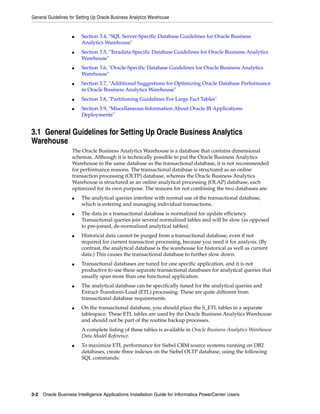
              To install Informatica PowerCenter Client Tools on Windows
              1.   Extract the 901HF2_Client_Installer_win32-x86.zip file to a suitable location, then
                   use the setup.exe program to start the installation.
                   The Informatica PowerCenter installation files are available on eDelivery in the BI
                   Media pack.
              2.   Follow the instructions on the Informatica PowerCenter Client 9.0.1 HF2
                   installation wizard.
                   Note: When you are prompted to select either a new installation or an upgrade,
                   select the option for a new installation. For information about upgrading Oracle BI
                   Applications, see Oracle Business Intelligence Applications Upgrade Guide. If you are
                   prompted to select either the Developer option or the Client option, then select the
                   Client option.


4.6.2 Installing Informatica PowerCenter Services
              This section explains how to install Informatica PowerCenter Services 9.0.1 and Hotfix
              2 for an Oracle BI Applications deployment. For detailed generic information about
              installing Informatica 9.0.1, refer to the PowerCenter Installation and Configuration Guide
              and related documentation.
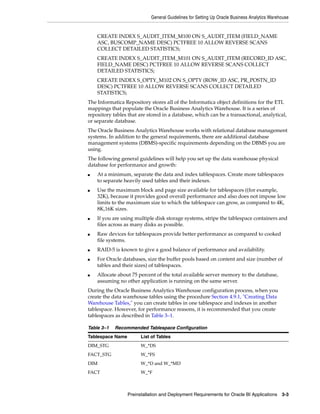
              Notes
              ■  Before you start, you must create a database account for the Informatica Domain
                 (for example, infadomain/infadomain). During the Informatica PowerCenter
                 Services installation, you specify the connection details for this database account.
              ■    If you have purchased the 'Informatica OEM PowerCenter ETL Server and
                   PowerConnect Adapters' license from Oracle, use the Oracle_All_OS_Prod.key
                   license key file.
              ■    On Windows, do not install Informatica in a directory that has a space in the
                   directory name. For example, do not install in D:Program FilesINFA. If you
                   install into a directory with a space in the name, you will cause errors in DAC.
              To install Informatica PowerCenter Services 9.0.1 and Hotfix 2
              1.   Extract the appropriate ZIP or JAR file for the platform that you want to use, then
                   start the installer using an appropriate installer file.
                   For example, a setup.exe file on Windows, or an install.sh file at a shell command
                   line on UNIX or Linux.
                   The Informatica PowerCenter installation files are available on eDelivery in the BI
                   Media pack.
                   When you are prompted to select either a new installation or an upgrade, select
                   the option for a new installation. For information about upgrading Oracle BI
                   Applications, see Oracle Business Intelligence Applications Upgrade Guide.
              2.   Follow the instructions on the Informatica PowerCenter Services installation
                   wizard.


                                                      Installing and Setting Up Oracle BI Applications 4-21
Installing and Setting Up Informatica PowerCenter


                         When you get to the Domain Creation pages, do the following:
                         a.   At the Domain creation page, select the Create a Domain option, then click
                              Next.


                         b.   At the next page, specify the connection details of the Informatica Domain
                              database (for example, infadomain/infadomain). For more information about
                              required database accounts, see Section 4.4.1, "Create Databases for Oracle BI
                              Applications and Informatica PowerCenter Components".


4-22 Oracle Business Intelligence Applications Installation Guide for Informatica PowerCenter Users
Installing and Setting Up Informatica PowerCenter


                   c.   At the Configuration database page, specify the details of the Domain that you
                        want to create.


              3.   Complete to installation wizard until you get to the Post Installation Summary
                   screen, and click Done.


4.6.3 Creating the Informatica Repository Service
              Follow this procedure to create the Informatica Repository Service.


                                                     Installing and Setting Up Oracle BI Applications 4-23
Installing and Setting Up Informatica PowerCenter


                    For detailed information about creating a Repository Service, refer to the Informatica
                    documentation.
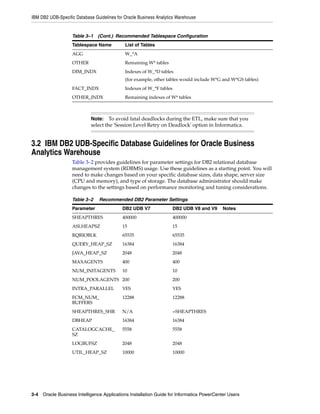
                    To create the Informatica Repository Service


                              Note:   Before you log into Informatica Administrator, make sure that
                              the Informatica service is running. To start the Informatica Service, use
                              the Start Informatica Services program.
                              On Windows, you can also use the Windows Services dialog to start
                              the 'Informatica 9.0.1' service. On UNIX, use the infaservice [startup |
                              shutdown] command.


                    1.   Open Informatica Administrator.
                         For more information about logging into Informatica Administrator, see
                         Section A.8, "How to Log Into Informatica Administrator."
                    2.   In the Domain Navigator, select the root Domain, then click Actions, then New,
                         then PowerCenter Repository Service, to display the New PowerCenter
                         Repository Service wizard.
                    3.   Use the 'Specify the properties for this new PowerCenter Repository Service'
                         dialog to specify a Name (for example, BIA_RS), Location, License, and Node,
                         then click Next.
                    4.   Use the 'Specify the database properties for this new PowerCenter Repository
                         Service' dialog to specify a Database Type, Username, Password, Connection
                         String, and Code Page.
                         Notes:
                         ■    The Username and Password are for the database account that you created for
                              the Informatica repository (see Section Section 4.4.1, "Create Databases for
                              Oracle BI Applications and Informatica PowerCenter Components.").
                         ■    If you specify the wrong code page, you cannot correct this later. If the code
                              page is incorrect, then you must create a new Repository Service.
                    5.   In the 'Specify the creation options for the new PowerCenter Repository Service'
                         area, select the No content exists under specified connection string. Create new
                         content. radio button.
                         For detailed information about creating a Repository Service, refer to the
                         Informatica documentation.
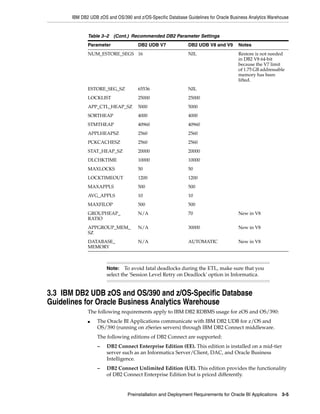
                    6.   Click Finish.
                    In the example screen shot below, Domain_79456 contains a PowerCenter Repository
                    Service named BIA_RS.


4-24 Oracle Business Intelligence Applications Installation Guide for Informatica PowerCenter Users
Installing and Setting Up Informatica PowerCenter


4.6.4 Creating the Informatica Integration Service
              Follow this procedure to create the Informatica Integration Service.
              For detailed information about creating an Integration Service, refer to the Informatica
              documentation.
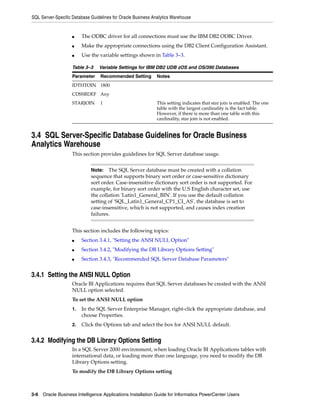
              Before you start: Change the Repository PropertiesOperating Mode to 'Normal' for
              the Repository Service that you created in the previous step.
              To create the Informatica Integration Service
              1.   Open Informatica Administrator.
                   For more information about logging into Informatica Administrator, see
                   Section A.8, "How to Log Into Informatica Administrator."
              2.   In the Domain Navigator, select the root Domain, then click Actions, the New, then
                   PowerCenter Integration Service, to display the New PowerCenter Integration
                   Service wizard.
              3.   Use the 'Specify the properties for this new PowerCenter Integration Service'
                   dialog to specify a Name (for example, BIA_IS), Location, License, and Node, then
                   click Next.
              4.   Use the 'Specify the PowerCenter Integration Service and its login credentials'
                   dialog to select the Repository Service that you created in the previous step, and
                   specify the repository username and password (for example,
                   AdministratorAdministrator).
              5.   In the 'Select the data movement mode' area, select the appropriate Code Page
                   setting from the Data Movement Mode drop down list.
              6.   Click Finish.

                       Tip: The Integration Service will only start if the Repository Service
                       is operating with the Operating Mode set to 'Normal'.

              In the example screen shot below, Domain_79456 contains a PowerCenter Integration
              Service named BIA_IS.


                                                      Installing and Setting Up Oracle BI Applications 4-25
Installing and Setting Up Informatica PowerCenter


4.6.5 Restoring the Pre-built Informatica Repository
                    An Informatica Repository file called Oracle_BI_DW_Base.rep (or Oracle_BI_DW_
                    Teradata.rep for Teradata deployments) is installed the ORACLE_
                    HOMEbiappsdwrepInformaticaRepository directory during the Oracle BI
                    Applications installation. You must load the contents of this REP file into the
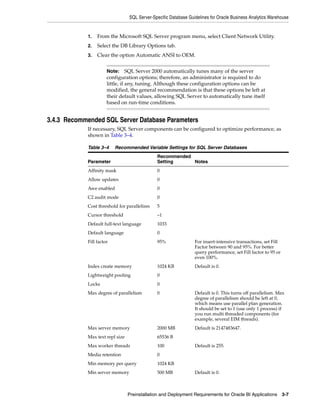
                    Informatica repository.

                    Notes
                    ■  If you are re-loading the Informatica repository, then you must first delete the
                       contents of the repository. The Restore option is only available if the repository is
                       empty.
                    ■    You can only delete and restore contents when the Repository Service is in the
                         'Exclusive' Operating Mode. After the repository has been loaded, you must
                         change the Operating Mode for the Repository Service from 'Exclusive' to
                         'Normal'.
                    ■    If the Integration Service fails while the Operating Mode for the Repository
                         Service is set to 'Exclusive', then you must restart the Integration Service with the
                         Operating Mode for the Repository Service set to 'Normal'.
                    Follow the appropriate task from the following topics:
                    ■    For English environments, follow the steps in Section 4.6.5.1, "Restoring the
                         Pre-built Informatica Repository for Environments in English"
                    ■    For non-English environments, follow the steps in Section 4.6.5.2, "Restoring the
                         Pre-built Informatica Repository on a Non-English Operating System"

                    4.6.5.1 Restoring the Pre-built Informatica Repository for Environments in English
                    You use the Restore option in Informatica Administrator to load the pre-built Oracle_
                    BI_DW_Base repository (or the Oracle_BI_DW_Teradata repository in a Teradata
                    environment).
                    To load the pre-built Oracle_BI_DW_Base.rep or Oracle_BI_DW_Teradata.rep
                    repository into Informatica
                    1.   Copy the file Oracle_BI_DW_Base.rep (or Oracle_BI_DW_Teradata.rep if your
                         Oracle Business Analytics Warehouse is on Teradata) from:


4-26 Oracle Business Intelligence Applications Installation Guide for Informatica PowerCenter Users
Installing and Setting Up Informatica PowerCenter


     ORACLE_HOMEbiappsdwrepInformaticaRepository
     To:
     INFA_HOMEserverinfa_sharedBackup
2.   In Informatica Administrator, select the Repository Service that was created in the
     procedure in Section 4.6.3, "Creating the Informatica Repository Service."
     For more information about logging into Informatica Administrator, see
     Section A.8, "How to Log Into Informatica Administrator."
3.   In the General Properties area of the Properties tab, make sure the OperatingMode
     value is Exclusive.
     To change the OperatingMode value, click Edit, and then select a new value from
     the drop-down list. Click OK to exit edit mode.
4.   In the Actions menu at the top right-hand side, choose Actions, then Repository
     Contents, then Delete Contents.
5.   At the Delete Contents for <repository name> dialog box, enter the repository
     username and password (for example, AdministratorAdministrator), then click
     OK.
6.   In the Actions menu at the top right-hand side, choose Actions, then Repository
     Contents, then Restore.
7.   At the Restore Contents for <repository name> dialog, enter the repository
     username and password (for example, AdministratorAdministrator), then click
     OK.
8.   Choose Actions > Restore Contents.
9.   At the Restore Contents dialog, select Oracle_BI_DW_Base.rep (or Oracle_BI_DW_
     Teradata.rep for Teradata installations) from the Select Backup File drop-down list.
10. Select the Restore as New check box.

11. Click OK to start the restore process.

12. When the restore process is complete, click Close (or click Save first to save the
     logging information).
     When the restore is complete (the process typically takes approximately ten to
     twenty minutes), you will see a 'Success' message.
13. When a repository is restored, the repository becomes a standalone repository.
     After restoring the repository, you need to promote it to a global repository.
     For instructions, see the topic titled, "Promoting a Local Repository to a Global
     Repository," in "Chapter 8: Managing the Repository," in Informatica PowerCenter
     Administrator Guide.
14. Change the OperatingMode value to Normal.

     a.    Go to the Properties tab.
     b.    In the General Properties area, click Edit.
     c.    Click the OperatingMode drop-down list, and select Normal.
     Note: if you do not set the Operating Mode to Normal, the Integration Service will
     not restart.
15. If prompted, enter the repository username and password.


                                          Installing and Setting Up Oracle BI Applications 4-27
Installing and Setting Up Informatica PowerCenter


                              Note:   The pre-built Oracle_BI_DW_Base and Oracle_BI_DW_
                              Teradata repository files are versioned from Oracle BI Applications
                              release 7.9.3 and higher. For more information about the versioned
                              repositories, see Appendix F, "About the Versioned Informatica
                              Repository."


                    4.6.5.2 Restoring the Pre-built Informatica Repository on a Non-English Operating
                    System
                    If Informatica PowerCenter Services is installed on a non-English version of the
                    operating system, you must use the command line to restore the pre-built Informatica
                    Repository provided with Oracle BI Applications.
                    To restore the pre-built Informatica Repository on a non-English operating system
                    1.   Open a Command window.
                    2.   Enter the following command to connect to the repository:
                         Pmrep connect -r <RepositoryName> -d <Domain>

                    3.   Enter the following command to restore the repository:
                         PmRep restore -u <domain_user_name> -p <domain_user_password> -i
                         <input_file_name> -n

                    where the input_file_name is the name of the pre-built repository file.


4.6.6 Configuring Informatica PowerCenter Components
                    This section explains how to configure Informatica PowerCenter Services for use with
                    Oracle BI Applications. It contains the following topics:
                    ■    Section 4.6.6.1, "Setting up the Informatica Domain and Repository in Informatica
                         PowerCenter Client Tools"
                    ■    Section 4.6.6.2, "Copying Source Files and Lookup Files"
                    ■    Section 4.6.6.3, "Setting PowerCenter Integration Services Relaxed Code Page
                         Validation"
                    ■    Section 4.6.6.4, "Setting PowerCenter Integration Services Custom Properties"
                    ■    Section 4.6.6.5, "Creating the Repository Administrator User in the Native Security
                         Domain"

                    4.6.6.1 Setting up the Informatica Domain and Repository in Informatica
                    PowerCenter Client Tools
                    When you first log into any of the Informatica PowerCenter Client tools (for example,
                    Designer, Workflow Manager), you must specify the Informatica Domain that you
                    created when you installed Informatica PowerCenter Server. For example, you might
                    want to log into Informatica PowerCenter Designer to check that the Oracle BI
                    Applications Repository has been successfully loaded.
                    The following tasks describe how to use Informatica PowerCenter Designer to specify
                    an Informatica Domain and Informatica Repository, but you can use any of the
                    Informatica PowerCenter Client tools.
                    To set up the Domain:


4-28 Oracle Business Intelligence Applications Installation Guide for Informatica PowerCenter Users
Installing and Setting Up Informatica PowerCenter


1.   Start Informatica PowerCenter Designer.
2.   Choose Repository, then Configure Domain, to display the Configure Domains
     dialog.


3.   Click the Add a new Domain icon to display the Add Domain dialog.


4.   Use the Add Domain dialog to specify the following:

Table 4–4    Add Domain dialog fields

Field Name                What to enter
Domain Name               Specify the name of the domain that you created when you
                          installed Informatica PowerCenter Server, as described in
                          Section 4.6.2, "Installing Informatica PowerCenter Services" ).
Gateway Host              Specify the hostname or IP address of the Gateway Host as
                          specified during the installation of PowerCenter Services (for
                          example, machineA).
Gateway Port              Specify 6005 (unless you have changed the default Gateway Host
                          port).


5.   Click OK.
     When you specify a valid set of Domain details, the new domain is displayed in
     the Domains list, and any available Repositories are displayed in the Repositories
     list.
6.   In the Repositories list, select the check box for the Repository that you want to use
     (for example, you might select the Informatica Repository that you created in
     Section 4.6.3, "Creating the Informatica Repository Service").


                                          Installing and Setting Up Oracle BI Applications 4-29
Installing and Setting Up Informatica PowerCenter


                    To set up the Repository:
                    1.   Start Informatica PowerCenter Designer.
                    2.   Choose Repository, then Add to display the Add Repository dialog.


                    3.   In the Repository field, enter the name of the Informatica Repository that you
                         created in Section 4.6.3, "Creating the Informatica Repository Service".
                         For example, you might have named the repository BIA_RS.
                         In the Username field, specify Administrator.
                    4.   Click OK to save the details and return to the Start Page.
                    5.   In the Repositories tree, double click on the Repository that you specified in the
                         previous step (for example, BIA_RS).


                    6.   In the Connection Settings part of the Connect to Repository dialog, make sure
                         that the Domain field displays the domain that you specified in the previous task.


4-30 Oracle Business Intelligence Applications Installation Guide for Informatica PowerCenter Users
Installing and Setting Up Informatica PowerCenter


7.   Specify a user name and password (for example, AdministratorAdministrator),
     then click Connect.


8.   You can now expand the repository in the Repositories list to display the contents.


4.6.6.2 Copying Source Files and Lookup Files
You need to copy source files and lookup files from the Oracle BI Applications
installation directory to the Informatica directory on the Informatica PowerCenter
Services machine.
Note: The following instructions assume the default Informatica directory locations for
source and lookup files.
■    The default Informatica directory for source files is INFA_HOMEserverinfa_
     sharedSrcFiles. You can confirm the source file directory for your environment as
     follows: In PowerCenter Administrator, select the Integration Service, navigate to
     the General Properties area of the Processes tab, and verify the value of
     $PMSourceFileDir.
■    The default Informatica directory for lookup files is INFA_HOMEserverinfa_
     sharedLkpFiles.You can confirm the source file directory for your environment as
     follows: In PowerCenter Administrator, select the Integration Service, navigate to
     the General Properties area of the Processes tab, and verify the value of
     $PMLookupFileDir.
To copy source files and lookup files to Informatica PowerCenter Services on
Windows:
1.   Copy the source files as follows:


                                         Installing and Setting Up Oracle BI Applications 4-31
Installing and Setting Up Informatica PowerCenter


                         From:
                         ORACLE_HOMEbiappsdwrepInformaticaSrcFiles on the machine where the
                         Oracle BI Applications installer was run.
                         To:
                         INFA_HOMEserverinfa_sharedSrcFiles.
                    2.   Copy the lookup files:
                         From:
                         ORACLE_HOMEbiappsdwrepInformaticaLkpFiles on the machine where the
                         Oracle BI Applications installer was run.
                         To:
                         INFA_HOMEserverinfa_sharedLkpFiles.


                               Note:  If Informatica PowerCenter Services is installed on a UNIX or
                               Linux machine, convert the target paths above from Windows to
                               UNIX/Linux. For example, covert the Windows target path:
                               From:
                               INFA_HOMEserverinfa_sharedSrcFiles
                               To:
                               INFA_HOME/server/infa_shared/SrcFiles


                    4.6.6.3 Setting PowerCenter Integration Services Relaxed Code Page Validation
                    PowerCenter Integration Services for Oracle BI Applications must be configured for
                    relaxed code page validation.
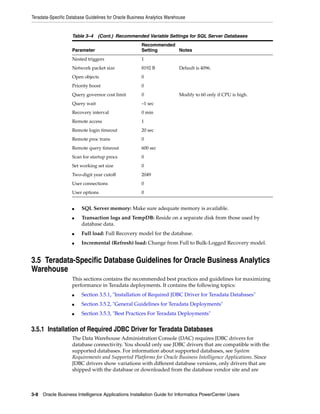
                    To configure Informatica PowerCenter Integration Services for relaxed code page
                    validation
                    1.   Log into Informatica Administrator.
                         For more information about logging into Informatica Administrator, see
                         Section A.8, "How to Log Into Informatica Administrator."
                    2.   Select the Integration Service.
                    3.   Select the Properties tab.
                    4.   In the Configuration Properties area, click Edit.
                    5.   Deselect the 'ValidateDataCodePages' check box.

                    4.6.6.4 Setting PowerCenter Integration Services Custom Properties
                    Follow this procedure to set PowerCenter Integration Services custom properties.
                    To set Informatica PowerCenter Integration Services Custom Properties
                    1.   In Informatica Administrator, select the Integration Service.
                         For more information about logging into Informatica Administrator, see
                         Section A.8, "How to Log Into Informatica Administrator."
                    2.   Click the Properties tab.
                    3.   In the Custom Properties area, click Edit.


4-32 Oracle Business Intelligence Applications Installation Guide for Informatica PowerCenter Users
Installing and Setting Up Informatica PowerCenter


4.   Use the New option to display the New Custom Property dialog, and add the
     following Custom Properties:

Table 4–5   Custom Properties for Informatica PowerCenter Integration Services

 Custom Properties Name      Custom Properties Value Notes
 overrideMpltVarWithMap      Yes                         Enables Informatica to evaluate
 Var                                                     parameters within mapplets.
 DisableDB2BulkMode          Yes                         Add this custom property and set
                                                         value to Yes if your Oracle Business
                                                         Analytics Warehouse is on a
                                                         DB2/390 or a DB2 UDB database.


5.   Click OK to save the details.
6.   Make sure that the Integration Service and Repository Service that you created
     during the Informatica PowerCenter installation are running.

4.6.6.5 Creating the Repository Administrator User in the Native Security Domain
For DAC to be able to access Informatica and perform tasks in pmcmd and pmrep
command line programs, DAC must log in to Informatica as an Informatica Repository
Administrator user. This user must be configured in the native security domain.
You need to create such a Repository Administrator user, or , if your security policies
allow, you can use the default Administrator user (whose privileges include
Repository administration) for DAC connectivity to Informatica.
For more information on creating users and Informatica security domains, see section
"Users and Groups" in Informatica PowerCenter Administrator Guide.
To use the default Administrator user in the native security domain
1.   Log in to the PowerCenter Administration Console as Administrator.
     For more information about logging into Informatica Administrator, see
     Section A.8, "How to Log Into Informatica Administrator."
2.   Display the Security tab by clicking the Configure Security icon in the top, right
     corner of the Informatica Administrator work area.
3.   In the Users area, expand the Native directory and select Administrator.
     Note: Do not select an existing user from an LDAP domain.
4.   Display the Privileges tab, and use the make sure that the correct Domain and
     Repository Service are selected.


                                        Installing and Setting Up Oracle BI Applications 4-33
Installing and Setting Up Informatica PowerCenter


                    5.   Click OK.
                    To create a new Repository Administrator defined in the native security domain
                    1.   Log in to the PowerCenter Administration Console as Administrator.
                         For more information about logging into Informatica Administrator, see
                         Section A.8, "How to Log Into Informatica Administrator."
                    2.   Display the Security tab by clicking the Configure Security icon in the top, right
                         corner of the Informatica Administrator work area.
                    3.   In the Users area, click Actions, then Create User to display the Create User dialog.
                         Note: Do not create this user in an LDAP domain.
                    4.   Use the Create User dialog to specify the user details, then click OK.
                    5.   In the Users area, select the new user, display the Privileges tab, then click Edit to
                         display the Edit Roles and Privileges dialog.
                    6.   Use the Roles tab and Privileges tab to select the appropriate Domain and
                         Repository Service.


4-34 Oracle Business Intelligence Applications Installation Guide for Informatica PowerCenter Users
Installing and Setting Up the DAC Platform


              7.   Click OK.


4.7 Installing and Setting Up the DAC Platform
              This section provides instructions for installing the DAC Client and Server as well as
              installing and creating the required database connections. For information about the
              version of the DAC platform supported with Oracle BI Applications, see the System
              Requirements and Supported Platforms for Oracle Business Intelligence Applications.
              The DAC installer installs the DAC Client and DAC Server on Windows. DAC Client
              only runs on Windows. DAC Servers runs on Windows, UNIX, and Linux.
              The DAC Server can run on Linux, but it must first be installed on a Windows
              machine, then copied over to a Linux machine. Oracle does not provides an installer
              for DAC on UNIX. For instructions on setting up DAC Server on UNIX, see
              Section 4.7.2, "Installing the DAC Server on UNIX".
              After you install the DAC platform, you then need to install JDBC drivers for DAC
              database connectivity and create ODBC database connections for the DAC Client.
              This section includes the following topics:
              ■    Section 4.7.1, "Installing DAC Using the DAC Installer"
              ■    Section 4.7.2, "Installing the DAC Server on UNIX"
              ■    Section 4.7.3, "Installing JDBC Drivers for DAC Database Connectivity"
              ■    Section 4.7.4, "Creating ODBC Database Connections for the DAC Client"
              ■    Section 4.7.5, "Installing pmcmd and pmrep to Enable Communication Between
                   Informatica PowerCenter and DAC"
              ■    Section 4.7.6, "Installing DAC Metadata Files"


4.7.1 Installing DAC Using the DAC Installer
              This section explains how to use the DAC installer to install DAC Client and DAC
              Server for an Oracle Business Intelligence Applications environment.


                                                     Installing and Setting Up Oracle BI Applications 4-35
Installing and Setting Up the DAC Platform


                     Notes
                     ■    The DAC Client can only be installed and run on Windows.
                     ■    The DAC Client must be installed on the machine where Informatica PowerCenter
                          Client Tools was installed.
                     ■    The DAC Server must be installed on the machine where Informatica PowerCenter
                          Services was installed.
                     ■    You must install Informatica PowerCenter Services before you install DAC.
                     ■    The correct version of the JDK is installed by the DAC installer.
                     ■    The DAC installer installs DAC in the DAC_HOMEbifoundationdac directory.
                     To install DAC using the DAC installer
                     1.   Start the DAC installer by double-clicking the setup.exe file.
                     2.   Follow the instructions on the installation wizard, as described in the following
                          table:

                     Page                      Your Action                        Notes
                     Welcome                   Click Next to proceed.             None.
                     Specify Installation      Enter the absolute path for the    The installation directory path
                     Location                  location where you want to         can contain alphanumeric,
                                               install DAC or use the Browse      underscore (_), hyphen (-) or dot
                                               button to select an existing       (.) characters and must begin
                                               location.                          with an alphanumeric character.
                                               Click Next.                        The directory in which you
                                                                                  install DAC is referred to as the
                                                                                  Oracle Home location.
                     Install Component         Click Next.                        This screen is read only.
                                                                                  If you are running the installer
                                                                                  on Windows, the DAC Client
                                                                                  and Server will be installed.
                                                                                  If you are running the installer
                                                                                  on Linux, the DAC Server will
                                                                                  be installed.
                     Specify Informatica       Select Informatica version 8.x,    Select the 8.x option to install
                     Version                   and then click Next.               DAC with Informatica
                                                                                  PowerCenter V9.0.1 with Hotfix
                                                                                  2.
                     Specify Informatica       Enter or browse for the location   DAC Server and Informatica
                     Location                  of the following:                  PowerCenter Services must be
                                                                                  co-located. Therefore, the
                                               ■   Informatica PowerCenter
                                                                                  Informatica PowerCenter
                                                   Services (for example,
                                                                                  Services must be on a local drive.
                                                   INFA_HOMEserver).
                                               ■   Informatica PowerCenter
                                                   domain file (for example,
                                                   INFA_
                                                   HOMEdomains.infa).


4-36 Oracle Business Intelligence Applications Installation Guide for Informatica PowerCenter Users
Installing and Setting Up the DAC Platform


              Page                      Your Action                         Notes
              Pre-requisite Checks      If the checks pass, click Next to   The DAC installer automatically
                                        proceed with the installation       performs pre-requisite checks on
                                                                            your system. The Pre-requisite
                                                                            Checks screen indicates the
                                                                            progress of the checks.
                                                                            If a check fails, you can click
                                                                            Retry to run the check again, or
                                                                            click Continue to proceed with
                                                                            the installation.
              Installation Summary      Click Install to begin the          None.
                                        installation.
              Installation Progress     Click Next.                         None.
              Installation Completed    Click Finish.                       None.


              DAC Configuration Handled by the DAC Installer
              The DAC installer handles the following configuration:
              ■   In the config.bat file, the DAC installer configures the JAVA_HOME and DAC_
                  HOME variables.
              ■   In the dac_env.bat file, the DAC installer creates an environment variable named
                  INFA_DOMAINS_FILE and sets the value to the directory path of the domans.infa
                  file.
              ■   The DAC installer adds the directory path to Informatica PowerCenter binaries to
                  the PATH environment variable.


                       Note:   If you reinstall or upgrade Informatica PowerCenter without
                       reinstalling DAC, you need to manually set these environment
                       variables.


4.7.2 Installing the DAC Server on UNIX
              The DAC Server can run on Linux, but it must first be installed on a Windows
              machine, then copied over to a Linux machine, as described in the steps below. Oracle
              does not provides an installer for DAC on UNIX.


                       Note:    You can also use this procedure to install the DAC Server on
                       Linux.


              When installing a DAC Server, note the following prerequisites:
              ■   On the UNIX machine, make sure the following are installed:
                  –    JDK version 1.6.0 or higher
                  –    Zip and unzip utility
              ■   Make sure that Informatica PowerCenter Services is co-located on the machine
                  that will host the DAC Server. For more information, see Section 4.6, "Installing
                  and Setting Up Informatica PowerCenter."
              ■   Make sure that Informatica has been configured according to the instructions in
                  Section 4.6.6, "Configuring Informatica PowerCenter Components."


                                                        Installing and Setting Up Oracle BI Applications 4-37
Installing and Setting Up the DAC Platform


                     To install the DAC Server on a UNIX machine
                     1.   On the Windows machine on which the DAC Client is installed, create a
                          temporary directory (for example, a directory named OracleBI_UNIX).
                          You will use this temporary directory to create a zip file for the UNIX or Linux
                          deployment.
                     2.   On the machine where the DAC Client is installed, copy the dac directory (that is,
                          the directory installed by the DAC installer in orahome10gbifoundation) to the
                          temporary directory (for example, OracleBI_UNIX).
                     3.   From the dac directory in the temporary directory, remove the export and
                          icons subdirectories.
                          These directories do not need to be copied to the machine hosting the DAC Server.
                     4.   Zip up the temporary directory (for example, OracleBI_UNIX).
                     5.   Copy the zip file to the target UNIX machine.
                          Note: If you use FTP to copy the zip file, use binary mode.
                     6.   On the target UNIX machine, place the zip file in a directory where you want to
                          install the DAC Server.
                     7.   On the target machine, unzip the zip file.
                          Shell scripts are provided in the DAC_HOME/dac directory. After copying these
                          files to a UNIX machine and before using them, you might need to use a MS-DOS
                          to UNIX conversion tool to convert the script files to UNIX format (that is, remove
                          the carriage return and line feed characters). Alternatively, you can manually
                          remove the carriage return and line feed characters from the script files. For more
                          information, see Section A.7, "About the DAC Server Shell Scripts."
                     8.   Copy the contents of the DAC_HOME/dac/unix_script_bkp directory into the
                          /dac directory.
                     9.   Edit the config.sh file located in the DAC_HOME/dac directory to point to the
                          correct version of the JDK by setting the JAVA_HOME environment variable.


4.7.3 Installing JDBC Drivers for DAC Database Connectivity
                     DAC requires JDBC drivers for database connectivity. The JDBC drivers that are used
                     should be for the databases supported. Since JDBC drivers show variations with
                     different database versions, only drivers that are shipped with the database or
                     downloaded from database vendor site and known to be certified for the given
                     database version should be used. Currently, third-party JDBC drivers for the databases
                     are not supported.
                     To enable DAC database connectivity, you must install the appropriate JDBC driver in
                     the DAC_HOMEdaclib directory on the machines where the DAC Client and Server
                     are installed.


                              Note:   This section applies to Windows, UNIX and Linux. The
                              instructions in this section use the Windows directory path format.


                     To install JDBC drivers in the daclib directory
                     ■    Oracle


4-38 Oracle Business Intelligence Applications Installation Guide for Informatica PowerCenter Users
Installing and Setting Up the DAC Platform


                 –   If you are using Oracle database 11g, find the directory where Oracle is
                     installed. Copy the file named ojdbc6.jar in the jdbclib directory and paste it
                     in the DAC_HOMEdaclib directory (for example, c:orahome10gR3_
                     2bifoundationdaclib).
                 –    If you are using an Oracle database 9.x or 10.x, find the directory where
                     Oracle is installed. Copy the file named ojdbc14.jar in the jdbclib directory
                     and paste it in the DAC_HOMEdaclib directory (for example,
                     c:orahome10gR3_2bifoundationdaclib).
                 –   If you are using Oracle database 8.x, copy the file named classes12.zip and
                     paste it in the DAC_HOMEdaclib directory (for example,
                     c:orahome10gR3_2bifoundationdaclib). Also, edit the ORACLELIB
                     setting in the config.bat file as follows:
                     set ORACLELIB=%DAC_HOME%libclasses12.zip

             ■   DB2
                 If you are using a DB2 database, find the directory where DB2 is installed. In the
                 Java subdirectory copy the file named db2java.zip and paste it in the daclib
                 directory


                     Note:   If your source or target database is DB2-UDB, you also need to
                     create DB2-UDB stored procedures to be used during the ETL process.
                     For instructions, see Section 4.18.3, "Creating Stored Procedures for
                     DB2-UDB".


             ■   MSSQL
                 DAC is configured for Microsoft SQL Server 2005 JDBC drivers. If you are using a
                 Microsoft SQL Server database, then download the Microsoft SQL Server 2005
                 JDBC Driver file sqljdbc.jar and copy it to the DAC_HOMEdaclib directory.
                 You can use the Microsoft SQL Server 2000 JDBC Driver files if you edit the
                 confconnection_templates.xml file and un-comment the section that starts <!--
                 THIS SECTION IS FOR SQL SERVER 2000. Comment this section while using SQL
                 Server 2005.-->.
                 Download the SQL Server JDBC drivers for SQL Server 2000 from the Microsoft
                 web site. Copy the appropriate .JAR files to the DAC_HOMEdaclib directory.


                     Note:  You need the Microsoft SQL Server 2005 JDBC Driver 1.1 for
                     SQL Server 2000 or SQL Server 2005.


             ■   Teradata
                 If you are using a Teradata database, copy the files tdgssconfig.jar,
                 TdgssUserConfigFile.xml, terajdbc4.jar, log4j.jar, and tdgssjava.jar from the
                 Teradata installation directory to the DAC_HOMEdaclib directory. Depending
                 on the Teradata JDBC version, you might not have some of the above files.


4.7.4 Creating ODBC Database Connections for the DAC Client
             The DAC Client uses an ODBC connection to create and alter tables in the Oracle
             Business Analytics Warehouse. Create an ODBC connection to the Oracle Business


                                                    Installing and Setting Up Oracle BI Applications 4-39
Installing and Setting Up the DAC Platform


                     Analytics Warehouse database on the machine that hosts the DAC Client, as described
                     below.
                     Additionally, if your source system is Siebel CRM, you must create an ODBC
                     connection to the OLTP (source) database on the machine where you will install Oracle
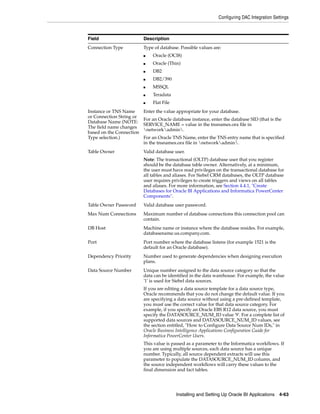
                     BI Applications software. This ODBC connection will be used by the DDLIMP utility.
                     For the ODBC connections to Oracle databases, you must use the Oracle Merant
                     ODBC Driver that is installed with the DAC platform installation. For all other
                     databases, you should use ODBC drivers supplied by your database vendor.


                              Note:  On Windows Vista, the Oracle Merant Driver is not
                              successfully installed by the DAC installer. Use Microsoft ODBC
                              Administrator to configure an ODBC connection with the native
                              ODBC driver instead. Use this ODBC when creating tables in the
                              Oracle Business Analytics Warehouse using the DAC Client.


                     Refer to the appropriate instructions for your database type:
                     ■    Section 4.7.4.2, "How to Create ODBC Connections for DB2 Databases"
                     ■    Section 4.7.4.1, "How to Create ODBC Connections for Oracle Databases"
                     ■    Section 4.7.4.3, "How to Create ODBC Connections for SQL Server Databases"
                     ■    Section 4.7.4.4, "How to Create ODBC Connections for Teradata Databases"

                     4.7.4.1 How to Create ODBC Connections for Oracle Databases
                     Follow these instructions for creating ODBC connections for Oracle databases on
                     Windows. For instructions on creating ODBC connections for Oracle databases on
                     UNIX or Linux, see the documentation provided with your database.
                     Note: You must use the Oracle Merant ODBC driver to create the ODBC connections.
                     The Oracle Merant ODBC driver is installed by the Oracle BI Applications installer.
                     Therefore, you will need to create the ODBC connections after you have run the Oracle
                     BI Applications installer and have installed the DAC Client.
                     To create ODBC connections for Oracle databases
                     1.   On the Windows machine that will host the DAC Client, navigate to the ODBC
                          Data Source Administrator.
                          Use the System DSN tab of the ODBC Data Source Administrator to create an
                          ODBC connection to the Oracle Business Analytics Warehouse database using the
                          Oracle Merant ODBC driver that is supplied with Oracle BI Applications.
                          For example, you might create a database connection called Connect_to_OLAP.
                     2.   Click the System DSN tab.
                     3.   Click Add.
                     4.   In the list of drivers, select the Oracle Merant ODBC driver that is installed with
                          DAC, for example, Oracle Merant ODBC Driver in DAC 10g_Oracle - OH1.
                     5.   In the ODBC Oracle Driver Setup dialog, enter or select the following:

                     Field                   Description
                     Data Source Name        Enter any meaningful name.


4-40 Oracle Business Intelligence Applications Installation Guide for Informatica PowerCenter Users
Installing and Setting Up the DAC Platform


Field                Description
Server Name          Enter the tnsname for the database.
Client Version       Select 10gR1 for 10g and 11g databases.


6.   Click Test Connect to make sure the connection works.
7.   (If your source system is Siebel CRM) In Windows, in the System DSN tab of the
     ODBC Data Source Administrator, create an ODBC connection to the Siebel
     transactional database using the Oracle Merant Closed driver.

4.7.4.2 How to Create ODBC Connections for DB2 Databases
Follow these instructions for creating ODBC connections for DB2 databases on
Windows. For instructions on creating ODBC connections for DB2 databases on UNIX
or Linux, see the documentation provided with your database.
To create ODBC connections for DB2 databases
1.   Using the DB2 Client Configuration Assistant, create a database connection to the
     Oracle Business Analytics Warehouse database on the machine that will host the
     DAC Client. If your source system is Siebel CRM, also create an ODBC connection
     to the transactional database on the machine where you will run the Oracle BI
     Applications installer.
     Note: If you use the DB2 Client Configuration Assistant to create database
     connections, you can omit step 2, because the DB2 Client Configuration Assistant
     automatically creates System DSNs (default behavior).
2.   If necessary, on Windows, in the System DSN tab of the ODBC Data Source
     Administrator, create an ODBC connection to the Oracle Business Analytics
     Warehouse (and, if your source system is Siebel CRM, to the transactional
     database) using an ODBC driver.
3.   Test the connections to make sure they work.

4.7.4.3 How to Create ODBC Connections for SQL Server Databases
Follow these instructions for creating ODBC connections for SQL Server databases on
Windows.
To create ODBC connections for SQL Server databases
1.   In Windows, in the System DSN tab of the ODBC Data Source Administrator,
     create the following:
     ■   An ODBC connection to the Oracle Business Analytics Warehouse database on
         the machine that will host the DAC Client.
     ■   (If your source system is Siebel CRM) An ODBC connection to the
         transactional database on the machine where you will run the Oracle BI
         Applications installer.
     Note: Select SQL Server as the ODBC driver.
2.   Test the connections to make sure they work.
Note: When you use the ODBC Data Source Administrator to create a database
connection, make sure that you select the SQL Server authentication option using a
login ID and password entered by the user.


                                       Installing and Setting Up Oracle BI Applications 4-41
Installing and Setting Up the DAC Platform


                     4.7.4.4 How to Create ODBC Connections for Teradata Databases
                     Follow these instructions for creating ODBC connections for Teradata databases.
                     To create ODBC connections for Teradata databases on Windows
                     1.   On the Windows machine that will host the DAC Client, in the System DSN tab of
                          the ODBC Data Source Administrator, create an ODBC connection to the Oracle
                          Business Analytics Warehouse Teradata database.
                     2.   Set the following parameters:
                          Field=Enter
                          DateFormat=AAA
                          SessionMode=ANSI
                          NoScan=Yes
                     3.   For Unicode environments, in the Teradata ODBC Driver Advanced Options
                          dialog, set the Character Set parameter to UTF8.
                     To create ODBC connections for Teradata databases on UNIX
                     1.   Using the Teradata ODBC driver, create an ODBC connection for the Teradata
                          database.
                     2.   Set the following variables in the ODBC.INI file:
                          ■   DateFormat=AAA
                          ■   SessionMode=ANSI
                          ■   NoScan=Yes
                     3.   For UNICODE environments, in the Teradata ODBC Driver Advanced Options
                          dialog, add the following:
                          ■   CharacterSet=UTF8


4.7.5 Installing pmcmd and pmrep to Enable Communication Between Informatica
PowerCenter and DAC
                     DAC uses the Informatica pmrep and pmcmd command line programs to communicate
                     with Informatica PowerCenter in the following ways:
                     ■    DAC Server uses
                          –   pmrep to communicate with PowerCenter Repository Services.
                          –   pmcmd to communicate with PowerCenter Integration Services to run the
                              Informatica workflows.
                     ■    DAC Client uses
                          –   pmrep to synchronize tasks with Informatica workflows and to keep the DAC
                              task source and target tables information up to date.
                     The pmrep program is installed in the PowerCenter Client and PowerCenter Services
                     bin directories (for example, INFA_HOMEclientbin and INFA_HOMEserverbin).
                     Because of the requirement to co-locate the DAC Client with the PowerCenter Client,
                     the pmrep program is available on the machine for the DAC Client to use.
                     The pmcmd program is installed in the PowerCenter Services bin directory. In order for
                     DAC to access pmcmd, it must also reside in the PowerCenter Client bin directory on
                     the same machine where the DAC Client is installed. Copying the pmcmd executable


4-42 Oracle Business Intelligence Applications Installation Guide for Informatica PowerCenter Users
Installing and Setting Up the DAC Platform


              file from the PowerCenter Services bin directory to the PowerCenter Client bin
              directory is a manual process.
              To install pmcmd in the PowerCenter Client 9.0.1 bin directory
              Do one of the following:
              ■   If PowerCenter Services 9.0.1 has been installed on the same machine as the DAC
                  Client and PowerCenter Client 9.0.1, copy the pmcmd.exe and pmrep.exe from the
                  INFA_HOMEserverbin directory to INFA_
                  HOMEclientsPowerCenterClientclientbin directory.
              ■   If Informatica PowerCenter Services 9.0.1 is installed on a Windows machine other
                  than the one that hosts the DAC Client, copy the pmcmd.exe file from the INFA_
                  HOMEserverbin directory on the machine where PowerCenter Services is
                  installed to the INFA_HOMEclientsPowerCenterClientclient directory on the
                  DAC Client machine.
              ■   If Informatica PowerCenter Services is installed on a UNIX or Linux machine, and
                  an installation on Windows is not available, run the Informatica PowerCenter
                  Services installer on the DAC Client machine or (any other Windows machine) to
                  install only Integration Services as follows:
                  a.   Run the Informatica PowerCenter Services installer as described in
                       Section 4.6.2, "Installing Informatica PowerCenter Services."
                  b.   Copy the pmcmd.exe file located in INFA_HOMEserverbin to INFA_
                       HOMEclientsPowerCenterClientclientbin directory.


4.7.6 Installing DAC Metadata Files
              DAC metadata files are installed by the Oracle BI Applications installer (as described
              in Section 4.5, "Installing the Oracle BI Applications files"). You need to copy these files
              to the machines hosting the DAC Client and Server.
              Table 4–6 describes the location of the file or directory names in the Oracle BI
              Applications installation that you need to copy to the machine hosting the DAC Client.
              Table 4–7 describes the location of the file names in the Oracle BI Applications
              installation that you need to copy to the machine hosting the DAC Server.

              Table 4–6    DAC Metadata Files That Need to Be Copied to DAC Client Machine
                                     Location of
                                     File/directory in Oracle
                                     BI Applications            File/directory to Be Copied to
              File/directory Name    Installation               Following Location
              Export directory       ORACLE_                    Copy contents of the export directory to
                                     HOMEbiappsdwrep         the DAC_HOMEdacexport directory
                                     dac_metadatadac_          on the machine hosting the DAC Client.
                                     clientexport
              DeleteTriggers.list    ORACLE_                 Copy this file to the DAC_
                                     HOMEbiappsdwrep HOMEdacconf directory on the DAC
                                     dac_metadatadac_client Client machine.


                                                      Installing and Setting Up Oracle BI Applications 4-43
Logging into DAC for the First Time and Importing Metadata into the DAC Repository


                    Table 4–7     DAC Metadata Files That Need to Be Copied to DAC Server Machine
                                              Location of
                                              File/directory in Oracle
                                              BI Applications
                    File/directory Name       Installation                 File to Be Copied to Following Location
                    parameterfileOLTP.txt ORACLE_                          Copy this file to the DAC_
                                          HOMEbiappsdwrep               HOMEdacInformaticaparametersinpu
                                          dac_metadatadac_                t directory on the DAC Server machine.
                                          server
                    parameterfileDW.txt       ORACLE_                      Copy this file to the DAC_
                                              HOMEbiappsdwrep           HOMEdacInformaticaparametersinpu
                                              dac_metadatadac_            t directory on the DAC Server machine.
                                              server


4.8 Logging into DAC for the First Time and Importing Metadata into the
DAC Repository
                    When you log into DAC for the first time, you create a set of stored login information.
                    Also, as part of the first-time login process, DAC prompts you to create the DAC
                    Repository schema. Once the schema is created, you can then import metadata into the
                    DAC Repository.
                    This section contains the following topics:
                    ■    Section 4.8.1, "Logging into DAC and Creating a Connection to the DAC
                         Repository"
                    ■    Section 4.8.2, "Importing Metadata into the DAC Repository"


4.8.1 Logging into DAC and Creating a Connection to the DAC Repository
                    When you log into DAC for the first time, you must first configure a connection to
                    connect to the DAC Repository. DAC stores this connection information for
                    subsequent logins.
                    After configuring a connection to the DAC Repository and logging in, the DAC will
                    automatically prompt you to upgrade the repository schema.

                    DAC Repository Database Authentication File
                    When you configure a connection to the DAC Repository, the configuration process
                    includes creating a new authentication file or selecting an existing authentication file.
                    The authentication file authenticates the database in which the repository resides. If
                    you create a new authentication file, you will specify the table owner and password
                    for the database.
                    A user with the Administrator role must distribute the authentication file to any user
                    account that needs to access the specified DAC Repository. For information about
                    managing user accounts, see Section A.2, "About DAC User Account Management.".
                    To log into DAC for the first time and upgrade the repository schema
                    1.   Start the DAC Client by navigating to the DAC_HOMEdac directory and
                         double-clicking the startclient.bat file.
                         The Login ... dialog appears.


4-44 Oracle Business Intelligence Applications Installation Guide for Informatica PowerCenter Users
Logging into DAC for the First Time and Importing Metadata into the DAC Repository


2.   Click Configure.
3.   In the Configuring ... dialog, select Create Connection, and then click Next.
4.   Enter the appropriate connection information:

Field                              Required Value
Name                               Enter a unique name for the connection to the DAC
                                   Repository.
Connection type                    Select the type of database in which the DAC Repository will
                                   be stored.
Connection String, or              Select the database name or database account name of the
Database name, or TNS              DAC Repository.
Name, or Instance
                                   If you are using:
                                   ■    Oracle (OCI8), use the tnsnames entry.
                                   ■    Oracle (Thin), use the instance name.
                                   ■    SQL Server, use the database name.
                                   ■    DB2-UDB, use the connect string as defined in the DB2
                                        configuration.
Database Host                      Enter the name of the machine where the DAC Repository will
                                   reside.
Database Port                      Enter the port number on which the database listens. For
                                   example, for an Oracle database the default port is 1521, or for
                                   a SQL Server database the default port is 1433.
Optional URL                       Can be used to override the standard URL for this connection.
Optional Driver                    Can be used to override the standard driver for this
                                   connection.
Authentication File                Click in this field to do one of the following:
                                   ■    Select an existing authentication file.
                                   ■    Create a new authentication file.
                                   Proceed to the next step for detailed instructions.


5.   To select an existing authentication file, do the following:
     a.   Click in the Authentication File field of the Configuring... dialog.


                                              Installing and Setting Up Oracle BI Applications 4-45
Logging into DAC for the First Time and Importing Metadata into the DAC Repository


                         b.   In the Authentication File dialog, select Choose existing authentication file.
                         c.   Navigate to the appropriate directory, and select the authentication file. Click
                              OK.
                         d.   In the Configuring... dialog, click Test Connection to confirm the connection
                              works.
                         e.   Click Apply, and then click Finish.


                              Note:   You must distribute this authentication file to all user accounts
                              that need to access this DAC Repository.


                    6.   To create a new authentication file, do the following:
                         a.   Click in the Authentication File field of the Configuring... dialog.
                         b.   In the Authentication File dialog, select Create authentication file.
                         c.   Navigate to the directory where you want to save the new authentication file,
                              and click OK.
                         d.   In the Create Authentication File dialog, enter a unique name for the
                              authentication file, and click OK.
                         e.   Enter the Table Owner Name and Password for the database where the
                              repository will reside.
                         f.   In the Configuring... dialog, click Test Connection to confirm the connection
                              works.
                         g.   Click Apply, and then click Finish.


                              Note:   You must distribute this authentication file to all user accounts
                              that need to access this DAC Repository.


                    7.   In the Login... dialog, do the following:
                         a.   Select the appropriate Connection from the drop-down list.
                         b.   Enter a the User Name (for example, Administrator).
                         c.   Enter a Password (for example, Administrator).
                         d.   Click Login.
                    8.   When prompted to create a repository, click Yes.
                         This process creates DAC repository tables.
                         Depending on your database type, you may have the option specify a tablespace.
                         The Unicode check box is available for a repository on SQL Server or DB2
                         databases. Check the Unicode check box if your deployment requires a Unicode
                         schema to be created.


4.8.2 Importing Metadata into the DAC Repository
                    This section explains how to import metadata into the DAC Repository.


4-46 Oracle Business Intelligence Applications Installation Guide for Informatica PowerCenter Users
Logging into DAC for the First Time and Importing Metadata into the DAC Repository


          Note:   The DAC Client can connect to only one DAC Repository at a
          time.


To import metadata into the DAC Repository
1.   In DAC, select Tools, then DAC Repository Management, then Import to display
     the Import dialog.
     Make sure that the correct DAC_HOMEdacexport directory is displayed at the
     top of the dialog. If necessary, use the 'Change import/export directory' button to
     select the dacexport directory. If the wrong directory is selected, the
     Applications list will be empty
2.   In the Categories area, select the Logical check box and the System check box.
     The information imported by these options is as follows:

Categories Options      Description
Logical                 Imports all information contained in the DAC Design view and the
                        execution plan information for the DAC Execute view.
System                  Imports all information contained in the DAC Setup view, except
                        passwords for servers and database connections.


3.   In the Applications List table, use the check boxes in the Selected column to
     specify the source system applications for which you will import the ETL
     metadata, as follows:
     a.   Select the check box next to Universal.
          To avoid possible ETL errors in other applications (for example, missing
          tasks), you must import the Universal application.
     b.   Select the check box for any other business applications that you want to
          deploy.


          Note:   Do not select the Data Warehouse option unless Oracle
          specifically instructs you to do so. This container is reserved for
          special purposes.


          Tip: Make a note of the Application names that you select. When
          you create data warehouse tables later in the configuration process,
          you might need to type in the names exactly as they are displayed
          here (for more information, see Section 4.9.1, "Creating Data
          Warehouse Tables").

4.   Select the Truncate Repository Tables check box.


                                           Installing and Setting Up Oracle BI Applications 4-47
Logging into DAC for the First Time and Importing Metadata into the DAC Repository


                              Note:  If you are importing DAC metadata for the first time, you
                              should select the Truncate Repository Tables check box.

                              If you are importing DAC metadata into a repository that already has
                              metadata, do the following:
                              1.   Back up the current repository by exporting it to an empty directory (use
                                   the 'Change import/export directory' button to select an empty directory.
                              2.   Use the 'Change import/export directory' button to select the
                                   dacexport directory.
                              3.   Select the Truncate Repository Tables check box and the Enable Batch
                                   Mode check box, and import the new DAC metadata.
                              4.   Use the 'Change import/export directory' button to select the directory
                                   where you backed up data in Step 1.
                              5.   Deselect the Truncate Repository Tables check box and re-import the data
                                   you backed up.


                    5.   Select the Enable Batch Mode check box.


                              Note:   If you are using an Oracle 9i Release 2 database, you cannot
                              use batch mode because the Oracle 9i JDBC drivers do not handle
                              array inserts or bulk inserts.


                    6.   Click OK to display the Importing tables dialog.


                    7.   To confirm that you want to import the seed data selected, re-type the text in the
                         text box and click Yes.
                    8.   If prompted to verify that you want to continue with the Import, click Yes.
                         When the process is complete, the DAC displays a status box containing a success
                         or failure message. If the process fails, use the DAC_HOMEdaclogimport.log
                         file to diagnose errors.


                              Note:   The import process typically takes between one and five
                              hours, depending on the location of the database that stores the DAC
                              Repository, the speed of the network, and the number of applications
                              selected in the Applications list on the Import dialog.


                    9.   Click OK.


4-48 Oracle Business Intelligence Applications Installation Guide for Informatica PowerCenter Users
Creating the Oracle Business Analytics Warehouse Tables


             10. If your source or target database is a DB2/390 database, run DAC_DB2390_
                  Source.sql or DAC_DB2390_Target.sql immediately after importing the seed data
                  by connecting to the database where the DAC Repository resides. These files are
                  stored in the DAC_HOMEdac directory.


4.9 Creating the Oracle Business Analytics Warehouse Tables
             This section explains how to create tables in the Oracle Business Analytics Warehouse
             database.
             Note: Before you start this procedure, you need to create a database for the Oracle
             Business Analytics Warehouse. For more information, see Section 4.4.1, "Create
             Databases for Oracle BI Applications and Informatica PowerCenter Components."
             The Oracle Business Analytics Warehouse tables are created by the DAC Client. The
             DAC Client uses ODBC connections to the Oracle Business Analytics Warehouse
             database for this procedure. Ensure that you have created an ODBC connection to the
             Oracle Business Analytics Warehouse database as described in Section 4.7.4, "Creating
             ODBC Database Connections for the DAC Client."
             If your Oracle Business Analytics Warehouse database is Oracle, you must use the
             Oracle Merant ODBC driver to create the ODBC connection. This driver is installed by
             the Oracle BI Applications. The DAC Client must be installed by running the Oracle BI
             Applications installer so that the driver is installed on the machine. Create the ODBC
             DSN to the Oracle Business Analytics Warehouse as described in Section 4.7.4,
             "Creating ODBC Database Connections for the DAC Client."
             Before you perform the procedures described in this section, make sure that the SSE
             role has been created for the Oracle Business Analytics Warehouse, and that the
             database user has been associated with the role (for more information, see
             Section 4.4.1.1, "How to Create the SSE Role").
             If your Oracle Business Analytics Warehouse database is not Teradata, refer to
             Section 4.9.1, "Creating Data Warehouse Tables" to create the data warehouse tables.
             If you are using a Teradata database as the Oracle Business Analytics database, the
             DAC creates a SQL file to create the schema tables, not the tables themselves. Follow
             the steps in Section 4.9.2, "Creating Data Warehouse Tables on a Teradata Database".
             Note: Additional work by the database administrator is required if the data warehouse
             tables need to be moved to different tablespaces for performance or manageability
             reasons.


4.9.1 Creating Data Warehouse Tables
             Use this procedure to create the data warehouse tables.
             If the Oracle Business Analytics Warehouse database is Teradata, follow the steps in
             Section 4.9.2, "Creating Data Warehouse Tables on a Teradata Database."
             To create data warehouse tables
             1.   In DAC, select Tools, then ETL Management, then Configure.
                  For more information about logging into DAC, see Section A.1, "How to Log into
                  DAC."
             2.   In the Sources dialog, select the database platform for the target data warehouse
                  and source transactional database.
             3.   Click OK to display the Data Warehouse Configuration Wizard.


                                                    Installing and Setting Up Oracle BI Applications 4-49
Creating the Oracle Business Analytics Warehouse Tables


                    4.   Select the Create Data Warehouse Tables check box, and click Next.
                         The Data Warehouse tab is active.


                    5.   Enter the details of the database in which you want to store the data warehouse.
                         The information that you need to enter is dependent on the type of target database
                         that you are using to store the data warehouse.

                    Field             Description
                    Database Type     (Read only) Type of database, as specified by the 'Target data warehouse
                                      database platform' field on the Sources dialog (see step 2).
                                      If the database type is DB2/390, then check the 390 Database check box.


4-50 Oracle Business Intelligence Applications Installation Guide for Informatica PowerCenter Users
Creating the Oracle Business Analytics Warehouse Tables


Field               Description
Container           The name of the source business applications for which you want to create
                    the data warehouse tables.
                    Note: You must leave this field blank, unless told to specify a value by
                    Oracle Support.
                    If you leave the Container field blank, DAC creates a container by default for
                    all of the following:
                    ■   The source business applications that you selected when you imported
                        the seed data into the DAC metadata repository earlier (for more
                        information, see Section 4.8.2, "Importing Metadata into the DAC
                        Repository").
                    ■   Any copies of those source system applications.
                    ■   Any additions made to those source system applications.
                    ■   Any new source system applications that you have custom built.
                    If there are tables that are common to these containers, then only one table
                    will be created. For example, if there is a table called W_ORG_D in Oracle
                    11.5.9 and Oracle 11.5.10, then DAC will create only one table called W_
                    ORG_D. If columns are different for the same table across containers, then
                    DAC will create a table that has all the columns in the same table.
                    If you only want to deploy a subset of the source business applications for
                    which you imported seed data earlier, then use this field to specify a
                    container name. When you specify a container name, you must enter the
                    names of the applications exactly as they are displayed on the seed data
                    Import dialog.
                    For example:
                    ■   If you want to deploy Oracle 11.5.9, enter: 'Oracle 11.5.9'.
                    ■   If you want to deploy Oracle 11.5.9 and 11.5.10, enter: 'Oracle
                        11.5.9,Oracle 11.5.10'.
                    For more information about containers, see Oracle Business Intelligence Data
                    Warehouse Administration Console User’s Guide.
Table Owner         Valid database owner, username, or account that you set up to hold the data
                    warehouse (for more information, see Section 4.4.1, "Create Databases for
                    Oracle BI Applications and Informatica PowerCenter Components").
Password            Valid database user password for the database owner, username, or account
                    that you specified in the Table Owner field (for more information, see
                    Section 4.4.1, "Create Databases for Oracle BI Applications and Informatica
                    PowerCenter Components").
ODBC Data           Data Source Name (DSN) for the Oracle Business Analytics Warehouse.
Source
                    You must specify the name of the ODBC connection (for example, Connect_
                    to_OLAP) that you created for the data warehouse. For more information,
                    see Section 4.7.4, "Creating ODBC Database Connections for the DAC
                    Client".
Data Area           (Optional) Tablespace where data warehouse tables are created.
Index Area          (Optional) Indexspace where data warehouse indexes are created (applicable
                    only to Oracle and DB2 databases).
Is Unicode          Specifies whether the data warehouse database is Unicode. The database
                    must be set to support the creation of a Unicode schema. For more
                    information, see Section 4.3.3, "Code Page and Data Movement
                    Requirements."


6.   Click Start.
The Run Status tab displays information about the process, as follows:


                                             Installing and Setting Up Oracle BI Applications 4-51
Creating the Oracle Business Analytics Warehouse Tables


                    ■    If a 'Success' message is displayed, the data warehouse tables have been created. If
                         you want to see log information about the process, use the following log files.
                         ■   DAC_HOMEdaclogconfiggenerate_ctl.log - A log of the schema
                             definition process, including details of any conflicts between containers.
                         ■   DAC_HOMEdaclogconfigcreatewtables.log, createwtables.log.out, and
                             createwtables.log.err - Logs of the DDLIMP process.
                    ■    If a 'Failure' message is displayed, the data warehouse tables have not been
                         created. Use the log information in generate_ctl.log to diagnose the error. The
                         createtables.log is not generated.


4.9.2 Creating Data Warehouse Tables on a Teradata Database
                    This section explains how to create and delete data warehouse tables on a Teradata
                    database. Before you start, make sure that the tables that you create are case specific by
                    setting the session mode to ANSI in your Teradata ODBC configuration (for more
                    information, see Section 3.5, "Teradata-Specific Database Guidelines for Oracle
                    Business Analytics Warehouse").


                             Note:   For Unicode environments, perform these procedures using a
                             login that has the default character set UTF-8.


                    To create data warehouse tables on a Teradata database
                    1.   In DAC, select Tools, then ETL Management, then Configure.
                         For more information about logging into DAC, see Section A.1, "How to Log into
                         DAC."
                    2.   In the Sources dialog, select 'Teradata' as the database platform for the source data
                         warehouse, and select the appropriate database type for the target transactional
                         database.
                    3.   Click OK to display the Data Warehouse Configuration Wizard.
                    4.   Select the Generate create statements for Data Warehouse Tables check box, then
                         click Next to display the Data Warehouse SQL tab.
                    5.   Use the Container field to specify individual containers, or leave blank to deploy
                         all containers.
                    6.   Click Start.
                         The Run Status tab displays information about the process, as follows:
                         ■   If a 'Success' message is displayed, the data warehouse tables have been
                             created. If you want to see log information about the process, use the
                             following log files.
                             DAC_HOMEdacconfiggenerate_ctl.log - A log of the schema definition
                             process, including details of any conflicts between containers.
                             DAC_HOMEdacconfigcreatetables.log - A log of the ddlimp process.
                         ■   If a 'Failure' message is displayed, the data warehouse tables have not been
                             created. Use the log information in DAC_HOMEdaclogconfiggenerate_
                             ctl.log to diagnose the error. The createtables.log is not generated.
                    7.   Copy the SQL file created in step 6 from confsqlgensqlTeradata into SQL
                         Assistant and execute the SQL.


4-52 Oracle Business Intelligence Applications Installation Guide for Informatica PowerCenter Users
Configuring the DAC Server


4.10 Configuring the DAC Server
             This section contains instruction for configuring the DAC Server. It contains the
             following topics:
             ■    Section 4.10.1, "Configuring the Connection Between the DAC Server and DAC
                  Repository"
             ■    Section 4.10.2, "Setting Environment Variables to Enable Communication between
                  the DAC Server on UNIX and Informatica"
             ■    Section 4.10.3, "Starting the DAC Server"
             ■    Section 4.10.4, "Activating Join Indexes for Teradata Databases"


4.10.1 Configuring the Connection Between the DAC Server and DAC Repository
             You must configure the connection between the DAC Server and the DAC Repository.
             On Windows, you can use the DAC Client to configure a DAC Server that runs in the
             same DAC_HOMEdac directory. Optionally, or to configure a DAC Server installed
             in another directory or on another Windows machine, use the serverSetupPrompt.bat
             file to configure the repository connection.
             On UNIX or Linux, use the serverSetupPrompt.sh script to configure the connection
             between the DAC Server and the DAC Repository, as follows:
             ■    To configure the DAC Server repository connection using the DAC Client, see
                  Section 4.10.1.1, "How to Configure the DAC Server Repository Connection Using
                  the DAC Client (Windows)".
             ■    To configure the DAC Server repository connection using the serverSetupPrompt
                  scripts, see Section 4.10.1.2, "How to Configure the DAC Server Repository
                  Connection Using serverSetupPrompt Scripts (Windows, UNIX or Linux)".

             4.10.1.1 How to Configure the DAC Server Repository Connection Using the DAC
             Client (Windows)
             If the DAC Server is co-located with a configured DAC Client in the same DAC_
             HOMEdac directory, you can set the connection between the DAC Server and DAC
             Repository using the DAC Client, as described below.
             To configure the connection between the DAC Server and the DAC Repository
             using the DAC Client
             1.   In DAC, select Tools, then DAC Server Management, then DAC Server Setup.
                  For more information about logging into DAC, see Section A.1, "How to Log into
                  DAC."
                  Note: The DAC Repository that you connect to using the DAC Client is the one
                  that will store the DAC Server repository connection information that you will
                  specify in this procedure.
                  A confirmation dialog asks you to confirm that you want to configure the DAC
                  Repository connection.
             2.   Click Yes to display the Server Configuration dialog.
             3.   In the Repository Connection Information tab, enter the appropriate information,
                  as described in the table below.


                                                    Installing and Setting Up Oracle BI Applications 4-53
Configuring the DAC Server


                             Tip: If the DAC Server is running on the same machine as the DAC
                             Client, click Populate from preconfigured client connection to
                             populate the fields with connection details from the DAC Client.


                   Field                    Description
                   Connection type          Select the type of database that you are using to store the DAC
                                            metadata repository. Depending on what type you select, the
                                            connection details below change (see Connection fields below).
                   Connection fields (for   Specify connection details for the database that stores the DAC
                   example, Instance,       metadata repository.
                   TNS Name,
                                            ■   If you select Oracle (Thin), you are prompted below for the
                   Connection
                                                following information:
                   string/Database
                   name.                                            ■   Instance (for example,
                                                                        mymachinename).
                                                                    ■   Database Host (fully qualified, for
                                                                        example,
                                                                        mymachine.us.company.com).
                                                                    ■   Database Port (for example, 1521).
                                                                    ■   Table owner name, using the account
                                                                        that you created a database to store
                                                                        the DAC Repository (for example,
                                                                        DAC). For more information, see
                                                                        Section 4.4.1, "Create Databases for
                                                                        Oracle BI Applications and
                                                                        Informatica PowerCenter
                                                                        Components".
                                                                    ■   Password (that is, for the above
                                                                        database account).
                                            ■   If you select Oracle (OCI8), you are prompted below for a TNS
                                                name (for example, mymachinename@host.com).
                                            ■   If you select DB2, you are prompted below for a Connection
                                                string.
                                            ■   If you select MS SQL Server, you are prompted below for a
                                                Database name (for example, mydacdatabase).
                   Table owner name         The database table name or instance (for example, DAC) that you
                                            created to store the DAC Repository (for more information, see
                                            Section 4.4.1, "Create Databases for Oracle BI Applications and
                                            Informatica PowerCenter Components").
                   Password                 The database or instance password (for example, DAC).


                             Note: The DAC Repository details that you specify here must match
                             the DAC Repository details that you specified in the following tasks:
                              - When you created a database to store the DAC Repository (for more
                             information, see Section 4.4.1, "Create Databases for Oracle BI
                             Applications and Informatica PowerCenter Components").
                             - When you created a DAC connection (for more information, see
                             Section 4.8.1, "Logging into DAC and Creating a Connection to the
                             DAC Repository").


4-54 Oracle Business Intelligence Applications Installation Guide for Informatica PowerCenter Users
Configuring the DAC Server


              4.   Click Test Connection to make sure the DAC Repository connection works.
              5.   Click Save.

              4.10.1.2 How to Configure the DAC Server Repository Connection Using
              serverSetupPrompt Scripts (Windows, UNIX or Linux)
              Use the serverSetupPrompt.sh to configure the connection between the DAC Server
              and the DAC Repository when the DAC Server is installed on UNIX or Linux, as
              described below. For more information on the DAC Server scripts, see Section A.7,
              "About the DAC Server Shell Scripts."
              Use the serverSetupPrompt.bat file to configure the connection between the DAC
              Server and the DAC Repository when the DAC Server is installed on Windows, as
              described below.
              To configure the connection between the DAC Server and the DAC Repository using
              the serverSetupPrompt files:
              1.   Run the serverSetupPrompt script, as follows:
                   ■   On Windows, double-click the serverSetupPrompt.bat located in the DAC_
                       HOMEdac directory.
                   ■   On UNIX or Linux, run serverSetupPrompt.sh located in the DAC_
                       HOME/dac directory.
              2.   Enter 1 in the 'Please make your selection' prompt to enter repository connection
                   information.
              3.   Enter the number for the type of database storing the DAC Repository from the
                   list of connection type choices.
              4.   Enter the connection information as described in the Connection Information table
                   in section Section 4.10.1.1, "How to Configure the DAC Server Repository
                   Connection Using the DAC Client (Windows)".
              5.   Enter 2 to test the DAC Repository connection.
              6.   Enter 5 to save changes.
              7.   Enter 6 to exit.


4.10.2 Setting Environment Variables to Enable Communication between the DAC
Server on UNIX and Informatica
              When you install the DAC Server on UNIX, you must define the path for the
              Informatica Domain file and set environment variables manually. For instructions, see
              Section A.6.2, "How to Set Environment Variables for DAC Server Communication on
              UNIX."


4.10.3 Starting the DAC Server
              On Windows, start the DAC Server by double-clicking the DAC_
              HOMEdacstartserver.bat script.
              On UNIX or Linux, start the DAC Server by executing startserver.sh.
              For more information on starting and stopping the DAC Server on Windows, UNIX or
              Linux, see Section A.4, "How to Start and Stop the DAC Server."


                                                     Installing and Setting Up Oracle BI Applications 4-55
Configuring DAC Integration Settings


4.10.4 Activating Join Indexes for Teradata Databases
                    For Teradata databases, the preconfigured tasks for creating and dropping join indexes
                    are inactive.
                    To activate join indexes for Teradata databases
                    1.   In DAC, create a new Execution Plan with the list of Subject Areas that you want
                         to extract.
                    2.   Query for all Tasks whose name starts with 'Teradata Drop' and add them as
                         preceding tasks.
                    3.   Query for all Tasks whose name start with 'Teradata Create' and add them as
                         following tasks.
                    4.   Assemble the Execution Plan parameters in the Parameters tab and configure the
                         parameters.
                    5.   Redesign the Execution Plans.


4.11 Configuring DAC Integration Settings
                    This section explains how to configure DAC integration settings. It contains the
                    following topics:
                    ■    Section 4.11.1, "Setting DAC System Properties"
                    ■    Section 4.11.2, "Registering Informatica Services in DAC"
                    ■    Section 4.11.3, "Setting Physical Data Sources"
                    You must start the DAC Server to complete certain steps in the procedures described
                    below. For information on how to start the DAC Server, see Section A.4, "How to Start
                    and Stop the DAC Server."


4.11.1 Setting DAC System Properties
                    This section describes the DAC System Properties to set to ensure proper integration
                    between the DAC Client, the DAC Server and Informatica.
                    To set DAC System Properties
                    1.   In DAC, navigate to the Views menu, then select Setup, then DAC System
                         Properties.
                         For more information about logging into DAC, see Section A.1, "How to Log into
                         DAC."


4-56 Oracle Business Intelligence Applications Installation Guide for Informatica PowerCenter Users
Configuring DAC Integration Settings


              2.   Set values for the following properties:

              Property                   Value Required
              DAC Server Host            Enter the name or IP address of the machine that hosts the DAC
                                         Server.
              DAC Server OS              Enter the operating system of the machine that hosts the DAC
                                         Server. Possible values are Windows, AIX, Solaris, HP-UX, Linux
                                         (case sensitive).
              InformaticaParameterFile   Enter the path to the Informatica source file directory, for example
              Location                   INFA_HOME serverinfa_sharedSrcFiles.
                                         You can confirm the source file directory for your environment by
                                         launching Informatica Administrator and going to the General
                                         Properties area of the Processes tab.
              Repository Name            Specify a name for the Informatica PowerCenter Repository. For
                                         example, BIA_RS.


              Note: For a description of all DAC System Properties, see Section A.3, "How to Set
              DAC System Properties."


4.11.2 Registering Informatica Services in DAC
              This section explains how to register the Informatica PowerCenter Integration Services
              service and the Informatica PowerCenter Repository Service in DAC.
              When you register Informatica Services in DAC, note the following:
              ■    You must register one or more Integration Services service.
              ■    You must register one Repository Service.

              Tip
              For information about Informatica Services details that you specify in this procedure,
              log into Informatica Administrator, select the appropriate Domain, and view the
              Repository Service and Integration Service.
              In the example screen shot below, Domain_79456 contains a PowerCenter Repository
              Service named BIA_RS, and a PowerCenter Integration Service named BIA_IS.


                                                        Installing and Setting Up Oracle BI Applications 4-57
Configuring DAC Integration Settings


                    In this example, you would perform Step 2 below to register the PowerCenter
                    Integration Service BIA_IS, as in the following screen shot:


                    Then, you would perform Step 3 below to register the PowerCenter Repository Service
                    BIA_RS, as in the following screen shot:


4-58 Oracle Business Intelligence Applications Installation Guide for Informatica PowerCenter Users
Configuring DAC Integration Settings


For more information, see Section A.8, "How to Log Into Informatica Administrator."
To register Informatica Services in DAC
1.   In DAC, navigate to the Setup view, and then display the Informatica Servers tab.
     For instructions on logging into DAC, see Section A.1, "How to Log into DAC."
2.   For the Informatica Integration Service that you want to register, do the following:
     a.   Modify the record with Name = INFORMATICA_DW_SERVER (or create a
          new record) by entering the following information in the Edit subtab:

Field                         Enter or select
Name                          A name to identify the PowerCenter Integration Service in
                              DAC. For example, you might use 'INFORMATICA_DW_
                              SERVER', or change the name to 'BIA_IS'.
Type                          Informatica.
Service                       The name of the PowerCenter Integration Service that is being
                              used. For example, BIA_IS.
                              The value that you specify here must match the name of the
                              PowerCenter Repository Integration that was specified in
                              Section 4.6.4, "Creating the Informatica Integration Service".
Domain                        The Informatica domain name. For example, Domain_
                              machinename.


                                        Installing and Setting Up Oracle BI Applications 4-59
Configuring DAC Integration Settings


                    Field                           Enter or select
                    Login                           Informatica Repository user name with appropriate privileges
                                                    to execute workflows (for example, Administrator).
                                                    Note: DAC must log in to Informatica as an Informatica
                                                    Repository Administrator user that is configured in the native
                                                    security domain. For instructions on how to create such a user,
                                                    see Section 4.6.6.5, "Creating the Repository Administrator
                                                    User in the Native Security Domain."
                                                    For more information about Informatica security domains, see
                                                    "Chapter4: Managing Users and Groups," in the PowerCenter
                                                    Administrator Guide.
                    Password                        Informatica Repository user password (for example,
                                                    Administrator).
                    Maximum Sessions                Maximum number of workflows that can be executed in
                                                    parallel on the Informatica PowerCenter Integration Services
                                                    service. If the number of sessions is zero or is not specified, the
                                                    DAC Server assigns the default value of 10.
                    Repository Name                 The name of the PowerCenter Repository Service (for
                                                    example, BIA_RS).
                                                    The value that you specify here must match the name of the
                                                    PowerCenter Repository Service that was specified in
                                                    Section 4.6.3, "Creating the Informatica Repository Service".
                    Inactive                        Indicates whether the PowerCenter Integration Services
                                                    service will participate in the ETL process.


                         b.    Click Test Connection to make sure that the connection works.
                               Note: Integration Services must be running.
                         c.    Click Save to save the details.
                    3.   For the Informatica Repository Service you want to register, do the following:
                         a.    Modify the record with Name = INFORMATICA_REP_SERVER (or create a
                               new record) by entering the following information in the Edit subtab:

                    Field                           Enter
                    Name                            A name to identify the PowerCenter Repository Service in
                                                    DAC. For example, you might use 'INFORMATICA_REP_
                                                    SERVER', or change the name to 'BIA_RS'.
                    Type                            Repository.
                    Hostname                        The host name or IP address of the machine that is running the
                                                    Informatica Server.
                    Server Port                     The Port number of the Gateway Node that is being used for
                                                    the Informatica PowerCenter domain (for example, 6005).
                                                    If you need to obtain the name of the Repository Service, log
                                                    into Informatica Administrator, expand the Domain, display
                                                    the Node, display the Properties tab, and view the General
                                                    PropertiesPort value.
                                                    Note: You must use the Node with the General
                                                    PropertiesGateway Node value set to 'Yes'.
                    Domain                          (Read-only) The Domain name that you specified for the
                                                    Domain field in step 2.


4-60 Oracle Business Intelligence Applications Installation Guide for Informatica PowerCenter Users
Configuring DAC Integration Settings


              Field                           Enter
              Login                           Informatica Repository user name with appropriate privileges
                                              to execute workflows (for example, Administrator).
              Password                        Informatica Repository user password (for example,
                                              Administrator).
              Maximum Sessions                Maximum number of workflows that can be executed in
                                              parallel on the Informatica PowerCenter Integration Services
                                              service. If the number of sessions is zero or is not specified, the
                                              DAC Server assigns the default value of 10.
              Repository Name                 The name of the PowerCenter Repository Service (for
                                              example, BIA_RS).
                                              The value that you specify here must match the name of the
                                              PowerCenter Repository Service that was specified in
                                              Section 4.6.3, "Creating the Informatica Repository Service".
              Inactive                        Indicates whether the Repository Service will participate in the
                                              ETL process.


                   b.    Click Test Connection to make sure that the connection works.
                         Note: The Repository Service must be running.
                   c.    Click Save to save the details.


4.11.3 Setting Physical Data Sources
              Follow this procedure to specify the transactional and data warehouse data sources in
              DAC.


                         Note:   If you have a JD Edwards EnterpriseOne or a JD Edwards
                         World source system hosted on an iSeries DB2 database, see
                         Section 4.11.3.1, "Specifying a Data Source Connection for JD Edwards
                         EnterpriseOne or JD Edwards World Hosted on a DB2 Database."


              To specify transactional and data warehouse data sources
              1.   Log into DAC.
                   For more information about logging into DAC, see Section A.1, "How to Log into
                   DAC."
              2.   From the Views menu, select Setup, then Physical Data Sources.


                                                           Installing and Setting Up Oracle BI Applications 4-61
Configuring DAC Integration Settings


                         The Physical Data Sources tab displays a precreated record for the data warehouse
                         with the name DataWarehouse, and one or more records for the OLTP sources. The
                         records that are created by DAC for the OLTP sources depend on the business
                         application source systems you selected when importing the DAC metadata. For
                         more information, see Section 4.8.2, "Importing Metadata into the DAC
                         Repository."
                    3.   For each record, enter the following information in the Edit subtab:

                    Field                    Description
                    Name                     Logical name for the OLAP or OLTP database connection. Do not
                                             change the default values. For example, you must specify
                                             DataWarehouse as the name of the OLAP data source.
                                             Note: When you create an execution plan to perform an ETL, you
                                             need to use the OLAP and OLTP data source names that you specify
                                             here as the Parameter values for the execution plan parameters
                                             DBConnection_OLTP and DBConnection_OLAP. For more
                                             information about setting the Parameter values for an execution
                                             plan, see Oracle Business Intelligence Data Warehouse Administration
                                             Console User’s Guide.
                    Type                     ■   'Source' for the database connection for a transactional (OLTP)
                                                 database.
                                                 Note: The transactional (OLTP) database user that you register
                                                 should be the database table owner. Alternatively, at a
                                                 minimum, the user must have read privileges on the
                                                 transactional database for all tables and aliases. For Siebel CRM
                                                 databases, the OLTP database user requires privileges to create
                                                 triggers and views on all tables and aliases. For more
                                                 information, see Section 4.4.1, "Create Databases for Oracle BI
                                                 Applications and Informatica PowerCenter Components".
                                             ■   'Warehouse' for the database connection for a data warehouse
                                                 (OLAP) database.
                                             Do not change the default values.


4-62 Oracle Business Intelligence Applications Installation Guide for Informatica PowerCenter Users
Configuring DAC Integration Settings


Field                     Description
Connection Type           Type of database. Possible values are:
                          ■   Oracle (OCI8)
                          ■   Oracle (Thin)
                          ■   DB2
                          ■   DB2/390
                          ■   MSSQL
                          ■   Teradata
                          ■   Flat File
Instance or TNS Name      Enter the value appropriate for your database.
or Connection String or
                          For an Oracle database instance, enter the database SID (that is the
Database Name (NOTE:
                          SERVICE_NAME = value in the tnsnames.ora file in
The field name changes
                          networkadmin.
based on the Connection
Type selection.)          For an Oracle TNS Name, enter the TNS entry name that is specified
                          in the tnsnames.ora file in networkadmin.
Table Owner               Valid database user.
                          Note: The transactional (OLTP) database user that you register
                          should be the database table owner. Alternatively, at a minimum,
                          the user must have read privileges on the transactional database for
                          all tables and aliases. For Siebel CRM databases, the OLTP database
                          user requires privileges to create triggers and views on all tables
                          and aliases. For more information, see Section 4.4.1, "Create
                          Databases for Oracle BI Applications and Informatica PowerCenter
                          Components".
Table Owner Password      Valid database user password.
Max Num Connections       Maximum number of database connections this connection pool can
                          contain.
DB Host                   Machine name or instance where the database resides. For example,
                          databasename.us.company.com.
Port                      Port number where the database listens (for example 1521 is the
                          default for an Oracle database).
Dependency Priority       Number used to generate dependencies when designing execution
                          plans.
Data Source Number        Unique number assigned to the data source category so that the
                          data can be identified in the data warehouse. For example, the value
                          '1' is used for Siebel data sources.
                          If you are editing a data source template for a data source type,
                          Oracle recommends that you do not change the default value. If you
                          are specifying a data source without using a pre-defined template,
                          you must use the correct value for that data source category. For
                          example, if you specify an Oracle EBS R12 data source, you must
                          specify the DATASOURCE_NUM_ID value '9'. For a complete list of
                          supported data sources and DATASOURCE_NUM_ID values, see
                          the section entitled, "How to Configure Data Source Num IDs," in
                          Oracle Business Intelligence Applications Configuration Guide for
                          Informatica PowerCenter Users.
                          This value is passed as a parameter to the Informatica workflows. If
                          you are using multiple sources, each data source has a unique
                          number. Typically, all source dependent extracts will use this
                          parameter to populate the DATASOURCE_NUM_ID column, and
                          the source independent workflows will carry these values to the
                          final dimension and fact tables.


                                          Installing and Setting Up Oracle BI Applications 4-63
Configuring DAC Integration Settings


                    Field                    Description
                    Default Index Space      (Oracle specific) Specifies the table space in which DAC drops and
                                             creates indexes against this database connection
                                             To use the default table space, leave this field blank.


                    4.   Click Test Connection to make sure the connection works.
                    5.   Click Save.

                    4.11.3.1 Specifying a Data Source Connection for JD Edwards EnterpriseOne or JD
                    Edwards World Hosted on a DB2 Database
                    If you have a JD Edwards EnterpriseOne or JD Edwards World source system hosted
                    on an iSeries DB2 database, follow the steps in this section to specify the OLTP
                    connection in DAC.
                    1.   From the IBM site, select and download the appropriate driver based on the
                         version of your iSeries DB2 database.
                    2.   Include the driver in the class path, for example, for IBM DB2 on iSeries V5R4M0,
                         download jt400.jar copied from the iSeries server only.
                    3.   On a machine that hosts the DAC Server and an appropriate drive client access for
                         iSeries, create a data source name (DSN) to connect to the source DB2 database
                         (using an ODBC Connection).
                    4.   Log into DAC.
                    5.   From the Views menu, select Setup, then Physical Data Sources.
                    6.   Select the record for the JD Edwards EnterpriseOne or JD Edwards World source.
                    7.   In the Edit tab, complete the following fields:

                    Field                          Description
                    Name                           This is the logical name for the database connection. It
                                                   must match the name in the OLTP record that you
                                                   selected. Do not change the default value.
                    Type                           Enter Source.
                    Connection Type                Enter DB2.
                    Instance                       Or connection string. Enter the DSN that you created
                                                   in step 3.
                                                   You enter the DSN, or host name, because the JDBC
                                                   driver and URL that you enter below are used to
                                                   override the connection to the database.
                    Table Owner                    Valid database user.
                    Table Owner Password           Valid database user password.
                    Max Num Connections            Maximum number of database connections this
                                                   connection pool can contain.


4-64 Oracle Business Intelligence Applications Installation Guide for Informatica PowerCenter Users
Configuring Relational and Application Connections in Informatica Workflow Manager


             Field                            Description
             JDBC Driver                      The name of the driver. The driver that you enter will
                                              override the driver that connects to the iSeries
                                              database. The driver that you select must be applicable
                                              to the version of iSeries on which JD Edwards
                                              EnterpriseOne or JD Edwards World is hosted.
                                              For example, for IBM DB2 on iSeries V5R4M0, you
                                              would enter this driver:
                                              com.ibm.as400.access.AS400JDBCDriver
             URL                              The URL for the driver. The URL that you enter will
                                              override the driver URL that connects to the iSeries
                                              database. The driver URL that you select must be
                                              applicable to the version of iSeries on which JDE
                                              source is hosted. For example, for IBM DB2 on iSeries
                                              V5R4M0, you would enter this URL:
                                              jdbc:as400://<hostname>/LIBRARY


             8.   Click Test Connection to make sure the connection works.
             9.   Click Save.


4.12 Configuring Relational and Application Connections in Informatica
Workflow Manager
             This section explains how to log into Informatica PowerCenter Workflow Manager
             and define relational and applications connections. It contains the following topics:
             ■    Section 4.12.1, "Logging Into Informatica PowerCenter Workflow Manager"
             ■    Section 4.12.2, "Configuring Connections in Informatica PowerCenter Workflow
                  Manager"


4.12.1 Logging Into Informatica PowerCenter Workflow Manager
             Note: Before you log into Workflow Manager, start the Informatica services.
             To log into Informatica Workflow Manager
             1.   On the Informatica PowerCenter Client machine, start Informatica PowerCenter
                  Workflow Manager.
             2.   Choose Repository, then Connect, to display the Connect to Repository dialog.
             3.   In the Connect to Repository dialog:
                  a.   In the Password field, specify the Administrator password (for example,
                       Administrator).
                  b.   If the Connection Settings area is not displayed, click More.
                  c.   Click Add (next to the Domain drop-down list) to display the Add Domain
                       dialog.
             4.   In the Add Domain dialog:
                  a.   Specify the name of the domain that was created when you installed
                       Informatica PowerCenter Services (for example, Domain_<hostname>).
                  b.   Specify the fully qualified hostname for the gateway host (for example,
                       mymachine@us.company.com).


                                                        Installing and Setting Up Oracle BI Applications 4-65
Configuring Relational and Application Connections in Informatica Workflow Manager


                         c.   Specify the port for the gateway port (for example, 6005).
                         d.   Click OK to save the details and close the Add Domain dialog.
                    5.   Click Connect.


4.12.2 Configuring Connections in Informatica PowerCenter Workflow Manager
                    You use Informatica PowerCenter Workflow Manager to configure the relational and
                    application connections that are required for your deployment, as follows:
                         ■    For all data sources except PeopleSoft OLTP data sources, configure relational
                              database connections for both OLTP and OLAP data sources by following the
                              steps in Section 4.12.2.1, "How to Configure Relational Connections."
                         ■    For PeopleSoft OLTP data sources, configure application connections by
                              following the steps in Section 4.12.2.2, "How to Configure Application
                              Connections for PeopleSoft OLTP Data Sources."
                         ■    For Teradata databases, follow the additional steps in Section 4.12.2.3,
                              "(Teradata specific) How to Configure the Informatica Repository for Teradata
                              External Loader Connections."
                    Note: The Informatica services must be running to perform these tasks.

                    4.12.2.1 How to Configure Relational Connections
                    Follow this procedure to configure relational connections:
                    1.   In Informatica PowerCenter Workflow Manager, select Connections, then
                         Relational to display the Relational Connection Browser.
                         You need to create a connection for each transactional (OLTP) database, and a
                         connection for the Oracle Business Analytics Warehouse (OLAP) database.
                    2.   For each database connection you need to create, do the following:
                         a.   Click New to display the Select Subtype dialog, select the appropriate
                              database type (for example, Oracle), then click OK to display the Connection
                              Object Definition dialog.
                         b.   Use the Connection Object Definition dialog to define the relational
                              connection.


4-66 Oracle Business Intelligence Applications Installation Guide for Informatica PowerCenter Users
Configuring Relational and Application Connections in Informatica Workflow Manager


c.   Click OK to save the details.
Notes:
■    If the target database is Oracle or DB2, use the following settings:
     –   Click New, select the appropriate database type, and then click OK.
     –   Name: DataWarehouse, for connection to the Oracle Business Analytics
         Warehouse.
         You must specify 'DataWarehouse' exactly as it appears in the Physical
         Data Sources tab in the DAC Setup View. For the connection to the OLTP,
         specify the name exactly as it appears in the Physical Data Sources tab in
         the DAC Setup view. For example, if your source system is Siebel release
         7.8.x, then you name this connection as SEBL_78. For more information,
         see Section 4.11.3, "Setting Physical Data Sources".
     –   User Name: Database user name with the appropriate read and write
         database permissions to access the database.
     –   Password: Password for the user name.
     –   Connect string: Connect string used to communicate with the database
         (refer to the Informatica Help for information about specifying this value).
     –   Code Page: Code page compatible with the code page of the database
         client. If NLS_LANG (for Oracle database) or DB2CODPAGE (for DB2
         database) has been set, then the Code Page value should be a code page
         compatible with the language set by these variables. For more
         information, see Section 4.3.3, "Code Page and Data Movement
         Requirements".
■    If the target database is SQL Server, use the following settings:
     –   Click New and select the type as ODBC, then click OK.


                                      Installing and Setting Up Oracle BI Applications 4-67
Configuring Relational and Application Connections in Informatica Workflow Manager


                              –   Name: DataWarehouse, for the connection to the Oracle Business
                                  Analytics Warehouse. You must specify 'DataWarehouse' exactly as it
                                  appears in the Physical Data Sources tab in the DAC Setup View.
                              –   For the connection to the OLTP, specify the name exactly as it appears in
                                  the Physical Data Sources tab in the DAC Setup View. (For example, if
                                  your source system is Siebel version 7.8.x then you name this connection
                                  as SEBL_78). For more information, see Section 4.11.3, "Setting Physical
                                  Data Sources".
                              –   User Name: Database user name with the appropriate read and write
                                  database permissions to access the database.
                              –   Password: Password for the user name.
                              –   Code Page: Code page compatible with the code page of the database
                                  client.
                              –   Database name: Name of the database.
                              –   Server name: Database server name.
                              –   Domain name: Name of the domain.
                         ■    If the target database is Teradata, use the following settings:
                              –   Click New and select the type as Teradata, then click OK.
                              –   Name: DataWarehouse, for the connection to the Oracle Business
                                  Analytics Warehouse. You must specify 'DataWarehouse' exactly as it
                                  appears in the Physical Data Sources tab in the DAC Setup View.
                              –   For the connection to the OLTP, specify the name exactly as it appears in
                                  the Physical Data Sources tab in the DAC Setup View. (For example, if
                                  your source system is Siebel version 7.8.x then you name this connection
                                  as SEBL_78). For more information, see Section 4.11.3, "Setting Physical
                                  Data Sources".
                              –   User Name: Database user name with the appropriate read and write
                                  database permissions to access the database.
                              –   Use Parameter in Password: Indicates the password for the database user
                                  name is a session parameter, $ParamName. Define the password in the
                                  workflow or session parameter file, and encrypt it using the pmpasswd
                                  CRYPT_DATA option.
                              –   Password: Password for the database user name. For Teradata
                                  connections, this overrides the database password in the ODBC entry.
                                  Passwords must be in 7-bit ASCII.
                              –   Code Page: Code page compatible with the code page of the database
                                  client.
                              –   Database name: Name of the database. For Teradata connections, this
                                  overrides the default database name in the ODBC entry. If you do not
                                  enter a database name for a Teradata connection, the Integration Service
                                  uses the default database name in the ODBC entry.
                              –   Data Source name: Name of the Teradata ODBC data source.
                              –   Domain name: Name of the domain.


4-68 Oracle Business Intelligence Applications Installation Guide for Informatica PowerCenter Users
Configuring Relational and Application Connections in Informatica Workflow Manager


4.12.2.2 How to Configure Application Connections for PeopleSoft OLTP Data
Sources
PeopleSoft OLTP data sources use Application Connections that implement
Informatica's PowerConnect for PeopleSoft. PeopleSoft OLTP data sources do not use
relational connections. Therefore, you need to use Informatica Workflow Manager to
define Application Connections for the PeopleSoft OLTP data sources as described
below.
Note: You need to configure relational connections for OLAP databases with
PeopleSoft adapters (for more information, see Section 4.12.2.1, "How to Configure
Relational Connections.").
To configure Application Connections for PeopleSoft OLTP data sources:
1.   In Informatica PowerCenter Workflow Manager, select Connections, then
     Application, to display the Application Connection Browser dialog.
     You need to create an Application Connection for each PeopleSoft transactional
     (OLTP) data source.
2.   For each Application Connection that you need to create, do the following.
     a.   Click New to display the Select Subtype dialog, select the appropriate
          database type (for example, PeopleSoft Oracle), then click OK to display the
          Connection Object Definition dialog.
     b.   Use the Connection Object Definition dialog to define an Application
          Connection (for example, a connection named PSFT_9_0_HCM).


     c.   Click OK to save the details.
Notes:
■    You must specify the Name value exactly as it appears in the Physical Data
     Sources tab in the DAC Setup View. For example, if your source system is named
     PSFT_9_0_HCM in DAC, then you must name this connection as PSFT_9_0_HCM.
     For more information, see Section 4.11.3, "Setting Physical Data Sources".


                                           Installing and Setting Up Oracle BI Applications 4-69
Configuring Relational and Application Connections in Informatica Workflow Manager


                    ■    Connect string: Connect string for the database (refer to the Informatica Help for
                         information about specifying this value).

                    4.12.2.3 (Teradata specific) How to Configure the Informatica Repository for
                    Teradata External Loader Connections
                    To configure the Informatica Repository for Teradata, you need to do the following:
                    ■    Specify Loader Connections for Teradata (for more information, see
                         Section 4.12.2.3.1, "How to Specify Loader Connections for Teradata").
                    ■    For each workflow, specify Loader Connection details at the session level (for
                         more information, see Section 4.12.2.3.2, "How to Specify Teradata Details at the
                         Workflow Level").

                    4.12.2.3.1 How to Specify Loader Connections for Teradata Follow this procedure to
                    configure the Informatica Repository in Informatica PowerCenter Workflow Manager
                    for Teradata external loader connections.
                    1.   In Informatica PowerCenter Workflow Manager, select Connections, then Loader
                         to display the Loader Connection Browser.
                    2.   In the Objects list, select Teradata_Tpump_Upsert, and then click Edit to display
                         the Connection Object Definition dialog.
                    3.   Edit the User Name, Password, TDPID, Database Name, Error Database, and Log
                         Table Database, and other attributes as necessary. Please note that if you do not
                         enter the Error Database and Log Table Database, Informatica will default it to the
                         same as the Tables Database.
                    4.   Repeat these steps for the following objects:
                         –    Teradata_Tpump_Update
                         –    Teradata_Tpump_Insert
                         –    Teradata_Tpump_Delete
                         –    Teradata_Tpump_Upsert
                    5.   For Unicode environments, append -c UTF8 to the value for the External Loader
                         Executable attribute for each external loader.
                         For example:
                         –    tpump -c UTF8
                    6.   Click Close to close the Loader Connection Browser.

                    4.12.2.3.2 How to Specify Teradata Details at the Workflow Level For each session, you need
                    to specify Teradata details, as follows:
                    1.   In Informatica PowerCenter Workflow Manager, go to the workflow and open the
                         session in the Task Developer pane.
                    2.   Double-click on the session to display the Edit Tasks dialog.
                    3.   Display the Mapping tab.


4-70 Oracle Business Intelligence Applications Installation Guide for Informatica PowerCenter Users
Configuring Relational and Application Connections in Informatica Workflow Manager


4.   On the Targets node on the left navigator panel, select the Teradata table name.
5.   In the Writers area, select "File Writer" from the Writers drop-down list for the
     target table.
6.   In the Connections area, select "Teradata_Tpump_Upsert" or other "Teradata_
     Tpump_XXX" as the loader.
7.   Click on the edit icon (that is, the pencil icon) next to the Connections - Value field
     to display the Connection Object Definition dialog.


8.   Enter the User Name and Password to log in to the Teradata database.
     Note: In the Attributes list, make sure that the following attributes are specified:
     ■   TDPID
     ■   Database name


                                          Installing and Setting Up Oracle BI Applications 4-71
Configuring the SiebelUnicodeDB Custom Property


                        ■   Error Database
                        ■   Log Table Database
                        If the above attribute values are not inherited from the attributes defined at the
                        connection level, you must specify them.
                   9.   In the Attributes list, specify values for Error Table and Log Table.


4.13 Configuring the SiebelUnicodeDB Custom Property
                            Note: This procedure is not specific to the Siebel source system. It
                            must be performed for all types of source systems.


                   If your source to target data movement configuration is Unicode to Unicode, you need
                   to create a custom property called SiebelUnicodeDB on Integration Services. If your
                   source to target data movement configuration is either Code Page to Code Page or
                   Code Page to Unicode, you do not need to create this property. For more information
                   on supported source to target configuration modes, and how to determine the source
                   to target configuration for your environment, see Section 4.3.3, "Code Page and Data
                   Movement Requirements."
                   To create and set the SiebelUnicodeDB custom property on Integration Services
                   1.   Log into Informatica Administrator. For information on how to log into
                        Informatica Administrator, see Section A.8, "How to Log Into Informatica
                        Administrator."
                   2.   Select the Integration Service.
                   3.   In the Properties tab, scroll down to the Custom Properties area, and click Edit.
                   4.   In the Name field, enter the following:
                        SiebelUnicodeDB
                   5.   In the Value field, enter the following:
                        [user_OLTP]@[connectString_OLTP] [user_OLAP]@[ConnectString_OLAP]
                        Where:
                        [user_OLTP] is the database user for the OLTP source database. It must match
                        exactly the value you entered for the User Name field when creating the relational
                        connection for the OLTP in Informatica Workflow Manager.
                        [ConnectString_OLTP] is the connect string for the OLTP. It must match exactly the
                        value you entered for the Connect String field when creating the relational
                        connection for the OLTP in Informatica Workflow Manager.
                        [user_OLAP] is the database user for the Oracle Business Analytics Warehouse
                        database. It must match exactly the value you entered for the User Name field
                        when creating the relational connection for the data warehouse in Informatica
                        Workflow Manager.
                        [ConnectString_OLAP] is the connect string for the data warehouse. It must match
                        exactly the value you entered for the Connect String field when creating the
                        relational connection for the data warehouse in Informatica Workflow Manager.
                        For example, oltp@db204007.host.com olap@db204008.host.com.


4-72 Oracle Business Intelligence Applications Installation Guide for Informatica PowerCenter Users
Setting Up DAC to Receive Email Notification


              Note: Always leave a space between the strings for OLTP and OLAP. You must enter
              the user names and connection strings in the same case as you used for the relational
              connections in Informatica Workflow Manager.
              For more information about Relational Connections, see Section 4.12.2, "Configuring
              Connections in Informatica PowerCenter Workflow Manager".


4.14 Setting Up DAC to Receive Email Notification
              This section describes how to set up DAC to receive email notification. It includes the
              following topics:
              ■    Section 4.14.1, "Configuring Email Recipients in DAC"
              ■    Section 4.14.2, "Configuring Email in the DAC Server"


4.14.1 Configuring Email Recipients in DAC
              Follow this procedure to configure email recipients.
              To configure email recipients in DAC
              1.   In DAC, navigate to the Setup view.
                   For more information about logging into DAC, see Section A.1, "How to Log into
                   DAC."
              2.   Click the Email Recipients tab.
              3.   Click New.
              4.   In the Edit tab below, enter the following information:

              Field                             Description
              Name                              Logical name of the user to be notified.
              Email Address                     Email address where the notification is sent.
              Notification Level                The notification levels are as follows:
                                                ■    10 -- Notifies recipient of success or failure of each
                                                     task.
                                                ■    5 -- Notifies recipient of success of failure of the entire
                                                     ETL process.
                                                ■    1 -- Notifies recipient that ETL completed
                                                     successfully.
              Inactive                          Indicates whether the selected email activation is active or
                                                inactive.
              Needs Authentication              Read only value that specifies whether the corporate
                                                email server requires authentication (this value is set by
                                                choosing Tools, then DAC Server Setup).


4.14.2 Configuring Email in the DAC Server
              Follow this procedure to configure the email administrator account in DAC, which
              enables the recipient to receive ETL status updates automatically. For example, the
              data warehousing administrator might want to be informed when an ETL routine has
              completed.
              The DAC Server has a built-in login-authentication based email (SMTP) client, which
              connects to any SMTP login-authenticating server.


                                                      Installing and Setting Up Oracle BI Applications 4-73
Configuring the Oracle BI Repository Connections


                              Note:  For the email functionality to work, you must be using an
                              SMTP server in which the SMTP authentication mode LOGIN is
                              enabled. For example, if you are using Microsoft Exchange Server, you
                              must enable the SMTP module and enable authentication in the Basic
                              Mode. The SMTP server outbound email authentication must be
                              turned on for the DAC Server to be able to send email notifications.


                    To configure the email administrator account in the DAC Server
                    1.   In the DAC menu bar, select Tools, then DAC Server Management, then DAC
                         Server Setup.
                         For more information about logging into DAC, see Section A.1, "How to Log into
                         DAC."
                         A confirmation dialog asks you to confirm that you want to configure the DAC
                         Repository connection.
                    2.   Click Yes.
                         The Server Configuration dialog appears.
                    3.   Display the Email Configuration tab, and enter the email details for the email
                         address to which you want to send DAC Server information emails.
                    4.   Click Save.
                    Once the configuration has been completed, you can start the DAC Server.


4.15 Configuring the Oracle BI Repository Connections
                    When you first install and setup Oracle Business Intelligence Applications, you must
                    configure the predefined repository connections and variables in the RPD file. This
                    section explains the predefined connection pools and variables, and how to configure
                    them using Oracle BI Administration Tool, and contains the following sections:
                    ■    Section 4.15.1, "About the Predefined Connection Pools in the Oracle Business
                         Analytics Warehouse"
                    ■    Section 4.15.2, "How to Configure the Oracle BI Repository Connections"
                    ■    Section 4.15.3, "How to Configure Oracle BI Repository Variables"
                    ■    Section 4.15.4, "How to Configure Dynamic Data Source Names"


4.15.1 About the Predefined Connection Pools in the Oracle Business Analytics
Warehouse
                    The Oracle BI repository contains the following predefined databases:
                    ■    Oracle Data Warehouse
                    ■    Oracle EBS OLTP
                    ■    PeopleSoft OLTP
                    ■    Siebel OLTP
                    ■    Loyalty Input Data Source
                    You configure the connection pools for databases in the Physical layer in Oracle BI
                    Administration Tool.


4-74 Oracle Business Intelligence Applications Installation Guide for Informatica PowerCenter Users
Configuring the Oracle BI Repository Connections


Figure 4–2 BI Repository Physical Layer in Oracle BI Administration Tool


The Oracle Data Warehouse physical database has two predefined connection pools:
■   Oracle Data Warehouse Connection Pool. The Oracle Business Analytics
    Warehouse Connection Pool is the main connection pool in the Oracle BI
    Repository. You need to configure this connection pool to connect to your physical
    data warehouse. The connection is used by the session initialization blocks. You
    can use this connection pool to set up a dynamic data source name.
■   Oracle Data Warehouse Repository Initblocks Connection Pool. You need to
    configure the Oracle Data Warehouse Repository Initblocks Connection Pool to
    connect to the your physical data warehouse. The connection is used by the
    repository level initialization blocks. Repository level initialization blocks cannot
    be configured to use the dynamic data source name.
For information about configuring configuration pools, see Section 4.15.2, "How to
Configure the Oracle BI Repository Connections".
You can also set up dynamic data source names, which allow an Administrator to set
one instance of Analytics server to connect to different data warehouses depending on
the user. For more information about how to set up dynamic data source names, see
Section 4.15.4, "How to Configure Dynamic Data Source Names".
You also need to configure the following Static variables:
■   OLAP_DSN. The value of the OLAP_DSN static variable is set to the data source
    name for the warehouse database.
■   OLAP_USER. The value of the OLAP_USER static variable is set to the database
    user name for the warehouse database.
■   OLAPTBO. The value of the OLAPTBO static variable is set to the database table
    owner for the data warehouse database.
You configure Static variables in Oracle BI Administration Tool using the Variable
Manager (choose Manage, then Variables, and expand the VariablesStatic node). For
more information about configuring Static variables, see Section 4.15.3, "How to
Configure Oracle BI Repository Variables".


                                       Installing and Setting Up Oracle BI Applications 4-75
Configuring the Oracle BI Repository Connections


                    Figure 4–3 Variable Manager in Oracle BI Administration Tool


                    The PeopleSoft OLTP, Siebel OLTP, and Oracle EBS OLTP databases each have two
                    predefined connection pools. The actual databases in the RPD depend on which
                    modules are licensed. The connection pools and their functions within each database
                    are listed below.
                    ■    Oracle EBS OLTP:
                         –    Oracle EBS OLTP DBAuth Connection Pool. The Oracle EBS OLTP DBAuth
                              Connection Pool is used if database authentication is required.
                         –    Oracle EBS OLTP Connection Pool. The Oracle EBS OLTP Connection Pool is
                              used to connect to the Oracle EBS OLTP system.
                         You also need to configure the following Static variables:
                         –    ORA_EBS_OLTP_DSN. The value of the ORA_EBS_OLTP_DSN static variable
                              is set to the data source name for the Oracle EBS OLTP database.
                         –    ORA_EBS_OLTP_USER. The value of the ORA_EBS_OLTP_USER static
                              variable is set to the database user name for the Oracle EBS OLTP database.
                    ■    Siebel OLTP
                         –    Siebel OLTP DBAuth Connection Pool. The Siebel OLTP DBAuth Connection
                              Pool is used if database authentication is required.
                         –    Siebel OLTP Connection Pool. The Siebel OLTP Connection Pool is used to
                              connect to the Siebel OLTP system.
                         You also need to configure the following Static variables:
                         –    OLTP_DSN. The value of the OLTP_DSN static variable is set to the data
                              source name for the Siebel OLTP database.
                         –    OLTP_USER. The value of the OLTP_USER static variable is set to the
                              database user name for the Siebel OLTP database.
                    ■    PeopleSoft OLTP
                         –    PeopleSoft OLTP DBAuth Connection Pool. The PeopleSoft OLTP DBAuth
                              Connection Pool is used if database authentication is required.
                         –    PeopleSoft OLTP Connection Pool. The PeopleSoft OLTP Connection Pool is
                              used to connect to the PeopleSoft OLTP system.


4-76 Oracle Business Intelligence Applications Installation Guide for Informatica PowerCenter Users
Configuring the Oracle BI Repository Connections


                   You also need to configure the following Static variables:
                   –   PSFT_OLTP_DSN. The value of the OLTP_DSN static variable is set to the data
                       source name for the PeopleSoft OLTP database.
                   –   PSFT_OLTP_USER. The value of the OLTP_USER static variable is set to the
                       database user name for the PeopleSoft OLTP database.
              ■    Loyalty Input Data Source:
                   –   Loyalty Input Connection Pool. The Loyalty Input Connection Pool is used to
                       connect to the Loyalty OLTP system.


4.15.2 How to Configure the Oracle BI Repository Connections
              The section explains how to configure the repository connections used by Oracle
              Business Intelligence Applications. At a minimum, you need to configure the
              following:
              ■    the connection pool for the 'Oracle Data Warehouse' database.
              ■    the connection pool for each OLTP data source that you want to deploy (for
                   example, Oracle EBS OLTP, PeopleSoft OLTP, Siebel OLTP).
              For each connection pool that you configure, you need to:
              ■    Specify the database type for each connection pool (for more information, see
                   Section 4.15.2.1, "How to specify the database type for connection pools").
              ■    Specify the connection details for each connection pool (for more information, see
                   Section 4.15.2.1, "How to specify the database type for connection pools").


                       Note:  No additional configuration is required for Oracle’s JD
                       Edwards EnterpriseOne and JD Edwards World, as both use the
                       standard Oracle Data Warehouse physical connection.


              4.15.2.1 How to specify the database type for connection pools
              You need to specify the database type for the Oracle Data Warehouse connection pool,
              and the connection pool for each OLTP data source that you wish to deploy.
              To specify the database type for connection pools
              1.   Using the Oracle BI Administration Tool, open the OracleBIAnalyticsApps.rpd
                   file.
                   For the location of the OracleBIAnalyticsApps.rpd file, see Section 4.16,
                   "Deploying the Metadata Repository and Presentation Catalog."
              2.   In the Physical pane, double-click the Oracle Data Warehouse object.
              3.   Display the General tab.


                                                      Installing and Setting Up Oracle BI Applications 4-77
Configuring the Oracle BI Repository Connections


                    4.   Use the Database field to specify your database type.
                    5.   Save the repository.
                    6.   Click Yes to Check Global Consistency.
                    7.   Repeat steps 1-6 for each OLTP data source that you want to deploy (for example,
                         Oracle EBS OLTP, PeopleSoft OLTP, and Siebel OLTP).
                    8.   Click OK when the Warnings are displayed.

                    4.15.2.2 How to specify connection details for connection pools
                    You need to specify the connection details for the Oracle Data Warehouse connection
                    pool, and the connection pool for each OLTP data source that you want to deploy.
                    To configure the Oracle BI Repository connection pools
                    1.   Using the Oracle BI Administration Tool, open the OracleBIAnalyticsApps.rpd
                         file.
                         For the location of the OracleBIAnalyticsApps.rpd file, see Section 4.16,
                         "Deploying the Metadata Repository and Presentation Catalog."
                    2.   In the Physical pane:
                         a.   Expand the Oracle Data Warehouse node, and double-click the Oracle Data
                              Warehouse Connection Pool to display the Connection Pool dialog.


4-78 Oracle Business Intelligence Applications Installation Guide for Informatica PowerCenter Users
Configuring the Oracle BI Repository Connections


     b.   Use the Data source name field to specify 'VALUEOF(OLAP_DSN)'.
     c.   Use the User name field to specify 'VALUEOF(OLAP_USER)'.
     d.   Use the Password field to specify your database password.
     Note: The variable values specified in the VALUEOF functions are specified in the
     Variable Manager. For more information about specifying variable values, see
     Section 4.15.3, "How to Configure Oracle BI Repository Variables".
3.   Repeat Steps a. to d. above for the other connection pools that you want to deploy.
     For example, to configure an Oracle EBS OLTP, expand the Oracle EBS OLTP
     object, then double-click on Oracle EBS OLTP Connection Pool to display the
     Connection Pool dialog.


                                       Installing and Setting Up Oracle BI Applications 4-79
Configuring the Oracle BI Repository Connections


                    4.   Save the repository.
                    5.   Click Yes to Check Global Consistency.
                    6.   Click OK when the Warnings are displayed.


4.15.3 How to Configure Oracle BI Repository Variables
                    The section explains how to configure the Oracle BI Repository variables.
                    Note: If you want to deploy multi-calendar with Oracle Financial Analytics, you must
                    have enabled a number of Initialization Blocks that are disabled out-of-the-box. For
                    more information, see Chapter 3 in Oracle Business Intelligence Applications
                    Configuration Guide for Informatica PowerCenter Users.
                    To configure the Oracle BI Repository variables
                    1.   Using the Oracle BI Administration Tool, open the OracleBIAnalyticsApps.rpd
                         file.
                         For the location of the OracleBIAnalyticsApps.rpd file, see Section 4.16,
                         "Deploying the Metadata Repository and Presentation Catalog."
                    2.   On the Manage menu, click Variables to display the Variable Manager.
                    3.   Expand the VariablesStatic node.


4-80 Oracle Business Intelligence Applications Installation Guide for Informatica PowerCenter Users
Configuring the Oracle BI Repository Connections


4.   Edit the following variables, which apply to all deployments:
     ■   GLOBAL_CURRENCY1
     ■   GLOBAL_CURRENCY2
     ■   GLOBAL_CURRENCY3
     ■   OLAP_DSN
     ■   OLAP_USER
     ■   OLAPTBO
     Notes:
     ■   The global currency values must match the Source System Parameter values in
         DAC.
     ■   In a SQL Server database environment, if you deploy an application that uses
         Dim_W_ORDER_ITEM_F_Contact_First_and_Last_Order_Dates (for example,
         Siebel Marketing 8.1.1.1), then you must set the value of the OLAPTBO session
         variable to 'dbo'. If you do not set this value, then you get the an error message
         similar to the following:
         [SQL Server]Invalid object name @ 'SIEBEL.W_ORDERITEM_F'.. [nQSError:
         16002]

5.   Edit the following variables that are specific to your deployment:
     For Oracle EBS OLTP data sources, edit the following variables:
     ■   ORA_EBS_OLTP_DSN (Oracle EBS-specific)
     ■   ORA_EBS_OLTP_USER (Oracle EBS-specific)
     For PeopleSoft OLTP data sources, edit the following variables:
     ■   PSFT_OLTP_DSN (PeopleSoft-specific)
     ■   PSFT_OLTP_USER (PeopleSoft-specific)
     For Siebel OLTP data sources, edit the following variables:
     ■   OLTP_DSN (Siebel-specific)
     ■   OLTP_USER (Siebel-specific)


                                        Installing and Setting Up Oracle BI Applications 4-81
Configuring the Oracle BI Repository Connections


                    6.   Close the Variables Manager dialog.
                    To reset the Oracle BI Repository password
                    1.   On the Manage menu, click Security, to display the Security Manager.


                    2.   In the Security Manager dialog, click Users, and then:
                         a.   Double-click on Administrator user to display the User dialog.


                         b.   Use the Password field to change the password.
                         c.   Repeat steps a- b for the SADMIN user.
                         d.   Save and close the Security Manager.
                    3.   Save the repository.


4-82 Oracle Business Intelligence Applications Installation Guide for Informatica PowerCenter Users
Deploying the Metadata Repository and Presentation Catalog


             4.   Click Yes to Check Global Consistency.
             5.   Click OK when the Warnings are displayed.


4.15.4 How to Configure Dynamic Data Source Names
             This sections explains how to create and configure dynamic data source names.
             Dynamic data source names allow the Administrator to set one instance of Analytics
             server to connect to different data warehouses depending on the user. For this you
             need to have your user authentication based on an external system (like LDAP), and
             add the following to your repository:
             1.   Create new session variables: Session_OLAP_DSN and Session_OLAP_USER.
             2.   Create a Session Init Block which uses 'Oracle Data Warehouse Repository
                  Initblocks Connection Pool' to populate these session variables based on the user
                  login.
             3.   Add this Initialization Block to the Execution Precedence list of the Authorization
                  Initialization block.
             4.   Modify the values of Data Source Name and User Name fields in 'Oracle Data
                  Warehouse Connection Pool' to be VALUEOF(Session_OLAP_DSN) and
                  VALUEOF(Session_OLAP_USER) respectively.
                  For information about configuring connection pools, see Section 4.15.2.2, "How to
                  specify connection details for connection pools".
             5.   Update the field password with the same value as of User Name.


4.16 Deploying the Metadata Repository and Presentation Catalog
             After an Oracle BI Applications installation, the Metadata Repository file (RPD) and
             Presentation Catalog are located on the installation machine. You must use Fusion
             Middleware Control to deploy and configure the Oracle BI Applications RPD file and
             Presentation Catalog files. The target Oracle BI EE machine can be the installation
             machine, or a separate machine.
             For information about extending and scaling a deployment, see Oracle Fusion
             Middleware System Administrator's Guide for Oracle Business Intelligence Enterprise
             Edition.
             To deploy the Metadata Repository and Presentation Catalog:
             1.   Copy the Metadata Repository and Presentation Catalog to the target Oracle BI EE
                  machine, as follows:

             Table 4–8   Copying Oracle BI EE Components to an Oracle BI EE Machine

              Copy these files      From here:                         To here:
              OracleBIAnalyticsA    Installation machine:              Target Oracle BI EE machine:
              pps.rpd
                                    ORACLE_                 ORACLE_
                                    HOMEbiappsrepository INSTANCEbifoundationOrac
                                                            leBIServerComponentcoreap
                                                            plication_
                                                            obis<n>repository


                                                      Installing and Setting Up Oracle BI Applications 4-83
Deploying the Metadata Repository and Presentation Catalog


                    Table 4–8 (Cont.) Copying Oracle BI EE Components to an Oracle BI EE Machine

                     Copy these files        From here:                      To here:
                     EnterpriseBusinessA     Installation machine:           Target Oracle BI EE machine:
                     nalytics.zip
                                             ORACLE_                         ORACLE_
                                             HOMEbiappscatalog            INSTANCEbifoundationOrac
                                                                             leBIPresentationServicesCo
                                                                             mponentcoreapplicationobi
                                                                             ps<n>catalog
                                                                             The
                                                                             EnterpriseBusinessAnalytics.zip file
                                                                             must be unzipped and the contents
                                                                             copied into this catalog directory.


                         Note: The target Oracle BI EE machine can be the installation machine, or a
                         separate machine.
                         After copying the RPD file, you can verify the repository by using Oracle BI
                         Administrator to open the OracleBIAnalyticsApps.rpd file. When you first open
                         the RPD file, use Admin123 as the password to access the repository, then Oracle
                         recommends that you use the FileChange Password option to change the
                         password.
                         To open the OracleBIAnalyticsApps.rpd file using the Oracle Business Intelligence
                         Administration Tool, use the password Admin123.


                              Note:   You should change the default password. Use the Oracle
                              Business Intelligence Administration Tool to do so. For instructions,
                              see the Oracle Business Intelligence Server Administration Guide.


                    2.   Use Oracle Fusion Middleware Control to deploy the Metadata Repository and
                         Presentation Catalog, as follows:
                         a.   In Fusion Middleware Control, navigate to the Business Intelligence Overview
                              page.
                              For example, connect to http://<hostname>:7001/em, and select <Farm>, then
                              Business Intelligence, then coreapplication, then Overview.
                         b.   Display the Repository tab of the Deployment page.


4-84 Oracle Business Intelligence Applications Installation Guide for Informatica PowerCenter Users
Applying the Oracle BI Applications Security Policy to the BI Domain


                     On the Repository tab, you can view the name of the current published
                     repository (called the Default RPD).
                c.   Click Lock and Edit Configuration to allow changes to be made.
                d.   To publish the repository in shared mode, select Share Repository and provide
                     a Shared Location.
                     If you do not select this option, then the repository that you upload on this
                     page is published in distributed mode by default.
                e.   Use the Upload BI Repository Server area to specify the location of the
                     OracleBIAnalytics.rpd file and the repository password.
                     Click the Help button on the page to access the page-level help for the
                     following options: Repository File option, Repository Password option.
                f.   Use the BI Presentation Catalog area to specify the location of the BI
                     Presentation Catalog.
                     Click the Help button on the page to access the page-level help for the
                     following options: Catalog Location option.
                g.   Click Apply, then click Activate Changes.
                h.   Return to the Business Intelligence Overview page and click Restart.


4.17 Applying the Oracle BI Applications Security Policy to the BI Domain
            If your deployed BI EE system with Oracle BI Applications is different from the BI EE
            system used to install Oracle BI Applications, then you must apply the security policy
            to the BI Domain on the deployed BI EE system by following the steps below.


                                                    Installing and Setting Up Oracle BI Applications 4-85
Additional Configuration Tasks


                     If your deployed BI EE system with Oracle BI Applications is the same as the BI EE
                     system used to install Oracle BI Applications, then the Oracle BI Applications installer
                     performs this configuration automatically.
                     To apply the Oracle BI Applications Security Policy to the BI Domain:
                     Note: Machine A is the installation machine. Machine B is the deployment machine.
                     1.   Shutdown all processes in the BI EE system. Specifically:
                          ■      the Administration Server
                          ■      (if there is a cluster) all managed servers in the bi_cluster cluster
                          ■      all opmn managed processes
                     2.   On machine B, backup and rename the existing DOMAIN_
                          HOME/config/fmwconfig/system-jazn-data.xml.
                          For example, if the BI EE root folder is named OracleBIEE11g, then the domain
                          folder location (on Windows) might be C:OracleBIEE11guser_
                          projectsdomainsbifoundation_domainconfigfmwconfig.
                     3.   Copy the Oracle BI Applications jazn file from machine A at ORACLE_
                          HOME/biapps/admin/provisioning/system-jazn-data.xml to machine B at
                          DOMAIN_HOME/config/fmwconfig.
                     4.   Start all the processes in the BI EE system for the Oracle BI Applications security
                          policy to take effect. Specifically:
                          ■      the Administration Server
                          ■      (if there is a cluster) all managed servers in the bi_cluster cluster
                          ■      all opmn managed processes


4.18 Additional Configuration Tasks
                     This section provides configuration steps that might be required, depending on your
                     specific environment.
                     For mandatory Siebel-specific configuration tasks, see Section 4.18.4, "Siebel-Specific
                     Configuration Tasks."
                     For mandatory Teradata-specific configurations tasks, see Section 4.18.5,
                     "Teradata-Specific Configuration Tasks."


                                 Note:    After you complete the tasks in this section and before you run
                                 the first ETL load process, you may need to perform additional
                                 configuration steps depending on your environment. For additional
                                 information about source system-specific and application-specific
                                 mandatory configuration tasks, see Section 2.1, "High-Level Overview
                                 of Configuring Oracle BI Applications," in Oracle Business Intelligence
                                 Applications Configuration Guide for Informatica PowerCenter Users.


                     This section contains the following topics:
                     ■    Section 4.18.1, "Configuring Security-Related Initialization Blocks"
                     ■    Section 4.18.2, "Setting DAC Source System Parameters"
                     ■    Section 4.18.3, "Creating Stored Procedures for DB2-UDB"


4-86 Oracle Business Intelligence Applications Installation Guide for Informatica PowerCenter Users
Additional Configuration Tasks


              ■    Section 4.18.4, "Siebel-Specific Configuration Tasks"
                   –   Section 4.18.4.1, "Updating Siebel Transactional Database Schema Definitions"
              ■    Section 4.18.5, "Teradata-Specific Configuration Tasks"
                   –   Section 4.18.5.1, "Setting Up the Code Page File Property for Unicode
                       Environments on Teradata Databases"
                   –   Section 4.18.5.2, "Setting Up the HOSTS File for Teradata Installations on
                       Windows"
                   –   Section 4.18.5.3, "Setting Up the HOSTS File for Teradata Installations on
                       UNIX"
                   –   Section 4.18.5.4, "Teradata-Specific Installation Checklist"


4.18.1 Configuring Security-Related Initialization Blocks
              You may need to configure the security-related initialization blocks that are provided
              with Oracle BI Applications to work with your particular source system. For
              information about the Oracle BI Applications security model, see Oracle Business
              Intelligence Applications Security Guide. For information about configuring initialization
              blocks, see Oracle Business Intelligence Server Administration Guide.


4.18.2 Setting DAC Source System Parameters
              You set source system parameters (also known as DAC ETL Preferences) in DAC to
              specify how the ETL routines process data for a container. For example, if operating in
              the United States, you might set the $$DLFT_COUNTRY to 'USA' to identify your
              data.


                       Note:   The following preferences are applied to all tasks within a
                       container. If extracting data from more than one source, these
                       preferences will need to be re-applied to each associated container.
                       They can be overridden at the task level by adding the parameter to
                       the specific task and assigning a value there.


              To set DAC source system parameters
              1.   In DAC, go to the Design view.
                   For more information about logging into DAC, see Section A.1, "How to Log into
                   DAC."
              2.   Make sure that you have selected the correct container from the containers
                   drop-down list. You cannot edit preconfigured containers. Make a copy of an
                   existing container in order to make edits.
              3.   Display the Source System Parameters tab.


                                                      Installing and Setting Up Oracle BI Applications 4-87
Additional Configuration Tasks


                                 Note:  For information about recommended settings for specific
                                 databases, see Chapter 3, "Preinstallation and Deployment
                                 Requirements for Oracle BI Applications".


                     4.   Use the Edit tab below the list of Source System Parameters to change the value of
                          parameters in the list.
                     5.   Click Save.


4.18.3 Creating Stored Procedures for DB2-UDB
                     DAC uses siebstat and siebtrun stored procedures when running ETL processes.
                     Typically, these stored procedures are available in your transactional database; they
                     might not be available on the data warehouse database.
                     If you need to install the DB2 stored procedures manually, they are located in the
                     installation directory ORACLE_HOMEbiappsdwrepsiebprocdb2udb. There is a
                     sub-directory for each platform. For example, stored procedures for the Windows
                     platform are stored in the sub-directory ORACLE_
                     HOMEbiappsdwrepsiebprocdb2udbwin32.
                     Each platform-specific directory contains the following sub-directories:
                     ■    siebproc (containing stored procedures for a 32-bit DB2 environment)
                     ■    siebproc64 (containing stored procedures for a 64-bit DB2 environment)
                     These directories also contain the files siebproc.sql and sqlproc.ksh, which are used to
                     create the function. For more information, see Section 4.18.3.2, "How to Create DB2
                     Stored Procedures").

                     4.18.3.1 How to Verify the Existence of Stored Procedures
                     This section describes how to verify the existence of stored procedures.
                     To verify the existence of the stored procedures
                     ■    From a DB2 command prompt or control center, issue the following SQL scripts:
                          db2 => create table test_siebproc(id int);
                          DB20000I The SQL command completed successfully.


4-88 Oracle Business Intelligence Applications Installation Guide for Informatica PowerCenter Users
Additional Configuration Tasks


                   db2 => insert into test_siebproc(id) values (1);
                   DB20000I The SQL command completed successfully.

                   db2 => call siebtrun('TEST_SIEBPROC');
                   SQL0805N Package "NULLID.SYSSH200" was not found.        SQLSTATE=51002


                       Note:   If you get an error message, you do not have the required
                       stored procedures.


              Creating stored procedures must be performed by the database administrator (for
              more information, see Section 4.18.3.2, "How to Create DB2 Stored Procedures").

              4.18.3.2 How to Create DB2 Stored Procedures
              This section describes how to create DB2 stored procedures.
              To create DB2 stored procedures
              1.   Copy the DB2 stored procedure directory (i.e. siebproc or siebproc64) from
                   the appropriate platform-specific directory to a directory on the DB2 server side.
                   For example, for a 32-bit DB2 environment on a Windows platform, you might
                   copy the directory ORACLE_
                   HOMEbiappsdwrepsiebprocdb2udbwin32siebproc to the directory
                   SQLLIBfunction on the DB2 server side.


                       Note:  For more information about the location of DB2 stored
                       procedures, see Section 4.18.3, "Creating Stored Procedures for
                       DB2-UDB").


              2.   If you copied stored procedures for a 64-bit DB2 environment, on the DB2 server
                   side, rename the siebproc64 directory to siebproc.
                   For example, if you copied stored procedures to d:Program
                   FilesSQLLIBfunctionsiebproc64, rename this directory to d:Program
                   FilesSQLLIBfunctionsiebproc.
              Once these procedures are created, you can verify that they exist. After the test is
              complete, you can drop the table TEST_SIEBPROC.


4.18.4 Siebel-Specific Configuration Tasks
              This section contains tasks you are required to complete if your source system is
              Siebel. This section contains the following topics:
              ■    Section 4.18.4.1, "Updating Siebel Transactional Database Schema Definitions"

              4.18.4.1 Updating Siebel Transactional Database Schema Definitions

                       Note:   The steps in this section are required if are using a Siebel
                       source system.


              This section explains how to update Siebel transactional database schema definitions.
              It contains the following sections:


                                                      Installing and Setting Up Oracle BI Applications 4-89
Additional Configuration Tasks


                     ■    Section 4.18.4.1.1, "How to Run the DDLIMP Tool From The Command Line"
                     ■    Section 4.18.4.1.2, "How to Apply Siebel CRM Schema Changes For Oracle,
                          DB2/UDB, MSSQL"
                     ■    Section 4.18.4.1.3, "How to Apply Siebel CRM Schema Changes for DB2 on OS/390
                          and z/OS"
                     ■    Section 4.18.4.1.4, "How to Apply the Siebel CRM Image Table to a Siebel
                          Transactional Database"
                     ■    Section 4.18.4.1.5, "About Delete Triggers"
                     ■    Section 4.18.4.1.6, "How to Verify Siebel (CRM) Schema Changes"

                     4.18.4.1.1 How to Run the DDLIMP Tool From The Command Line When you use the
                     DDLIMP utility from a command line to update schema definitions, refer to the
                     following notes:
                     To run DDLIMP from command line, run the following command:
                     ORACLE_HOMEbiappsdwrepbinDDLIMP /U <USER> /P <PASSWORD> /C <ODBC_DSN> /GSSE_
                     ROLE [/W Y] [/Z Y] /F <ORACLE_HOMEbiappsdwrepDDL_OLTP.CTL> /L <ORACLE_
                     HOMEbiappsdwrepDDL_OLTP.log>

                     Note: Where <ODBC_DSN> is the ODBC connection created as described in section
                     Section 4.7.4, "Creating ODBC Database Connections for the DAC Client".

                     Additionally you can use the following commands:
                     /W Y (if the OLTP database is Unicode).
                     /Z Y (if the OTTP database is DB2 and Unicode).
                     /B <TABLE_SPACE_NAME> if you want to create these table in a separate table
                     space.
                     /X <INDEX_TABLE_SPACE_NAME> if you want to create the indexes in a separate
                     table space.
                     /Y Storage File for DB2/390.
                     You can obtain a complete list of DDLIMP parameters by running DDLIMP in a
                     command line. DDLIMP is located in the ORACLE_HOMEbiappsdwrepbin.

                     4.18.4.1.2 How to Apply Siebel CRM Schema Changes For Oracle, DB2/UDB, MSSQL To enable
                     change capture for Oracle's Siebel adapters, you use the ddlimp control file to apply
                     Siebel CRM schema changes, which updates the required image tables in the OLTP.


                                 Note:   Using the ddlimp control file to apply schema changes
                                 replaces the use of SIF files in Siebel Tools in previous product
                                 releases.


                     To apply Siebel CRM schema changes for Oracle, DB2/UDB and MSSQL databases
                     1.   On the machine where Oracle BI Applications is installed, run the following
                          command:
                          ORACLE_HOMEbiappsdwrepbinDDLIMP /U <USER> /P <PASSWORD> /C <ODBC connect
                          string> /G SSE_ROLE /F ORACLE_HOMEbiappsdwrepDDL_OLTP.CTL /L ORACLE_
                          HOMEbiappsdwrepDDL_OLTP.log


4-90 Oracle Business Intelligence Applications Installation Guide for Informatica PowerCenter Users
Additional Configuration Tasks


         Note:   If you are applying schema changes to a Siebel CRM release
         6.3, specify DDL_OLTP_63.CTL as the /F parameter instead of DDL_
         OLTP.CTL.


     For example:
     DDLIMP /U SADMIN /P SADMIN /C SIEBEL_OLTP /G SSE_ROLE /F ORACLE_
     HOMEbiappsdwrepDDL_OLTP.CTL /L ORACLE_HOMEbiappsdwrepDDL_OLTP.log

     Notes:
     –   /P <PASSWORD> - The password for Oracle's CRM OLTP.
     –   /C <ODBC connect string> - The name of the ODBC connect string.
     –   For Oracle databases, use the Oracle Merant ODBC Drivers (installed with
         Oracle BI Applications).
     –   In addition, you can use the following commands:
         /W Y - (if the OLTP database is Unicode).
         /Z Y - (if the OLTP database is DB2 and Unicode or the OLTP database is MS
         SQL Server and Unicode).
         /B <TABLE_SPACE_NAME> - If you want to create these table in a separate
         table space.
         /X <INDEX_TABLE_SPACE_NAME> - If you want to create the indexes in a
         separate table. space.
         /Y - Storage File for DB2/390.
2.   Restart all servers.

4.18.4.1.3 How to Apply Siebel CRM Schema Changes for DB2 on OS/390 and z/OS 1.Edit the
     following parameters in the Storage control files located in ORACLE_
     HOMEbiappsdwrepSTORAGE_DDL_OLTP.CTL:
     –   %1 - Replace with a 2 character database name.
     –   %indBufPool - Replace it with a index buffer pool name.
     –   %4kBulfPool - Replace it with a 4k TBS buffer pool name.
     –   %32kBufPool - Replace it with a 32K TBS Buffer Pool name.
2.   On the machine where Oracle BI Applications is installed, run the following
     command:
     ORACLE_HOMEbiappsdwrepbinDDLIMP /U <USER> /P <PASSWORD> /C <ODBC_CSN> /G
     SSE_ROLE /F ORACLE_HOMEbiappsdwrepDDL_OLTP_DB290.CTL /L ORACLE_
     HOMEbiappsdwrepDDL_OLTP.log /5 Y /A <SCHEMA_OWNER> /Y ORACLE_
     HOMEbiappsdwrepSTORAGE_DDL_OLTP.CTL

     Notes:
     –   /P <PASSWORD> - The password for Oracle's CRM OLTP.
     –   /C <ODBC connect string> - The name of the ODBC connect string.
     –   For Oracle databases, use the Oracle Merant ODBC Drivers.
     –   In addition, you can use the following commands:


                                       Installing and Setting Up Oracle BI Applications 4-91
Additional Configuration Tasks


                                 /W Y - (if the OLTP database is Unicode).
                                 /Z Y - (if the OLTP database is DB2 and Unicode or the OLTP database is MS
                                 SQL Server and Unicode).
                                 /B <TABLE_SPACE_NAME> - If you want to create these table in a separate
                                 table space.
                                 /X <INDEX_TABLE_SPACE_NAME> - If you want to create the indexes in a
                                 separate table. space.
                                 /Y - Storage File for DB2/390.
                     3.   To create indexes for the tables created, run the following SQL Script from the DB2
                          command line utility connected to your OLTP Schema:
                          ORACLE_HOMEbiappsdwrepCreate_OLTP_Db2390_index.sql

                     4.18.4.1.4    How to Apply the Siebel CRM Image Table to a Siebel Transactional Database
                     1.   In DAC, select Design, then Tables, and query for tables where the Image Suffix
                          value is not null.


                     2.   Right click over the returned tables, then select 'Change Capture scripts', then
                          'Generate image and trigger scripts' to display the Triggers And Image Tables
                          dialog.


4-92 Oracle Business Intelligence Applications Installation Guide for Informatica PowerCenter Users
Additional Configuration Tasks


              3.   At the Triggers And Image Tables dialog, do the following:
                   ■   Select the All Tables In The List radio button.
                   ■   Select the Generate Image Table Scripts check box.
                   ■   Select the appropriate Database type.
              4.   Click OK to generate the database scripts.
                   DAC generates the scripts in a pop-up page.
              5.   Execute the scripts in your OLTP database.

              4.18.4.1.5   About Delete Triggers
                       Note:    Delete triggers are only used with Siebel CRM databases.


              Delete records in Siebel CRM sources are not propagated to the data warehouse tables.
              However the mechanism to identify the delete records is provided, as follows:
              DAC can create delete triggers on source tables (refer to Oracle Business Intelligence
              Data Warehouse Administration Console User’s Guide). These triggers write the primary
              keys of deleted records with the flag D in the corresponding S_ETL_I_IMG table. You
              need to write a custom SDE extract to pull these deleted primary keys from the image
              table and take corresponding action on the data warehouse table.

              4.18.4.1.6   How to Verify Siebel (CRM) Schema Changes
              After applying Siebel (CRM) and Oracle E-Business Suite schema changes, you need to
              verify that appropriate tables were created in the transactional database.
              1.   Use a SQL tool to make sure that the following tables were created in the
                   transactional database:
                   ■   S_ETL_R_IMG_xxx
                   ■   S_ETL_I_IMG_xxx
                   ■   S_ETL_D_IMG_xxx
                   ■   S_ETL_PARAM
                   ■   S_ETL_PRD_ATTR
                   ■   S_ETL_PRD_REL


4.18.5 Teradata-Specific Configuration Tasks
              This section contains tasks you are required to complete if you are using a Teradata
              database in your Oracle BI Applications environment.
              This section contains the following topics:
              ■    Section 4.18.5.1, "Setting Up the Code Page File Property for Unicode
                   Environments on Teradata Databases"
              ■    Section 4.18.5.2, "Setting Up the HOSTS File for Teradata Installations on
                   Windows"
              ■    Section 4.18.5.3, "Setting Up the HOSTS File for Teradata Installations on UNIX"
              ■    Section 4.18.5.4, "Teradata-Specific Installation Checklist"


                                                       Installing and Setting Up Oracle BI Applications 4-93
Additional Configuration Tasks


                     4.18.5.1 Setting Up the Code Page File Property for Unicode Environments on
                     Teradata Databases
                     If you have a Unicode environment on a Teradata database, you need to set the code
                     page file property of sessions that use the Teradata external loaders to use the code
                     page UTF8. You need to follow this procedure to set the code page file property for
                     each session that uses a Teradata external loader.
                     To set the code page file property for a Unicode environment on a Teradata database
                     1.   In Informatica PowerCenter Workflow Manager, drag a Workflow into the
                          Workflow Designer pane.
                     2.   In the Workflow Designer pane, double click the Task (for example, SDE_PSFT_
                          APTermsDimension) to display the Edit Tasks dialog.
                     3.   Display the Mappings tab.
                     4.   Select Target in the left pane. In the Properties section, click on the Set File link.
                     5.   In the Flat Files - Targets dialog, in the File Properties area, click Advanced.
                     6.   In the Fixed Width Properties - Targets dialog, in the Code Page area, select UTF-8
                          encoding of Unicode.

                     4.18.5.2 Setting Up the HOSTS File for Teradata Installations on Windows
                     If you are using a Teradata database, you need to set the TDPID parameter on the
                     machine where the Informatica PowerCenter Integration Services service is installed
                     by adding an entry in the HOSTS file.
                     To set up the HOSTS file for Teradata installations on Windows
                     1.   On the machine where the Informatica PowerCenter Integration Services service is
                          installed, go to the <SystemRoot>system32driversetc directory and open the
                          HOSTS file.
                     2.   In the HOSTS file, enter a line in the following format:
                          <IP address of remote server> <remote server> <remote server>COP<n>

                          For example:
                          172.20.176.208 tdatsvr tdatsvrCOP1

                          where tdatsvrCOP1 is the alias for the remote server. The alias must begin with
                          an alphabetic string and end with the COP n suffix, where n is a number between
                          1 and the total number of applications processors that are associated with the
                          Teradata communications processor.
                     3.   Save the HOSTS file.
                     For more information about setting the TDPID parameter, see the Teradata
                     documentation.

                     4.18.5.3 Setting Up the HOSTS File for Teradata Installations on UNIX
                     If you are using a Teradata database, you need to set the TDPID parameter on the
                     machine where the Informatica Server is installed by adding an entry in the HOSTS
                     file.
                     To set up the HOSTS file for Teradata installations on UNIX
                     1.   How to Set Up the HOSTS File for Teradata Installations on UNIX.
                     2.   In the HOSTS file, enter a line in the following format:

4-94 Oracle Business Intelligence Applications Installation Guide for Informatica PowerCenter Users
About Running A Full Load ETL


                <IP address of remote server> <remote server> <remote server>COP<n>
                For example:
                172.20.176.208 tdatsvr tdatsvrCOP1
                Where tdatsvrCOP1 is the alias for the remote server. The alias must begin with an
                alphabetic string and end with the COP<n> suffix, where <n> is a number
                between 1 and the total number of applications processors that are associated with
                the Teradata communications processor.
           3.   Save the HOSTS file.
           For more information about setting the TDPID parameter, refer to the Teradata
           documentation.

           4.18.5.4 Teradata-Specific Installation Checklist
           Table 4–9 provides a list of Teradata-specific installation and configuration steps that
           are performed during the Oracle BI Applications installation and configuration
           process. You should review this list to make sure that you have performed all of the
           required Teradata-specific steps.

           Table 4–9    Teradata-Specific Installation Checklist for Windows
           Action                         Link to Topic
           Review Teradata-specific       Section 3.5, "Teradata-Specific Database Guidelines for Oracle
           database guidelines.           Business Analytics Warehouse".
           Create or drop data            Section 4.9.2, "Creating Data Warehouse Tables on a Teradata
           warehouse tables.              Database"
           Create or restore the          Section 4.6.5, "Restoring the Pre-built Informatica Repository"
           Informatica Repository
           using the Informatica
           Repository Manager. You
           cannot create or restore the
           Informatica Repository
           using DAC. You must use
           Informatica Administrator.
           Configure the source and       Section 3.5, "Teradata-Specific Database Guidelines for Oracle
           data warehouse database        Business Analytics Warehouse"
           relational connections in
           Informatica PowerCenter
           Workflow Manager. You
           cannot use the DAC's Data
           Warehouse Configurator to
           configure relational
           connections.
           Set the Code Page File         Section 4.18.5.1, "Setting Up the Code Page File Property for
           Property for Unicode           Unicode Environments on Teradata Databases"
           Environments.
           Set up the HOSTS file.         Section 4.18.5.2, "Setting Up the HOSTS File for Teradata
                                          Installations on Windows"


4.19 About Running A Full Load ETL
           After you have installed and configured Oracle BI Applications, your Oracle Business
           Analytics Warehouse (OLAP) database is empty. You need to perform a full load ETL
           to populate your Oracle Business Analytics Warehouse.


                                                      Installing and Setting Up Oracle BI Applications 4-95
About Running A Full Load ETL


                   The ETL processes for Oracle BI Applications are created and managed in DAC. For
                   detailed information about running ETLs in DAC, see Oracle Business Intelligence Data
                   Warehouse Administration Console User’s Guide.
                   For an example of using DAC to run a full load ETL, see Section 4.19.1, "An Example
                   of Running a Full Load ETL."


4.19.1 An Example of Running a Full Load ETL
                   This section uses an example to show you how to get started quickly with running a
                   full load ETL. In this example, you have installed Oracle Financial Analytics with an
                   Oracle EBS OLTP data source, and you want to load OLTP data for the subject area
                   Receivables, as follows:
                   1.   In the DAC menu bar, select File, then New Source System Container, to display
                        the New Source System Container dialog, and specify details of the new container.
                        Note: You cannot make any changes to the preconfigured containers. You must
                        make a copy of a container before you can make any changes to it.
                        For more information about logging into DAC, see Section A.1, "How to Log into
                        DAC." For more information about the source system container functionality in
                        DAC, see Oracle Data Warehouse Administration Console User’s Guide.
                   2.   Select the Create as a Copy of Existing Container radio button, and select the
                        appropriate container from the Existing Containers drop-down list, then click OK.
                   3.   In the Design view, display the Source System Parameters tab and set the
                        parameters appropriately.
                   4.   In the Setup view, display the DAC System Properties tab and set the properties
                        appropriately.
                   5.   Display the Execute view, and display the Execution Plan tab.
                   6.   Click New, display the Edit tab, and use the Name field to specify a name for the
                        ETL process.
                   7.   Display the Subject Areas tab and click Add/Remove to display the Choose
                        Subject Areas dialog.
                   8.   Select the new container that you created in step 4 from the container drop-down
                        list at the top of the Choose Subject Areas dialog.
                   9.   Select Financials - Receivables, click Add, then click OK.
                   10. Display the Parameters tab, and click Generate.

                   11. On the Parameters tab, edit the parameters as follows:

                        ■   Edit the value of DBConnection_OLAP and set it to the same value as the
                            name of the OLAP database that you specified in the Physical Data Source
                            dialog (for example, DataWarehouse).
                        ■   Edit the value of DBConnection_OLTP and set it to the same value as the
                            name of the OLTP database that you specified in the Physical Data Source
                            dialog (for example, ORA_11_5_8).
                        ■   If there is a FlatFileConnection parameter, edit the value of FlatFileConnection
                            and set it to the same value as the name of the flat file data source that is
                            specified in the Physical Data Source dialog (for example, ORA_11_5_8_
                            Flatfile).
                   12. On the Execution Plans tab, click Build.


4-96 Oracle Business Intelligence Applications Installation Guide for Informatica PowerCenter Users
About Running A Full Load ETL


13. On the Execution Plans tab, click Run Now.
    DAC will perform a full load for Financials - Receivables.
14. Use the Current Run tab to check the status of the ETL run.
    If the ETL run was successful, you will see 'Success' in the Run Status field, and
    the End Timestamp value will be set to the time and date when the ETL was
    completed.
    If the ETL run fails, use the information in the Description tab and the Audit Trail
    tab to diagnose the error that caused the failure.

        Tip: If an ETL run fails, you cannot re-run the ETL until the failed
        ETL has been cleared from the Current Run tab. To clear an ETL from
        the Current Run tab, right click on the ETL and select Mark As
        Completed.


                                       Installing and Setting Up Oracle BI Applications 4-97
About Running A Full Load ETL


4-98 Oracle Business Intelligence Applications Installation Guide for Informatica PowerCenter Users
Part III
                                                      Part III   Appendices

Part III contains the following sections:
■   Appendix A, "Supporting Tasks for DAC and Informatica PowerCenter"
■   Appendix B, "Localizing Oracle Business Intelligence Deployments"
■   Appendix C, "Integrating Interactive Dashboards and Operational Applications
    Data"
■   Appendix D, "Configuring Metadata for Oracle Business Intelligence
    Applications"
■   Appendix E, "Using Oracle Business Analytics Warehouse Exception Reports"
■   Appendix F, "About the Versioned Informatica Repository"


        Note:  For a high-level road map for installation, configuration, and
        customization steps for Oracle BI Applications, see Section 2.4,
        "Roadmap to Installing and Configuring Oracle BI Applications."
A
   A   Supporting Tasks for DAC and Informatica
                                  PowerCenter

           This section contains additional tasks relating to the DAC Client and DAC Server, and
           Informatica PowerCenter Client Tools. It contains the following topics:
           ■    Section A.1, "How to Log into DAC"
           ■    Section A.2, "About DAC User Account Management"
           ■    Section A.3, "How to Set DAC System Properties"
           ■    Section A.4, "How to Start and Stop the DAC Server"
           ■    Section A.5, "Enabling DAC Client Communication with Informatica
                PowerCenter"
           ■    Section A.6, "Enabling DAC Server Communication with Informatica
                PowerCenter"
           ■    Section A.7, "About the DAC Server Shell Scripts"
           ■    Section A.8, "How to Log Into Informatica Administrator"


A.1 How to Log into DAC
           Before you can log into the DAC, you first need to have created a DAC connection,
           which is a set of stored login details. For information about creating a DAC
           connection, see Section 4.8.1, "Logging into DAC and Creating a Connection to the
           DAC Repository."
           To log into DAC
           1.   Launch the DAC Client by doing one of the following:
                ■   Double-clicking the DAC Client icon on your desktop
                ■   Navigating to the bifoundationdac directory and double-clicking the
                    startclient.bat file
                ■   On the Windows taskbar, click Start, then Programs, then Data Warehouse
                    Administration Console, and then Client.
                The Login... dialog is displayed.


                                            Supporting Tasks for DAC and Informatica PowerCenter   A-1
About DAC User Account Management


                   2.   In the Login... dialog, select a connection for the required DAC Repository from
                        the Connection drop-down list.
                        For instructions on creating a connection to the DAC Repository, see Section 4.8.1,
                        "Logging into DAC and Creating a Connection to the DAC Repository."
                   3.   In the Table owner name field, enter the database user name for the DAC
                        Repository database.
                   4.   In the Password field, enter the database password for the DAC Repository
                        database.
                   5.   Click Login to launch the DAC.
                        The DAC Client launches and connects to the DAC Repository.
                   For more information about using the DAC Client, see Oracle Business Intelligence Data
                   Warehouse Administration Console User’s Guide.


A.2 About DAC User Account Management
                   The User Management feature includes three roles: Administrator, Developer, and
                   Operator. As shown in Table A–1, each role has a set of permissions that determines
                   what DAC functionality the role can access.
                   The User Management dialog box enables a user with the Administrator role to create
                   user accounts. A user account includes a unique identifier, password, and one or more
                   roles. The Administrator can also inactivate a user account. For instructions on
                   managing user accounts, see Section A.2.1, "Creating, Deleting and Inactivating User
                   Accounts."
                   Upon the initial login to a new DAC installation, a user account with the
                   Administrator role is automatically created. This default user account name is
                   Administrator, and the default password is Administrator. It is recommended that
                   after the initial login, the user change the default password.


                            Note:    A user with the Administrator role must distribute the DAC
                            Repository database authentication file to user accounts that need to
                            access the DAC Repository. For information about the authentication
                            file, see "DAC Repository Database Authentication File".


A-2 Oracle Business Intelligence Applications Installation Guide for Informatica PowerCenter Users
About DAC User Account Management


              Table A–1     User Account Roles and Permissions
              Role                         Permissions
              Administrator                Read and write permission on all DAC tabs and dialog boxes.
              Developer                    Read and write permission on the following:
                                           ■    All Design view tabs
                                           ■    All Setup view tabs
                                           ■    Export dialog box
                                           ■    New Source System Container dialog box
                                           ■    Rename Source System Container dialog box
                                           ■    Delete Source System Container dialog box
              Operator                     Read and write permission on all Setup view tabs


A.2.1 Creating, Deleting and Inactivating User Accounts
              The User Management feature enables a user with the Administrator role to create,
              delete, and inactivate user accounts.
              To create a user account
              1.   From the toolbar, select File, then User Management.
              2.   In the User Management dialog box, click New.
              3.   In the new record field, do the following:
                   a.   Enter a unique Name and Password.
                   b.   Click in the Roles field, and then select the roles you want to associate with
                        this user account.
              4.   Click Save.
              5.   Click Close to exit the User Management dialog box.
              6.   Distribute the authentication file for the database where the DAC Repository
                   resides to the user account.
                   For more information about authentication files, see "DAC Repository Database
                   Authentication File".
              To delete a user account
              1.   From the toolbar, select File, then User Management.
              2.   In the User Management dialog box, select the user account you want to delete.
              3.   Click Delete.
              4.   Click Close to exit the User Management dialog box.
              To inactivate a user account
              1.   From the toolbar, select File, then User Management.
              2.   In the User Management dialog box, select the user account you want to
                   inactivate.
              3.   Click the Inactive check box.
              4.   Click Save.
              5.   Click Close to exit the User Management dialog box.


                                                Supporting Tasks for DAC and Informatica PowerCenter     A-3
How to Set DAC System Properties


A.3 How to Set DAC System Properties
                   This section provides instructions for setting the DAC System Properties.
                   To set DAC System Properties
                   1.   Log in to DAC.
                        For more information about logging into DAC, see Section A.1, "How to Log into
                        DAC.").
                   2.   From the Views menu, select Setup, then DAC System Properties tab.
                   3.   Set the appropriate values for the following system properties:

                   Property                Value Required
                   Analyze Frequency (in   For DAC metadata tables, the frequency (in days) the DAC client
                   days)                   automatically updates the table and index statistics for the DAC
                                           repository. The value must be numerical.
                   Auto Restart ETL        Possible values are True and False.
                                           When set to True: An ETL that is running when the DAC server
                                           abnormally terminates will continue running when the DAC server is
                                           restarted.
                                           When set to False: An ETL that is running when the DAC server
                                           abnormally terminates will not automatically restart when the DAC
                                           server restarts. The ETL status will be updated to Failed. An
                                           administrator will have to manually restart the ETL.
                   DAC Alternate Server    Host name of the machine where the alternate DAC server resides.
                   Hosts                   The alternate DAC server is used for failover purposes. The DAC
                                           client cannot talk to the alternate server unless the main DAC server
                                           is not running.
                   DAC Server Hosts        Host name of the machine where the DAC server resides. You cannot
                                           use an IP address for this property.
                                           The DAC server and a given DAC repository have a one-to-one
                                           mapping. That is, you can only run one DAC server against any
                                           given DAC repository. Thus, in the repository you must specify the
                                           network host name of the machine where the DAC sever is to be run.
                                           This property also takes the value localhost. However, this value is
                                           provided for development and testing purposes and should not be
                                           used in a production environment.
                   DAC Server OS           Operating system of the machine where the DAC server resides.
                                           Possible values are Windows, Solaris, HP, or AIX.
                                           If you move the DAC server from another operating system to AIX,
                                           you need to do the following: change the DAC server host to the
                                           appropriate value; restart the DAC client; reenter all the password
                                           fields for the Informatica servers and database connections; and
                                           reconfigure the DAC server on the AIX machine by running
                                           serverSetupPrompt.sh.
                   DAC Server Port         Network port to which the DAC server binds in order to listen to
                                           client requests. The default value is 3141. If this port has been
                                           assigned to another process, you can enter any numerical port value
                                           greater than 1024.


A-4 Oracle Business Intelligence Applications Installation Guide for Informatica PowerCenter Users
How to Set DAC System Properties


Property                  Value Required
Drop and Create      Possible values are True and False.
Change Capture Views
                     When set to True (the default value), the DAC server drops and
                     creates change capture views every time it performs a change capture
                     process, including for both full and incremental loads.
                          Setting this property to True can create system catalog lock up for
                          DB2-UDB and DB2-390 databases. Therefore, by setting the property
                          to False, the DAC server will drop and create views selectively, using
                          the following rules:
                          ■   In full mode:
                              During the change capture phase, views will be dropped and
                              created as full views.
                              During the change capture sync process, incremental views will
                              be generated.
                          ■   In incremental mode:
                              If the view exists, it will not be dropped and created.
                              If the view does not exist, the incremental view will be created.
Dryrun                    Possible values are True and False.
                          Indicates whether tasks are executed without invoking Informatica
                          workflows. The following processes are executed: change capture,
                          truncation of tables, drop and creation of indexes, and analyze
                          statements.
                          This option should be used for debugging purposes only and not
                          used in a production environment.
Generic Task              Determines how many tasks with execution types other than
Concurrency LImit         Informatica can be run concurrently. The value must be numerical.
                          To set this value, you should consider what the external tasks do. For
                          example, if the tasks open connections to a database, you should
                          consider how this would affect the preconfigured tasks.
HeartBeatInterval         Frequency (in seconds) the DAC server checks on the health of the
                          database connections. The value must be numerical. For example, a
                          value of 300 (the default value) indicates the system will perform
                          subsystem diagnostics and recovery procedures every 300 seconds.
InformaticaFileParamet Directory where the Informatica parameter file is stored.
erLocation
Output Redirect           Indicates whether logging information and standard output and
                          errors are redirected to files in the log directory (when property is set
                          to True). The file containing standard output starts with out_ and
                          ends with the .log extension. The standard error messages are in the
                          file starting with err_ and ending with the .log extension.
                          If this property is set to False, the logging information is directed to
                          the machine’s standard output and error files, which typically
                          defaults to the console from which the DAC server was launched if
                          the server was launched in a visible console mode. If the server is
                          launched as a Windows service, the logging information is directed to
                          the service log. If the server is launched with the command shell not
                          visible, all logging information is deleted
Repository DB Pool        Indicates the maximum number of connections to the DAC repository
Size                      that the server will maintain.
Scheduler.Poll.Interval   Frequency (in seconds) the DAC server polls for changes in the
                          schedule configuration.


                                    Supporting Tasks for DAC and Informatica PowerCenter          A-5
How to Start and Stop the DAC Server


                    Property                 Value Required
                    Script After Every ETL   The name of the script or executable to be run after every execution
                                             plan.
                                             For more information, see the description of the property Script
                                             Before Every ETL.
                    Script Before Every      The name of the script or executable to be run before every execution
                    ETL                      plan.
                                             For example, before running an execution plan, you might want to
                                             run a process or perform certain tasks. These can be contained in a
                                             script or executable. This file should be placed in the scripts
                                             subdirectory of the DAC server.
                                             The execution plan runs only after the external process has finished.
                                             Therefore, it is important that the script or executable does not fail.
                    Server Log Level         Output logging level. Possible values are Finest, Finer, Fine, Config,
                                             Info, Warning, and Severe. The Severe value produces minimal log
                                             details, and Finest produces the most extensive amount of reporting.
                    SQL Trace                Possible values are True and False.
                                             Indicates whether the SQL statements to the DAC repository and
                                             database connections are added to the log file. Possible values are
                                             True and False. The True value sends a hint to the database
                                             connectivity layer of the DAC server to enable SQL tracing; thus,
                                             every SQL statement that is run by the DAC server is spooled to the
                                             appropriate output log file.


A.4 How to Start and Stop the DAC Server
                    This section explains how to start and stop the DAC Server.
                    To start or stop the DAC Server on Windows
                    1.   If you installed the DAC Server with the DAC installer, choose the Windows Start
                         menu, then Programs, then Oracle Business Intelligence, then Oracle DAC, and
                         then Start Server or Stop Server.
                         Alternatively, navigate to the bifoundationdac directory and double-click the
                         startserver.bat or stopserver.bat file, depending on which action you want to
                         perform.
                    2.   If you installed the DAC Server by copying the DAC directory to a machine,
                         run the DACstartserver.bat script or DACstopserver.bat script.
                    To start the DAC Server on UNIX and Linux
                    1.   In bash-related shells, issue the following command:
                         ./startserver.sh

                    2.   On AIX, use startserver_aix.sh.
                    To run the DAC Server in the background
                    ■    In bash-related shells, issue the following command:
                         nohup startserver.sh 2>&1 &

                         The nohup command allows the DAC Server to run in the background on UNIX
                         even if the DAC Client is disconnected. Note: To stop DAC Server running as a
                         background process, use stopserver.sh or stopserver.csh.
                    To stop the DAC Server on UNIX and Linux


A-6 Oracle Business Intelligence Applications Installation Guide for Informatica PowerCenter Users
Enabling DAC Client Communication with Informatica PowerCenter


           ■   In bash-related shells, issue the following command:
               ./stopserver.sh

               Note: When you execute ./stopserver.csh or ./stopserver.sh, the server will issue a
               warning about the shutdown request. When the server receives the request, it will
               shut down even if there is an ETL in progress. The statuses for the ETL run will
               not be set correctly. The next time the DAC Server starts, it will set the status to
               Failed for any uncompleted run.

                   Tip: When you start the DAC Server, look at the DAC Server status
                   icon in the DAC console to make sure that the DAC Server has started.
                   The DAC Server status icon should either be orange (idle) or green
                   (active). The screen shot below shows the DAC Server status icon
                   highlighted.


A.5 Enabling DAC Client Communication with Informatica PowerCenter
           The DAC Client uses the Informatica pmrep and pmcmd command line programs
           when communicating with Informatica PowerCenter. The DAC Client uses pmrep to
           synchronize DAC tasks with Informatica workflows and to keep the DAC task source
           and target tables information up to date.
           In order for the DAC Client to be able to use the pmrep and pmcmd programs, the
           path of the Informatica Domain file 'domains.infa' must be defined in the environment
           variables on the DAC Client machine.
           When you install DAC using the DAC installer, the Informatica Domain file is defined
           in the environment variables on the DAC Client machine. Therefore, if you installed
           DAC using the DAC installer, you do not need to perform the procedures in this
           section.
           You should only perform the procedures in this section if you installed the DAC Client
           by copying the DAC directory from one machine to another.
           This section includes the following topics:
           ■   Section A.5.1, "How to Define the Informatica Domains File Path in the DAC
               Client Environment Variables"


                                           Supporting Tasks for DAC and Informatica PowerCenter       A-7
Enabling DAC Client Communication with Informatica PowerCenter


                   ■    Section A.5.2, "How to Verify the DAC Client Is Able to Use pmrep and pmcmd"


A.5.1 How to Define the Informatica Domains File Path in the DAC Client Environment
Variables
                   In order for the DAC Client to be able to use the pmrep and pmcmd programs, the
                   path of the Informatica Domain file 'domains.infa' must be defined in the environment
                   variables on the DAC Client machine.
                   Note: When you use the DAC installer to install the DAC Client, this configuration is
                   done automatically.
                   To define the Informatica Domains File path in the DAC Client environment
                   variables
                   1.   Locate the file domains.infa in the root Informatica PowerCenter installation
                        directory and note down the directory path of this file.
                        For example, <drive>:InformaticaPowerCenter8.6.1.
                   2.   Create an environment variable called INFA_DOMAINS_FILE with the value set
                        to the directory path to the domans.infa file, as follows:
                        ■    On Windows, display the Windows Environment Variables dialog box (that is,
                             from the Windows Control Panel, select System, then Advanced, then
                             Environment Variables), and create a System variable with the following
                             values:
                             –   Variable name: INFA_DOMAINS_FILE
                             –   Variable value: <directory path of domains file>domains.infa
                                 The path should include the name of the file. For example,
                                 '<drive>:InformaticaPowerCenter8.6.1domains.infa'.
                   3.   Add the directory path to Informatica PowerCenter binaries to the PATH
                        environment variable as follows:
                        In the Windows System Properties > Environment Variables dialog box, add the
                        path of the Informatica Clientbin directory to the PATH environment variable.
                        For example: <drive>:InformaticaPowerCenter8.6.1clientbin.


A.5.2 How to Verify the DAC Client Is Able to Use pmrep and pmcmd
                   From a Windows command prompt, execute pmrep and then pmcmd. The test is
                   successful if you see the programs are invoked and the pmrep and pmcmd prompts
                   appear.
                   If pmrep and pmcmd are not recognized, then:
                   ■    Ensure Hotfix 6 has been applied to Informatica PowerCenter 8.6.1.
                   ■    Verify that the INFA_DOMAINS_FILE variable points to the domains.infa file
                        located in the Informatica directory.
                   ■    Verify that the PATH variable includes the path to the Informatica binaries
                        (InformaticaPowerCenterclientbin), and that pmrep.exe and pmcmd.exe exist
                        in the bin directory.


A-8 Oracle Business Intelligence Applications Installation Guide for Informatica PowerCenter Users
Enabling DAC Server Communication with Informatica PowerCenter


A.6 Enabling DAC Server Communication with Informatica PowerCenter
             If you install DAC Client and DAC Server by manually copying over the DAC
             directory, then you must manually configure the environment variables to enable DAC
             to communicate with Informatica by following the procedures in this section.
             Note: If you install DAC Client and DAC Server using the DAC installer, you can skip
             this section because the required environment variables are set automatically to enable
             DAC to communicate with Informatica
             The DAC Server uses the following command line programs to communicate with
             Informatica PowerCenter:
             ■    pmrep is used to communicate with PowerCenter Repository Services.
             ■    pmcmd is used to communicate with PowerCenter Integration Services to run the
                  Informatica workflows.
             The pmrep and pmcmd programs are installed during the PowerCenter Services
             installation in the INFA_HOMEserverbin directory on the Informatica PowerCenter
             Services machine.
             If you installed the DAC Server on UNIX, you need to perform the procedure in
             Section A.6.2, "How to Set Environment Variables for DAC Server Communication on
             UNIX."
             This section includes the following topics:
             ■    Section A.6.1, "How to Set Environment Variables for DAC Server Communication
                  on Windows"
             ■    Section A.6.2, "How to Set Environment Variables for DAC Server Communication
                  on UNIX"
             ■    Section A.6.3, "How to Verify Java JDK Availability and Version"


A.6.1 How to Set Environment Variables for DAC Server Communication on Windows
             Follow this procedure to set environment variables on Windows.
             Note: When you use the DAC installer to install the DAC Server, this configuration is
             done automatically.
             To set the environment variables on Windows
             1.   Locate the file INFA_HOMEdomains.infa and note down the directory path of
                  this file.
                  For example, your INFA_HOME might be d:informatica9.0.1.
             2.   Create an environment variable called INFA_DOMAINS_FILE with the value set
                  to the directory path to the domans.infa file, as follows:
                  ■   On Windows, display the Windows Environment Variables dialog box (that is,
                      from the Windows Control Panel, select System, then Advanced, then
                      Environment Variables), and create a System variable with the following
                      values:
                      –   Variable name: INFA_DOMAINS_FILE
                      –   Variable value: INFA_HOMEdomains.infa
             3.   Add the directory path to Informatica PowerCenter binaries to the PATH
                  environment variable as follows:


                                             Supporting Tasks for DAC and Informatica PowerCenter      A-9
Enabling DAC Server Communication with Informatica PowerCenter


                        In the Windows System Properties > Environment Variables dialog box, add the
                        path of the INFA_HOMEserverbin directory to the PATH environment variable.

                   How to Verify the DAC Server Is Able to Use pmrep and pmcmd
                   From a Windows command prompt, execute pmrep and then pmcmd. The test is
                   successful if the pmrep and pmcmd prompts appear.
                   If pmrep and pmcmd are not recognized, then:
                   ■    Ensure Hotfix 6 has been applied to Informatica PowerCenter 8.6.1.
                   ■    Verify that the INFA_DOMAINS_FILE variable points to the domains.infa file
                        located in the Informatica directory.
                   ■    Verify that the PATH variable includes the path to the Informatica binaries (INFA_
                        HOMEserverbin).


A.6.2 How to Set Environment Variables for DAC Server Communication on UNIX
                   This procedure is required for DAC Server deployments on UNIX.
                   Use the dac_env.sh file to set the appropriate environment variables on UNIX. For
                   more information on the DAC Server scripts, see Section A.7, "About the DAC Server
                   Shell Scripts."
                   Note: When you use the DAC installer to install the DAC Server on Linux, this
                   configuration is done automatically.
                   To set environment variables for DAC Server Communication on UNIX
                   1.   Navigate to the /DAC directory.
                   2.   Open the dac_env.sh file for editing.
                        Note: The files dac_env_714.sh and dac_env_811.sh are backup files used for
                        Information PowerCenter deployments prior to version 8.6.1.
                   3.   Set the value for each instance of the variable %INFORMATICA_SERVER_
                        LOCATION% to the directory that contains the Informatica server directory. (Do not
                        include the server directory.)
                        For example, change the following line from:
                        DAC_PMCMD_PATH=%INFORMATICA_SERVER_LOCATION%/server/bin

                        to
                        DAC_PMCMD_PATH=informatica/9.0.1/server/bin

                   4.   Set the value for each instance of the variable %DOMAINS.INFA_FILE_
                        LOCATION% to the directory that contains the domains.infa file. (Include the file
                        name in the value.)
                        For example, change the following line from:
                        export INFA_DOMAINS_FILE=%DOMAINS.INFA_FILE_LOCATION%

                        to
                        export INFA_DOMAINS_FILE=informatica/9.0.1/domains.infa

                   5.   If necessary, uncomment the locale settings.


A-10 Oracle Business Intelligence Applications Installation Guide for Informatica PowerCenter Users
About the DAC Server Shell Scripts


              How to Verify the DAC Server on UNIX or Linux Is Able to Use pmrep and pmcmd
              Invoke config.sh to set environment. For example, . ./config.sh. Then, invoke pmcmd.
              Make sure that invoking pmcmd starts the pmcmd shell. If you get a 'command not
              found' error, then the location of the PowerCenter Services is not properly added to
              PATH in dac_env.sh. Review all environment variable settings to ensure they are
              correctly set.
              Then, invoke pmrep, and make sure that invoking pmrep starts the pmrep shell. If you
              get a 'command not found' error, then the location of the PowerCenter Services is not
              properly added to PATH in dac_env.sh. Review all environment variable settings to
              ensure they are correctly set.
              On some shells, export commands in dac_env.sh and config.sh might not work
              correctly. In this case, try breaking the commands in two. For example, from:
              export JAVA_HOME=/opt/java1.6

              To:
              JAVA_HOME=/opt/java1.6
              export JAVA_HOME


A.6.3 How to Verify Java JDK Availability and Version
              To verify that the DAC Server uses the correct Java JDK:
              1.    Invoke config.sh to set environment.
                    For example:
                    . ./config.sh

              2.    Verify Java availability and version by typing the following command:
                    $JAVA –version

                    The Java version is returned.
                    If you receive a 'command not found' error message, or the Java version is lower
                    than 1.6, then the JAVA_HOME parameter in config.sh is pointing to a
                    non-existent or incorrect Java JDK location.


A.7 About the DAC Server Shell Scripts
              Shell scripts are provided in the *.sh format. Table A–2 lists the available shell scripts
              and their usage. These files contain comments that provide information about how to
              configure the scripts.

              Table A–2     Oracle Business Analytics Warehouse Scripts for Bash and C Shells
              Script                   Purpose
              config.sh                Configures the environment variables for DAC_HOME and JAVA_
                                       HOME.
              dacCmdLine.sh            Invokes DAC commands on the DAC Server. See the file for usage
                                       information.
              dac_env.sh               Configures environment variables for the DAC Server.
              serverSetupPrompt.sh     Configures DAC metadata repository connection information.


                                              Supporting Tasks for DAC and Informatica PowerCenter     A-11
About the DAC Server Shell Scripts


                    Table A–2 (Cont.) Oracle Business Analytics Warehouse Scripts for Bash and C Shells
                    Script                   Purpose
                    serverinfo.sh            Displays the DAC Server version.
                    startserver.sh           Starts the DAC Server on machines running Solaris or Linux, and HP.
                    startserver_aix.sh       Starts the DAC Server on AIX machines.
                    stopserver.sh            Shuts down the DAC Server.


                              Note:  The files listed in Table A–2 need to have read, write, and
                              execute permissions. If the files do not have these permissions, modify
                              them using the chmod command.
                              When you copy across these files, use a MS-DOS to UNIX conversion
                              tool, convert the script files to UNIX format (that is, remove the
                              carriage return and line feed characters). There are many MS-DOS to
                              UNIX conversion tools that are freely available for download on the
                              Internet. Alternatively, you can manually remove the carriage return
                              and line feed characters from the script files.
                              On some shells, export commands in dac_env.sh and config.sh might
                              not work correctly. In this case, try breaking the commands in two. For
                              example, change the command from:
                              export JAVA_HOME=/opt/java1.6
                              To:
                              JAVA_HOME=/opt/java1.6
                              export JAVA_HOME


                    Follow these procedures to start and stop the DAC Server on UNIX. Before you can
                    start the DAC Server, you must have already configured the config.sh and dac_env.sh
                    files.
                    To start the DAC Server
                    1.   In bash-related shells, issue the following command:
                         ./startserver.sh
                    To run the DAC Server in the background
                    1.   In bash-related shells, issue the following command:
                         nohup startserver.sh 2>&1 &
                    The nohup command allows the DAC Server to run in the background on UNIX even
                    if the DAC Client is disconnected.
                    To stop the DAC Server
                    1.   In bash-related shells, issue the following command:
                         ./stopserver.sh


A-12 Oracle Business Intelligence Applications Installation Guide for Informatica PowerCenter Users
How to Log Into Informatica Administrator


                     Note:   When you execute ./stopserver.sh, the server will issue a
                     warning about the shutdown request. When the server receives the
                     request, it will shut down even if there is an ETL in progress. The
                     statuses for the ETL run will not be set correctly. The next time the
                     DAC Server starts, it will set the status to Failed for any uncompleted
                     run.


A.8 How to Log Into Informatica Administrator
            Informatica Administrator is installed on the machine that hosts the Gateway Node for
            the Informatica PowerCenter domain. For a single machine install of Informatica
            PowerCenter Services as described in this chapter, Informatica PowerCenter
            Administrator is installed along with Informatica PowerCenter Services.
            Tip: Before you start, start the Informatica Services, and make sure that the
            'Informatica 9.0.1' service is running. Also, make sure that the machine that hosts the
            Informatica Domain database is turned on and the database service is operating
            correctly. For example, the database account that you created and used during the
            Informatica Services installation (for example, infainfa); for more information, see
            Section 4.6.2, "Installing Informatica PowerCenter Services.".
            To log into PowerCenter Administrator:
            1.   In a supported Internet browser, access the following URL:
                 http://<gateway host>:<domain port>/administrator
                 Where:
                 ■   <gateway host> is the name of the machine on which the gateway node has
                     been configured; for a single-machine installation of PowerCenter Services it is
                     the name of the machine on which PowerCenter Services has been installed.
                 ■   <domain port> is the port number for the Administrator. The default port
                     number is 6007.
            2.   In the login page, enter the domain username and password that was specified
                 when you created the domain during installation of PowerCenter Services (for
                 example, AdministratorAdministrator).
            3.   In the Domain Navigator, select the appropriate Domain.


                                           Supporting Tasks for DAC and Informatica PowerCenter      A-13
How to Log Into Informatica Administrator


A-14 Oracle Business Intelligence Applications Installation Guide for Informatica PowerCenter Users
B
        BLocalizing Oracle Business Intelligence
                                  Deployments

            Oracle Business Intelligence is designed to allow users to dynamically change their
            preferred language and locale preferences. This chapter contains the following topics
            on how to configure Oracle Business Intelligence Applications for deployment in one
            or more language environments besides English:
            ■   Section B.1, "Process of Maintaining Translation Tables for Oracle BI"
            ■   Section B.2, "About Translating Presentation Services Strings"
            ■   Section B.3, "Changing the Default Currency in Analytics Applications"


B.1 Process of Maintaining Translation Tables for Oracle BI
            The Oracle Business Intelligence Presentation layer supports multiple translations for
            any column name. When working with Oracle BI Answers or rendering a dashboard,
            users see their local language strings in their reports. For example, English-speaking
            and French-speaking users would see their local language strings in their reports.
            There are two kinds of application strings requiring translation in Oracle Business
            Intelligence:
            ■   Metadata
                Metadata strings are analytics-created objects in the Oracle Business Intelligence
                repository such as subject areas, metrics, and dimensions.
            ■   Presentation Services
                Presentation Services objects are end-user created objects such as reports,
                dashboards, and pages. Translations for Presentation Services strings are stored in
                the XML caption files. For more information on accessing these strings and
                changing the translations, see Oracle Business Intelligence Presentation Services
                Administration Guide.
            This process includes the following tasks:
            ■   Section B.1.1, "Upgrading Oracle Business Intelligence Seed Data for Non-English
                Locales"
            ■   Section B.1.2, "Externalizing Customer Metadata Strings"
            ■   Section B.1.3, "Adding Custom Translations to the W_LOCALIZED_STRING_G
                Table"


                                              Localizing Oracle Business Intelligence Deployments B-1
Process of Maintaining Translation Tables for Oracle BI


B.1.1 Upgrading Oracle Business Intelligence Seed Data for Non-English Locales
                     If Oracle Business Intelligence data in your deployment is to be viewed in a language
                     other than English, you must also import Locale seed data into a data warehouse table
                     called W_LOCALIZED_STRING_G. This process must be performed once for each
                     language the application users might select to run their web client.
                     During the Oracle Business Intelligence installation, a directory named ORACLE_
                     HOMEbiappsseeddata was created, which contains a sub directory for each
                     language. Within each language sub directory is a .dat file (the data to be imported)
                     and an .inp file (the WHERE clause governing the import).

                     B.1.1.1 Importing Locale Seed Data Into The Translation Table (W_LOCALIZED_
                     STRING_G)
                     If the primary language being used is not English, you may have to import additional
                     locale seed data (depending on the number of languages you use) as shown in the
                     following procedure. Note: This procedure requires the use of the dataimp utility,
                     which can only be used on 32-bit operating systems.


                               Note: This procedure should be performed only by a BI
                               Administrator.


                     To verify creation of Translation Table (W_LOCALIZED_STRING_G) and
                     corresponding indexes:
                     1.   Verify that the Business Analytics Warehouse contains the W_LOCALIZED_
                          STRING_G table.
                     2.   Lookup the definitions of the indexes in DAC and create them manually in the
                          Business Analytics Warehouse. The names of the indexes are as follows:
                          –    W_LOCAL_STRING_G_U1
                          –    W_LOCAL_STRING_G_P1
                          –    W_LOCAL_STRING_G_M1
                          –    W_LOCAL_STRING_G_M2
                     Note: It is better to add these indexes to W_LOCALIZED_STRING_G prior to
                     importing the locale seed data in the next section, in order to safeguard against
                     inadvertently duplicating the data in the table.
                     To import Locale seed data into the Translation Table (W_LOCALIZED_STRING_
                     G)
                     1.   Open a command window and navigate to ORACLE_
                          HOMEbiappsseeddatabin directory.
                     2.   Run the import command in step 3 after replacing these connection parameters
                          with the values appropriate to your database environment:
                          –    UserName
                          –    Password
                          –    ODBCDataSource
                          –    DatabaseOwner
                     3.   Run the import command:


B-2 Oracle Business Intelligence Applications Installation Guide for Informatica PowerCenter Users
Process of Maintaining Translation Tables for Oracle BI


                   ORACLE_HOMEbiappsseeddataBindataimp /u $UserName /p $Password /c
                   "$ODBCDataSource" /d $DatabaseOwner /f ORACLE_HOMEbiappsseeddatal_
                   <XX>analytics_seed_<XXX>.dat /w y /q 100 /h Log /x f /i ORACLE_
                   HOMEbiappsseeddatal_<XX>metadata_upgrade_<XXX>_<DBPlatform>.inp /l
                   metadata_upgrade_<XXX>.log


                       Note:  Replace the XX with the Oracle Business Intelligence two-letter
                       language code (fr, it) and the XXX with the Siebel Systems three-letter
                       code (FRA, ITA).


              4.   When you have finished importing the Locale seed data into the Translation Table
                   (W_LOCALIZED_STRING_G), configure the initialization block in the Oracle BI
                   Repository using the Oracle BI Administration Tool to connect to the database
                   where this table resides.


                       Note:  Unicode connectivity can be used to access databases that do
                       not support Unicode.


B.1.2 Externalizing Customer Metadata Strings
              Metadata Strings are loaded by the Oracle BI Server from a database table. In the case
              of Oracle Business Intelligence applications, this table is W_LOCALIZED_STRING_G
              in the data warehouse. The initialization block 'Externalize Metadata Strings' loads the
              strings for the Server. It is recommended that you run a test to make sure that this
              initialization block runs successfully. An example of the translation table is shown in
              Table B–1.

              Table B–1    Example of W_LOCALIZED_STRING_G Translation Table
              MSG_NUM                               MSG_TEXT                                LANG_ID
              CN_Customer_Satisfaction              Customer Satisfaction                   ENU
              CN_Customer_Satisfaction              Kundenzufriedenheit                     DEU
              CN_Customer_Satisfaction              Satisfação do cliente                   PTB


              By default, the Oracle Business Intelligence repository is configured to run in English
              only. To deploy in any other language, you must externalize the metadata strings, as
              described in the following procedure.
              To externalize metadata strings in the Oracle Business Intelligence repository
              1.   Stop the Oracle BI Server.
              2.   Using the Oracle BI Administration Tool in offline mode, open
                   OracleBIAnalyticsApps.rpd.
              3.   Select the entire Presentation layer and right-click the mouse to display the menu.
                   –   From the pop-up menu, select Externalize Display Names. (A check mark
                       appears next to this option the next time you right-click on the Presentation
                       layer.)
                   –   Unselect the Presentation layer.


                                                 Localizing Oracle Business Intelligence Deployments B-3
Process of Maintaining Translation Tables for Oracle BI


                               Note:   When Externalize Display Names is checked, all metadata
                               strings are read from the W_LOCALIZED_STRING_G table in the
                               data warehouse.


                     4.   In the Physical layer, select the Externalized Metadata Strings database icon.
                          Expand the tree.
                     5.   Double-click Internal System Connection Pool.
                          In the Connection Pool dialog General tab, the field Data source name should
                          point to the data warehouse.
                     6.   Click OK and exit the Oracle BI Administration Tool.
                     7.   Restart the Oracle BI Server.


B.1.3 Adding Custom Translations to the W_LOCALIZED_STRING_G Table
                     When you add custom objects to the metadata and choose to externalize these objects
                     (by right-clicking the object and checking the Externalize Display Name option), the
                     Oracle BI Server looks for the translations (including those for the native language) in
                     the W_LOCALIZED_STRING_G table.
                     If you do not externalize the display names, you do not need to perform the following
                     procedures.


                               Note:   The custom Presentation layer objects show up only in the
                               native language of the metadata (the language in which you added
                               these new objects).


                     B.1.3.1 Adding String Translations for Analytics Metadata
                     The following procedure describes how to add string translations for Oracle Business
                     Intelligence metadata to the W_LOCALIZED_STRING_G table. This task occurs in any
                     database administration tool, and in the Oracle BI Administration Tool.
                     To add string translations for Analytics metadata
                     1.   Open a database administration tool and connect to your data warehouse
                          database.
                     2.   Query for the table named W_LOCALIZED_STRING_G and add a new record to
                          the table, as defined below in steps 4 to 8.
                     3.   Obtain the Message Key from the Oracle BI Administration Tool as follows:
                          –    In the Oracle BI Administration Tool, right-click on the new Presentation layer
                               metadata object and select Properties from the menu.
                          –    The Message key is displayed in the dialog under Custom Display Name. The
                               Message key is the part that starts with CN_.
                               For example, double-click the Pipeline catalog directory in the Presentation
                               layer. The Custom Display name is Valueof(NQ_SESSION.CN_Pipeline). CN_
                               Pipeline is the Message Key.
                     4.   Enter your deployment language in the new record.
                     5.   Enter the Message Type required (for example, Metadata, FINS_Metadata).
                     6.   Select the Message Level AnalyticsNew, then do the following:


B-4 Oracle Business Intelligence Applications Installation Guide for Informatica PowerCenter Users
Changing the Default Currency in Analytics Applications


                 –   In the Message Text column, add the translation of the object.
                 –   Check the flags (set to Yes) for the Translate and Active columns.
                 –   Set the Error Message # column to 0.
            7.   Enter the required Message Facility (for example, HMF, FIN).
            8.   Repeat Step 3 through Step 7 for each new metadata object string.
            9.   Exit the database administration tool, then restart the Oracle BI Server.


B.2 About Translating Presentation Services Strings
            The translations for such Presentation Services objects as report and page names are
            stored in the xxxCaptions.xml files available in the ORACLE_
            HOMEbiappscatalogreswebl_<Language Abbreviation>Captions
            directories. In multiple language deployment mode, if you add any additional
            Presentation Services objects, such as reports and new dashboard pages, you also need
            to add the appropriate translations. Add these translations using the Catalog Manager
            tool. For more information on using this utility, see Oracle Business Intelligence
            Presentation Services Administration Guide.


B.3 Changing the Default Currency in Analytics Applications
            In Oracle Business Intelligence Applications, you may see a dollar sign used as the
            default symbol when amounts of money are displayed. In order to change this
            behavior, you must edit the currencies.xml file using the following procedure. The
            currencies.xml file is located in the following directories:
            ■    Windows:
                 ORACLE_HOMEbifoundationwebdisplaycurrencies.xml

            ■    UNIX:
                 ORACLE_HOME/bifoundation/web/display/currencies.xml

            To change the default currency in Analytics Applications
            1.   In a text editor, open the currencies.xml file.
            2.   Look for the currency tag for the warehouse default (tag="int:wrhs"):
                 <Currency tag="int:wrhs" type="international" symbol="$" format="$#" digits="2"
                 displayMessage="kmsgCurrencySiebelWarehouse">
                    <negative tag="minus" format="-$#" />
                 </Currency>

            3.   Replace the symbol, format, digits and negative information in the warehouse
                 default with the information from the currency tag you want to use as the default.
                 For example, if you want the Japanese Yen to be the default, replace the contents of
                 the warehouse default currency tag with the values from the Japanese currency tag
                 (tag="loc:ja-JP"):
                 <Currency tag="loc:ja-JP" type="local" symbol="¥" locale="ja-JP" format="$#"
                 digits="0">
                    <negative tag="minus" format="-$#" />
                 </Currency>


                                                 Localizing Oracle Business Intelligence Deployments B-5
Changing the Default Currency in Analytics Applications


                          When you are finished, the default warehouse currency tag for Japanese should
                          look like the following example:
                          <Currency tag="int:wrhs" type="international" symbol="¥" format="$#" digits="0"
                          displayMessage="kmsgCurrencySiebelWarehouse">
                             <negative tag="minus" format="-$#" />
                          </Currency>

                     4.   Save and close the currencies.xml file.


B-6 Oracle Business Intelligence Applications Installation Guide for Informatica PowerCenter Users
C
        C   Integrating Interactive Dashboards and
                      Operational Applications Data

             This appendix describes the additional configuration steps required for you to run an
             Oracle Business Intelligence application with a Siebel CRM application.

                      Tip:  See Oracle Business Intelligence Server Administration Guide before
                      performing any of the tasks in this section.

             The integration of Oracle Business Intelligence with a Siebel operational application
             involves two general processes:
             ■    Section C.1, "Importing Oracle's Siebel Industry Applications Seed Data"
             ■    Section C.2, "Completing the Initialization in the Siebel Operational Application"


C.1 Importing Oracle's Siebel Industry Applications Seed Data
             Oracle Business Intelligence seed data is not installed with Oracle's Siebel Industry
             Applications. You must import the seed data into your database after the Oracle
             Business Intelligence installation is completed. You only need to perform this
             procedure if you are using Oracle’s Siebel Industry Applications.
             To import Oracle Business Intelligence seed data into a transactional database
             1.   Obtain the required language.inp and .dat files from the Oracle Business
                  Intelligence language directory ORACLE_HOMEbiappsseeddatal_xx, where
                  xx is the two-letter code for the language you want to import.
             2.   Copy the .dat and corresponding .inp file from the language directory to the server
                  installation directory ORACLE_HOMEbifoundationserverlocale.
             3.   From the command prompt in ORACLE_HOMEbiappsseeddatabin, run the
                  following command:
                  dataimp /u $USERNAME /p $PASSWORD /c "$ODBCDatasource" /d $Tableowner /f
                  analytics_seed_<XXX>.dat /i metadata_upgrade_<XXX>_<DBPlatform>.inp /w y

                  Replace the XXX with the three-letter code (FRA, ITA) and the DBPlatform with
                  the abbreviation for the database platform being used. For example:
                  dataimp /u sadmin /p sadmin /c JPN_CRMDEV1 /d siebel /f analytics_seed_JPN.dat
                  /i metadata_upgrade_JPN_db2.inp /w y

             For information about merging content into Oracle Business Intelligence Presentation
             Services, see the topics about using the Catalog Manager in Oracle Business Intelligence
             Presentation Services Administration Guide.


                                 Integrating Interactive Dashboards and Operational Applications Data   C-1
Completing the Initialization in the Siebel Operational Application


C.2 Completing the Initialization in the Siebel Operational Application
                      Once you have configured your Oracle BI Server and are able to access the
                      dashboards, you need to update the Siebel operational application to view Analytics
                      dashboards from within the Siebel operational application. Completing the
                      initialization in the Siebel operational application involves the following processes:
                      ■    Changing the operational application host name to the host name of the machine
                           that runs Oracle Business Intelligence Presentation Services. See the following
                           topics:
                           –    Section C.2.1, "Updating the Siebel Operational Application"
                           –    Section C.2.2, "Reapplying Customized Style Sheets"
                           –    Section C.2.3, "How to Configure Oracle Business Intelligence with Oracle's
                                Siebel Web Server Extension (SWSE)"
                           –    Section C.2.4, "Creating a Virtual IP Address for the SWSE and Oracle BI
                                Presentation Services"
                           –    Section C.2.5, "Testing the Virtual IP Configuration for Oracle Business
                                Intelligence and the SWSE"
                           –    Section C.2.6, "About Configuring Oracle BI Action Links"
                      ■    Customizing the operational application home page, dashboards, or content, or
                           add views to a dashboard. See the following topics:
                           –    Section C.2.7, "Accessing Optional Analytics Applications"
                           –    Section C.2.8, "Process of Customizing Oracle BI Application Home Page and
                                Dashboards"
                                *    Section C.2.8.1, "Customizing Oracle BI Content on the Siebel Operational
                                     Application Home Page"
                                *    Section C.2.8.2, "Determining the Oracle BI Report Path Argument"
                                *    Section C.2.8.3, "Adding Views for Custom Oracle BI Interactive
                                     Dashboards"


C.2.1 Updating the Siebel Operational Application
                      The following task changes the Siebel operational application host name to the host
                      name of the machine that runs Oracle Business Intelligence Presentation Services.
                      To update the Siebel operational application
                      1.   Open your Siebel operational application and login as SADMIN.
                      2.   Navigate to View, then Site Map.
                      3.   Click Integration Administration screen.
                      4.   Click Host Administration view.
                      5.   Query for NQHOST in the Virtual Name column:
                           –    In Windows, change the host name from <AnalyticsServerName> to the host
                                name of the machine that runs Oracle BI Presentation Services.
                           –    In AIX or Solaris, change the host name from <AnalyticsServerName> to the
                                name of the port.
                                For example, servername.siebel.com:8080


C-2 Oracle Business Intelligence Applications Installation Guide for Informatica PowerCenter Users
Completing the Initialization in the Siebel Operational Application


                       Note: For UNIX platforms only: You may need to add the domain
                       name suffix to the server name in order to make sure that action links
                       work on the Oracle Business Intelligence user interface.


             6.   Log out of the application and log back in.


C.2.2 Reapplying Customized Style Sheets
             For Oracle's Siebel Business Analytics versions 7.7 and later, new styles have been
             appended to the following style sheets:
             ■    Go.css
             ■    PortalBanner.css
             ■    PortalContent.css
             ■    Views.css
             These new classes are identified in the style sheets. In this version of Oracle Business
             Intelligence, new styles and files must be added to the underlying style sheet (for
             example, to s_Siebel7). For complete functionality, any custom styles require similar
             updating. In addition, views2.css and some other files have been added to the s_
             directory. For custom column formatting to work properly, references to font sizes and
             families should also be removed from the TD Styles section in PortalBanner.css,
             PortalContent.css, Views.css.
             Because of these changes to styles, review your deployment's customizations
             manually, reapply them, and test them thoroughly to ensure that there are no
             problems.
             After you have tested them, but before you copy the default views.css files back to the
             implementation server, perform the following task on the server to clear the server
             caches.
             To clear the server caches and restore your default views
             1.   Shut down Oracle Business Intelligence Server, Oracle BI Presentation Service and
                  IIS.
             2.   Remove your custom views.css from the directory where it has been installed.
                  For example:
                  $INSTALLwebappress_Siebel7b_mozilla_4

                  or
                  $INSTALLOracleBIDataWeb.

             3.   Clear the Oracle BI Presentation Services Server Cache.
                  In the C:WINNTTemp directory, delete the nQs_*.temp files.
             4.   Clear the Browser Cache.
                  From the Internet Explorer menu, navigate to Tools, then Internet Options, then
                  Settings, then View Files, and delete all the files in this directory.
             5.   Restore the default views.css files to the appropriate directory.
             6.   Restart the Analytics Server, Oracle BI Presentation Services and IIS.


                                  Integrating Interactive Dashboards and Operational Applications Data         C-3
Completing the Initialization in the Siebel Operational Application


C.2.3 How to Configure Oracle Business Intelligence with Oracle's Siebel Web Server
Extension (SWSE)
                      Whenever you run Oracle Business Intelligence and Siebel Web Server Extension
                      (SWSE) on separate machines, you must perform additional configuration steps in
                      order for action links and interactive charts to work. If, for example, you plan to run
                      the SWSE and Oracle Business Intelligence Presentation Services on different Web
                      servers, you must use some kind of networking or load balancing mechanism to create
                      a single logical domain (or virtual IP address) for the two machines.
                      When one virtual IP address is created for two machines, the Web browser accesses
                      one IP address and is still routed to different physical machines, based on the port
                      accessed. From the browser, it appears that both servers are running on the same IP
                      address.
                      You can use any of several physical methods to create a single logical domain, such as
                      running SWSE and Oracle Business Intelligence Presentation Services on a single
                      machine if you are not load balancing the SWSE, or using a router to do the mapping,
                      or using load balancing software. Your company must determine the best mechanism
                      to accomplish this routing given the topology being used.
                      Configuring Oracle Business Intelligence to work with Siebel Web Extension includes
                      the following tasks:
                      ■    Section C.2.4, "Creating a Virtual IP Address for the SWSE and Oracle BI
                           Presentation Services"
                      ■    Section C.2.5, "Testing the Virtual IP Configuration for Oracle Business Intelligence
                           and the SWSE"


C.2.4 Creating a Virtual IP Address for the SWSE and Oracle BI Presentation Services
                      You create a virtual IP address for the Siebel Web Server Extension (SWSE) and Oracle
                      BI Presentation Services in order to make it appear that all servers are running on the
                      same virtual machine. The easiest way to do this is to configure Oracle BI Presentation
                      Services to run on a different port (for example, port 84) from SWSE (which usually
                      runs on port 80).
                      For example, SWSE is load-balanced across <machine1>:port 80 and <machine2>: port
                      80, and Oracle BI Presentation Services is running on <machine3>:port 84, and the
                      virtual address is defined as http://siebel.company.com. Therefore, the network
                      or load-balancing software should be configured to route requests like
                      http://siebel.company.com to <machine1> and <machine2>, and to route requests like
                      http://siebel.company.com:84 to <machine3>.
                      To create a virtual IP address for Siebel Web Engine and Oracle BI Presentation
                      Services
                      1.   On the network, set up CSS to direct requests from <virtual domain> to <physical
                           Siebel Web Server Extension machine>:
                           –    Where the acronym CSS represents the load-balancer or router used to do the
                                virtual IP configuration.
                           –    Where <virtual domain> is the virtual IP prefix that users enter to navigate to
                                the Siebel applications (in the preceding example, this is
                                http://siebel.company.com).
                      2.   On the network, set up CSS to direct requests from <virtual domain>:84 to <physical
                           Oracle BI Presentation Services machine>:84.


C-4 Oracle Business Intelligence Applications Installation Guide for Informatica PowerCenter Users
Completing the Initialization in the Siebel Operational Application


              3.   In the Siebel application, using the Siebel Administration screen, set the NQHost
                   parameters for Oracle Business Intelligence Symbolic URLs to point to the <virtual
                   domain>:84, instead of directly to the Oracle Business Intelligence Presentation
                   Services server physical machine.


                        Note:   If you are running Oracle's Siebel Business Analytics 7.5.3
                        instead of version 7.7 or later, perform the following additional step.


              4.   In the Siebel application on the Oracle Business Intelligence Presentation Services
                   server machine, locate the registry setting SOFTWARESiebel Systems,
                   Inc.Siebel AnalyticsWeb7.5Charts.
              5.   Add a new key, ForceFileBasedPainter, and enter TRUE into the Data string.


C.2.5 Testing the Virtual IP Configuration for Oracle Business Intelligence and the
SWSE
              Use a client browser to verify that Oracle Business Intelligence and SWSE work when
              accessed directly through a physical machine address, using the following procedure.
              For <virtualdomain>, substitute the Virtual IP address you created in Section C.2.4,
              "Creating a Virtual IP Address for the SWSE and Oracle BI Presentation Services".
              To test the Virtual IP configuration with Oracle Business Intelligence and SWSE
              1.   In a client browser, type <virtual domain>:84/analytics. The Oracle
                   Business Intelligence logon appears.
              2.   In a client browser, type <virtual domain>/callcenter (or other Siebel
                   application). The SWSE appears.
              3.   Navigate to an Analytics screen within the Siebel application to see if Oracle
                   Business Intelligence appears.
              4.   Interact with Oracle Business Intelligence charts and action links.


C.2.6 About Configuring Oracle BI Action Links
              For information about how to configure and use Oracle BI action links, see Oracle
              Fusion Middleware Integrator's Guide for Oracle Business Intelligence Enterprise Edition 11g
              Release 1 (11.1.1). Specifically, refer to Part III - Configuring the Action Framework,
              Chapter 7 "Embedding Oracle BI EE In Oracle's Siebel CRM".


C.2.7 Accessing Optional Analytics Applications
              Depending on the options you purchased with your Siebel operational application,
              you must perform additional steps in order to access the corresponding Oracle
              Business Intelligence options. Table C–1 shows the additional options for Oracle
              Business Intelligence.

              Table C–1     Oracle Business Intelligence Applications Options
              Siebel Application    Options
              Sales                 Sales Analytics
              Service               Service Analytics, Contact Center Telephony Analytics
              Marketing             Marketing Analytics


                                   Integrating Interactive Dashboards and Operational Applications Data         C-5
Completing the Initialization in the Siebel Operational Application


                      By default, the dashboards and reports contained in these optional areas are hidden. If,
                      for example, you purchased Sales Analytics with your Sales application, you must
                      perform the additional steps shown in the following procedure to access the Sales
                      Analytics.
                      To turn on options for Sales Analytics
                      1.   Log in to Oracle Business Intelligence as Administrator.
                      2.   Navigate to Answers, then Oracle BI Presentation Services Administration and
                           select the option to manage Presentation Services groups and users.
                      3.   Locate the Web Group corresponding to your option.
                           The Web Group options are shown in the following list.
                           ■    No Forecasting
                           ■    No Forecasting Lite
                           ■    No Universal Queuing
                           ■    No Email Response
                           ■    No Service Agreements
                           ■    No Partner Marketing
                           ■    No Partner ERM
                           ■    No Partner ISS
                      4.   Click on the Edit icon.
                      5.   Under the Group Membership section, click the delete icon (X) to delete Analytics
                           Users from this group.
                      6.   Click Finished and log out of the application.
                      7.   Log in again to access the additional optional dashboards and reports.


C.2.8 Process of Customizing Oracle BI Application Home Page and Dashboards
                      The process of customizing your Oracle Business Intelligence application's home page
                      and dashboards may include the following tasks:
                      ■    Section C.2.8.1, "Customizing Oracle BI Content on the Siebel Operational
                           Application Home Page"
                      ■    Section C.2.8.2, "Determining the Oracle BI Report Path Argument"
                      ■    Section C.2.8.3, "Adding Views for Custom Oracle BI Interactive Dashboards"

                      C.2.8.1 Customizing Oracle BI Content on the Siebel Operational Application Home
                      Page
                      Oracle Business Intelligence applications are integrated with Siebel operational
                      applications using the symbolic URL infrastructure. The following task describes how
                      to use symbolic URLs to link a new report to a Siebel operational application home
                      page and how to add new Analytics Dashboards to the Siebel operational application.
                      The symbolic URL specifies how the HTTP request to the external application should
                      be constructed and to defines any arguments and values to be sent as part of the
                      request.


C-6 Oracle Business Intelligence Applications Installation Guide for Informatica PowerCenter Users
Completing the Initialization in the Siebel Operational Application


         Note:   For more information on the symbolic URL infrastructure, see
         Siebel Portal Framework Guide. This topic assumes that you have
         successfully built a symbolic URL to link some external content, using
         the instructions given in Siebel Portal Framework Guide.


For each Analytical report on a Siebel operational application home page, there is a
symbolic URL record defined that links the home page to the Analytics report. If you
have not already done so, you need to create a new home page and set it up to use a
symbolic URL.
The figure below shows example Inline and IFrame symbolic URL arguments.

Figure C–1 Examples of Symbolic URL Arguments.


To configure a new Home Page to use a symbolic URL
1.   Make sure the symbolic URL has been set up.
2.   Launch the Siebel operational application and navigate to the Integration
     Administration, then Symbolic URL Administration view.
3.   Query for the symbolic URL that has been set up for Analytics.
     The name of this symbolic URL should be exactly the same as the calculated value
     of the field that was added to the Business Component. For example, you may
     have a symbolic URL named HomePageAnalytics.
4.   In the URL field, enter the Web URL. For example:
     http://NQHOST/Analytics/saw.dll

     For the Host Name, choose the Analytics Server Name from the drop-down list.
     The following table shows the other parameters for reports.

Parameter                   Value
NQHOST                      A virtual name in the URL that points to the Oracle BI
                            Presentation Services machine


                    Integrating Interactive Dashboards and Operational Applications Data          C-7
Completing the Initialization in the Siebel Operational Application


                      Parameter                         Value
                      Fixup Name                        Inside Applet
                      SSO Disposition                   Inline
                      Oracle BI Presentation            Select from the drop-down list
                      Services application name


                      5.   Create the appropriate symbolic URL Arguments.
                           These arguments depend upon the particular Analytics report that you are trying
                           to display. The Argument Values should be the same for any Analytics report you
                           work with, except for the Path Argument Value. Use the procedure in
                           Section C.2.8.2, "Determining the Oracle BI Report Path Argument" to determine
                           the path to the Analytics report.

                      C.2.8.2 Determining the Oracle BI Report Path Argument
                      The Path argument tells the symbolic URL the path to the report on the Oracle BI
                      Presentation Services. (For example, /shared/Sales/Pipeline/Overview/Top
                      10 Deals.) Use the following procedure to determine the path to the Analytics
                      report.
                      To determine the path to the report
                      1.   Log on to your Oracle BI Presentation Services as an Administrator.
                      2.   In the Siebel operational application, navigate to Answers, then Oracle BI
                           Presentation Services Administration.
                      3.   Select Manage Analytics Catalog, and then navigate to your report.
                      4.   Add this path name to the Symbolic URL argument.
                           The following table shows the symbolic URL path arguments for reports.

                      Name                Type            Path Argument Value            Append   Sequence #
                      Cmd                 Constant        GO                             Y        1
                      Path                Constant        /shared/Sales/Pipeline/Ove Y            2
                                                          rview/Top 10 Deals
                      Syndicate           Constant        Siebel                         Y        3
                      nQUser              Command         UseSiebelLoginId               Y        4
                      nQPassword          Command         UseSiebelLoginPassword         Y        5
                      PostRequest         Command         PostRequest                    Y        6


                      C.2.8.3 Adding Views for Custom Oracle BI Interactive Dashboards
                      This task is similar to that of adding Oracle Business Intelligence reports to the home
                      page:
                      ■    Using Oracle's Siebel Tools, set up a new view.
                      ■    In the Siebel operational application, define a symbolic URL for that view.
                      For more information on how to set up a view to use Symbolic URLs, see Siebel Portal
                      Framework Guide.
                      To configure the symbolic URL for Analytics dashboards


C-8 Oracle Business Intelligence Applications Installation Guide for Informatica PowerCenter Users
Viewing Information About Preconfigured Dashboards


             1.   Define a Symbolic URL.
                  a.   Navigate to Site Map, then Integration Administration, then Symbolic URL
                       Administration.
                  b.   In the Symbolic URL Administration view, add a new record.
             2.   Define Symbolic URL arguments.
                  a.   Navigate to Symbolic URL Administration.
                  b.   In the Symbolic URL Administration list, select the Symbolic URL you want to
                       configure.


C.3 Viewing Information About Preconfigured Dashboards
             If your organization has pre-built applications installed, you can use Catalog Manager
             to locate and view information about preconfigured dashboards. You may first have to
             expose the dashboards and requests.


C.3.1 Exposing Dashboards and Requests
             Depending on the Oracle Business Intelligence options your organization purchased,
             you may need to expose these options before the associated dashboards and requests
             can be viewed in Oracle BI Presentation Services and in Catalog Manager. This applies
             to sites that have the following pre-built applications:
             ■    Sales Analytics
             ■    Service Analytics
             ■    Contact Center Analytics
             ■    Marketing Analytics
             ■    Partner Analytics


C.3.2 Locating Dashboards, Page Names and Reports
             In Catalog Manager, the Presentation Catalog distributed with pre-built applications
             has the following structure: Presentation Catalog > shared folder > pre-built
             application name > _portal folder > dashboard name > page name. The path to locate
             reports is Presentation Catalog > shared folder > pre-built application name > Folder
             name > Report name.


                                    Integrating Interactive Dashboards and Operational Applications Data   C-9
Viewing Information About Preconfigured Dashboards


C-10 Oracle Business Intelligence Applications Installation Guide for Informatica PowerCenter Users
D
    D   Configuring Metadata for Oracle Business
                        Intelligence Applications

              This appendix describes configuration necessary for the Oracle Business Intelligence
              metadata for Siebel CRM sources. This configuration includes administrative tasks for
              metadata setup.


D.1 Metadata Setup Steps for Siebel CRM Sources
              This section includes metadata setup steps you may need to perform if you are using
              Siebel as a source.
              This section includes the following topics:
              ■   Section D.1.1, "Updating Oracle Financial Services Analytics Logical Table
                  Sources"
              ■   Section D.1.2, "Developing and Deploying Predictive Scores"
              ■   Section D.1.3, "Business Intelligence Metadata Requirements for Oracle's Siebel
                  Industry Applications"


D.1.1 Updating Oracle Financial Services Analytics Logical Table Sources
              In the Oracle BI repository file, the FACT - CRM - Asset logical table has the following
              logical table sources active:
              ■   W_ASSET_F
              ■   W_ASSET_F_FINS
              If you are using any of the Oracle BI Applications listed below, keep the W_ASSET_F_
              FINS logical table source active and deactivate the W_ASSET_F logical table source.
              For instructions on activating and deactivating logical table sources, see the procedure
              below.
              ■   Oracle Finance Sales Analytics
              ■   Oracle Finance Service Analytics
              ■   Oracle Finance Marketing Analytics
              ■   Oracle Finance Institutional Analytics
              ■   Oracle Finance Retail Analytics
              ■   Oracle Insurance Partner Manager Analytics
              ■   Oracle Insurance Sales Analytic


                                    Configuring Metadata for Oracle Business Intelligence Applications   D-1
Metadata Setup Steps for Siebel CRM Sources


                   ■    Oracle Insurance Service Analytics
                   ■    Oracle Insurance Marketing Analytics
                   ■    Oracle Insurance Partner Manager Analytics
                   If you are not using any of Oracle BI Applications listed above, keep the W_ASSET_F
                   logical table source active and deactivate the W_ASSET_F_FINS logical table source.
                   To activate and deactivate logical table sources
                   1.   Shut down the Oracle BI Server.
                   2.   Using the Oracle BI Administration Tool, open the Oracle BI Repository
                        (OracleBIAnalyticsApps.rpd).
                   3.   Go to the Business Model and Mapping dialog box (the logical layer dialog box)
                        and open the Core folder.
                   4.   Scroll down to the Fact - CRM - Asset logical table and open its Sources folder.
                   5.   To activate a logical table source:
                        a.   In the list of logical table sources, right-click the logical table source you want
                             to activate.
                        b.   Select Properties.
                        c.   Click the General tab in the Properties dialog and make sure that the Active
                             check box is checked. If it is not, check it.
                   6.   To deactivate a logical table source:
                        a.   In the list of logical table sources, right-click the logical table source you want
                             to deactivate.
                        b.   Select Properties.
                        c.   Click the General tab in the Properties dialog and make sure that the Active
                             check box is deselected.
                   7.   Click OK and save the repository.
                   8.   Restart Oracle BI Server.


D.1.2 Developing and Deploying Predictive Scores
                   The Loyalty Management Dashboard and several Oracle Business Intelligence subject
                   areas use customer scores generated from Oracle Real-Time Decisions. Oracle
                   Real-Time Decisions uses mathematical models to predict customer behavior. For
                   customer scoring to be made available for analysis in Oracle Business Intelligence,
                   CME metadata is provided which maps these customer scores to dashboards and
                   subject areas.
                   The following procedure describes the process of developing and deploying these
                   predictive scores.
                   To develop and deploy predictive scores
                   1.   Generate predictive scores using Oracle Real-Time Decisions.


                             Note:   This is performed outside of the Siebel CRM application.


                   2.   Integrate the scores into the Oracle Business Analytics Warehouse.


D-2 Oracle Business Intelligence Applications Installation Guide for Informatica PowerCenter Users
Metadata Setup Steps for Siebel CRM Sources


                   Once this is completed, scores may be viewed in the Siebel operational application
                   by accessing the Accounts, then Profiles, then Loyalty Profile view.
              3.   Load the integrated scores into the Oracle Business Analytics Warehouse during
                   the extraction, transformation, and loading (ETL) process.
              4.   After the scores are loaded into the Oracle Business Analytics Warehouse, map
                   them to the following Oracle Business Intelligence metadata fields:
                   –   Churn Score
                   –   Customer Lifetime Value Score
                   –   Upsell Score
                   –   Cross-Sell Score
                   –   Financial Risk Score
                   In conjunction with other associated metadata, these fields are primarily used to
                   populate the Loyalty Management dashboard.


D.1.3 Business Intelligence Metadata Requirements for Oracle's Siebel Industry
Applications
              Some metadata needs to be set up properly in the Oracle BI Repository for it to be
              displayed accurately in Oracle Business Intelligence. The following topics describe the
              metadata structure for each of the following Oracle's Siebel Industry Applications:
              ■    Section D.1.3.1, "Oracle Telecom Sales Analytics, Telecom Service Analytics and
                   Telecom Marketing Analytics"
              ■    Section D.1.3.2, "Oracle Pharma Sales Analytics Dimensions"
              ■    Section D.1.3.3, "Dimensions Specific to Subject Areas in Oracle Pharma Sales
                   Analytics and Oracle Pharma Marketing Analytics"

              D.1.3.1 Oracle Telecom Sales Analytics, Telecom Service Analytics and Telecom
              Marketing Analytics
              Oracle Telecom Sales Analytics, Oracle Telecom Service Analytics and Oracle Telecom
              Marketing Analytics make use of order management functionality configured for
              CME. For these Business Intelligence applications to fully reflect the information
              collected by CME order management functionality, some extensions to the Telecom
              Analytics application may be required. This topic explains these potential extensions.
              Oracle's Siebel Sales Orders include complex products and simple products.
              Complex Products. A series of products related by a product hierarchy. The highest
              product in the hierarchy is the root product, and the lower level products are the child
              products. In complex products, revenue figures are summed and roll up to the root
              product using the ROLLUP_NET_PRI field. For a complex product, Oracle Business
              Intelligence examines only the root product when computing revenue. Child products
              are disregarded because their revenue is already reflected in the root.
              Simple Products. A root product. Oracle Business Intelligence examines this root
              product when computing revenue, and nothing more.
              Oracle's Siebel Communications, Media and Energy order management functionality
              supports products which have recurring charges over time (for example, $20 per
              month for 12 months), one-time charges (for example, one-time purchase price of
              equipment), and usage charges (for example, 15 cents per minute).


                                      Configuring Metadata for Oracle Business Intelligence Applications   D-3
Metadata Setup Steps for Siebel CRM Sources


                   The revenue attributed to a product with recurring charges is valued by taking the
                   product's net price and multiplying it by the number of months that product is
                   anticipated to be active, as represented by the Number of Revenue Occurrences field.
                   This field, contained in Quote Item and Order Item records, is contained in the Oracle
                   Business Analytics Warehouse by the following fields:
                   ■    W_QUOTEITEM_F.NUM_OCCURRENCE
                   ■    W_ORDERITEM_F.NUM_OCCURRENCE
                   In Oracle's CME family of products (Oracle Communications, Media and Energy Sales
                   Analytics, Oracle Communications, Media and Energy Service Analytics, Oracle
                   Communications, Media and Energy Marketing Analytics), revenue metrics do not
                   automatically account for all recurring charges, and do not consider the NUM_
                   OCCURRENCE fields. Instead, Oracle's CME family of products revenue metrics
                   incorporate one-time charges, one-month's worth of recurring charges, and no usage
                   charges. To incorporate the anticipated value of all recurring charges, the W_
                   QUOTEITEM_F.NUM_OCCURRENCE and W_ORDERITEM_F.NUM_
                   OCCURRENCE fields may need to be incorporated into revenue calculations made
                   during the Extraction, Transformation and Load (ETL) process for order item and line
                   item records.
                   Alternatively, these fields in the Oracle Business Analytics Warehouse, representing
                   the aggregated recurring and one-time product charges, may be used and
                   incorporated into the ETL processes:
                   ■    S_ORDERITEM.PER_MTH_CHG_SUBTOT
                   ■    S_ORDERITEM.ONETIME_CHG_SUBTOT
                   ■    S_QUOTEITEM.PER_MTH_CHG_SUBTOT
                   ■    S_QUOTEITEM.ONETIME_CHG_SUBTOT
                   Each CME Order line item and Quote line item contains an Action Type of Add,
                   Update, or Delete. Because Oracle Business Intelligence only looks at root product line
                   items, only the Action Types associated with the root product are considered during
                   analysis. Therefore, while all line items for a complex product may collectively include
                   a combination of various Action Types, only the Action Type for the root product are
                   considered during analysis. This is of special importance if a filter or query criteria in
                   analysis is based on the Action Type field, which it is for most Account Management
                   and Revenue Management dashboard reports.
                   Similarly, each CME Order line item and Quote line item is associated with a product
                   of a particular Price Type. Because Oracle Business Intelligence considers root
                   products only, only the Price Type associated with the root product is considered
                   during analysis. Again, this is important if a filter or query criteria is based on Price
                   Type. Such filter criteria apply to most Account Management and Revenue
                   Management dashboard reports.

                   D.1.3.2 Oracle Pharma Sales Analytics Dimensions
                   Although the following dimensions are used in all subject areas, this topic describes
                   the configuration necessary for Pharma Analytics applications. For more information,
                   please refer to Siebel Life Sciences Guide Version 8.0 Appendix B: Configuring Data for
                   Siebel Pharma Analytics.

                   D.1.3.2.1 Positions Dimension A sales territory is defined in Group
                   Administration–Positions by a Siebel position. Creating parent positions creates the
                   sales force hierarchy. Up to 10 levels of sales force hierarchy are supported by the


D-4 Oracle Business Intelligence Applications Installation Guide for Informatica PowerCenter Users
Metadata Setup Steps for Siebel CRM Sources


application. Employees should be assigned to positions to populate employee
hierarchy.
Position Types need to be set up according to compensation type (Rx or sales) only at
the sales territory level. A district manager does not need to have a Position Type
assigned to it. Sales Allocation needs to be exposed on the list to enter script
compensation percentages (Rx or Sales) associated with each territory. For example, if
all sales representatives receive 100% of the Rx on a ZIP Code, no action is needed or
Position Type = Sales Representative can be assigned to the position.
Seed data on the Position Type list of values has been enhanced to include types for
mirror, job share, and swat. Typically, both mirror and job share represent a position
that receives less than 100% of the total scripts on a ZIP Code.

D.1.3.2.2 Alignments Dimension A sales territory alignment is the relationship of ZIP
Code-to-territory or brick-to-territory. The alignment relationship is created in Oracle's
Siebel Assignment Manager under Assignment Administration–Territories, as shown
in Table D–1.

Table D–1    Sales Territory Alignment
Relationship        Criteria            Comments
Contact ZIP to      Contact ZIP         Use contact primary address ZIP Codes. Do not use
Territory           Code                ranges of ZIP Codes (that is, enter unique ZIP Codes
                                        as low and high values).
                                        Do not enter duplicate ZIP Codes.
Account ZIP to      Account ZIP         Do not use ranges of ZIP Codes (that is, enter unique
Territory           Code                ZIP Codes as low and high values).
                                        Do not enter duplicate ZIP Codes.
Contact Brick to    Contact Brick       Use contact primary address brick. Do not use ranges
Territory                               of bricks (that is, enter unique bricks as low and high
                                        values).
                                        Do not enter duplicate ZIP Codes.
Account Brick to    Account Brick       Do not use ranges of bricks (that is, enter unique
Territory                               bricks as low and high values).
                                        Do not enter duplicate ZIP Codes.
Account to          Account             Do not enter duplicate accounts.
Territory
Contact to          Contact             Do not enter duplicate contacts.
Territory


D.1.3.2.3 Products Dimension The product hierarchy requires customer products
(products of the company who licensed the software) to have predefined product
types as shown in Table D–2.

Table D–2    Customer Products Predefined Product Types
Product Level                  Product Type                   Example
3                              Sample                         Aracid 400 MG
2                              Detail                         Aracid
No Level                       Sub Market                     COPD
1                              Market                         Asthma


                      Configuring Metadata for Oracle Business Intelligence Applications       D-5
Metadata Setup Steps for Siebel CRM Sources


                            Note:  Competitive products should use the product type
                            Competitor. Competitor product hierarchies are set up using parent
                            product relationships exclusively and should not have product levels
                            assigned to them.


                   D.1.3.2.4 Product Costs Dimension Product costs for customer products (that is,
                   products of the company that licensed the software) require population in the Product
                   Administration, Product Form, as shown in Table D–3.

                   Table D–3    Product Costs For Customer Products
                   Product Type                                        Field to be Populated
                   Sample                                              Sample Cost
                   Detail                                              Avg. Promo Cost
                   Promotional Item Cost                               Sample Cost


                   D.1.3.3 Dimensions Specific to Subject Areas in Oracle Pharma Sales Analytics and
                   Oracle Pharma Marketing Analytics
                   This section discusses the subject areas used by Pharma Analytics. For more
                   information, please refer to Siebel Life Sciences Guide Version 8.0, Appendix B: Configuring
                   Data for Siebel Pharma Analytics.

                   D.1.3.3.1 Pharma Sales Effectiveness This subject area is focused on syndicated data
                   analytics.
                   The specific configuration required for the syndicated data depends on your data
                   types, and the Analytics application and reports that you have licensed. The Data
                   Loading Matrix table is the basis of pre-built reports. The syndicated data loading
                   matrix populates both base and derived metrics used in Pharmaceutical Sales
                   Analytics.

                   D.1.3.3.2 Pharma Product Categories Oracle Pharma Sales Analytics and Oracle Pharma
                   Marketing Analytics supports custom and pre-built product category trees to allow
                   roll-up of syndicated data by alternative hierarchies. To populate a custom category,
                   first create a Catalog in Catalogue Administration, and create categories and
                   subcategories as part of the catalogue. Table D–4 lists the categories that need to have
                   the Usage Type field populated in the Catalog Admin Category Detail list.

                   Table D–4    Hierarchy Categories to be Populated in Pharma Analytics
                   Usage Type Code              Hierarchy Category
                   ATC                          Anatomical Therapeutic Class
                   Chemical                     Chemical
                   Application Form             Product application
                   USC                          User-defined codes and custom hierarchies


                   D.1.3.3.3 Pharma Promotional Effectiveness This subject area combines call activity data
                   with syndicated data to analyze effectiveness of call activity.
                   Call Activity analysis records are derived from submitted call activity records stored in
                   S_EVT_ACT in the Oracle Business Analytics Warehouse, where they are stamped
                   with the ZIP Code or brick where the activity took place—that is, the Contact primary


D-6 Oracle Business Intelligence Applications Installation Guide for Informatica PowerCenter Users
Metadata Setup Steps for Siebel CRM Sources


address's ZIP code/brick or the Account ZIP Code/brick. Allocation of these ZIP
Code/brick records should be done by Assignment Manager rules to make sure that
they are correctly allocated. Assignment Manager rules must match the Contact or
Account primary address ZIP Codes or bricks. Otherwise, data integrity is not
maintained.
Only calls that have status Submitted on the Pharma Professional Call Form are
brought over from the Oracle Business Analytics Warehouse to the Oracle Business
Analytics Warehouse.

D.1.3.3.4 Pharma Medical Education Effectiveness This subject area combines measures
from MedEd and Syndicated Data to measure effectiveness of medical education
events used on Medical Education Analytics.
Only MedEd events with the status Completed on the Pharma ME Event List are
extracted from Oracle Business Analytics Warehouse to populate the Oracle Business
Analytics Warehouse.
MedEd Event costs are based on costs of activities in the Pharma ME Event Activity
List. Costs are allocated based on MedEd Team cost allocation, and promoted products
Cost Allocation on the MedEd event.
Costs are solely based on physician invitees with the status Attended in the Pharma
ME Event Professional Invitee Session List.
Control groups are based on physicians who have the same contact ranking as
attendee physicians within the same sales territory at the time of the event, but who
did not attend the event.

D.1.3.3.5 Pharma Objectives Achievement` This subject is used to measure achievement
and results for pharma call activity and Rx/sales targets. It is based on Pharma
Objectives.
Objectives need to have a Unit populated in Retail Objective Form. Actual target
numbers per contact and account need to be populated in the Pharma Campaign
Target Account List or the Pharma Campaign Target Professional List Toggle.


                     Configuring Metadata for Oracle Business Intelligence Applications   D-7
Metadata Setup Steps for Siebel CRM Sources


D-8 Oracle Business Intelligence Applications Installation Guide for Informatica PowerCenter Users
E
                       E   Using Oracle Business Analytics
                             Warehouse Exception Reports

                      Note:  Exception Reports are only supported with Siebel CRM
                      sources.


              The exception reports covered in this chapter identify inconsistencies with ETL source
              data (used for ETL processes) that can lead to erroneous results in the Oracle Business
              Analytics Warehouse or may cause data loss during the ETL process. These reports
              point out some of the known problematic areas, but they should not be relied upon to
              find all potential data inconsistencies in the source data.
              This chapter includes the following topics:
              ■   Section E.1, "Understanding Oracle Business Analytics Warehouse Exceptions"
              ■   Section E.2, "Executing Oracle Business Analytics Warehouse Exception Reports"


E.1 Understanding Oracle Business Analytics Warehouse Exceptions
              Exception reports are defined for the following components:
              ■   List of Values (LOV). Identifies gaps and overlaps for certain LOV types.
              ■   Cost Lists. Identifies products for which the cost lists have not been defined, or
                  where the cost lists for a specified product and currency have overlapping time
                  periods.
              ■   Exchange Rates. Currency Exchange rates that do not change over a period of
                  time. If exchange rates are not defined for more than 30-day intervals, then they
                  are flagged as an exception.
              ■   Hierarchies. Entities that have circular references are flagged as exceptions. The
                  Oracle Business Analytics Warehouse supports 10 levels of hierarchies. If there are
                  entities that have more than 10 levels of hierarchies defined, they are flagged as
                  exceptions.


E.1.1 List of Values Exceptions
              List of Values include High and Low values that can be used as bucket values in
              categories for effective analysis. If these values are not contiguous (such as gaps or
              overlaps in defined values), the ETL process cannot accurately categorize the values.
              An example of List of Values exceptions is shown in Table E–1.


                                      Using Oracle Business Analytics Warehouse Exception Reports      E-1
Understanding Oracle Business Analytics Warehouse Exceptions


                   Table E–1     List of Values Exceptions (Example)
                   Type                        Name                  Low                  High
                   MY_TYPE                     < 100                10                    100
                   MY_TYPE                     80 – 200              80                   200
                   MY_TYPE                     250 – 300             250                  300
                   MY_TYPE                     350 – 400             350                  400


                   Notice that, in the example for Type MY_TYPE, there are overlaps and gaps between
                   records. There is an overlap of ranges between the first and second row. There is a gap
                   between second and third row, and between third and fourth rows.
                   The following LOV types are analyzed for List of Values exceptions:
                   ■    ACCNT_REVENUE_SIZE
                   ■    ACCNT_EMP_SIZE
                   ■    LEAD_AGE_DAYS
                   ■    OPTY_REVENUE_SIZE
                   ■    OPTY_UNIT_SIZE
                   ■    ACCNT_REVENUE
                   ■    QUOTE_AGE_DAYS
                   ■    ACCNT_REVN_GROWTH
                   ■    APPROVAL_AUTH_SIZE
                   ■    SR_CHART_AGE
                   ■    ASSET_COST_CATEGORY


E.1.2 Cost List Exceptions
                   Cost Lists for specified products and currency should not have overlapping time
                   periods. If multiple cost lists are defined for a product and currency during a given
                   time period, then the cost for the product may not be computed correctly in the Oracle
                   Business Analytics Warehouse.
                   An example of Cost List exceptions is shown in Table E–2.

                   Table E–2     Cost List Exceptions (Example)
                                   Product                     Start Date          End Date
                   Cost List       Name           Currency     (MM-DD-YYYY)        (MM-DD-YYYY)      Cost
                   Cost List 1     Product 1      USD          01-01-2000          12-31-2000        10.00
                   Cost List 2     Product 1      USD          06-01-2000          06-01-2001        12.00
                   Cost List 3     Product 1      USD          06-01-2001          06-01-2002        13.00


                   In the example, Cost List 1 and 2 have definitions of cost overlapping over 06-01-2000
                   to 12-31-2000.


E-2 Oracle Business Intelligence Applications Installation Guide for Informatica PowerCenter Users
Understanding Oracle Business Analytics Warehouse Exceptions


E.1.3 Products Without a Cost List
              During the ETL process, the costs of the products are calculated based on the Cost List
              table. If the cost lists are not defined correctly, the cost of the products cannot be
              calculated correctly in the Oracle Business Analytics Warehouse. This exception
              mapping queries the product table and looks for a minimum of one cost list to be
              defined. The products with no cost list definition are flagged as exceptions.


E.1.4 Exchange Rate Exceptions
              The Oracle Business Analytics Warehouse supports transactions in many different
              currencies. Oracle Business Intelligence converts all currencies in the Oracle Business
              Analytics Warehouse to a single currency for analysis purposes. The ETL Base
              Exchange Currency parameter in System Preferences, indicates the currency to which
              all the financial amounts will be converted. The Exchange rates are derived from the
              Exchange Rate tables in the Oracle Business Analytics Warehouse. If the currency
              exchange rates do not change for a period of 30 days, then Oracle Business Intelligence
              flags it as an exception.
              If there are time period gaps in the exchange rate data, the ETL process defaults to the
              most recent recorded exchange rate. If the actual exchange rate is significantly more or
              less favorable than what is recorded in the database, the outdated exchange rate
              distorts the true value of currency amounts in the Oracle Business Analytics
              Warehouse.


                      Note:   Exchange rates are derived from records that are of type 'Daily'
                      in the Oracle Business Analytics Warehouse. If any other types have
                      been defined, they are not handled without some customization.


E.1.5 Invalid Hierarchy Exceptions
              Accounts, divisions, products, and opportunities can all have hierarchical
              relationships. These entities are denormalized within the Oracle Business Analytics
              Warehouse database to a fixed number of levels. Oracle Business Intelligence supports
              up to ten hierarchies levels in the Oracle Business Analytics Warehouse. If the depth of
              hierarchies extends beyond this number, results become inconsistent or incomplete.


E.1.6 Circular Hierarchy Exceptions
              Circular Hierarchies arise when the parent-child relationship has circular references.
              See Table E–3 for an example.

              Table E–3   Circular Hierarchy Example 1
              Child                  Parent
              A1                     A2
              A2                     A1


              Oracle Business Intelligence flags exceptions for two levels. Circular references over
              two hierarchies are not flagged. See Table E–4 for an example.

              Table E–4   Circular Hierarchy Example 2
              Child                  Parent
              A1                     A2


                                       Using Oracle Business Analytics Warehouse Exception Reports      E-3
Executing Oracle Business Analytics Warehouse Exception Reports


                   Table E–4    (Cont.) Circular Hierarchy Example 2
                   Child                      Parent
                   A2                         A3
                   A3                         A1


                   These produce infinite levels of hierarchies. The same records will be captured under
                   the Invalid Hierarchy exceptions as their hierarchy depths will increase beyond 10
                   levels.


E.2 Executing Oracle Business Analytics Warehouse Exception Reports
                   Before loading the Oracle Business Analytics Warehouse for the first time and for the
                   subsequent refreshes, you should plan to spend time cleansing your transactional
                   database data using the exception reports. The process is iterative, and requires
                   coordination with other team members who have responsibility for data in the
                   transactional database, such as the Siebel database administrator. After the initial
                   cleansing, you should generate the exception reports on a scheduled basis to maintain
                   the integrity of your data.


                             Note: Rerunning the exception reports overwrites all data contained
                             in this view.


                   To cleanse the Oracle Business Analytics Warehouse, repeat these actions until the
                   exception report is empty:
                   ■    In DAC, run the Exception Reports execution plan.
                   ■    In Oracle's Siebel application that you are using, navigate to Analytics
                        Administration, then Exception Reports.


                             Note: In Siebel Financial Services, this screen is called DataMart
                             Administration.


                   ■    For every line in the ETL Exception Reports list, fix the cause of the problem. For
                        information on fixing problems, see Section E.2.1, "Cleansing Data".


E.2.1 Cleansing Data
                   Use a combination of the Exception Reports and the Diagnostic views to assess
                   changes that need to be made external to the Oracle Business Analytics Warehouse,
                   and changes to the Oracle Business Analytics Warehouse directly.
                   The ETL Exception Reports list contains one record for each exception flagged in the
                   Oracle Business Analytics Warehouse. The ETL Exception Explanation form, located
                   below the ETL Exception Reports list, describes the selected exception, its effect on the
                   Oracle Business Analytics Warehouse building process, and offers suggestions for
                   repairing the data.
                   To fix an exception
                   1.   Select an exception record.
                   2.   Read and understand the text in the ETL Exception Explanation form.


E-4 Oracle Business Intelligence Applications Installation Guide for Informatica PowerCenter Users
Executing Oracle Business Analytics Warehouse Exception Reports


              3.   Click the report link.
                   The object's data appears. (For example, if the object is an account, then the
                   Account form appears. If the object is a cost list, then the Cost List list appears.)
              4.   Repair the problem, using the text in the ETL Exception Explanation form as a
                   guide.
              5.   Return to the ETL Exception Reports list and place a check mark in the Fixed
                   column to indicate to others that this exception has now been fixed.


E.2.2 Using the List of Values View
              Use the List of Values view, shown in the figure below, to visually compare how the
              list of values data extracted from the Oracle Business Analytics Warehouse coordinates
              with the values loaded into the Oracle Business Analytics Warehouse. The ETL process
              removes duplicates and overlaps and fills data gaps. Values are extended to span the
              List of Values (LOV) minimum and maximum values. Duplicates, Range Gaps, and
              Overlaps are flagged by the exception reports.

              Figure E–1   List of Values View


              The top List of Values list shows values from the Oracle Business Analytics Warehouse
              and the bottom List of Values (Data Warehouse) list shows the data that is to be used
              in ETL process. You can edit the Oracle Business Analytics Warehouse data directly in
              this view, but the Oracle Business Analytics Warehouse list is read-only.


                       Note:   The List of Values is extracted into the Oracle Business
                       Analytics Warehouse where the language is the same as the ETL
                       Default Language set in the DAC Source System Parameters, or whose
                       translate flag is set to 'N,' or those that are active. For more
                       information about setting DAC Source System Parameters, see.


E.2.3 Using the Exchange Rates View
              Use the Exchange Rates view to diagnose currency translation issues in the Oracle
              Business Analytics Warehouse. The ETL process removes duplicates, fills gaps, and


                                        Using Oracle Business Analytics Warehouse Exception Reports         E-5
Executing Oracle Business Analytics Warehouse Exception Reports


                   removes overlaps. The ETL process computes exchange rates based on commutative
                   and associative properties, such as product and reverse rates.
                   The top Exchange Rates list shows currencies, the middle Exchange Rates list shows
                   the Oracle Business Analytics Warehouse values for active currencies and their
                   exchange rates, and the bottom Exchange Rates (Data Warehouse) list shows the
                   values loaded into the Oracle Business Analytics Warehouse for the selected currency
                   in the upper Exchange Rates list to the ETL Base Exchange Currency. The Exchange
                   Rates (Data Warehouse) list is read-only.
                   ■    The Active Currencies predefined query restricts the list to the active currencies in
                        the Oracle Business Analytics Warehouse.
                   ■    The exception reports flag any exchange rates to the ETL Base Exchange Currency
                        that have not been defined within a specified period (30 days) in the DAC Source
                        System Parameters.


E.2.4 Using the Cost List View
                   Use the Cost List view to display the cost lists from the Oracle Business Analytics
                   Warehouse from the point of view of the product, and a read-only view of the values
                   to be loaded into the Oracle Business Analytics Warehouse. The ETL process removes
                   duplicates, overlaps, and fills gaps.
                   The Cost List list (top) shows products, and the Cost List Line Items list (middle)
                   shows the cost lists associated with the selected product. The Cost Lists (Data
                   Warehouse) list (bottom) shows the data as it is transformed for the Oracle Business
                   Analytics Warehouse.
                   ■    The exception reports flag products that do not appear in the Cost List list or have
                        Cost List time gaps and overlaps.
                   ■    The Oracle Business Analytics Warehouse contains only one Cost List for a
                        product and a currency at a time.


E.2.5 Using the ETL History View
                   After all of the exceptions are corrected, the building of the data warehouse can be
                   initiated. This view lists the history of the ETL processes and their statuses. When each
                   ETL batch starts, the name of the process along with the timestamp is set, the status is
                   set to STARTED. When the batch completes, its status is updated to COMPLETED.


E.2.6 Additional Exceptions
                   Additional exceptions include:
                   ■    The Analysis start and end date in the DAC Source System Parameters must span
                        the entire period of time during which the transactions have occurred. For
                        example, you may want to choose an early and late date range to cover the entire
                        time period you are analyzing. These dates in the DAC Source System Parameters
                        are crucial for the building of Day Dimension, flattening of Exchange Rates, Cost
                        Lists, and KPI (Key Performance Indicator fact) calculations.
                   ■    The DAC Source System Parameters — ETL Date Format, ETL Analysis Start, ETL
                        Analysis End parameters, and the List of Values — ETL_UNSPEC_DATE must be
                        defined in the same data format. If one is changed, the others must be changed
                        accordingly.


E-6 Oracle Business Intelligence Applications Installation Guide for Informatica PowerCenter Users
Executing Oracle Business Analytics Warehouse Exception Reports


■   List of Values must be defined appropriately. If there is no appropriate entry in
    List of Values, the strings that depend on List of Values in the Oracle Business
    Analytics Warehouse will not be translated.
■   There must be exchange rates defined for the currencies your organization deals
    with. If the appropriate exchange values are not found, the ETL process uses the
    ETL Unknown Exchange Rate defined in the DAC Source System Parameters.


                        Using Oracle Business Analytics Warehouse Exception Reports        E-7
Executing Oracle Business Analytics Warehouse Exception Reports


E-8 Oracle Business Intelligence Applications Installation Guide for Informatica PowerCenter Users
F
F   About the Versioned Informatica Repository

            This section explains the versioned Informatica Repository that is included in Oracle
            BI Applications, and contains the following topics:
            ■   Section F.1, "Summary of Versioning in the Informatica Repository"
            ■   Section F.2, "Customization of Repository Objects Using Check Out and Check In"


F.1 Summary of Versioning in the Informatica Repository
            Version 7.9.6.3 of Oracle BI Applications installs the following two Informatica
            Repository files:
            ■   Oracle_BI_DW_Base.rep
            ■   Oracle_BI_DW_Teradata.rep
            To use versioned files, the Team based Development option is required, which is
            included in the OEM license provided to you by Oracle. Also, if you extend or modify
            the standard mappings, you need to check out and check changes to the Informatica
            Repository. DAC will now only pick up and execute valid and checked-in objects from
            the Informatica Repository.
            Oracle BI Applications now uses a standard way of labeling objects. For example, the
            standard Informatica objects have the label 'Oracle Business Intelligence Applications
            Release 7.9.x'. This label is useful when tracing back and comparing changes made
            from release to release. Note that Informatica does not allow a versioned repository file
            to be restored as a non-versioned repository somewhere else. Therefore, this change is
            uni-directional.


F.2 Customization of Repository Objects Using Check Out and Check In
            When working with an Informatica Repository that is versioned, you must check out a
            repository object to modify and then check in the change. To extend or modify the
            standard mappings, you must check out a repository object that is to be modified,
            make the desired changes, and then check in the changes. This process is described
            below, and is illustrated in the screenshot below where the red arrow represents the
            action flow.
            The workflow for checking out and checking in changes in the Informatica Repository
            is described below:
            ■   Developers check out an object for modification.
                Note the green arrow on the object in the screenshot below.


                                                       About the Versioned Informatica Repository F-1
Customization of Repository Objects Using Check Out and Check In


                    ■   Developers make changes, validate and save the object, and are ready to check
                        their changes in.
                        The green arrow is still displayed to indicate this is still a checked out object.
                    ■   Developers provide mandatory check in comments and finally check in.
                    ■   The object is checked in now.
                        Note that the green arrow disappears to indicate that the current version is now
                        checked in and is usable/visible by other developers (for example, in DAC).
                        Developers can now also compare versions and view history for this object.
                        The version prior to this change also gets stored in the repository for tracking
                        purposes. Apart from tracking changes in repository objects, Informatica provides
                        additional useful features like Query and labeling on versioned repositories. Refer
                        to the Informatica product guides for the more information about working with
                        versioned objects.


F-2 Oracle Business Intelligence Applications Installation Guide for Informatica PowerCenter Users
Index

A                                                        configuring server, 4-53
                                                         creating ODBC connections, 4-39
action links                                             DAC Server shell scripts, A-11
   about, C-5                                            DAC Server, setting environment variables on
alignments dimension, configuring,   D-5                      UNIX, A-10
ANSI NULL option, setting, 3-6                           DAC Server, setting environment variables on
                                                              Windows, A-9
B                                                        importing metadata, 4-46
                                                         installing JDBC drivers, 4-38
binary sorting, 3-14
                                                         installing metadata files, 4-43
                                                         installing on UNIX, 4-37
C                                                        installing platform, 4-35
calendars                                                logging in, 4-44
   enabling Init Blocks, 4-80                            setting system properties, 4-56, A-4
Catalog Manager                                          setting up email notification, 4-73
   using, 2-5                                            Source System Parameters, 4-87
charts                                                   starting and stopping the server, A-6
   local seed data, importing, B-2                       starting server, 4-55
   translation tables, process of maintaining, B-1       user account management, A-2
   W_LOCALIZED_STRING_G table, adding custom          DAC metadata repository
        translations, B-4                                database, 4-11
   Web catalog strings, about translating, B-5        DAC Server
circular hierarchy exceptions, about and                 enabling communication with Informatica, A-9
     example, E-3                                        starting and stopping manually, A-6
code page                                             DAC_HOME
   environments, 4-9                                     definition, 4-3
Communications, Media, and Energy Analytics           dashboards
   predictive scores, developing and deploying, D-2      customizing, about, C-6
complex products defined, D-3                            exposing dashboards and requests, C-9
configuring, D-5                                         information, about viewing information, C-9
   email recipients in DAC client, 4-57                  locating dashboard and page names, C-9
   Oracle Business Analytics Warehouse                   viewing a list of, 2-5
        database, 4-49                                   views, adding, C-8
   SSE role, 4-11                                     data movement mode, 4-9
connections                                           data warehouse
   setting up repository, 4-74                           database connections, 4-61
Cost List exceptions                                  database
   See also exception reports                            ORA-00942 error, 3-14
   about and example, E-2                             database connections
   Cost lists, using to display, E-6                     transactional, creating, 4-61
   products without a cost list, E-3                  database connectivity
currency, diagnosing translation issues, E-5             installing software, 4-12
                                                      database requirements, 4-11
                                                      DataMovementMode parameter, 4-9
D                                                     DB Library Options setting, modifying, 3-6
DAC                                                   DB2 databases


                                                                                                Index-1
DB2CODEPAGE, 4-14                                     H
  environment variable, 4-14
  Oracle Business Analytics Warehouse                   hierarchical relationships, invalid hierarchy
       requirements, 3-4                                     exceptions, about, E-3
DB2-UDB                                                 high-level task list for installation and setup, 4-4
  creating stored procedures, 4-88                      home page
deployment                                                 content, customizing, C-6
  topology example, 4-2                                    customizing, about, C-6
dimensions                                                 path argument, determining, C-8
  alignments dimension, configuring, D-5                Horizontal applications
  pharmaceuticals, configuring dimensions specific         creating indexes for performance, 3-34
       to, D-6
  positions dimension, configuring, D-4                 I
  product costs, configuring, D-6
                                                        Index, Index-1
  products dimension, configuring, D-5
                                                        indexes
documentation
                                                            creating to improve performance, 3-34
  Repository Documentation feature, 2-5
                                                            S_.* tables, 3-35
                                                        INFA_HOME
E                                                           definition, 4-3
email                                                   Informatica
   configuring Email in the DAC Server, 4-73                configuring relational connections, 4-65
EnterpriseBusinessAnalytics.zip                             creating repository administrator, 4-33
   extracting, 4-84                                         creating Repository Service, 4-23, 4-25
environment variables                                       deploying with JDE World, JDE E1, 4-19
   DB2CODEPAGE, 4-14                                        domains file, define path, A-8
   NLS_LANG, 4-13                                           installing Client Tools, 4-21
ETL                                                         installing PowerCenter, 4-19
   History view, E-6                                        logging into PowerCenter Administration
   improve performance using partitioning, 3-15                  Console, A-13
   running with Non-English OLTP Data                       native security domain, 4-33
        Source, 3-38                                        pmrep and pmcmd, verify use with DAC
exception reports                                                Client, A-8
   additional exceptions, list of, E-6                      setting Integration Services custom
   circular hierarchy exceptions, about and                      properties, 4-32
        example, E-3                                        setting relaxes code page validation, 4-32
   cleansing the data, process and diagram, E-4             source and lookup files, 4-31
   ETL History view, using to view the history of the   Informatica PowerCenter
        ETL processes and statuses, E-6                     deploying with JDE World, JDE E1, 4-19
   exception report components, list of, E-1                requirements, 4-8
   exception, fixing, E-4                                   terminology changes in 8.6, 4-8
   exchange rate exceptions, about, E-3                 Informatica PowerCenter home
   Exchange Rate view, using to diagnose currency           definition, 4-3
        translation issues, E-5                         Informatica repository
   executing the report, cleansing steps, E-4               database, 4-11
   invalid hierarchy exceptions, about, E-3                 restoring, 4-26
   List of Values exceptions, E-1                           restoring for non-English OS, 4-28
   List of Values view, using to compare values with        versioned, F-1
        Oracle Business Analytics Warehouse, E-5        Informatica Server
   See also Cost List exceptions                            registering, 4-57
system preferences                                      infrastructure requirements, 4-7
exchange rate exceptions, about, E-3                    Initialization Blocks
Exchange Rate view, using to diagnose currency              enabling for multi-calendar, 4-80
     issues, E-5                                        initialization blocks
                                                            using with Oracle BI Applications, 3-34
                                                        installation
F                                                           database connectivity, 4-38
fiscal calendars                                            JDBC drivers, 4-38
    Init Blocks required for,   4-80                        Oracle BI Applications installation process task
                                                                 list, 4-4
                                                        installation and configuration


Index-2
task list, 4-4                                     home page path argument, determining, C-8
installation and setup                              ORA-00942
   roadmap, 4-4                                       avoiding this error, 3-14
   where to start, 4-4                              ORA-00942 errors
installer                                             workaround for, 3-14
   non-English platforms, 4-15                      Oracle BI Administration Tool
installer errors                                      password, 4-84
   troubleshooting, 4-4                               using to generate Repository Documentation, 2-5
installing                                          Oracle BI Applications
   Oracle BI repository, setting up, 4-74             action links, about, C-5
IP address                                            completing initialization, C-2
   virtual IP address, creating, C-4                  dashboards, adding views, C-8
   virtual IP address, testing, C-5                   home page and dashboards, about
                                                           customizing, C-6
                                                      home page content, customizing, C-6
J
                                                      initialization blocks, 3-34
JD Edwards                                            initialization, completing, C-2
   specifying data source connection, 4-64            installation and configuration process task
JDBC drivers                                               list, 4-4
   installation, 4-38                                 installer, 4-7
JDE World, JDE E1                                     Optional Analytics Applications, C-5
   deploying with Informatica PowerCenter,   4-19     overview, 2-1
                                                      preinstallation tasks, 4-10
L                                                     roadmap to installing, 2-4
                                                      Sales Analytics, turning on options, C-6
large fact tables                                     topologies, 4-2
   partitioning, 3-15                                 virtual IP address, creating, C-4
List of Values                                        Web Extension, configuring to work with, C-4
   exceptions, about and example, E-1               Oracle BI Applications, configuring
   view, using to compare values with the Oracle      home page, determining path argument, C-8
        Business Analytics Warehouse, E-5             virtual IP address, testing, C-5
                                                    Oracle BI Charts
M                                                     metadata strings, externalizing, B-3
                                                      Oracle BI seed data, updating for non-English
Mappings
                                                           locales, B-2
  SA System Subject Area, 3-32
                                                    Oracle BI EE
metadata
                                                      requirements, 4-7
  configuring for Oracle BI Applications, D-1
                                                    Oracle BI Presentation layer
  externalizing strings, B-3
                                                      process of maintaining translation tables, B-1
MW_HOME
                                                    Oracle BI repository
  definition, 4-4
                                                      externalizing metadata strings, B-3
                                                    Oracle BI SE One
N                                                     requirements, 4-7
                                                    Oracle BI seed data
NLS_LANG environment variable, 4-13
                                                      updating for non-English locales, B-2
Non-English OLTP Data Source
                                                    Oracle Business Analytics Warehouse
  running an ETL with, 3-38
                                                      architecture components, 2-3
non-English platforms
                                                      components, 2-3
  installing in, 4-15
                                                      database, 4-11
nQSError 43059
                                                      database parameters and requirements, 3-2
  enabling Init Blocks, 4-80
                                                      database, configuring, 4-49
nQSError-16002
                                                      DB2 requirements, 3-4
  workaround, 4-81
                                                      general guidelines for setting up, 3-2
                                                      Oracle requirements, 3-14
O                                                     overview, 2-2
OLAPTBO                                               SQL server-specific requirements, 3-6
  session variable, 4-81                              tables, creating, 4-49
Operational Applications                              Teradata requirements, 3-9
  dashboards, adding views, C-8                     Oracle database
  home page content, customizing,     C-6             ORA-00942 error, 3-14


                                                                                              Index-3
Oracle Databases                                        setting up DAC to Support Partitioned
  binary sorting, 3-14                                       Tables, 3-20
Oracle databases                                     partitioning, 3-15
  general guidelines, 3-14                           Partitioning Guidelines, 3-15
  NLS_LANG, 4-13                                     Partitioning Large Fact Tables, 3-16
  optimizing performance, 3-14                       password
Oracle EBS                                              for RPD, 4-84
  creating custom indexes, 3-35                         OOTB p/w for OracleBIAnalyticsApps.rpd, 4-84
Oracle Financial Analytics                              Oracle BI Administration Tool, 4-84
  enabling Init Blocks for multi-calendar, 4-80      PerfIndex_Horizontal.sql, 3-34
  logical table sources, updating, D-1               PerfIndex_Industry.sql, 3-34
  updating logical table sources, D-1                performance
Oracle Middleware Home                                  components configured to optimize
  definition, 4-4                                            performance, 3-7
ORACLE_HOME                                             implementing indexes on Oracle sources to
  definition, 4-4                                            improve, 3-35
ORACLE_INSTANCE                                         implementing indexes on Siebel sources to
  definition, 4-4                                            improve, 3-34
Oracle’s Siebel Industry Applications                   partitioning large fact tables, 3-15
  alignments dimension, configuring, D-5             Pharma objectives achievement
  Analytics applications, about metadata                configuring subject area, D-7
       requirements, D-3                                medical education effectiveness, configuring
  dimensions, configuring specific to                        subject area, D-7
       pharmaceuticals, D-6                          Pharma product categories
  Pharma sales effectiveness, configuring subject       configuring subject area, D-6
       area, D-6                                     Pharma promotional effectiveness, configuring
  product costs dimension, configuring, D-6               subject area, D-6
Oracle’s Siebel Industry applications                Pharma Sales Analytics
  alignments dimension, configuring, D-5                alignments dimension, configuring, D-5
  Analytics applications, about metadata                dimensions, configuring specific to
       requirements, D-3                                     pharmaceuticals, D-6
  dimensions, configuring specific to                   medical education effectiveness, configuring
       pharmaceuticals, D-6                                  subject area, D-7
  Pharma medical education effectiveness,               metadata requirements, about, D-4
       configuring subject area, D-7                    objectives achievement, configuring subject
  Pharma product categories, configuring subject             area, D-7
       area, D-6                                        Pharma medical education effectiveness,
  Pharma promotional effectiveness, configuring              configuring subject area, D-7
       subject area, D-6                                Pharma objectives achievement, configuring
  Pharma Sales Analytics, about metadata                     subject area, D-7
       requirements, D-4                                Pharma product categories, configuring subject
  Pharma sales effectiveness, configuring subject            area, D-6
       area, D-6                                        Pharma promotional effectiveness, configuring
  positions dimension, configuring, D-4                      subject area, D-6
  predictive scores, developing and deploying, D-2      Pharma Sales effectiveness, configuring subject
  product costs dimension, configuring, D-6                  area, D-6
Oracle’s Siebel Operational Applications                positions dimension, configuring, D-4
  integration with                                      product categories, configuring subject area, D-6
      data types, C-1                                   product costs dimension, configuring, D-6
  integration with Industry Applications, C-1           products dimension, configuring, D-5
OracleBIAnalyticsApps.rpd                               promotional effectiveness, configuring subject
  OOTB password, 4-84                                        area, D-6
  password, 4-84                                        sales effectiveness, configuring subject area, D-6
                                                     Pharma Sales Analytics applications
                                                        dimensions, configuring specific to
P
                                                             pharmaceuticals, D-6
page names, locating and dashboards, C-9                metadata requirements, about, D-4
parent-child relationship, circular hierarchy           Pharma medical education effectiveness,
     exceptions, E-3                                         configuring subject area, D-7
Partitioning                                            Pharma objectives achievement, configuring


Index-4
subject area, D-7                             schema definitions
   Pharma product categories, configuring subject         transactional database, updating, 4-89
        area, D-6                                     security
   Pharma promotional effectiveness, configuring          enabling Init Blocks, 4-80
        subject area, D-6                                 initialization blocks, 3-34
   Pharma Sales effectiveness, configuring subject    seed data
        area, D-6                                         importing, B-2
   positions dimension, configuring, D-4              seed data, importing, C-1
   product costs dimension, configuring, D-6          server components, installation requirements
   products dimension, configuring, D-5                   See also server component software
Pharma Sales Analytics, about metadata                Siebel Applications
     requirements, D-4                                    creating customer indexes, 3-34
positions dimension, configuring, D-4                     mapping for SA System subject area, 3-32
predictive analytics metadata                             reapplying customized style sheets, C-3
   predictive scores, developing and deploying, D-2       setting up metadata, D-1
predictive scores, developing and deploying, D-2          viewing dashboards, C-2
Presentation Catalog, 2-5                             Siebel Industry Applications
   viewing, 2-5                                           importing seed data, C-1
Presentation Catalog for BI Apps                      Siebel Web Extension
   installing, 4-84                                       configuring, C-4
Presentation Catalog, administering                       creating virtual IP address, C-4
   dashboards, about viewing information, C-9             testing virtual IP configuration, C-5
   dashboards, exposing and requests, C-9             SiebelUnicodeDB
   dashboards, locating and page names, C-9               requirement for setting property, 4-9
product costs dimension, configuring, D-6             simple products defined, D-3
products dimension, configuring, D-5                  sorting
                                                          binary, 3-14
                                                      Source System Parameters
Q
                                                          about, 4-87
query performance                                         setting, 4-87
  improve using partitioning, 3-15                    Source System Parameters (also known as DAC ETL
                                                            Preferences), 4-87
R                                                     SQL Server
                                                          DB Library Options setting, modifying, 3-6
repository                                                OLAPTBO session variable, 4-81
   Oracle BI repository, setting up, 4-74                 Oracle Business Analytics Warehouse
   setting up connections, 4-74                                requirements, 3-6
   versioned, F-1                                         recommended database parameter settings, 3-7
Repository Documentation                              SSE role
   generating, 2-5                                        creating, 4-11
repository password for RPD file, 4-84                    requirements, 4-11
requests                                              starting the DAC Server, A-6
   exposing dashboards and requests, C-9              stored procedures for DB2-UDB
requirements                                              creating, 4-88
   database, 4-11                                     string translations
   Informatica PowerCenter, 4-8                           adding for metadata, B-4
   infrastructure, 4-7                                SWSE
   Oracle BI EE, 4-7                                      See Siebel Web Server Extension
   Oracle BI SE One, 4-7                              system preferences
roadmap                                                   See also exception reports
   installation and setup, 4-4
RPD
   password, 4-84                                     T
                                                      Task List
S                                                        installation and configuration,     4-4
                                                      Teradata
S_.* tables                                              activating join indexes, 4-56
   indexes on, 3-35                                      avoiding arithmetic overflows,      3-9
SA System Subject Area                                   best practices for deployments,     3-10
   mapping, 3-32                                         code page file property, setting,    4-94
Sales Analytics, turning on options, C-6


                                                                                                     Index-5
configuration checklist, Windows, 4-95           What’s New in This Release, 1-1
   creating and dropping tables, 4-52
   data warehouse requirements, 3-9
   database hints, 3-9
   general guidelines, 3-9
   Hosts file, setting up, 4-94
   JDBC driver requirement, 3-9
   LEFT OUTER JOIN issue, 3-11
terminology
   changes in Informatica PowerCenter 8.6, 4-8
topology
   deploying Oracle BI Applications, 4-2
   example, 4-2
Transactional database
   Cost lists, displaying, E-6
   importing locale seed data, B-2
translation tables
   process of maintaining, B-1
troubleshoot installer error, 4-4

U
Unicode
  configuring SiebelUnicodeDB custom
       property, 4-72
  local seed data, importing, B-2
  metadata strings, externalizing, B-3
  Oracle BI seed data, updating for non-English
       locales, B-2
  string translations, adding for metadata, B-4
  translation tables, process of maintaining, B-1
  W_LOCALIZED_STRING_G table, adding custom
       translations, B-4
  Web catalog strings, about translating, B-5
URL
  dashboards, configuring for, C-8
  home page, configuring for, C-6

V
versioned Informatica repository, F-1
versioned objects
   Informatica repository, F-1
Vertical applications
   creating indexes for performance, 3-34
views, adding to dashboards, C-8
virtual IP address
   creating, C-4
   testing, C-5

W
W_LOCALIZED_STRING_G table, adding custom
   translations, B-4
Web Catalog strings
  about translating, B-5
Web Extension
  configuring to work with, C-4
  virtual IP address, creating, C-4
  virtual IP address, testing, C-5
What’s New


Index-6

Informatica installation guide

  • 1.
    Oracle® Business IntelligenceApplications Installation Guide for Informatica PowerCenter Users Release 7.9.6.3 E19038-01 April 2011
  • 2.
    Oracle Business IntelligenceApplications Installation Guide for Informatica PowerCenter Users Release 7.9.6.3 E19038-01 Copyright © 2009, 2011 Oracle and/or its affiliates. All rights reserved. This software and related documentation are provided under a license agreement containing restrictions on use and disclosure and are protected by intellectual property laws. Except as expressly permitted in your license agreement or allowed by law, you may not use, copy, reproduce, translate, broadcast, modify, license, transmit, distribute, exhibit, perform, publish, or display any part, in any form, or by any means. Reverse engineering, disassembly, or decompilation of this software, unless required by law for interoperability, is prohibited. The information contained herein is subject to change without notice and is not warranted to be error-free. If you find any errors, please report them to us in writing. If this is software or related documentation that is delivered to the U.S. Government or anyone licensing it on behalf of the U.S. Government, the following notice is applicable: U.S. GOVERNMENT RIGHTS Programs, software, databases, and related documentation and technical data delivered to U.S. Government customers are "commercial computer software" or "commercial technical data" pursuant to the applicable Federal Acquisition Regulation and agency-specific supplemental regulations. As such, the use, duplication, disclosure, modification, and adaptation shall be subject to the restrictions and license terms set forth in the applicable Government contract, and, to the extent applicable by the terms of the Government contract, the additional rights set forth in FAR 52.227-19, Commercial Computer Software License (December 2007). Oracle America, Inc., 500 Oracle Parkway, Redwood City, CA 94065. This software or hardware is developed for general use in a variety of information management applications. It is not developed or intended for use in any inherently dangerous applications, including applications that may create a risk of personal injury. If you use this software or hardware in dangerous applications, then you shall be responsible to take all appropriate fail-safe, backup, redundancy, and other measures to ensure its safe use. Oracle Corporation and its affiliates disclaim any liability for any damages caused by use of this software or hardware in dangerous applications. Oracle and Java are registered trademarks of Oracle and/or its affiliates. Other names may be trademarks of their respective owners. Intel and Intel Xeon are trademarks or registered trademarks of Intel Corporation. All SPARC trademarks are used under license and are trademarks or registered trademarks of SPARC International, Inc. AMD, Opteron, the AMD logo, and the AMD Opteron logo are trademarks or registered trademarks of Advanced Micro Devices. UNIX is a registered trademark licensed through X/Open Company, Ltd. This software or hardware and documentation may provide access to or information on content, products, and services from third parties. Oracle Corporation and its affiliates are not responsible for and expressly disclaim all warranties of any kind with respect to third-party content, products, and services. Oracle Corporation and its affiliates will not be responsible for any loss, costs, or damages incurred due to your access to or use of third-party content, products, or services.
  • 3.
    Contents Preface ................................................................................................................................................................. xi Audience...................................................................................................................................................... xii Documentation Accessibility .................................................................................................................... xii Related Documents .................................................................................................................................... xii Conventions ............................................................................................................................................... xiii 1 What’s New in This Release 1.1 What’s New in Oracle Business Intelligence Applications Installation Guide for Informatica PowerCenter Users................................................................................................ 1-1 Part I Getting Started 2 Overview of Oracle BI Applications 2.1 What Is Oracle BI Applications? ............................................................................................... 2-1 2.2 Oracle Business Analytics Warehouse Overview .................................................................. 2-2 2.3 Oracle Business Analytics Warehouse Architecture.............................................................. 2-2 2.3.1 Oracle Business Analytics Warehouse Architecture Components............................... 2-3 2.4 Roadmap to Installing and Configuring Oracle BI Applications ........................................ 2-4 2.5 Using Oracle BI Repository Documentation........................................................................... 2-5 Part II Installation and Set Up Steps for Oracle BI Applications 3 Preinstallation and Deployment Requirements for Oracle BI Applications 3.1 General Guidelines for Setting Up Oracle Business Analytics Warehouse........................ 3-2 3.2 IBM DB2 UDB-Specific Database Guidelines for Oracle Business Analytics Warehouse 3-4 3.3 IBM DB2 UDB zOS and OS/390 and z/OS-Specific Database Guidelines for Oracle Business Analytics Warehouse ................................................................................................ 3-5 3.4 SQL Server-Specific Database Guidelines for Oracle Business Analytics Warehouse ..... 3-6 3.4.1 Setting the ANSI NULL Option......................................................................................... 3-6 3.4.2 Modifying the DB Library Options Setting...................................................................... 3-6 3.4.3 Recommended SQL Server Database Parameters .......................................................... 3-7 3.5 Teradata-Specific Database Guidelines for Oracle Business Analytics Warehouse ......... 3-8 3.5.1 Installation of Required JDBC Driver for Teradata Databases ..................................... 3-8 3.5.2 General Guidelines for Teradata Deployments .............................................................. 3-9 3.5.3 Best Practices For Teradata Deployments..................................................................... 3-10 iii
  • 4.
    3.5.3.1 Collect Statistics as a Prerequisite ........................................................................... 3-10 3.5.3.2 LEFT OUTER JOIN Issue ......................................................................................... 3-10 3.5.3.3 Group By Versus Distinct......................................................................................... 3-12 3.5.3.4 Pruning of Mappings and Tables ............................................................................ 3-12 3.5.3.5 Loader Configurations.............................................................................................. 3-12 3.5.3.5.1 Tpump.................................................................................................................. 3-12 3.5.3.5.2 Fastload................................................................................................................ 3-13 3.6 Oracle-Specific Database Guidelines for Oracle Business Analytics Warehouse........... 3-14 3.7 Additional Suggestions for Optimizing Oracle Database Performance in Oracle Business Analytics Warehouse.............................................................................................................. 3-14 3.8 Partitioning Guidelines For Large Fact Tables .................................................................... 3-15 3.8.1 Introduction to Partitioning Large Fact Tables ............................................................ 3-15 3.8.2 Partitioning Large Fact Tables ........................................................................................ 3-16 3.8.3 Configuring DAC to Support Partitioned Tables ........................................................ 3-20 3.8.3.1 Creating Source System Parameters in DAC to Support Partitioned Tables ... 3-20 3.8.3.2 Creating Index Actions in DAC............................................................................... 3-22 3.8.3.2.1 How to Create the Index Action to Disable the Local Index Parameter .... 3-22 3.8.3.2.2 How to Create the Index Action to Enable the Local Index Parameter ..... 3-24 3.8.3.2.3 How to Create the Index Action to Enable the Local Sub-Partitioned Index Parameter............................................................................................................ 3-25 3.8.3.2.4 How to Create the Index Action to Create the Local Bitmap Index Parameter............................................................................................................. 3-26 3.8.3.2.5 How to Create the Index Action to Create the Local B-Tree Index Parameter............................................................................................................. 3-27 3.8.3.2.6 How to Create the Index Action to Create the Global Unique Index Parameter............................................................................................................. 3-28 3.8.3.3 Creating Table Actions in DAC............................................................................... 3-29 3.8.3.3.1 How to Create a Table Action to Gather Statistics on a Partitioned Table 3-29 3.8.3.3.2 How to Create a Table Action to Gather Statistics on a Partitioned Table for Composite Partitioning .................................................................................... 3-30 3.8.3.4 Assigning Index Actions to Indexes in DAC......................................................... 3-31 3.8.3.5 Assigning Table Actions to Tables in DAC ........................................................... 3-32 3.9 Miscellaneous Information About Oracle BI Applications Deployments ....................... 3-32 3.9.1 Preconfigured Mapping for the SA System Subject Area........................................... 3-32 3.9.2 Using Initialization Blocks............................................................................................... 3-34 3.9.3 Creating Custom Indexes in Siebel Source Databases for Incremental Load Performance...................................................................................................................... 3-34 3.9.3.1 An Example of Change Capture SQL and Required Indexes ............................. 3-35 3.9.4 Creating Custom Indexes in Oracle EBS Source Databases for Incremental Load Performance...................................................................................................................... 3-35 3.9.4.1 Creating Indexes for Category 1 Tables ................................................................. 3-35 3.9.4.2 Creating Indexes for Category 2 Tables ................................................................. 3-37 3.9.5 Running an ETL with a Non-English OLTP Data Source........................................... 3-38 4 Installing and Setting Up Oracle BI Applications 4.1 About Oracle BI Applications Topologies............................................................................... 4-2 4.1.1 Summary of Oracle Home Locations Used in this Guide.............................................. 4-3 4.2 High-Level Installation and Setup Task List........................................................................... 4-4 iv
  • 5.
    4.3 Mandatory Requirements .......................................................................................................... 4-7 4.3.1 Oracle Business Intelligence Infrastructure Requirements for the Oracle BI Applications Installer ......................................................................................................... 4-7 4.3.2 Informatica PowerCenter Requirements.......................................................................... 4-8 4.3.3 Code Page and Data Movement Requirements .............................................................. 4-9 4.4 Preinstallation Tasks................................................................................................................ 4-10 4.4.1 Create Databases for Oracle BI Applications and Informatica PowerCenter Components...................................................................................................................... 4-11 4.4.1.1 How to Create the SSE Role ..................................................................................... 4-11 4.4.2 Install and Configure Database Connectivity Software.............................................. 4-12 4.4.2.1 How to Set the NLS_LANG Environment Variable for Oracle Databases ....... 4-13 4.4.2.2 How to Set the DB2CODEPAGE Environment Variable for DB2 Databases ... 4-14 4.4.3 Perform Prerequisites for Informatica PowerCenter Installation.............................. 4-15 4.5 Installing the Oracle BI Applications files............................................................................ 4-15 4.6 Installing and Setting Up Informatica PowerCenter .......................................................... 4-19 4.6.1 Installing Informatica PowerCenter Client Tools (Windows) ................................... 4-21 4.6.2 Installing Informatica PowerCenter Services ............................................................... 4-21 4.6.3 Creating the Informatica Repository Service................................................................ 4-23 4.6.4 Creating the Informatica Integration Service ............................................................... 4-25 4.6.5 Restoring the Pre-built Informatica Repository ........................................................... 4-26 4.6.5.1 Restoring the Pre-built Informatica Repository for Environments in English . 4-26 4.6.5.2 Restoring the Pre-built Informatica Repository on a Non-English Operating System ........................................................................................................................ 4-28 4.6.6 Configuring Informatica PowerCenter Components .................................................. 4-28 4.6.6.1 Setting up the Informatica Domain and Repository in Informatica PowerCenter Client Tools................................................................................................................ 4-28 4.6.6.2 Copying Source Files and Lookup Files................................................................. 4-31 4.6.6.3 Setting PowerCenter Integration Services Relaxed Code Page Validation....... 4-32 4.6.6.4 Setting PowerCenter Integration Services Custom Properties ........................... 4-32 4.6.6.5 Creating the Repository Administrator User in the Native Security Domain . 4-33 4.7 Installing and Setting Up the DAC Platform ....................................................................... 4-35 4.7.1 Installing DAC Using the DAC Installer....................................................................... 4-35 4.7.2 Installing the DAC Server on UNIX............................................................................... 4-37 4.7.3 Installing JDBC Drivers for DAC Database Connectivity .......................................... 4-38 4.7.4 Creating ODBC Database Connections for the DAC Client....................................... 4-39 4.7.4.1 How to Create ODBC Connections for Oracle Databases ................................... 4-40 4.7.4.2 How to Create ODBC Connections for DB2 Databases ....................................... 4-41 4.7.4.3 How to Create ODBC Connections for SQL Server Databases........................... 4-41 4.7.4.4 How to Create ODBC Connections for Teradata Databases ............................... 4-42 4.7.5 Installing pmcmd and pmrep to Enable Communication Between Informatica PowerCenter and DAC ................................................................................................... 4-42 4.7.6 Installing DAC Metadata Files........................................................................................ 4-43 4.8 Logging into DAC for the First Time and Importing Metadata into the DAC Repository ................................................................................................................................. 4-44 4.8.1 Logging into DAC and Creating a Connection to the DAC Repository................... 4-44 4.8.2 Importing Metadata into the DAC Repository............................................................. 4-46 4.9 Creating the Oracle Business Analytics Warehouse Tables .............................................. 4-49 4.9.1 Creating Data Warehouse Tables ................................................................................... 4-49 v
  • 6.
    4.9.2 Creating Data Warehouse Tables on a Teradata Database......................................... 4-52 4.10 Configuring the DAC Server.................................................................................................. 4-53 4.10.1 Configuring the Connection Between the DAC Server and DAC Repository ........ 4-53 4.10.1.1 How to Configure the DAC Server Repository Connection Using the DAC Client (Windows) ................................................................................................................. 4-53 4.10.1.2 How to Configure the DAC Server Repository Connection Using serverSetupPrompt Scripts (Windows, UNIX or Linux) .................................... 4-55 4.10.2 Setting Environment Variables to Enable Communication between the DAC Server on UNIX and Informatica .................................................................................................... 4-55 4.10.3 Starting the DAC Server .................................................................................................. 4-55 4.10.4 Activating Join Indexes for Teradata Databases .......................................................... 4-56 4.11 Configuring DAC Integration Settings ................................................................................. 4-56 4.11.1 Setting DAC System Properties ...................................................................................... 4-56 4.11.2 Registering Informatica Services in DAC...................................................................... 4-57 4.11.3 Setting Physical Data Sources ......................................................................................... 4-61 4.11.3.1 Specifying a Data Source Connection for JD Edwards EnterpriseOne or JD Edwards World Hosted on a DB2 Database 4-64 4.12 Configuring Relational and Application Connections in Informatica Workflow Manager..................................................................................................................................... 4-65 4.12.1 Logging Into Informatica PowerCenter Workflow Manager..................................... 4-65 4.12.2 Configuring Connections in Informatica PowerCenter Workflow Manager .......... 4-66 4.12.2.1 How to Configure Relational Connections............................................................ 4-66 4.12.2.2 How to Configure Application Connections for PeopleSoft OLTP Data Sources 4-69 4.12.2.3 (Teradata specific) How to Configure the Informatica Repository for Teradata External Loader Connections.................................................................................. 4-70 4.12.2.3.1 How to Specify Loader Connections for Teradata ........................................ 4-70 4.12.2.3.2 How to Specify Teradata Details at the Workflow Level ............................. 4-70 4.13 Configuring the SiebelUnicodeDB Custom Property......................................................... 4-72 4.14 Setting Up DAC to Receive Email Notification ................................................................... 4-73 4.14.1 Configuring Email Recipients in DAC .......................................................................... 4-73 4.14.2 Configuring Email in the DAC Server.......................................................................... 4-73 4.15 Configuring the Oracle BI Repository Connections ........................................................... 4-74 4.15.1 About the Predefined Connection Pools in the Oracle Business Analytics Warehouse ......................................................................................................................... 4-74 4.15.2 How to Configure the Oracle BI Repository Connections.......................................... 4-77 4.15.2.1 How to specify the database type for connection pools ...................................... 4-77 4.15.2.2 How to specify connection details for connection pools ..................................... 4-78 4.15.3 How to Configure Oracle BI Repository Variables...................................................... 4-80 4.15.4 How to Configure Dynamic Data Source Names ........................................................ 4-83 4.16 Deploying the Metadata Repository and Presentation Catalog........................................ 4-83 4.17 Applying the Oracle BI Applications Security Policy to the BI Domain ......................... 4-85 4.18 Additional Configuration Tasks ............................................................................................ 4-86 4.18.1 Configuring Security-Related Initialization Blocks ..................................................... 4-87 4.18.2 Setting DAC Source System Parameters ....................................................................... 4-87 4.18.3 Creating Stored Procedures for DB2-UDB.................................................................... 4-88 4.18.3.1 How to Verify the Existence of Stored Procedures............................................... 4-88 4.18.3.2 How to Create DB2 Stored Procedures .................................................................. 4-89 4.18.4 Siebel-Specific Configuration Tasks............................................................................... 4-89 vi
  • 7.
    4.18.4.1 Updating Siebel Transactional Database Schema Definitions ............................ 4-89 4.18.4.1.1 How to Run the DDLIMP Tool From The Command Line ......................... 4-90 4.18.4.1.2 How to Apply Siebel CRM Schema Changes For Oracle, DB2/UDB, MSSQL ................................................................................................................. 4-90 4.18.4.1.3 How to Apply Siebel CRM Schema Changes for DB2 on OS/390 and z/OS ..................................................................................................................... 4-91 4.18.4.1.4 How to Apply the Siebel CRM Image Table to a Siebel Transactional Database............................................................................................................... 4-92 4.18.4.1.5 About Delete Triggers ....................................................................................... 4-93 4.18.4.1.6 How to Verify Siebel (CRM) Schema Changes .............................................. 4-93 4.18.5 Teradata-Specific Configuration Tasks ......................................................................... 4-93 4.18.5.1 Setting Up the Code Page File Property for Unicode Environments on Teradata Databases ................................................................................................................... 4-94 4.18.5.2 Setting Up the HOSTS File for Teradata Installations on Windows .................. 4-94 4.18.5.3 Setting Up the HOSTS File for Teradata Installations on UNIX......................... 4-94 4.18.5.4 Teradata-Specific Installation Checklist ................................................................. 4-95 4.19 About Running A Full Load ETL .......................................................................................... 4-95 4.19.1 An Example of Running a Full Load ETL ..................................................................... 4-96 Part III Appendices A Supporting Tasks for DAC and Informatica PowerCenter A.1 How to Log into DAC ............................................................................................................... A-1 A.2 About DAC User Account Management................................................................................ A-2 A.2.1 Creating, Deleting and Inactivating User Accounts ...................................................... A-3 A.3 How to Set DAC System Properties........................................................................................ A-4 A.4 How to Start and Stop the DAC Server .................................................................................. A-6 A.5 Enabling DAC Client Communication with Informatica PowerCenter ............................ A-7 A.5.1 How to Define the Informatica Domains File Path in the DAC Client Environment Variables.............................................................................................................................. A-8 A.5.2 How to Verify the DAC Client Is Able to Use pmrep and pmcmd............................. A-8 A.6 Enabling DAC Server Communication with Informatica PowerCenter ........................... A-9 A.6.1 How to Set Environment Variables for DAC Server Communication on Windows A-9 A.6.2 How to Set Environment Variables for DAC Server Communication on UNIX .... A-10 A.6.3 How to Verify Java JDK Availability and Version ...................................................... A-11 A.7 About the DAC Server Shell Scripts...................................................................................... A-11 A.8 How to Log Into Informatica Administrator ....................................................................... A-13 B Localizing Oracle Business Intelligence Deployments B.1 Process of Maintaining Translation Tables for Oracle BI..................................................... B-1 B.1.1 Upgrading Oracle Business Intelligence Seed Data for Non-English Locales........... B-2 B.1.1.1 Importing Locale Seed Data Into The Translation Table (W_LOCALIZED _STRING_G)................................................................................................................. B-2 B.1.2 Externalizing Customer Metadata Strings ...................................................................... B-3 B.1.3 Adding Custom Translations to the W_LOCALIZED_STRING_G Table ................. B-4 B.1.3.1 Adding String Translations for Analytics Metadata .............................................. B-4 B.2 About Translating Presentation Services Strings .................................................................. B-5 vii
  • 8.
    B.3 Changing the Default Currency in Analytics Applications................................................. B-5 C Integrating Interactive Dashboards and Operational Applications Data C.1 Importing Oracle's Siebel Industry Applications Seed Data ............................................... C-1 C.2 Completing the Initialization in the Siebel Operational Application................................. C-2 C.2.1 Updating the Siebel Operational Application ................................................................ C-2 C.2.2 Reapplying Customized Style Sheets .............................................................................. C-3 C.2.3 How to Configure Oracle Business Intelligence with Oracle's Siebel Web Server Extension (SWSE)............................................................................................................... C-4 C.2.4 Creating a Virtual IP Address for the SWSE and Oracle BI Presentation Services... C-4 C.2.5 Testing the Virtual IP Configuration for Oracle Business Intelligence and the SWSE..................................................................................................................................... C-5 C.2.6 About Configuring Oracle BI Action Links .................................................................... C-5 C.2.7 Accessing Optional Analytics Applications ................................................................... C-5 C.2.8 Process of Customizing Oracle BI Application Home Page and Dashboards........... C-6 C.2.8.1 Customizing Oracle BI Content on the Siebel Operational Application Home Page................................................................................................................................ C-6 C.2.8.2 Determining the Oracle BI Report Path Argument ................................................ C-8 C.2.8.3 Adding Views for Custom Oracle BI Interactive Dashboards.............................. C-8 C.3 Viewing Information About Preconfigured Dashboards .................................................... C-9 C.3.1 Exposing Dashboards and Requests ................................................................................ C-9 C.3.2 Locating Dashboards, Page Names and Reports ........................................................... C-9 D Configuring Metadata for Oracle Business Intelligence Applications D.1 Metadata Setup Steps for Siebel CRM Sources...................................................................... D-1 D.1.1 Updating Oracle Financial Services Analytics Logical Table Sources ........................ D-1 D.1.2 Developing and Deploying Predictive Scores ................................................................ D-2 D.1.3 Business Intelligence Metadata Requirements for Oracle's Siebel Industry Applications......................................................................................................................... D-3 D.1.3.1 Oracle Telecom Sales Analytics, Telecom Service Analytics and Telecom Marketing Analytics................................................................................................... D-3 D.1.3.2 Oracle Pharma Sales Analytics Dimensions ............................................................ D-4 D.1.3.2.1 Positions Dimension ............................................................................................ D-4 D.1.3.2.2 Alignments Dimension........................................................................................ D-5 D.1.3.2.3 Products Dimension............................................................................................. D-5 D.1.3.2.4 Product Costs Dimension.................................................................................... D-6 D.1.3.3 Dimensions Specific to Subject Areas in Oracle Pharma Sales Analytics and Oracle Pharma Marketing Analytics ........................................................................ D-6 D.1.3.3.1 Pharma Sales Effectiveness ................................................................................. D-6 D.1.3.3.2 Pharma Product Categories ................................................................................ D-6 D.1.3.3.3 Pharma Promotional Effectiveness.................................................................... D-6 D.1.3.3.4 Pharma Medical Education Effectiveness......................................................... D-7 D.1.3.3.5 Pharma Objectives Achievement`...................................................................... D-7 E Using Oracle Business Analytics Warehouse Exception Reports E.1 Understanding Oracle Business Analytics Warehouse Exceptions.................................... E-1 E.1.1 List of Values Exceptions................................................................................................... E-1 viii
  • 9.
    E.1.2 Cost List Exceptions ........................................................................................................... E-2 E.1.3 Products Without a Cost List ............................................................................................ E-3 E.1.4 Exchange Rate Exceptions ................................................................................................. E-3 E.1.5 Invalid Hierarchy Exceptions ........................................................................................... E-3 E.1.6 Circular Hierarchy Exceptions.......................................................................................... E-3 E.2 Executing Oracle Business Analytics Warehouse Exception Reports................................ E-4 E.2.1 Cleansing Data .................................................................................................................... E-4 E.2.2 Using the List of Values View........................................................................................... E-5 E.2.3 Using the Exchange Rates View ....................................................................................... E-5 E.2.4 Using the Cost List View ................................................................................................... E-6 E.2.5 Using the ETL History View ............................................................................................. E-6 E.2.6 Additional Exceptions........................................................................................................ E-6 F About the Versioned Informatica Repository F.1 Summary of Versioning in the Informatica Repository ....................................................... F-1 F.2 Customization of Repository Objects Using Check Out and Check In.............................. F-1 Index ix
  • 10.
  • 11.
    Preface Oracle Business IntelligenceApplications are comprehensive pre-built solutions that deliver pervasive intelligence across an organization, empowering users at all levels — from front line operational users to senior management — with the key information they need to maximize effectiveness. Intuitive and role-based, these solutions transform and integrate data from a range of enterprise sources, including Siebel, Oracle, PeopleSoft, JD Edwards, and corporate data warehouses — into actionable insight that enables more effective actions, decisions, and processes. Oracle BI Applications are built on Oracle Business Intelligence Suite Enterprise Edition, a comprehensive next-generation BI and analytics platform. Oracle BI Applications includes the following: ■ Oracle Financial Analytics ■ Oracle Human Resources Analytics ■ Oracle Supply Chain and Order Management Analytics ■ Oracle Procurement and Spend Analytics ■ Oracle Project Analytics ■ Oracle Sales Analytics ■ Oracle Service Analytics ■ Oracle Contact Center Telephony Analytics ■ Oracle Marketing Analytics ■ Oracle Loyalty Analytics ■ Oracle Price Analytics For more details on the applications included in this release of Oracle BI Applications, see the Oracle Business Intelligence Applications Licensing and Packaging Guide. This guide is included in the Oracle Business Intelligence Media Pack. Also, see the System Requirements and Supported Platforms for Oracle Business Intelligence Applications, available at available at http://www.oracle.com/technology/documentation/bi_apps.html. This guide contains instructions for installing and setting up Oracle BI Applications release 7.9.6.3. For a high-level road map of the steps required to install and set up Oracle BI Applications, see Section 2.4, "Roadmap to Installing and Configuring Oracle BI Applications." xi
  • 12.
    Oracle recommends readingthe Oracle Business Intelligence Applications Release Notes before installing, using, or upgrading Oracle BI Applications. The most current version of the Oracle Business Intelligence Applications Release Notes is available: ■ On the Oracle Technology Network at http://www.oracle.com/technology/documentation/bi_apps.html (to register for a free account on the Oracle Technology Network, go to http://www.oracle.com/technetwork/index.html). Audience This document is intended for BI managers and implementors of Oracle BI Applications. Documentation Accessibility Our goal is to make Oracle products, services, and supporting documentation accessible to all users, including users that are disabled. To that end, our documentation includes features that make information available to users of assistive technology. This documentation is available in HTML format, and contains markup to facilitate access by the disabled community. Accessibility standards will continue to evolve over time, and Oracle is actively engaged with other market-leading technology vendors to address technical obstacles so that our documentation can be accessible to all of our customers. For more information, visit the Oracle Accessibility Program Web site at http://www.oracle.com/accessibility/. Accessibility of Code Examples in Documentation Screen readers may not always correctly read the code examples in this document. The conventions for writing code require that closing braces should appear on an otherwise empty line; however, some screen readers may not always read a line of text that consists solely of a bracket or brace. Accessibility of Links to External Web Sites in Documentation This documentation may contain links to Web sites of other companies or organizations that Oracle does not own or control. Oracle neither evaluates nor makes any representations regarding the accessibility of these Web sites. Deaf/Hard of Hearing Access to Oracle Support Services To reach Oracle Support Services, use a telecommunications relay service (TRS) to call Oracle Support at 1.800.223.1711. An Oracle Support Services engineer will handle technical issues and provide customer support according to the Oracle service request process. Information about TRS is available at http://www.fcc.gov/cgb/consumerfacts/trs.html, and a list of phone numbers is available at http://www.fcc.gov/cgb/dro/trsphonebk.html. Related Documents For more information, see the following documents in the Oracle BI Applications release 7.9.6.1 documentation set (available at http://www.oracle.com/technology/documentation/bi_apps.html): ■ Oracle Business Intelligence Applications Release Notes xii
  • 13.
    System Requirements and Supported Platforms for Oracle Business Intelligence Applications ■ Oracle Business Intelligence Applications Configuration Guide for Informatica PowerCenter Users ■ Oracle Business Intelligence Applications Upgrade Guide for Informatica PowerCenter Users ■ Oracle Business Intelligence Applications Security Guide ■ Oracle Business Analytics Warehouse Data Model Reference Also see the Oracle Business Intelligence Data Warehouse Administration Console documentation set (available at http://www.oracle.com/technology/documentation/bi_dac.html): ■ Oracle Business Intelligence Data Warehouse Administration Console Release Notes ■ System Requirements and Supported Platforms for Oracle Business Intelligence Data Warehouse Administration Console ■ Oracle Business Intelligence Data Warehouse Administration Console User’s Guide ■ Oracle Business Intelligence Data Warehouse Administration Console Installation, Configuration and Upgrade Guide Conventions The following text conventions are used in this document: Convention Meaning boldface Boldface type indicates graphical user interface elements associated with an action, or terms defined in text or the glossary. italic Italic type indicates book titles, emphasis, or placeholder variables for which you supply particular values. monospace Monospace type indicates commands within a paragraph, URLs, code in examples, text that appears on the screen, or text that you enter. xiii
  • 14.
  • 15.
    1 1What’s New in This Release This section lists changes in this version of the documentation to support release 7.9.6.3 of the software. Note: Some of the information about database platforms and source systems might not apply to this version of Oracle Business Intelligence Applications. For up-to-date information about supported databases and source systems in this version of Oracle Business Intelligence Applications, make sure you read System Requirements and Supported Platforms for Oracle Business Intelligence Applications. Oracle recommends reading the Oracle Business Intelligence Applications Release Notes before installing, using, or upgrading Oracle BI Applications. The most current version of the Oracle Business Intelligence Applications Release Notes is available: ■ On the Oracle Technology Network at http://www.oracle.com/technology/documentation/bi _apps.html (to register for a free account on the Oracle Technology Network, go to http://www.oracle.com/technetwork/index.html). 1.1 What’s New in Oracle Business Intelligence Applications Installation Guide for Informatica PowerCenter Users This guide includes updates to support the following functional changes: ■ Oracle Business Intelligence Applications V7.9.6.3 requires Oracle Business Intelligence Enterprise Edition V11.1.1.5.0. ■ Oracle Business Intelligence Applications V7.9.6.3 requires Informatica PowerCenter V9.0.1. Hotfix 2. ■ Oracle Business Intelligence Applications V7.9.6.3 requires Oracle Data Warehouse Console V10.1.3.4.1. What’s New in This Release 1-1
  • 16.
    What’s New inOracle Business Intelligence Applications Installation Guide for Informatica PowerCenter Users 1-2 Oracle Business Intelligence Applications Installation Guide for Informatica PowerCenter Users
  • 17.
    Part I Part I Getting Started Part I helps you get started with Oracle BI Applications. It contains the following sections: ■ Chapter 2, "Overview of Oracle BI Applications" Note: For a high-level road map for installation and set up steps for Oracle BI Applications, see Section 2.4, "Roadmap to Installing and Configuring Oracle BI Applications." Note: Some of the information about database platforms and source systems might not apply to this version of Oracle Business Intelligence Applications. For up-to-date information about supported databases and source systems in this version of Oracle Business Intelligence Applications, make sure you read System Requirements and Supported Platforms for Oracle Business Intelligence Applications. Oracle recommends reading the Oracle Business Intelligence Applications Release Notes before installing, using, or upgrading Oracle BI Applications. The most current version of the Oracle Business Intelligence Applications Release Notes is available: ■ On the Oracle Technology Network at http://www.oracle.com/technology/documentation/bi _apps.html (to register for a free account on the Oracle Technology Network, go to http://www.oracle.com/technetwork/index.html).
  • 19.
    2 Overview of Oracle BI Applications 2 This chapter provides an overview of Oracle BI Applications. It includes the following topics: ■ Section 2.1, "What Is Oracle BI Applications?" ■ Section 2.2, "Oracle Business Analytics Warehouse Overview" ■ Section 2.3, "Oracle Business Analytics Warehouse Architecture" ■ Section 2.4, "Roadmap to Installing and Configuring Oracle BI Applications" ■ Section 2.5, "Using Oracle BI Repository Documentation" 2.1 What Is Oracle BI Applications? Oracle BI Applications is a pre-built business intelligence solution. Oracle BI Applications supports Oracle sources, such as Oracle E-Business Suite Applications, Oracle’s Siebel Applications, Oracle’s PeopleSoft Applications, Oracle’s JD Edwards Applications, and non-Oracle sources, such as SAP Applications. If you already own one of the above applications, you can purchase Oracle Business Intelligence Enterprise Edition and Oracle BI Applications to work with the application. Oracle BI Applications also provides complete support for enterprise data, including financial, supply chain, workforce, and procurement and spend sources. These enterprise applications typically source from both Oracle data sources, such as Oracle EBS and PeopleSoft and non-Oracle data sources, such as SAP. Oracle BI Applications consists of the components shown in Table 2–1. Table 2–1 Oracle BI Applications Components (with Informatica/DAC) Component Description DAC Repository metadata files This content includes repository objects such as tables, subject areas, execution plans, and tasks. These files are installed in a ZIP file named export.zip, which you must extract. Informatica PowerCenter ETL tool This is a third-party ETL platform that performs the extract, transform, and load (ETL) operations for the data warehouse. Pre-built Informatica content This content includes ETL repository objects, such as mappings, sessions, and workflows, and is contained in the Informatica Repository file (Oracle_BI_DW_ Base.rep). Overview of Oracle BI Applications 2-1
  • 20.
    Oracle Business AnalyticsWarehouse Overview Table 2–1 (Cont.) Oracle BI Applications Components (with Informatica/DAC) Component Description Pre-built metadata content This metadata content is contained in the Oracle BI Applications repository file (OracleBIAnalyticsApps.rpd). Pre-built reports and dashboard This content is contained in the Oracle BI content Presentation Catalog. Oracle Business Analytics Warehouse The pre-built data warehouse that holds data extracted, transformed, and loaded from the transactional database. For more information, see Section 2.2, "Oracle Business Analytics Warehouse Overview." 2.2 Oracle Business Analytics Warehouse Overview The Oracle Business Analytics Warehouse is a unified data repository for all customer-centric data, which supports the analytical requirements of the supported source systems. The Oracle Business Analytics Warehouse includes the following: ■ A complete relational enterprise data warehouse data model with numerous pre-built star schemas encompassing many conformed dimensions and several hundred fact tables. For more information about the data warehouse data model, see the Oracle Business Analytics Warehouse Data Model Reference. ■ An open architecture to allow organizations to use third-party analytical tools in conjunction with the Oracle Business Analytics Warehouse using the Oracle Business Intelligence Server. ■ Pre-built data extractors to incorporate data from external applications into the Oracle Business Analytics Warehouse. ■ A set of ETL (extract-transform-load) processes that takes data from a wide range of source systems and creates the Oracle Business Analytics Warehouse tables. ■ The Oracle Business Intelligence Data Warehouse Administration Console (DAC), a centralized console for the set up, configuration, administration, loading, and monitoring of the Oracle Business Analytics Warehouse. 2.3 Oracle Business Analytics Warehouse Architecture High-level analytical queries, like those commonly used in Oracle Business Intelligence, scan and analyze large volumes of data using complex formulas. This process can take a long time when querying a transactional database, which impacts overall system performance. For this reason, the Oracle Business Analytics Warehouse was constructed using dimensional modeling techniques to allow for fast access to information required for decision making. The Oracle Business Analytics Warehouse derives its data from operational applications and uses Informatica PowerCenter to extract, transform, and load data from various supported transactional database systems (OLTP) into the Oracle Business Analytics Warehouse. 2-2 Oracle Business Intelligence Applications Installation Guide for Informatica PowerCenter Users
  • 21.
    Oracle Business AnalyticsWarehouse Architecture 2.3.1 Oracle Business Analytics Warehouse Architecture Components Figure 2–1 illustrates the Oracle Business Analytics Warehouse architecture when deployed with Informatica PowerCenter and DAC. Figure 2–1 An example Oracle Business Analytics Warehouse architecture with Informatica PowerCenter and DAC ■ The Client tier contains the Informatica PowerCenter client tools and the Oracle BI Data Warehouse Administration Console (DAC). DAC is a command and control interface for the data warehouse to allow for set up, configuration, administration, and monitoring of data warehouse processes. ■ The Server tier contains the following: ■ DAC Server. Executes the instructions from the DAC Client. The DAC Server manages data warehouse processes, including scheduling, loading of the ETL, and configuring the subject areas to be loaded. It dynamically adjusts its actions based on information in the DAC Repository. Depending on your business needs, you might incrementally refresh the Oracle Business Analytics Warehouse once a day, once a week, once a month, or on another similar schedule. ■ DAC Repository. Stores the metadata (semantics of the Oracle Business Analytics Warehouse) that represents the data warehouse processes. ■ Informatica PowerCenter Services: – Integration Services - The Integration Service reads workflow information from the repository. The Integration Service connects to the repository through the Repository Service to fetch metadata from the repository. – Repository Services - The Repository Service manages connections to the PowerCenter Repository from client applications. The Repository Service is a separate, multi-threaded process that retrieves, inserts, and updates metadata in the repository database tables. ■ Informatica Repository. Stores the metadata related to Informatica workflows. Overview of Oracle BI Applications 2-3
  • 22.
    Roadmap to Installingand Configuring Oracle BI Applications ■ The Database tier contains the OLTP and OLAP databases. 2.4 Roadmap to Installing and Configuring Oracle BI Applications To install and configure Oracle BI Applications, do the following: 1. For the source systems that you are using, follow the appropriate preinstallation steps in Chapter 3, "Preinstallation and Deployment Requirements for Oracle BI Applications." 2. Install and set up the Oracle BI Applications components and Informatica PowerCenter components as described in Chapter 4, "Installing and Setting Up Oracle BI Applications." Note: For an example that shows a typical deployment topology for Oracle BI Applications, see Section 4.1, "About Oracle BI Applications Topologies." 3. Set up security by assigning Users and Groups to appropriate Security Roles. For more information, see Oracle Business Intelligence Applications Security Guide. 4. Perform the source-independent steps that are required before a full data load, described in the section entitled, "Configuring Common Areas and Dimensions," in Oracle Business Intelligence Applications Configuration Guide for Informatica PowerCenter Users. Then, perform the source system-specific steps that are required before a full data load for the appropriate source system that you are using. 5. Perform any required additional source-independent steps described in the section entitled, "Configuration Steps for Controlling Your Data Set for All Source System," in Oracle Business Intelligence Applications Configuration Guide for Informatica PowerCenter Users. Then, perform any required additional steps for the appropriate source system that you are using. 6. Perform the configuration steps that are required before a full data load for all applications that you are deploying. See Oracle Business Intelligence Applications Configuration Guide for Informatica PowerCenter Users for instructions on configuring the different application families. 7. To set up security, create appropriate Users and Groups and assign them to suitable Application Roles. For more information, see Oracle Business Intelligence Applications Security Guide. For more information about the default Users, Groups, and Roles that are available in Oracle Business Intelligence, see Oracle Business Intelligence Security Guide. 8. (Optional) If you want to customize the preconfigured Oracle BI Applications functionality, follow the steps described in the chapter entitled, "Customizing the Oracle Business Analytics Warehouse," in the Oracle Business Intelligence Applications Configuration Guide for Informatica PowerCenter Users. 9. (Optional) If you want to modify the preconfigured Oracle BI Applications security, see Oracle Business Intelligence Applications Security Guide. Once you have installed and set up Oracle BI Applications components, configured the modules (optional), and customized Oracle BI Applications (optional), you are ready to start running ETL processes. For a detailed example of how to run an ETL for Oracle Financials with an Oracle EBS OLTP data source, see Section 4.19, "About Running A Full Load ETL". For information about running ETL processes, see Oracle Business Intelligence Data Warehouse Administration Console User’s Guide. 2-4 Oracle Business Intelligence Applications Installation Guide for Informatica PowerCenter Users
  • 23.
    Using Oracle BIRepository Documentation 2.5 Using Oracle BI Repository Documentation When you deploy Oracle BI Applications, you can use the following documentation and tools to manage your metadata: ■ Oracle BI Repository Documentation Using Oracle BI Administration Tool, you can generate repository documentation that lists the mapping from the presentation columns to the corresponding logical and physical columns. You might use this information for gap-analysis, or to create a record of your repository that you can use to compare with other repositories. To generate repository documentation into a text or comma-separated file, log into Oracle BI Administration Tool and choose Tools, then Utilities, then Repository Documentation. For more information about generating repository documentation, see Oracle Fusion Middleware Metadata Repository Builder's Guide for Oracle Business Intelligence Enterprise Edition. ■ Presentation Catalog Using the Catalog Manager, you can view the names of the pre-built dashboards and requests in the Presentation Catalog. To view the Presentation Catalog, select Catalog Manager from the Windows StartProgramsOracle Business Intelligence menu. Overview of Oracle BI Applications 2-5
  • 24.
    Using Oracle BIRepository Documentation 2-6 Oracle Business Intelligence Applications Installation Guide for Informatica PowerCenter Users
  • 25.
    Part II Part II Installation and Setup Steps for Oracle BI Applications Part II provides instructions for installing and setting up Oracle BI Applications. It contains the following sections: ■ Chapter 3, "Preinstallation and Deployment Requirements for Oracle BI Applications" ■ Chapter 4, "Installing and Setting Up Oracle BI Applications" Note: For a high-level road map for installation, configuration, and customization steps for Oracle BI Applications, see Section 2.4, "Roadmap to Installing and Configuring Oracle BI Applications." Note: Some of the information about database platforms and source systems might not apply to this version of Oracle Business Intelligence Applications. For up-to-date information about supported databases and source systems in this version of Oracle Business Intelligence Applications, make sure you read System Requirements and Supported Platforms for Oracle Business Intelligence Applications. Oracle recommends reading the Oracle Business Intelligence Applications Release Notes before installing, using, or upgrading Oracle BI Applications. The most current version of the Oracle Business Intelligence Applications Release Notes is available: ■ On the Oracle Technology Network at http://www.oracle.com/technology/documentation/bi _apps.html (to register for a free account on the Oracle Technology Network, go to http://www.oracle.com/technetwork/index.html).
  • 27.
    3 Preinstallation and Deployment 3 Requirements for Oracle BI Applications Note: Some of the information about database platforms and source systems might not apply to this version of Oracle Business Intelligence Applications. For up-to-date information about supported databases and source systems in this version of Oracle Business Intelligence Applications, make sure you read System Requirements and Supported Platforms for Oracle Business Intelligence Applications. Make sure that you also read the Oracle Business Intelligence Applications Release Notes. The most up-to-date versions of these documents are located on the Oracle Technology Network at http://www.oracle.com/technology/documentation/bi_ apps.html. To register for a free account on the Oracle Technology Network, go to http://www.oracle.com/technetwork/index.html. This section provides information about preparing to install and deploy Oracle BI Applications. You should review this information before you begin the installation and deployment process. You should also read the general guidelines for setting up the Oracle Business Analytics Warehouse and read the appropriate database-specific guidelines for the source OLTP databases that you are using. You also need to satisfy the database and Informatica PowerCenter requirements that are specified in Section 4.3, "Mandatory Requirements." Notes ■ For information about database-specific settings, see System Requirements and Supported Platforms for Oracle Business Intelligence Applications. ■ For information about code page settings, refer to the Informatica documentation. This section contains the following topics: ■ Section 3.1, "General Guidelines for Setting Up Oracle Business Analytics Warehouse" ■ Section 3.2, "IBM DB2 UDB-Specific Database Guidelines for Oracle Business Analytics Warehouse" ■ Section 3.3, "IBM DB2 UDB zOS and OS/390 and z/OS-Specific Database Guidelines for Oracle Business Analytics Warehouse" Preinstallation and Deployment Requirements for Oracle BI Applications 3-1
  • 28.
    General Guidelines forSetting Up Oracle Business Analytics Warehouse ■ Section 3.4, "SQL Server-Specific Database Guidelines for Oracle Business Analytics Warehouse" ■ Section 3.5, "Teradata-Specific Database Guidelines for Oracle Business Analytics Warehouse" ■ Section 3.6, "Oracle-Specific Database Guidelines for Oracle Business Analytics Warehouse" ■ Section 3.7, "Additional Suggestions for Optimizing Oracle Database Performance in Oracle Business Analytics Warehouse" ■ Section 3.8, "Partitioning Guidelines For Large Fact Tables" ■ Section 3.9, "Miscellaneous Information About Oracle BI Applications Deployments" 3.1 General Guidelines for Setting Up Oracle Business Analytics Warehouse The Oracle Business Analytics Warehouse is a database that contains dimensional schemas. Although it is technically possible to put the Oracle Business Analytics Warehouse in the same database as the transactional database, it is not recommended for performance reasons. The transactional database is structured as an online transaction processing (OLTP) database, whereas the Oracle Business Analytics Warehouse is structured as an online analytical processing (OLAP) database, each optimized for its own purpose. The reasons for not combining the two databases are: ■ The analytical queries interfere with normal use of the transactional database, which is entering and managing individual transactions. ■ The data in a transactional database is normalized for update efficiency. Transactional queries join several normalized tables and will be slow (as opposed to pre-joined, de-normalized analytical tables). ■ Historical data cannot be purged from a transactional database, even if not required for current transaction processing, because you need it for analysis. (By contrast, the analytical database is the warehouse for historical as well as current data.) This causes the transactional database to further slow down. ■ Transactional databases are tuned for one specific application, and it is not productive to use these separate transactional databases for analytical queries that usually span more than one functional application. ■ The analytical database can be specifically tuned for the analytical queries and Extract-Transform-Load (ETL) processing. These are quite different from transactional database requirements. ■ On the transactional database, you should place the S_ETL tables in a separate tablespace. These ETL tables are used by the Oracle Business Analytics Warehouse and should not be part of the routine backup processes. A complete listing of these tables is available in Oracle Business Analytics Warehouse Data Model Reference. ■ To maximize ETL performance for Siebel CRM source systems running on DB2 databases, create three indexes on the Siebel OLTP database, using the following SQL commands: 3-2 Oracle Business Intelligence Applications Installation Guide for Informatica PowerCenter Users
  • 29.
    General Guidelines forSetting Up Oracle Business Analytics Warehouse CREATE INDEX S_AUDIT_ITEM_M100 ON S_AUDIT_ITEM (FIELD_NAME ASC, BUSCOMP_NAME DESC) PCTFREE 10 ALLOW REVERSE SCANS COLLECT DETAILED STATISTICS; CREATE INDEX S_AUDIT_ITEM_M101 ON S_AUDIT_ITEM (RECORD_ID ASC, FIELD_NAME DESC) PCTFREE 10 ALLOW REVERSE SCANS COLLECT DETAILED STATISTICS; CREATE INDEX S_OPTY_M102 ON S_OPTY (ROW_ID ASC, PR_POSTN_ID DESC) PCTFREE 10 ALLOW REVERSE SCANS COLLECT DETAILED STATISTICS; The Informatica Repository stores all of the Informatica object definitions for the ETL mappings that populate the Oracle Business Analytics Warehouse. It is a series of repository tables that are stored in a database, which can be a transactional, analytical, or separate database. The Oracle Business Analytics Warehouse works with relational database management systems. In addition to the general requirements, there are additional database management systems (DBMS)-specific requirements depending on the DBMS you are using. The following general guidelines will help you set up the data warehouse physical database for performance and growth: ■ At a minimum, separate the data and index tablespaces. Create more tablespaces to separate heavily used tables and their indexes. ■ Use the maximum block and page size available for tablespaces ((for example, 32K), because it provides good overall performance and also does not impose low limits to the maximum size to which the tablespace can grow, as compared to 4K, 8K,16K sizes. ■ If you are using multiple disk storage systems, stripe the tablespace containers and files across as many disks as possible. ■ Raw devices for tablespaces provide better performance as compared to cooked file systems. ■ RAID-5 is known to give a good balance of performance and availability. ■ For Oracle databases, size the buffer pools based on content and size (number of tables and their sizes) of tablespaces. ■ Allocate about 75 percent of the total available server memory to the database, assuming no other application is running on the same server. During the Oracle Business Analytics Warehouse configuration process, when you create the data warehouse tables using the procedure Section 4.9.1, "Creating Data Warehouse Tables," you can create tables in one tablespace and indexes in another tablespace. However, for performance reasons, it is recommended that you create tablespaces as described in Table 3–1. Table 3–1 Recommended Tablespace Configuration Tablespace Name List of Tables DIM_STG W_*DS FACT_STG W_*FS DIM W_*D and W_*MD FACT W_*F Preinstallation and Deployment Requirements for Oracle BI Applications 3-3
  • 30.
    IBM DB2 UDB-SpecificDatabase Guidelines for Oracle Business Analytics Warehouse Table 3–1 (Cont.) Recommended Tablespace Configuration Tablespace Name List of Tables AGG W_*A OTHER Remaining W* tables DIM_INDX Indexes of W_*D tables (for example, other tables would include W*G and W*GS tables) FACT_INDX Indexes of W_*F tables OTHER_INDX Remaining indexes of W* tables Note: To avoid fatal deadlocks during the ETL, make sure that you select the 'Session Level Retry on Deadlock' option in Informatica. 3.2 IBM DB2 UDB-Specific Database Guidelines for Oracle Business Analytics Warehouse Table 3–2 provides guidelines for parameter settings for DB2 relational database management system (RDBMS) usage. Use these guidelines as a starting point. You will need to make changes based on your specific database sizes, data shape, server size (CPU and memory), and type of storage. The database administrator should make changes to the settings based on performance monitoring and tuning considerations. Table 3–2 Recommended DB2 Parameter Settings Parameter DB2 UDB V7 DB2 UDB V8 and V9 Notes SHEAPTHRES 400000 400000 ASLHEAPSZ 15 15 RQRIOBLK 65535 65535 QUERY_HEAP_SZ 16384 16384 JAVA_HEAP_SZ 2048 2048 MAXAGENTS 400 400 NUM_INITAGENTS 10 10 NUM_POOLAGENTS 200 200 INTRA_PARALLEL YES YES FCM_NUM_ 12288 12288 BUFFERS SHEAPTHRES_SHR N/A =SHEAPTHRES DBHEAP 16384 16384 CATALOGCACHE_ 5558 5558 SZ LOGBUFSZ 2048 2048 UTIL_HEAP_SZ 10000 10000 3-4 Oracle Business Intelligence Applications Installation Guide for Informatica PowerCenter Users
  • 31.
    IBM DB2 UDBzOS and OS/390 and z/OS-Specific Database Guidelines for Oracle Business Analytics Warehouse Table 3–2 (Cont.) Recommended DB2 Parameter Settings Parameter DB2 UDB V7 DB2 UDB V8 and V9 Notes NUM_ESTORE_SEGS 16 NIL Restore is not needed in DB2 V8 64-bit because the V7 limit of 1.75 GB addressable memory has been lifted. ESTORE_SEG_SZ 65536 NIL LOCKLIST 25000 25000 APP_CTL_HEAP_SZ 5000 5000 SORTHEAP 4000 4000 STMTHEAP 40960 40960 APPLHEAPSZ 2560 2560 PCKCACHESZ 2560 2560 STAT_HEAP_SZ 20000 20000 DLCHKTIME 10000 10000 MAXLOCKS 50 50 LOCKTIMEOUT 1200 1200 MAXAPPLS 500 500 AVG_APPLS 10 10 MAXFILOP 500 500 GROUPHEAP_ N/A 70 New in V8 RATIO APPGROUP_MEM_ N/A 30000 New in V8 SZ DATABASE_ N/A AUTOMATIC New in V8 MEMORY Note: To avoid fatal deadlocks during the ETL, make sure that you select the 'Session Level Retry on Deadlock' option in Informatica. 3.3 IBM DB2 UDB zOS and OS/390 and z/OS-Specific Database Guidelines for Oracle Business Analytics Warehouse The following requirements apply to IBM DB2 RDBMS usage for zOS and OS/390: ■ The Oracle BI Applications communicate with IBM DB2 UDB for z/OS and OS/390 (running on zSeries servers) through IBM DB2 Connect middleware. The following editions of DB2 Connect are supported: – DB2 Connect Enterprise Edition (EE). This edition is installed on a mid-tier server such as an Informatica Server/Client, DAC, and Oracle Business Intelligence. – DB2 Connect Unlimited Edition (UE). This edition provides the functionality of DB2 Connect Enterprise Edition but is priced differently. Preinstallation and Deployment Requirements for Oracle BI Applications 3-5
  • 32.
    SQL Server-Specific DatabaseGuidelines for Oracle Business Analytics Warehouse ■ The ODBC driver for all connections must use the IBM DB2 ODBC Driver. ■ Make the appropriate connections using the DB2 Client Configuration Assistant. ■ Use the variable settings shown in Table 3–3. Table 3–3 Variable Settings for IBM DB2 UDB zOS and OS/390 Databases Parameter Recommended Setting Notes IDTHTOIN 1800 CDSSRDEF Any STARJOIN 1 This setting indicates that star join is enabled. The one table with the largest cardinality is the fact table. However, if there is more than one table with this cardinality, star join is not enabled. 3.4 SQL Server-Specific Database Guidelines for Oracle Business Analytics Warehouse This section provides guidelines for SQL Server database usage. Note: The SQL Server database must be created with a collation sequence that supports binary sort order or case-sensitive dictionary sort order. Case-insensitive dictionary sort order is not supported. For example, for binary sort order with the U.S English character set, use the collation 'Latin1_General_BIN'. If you use the default collation setting of 'SQL_Latin1_General_CP1_CI_AS', the database is set to case-insensitive, which is not supported, and causes index creation failures. This section includes the following topics: ■ Section 3.4.1, "Setting the ANSI NULL Option" ■ Section 3.4.2, "Modifying the DB Library Options Setting" ■ Section 3.4.3, "Recommended SQL Server Database Parameters" 3.4.1 Setting the ANSI NULL Option Oracle BI Applications requires that SQL Server databases be created with the ANSI NULL option selected. To set the ANSI NULL option 1. In the SQL Server Enterprise Manager, right-click the appropriate database, and choose Properties. 2. Click the Options tab and select the box for ANSI NULL default. 3.4.2 Modifying the DB Library Options Setting In a SQL Server 2000 environment, when loading Oracle BI Applications tables with international data, or loading more than one language, you need to modify the DB Library Options setting. To modify the DB Library Options setting 3-6 Oracle Business Intelligence Applications Installation Guide for Informatica PowerCenter Users
  • 33.
    SQL Server-Specific DatabaseGuidelines for Oracle Business Analytics Warehouse 1. From the Microsoft SQL Server program menu, select Client Network Utility. 2. Select the DB Library Options tab. 3. Clear the option Automatic ANSI to OEM. Note: SQL Server 2000 automatically tunes many of the server configuration options; therefore, an administrator is required to do little, if any, tuning. Although these configuration options can be modified, the general recommendation is that these options be left at their default values, allowing SQL Server to automatically tune itself based on run-time conditions. 3.4.3 Recommended SQL Server Database Parameters If necessary, SQL Server components can be configured to optimize performance, as shown in Table 3–4. Table 3–4 Recommended Variable Settings for SQL Server Databases Recommended Parameter Setting Notes Affinity mask 0 Allow updates 0 Awe enabled 0 C2 audit mode 0 Cost threshold for parallelism 5 Cursor threshold –1 Default full-text language 1033 Default language 0 Fill factor 95% For insert-intensive transactions, set Fill Factor between 90 and 95%. For better query performance, set Fill factor to 95 or even 100%. Index create memory 1024 KB Default is 0. Lightweight pooling 0 Locks 0 Max degree of parallelism 0 Default is 0. This turns off parallelism. Max degree of parallelism should be left at 0, which means use parallel plan generation. It should be set to 1 (use only 1 process) if you run multi threaded components (for example, several EIM threads). Max server memory 2000 MB Default is 2147483647. Max text repl size 65536 B Max worker threads 100 Default is 255. Media retention 0 Min memory per query 1024 KB Min server memory 500 MB Default is 0. Preinstallation and Deployment Requirements for Oracle BI Applications 3-7
  • 34.
    Teradata-Specific Database Guidelinesfor Oracle Business Analytics Warehouse Table 3–4 (Cont.) Recommended Variable Settings for SQL Server Databases Recommended Parameter Setting Notes Nested triggers 1 Network packet size 8192 B Default is 4096. Open objects 0 Priority boost 0 Query governor cost limit 0 Modify to 60 only if CPU is high. Query wait –1 sec Recovery interval 0 min Remote access 1 Remote login timeout 20 sec Remote proc trans 0 Remote query timeout 600 sec Scan for startup procs 0 Set working set size 0 Two-digit year cutoff 2049 User connections 0 User options 0 ■ SQL Server memory: Make sure adequate memory is available. ■ Transaction logs and TempDB: Reside on a separate disk from those used by database data. ■ Full load: Full Recovery model for the database. ■ Incremental (Refresh) load: Change from Full to Bulk-Logged Recovery model. 3.5 Teradata-Specific Database Guidelines for Oracle Business Analytics Warehouse This sections contains the recommended best practices and guidelines for maximizing performance in Teradata deployments. It contains the following topics: ■ Section 3.5.1, "Installation of Required JDBC Driver for Teradata Databases" ■ Section 3.5.2, "General Guidelines for Teradata Deployments" ■ Section 3.5.3, "Best Practices For Teradata Deployments" 3.5.1 Installation of Required JDBC Driver for Teradata Databases The Data Warehouse Administration Console (DAC) requires JDBC drivers for database connectivity. You should only use JDBC drivers that are compatible with the supported databases. For information about supported databases, see System Requirements and Supported Platforms for Oracle Business Intelligence Applications. Since JDBC drivers show variations with different database versions, only drivers that are shipped with the database or downloaded from the database vendor site and are 3-8 Oracle Business Intelligence Applications Installation Guide for Informatica PowerCenter Users
  • 35.
    Teradata-Specific Database Guidelinesfor Oracle Business Analytics Warehouse known to be certified for the given database version should be used. Currently, third-party JDBC drivers for the databases are not supported. If you have a Unicode environment on a Teradata database, you must install the Teradata JDBC Driver for Teradata 12.0 or Teradata 13.0. This driver is required for all supported versions of Teradata databases, including versions earlier than version 12. The Teradata JDBC Driver for Teradata 12.0 and Teradata 13.0 is available at http://www.teradata.com/DownloadCenter, under the title Teradata JDBC Driver. 3.5.2 General Guidelines for Teradata Deployments The following requirements apply to Teradata database usage: ■ If a deadlock issue is encountered, Oracle recommends that you use the 'Execute Serially' option for the specific groups within DAC. For Teradata, this is mandatory. When this option is selected for the task group, you must rebuild and run the Execution Plan that includes that task. ■ Install the Teradata Parallel Data Pump (TPump) Teradata Load utility on the machine on which the Informatica Server is installed. ■ When installing Informatica PowerCenter, make sure there are no spaces in the Informatica Server directory name or the directory path. The default directory contains spaces that you must remove manually. ■ When you install Oracle BI Applications in a Teradata environment, you must load the pre-built Informatica Repository file Oracle_BI_DW_Teradata.rep, which is located in ORACLE_HOMEbiappsdwrepInformaticaRepository. ■ In the ODBC configuration for Teradata, set the session Mode to ANSI and DateFormat to AAA, before you create the schema. Tables must be created as case specific. If you do the ODBC configuration after the schema is created, tables might not be created as case specific. ■ To avoid overflows if the arithmetic calculation involves any decimal data type more than 18,3 (precision, scale), add the following static source system parameters: – $$Hint_Tera_Post_Cast = "as Decimal(18,3))" – $$Hint_Tera_Pre_Cast = "Cast(" For more information about setting source system parameters in DAC, see Section 4.18.2, "Setting DAC Source System Parameters." ■ Install the reswords.txt file in the server/bin directory for Informatica. When you are configuring the reswords.txt file, note the following points: If any table name or column name contains a database reserved word, such as MONTH or YEAR, the session fails with database errors when the Informatica Integration Service executes SQL against the database. You can create and maintain a reserved words file, reswords.txt, in the server/bin directory. When the Integration Service initializes a session, it searches for reswords.txt. If the file exists, the Integration Service places quotes around matching reserved words when it executes SQL against the database. Use the following rules and guidelines when working with reserved words: – The Integration Service searches the reserved words file when it generates SQL to connect to source, target, and lookup databases. – If you override the SQL for a source, target, or lookup, you must enclose any reserved word in quotes. Preinstallation and Deployment Requirements for Oracle BI Applications 3-9
  • 36.
    Teradata-Specific Database Guidelinesfor Oracle Business Analytics Warehouse – You may need to enable some databases, such as SQL Server, to use SQL-92 standards regarding quoted identifiers. Use connection environment SQL to issue the command. For example, use the following command with SQL Server: SET QUOTED_ IDENTIFIER ON Sample reswords.txt File. To use a reserved words file, create a file named reswords.txt and place it in the server/bin directory. Create a section for each database that you need to store reserved words for. Add reserved words used in any table or column name. You do not need to store all reserved words for a database in this file. Database names and reserved words in reswords.txt are not case sensitive. A sample reswords.txt file is listed below: [Teradata] MONTH DATE INTERVAL Note: To avoid fatal deadlocks during ETL processes, make sure that you select the 'Session Level Retry on Deadlock' option in Informatica. 3.5.3 Best Practices For Teradata Deployments This sections contains the recommended best practises for maximizing performance in Teradata deployments, and contains the following topics: ■ Section 3.5.3.1, "Collect Statistics as a Prerequisite" ■ Section 3.5.3.2, "LEFT OUTER JOIN Issue" ■ Section 3.5.3.3, "Group By Versus Distinct" ■ Section 3.5.3.4, "Pruning of Mappings and Tables" ■ Section 3.5.3.5, "Loader Configurations" Note: The following best practices should be treated as customizations. You should follow standard customization methodology, such as copying the mapping to a custom directory. You should never make these changes directly in the default objects. 3.5.3.1 Collect Statistics as a Prerequisite Once the tables have been created in the staging and target databases, you must run the supplied statistics collection. Failure to do so can affect ETL performance and possibly result in a spool space error (error number 2646). DAC does the recollection of statistics as part of the ETL processes. However, DAC issues the collect statistics statement at the table level only (for example, collect statistics on w_org_d), and only for existing statistics. 3.5.3.2 LEFT OUTER JOIN Issue Teradata code performance is highly dependent on the specific environment of each installation. A high number of occurrences of a single (or few) values in columns that are involved in joins, whether null or not, may cause skewing of data across Teradata AMPs. The impact of this is increased likelihood of exceeding the "per AMP" spool limit as well as increased CPU usage on one AMP while the other AMPs are much less 3-10 Oracle Business Intelligence Applications Installation Guide for Informatica PowerCenter Users
  • 37.
    Teradata-Specific Database Guidelinesfor Oracle Business Analytics Warehouse utilized for the query experiencing the skew. This extends the processing time for this query, and negatively impacts other queries in the system that are competing for CPU resources on the AMP experiencing the skew. Depending on the environment, the current code may redistribute the outer table on the join key, except when the inner table is very small; the Teradata Optimizer may choose to copy the inner table to all AMPs and not redistribute the outer table. Excessive nulls or other values in foreign keys will skew data in Teradata during join operations. If this happens, verify that statistics were defined and collected on the tables involved. If all the necessary statistics are defined and recently collected, it may be necessary to rewrite the SQL. Many fact SIL mappings need to get the dimensional ROW_WID from ROW_ ID/INTEGRATION_ID. For example, W_PER_RANK_FS.ACCNT_ID needs to be converted to ACCNT_WID before loading into the W_PER_RANK_F table. Since ACCT_ID is nullable, the join between W_PER_RANK_FS and W_ORG_D is defined as a LEFT OUTER JOIN. However, the percentage of NULLs in ACCT_ID column can be as high as 50 percent or more depending on the data set. When redistributing the W_PER_RANK_FS according to ACCT_ID, all rows with ACCT_ID = NULL are put onto a single AMP. Although a Teradata database usually has hundreds of gigabytes of spool space, the spool space is allocated across hundreds of AMPs. The spool space for each AMP is limited (for example, to two gigabytes). When a large percentage of W_PER_RANK_FS is distributed to a single AMP, this can result in insufficient spool space being available. This happens when too much data is spooled onto one AMP, not because the spool space is too small. To work with Teradata's mechanism of parallel processing and resolving the LEFT OUTER JOIN, SQL must be re-written. As an example, refer to the following original SQL: SELECT ... FROM W_PER_RANK_FS FS LEFT OUTER JOIN W_ORG_D ORG ON FS.ACCNT_ID = ORG.INTEGRATION_ID AND FS.DATASOURCE_NUM_ID = ORG.DATASOURCE_NUM_ID The above SQL should be re-coded to convert the NULLs to some evenly distributed but non-matched values, as shown in the following SQL example: SELECT ... FROM W_PER_RANK_FS FS LEFT OUTER JOIN (SELECT FS.INTEGRATION_ID, FS.DATASOURCE_NUM_ID, ORG.ROW_WID, ORG.GEO_WID FROM W_PER_RANK_FS FS, W_ORG_D ORG WHERE FS.ACCNT_ID = ORG.INTEGRATION_ID AND FS.DATASOURCE_NUM_ID = ORG.DATASOURCE_NUM_ID AND FS.ACCNT_ID IS NOT NULL) ORG ON FS.DATASOURCE_NUM_ID = ORG.DATASOURCE_NUM_I AND FS.INTEGRATION_ID = ORG.INTEGRATION_ID The same SQL re-coding method can be used for other Source Qualifiers that run into spool space problems. Preinstallation and Deployment Requirements for Oracle BI Applications 3-11
  • 38.
    Teradata-Specific Database Guidelinesfor Oracle Business Analytics Warehouse 3.5.3.3 Group By Versus Distinct When there is a low number of distinct values, it is more efficient to use the GROUP BY phrase. Do not use the DISTINCT phrase, unless the number of distinct values is high. 3.5.3.4 Pruning of Mappings and Tables If you do not use all of the preconfigured fields supplied, you can improve performance by stripping the extraneous fields from the mappings and tables. 3.5.3.5 Loader Configurations This section explains the loaders that are available in Teradata, and how they are used in Oracle Business Intelligence Applications. Teradata has three different types of Teradata loader processes, as follows: ■ Teradata Parallel Data Pump (Tpump) - for more information, see Section 3.5.3.5.1, "Tpump". ■ Fastload - for more information, see Section 3.5.3.5.2, "Fastload". ■ Mload - for more information, refer to the Teradata documentation. Each loader process can be used in two different modes, as follows: ■ Staged Mode: The Informatica process does the following in this order: – Reads from the source data. – Creates a data file. – Invokes the loader process to load the table using the data file created. Advantages: In the event of failures, you can recover using the Teradata recovery process. Disadvantages: Staged mode is slower than Piped mode, and you need more disk space, as it can create large data files. ■ Piped Mode: The Informatica process reads from the source and simultaneously pipes that data to the loader to start loading the target table. Advantages: Quicker than Staged mode, and you do not require large amounts of disk space because no data files are created. Disadvantages: In the event of failures, you cannot recover using the Teradata recovery process (because tpump does row commits unlike fastload and mload). 3.5.3.5.1 Tpump TPump is a data loading utility that helps you maintain (update, delete, insert, and atomic upsert) the data in your Teradata database. TPump allows you to achieve near real-time data in your data warehouse. TPump uses standard Teradata SQL to achieve moderate to high data loading rates to the Teradata Database. Multiple sessions and multistatement requests are typically used to increase throughput. Unlike most load utilities, TPump uses row hash locks rather than table level locks. This allows you to run queries while TPump is running. This also means that TPump can be stopped instantaneously. Tpump can be used in the following modes: ■ Tpump_Insert: Use to do inserts. 3-12 Oracle Business Intelligence Applications Installation Guide for Informatica PowerCenter Users
  • 39.
    Teradata-Specific Database Guidelinesfor Oracle Business Analytics Warehouse ■ Tpump_Update: Use to do updates (this mode requires you to define the primary key in the Informatica target table definition). ■ Tpump_Upsert: Use to do update otherwise insert (this mode requires you to define the primary key in the Informatica target table definition). ■ Tpump_Delete: Use to do deletes (this mode requires you to define the primary key in the Informatica target table definition). Informatica uses the actual target table name to generate the error table and log tables to be used as part of its control file generation. If you have two instances of Tpump loading into the same target table at the same time, then you need to modify the session to use a different error table and log table name. The Tpump load process in piped mode is useful for incremental loads, and where the table is not empty. In the event of errors, restart the process and it starts re-loading from the last committed data. Refer to Informatica documentation for information about configuring a session to use Teradata loaders. 3.5.3.5.2 Fastload The Fastload External Loader process is used on empty tables, such as loading staging tables and in initial loads where the tables are empty. When the Fastload process starts loading, it locks the target table, which means that processes (for example, lookups) cannot access that table. One solution to this problem is to specify dummy SQL for the look up overrides at the session level. Tip: If a session fails during a Fastload process, use SQL Assistant to run a simple SQL command (for example, count(*)), to determine whether the table is locked by a Fastload process. If a table is locked (for example, for W_ORG_DS), use the following script to release the lock: LOGON DATABASEALIAS/USER,PASSWORD BEGIN LOADING USER.W_ORG_DS ERRORFILES USER.ET_W_ORG_DS,USER.UV_W_ORG_DS; END LOADING; If you save the above text in a file called test.ctl, you would run this process by entering the following command at a command prompt: C:fastloadtest.ctl Tip: To create a load script for a table, edit the test.ctl script above to change the login information, and replace all occurrences of W_ORG_ DS with the required target table name. After a load process script runs successfully, you should be able to run the command 'select count(*)' on the target table. If you are not able release the lock, you might need to drop and re-create the table to remove the lock. If you do so, you must re-create the statistics. Tip: Fastload is typically used in piped mode to load staging tables and initial loads. In the event of errors, reload the entire data. Preinstallation and Deployment Requirements for Oracle BI Applications 3-13
  • 40.
    Oracle-Specific Database Guidelinesfor Oracle Business Analytics Warehouse 3.6 Oracle-Specific Database Guidelines for Oracle Business Analytics Warehouse To configure the Business Analytics Data Warehouse on Oracle databases more easily, refer to the parameter template files init10gR2.ora and init11g.ora. These files are located in <DRIVE>:<Oracle BI Applications install directory>dwrepDocumentation. The parameter template files provide parameter guidelines based on the cost-based optimizer for Oracle 10g and 11g. Use these guidelines as a starting point. You will need to make changes based on your specific database sizes, data shape, server size (CPU and memory), and type of storage. The database administrator should make changes to the settings based on performance monitoring and tuning. Copy the appropriate template file into your $ORACLE_HOME/dbs directory. Then, review the recommendations in the template file, and make the changes based on your specific database configuration. The database administrator should make changes to the settings based on performance monitoring and tuning considerations. Note: The NLS_LENGTH_SEMANTICS parameter enables you to define byte- or character-length semantics. Oracle BI Applications supports BYTE and CHAR values for this parameter. You can add this parameter to the init10gR2.ora and init11g.ora files if you are using MLS characters. 3.7 Additional Suggestions for Optimizing Oracle Database Performance in Oracle Business Analytics Warehouse This section contains additional suggestions for optimizing performance for Oracle databases. ■ To avoid ORA-00942 errors with a pre-Oracle 11.1 database, you can either enable the native full outer join implementation for all sessions by setting the parameters below as a system parameter, or disable the FULL_OUTER_JOIN_SUPPORTED feature in the RPD. alter session set "_optimizer_native_full_outer_join" = 'FORCE'; alter system set "_optimizer_native_full_outer_join" = 'FORCE' scope = both; Note: Enabling the native full outer join implementation in the RDBMS is preferable to disabling the FULL_OUTER_JOIN_SUPPORTED in the RPD. ■ Oracle BI Applications under Oracle support only binary sorting. If you are running an Oracle client, do one of the following: – Set the NLS_SORT parameter to BINARY. – Choose a NLS_LANG setting that includes binary. These settings are required for adequate performance from the dedicated Web client. ■ Make sure that cost-based optimization is enabled in the Oracle development, test, and production databases and that statistics are kept up to date. Otherwise, the rule-based optimizer may be used. ■ Create foreign keys in the Oracle database, but configure Oracle to not enforce the foreign key relationship. The existence of foreign keys will allow Oracle to better 3-14 Oracle Business Intelligence Applications Installation Guide for Informatica PowerCenter Users
  • 41.
    Partitioning Guidelines ForLarge Fact Tables optimize certain queries. By turning off enforcement, the database load should not be negatively affected. ■ Analyze application for occurrences of highly skewed data that is indexed. Create histogram statistics for these indexes to enable the optimizer to better perform queries. ■ To increase data throughput between Oracle BI Server and Oracle, change SDU and TDU settings in listener.ora. The default is 2 KB and can be increased to 8 KB. ■ On the server side, edit the listener.ora file. Under the particular SID_LIST entry, modify SID_DESC as follows: SID_LIST_LISTENER = SID_LIST = SID_DESC = (SDU=16384)(TDU=16384) ORACLE_HOME = /.....) SID_NAME = SOLAP) ) ) ■ Make sure the temporary tablespace has adequate space. ■ Set the number of log file groups to 4. ■ Set the size of each log file to 10 MB. ■ On the client side, edit the tnsnames.ora file. Modify the TNS alias by adding SDU= and TDU= as follows: myhost_orcl.world= DESCRIPTION=(SDU=16384)(TDU=16384) ADDRESS = (PROTOCOL = TCP)(HOST=myhost)(PORT=1521)) CONNECT_DATA=(SID=ORCL)) 3.8 Partitioning Guidelines For Large Fact Tables This section explains how to use partitioning to maximize performance in your Oracle BI Applications deployment. It contains the following topics: ■ Section 3.8.1, "Introduction to Partitioning Large Fact Tables" ■ Section 3.8.2, "Partitioning Large Fact Tables" ■ Section 3.8.3, "Configuring DAC to Support Partitioned Tables" 3.8.1 Introduction to Partitioning Large Fact Tables Taking advantage of range and composite range-range partitioning for fact tables reduces index and statistics maintenance time during ETL processes as well as improves Web query performance. Because the majority of inserts and updates impact the last partition(s), you only need to disable local indexes on a few impacted partitions, and then rebuild disabled indexes after the load and compute statistics on updated partitions only. Online reports and dashboards should also render results faster, since the optimizer builds more efficient execution plans using partitioning elimination logic. Large fact tables, with more than 20 million rows, can be suitable for partitioning. To build an optimal partitioned table with reasonable data distribution, you can consider partitioning by month, quarter, year, and so on. You can either identify and partition target fact tables before the initial load or convert the populated tables into partitioned objects after the full load. Preinstallation and Deployment Requirements for Oracle BI Applications 3-15
  • 42.
    Partitioning Guidelines ForLarge Fact Tables To implement support for partitioned tables in Oracle Business Analytics Data Warehouse, you need to update the DAC metadata and manually convert the candidates into partitioned tables in the target database. To deploy partitioned fact tables 1. Partition the large fact tables. For more information, see Section 3.8.2, "Partitioning Large Fact Tables." 2. Configure DAC to support ETL for partitioned tables. For more information, see Section 3.8.3, "Configuring DAC to Support Partitioned Tables." 3.8.2 Partitioning Large Fact Tables If you have large fact tables that are affecting performance, you can maximize performance by partitioning the fact tables as described in this section. The procedures in this section use an example that converts the fact table W_WRKFC_ EVT_MONTH_F into a partitioned table and uses range partitioning by year. To partition large fact tables 1. Identify a partitioning key and decide on a partitioning interval. Choosing the correct partitioning key is the most important factor for effective partitioning, since it defines how many partitions will be involved in Web queries or ETL updates. Review the following guidelines for selecting a column for a partitioning key: ■ Identify eligible columns of type DATE for implementing range partitioning. ■ Connect to the Oracle BI Server repository and check the usage or dependencies on each column in the logical and presentation layers. ■ Analyze the summarized data distribution in the target table by each potential partitioning key candidate and data volumes per time range, month, quarter or year. ■ Based on the compiled data, decide on the appropriate partitioning key and partitioning range for your future partitioned table. ■ The recommended partitioning range for most implementations is a month; however, you may want to consider implementing quarterly or yearly partitioning ranges. ■ These guidelines assume the majority of incremental ETL volume data is made up of new records, which would be stored in one of the two latest partitions. Depending on the range granularity you chose, it is recommended that you rebuild local indexes for the most impacted of the latest partitions, as described below: – Monthly range. It is recommended that you maintain the two latest partitions, that is, the current and previous partition. – Quarterly range. It is only necessary to maintain the current partition. – Yearly range. It is recommended that you maintain the current partition. 2. Create a partitioned table. You can pre-create a partitioned table prior to the initial load, or load data into the regular table and then create its partitioned copy and migrate the summarized data. If you have already completed the initial load into a regular table and then decided to partition it, you do not need to re-run the initial load. 3-16 Oracle Business Intelligence Applications Installation Guide for Informatica PowerCenter Users
  • 43.
    Partitioning Guidelines ForLarge Fact Tables You can consider two options to convert a table into a partitioned one: ■ Create the table using the "as select" SQL statement. This method is simpler and faster. ■ Create the table using exchange partition syntax and then split the partitions. This method is suitable in high-availability data warehouses when you have to carry out partitioning with end users accessing the data. The syntax in the following SQL commands uses the example of one tablespace named USERS: a. Rename the original table. SQL> rename W_WRKFC_EVT_MONTH_F to W_WRKFC_EVT_MONTH_F_ORIG; b. Create the partitioned table using the range partitioning by year: SQL> create table W_WRKFC_EVT_MONTH_F partition by range (EVENT_YEAR)( partition PART_MIN values less than (2006), partition PART_2006 values less than (2007), partition PART_2007 values less than (2008), partition PART_2008 values less than (2009), partition PART_2009 values less than (2010), partition PART_2010 values less than (2011), partition PART_MAX values less than (maxvalue) ) tablespace BIAPPS_DATA nologging parallel enable row movement as select * from W_WRKFC_EVT_MONTH_F_ORIG; Note: You must use the format YYYY for partitioning by year, YYYYQQ for partitioning by quarter, and YYYYMM for partitioning by month. Make sure you check the partitioning column data type before partitioning the table. The EVENT_YEAR column in the example above uses number (4) precision, so the table partition values are defined using the format YYYY. If you choose the WID column for a partitioning key, then you have to define your partition ranges using the format YYYYMMDD. You can implement composite range-range partitioning using syntax simi- lar to the following. This example uses the Quarter range for partitioning and the Year range for sub-partitioning. Because the EXPENDITURE_DT_ WID column has number(8) precision, the table partition values are defined using the format "YYYY" partition by year, "YYYYMM" partition by month, and "YYYYMMDD" partition by WID. You must use the correct date format for the range: YYYY for year, YYYYQQ for quarter, YYYYM- MDD for month. Make sure you check the partitioning column data type before you partition a table. SQL> create table W_PROJ_EXP_LINE_F partition by range (CHANGED_ON_DT) subpartition by range (EXPENDITURE_DT_WID) (partition PART_MIN values less then (TO_ DATE('01-JAN-2008','DD-MON-YYYY')) ( subpartition PART_MIN_MIN values less than (19980000) , subpartition PART_MIN_1998 values less than (19990000) , subpartition PART_MIN_1999 values less than (20010000) Preinstallation and Deployment Requirements for Oracle BI Applications 3-17
  • 44.
    Partitioning Guidelines ForLarge Fact Tables , subpartition PART_MIN_2001 values less than (20020000) , subpartition PART_MIN_2002 values less than (20030000) , subpartition PART_MIN_2003 values less than (20040000) , subpartition PART_MIN_2004 values less than (20050000) , subpartition PART_MIN_2005 values less than (20060000) , subpartition PART_MIN_2006 values less than (20070000) , subpartition PART_MIN_2007 values less than (20080000) , subpartition PART_MIN_2008 values less than (20090000) , subpartition PART_MIN_2009 values less than (20100000) , subpartition PART_MIN_MAX values less than (MAXVALUE) ) (partition PART_200801 values less then (TO_ DATE('01-APR-2008','DD-MON-YYYY')) ( subpartition PART_200801_MIN values less than (19980000) ( subpartition PART_200801_1998 values less than (19990000) ( subpartition PART_200801_1999 values less than (20010000) ( subpartition PART_200801_2001 values less than (20020000) ( subpartition PART_200801_2002 values less than (20030000) ( subpartition PART_200801_2003 values less than (20040000) ( subpartition PART_200801_2004 values less than (20050000) ( subpartition PART_200801_2005 values less than (20060000) ( subpartition PART_200801_2006 values less than (20070000) ( subpartition PART_200801_2007 values less than (20080000) ( subpartition PART_200801_2008 values less than (20090000) ( subpartition PART_200801_2009 values less than (20100000) ( subpartition PART_200801_MAX values less than (MAXVALUE) ) ... ... , partition PART_MAX values less than (maxvalue) ( subpartition PART_MAX_MIN values less than (19980000) , subpartition PART_MAX_1998 values less than (19990000) , subpartition PART_MAX_1999 values less than (20010000) , subpartition PART_MAX_2001 values less than (20020000) , subpartition PART_MAX_2002 values less than (20030000) , subpartition PART_MAX_2003 values less than (20040000) , subpartition PART_MAX_2004 values less than (20050000) , subpartition PART_MAX_2005 values less than (20060000) , subpartition PART_MAX_2006 values less than (20070000) , subpartition PART_MAX_2007 values less than (20080000) , subpartition PART_MAX_2008 values less than (20090000) , subpartition PART_MAX_2009 values less than (20100000) , subpartition PART_MAX_MAX values less than (maxvalue) ) ) nologging parallel enable row movement as (select * from W_PROJ_EXP_LINE_F_ORIG); 3. Drop and rename indexes on the renamed table. SQL> spool drop_ind.sql SQL> SELECT ’DROP INDEX ’|| INDEX_NAME||’;’ FROM USER_INDEXES WHERE TABLE_NAME = ’W_WRKFC_EVT_MONTH_F_ORIG’; SQL> spool off SQL> @drop_ind.sql If you want to keep indexes on the original renamed table until you have successfully completed the partitioning conversion, use the following commands: SQL> spool rename_ind.xql SQL> SELECT 'ALTER INDEX '|| INDEX _NAME ||' rename to '|| INDEX_NAME || '_ 3-18 Oracle Business Intelligence Applications Installation Guide for Informatica PowerCenter Users
  • 45.
    Partitioning Guidelines ForLarge Fact Tables ORIG; ' FROM USER_INDEXES WHERE TABLE_NAME = 'W_WRKFC_EVT_MONTH_F_ORIG'; SQL> spool off SQL> @rename_ind.sql 4. Create global and local indexes. a. Execute the following queries as the DAC Repository owner: SQL> spool indexes.sql SQL> SELECT ’CREATE’ ||DECODE(ISUNIQUE,’Y’,’UNIQUE’) ||DECODE(ISBITMAP,’Y’,’BITMAP’) ||’INDEX’ ||I.NAME ||’ON’ ||T.NAME ||’(’ ||MAX(DECODE(POSTN,1,C.NAME||’ASC’)) ||MAX(DECODE(POSTN,2,’ ,’||C.NAME||’ASC’)) ||MAX(DECODE(POSTN,3,’ ,’||C.NAME||’ASC’)) ||MAX(DECODE(POSTN,4,’ ,’||C.NAME||’ASC’)) ||MAX(DECODE(POSTN,5,’ ,’||C.NAME||’ASC’)) ||MAX(DECODE(POSTN,6,’ ,’||C.NAME||’ASC’)) ||MAX(DECODE(POSTN,7,’ ,’||C.NAME||’ASC’)) ||’) tablespace USERS_IDX ’ ||DECODE(ISUNIQUE, ’Y’,’GLOBAL’,’LOCAL’) ||’ NOLOGGING;’ FROM W_ETL_TABLE T, W_ETL_INDEX I, W_ETL_INDEX_COL C WHERE T.ROW_WID = I.TABLE_WID AND T.NAME = ’W_WRKFC_EVT_MONTH_F’ AND I.ROW_WID = C.INDEX_WID AND I.INACTIVE_FLG = ’N’ GROUP BY T.NAME,I.NAME,ISBITMAP,ISUNIQUE; SQL> spool off; This script creates indexes with a maximum of seven positions. If you have indexes with more than seven column positions, then modify the "MAX(DECODE(POSTN...))" statement. b. Run the spooled file indexes.sql in the data warehouse schema. For example: SQL> @indexes.sql 5. Compute statistics on the partitioned table. For example: SQL> BEGIN dbms_stats.Gather_table_stats( NULL tabname => ’W_WRKFC_EVT_MONTH_F’, CASCADE => true, estimate_percent => dbms_stats.auto_sample_size, method_opt => ’FOR ALL INDEXED COLUMNS SIZE AUTO’); END; 6. Configure Informatica to support partitioned tables by enabling row movement. a. In Informatica Workflow Manager, from the menu bar select Connections, and then Relational. b. In the Relational Connection Browser dialog box, select the DataWarehouse connection. Preinstallation and Deployment Requirements for Oracle BI Applications 3-19
  • 46.
    Partitioning Guidelines ForLarge Fact Tables c. Update the Connection Environment SQL with the following: ALTER SESSION SET SKIP_UNUSABLE_INDEX=TRUE; You now need to configure DAC to support the partitioned tables. For instructions, see Section 3.8.3, "Configuring DAC to Support Partitioned Tables." 3.8.3 Configuring DAC to Support Partitioned Tables Once you have partitioned your fact tables as described in Section 3.8.2, "Partitioning Large Fact Tables," you need to configure DAC to support the partitioned tables. In this process, you first create new source system parameters. Then, you use the DAC Actions feature to create index actions for overriding the default behavior for dropping and creating indexes. You also create a table action for overriding the default action for analyzing tables. After you create the index and table actions, you then need to associate these actions with the appropriate indexes and tables in the DAC Repository. For more information about the DAC Action feature, see Oracle Business Intelligence Data Warehouse Administration Console User’s Guide. Note: The example in this process shows how to set up rebuilding indexes and maintaining statistics for the last two partitions, that is, the previous and current partitions, for range partitioning by year. You should consider implementing previous and current partitions only for monthly or more granular ranges. If you implement partitions for quarterly or yearly ranges, you only need to maintain the current partition. Maintaining the previous partition for partitioning by a quarter or a year may introduce unnecessary overhead and extend your incremental ETL execution time. To configure DAC to support partitioned tables, you must complete the following procedures: ■ Section 3.8.3.1, "Creating Source System Parameters in DAC to Support Partitioned Tables" ■ Section 3.8.3.2, "Creating Index Actions in DAC" ■ Section 3.8.3.3, "Creating Table Actions in DAC" ■ Section 3.8.3.4, "Assigning Index Actions to Indexes in DAC" ■ Section 3.8.3.5, "Assigning Table Actions to Tables in DAC" For additional information about the DAC Actions feature, see the Oracle Business Intelligence Data Warehouse Administration Console User’s Guide, which is available on the Oracle Technology Network at http://www.oracle.com/technology/documentation/bi_dac.html. 3.8.3.1 Creating Source System Parameters in DAC to Support Partitioned Tables Follow this procedure to create source system parameters in DAC to support partitioned tables. To create source system parameters in DAC to support partitioned tables 1. Log into DAC. For instructions on logging into DAC, see Section A.1, "How to Log into DAC." 3-20 Oracle Business Intelligence Applications Installation Guide for Informatica PowerCenter Users
  • 47.
    Partitioning Guidelines ForLarge Fact Tables 2. Go to the Design view, and select the appropriate custom container from the drop-down list. 3. Click the Source System Parameters tab. 4. In the toolbar, click New to open a new record. 5. For yearly partitions: a. Create a parameter with the following values: -Name: $$CURRENT_YEAR_WID -Data Type: SQL -Value: SELECT TO_CHAR(ROW_WID) FROM W_YEAR_D WHERE W_ CURRENT_CAL_YEAR_CODE = 'Current' -Logical Data Source: DBConnection_OLAP b. Create a second parameter with the following values: -Name: $$PREVIOUS_YEAR_WID -Data Type: SQL -Value: SELECT TO_CHAR(ROW_WID) FROM W_YEAR_D WHERE W_ CURRENT_CAL_YEAR_CODE = 'Previous' -Logical Data Source: DBConnection_OLAP 6. For monthly partitions: a. Create a parameter with the following values: -Name: $$CURRENT_MONTH_WID -Data Type: SQL -Value: SELECT TO_CHAR(ROW_WID) FROM W_MONTH_D WHERE W_ CURRENT_CAL_MONTH_CODE = 'Current' -Logical Data Source: DBConnection_OLAP b. Create a second parameter with the following values: -Name: $$PREVIOUS_MONTH_WID -Data Type: SQL -Value: SELECT TO_CHAR(ROW_WID) FROM W_MONTH_D WHERE W_ CURRENT_CAL_MONTH_CODE = 'Previous' -Logical Data Source: DBConnection_OLAP 7. For quarterly partitions: a. Create a parameter with the following values: -Name: $$CURRENT_QTR_WID -Data Type: SQL -Value: SELECT TO_CHAR(ROW_WID) FROM W_QTR_D WHERE W_ CURRENT_CAL_QTR_CODE = 'Current' -Logical Data Source: DBConnection_OLAP b. Create a second parameter with the following values: -Name: $$PREVIOUS_QTR_WID Preinstallation and Deployment Requirements for Oracle BI Applications 3-21
  • 48.
    Partitioning Guidelines ForLarge Fact Tables -Data Type: SQL -Value: SELECT TO_CHAR(ROW_WID) FROM W_QTR_D WHERE W_ CURRENT_CAL_QTR_CODE = 'Previous' -Logical Data Source: DBConnection_OLAP 3.8.3.2 Creating Index Actions in DAC This section provides instructions for creating index actions to disable and create indexes on partitioned tables. It includes the following topics: ■ Section 3.8.3.2.1, "How to Create the Index Action to Disable the Local Index Parameter" ■ Section 3.8.3.2.2, "How to Create the Index Action to Enable the Local Index Parameter" ■ Section 3.8.3.2.3, "How to Create the Index Action to Enable the Local Sub-Partitioned Index Parameter" ■ Section 3.8.3.2.4, "How to Create the Index Action to Create the Local Bitmap Index Parameter" ■ Section 3.8.3.2.5, "How to Create the Index Action to Create the Local B-Tree Index Parameter" ■ Section 3.8.3.2.6, "How to Create the Index Action to Create the Global Unique Index Parameter" 3.8.3.2.1 How to Create the Index Action to Disable the Local Index Parameter This index action disables local indexes. This example uses the year partition range. If you use quarterly or monthly partition ranges, substitute the correct name for the action and in the SQL, for example, PREVIOUS_MONTH_WID/CURRENT_MONTH_WID or PREVIOUS_QTR_WID/CURRENT_QTR_WID. You must define separate actions for each range you use. 1. Log into DAC. For instructions on logging into DAC, see Section A.1, "How to Log into DAC." 2. Go to the Design view, and select the appropriate custom container from the drop-down list. 3. From the Menu bar, select Tools, then Seed Data, then Actions, then Index Actions. 4. In the Index Actions dialog box, click New. A new record field appears at the top of the list of actions. 5. In the name field, enter "Year Partitioning: Disable Local Index." 6. Click Save. 7. Double-click in the Value field to open the Value dialog box. The Value dialog box appears. 8. Define the SQL script: a. Click Add. A new record field appears at the top of the list of SQL blocks. 3-22 Oracle Business Intelligence Applications Installation Guide for Informatica PowerCenter Users
  • 49.
    Partitioning Guidelines ForLarge Fact Tables b. Enter the following information in the new record field: Field Description Name Enter: Disable PREVIOUS_YEAR_WID Local Indexes Type Select: SQL Database Connection Select: Target Valid Database Platforms Double-click in the field to open the Supported Database Types dialog box, and select the appropriate database type. c. In the text box on the lower-right side of the window, enter the following SQL: alter index getIndexName() modify partition PART_@DAC_ $$PREVIOUS_YEAR_WID unusable Note: Do not use a semicolon (;) at the end of the SQL in the text area. d. Click Save. 9. Define the SQL: a. Click Add. A new record field appears at the top of the list of SQL blocks. b. Enter the following information in the new record field: Preinstallation and Deployment Requirements for Oracle BI Applications 3-23
  • 50.
    Partitioning Guidelines ForLarge Fact Tables Field Description Name Enter: Disable CURRENT_YEAR_WID Local Indexes Type Select: SQL Database Connection Select: Target Valid Database Platforms Double-click in the field to open the Supported Database Types dialog box, and select the appropriate database type. c. In the text box on the lower-right side of the window, enter the following SQL: alter index getIndexName() modify partition PART_@DAC_ $$CURRECT_YEAR_WID unusable d. Click Save. 3.8.3.2.2 How to Create the Index Action to Enable the Local Index Parameter This index action enables local indexes. This example uses the year partition range. If you use quarterly or monthly partition ranges, substitute the correct name for the action and in the SQL, for example, PREVIOUS_MONTH_WID/CURRENT_MONTH_WID or PREVIOUS_QTR_WID/CURRENT_QTR_WID. You must define separate actions for each range you use. 1. Log into DAC. For instructions on logging into DAC, see Section A.1, "How to Log into DAC." 2. Go to the Design view, and select the appropriate custom container from the drop-down list. 3. From the Menu bar, select Tools, then Seed Data, then Actions, then Index Actions. 4. In the Index Actions dialog box, click New. A new record field appears at the top of the list of actions. 5. In the name field, enter "Year Partitioning: Enable Local Index." 6. Click Save. 7. Double-click in the Value field to open the Value dialog box. The Value dialog box appears. 8. Define the SQL script: a. Click Add. A new record field appears at the top of the list of SQL blocks. b. Enter the following information in the new record field: Field Description Name Enter: Enable PREVIOUS_YEAR_WID Local Indexes Type Select: SQL Database Connection Select: Target 3-24 Oracle Business Intelligence Applications Installation Guide for Informatica PowerCenter Users
  • 51.
    Partitioning Guidelines ForLarge Fact Tables Field Description Valid Database Platforms Double-click in the field to open the Supported Database Types dialog box, and select the appropriate database type. c. In the text box on the lower-right side of the window, enter the following SQL: alter index getIndexName() rebuild partition PART_@DAC_ $$PREVIOUS_YEAR_WID nologging Note: Do not use a semicolon (;) at the end of the SQL in the text area. d. Click Save. 9. Define the SQL script: a. Click Add. A new record field appears at the top of the list of SQL blocks. b. Enter the following information in the new record field: Field Description Name Enter: Enable CURRENT_YEAR_WID Local Indexes Type Select: SQL Database Connection Select: Target Valid Database Platforms Double-click in the field to open the Supported Database Types dialog box, and select the appropriate database type. c. In the text box on the lower-right side of the window, enter the following SQL: alter index getIndexName() rebuild partition PART_@DAC_ $$CURRECT_YEAR_WID nologging Note: Do not use a semicolon (;) at the end of the SQL in the text area. d. Click Save. 3.8.3.2.3 How to Create the Index Action to Enable the Local Sub-Partitioned Index Parameter This index action is for composite partitioning only. This example uses the year partition range. If you use quarterly or monthly partition ranges, substitute the correct name for the action and in the SQL. 1. Log into DAC. For instructions on logging into DAC, see Section A.1, "How to Log into DAC." 2. Go to the Design view, and select the appropriate custom container from the drop-down list. 3. From the Menu bar, select Tools, then Seed Data, then Actions, then Index Actions. 4. In the Index Actions dialog box, click New. A new record field appears at the top of the list of actions. 5. In the name field, enter "Year Partitioning: Enable Local Index." 6. Click Save. Preinstallation and Deployment Requirements for Oracle BI Applications 3-25
  • 52.
    Partitioning Guidelines ForLarge Fact Tables 7. Double-click in the Value field to open the Value dialog box. The Value dialog box appears. 8. Define the SQL script: a. Click Add. A new record field appears at the top of the list of SQL blocks. b. Enter the following information in the new record field: Field Description Name Enter: Enable Local Sub-partitioned Index Type Select: Stored Procedure Database Connection Select: Target Valid Database Platforms Double-click in the field to open the Supported Database Types dialog box, and select the appropriate database type. c. In the text box on the lower-right side of the window, enter the following SQL: DECLARE CURSOR C1 IS SELECT DISTINCT SUBPARTITION_NAME FROM USER_IND_SUBPARTITIONS WHERE INDEX_NAME=’getIndexName()’ AND STATUS = ’UNUSABLE’; BEGIN FOR REC IN C1 LOOP EXECUTE IMMEDIATE ’alter index getIndexName() rebuild subpartition ’||REC.SUBPARTITION_NAME||’’; END LOOP; END Note: Do not use a semicolon (;) at the end of the SQL in the text area. d. Click Save. 3.8.3.2.4 How to Create the Index Action to Create the Local Bitmap Index Parameter This example uses the year partition range. If you use quarterly or monthly partition ranges, substitute the correct name for the action and in the SQL. 1. Log into DAC. For instructions on logging into DAC, see Section A.1, "How to Log into DAC." 2. Go to the Design view, and select the appropriate custom container from the drop-down list. 3. From the Menu bar, select Tools, then Seed Data, then Actions, then Index Actions. 4. In the Index Actions dialog box, click New. A new record field appears at the top of the list of actions. 5. In the name field, enter "Year Partitioning: Create Local Bitmap Index." 6. Click Save. 7. Double-click in the Value field to open the Value dialog box. The Value dialog box appears. 3-26 Oracle Business Intelligence Applications Installation Guide for Informatica PowerCenter Users
  • 53.
    Partitioning Guidelines ForLarge Fact Tables 8. Define the SQL script: a. Click Add. A new record field appears at the top of the list of SQL blocks. b. Enter the following information in the new record field: Field Description Name Enter: Create Local Bitmap Indexes Type Select: SQL Database Connection Select: Target Valid Database Platforms Double-click in the field to open the Supported Database Types dialog box, and select the appropriate database type. c. In the text box on the lower-right side of the window, enter the following SQL: Create bitmap index getIndexName() on getTableName() (getUniqueColumns()) tablespace getTableSpace() local parallel nologging Note: Do not use a semicolon (;) at the end of the SQL in the text area. d. Click Save. 3.8.3.2.5 How to Create the Index Action to Create the Local B-Tree Index Parameter This example uses the year partition range. If you use quarterly or monthly partition ranges, substitute the correct name for the action and in the SQL. 1. Log into DAC. For instructions on logging into DAC, see Section A.1, "How to Log into DAC." 2. Go to the Design view, and select the appropriate custom container from the drop-down list. 3. From the Menu bar, select Tools, then Seed Data, then Actions, then Index Actions. 4. In the Index Actions dialog box, click New. A new record field appears at the top of the list of actions. 5. In the name field, enter "Year Partitioning: Create Local B-Tree Index." 6. Click Save. 7. Double-click in the Value field to open the Value dialog box. The Value dialog box appears. 8. Define the SQL script: a. Click Add. A new record field appears at the top of the list of SQL blocks. b. Enter the following information in the new record field: Field Description Name Enter: Create Local B-Tree Index Type Select: SQL Preinstallation and Deployment Requirements for Oracle BI Applications 3-27
  • 54.
    Partitioning Guidelines ForLarge Fact Tables Field Description Database Connection Select: Target Valid Database Platforms Double-click in the field to open the Supported Database Types dialog box, and select the appropriate database type. c. In the text box on the lower-right side of the window, enter the following SQL: Create index getIndexName() on getTableName() (getUniqueColumns()) tablespace getTableSpace() local parallel nologging Note: Do not use a semicolon (;) at the end of the SQL in the text area. d. Click Save. 3.8.3.2.6 How to Create the Index Action to Create the Global Unique Index Parameter This example uses the year partition range. If you use quarterly or monthly partition ranges, substitute the correct name for the action and in the SQL. 1. Log into DAC. For instructions on logging into DAC, see Section A.1, "How to Log into DAC." 2. Go to the Design view, and select the appropriate custom container from the drop-down list. 3. From the Menu bar, select Tools, then Seed Data, then Actions, then Index Actions. 4. In the Index Actions dialog box, click New. A new record field appears at the top of the list of actions. 5. In the name field, enter "Year Partitioning: Create Global Unique Index." 6. Click Save. 7. Double-click in the Value field to open the Value dialog box. The Value dialog box appears. 8. Define the SQL script: a. Click Add. A new record field appears at the top of the list of SQL blocks. b. Enter the following information in the new record field: Field Description Name Enter: Create Global Unique Index Type Select: SQL Database Connection Select: Target Valid Database Platforms Double-click in the field to open the Supported Database Types dialog box, and select the appropriate database type. c. In the text box on the lower-right side of the window, enter the following SQL: 3-28 Oracle Business Intelligence Applications Installation Guide for Informatica PowerCenter Users
  • 55.
    Partitioning Guidelines ForLarge Fact Tables Create index getIndexName() on getTableName() (getUniqueColumns()) tablespace getTableSpace() global parallel nologging Note: Do not use a semicolon (;) at the end of the SQL in the text area. d. Click Save. 3.8.3.3 Creating Table Actions in DAC This section provides instructions for creating table actions to gather statistics on partitioned tables. It includes the following topic: ■ Section 3.8.3.3.1, "How to Create a Table Action to Gather Statistics on a Partitioned Table" 3.8.3.3.1 How to Create a Table Action to Gather Statistics on a Partitioned Table This example uses the year partition range. If you use quarterly or monthly partition ranges, substitute the correct name for the action and in the SQL. 1. Log into DAC. For instructions on logging into DAC, see Section A.1, "How to Log into DAC." 2. Go to the Design view, and select the appropriate custom container from the drop-down list. 3. From the Menu bar, select Tools, then Seed Data, then Actions, then Table Actions. 4. In the Table Actions dialog box, click New. A new record field appears at the top of the list of actions. 5. In the name field, enter "Year Partitioning: Gather Partition Stats." 6. Click Save. 7. Double-click in the Value field to open the Value dialog box. The Value dialog box appears. 8. Define the SQL script: a. Click Add. A new record field appears at the top of the list of SQL blocks. b. Enter the following information in the new record field: Field Description Name Enter: Gather Partition Stats Type Select: Stored Procedure Database Connection Select: Target Valid Database Platforms Double-click in the field to open the Supported Database Types dialog box, and select the appropriate database type. c. In the text box on the lower-right side of the window, enter the following SQL: DECLARE CURSOSR C1 IS SELECT DISTINCT UIP.PARTITION_NAME FROM USER_IND_PARTITIONS UIP, USER_PART_INDEXES UPI Preinstallation and Deployment Requirements for Oracle BI Applications 3-29
  • 56.
    Partitioning Guidelines ForLarge Fact Tables WHERE UPI.TABLE_NAME = ’getTableName()’ AND UIP.INDEX_NAME=UPI.INDEX_NAME AND UIP.STATUS = ’USABLE’ AND UIP.PARTITION_NAME IN (’PART_@DAC_$$CURRENT_YEAR_WID’,’PART_@DAC_$$PREVIOUS_YEAR_WID’); BEGIN FOR REC IN C1 LOOP DBMS_STATS.GATHER_TABLE_STATS( NULL, TABNAME => ’getTableName()’, CASCADE => TRUE PARTNAME => REC.PARTITION_NAME ESTIMATE_PERCENT => DBMS_STATS.AUTO_SAMPLE_SIZE, GRANULARITY => ’PARTITION’, METHOD_OPT => ’FOR ALL INDEXED COLUMNS SIZE AUTO’, DEGREE => DBMS_STATS.DEFAULT_DEGREE); END LOOP; END Note: Do not use a semicolon (;) at the end of the SQL in the text area. d. Click Save. 3.8.3.3.2 How to Create a Table Action to Gather Statistics on a Partitioned Table for Composite Partitioning If you use quarterly or monthly partition ranges, substitute the correct name for the action and in the SQL. Note: Do not change the Drop and Create Always or Drop and Create Always Bitmap properties for the modified indexes. If you deselect these check boxes, DAC will skip the index actions that are defined. 1. Log into DAC. For instructions on logging into DAC, see Section A.1, "How to Log into DAC." 2. Go to the Design view, and select the appropriate custom container from the drop-down list. 3. From the Menu bar, select Tools, then Seed Data, then Actions, then Table Actions. 4. In the Table Actions dialog box, click New. A new record field appears at the top of the list of actions. 5. In the name field, enter "Quarter Composite Partitioning: Gather Partition Stats." 6. Click Save. 7. Double-click in the Value field to open the Value dialog box. The Value dialog box appears. 8. Define the SQL script: a. Click Add. A new record field appears at the top of the list of SQL blocks. b. Enter the following information in the new record field: Field Description Name Enter: Gather Partition Stats Type Select: Stored Procedure 3-30 Oracle Business Intelligence Applications Installation Guide for Informatica PowerCenter Users
  • 57.
    Partitioning Guidelines ForLarge Fact Tables Field Description Database Connection Select: Target Valid Database Platforms Double-click in the field to open the Supported Database Types dialog box, and select the appropriate database type. c. In the text box on the lower-right side of the window, enter the following SQL: DECLARE CURSOSR C1 IS SELECT DISTINCT UIP.PARTITION_NAME FROM USER_IND_PARTITIONS UIP, USER_PART_INDEXES UPI WHERE UPI.TABLE_NAME = ’getTableName()’ AND UIP.INDEX_NAME=UPI.INDEX_NAME AND UIP.STATUS = ’USABLE’ AND UIP.PARTITION_NAME IN (’PART_@DAC_$$CURRENT_QTR_WID’,’PART_@DAC_$$PREVIOUS_QTR_WID’); BEGIN FOR REC IN C1 LOOP DBMS_STATS.GATHER_TABLE_STATS( NULL, TABNAME => ’getTableName()’, CASCADE => TRUE PARTNAME => REC.PARTITION_NAME ESTIMATE_PERCENT => DBMS_STATS.AUTO_SAMPLE_SIZE, GRANULARITY => ’PARTITION’, METHOD_OPT => ’FOR ALL INDEXED COLUMNS SIZE AUTO’, DEGREE => DBMS_STATS.DEFAULT_DEGREE); END LOOP; END Note: Do not use a semicolon (;) at the end of the SQL in the text area. d. Click Save. 3.8.3.4 Assigning Index Actions to Indexes in DAC After you create index actions in DAC, you need to assign the index actions to specific indexes for each of the following index actions you created in the previous procedure: ■ Disable Local Indexes ■ Enable Local Indexes ■ Create Local Bitmap Index ■ Create Local B-Tree Index ■ Create Global Unique Index To assign index actions to indexes 1. In the DAC Design view, click the Index tab. 2. Query for the appropriate indexes on the partitioned tables, based on the index action you want to assign. Note: Do not include global indexes in the query. Global indexes must not have any assigned index action tasks. 3. Right-click on the list of query results, and select Add Actions. The Add Actions dialog box opens. Preinstallation and Deployment Requirements for Oracle BI Applications 3-31
  • 58.
    Miscellaneous Information AboutOracle BI Applications Deployments 4. In the Action Type field, select the appropriate Action Type. 5. In the Load Type field: Select Incremental for Disable and Enable Local Indexes actions Select Initial for Create Local Bitmap Index, Create Local B-Tree Index, and Create Global Unique Index. 6. In the Action field, double-click to open the Choose Action dialog. 7. Select the appropriate action name. 8. Click OK to close the Add Actions dialog box. 3.8.3.5 Assigning Table Actions to Tables in DAC After you create table actions in DAC, you need to assign the table actions to specific tables for each of the table actions you created in the previous procedure. To assign index actions to indexes 1. In the DAC Design view, click the Index tab. 2. Query for the appropriate table, based on the table action you want to assign. 3. Right-click on the list of query results, and select Add Actions. The Add Actions dialog box opens. 4. In the Action Type field, select Analyze Table. 5. In the Load Type field, select Incremental. 6. In the Action field, double-click to open the Choose Action dialog. 7. Select the appropriate action name, for example, <Range> Partitioning: Gather Partition Stats. 8. Click OK to close the Add Actions dialog box. 9. Click OK to close the Add Actions dialog box. Note: Make sure you use the appropriate composite partitioning table action for composite range-range tables. 3.9 Miscellaneous Information About Oracle BI Applications Deployments This section contains the following topics: ■ Section 3.9.1, "Preconfigured Mapping for the SA System Subject Area" ■ Section 3.9.2, "Using Initialization Blocks" ■ Section 3.9.3, "Creating Custom Indexes in Siebel Source Databases for Incremental Load Performance" ■ Section 3.9.4, "Creating Custom Indexes in Oracle EBS Source Databases for Incremental Load Performance" ■ Section 3.9.5, "Running an ETL with a Non-English OLTP Data Source" 3.9.1 Preconfigured Mapping for the SA System Subject Area For Oracle's Siebel Applications customers, Table 3–5 describes the preconfigured mappings for the SA system subject area. Fields that are not available in Oracle's Siebel transactional database will default to values shown in the table. 3-32 Oracle Business Intelligence Applications Installation Guide for Informatica PowerCenter Users
  • 59.
    Miscellaneous Information AboutOracle BI Applications Deployments ■ Overriding Defaults. You can add user-specific values for these fields, by creating an extension table to the S_USER table. to store the user-specific defaults for these fields. Additionally, you can change any of the default values. The metadata for the following logical table can be modified to include any physical extension table. SA User.(User) For instructions, refer to the documentation about configuring tables and columns for Oracle's Siebel Business Applications. ■ Setting Provider Information. Typically, the cell phone and the fax numbers in the Oracle Business Analytics Warehouse do not contain a provider name. Therefore, the Pager will typically be a numeric value such as 555-483-3843. To append a provider to this address, use the following guidelines: – If the entire company has the same provider, then you can append the provider in the column mappings. – If users can have different providers, you need to create an extension table. For instructions, refer to the documentation about configuring tables and columns for Oracle's Siebel business applications. Table 3–5 Preconfigured Mappings for the User Table in the SA System Subject Area Logical Column Physical Table Expression Comments Cell Phone '' It might be mapped to S_ CONTACT.CELL_PH_NUM if this field contains SMTP address. Cell Phone '' Defaults to N Priority Display Name S_CONTACT "Real Time First Name concatenated OLTP"."".SIEBEL.S_ with Last Name CONTACT_User.FST_NAME || ' ' || "Real Time OLTP"."".SIEBEL.S_ CONTACT_User.LAST_ NAME Email S_CONTACT EMAIL_ADDR Email Priority 'HNL' Defaults to N Email Type 'html' Defaults to HTML Group Name S_RESP NAME Handheld '' Defaults to an empty string Handheld '' Defaults to an empty string Priority Language 'en' Defaults to 'en' Locale 'en' Defaults to 'en' Logon S_USER LOGIN Pager '' It could be mapped to S_ CONTACT.PAGER_PH_ NUM if this field contains SMTP address Pager Priority '' Defaults to N Time Zone S_TIMEZONE NAME Preinstallation and Deployment Requirements for Oracle BI Applications 3-33
  • 60.
    Miscellaneous Information AboutOracle BI Applications Deployments 3.9.2 Using Initialization Blocks Table 3–6 lists some of the initialization blocks common to all Oracle BI Applications and their purposes. Initialization blocks that are specific to each Oracle BI Applications area are not listed here. To view the initialization blocks provided with Oracle BI Applications, open the Variable Manager in the Oracle Business Intelligence Enterprise Edition Administration Tool. For instructions, see Oracle Business Intelligence Server Administration Guide. Table 3–6 Initialization Blocks and Their Purposes Initialization Block Purpose Authorization Calculates user's responsibilities from the database. Authentication Authenticates against the database and verifies the user exists as a operational application user. External Metadata Gets the translated value of metadata strings for the user's locale. This Strings initialization block is critical to Intelligence Dashboards in international deployment. LOCALE Sets the user's locale specification in the Oracle BI Server. Login Properties Gets user's login properties, such as full name, from the database. This initialization block also sets the logging level of the users. By default, the log level is 0 for all users. If you wish to generate Oracle BI query logs for all users, this initialization block should be updated by changing the default value as well as the value in the initialization SQL. Default System Sets the variable OLTP_LANG_ID by querying the operational Language ID application database. Organizations for Queries the operational application database to get the organization Org-based Security membership for each user. It sets the variable ORGANIZATION. Primary Owner ID Sets the primary owner ID based on the user login ID. Primary Position ID Queries the operational application database to set the variable PRIMARY_POSTN_ID. Warehouse Refresh Sets several time-based variables such as CURRENT_YEAR. Date ETL Run Date Retrieves the ETL run date. ETL Default Retrieves the default currency. Currency 3.9.3 Creating Custom Indexes in Siebel Source Databases for Incremental Load Performance To maximize performance for Siebel CRM, you can implement indexes using SQL files that are available in the ORACLE_HOMEbiappsdwrep directory. Table 3–7 describes the SQL files that are appropriate for the specified applications. Table 3–7 SQL files for Siebel transactional databases Application Name SQL File Name Horizontal Application PerfIndex_Horizontal.sql Industry Application PerfIndex_Industry.sql 3-34 Oracle Business Intelligence Applications Installation Guide for Informatica PowerCenter Users
  • 61.
    Miscellaneous Information AboutOracle BI Applications Deployments The SQL files generate indexes on all S_.* tables that are being used by the preconfigured applications. Note: If you move from a test to a production environment, you need to drop the indexes and re-create them in the production environment. 3.9.3.1 An Example of Change Capture SQL and Required Indexes Change capture SQL generates the following SQL: Insert into S_ETL_I_IMG_XX (ROW_ID, LAST_UPD) AS SELECT ROW_ID, LAST_UPD, MODIFICATION_NUM From S_XXX WHERE LAST_UPD > 'LAST REFRESH_DATE – PRUNE DAYS' AND NOT EXISTS ( SELECT 'X' FROM S_ETL_R_IMAGE WHERE S_ETL_R_IMAGE.ROW_ID = S_XXX.ROW_ID AND S_ETL_R_IMG_XX.MODIFICATION_NUM = S_XXX.MODIFICATION_NUM AND S_ETL_R_IMG_XX.LAST_UPD = S_XXX.LAST_UPD ) Table 3–8 shows the indexes that, based on the SQL above, are created on the S_ CONTACT table by the SQL generation scripts. Table 3–8 Indexes Created on the S_CONTACT Table in Siebel transactional database Index Index Column S_CONTACT_W1 LAST_UPD, ROW_ID_MODIFICATION_NUM S_CONTACT_W11 LAST_UPD 3.9.4 Creating Custom Indexes in Oracle EBS Source Databases for Incremental Load Performance Oracle EBS source database tables contain mandatory LAST_UPDATE_DATE columns, which are used by Oracle BI Applications for capturing incremental data changes. Some Oracle EBS source tables used by Oracle BI Applications do not have an index on the LAST_UPDATE_DATE column because the presence of the index can impede performance of the source application. There are three categories of Oracle EBS tables as they relate to indexes on the LAST_ UPDATE_DATE column: ■ Category 1: Tables that do not have indexes on the LAST_UPDATE_DATE column but on which indexes can be created without impeding performance. ■ Category 2: Tables that have indexes on LAST_UPDATE_DATE columns. These indexes were introduced in Oracle EBS release 12. ■ Category 3: Tables that cannot have indexes on the LAST_UPDATE_DATE column because performance will be impeded in the Oracle EBS environment. 3.9.4.1 Creating Indexes for Category 1 Tables The following DDL script creates custom indexes on the LAST_UPDATE_DATE column for Category 1 tables, that is, tables in all Oracle EBS releases that do not Preinstallation and Deployment Requirements for Oracle BI Applications 3-35
  • 62.
    Miscellaneous Information AboutOracle BI Applications Deployments already have this index created and for which there are no known performance implications for creating such indexes. You should run this DDL script if your source system is Oracle EBS release 11i or release 12 and you have experienced slow incremental extraction mapping performance while implementing specific subject areas. Note: If your source system is Oracle EBS release 12, Oracle EBS release 11.5.10, Oracle EBS release 11.5.9 or lower and has been migrated to Oracle Applications Tablespace Model (OATM), then replace <IDX_TABLESPACE> with APPS_TS_TX_IDX. The DDL script is as follows: CREATE index AP.OBIEE_AP_INVOICE_PAYMENTS_ALL ON AP.AP_INVOICE_ PAYMENTS_ALL(LAST_UPDATE_DATE) tablespace <IDX_TABLESPACE>; CREATE index AP.OBIEE_AP_PAYMENT_SCHEDULES_ALL ON AP.AP_PAYMENT_ SCHEDULES_ALL(LAST_UPDATE_DATE) tablespace <IDX_TABLESPACE>; CREATE index AP.OBIEE_AP_INVOICES_ALL ON AP.AP_INVOICES_ ALL(LAST_UPDATE_DATE) tablespace <IDX_TABLESPACE>; CREATE index GL.OBIEE_GL_JE_HEADERS ON GL.GL_JE_HEADERS (LAST_ UPDATE_DATE) tablespace <IDX_TABLESPACE>; CREATE index ONT.OBIEE_OE_ORDER_HEADERS_ALL ON ONT.OE_ORDER_ HEADERS_ALL(LAST_UPDATE_DATE) tablespace <IDX_TABLESPACE>; CREATE index PER.OBIEE_PAY_INPUT_VALUES_F ON PER.PAY_INPUT_ VALUES_F (LAST_UPDATE_DATE) tablespace <IDX_TABLESPACE>; CREATE index PER.OBIEE_PAY_ELEMENT_TYPES_F ON PER.PAY_ELEMENT_ TYPES_F (LAST_UPDATE_DATE) tablespace <IDX_TABLESPACE>; CREATE index PO.OBIEE_RCV_SHIPMENT_LINES ON PO.RCV_SHIPMENT_ LINES (LAST_UPDATE_DATE) tablespace <IDX_TABLESPACE>; CREATE index PO.OBIEE_RCV_SHIPMENT_HEADERS ON PO.RCV_SHIPMENT_ HEADERS (LAST_UPDATE_DATE) tablespace <IDX_TABLESPACE>; CREATE index AR.OBIEE_AR_CASH_RECEIPTS_ALL ON AR.AR_CASH_ RECEIPTS_ALL (LAST_UPDATE_DATE) tablespace <IDX_TABLESPACE>; CREATE index WSH.OBIEE_WSH_DELIVERY_DETAILS ON WSH.WSH_DELIVERY_ DETAILS (LAST_UPDATE_DATE) tablespace <IDX_TABLESPACE>; CREATE index WSH.OBIEE_WSH_NEW_DELIVERIES ON WSH.WSH_NEW_ DELIVERIES (LAST_UPDATE_DATE) tablespace <IDX_TABLESPACE>; Note: ■ Make sure you use FND_STATS to compute statistics on the newly created indexes and update statistics on newly indexed table columns in the Oracle EBS database. ■ All indexes created with the DDL in this section have the prefix OBIEE_. This prefix does not follow standard Oracle EBS index naming conventions. Therefore, Autopatch may fail during future upgrades. In such cases, the indexes with the OBIEE_ prefix should be dropped and Autopatch restarted. 3-36 Oracle Business Intelligence Applications Installation Guide for Informatica PowerCenter Users
  • 63.
    Miscellaneous Information AboutOracle BI Applications Deployments 3.9.4.2 Creating Indexes for Category 2 Tables The following DDL creates custom indexes on the LAST_UPDATE_DATE column for Category 2 tables, that is, tables for which indexes were introduced for the LAST_ UPDATE_DATE column in Oracle release 12. You should run this DDL script if your source system is Oracle EBS release 11i. Note: If your source system is Oracle EBS release 11.5.10, Oracle EBS release 11.5.9 or lower and has been migrated to Oracle Applications Tablespace Model (OATM), then replace <IDX_TABLESPACE> with APPS_TS_TX_IDX. The DDL script is as follows: CREATE index PO.RCV_TRANSACTIONS_N23 ON PO.RCV_TRANSACTIONS (LAST_UPDATE_DATE) INITIAL 4K NEXT 2M MINEXTENTS 1 MAXEXTENTS 50 PCTINCREASE 0 INITRANS 2 MAXTRANS 255 PCTFREE 10 tablespace <IDX_TABLESPACE>; CREATE index PO.PO_DISTRIBUTIONS_N13 ON PO.PO_DISTRIBUTIONS_ALL (LAST_UPDATE_DATE) INITIAL 4K NEXT 2M MINEXTENTS 1 MAXEXTENTS 50 PCTINCREASE 0 INITRANS 2 MAXTRANS 255 PCTFREE 10 tablespace <IDX_TABLESPACE>; CREATE index PO.PO_LINE_LOCATIONS_N11 ON PO.PO_LINE_LOCATIONS_ ALL (LAST_UPDATE_DATE) INITIAL 4K NEXT 2M MINEXTENTS 1 MAXEXTENTS 50 PCTINCREASE 0 INITRANS 2 MAXTRANS 255 PCTFREE 10 tablespace <IDX_TABLESPACE>; CREATE index PO.PO_LINES_N10 ON PO.PO_LINES_ALL (LAST_UPDATE_ DATE) INITIAL 4K NEXT 4K MINEXTENTS 1 MAXEXTENTS 50 PCTINCREASE 0 INITRANS 2 MAXTRANS 255 PCTFREE 10 tablespace <IDX_ TABLESPACE>; CREATE index PO.PO_REQ_DISTRIBUTIONS_N6 ON PO.PO_REQ_ DISTRIBUTIONS_ALL (LAST_UPDATE_DATE) INITIAL 4K NEXT 250K MINEXTENTS 1 MAXEXTENTS 50 PCTINCREASE 0 INITRANS 4 MAXTRANS 255 PCTFREE 10 tablespace <IDX_TABLESPACE>; CREATE index PO.PO_REQUISITION_LINES_N17 ON PO.PO_REQUISITION_ LINES_ALL (LAST_UPDATE_DATE) INITIAL 4K NEXT 250K MINEXTENTS 1 MAXEXTENTS 50 PCTINCREASE 0 INITRANS 4 MAXTRANS 255 PCTFREE 10 tablespace <IDX_TABLESPACE>; CREATE index PO.PO_HEADERS_N9 ON PO.PO_HEADERS_ALL (LAST_UPDATE_ DATE) INITIAL 4K NEXT 1M MINEXTENTS 1 MAXEXTENTS 50 PCTINCREASE 0 INITRANS 2 MAXTRANS 255 PCTFREE 10 tablespace <IDX_ TABLESPACE>; CREATE index PO.PO_REQUISITION_HEADERS_N6 ON PO.PO_REQUISITION_ HEADERS_ALL (LAST_UPDATE_DATE) INITIAL 4K NEXT 250K MINEXTENTS 1 MAXEXTENTS 50 PCTINCREASE 0 INITRANS 4 MAXTRANS 255 PCTFREE 10 tablespace <IDX_TABLESPACE>; CREATE index AR.RA_CUSTOMER_TRX_N14 ON AR.RA_CUSTOMER_TRX_ALL (LAST_UPDATE_DATE) INITIAL 4K NEXT 4M MINEXTENTS 1 MAXEXTENTS 50 PCTINCREASE 0 INITRANS 4 MAXTRANS 255 PCTFREE 10 tablespace <IDX_TABLESPACE>; Note: Make sure you use FND_STATS to compute statistics on the newly created indexes and update statistics on newly indexed table columns in the Oracle EBS database. Preinstallation and Deployment Requirements for Oracle BI Applications 3-37
  • 64.
    Miscellaneous Information AboutOracle BI Applications Deployments 3.9.5 Running an ETL with a Non-English OLTP Data Source To run an ETL with a non-English OLTP data source, you must make a copy of an appropriate source system container, and configure the language, country, and continent parameters. To run an ETL with a non-English OLTP data source 1. In DAC, select File, then New Source System to display the New Source System Container dialog box. 2. Select the Create as a Copy of Existing Container radio button. 3. From the Existing Containers drop-down list, select the container that you want to copy, then click OK. 4. Go to the Design view. 5. Ensure that you have selected the correct container from the Containers drop-down list. 6. Select the Source System Parameters tab. 7. Use the Edit tab below the list of Source System Parameters to change the value of the following parameters in the list: ■ $$DFLT_LANG (Default Language) – For example, for a Japanese data source, change this value to JPN. ■ (optional) $$DFLT_COUNTRY (Default Country) ■ (optional) $$DFLT_CONTINENT (Default Continent) Tip: To find out the value to specify for the $$DFLT_LANG parameter, issue the query 'select VAL from S_SYS_PREF where SYS_PREF_CD=<ETL value>' against the OLTP database. For example, to find out the default ETL language, issue the following command: select VAL from S_SYS_PREF where SYS_PREF_CD='ETL Default Language'; 8. Create a new ETL plan for the new source system container, and edit its parameters, as follows: a. Click the Execute tab. b. Click the Execution Plans subtab. c. Click New to create a new blank execution tab and use the subtabs below (for example, Subject Areas, Parameters, Ordered Tasks) to specify the execution plan details. d. Click Save. 9. Click Run Now to run the new ETL plan (or use the Schedule tab to specify when you want to run the new execution plan). 3-38 Oracle Business Intelligence Applications Installation Guide for Informatica PowerCenter Users
  • 65.
    4 4Installing and Setting Up Oracle BI Applications This section explains how to install and set up the Oracle BI Applications components. It contains the following main topics: ■ Section 4.1, "About Oracle BI Applications Topologies" ■ Section 4.2, "High-Level Installation and Setup Task List" ■ Section 4.3, "Mandatory Requirements" ■ Section 4.4, "Preinstallation Tasks" ■ Section 4.5, "Installing the Oracle BI Applications files" ■ Section 4.6, "Installing and Setting Up Informatica PowerCenter" ■ Section 4.7, "Installing and Setting Up the DAC Platform" ■ Section 4.8, "Logging into DAC for the First Time and Importing Metadata into the DAC Repository" ■ Section 4.9, "Creating the Oracle Business Analytics Warehouse Tables" ■ Section 4.10, "Configuring the DAC Server" ■ Section 4.11, "Configuring DAC Integration Settings" ■ Section 4.12, "Configuring Relational and Application Connections in Informatica Workflow Manager" ■ Section 4.13, "Configuring the SiebelUnicodeDB Custom Property" ■ Section 4.14, "Setting Up DAC to Receive Email Notification" ■ Section 4.15, "Configuring the Oracle BI Repository Connections" ■ Section 4.16, "Deploying the Metadata Repository and Presentation Catalog" ■ Section 4.17, "Applying the Oracle BI Applications Security Policy to the BI Domain" ■ Section 4.18, "Additional Configuration Tasks" ■ Section 4.19, "About Running A Full Load ETL" For information about supported Windows versions, see System Requirements and Supported Platforms for Oracle Business Intelligence Applications. Installing and Setting Up Oracle BI Applications 4-1
  • 66.
    About Oracle BIApplications Topologies 4.1 About Oracle BI Applications Topologies Oracle BI Applications and Informatica PowerCenter can be deployed flexibly across a wide range of topologies on different platforms and combinations of platforms. This section describes a typical topology for an Oracle BI Applications deployment, as illustrated in Figure 4–1. Figure 4–1 Typical Topology for an Oracle BI Applications Deployment In Figure 4–1, note the following: ■ Installation – Machine A (Windows-only) Machine A is a machine that has installed Oracle Business Intelligence Enterprise Edition, on which you run the Oracle BI Applications installer to install the Oracle BI Applications files. Note: The instance of Oracle Business Intelligence Enterprise Edition does not need to be the functional version of Oracle Business Intelligence Enterprise Edition that you will use to deploy dashboards in your live system. This instance is only required to enable the Oracle BI Applications installer to install the Oracle BI Applications files onto a machine. After the Oracle BI Applications files have been installed on Machine A, the DAC Client is installed on Machine B, and the DAC Server is installed on Machine C. In addition, the following files are copied from the installation machine (Machine A) to the Business Intelligence Deployment Tier (Machine Group F) as follows: 4-2 Oracle Business Intelligence Applications Installation Guide for Informatica PowerCenter Users
  • 67.
    About Oracle BIApplications Topologies - The OracleBIAnalyticsApps.rpd file is copied from Machine A to the machine that runs the BI Server in Machine Group F. For more information about copying the RPD file to the BI Server, see Section 4.16, "Deploying the Metadata Repository and Presentation Catalog.". - The Presentation Catalog files (in EnterpriseBusinessAnalytics.zip) are copied from Machine A to the machine that runs the Presentation Catalog in Machine Group F. For more information about deploying the Presentation Catalog, see Section 4.16, "Deploying the Metadata Repository and Presentation Catalog.". ■ ETL Tier (Functional) – Machine B (Windows-only) Runs the DAC Client and Informatica PowerCenter Client Tools. – Machine C (Windows, UNIX, Linux) Runs the DAC Server and Informatica PowerCenter Services. – Machine D (Windows, UNIX, Linux) Hosts the transactional (OLTP) database. – Machine E (Windows, UNIX, Linux) Hosts the Oracle Business Analytics Warehouse database. ■ BI Deployment Tier (Functional) The BI Deployment tier is used to deploy the business intelligence dashboards. – Machine Group F (Windows, UNIX, Linux) Machine Group F is a group of machines that runs the Oracle Business Intelligence Enterprise Edition components. For example, one machine might run the BI Server and another machine might run the BI Presentation Services. For more information about copying the RPD file and Presentation Catalog Services to appropriate Oracle BI EE machines, see Step 3 in Section 4.2, "High-Level Installation and Setup Task List". 4.1.1 Summary of Oracle Home Locations Used in this Guide The table below defines the Oracle Home locations for the components in an Oracle BI Applications deployment. Table 4–1 Summary of Home Locations Oracle Home Directory Description DAC_HOME Location of the DAC Server installation (for example, orahome10gR3_ 1bifoundation). DOMAIN_HOME Location of the Oracle BI Domain (for example,MW_HOMEuser_ projectsdomainsbifoundation_domain. INFA_HOME User-specified location of the Informatica installation directory on the machine that hosts Informatica PowerCenter Services (for example,informatica9.0.1). Installing and Setting Up Oracle BI Applications 4-3
  • 68.
    High-Level Installation andSetup Task List Table 4–1 (Cont.) Summary of Home Locations Oracle Home Directory Description MW_HOME User-specified location of the Oracle Fusion Middleware home (for example,FM1_11g). ORACLE_HOME Location of the Oracle BI EE Infrastructure home (for example, MW_HOMEOracle_ BI1). Note: The Oracle BI Applications installer installs into ORACLE_HOMEbiapps. ORACLE_INSTANCE Location of the Oracle Instance home (for example, MW_HOMEinstancesinstance1). 4.2 High-Level Installation and Setup Task List This section contains a high-level task list of the tasks you must complete to install and set up Oracle BI Applications. Note: The steps in the following list form Step 2 in Section 2.4, "Roadmap to Installing and Configuring Oracle BI Applications". You must complete these tasks in the order listed below. 1. Before you start, do the following: a. Follow the appropriate preinstallation steps in Chapter 3, "Preinstallation and Deployment Requirements for Oracle BI Applications." b. On the target installation machine, make sure that you have a valid Oracle Middleware Home (MW_HOME) that contains a valid Oracle BI EE Infrastructure Home (ORACLE_HOME). For more information about Home locations, see Section 4.1.1, "Summary of Oracle Home Locations Used in this Guide.". You must make sure that: - The BI EE system is installed and configured using the Simple or Enterprise installation type from the Oracle BI EE installation. - The WebLogic Administration Server and NodeManager needs to be running. The Oracle BI Applications installer validations check that the WebLogic Administration Server and NodeManager are running. If these two processes are not running, then the Oracle BI Applications installation will not proceed. c. Make sure that you satisfy the Informatica PowerCenter requirements that are specified in Section 4.3.2, "Informatica PowerCenter Requirements." d. Make sure that you satisfy the Code Page requirements that are specified in Section 4.3.3, "Code Page and Data Movement Requirements." e. Make sure that you perform the mandatory preinstallation tasks that are specified in Section 4.4, "Preinstallation Tasks." The preinstallation tasks are the following: - Section 4.4.1, "Create Databases for Oracle BI Applications and Informatica PowerCenter Components" - Section 4.4.2, "Install and Configure Database Connectivity Software" - Section 4.4.3, "Perform Prerequisites for Informatica PowerCenter Installation" 4-4 Oracle Business Intelligence Applications Installation Guide for Informatica PowerCenter Users
  • 69.
    High-Level Installation andSetup Task List 2. Run the Oracle BI Applications 7.9.6.3 installer on a Windows machine that contains a valid Oracle BI EE Infrastructure Home (ORACLE_HOME). For more information, see Section 4.5, "Installing the Oracle BI Applications files." a. Make sure that a complete installation of Oracle Business Intelligence Enterprise Edition is installed on the machine on which you want to install Oracle BI Applications. For more information, see Section 4.3.1, "Oracle Business Intelligence Infrastructure Requirements for the Oracle BI Applications Installer." Note: This instance of Oracle Business Intelligence Enterprise Edition does not need to be the functional version that you will use to deploy dashboards in your live system. This instance is only required to enable the Oracle BI Applications installer to install the Oracle BI Applications files on a machine. 3. Install Informatica PowerCenter Services and Client Version 9.0.1 Hotfix 2 software and set up the Informatica components for use with Oracle BI Applications. For more information, see Section 4.6, "Installing and Setting Up Informatica PowerCenter." Note: Informatica PowerCenter Client must be co-located with DAC Client. Informatica PowerCenter Server must be co-located with DAC Server. Note: See the System Requirements and Supported Platforms for Oracle Business Intelligence Applications for information about additional hot fixes or emergency bug fixes that may be required to support the current version of Informatica. a. Install Informatica PowerCenter Client as described in Section 4.6.1, "Installing Informatica PowerCenter Client Tools (Windows)." b. Install Informatica PowerCenter Services as described in Section 4.6.2, "Installing Informatica PowerCenter Services." During the installation, you are prompted to create an Informatica Domain using a suitable database account. For information about creating a suitable database account, see Section 4.4.1, "Create Databases for Oracle BI Applications and Informatica PowerCenter Components". c. Create the Informatica Repository Service as described in Section 4.6.3, "Creating the Informatica Repository Service." d. Create the Informatica Integration Service as described in Section 4.6.4, "Creating the Informatica Integration Service." e. Restore the Pre-built Informatica Repository as described in Section 4.6.5, "Restoring the Pre-built Informatica Repository." f. Configure the Informatica PowerCenter components as described in Section 4.6.6, "Configuring Informatica PowerCenter Components." 4. Restore the pre-built Informatica Repository file provided with Oracle BI Applications. This file includes ETL repository objects, such as mappings, sessions, and workflows. For more information, see Section 4.6.5, "Restoring the Pre-built Informatica Repository." Installing and Setting Up Oracle BI Applications 4-5
  • 70.
    High-Level Installation andSetup Task List 5. Install the DAC Client and Server Platform. The DAC Platform is installed by the Oracle Data Warehouse Administration Console (DAC) installer. For more information, see Section 4.7, "Installing and Setting Up the DAC Platform." Note: Informatica PowerCenter Client must be co-located with DAC Client. Informatica PowerCenter Server must be co-located with DAC Server. a. (On Windows) Install DAC as described in Section 4.7.1, "Installing DAC Using the DAC Installer." b. (On UNIX) Install DAC as described in Section 4.7.2, "Installing the DAC Server on UNIX." c. Install JDBC Drivers for DAC as described in Section 4.7.3, "Installing JDBC Drivers for DAC Database Connectivity." d. Create ODBC Connections for the DAC Client as described in Section 4.7.4, "Creating ODBC Database Connections for the DAC Client." e. Install Informatica pmcmd and pmrep as described in Section 4.7.5, "Installing pmcmd and pmrep to Enable Communication Between Informatica PowerCenter and DAC." f. Install DAC Metadata files as described in Section 4.7.6, "Installing DAC Metadata Files." 6. Log into DAC and Import Metadata into the DAC Repository. For more information, see Section 4.8, "Logging into DAC for the First Time and Importing Metadata into the DAC Repository." 7. Create the Oracle Business Analytics Warehouse tables. For more information, see Section 4.9, "Creating the Oracle Business Analytics Warehouse Tables." 8. Configure the DAC Server. For more information, see Section 4.10, "Configuring the DAC Server." 9. Configure DAC Integration Settings. For more information, see Section 4.11, "Configuring DAC Integration Settings." 10. Create Relational Connections in Informatica Workflow Manager, as specified in Section 4.12, "Configuring Relational and Application Connections in Informatica Workflow Manager." 11. Configure the Oracle BI Repository connections, as specified in Section 4.15, "Configuring the Oracle BI Repository Connections." 12. Copy the Oracle BI Applications RPD and Presentation Catalog to a suitable Oracle BI EE Machine and deploy them. For more information, see Section 4.16, "Deploying the Metadata Repository and Presentation Catalog." 13. Configure the SiebelUniCodeDB Custom Property, as specified in Section 4.13, "Configuring the SiebelUnicodeDB Custom Property." 14. Set up DAC to receive email notification. For more information, see Section 4.14, "Setting Up DAC to Receive Email Notification." 15. If your deployed BI EE system with Oracle BI Applications is different from the BI EE system used to install Oracle BI Applications, then you must apply the security policy to the BI Domain on the deployed BI EE system by following the steps in 4-6 Oracle Business Intelligence Applications Installation Guide for Informatica PowerCenter Users
  • 71.
    Mandatory Requirements Section 4.17, "Applying the Oracle BI Applications Security Policy to the BI Domain.". If your deployed BI EE system with Oracle BI Applications is the same as the BI EE system used to install Oracle BI Applications, then the Oracle BI Applications installer performs this configuration automatically. 16. Perform required post-installation tasks that are specific to your deployment, as follows. ■ Section 4.18.1, "Configuring Security-Related Initialization Blocks." ■ Section 4.18.2, "Setting DAC Source System Parameters." ■ Section 4.18.3, "Creating Stored Procedures for DB2-UDB." ■ Section 4.18.4, "Siebel-Specific Configuration Tasks." ■ Section 4.18.5, "Teradata-Specific Configuration Tasks." For more information, see Section 4.18, "Additional Configuration Tasks." Notes: After you have completed the steps listed above, and completed all required configuration steps and customizations as described in Oracle Business Intelligence Applications Configuration Guide, you are ready to perform a full load of your OLTP data. For an example of performing a full load of OLTP data, see Section 4.19, "About Running A Full Load ETL." For detailed information about using DAC to perform ETL processes, see Oracle Business Intelligence Data Warehouse Administration Console User’s Guide. After installing Oracle Business Intelligence Applications, you need to use Fusion Middleware Control to set the appropriate Presentation Services settings. For information about extending and scaling a deployment, see Oracle Fusion Middleware System Administrator's Guide for Oracle Business Intelligence Enterprise Edition. 4.3 Mandatory Requirements This section includes mandatory requirements that you must satisfy before you can deploy Oracle BI Applications. This section contains the following topics: ■ Section 4.3.1, "Oracle Business Intelligence Infrastructure Requirements for the Oracle BI Applications Installer" ■ Section 4.3.2, "Informatica PowerCenter Requirements" ■ Section 4.3.3, "Code Page and Data Movement Requirements" 4.3.1 Oracle Business Intelligence Infrastructure Requirements for the Oracle BI Applications Installer The Oracle BI Applications installer runs on Windows and requires an Oracle Business Intelligence infrastructure (or ORACLE_HOME) to be installed in an Oracle Fusion Middleware home directory (or MW_HOME). For more information about Oracle home locations, see Section 4.1.1, "Summary of Oracle Home Locations Used in this Guide". Installing and Setting Up Oracle BI Applications 4-7
  • 72.
    Mandatory Requirements Note: This instance of Oracle Business Intelligence Enterprise Edition does not need to be the functional version that you will use to deploy reports and dashboards in your live system. This instance is only required to enable the Oracle BI Applications installer to install the Oracle BI Applications files on a machine. The functional version of BI EE can be on any supported OS for BI EE (that is, it is not limited to Windows). To determine the minimum version of Oracle Business Intelligence Enterprise Edition that is supported for this release of Oracle BI Applications, see the System Requirements and Supported Platforms for Oracle Business Intelligence Applications. 4.3.2 Informatica PowerCenter Requirements Oracle BI Applications release 7.9.6.3 requires Informatica PowerCenter V9.0.1 with Hotfix 2. If you license Informatica PowerCenter with Oracle BI Applications, you access Informatica PowerCenter software in the BI Media Pack on eDelivery. If you license Informatica PowerCenter separately and you do not have Informatica PowerCenter V9.0.1 and Hotfix 2, you must upgrade your Informatica PowerCenter license to V9.0.1 and Hotfix 2 before deploying Oracle BI Applications. Note: See System Requirements and Supported Platforms for Oracle Business Intelligence Applications for information about additional hot fixes or emergency bug fixes that may be required to support the current version of Informatica. Before installing Oracle BI Applications, Oracle recommends that you do the following: ■ Read the Informatica PowerCenter documentation to familiarize yourself with the new architecture, components, and features. ■ Plan your topology carefully before installing Informatica PowerCenter Services. Also, note the following about Informatica and DAC requirements: ■ Informatica PowerCenter Client Tools and the DAC Client must be co-located on the same machine. ■ PowerCenter Services and the DAC Server must be co-located on the same machine. ■ Informatica PowerCenter Services runs on 32-bit or 64-bit platforms. For more information about these two platforms, see System Requirements and Supported Platforms for Oracle Business Intelligence Applications. About Changes in Informatica Terminology Review this section if you are upgrading from an Informatica 7.x version to Informatica PowerCenter V9.0.1. Table 4–2 Changes in Informatica Terminology Term used in 7.1.x versions of Informatica Term used in 9.x version of Informatica PowerCenter PowerCenter Informatica Repository Informatica Repository The Informatica Repository is managed by the Repository Service. Informatica Repository Server Not applicable. This component does not exist in Informatica PowerCenter 9.0.1. The Informatica Repository is managed by the Repository Service. 4-8 Oracle Business Intelligence Applications Installation Guide for Informatica PowerCenter Users
  • 73.
    Mandatory Requirements Table 4–2 (Cont.) Changes in Informatica Terminology Term used in 7.1.x versions of Informatica Term used in 9.x version of Informatica PowerCenter PowerCenter Informatica Server Integration Services Not applicable Repository Service 4.3.3 Code Page and Data Movement Requirements The Oracle Business Analytics Warehouse can be deployed in various code page environments and supports global deployments. Data movement in the following source database and data warehouse configuration modes are supported: ■ Unicode to Unicode ■ Code page (multi- or single-byte) to Unicode ■ Code page to code page (where the code pages are the same) Oracle BI Applications uses Informatica PowerCenter to perform extract, transform and load routines to move data from source database(s) to the Oracle Business Analytics Warehouse. During the installation and configuration procedures described in this chapter, you will make various settings to enable accurate data movement. Use the guidelines and references noted below to determine values for these settings that are appropriate for your environment: ■ Determining the source to target configuration mode. Consult your database administrator to determine the code page your source OLTP database uses. Based on the type of data that will be moved from one or more source databases to the Oracle Business Analytics Warehouse, determine what code page you will need to use for the Oracle Business Analytics Warehouse database. Consider future requirements for storing data when determining what code page to use for the Oracle Business Analytics Warehouse. For accurate data movement from source database to target, the code page of the Oracle Business Analytics Warehouse (target) must be a superset of the code page of the source database. Informatica considers a code page to be a superset of another code page when the code page contains all the characters encoded in the other code page and additional characters not encoded in the other code page. Note: To enable data movement from source(s) to the Oracle Business Analytics Warehouse, you will set relaxed Code Page Validation for the Integration Services. You must ensure that the target code page is a superset of the source code page for accurate data movement. ■ Setting the SiebelUnicodeDB property. If your source to target configuration mode for data movement is Unicode to Unicode, you will set a custom property called SiebelUnicodeDB on the Integration Services. Configuration modes of code page to Unicode or code page to code page do not require this property to be set. ■ Determining the Data Movement Mode. Before you deploy Oracle BI Applications, you must determine what data movement mode to use (ASCII or Unicode) for the PowerCenter Integration Service. The Character Data Movement Mode is an Informatica PowerCenter Integration Service option that you choose based on whether you want to move single-byte or multi-byte data. Installing and Setting Up Oracle BI Applications 4-9
  • 74.
    Preinstallation Tasks Choose Unicode if non-ASCII characters have to be moved. Otherwise, choose ASCII. The Data Movement Mode option is configurable and can be reset after installation. To set the Data Movement Mode, log into Informatica Administrator, select the Integration Service, then click the Properties tab, then display the General Properties tab, and set the DataMovementMode value. ■ Determining code pages for Informatica PowerCenter components. In addition to source and target code pages, Informatica PowerCenter uses code pages for PowerCenter Client, the Integration Service, the Informatica Repository, and PowerCenter command line programs (pmcmd and pmrep, which are used by DAC to communicate with PowerCenter Services). Carefully review the section "Understanding Globalization" (Chapter 22 in the book version) in the Informatica PowerCenter Administrator Guide, particularly if your environment requires the Data Mode Movement mode to be set to UNICODE. The section discusses code page compatibility and code page requirements for the Informatica components. ■ Setting environment variables. You must manually set the appropriate environment variables for UNIX environments. In addition, the Informatica installer requires the appropriate locale to be set on UNIX machines. Use LANG, LC_CTYPE or LC_ALL to set the UNIX code page. For more information, see the topic titled "Configuring Environment Variables," in "Chapter 2: Before You Install," in the PowerCenter Installation and Configuration Guide. If your environment uses Oracle or DB2 database, you need to set the environment variables NLS_LANG or DB2CODEPAGE. For information on how to set these environment variables see Section 4.4.2.1, "How to Set the NLS_LANG Environment Variable for Oracle Databases" and Section 4.4.2.2, "How to Set the DB2CODEPAGE Environment Variable for DB2 Databases." ■ Configuring Relational Connections. When you configure relational connections in the Workflow Manager, choose a code page that is compatible with the code page of the database client. If you set a database environment variable to specify the language for the database, ensure the code page for the connection is compatible with the language set for the variable. For example, if you set the NLS_LANG environment variable for an Oracle database, ensure that the code page of the Oracle connection is identical to the value set in the NLS_LANG variable. For more information about data movement modes, refer to the Informatica PowerCenter documentation. 4.4 Preinstallation Tasks This section explains the mandatory preinstallation tasks that you must perform for an Oracle BI Applications deployment. It contains the following topics: ■ Section 4.4.1, "Create Databases for Oracle BI Applications and Informatica PowerCenter Components" ■ Section 4.4.2, "Install and Configure Database Connectivity Software" ■ Section 4.4.3, "Perform Prerequisites for Informatica PowerCenter Installation" 4-10 Oracle Business Intelligence Applications Installation Guide for Informatica PowerCenter Users
  • 75.
    Preinstallation Tasks 4.4.1 CreateDatabases for Oracle BI Applications and Informatica PowerCenter Components Before you install Oracle BI Applications, the Data Warehouse Administration Console (DAC), and Informatica PowerCenter, use your target database tool to create database instances to hold the following: ■ DAC Repository ■ Informatica Domain ■ Informatica Repository ■ Oracle Business Analytics Warehouse Note the following points: ■ The transactional (OLTP) database user that is registered in DAC should be the database table owner. Alternatively, at a minimum, the user registered in DAC must have read privileges on the transactional database for all tables and aliases. For Siebel CRM databases, the OLTP database user requires privileges to create triggers and views on all tables and aliases. Note: Delete triggers are only used with Siebel CRM databases. ■ For efficient ETL, DAC and Informatica components utilize multiple connections to the Oracle Business Analytics Warehouse. The Oracle Business Analytics Warehouse database must allow for a minimum of 100 connections to be made by DAC and Informatica. In addition, ensure that these connections are not allowed to time out. Consult with your network administrator and DBA for information on how to ensure these requirements. ■ Make sure that the Oracle Business Analytics Warehouse instance is granted the SSE_ROLE. For more information, see Section 4.4.1.1, "How to Create the SSE Role." ■ You can store the DAC Repository and the Oracle Business Analytics Warehouse in separate databases or in the same database. ■ The DAC and Informatica repositories are not supported on all database platforms. For information about which database platforms are supported, see System Requirements and Supported Platforms for Oracle Business Intelligence Applications. ■ For database requirements for the Informatica PowerCenter components, see the topic titled, "Verifying Prerequisites," in "Chapter 2: Before You Install," in the PowerCenter Installation and Configuration Guide. ■ You must create the Informatica PowerCenter domain configuration database before you run the PowerCenter installer. For more information see the topic titled, "Creating the Domain Configuration Database," in "Chapter 2: Before You Install," in the PowerCenter Installation and Configuration Guide. 4.4.1.1 How to Create the SSE Role Follow this procedure to create the SSE role for the Oracle Business Analytics Warehouse database. Installing and Setting Up Oracle BI Applications 4-11
  • 76.
    Preinstallation Tasks Note: The transactional (OLTP) database user that is registered in DAC should be the database table owner. Alternatively, at a minimum, the user registered in DAC must have read privileges on the transactional database for all tables and aliases. For Siebel CRM databases, the OLTP database user requires privileges to create triggers and views on all tables and aliases. Note: Delete triggers are only used with Siebel CRM databases. To create the SSE role 1. Create a database role named SSE_ROLE (SSEROLE for DB2/390 databases). Assign this role to the database user that you are using for the target database. For example, in an Oracle database, you might use the following commands to create the role, grant DBA privileges to the new role, and assign the SSE_ROLE role to a database user named OLAP: CREATE ROLE SSE_ROLE; GRANT DBA TO SSE_ROLE; GRANT SSE_ROLE TO olap; For instructions on creating roles, refer to the documentation provided with your database. Note the following: ■ For an Oracle database, when you create the SSE_ROLE role, you need to grant the following privileges: – CONNECT – RESOURCE ■ For an Oracle database, if the DAC Repository and the Informatica Repository are stored in a different database from the data warehouse database, the SSE_ROLE must have the following additional privileges: – SELECT – INSERT – UPDATE – DELETE – GRANT ■ If you are using a Teradata database, you do not need to create the SSE role. ■ If you are using a DB2/390 database, you can use the alternative SSE role name SSEROLE if required. To specify a different role name, modify the 'set GRANTEE="SSEROLE"' line in the ORACLE_ HOMEbiappsdwrepcreatewtables.bat file. 4.4.2 Install and Configure Database Connectivity Software You must install and configure the appropriate database connectivity software on the machines that host the Informatica PowerCenter Services, DAC Server, and DAC Client. The machine that hosts the PowerCenter Integration Service requires connectivity to the Oracle Business Analytics Warehouse (target) database and transactional (source) 4-12 Oracle Business Intelligence Applications Installation Guide for Informatica PowerCenter Users
  • 77.
    Preinstallation Tasks database(s). Forinformation about installing and configuring native connectivity software for Integration Services, refer to Informatica PowerCenter Administrator Guide. Also see System Requirements and Supported Platforms for Oracle Business Intelligence Applications for information on certified database connectivity software used by Integration Services to connect to the Oracle Business Analytics Warehouse. The machine that hosts the PowerCenter Repository Service requires native connectivity to communicate with the Informatica Repository database. For information about installing and configuring the required software, refer to the section "PowerCenter Repository Service" in Informatica PowerCenter Administrator Guide. For additional information about database connectivity for Integration Services and Repository Services, refer to PowerCenter Installation and Configuration Guide. The machine or machines that host the DAC Client and DAC Server require connectivity to the Oracle Business Analytics Warehouse (target) database, transactional (source) database(s), and the DAC Repository database. For instructions on configuring connectivity for DAC, see Section 4.7.3, "Installing JDBC Drivers for DAC Database Connectivity" and Section 4.7.4, "Creating ODBC Database Connections for the DAC Client" Notes ■ For Oracle databases, set the NLS_LANG environment variable on the machines where the Oracle client is installed, as described in Section 4.4.2.1, "How to Set the NLS_LANG Environment Variable for Oracle Databases". ■ For DB2 databases, set the DB2CODEPAGE environment variable on the machines where the DB2 client is installed, as described in Section 4.4.2.2, "How to Set the DB2CODEPAGE Environment Variable for DB2 Databases". 4.4.2.1 How to Set the NLS_LANG Environment Variable for Oracle Databases Follow this procedure to set the NLS_LANG environment variable for Oracle databases. Note: You need to set the NLS_LANG environment variable on each machine that has the Oracle client installed. To set the NLS_LANG environment variable for Oracle databases 1. Determine the NLS_LANG value. a. In the data warehouse database, run the following command: SELECT * FROM V$NLS_PARAMETERS b. Make a note of the NLS_LANG value, which is in the format [NLS_ LANGUAGE]_[NLS_TERRITORY].[NLS_CHARACTERSET]. For example: American_America.UTF8 2. For Windows: a. Navigate to Control Panel > System and click the Advanced tab. Click Environment Variables. b. In System variables section, click New. c. In the Variable Name field, enter NLS_LANG. Installing and Setting Up Oracle BI Applications 4-13
  • 78.
    Preinstallation Tasks d. In the Variable Value field, enter the NLS_LANG value that was returned in Step 1. The format for the NLS_LANG value should be [NLS_LANGUAGE]_[NLS_ TERRITORY].[NLS_CHARACTERSET]. For example: American_America.UTF8. Note: The NLS_LANG character set should reflect the setting of the operating system character set of the client. For example, if the database character set is AL32UTF8 and the client is running on a Windows operating system, then you should not set AL32UTF8 as the client character set in the NLS_LANG parameter because there are no UTF-8 WIN32 clients. Instead, the NLS_LANG setting should reflect the code page of the client. For example, on an English Windows client, the code page is 1252. An appropriate setting for NLS_LANG is AMERICAN_AMERICA.WE8MSWIN1252. Setting NLS_LANG correctly allows proper conversion from the client operating system character set to the database character set. When these settings are the same, Oracle assumes that the data being sent or received is encoded in the same character set as the database character set, so character set validation or conversion may not be performed. This can lead to corrupt data if the client code page and the database character set are different and conversions are necessary 3. For UNIX and Linux, set the variable as shown below: setenv NLS_LANG <NLS_LANG> For example: setenv NLS_LANG American_America.UTF8. If your data is 7-bit or 8-bit ASCII and the Integration Service is running on UNIX or Linux, then set NLS_LANG <NLS_LANGUAGE>_<NLS_ TERRITORY>.WE8ISO8859P1 Caution: Make sure you set the NLS_LANG variable correctly, as stated in this procedure, or your data will not display correctly. 4.4.2.2 How to Set the DB2CODEPAGE Environment Variable for DB2 Databases Follow this procedure to set the DB2CODEPAGE environment variable for DB2 databases on machines that have the DB2 client installed. To set the DB2CODEPAGE environment variable for DB2 databases 1. Determine the DB2CODEPAGE value. a. Connect to the Source database, using the following command: SELECT CODEPAGE FROM SYSCAT.DATATYPES WHERE TYPENAME = 'VARCHAR' b. Make a note of the result. For example: 1208 2. For Windows: a. Navigate to Control Panel > System and click the Advanced tab. Click Environment Variables. 4-14 Oracle Business Intelligence Applications Installation Guide for Informatica PowerCenter Users
  • 79.
    Installing the OracleBI Applications files b. In System variables section, click New. c. In the Variable Name field, DB2CODEPAGE. d. In the Variable Value field, enter the value that was returned in Step 1. 3. For UNIX and Linux, set the variable as shown below: setenv DB2CODEPAGE <DB2CODEPAGE value> For example: setenv 1208. 4.4.3 Perform Prerequisites for Informatica PowerCenter Installation Before you run the Informatica PowerCenter installer, you must perform the prerequisites that are described in the chapter, "Before You Install," in the PowerCenter Installation and Configuration Guide. 4.5 Installing the Oracle BI Applications files This section explains how to install the Oracle BI Applications files using the Oracle BI Applications Installer. When you run Oracle BI Applications installer, the Oracle BI Applications files are installed into the ORACLE_HOME in a directory named biapps. For more information about Home locations, see Section 4.1.1, "Summary of Oracle Home Locations Used in this Guide." Note: To launch the Oracle BI Applications installer in non-English platforms, use this command: %JAVA_HOME%binjava.exe -cp <PATH_TO_7.9.6.3_BI_APPS_ INSTALLER>setup.jar -Dtemp.dir="%TEMP%" -Dis.jvm.home="%JAVA_ HOME%" -Dis.jvm.temp="1" -Dis.external.home="<PATH_TO_7.9.6.3_BI_ APPS_INSTALLER>" -Xms64m -Xmx128m run To install Oracle BI Applications on Windows 1. Run the program setup.exe to display the Welcome page. Installing and Setting Up Oracle BI Applications 4-15
  • 80.
    Installing the OracleBI Applications files Note: To run the installer in console (or text) mode, run the command setup.exe -console. You do not see the following screens in console installation mode. Instead, you enter input as plain text in the terminal window when prompted. 2. Click Next to display the Specify Installation Location screen. 3. Use this screen to specify the details of the Oracle BI EE installation on the local drive. Note: Oracle BI EE must be installed on a local drive; it cannot be a Windows mapped drive that maps to a separate machine. At the Enter the BI Oracle Home Location field, specify the Oracle BI EE Infrastructure home location (or ORACLE_HOME) on the local drive. For example, C:ORACLEBIEE11GOracle_BI1. At the Enter the BI Instance Location field, specify the Oracle BI EE instance home location (or ORACLE_INSTANCE) on the local drive. For example, C:ORACLEBIEE11Ginstancesinstance1. At the Enter the Domain Home Location field, specify the BI domain home location on the local drive. For example, C:ORACLEBIEE11Guser_ projectsdomainsbifoundation_domain. For more information about Home locations, see Section 4.1.1, "Summary of Oracle Home Locations Used in this Guide." 4. Click Next to display the WebLogic Administration Server Details screen. 5. Use this screen to specify the details of the WebLogic Administration Server. 4-16 Oracle Business Intelligence Applications Installation Guide for Informatica PowerCenter Users
  • 81.
    Installing the OracleBI Applications files At the Enter the port number field, specify the WebLogic Server port number. For example, the default port number is 7001. At the Enter the user name field, specify the WebLogic administrator account name. For example, the default account name is weblogic. At the Enter the password field, specify the WebLogic administrator account password. This password is user-specified when you run the Oracle BI EE installer. 6. Click Next to display the Select the Oracle Business Intelligence Applications... screen. 7. Select the Oracle BI Applications that you want to install. To determine the applications you should install for the Oracle BI Applications licenses you have purchased, see the Oracle Business Intelligence Applications Licensing and Packaging Guide. This guide is part of the Oracle Business Intelligence Media Pack. Note: Once you have installed applications, you can deploy them for one or more source systems selectively when you create the DAC Repository in a later step. For more information, see Section 4.8.2, "Importing Metadata into the DAC Repository." 8. Click Next to display the summary screen. Installing and Setting Up Oracle BI Applications 4-17
  • 82.
    Installing the OracleBI Applications files 9. At the summary screen, review the summary information, and click Next to start the installation. The installer installs the Oracle BI Applications directories and files in the Oracle Business Intelligence infrastructure installation. Note: Even when the progress bar on the installer reports 100% complete, you must wait until the Finish button is displayed. 10. Click Finish. Tip: Look in the ORACLE_HOMEbiappsversion_apps.txt file in the to check that you have installed the correct version of Oracle BI Applications. When the installation is complete, you will see the following directories and files: Table 4–3 Verifying installation files File Location File Name ORACLE_HOMEbiappsrepository OracleBIAnalyticsApps.rpd. You must copy this file to the OracleBIServerComponent directory on a Oracle BI EE machine. For more information, see Section 4.16, "Deploying the Metadata Repository and Presentation Catalog.". Note: The EnterprisebusinessAnalytics.rpd file is the master file containing metadata for all applications. The OracleBIAnalyticsApps.rpd file contains only metadata for applications that you selecting during installation (on the 'Select the Oracle Business Intelligence Applications 7.9.6.3 you would like to install' screen). ORACLE_HOMEbiappscatalog The Presentation Catalog is provided as a zipped file named EnterpriseBusinessAnalytics.zip, which you must unzip before it can be used. For more information about unzipping the Presentation Catalog, see Section 4.16, "Deploying the Metadata Repository and Presentation Catalog.". 4-18 Oracle Business Intelligence Applications Installation Guide for Informatica PowerCenter Users
  • 83.
    Installing and SettingUp Informatica PowerCenter Table 4–3 (Cont.) Verifying installation files File Location File Name ORACLE_HOMEbiappsupgrade RPD and MAP files. Repository files from previous versions of Oracle BI Application and Siebel Analytics Application releases. These repositories are used to upgrade from previous Oracle BI Applications versions. ORACLE_HOMEbiappsdwrep Sub-directories. Data Warehouse repository files and scripts. Notes ■ For information on configuring the Oracle BI Repository, see the Oracle Business Intelligence Applications Configuration Guide for Informatica PowerCenter Users. ■ Refer to the Oracle Business Intelligence Enterprise Edition documentation for more information on working with the Oracle BI Repository and Presentation Catalog. 4.6 Installing and Setting Up Informatica PowerCenter This section explains how to install and set up Informatica PowerCenter, and contains the following topics: ■ Section 4.6.1, "Installing Informatica PowerCenter Client Tools (Windows)" ■ Section 4.6.2, "Installing Informatica PowerCenter Services" ■ Section 4.6.3, "Creating the Informatica Repository Service" ■ Section 4.6.4, "Creating the Informatica Integration Service" ■ Section 4.6.5, "Restoring the Pre-built Informatica Repository" ■ Section 4.6.6, "Configuring Informatica PowerCenter Components" Notes ■ For information about additional hot fixes or emergency bug fixes that may be required to support Informatica PowerCenter V9.0.1 HF2, see the System Requirements and Supported Platforms for Oracle Business Intelligence Applications. ■ The Informatica PowerCenter installation files are available on eDelivery in the BI Media pack. ■ If you are deploying Oracle BI Applications with JD Edwards EnterpriseOne or JD Edwards World source systems, select the appropriate operating system on which to install Informatica PowerCenter as follows: – If you are a JDE World customer, or a JDE E1 customer on DB2 for IBMi that upgraded from JDE World and never changed the database structure, then you must run Informatica on a Windows OS platform and connect to the DB2 on IBMi source database with ODBC. – If you are an E1 customer on DB2 for IBMi that created the database with the E1 (constructed with SQL), then you may run Informatica on any LUW OS platform and use either ODBC (Windows) or DB2 Connect (Unix/Aix/Linux) to connect to the DB2 on IBMi source database. Installing and Setting Up Oracle BI Applications 4-19
  • 84.
    Installing and SettingUp Informatica PowerCenter ■ In this guide, INFA_HOME refers to the user-specified Informatica installation directory on the machine that hosts Informatica PowerCenter Services. For example, if you have installed Informatica PowerCenter Services into a directory named informatica9.0.1, then INFA_HOME is informatica9.0.1. For more information about Home locations, see Section 4.1.1, "Summary of Oracle Home Locations Used in this Guide." ■ You need to determine the machines that will host Informatica PowerCenter Client Tools and Informatica PowerCenter Services. The PowerCenter Services can be installed on UNIX or on Windows. The PowerCenter Client Tools must be installed on Windows. ■ You must co-locate the DAC Client with the Informatica PowerCenter Client Tools. ■ You must co-locate the DAC Server with Informatica PowerCenter Services. ■ DAC produces parameter files that are used by Informatica. If an execution plan fails in DAC and you want to debug the workflow by running it directly from Informatica, then the parameter file produced by DAC should be visible to Informatica. This is one reason for the requirement to co-locate the DAC and Informatica components as stated above. ■ You must meet all requirements and complete preinstallation tasks as described in Section 4.3, "Mandatory Requirements" and in the chapter 'Before You Install' of the PowerCenter Installation and Configuration Guide. ■ When you install PowerCenter Services and Client Tools version 9.0.1 and Hotfix 2, use the Informatica PowerCenter installation documentation in conjunction with the steps provided in the following sections. This guide summarizes the steps and assumes a single-machine installation for the PowerCenter Services components. Note: If you have licensed Informatica PowerCenter separately from Oracle BI Applications, skip this section and go to section Section 4.6.5, "Restoring the Pre-built Informatica Repository." Make sure that you have installed the required version of Informatica PowerCenter (for more information, see Section 4.3.2, "Informatica PowerCenter Requirements"). ■ If you are using a Windows Vista operating system, note the following: The DAC Client uses the Informatica pmrep and pmcmd command line programs when communicating with Informatica PowerCenter. The installation of PowerCenter Client Tools provides the pmrep executable file. The installation of PowerCenter Services provides the pmcmd executable file. The DAC installer performs post-install configuration tasks related to the pmrep and pmcmd executable files. Therefore, you must run the run the PowerCenter Services installer on the Windows Vista machine where you will install the DAC Client. This installation of Informatica PowerCenter Services will be a non-functional installation because Informatica does not support PowerCenter Services on Windows Vista. When installing PowerCenter Services on Windows Vista, you might receive an error message similar to the following. You can ignore any such error messages. Use the error below and catalina.out and node.log in the server/tomcat/logs directory on the current machine to get more information. EXITCODE: S" Select Retry to continue the installation. 4-20 Oracle Business Intelligence Applications Installation Guide for Informatica PowerCenter Users
  • 85.
    Installing and SettingUp Informatica PowerCenter 4.6.1 Installing Informatica PowerCenter Client Tools (Windows) This section explains how to install Informatica PowerCenter Client Tools 9.0.1 Hotfix 2 for an Oracle BI Applications deployment. For detailed generic information about installing Informatica 9.0.1, refer to the PowerCenter Installation and Configuration Guide, and related documentation. To install Informatica PowerCenter Client Tools on Windows 1. Extract the 901HF2_Client_Installer_win32-x86.zip file to a suitable location, then use the setup.exe program to start the installation. The Informatica PowerCenter installation files are available on eDelivery in the BI Media pack. 2. Follow the instructions on the Informatica PowerCenter Client 9.0.1 HF2 installation wizard. Note: When you are prompted to select either a new installation or an upgrade, select the option for a new installation. For information about upgrading Oracle BI Applications, see Oracle Business Intelligence Applications Upgrade Guide. If you are prompted to select either the Developer option or the Client option, then select the Client option. 4.6.2 Installing Informatica PowerCenter Services This section explains how to install Informatica PowerCenter Services 9.0.1 and Hotfix 2 for an Oracle BI Applications deployment. For detailed generic information about installing Informatica 9.0.1, refer to the PowerCenter Installation and Configuration Guide and related documentation. Notes ■ Before you start, you must create a database account for the Informatica Domain (for example, infadomain/infadomain). During the Informatica PowerCenter Services installation, you specify the connection details for this database account. ■ If you have purchased the 'Informatica OEM PowerCenter ETL Server and PowerConnect Adapters' license from Oracle, use the Oracle_All_OS_Prod.key license key file. ■ On Windows, do not install Informatica in a directory that has a space in the directory name. For example, do not install in D:Program FilesINFA. If you install into a directory with a space in the name, you will cause errors in DAC. To install Informatica PowerCenter Services 9.0.1 and Hotfix 2 1. Extract the appropriate ZIP or JAR file for the platform that you want to use, then start the installer using an appropriate installer file. For example, a setup.exe file on Windows, or an install.sh file at a shell command line on UNIX or Linux. The Informatica PowerCenter installation files are available on eDelivery in the BI Media pack. When you are prompted to select either a new installation or an upgrade, select the option for a new installation. For information about upgrading Oracle BI Applications, see Oracle Business Intelligence Applications Upgrade Guide. 2. Follow the instructions on the Informatica PowerCenter Services installation wizard. Installing and Setting Up Oracle BI Applications 4-21
  • 86.
    Installing and SettingUp Informatica PowerCenter When you get to the Domain Creation pages, do the following: a. At the Domain creation page, select the Create a Domain option, then click Next. b. At the next page, specify the connection details of the Informatica Domain database (for example, infadomain/infadomain). For more information about required database accounts, see Section 4.4.1, "Create Databases for Oracle BI Applications and Informatica PowerCenter Components". 4-22 Oracle Business Intelligence Applications Installation Guide for Informatica PowerCenter Users
  • 87.
    Installing and SettingUp Informatica PowerCenter c. At the Configuration database page, specify the details of the Domain that you want to create. 3. Complete to installation wizard until you get to the Post Installation Summary screen, and click Done. 4.6.3 Creating the Informatica Repository Service Follow this procedure to create the Informatica Repository Service. Installing and Setting Up Oracle BI Applications 4-23
  • 88.
    Installing and SettingUp Informatica PowerCenter For detailed information about creating a Repository Service, refer to the Informatica documentation. To create the Informatica Repository Service Note: Before you log into Informatica Administrator, make sure that the Informatica service is running. To start the Informatica Service, use the Start Informatica Services program. On Windows, you can also use the Windows Services dialog to start the 'Informatica 9.0.1' service. On UNIX, use the infaservice [startup | shutdown] command. 1. Open Informatica Administrator. For more information about logging into Informatica Administrator, see Section A.8, "How to Log Into Informatica Administrator." 2. In the Domain Navigator, select the root Domain, then click Actions, then New, then PowerCenter Repository Service, to display the New PowerCenter Repository Service wizard. 3. Use the 'Specify the properties for this new PowerCenter Repository Service' dialog to specify a Name (for example, BIA_RS), Location, License, and Node, then click Next. 4. Use the 'Specify the database properties for this new PowerCenter Repository Service' dialog to specify a Database Type, Username, Password, Connection String, and Code Page. Notes: ■ The Username and Password are for the database account that you created for the Informatica repository (see Section Section 4.4.1, "Create Databases for Oracle BI Applications and Informatica PowerCenter Components."). ■ If you specify the wrong code page, you cannot correct this later. If the code page is incorrect, then you must create a new Repository Service. 5. In the 'Specify the creation options for the new PowerCenter Repository Service' area, select the No content exists under specified connection string. Create new content. radio button. For detailed information about creating a Repository Service, refer to the Informatica documentation. 6. Click Finish. In the example screen shot below, Domain_79456 contains a PowerCenter Repository Service named BIA_RS. 4-24 Oracle Business Intelligence Applications Installation Guide for Informatica PowerCenter Users
  • 89.
    Installing and SettingUp Informatica PowerCenter 4.6.4 Creating the Informatica Integration Service Follow this procedure to create the Informatica Integration Service. For detailed information about creating an Integration Service, refer to the Informatica documentation. Before you start: Change the Repository PropertiesOperating Mode to 'Normal' for the Repository Service that you created in the previous step. To create the Informatica Integration Service 1. Open Informatica Administrator. For more information about logging into Informatica Administrator, see Section A.8, "How to Log Into Informatica Administrator." 2. In the Domain Navigator, select the root Domain, then click Actions, the New, then PowerCenter Integration Service, to display the New PowerCenter Integration Service wizard. 3. Use the 'Specify the properties for this new PowerCenter Integration Service' dialog to specify a Name (for example, BIA_IS), Location, License, and Node, then click Next. 4. Use the 'Specify the PowerCenter Integration Service and its login credentials' dialog to select the Repository Service that you created in the previous step, and specify the repository username and password (for example, AdministratorAdministrator). 5. In the 'Select the data movement mode' area, select the appropriate Code Page setting from the Data Movement Mode drop down list. 6. Click Finish. Tip: The Integration Service will only start if the Repository Service is operating with the Operating Mode set to 'Normal'. In the example screen shot below, Domain_79456 contains a PowerCenter Integration Service named BIA_IS. Installing and Setting Up Oracle BI Applications 4-25
  • 90.
    Installing and SettingUp Informatica PowerCenter 4.6.5 Restoring the Pre-built Informatica Repository An Informatica Repository file called Oracle_BI_DW_Base.rep (or Oracle_BI_DW_ Teradata.rep for Teradata deployments) is installed the ORACLE_ HOMEbiappsdwrepInformaticaRepository directory during the Oracle BI Applications installation. You must load the contents of this REP file into the Informatica repository. Notes ■ If you are re-loading the Informatica repository, then you must first delete the contents of the repository. The Restore option is only available if the repository is empty. ■ You can only delete and restore contents when the Repository Service is in the 'Exclusive' Operating Mode. After the repository has been loaded, you must change the Operating Mode for the Repository Service from 'Exclusive' to 'Normal'. ■ If the Integration Service fails while the Operating Mode for the Repository Service is set to 'Exclusive', then you must restart the Integration Service with the Operating Mode for the Repository Service set to 'Normal'. Follow the appropriate task from the following topics: ■ For English environments, follow the steps in Section 4.6.5.1, "Restoring the Pre-built Informatica Repository for Environments in English" ■ For non-English environments, follow the steps in Section 4.6.5.2, "Restoring the Pre-built Informatica Repository on a Non-English Operating System" 4.6.5.1 Restoring the Pre-built Informatica Repository for Environments in English You use the Restore option in Informatica Administrator to load the pre-built Oracle_ BI_DW_Base repository (or the Oracle_BI_DW_Teradata repository in a Teradata environment). To load the pre-built Oracle_BI_DW_Base.rep or Oracle_BI_DW_Teradata.rep repository into Informatica 1. Copy the file Oracle_BI_DW_Base.rep (or Oracle_BI_DW_Teradata.rep if your Oracle Business Analytics Warehouse is on Teradata) from: 4-26 Oracle Business Intelligence Applications Installation Guide for Informatica PowerCenter Users
  • 91.
    Installing and SettingUp Informatica PowerCenter ORACLE_HOMEbiappsdwrepInformaticaRepository To: INFA_HOMEserverinfa_sharedBackup 2. In Informatica Administrator, select the Repository Service that was created in the procedure in Section 4.6.3, "Creating the Informatica Repository Service." For more information about logging into Informatica Administrator, see Section A.8, "How to Log Into Informatica Administrator." 3. In the General Properties area of the Properties tab, make sure the OperatingMode value is Exclusive. To change the OperatingMode value, click Edit, and then select a new value from the drop-down list. Click OK to exit edit mode. 4. In the Actions menu at the top right-hand side, choose Actions, then Repository Contents, then Delete Contents. 5. At the Delete Contents for <repository name> dialog box, enter the repository username and password (for example, AdministratorAdministrator), then click OK. 6. In the Actions menu at the top right-hand side, choose Actions, then Repository Contents, then Restore. 7. At the Restore Contents for <repository name> dialog, enter the repository username and password (for example, AdministratorAdministrator), then click OK. 8. Choose Actions > Restore Contents. 9. At the Restore Contents dialog, select Oracle_BI_DW_Base.rep (or Oracle_BI_DW_ Teradata.rep for Teradata installations) from the Select Backup File drop-down list. 10. Select the Restore as New check box. 11. Click OK to start the restore process. 12. When the restore process is complete, click Close (or click Save first to save the logging information). When the restore is complete (the process typically takes approximately ten to twenty minutes), you will see a 'Success' message. 13. When a repository is restored, the repository becomes a standalone repository. After restoring the repository, you need to promote it to a global repository. For instructions, see the topic titled, "Promoting a Local Repository to a Global Repository," in "Chapter 8: Managing the Repository," in Informatica PowerCenter Administrator Guide. 14. Change the OperatingMode value to Normal. a. Go to the Properties tab. b. In the General Properties area, click Edit. c. Click the OperatingMode drop-down list, and select Normal. Note: if you do not set the Operating Mode to Normal, the Integration Service will not restart. 15. If prompted, enter the repository username and password. Installing and Setting Up Oracle BI Applications 4-27
  • 92.
    Installing and SettingUp Informatica PowerCenter Note: The pre-built Oracle_BI_DW_Base and Oracle_BI_DW_ Teradata repository files are versioned from Oracle BI Applications release 7.9.3 and higher. For more information about the versioned repositories, see Appendix F, "About the Versioned Informatica Repository." 4.6.5.2 Restoring the Pre-built Informatica Repository on a Non-English Operating System If Informatica PowerCenter Services is installed on a non-English version of the operating system, you must use the command line to restore the pre-built Informatica Repository provided with Oracle BI Applications. To restore the pre-built Informatica Repository on a non-English operating system 1. Open a Command window. 2. Enter the following command to connect to the repository: Pmrep connect -r <RepositoryName> -d <Domain> 3. Enter the following command to restore the repository: PmRep restore -u <domain_user_name> -p <domain_user_password> -i <input_file_name> -n where the input_file_name is the name of the pre-built repository file. 4.6.6 Configuring Informatica PowerCenter Components This section explains how to configure Informatica PowerCenter Services for use with Oracle BI Applications. It contains the following topics: ■ Section 4.6.6.1, "Setting up the Informatica Domain and Repository in Informatica PowerCenter Client Tools" ■ Section 4.6.6.2, "Copying Source Files and Lookup Files" ■ Section 4.6.6.3, "Setting PowerCenter Integration Services Relaxed Code Page Validation" ■ Section 4.6.6.4, "Setting PowerCenter Integration Services Custom Properties" ■ Section 4.6.6.5, "Creating the Repository Administrator User in the Native Security Domain" 4.6.6.1 Setting up the Informatica Domain and Repository in Informatica PowerCenter Client Tools When you first log into any of the Informatica PowerCenter Client tools (for example, Designer, Workflow Manager), you must specify the Informatica Domain that you created when you installed Informatica PowerCenter Server. For example, you might want to log into Informatica PowerCenter Designer to check that the Oracle BI Applications Repository has been successfully loaded. The following tasks describe how to use Informatica PowerCenter Designer to specify an Informatica Domain and Informatica Repository, but you can use any of the Informatica PowerCenter Client tools. To set up the Domain: 4-28 Oracle Business Intelligence Applications Installation Guide for Informatica PowerCenter Users
  • 93.
    Installing and SettingUp Informatica PowerCenter 1. Start Informatica PowerCenter Designer. 2. Choose Repository, then Configure Domain, to display the Configure Domains dialog. 3. Click the Add a new Domain icon to display the Add Domain dialog. 4. Use the Add Domain dialog to specify the following: Table 4–4 Add Domain dialog fields Field Name What to enter Domain Name Specify the name of the domain that you created when you installed Informatica PowerCenter Server, as described in Section 4.6.2, "Installing Informatica PowerCenter Services" ). Gateway Host Specify the hostname or IP address of the Gateway Host as specified during the installation of PowerCenter Services (for example, machineA). Gateway Port Specify 6005 (unless you have changed the default Gateway Host port). 5. Click OK. When you specify a valid set of Domain details, the new domain is displayed in the Domains list, and any available Repositories are displayed in the Repositories list. 6. In the Repositories list, select the check box for the Repository that you want to use (for example, you might select the Informatica Repository that you created in Section 4.6.3, "Creating the Informatica Repository Service"). Installing and Setting Up Oracle BI Applications 4-29
  • 94.
    Installing and SettingUp Informatica PowerCenter To set up the Repository: 1. Start Informatica PowerCenter Designer. 2. Choose Repository, then Add to display the Add Repository dialog. 3. In the Repository field, enter the name of the Informatica Repository that you created in Section 4.6.3, "Creating the Informatica Repository Service". For example, you might have named the repository BIA_RS. In the Username field, specify Administrator. 4. Click OK to save the details and return to the Start Page. 5. In the Repositories tree, double click on the Repository that you specified in the previous step (for example, BIA_RS). 6. In the Connection Settings part of the Connect to Repository dialog, make sure that the Domain field displays the domain that you specified in the previous task. 4-30 Oracle Business Intelligence Applications Installation Guide for Informatica PowerCenter Users
  • 95.
    Installing and SettingUp Informatica PowerCenter 7. Specify a user name and password (for example, AdministratorAdministrator), then click Connect. 8. You can now expand the repository in the Repositories list to display the contents. 4.6.6.2 Copying Source Files and Lookup Files You need to copy source files and lookup files from the Oracle BI Applications installation directory to the Informatica directory on the Informatica PowerCenter Services machine. Note: The following instructions assume the default Informatica directory locations for source and lookup files. ■ The default Informatica directory for source files is INFA_HOMEserverinfa_ sharedSrcFiles. You can confirm the source file directory for your environment as follows: In PowerCenter Administrator, select the Integration Service, navigate to the General Properties area of the Processes tab, and verify the value of $PMSourceFileDir. ■ The default Informatica directory for lookup files is INFA_HOMEserverinfa_ sharedLkpFiles.You can confirm the source file directory for your environment as follows: In PowerCenter Administrator, select the Integration Service, navigate to the General Properties area of the Processes tab, and verify the value of $PMLookupFileDir. To copy source files and lookup files to Informatica PowerCenter Services on Windows: 1. Copy the source files as follows: Installing and Setting Up Oracle BI Applications 4-31
  • 96.
    Installing and SettingUp Informatica PowerCenter From: ORACLE_HOMEbiappsdwrepInformaticaSrcFiles on the machine where the Oracle BI Applications installer was run. To: INFA_HOMEserverinfa_sharedSrcFiles. 2. Copy the lookup files: From: ORACLE_HOMEbiappsdwrepInformaticaLkpFiles on the machine where the Oracle BI Applications installer was run. To: INFA_HOMEserverinfa_sharedLkpFiles. Note: If Informatica PowerCenter Services is installed on a UNIX or Linux machine, convert the target paths above from Windows to UNIX/Linux. For example, covert the Windows target path: From: INFA_HOMEserverinfa_sharedSrcFiles To: INFA_HOME/server/infa_shared/SrcFiles 4.6.6.3 Setting PowerCenter Integration Services Relaxed Code Page Validation PowerCenter Integration Services for Oracle BI Applications must be configured for relaxed code page validation. To configure Informatica PowerCenter Integration Services for relaxed code page validation 1. Log into Informatica Administrator. For more information about logging into Informatica Administrator, see Section A.8, "How to Log Into Informatica Administrator." 2. Select the Integration Service. 3. Select the Properties tab. 4. In the Configuration Properties area, click Edit. 5. Deselect the 'ValidateDataCodePages' check box. 4.6.6.4 Setting PowerCenter Integration Services Custom Properties Follow this procedure to set PowerCenter Integration Services custom properties. To set Informatica PowerCenter Integration Services Custom Properties 1. In Informatica Administrator, select the Integration Service. For more information about logging into Informatica Administrator, see Section A.8, "How to Log Into Informatica Administrator." 2. Click the Properties tab. 3. In the Custom Properties area, click Edit. 4-32 Oracle Business Intelligence Applications Installation Guide for Informatica PowerCenter Users
  • 97.
    Installing and SettingUp Informatica PowerCenter 4. Use the New option to display the New Custom Property dialog, and add the following Custom Properties: Table 4–5 Custom Properties for Informatica PowerCenter Integration Services Custom Properties Name Custom Properties Value Notes overrideMpltVarWithMap Yes Enables Informatica to evaluate Var parameters within mapplets. DisableDB2BulkMode Yes Add this custom property and set value to Yes if your Oracle Business Analytics Warehouse is on a DB2/390 or a DB2 UDB database. 5. Click OK to save the details. 6. Make sure that the Integration Service and Repository Service that you created during the Informatica PowerCenter installation are running. 4.6.6.5 Creating the Repository Administrator User in the Native Security Domain For DAC to be able to access Informatica and perform tasks in pmcmd and pmrep command line programs, DAC must log in to Informatica as an Informatica Repository Administrator user. This user must be configured in the native security domain. You need to create such a Repository Administrator user, or , if your security policies allow, you can use the default Administrator user (whose privileges include Repository administration) for DAC connectivity to Informatica. For more information on creating users and Informatica security domains, see section "Users and Groups" in Informatica PowerCenter Administrator Guide. To use the default Administrator user in the native security domain 1. Log in to the PowerCenter Administration Console as Administrator. For more information about logging into Informatica Administrator, see Section A.8, "How to Log Into Informatica Administrator." 2. Display the Security tab by clicking the Configure Security icon in the top, right corner of the Informatica Administrator work area. 3. In the Users area, expand the Native directory and select Administrator. Note: Do not select an existing user from an LDAP domain. 4. Display the Privileges tab, and use the make sure that the correct Domain and Repository Service are selected. Installing and Setting Up Oracle BI Applications 4-33
  • 98.
    Installing and SettingUp Informatica PowerCenter 5. Click OK. To create a new Repository Administrator defined in the native security domain 1. Log in to the PowerCenter Administration Console as Administrator. For more information about logging into Informatica Administrator, see Section A.8, "How to Log Into Informatica Administrator." 2. Display the Security tab by clicking the Configure Security icon in the top, right corner of the Informatica Administrator work area. 3. In the Users area, click Actions, then Create User to display the Create User dialog. Note: Do not create this user in an LDAP domain. 4. Use the Create User dialog to specify the user details, then click OK. 5. In the Users area, select the new user, display the Privileges tab, then click Edit to display the Edit Roles and Privileges dialog. 6. Use the Roles tab and Privileges tab to select the appropriate Domain and Repository Service. 4-34 Oracle Business Intelligence Applications Installation Guide for Informatica PowerCenter Users
  • 99.
    Installing and SettingUp the DAC Platform 7. Click OK. 4.7 Installing and Setting Up the DAC Platform This section provides instructions for installing the DAC Client and Server as well as installing and creating the required database connections. For information about the version of the DAC platform supported with Oracle BI Applications, see the System Requirements and Supported Platforms for Oracle Business Intelligence Applications. The DAC installer installs the DAC Client and DAC Server on Windows. DAC Client only runs on Windows. DAC Servers runs on Windows, UNIX, and Linux. The DAC Server can run on Linux, but it must first be installed on a Windows machine, then copied over to a Linux machine. Oracle does not provides an installer for DAC on UNIX. For instructions on setting up DAC Server on UNIX, see Section 4.7.2, "Installing the DAC Server on UNIX". After you install the DAC platform, you then need to install JDBC drivers for DAC database connectivity and create ODBC database connections for the DAC Client. This section includes the following topics: ■ Section 4.7.1, "Installing DAC Using the DAC Installer" ■ Section 4.7.2, "Installing the DAC Server on UNIX" ■ Section 4.7.3, "Installing JDBC Drivers for DAC Database Connectivity" ■ Section 4.7.4, "Creating ODBC Database Connections for the DAC Client" ■ Section 4.7.5, "Installing pmcmd and pmrep to Enable Communication Between Informatica PowerCenter and DAC" ■ Section 4.7.6, "Installing DAC Metadata Files" 4.7.1 Installing DAC Using the DAC Installer This section explains how to use the DAC installer to install DAC Client and DAC Server for an Oracle Business Intelligence Applications environment. Installing and Setting Up Oracle BI Applications 4-35
  • 100.
    Installing and SettingUp the DAC Platform Notes ■ The DAC Client can only be installed and run on Windows. ■ The DAC Client must be installed on the machine where Informatica PowerCenter Client Tools was installed. ■ The DAC Server must be installed on the machine where Informatica PowerCenter Services was installed. ■ You must install Informatica PowerCenter Services before you install DAC. ■ The correct version of the JDK is installed by the DAC installer. ■ The DAC installer installs DAC in the DAC_HOMEbifoundationdac directory. To install DAC using the DAC installer 1. Start the DAC installer by double-clicking the setup.exe file. 2. Follow the instructions on the installation wizard, as described in the following table: Page Your Action Notes Welcome Click Next to proceed. None. Specify Installation Enter the absolute path for the The installation directory path Location location where you want to can contain alphanumeric, install DAC or use the Browse underscore (_), hyphen (-) or dot button to select an existing (.) characters and must begin location. with an alphanumeric character. Click Next. The directory in which you install DAC is referred to as the Oracle Home location. Install Component Click Next. This screen is read only. If you are running the installer on Windows, the DAC Client and Server will be installed. If you are running the installer on Linux, the DAC Server will be installed. Specify Informatica Select Informatica version 8.x, Select the 8.x option to install Version and then click Next. DAC with Informatica PowerCenter V9.0.1 with Hotfix 2. Specify Informatica Enter or browse for the location DAC Server and Informatica Location of the following: PowerCenter Services must be co-located. Therefore, the ■ Informatica PowerCenter Informatica PowerCenter Services (for example, Services must be on a local drive. INFA_HOMEserver). ■ Informatica PowerCenter domain file (for example, INFA_ HOMEdomains.infa). 4-36 Oracle Business Intelligence Applications Installation Guide for Informatica PowerCenter Users
  • 101.
    Installing and SettingUp the DAC Platform Page Your Action Notes Pre-requisite Checks If the checks pass, click Next to The DAC installer automatically proceed with the installation performs pre-requisite checks on your system. The Pre-requisite Checks screen indicates the progress of the checks. If a check fails, you can click Retry to run the check again, or click Continue to proceed with the installation. Installation Summary Click Install to begin the None. installation. Installation Progress Click Next. None. Installation Completed Click Finish. None. DAC Configuration Handled by the DAC Installer The DAC installer handles the following configuration: ■ In the config.bat file, the DAC installer configures the JAVA_HOME and DAC_ HOME variables. ■ In the dac_env.bat file, the DAC installer creates an environment variable named INFA_DOMAINS_FILE and sets the value to the directory path of the domans.infa file. ■ The DAC installer adds the directory path to Informatica PowerCenter binaries to the PATH environment variable. Note: If you reinstall or upgrade Informatica PowerCenter without reinstalling DAC, you need to manually set these environment variables. 4.7.2 Installing the DAC Server on UNIX The DAC Server can run on Linux, but it must first be installed on a Windows machine, then copied over to a Linux machine, as described in the steps below. Oracle does not provides an installer for DAC on UNIX. Note: You can also use this procedure to install the DAC Server on Linux. When installing a DAC Server, note the following prerequisites: ■ On the UNIX machine, make sure the following are installed: – JDK version 1.6.0 or higher – Zip and unzip utility ■ Make sure that Informatica PowerCenter Services is co-located on the machine that will host the DAC Server. For more information, see Section 4.6, "Installing and Setting Up Informatica PowerCenter." ■ Make sure that Informatica has been configured according to the instructions in Section 4.6.6, "Configuring Informatica PowerCenter Components." Installing and Setting Up Oracle BI Applications 4-37
  • 102.
    Installing and SettingUp the DAC Platform To install the DAC Server on a UNIX machine 1. On the Windows machine on which the DAC Client is installed, create a temporary directory (for example, a directory named OracleBI_UNIX). You will use this temporary directory to create a zip file for the UNIX or Linux deployment. 2. On the machine where the DAC Client is installed, copy the dac directory (that is, the directory installed by the DAC installer in orahome10gbifoundation) to the temporary directory (for example, OracleBI_UNIX). 3. From the dac directory in the temporary directory, remove the export and icons subdirectories. These directories do not need to be copied to the machine hosting the DAC Server. 4. Zip up the temporary directory (for example, OracleBI_UNIX). 5. Copy the zip file to the target UNIX machine. Note: If you use FTP to copy the zip file, use binary mode. 6. On the target UNIX machine, place the zip file in a directory where you want to install the DAC Server. 7. On the target machine, unzip the zip file. Shell scripts are provided in the DAC_HOME/dac directory. After copying these files to a UNIX machine and before using them, you might need to use a MS-DOS to UNIX conversion tool to convert the script files to UNIX format (that is, remove the carriage return and line feed characters). Alternatively, you can manually remove the carriage return and line feed characters from the script files. For more information, see Section A.7, "About the DAC Server Shell Scripts." 8. Copy the contents of the DAC_HOME/dac/unix_script_bkp directory into the /dac directory. 9. Edit the config.sh file located in the DAC_HOME/dac directory to point to the correct version of the JDK by setting the JAVA_HOME environment variable. 4.7.3 Installing JDBC Drivers for DAC Database Connectivity DAC requires JDBC drivers for database connectivity. The JDBC drivers that are used should be for the databases supported. Since JDBC drivers show variations with different database versions, only drivers that are shipped with the database or downloaded from database vendor site and known to be certified for the given database version should be used. Currently, third-party JDBC drivers for the databases are not supported. To enable DAC database connectivity, you must install the appropriate JDBC driver in the DAC_HOMEdaclib directory on the machines where the DAC Client and Server are installed. Note: This section applies to Windows, UNIX and Linux. The instructions in this section use the Windows directory path format. To install JDBC drivers in the daclib directory ■ Oracle 4-38 Oracle Business Intelligence Applications Installation Guide for Informatica PowerCenter Users
  • 103.
    Installing and SettingUp the DAC Platform – If you are using Oracle database 11g, find the directory where Oracle is installed. Copy the file named ojdbc6.jar in the jdbclib directory and paste it in the DAC_HOMEdaclib directory (for example, c:orahome10gR3_ 2bifoundationdaclib). – If you are using an Oracle database 9.x or 10.x, find the directory where Oracle is installed. Copy the file named ojdbc14.jar in the jdbclib directory and paste it in the DAC_HOMEdaclib directory (for example, c:orahome10gR3_2bifoundationdaclib). – If you are using Oracle database 8.x, copy the file named classes12.zip and paste it in the DAC_HOMEdaclib directory (for example, c:orahome10gR3_2bifoundationdaclib). Also, edit the ORACLELIB setting in the config.bat file as follows: set ORACLELIB=%DAC_HOME%libclasses12.zip ■ DB2 If you are using a DB2 database, find the directory where DB2 is installed. In the Java subdirectory copy the file named db2java.zip and paste it in the daclib directory Note: If your source or target database is DB2-UDB, you also need to create DB2-UDB stored procedures to be used during the ETL process. For instructions, see Section 4.18.3, "Creating Stored Procedures for DB2-UDB". ■ MSSQL DAC is configured for Microsoft SQL Server 2005 JDBC drivers. If you are using a Microsoft SQL Server database, then download the Microsoft SQL Server 2005 JDBC Driver file sqljdbc.jar and copy it to the DAC_HOMEdaclib directory. You can use the Microsoft SQL Server 2000 JDBC Driver files if you edit the confconnection_templates.xml file and un-comment the section that starts <!-- THIS SECTION IS FOR SQL SERVER 2000. Comment this section while using SQL Server 2005.-->. Download the SQL Server JDBC drivers for SQL Server 2000 from the Microsoft web site. Copy the appropriate .JAR files to the DAC_HOMEdaclib directory. Note: You need the Microsoft SQL Server 2005 JDBC Driver 1.1 for SQL Server 2000 or SQL Server 2005. ■ Teradata If you are using a Teradata database, copy the files tdgssconfig.jar, TdgssUserConfigFile.xml, terajdbc4.jar, log4j.jar, and tdgssjava.jar from the Teradata installation directory to the DAC_HOMEdaclib directory. Depending on the Teradata JDBC version, you might not have some of the above files. 4.7.4 Creating ODBC Database Connections for the DAC Client The DAC Client uses an ODBC connection to create and alter tables in the Oracle Business Analytics Warehouse. Create an ODBC connection to the Oracle Business Installing and Setting Up Oracle BI Applications 4-39
  • 104.
    Installing and SettingUp the DAC Platform Analytics Warehouse database on the machine that hosts the DAC Client, as described below. Additionally, if your source system is Siebel CRM, you must create an ODBC connection to the OLTP (source) database on the machine where you will install Oracle BI Applications software. This ODBC connection will be used by the DDLIMP utility. For the ODBC connections to Oracle databases, you must use the Oracle Merant ODBC Driver that is installed with the DAC platform installation. For all other databases, you should use ODBC drivers supplied by your database vendor. Note: On Windows Vista, the Oracle Merant Driver is not successfully installed by the DAC installer. Use Microsoft ODBC Administrator to configure an ODBC connection with the native ODBC driver instead. Use this ODBC when creating tables in the Oracle Business Analytics Warehouse using the DAC Client. Refer to the appropriate instructions for your database type: ■ Section 4.7.4.2, "How to Create ODBC Connections for DB2 Databases" ■ Section 4.7.4.1, "How to Create ODBC Connections for Oracle Databases" ■ Section 4.7.4.3, "How to Create ODBC Connections for SQL Server Databases" ■ Section 4.7.4.4, "How to Create ODBC Connections for Teradata Databases" 4.7.4.1 How to Create ODBC Connections for Oracle Databases Follow these instructions for creating ODBC connections for Oracle databases on Windows. For instructions on creating ODBC connections for Oracle databases on UNIX or Linux, see the documentation provided with your database. Note: You must use the Oracle Merant ODBC driver to create the ODBC connections. The Oracle Merant ODBC driver is installed by the Oracle BI Applications installer. Therefore, you will need to create the ODBC connections after you have run the Oracle BI Applications installer and have installed the DAC Client. To create ODBC connections for Oracle databases 1. On the Windows machine that will host the DAC Client, navigate to the ODBC Data Source Administrator. Use the System DSN tab of the ODBC Data Source Administrator to create an ODBC connection to the Oracle Business Analytics Warehouse database using the Oracle Merant ODBC driver that is supplied with Oracle BI Applications. For example, you might create a database connection called Connect_to_OLAP. 2. Click the System DSN tab. 3. Click Add. 4. In the list of drivers, select the Oracle Merant ODBC driver that is installed with DAC, for example, Oracle Merant ODBC Driver in DAC 10g_Oracle - OH1. 5. In the ODBC Oracle Driver Setup dialog, enter or select the following: Field Description Data Source Name Enter any meaningful name. 4-40 Oracle Business Intelligence Applications Installation Guide for Informatica PowerCenter Users
  • 105.
    Installing and SettingUp the DAC Platform Field Description Server Name Enter the tnsname for the database. Client Version Select 10gR1 for 10g and 11g databases. 6. Click Test Connect to make sure the connection works. 7. (If your source system is Siebel CRM) In Windows, in the System DSN tab of the ODBC Data Source Administrator, create an ODBC connection to the Siebel transactional database using the Oracle Merant Closed driver. 4.7.4.2 How to Create ODBC Connections for DB2 Databases Follow these instructions for creating ODBC connections for DB2 databases on Windows. For instructions on creating ODBC connections for DB2 databases on UNIX or Linux, see the documentation provided with your database. To create ODBC connections for DB2 databases 1. Using the DB2 Client Configuration Assistant, create a database connection to the Oracle Business Analytics Warehouse database on the machine that will host the DAC Client. If your source system is Siebel CRM, also create an ODBC connection to the transactional database on the machine where you will run the Oracle BI Applications installer. Note: If you use the DB2 Client Configuration Assistant to create database connections, you can omit step 2, because the DB2 Client Configuration Assistant automatically creates System DSNs (default behavior). 2. If necessary, on Windows, in the System DSN tab of the ODBC Data Source Administrator, create an ODBC connection to the Oracle Business Analytics Warehouse (and, if your source system is Siebel CRM, to the transactional database) using an ODBC driver. 3. Test the connections to make sure they work. 4.7.4.3 How to Create ODBC Connections for SQL Server Databases Follow these instructions for creating ODBC connections for SQL Server databases on Windows. To create ODBC connections for SQL Server databases 1. In Windows, in the System DSN tab of the ODBC Data Source Administrator, create the following: ■ An ODBC connection to the Oracle Business Analytics Warehouse database on the machine that will host the DAC Client. ■ (If your source system is Siebel CRM) An ODBC connection to the transactional database on the machine where you will run the Oracle BI Applications installer. Note: Select SQL Server as the ODBC driver. 2. Test the connections to make sure they work. Note: When you use the ODBC Data Source Administrator to create a database connection, make sure that you select the SQL Server authentication option using a login ID and password entered by the user. Installing and Setting Up Oracle BI Applications 4-41
  • 106.
    Installing and SettingUp the DAC Platform 4.7.4.4 How to Create ODBC Connections for Teradata Databases Follow these instructions for creating ODBC connections for Teradata databases. To create ODBC connections for Teradata databases on Windows 1. On the Windows machine that will host the DAC Client, in the System DSN tab of the ODBC Data Source Administrator, create an ODBC connection to the Oracle Business Analytics Warehouse Teradata database. 2. Set the following parameters: Field=Enter DateFormat=AAA SessionMode=ANSI NoScan=Yes 3. For Unicode environments, in the Teradata ODBC Driver Advanced Options dialog, set the Character Set parameter to UTF8. To create ODBC connections for Teradata databases on UNIX 1. Using the Teradata ODBC driver, create an ODBC connection for the Teradata database. 2. Set the following variables in the ODBC.INI file: ■ DateFormat=AAA ■ SessionMode=ANSI ■ NoScan=Yes 3. For UNICODE environments, in the Teradata ODBC Driver Advanced Options dialog, add the following: ■ CharacterSet=UTF8 4.7.5 Installing pmcmd and pmrep to Enable Communication Between Informatica PowerCenter and DAC DAC uses the Informatica pmrep and pmcmd command line programs to communicate with Informatica PowerCenter in the following ways: ■ DAC Server uses – pmrep to communicate with PowerCenter Repository Services. – pmcmd to communicate with PowerCenter Integration Services to run the Informatica workflows. ■ DAC Client uses – pmrep to synchronize tasks with Informatica workflows and to keep the DAC task source and target tables information up to date. The pmrep program is installed in the PowerCenter Client and PowerCenter Services bin directories (for example, INFA_HOMEclientbin and INFA_HOMEserverbin). Because of the requirement to co-locate the DAC Client with the PowerCenter Client, the pmrep program is available on the machine for the DAC Client to use. The pmcmd program is installed in the PowerCenter Services bin directory. In order for DAC to access pmcmd, it must also reside in the PowerCenter Client bin directory on the same machine where the DAC Client is installed. Copying the pmcmd executable 4-42 Oracle Business Intelligence Applications Installation Guide for Informatica PowerCenter Users
  • 107.
    Installing and SettingUp the DAC Platform file from the PowerCenter Services bin directory to the PowerCenter Client bin directory is a manual process. To install pmcmd in the PowerCenter Client 9.0.1 bin directory Do one of the following: ■ If PowerCenter Services 9.0.1 has been installed on the same machine as the DAC Client and PowerCenter Client 9.0.1, copy the pmcmd.exe and pmrep.exe from the INFA_HOMEserverbin directory to INFA_ HOMEclientsPowerCenterClientclientbin directory. ■ If Informatica PowerCenter Services 9.0.1 is installed on a Windows machine other than the one that hosts the DAC Client, copy the pmcmd.exe file from the INFA_ HOMEserverbin directory on the machine where PowerCenter Services is installed to the INFA_HOMEclientsPowerCenterClientclient directory on the DAC Client machine. ■ If Informatica PowerCenter Services is installed on a UNIX or Linux machine, and an installation on Windows is not available, run the Informatica PowerCenter Services installer on the DAC Client machine or (any other Windows machine) to install only Integration Services as follows: a. Run the Informatica PowerCenter Services installer as described in Section 4.6.2, "Installing Informatica PowerCenter Services." b. Copy the pmcmd.exe file located in INFA_HOMEserverbin to INFA_ HOMEclientsPowerCenterClientclientbin directory. 4.7.6 Installing DAC Metadata Files DAC metadata files are installed by the Oracle BI Applications installer (as described in Section 4.5, "Installing the Oracle BI Applications files"). You need to copy these files to the machines hosting the DAC Client and Server. Table 4–6 describes the location of the file or directory names in the Oracle BI Applications installation that you need to copy to the machine hosting the DAC Client. Table 4–7 describes the location of the file names in the Oracle BI Applications installation that you need to copy to the machine hosting the DAC Server. Table 4–6 DAC Metadata Files That Need to Be Copied to DAC Client Machine Location of File/directory in Oracle BI Applications File/directory to Be Copied to File/directory Name Installation Following Location Export directory ORACLE_ Copy contents of the export directory to HOMEbiappsdwrep the DAC_HOMEdacexport directory dac_metadatadac_ on the machine hosting the DAC Client. clientexport DeleteTriggers.list ORACLE_ Copy this file to the DAC_ HOMEbiappsdwrep HOMEdacconf directory on the DAC dac_metadatadac_client Client machine. Installing and Setting Up Oracle BI Applications 4-43
  • 108.
    Logging into DACfor the First Time and Importing Metadata into the DAC Repository Table 4–7 DAC Metadata Files That Need to Be Copied to DAC Server Machine Location of File/directory in Oracle BI Applications File/directory Name Installation File to Be Copied to Following Location parameterfileOLTP.txt ORACLE_ Copy this file to the DAC_ HOMEbiappsdwrep HOMEdacInformaticaparametersinpu dac_metadatadac_ t directory on the DAC Server machine. server parameterfileDW.txt ORACLE_ Copy this file to the DAC_ HOMEbiappsdwrep HOMEdacInformaticaparametersinpu dac_metadatadac_ t directory on the DAC Server machine. server 4.8 Logging into DAC for the First Time and Importing Metadata into the DAC Repository When you log into DAC for the first time, you create a set of stored login information. Also, as part of the first-time login process, DAC prompts you to create the DAC Repository schema. Once the schema is created, you can then import metadata into the DAC Repository. This section contains the following topics: ■ Section 4.8.1, "Logging into DAC and Creating a Connection to the DAC Repository" ■ Section 4.8.2, "Importing Metadata into the DAC Repository" 4.8.1 Logging into DAC and Creating a Connection to the DAC Repository When you log into DAC for the first time, you must first configure a connection to connect to the DAC Repository. DAC stores this connection information for subsequent logins. After configuring a connection to the DAC Repository and logging in, the DAC will automatically prompt you to upgrade the repository schema. DAC Repository Database Authentication File When you configure a connection to the DAC Repository, the configuration process includes creating a new authentication file or selecting an existing authentication file. The authentication file authenticates the database in which the repository resides. If you create a new authentication file, you will specify the table owner and password for the database. A user with the Administrator role must distribute the authentication file to any user account that needs to access the specified DAC Repository. For information about managing user accounts, see Section A.2, "About DAC User Account Management.". To log into DAC for the first time and upgrade the repository schema 1. Start the DAC Client by navigating to the DAC_HOMEdac directory and double-clicking the startclient.bat file. The Login ... dialog appears. 4-44 Oracle Business Intelligence Applications Installation Guide for Informatica PowerCenter Users
  • 109.
    Logging into DACfor the First Time and Importing Metadata into the DAC Repository 2. Click Configure. 3. In the Configuring ... dialog, select Create Connection, and then click Next. 4. Enter the appropriate connection information: Field Required Value Name Enter a unique name for the connection to the DAC Repository. Connection type Select the type of database in which the DAC Repository will be stored. Connection String, or Select the database name or database account name of the Database name, or TNS DAC Repository. Name, or Instance If you are using: ■ Oracle (OCI8), use the tnsnames entry. ■ Oracle (Thin), use the instance name. ■ SQL Server, use the database name. ■ DB2-UDB, use the connect string as defined in the DB2 configuration. Database Host Enter the name of the machine where the DAC Repository will reside. Database Port Enter the port number on which the database listens. For example, for an Oracle database the default port is 1521, or for a SQL Server database the default port is 1433. Optional URL Can be used to override the standard URL for this connection. Optional Driver Can be used to override the standard driver for this connection. Authentication File Click in this field to do one of the following: ■ Select an existing authentication file. ■ Create a new authentication file. Proceed to the next step for detailed instructions. 5. To select an existing authentication file, do the following: a. Click in the Authentication File field of the Configuring... dialog. Installing and Setting Up Oracle BI Applications 4-45
  • 110.
    Logging into DACfor the First Time and Importing Metadata into the DAC Repository b. In the Authentication File dialog, select Choose existing authentication file. c. Navigate to the appropriate directory, and select the authentication file. Click OK. d. In the Configuring... dialog, click Test Connection to confirm the connection works. e. Click Apply, and then click Finish. Note: You must distribute this authentication file to all user accounts that need to access this DAC Repository. 6. To create a new authentication file, do the following: a. Click in the Authentication File field of the Configuring... dialog. b. In the Authentication File dialog, select Create authentication file. c. Navigate to the directory where you want to save the new authentication file, and click OK. d. In the Create Authentication File dialog, enter a unique name for the authentication file, and click OK. e. Enter the Table Owner Name and Password for the database where the repository will reside. f. In the Configuring... dialog, click Test Connection to confirm the connection works. g. Click Apply, and then click Finish. Note: You must distribute this authentication file to all user accounts that need to access this DAC Repository. 7. In the Login... dialog, do the following: a. Select the appropriate Connection from the drop-down list. b. Enter a the User Name (for example, Administrator). c. Enter a Password (for example, Administrator). d. Click Login. 8. When prompted to create a repository, click Yes. This process creates DAC repository tables. Depending on your database type, you may have the option specify a tablespace. The Unicode check box is available for a repository on SQL Server or DB2 databases. Check the Unicode check box if your deployment requires a Unicode schema to be created. 4.8.2 Importing Metadata into the DAC Repository This section explains how to import metadata into the DAC Repository. 4-46 Oracle Business Intelligence Applications Installation Guide for Informatica PowerCenter Users
  • 111.
    Logging into DACfor the First Time and Importing Metadata into the DAC Repository Note: The DAC Client can connect to only one DAC Repository at a time. To import metadata into the DAC Repository 1. In DAC, select Tools, then DAC Repository Management, then Import to display the Import dialog. Make sure that the correct DAC_HOMEdacexport directory is displayed at the top of the dialog. If necessary, use the 'Change import/export directory' button to select the dacexport directory. If the wrong directory is selected, the Applications list will be empty 2. In the Categories area, select the Logical check box and the System check box. The information imported by these options is as follows: Categories Options Description Logical Imports all information contained in the DAC Design view and the execution plan information for the DAC Execute view. System Imports all information contained in the DAC Setup view, except passwords for servers and database connections. 3. In the Applications List table, use the check boxes in the Selected column to specify the source system applications for which you will import the ETL metadata, as follows: a. Select the check box next to Universal. To avoid possible ETL errors in other applications (for example, missing tasks), you must import the Universal application. b. Select the check box for any other business applications that you want to deploy. Note: Do not select the Data Warehouse option unless Oracle specifically instructs you to do so. This container is reserved for special purposes. Tip: Make a note of the Application names that you select. When you create data warehouse tables later in the configuration process, you might need to type in the names exactly as they are displayed here (for more information, see Section 4.9.1, "Creating Data Warehouse Tables"). 4. Select the Truncate Repository Tables check box. Installing and Setting Up Oracle BI Applications 4-47
  • 112.
    Logging into DACfor the First Time and Importing Metadata into the DAC Repository Note: If you are importing DAC metadata for the first time, you should select the Truncate Repository Tables check box. If you are importing DAC metadata into a repository that already has metadata, do the following: 1. Back up the current repository by exporting it to an empty directory (use the 'Change import/export directory' button to select an empty directory. 2. Use the 'Change import/export directory' button to select the dacexport directory. 3. Select the Truncate Repository Tables check box and the Enable Batch Mode check box, and import the new DAC metadata. 4. Use the 'Change import/export directory' button to select the directory where you backed up data in Step 1. 5. Deselect the Truncate Repository Tables check box and re-import the data you backed up. 5. Select the Enable Batch Mode check box. Note: If you are using an Oracle 9i Release 2 database, you cannot use batch mode because the Oracle 9i JDBC drivers do not handle array inserts or bulk inserts. 6. Click OK to display the Importing tables dialog. 7. To confirm that you want to import the seed data selected, re-type the text in the text box and click Yes. 8. If prompted to verify that you want to continue with the Import, click Yes. When the process is complete, the DAC displays a status box containing a success or failure message. If the process fails, use the DAC_HOMEdaclogimport.log file to diagnose errors. Note: The import process typically takes between one and five hours, depending on the location of the database that stores the DAC Repository, the speed of the network, and the number of applications selected in the Applications list on the Import dialog. 9. Click OK. 4-48 Oracle Business Intelligence Applications Installation Guide for Informatica PowerCenter Users
  • 113.
    Creating the OracleBusiness Analytics Warehouse Tables 10. If your source or target database is a DB2/390 database, run DAC_DB2390_ Source.sql or DAC_DB2390_Target.sql immediately after importing the seed data by connecting to the database where the DAC Repository resides. These files are stored in the DAC_HOMEdac directory. 4.9 Creating the Oracle Business Analytics Warehouse Tables This section explains how to create tables in the Oracle Business Analytics Warehouse database. Note: Before you start this procedure, you need to create a database for the Oracle Business Analytics Warehouse. For more information, see Section 4.4.1, "Create Databases for Oracle BI Applications and Informatica PowerCenter Components." The Oracle Business Analytics Warehouse tables are created by the DAC Client. The DAC Client uses ODBC connections to the Oracle Business Analytics Warehouse database for this procedure. Ensure that you have created an ODBC connection to the Oracle Business Analytics Warehouse database as described in Section 4.7.4, "Creating ODBC Database Connections for the DAC Client." If your Oracle Business Analytics Warehouse database is Oracle, you must use the Oracle Merant ODBC driver to create the ODBC connection. This driver is installed by the Oracle BI Applications. The DAC Client must be installed by running the Oracle BI Applications installer so that the driver is installed on the machine. Create the ODBC DSN to the Oracle Business Analytics Warehouse as described in Section 4.7.4, "Creating ODBC Database Connections for the DAC Client." Before you perform the procedures described in this section, make sure that the SSE role has been created for the Oracle Business Analytics Warehouse, and that the database user has been associated with the role (for more information, see Section 4.4.1.1, "How to Create the SSE Role"). If your Oracle Business Analytics Warehouse database is not Teradata, refer to Section 4.9.1, "Creating Data Warehouse Tables" to create the data warehouse tables. If you are using a Teradata database as the Oracle Business Analytics database, the DAC creates a SQL file to create the schema tables, not the tables themselves. Follow the steps in Section 4.9.2, "Creating Data Warehouse Tables on a Teradata Database". Note: Additional work by the database administrator is required if the data warehouse tables need to be moved to different tablespaces for performance or manageability reasons. 4.9.1 Creating Data Warehouse Tables Use this procedure to create the data warehouse tables. If the Oracle Business Analytics Warehouse database is Teradata, follow the steps in Section 4.9.2, "Creating Data Warehouse Tables on a Teradata Database." To create data warehouse tables 1. In DAC, select Tools, then ETL Management, then Configure. For more information about logging into DAC, see Section A.1, "How to Log into DAC." 2. In the Sources dialog, select the database platform for the target data warehouse and source transactional database. 3. Click OK to display the Data Warehouse Configuration Wizard. Installing and Setting Up Oracle BI Applications 4-49
  • 114.
    Creating the OracleBusiness Analytics Warehouse Tables 4. Select the Create Data Warehouse Tables check box, and click Next. The Data Warehouse tab is active. 5. Enter the details of the database in which you want to store the data warehouse. The information that you need to enter is dependent on the type of target database that you are using to store the data warehouse. Field Description Database Type (Read only) Type of database, as specified by the 'Target data warehouse database platform' field on the Sources dialog (see step 2). If the database type is DB2/390, then check the 390 Database check box. 4-50 Oracle Business Intelligence Applications Installation Guide for Informatica PowerCenter Users
  • 115.
    Creating the OracleBusiness Analytics Warehouse Tables Field Description Container The name of the source business applications for which you want to create the data warehouse tables. Note: You must leave this field blank, unless told to specify a value by Oracle Support. If you leave the Container field blank, DAC creates a container by default for all of the following: ■ The source business applications that you selected when you imported the seed data into the DAC metadata repository earlier (for more information, see Section 4.8.2, "Importing Metadata into the DAC Repository"). ■ Any copies of those source system applications. ■ Any additions made to those source system applications. ■ Any new source system applications that you have custom built. If there are tables that are common to these containers, then only one table will be created. For example, if there is a table called W_ORG_D in Oracle 11.5.9 and Oracle 11.5.10, then DAC will create only one table called W_ ORG_D. If columns are different for the same table across containers, then DAC will create a table that has all the columns in the same table. If you only want to deploy a subset of the source business applications for which you imported seed data earlier, then use this field to specify a container name. When you specify a container name, you must enter the names of the applications exactly as they are displayed on the seed data Import dialog. For example: ■ If you want to deploy Oracle 11.5.9, enter: 'Oracle 11.5.9'. ■ If you want to deploy Oracle 11.5.9 and 11.5.10, enter: 'Oracle 11.5.9,Oracle 11.5.10'. For more information about containers, see Oracle Business Intelligence Data Warehouse Administration Console User’s Guide. Table Owner Valid database owner, username, or account that you set up to hold the data warehouse (for more information, see Section 4.4.1, "Create Databases for Oracle BI Applications and Informatica PowerCenter Components"). Password Valid database user password for the database owner, username, or account that you specified in the Table Owner field (for more information, see Section 4.4.1, "Create Databases for Oracle BI Applications and Informatica PowerCenter Components"). ODBC Data Data Source Name (DSN) for the Oracle Business Analytics Warehouse. Source You must specify the name of the ODBC connection (for example, Connect_ to_OLAP) that you created for the data warehouse. For more information, see Section 4.7.4, "Creating ODBC Database Connections for the DAC Client". Data Area (Optional) Tablespace where data warehouse tables are created. Index Area (Optional) Indexspace where data warehouse indexes are created (applicable only to Oracle and DB2 databases). Is Unicode Specifies whether the data warehouse database is Unicode. The database must be set to support the creation of a Unicode schema. For more information, see Section 4.3.3, "Code Page and Data Movement Requirements." 6. Click Start. The Run Status tab displays information about the process, as follows: Installing and Setting Up Oracle BI Applications 4-51
  • 116.
    Creating the OracleBusiness Analytics Warehouse Tables ■ If a 'Success' message is displayed, the data warehouse tables have been created. If you want to see log information about the process, use the following log files. ■ DAC_HOMEdaclogconfiggenerate_ctl.log - A log of the schema definition process, including details of any conflicts between containers. ■ DAC_HOMEdaclogconfigcreatewtables.log, createwtables.log.out, and createwtables.log.err - Logs of the DDLIMP process. ■ If a 'Failure' message is displayed, the data warehouse tables have not been created. Use the log information in generate_ctl.log to diagnose the error. The createtables.log is not generated. 4.9.2 Creating Data Warehouse Tables on a Teradata Database This section explains how to create and delete data warehouse tables on a Teradata database. Before you start, make sure that the tables that you create are case specific by setting the session mode to ANSI in your Teradata ODBC configuration (for more information, see Section 3.5, "Teradata-Specific Database Guidelines for Oracle Business Analytics Warehouse"). Note: For Unicode environments, perform these procedures using a login that has the default character set UTF-8. To create data warehouse tables on a Teradata database 1. In DAC, select Tools, then ETL Management, then Configure. For more information about logging into DAC, see Section A.1, "How to Log into DAC." 2. In the Sources dialog, select 'Teradata' as the database platform for the source data warehouse, and select the appropriate database type for the target transactional database. 3. Click OK to display the Data Warehouse Configuration Wizard. 4. Select the Generate create statements for Data Warehouse Tables check box, then click Next to display the Data Warehouse SQL tab. 5. Use the Container field to specify individual containers, or leave blank to deploy all containers. 6. Click Start. The Run Status tab displays information about the process, as follows: ■ If a 'Success' message is displayed, the data warehouse tables have been created. If you want to see log information about the process, use the following log files. DAC_HOMEdacconfiggenerate_ctl.log - A log of the schema definition process, including details of any conflicts between containers. DAC_HOMEdacconfigcreatetables.log - A log of the ddlimp process. ■ If a 'Failure' message is displayed, the data warehouse tables have not been created. Use the log information in DAC_HOMEdaclogconfiggenerate_ ctl.log to diagnose the error. The createtables.log is not generated. 7. Copy the SQL file created in step 6 from confsqlgensqlTeradata into SQL Assistant and execute the SQL. 4-52 Oracle Business Intelligence Applications Installation Guide for Informatica PowerCenter Users
  • 117.
    Configuring the DACServer 4.10 Configuring the DAC Server This section contains instruction for configuring the DAC Server. It contains the following topics: ■ Section 4.10.1, "Configuring the Connection Between the DAC Server and DAC Repository" ■ Section 4.10.2, "Setting Environment Variables to Enable Communication between the DAC Server on UNIX and Informatica" ■ Section 4.10.3, "Starting the DAC Server" ■ Section 4.10.4, "Activating Join Indexes for Teradata Databases" 4.10.1 Configuring the Connection Between the DAC Server and DAC Repository You must configure the connection between the DAC Server and the DAC Repository. On Windows, you can use the DAC Client to configure a DAC Server that runs in the same DAC_HOMEdac directory. Optionally, or to configure a DAC Server installed in another directory or on another Windows machine, use the serverSetupPrompt.bat file to configure the repository connection. On UNIX or Linux, use the serverSetupPrompt.sh script to configure the connection between the DAC Server and the DAC Repository, as follows: ■ To configure the DAC Server repository connection using the DAC Client, see Section 4.10.1.1, "How to Configure the DAC Server Repository Connection Using the DAC Client (Windows)". ■ To configure the DAC Server repository connection using the serverSetupPrompt scripts, see Section 4.10.1.2, "How to Configure the DAC Server Repository Connection Using serverSetupPrompt Scripts (Windows, UNIX or Linux)". 4.10.1.1 How to Configure the DAC Server Repository Connection Using the DAC Client (Windows) If the DAC Server is co-located with a configured DAC Client in the same DAC_ HOMEdac directory, you can set the connection between the DAC Server and DAC Repository using the DAC Client, as described below. To configure the connection between the DAC Server and the DAC Repository using the DAC Client 1. In DAC, select Tools, then DAC Server Management, then DAC Server Setup. For more information about logging into DAC, see Section A.1, "How to Log into DAC." Note: The DAC Repository that you connect to using the DAC Client is the one that will store the DAC Server repository connection information that you will specify in this procedure. A confirmation dialog asks you to confirm that you want to configure the DAC Repository connection. 2. Click Yes to display the Server Configuration dialog. 3. In the Repository Connection Information tab, enter the appropriate information, as described in the table below. Installing and Setting Up Oracle BI Applications 4-53
  • 118.
    Configuring the DACServer Tip: If the DAC Server is running on the same machine as the DAC Client, click Populate from preconfigured client connection to populate the fields with connection details from the DAC Client. Field Description Connection type Select the type of database that you are using to store the DAC metadata repository. Depending on what type you select, the connection details below change (see Connection fields below). Connection fields (for Specify connection details for the database that stores the DAC example, Instance, metadata repository. TNS Name, ■ If you select Oracle (Thin), you are prompted below for the Connection following information: string/Database name. ■ Instance (for example, mymachinename). ■ Database Host (fully qualified, for example, mymachine.us.company.com). ■ Database Port (for example, 1521). ■ Table owner name, using the account that you created a database to store the DAC Repository (for example, DAC). For more information, see Section 4.4.1, "Create Databases for Oracle BI Applications and Informatica PowerCenter Components". ■ Password (that is, for the above database account). ■ If you select Oracle (OCI8), you are prompted below for a TNS name (for example, mymachinename@host.com). ■ If you select DB2, you are prompted below for a Connection string. ■ If you select MS SQL Server, you are prompted below for a Database name (for example, mydacdatabase). Table owner name The database table name or instance (for example, DAC) that you created to store the DAC Repository (for more information, see Section 4.4.1, "Create Databases for Oracle BI Applications and Informatica PowerCenter Components"). Password The database or instance password (for example, DAC). Note: The DAC Repository details that you specify here must match the DAC Repository details that you specified in the following tasks: - When you created a database to store the DAC Repository (for more information, see Section 4.4.1, "Create Databases for Oracle BI Applications and Informatica PowerCenter Components"). - When you created a DAC connection (for more information, see Section 4.8.1, "Logging into DAC and Creating a Connection to the DAC Repository"). 4-54 Oracle Business Intelligence Applications Installation Guide for Informatica PowerCenter Users
  • 119.
    Configuring the DACServer 4. Click Test Connection to make sure the DAC Repository connection works. 5. Click Save. 4.10.1.2 How to Configure the DAC Server Repository Connection Using serverSetupPrompt Scripts (Windows, UNIX or Linux) Use the serverSetupPrompt.sh to configure the connection between the DAC Server and the DAC Repository when the DAC Server is installed on UNIX or Linux, as described below. For more information on the DAC Server scripts, see Section A.7, "About the DAC Server Shell Scripts." Use the serverSetupPrompt.bat file to configure the connection between the DAC Server and the DAC Repository when the DAC Server is installed on Windows, as described below. To configure the connection between the DAC Server and the DAC Repository using the serverSetupPrompt files: 1. Run the serverSetupPrompt script, as follows: ■ On Windows, double-click the serverSetupPrompt.bat located in the DAC_ HOMEdac directory. ■ On UNIX or Linux, run serverSetupPrompt.sh located in the DAC_ HOME/dac directory. 2. Enter 1 in the 'Please make your selection' prompt to enter repository connection information. 3. Enter the number for the type of database storing the DAC Repository from the list of connection type choices. 4. Enter the connection information as described in the Connection Information table in section Section 4.10.1.1, "How to Configure the DAC Server Repository Connection Using the DAC Client (Windows)". 5. Enter 2 to test the DAC Repository connection. 6. Enter 5 to save changes. 7. Enter 6 to exit. 4.10.2 Setting Environment Variables to Enable Communication between the DAC Server on UNIX and Informatica When you install the DAC Server on UNIX, you must define the path for the Informatica Domain file and set environment variables manually. For instructions, see Section A.6.2, "How to Set Environment Variables for DAC Server Communication on UNIX." 4.10.3 Starting the DAC Server On Windows, start the DAC Server by double-clicking the DAC_ HOMEdacstartserver.bat script. On UNIX or Linux, start the DAC Server by executing startserver.sh. For more information on starting and stopping the DAC Server on Windows, UNIX or Linux, see Section A.4, "How to Start and Stop the DAC Server." Installing and Setting Up Oracle BI Applications 4-55
  • 120.
    Configuring DAC IntegrationSettings 4.10.4 Activating Join Indexes for Teradata Databases For Teradata databases, the preconfigured tasks for creating and dropping join indexes are inactive. To activate join indexes for Teradata databases 1. In DAC, create a new Execution Plan with the list of Subject Areas that you want to extract. 2. Query for all Tasks whose name starts with 'Teradata Drop' and add them as preceding tasks. 3. Query for all Tasks whose name start with 'Teradata Create' and add them as following tasks. 4. Assemble the Execution Plan parameters in the Parameters tab and configure the parameters. 5. Redesign the Execution Plans. 4.11 Configuring DAC Integration Settings This section explains how to configure DAC integration settings. It contains the following topics: ■ Section 4.11.1, "Setting DAC System Properties" ■ Section 4.11.2, "Registering Informatica Services in DAC" ■ Section 4.11.3, "Setting Physical Data Sources" You must start the DAC Server to complete certain steps in the procedures described below. For information on how to start the DAC Server, see Section A.4, "How to Start and Stop the DAC Server." 4.11.1 Setting DAC System Properties This section describes the DAC System Properties to set to ensure proper integration between the DAC Client, the DAC Server and Informatica. To set DAC System Properties 1. In DAC, navigate to the Views menu, then select Setup, then DAC System Properties. For more information about logging into DAC, see Section A.1, "How to Log into DAC." 4-56 Oracle Business Intelligence Applications Installation Guide for Informatica PowerCenter Users
  • 121.
    Configuring DAC IntegrationSettings 2. Set values for the following properties: Property Value Required DAC Server Host Enter the name or IP address of the machine that hosts the DAC Server. DAC Server OS Enter the operating system of the machine that hosts the DAC Server. Possible values are Windows, AIX, Solaris, HP-UX, Linux (case sensitive). InformaticaParameterFile Enter the path to the Informatica source file directory, for example Location INFA_HOME serverinfa_sharedSrcFiles. You can confirm the source file directory for your environment by launching Informatica Administrator and going to the General Properties area of the Processes tab. Repository Name Specify a name for the Informatica PowerCenter Repository. For example, BIA_RS. Note: For a description of all DAC System Properties, see Section A.3, "How to Set DAC System Properties." 4.11.2 Registering Informatica Services in DAC This section explains how to register the Informatica PowerCenter Integration Services service and the Informatica PowerCenter Repository Service in DAC. When you register Informatica Services in DAC, note the following: ■ You must register one or more Integration Services service. ■ You must register one Repository Service. Tip For information about Informatica Services details that you specify in this procedure, log into Informatica Administrator, select the appropriate Domain, and view the Repository Service and Integration Service. In the example screen shot below, Domain_79456 contains a PowerCenter Repository Service named BIA_RS, and a PowerCenter Integration Service named BIA_IS. Installing and Setting Up Oracle BI Applications 4-57
  • 122.
    Configuring DAC IntegrationSettings In this example, you would perform Step 2 below to register the PowerCenter Integration Service BIA_IS, as in the following screen shot: Then, you would perform Step 3 below to register the PowerCenter Repository Service BIA_RS, as in the following screen shot: 4-58 Oracle Business Intelligence Applications Installation Guide for Informatica PowerCenter Users
  • 123.
    Configuring DAC IntegrationSettings For more information, see Section A.8, "How to Log Into Informatica Administrator." To register Informatica Services in DAC 1. In DAC, navigate to the Setup view, and then display the Informatica Servers tab. For instructions on logging into DAC, see Section A.1, "How to Log into DAC." 2. For the Informatica Integration Service that you want to register, do the following: a. Modify the record with Name = INFORMATICA_DW_SERVER (or create a new record) by entering the following information in the Edit subtab: Field Enter or select Name A name to identify the PowerCenter Integration Service in DAC. For example, you might use 'INFORMATICA_DW_ SERVER', or change the name to 'BIA_IS'. Type Informatica. Service The name of the PowerCenter Integration Service that is being used. For example, BIA_IS. The value that you specify here must match the name of the PowerCenter Repository Integration that was specified in Section 4.6.4, "Creating the Informatica Integration Service". Domain The Informatica domain name. For example, Domain_ machinename. Installing and Setting Up Oracle BI Applications 4-59
  • 124.
    Configuring DAC IntegrationSettings Field Enter or select Login Informatica Repository user name with appropriate privileges to execute workflows (for example, Administrator). Note: DAC must log in to Informatica as an Informatica Repository Administrator user that is configured in the native security domain. For instructions on how to create such a user, see Section 4.6.6.5, "Creating the Repository Administrator User in the Native Security Domain." For more information about Informatica security domains, see "Chapter4: Managing Users and Groups," in the PowerCenter Administrator Guide. Password Informatica Repository user password (for example, Administrator). Maximum Sessions Maximum number of workflows that can be executed in parallel on the Informatica PowerCenter Integration Services service. If the number of sessions is zero or is not specified, the DAC Server assigns the default value of 10. Repository Name The name of the PowerCenter Repository Service (for example, BIA_RS). The value that you specify here must match the name of the PowerCenter Repository Service that was specified in Section 4.6.3, "Creating the Informatica Repository Service". Inactive Indicates whether the PowerCenter Integration Services service will participate in the ETL process. b. Click Test Connection to make sure that the connection works. Note: Integration Services must be running. c. Click Save to save the details. 3. For the Informatica Repository Service you want to register, do the following: a. Modify the record with Name = INFORMATICA_REP_SERVER (or create a new record) by entering the following information in the Edit subtab: Field Enter Name A name to identify the PowerCenter Repository Service in DAC. For example, you might use 'INFORMATICA_REP_ SERVER', or change the name to 'BIA_RS'. Type Repository. Hostname The host name or IP address of the machine that is running the Informatica Server. Server Port The Port number of the Gateway Node that is being used for the Informatica PowerCenter domain (for example, 6005). If you need to obtain the name of the Repository Service, log into Informatica Administrator, expand the Domain, display the Node, display the Properties tab, and view the General PropertiesPort value. Note: You must use the Node with the General PropertiesGateway Node value set to 'Yes'. Domain (Read-only) The Domain name that you specified for the Domain field in step 2. 4-60 Oracle Business Intelligence Applications Installation Guide for Informatica PowerCenter Users
  • 125.
    Configuring DAC IntegrationSettings Field Enter Login Informatica Repository user name with appropriate privileges to execute workflows (for example, Administrator). Password Informatica Repository user password (for example, Administrator). Maximum Sessions Maximum number of workflows that can be executed in parallel on the Informatica PowerCenter Integration Services service. If the number of sessions is zero or is not specified, the DAC Server assigns the default value of 10. Repository Name The name of the PowerCenter Repository Service (for example, BIA_RS). The value that you specify here must match the name of the PowerCenter Repository Service that was specified in Section 4.6.3, "Creating the Informatica Repository Service". Inactive Indicates whether the Repository Service will participate in the ETL process. b. Click Test Connection to make sure that the connection works. Note: The Repository Service must be running. c. Click Save to save the details. 4.11.3 Setting Physical Data Sources Follow this procedure to specify the transactional and data warehouse data sources in DAC. Note: If you have a JD Edwards EnterpriseOne or a JD Edwards World source system hosted on an iSeries DB2 database, see Section 4.11.3.1, "Specifying a Data Source Connection for JD Edwards EnterpriseOne or JD Edwards World Hosted on a DB2 Database." To specify transactional and data warehouse data sources 1. Log into DAC. For more information about logging into DAC, see Section A.1, "How to Log into DAC." 2. From the Views menu, select Setup, then Physical Data Sources. Installing and Setting Up Oracle BI Applications 4-61
  • 126.
    Configuring DAC IntegrationSettings The Physical Data Sources tab displays a precreated record for the data warehouse with the name DataWarehouse, and one or more records for the OLTP sources. The records that are created by DAC for the OLTP sources depend on the business application source systems you selected when importing the DAC metadata. For more information, see Section 4.8.2, "Importing Metadata into the DAC Repository." 3. For each record, enter the following information in the Edit subtab: Field Description Name Logical name for the OLAP or OLTP database connection. Do not change the default values. For example, you must specify DataWarehouse as the name of the OLAP data source. Note: When you create an execution plan to perform an ETL, you need to use the OLAP and OLTP data source names that you specify here as the Parameter values for the execution plan parameters DBConnection_OLTP and DBConnection_OLAP. For more information about setting the Parameter values for an execution plan, see Oracle Business Intelligence Data Warehouse Administration Console User’s Guide. Type ■ 'Source' for the database connection for a transactional (OLTP) database. Note: The transactional (OLTP) database user that you register should be the database table owner. Alternatively, at a minimum, the user must have read privileges on the transactional database for all tables and aliases. For Siebel CRM databases, the OLTP database user requires privileges to create triggers and views on all tables and aliases. For more information, see Section 4.4.1, "Create Databases for Oracle BI Applications and Informatica PowerCenter Components". ■ 'Warehouse' for the database connection for a data warehouse (OLAP) database. Do not change the default values. 4-62 Oracle Business Intelligence Applications Installation Guide for Informatica PowerCenter Users
  • 127.
    Configuring DAC IntegrationSettings Field Description Connection Type Type of database. Possible values are: ■ Oracle (OCI8) ■ Oracle (Thin) ■ DB2 ■ DB2/390 ■ MSSQL ■ Teradata ■ Flat File Instance or TNS Name Enter the value appropriate for your database. or Connection String or For an Oracle database instance, enter the database SID (that is the Database Name (NOTE: SERVICE_NAME = value in the tnsnames.ora file in The field name changes networkadmin. based on the Connection Type selection.) For an Oracle TNS Name, enter the TNS entry name that is specified in the tnsnames.ora file in networkadmin. Table Owner Valid database user. Note: The transactional (OLTP) database user that you register should be the database table owner. Alternatively, at a minimum, the user must have read privileges on the transactional database for all tables and aliases. For Siebel CRM databases, the OLTP database user requires privileges to create triggers and views on all tables and aliases. For more information, see Section 4.4.1, "Create Databases for Oracle BI Applications and Informatica PowerCenter Components". Table Owner Password Valid database user password. Max Num Connections Maximum number of database connections this connection pool can contain. DB Host Machine name or instance where the database resides. For example, databasename.us.company.com. Port Port number where the database listens (for example 1521 is the default for an Oracle database). Dependency Priority Number used to generate dependencies when designing execution plans. Data Source Number Unique number assigned to the data source category so that the data can be identified in the data warehouse. For example, the value '1' is used for Siebel data sources. If you are editing a data source template for a data source type, Oracle recommends that you do not change the default value. If you are specifying a data source without using a pre-defined template, you must use the correct value for that data source category. For example, if you specify an Oracle EBS R12 data source, you must specify the DATASOURCE_NUM_ID value '9'. For a complete list of supported data sources and DATASOURCE_NUM_ID values, see the section entitled, "How to Configure Data Source Num IDs," in Oracle Business Intelligence Applications Configuration Guide for Informatica PowerCenter Users. This value is passed as a parameter to the Informatica workflows. If you are using multiple sources, each data source has a unique number. Typically, all source dependent extracts will use this parameter to populate the DATASOURCE_NUM_ID column, and the source independent workflows will carry these values to the final dimension and fact tables. Installing and Setting Up Oracle BI Applications 4-63
  • 128.
    Configuring DAC IntegrationSettings Field Description Default Index Space (Oracle specific) Specifies the table space in which DAC drops and creates indexes against this database connection To use the default table space, leave this field blank. 4. Click Test Connection to make sure the connection works. 5. Click Save. 4.11.3.1 Specifying a Data Source Connection for JD Edwards EnterpriseOne or JD Edwards World Hosted on a DB2 Database If you have a JD Edwards EnterpriseOne or JD Edwards World source system hosted on an iSeries DB2 database, follow the steps in this section to specify the OLTP connection in DAC. 1. From the IBM site, select and download the appropriate driver based on the version of your iSeries DB2 database. 2. Include the driver in the class path, for example, for IBM DB2 on iSeries V5R4M0, download jt400.jar copied from the iSeries server only. 3. On a machine that hosts the DAC Server and an appropriate drive client access for iSeries, create a data source name (DSN) to connect to the source DB2 database (using an ODBC Connection). 4. Log into DAC. 5. From the Views menu, select Setup, then Physical Data Sources. 6. Select the record for the JD Edwards EnterpriseOne or JD Edwards World source. 7. In the Edit tab, complete the following fields: Field Description Name This is the logical name for the database connection. It must match the name in the OLTP record that you selected. Do not change the default value. Type Enter Source. Connection Type Enter DB2. Instance Or connection string. Enter the DSN that you created in step 3. You enter the DSN, or host name, because the JDBC driver and URL that you enter below are used to override the connection to the database. Table Owner Valid database user. Table Owner Password Valid database user password. Max Num Connections Maximum number of database connections this connection pool can contain. 4-64 Oracle Business Intelligence Applications Installation Guide for Informatica PowerCenter Users
  • 129.
    Configuring Relational andApplication Connections in Informatica Workflow Manager Field Description JDBC Driver The name of the driver. The driver that you enter will override the driver that connects to the iSeries database. The driver that you select must be applicable to the version of iSeries on which JD Edwards EnterpriseOne or JD Edwards World is hosted. For example, for IBM DB2 on iSeries V5R4M0, you would enter this driver: com.ibm.as400.access.AS400JDBCDriver URL The URL for the driver. The URL that you enter will override the driver URL that connects to the iSeries database. The driver URL that you select must be applicable to the version of iSeries on which JDE source is hosted. For example, for IBM DB2 on iSeries V5R4M0, you would enter this URL: jdbc:as400://<hostname>/LIBRARY 8. Click Test Connection to make sure the connection works. 9. Click Save. 4.12 Configuring Relational and Application Connections in Informatica Workflow Manager This section explains how to log into Informatica PowerCenter Workflow Manager and define relational and applications connections. It contains the following topics: ■ Section 4.12.1, "Logging Into Informatica PowerCenter Workflow Manager" ■ Section 4.12.2, "Configuring Connections in Informatica PowerCenter Workflow Manager" 4.12.1 Logging Into Informatica PowerCenter Workflow Manager Note: Before you log into Workflow Manager, start the Informatica services. To log into Informatica Workflow Manager 1. On the Informatica PowerCenter Client machine, start Informatica PowerCenter Workflow Manager. 2. Choose Repository, then Connect, to display the Connect to Repository dialog. 3. In the Connect to Repository dialog: a. In the Password field, specify the Administrator password (for example, Administrator). b. If the Connection Settings area is not displayed, click More. c. Click Add (next to the Domain drop-down list) to display the Add Domain dialog. 4. In the Add Domain dialog: a. Specify the name of the domain that was created when you installed Informatica PowerCenter Services (for example, Domain_<hostname>). b. Specify the fully qualified hostname for the gateway host (for example, mymachine@us.company.com). Installing and Setting Up Oracle BI Applications 4-65
  • 130.
    Configuring Relational andApplication Connections in Informatica Workflow Manager c. Specify the port for the gateway port (for example, 6005). d. Click OK to save the details and close the Add Domain dialog. 5. Click Connect. 4.12.2 Configuring Connections in Informatica PowerCenter Workflow Manager You use Informatica PowerCenter Workflow Manager to configure the relational and application connections that are required for your deployment, as follows: ■ For all data sources except PeopleSoft OLTP data sources, configure relational database connections for both OLTP and OLAP data sources by following the steps in Section 4.12.2.1, "How to Configure Relational Connections." ■ For PeopleSoft OLTP data sources, configure application connections by following the steps in Section 4.12.2.2, "How to Configure Application Connections for PeopleSoft OLTP Data Sources." ■ For Teradata databases, follow the additional steps in Section 4.12.2.3, "(Teradata specific) How to Configure the Informatica Repository for Teradata External Loader Connections." Note: The Informatica services must be running to perform these tasks. 4.12.2.1 How to Configure Relational Connections Follow this procedure to configure relational connections: 1. In Informatica PowerCenter Workflow Manager, select Connections, then Relational to display the Relational Connection Browser. You need to create a connection for each transactional (OLTP) database, and a connection for the Oracle Business Analytics Warehouse (OLAP) database. 2. For each database connection you need to create, do the following: a. Click New to display the Select Subtype dialog, select the appropriate database type (for example, Oracle), then click OK to display the Connection Object Definition dialog. b. Use the Connection Object Definition dialog to define the relational connection. 4-66 Oracle Business Intelligence Applications Installation Guide for Informatica PowerCenter Users
  • 131.
    Configuring Relational andApplication Connections in Informatica Workflow Manager c. Click OK to save the details. Notes: ■ If the target database is Oracle or DB2, use the following settings: – Click New, select the appropriate database type, and then click OK. – Name: DataWarehouse, for connection to the Oracle Business Analytics Warehouse. You must specify 'DataWarehouse' exactly as it appears in the Physical Data Sources tab in the DAC Setup View. For the connection to the OLTP, specify the name exactly as it appears in the Physical Data Sources tab in the DAC Setup view. For example, if your source system is Siebel release 7.8.x, then you name this connection as SEBL_78. For more information, see Section 4.11.3, "Setting Physical Data Sources". – User Name: Database user name with the appropriate read and write database permissions to access the database. – Password: Password for the user name. – Connect string: Connect string used to communicate with the database (refer to the Informatica Help for information about specifying this value). – Code Page: Code page compatible with the code page of the database client. If NLS_LANG (for Oracle database) or DB2CODPAGE (for DB2 database) has been set, then the Code Page value should be a code page compatible with the language set by these variables. For more information, see Section 4.3.3, "Code Page and Data Movement Requirements". ■ If the target database is SQL Server, use the following settings: – Click New and select the type as ODBC, then click OK. Installing and Setting Up Oracle BI Applications 4-67
  • 132.
    Configuring Relational andApplication Connections in Informatica Workflow Manager – Name: DataWarehouse, for the connection to the Oracle Business Analytics Warehouse. You must specify 'DataWarehouse' exactly as it appears in the Physical Data Sources tab in the DAC Setup View. – For the connection to the OLTP, specify the name exactly as it appears in the Physical Data Sources tab in the DAC Setup View. (For example, if your source system is Siebel version 7.8.x then you name this connection as SEBL_78). For more information, see Section 4.11.3, "Setting Physical Data Sources". – User Name: Database user name with the appropriate read and write database permissions to access the database. – Password: Password for the user name. – Code Page: Code page compatible with the code page of the database client. – Database name: Name of the database. – Server name: Database server name. – Domain name: Name of the domain. ■ If the target database is Teradata, use the following settings: – Click New and select the type as Teradata, then click OK. – Name: DataWarehouse, for the connection to the Oracle Business Analytics Warehouse. You must specify 'DataWarehouse' exactly as it appears in the Physical Data Sources tab in the DAC Setup View. – For the connection to the OLTP, specify the name exactly as it appears in the Physical Data Sources tab in the DAC Setup View. (For example, if your source system is Siebel version 7.8.x then you name this connection as SEBL_78). For more information, see Section 4.11.3, "Setting Physical Data Sources". – User Name: Database user name with the appropriate read and write database permissions to access the database. – Use Parameter in Password: Indicates the password for the database user name is a session parameter, $ParamName. Define the password in the workflow or session parameter file, and encrypt it using the pmpasswd CRYPT_DATA option. – Password: Password for the database user name. For Teradata connections, this overrides the database password in the ODBC entry. Passwords must be in 7-bit ASCII. – Code Page: Code page compatible with the code page of the database client. – Database name: Name of the database. For Teradata connections, this overrides the default database name in the ODBC entry. If you do not enter a database name for a Teradata connection, the Integration Service uses the default database name in the ODBC entry. – Data Source name: Name of the Teradata ODBC data source. – Domain name: Name of the domain. 4-68 Oracle Business Intelligence Applications Installation Guide for Informatica PowerCenter Users
  • 133.
    Configuring Relational andApplication Connections in Informatica Workflow Manager 4.12.2.2 How to Configure Application Connections for PeopleSoft OLTP Data Sources PeopleSoft OLTP data sources use Application Connections that implement Informatica's PowerConnect for PeopleSoft. PeopleSoft OLTP data sources do not use relational connections. Therefore, you need to use Informatica Workflow Manager to define Application Connections for the PeopleSoft OLTP data sources as described below. Note: You need to configure relational connections for OLAP databases with PeopleSoft adapters (for more information, see Section 4.12.2.1, "How to Configure Relational Connections."). To configure Application Connections for PeopleSoft OLTP data sources: 1. In Informatica PowerCenter Workflow Manager, select Connections, then Application, to display the Application Connection Browser dialog. You need to create an Application Connection for each PeopleSoft transactional (OLTP) data source. 2. For each Application Connection that you need to create, do the following. a. Click New to display the Select Subtype dialog, select the appropriate database type (for example, PeopleSoft Oracle), then click OK to display the Connection Object Definition dialog. b. Use the Connection Object Definition dialog to define an Application Connection (for example, a connection named PSFT_9_0_HCM). c. Click OK to save the details. Notes: ■ You must specify the Name value exactly as it appears in the Physical Data Sources tab in the DAC Setup View. For example, if your source system is named PSFT_9_0_HCM in DAC, then you must name this connection as PSFT_9_0_HCM. For more information, see Section 4.11.3, "Setting Physical Data Sources". Installing and Setting Up Oracle BI Applications 4-69
  • 134.
    Configuring Relational andApplication Connections in Informatica Workflow Manager ■ Connect string: Connect string for the database (refer to the Informatica Help for information about specifying this value). 4.12.2.3 (Teradata specific) How to Configure the Informatica Repository for Teradata External Loader Connections To configure the Informatica Repository for Teradata, you need to do the following: ■ Specify Loader Connections for Teradata (for more information, see Section 4.12.2.3.1, "How to Specify Loader Connections for Teradata"). ■ For each workflow, specify Loader Connection details at the session level (for more information, see Section 4.12.2.3.2, "How to Specify Teradata Details at the Workflow Level"). 4.12.2.3.1 How to Specify Loader Connections for Teradata Follow this procedure to configure the Informatica Repository in Informatica PowerCenter Workflow Manager for Teradata external loader connections. 1. In Informatica PowerCenter Workflow Manager, select Connections, then Loader to display the Loader Connection Browser. 2. In the Objects list, select Teradata_Tpump_Upsert, and then click Edit to display the Connection Object Definition dialog. 3. Edit the User Name, Password, TDPID, Database Name, Error Database, and Log Table Database, and other attributes as necessary. Please note that if you do not enter the Error Database and Log Table Database, Informatica will default it to the same as the Tables Database. 4. Repeat these steps for the following objects: – Teradata_Tpump_Update – Teradata_Tpump_Insert – Teradata_Tpump_Delete – Teradata_Tpump_Upsert 5. For Unicode environments, append -c UTF8 to the value for the External Loader Executable attribute for each external loader. For example: – tpump -c UTF8 6. Click Close to close the Loader Connection Browser. 4.12.2.3.2 How to Specify Teradata Details at the Workflow Level For each session, you need to specify Teradata details, as follows: 1. In Informatica PowerCenter Workflow Manager, go to the workflow and open the session in the Task Developer pane. 2. Double-click on the session to display the Edit Tasks dialog. 3. Display the Mapping tab. 4-70 Oracle Business Intelligence Applications Installation Guide for Informatica PowerCenter Users
  • 135.
    Configuring Relational andApplication Connections in Informatica Workflow Manager 4. On the Targets node on the left navigator panel, select the Teradata table name. 5. In the Writers area, select "File Writer" from the Writers drop-down list for the target table. 6. In the Connections area, select "Teradata_Tpump_Upsert" or other "Teradata_ Tpump_XXX" as the loader. 7. Click on the edit icon (that is, the pencil icon) next to the Connections - Value field to display the Connection Object Definition dialog. 8. Enter the User Name and Password to log in to the Teradata database. Note: In the Attributes list, make sure that the following attributes are specified: ■ TDPID ■ Database name Installing and Setting Up Oracle BI Applications 4-71
  • 136.
    Configuring the SiebelUnicodeDBCustom Property ■ Error Database ■ Log Table Database If the above attribute values are not inherited from the attributes defined at the connection level, you must specify them. 9. In the Attributes list, specify values for Error Table and Log Table. 4.13 Configuring the SiebelUnicodeDB Custom Property Note: This procedure is not specific to the Siebel source system. It must be performed for all types of source systems. If your source to target data movement configuration is Unicode to Unicode, you need to create a custom property called SiebelUnicodeDB on Integration Services. If your source to target data movement configuration is either Code Page to Code Page or Code Page to Unicode, you do not need to create this property. For more information on supported source to target configuration modes, and how to determine the source to target configuration for your environment, see Section 4.3.3, "Code Page and Data Movement Requirements." To create and set the SiebelUnicodeDB custom property on Integration Services 1. Log into Informatica Administrator. For information on how to log into Informatica Administrator, see Section A.8, "How to Log Into Informatica Administrator." 2. Select the Integration Service. 3. In the Properties tab, scroll down to the Custom Properties area, and click Edit. 4. In the Name field, enter the following: SiebelUnicodeDB 5. In the Value field, enter the following: [user_OLTP]@[connectString_OLTP] [user_OLAP]@[ConnectString_OLAP] Where: [user_OLTP] is the database user for the OLTP source database. It must match exactly the value you entered for the User Name field when creating the relational connection for the OLTP in Informatica Workflow Manager. [ConnectString_OLTP] is the connect string for the OLTP. It must match exactly the value you entered for the Connect String field when creating the relational connection for the OLTP in Informatica Workflow Manager. [user_OLAP] is the database user for the Oracle Business Analytics Warehouse database. It must match exactly the value you entered for the User Name field when creating the relational connection for the data warehouse in Informatica Workflow Manager. [ConnectString_OLAP] is the connect string for the data warehouse. It must match exactly the value you entered for the Connect String field when creating the relational connection for the data warehouse in Informatica Workflow Manager. For example, oltp@db204007.host.com olap@db204008.host.com. 4-72 Oracle Business Intelligence Applications Installation Guide for Informatica PowerCenter Users
  • 137.
    Setting Up DACto Receive Email Notification Note: Always leave a space between the strings for OLTP and OLAP. You must enter the user names and connection strings in the same case as you used for the relational connections in Informatica Workflow Manager. For more information about Relational Connections, see Section 4.12.2, "Configuring Connections in Informatica PowerCenter Workflow Manager". 4.14 Setting Up DAC to Receive Email Notification This section describes how to set up DAC to receive email notification. It includes the following topics: ■ Section 4.14.1, "Configuring Email Recipients in DAC" ■ Section 4.14.2, "Configuring Email in the DAC Server" 4.14.1 Configuring Email Recipients in DAC Follow this procedure to configure email recipients. To configure email recipients in DAC 1. In DAC, navigate to the Setup view. For more information about logging into DAC, see Section A.1, "How to Log into DAC." 2. Click the Email Recipients tab. 3. Click New. 4. In the Edit tab below, enter the following information: Field Description Name Logical name of the user to be notified. Email Address Email address where the notification is sent. Notification Level The notification levels are as follows: ■ 10 -- Notifies recipient of success or failure of each task. ■ 5 -- Notifies recipient of success of failure of the entire ETL process. ■ 1 -- Notifies recipient that ETL completed successfully. Inactive Indicates whether the selected email activation is active or inactive. Needs Authentication Read only value that specifies whether the corporate email server requires authentication (this value is set by choosing Tools, then DAC Server Setup). 4.14.2 Configuring Email in the DAC Server Follow this procedure to configure the email administrator account in DAC, which enables the recipient to receive ETL status updates automatically. For example, the data warehousing administrator might want to be informed when an ETL routine has completed. The DAC Server has a built-in login-authentication based email (SMTP) client, which connects to any SMTP login-authenticating server. Installing and Setting Up Oracle BI Applications 4-73
  • 138.
    Configuring the OracleBI Repository Connections Note: For the email functionality to work, you must be using an SMTP server in which the SMTP authentication mode LOGIN is enabled. For example, if you are using Microsoft Exchange Server, you must enable the SMTP module and enable authentication in the Basic Mode. The SMTP server outbound email authentication must be turned on for the DAC Server to be able to send email notifications. To configure the email administrator account in the DAC Server 1. In the DAC menu bar, select Tools, then DAC Server Management, then DAC Server Setup. For more information about logging into DAC, see Section A.1, "How to Log into DAC." A confirmation dialog asks you to confirm that you want to configure the DAC Repository connection. 2. Click Yes. The Server Configuration dialog appears. 3. Display the Email Configuration tab, and enter the email details for the email address to which you want to send DAC Server information emails. 4. Click Save. Once the configuration has been completed, you can start the DAC Server. 4.15 Configuring the Oracle BI Repository Connections When you first install and setup Oracle Business Intelligence Applications, you must configure the predefined repository connections and variables in the RPD file. This section explains the predefined connection pools and variables, and how to configure them using Oracle BI Administration Tool, and contains the following sections: ■ Section 4.15.1, "About the Predefined Connection Pools in the Oracle Business Analytics Warehouse" ■ Section 4.15.2, "How to Configure the Oracle BI Repository Connections" ■ Section 4.15.3, "How to Configure Oracle BI Repository Variables" ■ Section 4.15.4, "How to Configure Dynamic Data Source Names" 4.15.1 About the Predefined Connection Pools in the Oracle Business Analytics Warehouse The Oracle BI repository contains the following predefined databases: ■ Oracle Data Warehouse ■ Oracle EBS OLTP ■ PeopleSoft OLTP ■ Siebel OLTP ■ Loyalty Input Data Source You configure the connection pools for databases in the Physical layer in Oracle BI Administration Tool. 4-74 Oracle Business Intelligence Applications Installation Guide for Informatica PowerCenter Users
  • 139.
    Configuring the OracleBI Repository Connections Figure 4–2 BI Repository Physical Layer in Oracle BI Administration Tool The Oracle Data Warehouse physical database has two predefined connection pools: ■ Oracle Data Warehouse Connection Pool. The Oracle Business Analytics Warehouse Connection Pool is the main connection pool in the Oracle BI Repository. You need to configure this connection pool to connect to your physical data warehouse. The connection is used by the session initialization blocks. You can use this connection pool to set up a dynamic data source name. ■ Oracle Data Warehouse Repository Initblocks Connection Pool. You need to configure the Oracle Data Warehouse Repository Initblocks Connection Pool to connect to the your physical data warehouse. The connection is used by the repository level initialization blocks. Repository level initialization blocks cannot be configured to use the dynamic data source name. For information about configuring configuration pools, see Section 4.15.2, "How to Configure the Oracle BI Repository Connections". You can also set up dynamic data source names, which allow an Administrator to set one instance of Analytics server to connect to different data warehouses depending on the user. For more information about how to set up dynamic data source names, see Section 4.15.4, "How to Configure Dynamic Data Source Names". You also need to configure the following Static variables: ■ OLAP_DSN. The value of the OLAP_DSN static variable is set to the data source name for the warehouse database. ■ OLAP_USER. The value of the OLAP_USER static variable is set to the database user name for the warehouse database. ■ OLAPTBO. The value of the OLAPTBO static variable is set to the database table owner for the data warehouse database. You configure Static variables in Oracle BI Administration Tool using the Variable Manager (choose Manage, then Variables, and expand the VariablesStatic node). For more information about configuring Static variables, see Section 4.15.3, "How to Configure Oracle BI Repository Variables". Installing and Setting Up Oracle BI Applications 4-75
  • 140.
    Configuring the OracleBI Repository Connections Figure 4–3 Variable Manager in Oracle BI Administration Tool The PeopleSoft OLTP, Siebel OLTP, and Oracle EBS OLTP databases each have two predefined connection pools. The actual databases in the RPD depend on which modules are licensed. The connection pools and their functions within each database are listed below. ■ Oracle EBS OLTP: – Oracle EBS OLTP DBAuth Connection Pool. The Oracle EBS OLTP DBAuth Connection Pool is used if database authentication is required. – Oracle EBS OLTP Connection Pool. The Oracle EBS OLTP Connection Pool is used to connect to the Oracle EBS OLTP system. You also need to configure the following Static variables: – ORA_EBS_OLTP_DSN. The value of the ORA_EBS_OLTP_DSN static variable is set to the data source name for the Oracle EBS OLTP database. – ORA_EBS_OLTP_USER. The value of the ORA_EBS_OLTP_USER static variable is set to the database user name for the Oracle EBS OLTP database. ■ Siebel OLTP – Siebel OLTP DBAuth Connection Pool. The Siebel OLTP DBAuth Connection Pool is used if database authentication is required. – Siebel OLTP Connection Pool. The Siebel OLTP Connection Pool is used to connect to the Siebel OLTP system. You also need to configure the following Static variables: – OLTP_DSN. The value of the OLTP_DSN static variable is set to the data source name for the Siebel OLTP database. – OLTP_USER. The value of the OLTP_USER static variable is set to the database user name for the Siebel OLTP database. ■ PeopleSoft OLTP – PeopleSoft OLTP DBAuth Connection Pool. The PeopleSoft OLTP DBAuth Connection Pool is used if database authentication is required. – PeopleSoft OLTP Connection Pool. The PeopleSoft OLTP Connection Pool is used to connect to the PeopleSoft OLTP system. 4-76 Oracle Business Intelligence Applications Installation Guide for Informatica PowerCenter Users
  • 141.
    Configuring the OracleBI Repository Connections You also need to configure the following Static variables: – PSFT_OLTP_DSN. The value of the OLTP_DSN static variable is set to the data source name for the PeopleSoft OLTP database. – PSFT_OLTP_USER. The value of the OLTP_USER static variable is set to the database user name for the PeopleSoft OLTP database. ■ Loyalty Input Data Source: – Loyalty Input Connection Pool. The Loyalty Input Connection Pool is used to connect to the Loyalty OLTP system. 4.15.2 How to Configure the Oracle BI Repository Connections The section explains how to configure the repository connections used by Oracle Business Intelligence Applications. At a minimum, you need to configure the following: ■ the connection pool for the 'Oracle Data Warehouse' database. ■ the connection pool for each OLTP data source that you want to deploy (for example, Oracle EBS OLTP, PeopleSoft OLTP, Siebel OLTP). For each connection pool that you configure, you need to: ■ Specify the database type for each connection pool (for more information, see Section 4.15.2.1, "How to specify the database type for connection pools"). ■ Specify the connection details for each connection pool (for more information, see Section 4.15.2.1, "How to specify the database type for connection pools"). Note: No additional configuration is required for Oracle’s JD Edwards EnterpriseOne and JD Edwards World, as both use the standard Oracle Data Warehouse physical connection. 4.15.2.1 How to specify the database type for connection pools You need to specify the database type for the Oracle Data Warehouse connection pool, and the connection pool for each OLTP data source that you wish to deploy. To specify the database type for connection pools 1. Using the Oracle BI Administration Tool, open the OracleBIAnalyticsApps.rpd file. For the location of the OracleBIAnalyticsApps.rpd file, see Section 4.16, "Deploying the Metadata Repository and Presentation Catalog." 2. In the Physical pane, double-click the Oracle Data Warehouse object. 3. Display the General tab. Installing and Setting Up Oracle BI Applications 4-77
  • 142.
    Configuring the OracleBI Repository Connections 4. Use the Database field to specify your database type. 5. Save the repository. 6. Click Yes to Check Global Consistency. 7. Repeat steps 1-6 for each OLTP data source that you want to deploy (for example, Oracle EBS OLTP, PeopleSoft OLTP, and Siebel OLTP). 8. Click OK when the Warnings are displayed. 4.15.2.2 How to specify connection details for connection pools You need to specify the connection details for the Oracle Data Warehouse connection pool, and the connection pool for each OLTP data source that you want to deploy. To configure the Oracle BI Repository connection pools 1. Using the Oracle BI Administration Tool, open the OracleBIAnalyticsApps.rpd file. For the location of the OracleBIAnalyticsApps.rpd file, see Section 4.16, "Deploying the Metadata Repository and Presentation Catalog." 2. In the Physical pane: a. Expand the Oracle Data Warehouse node, and double-click the Oracle Data Warehouse Connection Pool to display the Connection Pool dialog. 4-78 Oracle Business Intelligence Applications Installation Guide for Informatica PowerCenter Users
  • 143.
    Configuring the OracleBI Repository Connections b. Use the Data source name field to specify 'VALUEOF(OLAP_DSN)'. c. Use the User name field to specify 'VALUEOF(OLAP_USER)'. d. Use the Password field to specify your database password. Note: The variable values specified in the VALUEOF functions are specified in the Variable Manager. For more information about specifying variable values, see Section 4.15.3, "How to Configure Oracle BI Repository Variables". 3. Repeat Steps a. to d. above for the other connection pools that you want to deploy. For example, to configure an Oracle EBS OLTP, expand the Oracle EBS OLTP object, then double-click on Oracle EBS OLTP Connection Pool to display the Connection Pool dialog. Installing and Setting Up Oracle BI Applications 4-79
  • 144.
    Configuring the OracleBI Repository Connections 4. Save the repository. 5. Click Yes to Check Global Consistency. 6. Click OK when the Warnings are displayed. 4.15.3 How to Configure Oracle BI Repository Variables The section explains how to configure the Oracle BI Repository variables. Note: If you want to deploy multi-calendar with Oracle Financial Analytics, you must have enabled a number of Initialization Blocks that are disabled out-of-the-box. For more information, see Chapter 3 in Oracle Business Intelligence Applications Configuration Guide for Informatica PowerCenter Users. To configure the Oracle BI Repository variables 1. Using the Oracle BI Administration Tool, open the OracleBIAnalyticsApps.rpd file. For the location of the OracleBIAnalyticsApps.rpd file, see Section 4.16, "Deploying the Metadata Repository and Presentation Catalog." 2. On the Manage menu, click Variables to display the Variable Manager. 3. Expand the VariablesStatic node. 4-80 Oracle Business Intelligence Applications Installation Guide for Informatica PowerCenter Users
  • 145.
    Configuring the OracleBI Repository Connections 4. Edit the following variables, which apply to all deployments: ■ GLOBAL_CURRENCY1 ■ GLOBAL_CURRENCY2 ■ GLOBAL_CURRENCY3 ■ OLAP_DSN ■ OLAP_USER ■ OLAPTBO Notes: ■ The global currency values must match the Source System Parameter values in DAC. ■ In a SQL Server database environment, if you deploy an application that uses Dim_W_ORDER_ITEM_F_Contact_First_and_Last_Order_Dates (for example, Siebel Marketing 8.1.1.1), then you must set the value of the OLAPTBO session variable to 'dbo'. If you do not set this value, then you get the an error message similar to the following: [SQL Server]Invalid object name @ 'SIEBEL.W_ORDERITEM_F'.. [nQSError: 16002] 5. Edit the following variables that are specific to your deployment: For Oracle EBS OLTP data sources, edit the following variables: ■ ORA_EBS_OLTP_DSN (Oracle EBS-specific) ■ ORA_EBS_OLTP_USER (Oracle EBS-specific) For PeopleSoft OLTP data sources, edit the following variables: ■ PSFT_OLTP_DSN (PeopleSoft-specific) ■ PSFT_OLTP_USER (PeopleSoft-specific) For Siebel OLTP data sources, edit the following variables: ■ OLTP_DSN (Siebel-specific) ■ OLTP_USER (Siebel-specific) Installing and Setting Up Oracle BI Applications 4-81
  • 146.
    Configuring the OracleBI Repository Connections 6. Close the Variables Manager dialog. To reset the Oracle BI Repository password 1. On the Manage menu, click Security, to display the Security Manager. 2. In the Security Manager dialog, click Users, and then: a. Double-click on Administrator user to display the User dialog. b. Use the Password field to change the password. c. Repeat steps a- b for the SADMIN user. d. Save and close the Security Manager. 3. Save the repository. 4-82 Oracle Business Intelligence Applications Installation Guide for Informatica PowerCenter Users
  • 147.
    Deploying the MetadataRepository and Presentation Catalog 4. Click Yes to Check Global Consistency. 5. Click OK when the Warnings are displayed. 4.15.4 How to Configure Dynamic Data Source Names This sections explains how to create and configure dynamic data source names. Dynamic data source names allow the Administrator to set one instance of Analytics server to connect to different data warehouses depending on the user. For this you need to have your user authentication based on an external system (like LDAP), and add the following to your repository: 1. Create new session variables: Session_OLAP_DSN and Session_OLAP_USER. 2. Create a Session Init Block which uses 'Oracle Data Warehouse Repository Initblocks Connection Pool' to populate these session variables based on the user login. 3. Add this Initialization Block to the Execution Precedence list of the Authorization Initialization block. 4. Modify the values of Data Source Name and User Name fields in 'Oracle Data Warehouse Connection Pool' to be VALUEOF(Session_OLAP_DSN) and VALUEOF(Session_OLAP_USER) respectively. For information about configuring connection pools, see Section 4.15.2.2, "How to specify connection details for connection pools". 5. Update the field password with the same value as of User Name. 4.16 Deploying the Metadata Repository and Presentation Catalog After an Oracle BI Applications installation, the Metadata Repository file (RPD) and Presentation Catalog are located on the installation machine. You must use Fusion Middleware Control to deploy and configure the Oracle BI Applications RPD file and Presentation Catalog files. The target Oracle BI EE machine can be the installation machine, or a separate machine. For information about extending and scaling a deployment, see Oracle Fusion Middleware System Administrator's Guide for Oracle Business Intelligence Enterprise Edition. To deploy the Metadata Repository and Presentation Catalog: 1. Copy the Metadata Repository and Presentation Catalog to the target Oracle BI EE machine, as follows: Table 4–8 Copying Oracle BI EE Components to an Oracle BI EE Machine Copy these files From here: To here: OracleBIAnalyticsA Installation machine: Target Oracle BI EE machine: pps.rpd ORACLE_ ORACLE_ HOMEbiappsrepository INSTANCEbifoundationOrac leBIServerComponentcoreap plication_ obis<n>repository Installing and Setting Up Oracle BI Applications 4-83
  • 148.
    Deploying the MetadataRepository and Presentation Catalog Table 4–8 (Cont.) Copying Oracle BI EE Components to an Oracle BI EE Machine Copy these files From here: To here: EnterpriseBusinessA Installation machine: Target Oracle BI EE machine: nalytics.zip ORACLE_ ORACLE_ HOMEbiappscatalog INSTANCEbifoundationOrac leBIPresentationServicesCo mponentcoreapplicationobi ps<n>catalog The EnterpriseBusinessAnalytics.zip file must be unzipped and the contents copied into this catalog directory. Note: The target Oracle BI EE machine can be the installation machine, or a separate machine. After copying the RPD file, you can verify the repository by using Oracle BI Administrator to open the OracleBIAnalyticsApps.rpd file. When you first open the RPD file, use Admin123 as the password to access the repository, then Oracle recommends that you use the FileChange Password option to change the password. To open the OracleBIAnalyticsApps.rpd file using the Oracle Business Intelligence Administration Tool, use the password Admin123. Note: You should change the default password. Use the Oracle Business Intelligence Administration Tool to do so. For instructions, see the Oracle Business Intelligence Server Administration Guide. 2. Use Oracle Fusion Middleware Control to deploy the Metadata Repository and Presentation Catalog, as follows: a. In Fusion Middleware Control, navigate to the Business Intelligence Overview page. For example, connect to http://<hostname>:7001/em, and select <Farm>, then Business Intelligence, then coreapplication, then Overview. b. Display the Repository tab of the Deployment page. 4-84 Oracle Business Intelligence Applications Installation Guide for Informatica PowerCenter Users
  • 149.
    Applying the OracleBI Applications Security Policy to the BI Domain On the Repository tab, you can view the name of the current published repository (called the Default RPD). c. Click Lock and Edit Configuration to allow changes to be made. d. To publish the repository in shared mode, select Share Repository and provide a Shared Location. If you do not select this option, then the repository that you upload on this page is published in distributed mode by default. e. Use the Upload BI Repository Server area to specify the location of the OracleBIAnalytics.rpd file and the repository password. Click the Help button on the page to access the page-level help for the following options: Repository File option, Repository Password option. f. Use the BI Presentation Catalog area to specify the location of the BI Presentation Catalog. Click the Help button on the page to access the page-level help for the following options: Catalog Location option. g. Click Apply, then click Activate Changes. h. Return to the Business Intelligence Overview page and click Restart. 4.17 Applying the Oracle BI Applications Security Policy to the BI Domain If your deployed BI EE system with Oracle BI Applications is different from the BI EE system used to install Oracle BI Applications, then you must apply the security policy to the BI Domain on the deployed BI EE system by following the steps below. Installing and Setting Up Oracle BI Applications 4-85
  • 150.
    Additional Configuration Tasks If your deployed BI EE system with Oracle BI Applications is the same as the BI EE system used to install Oracle BI Applications, then the Oracle BI Applications installer performs this configuration automatically. To apply the Oracle BI Applications Security Policy to the BI Domain: Note: Machine A is the installation machine. Machine B is the deployment machine. 1. Shutdown all processes in the BI EE system. Specifically: ■ the Administration Server ■ (if there is a cluster) all managed servers in the bi_cluster cluster ■ all opmn managed processes 2. On machine B, backup and rename the existing DOMAIN_ HOME/config/fmwconfig/system-jazn-data.xml. For example, if the BI EE root folder is named OracleBIEE11g, then the domain folder location (on Windows) might be C:OracleBIEE11guser_ projectsdomainsbifoundation_domainconfigfmwconfig. 3. Copy the Oracle BI Applications jazn file from machine A at ORACLE_ HOME/biapps/admin/provisioning/system-jazn-data.xml to machine B at DOMAIN_HOME/config/fmwconfig. 4. Start all the processes in the BI EE system for the Oracle BI Applications security policy to take effect. Specifically: ■ the Administration Server ■ (if there is a cluster) all managed servers in the bi_cluster cluster ■ all opmn managed processes 4.18 Additional Configuration Tasks This section provides configuration steps that might be required, depending on your specific environment. For mandatory Siebel-specific configuration tasks, see Section 4.18.4, "Siebel-Specific Configuration Tasks." For mandatory Teradata-specific configurations tasks, see Section 4.18.5, "Teradata-Specific Configuration Tasks." Note: After you complete the tasks in this section and before you run the first ETL load process, you may need to perform additional configuration steps depending on your environment. For additional information about source system-specific and application-specific mandatory configuration tasks, see Section 2.1, "High-Level Overview of Configuring Oracle BI Applications," in Oracle Business Intelligence Applications Configuration Guide for Informatica PowerCenter Users. This section contains the following topics: ■ Section 4.18.1, "Configuring Security-Related Initialization Blocks" ■ Section 4.18.2, "Setting DAC Source System Parameters" ■ Section 4.18.3, "Creating Stored Procedures for DB2-UDB" 4-86 Oracle Business Intelligence Applications Installation Guide for Informatica PowerCenter Users
  • 151.
    Additional Configuration Tasks ■ Section 4.18.4, "Siebel-Specific Configuration Tasks" – Section 4.18.4.1, "Updating Siebel Transactional Database Schema Definitions" ■ Section 4.18.5, "Teradata-Specific Configuration Tasks" – Section 4.18.5.1, "Setting Up the Code Page File Property for Unicode Environments on Teradata Databases" – Section 4.18.5.2, "Setting Up the HOSTS File for Teradata Installations on Windows" – Section 4.18.5.3, "Setting Up the HOSTS File for Teradata Installations on UNIX" – Section 4.18.5.4, "Teradata-Specific Installation Checklist" 4.18.1 Configuring Security-Related Initialization Blocks You may need to configure the security-related initialization blocks that are provided with Oracle BI Applications to work with your particular source system. For information about the Oracle BI Applications security model, see Oracle Business Intelligence Applications Security Guide. For information about configuring initialization blocks, see Oracle Business Intelligence Server Administration Guide. 4.18.2 Setting DAC Source System Parameters You set source system parameters (also known as DAC ETL Preferences) in DAC to specify how the ETL routines process data for a container. For example, if operating in the United States, you might set the $$DLFT_COUNTRY to 'USA' to identify your data. Note: The following preferences are applied to all tasks within a container. If extracting data from more than one source, these preferences will need to be re-applied to each associated container. They can be overridden at the task level by adding the parameter to the specific task and assigning a value there. To set DAC source system parameters 1. In DAC, go to the Design view. For more information about logging into DAC, see Section A.1, "How to Log into DAC." 2. Make sure that you have selected the correct container from the containers drop-down list. You cannot edit preconfigured containers. Make a copy of an existing container in order to make edits. 3. Display the Source System Parameters tab. Installing and Setting Up Oracle BI Applications 4-87
  • 152.
    Additional Configuration Tasks Note: For information about recommended settings for specific databases, see Chapter 3, "Preinstallation and Deployment Requirements for Oracle BI Applications". 4. Use the Edit tab below the list of Source System Parameters to change the value of parameters in the list. 5. Click Save. 4.18.3 Creating Stored Procedures for DB2-UDB DAC uses siebstat and siebtrun stored procedures when running ETL processes. Typically, these stored procedures are available in your transactional database; they might not be available on the data warehouse database. If you need to install the DB2 stored procedures manually, they are located in the installation directory ORACLE_HOMEbiappsdwrepsiebprocdb2udb. There is a sub-directory for each platform. For example, stored procedures for the Windows platform are stored in the sub-directory ORACLE_ HOMEbiappsdwrepsiebprocdb2udbwin32. Each platform-specific directory contains the following sub-directories: ■ siebproc (containing stored procedures for a 32-bit DB2 environment) ■ siebproc64 (containing stored procedures for a 64-bit DB2 environment) These directories also contain the files siebproc.sql and sqlproc.ksh, which are used to create the function. For more information, see Section 4.18.3.2, "How to Create DB2 Stored Procedures"). 4.18.3.1 How to Verify the Existence of Stored Procedures This section describes how to verify the existence of stored procedures. To verify the existence of the stored procedures ■ From a DB2 command prompt or control center, issue the following SQL scripts: db2 => create table test_siebproc(id int); DB20000I The SQL command completed successfully. 4-88 Oracle Business Intelligence Applications Installation Guide for Informatica PowerCenter Users
  • 153.
    Additional Configuration Tasks db2 => insert into test_siebproc(id) values (1); DB20000I The SQL command completed successfully. db2 => call siebtrun('TEST_SIEBPROC'); SQL0805N Package "NULLID.SYSSH200" was not found. SQLSTATE=51002 Note: If you get an error message, you do not have the required stored procedures. Creating stored procedures must be performed by the database administrator (for more information, see Section 4.18.3.2, "How to Create DB2 Stored Procedures"). 4.18.3.2 How to Create DB2 Stored Procedures This section describes how to create DB2 stored procedures. To create DB2 stored procedures 1. Copy the DB2 stored procedure directory (i.e. siebproc or siebproc64) from the appropriate platform-specific directory to a directory on the DB2 server side. For example, for a 32-bit DB2 environment on a Windows platform, you might copy the directory ORACLE_ HOMEbiappsdwrepsiebprocdb2udbwin32siebproc to the directory SQLLIBfunction on the DB2 server side. Note: For more information about the location of DB2 stored procedures, see Section 4.18.3, "Creating Stored Procedures for DB2-UDB"). 2. If you copied stored procedures for a 64-bit DB2 environment, on the DB2 server side, rename the siebproc64 directory to siebproc. For example, if you copied stored procedures to d:Program FilesSQLLIBfunctionsiebproc64, rename this directory to d:Program FilesSQLLIBfunctionsiebproc. Once these procedures are created, you can verify that they exist. After the test is complete, you can drop the table TEST_SIEBPROC. 4.18.4 Siebel-Specific Configuration Tasks This section contains tasks you are required to complete if your source system is Siebel. This section contains the following topics: ■ Section 4.18.4.1, "Updating Siebel Transactional Database Schema Definitions" 4.18.4.1 Updating Siebel Transactional Database Schema Definitions Note: The steps in this section are required if are using a Siebel source system. This section explains how to update Siebel transactional database schema definitions. It contains the following sections: Installing and Setting Up Oracle BI Applications 4-89
  • 154.
    Additional Configuration Tasks ■ Section 4.18.4.1.1, "How to Run the DDLIMP Tool From The Command Line" ■ Section 4.18.4.1.2, "How to Apply Siebel CRM Schema Changes For Oracle, DB2/UDB, MSSQL" ■ Section 4.18.4.1.3, "How to Apply Siebel CRM Schema Changes for DB2 on OS/390 and z/OS" ■ Section 4.18.4.1.4, "How to Apply the Siebel CRM Image Table to a Siebel Transactional Database" ■ Section 4.18.4.1.5, "About Delete Triggers" ■ Section 4.18.4.1.6, "How to Verify Siebel (CRM) Schema Changes" 4.18.4.1.1 How to Run the DDLIMP Tool From The Command Line When you use the DDLIMP utility from a command line to update schema definitions, refer to the following notes: To run DDLIMP from command line, run the following command: ORACLE_HOMEbiappsdwrepbinDDLIMP /U <USER> /P <PASSWORD> /C <ODBC_DSN> /GSSE_ ROLE [/W Y] [/Z Y] /F <ORACLE_HOMEbiappsdwrepDDL_OLTP.CTL> /L <ORACLE_ HOMEbiappsdwrepDDL_OLTP.log> Note: Where <ODBC_DSN> is the ODBC connection created as described in section Section 4.7.4, "Creating ODBC Database Connections for the DAC Client". Additionally you can use the following commands: /W Y (if the OLTP database is Unicode). /Z Y (if the OTTP database is DB2 and Unicode). /B <TABLE_SPACE_NAME> if you want to create these table in a separate table space. /X <INDEX_TABLE_SPACE_NAME> if you want to create the indexes in a separate table space. /Y Storage File for DB2/390. You can obtain a complete list of DDLIMP parameters by running DDLIMP in a command line. DDLIMP is located in the ORACLE_HOMEbiappsdwrepbin. 4.18.4.1.2 How to Apply Siebel CRM Schema Changes For Oracle, DB2/UDB, MSSQL To enable change capture for Oracle's Siebel adapters, you use the ddlimp control file to apply Siebel CRM schema changes, which updates the required image tables in the OLTP. Note: Using the ddlimp control file to apply schema changes replaces the use of SIF files in Siebel Tools in previous product releases. To apply Siebel CRM schema changes for Oracle, DB2/UDB and MSSQL databases 1. On the machine where Oracle BI Applications is installed, run the following command: ORACLE_HOMEbiappsdwrepbinDDLIMP /U <USER> /P <PASSWORD> /C <ODBC connect string> /G SSE_ROLE /F ORACLE_HOMEbiappsdwrepDDL_OLTP.CTL /L ORACLE_ HOMEbiappsdwrepDDL_OLTP.log 4-90 Oracle Business Intelligence Applications Installation Guide for Informatica PowerCenter Users
  • 155.
    Additional Configuration Tasks Note: If you are applying schema changes to a Siebel CRM release 6.3, specify DDL_OLTP_63.CTL as the /F parameter instead of DDL_ OLTP.CTL. For example: DDLIMP /U SADMIN /P SADMIN /C SIEBEL_OLTP /G SSE_ROLE /F ORACLE_ HOMEbiappsdwrepDDL_OLTP.CTL /L ORACLE_HOMEbiappsdwrepDDL_OLTP.log Notes: – /P <PASSWORD> - The password for Oracle's CRM OLTP. – /C <ODBC connect string> - The name of the ODBC connect string. – For Oracle databases, use the Oracle Merant ODBC Drivers (installed with Oracle BI Applications). – In addition, you can use the following commands: /W Y - (if the OLTP database is Unicode). /Z Y - (if the OLTP database is DB2 and Unicode or the OLTP database is MS SQL Server and Unicode). /B <TABLE_SPACE_NAME> - If you want to create these table in a separate table space. /X <INDEX_TABLE_SPACE_NAME> - If you want to create the indexes in a separate table. space. /Y - Storage File for DB2/390. 2. Restart all servers. 4.18.4.1.3 How to Apply Siebel CRM Schema Changes for DB2 on OS/390 and z/OS 1.Edit the following parameters in the Storage control files located in ORACLE_ HOMEbiappsdwrepSTORAGE_DDL_OLTP.CTL: – %1 - Replace with a 2 character database name. – %indBufPool - Replace it with a index buffer pool name. – %4kBulfPool - Replace it with a 4k TBS buffer pool name. – %32kBufPool - Replace it with a 32K TBS Buffer Pool name. 2. On the machine where Oracle BI Applications is installed, run the following command: ORACLE_HOMEbiappsdwrepbinDDLIMP /U <USER> /P <PASSWORD> /C <ODBC_CSN> /G SSE_ROLE /F ORACLE_HOMEbiappsdwrepDDL_OLTP_DB290.CTL /L ORACLE_ HOMEbiappsdwrepDDL_OLTP.log /5 Y /A <SCHEMA_OWNER> /Y ORACLE_ HOMEbiappsdwrepSTORAGE_DDL_OLTP.CTL Notes: – /P <PASSWORD> - The password for Oracle's CRM OLTP. – /C <ODBC connect string> - The name of the ODBC connect string. – For Oracle databases, use the Oracle Merant ODBC Drivers. – In addition, you can use the following commands: Installing and Setting Up Oracle BI Applications 4-91
  • 156.
    Additional Configuration Tasks /W Y - (if the OLTP database is Unicode). /Z Y - (if the OLTP database is DB2 and Unicode or the OLTP database is MS SQL Server and Unicode). /B <TABLE_SPACE_NAME> - If you want to create these table in a separate table space. /X <INDEX_TABLE_SPACE_NAME> - If you want to create the indexes in a separate table. space. /Y - Storage File for DB2/390. 3. To create indexes for the tables created, run the following SQL Script from the DB2 command line utility connected to your OLTP Schema: ORACLE_HOMEbiappsdwrepCreate_OLTP_Db2390_index.sql 4.18.4.1.4 How to Apply the Siebel CRM Image Table to a Siebel Transactional Database 1. In DAC, select Design, then Tables, and query for tables where the Image Suffix value is not null. 2. Right click over the returned tables, then select 'Change Capture scripts', then 'Generate image and trigger scripts' to display the Triggers And Image Tables dialog. 4-92 Oracle Business Intelligence Applications Installation Guide for Informatica PowerCenter Users
  • 157.
    Additional Configuration Tasks 3. At the Triggers And Image Tables dialog, do the following: ■ Select the All Tables In The List radio button. ■ Select the Generate Image Table Scripts check box. ■ Select the appropriate Database type. 4. Click OK to generate the database scripts. DAC generates the scripts in a pop-up page. 5. Execute the scripts in your OLTP database. 4.18.4.1.5 About Delete Triggers Note: Delete triggers are only used with Siebel CRM databases. Delete records in Siebel CRM sources are not propagated to the data warehouse tables. However the mechanism to identify the delete records is provided, as follows: DAC can create delete triggers on source tables (refer to Oracle Business Intelligence Data Warehouse Administration Console User’s Guide). These triggers write the primary keys of deleted records with the flag D in the corresponding S_ETL_I_IMG table. You need to write a custom SDE extract to pull these deleted primary keys from the image table and take corresponding action on the data warehouse table. 4.18.4.1.6 How to Verify Siebel (CRM) Schema Changes After applying Siebel (CRM) and Oracle E-Business Suite schema changes, you need to verify that appropriate tables were created in the transactional database. 1. Use a SQL tool to make sure that the following tables were created in the transactional database: ■ S_ETL_R_IMG_xxx ■ S_ETL_I_IMG_xxx ■ S_ETL_D_IMG_xxx ■ S_ETL_PARAM ■ S_ETL_PRD_ATTR ■ S_ETL_PRD_REL 4.18.5 Teradata-Specific Configuration Tasks This section contains tasks you are required to complete if you are using a Teradata database in your Oracle BI Applications environment. This section contains the following topics: ■ Section 4.18.5.1, "Setting Up the Code Page File Property for Unicode Environments on Teradata Databases" ■ Section 4.18.5.2, "Setting Up the HOSTS File for Teradata Installations on Windows" ■ Section 4.18.5.3, "Setting Up the HOSTS File for Teradata Installations on UNIX" ■ Section 4.18.5.4, "Teradata-Specific Installation Checklist" Installing and Setting Up Oracle BI Applications 4-93
  • 158.
    Additional Configuration Tasks 4.18.5.1 Setting Up the Code Page File Property for Unicode Environments on Teradata Databases If you have a Unicode environment on a Teradata database, you need to set the code page file property of sessions that use the Teradata external loaders to use the code page UTF8. You need to follow this procedure to set the code page file property for each session that uses a Teradata external loader. To set the code page file property for a Unicode environment on a Teradata database 1. In Informatica PowerCenter Workflow Manager, drag a Workflow into the Workflow Designer pane. 2. In the Workflow Designer pane, double click the Task (for example, SDE_PSFT_ APTermsDimension) to display the Edit Tasks dialog. 3. Display the Mappings tab. 4. Select Target in the left pane. In the Properties section, click on the Set File link. 5. In the Flat Files - Targets dialog, in the File Properties area, click Advanced. 6. In the Fixed Width Properties - Targets dialog, in the Code Page area, select UTF-8 encoding of Unicode. 4.18.5.2 Setting Up the HOSTS File for Teradata Installations on Windows If you are using a Teradata database, you need to set the TDPID parameter on the machine where the Informatica PowerCenter Integration Services service is installed by adding an entry in the HOSTS file. To set up the HOSTS file for Teradata installations on Windows 1. On the machine where the Informatica PowerCenter Integration Services service is installed, go to the <SystemRoot>system32driversetc directory and open the HOSTS file. 2. In the HOSTS file, enter a line in the following format: <IP address of remote server> <remote server> <remote server>COP<n> For example: 172.20.176.208 tdatsvr tdatsvrCOP1 where tdatsvrCOP1 is the alias for the remote server. The alias must begin with an alphabetic string and end with the COP n suffix, where n is a number between 1 and the total number of applications processors that are associated with the Teradata communications processor. 3. Save the HOSTS file. For more information about setting the TDPID parameter, see the Teradata documentation. 4.18.5.3 Setting Up the HOSTS File for Teradata Installations on UNIX If you are using a Teradata database, you need to set the TDPID parameter on the machine where the Informatica Server is installed by adding an entry in the HOSTS file. To set up the HOSTS file for Teradata installations on UNIX 1. How to Set Up the HOSTS File for Teradata Installations on UNIX. 2. In the HOSTS file, enter a line in the following format: 4-94 Oracle Business Intelligence Applications Installation Guide for Informatica PowerCenter Users
  • 159.
    About Running AFull Load ETL <IP address of remote server> <remote server> <remote server>COP<n> For example: 172.20.176.208 tdatsvr tdatsvrCOP1 Where tdatsvrCOP1 is the alias for the remote server. The alias must begin with an alphabetic string and end with the COP<n> suffix, where <n> is a number between 1 and the total number of applications processors that are associated with the Teradata communications processor. 3. Save the HOSTS file. For more information about setting the TDPID parameter, refer to the Teradata documentation. 4.18.5.4 Teradata-Specific Installation Checklist Table 4–9 provides a list of Teradata-specific installation and configuration steps that are performed during the Oracle BI Applications installation and configuration process. You should review this list to make sure that you have performed all of the required Teradata-specific steps. Table 4–9 Teradata-Specific Installation Checklist for Windows Action Link to Topic Review Teradata-specific Section 3.5, "Teradata-Specific Database Guidelines for Oracle database guidelines. Business Analytics Warehouse". Create or drop data Section 4.9.2, "Creating Data Warehouse Tables on a Teradata warehouse tables. Database" Create or restore the Section 4.6.5, "Restoring the Pre-built Informatica Repository" Informatica Repository using the Informatica Repository Manager. You cannot create or restore the Informatica Repository using DAC. You must use Informatica Administrator. Configure the source and Section 3.5, "Teradata-Specific Database Guidelines for Oracle data warehouse database Business Analytics Warehouse" relational connections in Informatica PowerCenter Workflow Manager. You cannot use the DAC's Data Warehouse Configurator to configure relational connections. Set the Code Page File Section 4.18.5.1, "Setting Up the Code Page File Property for Property for Unicode Unicode Environments on Teradata Databases" Environments. Set up the HOSTS file. Section 4.18.5.2, "Setting Up the HOSTS File for Teradata Installations on Windows" 4.19 About Running A Full Load ETL After you have installed and configured Oracle BI Applications, your Oracle Business Analytics Warehouse (OLAP) database is empty. You need to perform a full load ETL to populate your Oracle Business Analytics Warehouse. Installing and Setting Up Oracle BI Applications 4-95
  • 160.
    About Running AFull Load ETL The ETL processes for Oracle BI Applications are created and managed in DAC. For detailed information about running ETLs in DAC, see Oracle Business Intelligence Data Warehouse Administration Console User’s Guide. For an example of using DAC to run a full load ETL, see Section 4.19.1, "An Example of Running a Full Load ETL." 4.19.1 An Example of Running a Full Load ETL This section uses an example to show you how to get started quickly with running a full load ETL. In this example, you have installed Oracle Financial Analytics with an Oracle EBS OLTP data source, and you want to load OLTP data for the subject area Receivables, as follows: 1. In the DAC menu bar, select File, then New Source System Container, to display the New Source System Container dialog, and specify details of the new container. Note: You cannot make any changes to the preconfigured containers. You must make a copy of a container before you can make any changes to it. For more information about logging into DAC, see Section A.1, "How to Log into DAC." For more information about the source system container functionality in DAC, see Oracle Data Warehouse Administration Console User’s Guide. 2. Select the Create as a Copy of Existing Container radio button, and select the appropriate container from the Existing Containers drop-down list, then click OK. 3. In the Design view, display the Source System Parameters tab and set the parameters appropriately. 4. In the Setup view, display the DAC System Properties tab and set the properties appropriately. 5. Display the Execute view, and display the Execution Plan tab. 6. Click New, display the Edit tab, and use the Name field to specify a name for the ETL process. 7. Display the Subject Areas tab and click Add/Remove to display the Choose Subject Areas dialog. 8. Select the new container that you created in step 4 from the container drop-down list at the top of the Choose Subject Areas dialog. 9. Select Financials - Receivables, click Add, then click OK. 10. Display the Parameters tab, and click Generate. 11. On the Parameters tab, edit the parameters as follows: ■ Edit the value of DBConnection_OLAP and set it to the same value as the name of the OLAP database that you specified in the Physical Data Source dialog (for example, DataWarehouse). ■ Edit the value of DBConnection_OLTP and set it to the same value as the name of the OLTP database that you specified in the Physical Data Source dialog (for example, ORA_11_5_8). ■ If there is a FlatFileConnection parameter, edit the value of FlatFileConnection and set it to the same value as the name of the flat file data source that is specified in the Physical Data Source dialog (for example, ORA_11_5_8_ Flatfile). 12. On the Execution Plans tab, click Build. 4-96 Oracle Business Intelligence Applications Installation Guide for Informatica PowerCenter Users
  • 161.
    About Running AFull Load ETL 13. On the Execution Plans tab, click Run Now. DAC will perform a full load for Financials - Receivables. 14. Use the Current Run tab to check the status of the ETL run. If the ETL run was successful, you will see 'Success' in the Run Status field, and the End Timestamp value will be set to the time and date when the ETL was completed. If the ETL run fails, use the information in the Description tab and the Audit Trail tab to diagnose the error that caused the failure. Tip: If an ETL run fails, you cannot re-run the ETL until the failed ETL has been cleared from the Current Run tab. To clear an ETL from the Current Run tab, right click on the ETL and select Mark As Completed. Installing and Setting Up Oracle BI Applications 4-97
  • 162.
    About Running AFull Load ETL 4-98 Oracle Business Intelligence Applications Installation Guide for Informatica PowerCenter Users
  • 163.
    Part III Part III Appendices Part III contains the following sections: ■ Appendix A, "Supporting Tasks for DAC and Informatica PowerCenter" ■ Appendix B, "Localizing Oracle Business Intelligence Deployments" ■ Appendix C, "Integrating Interactive Dashboards and Operational Applications Data" ■ Appendix D, "Configuring Metadata for Oracle Business Intelligence Applications" ■ Appendix E, "Using Oracle Business Analytics Warehouse Exception Reports" ■ Appendix F, "About the Versioned Informatica Repository" Note: For a high-level road map for installation, configuration, and customization steps for Oracle BI Applications, see Section 2.4, "Roadmap to Installing and Configuring Oracle BI Applications."
  • 165.
    A A Supporting Tasks for DAC and Informatica PowerCenter This section contains additional tasks relating to the DAC Client and DAC Server, and Informatica PowerCenter Client Tools. It contains the following topics: ■ Section A.1, "How to Log into DAC" ■ Section A.2, "About DAC User Account Management" ■ Section A.3, "How to Set DAC System Properties" ■ Section A.4, "How to Start and Stop the DAC Server" ■ Section A.5, "Enabling DAC Client Communication with Informatica PowerCenter" ■ Section A.6, "Enabling DAC Server Communication with Informatica PowerCenter" ■ Section A.7, "About the DAC Server Shell Scripts" ■ Section A.8, "How to Log Into Informatica Administrator" A.1 How to Log into DAC Before you can log into the DAC, you first need to have created a DAC connection, which is a set of stored login details. For information about creating a DAC connection, see Section 4.8.1, "Logging into DAC and Creating a Connection to the DAC Repository." To log into DAC 1. Launch the DAC Client by doing one of the following: ■ Double-clicking the DAC Client icon on your desktop ■ Navigating to the bifoundationdac directory and double-clicking the startclient.bat file ■ On the Windows taskbar, click Start, then Programs, then Data Warehouse Administration Console, and then Client. The Login... dialog is displayed. Supporting Tasks for DAC and Informatica PowerCenter A-1
  • 166.
    About DAC UserAccount Management 2. In the Login... dialog, select a connection for the required DAC Repository from the Connection drop-down list. For instructions on creating a connection to the DAC Repository, see Section 4.8.1, "Logging into DAC and Creating a Connection to the DAC Repository." 3. In the Table owner name field, enter the database user name for the DAC Repository database. 4. In the Password field, enter the database password for the DAC Repository database. 5. Click Login to launch the DAC. The DAC Client launches and connects to the DAC Repository. For more information about using the DAC Client, see Oracle Business Intelligence Data Warehouse Administration Console User’s Guide. A.2 About DAC User Account Management The User Management feature includes three roles: Administrator, Developer, and Operator. As shown in Table A–1, each role has a set of permissions that determines what DAC functionality the role can access. The User Management dialog box enables a user with the Administrator role to create user accounts. A user account includes a unique identifier, password, and one or more roles. The Administrator can also inactivate a user account. For instructions on managing user accounts, see Section A.2.1, "Creating, Deleting and Inactivating User Accounts." Upon the initial login to a new DAC installation, a user account with the Administrator role is automatically created. This default user account name is Administrator, and the default password is Administrator. It is recommended that after the initial login, the user change the default password. Note: A user with the Administrator role must distribute the DAC Repository database authentication file to user accounts that need to access the DAC Repository. For information about the authentication file, see "DAC Repository Database Authentication File". A-2 Oracle Business Intelligence Applications Installation Guide for Informatica PowerCenter Users
  • 167.
    About DAC UserAccount Management Table A–1 User Account Roles and Permissions Role Permissions Administrator Read and write permission on all DAC tabs and dialog boxes. Developer Read and write permission on the following: ■ All Design view tabs ■ All Setup view tabs ■ Export dialog box ■ New Source System Container dialog box ■ Rename Source System Container dialog box ■ Delete Source System Container dialog box Operator Read and write permission on all Setup view tabs A.2.1 Creating, Deleting and Inactivating User Accounts The User Management feature enables a user with the Administrator role to create, delete, and inactivate user accounts. To create a user account 1. From the toolbar, select File, then User Management. 2. In the User Management dialog box, click New. 3. In the new record field, do the following: a. Enter a unique Name and Password. b. Click in the Roles field, and then select the roles you want to associate with this user account. 4. Click Save. 5. Click Close to exit the User Management dialog box. 6. Distribute the authentication file for the database where the DAC Repository resides to the user account. For more information about authentication files, see "DAC Repository Database Authentication File". To delete a user account 1. From the toolbar, select File, then User Management. 2. In the User Management dialog box, select the user account you want to delete. 3. Click Delete. 4. Click Close to exit the User Management dialog box. To inactivate a user account 1. From the toolbar, select File, then User Management. 2. In the User Management dialog box, select the user account you want to inactivate. 3. Click the Inactive check box. 4. Click Save. 5. Click Close to exit the User Management dialog box. Supporting Tasks for DAC and Informatica PowerCenter A-3
  • 168.
    How to SetDAC System Properties A.3 How to Set DAC System Properties This section provides instructions for setting the DAC System Properties. To set DAC System Properties 1. Log in to DAC. For more information about logging into DAC, see Section A.1, "How to Log into DAC."). 2. From the Views menu, select Setup, then DAC System Properties tab. 3. Set the appropriate values for the following system properties: Property Value Required Analyze Frequency (in For DAC metadata tables, the frequency (in days) the DAC client days) automatically updates the table and index statistics for the DAC repository. The value must be numerical. Auto Restart ETL Possible values are True and False. When set to True: An ETL that is running when the DAC server abnormally terminates will continue running when the DAC server is restarted. When set to False: An ETL that is running when the DAC server abnormally terminates will not automatically restart when the DAC server restarts. The ETL status will be updated to Failed. An administrator will have to manually restart the ETL. DAC Alternate Server Host name of the machine where the alternate DAC server resides. Hosts The alternate DAC server is used for failover purposes. The DAC client cannot talk to the alternate server unless the main DAC server is not running. DAC Server Hosts Host name of the machine where the DAC server resides. You cannot use an IP address for this property. The DAC server and a given DAC repository have a one-to-one mapping. That is, you can only run one DAC server against any given DAC repository. Thus, in the repository you must specify the network host name of the machine where the DAC sever is to be run. This property also takes the value localhost. However, this value is provided for development and testing purposes and should not be used in a production environment. DAC Server OS Operating system of the machine where the DAC server resides. Possible values are Windows, Solaris, HP, or AIX. If you move the DAC server from another operating system to AIX, you need to do the following: change the DAC server host to the appropriate value; restart the DAC client; reenter all the password fields for the Informatica servers and database connections; and reconfigure the DAC server on the AIX machine by running serverSetupPrompt.sh. DAC Server Port Network port to which the DAC server binds in order to listen to client requests. The default value is 3141. If this port has been assigned to another process, you can enter any numerical port value greater than 1024. A-4 Oracle Business Intelligence Applications Installation Guide for Informatica PowerCenter Users
  • 169.
    How to SetDAC System Properties Property Value Required Drop and Create Possible values are True and False. Change Capture Views When set to True (the default value), the DAC server drops and creates change capture views every time it performs a change capture process, including for both full and incremental loads. Setting this property to True can create system catalog lock up for DB2-UDB and DB2-390 databases. Therefore, by setting the property to False, the DAC server will drop and create views selectively, using the following rules: ■ In full mode: During the change capture phase, views will be dropped and created as full views. During the change capture sync process, incremental views will be generated. ■ In incremental mode: If the view exists, it will not be dropped and created. If the view does not exist, the incremental view will be created. Dryrun Possible values are True and False. Indicates whether tasks are executed without invoking Informatica workflows. The following processes are executed: change capture, truncation of tables, drop and creation of indexes, and analyze statements. This option should be used for debugging purposes only and not used in a production environment. Generic Task Determines how many tasks with execution types other than Concurrency LImit Informatica can be run concurrently. The value must be numerical. To set this value, you should consider what the external tasks do. For example, if the tasks open connections to a database, you should consider how this would affect the preconfigured tasks. HeartBeatInterval Frequency (in seconds) the DAC server checks on the health of the database connections. The value must be numerical. For example, a value of 300 (the default value) indicates the system will perform subsystem diagnostics and recovery procedures every 300 seconds. InformaticaFileParamet Directory where the Informatica parameter file is stored. erLocation Output Redirect Indicates whether logging information and standard output and errors are redirected to files in the log directory (when property is set to True). The file containing standard output starts with out_ and ends with the .log extension. The standard error messages are in the file starting with err_ and ending with the .log extension. If this property is set to False, the logging information is directed to the machine’s standard output and error files, which typically defaults to the console from which the DAC server was launched if the server was launched in a visible console mode. If the server is launched as a Windows service, the logging information is directed to the service log. If the server is launched with the command shell not visible, all logging information is deleted Repository DB Pool Indicates the maximum number of connections to the DAC repository Size that the server will maintain. Scheduler.Poll.Interval Frequency (in seconds) the DAC server polls for changes in the schedule configuration. Supporting Tasks for DAC and Informatica PowerCenter A-5
  • 170.
    How to Startand Stop the DAC Server Property Value Required Script After Every ETL The name of the script or executable to be run after every execution plan. For more information, see the description of the property Script Before Every ETL. Script Before Every The name of the script or executable to be run before every execution ETL plan. For example, before running an execution plan, you might want to run a process or perform certain tasks. These can be contained in a script or executable. This file should be placed in the scripts subdirectory of the DAC server. The execution plan runs only after the external process has finished. Therefore, it is important that the script or executable does not fail. Server Log Level Output logging level. Possible values are Finest, Finer, Fine, Config, Info, Warning, and Severe. The Severe value produces minimal log details, and Finest produces the most extensive amount of reporting. SQL Trace Possible values are True and False. Indicates whether the SQL statements to the DAC repository and database connections are added to the log file. Possible values are True and False. The True value sends a hint to the database connectivity layer of the DAC server to enable SQL tracing; thus, every SQL statement that is run by the DAC server is spooled to the appropriate output log file. A.4 How to Start and Stop the DAC Server This section explains how to start and stop the DAC Server. To start or stop the DAC Server on Windows 1. If you installed the DAC Server with the DAC installer, choose the Windows Start menu, then Programs, then Oracle Business Intelligence, then Oracle DAC, and then Start Server or Stop Server. Alternatively, navigate to the bifoundationdac directory and double-click the startserver.bat or stopserver.bat file, depending on which action you want to perform. 2. If you installed the DAC Server by copying the DAC directory to a machine, run the DACstartserver.bat script or DACstopserver.bat script. To start the DAC Server on UNIX and Linux 1. In bash-related shells, issue the following command: ./startserver.sh 2. On AIX, use startserver_aix.sh. To run the DAC Server in the background ■ In bash-related shells, issue the following command: nohup startserver.sh 2>&1 & The nohup command allows the DAC Server to run in the background on UNIX even if the DAC Client is disconnected. Note: To stop DAC Server running as a background process, use stopserver.sh or stopserver.csh. To stop the DAC Server on UNIX and Linux A-6 Oracle Business Intelligence Applications Installation Guide for Informatica PowerCenter Users
  • 171.
    Enabling DAC ClientCommunication with Informatica PowerCenter ■ In bash-related shells, issue the following command: ./stopserver.sh Note: When you execute ./stopserver.csh or ./stopserver.sh, the server will issue a warning about the shutdown request. When the server receives the request, it will shut down even if there is an ETL in progress. The statuses for the ETL run will not be set correctly. The next time the DAC Server starts, it will set the status to Failed for any uncompleted run. Tip: When you start the DAC Server, look at the DAC Server status icon in the DAC console to make sure that the DAC Server has started. The DAC Server status icon should either be orange (idle) or green (active). The screen shot below shows the DAC Server status icon highlighted. A.5 Enabling DAC Client Communication with Informatica PowerCenter The DAC Client uses the Informatica pmrep and pmcmd command line programs when communicating with Informatica PowerCenter. The DAC Client uses pmrep to synchronize DAC tasks with Informatica workflows and to keep the DAC task source and target tables information up to date. In order for the DAC Client to be able to use the pmrep and pmcmd programs, the path of the Informatica Domain file 'domains.infa' must be defined in the environment variables on the DAC Client machine. When you install DAC using the DAC installer, the Informatica Domain file is defined in the environment variables on the DAC Client machine. Therefore, if you installed DAC using the DAC installer, you do not need to perform the procedures in this section. You should only perform the procedures in this section if you installed the DAC Client by copying the DAC directory from one machine to another. This section includes the following topics: ■ Section A.5.1, "How to Define the Informatica Domains File Path in the DAC Client Environment Variables" Supporting Tasks for DAC and Informatica PowerCenter A-7
  • 172.
    Enabling DAC ClientCommunication with Informatica PowerCenter ■ Section A.5.2, "How to Verify the DAC Client Is Able to Use pmrep and pmcmd" A.5.1 How to Define the Informatica Domains File Path in the DAC Client Environment Variables In order for the DAC Client to be able to use the pmrep and pmcmd programs, the path of the Informatica Domain file 'domains.infa' must be defined in the environment variables on the DAC Client machine. Note: When you use the DAC installer to install the DAC Client, this configuration is done automatically. To define the Informatica Domains File path in the DAC Client environment variables 1. Locate the file domains.infa in the root Informatica PowerCenter installation directory and note down the directory path of this file. For example, <drive>:InformaticaPowerCenter8.6.1. 2. Create an environment variable called INFA_DOMAINS_FILE with the value set to the directory path to the domans.infa file, as follows: ■ On Windows, display the Windows Environment Variables dialog box (that is, from the Windows Control Panel, select System, then Advanced, then Environment Variables), and create a System variable with the following values: – Variable name: INFA_DOMAINS_FILE – Variable value: <directory path of domains file>domains.infa The path should include the name of the file. For example, '<drive>:InformaticaPowerCenter8.6.1domains.infa'. 3. Add the directory path to Informatica PowerCenter binaries to the PATH environment variable as follows: In the Windows System Properties > Environment Variables dialog box, add the path of the Informatica Clientbin directory to the PATH environment variable. For example: <drive>:InformaticaPowerCenter8.6.1clientbin. A.5.2 How to Verify the DAC Client Is Able to Use pmrep and pmcmd From a Windows command prompt, execute pmrep and then pmcmd. The test is successful if you see the programs are invoked and the pmrep and pmcmd prompts appear. If pmrep and pmcmd are not recognized, then: ■ Ensure Hotfix 6 has been applied to Informatica PowerCenter 8.6.1. ■ Verify that the INFA_DOMAINS_FILE variable points to the domains.infa file located in the Informatica directory. ■ Verify that the PATH variable includes the path to the Informatica binaries (InformaticaPowerCenterclientbin), and that pmrep.exe and pmcmd.exe exist in the bin directory. A-8 Oracle Business Intelligence Applications Installation Guide for Informatica PowerCenter Users
  • 173.
    Enabling DAC ServerCommunication with Informatica PowerCenter A.6 Enabling DAC Server Communication with Informatica PowerCenter If you install DAC Client and DAC Server by manually copying over the DAC directory, then you must manually configure the environment variables to enable DAC to communicate with Informatica by following the procedures in this section. Note: If you install DAC Client and DAC Server using the DAC installer, you can skip this section because the required environment variables are set automatically to enable DAC to communicate with Informatica The DAC Server uses the following command line programs to communicate with Informatica PowerCenter: ■ pmrep is used to communicate with PowerCenter Repository Services. ■ pmcmd is used to communicate with PowerCenter Integration Services to run the Informatica workflows. The pmrep and pmcmd programs are installed during the PowerCenter Services installation in the INFA_HOMEserverbin directory on the Informatica PowerCenter Services machine. If you installed the DAC Server on UNIX, you need to perform the procedure in Section A.6.2, "How to Set Environment Variables for DAC Server Communication on UNIX." This section includes the following topics: ■ Section A.6.1, "How to Set Environment Variables for DAC Server Communication on Windows" ■ Section A.6.2, "How to Set Environment Variables for DAC Server Communication on UNIX" ■ Section A.6.3, "How to Verify Java JDK Availability and Version" A.6.1 How to Set Environment Variables for DAC Server Communication on Windows Follow this procedure to set environment variables on Windows. Note: When you use the DAC installer to install the DAC Server, this configuration is done automatically. To set the environment variables on Windows 1. Locate the file INFA_HOMEdomains.infa and note down the directory path of this file. For example, your INFA_HOME might be d:informatica9.0.1. 2. Create an environment variable called INFA_DOMAINS_FILE with the value set to the directory path to the domans.infa file, as follows: ■ On Windows, display the Windows Environment Variables dialog box (that is, from the Windows Control Panel, select System, then Advanced, then Environment Variables), and create a System variable with the following values: – Variable name: INFA_DOMAINS_FILE – Variable value: INFA_HOMEdomains.infa 3. Add the directory path to Informatica PowerCenter binaries to the PATH environment variable as follows: Supporting Tasks for DAC and Informatica PowerCenter A-9
  • 174.
    Enabling DAC ServerCommunication with Informatica PowerCenter In the Windows System Properties > Environment Variables dialog box, add the path of the INFA_HOMEserverbin directory to the PATH environment variable. How to Verify the DAC Server Is Able to Use pmrep and pmcmd From a Windows command prompt, execute pmrep and then pmcmd. The test is successful if the pmrep and pmcmd prompts appear. If pmrep and pmcmd are not recognized, then: ■ Ensure Hotfix 6 has been applied to Informatica PowerCenter 8.6.1. ■ Verify that the INFA_DOMAINS_FILE variable points to the domains.infa file located in the Informatica directory. ■ Verify that the PATH variable includes the path to the Informatica binaries (INFA_ HOMEserverbin). A.6.2 How to Set Environment Variables for DAC Server Communication on UNIX This procedure is required for DAC Server deployments on UNIX. Use the dac_env.sh file to set the appropriate environment variables on UNIX. For more information on the DAC Server scripts, see Section A.7, "About the DAC Server Shell Scripts." Note: When you use the DAC installer to install the DAC Server on Linux, this configuration is done automatically. To set environment variables for DAC Server Communication on UNIX 1. Navigate to the /DAC directory. 2. Open the dac_env.sh file for editing. Note: The files dac_env_714.sh and dac_env_811.sh are backup files used for Information PowerCenter deployments prior to version 8.6.1. 3. Set the value for each instance of the variable %INFORMATICA_SERVER_ LOCATION% to the directory that contains the Informatica server directory. (Do not include the server directory.) For example, change the following line from: DAC_PMCMD_PATH=%INFORMATICA_SERVER_LOCATION%/server/bin to DAC_PMCMD_PATH=informatica/9.0.1/server/bin 4. Set the value for each instance of the variable %DOMAINS.INFA_FILE_ LOCATION% to the directory that contains the domains.infa file. (Include the file name in the value.) For example, change the following line from: export INFA_DOMAINS_FILE=%DOMAINS.INFA_FILE_LOCATION% to export INFA_DOMAINS_FILE=informatica/9.0.1/domains.infa 5. If necessary, uncomment the locale settings. A-10 Oracle Business Intelligence Applications Installation Guide for Informatica PowerCenter Users
  • 175.
    About the DACServer Shell Scripts How to Verify the DAC Server on UNIX or Linux Is Able to Use pmrep and pmcmd Invoke config.sh to set environment. For example, . ./config.sh. Then, invoke pmcmd. Make sure that invoking pmcmd starts the pmcmd shell. If you get a 'command not found' error, then the location of the PowerCenter Services is not properly added to PATH in dac_env.sh. Review all environment variable settings to ensure they are correctly set. Then, invoke pmrep, and make sure that invoking pmrep starts the pmrep shell. If you get a 'command not found' error, then the location of the PowerCenter Services is not properly added to PATH in dac_env.sh. Review all environment variable settings to ensure they are correctly set. On some shells, export commands in dac_env.sh and config.sh might not work correctly. In this case, try breaking the commands in two. For example, from: export JAVA_HOME=/opt/java1.6 To: JAVA_HOME=/opt/java1.6 export JAVA_HOME A.6.3 How to Verify Java JDK Availability and Version To verify that the DAC Server uses the correct Java JDK: 1. Invoke config.sh to set environment. For example: . ./config.sh 2. Verify Java availability and version by typing the following command: $JAVA –version The Java version is returned. If you receive a 'command not found' error message, or the Java version is lower than 1.6, then the JAVA_HOME parameter in config.sh is pointing to a non-existent or incorrect Java JDK location. A.7 About the DAC Server Shell Scripts Shell scripts are provided in the *.sh format. Table A–2 lists the available shell scripts and their usage. These files contain comments that provide information about how to configure the scripts. Table A–2 Oracle Business Analytics Warehouse Scripts for Bash and C Shells Script Purpose config.sh Configures the environment variables for DAC_HOME and JAVA_ HOME. dacCmdLine.sh Invokes DAC commands on the DAC Server. See the file for usage information. dac_env.sh Configures environment variables for the DAC Server. serverSetupPrompt.sh Configures DAC metadata repository connection information. Supporting Tasks for DAC and Informatica PowerCenter A-11
  • 176.
    About the DACServer Shell Scripts Table A–2 (Cont.) Oracle Business Analytics Warehouse Scripts for Bash and C Shells Script Purpose serverinfo.sh Displays the DAC Server version. startserver.sh Starts the DAC Server on machines running Solaris or Linux, and HP. startserver_aix.sh Starts the DAC Server on AIX machines. stopserver.sh Shuts down the DAC Server. Note: The files listed in Table A–2 need to have read, write, and execute permissions. If the files do not have these permissions, modify them using the chmod command. When you copy across these files, use a MS-DOS to UNIX conversion tool, convert the script files to UNIX format (that is, remove the carriage return and line feed characters). There are many MS-DOS to UNIX conversion tools that are freely available for download on the Internet. Alternatively, you can manually remove the carriage return and line feed characters from the script files. On some shells, export commands in dac_env.sh and config.sh might not work correctly. In this case, try breaking the commands in two. For example, change the command from: export JAVA_HOME=/opt/java1.6 To: JAVA_HOME=/opt/java1.6 export JAVA_HOME Follow these procedures to start and stop the DAC Server on UNIX. Before you can start the DAC Server, you must have already configured the config.sh and dac_env.sh files. To start the DAC Server 1. In bash-related shells, issue the following command: ./startserver.sh To run the DAC Server in the background 1. In bash-related shells, issue the following command: nohup startserver.sh 2>&1 & The nohup command allows the DAC Server to run in the background on UNIX even if the DAC Client is disconnected. To stop the DAC Server 1. In bash-related shells, issue the following command: ./stopserver.sh A-12 Oracle Business Intelligence Applications Installation Guide for Informatica PowerCenter Users
  • 177.
    How to LogInto Informatica Administrator Note: When you execute ./stopserver.sh, the server will issue a warning about the shutdown request. When the server receives the request, it will shut down even if there is an ETL in progress. The statuses for the ETL run will not be set correctly. The next time the DAC Server starts, it will set the status to Failed for any uncompleted run. A.8 How to Log Into Informatica Administrator Informatica Administrator is installed on the machine that hosts the Gateway Node for the Informatica PowerCenter domain. For a single machine install of Informatica PowerCenter Services as described in this chapter, Informatica PowerCenter Administrator is installed along with Informatica PowerCenter Services. Tip: Before you start, start the Informatica Services, and make sure that the 'Informatica 9.0.1' service is running. Also, make sure that the machine that hosts the Informatica Domain database is turned on and the database service is operating correctly. For example, the database account that you created and used during the Informatica Services installation (for example, infainfa); for more information, see Section 4.6.2, "Installing Informatica PowerCenter Services.". To log into PowerCenter Administrator: 1. In a supported Internet browser, access the following URL: http://<gateway host>:<domain port>/administrator Where: ■ <gateway host> is the name of the machine on which the gateway node has been configured; for a single-machine installation of PowerCenter Services it is the name of the machine on which PowerCenter Services has been installed. ■ <domain port> is the port number for the Administrator. The default port number is 6007. 2. In the login page, enter the domain username and password that was specified when you created the domain during installation of PowerCenter Services (for example, AdministratorAdministrator). 3. In the Domain Navigator, select the appropriate Domain. Supporting Tasks for DAC and Informatica PowerCenter A-13
  • 178.
    How to LogInto Informatica Administrator A-14 Oracle Business Intelligence Applications Installation Guide for Informatica PowerCenter Users
  • 179.
    B BLocalizing Oracle Business Intelligence Deployments Oracle Business Intelligence is designed to allow users to dynamically change their preferred language and locale preferences. This chapter contains the following topics on how to configure Oracle Business Intelligence Applications for deployment in one or more language environments besides English: ■ Section B.1, "Process of Maintaining Translation Tables for Oracle BI" ■ Section B.2, "About Translating Presentation Services Strings" ■ Section B.3, "Changing the Default Currency in Analytics Applications" B.1 Process of Maintaining Translation Tables for Oracle BI The Oracle Business Intelligence Presentation layer supports multiple translations for any column name. When working with Oracle BI Answers or rendering a dashboard, users see their local language strings in their reports. For example, English-speaking and French-speaking users would see their local language strings in their reports. There are two kinds of application strings requiring translation in Oracle Business Intelligence: ■ Metadata Metadata strings are analytics-created objects in the Oracle Business Intelligence repository such as subject areas, metrics, and dimensions. ■ Presentation Services Presentation Services objects are end-user created objects such as reports, dashboards, and pages. Translations for Presentation Services strings are stored in the XML caption files. For more information on accessing these strings and changing the translations, see Oracle Business Intelligence Presentation Services Administration Guide. This process includes the following tasks: ■ Section B.1.1, "Upgrading Oracle Business Intelligence Seed Data for Non-English Locales" ■ Section B.1.2, "Externalizing Customer Metadata Strings" ■ Section B.1.3, "Adding Custom Translations to the W_LOCALIZED_STRING_G Table" Localizing Oracle Business Intelligence Deployments B-1
  • 180.
    Process of MaintainingTranslation Tables for Oracle BI B.1.1 Upgrading Oracle Business Intelligence Seed Data for Non-English Locales If Oracle Business Intelligence data in your deployment is to be viewed in a language other than English, you must also import Locale seed data into a data warehouse table called W_LOCALIZED_STRING_G. This process must be performed once for each language the application users might select to run their web client. During the Oracle Business Intelligence installation, a directory named ORACLE_ HOMEbiappsseeddata was created, which contains a sub directory for each language. Within each language sub directory is a .dat file (the data to be imported) and an .inp file (the WHERE clause governing the import). B.1.1.1 Importing Locale Seed Data Into The Translation Table (W_LOCALIZED_ STRING_G) If the primary language being used is not English, you may have to import additional locale seed data (depending on the number of languages you use) as shown in the following procedure. Note: This procedure requires the use of the dataimp utility, which can only be used on 32-bit operating systems. Note: This procedure should be performed only by a BI Administrator. To verify creation of Translation Table (W_LOCALIZED_STRING_G) and corresponding indexes: 1. Verify that the Business Analytics Warehouse contains the W_LOCALIZED_ STRING_G table. 2. Lookup the definitions of the indexes in DAC and create them manually in the Business Analytics Warehouse. The names of the indexes are as follows: – W_LOCAL_STRING_G_U1 – W_LOCAL_STRING_G_P1 – W_LOCAL_STRING_G_M1 – W_LOCAL_STRING_G_M2 Note: It is better to add these indexes to W_LOCALIZED_STRING_G prior to importing the locale seed data in the next section, in order to safeguard against inadvertently duplicating the data in the table. To import Locale seed data into the Translation Table (W_LOCALIZED_STRING_ G) 1. Open a command window and navigate to ORACLE_ HOMEbiappsseeddatabin directory. 2. Run the import command in step 3 after replacing these connection parameters with the values appropriate to your database environment: – UserName – Password – ODBCDataSource – DatabaseOwner 3. Run the import command: B-2 Oracle Business Intelligence Applications Installation Guide for Informatica PowerCenter Users
  • 181.
    Process of MaintainingTranslation Tables for Oracle BI ORACLE_HOMEbiappsseeddataBindataimp /u $UserName /p $Password /c "$ODBCDataSource" /d $DatabaseOwner /f ORACLE_HOMEbiappsseeddatal_ <XX>analytics_seed_<XXX>.dat /w y /q 100 /h Log /x f /i ORACLE_ HOMEbiappsseeddatal_<XX>metadata_upgrade_<XXX>_<DBPlatform>.inp /l metadata_upgrade_<XXX>.log Note: Replace the XX with the Oracle Business Intelligence two-letter language code (fr, it) and the XXX with the Siebel Systems three-letter code (FRA, ITA). 4. When you have finished importing the Locale seed data into the Translation Table (W_LOCALIZED_STRING_G), configure the initialization block in the Oracle BI Repository using the Oracle BI Administration Tool to connect to the database where this table resides. Note: Unicode connectivity can be used to access databases that do not support Unicode. B.1.2 Externalizing Customer Metadata Strings Metadata Strings are loaded by the Oracle BI Server from a database table. In the case of Oracle Business Intelligence applications, this table is W_LOCALIZED_STRING_G in the data warehouse. The initialization block 'Externalize Metadata Strings' loads the strings for the Server. It is recommended that you run a test to make sure that this initialization block runs successfully. An example of the translation table is shown in Table B–1. Table B–1 Example of W_LOCALIZED_STRING_G Translation Table MSG_NUM MSG_TEXT LANG_ID CN_Customer_Satisfaction Customer Satisfaction ENU CN_Customer_Satisfaction Kundenzufriedenheit DEU CN_Customer_Satisfaction Satisfação do cliente PTB By default, the Oracle Business Intelligence repository is configured to run in English only. To deploy in any other language, you must externalize the metadata strings, as described in the following procedure. To externalize metadata strings in the Oracle Business Intelligence repository 1. Stop the Oracle BI Server. 2. Using the Oracle BI Administration Tool in offline mode, open OracleBIAnalyticsApps.rpd. 3. Select the entire Presentation layer and right-click the mouse to display the menu. – From the pop-up menu, select Externalize Display Names. (A check mark appears next to this option the next time you right-click on the Presentation layer.) – Unselect the Presentation layer. Localizing Oracle Business Intelligence Deployments B-3
  • 182.
    Process of MaintainingTranslation Tables for Oracle BI Note: When Externalize Display Names is checked, all metadata strings are read from the W_LOCALIZED_STRING_G table in the data warehouse. 4. In the Physical layer, select the Externalized Metadata Strings database icon. Expand the tree. 5. Double-click Internal System Connection Pool. In the Connection Pool dialog General tab, the field Data source name should point to the data warehouse. 6. Click OK and exit the Oracle BI Administration Tool. 7. Restart the Oracle BI Server. B.1.3 Adding Custom Translations to the W_LOCALIZED_STRING_G Table When you add custom objects to the metadata and choose to externalize these objects (by right-clicking the object and checking the Externalize Display Name option), the Oracle BI Server looks for the translations (including those for the native language) in the W_LOCALIZED_STRING_G table. If you do not externalize the display names, you do not need to perform the following procedures. Note: The custom Presentation layer objects show up only in the native language of the metadata (the language in which you added these new objects). B.1.3.1 Adding String Translations for Analytics Metadata The following procedure describes how to add string translations for Oracle Business Intelligence metadata to the W_LOCALIZED_STRING_G table. This task occurs in any database administration tool, and in the Oracle BI Administration Tool. To add string translations for Analytics metadata 1. Open a database administration tool and connect to your data warehouse database. 2. Query for the table named W_LOCALIZED_STRING_G and add a new record to the table, as defined below in steps 4 to 8. 3. Obtain the Message Key from the Oracle BI Administration Tool as follows: – In the Oracle BI Administration Tool, right-click on the new Presentation layer metadata object and select Properties from the menu. – The Message key is displayed in the dialog under Custom Display Name. The Message key is the part that starts with CN_. For example, double-click the Pipeline catalog directory in the Presentation layer. The Custom Display name is Valueof(NQ_SESSION.CN_Pipeline). CN_ Pipeline is the Message Key. 4. Enter your deployment language in the new record. 5. Enter the Message Type required (for example, Metadata, FINS_Metadata). 6. Select the Message Level AnalyticsNew, then do the following: B-4 Oracle Business Intelligence Applications Installation Guide for Informatica PowerCenter Users
  • 183.
    Changing the DefaultCurrency in Analytics Applications – In the Message Text column, add the translation of the object. – Check the flags (set to Yes) for the Translate and Active columns. – Set the Error Message # column to 0. 7. Enter the required Message Facility (for example, HMF, FIN). 8. Repeat Step 3 through Step 7 for each new metadata object string. 9. Exit the database administration tool, then restart the Oracle BI Server. B.2 About Translating Presentation Services Strings The translations for such Presentation Services objects as report and page names are stored in the xxxCaptions.xml files available in the ORACLE_ HOMEbiappscatalogreswebl_<Language Abbreviation>Captions directories. In multiple language deployment mode, if you add any additional Presentation Services objects, such as reports and new dashboard pages, you also need to add the appropriate translations. Add these translations using the Catalog Manager tool. For more information on using this utility, see Oracle Business Intelligence Presentation Services Administration Guide. B.3 Changing the Default Currency in Analytics Applications In Oracle Business Intelligence Applications, you may see a dollar sign used as the default symbol when amounts of money are displayed. In order to change this behavior, you must edit the currencies.xml file using the following procedure. The currencies.xml file is located in the following directories: ■ Windows: ORACLE_HOMEbifoundationwebdisplaycurrencies.xml ■ UNIX: ORACLE_HOME/bifoundation/web/display/currencies.xml To change the default currency in Analytics Applications 1. In a text editor, open the currencies.xml file. 2. Look for the currency tag for the warehouse default (tag="int:wrhs"): <Currency tag="int:wrhs" type="international" symbol="$" format="$#" digits="2" displayMessage="kmsgCurrencySiebelWarehouse"> <negative tag="minus" format="-$#" /> </Currency> 3. Replace the symbol, format, digits and negative information in the warehouse default with the information from the currency tag you want to use as the default. For example, if you want the Japanese Yen to be the default, replace the contents of the warehouse default currency tag with the values from the Japanese currency tag (tag="loc:ja-JP"): <Currency tag="loc:ja-JP" type="local" symbol="¥" locale="ja-JP" format="$#" digits="0"> <negative tag="minus" format="-$#" /> </Currency> Localizing Oracle Business Intelligence Deployments B-5
  • 184.
    Changing the DefaultCurrency in Analytics Applications When you are finished, the default warehouse currency tag for Japanese should look like the following example: <Currency tag="int:wrhs" type="international" symbol="¥" format="$#" digits="0" displayMessage="kmsgCurrencySiebelWarehouse"> <negative tag="minus" format="-$#" /> </Currency> 4. Save and close the currencies.xml file. B-6 Oracle Business Intelligence Applications Installation Guide for Informatica PowerCenter Users
  • 185.
    C C Integrating Interactive Dashboards and Operational Applications Data This appendix describes the additional configuration steps required for you to run an Oracle Business Intelligence application with a Siebel CRM application. Tip: See Oracle Business Intelligence Server Administration Guide before performing any of the tasks in this section. The integration of Oracle Business Intelligence with a Siebel operational application involves two general processes: ■ Section C.1, "Importing Oracle's Siebel Industry Applications Seed Data" ■ Section C.2, "Completing the Initialization in the Siebel Operational Application" C.1 Importing Oracle's Siebel Industry Applications Seed Data Oracle Business Intelligence seed data is not installed with Oracle's Siebel Industry Applications. You must import the seed data into your database after the Oracle Business Intelligence installation is completed. You only need to perform this procedure if you are using Oracle’s Siebel Industry Applications. To import Oracle Business Intelligence seed data into a transactional database 1. Obtain the required language.inp and .dat files from the Oracle Business Intelligence language directory ORACLE_HOMEbiappsseeddatal_xx, where xx is the two-letter code for the language you want to import. 2. Copy the .dat and corresponding .inp file from the language directory to the server installation directory ORACLE_HOMEbifoundationserverlocale. 3. From the command prompt in ORACLE_HOMEbiappsseeddatabin, run the following command: dataimp /u $USERNAME /p $PASSWORD /c "$ODBCDatasource" /d $Tableowner /f analytics_seed_<XXX>.dat /i metadata_upgrade_<XXX>_<DBPlatform>.inp /w y Replace the XXX with the three-letter code (FRA, ITA) and the DBPlatform with the abbreviation for the database platform being used. For example: dataimp /u sadmin /p sadmin /c JPN_CRMDEV1 /d siebel /f analytics_seed_JPN.dat /i metadata_upgrade_JPN_db2.inp /w y For information about merging content into Oracle Business Intelligence Presentation Services, see the topics about using the Catalog Manager in Oracle Business Intelligence Presentation Services Administration Guide. Integrating Interactive Dashboards and Operational Applications Data C-1
  • 186.
    Completing the Initializationin the Siebel Operational Application C.2 Completing the Initialization in the Siebel Operational Application Once you have configured your Oracle BI Server and are able to access the dashboards, you need to update the Siebel operational application to view Analytics dashboards from within the Siebel operational application. Completing the initialization in the Siebel operational application involves the following processes: ■ Changing the operational application host name to the host name of the machine that runs Oracle Business Intelligence Presentation Services. See the following topics: – Section C.2.1, "Updating the Siebel Operational Application" – Section C.2.2, "Reapplying Customized Style Sheets" – Section C.2.3, "How to Configure Oracle Business Intelligence with Oracle's Siebel Web Server Extension (SWSE)" – Section C.2.4, "Creating a Virtual IP Address for the SWSE and Oracle BI Presentation Services" – Section C.2.5, "Testing the Virtual IP Configuration for Oracle Business Intelligence and the SWSE" – Section C.2.6, "About Configuring Oracle BI Action Links" ■ Customizing the operational application home page, dashboards, or content, or add views to a dashboard. See the following topics: – Section C.2.7, "Accessing Optional Analytics Applications" – Section C.2.8, "Process of Customizing Oracle BI Application Home Page and Dashboards" * Section C.2.8.1, "Customizing Oracle BI Content on the Siebel Operational Application Home Page" * Section C.2.8.2, "Determining the Oracle BI Report Path Argument" * Section C.2.8.3, "Adding Views for Custom Oracle BI Interactive Dashboards" C.2.1 Updating the Siebel Operational Application The following task changes the Siebel operational application host name to the host name of the machine that runs Oracle Business Intelligence Presentation Services. To update the Siebel operational application 1. Open your Siebel operational application and login as SADMIN. 2. Navigate to View, then Site Map. 3. Click Integration Administration screen. 4. Click Host Administration view. 5. Query for NQHOST in the Virtual Name column: – In Windows, change the host name from <AnalyticsServerName> to the host name of the machine that runs Oracle BI Presentation Services. – In AIX or Solaris, change the host name from <AnalyticsServerName> to the name of the port. For example, servername.siebel.com:8080 C-2 Oracle Business Intelligence Applications Installation Guide for Informatica PowerCenter Users
  • 187.
    Completing the Initializationin the Siebel Operational Application Note: For UNIX platforms only: You may need to add the domain name suffix to the server name in order to make sure that action links work on the Oracle Business Intelligence user interface. 6. Log out of the application and log back in. C.2.2 Reapplying Customized Style Sheets For Oracle's Siebel Business Analytics versions 7.7 and later, new styles have been appended to the following style sheets: ■ Go.css ■ PortalBanner.css ■ PortalContent.css ■ Views.css These new classes are identified in the style sheets. In this version of Oracle Business Intelligence, new styles and files must be added to the underlying style sheet (for example, to s_Siebel7). For complete functionality, any custom styles require similar updating. In addition, views2.css and some other files have been added to the s_ directory. For custom column formatting to work properly, references to font sizes and families should also be removed from the TD Styles section in PortalBanner.css, PortalContent.css, Views.css. Because of these changes to styles, review your deployment's customizations manually, reapply them, and test them thoroughly to ensure that there are no problems. After you have tested them, but before you copy the default views.css files back to the implementation server, perform the following task on the server to clear the server caches. To clear the server caches and restore your default views 1. Shut down Oracle Business Intelligence Server, Oracle BI Presentation Service and IIS. 2. Remove your custom views.css from the directory where it has been installed. For example: $INSTALLwebappress_Siebel7b_mozilla_4 or $INSTALLOracleBIDataWeb. 3. Clear the Oracle BI Presentation Services Server Cache. In the C:WINNTTemp directory, delete the nQs_*.temp files. 4. Clear the Browser Cache. From the Internet Explorer menu, navigate to Tools, then Internet Options, then Settings, then View Files, and delete all the files in this directory. 5. Restore the default views.css files to the appropriate directory. 6. Restart the Analytics Server, Oracle BI Presentation Services and IIS. Integrating Interactive Dashboards and Operational Applications Data C-3
  • 188.
    Completing the Initializationin the Siebel Operational Application C.2.3 How to Configure Oracle Business Intelligence with Oracle's Siebel Web Server Extension (SWSE) Whenever you run Oracle Business Intelligence and Siebel Web Server Extension (SWSE) on separate machines, you must perform additional configuration steps in order for action links and interactive charts to work. If, for example, you plan to run the SWSE and Oracle Business Intelligence Presentation Services on different Web servers, you must use some kind of networking or load balancing mechanism to create a single logical domain (or virtual IP address) for the two machines. When one virtual IP address is created for two machines, the Web browser accesses one IP address and is still routed to different physical machines, based on the port accessed. From the browser, it appears that both servers are running on the same IP address. You can use any of several physical methods to create a single logical domain, such as running SWSE and Oracle Business Intelligence Presentation Services on a single machine if you are not load balancing the SWSE, or using a router to do the mapping, or using load balancing software. Your company must determine the best mechanism to accomplish this routing given the topology being used. Configuring Oracle Business Intelligence to work with Siebel Web Extension includes the following tasks: ■ Section C.2.4, "Creating a Virtual IP Address for the SWSE and Oracle BI Presentation Services" ■ Section C.2.5, "Testing the Virtual IP Configuration for Oracle Business Intelligence and the SWSE" C.2.4 Creating a Virtual IP Address for the SWSE and Oracle BI Presentation Services You create a virtual IP address for the Siebel Web Server Extension (SWSE) and Oracle BI Presentation Services in order to make it appear that all servers are running on the same virtual machine. The easiest way to do this is to configure Oracle BI Presentation Services to run on a different port (for example, port 84) from SWSE (which usually runs on port 80). For example, SWSE is load-balanced across <machine1>:port 80 and <machine2>: port 80, and Oracle BI Presentation Services is running on <machine3>:port 84, and the virtual address is defined as http://siebel.company.com. Therefore, the network or load-balancing software should be configured to route requests like http://siebel.company.com to <machine1> and <machine2>, and to route requests like http://siebel.company.com:84 to <machine3>. To create a virtual IP address for Siebel Web Engine and Oracle BI Presentation Services 1. On the network, set up CSS to direct requests from <virtual domain> to <physical Siebel Web Server Extension machine>: – Where the acronym CSS represents the load-balancer or router used to do the virtual IP configuration. – Where <virtual domain> is the virtual IP prefix that users enter to navigate to the Siebel applications (in the preceding example, this is http://siebel.company.com). 2. On the network, set up CSS to direct requests from <virtual domain>:84 to <physical Oracle BI Presentation Services machine>:84. C-4 Oracle Business Intelligence Applications Installation Guide for Informatica PowerCenter Users
  • 189.
    Completing the Initializationin the Siebel Operational Application 3. In the Siebel application, using the Siebel Administration screen, set the NQHost parameters for Oracle Business Intelligence Symbolic URLs to point to the <virtual domain>:84, instead of directly to the Oracle Business Intelligence Presentation Services server physical machine. Note: If you are running Oracle's Siebel Business Analytics 7.5.3 instead of version 7.7 or later, perform the following additional step. 4. In the Siebel application on the Oracle Business Intelligence Presentation Services server machine, locate the registry setting SOFTWARESiebel Systems, Inc.Siebel AnalyticsWeb7.5Charts. 5. Add a new key, ForceFileBasedPainter, and enter TRUE into the Data string. C.2.5 Testing the Virtual IP Configuration for Oracle Business Intelligence and the SWSE Use a client browser to verify that Oracle Business Intelligence and SWSE work when accessed directly through a physical machine address, using the following procedure. For <virtualdomain>, substitute the Virtual IP address you created in Section C.2.4, "Creating a Virtual IP Address for the SWSE and Oracle BI Presentation Services". To test the Virtual IP configuration with Oracle Business Intelligence and SWSE 1. In a client browser, type <virtual domain>:84/analytics. The Oracle Business Intelligence logon appears. 2. In a client browser, type <virtual domain>/callcenter (or other Siebel application). The SWSE appears. 3. Navigate to an Analytics screen within the Siebel application to see if Oracle Business Intelligence appears. 4. Interact with Oracle Business Intelligence charts and action links. C.2.6 About Configuring Oracle BI Action Links For information about how to configure and use Oracle BI action links, see Oracle Fusion Middleware Integrator's Guide for Oracle Business Intelligence Enterprise Edition 11g Release 1 (11.1.1). Specifically, refer to Part III - Configuring the Action Framework, Chapter 7 "Embedding Oracle BI EE In Oracle's Siebel CRM". C.2.7 Accessing Optional Analytics Applications Depending on the options you purchased with your Siebel operational application, you must perform additional steps in order to access the corresponding Oracle Business Intelligence options. Table C–1 shows the additional options for Oracle Business Intelligence. Table C–1 Oracle Business Intelligence Applications Options Siebel Application Options Sales Sales Analytics Service Service Analytics, Contact Center Telephony Analytics Marketing Marketing Analytics Integrating Interactive Dashboards and Operational Applications Data C-5
  • 190.
    Completing the Initializationin the Siebel Operational Application By default, the dashboards and reports contained in these optional areas are hidden. If, for example, you purchased Sales Analytics with your Sales application, you must perform the additional steps shown in the following procedure to access the Sales Analytics. To turn on options for Sales Analytics 1. Log in to Oracle Business Intelligence as Administrator. 2. Navigate to Answers, then Oracle BI Presentation Services Administration and select the option to manage Presentation Services groups and users. 3. Locate the Web Group corresponding to your option. The Web Group options are shown in the following list. ■ No Forecasting ■ No Forecasting Lite ■ No Universal Queuing ■ No Email Response ■ No Service Agreements ■ No Partner Marketing ■ No Partner ERM ■ No Partner ISS 4. Click on the Edit icon. 5. Under the Group Membership section, click the delete icon (X) to delete Analytics Users from this group. 6. Click Finished and log out of the application. 7. Log in again to access the additional optional dashboards and reports. C.2.8 Process of Customizing Oracle BI Application Home Page and Dashboards The process of customizing your Oracle Business Intelligence application's home page and dashboards may include the following tasks: ■ Section C.2.8.1, "Customizing Oracle BI Content on the Siebel Operational Application Home Page" ■ Section C.2.8.2, "Determining the Oracle BI Report Path Argument" ■ Section C.2.8.3, "Adding Views for Custom Oracle BI Interactive Dashboards" C.2.8.1 Customizing Oracle BI Content on the Siebel Operational Application Home Page Oracle Business Intelligence applications are integrated with Siebel operational applications using the symbolic URL infrastructure. The following task describes how to use symbolic URLs to link a new report to a Siebel operational application home page and how to add new Analytics Dashboards to the Siebel operational application. The symbolic URL specifies how the HTTP request to the external application should be constructed and to defines any arguments and values to be sent as part of the request. C-6 Oracle Business Intelligence Applications Installation Guide for Informatica PowerCenter Users
  • 191.
    Completing the Initializationin the Siebel Operational Application Note: For more information on the symbolic URL infrastructure, see Siebel Portal Framework Guide. This topic assumes that you have successfully built a symbolic URL to link some external content, using the instructions given in Siebel Portal Framework Guide. For each Analytical report on a Siebel operational application home page, there is a symbolic URL record defined that links the home page to the Analytics report. If you have not already done so, you need to create a new home page and set it up to use a symbolic URL. The figure below shows example Inline and IFrame symbolic URL arguments. Figure C–1 Examples of Symbolic URL Arguments. To configure a new Home Page to use a symbolic URL 1. Make sure the symbolic URL has been set up. 2. Launch the Siebel operational application and navigate to the Integration Administration, then Symbolic URL Administration view. 3. Query for the symbolic URL that has been set up for Analytics. The name of this symbolic URL should be exactly the same as the calculated value of the field that was added to the Business Component. For example, you may have a symbolic URL named HomePageAnalytics. 4. In the URL field, enter the Web URL. For example: http://NQHOST/Analytics/saw.dll For the Host Name, choose the Analytics Server Name from the drop-down list. The following table shows the other parameters for reports. Parameter Value NQHOST A virtual name in the URL that points to the Oracle BI Presentation Services machine Integrating Interactive Dashboards and Operational Applications Data C-7
  • 192.
    Completing the Initializationin the Siebel Operational Application Parameter Value Fixup Name Inside Applet SSO Disposition Inline Oracle BI Presentation Select from the drop-down list Services application name 5. Create the appropriate symbolic URL Arguments. These arguments depend upon the particular Analytics report that you are trying to display. The Argument Values should be the same for any Analytics report you work with, except for the Path Argument Value. Use the procedure in Section C.2.8.2, "Determining the Oracle BI Report Path Argument" to determine the path to the Analytics report. C.2.8.2 Determining the Oracle BI Report Path Argument The Path argument tells the symbolic URL the path to the report on the Oracle BI Presentation Services. (For example, /shared/Sales/Pipeline/Overview/Top 10 Deals.) Use the following procedure to determine the path to the Analytics report. To determine the path to the report 1. Log on to your Oracle BI Presentation Services as an Administrator. 2. In the Siebel operational application, navigate to Answers, then Oracle BI Presentation Services Administration. 3. Select Manage Analytics Catalog, and then navigate to your report. 4. Add this path name to the Symbolic URL argument. The following table shows the symbolic URL path arguments for reports. Name Type Path Argument Value Append Sequence # Cmd Constant GO Y 1 Path Constant /shared/Sales/Pipeline/Ove Y 2 rview/Top 10 Deals Syndicate Constant Siebel Y 3 nQUser Command UseSiebelLoginId Y 4 nQPassword Command UseSiebelLoginPassword Y 5 PostRequest Command PostRequest Y 6 C.2.8.3 Adding Views for Custom Oracle BI Interactive Dashboards This task is similar to that of adding Oracle Business Intelligence reports to the home page: ■ Using Oracle's Siebel Tools, set up a new view. ■ In the Siebel operational application, define a symbolic URL for that view. For more information on how to set up a view to use Symbolic URLs, see Siebel Portal Framework Guide. To configure the symbolic URL for Analytics dashboards C-8 Oracle Business Intelligence Applications Installation Guide for Informatica PowerCenter Users
  • 193.
    Viewing Information AboutPreconfigured Dashboards 1. Define a Symbolic URL. a. Navigate to Site Map, then Integration Administration, then Symbolic URL Administration. b. In the Symbolic URL Administration view, add a new record. 2. Define Symbolic URL arguments. a. Navigate to Symbolic URL Administration. b. In the Symbolic URL Administration list, select the Symbolic URL you want to configure. C.3 Viewing Information About Preconfigured Dashboards If your organization has pre-built applications installed, you can use Catalog Manager to locate and view information about preconfigured dashboards. You may first have to expose the dashboards and requests. C.3.1 Exposing Dashboards and Requests Depending on the Oracle Business Intelligence options your organization purchased, you may need to expose these options before the associated dashboards and requests can be viewed in Oracle BI Presentation Services and in Catalog Manager. This applies to sites that have the following pre-built applications: ■ Sales Analytics ■ Service Analytics ■ Contact Center Analytics ■ Marketing Analytics ■ Partner Analytics C.3.2 Locating Dashboards, Page Names and Reports In Catalog Manager, the Presentation Catalog distributed with pre-built applications has the following structure: Presentation Catalog > shared folder > pre-built application name > _portal folder > dashboard name > page name. The path to locate reports is Presentation Catalog > shared folder > pre-built application name > Folder name > Report name. Integrating Interactive Dashboards and Operational Applications Data C-9
  • 194.
    Viewing Information AboutPreconfigured Dashboards C-10 Oracle Business Intelligence Applications Installation Guide for Informatica PowerCenter Users
  • 195.
    D D Configuring Metadata for Oracle Business Intelligence Applications This appendix describes configuration necessary for the Oracle Business Intelligence metadata for Siebel CRM sources. This configuration includes administrative tasks for metadata setup. D.1 Metadata Setup Steps for Siebel CRM Sources This section includes metadata setup steps you may need to perform if you are using Siebel as a source. This section includes the following topics: ■ Section D.1.1, "Updating Oracle Financial Services Analytics Logical Table Sources" ■ Section D.1.2, "Developing and Deploying Predictive Scores" ■ Section D.1.3, "Business Intelligence Metadata Requirements for Oracle's Siebel Industry Applications" D.1.1 Updating Oracle Financial Services Analytics Logical Table Sources In the Oracle BI repository file, the FACT - CRM - Asset logical table has the following logical table sources active: ■ W_ASSET_F ■ W_ASSET_F_FINS If you are using any of the Oracle BI Applications listed below, keep the W_ASSET_F_ FINS logical table source active and deactivate the W_ASSET_F logical table source. For instructions on activating and deactivating logical table sources, see the procedure below. ■ Oracle Finance Sales Analytics ■ Oracle Finance Service Analytics ■ Oracle Finance Marketing Analytics ■ Oracle Finance Institutional Analytics ■ Oracle Finance Retail Analytics ■ Oracle Insurance Partner Manager Analytics ■ Oracle Insurance Sales Analytic Configuring Metadata for Oracle Business Intelligence Applications D-1
  • 196.
    Metadata Setup Stepsfor Siebel CRM Sources ■ Oracle Insurance Service Analytics ■ Oracle Insurance Marketing Analytics ■ Oracle Insurance Partner Manager Analytics If you are not using any of Oracle BI Applications listed above, keep the W_ASSET_F logical table source active and deactivate the W_ASSET_F_FINS logical table source. To activate and deactivate logical table sources 1. Shut down the Oracle BI Server. 2. Using the Oracle BI Administration Tool, open the Oracle BI Repository (OracleBIAnalyticsApps.rpd). 3. Go to the Business Model and Mapping dialog box (the logical layer dialog box) and open the Core folder. 4. Scroll down to the Fact - CRM - Asset logical table and open its Sources folder. 5. To activate a logical table source: a. In the list of logical table sources, right-click the logical table source you want to activate. b. Select Properties. c. Click the General tab in the Properties dialog and make sure that the Active check box is checked. If it is not, check it. 6. To deactivate a logical table source: a. In the list of logical table sources, right-click the logical table source you want to deactivate. b. Select Properties. c. Click the General tab in the Properties dialog and make sure that the Active check box is deselected. 7. Click OK and save the repository. 8. Restart Oracle BI Server. D.1.2 Developing and Deploying Predictive Scores The Loyalty Management Dashboard and several Oracle Business Intelligence subject areas use customer scores generated from Oracle Real-Time Decisions. Oracle Real-Time Decisions uses mathematical models to predict customer behavior. For customer scoring to be made available for analysis in Oracle Business Intelligence, CME metadata is provided which maps these customer scores to dashboards and subject areas. The following procedure describes the process of developing and deploying these predictive scores. To develop and deploy predictive scores 1. Generate predictive scores using Oracle Real-Time Decisions. Note: This is performed outside of the Siebel CRM application. 2. Integrate the scores into the Oracle Business Analytics Warehouse. D-2 Oracle Business Intelligence Applications Installation Guide for Informatica PowerCenter Users
  • 197.
    Metadata Setup Stepsfor Siebel CRM Sources Once this is completed, scores may be viewed in the Siebel operational application by accessing the Accounts, then Profiles, then Loyalty Profile view. 3. Load the integrated scores into the Oracle Business Analytics Warehouse during the extraction, transformation, and loading (ETL) process. 4. After the scores are loaded into the Oracle Business Analytics Warehouse, map them to the following Oracle Business Intelligence metadata fields: – Churn Score – Customer Lifetime Value Score – Upsell Score – Cross-Sell Score – Financial Risk Score In conjunction with other associated metadata, these fields are primarily used to populate the Loyalty Management dashboard. D.1.3 Business Intelligence Metadata Requirements for Oracle's Siebel Industry Applications Some metadata needs to be set up properly in the Oracle BI Repository for it to be displayed accurately in Oracle Business Intelligence. The following topics describe the metadata structure for each of the following Oracle's Siebel Industry Applications: ■ Section D.1.3.1, "Oracle Telecom Sales Analytics, Telecom Service Analytics and Telecom Marketing Analytics" ■ Section D.1.3.2, "Oracle Pharma Sales Analytics Dimensions" ■ Section D.1.3.3, "Dimensions Specific to Subject Areas in Oracle Pharma Sales Analytics and Oracle Pharma Marketing Analytics" D.1.3.1 Oracle Telecom Sales Analytics, Telecom Service Analytics and Telecom Marketing Analytics Oracle Telecom Sales Analytics, Oracle Telecom Service Analytics and Oracle Telecom Marketing Analytics make use of order management functionality configured for CME. For these Business Intelligence applications to fully reflect the information collected by CME order management functionality, some extensions to the Telecom Analytics application may be required. This topic explains these potential extensions. Oracle's Siebel Sales Orders include complex products and simple products. Complex Products. A series of products related by a product hierarchy. The highest product in the hierarchy is the root product, and the lower level products are the child products. In complex products, revenue figures are summed and roll up to the root product using the ROLLUP_NET_PRI field. For a complex product, Oracle Business Intelligence examines only the root product when computing revenue. Child products are disregarded because their revenue is already reflected in the root. Simple Products. A root product. Oracle Business Intelligence examines this root product when computing revenue, and nothing more. Oracle's Siebel Communications, Media and Energy order management functionality supports products which have recurring charges over time (for example, $20 per month for 12 months), one-time charges (for example, one-time purchase price of equipment), and usage charges (for example, 15 cents per minute). Configuring Metadata for Oracle Business Intelligence Applications D-3
  • 198.
    Metadata Setup Stepsfor Siebel CRM Sources The revenue attributed to a product with recurring charges is valued by taking the product's net price and multiplying it by the number of months that product is anticipated to be active, as represented by the Number of Revenue Occurrences field. This field, contained in Quote Item and Order Item records, is contained in the Oracle Business Analytics Warehouse by the following fields: ■ W_QUOTEITEM_F.NUM_OCCURRENCE ■ W_ORDERITEM_F.NUM_OCCURRENCE In Oracle's CME family of products (Oracle Communications, Media and Energy Sales Analytics, Oracle Communications, Media and Energy Service Analytics, Oracle Communications, Media and Energy Marketing Analytics), revenue metrics do not automatically account for all recurring charges, and do not consider the NUM_ OCCURRENCE fields. Instead, Oracle's CME family of products revenue metrics incorporate one-time charges, one-month's worth of recurring charges, and no usage charges. To incorporate the anticipated value of all recurring charges, the W_ QUOTEITEM_F.NUM_OCCURRENCE and W_ORDERITEM_F.NUM_ OCCURRENCE fields may need to be incorporated into revenue calculations made during the Extraction, Transformation and Load (ETL) process for order item and line item records. Alternatively, these fields in the Oracle Business Analytics Warehouse, representing the aggregated recurring and one-time product charges, may be used and incorporated into the ETL processes: ■ S_ORDERITEM.PER_MTH_CHG_SUBTOT ■ S_ORDERITEM.ONETIME_CHG_SUBTOT ■ S_QUOTEITEM.PER_MTH_CHG_SUBTOT ■ S_QUOTEITEM.ONETIME_CHG_SUBTOT Each CME Order line item and Quote line item contains an Action Type of Add, Update, or Delete. Because Oracle Business Intelligence only looks at root product line items, only the Action Types associated with the root product are considered during analysis. Therefore, while all line items for a complex product may collectively include a combination of various Action Types, only the Action Type for the root product are considered during analysis. This is of special importance if a filter or query criteria in analysis is based on the Action Type field, which it is for most Account Management and Revenue Management dashboard reports. Similarly, each CME Order line item and Quote line item is associated with a product of a particular Price Type. Because Oracle Business Intelligence considers root products only, only the Price Type associated with the root product is considered during analysis. Again, this is important if a filter or query criteria is based on Price Type. Such filter criteria apply to most Account Management and Revenue Management dashboard reports. D.1.3.2 Oracle Pharma Sales Analytics Dimensions Although the following dimensions are used in all subject areas, this topic describes the configuration necessary for Pharma Analytics applications. For more information, please refer to Siebel Life Sciences Guide Version 8.0 Appendix B: Configuring Data for Siebel Pharma Analytics. D.1.3.2.1 Positions Dimension A sales territory is defined in Group Administration–Positions by a Siebel position. Creating parent positions creates the sales force hierarchy. Up to 10 levels of sales force hierarchy are supported by the D-4 Oracle Business Intelligence Applications Installation Guide for Informatica PowerCenter Users
  • 199.
    Metadata Setup Stepsfor Siebel CRM Sources application. Employees should be assigned to positions to populate employee hierarchy. Position Types need to be set up according to compensation type (Rx or sales) only at the sales territory level. A district manager does not need to have a Position Type assigned to it. Sales Allocation needs to be exposed on the list to enter script compensation percentages (Rx or Sales) associated with each territory. For example, if all sales representatives receive 100% of the Rx on a ZIP Code, no action is needed or Position Type = Sales Representative can be assigned to the position. Seed data on the Position Type list of values has been enhanced to include types for mirror, job share, and swat. Typically, both mirror and job share represent a position that receives less than 100% of the total scripts on a ZIP Code. D.1.3.2.2 Alignments Dimension A sales territory alignment is the relationship of ZIP Code-to-territory or brick-to-territory. The alignment relationship is created in Oracle's Siebel Assignment Manager under Assignment Administration–Territories, as shown in Table D–1. Table D–1 Sales Territory Alignment Relationship Criteria Comments Contact ZIP to Contact ZIP Use contact primary address ZIP Codes. Do not use Territory Code ranges of ZIP Codes (that is, enter unique ZIP Codes as low and high values). Do not enter duplicate ZIP Codes. Account ZIP to Account ZIP Do not use ranges of ZIP Codes (that is, enter unique Territory Code ZIP Codes as low and high values). Do not enter duplicate ZIP Codes. Contact Brick to Contact Brick Use contact primary address brick. Do not use ranges Territory of bricks (that is, enter unique bricks as low and high values). Do not enter duplicate ZIP Codes. Account Brick to Account Brick Do not use ranges of bricks (that is, enter unique Territory bricks as low and high values). Do not enter duplicate ZIP Codes. Account to Account Do not enter duplicate accounts. Territory Contact to Contact Do not enter duplicate contacts. Territory D.1.3.2.3 Products Dimension The product hierarchy requires customer products (products of the company who licensed the software) to have predefined product types as shown in Table D–2. Table D–2 Customer Products Predefined Product Types Product Level Product Type Example 3 Sample Aracid 400 MG 2 Detail Aracid No Level Sub Market COPD 1 Market Asthma Configuring Metadata for Oracle Business Intelligence Applications D-5
  • 200.
    Metadata Setup Stepsfor Siebel CRM Sources Note: Competitive products should use the product type Competitor. Competitor product hierarchies are set up using parent product relationships exclusively and should not have product levels assigned to them. D.1.3.2.4 Product Costs Dimension Product costs for customer products (that is, products of the company that licensed the software) require population in the Product Administration, Product Form, as shown in Table D–3. Table D–3 Product Costs For Customer Products Product Type Field to be Populated Sample Sample Cost Detail Avg. Promo Cost Promotional Item Cost Sample Cost D.1.3.3 Dimensions Specific to Subject Areas in Oracle Pharma Sales Analytics and Oracle Pharma Marketing Analytics This section discusses the subject areas used by Pharma Analytics. For more information, please refer to Siebel Life Sciences Guide Version 8.0, Appendix B: Configuring Data for Siebel Pharma Analytics. D.1.3.3.1 Pharma Sales Effectiveness This subject area is focused on syndicated data analytics. The specific configuration required for the syndicated data depends on your data types, and the Analytics application and reports that you have licensed. The Data Loading Matrix table is the basis of pre-built reports. The syndicated data loading matrix populates both base and derived metrics used in Pharmaceutical Sales Analytics. D.1.3.3.2 Pharma Product Categories Oracle Pharma Sales Analytics and Oracle Pharma Marketing Analytics supports custom and pre-built product category trees to allow roll-up of syndicated data by alternative hierarchies. To populate a custom category, first create a Catalog in Catalogue Administration, and create categories and subcategories as part of the catalogue. Table D–4 lists the categories that need to have the Usage Type field populated in the Catalog Admin Category Detail list. Table D–4 Hierarchy Categories to be Populated in Pharma Analytics Usage Type Code Hierarchy Category ATC Anatomical Therapeutic Class Chemical Chemical Application Form Product application USC User-defined codes and custom hierarchies D.1.3.3.3 Pharma Promotional Effectiveness This subject area combines call activity data with syndicated data to analyze effectiveness of call activity. Call Activity analysis records are derived from submitted call activity records stored in S_EVT_ACT in the Oracle Business Analytics Warehouse, where they are stamped with the ZIP Code or brick where the activity took place—that is, the Contact primary D-6 Oracle Business Intelligence Applications Installation Guide for Informatica PowerCenter Users
  • 201.
    Metadata Setup Stepsfor Siebel CRM Sources address's ZIP code/brick or the Account ZIP Code/brick. Allocation of these ZIP Code/brick records should be done by Assignment Manager rules to make sure that they are correctly allocated. Assignment Manager rules must match the Contact or Account primary address ZIP Codes or bricks. Otherwise, data integrity is not maintained. Only calls that have status Submitted on the Pharma Professional Call Form are brought over from the Oracle Business Analytics Warehouse to the Oracle Business Analytics Warehouse. D.1.3.3.4 Pharma Medical Education Effectiveness This subject area combines measures from MedEd and Syndicated Data to measure effectiveness of medical education events used on Medical Education Analytics. Only MedEd events with the status Completed on the Pharma ME Event List are extracted from Oracle Business Analytics Warehouse to populate the Oracle Business Analytics Warehouse. MedEd Event costs are based on costs of activities in the Pharma ME Event Activity List. Costs are allocated based on MedEd Team cost allocation, and promoted products Cost Allocation on the MedEd event. Costs are solely based on physician invitees with the status Attended in the Pharma ME Event Professional Invitee Session List. Control groups are based on physicians who have the same contact ranking as attendee physicians within the same sales territory at the time of the event, but who did not attend the event. D.1.3.3.5 Pharma Objectives Achievement` This subject is used to measure achievement and results for pharma call activity and Rx/sales targets. It is based on Pharma Objectives. Objectives need to have a Unit populated in Retail Objective Form. Actual target numbers per contact and account need to be populated in the Pharma Campaign Target Account List or the Pharma Campaign Target Professional List Toggle. Configuring Metadata for Oracle Business Intelligence Applications D-7
  • 202.
    Metadata Setup Stepsfor Siebel CRM Sources D-8 Oracle Business Intelligence Applications Installation Guide for Informatica PowerCenter Users
  • 203.
    E E Using Oracle Business Analytics Warehouse Exception Reports Note: Exception Reports are only supported with Siebel CRM sources. The exception reports covered in this chapter identify inconsistencies with ETL source data (used for ETL processes) that can lead to erroneous results in the Oracle Business Analytics Warehouse or may cause data loss during the ETL process. These reports point out some of the known problematic areas, but they should not be relied upon to find all potential data inconsistencies in the source data. This chapter includes the following topics: ■ Section E.1, "Understanding Oracle Business Analytics Warehouse Exceptions" ■ Section E.2, "Executing Oracle Business Analytics Warehouse Exception Reports" E.1 Understanding Oracle Business Analytics Warehouse Exceptions Exception reports are defined for the following components: ■ List of Values (LOV). Identifies gaps and overlaps for certain LOV types. ■ Cost Lists. Identifies products for which the cost lists have not been defined, or where the cost lists for a specified product and currency have overlapping time periods. ■ Exchange Rates. Currency Exchange rates that do not change over a period of time. If exchange rates are not defined for more than 30-day intervals, then they are flagged as an exception. ■ Hierarchies. Entities that have circular references are flagged as exceptions. The Oracle Business Analytics Warehouse supports 10 levels of hierarchies. If there are entities that have more than 10 levels of hierarchies defined, they are flagged as exceptions. E.1.1 List of Values Exceptions List of Values include High and Low values that can be used as bucket values in categories for effective analysis. If these values are not contiguous (such as gaps or overlaps in defined values), the ETL process cannot accurately categorize the values. An example of List of Values exceptions is shown in Table E–1. Using Oracle Business Analytics Warehouse Exception Reports E-1
  • 204.
    Understanding Oracle BusinessAnalytics Warehouse Exceptions Table E–1 List of Values Exceptions (Example) Type Name Low High MY_TYPE < 100 10 100 MY_TYPE 80 – 200 80 200 MY_TYPE 250 – 300 250 300 MY_TYPE 350 – 400 350 400 Notice that, in the example for Type MY_TYPE, there are overlaps and gaps between records. There is an overlap of ranges between the first and second row. There is a gap between second and third row, and between third and fourth rows. The following LOV types are analyzed for List of Values exceptions: ■ ACCNT_REVENUE_SIZE ■ ACCNT_EMP_SIZE ■ LEAD_AGE_DAYS ■ OPTY_REVENUE_SIZE ■ OPTY_UNIT_SIZE ■ ACCNT_REVENUE ■ QUOTE_AGE_DAYS ■ ACCNT_REVN_GROWTH ■ APPROVAL_AUTH_SIZE ■ SR_CHART_AGE ■ ASSET_COST_CATEGORY E.1.2 Cost List Exceptions Cost Lists for specified products and currency should not have overlapping time periods. If multiple cost lists are defined for a product and currency during a given time period, then the cost for the product may not be computed correctly in the Oracle Business Analytics Warehouse. An example of Cost List exceptions is shown in Table E–2. Table E–2 Cost List Exceptions (Example) Product Start Date End Date Cost List Name Currency (MM-DD-YYYY) (MM-DD-YYYY) Cost Cost List 1 Product 1 USD 01-01-2000 12-31-2000 10.00 Cost List 2 Product 1 USD 06-01-2000 06-01-2001 12.00 Cost List 3 Product 1 USD 06-01-2001 06-01-2002 13.00 In the example, Cost List 1 and 2 have definitions of cost overlapping over 06-01-2000 to 12-31-2000. E-2 Oracle Business Intelligence Applications Installation Guide for Informatica PowerCenter Users
  • 205.
    Understanding Oracle BusinessAnalytics Warehouse Exceptions E.1.3 Products Without a Cost List During the ETL process, the costs of the products are calculated based on the Cost List table. If the cost lists are not defined correctly, the cost of the products cannot be calculated correctly in the Oracle Business Analytics Warehouse. This exception mapping queries the product table and looks for a minimum of one cost list to be defined. The products with no cost list definition are flagged as exceptions. E.1.4 Exchange Rate Exceptions The Oracle Business Analytics Warehouse supports transactions in many different currencies. Oracle Business Intelligence converts all currencies in the Oracle Business Analytics Warehouse to a single currency for analysis purposes. The ETL Base Exchange Currency parameter in System Preferences, indicates the currency to which all the financial amounts will be converted. The Exchange rates are derived from the Exchange Rate tables in the Oracle Business Analytics Warehouse. If the currency exchange rates do not change for a period of 30 days, then Oracle Business Intelligence flags it as an exception. If there are time period gaps in the exchange rate data, the ETL process defaults to the most recent recorded exchange rate. If the actual exchange rate is significantly more or less favorable than what is recorded in the database, the outdated exchange rate distorts the true value of currency amounts in the Oracle Business Analytics Warehouse. Note: Exchange rates are derived from records that are of type 'Daily' in the Oracle Business Analytics Warehouse. If any other types have been defined, they are not handled without some customization. E.1.5 Invalid Hierarchy Exceptions Accounts, divisions, products, and opportunities can all have hierarchical relationships. These entities are denormalized within the Oracle Business Analytics Warehouse database to a fixed number of levels. Oracle Business Intelligence supports up to ten hierarchies levels in the Oracle Business Analytics Warehouse. If the depth of hierarchies extends beyond this number, results become inconsistent or incomplete. E.1.6 Circular Hierarchy Exceptions Circular Hierarchies arise when the parent-child relationship has circular references. See Table E–3 for an example. Table E–3 Circular Hierarchy Example 1 Child Parent A1 A2 A2 A1 Oracle Business Intelligence flags exceptions for two levels. Circular references over two hierarchies are not flagged. See Table E–4 for an example. Table E–4 Circular Hierarchy Example 2 Child Parent A1 A2 Using Oracle Business Analytics Warehouse Exception Reports E-3
  • 206.
    Executing Oracle BusinessAnalytics Warehouse Exception Reports Table E–4 (Cont.) Circular Hierarchy Example 2 Child Parent A2 A3 A3 A1 These produce infinite levels of hierarchies. The same records will be captured under the Invalid Hierarchy exceptions as their hierarchy depths will increase beyond 10 levels. E.2 Executing Oracle Business Analytics Warehouse Exception Reports Before loading the Oracle Business Analytics Warehouse for the first time and for the subsequent refreshes, you should plan to spend time cleansing your transactional database data using the exception reports. The process is iterative, and requires coordination with other team members who have responsibility for data in the transactional database, such as the Siebel database administrator. After the initial cleansing, you should generate the exception reports on a scheduled basis to maintain the integrity of your data. Note: Rerunning the exception reports overwrites all data contained in this view. To cleanse the Oracle Business Analytics Warehouse, repeat these actions until the exception report is empty: ■ In DAC, run the Exception Reports execution plan. ■ In Oracle's Siebel application that you are using, navigate to Analytics Administration, then Exception Reports. Note: In Siebel Financial Services, this screen is called DataMart Administration. ■ For every line in the ETL Exception Reports list, fix the cause of the problem. For information on fixing problems, see Section E.2.1, "Cleansing Data". E.2.1 Cleansing Data Use a combination of the Exception Reports and the Diagnostic views to assess changes that need to be made external to the Oracle Business Analytics Warehouse, and changes to the Oracle Business Analytics Warehouse directly. The ETL Exception Reports list contains one record for each exception flagged in the Oracle Business Analytics Warehouse. The ETL Exception Explanation form, located below the ETL Exception Reports list, describes the selected exception, its effect on the Oracle Business Analytics Warehouse building process, and offers suggestions for repairing the data. To fix an exception 1. Select an exception record. 2. Read and understand the text in the ETL Exception Explanation form. E-4 Oracle Business Intelligence Applications Installation Guide for Informatica PowerCenter Users
  • 207.
    Executing Oracle BusinessAnalytics Warehouse Exception Reports 3. Click the report link. The object's data appears. (For example, if the object is an account, then the Account form appears. If the object is a cost list, then the Cost List list appears.) 4. Repair the problem, using the text in the ETL Exception Explanation form as a guide. 5. Return to the ETL Exception Reports list and place a check mark in the Fixed column to indicate to others that this exception has now been fixed. E.2.2 Using the List of Values View Use the List of Values view, shown in the figure below, to visually compare how the list of values data extracted from the Oracle Business Analytics Warehouse coordinates with the values loaded into the Oracle Business Analytics Warehouse. The ETL process removes duplicates and overlaps and fills data gaps. Values are extended to span the List of Values (LOV) minimum and maximum values. Duplicates, Range Gaps, and Overlaps are flagged by the exception reports. Figure E–1 List of Values View The top List of Values list shows values from the Oracle Business Analytics Warehouse and the bottom List of Values (Data Warehouse) list shows the data that is to be used in ETL process. You can edit the Oracle Business Analytics Warehouse data directly in this view, but the Oracle Business Analytics Warehouse list is read-only. Note: The List of Values is extracted into the Oracle Business Analytics Warehouse where the language is the same as the ETL Default Language set in the DAC Source System Parameters, or whose translate flag is set to 'N,' or those that are active. For more information about setting DAC Source System Parameters, see. E.2.3 Using the Exchange Rates View Use the Exchange Rates view to diagnose currency translation issues in the Oracle Business Analytics Warehouse. The ETL process removes duplicates, fills gaps, and Using Oracle Business Analytics Warehouse Exception Reports E-5
  • 208.
    Executing Oracle BusinessAnalytics Warehouse Exception Reports removes overlaps. The ETL process computes exchange rates based on commutative and associative properties, such as product and reverse rates. The top Exchange Rates list shows currencies, the middle Exchange Rates list shows the Oracle Business Analytics Warehouse values for active currencies and their exchange rates, and the bottom Exchange Rates (Data Warehouse) list shows the values loaded into the Oracle Business Analytics Warehouse for the selected currency in the upper Exchange Rates list to the ETL Base Exchange Currency. The Exchange Rates (Data Warehouse) list is read-only. ■ The Active Currencies predefined query restricts the list to the active currencies in the Oracle Business Analytics Warehouse. ■ The exception reports flag any exchange rates to the ETL Base Exchange Currency that have not been defined within a specified period (30 days) in the DAC Source System Parameters. E.2.4 Using the Cost List View Use the Cost List view to display the cost lists from the Oracle Business Analytics Warehouse from the point of view of the product, and a read-only view of the values to be loaded into the Oracle Business Analytics Warehouse. The ETL process removes duplicates, overlaps, and fills gaps. The Cost List list (top) shows products, and the Cost List Line Items list (middle) shows the cost lists associated with the selected product. The Cost Lists (Data Warehouse) list (bottom) shows the data as it is transformed for the Oracle Business Analytics Warehouse. ■ The exception reports flag products that do not appear in the Cost List list or have Cost List time gaps and overlaps. ■ The Oracle Business Analytics Warehouse contains only one Cost List for a product and a currency at a time. E.2.5 Using the ETL History View After all of the exceptions are corrected, the building of the data warehouse can be initiated. This view lists the history of the ETL processes and their statuses. When each ETL batch starts, the name of the process along with the timestamp is set, the status is set to STARTED. When the batch completes, its status is updated to COMPLETED. E.2.6 Additional Exceptions Additional exceptions include: ■ The Analysis start and end date in the DAC Source System Parameters must span the entire period of time during which the transactions have occurred. For example, you may want to choose an early and late date range to cover the entire time period you are analyzing. These dates in the DAC Source System Parameters are crucial for the building of Day Dimension, flattening of Exchange Rates, Cost Lists, and KPI (Key Performance Indicator fact) calculations. ■ The DAC Source System Parameters — ETL Date Format, ETL Analysis Start, ETL Analysis End parameters, and the List of Values — ETL_UNSPEC_DATE must be defined in the same data format. If one is changed, the others must be changed accordingly. E-6 Oracle Business Intelligence Applications Installation Guide for Informatica PowerCenter Users
  • 209.
    Executing Oracle BusinessAnalytics Warehouse Exception Reports ■ List of Values must be defined appropriately. If there is no appropriate entry in List of Values, the strings that depend on List of Values in the Oracle Business Analytics Warehouse will not be translated. ■ There must be exchange rates defined for the currencies your organization deals with. If the appropriate exchange values are not found, the ETL process uses the ETL Unknown Exchange Rate defined in the DAC Source System Parameters. Using Oracle Business Analytics Warehouse Exception Reports E-7
  • 210.
    Executing Oracle BusinessAnalytics Warehouse Exception Reports E-8 Oracle Business Intelligence Applications Installation Guide for Informatica PowerCenter Users
  • 211.
    F F About the Versioned Informatica Repository This section explains the versioned Informatica Repository that is included in Oracle BI Applications, and contains the following topics: ■ Section F.1, "Summary of Versioning in the Informatica Repository" ■ Section F.2, "Customization of Repository Objects Using Check Out and Check In" F.1 Summary of Versioning in the Informatica Repository Version 7.9.6.3 of Oracle BI Applications installs the following two Informatica Repository files: ■ Oracle_BI_DW_Base.rep ■ Oracle_BI_DW_Teradata.rep To use versioned files, the Team based Development option is required, which is included in the OEM license provided to you by Oracle. Also, if you extend or modify the standard mappings, you need to check out and check changes to the Informatica Repository. DAC will now only pick up and execute valid and checked-in objects from the Informatica Repository. Oracle BI Applications now uses a standard way of labeling objects. For example, the standard Informatica objects have the label 'Oracle Business Intelligence Applications Release 7.9.x'. This label is useful when tracing back and comparing changes made from release to release. Note that Informatica does not allow a versioned repository file to be restored as a non-versioned repository somewhere else. Therefore, this change is uni-directional. F.2 Customization of Repository Objects Using Check Out and Check In When working with an Informatica Repository that is versioned, you must check out a repository object to modify and then check in the change. To extend or modify the standard mappings, you must check out a repository object that is to be modified, make the desired changes, and then check in the changes. This process is described below, and is illustrated in the screenshot below where the red arrow represents the action flow. The workflow for checking out and checking in changes in the Informatica Repository is described below: ■ Developers check out an object for modification. Note the green arrow on the object in the screenshot below. About the Versioned Informatica Repository F-1
  • 212.
    Customization of RepositoryObjects Using Check Out and Check In ■ Developers make changes, validate and save the object, and are ready to check their changes in. The green arrow is still displayed to indicate this is still a checked out object. ■ Developers provide mandatory check in comments and finally check in. ■ The object is checked in now. Note that the green arrow disappears to indicate that the current version is now checked in and is usable/visible by other developers (for example, in DAC). Developers can now also compare versions and view history for this object. The version prior to this change also gets stored in the repository for tracking purposes. Apart from tracking changes in repository objects, Informatica provides additional useful features like Query and labeling on versioned repositories. Refer to the Informatica product guides for the more information about working with versioned objects. F-2 Oracle Business Intelligence Applications Installation Guide for Informatica PowerCenter Users
  • 213.
    Index A configuring server, 4-53 creating ODBC connections, 4-39 action links DAC Server shell scripts, A-11 about, C-5 DAC Server, setting environment variables on alignments dimension, configuring, D-5 UNIX, A-10 ANSI NULL option, setting, 3-6 DAC Server, setting environment variables on Windows, A-9 B importing metadata, 4-46 installing JDBC drivers, 4-38 binary sorting, 3-14 installing metadata files, 4-43 installing on UNIX, 4-37 C installing platform, 4-35 calendars logging in, 4-44 enabling Init Blocks, 4-80 setting system properties, 4-56, A-4 Catalog Manager setting up email notification, 4-73 using, 2-5 Source System Parameters, 4-87 charts starting and stopping the server, A-6 local seed data, importing, B-2 starting server, 4-55 translation tables, process of maintaining, B-1 user account management, A-2 W_LOCALIZED_STRING_G table, adding custom DAC metadata repository translations, B-4 database, 4-11 Web catalog strings, about translating, B-5 DAC Server circular hierarchy exceptions, about and enabling communication with Informatica, A-9 example, E-3 starting and stopping manually, A-6 code page DAC_HOME environments, 4-9 definition, 4-3 Communications, Media, and Energy Analytics dashboards predictive scores, developing and deploying, D-2 customizing, about, C-6 complex products defined, D-3 exposing dashboards and requests, C-9 configuring, D-5 information, about viewing information, C-9 email recipients in DAC client, 4-57 locating dashboard and page names, C-9 Oracle Business Analytics Warehouse viewing a list of, 2-5 database, 4-49 views, adding, C-8 SSE role, 4-11 data movement mode, 4-9 connections data warehouse setting up repository, 4-74 database connections, 4-61 Cost List exceptions database See also exception reports ORA-00942 error, 3-14 about and example, E-2 database connections Cost lists, using to display, E-6 transactional, creating, 4-61 products without a cost list, E-3 database connectivity currency, diagnosing translation issues, E-5 installing software, 4-12 database requirements, 4-11 DataMovementMode parameter, 4-9 D DB Library Options setting, modifying, 3-6 DAC DB2 databases Index-1
  • 214.
    DB2CODEPAGE, 4-14 H environment variable, 4-14 Oracle Business Analytics Warehouse hierarchical relationships, invalid hierarchy requirements, 3-4 exceptions, about, E-3 DB2-UDB high-level task list for installation and setup, 4-4 creating stored procedures, 4-88 home page deployment content, customizing, C-6 topology example, 4-2 customizing, about, C-6 dimensions path argument, determining, C-8 alignments dimension, configuring, D-5 Horizontal applications pharmaceuticals, configuring dimensions specific creating indexes for performance, 3-34 to, D-6 positions dimension, configuring, D-4 I product costs, configuring, D-6 Index, Index-1 products dimension, configuring, D-5 indexes documentation creating to improve performance, 3-34 Repository Documentation feature, 2-5 S_.* tables, 3-35 INFA_HOME E definition, 4-3 email Informatica configuring Email in the DAC Server, 4-73 configuring relational connections, 4-65 EnterpriseBusinessAnalytics.zip creating repository administrator, 4-33 extracting, 4-84 creating Repository Service, 4-23, 4-25 environment variables deploying with JDE World, JDE E1, 4-19 DB2CODEPAGE, 4-14 domains file, define path, A-8 NLS_LANG, 4-13 installing Client Tools, 4-21 ETL installing PowerCenter, 4-19 History view, E-6 logging into PowerCenter Administration improve performance using partitioning, 3-15 Console, A-13 running with Non-English OLTP Data native security domain, 4-33 Source, 3-38 pmrep and pmcmd, verify use with DAC exception reports Client, A-8 additional exceptions, list of, E-6 setting Integration Services custom circular hierarchy exceptions, about and properties, 4-32 example, E-3 setting relaxes code page validation, 4-32 cleansing the data, process and diagram, E-4 source and lookup files, 4-31 ETL History view, using to view the history of the Informatica PowerCenter ETL processes and statuses, E-6 deploying with JDE World, JDE E1, 4-19 exception report components, list of, E-1 requirements, 4-8 exception, fixing, E-4 terminology changes in 8.6, 4-8 exchange rate exceptions, about, E-3 Informatica PowerCenter home Exchange Rate view, using to diagnose currency definition, 4-3 translation issues, E-5 Informatica repository executing the report, cleansing steps, E-4 database, 4-11 invalid hierarchy exceptions, about, E-3 restoring, 4-26 List of Values exceptions, E-1 restoring for non-English OS, 4-28 List of Values view, using to compare values with versioned, F-1 Oracle Business Analytics Warehouse, E-5 Informatica Server See also Cost List exceptions registering, 4-57 system preferences infrastructure requirements, 4-7 exchange rate exceptions, about, E-3 Initialization Blocks Exchange Rate view, using to diagnose currency enabling for multi-calendar, 4-80 issues, E-5 initialization blocks using with Oracle BI Applications, 3-34 installation F database connectivity, 4-38 fiscal calendars JDBC drivers, 4-38 Init Blocks required for, 4-80 Oracle BI Applications installation process task list, 4-4 installation and configuration Index-2
  • 215.
    task list, 4-4 home page path argument, determining, C-8 installation and setup ORA-00942 roadmap, 4-4 avoiding this error, 3-14 where to start, 4-4 ORA-00942 errors installer workaround for, 3-14 non-English platforms, 4-15 Oracle BI Administration Tool installer errors password, 4-84 troubleshooting, 4-4 using to generate Repository Documentation, 2-5 installing Oracle BI Applications Oracle BI repository, setting up, 4-74 action links, about, C-5 IP address completing initialization, C-2 virtual IP address, creating, C-4 dashboards, adding views, C-8 virtual IP address, testing, C-5 home page and dashboards, about customizing, C-6 home page content, customizing, C-6 J initialization blocks, 3-34 JD Edwards initialization, completing, C-2 specifying data source connection, 4-64 installation and configuration process task JDBC drivers list, 4-4 installation, 4-38 installer, 4-7 JDE World, JDE E1 Optional Analytics Applications, C-5 deploying with Informatica PowerCenter, 4-19 overview, 2-1 preinstallation tasks, 4-10 L roadmap to installing, 2-4 Sales Analytics, turning on options, C-6 large fact tables topologies, 4-2 partitioning, 3-15 virtual IP address, creating, C-4 List of Values Web Extension, configuring to work with, C-4 exceptions, about and example, E-1 Oracle BI Applications, configuring view, using to compare values with the Oracle home page, determining path argument, C-8 Business Analytics Warehouse, E-5 virtual IP address, testing, C-5 Oracle BI Charts M metadata strings, externalizing, B-3 Oracle BI seed data, updating for non-English Mappings locales, B-2 SA System Subject Area, 3-32 Oracle BI EE metadata requirements, 4-7 configuring for Oracle BI Applications, D-1 Oracle BI Presentation layer externalizing strings, B-3 process of maintaining translation tables, B-1 MW_HOME Oracle BI repository definition, 4-4 externalizing metadata strings, B-3 Oracle BI SE One N requirements, 4-7 Oracle BI seed data NLS_LANG environment variable, 4-13 updating for non-English locales, B-2 Non-English OLTP Data Source Oracle Business Analytics Warehouse running an ETL with, 3-38 architecture components, 2-3 non-English platforms components, 2-3 installing in, 4-15 database, 4-11 nQSError 43059 database parameters and requirements, 3-2 enabling Init Blocks, 4-80 database, configuring, 4-49 nQSError-16002 DB2 requirements, 3-4 workaround, 4-81 general guidelines for setting up, 3-2 Oracle requirements, 3-14 O overview, 2-2 OLAPTBO SQL server-specific requirements, 3-6 session variable, 4-81 tables, creating, 4-49 Operational Applications Teradata requirements, 3-9 dashboards, adding views, C-8 Oracle database home page content, customizing, C-6 ORA-00942 error, 3-14 Index-3
  • 216.
    Oracle Databases setting up DAC to Support Partitioned binary sorting, 3-14 Tables, 3-20 Oracle databases partitioning, 3-15 general guidelines, 3-14 Partitioning Guidelines, 3-15 NLS_LANG, 4-13 Partitioning Large Fact Tables, 3-16 optimizing performance, 3-14 password Oracle EBS for RPD, 4-84 creating custom indexes, 3-35 OOTB p/w for OracleBIAnalyticsApps.rpd, 4-84 Oracle Financial Analytics Oracle BI Administration Tool, 4-84 enabling Init Blocks for multi-calendar, 4-80 PerfIndex_Horizontal.sql, 3-34 logical table sources, updating, D-1 PerfIndex_Industry.sql, 3-34 updating logical table sources, D-1 performance Oracle Middleware Home components configured to optimize definition, 4-4 performance, 3-7 ORACLE_HOME implementing indexes on Oracle sources to definition, 4-4 improve, 3-35 ORACLE_INSTANCE implementing indexes on Siebel sources to definition, 4-4 improve, 3-34 Oracle’s Siebel Industry Applications partitioning large fact tables, 3-15 alignments dimension, configuring, D-5 Pharma objectives achievement Analytics applications, about metadata configuring subject area, D-7 requirements, D-3 medical education effectiveness, configuring dimensions, configuring specific to subject area, D-7 pharmaceuticals, D-6 Pharma product categories Pharma sales effectiveness, configuring subject configuring subject area, D-6 area, D-6 Pharma promotional effectiveness, configuring product costs dimension, configuring, D-6 subject area, D-6 Oracle’s Siebel Industry applications Pharma Sales Analytics alignments dimension, configuring, D-5 alignments dimension, configuring, D-5 Analytics applications, about metadata dimensions, configuring specific to requirements, D-3 pharmaceuticals, D-6 dimensions, configuring specific to medical education effectiveness, configuring pharmaceuticals, D-6 subject area, D-7 Pharma medical education effectiveness, metadata requirements, about, D-4 configuring subject area, D-7 objectives achievement, configuring subject Pharma product categories, configuring subject area, D-7 area, D-6 Pharma medical education effectiveness, Pharma promotional effectiveness, configuring configuring subject area, D-7 subject area, D-6 Pharma objectives achievement, configuring Pharma Sales Analytics, about metadata subject area, D-7 requirements, D-4 Pharma product categories, configuring subject Pharma sales effectiveness, configuring subject area, D-6 area, D-6 Pharma promotional effectiveness, configuring positions dimension, configuring, D-4 subject area, D-6 predictive scores, developing and deploying, D-2 Pharma Sales effectiveness, configuring subject product costs dimension, configuring, D-6 area, D-6 Oracle’s Siebel Operational Applications positions dimension, configuring, D-4 integration with product categories, configuring subject area, D-6 data types, C-1 product costs dimension, configuring, D-6 integration with Industry Applications, C-1 products dimension, configuring, D-5 OracleBIAnalyticsApps.rpd promotional effectiveness, configuring subject OOTB password, 4-84 area, D-6 password, 4-84 sales effectiveness, configuring subject area, D-6 Pharma Sales Analytics applications dimensions, configuring specific to P pharmaceuticals, D-6 page names, locating and dashboards, C-9 metadata requirements, about, D-4 parent-child relationship, circular hierarchy Pharma medical education effectiveness, exceptions, E-3 configuring subject area, D-7 Partitioning Pharma objectives achievement, configuring Index-4
  • 217.
    subject area, D-7 schema definitions Pharma product categories, configuring subject transactional database, updating, 4-89 area, D-6 security Pharma promotional effectiveness, configuring enabling Init Blocks, 4-80 subject area, D-6 initialization blocks, 3-34 Pharma Sales effectiveness, configuring subject seed data area, D-6 importing, B-2 positions dimension, configuring, D-4 seed data, importing, C-1 product costs dimension, configuring, D-6 server components, installation requirements products dimension, configuring, D-5 See also server component software Pharma Sales Analytics, about metadata Siebel Applications requirements, D-4 creating customer indexes, 3-34 positions dimension, configuring, D-4 mapping for SA System subject area, 3-32 predictive analytics metadata reapplying customized style sheets, C-3 predictive scores, developing and deploying, D-2 setting up metadata, D-1 predictive scores, developing and deploying, D-2 viewing dashboards, C-2 Presentation Catalog, 2-5 Siebel Industry Applications viewing, 2-5 importing seed data, C-1 Presentation Catalog for BI Apps Siebel Web Extension installing, 4-84 configuring, C-4 Presentation Catalog, administering creating virtual IP address, C-4 dashboards, about viewing information, C-9 testing virtual IP configuration, C-5 dashboards, exposing and requests, C-9 SiebelUnicodeDB dashboards, locating and page names, C-9 requirement for setting property, 4-9 product costs dimension, configuring, D-6 simple products defined, D-3 products dimension, configuring, D-5 sorting binary, 3-14 Source System Parameters Q about, 4-87 query performance setting, 4-87 improve using partitioning, 3-15 Source System Parameters (also known as DAC ETL Preferences), 4-87 R SQL Server DB Library Options setting, modifying, 3-6 repository OLAPTBO session variable, 4-81 Oracle BI repository, setting up, 4-74 Oracle Business Analytics Warehouse setting up connections, 4-74 requirements, 3-6 versioned, F-1 recommended database parameter settings, 3-7 Repository Documentation SSE role generating, 2-5 creating, 4-11 repository password for RPD file, 4-84 requirements, 4-11 requests starting the DAC Server, A-6 exposing dashboards and requests, C-9 stored procedures for DB2-UDB requirements creating, 4-88 database, 4-11 string translations Informatica PowerCenter, 4-8 adding for metadata, B-4 infrastructure, 4-7 SWSE Oracle BI EE, 4-7 See Siebel Web Server Extension Oracle BI SE One, 4-7 system preferences roadmap See also exception reports installation and setup, 4-4 RPD password, 4-84 T Task List S installation and configuration, 4-4 Teradata S_.* tables activating join indexes, 4-56 indexes on, 3-35 avoiding arithmetic overflows, 3-9 SA System Subject Area best practices for deployments, 3-10 mapping, 3-32 code page file property, setting, 4-94 Sales Analytics, turning on options, C-6 Index-5
  • 218.
    configuration checklist, Windows,4-95 What’s New in This Release, 1-1 creating and dropping tables, 4-52 data warehouse requirements, 3-9 database hints, 3-9 general guidelines, 3-9 Hosts file, setting up, 4-94 JDBC driver requirement, 3-9 LEFT OUTER JOIN issue, 3-11 terminology changes in Informatica PowerCenter 8.6, 4-8 topology deploying Oracle BI Applications, 4-2 example, 4-2 Transactional database Cost lists, displaying, E-6 importing locale seed data, B-2 translation tables process of maintaining, B-1 troubleshoot installer error, 4-4 U Unicode configuring SiebelUnicodeDB custom property, 4-72 local seed data, importing, B-2 metadata strings, externalizing, B-3 Oracle BI seed data, updating for non-English locales, B-2 string translations, adding for metadata, B-4 translation tables, process of maintaining, B-1 W_LOCALIZED_STRING_G table, adding custom translations, B-4 Web catalog strings, about translating, B-5 URL dashboards, configuring for, C-8 home page, configuring for, C-6 V versioned Informatica repository, F-1 versioned objects Informatica repository, F-1 Vertical applications creating indexes for performance, 3-34 views, adding to dashboards, C-8 virtual IP address creating, C-4 testing, C-5 W W_LOCALIZED_STRING_G table, adding custom translations, B-4 Web Catalog strings about translating, B-5 Web Extension configuring to work with, C-4 virtual IP address, creating, C-4 virtual IP address, testing, C-5 What’s New Index-6