By,
Mr. Vivek C. Joshi,
Assistant Professor,
CS&E Department, RNGPIT
Agenda
 Industrial Evolution
 4th Industrial Revolution
 Building Blocks of Industry 4.0
 Application of Industry 4.0
 Impact of Industry 4.0
What is this?
What is this?
What is this?
What is this?
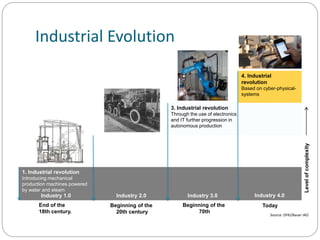
Industrial Evolution
4. Industrial
revolution
Based on cyber-physical-
systems
3. Industrial revolution
Through the use of electronics
and IT further progression in
autonomous production
2. Industrial revolution
Introducing mass production
lines powered by electric
energy
1. Industrial revolution
Introducing mechanical
production machines powered
by water and steam
End of the
18th century.
Beginning of the
20th century
Beginning of the
70th
Industry 1.0 Industry 3.0Industry 2.0 Industry 4.0
Levelofcomplexity
Today
Source: DFKI/Bauer IAO
Phases of earlier 3 Industrial Revolutions
1. 1760 to 1840 - Ushered in Mechanical production; railways and steam
engine
2. 1870 to 1940 - Mass production; electricity and assembly line
3. 1960 to 2010 - Computers; semi conductors, main frame computing,
personal devices, internet
Did not exist in 2006
 iPhone
 iPad
 Kindle
 4G
 Uber
 Airbnb
 Android
► Oculus
► Instagram
► Android
► Snapchat
► Whatsapp
Time to reach 100 Million customers
 Telephone >> 75 Years
 Web>>7 Years
 Facebook>>4 Years
 Instagram >> 2 Years
 Pokemon Go >> 1 Month
Cyber Physical Systems
A cyber-physical system (CPS) is a system of collaborating computational elements
controlling physical entities. CPS are physical and engineered systems whose
operations are monitored, coordinated, controlled and integrated by a computing and
communication core. They allow us to add capabilities to physical systems by merging
computing and communication with physical processes.
Today’s Factory
Tomorrow’s Factory
Industry 4.0
Six Design Principles
 Interoperability: the ability of cyber-physical systems (i.e. work piece carriers,
assembly stations and products), humans and Smart Factories to connect and
communicate with each other via the Internet of Things and the Internet of
Services
 Virtualization: a virtual copy of the Smart Factory which is created by linking
sensor data (from monitoring physical processes) with virtual plant models and
simulation models
 Decentralization: the ability of cyber-physical systems within Smart Factories
to make decisions on their own
 Real-Time Capability: the capability to collect and analyze data and provide the
insights immediately
 Service Orientation: offering of services (of cyber-physical systems, humans
and Smart Factories) via the Internet of Services
 Modularity: flexible adaptation of Smart Factories for changing requirements
of individual modules
Building blocks of Industry 4.0
Impacting all aspect of value chain
Robots working in Amazon WH
0
5000
10000
15000
20000
25000
30000
35000
40000
45000
2013 2014 2015 2016
Examples of Product evolution:
Connected and smart products
Harvard Business Review
Presentation title
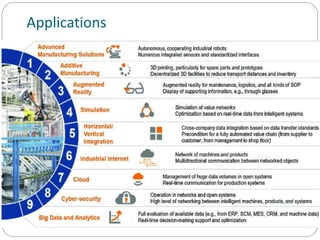
Applications
Impact
Economy
Business
National &
Global
Society
Individual
Impact
Impact
Economy
 Growth
 Ageing
 Productivity
 Employment
 Labour subsititution
 The nature of Work
Impact
Business
 Customer expectations
 Data enhanced products
 Collaborative innovation
 New operating models
Combining digital, physical and biological worlds
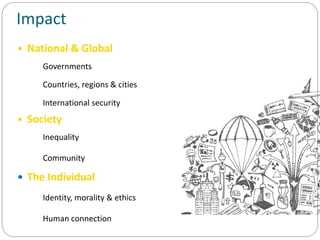
Impact
 National & Global
 Governments
 Countries, regions & cities
 International security
 Society
 Inequality
 Community
 The Individual
 Identity, morality & ethics
 Human connection
INDUSTR
Y4.0
Agility Efficien
cy
Innovatio
n
Top 10 Skills to be relevant in Industry
4.0
Thank YOUVcj.fetr@gmail.com

Industry 4.0 vcj

  • 1.
    By, Mr. Vivek C.Joshi, Assistant Professor, CS&E Department, RNGPIT
  • 2.
    Agenda  Industrial Evolution 4th Industrial Revolution  Building Blocks of Industry 4.0  Application of Industry 4.0  Impact of Industry 4.0
  • 3.
  • 4.
  • 5.
  • 6.
  • 7.
    Industrial Evolution 4. Industrial revolution Basedon cyber-physical- systems 3. Industrial revolution Through the use of electronics and IT further progression in autonomous production 2. Industrial revolution Introducing mass production lines powered by electric energy 1. Industrial revolution Introducing mechanical production machines powered by water and steam End of the 18th century. Beginning of the 20th century Beginning of the 70th Industry 1.0 Industry 3.0Industry 2.0 Industry 4.0 Levelofcomplexity Today Source: DFKI/Bauer IAO
  • 8.
    Phases of earlier3 Industrial Revolutions 1. 1760 to 1840 - Ushered in Mechanical production; railways and steam engine 2. 1870 to 1940 - Mass production; electricity and assembly line 3. 1960 to 2010 - Computers; semi conductors, main frame computing, personal devices, internet
  • 9.
    Did not existin 2006  iPhone  iPad  Kindle  4G  Uber  Airbnb  Android ► Oculus ► Instagram ► Android ► Snapchat ► Whatsapp
  • 10.
    Time to reach100 Million customers  Telephone >> 75 Years  Web>>7 Years  Facebook>>4 Years  Instagram >> 2 Years  Pokemon Go >> 1 Month
  • 12.
    Cyber Physical Systems Acyber-physical system (CPS) is a system of collaborating computational elements controlling physical entities. CPS are physical and engineered systems whose operations are monitored, coordinated, controlled and integrated by a computing and communication core. They allow us to add capabilities to physical systems by merging computing and communication with physical processes.
  • 13.
  • 14.
  • 15.
    Industry 4.0 Six DesignPrinciples  Interoperability: the ability of cyber-physical systems (i.e. work piece carriers, assembly stations and products), humans and Smart Factories to connect and communicate with each other via the Internet of Things and the Internet of Services  Virtualization: a virtual copy of the Smart Factory which is created by linking sensor data (from monitoring physical processes) with virtual plant models and simulation models  Decentralization: the ability of cyber-physical systems within Smart Factories to make decisions on their own  Real-Time Capability: the capability to collect and analyze data and provide the insights immediately  Service Orientation: offering of services (of cyber-physical systems, humans and Smart Factories) via the Internet of Services  Modularity: flexible adaptation of Smart Factories for changing requirements of individual modules
  • 16.
    Building blocks ofIndustry 4.0
  • 17.
    Impacting all aspectof value chain
  • 18.
    Robots working inAmazon WH 0 5000 10000 15000 20000 25000 30000 35000 40000 45000 2013 2014 2015 2016
  • 19.
    Examples of Productevolution: Connected and smart products Harvard Business Review
  • 20.
  • 21.
  • 23.
  • 24.
    Impact Economy  Growth  Ageing Productivity  Employment  Labour subsititution  The nature of Work
  • 25.
    Impact Business  Customer expectations Data enhanced products  Collaborative innovation  New operating models Combining digital, physical and biological worlds
  • 26.
    Impact  National &Global  Governments  Countries, regions & cities  International security  Society  Inequality  Community  The Individual  Identity, morality & ethics  Human connection
  • 28.
  • 29.
    Top 10 Skillsto be relevant in Industry 4.0
  • 30.

Editor's Notes

  • #9 It is possible to apply this template to exiting presentations. Have the latest presentation template open Click on the View tab and select Normal Delete all unwanted slides Click on the Insert tab from the menu bar and select Slides from Files Click on Browse. Navigate to the presentation you wish to update with the new template. Highlight the presentation and click Open Wait for the slides from the presentation to load and click on Insert All. Then click Close Check the inserted slides to ensure that the most appropriate master slide has been used on each slide To change the master applied to a slide select the slide you wish to apply a different master to then click on the Format tab from the menu bar and select Slide Design From the Used in This Presentation section choose the master you wish to apply to the slide and hover over it to reveal a drop-down arrow. Click on the arrow and select Apply to Selected Slides It is important to thoroughly check the presentation to ensure that no further formatting is needed.
  • #13 CPS benefits: • Safer and more efficient systems • Reduce the cost of building and operating the systems • Build complex systems that provide new capabilities • Reduced cost of computation, networking, and sensing • Enables national or global scale CPS’s
  • #24 It is possible to apply this template to exiting presentations. Have the latest presentation template open Click on the View tab and select Normal Delete all unwanted slides Click on the Insert tab from the menu bar and select Slides from Files Click on Browse. Navigate to the presentation you wish to update with the new template. Highlight the presentation and click Open Wait for the slides from the presentation to load and click on Insert All. Then click Close Check the inserted slides to ensure that the most appropriate master slide has been used on each slide To change the master applied to a slide select the slide you wish to apply a different master to then click on the Format tab from the menu bar and select Slide Design From the Used in This Presentation section choose the master you wish to apply to the slide and hover over it to reveal a drop-down arrow. Click on the arrow and select Apply to Selected Slides It is important to thoroughly check the presentation to ensure that no further formatting is needed.
  • #25 It is possible to apply this template to exiting presentations. Have the latest presentation template open Click on the View tab and select Normal Delete all unwanted slides Click on the Insert tab from the menu bar and select Slides from Files Click on Browse. Navigate to the presentation you wish to update with the new template. Highlight the presentation and click Open Wait for the slides from the presentation to load and click on Insert All. Then click Close Check the inserted slides to ensure that the most appropriate master slide has been used on each slide To change the master applied to a slide select the slide you wish to apply a different master to then click on the Format tab from the menu bar and select Slide Design From the Used in This Presentation section choose the master you wish to apply to the slide and hover over it to reveal a drop-down arrow. Click on the arrow and select Apply to Selected Slides It is important to thoroughly check the presentation to ensure that no further formatting is needed.
  • #26 It is possible to apply this template to exiting presentations. Have the latest presentation template open Click on the View tab and select Normal Delete all unwanted slides Click on the Insert tab from the menu bar and select Slides from Files Click on Browse. Navigate to the presentation you wish to update with the new template. Highlight the presentation and click Open Wait for the slides from the presentation to load and click on Insert All. Then click Close Check the inserted slides to ensure that the most appropriate master slide has been used on each slide To change the master applied to a slide select the slide you wish to apply a different master to then click on the Format tab from the menu bar and select Slide Design From the Used in This Presentation section choose the master you wish to apply to the slide and hover over it to reveal a drop-down arrow. Click on the arrow and select Apply to Selected Slides It is important to thoroughly check the presentation to ensure that no further formatting is needed.
  • #27 It is possible to apply this template to exiting presentations. Have the latest presentation template open Click on the View tab and select Normal Delete all unwanted slides Click on the Insert tab from the menu bar and select Slides from Files Click on Browse. Navigate to the presentation you wish to update with the new template. Highlight the presentation and click Open Wait for the slides from the presentation to load and click on Insert All. Then click Close Check the inserted slides to ensure that the most appropriate master slide has been used on each slide To change the master applied to a slide select the slide you wish to apply a different master to then click on the Format tab from the menu bar and select Slide Design From the Used in This Presentation section choose the master you wish to apply to the slide and hover over it to reveal a drop-down arrow. Click on the arrow and select Apply to Selected Slides It is important to thoroughly check the presentation to ensure that no further formatting is needed.