TRACK WHAT MATTERS MOST
Chad Haefele
Head of User Experience and Assessment
UNC Chapel Hill Libraries
cHaefele@email.unc.edu
Improving Analytics with Google Tag Manager
What is GTM?
• TAG: any bit of code (usually
javascript) you need to insert
into your site.
• Google Analytics basic code:
• Google Analytics Event Tracking:
<script>
(function(i,s,o,g,r,a,m){i['GoogleAnalyticsObject']=r;i[r]=i[r]||function(){
(i[r].q=i[r].q||[]).push(arguments)},i[r].l=1*new Date();a=s.createElement(o),
m=s.getElementsByTagName(o)[0];a.async=1;a.src=g;m.parentNode.inse
rtBefore(a,m) })(window,document,'script','https://www.google-
analytics.com/analytics.js','ga'); ga('create', 'UA-41010981-7', 'auto');
ga('send', 'pageview');</script>
ga('send', 'event', [eventCategory], [eventAction], [eventLabel], [eventValue],
[fieldsObject]);
The problem with Google Analytics
ga('send', 'event', [eventCategory], [eventAction], [eventLabel], [eventValue], [fieldsObject]);
How does GTM fix this?
<!-- Google Tag Manager --
><script>(function(w,d,s,l,i){w[l]=w[l]||[];w[l].push({'gtm.start':new
Date().getTime(),event:'gtm.js'});var
f=d.getElementsByTagName(s)[0],j=d.createElement(s),dl=l!='dataLayer'?'&l
='+l:'';j.async=true;j.src='https://www.googletagmanager.com/gtm.js?id='+i+dl
;f.parentNode.insertBefore(j,f);})(window,document,'script','dataLayer','GTM-
KS5HJD8');</script><!-- End Google Tag Manager -->
<!-- Google Tag Manager (noscript) --><noscript><iframe
src="https://www.googletagmanager.com/ns.html?id=GTM-
KS5HJD8"height="0" width="0"
style="display:none;visibility:hidden"></iframe></noscript><!-- End Google
Tag Manager (noscript) -->
Inside your <head> tag:
Inside your <body> tag:
The only code you ever need to add to your site:
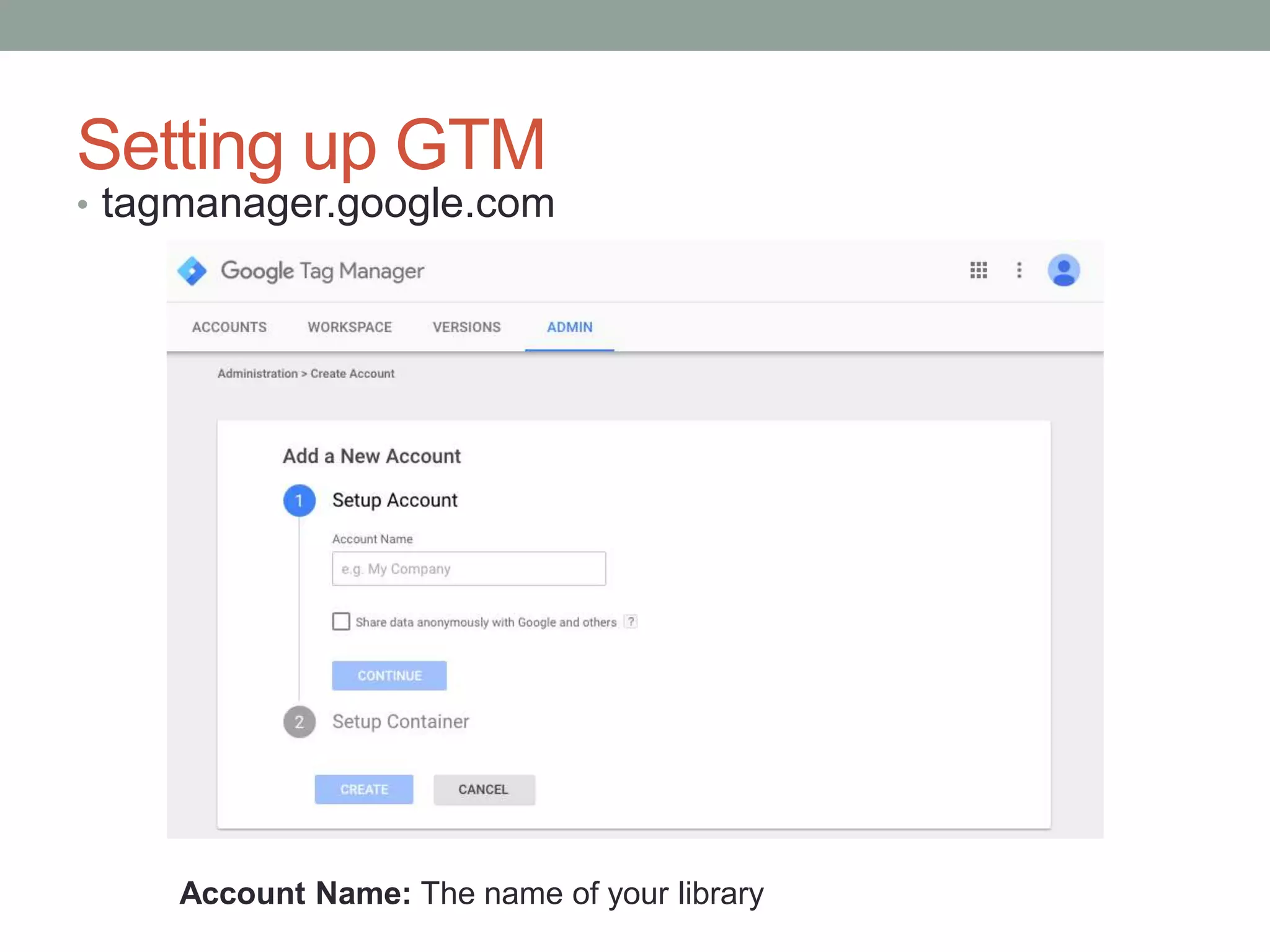
Setting up GTM
• tagmanager.google.com
Account Name: The name of your library
Setting up GTM
• tagmanager.google.com
Container Name: The URL of your library’s website
Where to use Container: Web
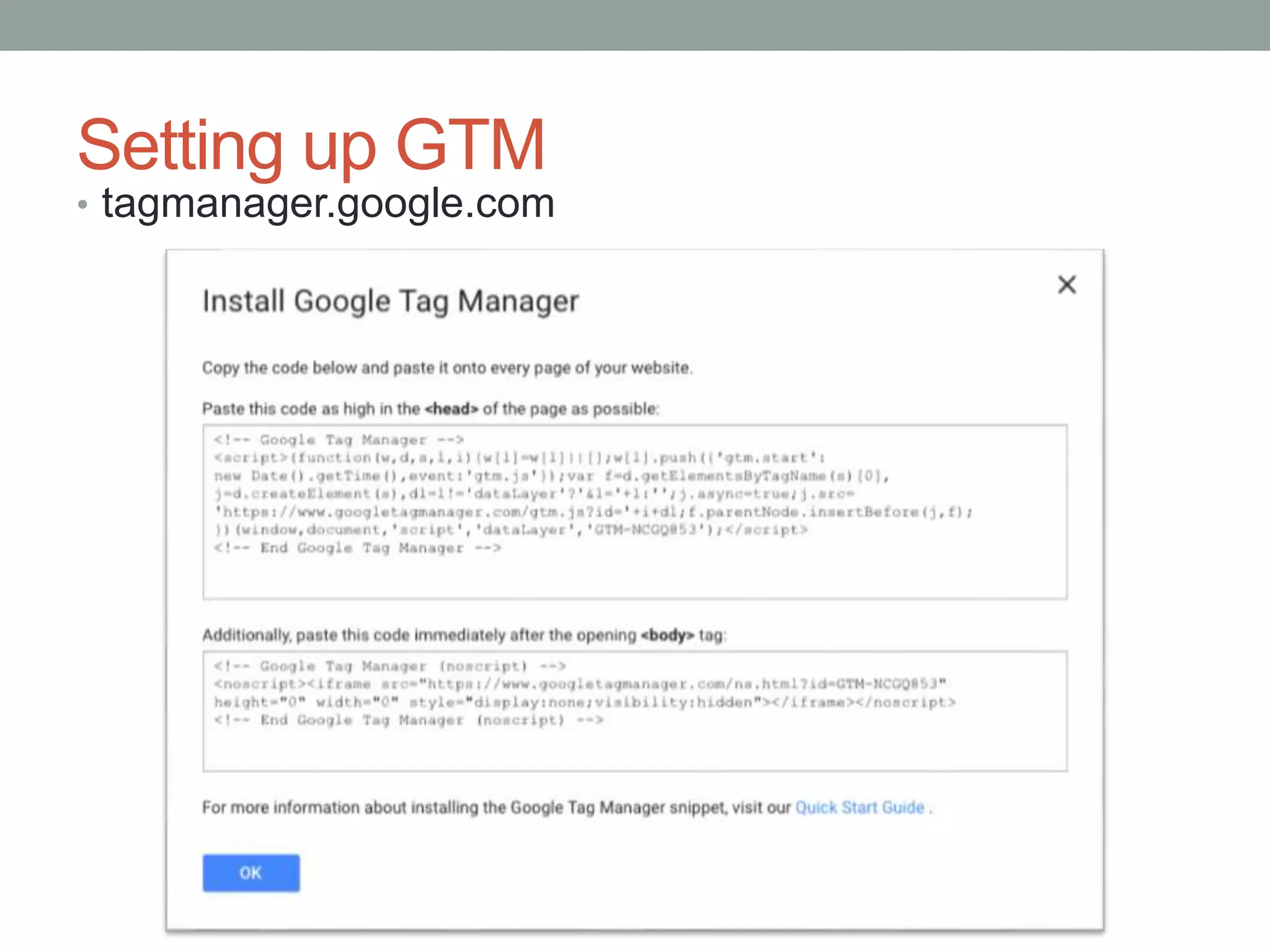
Setting up GTM
• tagmanager.google.com
Setting Up A GTM Account
• If you’re using WordPress, there are plugins to do this part for you.
I like the MetroNet Tag Manager:
http://wordpress.org/extend/plugins/metronet-tag-manager/
• If you previously used Google Analytics, make sure to remove
that code from your site!
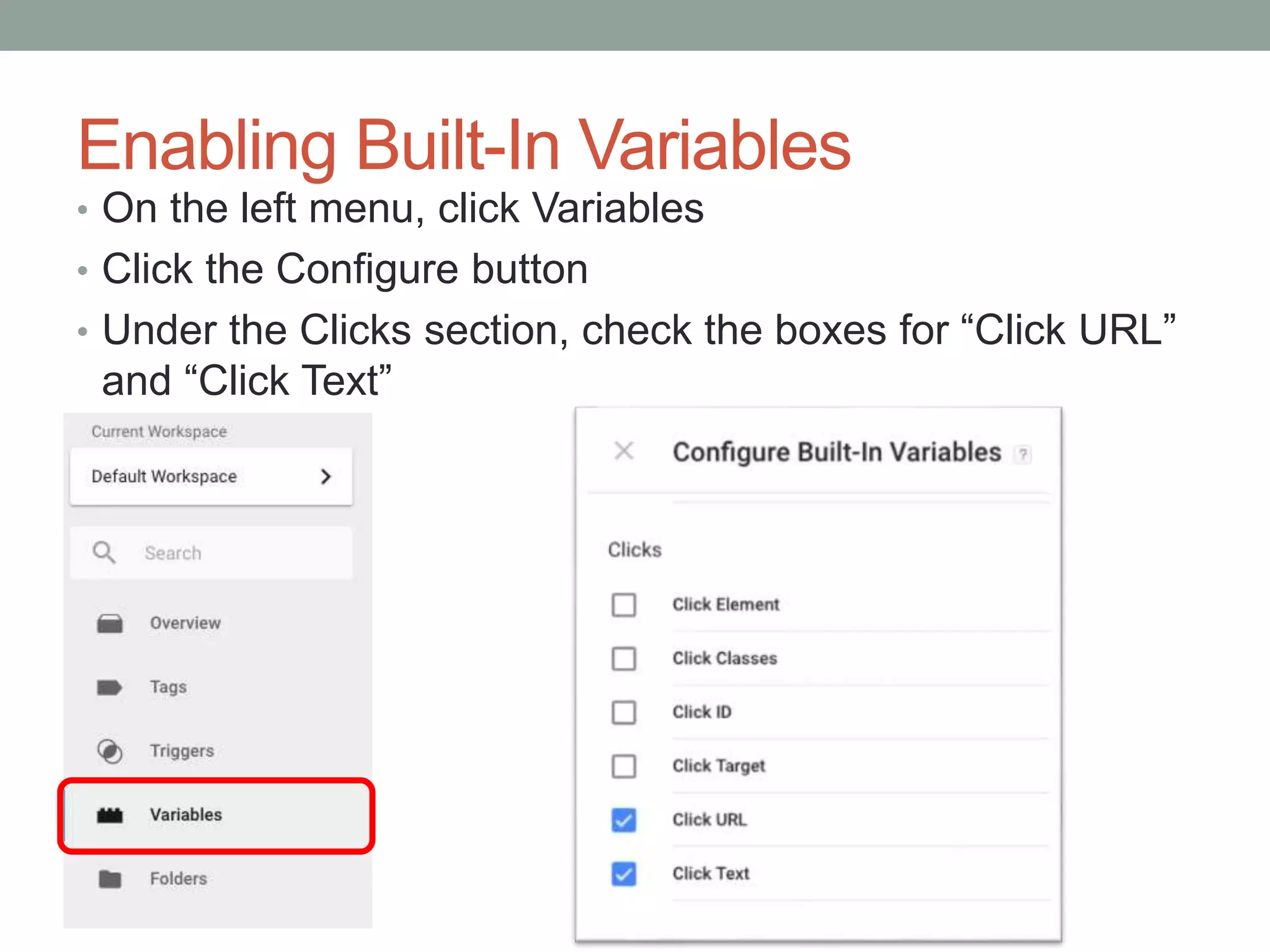
Enabling Built-In Variables
• On the left menu, click Variables
• Click the Configure button
• Under the Clicks section, check the boxes for “Click URL”
and “Click Text”
Terminology
•Tag:
A little bit of code that runs on a page, like event tracking:
•Trigger:
A condition which, when true, will add a tag to your page.
ga('send', 'event', [eventCategory], [eventAction], [eventLabel],
[eventValue], [fieldsObject]);
Deploying Google Analytics with GTM
• In Tags, click on New
• Give your tag a name like Universal Analytics
• Click “Tag Configuration”
• Choose Universal Analytics
• Enter your Google Analytics Tracking ID
• Set the Track Type to “Page View”
• Click “Triggering”
• Select “All Pages”
• Click “Save”
• Click “Publish”
• Check the Real-Time section of Google Analytics to make
sure data is being reported as you browse your site.
Implementing Universal Link Tracking
• In Triggers, click New
• Give your trigger name, like Any Link Clicked
• Click on Trigger Configuration
• In the “Click” section, pick “Just Links”, then Save
• In Tags, click New.
• Give it a name like Universal Link Tracking
• Click on Tag Configuration, then Universal Analytics
• Insert Tracking ID
• Set the Track Type to Event
• Category: Universal Link Tracking
• Action: Link Clicked
• Label: Click the + icon and pick the Click URL variable
• Click the Triggering section at the bottom of the page.
• Select your Any Link Clicked trigger that we made
• Click Save
• Publish it
• Check Real-Time info in GA to see if it’s working
Tracking Your E-Resource Usage
• In Triggers, click New
• Give your trigger a name, like E-Resource Click
• Click Trigger Configuration
• In the “Click” section, pick “Just Links”
• Pick “Some Link Clicks”
• Set the boxes to “Click URL”, “contains”, and a unique string that’s part of all your e-
resource URLs (for me it’s go.php?c=)
• click Save
• In Tags, click New
• Give it a name like E-Resource Link Tracking
• Click on Tag Configuration, then Universal Analytics
• Insert Tracking ID
• Set the Track Type to Event
• Category: E-Resource Link Clicks
• Action: Link Clicked
• Label: Click the + icon and pick the Click Text variable
• Click the Triggering section at the bottom of the page.
• Select the E-Resource Click trigger we made
• Click Save
• Publish it
• Check Real-Time info in GA to see if it’s working
Tracking Your PDF Downloads
• In Triggers, click New
• Give your trigger a name, like PDF Click
• Click Trigger Configuration
• In the “Click” section, pick “Just Links”
• Pick “Some Link Clicks”
• Set the boxes to “Click URL”, “contains”, .pdf
• click Save
• In Tags, click New
• Give it a name like PDF click Tracking
• Click on Tag Configuration, then Universal Analytics
• Insert Tracking ID
• Set the Track Type to Event
• Category: PDF Downloads
• Action: Link Clicked
• Label: Click the + icon and pick the Click URL variable
• Click the Triggering section at the bottom of the page.
• Select the PDF Click trigger we made
• Click Save
• Publish it
• Check Real-Time info in GA to see if it’s working
Troubleshooting GTM
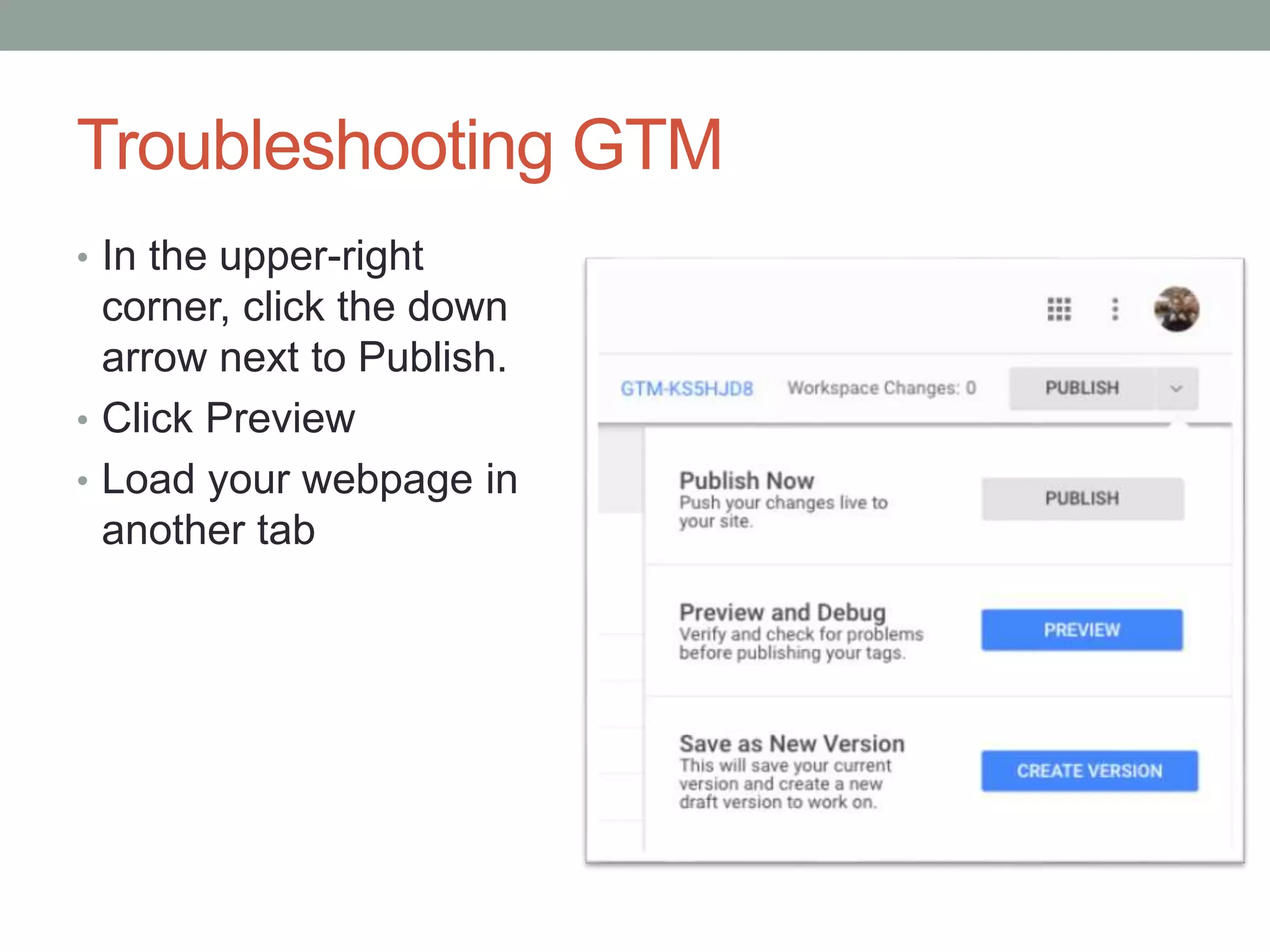
• In the upper-right
corner, click the down
arrow next to Publish.
• Click Preview
• Load your webpage in
another tab
Troubleshooting GTM
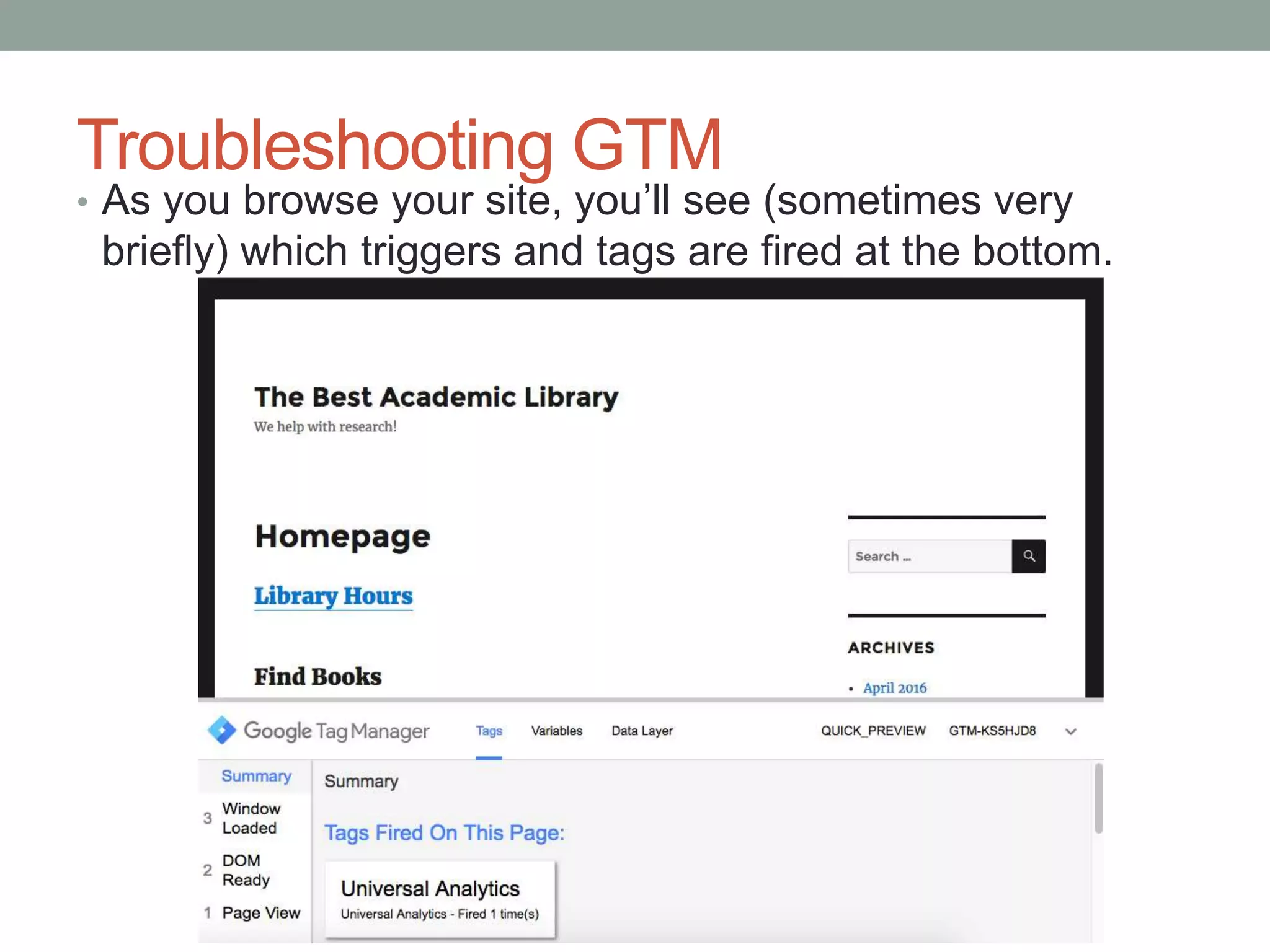
• As you browse your site, you’ll see (sometimes very
briefly) which triggers and tags are fired at the bottom.
Troubleshooting GTM
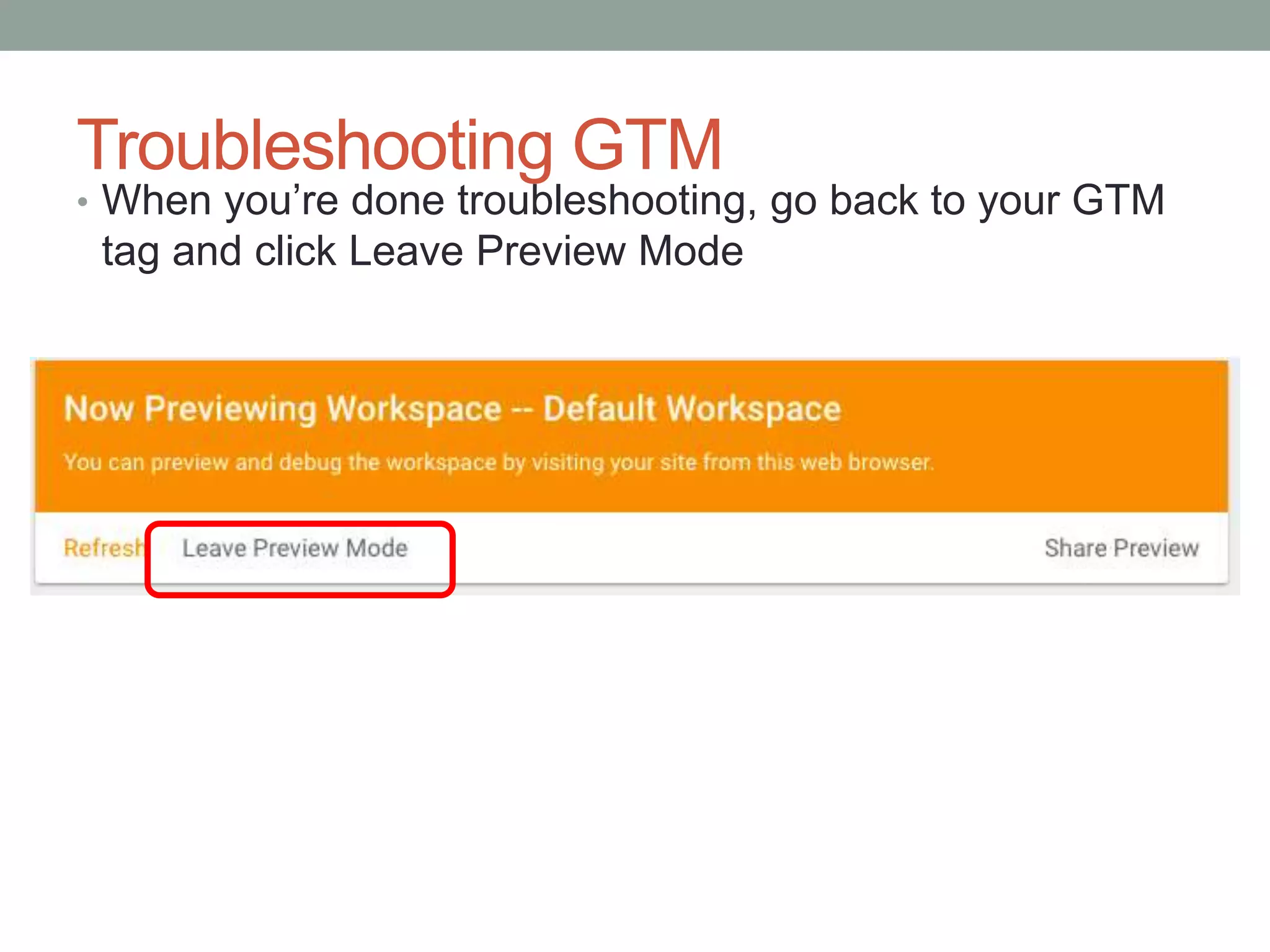
• When you’re done troubleshooting, go back to your GTM
tag and click Leave Preview Mode
Other Resources
• ALA’s Library Technology Report on Google Analytics and
Google Tag Manager, by Tabatha Farney
• https://journals.ala.org/index.php/ltr/issue/view/613
• Google Tag Manager Fundamentals course:
• https://analyticsacademy.withgoogle.com/course/5
• Uses an old version of the GTM interface
• Lynda.com’s GTM course
• https://www.lynda.com/Google-Tag-Manager-tutorials/Google-Tag-
Manager-V2-Essential-Training/168238-2.html
• Uses an old version of the GTM interface
• Google Tag Manager support
• https://support.google.com/tagmanager/
• Autotrack.js for an alternate method of setting up tracking:
• https://github.com/googleanalytics/autotrack/blob/master/README.
md
TRACK WHAT MATTERS MOST
Chad Haefele
Head of User Experience and Assessment
UNC Chapel Hill Libraries
cHaefele@email.unc.edu
Improving Analytics with Google Tag Manager

Improving Analytics with Google Tag Manager

  • 1.
    TRACK WHAT MATTERSMOST Chad Haefele Head of User Experience and Assessment UNC Chapel Hill Libraries cHaefele@email.unc.edu Improving Analytics with Google Tag Manager
  • 2.
    What is GTM? •TAG: any bit of code (usually javascript) you need to insert into your site.
  • 3.
    • Google Analyticsbasic code: • Google Analytics Event Tracking: <script> (function(i,s,o,g,r,a,m){i['GoogleAnalyticsObject']=r;i[r]=i[r]||function(){ (i[r].q=i[r].q||[]).push(arguments)},i[r].l=1*new Date();a=s.createElement(o), m=s.getElementsByTagName(o)[0];a.async=1;a.src=g;m.parentNode.inse rtBefore(a,m) })(window,document,'script','https://www.google- analytics.com/analytics.js','ga'); ga('create', 'UA-41010981-7', 'auto'); ga('send', 'pageview');</script> ga('send', 'event', [eventCategory], [eventAction], [eventLabel], [eventValue], [fieldsObject]);
  • 4.
    The problem withGoogle Analytics ga('send', 'event', [eventCategory], [eventAction], [eventLabel], [eventValue], [fieldsObject]);
  • 5.
    How does GTMfix this? <!-- Google Tag Manager -- ><script>(function(w,d,s,l,i){w[l]=w[l]||[];w[l].push({'gtm.start':new Date().getTime(),event:'gtm.js'});var f=d.getElementsByTagName(s)[0],j=d.createElement(s),dl=l!='dataLayer'?'&l ='+l:'';j.async=true;j.src='https://www.googletagmanager.com/gtm.js?id='+i+dl ;f.parentNode.insertBefore(j,f);})(window,document,'script','dataLayer','GTM- KS5HJD8');</script><!-- End Google Tag Manager --> <!-- Google Tag Manager (noscript) --><noscript><iframe src="https://www.googletagmanager.com/ns.html?id=GTM- KS5HJD8"height="0" width="0" style="display:none;visibility:hidden"></iframe></noscript><!-- End Google Tag Manager (noscript) --> Inside your <head> tag: Inside your <body> tag: The only code you ever need to add to your site:
  • 6.
    Setting up GTM •tagmanager.google.com Account Name: The name of your library
  • 7.
    Setting up GTM •tagmanager.google.com Container Name: The URL of your library’s website Where to use Container: Web
  • 8.
    Setting up GTM •tagmanager.google.com
  • 9.
    Setting Up AGTM Account • If you’re using WordPress, there are plugins to do this part for you. I like the MetroNet Tag Manager: http://wordpress.org/extend/plugins/metronet-tag-manager/ • If you previously used Google Analytics, make sure to remove that code from your site!
  • 10.
    Enabling Built-In Variables •On the left menu, click Variables • Click the Configure button • Under the Clicks section, check the boxes for “Click URL” and “Click Text”
  • 11.
    Terminology •Tag: A little bitof code that runs on a page, like event tracking: •Trigger: A condition which, when true, will add a tag to your page. ga('send', 'event', [eventCategory], [eventAction], [eventLabel], [eventValue], [fieldsObject]);
  • 12.
    Deploying Google Analyticswith GTM • In Tags, click on New • Give your tag a name like Universal Analytics • Click “Tag Configuration” • Choose Universal Analytics • Enter your Google Analytics Tracking ID • Set the Track Type to “Page View” • Click “Triggering” • Select “All Pages” • Click “Save” • Click “Publish” • Check the Real-Time section of Google Analytics to make sure data is being reported as you browse your site.
  • 13.
    Implementing Universal LinkTracking • In Triggers, click New • Give your trigger name, like Any Link Clicked • Click on Trigger Configuration • In the “Click” section, pick “Just Links”, then Save • In Tags, click New. • Give it a name like Universal Link Tracking • Click on Tag Configuration, then Universal Analytics • Insert Tracking ID • Set the Track Type to Event • Category: Universal Link Tracking • Action: Link Clicked • Label: Click the + icon and pick the Click URL variable • Click the Triggering section at the bottom of the page. • Select your Any Link Clicked trigger that we made • Click Save • Publish it • Check Real-Time info in GA to see if it’s working
  • 14.
    Tracking Your E-ResourceUsage • In Triggers, click New • Give your trigger a name, like E-Resource Click • Click Trigger Configuration • In the “Click” section, pick “Just Links” • Pick “Some Link Clicks” • Set the boxes to “Click URL”, “contains”, and a unique string that’s part of all your e- resource URLs (for me it’s go.php?c=) • click Save • In Tags, click New • Give it a name like E-Resource Link Tracking • Click on Tag Configuration, then Universal Analytics • Insert Tracking ID • Set the Track Type to Event • Category: E-Resource Link Clicks • Action: Link Clicked • Label: Click the + icon and pick the Click Text variable • Click the Triggering section at the bottom of the page. • Select the E-Resource Click trigger we made • Click Save • Publish it • Check Real-Time info in GA to see if it’s working
  • 15.
    Tracking Your PDFDownloads • In Triggers, click New • Give your trigger a name, like PDF Click • Click Trigger Configuration • In the “Click” section, pick “Just Links” • Pick “Some Link Clicks” • Set the boxes to “Click URL”, “contains”, .pdf • click Save • In Tags, click New • Give it a name like PDF click Tracking • Click on Tag Configuration, then Universal Analytics • Insert Tracking ID • Set the Track Type to Event • Category: PDF Downloads • Action: Link Clicked • Label: Click the + icon and pick the Click URL variable • Click the Triggering section at the bottom of the page. • Select the PDF Click trigger we made • Click Save • Publish it • Check Real-Time info in GA to see if it’s working
  • 16.
    Troubleshooting GTM • Inthe upper-right corner, click the down arrow next to Publish. • Click Preview • Load your webpage in another tab
  • 17.
    Troubleshooting GTM • Asyou browse your site, you’ll see (sometimes very briefly) which triggers and tags are fired at the bottom.
  • 18.
    Troubleshooting GTM • Whenyou’re done troubleshooting, go back to your GTM tag and click Leave Preview Mode
  • 19.
    Other Resources • ALA’sLibrary Technology Report on Google Analytics and Google Tag Manager, by Tabatha Farney • https://journals.ala.org/index.php/ltr/issue/view/613 • Google Tag Manager Fundamentals course: • https://analyticsacademy.withgoogle.com/course/5 • Uses an old version of the GTM interface • Lynda.com’s GTM course • https://www.lynda.com/Google-Tag-Manager-tutorials/Google-Tag- Manager-V2-Essential-Training/168238-2.html • Uses an old version of the GTM interface • Google Tag Manager support • https://support.google.com/tagmanager/ • Autotrack.js for an alternate method of setting up tracking: • https://github.com/googleanalytics/autotrack/blob/master/README. md
  • 20.
    TRACK WHAT MATTERSMOST Chad Haefele Head of User Experience and Assessment UNC Chapel Hill Libraries cHaefele@email.unc.edu Improving Analytics with Google Tag Manager