Q Replication tutorial
Learn how to use the high-speed Q Replication technology to replicate data over message
queues.
Learning objectives
After you complete this tutorial, you will know how to:
 Create and use IBM® MQ queue managers, queues, and channels.
 Enable a Db2® database for replication.
 Set up and operate the Q Capture and Q Apply programs.
 Configure the Q Capture and Q Apply programs to use the queues.
 Create a Q subscription to map a source table to a target table.
 Introduction to the Q Replication tutorial
This tutorial shows you how to set up a simple Q Replication scenario: one-way or
unidirectional replication between two databases. You will also learn how to create and
use IBM MQ queue managers, message queues, and channels that transport the messages
for replication.
 Module 1: Setting up MQ
In this module, you will create all of the IBM MQ objects for replication between a
source and target. You start by creating the queue managers, which manage
communication on the MQ messaging system.
 Module 2: Setting up Q Replication
In this module, you configure your databases and create the control tables, replication
queue maps, and Q subscriptions.
 Module 3: Starting Q Replication
In this module, you start the Q Capture and Q Apply programs. You started the IBM MQ
channels and listeners in an earlier lesson, starting the capture and apply programs begins
replicating data between the databases.
 Summary and resources
In this tutorial, you learned how to use one of several types of Q Replication:
unidirectional between two remote databases.
Introduction to the Q Replication tutorial
This tutorial shows you how to set up a simple Q Replication scenario: one-way or
unidirectional replication between two databases. You will also learn how to create and use
IBM® MQ queue managers, message queues, and channels that transport the messages for
replication.
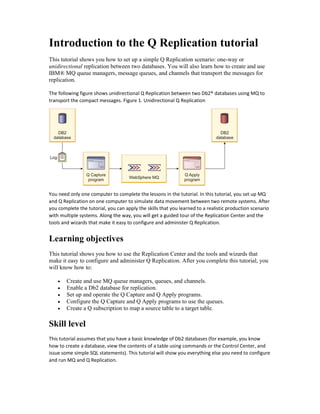
The following figure shows unidirectional Q Replication between two Db2® databases using MQ to
transport the compact messages. Figure 1. Unidirectional Q Replication
You need only one computer to complete the lessons in the tutorial. In this tutorial, you set up MQ
and Q Replication on one computer to simulate data movement between two remote systems. After
you complete the tutorial, you can apply the skills that you learned to a realistic production scenario
with multiple systems. Along the way, you will get a guided tour of the Replication Center and the
tools and wizards that make it easy to configure and administer Q Replication.
Learning objectives
This tutorial shows you how to use the Replication Center and the tools and wizards that
make it easy to configure and administer Q Replication. After you complete this tutorial, you
will know how to:
 Create and use MQ queue managers, queues, and channels.
 Enable a Db2 database for replication.
 Set up and operate the Q Capture and Q Apply programs.
 Configure the Q Capture and Q Apply programs to use the queues.
 Create a Q subscription to map a source table to a target table.
Skill level
This tutorial assumes that you have a basic knowledge of Db2 databases (for example, you know
how to create a database, view the contents of a table using commands or the Control Center, and
issue some simple SQL statements). This tutorial will show you everything else you need to configure
and run MQ and Q Replication.
System requirements
To complete the steps in the tutorial, you will need the following software:
 IBM InfoSphere® Replication Server
 IBM MQ
This tutorial will work on any of the supported platforms for Q Replication.
Prerequisites
After you install the replication server, you need to prepare your databases:
 Create the SAMPLE database by clicking Create Sample Database in the Db2 First
Steps Launchpad or by using the db2sampl command.
 Create another database named TARGETDB within the default Db2 instance.
Module 1: Setting up MQ
In this module, you will create all of the IBM® MQ objects for replication between a source
and target. You start by creating the queue managers, which manage communication on the
MQ messaging system.
In this tutorial, unidirectional replication uses two queue managers. One queue manager will
manage queues and messages for the source database, and the other will manage queues and
messages for the target database.
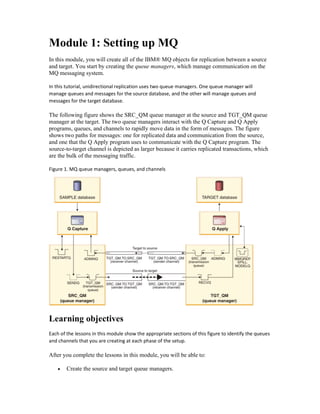
The following figure shows the SRC_QM queue manager at the source and TGT_QM queue
manager at the target. The two queue managers interact with the Q Capture and Q Apply
programs, queues, and channels to rapidly move data in the form of messages. The figure
shows two paths for messages: one for replicated data and communication from the source,
and one that the Q Apply program uses to communicate with the Q Capture program. The
source-to-target channel is depicted as larger because it carries replicated transactions, which
are the bulk of the messaging traffic.
Figure 1. MQ queue managers, queues, and channels
Learning objectives
Each of the lessons in this module show the appropriate sections of this figure to identify the queues
and channels that you are creating at each phase of the setup.
After you complete the lessons in this module, you will be able to:
 Create the source and target queue managers.
 Start the queue managers.
 Create the source queues.
 Create the target queues.
 Create the MQ channels.
 Start the MQ channels and listeners.
 Lesson 1.1: Creating the source and target queue managers
In this lesson, you will create and start the queue managers for the source and target
systems.
 Lesson 1.2: Creating the source queues
In this lesson, you define four queues at the source system.
 Lesson 1.3: Creating the target queues
In this lesson, you define four queues at the target system.
 Lesson 1.4: Creating MQ channels
IBM MQ uses channels to transmit messages between queue managers. In this lesson,
you define the channels between the source and target queue managers in both
directions.
 Lesson 1.5: Starting MQ channels and listeners
In this lesson, you start your two IBM MQ channels at the sender ends of each
channel, and start a listener at the receiving ends of each channel to monitor for
incoming messages.
Lesson 1.1: Creating the source and target
queue managers
In this lesson, you will create and start the queue managers for the source and target systems.
Queue managers manage the queues and messages. Both the source and target systems require
queue managers.
To create and start the queue managers, type (or copy and paste) the following commands
into an operating system command window:
1. Create the source queue manager:
crtmqm SRC_QM
2. Create the target queue manager:
crtmqm TGT_QM
3. Start the source queue manager:
strmqm SRC_QM
4. Start the target queue manager:
strmqm TGT_QM
Now that you created and started the two queue managers, you can use them to create the queues
and channels.
Lesson 1.2: Creating the source queues
In this lesson, you define four queues at the source system.
A queue is a data structure that is used to store messages. Each queue is owned by a queue
manager.
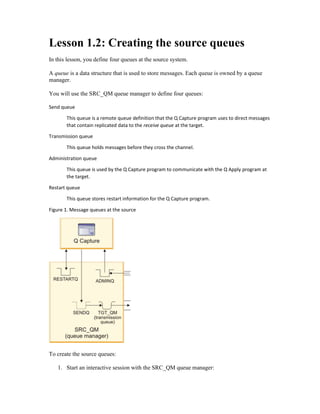
You will use the SRC_QM queue manager to define four queues:
Send queue
This queue is a remote queue definition that the Q Capture program uses to direct messages
that contain replicated data to the receive queue at the target.
Transmission queue
This queue holds messages before they cross the channel.
Administration queue
This queue is used by the Q Capture program to communicate with the Q Apply program at
the target.
Restart queue
This queue stores restart information for the Q Capture program.
Figure 1. Message queues at the source
To create the source queues:
1. Start an interactive session with the SRC_QM queue manager:
runmqsc SRC_QM
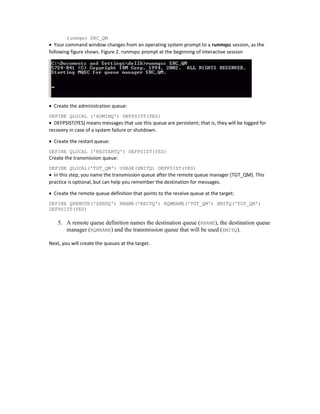
 Your command window changes from an operating system prompt to a runmqsc session, as the
following figure shows. Figure 2. runmqsc prompt at the beginning of interactive session
 Create the administration queue:
DEFINE QLOCAL ('ADMINQ') DEFPSIST(YES)
 DEFPSIST(YES) means messages that use this queue are persistent; that is, they will be logged for
recovery in case of a system failure or shutdown.
 Create the restart queue:
DEFINE QLOCAL ('RESTARTQ') DEFPSIST(YES)
Create the transmission queue:
DEFINE QLOCAL('TGT_QM') USAGE(XMITQ) DEFPSIST(YES)
 In this step, you name the transmission queue after the remote queue manager (TGT_QM). This
practice is optional, but can help you remember the destination for messages.
 Create the remote queue definition that points to the receive queue at the target:
DEFINE QREMOTE('SENDQ') RNAME('RECVQ') RQMNAME('TGT_QM') XMITQ('TGT_QM')
DEFPSIST(YES)
5. A remote queue definition names the destination queue (RNAME), the destination queue
manager (RQMNAME) and the transmission queue that will be used (XMITQ).
Next, you will create the queues at the target.
Lesson 1.3: Creating the target queues
In this lesson, you define four queues at the target system.
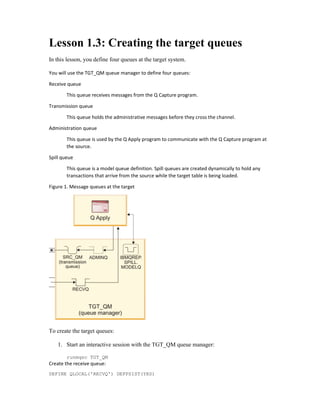
You will use the TGT_QM queue manager to define four queues:
Receive queue
This queue receives messages from the Q Capture program.
Transmission queue
This queue holds the administrative messages before they cross the channel.
Administration queue
This queue is used by the Q Apply program to communicate with the Q Capture program at
the source.
Spill queue
This queue is a model queue definition. Spill queues are created dynamically to hold any
transactions that arrive from the source while the target table is being loaded.
Figure 1. Message queues at the target
To create the target queues:
1. Start an interactive session with the TGT_QM queue manager:
runmqsc TGT_QM
Create the receive queue:
DEFINE QLOCAL('RECVQ') DEFPSIST(YES)
 DEFPSIST(YES) means messages that use this queue are persistent; that is, they will be logged for
recovery in case of a system failure or shutdown.
 Create the target transmission queue:
DEFINE QLOCAL('SRC_QM') USAGE(XMITQ) DEFPSIST(YES)
 In this step, you name the transmission queue after the remote queue manager (SRC_QM). This
practice is optional, but can help you remember the destination for messages.
 Create the remote queue definition that points to the source administration queue:
DEFINE QREMOTE('ADMINQ') RNAME('ADMINQ') RQMNAME('SRC_QM') XMITQ('SRC_QM')
DEFPSIST(YES)
Create the model queue definition for spill queues:
DEFINE QMODEL('IBMQREP.SPILL.MODELQ') MSGDLVSQ(FIFO) DEFTYPE(PERMDYN)
The source and target queues are ready. Next, you will create the channels to connect them.
Lesson 1.4: Creating MQ channels
IBM® MQ uses channels to transmit messages between queue managers. In this lesson, you
define the channels between the source and target queue managers in both directions.
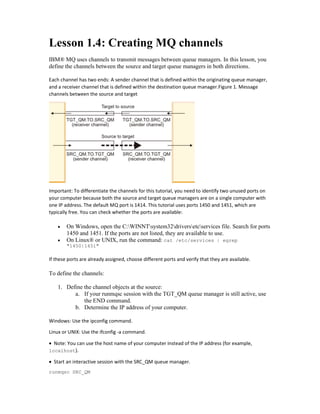
Each channel has two ends: A sender channel that is defined within the originating queue manager,
and a receiver channel that is defined within the destination queue manager.Figure 1. Message
channels between the source and target
Important: To differentiate the channels for this tutorial, you need to identify two unused ports on
your computer because both the source and target queue managers are on a single computer with
one IP address. The default MQ port is 1414. This tutorial uses ports 1450 and 1451, which are
typically free. You can check whether the ports are available:
 On Windows, open the C:WINNTsystem32driversetcservices file. Search for ports
1450 and 1451. If the ports are not listed, they are available to use.
 On Linux® or UNIX, run the command: cat /etc/services | egrep
"1450|1451"
If these ports are already assigned, choose different ports and verify that they are available.
To define the channels:
1. Define the channel objects at the source:
a. If your runmqsc session with the TGT_QM queue manager is still active, use
the END command.
b. Determine the IP address of your computer.
Windows: Use the ipconfig command.
Linux or UNIX: Use the ifconfig -a command.
 Note: You can use the host name of your computer instead of the IP address (for example,
localhost).
 Start an interactive session with the SRC_QM queue manager.
runmqsc SRC_QM
Define the sender channel from the SRC_QM queue manager to the TGT_QM queue manager. Use
the TCP/IP transmission protocol.
Important: Replace IP_address with the IP address of your computer and replace port with 1450 or
the alternate port that you determined earlier.
DEFINE CHL ('SRC_QM.TO.TGT_QM') CHLTYPE(SDR) TRPTYPE(TCP) CONNAME
('IP_address(port)') XMITQ('TGT_QM') DISCINT(0)
Define a receiver channel at the SRC_QM queue manager from the TGT_QM queue manager.
DEFINE CHL ('TGT_QM.TO.SRC_QM') CHLTYPE(RCVR) TRPTYPE(TCP)
Define the channel objects at the target.
Within the target queue manager, you will define a sender channel for communicating with the Q
Capture program, and a receiver channel for transaction messages from the Q Capture program.
a. If your runmqsc session with the SRC_QM queue manager is still active, use the END
command to end the session.
b. Start an interactive session with the TGT_QM queue manager.
runmqsc TGT_QM
Define a sender channel from the TGT_QM queue manager to the SRC_QM queue manager.
Important: Replace IP_address with the IP address or host name of your computer and replace port
with 1451 or the alternate port that you determined earlier.
DEFINE CHL ('TGT_QM.TO.SRC_QM') CHLTYPE(SDR) TRPTYPE(TCP)
CONNAME('IP_address(port)') XMITQ('SRC_QM') DISCINT(0)
Define a receiver channel at the TGT_QM queue manager from the SRC_QM queue manager.
DEFINE CHL ('SRC_QM.TO.TGT_QM') CHLTYPE(RCVR) TRPTYPE(TCP)
2.
e. Use the END command to end your runmqsc session with the TGT_QM queue
manager.
At this point you created the MQ objects that you will need to connect the source and target
databases. In the next lesson, you will start the channels and the listeners.
Lesson 1.5: Starting MQ channels and
listeners
Last Updated: 2022-02-15
In this lesson, you start your two IBM® MQ channels at the sender ends of each channel, and
start a listener at the receiving ends of each channel to monitor for incoming messages.
Prerequisite: Make sure that the SRC_QM queue manager at the source and TGT_QM queue
manager at the target are running by issuing these commands:
strmqm SRC_QM
strmqm TGT_QM
To start the MQ channels and listeners:
1. Start the listener at the source for the receiver end of the channel from the target, by
using TCP/IP protocol for queue manager SRC_QM, port 1451 (if you used a port
other than 1451 in lesson 1.4, substitute the appropriate port number in the
command):
runmqlsr -t tcp -m SRC_QM -p 1451
 Tip: On Windows, you can also use the start runmqlsr command to open a new command
window for the listener so that you can continue using your current command window. You can do
the same thing on Linux® and UNIX by adding a space and ampersand (&) to the end of the
command.
 Start an interactive session with the SRC_QM queue manager.
runmqsc SRC_QM
Start the sender channel at the source.
start channel (SRC_QM.TO.TGT_QM)
Use the END command to stop the interactive session with the source queue manager.
end
Start the listener at the target for the receiver end of the channel from the source, by using TCP/IP
protocol for queue manager TGT_QM, port 1450 (if you used a port other than 1450 in lesson 1.4,
substitute the appropriate port number in the command):
runmqlsr -t tcp -m TGT_QM -p 1450
Start an interactive session with the TGT_QM queue manager.
runmqsc TGT_QM
Start the sender channel at the target.
start channel (TGT_QM.TO.SRC_QM)
Use the END command to stop the interactive session with the target queue manager.
end
You set up and started the MQ objects for unidirectional replication using two queue managers to
simulate replication between two remote database. Next, you will set up the Q Replication
programs.

IBM_Q-Rep-Tutorial

  • 1.
    Q Replication tutorial Learnhow to use the high-speed Q Replication technology to replicate data over message queues. Learning objectives After you complete this tutorial, you will know how to:  Create and use IBM® MQ queue managers, queues, and channels.  Enable a Db2® database for replication.  Set up and operate the Q Capture and Q Apply programs.  Configure the Q Capture and Q Apply programs to use the queues.  Create a Q subscription to map a source table to a target table.  Introduction to the Q Replication tutorial This tutorial shows you how to set up a simple Q Replication scenario: one-way or unidirectional replication between two databases. You will also learn how to create and use IBM MQ queue managers, message queues, and channels that transport the messages for replication.  Module 1: Setting up MQ In this module, you will create all of the IBM MQ objects for replication between a source and target. You start by creating the queue managers, which manage communication on the MQ messaging system.  Module 2: Setting up Q Replication In this module, you configure your databases and create the control tables, replication queue maps, and Q subscriptions.  Module 3: Starting Q Replication In this module, you start the Q Capture and Q Apply programs. You started the IBM MQ channels and listeners in an earlier lesson, starting the capture and apply programs begins replicating data between the databases.  Summary and resources In this tutorial, you learned how to use one of several types of Q Replication: unidirectional between two remote databases.
  • 2.
    Introduction to theQ Replication tutorial This tutorial shows you how to set up a simple Q Replication scenario: one-way or unidirectional replication between two databases. You will also learn how to create and use IBM® MQ queue managers, message queues, and channels that transport the messages for replication. The following figure shows unidirectional Q Replication between two Db2® databases using MQ to transport the compact messages. Figure 1. Unidirectional Q Replication You need only one computer to complete the lessons in the tutorial. In this tutorial, you set up MQ and Q Replication on one computer to simulate data movement between two remote systems. After you complete the tutorial, you can apply the skills that you learned to a realistic production scenario with multiple systems. Along the way, you will get a guided tour of the Replication Center and the tools and wizards that make it easy to configure and administer Q Replication. Learning objectives This tutorial shows you how to use the Replication Center and the tools and wizards that make it easy to configure and administer Q Replication. After you complete this tutorial, you will know how to:  Create and use MQ queue managers, queues, and channels.  Enable a Db2 database for replication.  Set up and operate the Q Capture and Q Apply programs.  Configure the Q Capture and Q Apply programs to use the queues.  Create a Q subscription to map a source table to a target table. Skill level This tutorial assumes that you have a basic knowledge of Db2 databases (for example, you know how to create a database, view the contents of a table using commands or the Control Center, and issue some simple SQL statements). This tutorial will show you everything else you need to configure and run MQ and Q Replication.
  • 3.
    System requirements To completethe steps in the tutorial, you will need the following software:  IBM InfoSphere® Replication Server  IBM MQ This tutorial will work on any of the supported platforms for Q Replication. Prerequisites After you install the replication server, you need to prepare your databases:  Create the SAMPLE database by clicking Create Sample Database in the Db2 First Steps Launchpad or by using the db2sampl command.  Create another database named TARGETDB within the default Db2 instance.
  • 4.
    Module 1: Settingup MQ In this module, you will create all of the IBM® MQ objects for replication between a source and target. You start by creating the queue managers, which manage communication on the MQ messaging system. In this tutorial, unidirectional replication uses two queue managers. One queue manager will manage queues and messages for the source database, and the other will manage queues and messages for the target database. The following figure shows the SRC_QM queue manager at the source and TGT_QM queue manager at the target. The two queue managers interact with the Q Capture and Q Apply programs, queues, and channels to rapidly move data in the form of messages. The figure shows two paths for messages: one for replicated data and communication from the source, and one that the Q Apply program uses to communicate with the Q Capture program. The source-to-target channel is depicted as larger because it carries replicated transactions, which are the bulk of the messaging traffic. Figure 1. MQ queue managers, queues, and channels Learning objectives Each of the lessons in this module show the appropriate sections of this figure to identify the queues and channels that you are creating at each phase of the setup. After you complete the lessons in this module, you will be able to:  Create the source and target queue managers.
  • 5.
     Start thequeue managers.  Create the source queues.  Create the target queues.  Create the MQ channels.  Start the MQ channels and listeners.  Lesson 1.1: Creating the source and target queue managers In this lesson, you will create and start the queue managers for the source and target systems.  Lesson 1.2: Creating the source queues In this lesson, you define four queues at the source system.  Lesson 1.3: Creating the target queues In this lesson, you define four queues at the target system.  Lesson 1.4: Creating MQ channels IBM MQ uses channels to transmit messages between queue managers. In this lesson, you define the channels between the source and target queue managers in both directions.  Lesson 1.5: Starting MQ channels and listeners In this lesson, you start your two IBM MQ channels at the sender ends of each channel, and start a listener at the receiving ends of each channel to monitor for incoming messages.
  • 6.
    Lesson 1.1: Creatingthe source and target queue managers In this lesson, you will create and start the queue managers for the source and target systems. Queue managers manage the queues and messages. Both the source and target systems require queue managers. To create and start the queue managers, type (or copy and paste) the following commands into an operating system command window: 1. Create the source queue manager: crtmqm SRC_QM 2. Create the target queue manager: crtmqm TGT_QM 3. Start the source queue manager: strmqm SRC_QM 4. Start the target queue manager: strmqm TGT_QM Now that you created and started the two queue managers, you can use them to create the queues and channels.
  • 7.
    Lesson 1.2: Creatingthe source queues In this lesson, you define four queues at the source system. A queue is a data structure that is used to store messages. Each queue is owned by a queue manager. You will use the SRC_QM queue manager to define four queues: Send queue This queue is a remote queue definition that the Q Capture program uses to direct messages that contain replicated data to the receive queue at the target. Transmission queue This queue holds messages before they cross the channel. Administration queue This queue is used by the Q Capture program to communicate with the Q Apply program at the target. Restart queue This queue stores restart information for the Q Capture program. Figure 1. Message queues at the source To create the source queues: 1. Start an interactive session with the SRC_QM queue manager:
  • 8.
    runmqsc SRC_QM  Yourcommand window changes from an operating system prompt to a runmqsc session, as the following figure shows. Figure 2. runmqsc prompt at the beginning of interactive session  Create the administration queue: DEFINE QLOCAL ('ADMINQ') DEFPSIST(YES)  DEFPSIST(YES) means messages that use this queue are persistent; that is, they will be logged for recovery in case of a system failure or shutdown.  Create the restart queue: DEFINE QLOCAL ('RESTARTQ') DEFPSIST(YES) Create the transmission queue: DEFINE QLOCAL('TGT_QM') USAGE(XMITQ) DEFPSIST(YES)  In this step, you name the transmission queue after the remote queue manager (TGT_QM). This practice is optional, but can help you remember the destination for messages.  Create the remote queue definition that points to the receive queue at the target: DEFINE QREMOTE('SENDQ') RNAME('RECVQ') RQMNAME('TGT_QM') XMITQ('TGT_QM') DEFPSIST(YES) 5. A remote queue definition names the destination queue (RNAME), the destination queue manager (RQMNAME) and the transmission queue that will be used (XMITQ). Next, you will create the queues at the target.
  • 9.
    Lesson 1.3: Creatingthe target queues In this lesson, you define four queues at the target system. You will use the TGT_QM queue manager to define four queues: Receive queue This queue receives messages from the Q Capture program. Transmission queue This queue holds the administrative messages before they cross the channel. Administration queue This queue is used by the Q Apply program to communicate with the Q Capture program at the source. Spill queue This queue is a model queue definition. Spill queues are created dynamically to hold any transactions that arrive from the source while the target table is being loaded. Figure 1. Message queues at the target To create the target queues: 1. Start an interactive session with the TGT_QM queue manager: runmqsc TGT_QM Create the receive queue: DEFINE QLOCAL('RECVQ') DEFPSIST(YES)
  • 10.
     DEFPSIST(YES) meansmessages that use this queue are persistent; that is, they will be logged for recovery in case of a system failure or shutdown.  Create the target transmission queue: DEFINE QLOCAL('SRC_QM') USAGE(XMITQ) DEFPSIST(YES)  In this step, you name the transmission queue after the remote queue manager (SRC_QM). This practice is optional, but can help you remember the destination for messages.  Create the remote queue definition that points to the source administration queue: DEFINE QREMOTE('ADMINQ') RNAME('ADMINQ') RQMNAME('SRC_QM') XMITQ('SRC_QM') DEFPSIST(YES) Create the model queue definition for spill queues: DEFINE QMODEL('IBMQREP.SPILL.MODELQ') MSGDLVSQ(FIFO) DEFTYPE(PERMDYN) The source and target queues are ready. Next, you will create the channels to connect them.
  • 11.
    Lesson 1.4: CreatingMQ channels IBM® MQ uses channels to transmit messages between queue managers. In this lesson, you define the channels between the source and target queue managers in both directions. Each channel has two ends: A sender channel that is defined within the originating queue manager, and a receiver channel that is defined within the destination queue manager.Figure 1. Message channels between the source and target Important: To differentiate the channels for this tutorial, you need to identify two unused ports on your computer because both the source and target queue managers are on a single computer with one IP address. The default MQ port is 1414. This tutorial uses ports 1450 and 1451, which are typically free. You can check whether the ports are available:  On Windows, open the C:WINNTsystem32driversetcservices file. Search for ports 1450 and 1451. If the ports are not listed, they are available to use.  On Linux® or UNIX, run the command: cat /etc/services | egrep "1450|1451" If these ports are already assigned, choose different ports and verify that they are available. To define the channels: 1. Define the channel objects at the source: a. If your runmqsc session with the TGT_QM queue manager is still active, use the END command. b. Determine the IP address of your computer. Windows: Use the ipconfig command. Linux or UNIX: Use the ifconfig -a command.  Note: You can use the host name of your computer instead of the IP address (for example, localhost).  Start an interactive session with the SRC_QM queue manager. runmqsc SRC_QM
  • 12.
    Define the senderchannel from the SRC_QM queue manager to the TGT_QM queue manager. Use the TCP/IP transmission protocol. Important: Replace IP_address with the IP address of your computer and replace port with 1450 or the alternate port that you determined earlier. DEFINE CHL ('SRC_QM.TO.TGT_QM') CHLTYPE(SDR) TRPTYPE(TCP) CONNAME ('IP_address(port)') XMITQ('TGT_QM') DISCINT(0) Define a receiver channel at the SRC_QM queue manager from the TGT_QM queue manager. DEFINE CHL ('TGT_QM.TO.SRC_QM') CHLTYPE(RCVR) TRPTYPE(TCP) Define the channel objects at the target. Within the target queue manager, you will define a sender channel for communicating with the Q Capture program, and a receiver channel for transaction messages from the Q Capture program. a. If your runmqsc session with the SRC_QM queue manager is still active, use the END command to end the session. b. Start an interactive session with the TGT_QM queue manager. runmqsc TGT_QM Define a sender channel from the TGT_QM queue manager to the SRC_QM queue manager. Important: Replace IP_address with the IP address or host name of your computer and replace port with 1451 or the alternate port that you determined earlier. DEFINE CHL ('TGT_QM.TO.SRC_QM') CHLTYPE(SDR) TRPTYPE(TCP) CONNAME('IP_address(port)') XMITQ('SRC_QM') DISCINT(0) Define a receiver channel at the TGT_QM queue manager from the SRC_QM queue manager. DEFINE CHL ('SRC_QM.TO.TGT_QM') CHLTYPE(RCVR) TRPTYPE(TCP) 2. e. Use the END command to end your runmqsc session with the TGT_QM queue manager. At this point you created the MQ objects that you will need to connect the source and target databases. In the next lesson, you will start the channels and the listeners.
  • 13.
    Lesson 1.5: StartingMQ channels and listeners Last Updated: 2022-02-15 In this lesson, you start your two IBM® MQ channels at the sender ends of each channel, and start a listener at the receiving ends of each channel to monitor for incoming messages. Prerequisite: Make sure that the SRC_QM queue manager at the source and TGT_QM queue manager at the target are running by issuing these commands: strmqm SRC_QM strmqm TGT_QM To start the MQ channels and listeners: 1. Start the listener at the source for the receiver end of the channel from the target, by using TCP/IP protocol for queue manager SRC_QM, port 1451 (if you used a port other than 1451 in lesson 1.4, substitute the appropriate port number in the command): runmqlsr -t tcp -m SRC_QM -p 1451  Tip: On Windows, you can also use the start runmqlsr command to open a new command window for the listener so that you can continue using your current command window. You can do the same thing on Linux® and UNIX by adding a space and ampersand (&) to the end of the command.  Start an interactive session with the SRC_QM queue manager. runmqsc SRC_QM Start the sender channel at the source. start channel (SRC_QM.TO.TGT_QM) Use the END command to stop the interactive session with the source queue manager. end Start the listener at the target for the receiver end of the channel from the source, by using TCP/IP protocol for queue manager TGT_QM, port 1450 (if you used a port other than 1450 in lesson 1.4, substitute the appropriate port number in the command): runmqlsr -t tcp -m TGT_QM -p 1450 Start an interactive session with the TGT_QM queue manager. runmqsc TGT_QM Start the sender channel at the target. start channel (TGT_QM.TO.SRC_QM) Use the END command to stop the interactive session with the target queue manager. end You set up and started the MQ objects for unidirectional replication using two queue managers to simulate replication between two remote database. Next, you will set up the Q Replication programs.