DIFFERENT TAGS ON HYPER TEXT MARKUP
LANGUAGE
DONE BY
S BALAJI
15EUCS017
II-CSE A
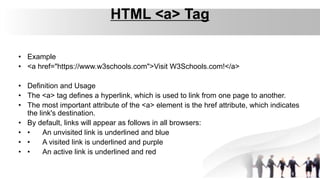
HTML <a> Tag
• Example
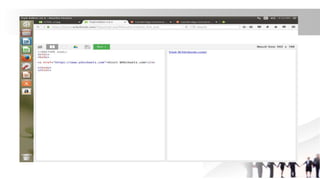
• <a href="https://www.w3schools.com">Visit W3Schools.com!</a>
• Definition and Usage
• The <a> tag defines a hyperlink, which is used to link from one page to another.
• The most important attribute of the <a> element is the href attribute, which indicates
the link's destination.
• By default, links will appear as follows in all browsers:
• • An unvisited link is underlined and blue
• • A visited link is underlined and purple
• • An active link is underlined and red
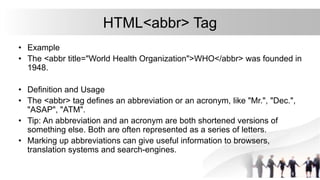
HTML<abbr> Tag
• Example
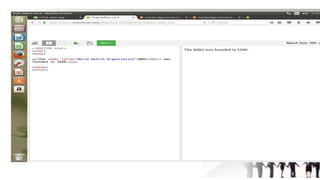
• The <abbr title="World Health Organization">WHO</abbr> was founded in
1948.
• Definition and Usage
• The <abbr> tag defines an abbreviation or an acronym, like "Mr.", "Dec.",
"ASAP", "ATM".
• Tip: An abbreviation and an acronym are both shortened versions of
something else. Both are often represented as a series of letters.
• Marking up abbreviations can give useful information to browsers,
translation systems and search-engines.
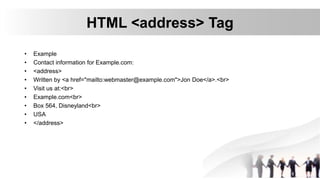
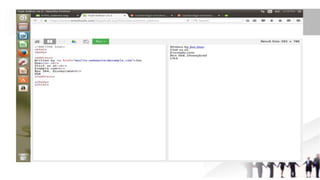
HTML <address> Tag
• Example
• Contact information for Example.com:
• <address>
• Written by <a href="mailto:webmaster@example.com">Jon Doe</a>.<br>
• Visit us at:<br>
• Example.com<br>
• Box 564, Disneyland<br>
• USA
• </address>
• Definition and Usage
• The <address> tag defines the contact information for the
author/owner of a document or an article.
• If the <address> element is inside the <body> element, it
represents contact information for the document.
• If the <address> element is inside an <article> element, it
represents contact information for that article.
• The text in the <address> element usually renders in
italic. Most browsers will add a line break before and after
the address element.
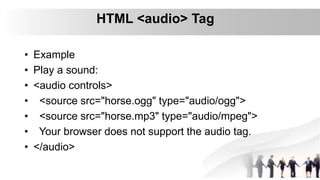
HTML <audio> Tag
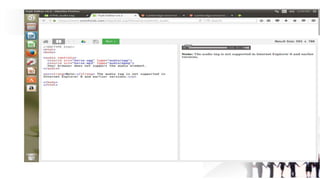
• Example
• Play a sound:
• <audio controls>
• <source src="horse.ogg" type="audio/ogg">
• <source src="horse.mp3" type="audio/mpeg">
• Your browser does not support the audio tag.
• </audio>
• Definition and Usage
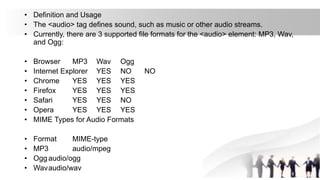
• The <audio> tag defines sound, such as music or other audio streams.
• Currently, there are 3 supported file formats for the <audio> element: MP3, Wav,
and Ogg:
• Browser MP3 Wav Ogg
• Internet Explorer YES NO NO
• Chrome YES YES YES
• Firefox YES YES YES
• Safari YES YES NO
• Opera YES YES YES
• MIME Types for Audio Formats
• Format MIME-type
• MP3 audio/mpeg
• Ogg audio/ogg
• Wavaudio/wav
HTML <b> Tag
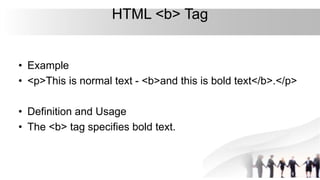
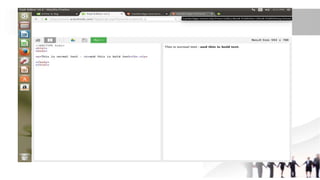
• Example
• <p>This is normal text - <b>and this is bold text</b>.</p>
• Definition and Usage
• The <b> tag specifies bold text.
HTML <button> Tag
• Example
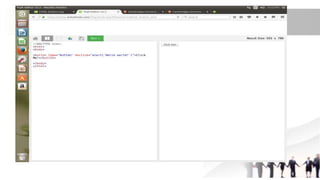
• A clickable button is marked up as follows:
• <button type="button">Click Me!</button>
• Definition and Usage
• The <button> tag defines a clickable button.
• Inside a <button> element you can put content, like text or images. This is the
difference between this element and buttons created with the <input> element.
• Tip: Always specify the type attribute for a <button> element. Different browsers
use different default types for the <button> element.
•HTML <data> Tag
• Example
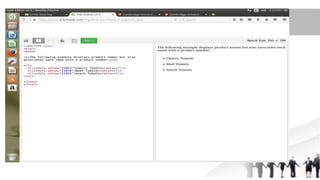
• The following example displays product names but also associates each name with
a product number:
• <ul>
• <li><data value="21053">Cherry Tomato</data></li>
• <li><data value="21054">Beef Tomato</data></li>
• <li><data value="21055">Snack Tomato</data></li>
• </ul>
• Definition and Usage
• The <data> tag links the given content with a machine-readable translation.
• This element provides both a machine-readable value for data processors, and a
human-readable value for rendering in a browser.
• Tip: If the content is time- or date-related, the <time> element can be used instead
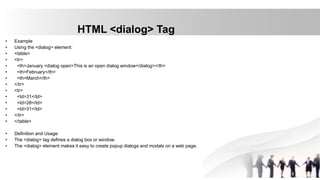
HTML <dialog> Tag
• Example
• Using the <dialog> element:
• <table>
• <tr>
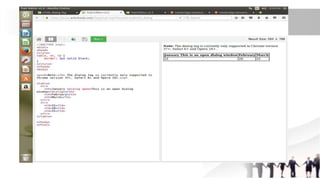
• <th>January <dialog open>This is an open dialog window</dialog></th>
• <th>February</th>
• <th>March</th>
• </tr>
• <tr>
• <td>31</td>
• <td>28</td>
• <td>31</td>
• </tr>
• </table>
• Definition and Usage
• The <dialog> tag defines a dialog box or window.
• The <dialog> element makes it easy to create popup dialogs and modals on a web page.
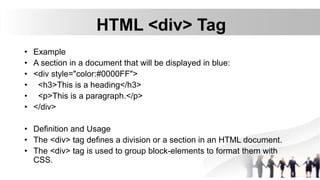
HTML <div> Tag
• Example
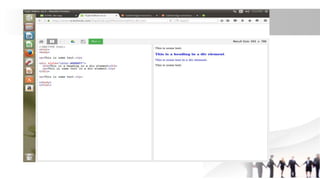
• A section in a document that will be displayed in blue:
• <div style="color:#0000FF">
• <h3>This is a heading</h3>
• <p>This is a paragraph.</p>
• </div>
• Definition and Usage
• The <div> tag defines a division or a section in an HTML document.
• The <div> tag is used to group block-elements to format them with
CSS.
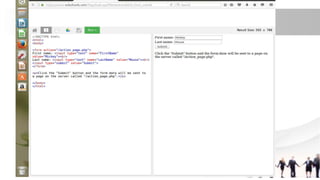
•HTML <form> Tag
• Example
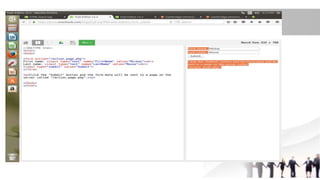
• An HTML form with two input fields and one submit button:
• <form action="/action_page.php" method="get">
• First name: <input type="text" name="fname"><br>
• Last name: <input type="text" name="lname"><br>
• <input type="submit" value="Submit">
• </form>
• More "Try it Yourself" examples below.
• • <optgroup>
• • <fieldset>
• • <label>
• Definition and Usage
• The <form> tag is used to create an HTML form for user
input.
• The <form> element can contain one or more of the following
form elements:
• • <input>
• • <textarea>
• • <button>
• • <select>
• • <option>
HTML <input> Tag
• Example
• An HTML form with three input fields; two text fields and one submit button:
• <form action="/action_page.php">
• First name: <input type="text" name="fname"><br>
• Last name: <input type="text" name="lname"><br>
• <input type="submit" value="Submit">
• </form>
• Definition and Usage
• The <input> tag specifies an input field where the user can enter data.
• <input> elements are used within a <form> element to declare input controls that
allow users to input data.
• An input field can vary in many ways, depending on the type attribute
THANK YOU

HTML TAGS

  • 1.
    DIFFERENT TAGS ONHYPER TEXT MARKUP LANGUAGE DONE BY S BALAJI 15EUCS017 II-CSE A
  • 2.
    HTML <a> Tag •Example • <a href="https://www.w3schools.com">Visit W3Schools.com!</a> • Definition and Usage • The <a> tag defines a hyperlink, which is used to link from one page to another. • The most important attribute of the <a> element is the href attribute, which indicates the link's destination. • By default, links will appear as follows in all browsers: • • An unvisited link is underlined and blue • • A visited link is underlined and purple • • An active link is underlined and red
  • 4.
    HTML<abbr> Tag • Example •The <abbr title="World Health Organization">WHO</abbr> was founded in 1948. • Definition and Usage • The <abbr> tag defines an abbreviation or an acronym, like "Mr.", "Dec.", "ASAP", "ATM". • Tip: An abbreviation and an acronym are both shortened versions of something else. Both are often represented as a series of letters. • Marking up abbreviations can give useful information to browsers, translation systems and search-engines.
  • 6.
    HTML <address> Tag •Example • Contact information for Example.com: • <address> • Written by <a href="mailto:webmaster@example.com">Jon Doe</a>.<br> • Visit us at:<br> • Example.com<br> • Box 564, Disneyland<br> • USA • </address>
  • 7.
    • Definition andUsage • The <address> tag defines the contact information for the author/owner of a document or an article. • If the <address> element is inside the <body> element, it represents contact information for the document. • If the <address> element is inside an <article> element, it represents contact information for that article. • The text in the <address> element usually renders in italic. Most browsers will add a line break before and after the address element.
  • 9.
    HTML <audio> Tag •Example • Play a sound: • <audio controls> • <source src="horse.ogg" type="audio/ogg"> • <source src="horse.mp3" type="audio/mpeg"> • Your browser does not support the audio tag. • </audio>
  • 10.
    • Definition andUsage • The <audio> tag defines sound, such as music or other audio streams. • Currently, there are 3 supported file formats for the <audio> element: MP3, Wav, and Ogg: • Browser MP3 Wav Ogg • Internet Explorer YES NO NO • Chrome YES YES YES • Firefox YES YES YES • Safari YES YES NO • Opera YES YES YES • MIME Types for Audio Formats • Format MIME-type • MP3 audio/mpeg • Ogg audio/ogg • Wavaudio/wav
  • 12.
    HTML <b> Tag •Example • <p>This is normal text - <b>and this is bold text</b>.</p> • Definition and Usage • The <b> tag specifies bold text.
  • 14.
    HTML <button> Tag •Example • A clickable button is marked up as follows: • <button type="button">Click Me!</button> • Definition and Usage • The <button> tag defines a clickable button. • Inside a <button> element you can put content, like text or images. This is the difference between this element and buttons created with the <input> element. • Tip: Always specify the type attribute for a <button> element. Different browsers use different default types for the <button> element.
  • 16.
    •HTML <data> Tag •Example • The following example displays product names but also associates each name with a product number: • <ul> • <li><data value="21053">Cherry Tomato</data></li> • <li><data value="21054">Beef Tomato</data></li> • <li><data value="21055">Snack Tomato</data></li> • </ul> • Definition and Usage • The <data> tag links the given content with a machine-readable translation. • This element provides both a machine-readable value for data processors, and a human-readable value for rendering in a browser. • Tip: If the content is time- or date-related, the <time> element can be used instead
  • 18.
    HTML <dialog> Tag •Example • Using the <dialog> element: • <table> • <tr> • <th>January <dialog open>This is an open dialog window</dialog></th> • <th>February</th> • <th>March</th> • </tr> • <tr> • <td>31</td> • <td>28</td> • <td>31</td> • </tr> • </table> • Definition and Usage • The <dialog> tag defines a dialog box or window. • The <dialog> element makes it easy to create popup dialogs and modals on a web page.
  • 20.
    HTML <div> Tag •Example • A section in a document that will be displayed in blue: • <div style="color:#0000FF"> • <h3>This is a heading</h3> • <p>This is a paragraph.</p> • </div> • Definition and Usage • The <div> tag defines a division or a section in an HTML document. • The <div> tag is used to group block-elements to format them with CSS.
  • 22.
    •HTML <form> Tag •Example • An HTML form with two input fields and one submit button: • <form action="/action_page.php" method="get"> • First name: <input type="text" name="fname"><br> • Last name: <input type="text" name="lname"><br> • <input type="submit" value="Submit"> • </form> • More "Try it Yourself" examples below. • • <optgroup> • • <fieldset> • • <label>
  • 23.
    • Definition andUsage • The <form> tag is used to create an HTML form for user input. • The <form> element can contain one or more of the following form elements: • • <input> • • <textarea> • • <button> • • <select> • • <option>
  • 25.
    HTML <input> Tag •Example • An HTML form with three input fields; two text fields and one submit button: • <form action="/action_page.php"> • First name: <input type="text" name="fname"><br> • Last name: <input type="text" name="lname"><br> • <input type="submit" value="Submit"> • </form> • Definition and Usage • The <input> tag specifies an input field where the user can enter data. • <input> elements are used within a <form> element to declare input controls that allow users to input data. • An input field can vary in many ways, depending on the type attribute
  • 27.