Microsoft Word Documents 
How To: Using Hotmail / MSN / Outlook 
Created by: 
Librarian: William Bermeo 
Los Angeles Harbor College
Microsoft Word Documents 
How To: Using Hotmail / MSN / Outlook 
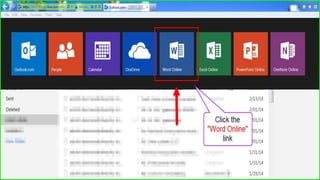
* Free access to Word Online can be reached through 
Outlook (Hotmail or MSN) email accounts. 
* Each belongs to Microsoft so each provides free access. 
* There are several ways to access Word Online. 
This tutorial demonstrates one method using Hotmail. 
Once you learn this method, you can try the others. 
*Note* Accessing Word Online via the LAHC Student Portal is different
Microsoft Word Documents 
How To: Using Hotmail / MSN / Outlook 
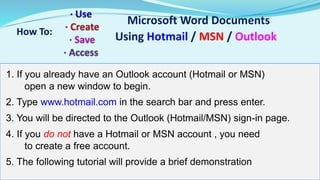
1. If you already have an Outlook account (Hotmail or MSN) 
open a new window to begin. 
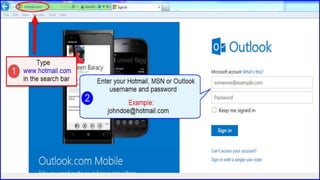
2. Type www.hotmail.com in the search bar and press enter. 
3. You will be directed to the Outlook (Hotmail/MSN) sign-in page. 
4. If you do not have a Hotmail or MSN account , you need 
to create a free account. 
5. The following tutorial will provide a brief demonstration
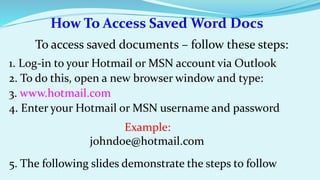
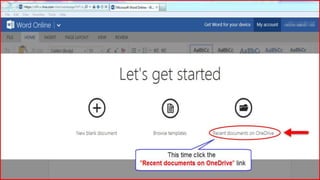
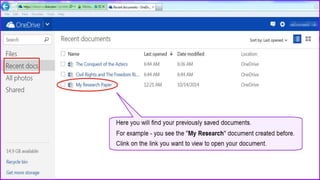
How To Access Saved Word Docs 
To access saved documents – follow these steps: 
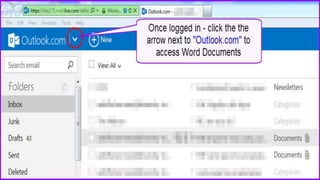
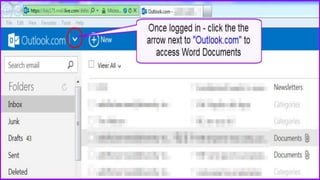
1. Log-in to your Hotmail or MSN account via Outlook 
2. To do this, open a new browser window and type: 
3. www.hotmail.com 
4. Enter your Hotmail or MSN username and password 
Example: 
johndoe@hotmail.com 
5. The following slides demonstrate the steps to follow
How To Attach Saved Docs To Email 
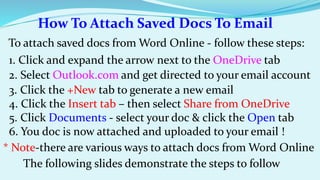
To attach saved docs from Word Online - follow these steps: 
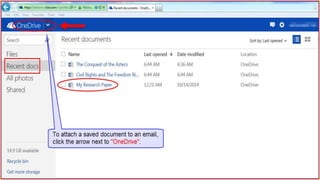
1. Click and expand the arrow next to the OneDrive tab 
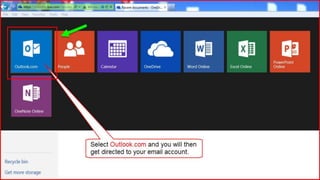
2. Select Outlook.com and get directed to your email account 
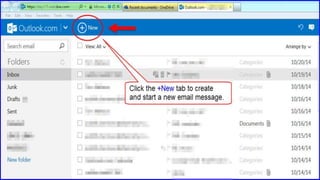
3. Click the +New tab to generate a new email 
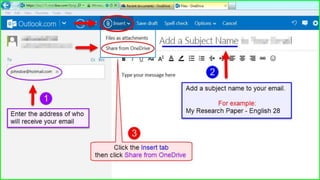
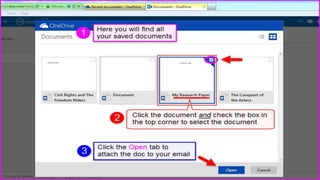
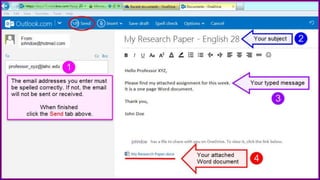
4. Click the Insert tab – then select Share from OneDrive 
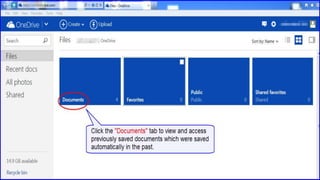
5. Click Documents - select your doc & click the Open tab 
6. You doc is now attached and uploaded to your email ! 
* Note-there are various ways to attach docs from Word Online 
The following slides demonstrate the steps to follow
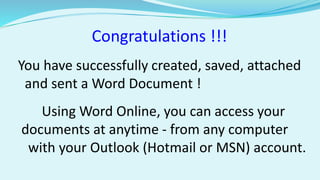
Congratulations !!! 
You have successfully created, saved, attached 
and sent a Word Document ! 
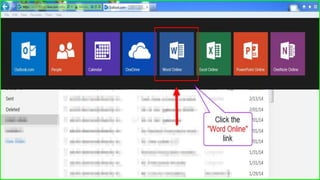
Using Word Online, you can access your 
documents at anytime - from any computer 
with your Outlook (Hotmail or MSN) account.

How To Use Word Online

  • 1.
    Microsoft Word Documents How To: Using Hotmail / MSN / Outlook Created by: Librarian: William Bermeo Los Angeles Harbor College
  • 2.
    Microsoft Word Documents How To: Using Hotmail / MSN / Outlook * Free access to Word Online can be reached through Outlook (Hotmail or MSN) email accounts. * Each belongs to Microsoft so each provides free access. * There are several ways to access Word Online. This tutorial demonstrates one method using Hotmail. Once you learn this method, you can try the others. *Note* Accessing Word Online via the LAHC Student Portal is different
  • 3.
    Microsoft Word Documents How To: Using Hotmail / MSN / Outlook 1. If you already have an Outlook account (Hotmail or MSN) open a new window to begin. 2. Type www.hotmail.com in the search bar and press enter. 3. You will be directed to the Outlook (Hotmail/MSN) sign-in page. 4. If you do not have a Hotmail or MSN account , you need to create a free account. 5. The following tutorial will provide a brief demonstration
  • 11.
    How To AccessSaved Word Docs To access saved documents – follow these steps: 1. Log-in to your Hotmail or MSN account via Outlook 2. To do this, open a new browser window and type: 3. www.hotmail.com 4. Enter your Hotmail or MSN username and password Example: johndoe@hotmail.com 5. The following slides demonstrate the steps to follow
  • 17.
    How To AttachSaved Docs To Email To attach saved docs from Word Online - follow these steps: 1. Click and expand the arrow next to the OneDrive tab 2. Select Outlook.com and get directed to your email account 3. Click the +New tab to generate a new email 4. Click the Insert tab – then select Share from OneDrive 5. Click Documents - select your doc & click the Open tab 6. You doc is now attached and uploaded to your email ! * Note-there are various ways to attach docs from Word Online The following slides demonstrate the steps to follow
  • 25.
    Congratulations !!! Youhave successfully created, saved, attached and sent a Word Document ! Using Word Online, you can access your documents at anytime - from any computer with your Outlook (Hotmail or MSN) account.