www.cocosenor.com
Fixed: MS Word “The file is corrupted and cannot be opened”
Microsoft Office Word is the software that is often used for working or studying. Sometimes,
some unavoidable problems will appear during using MS Word. Such as the suddenly corrupted
and you are prompted with this message “The file is corrupted and cannot be opened”. It is very
confusing, why the Word document that has been used normally is suddenly damaged and can’t
be opened? Is there any way to solve it? In this article, you can learn about the reasons for
Microsoft Word document damage and learn how to solve the problem -- the file is corrupted
and cannot be opened.
Part 1: The reason why the Word document is corrupted and cannot be opened
When the file is corrupted and cannot be opened error occurs in Word, it may be caused
by the following common reasons:
1. Use a lower version of Word to open a higher version of a document.
For example, use Word 2003 to open a document with a .docx extension. .docx is a
document extension of Word 2007 and later. The lower version of Word cannot open the
higher version of the document.
2. Word common template file is damaged
A common template file is required when running a word document. This template file
contains user-defined toolbar information, initialized document parameters and other
basic information. When word documents are opened, they all work in the default
template. Once the default template file is abnormally damaged or illegally changed, it
will lead to Word failing to open.
3. Word document is damaged
The reasons for the corruption of the Word document may include: constant re-
pagination, wrong document layout and format, unreadable characters displayed on the
screen, error messages during processing, computer stop responding when loading or
viewing files, and abnormal program operation etc.
Part 2: The methods to solve “the file is corrupted and cannot be opened”
By knowing some of the reasons why the file is corrupted and cannot be opened error
occur in Word, the error may not be caused by your Word document damage but by the
internal settings of the Word program. Therefore, there will be corresponding solutions
for Word documents that the file is corrupted and cannot be opened.
www.cocosenor.com
Method 1: Modify option configuration
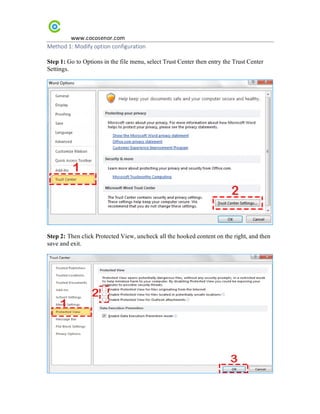
Step 1: Go to Options in the file menu, select Trust Center then entry the Trust Center
Settings.
Step 2: Then click Protected View, uncheck all the hooked content on the right, and then
save and exit.
www.cocosenor.com
After that, close the office program and reopen the file that cannot be opened.
Method 2: Delete the global template Normal.dotm file
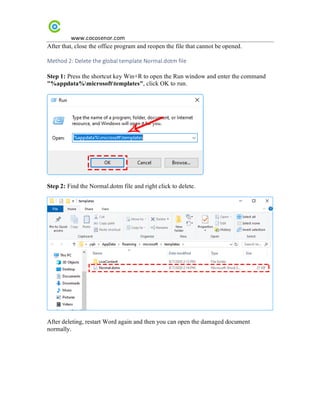
Step 1: Press the shortcut key Win+R to open the Run window and enter the command
"%appdata%microsofttemplates", click OK to run.
Step 2: Find the Normal.dotm file and right click to delete.
After deleting, restart Word again and then you can open the damaged document
normally.
www.cocosenor.com
Method 3: Use the function of Word's "Open and Repair"
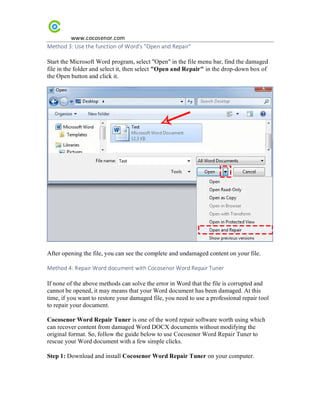
Start the Microsoft Word program, select "Open" in the file menu bar, find the damaged
file in the folder and select it, then select "Open and Repair" in the drop-down box of
the Open button and click it.
After opening the file, you can see the complete and undamaged content on your file.
Method 4: Repair Word document with Cocosenor Word Repair Tuner
If none of the above methods can solve the error in Word that the file is corrupted and
cannot be opened, it may means that your Word document has been damaged. At this
time, if you want to restore your damaged file, you need to use a professional repair tool
to repair your document.
Cocosenor Word Repair Tuner is one of the word repair software worth using which
can recover content from damaged Word DOCX documents without modifying the
original format. So, follow the guide below to use Cocosenor Word Repair Tuner to
rescue your Word document with a few simple clicks.
Step 1: Download and install Cocosenor Word Repair Tuner on your computer.
www.cocosenor.com
Note:
Before repairing the damaged Word document, please close your Microsoft Word
program in advance.
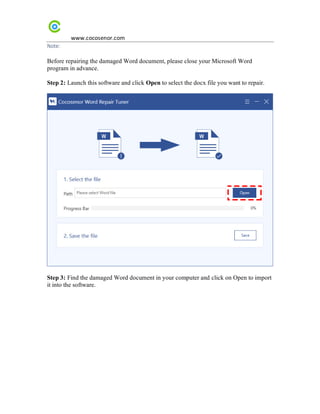
Step 2: Launch this software and click Open to select the docx file you want to repair.
Step 3: Find the damaged Word document in your computer and click on Open to import
it into the software.
www.cocosenor.com
Step 4: After the document is opened, the software will automatically enter the repair
process to perform the repair.
www.cocosenor.com
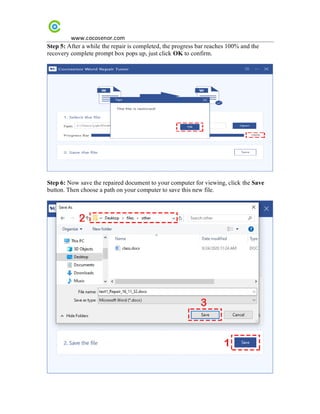
Step 5: After a while the repair is completed, the progress bar reaches 100% and the
recovery complete prompt box pops up, just click OK to confirm.
Step 6: Now save the repaired document to your computer for viewing, click the Save
button. Then choose a path on your computer to save this new file.
www.cocosenor.com
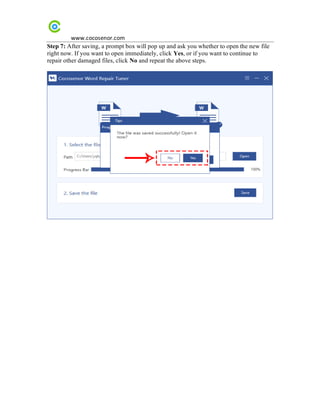
Step 7: After saving, a prompt box will pop up and ask you whether to open the new file
right now. If you want to open immediately, click Yes, or if you want to continue to
repair other damaged files, click No and repeat the above steps.

Fixed: MS Word the File is Corrupted and Cannot be Opened

  • 1.
    www.cocosenor.com Fixed: MS Word“The file is corrupted and cannot be opened” Microsoft Office Word is the software that is often used for working or studying. Sometimes, some unavoidable problems will appear during using MS Word. Such as the suddenly corrupted and you are prompted with this message “The file is corrupted and cannot be opened”. It is very confusing, why the Word document that has been used normally is suddenly damaged and can’t be opened? Is there any way to solve it? In this article, you can learn about the reasons for Microsoft Word document damage and learn how to solve the problem -- the file is corrupted and cannot be opened. Part 1: The reason why the Word document is corrupted and cannot be opened When the file is corrupted and cannot be opened error occurs in Word, it may be caused by the following common reasons: 1. Use a lower version of Word to open a higher version of a document. For example, use Word 2003 to open a document with a .docx extension. .docx is a document extension of Word 2007 and later. The lower version of Word cannot open the higher version of the document. 2. Word common template file is damaged A common template file is required when running a word document. This template file contains user-defined toolbar information, initialized document parameters and other basic information. When word documents are opened, they all work in the default template. Once the default template file is abnormally damaged or illegally changed, it will lead to Word failing to open. 3. Word document is damaged The reasons for the corruption of the Word document may include: constant re- pagination, wrong document layout and format, unreadable characters displayed on the screen, error messages during processing, computer stop responding when loading or viewing files, and abnormal program operation etc. Part 2: The methods to solve “the file is corrupted and cannot be opened” By knowing some of the reasons why the file is corrupted and cannot be opened error occur in Word, the error may not be caused by your Word document damage but by the internal settings of the Word program. Therefore, there will be corresponding solutions for Word documents that the file is corrupted and cannot be opened.
  • 2.
    www.cocosenor.com Method 1: Modifyoption configuration Step 1: Go to Options in the file menu, select Trust Center then entry the Trust Center Settings. Step 2: Then click Protected View, uncheck all the hooked content on the right, and then save and exit.
  • 3.
    www.cocosenor.com After that, closethe office program and reopen the file that cannot be opened. Method 2: Delete the global template Normal.dotm file Step 1: Press the shortcut key Win+R to open the Run window and enter the command "%appdata%microsofttemplates", click OK to run. Step 2: Find the Normal.dotm file and right click to delete. After deleting, restart Word again and then you can open the damaged document normally.
  • 4.
    www.cocosenor.com Method 3: Usethe function of Word's "Open and Repair" Start the Microsoft Word program, select "Open" in the file menu bar, find the damaged file in the folder and select it, then select "Open and Repair" in the drop-down box of the Open button and click it. After opening the file, you can see the complete and undamaged content on your file. Method 4: Repair Word document with Cocosenor Word Repair Tuner If none of the above methods can solve the error in Word that the file is corrupted and cannot be opened, it may means that your Word document has been damaged. At this time, if you want to restore your damaged file, you need to use a professional repair tool to repair your document. Cocosenor Word Repair Tuner is one of the word repair software worth using which can recover content from damaged Word DOCX documents without modifying the original format. So, follow the guide below to use Cocosenor Word Repair Tuner to rescue your Word document with a few simple clicks. Step 1: Download and install Cocosenor Word Repair Tuner on your computer.
  • 5.
    www.cocosenor.com Note: Before repairing thedamaged Word document, please close your Microsoft Word program in advance. Step 2: Launch this software and click Open to select the docx file you want to repair. Step 3: Find the damaged Word document in your computer and click on Open to import it into the software.
  • 6.
    www.cocosenor.com Step 4: Afterthe document is opened, the software will automatically enter the repair process to perform the repair.
  • 7.
    www.cocosenor.com Step 5: Aftera while the repair is completed, the progress bar reaches 100% and the recovery complete prompt box pops up, just click OK to confirm. Step 6: Now save the repaired document to your computer for viewing, click the Save button. Then choose a path on your computer to save this new file.
  • 8.
    www.cocosenor.com Step 7: Aftersaving, a prompt box will pop up and ask you whether to open the new file right now. If you want to open immediately, click Yes, or if you want to continue to repair other damaged files, click No and repeat the above steps.