
BY: EJ Samson
Let’s first learn how to
create an account in IFTTT
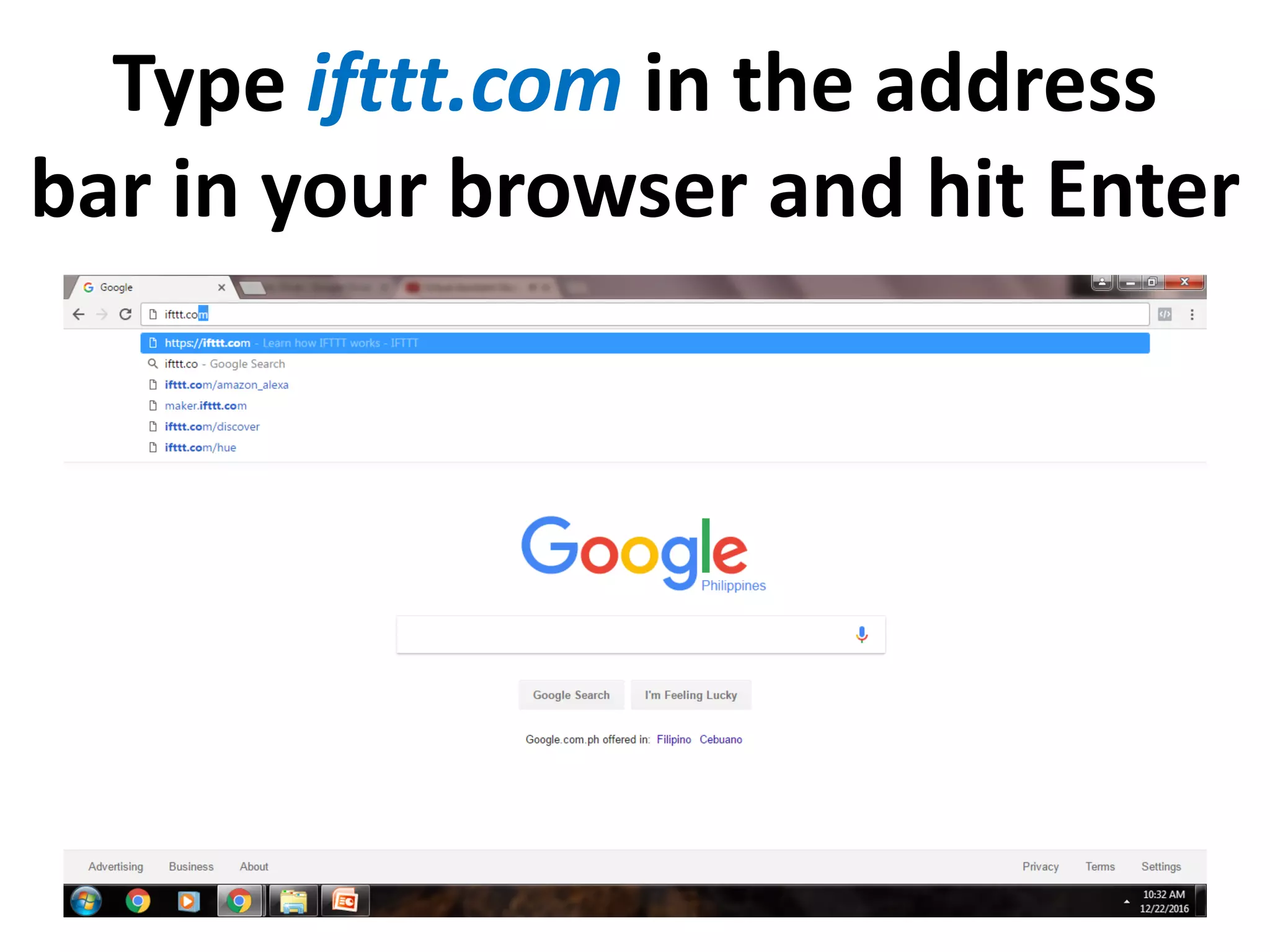
Type ifttt.com in the address
bar in your browser and hit Enter
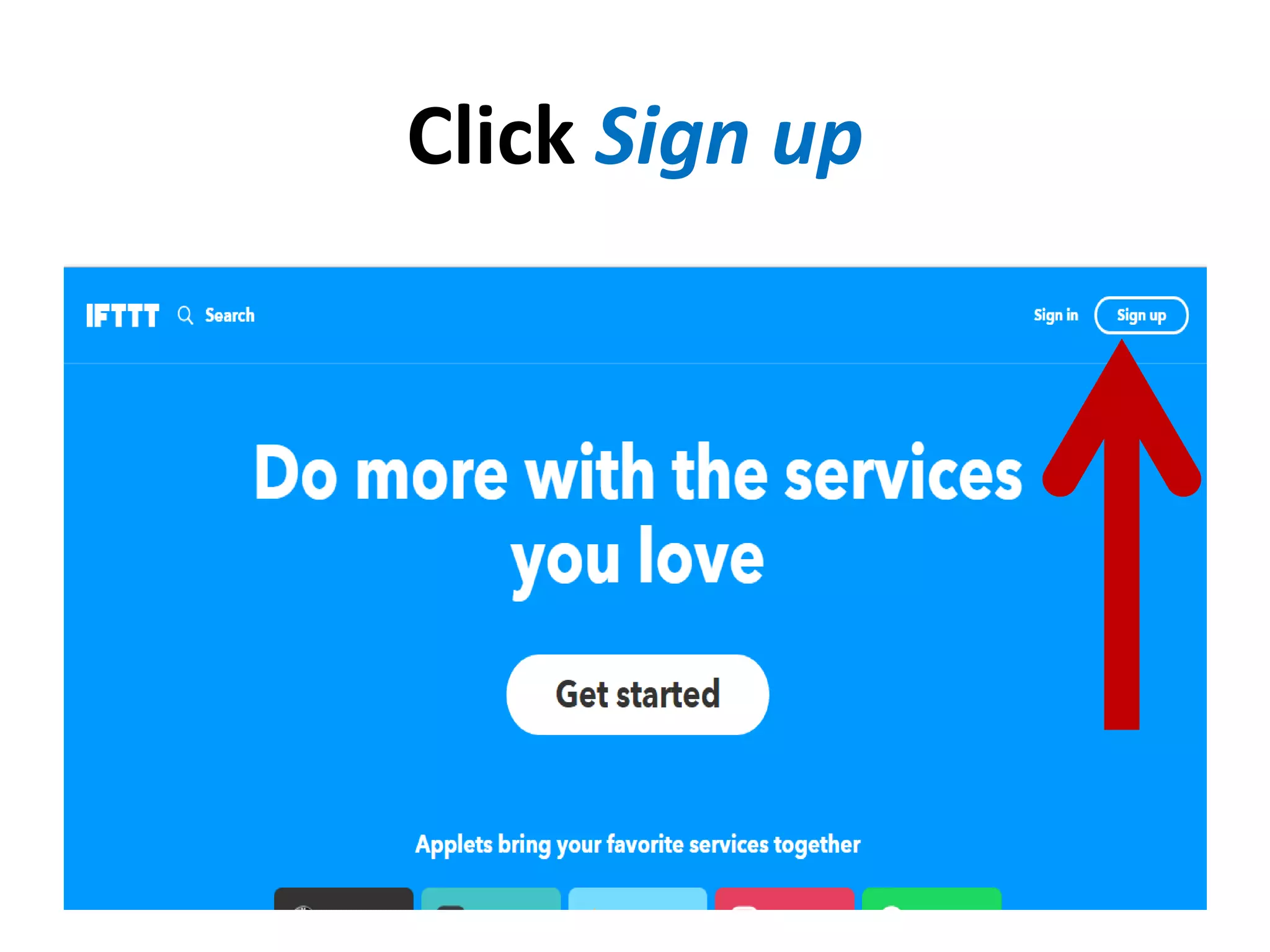
This is IFTTT’s home page
Click Sign up
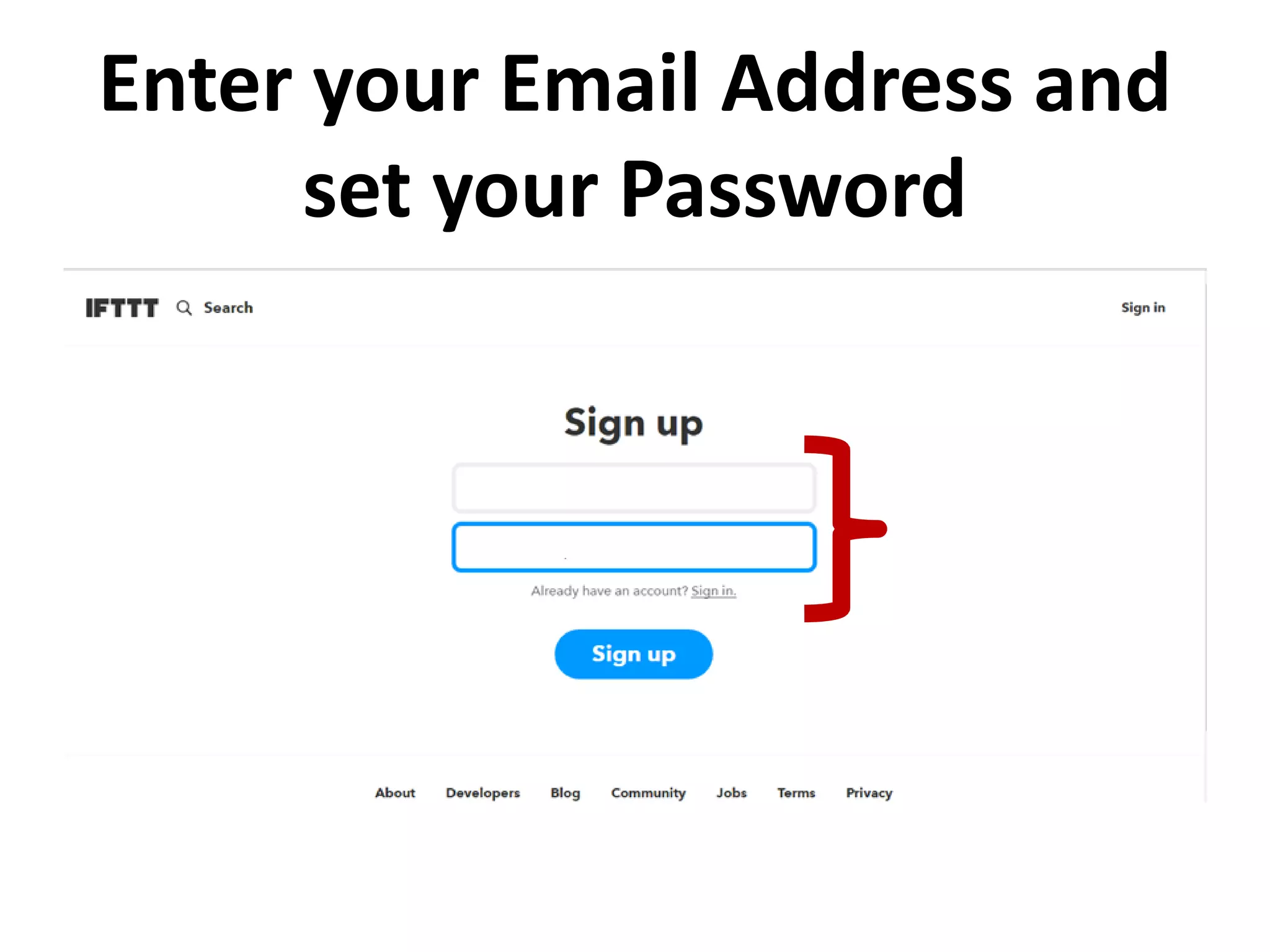
Enter your Email Address and
set your Password
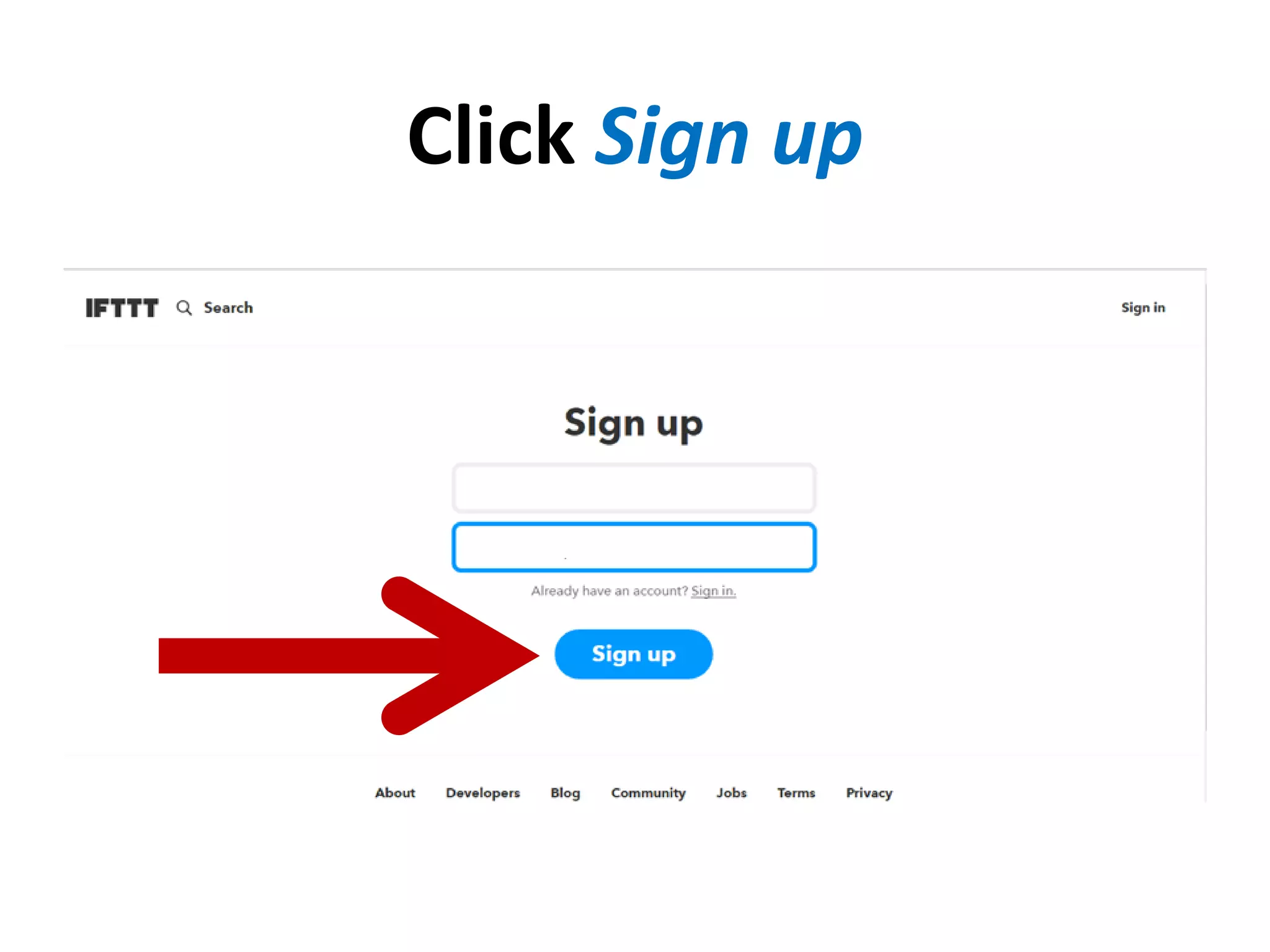
Click Sign up
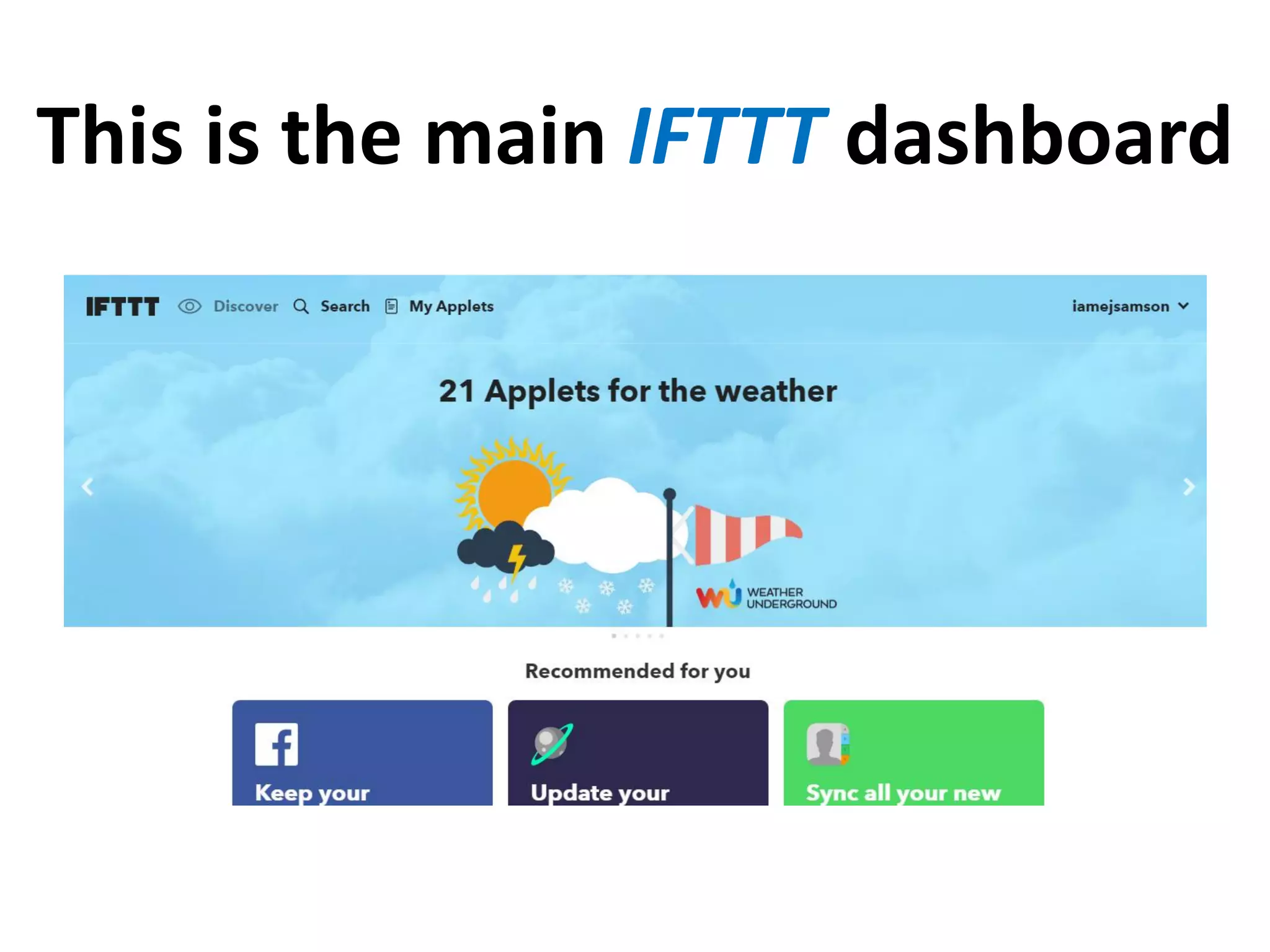
This is the main IFTTT dashboard
Next, let’s create a
New Applet with
Facebook and Twitter
We will set it so that all
images posted on a
Facebook page will post the
same to Twitter.
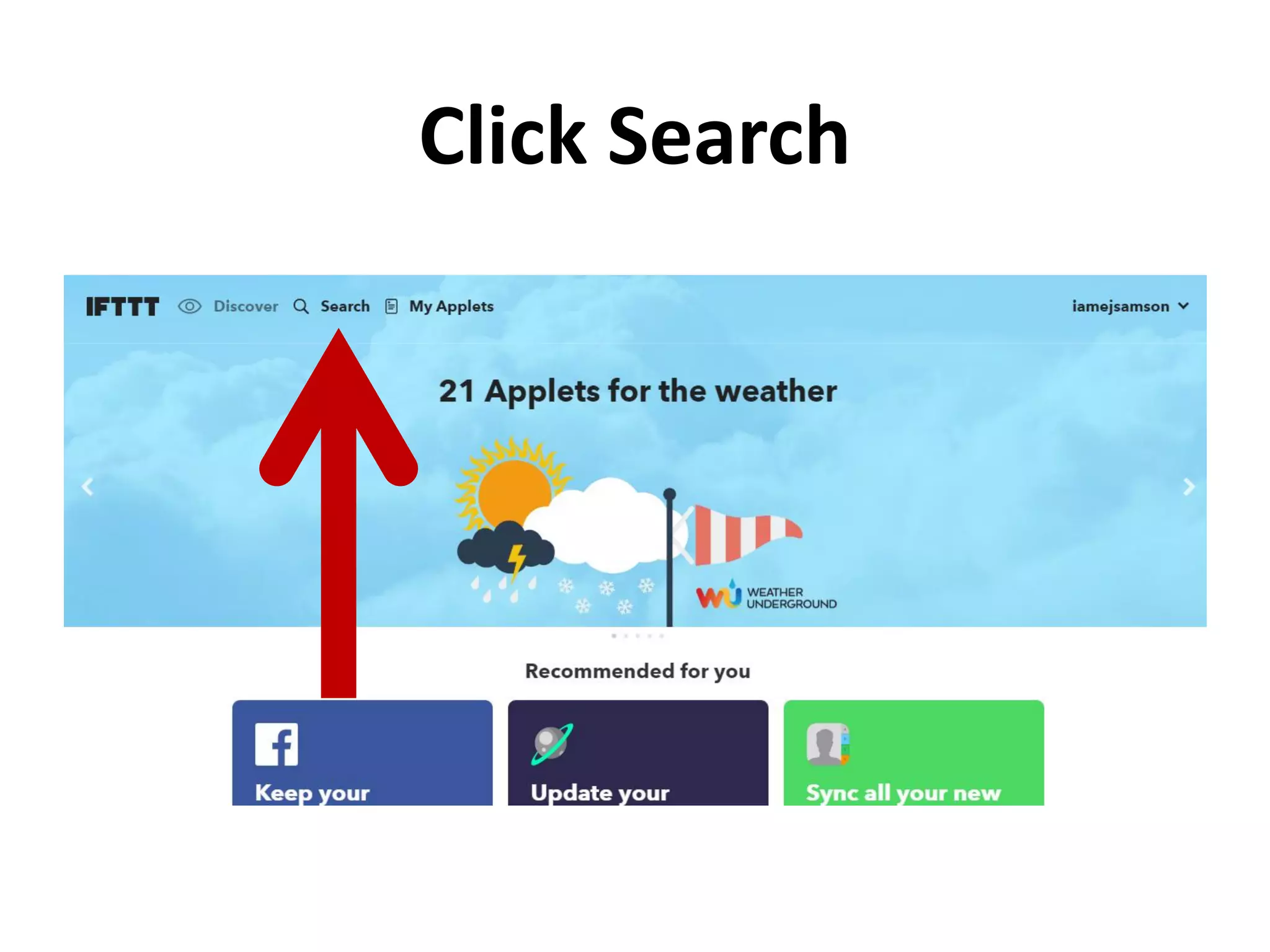
Click Search
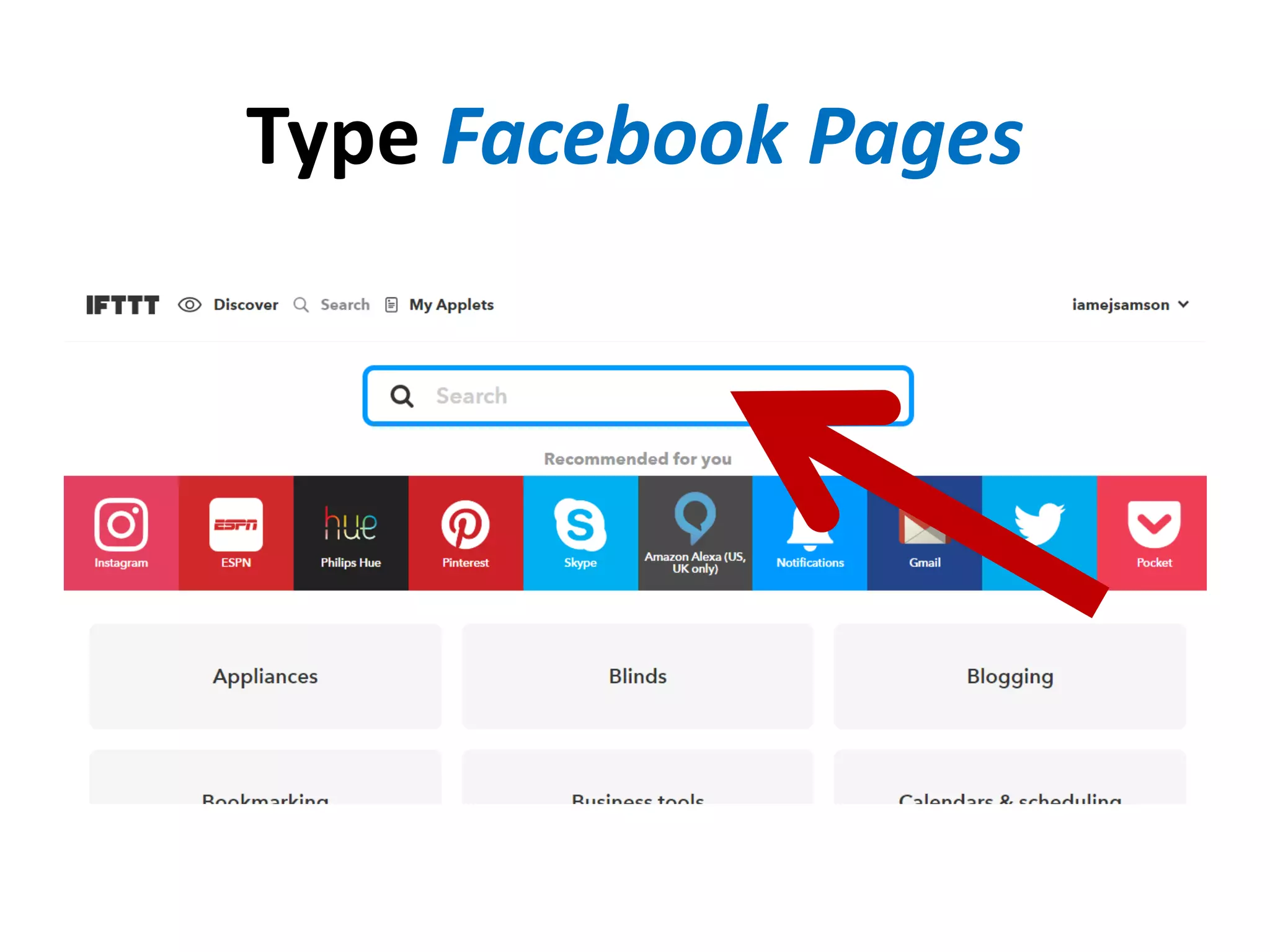
Type Facebook Pages
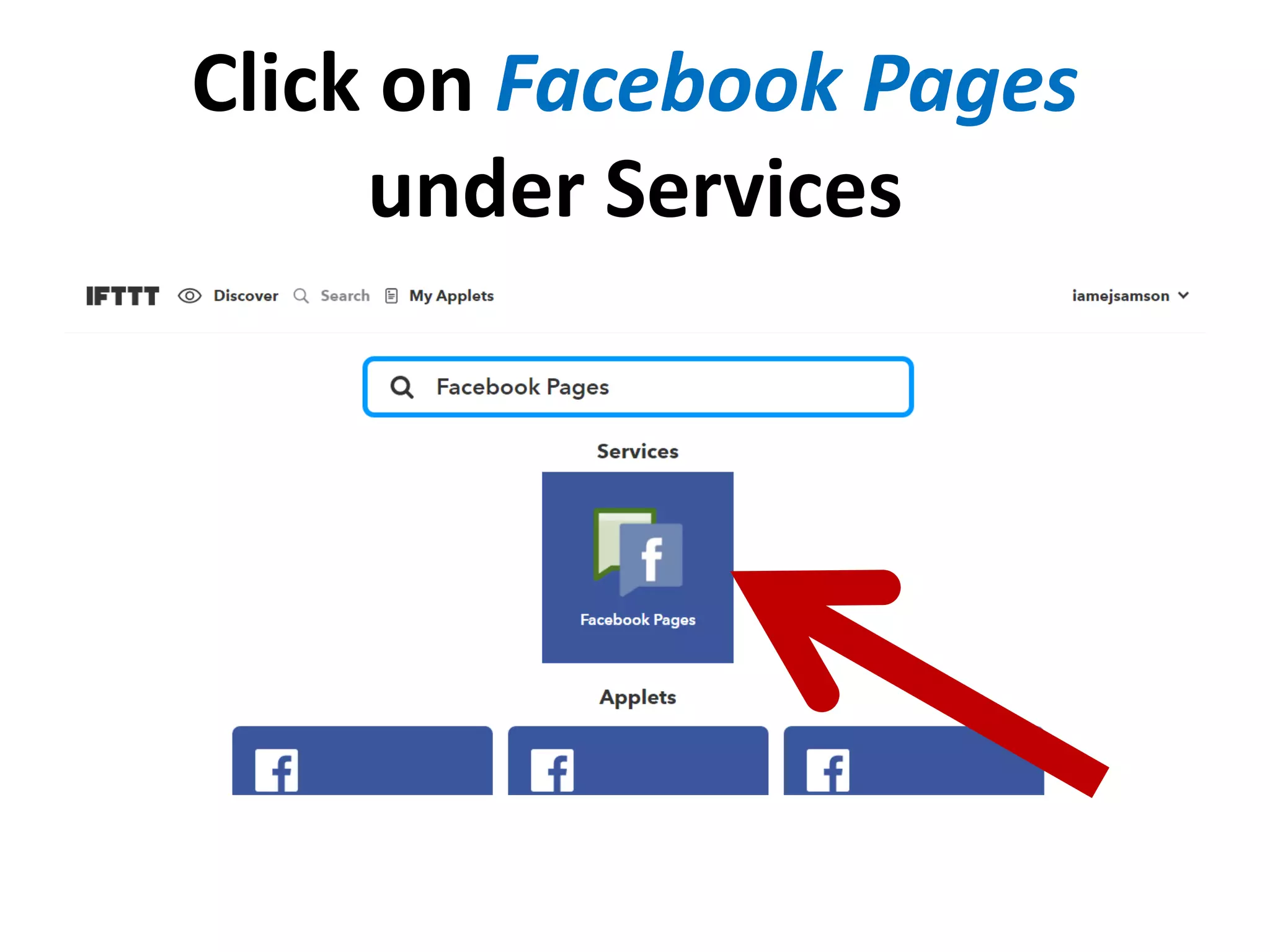
Click on Facebook Pages
under Services
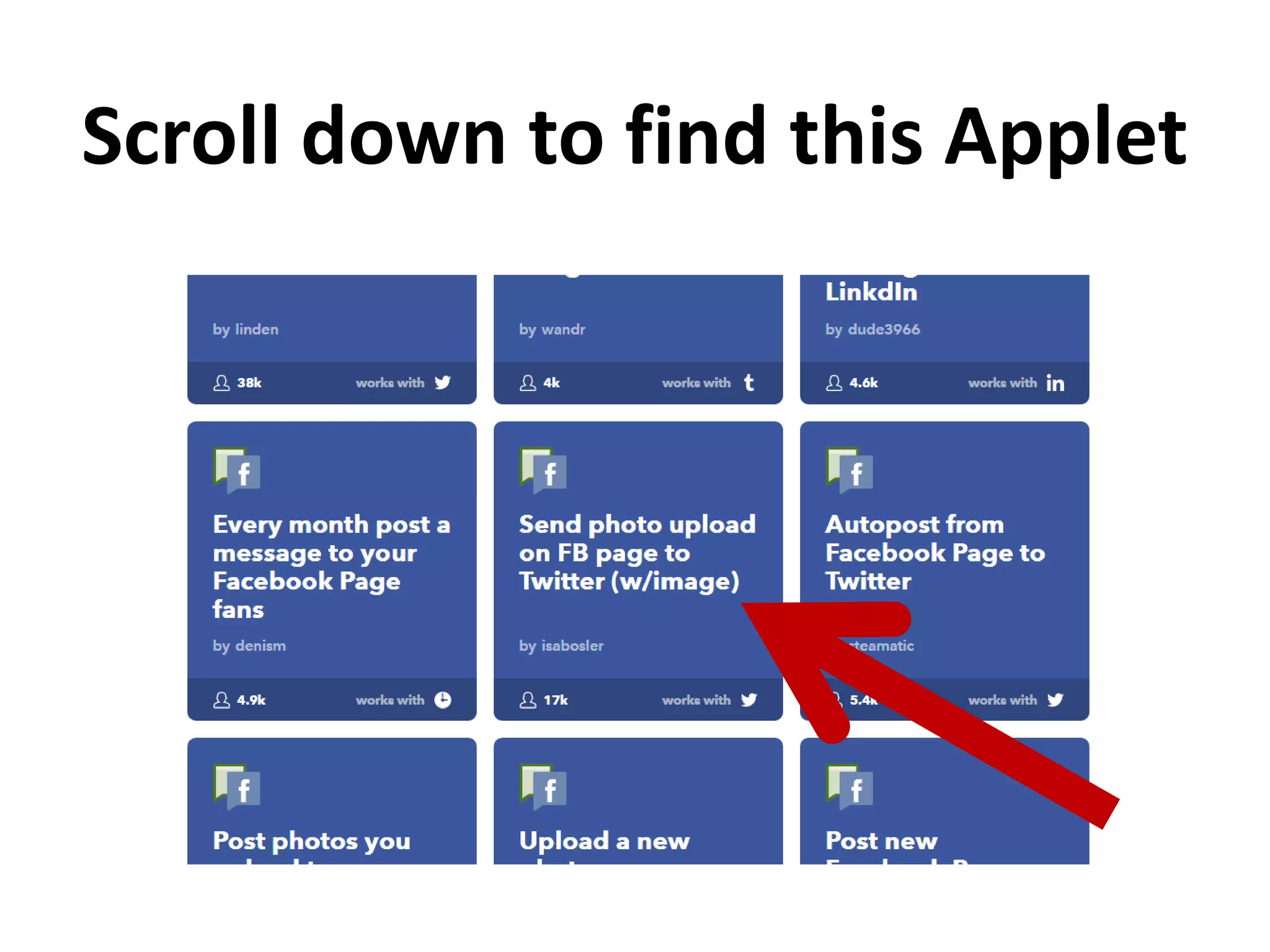
Scroll down to find this Applet
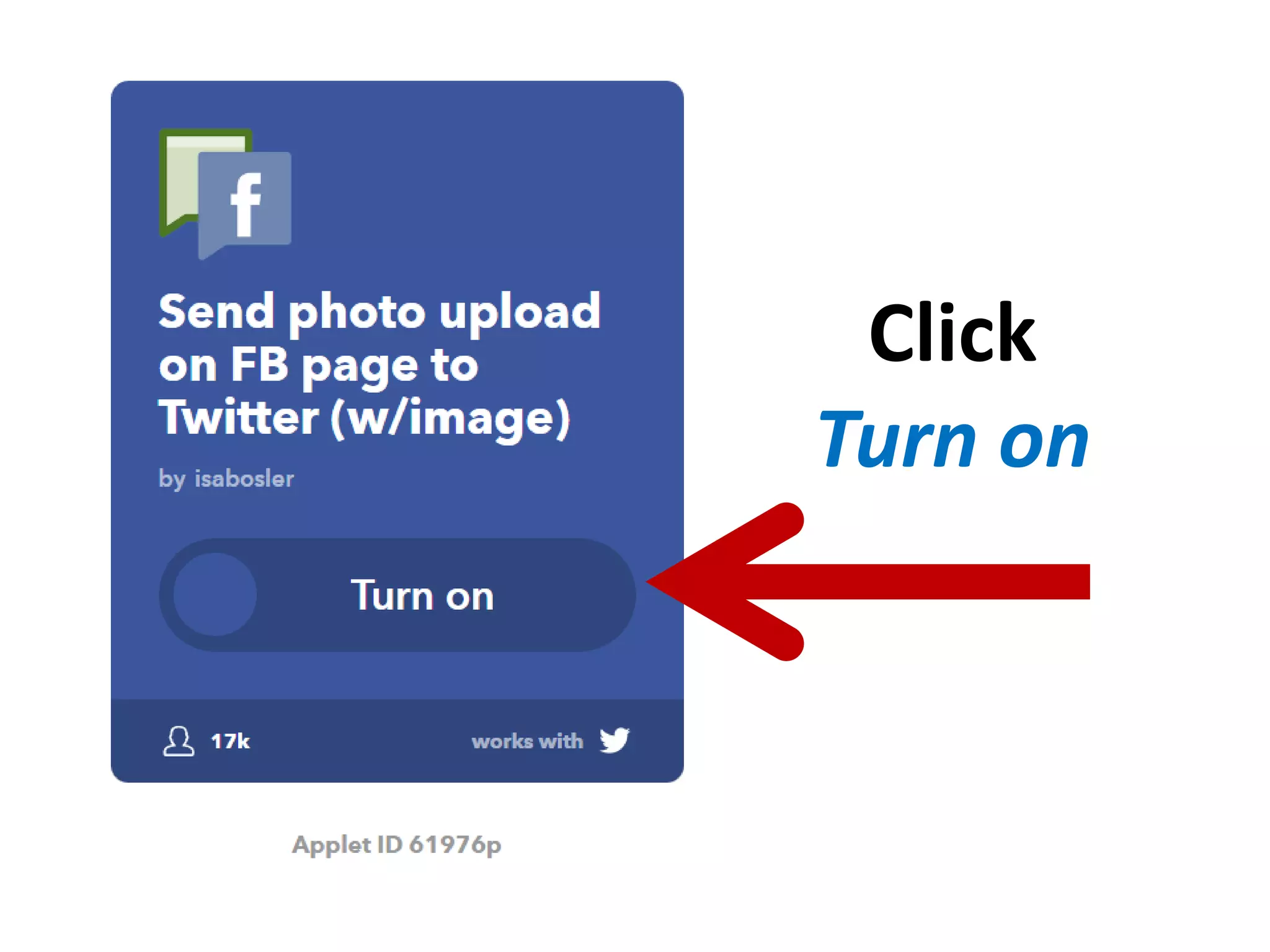
Click
Turn on
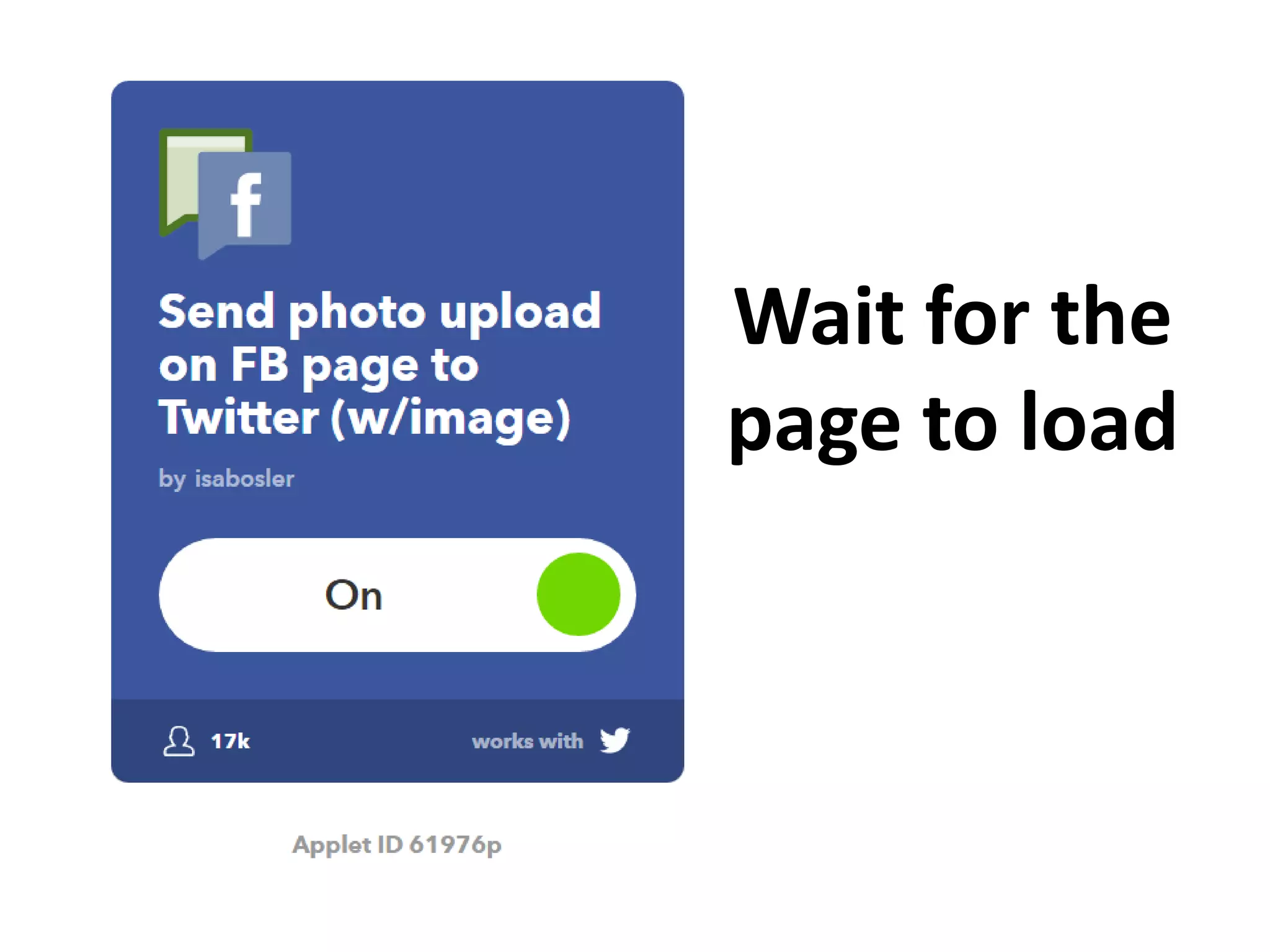
Wait for the
page to load
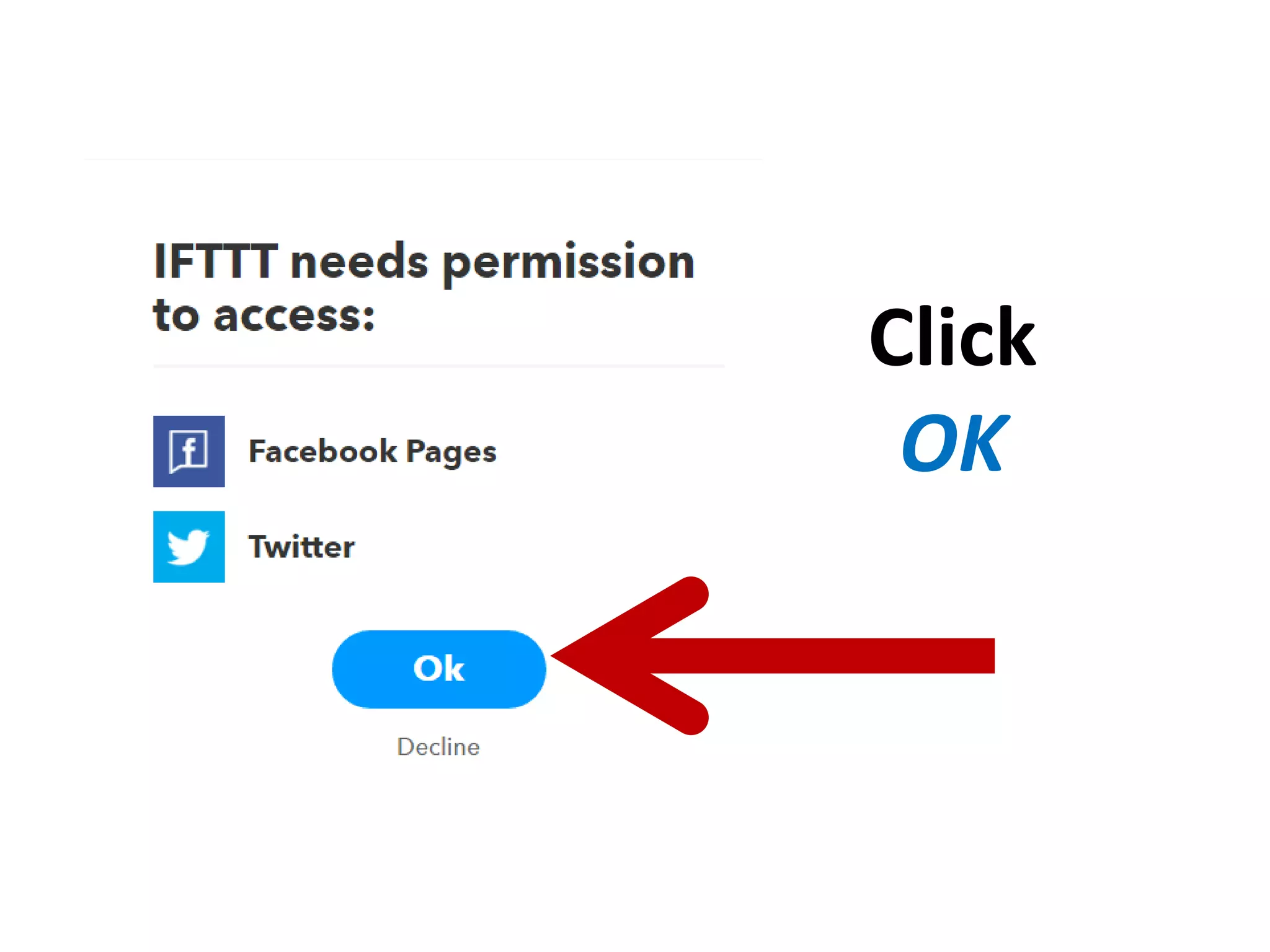
Click
OK
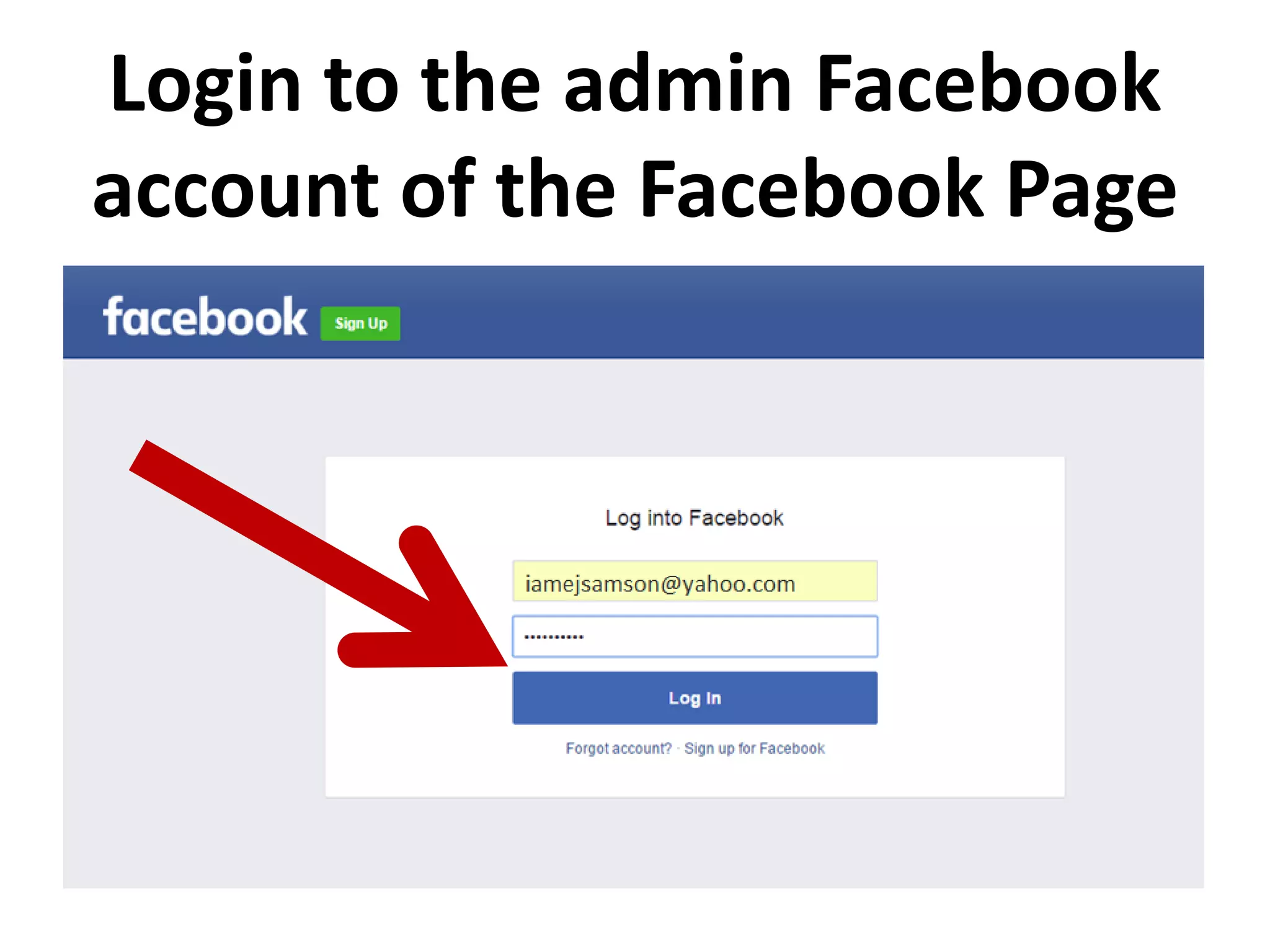
Login to the admin Facebook
account of the Facebook Page
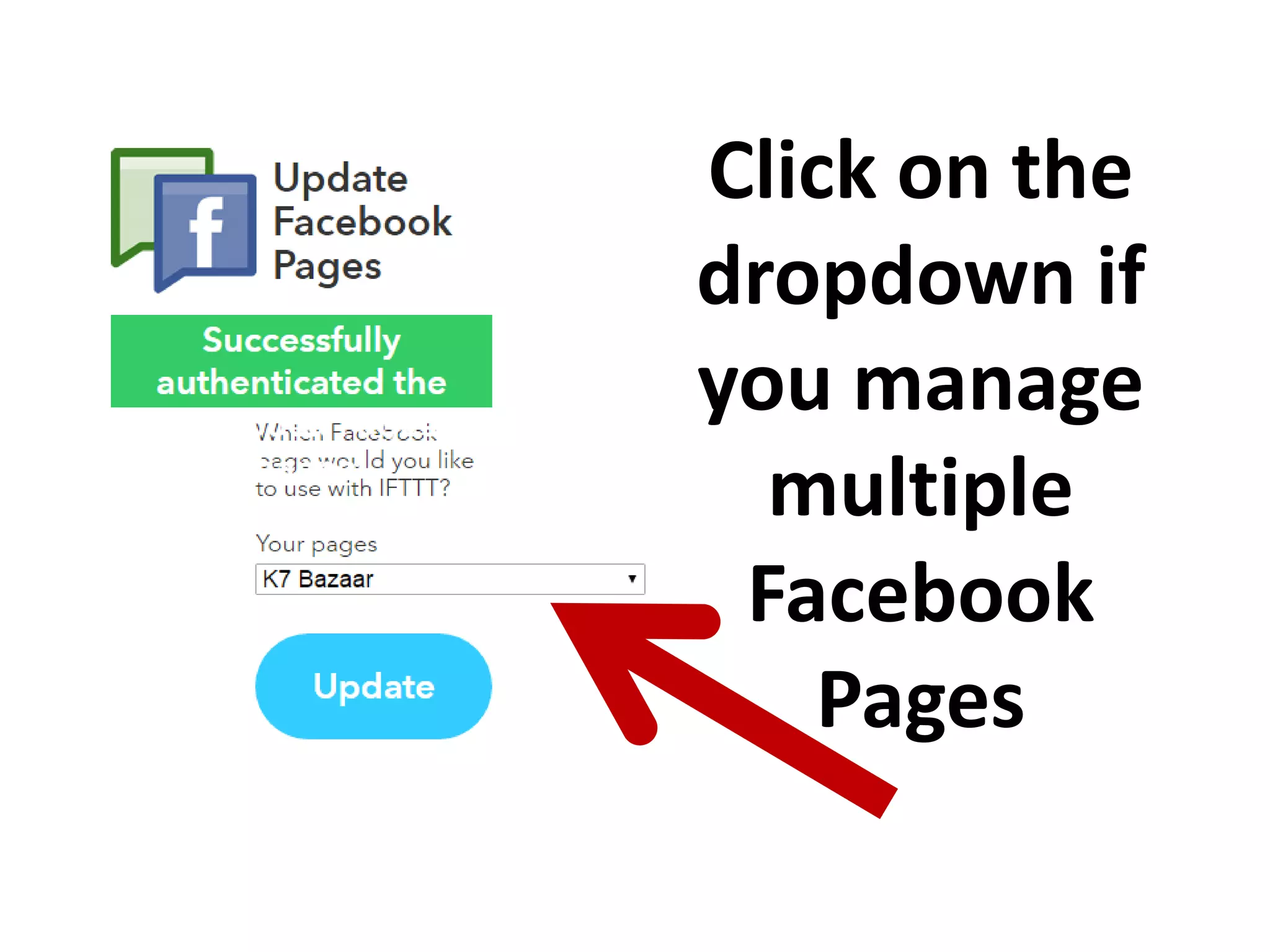
Click on the
dropdown if
you manage
multiple
Facebook
Pages
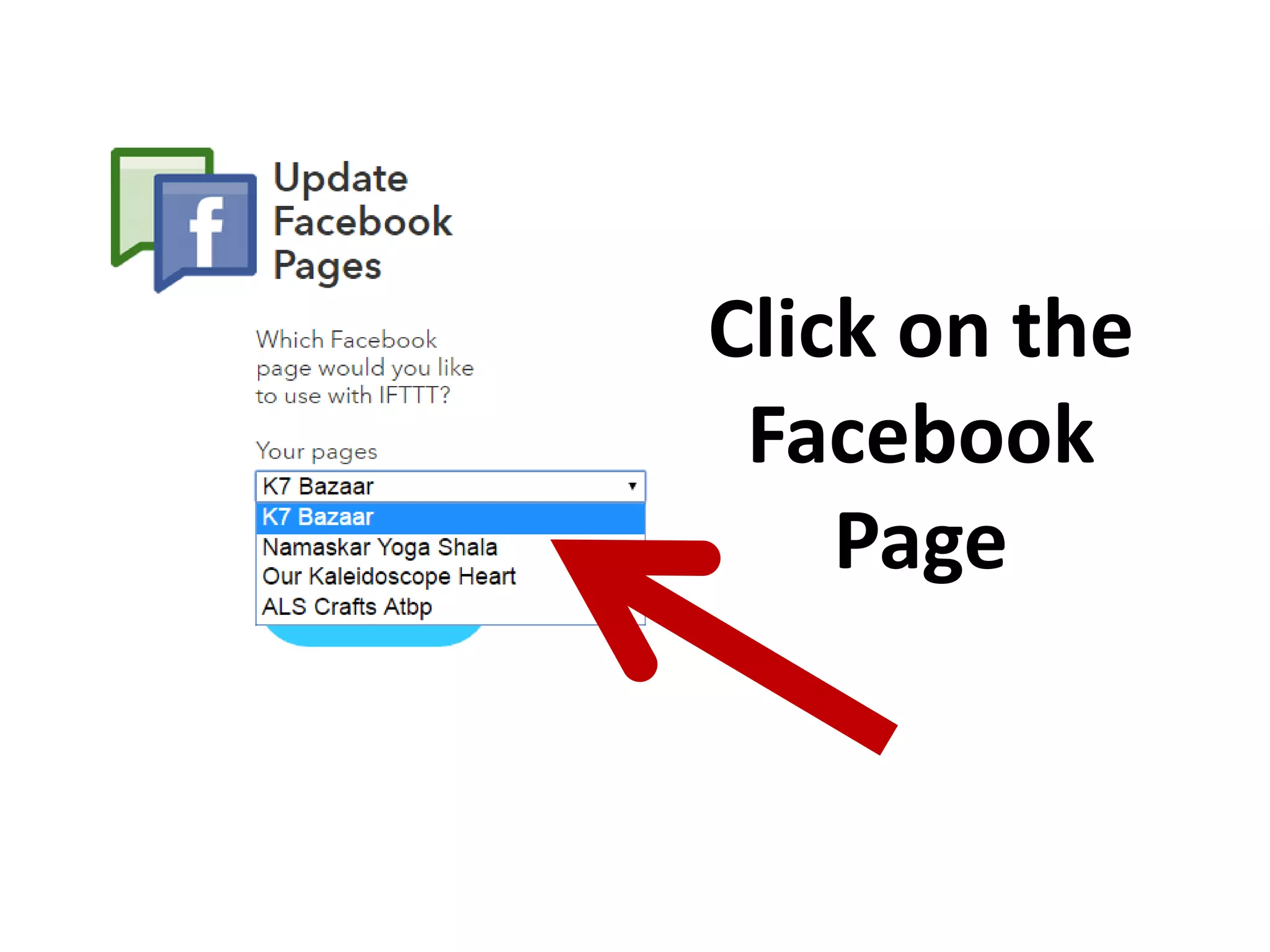
Click on the
Facebook
Page
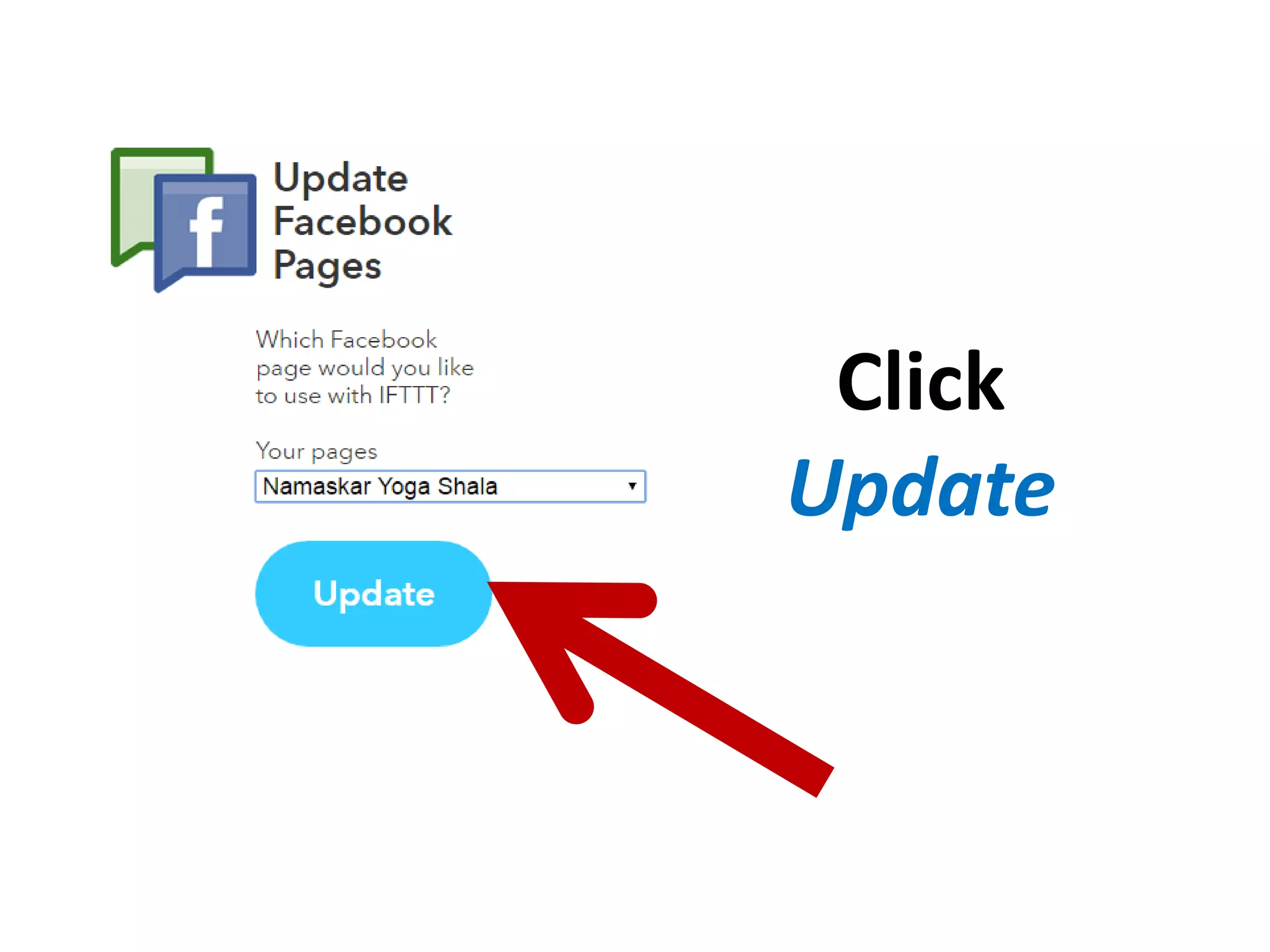
Click
Update
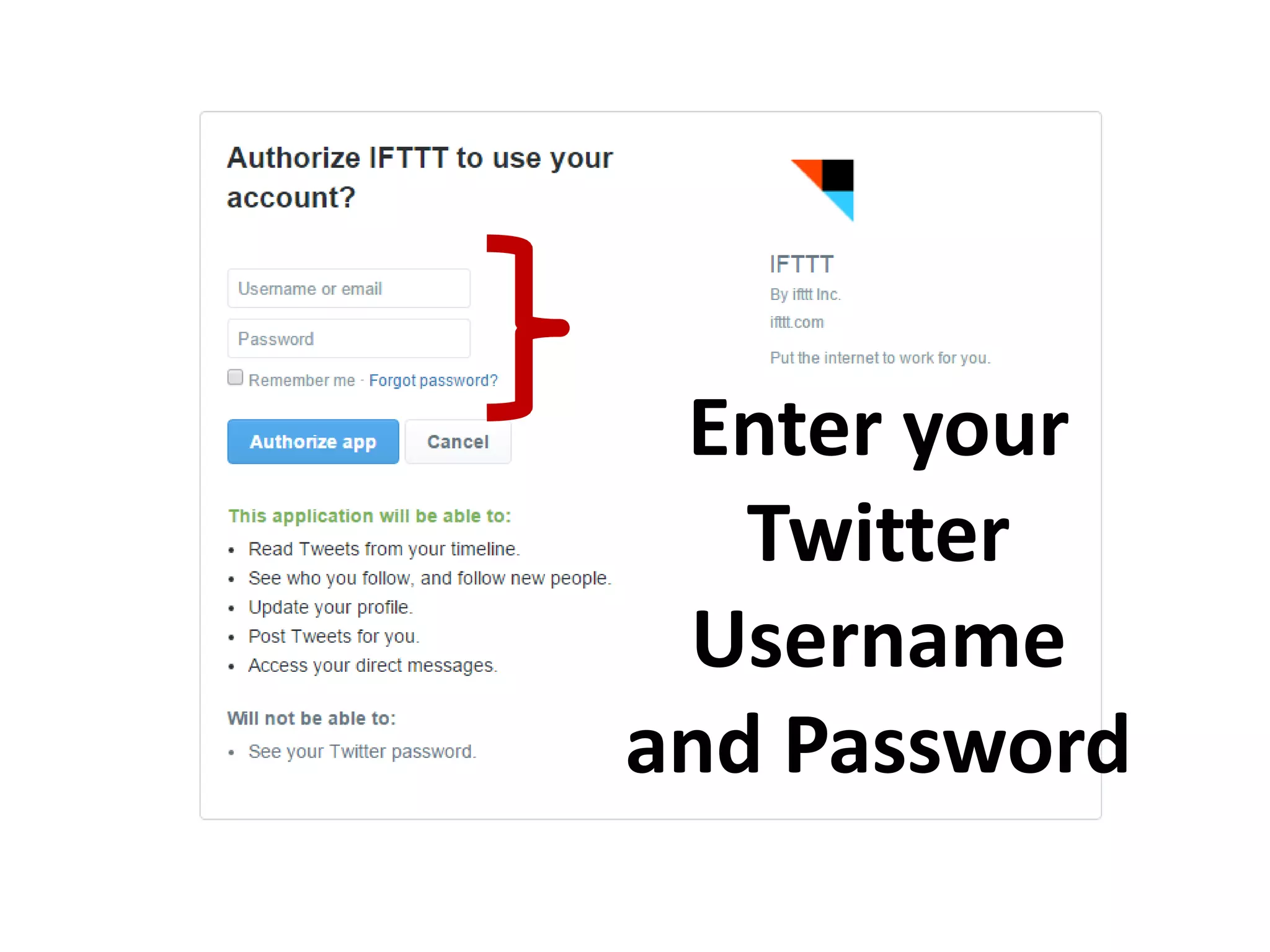
Enter your
Twitter
Username
and Password
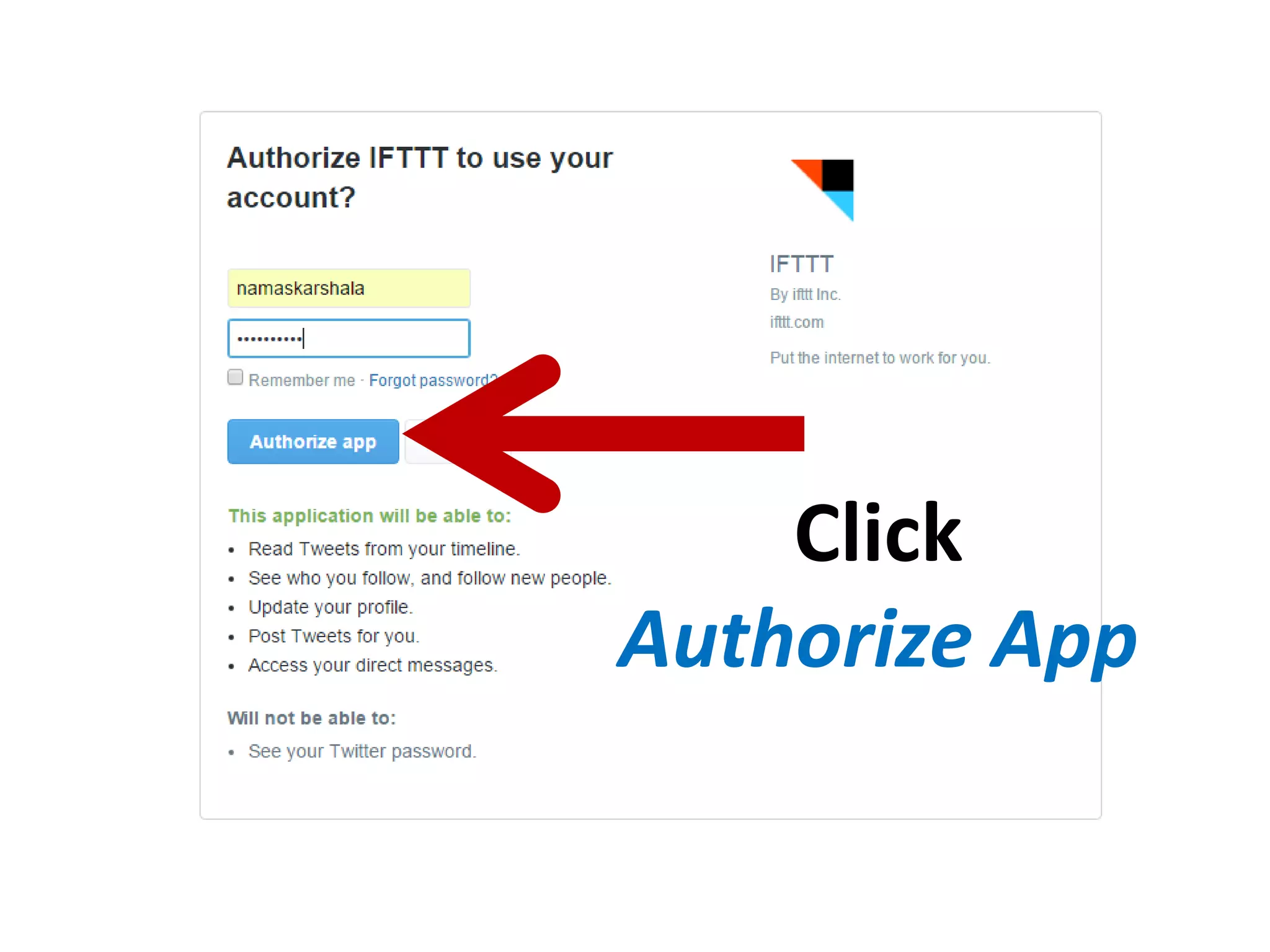
Click
Authorize App
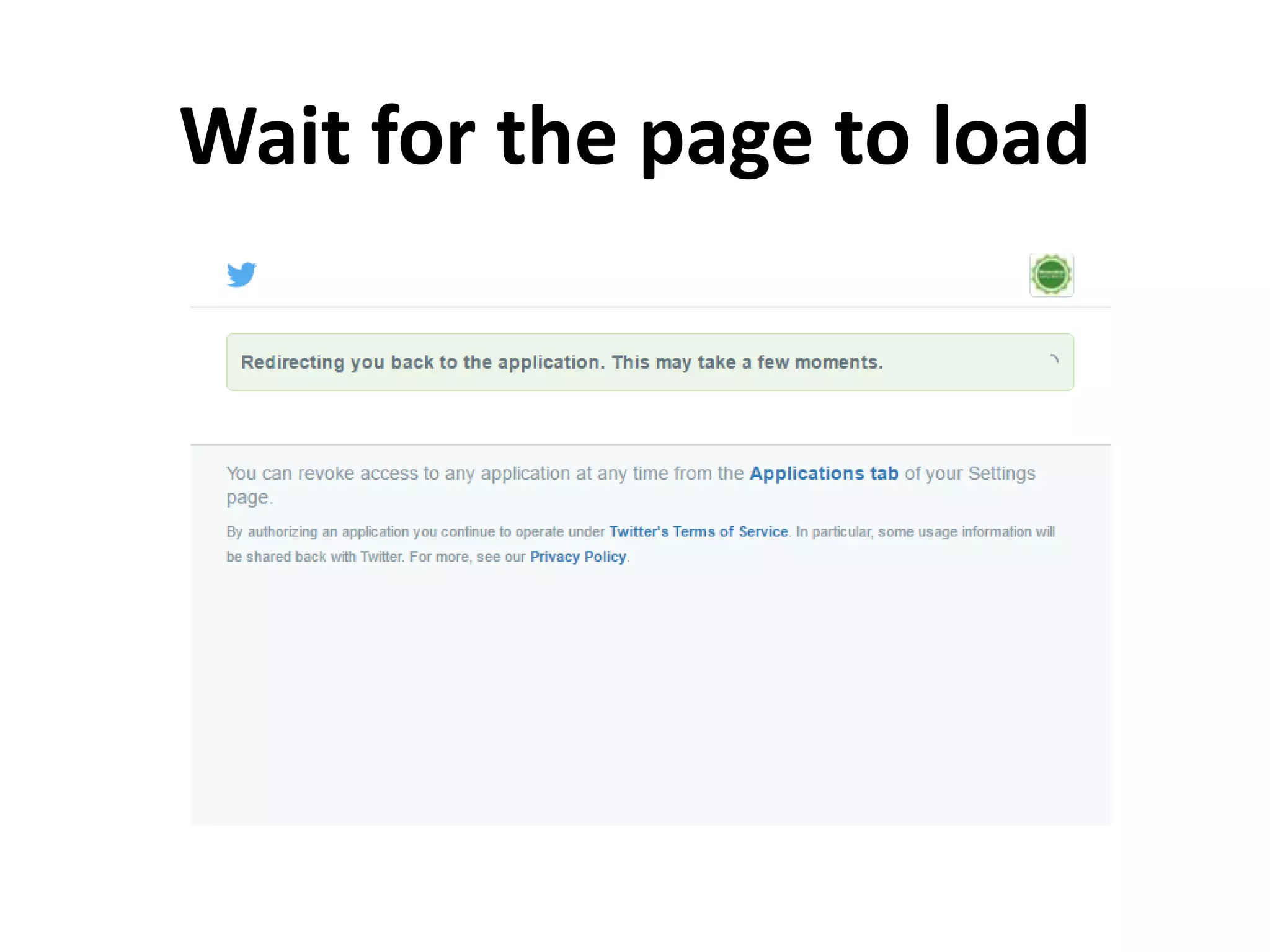
Wait for the page to load
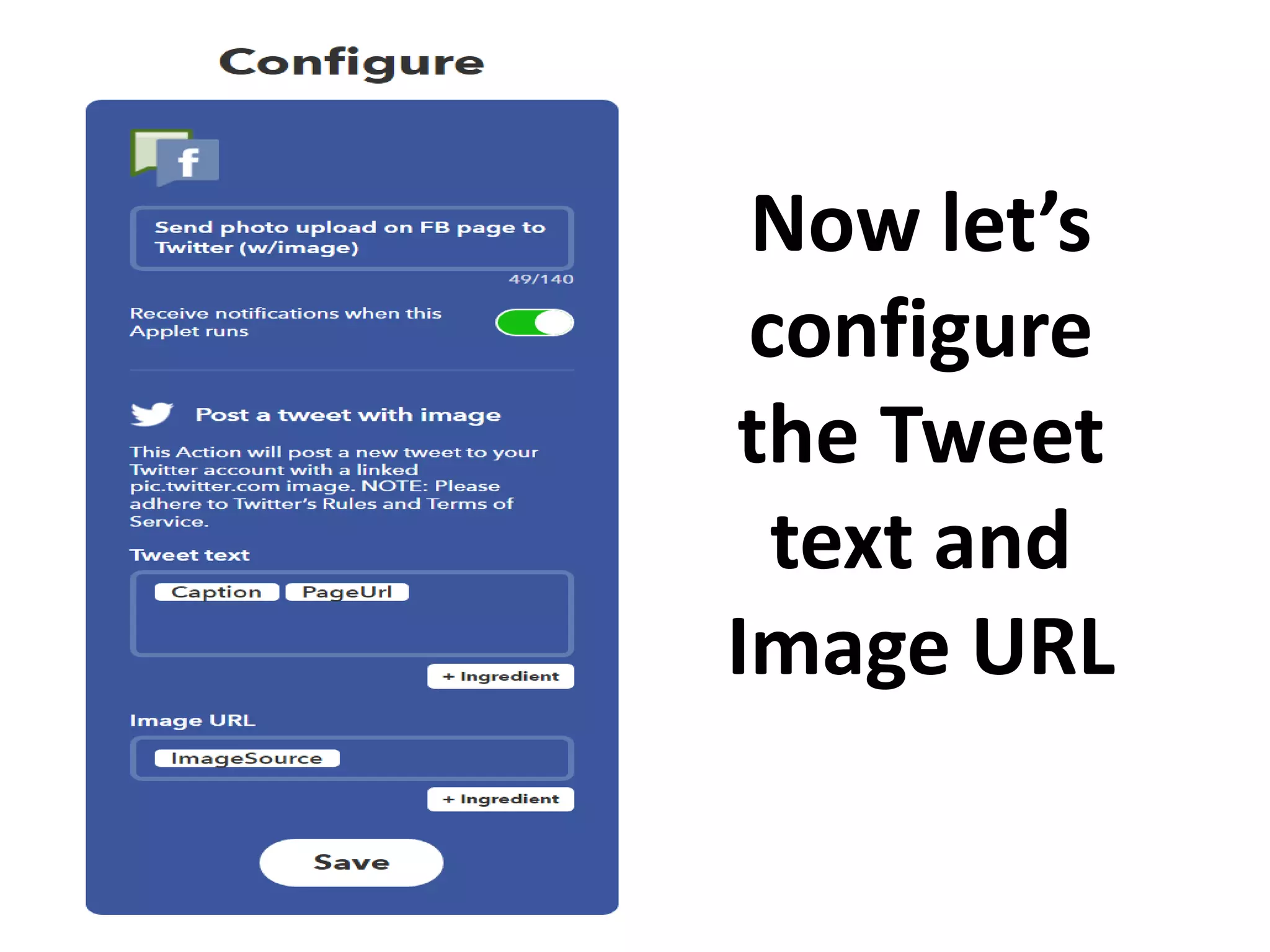
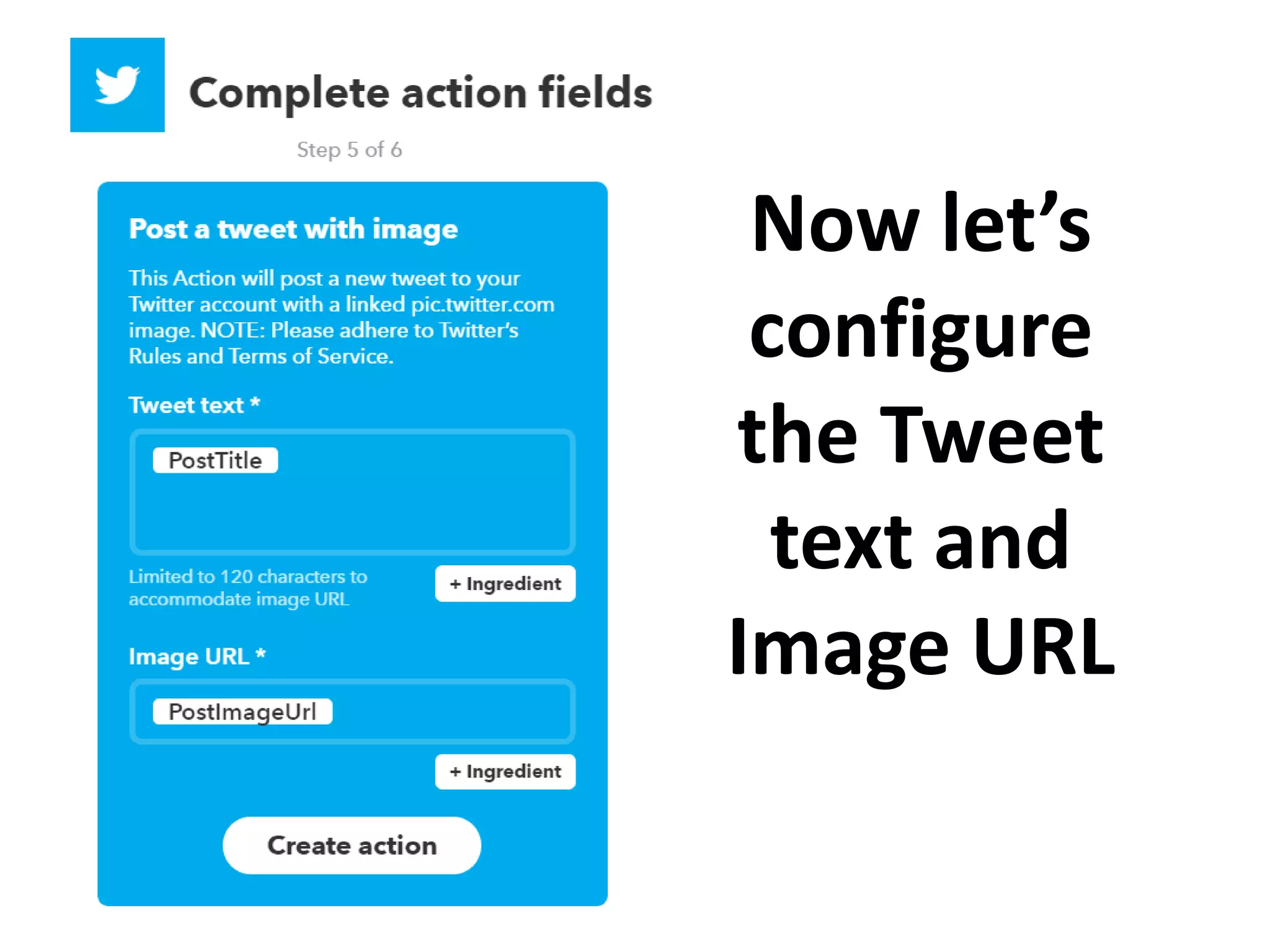
Now let’s
configure
the Tweet
text and
Image URL
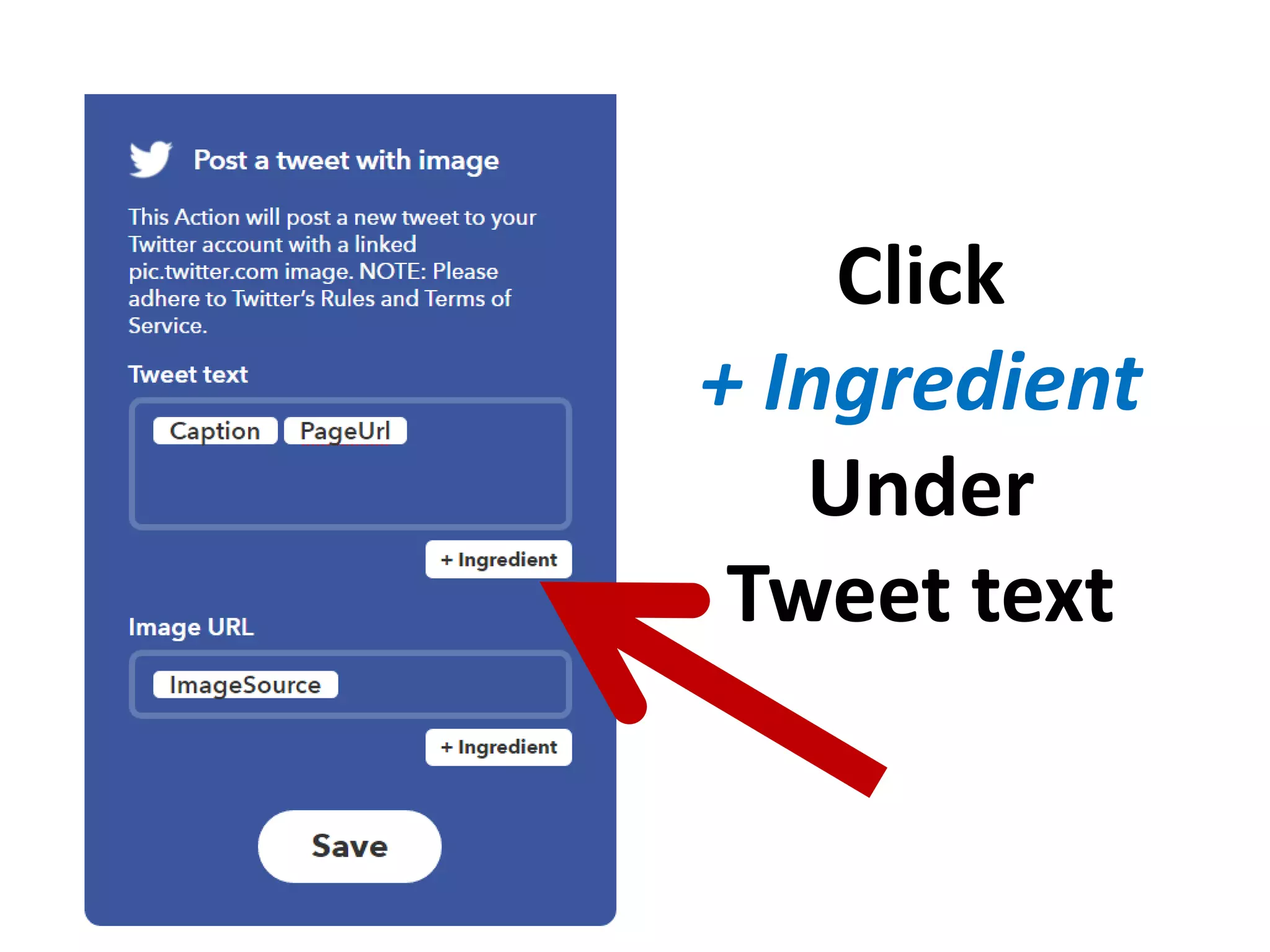
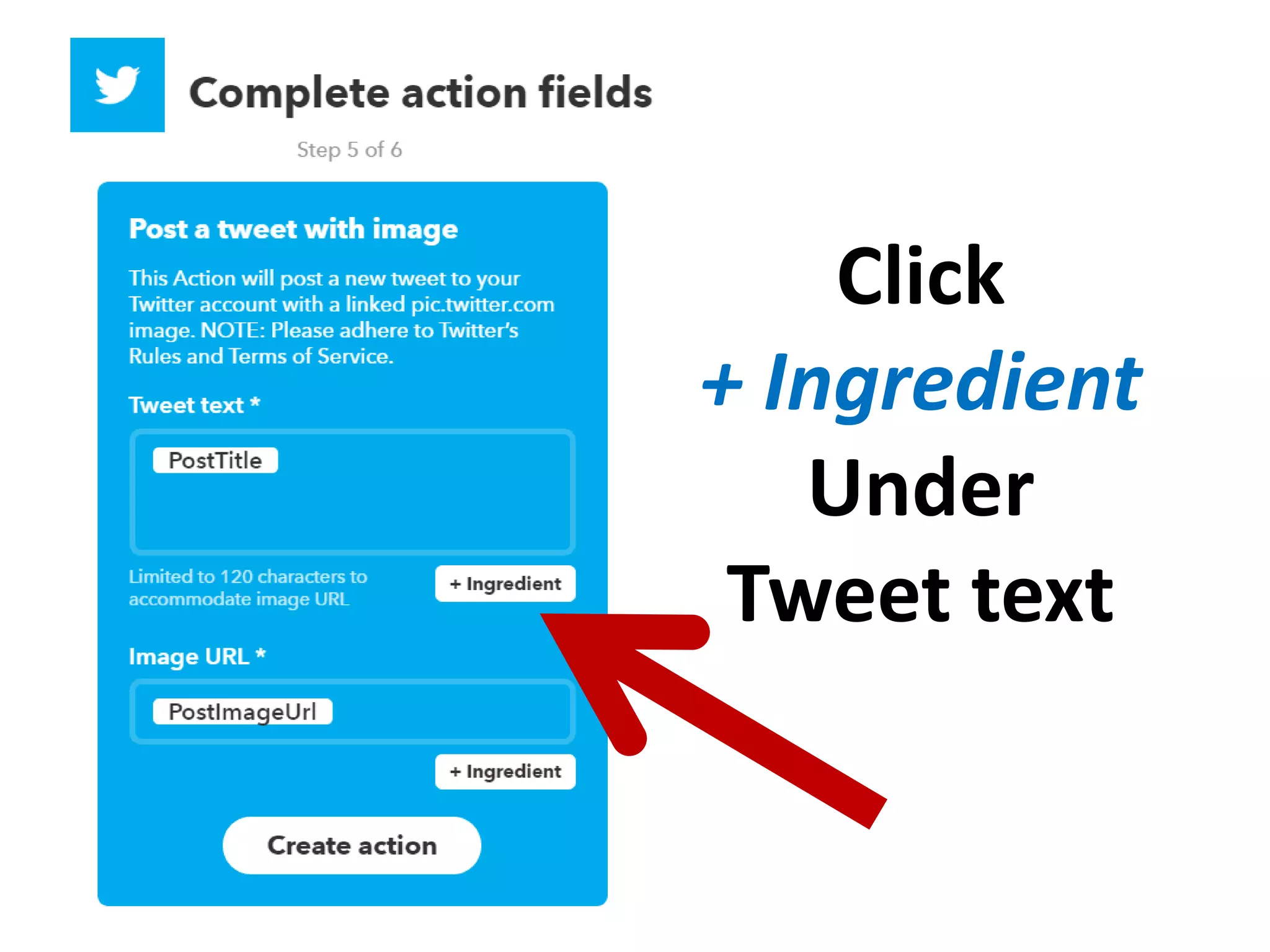
Click
+ Ingredient
Under
Tweet text
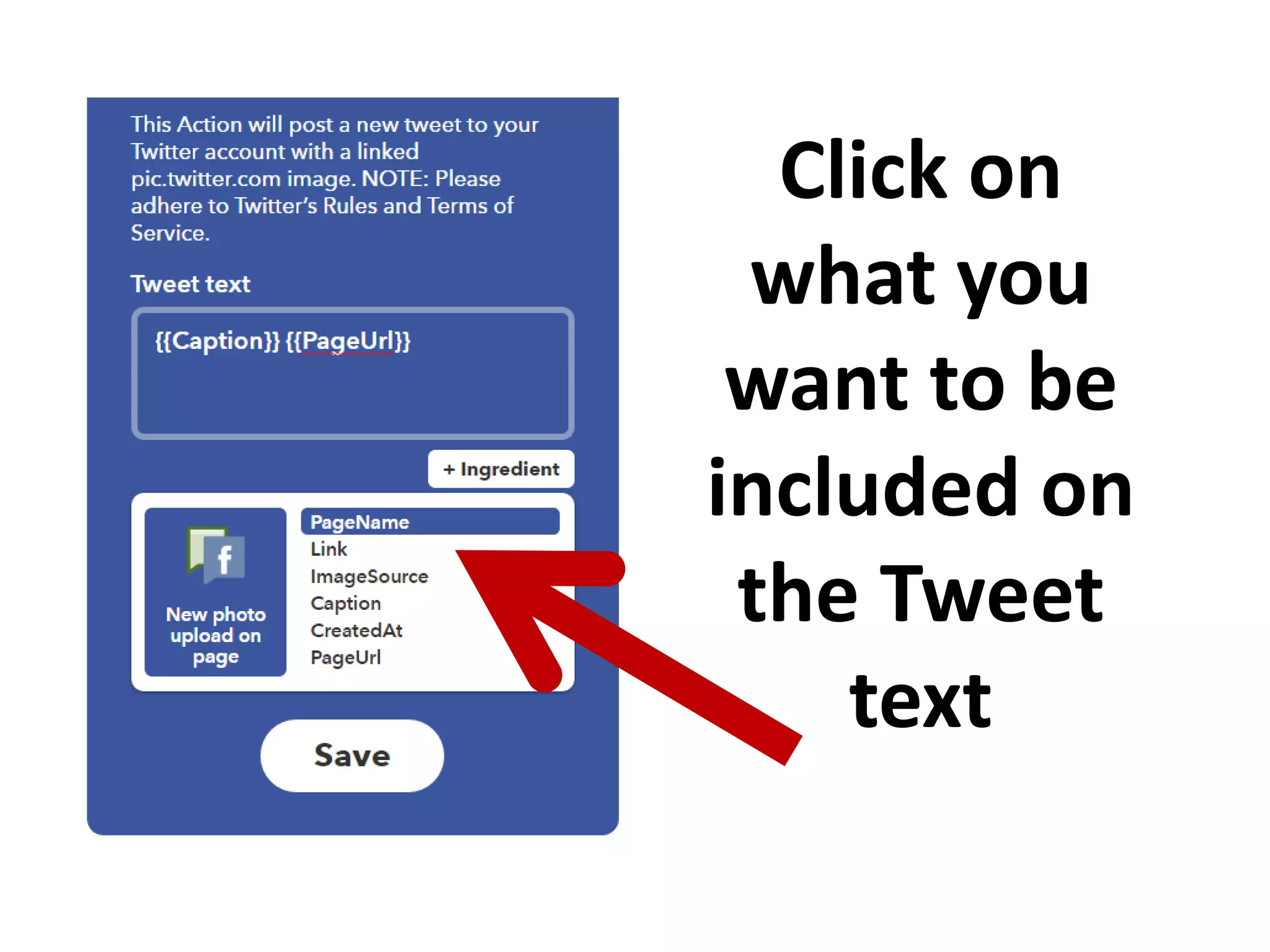
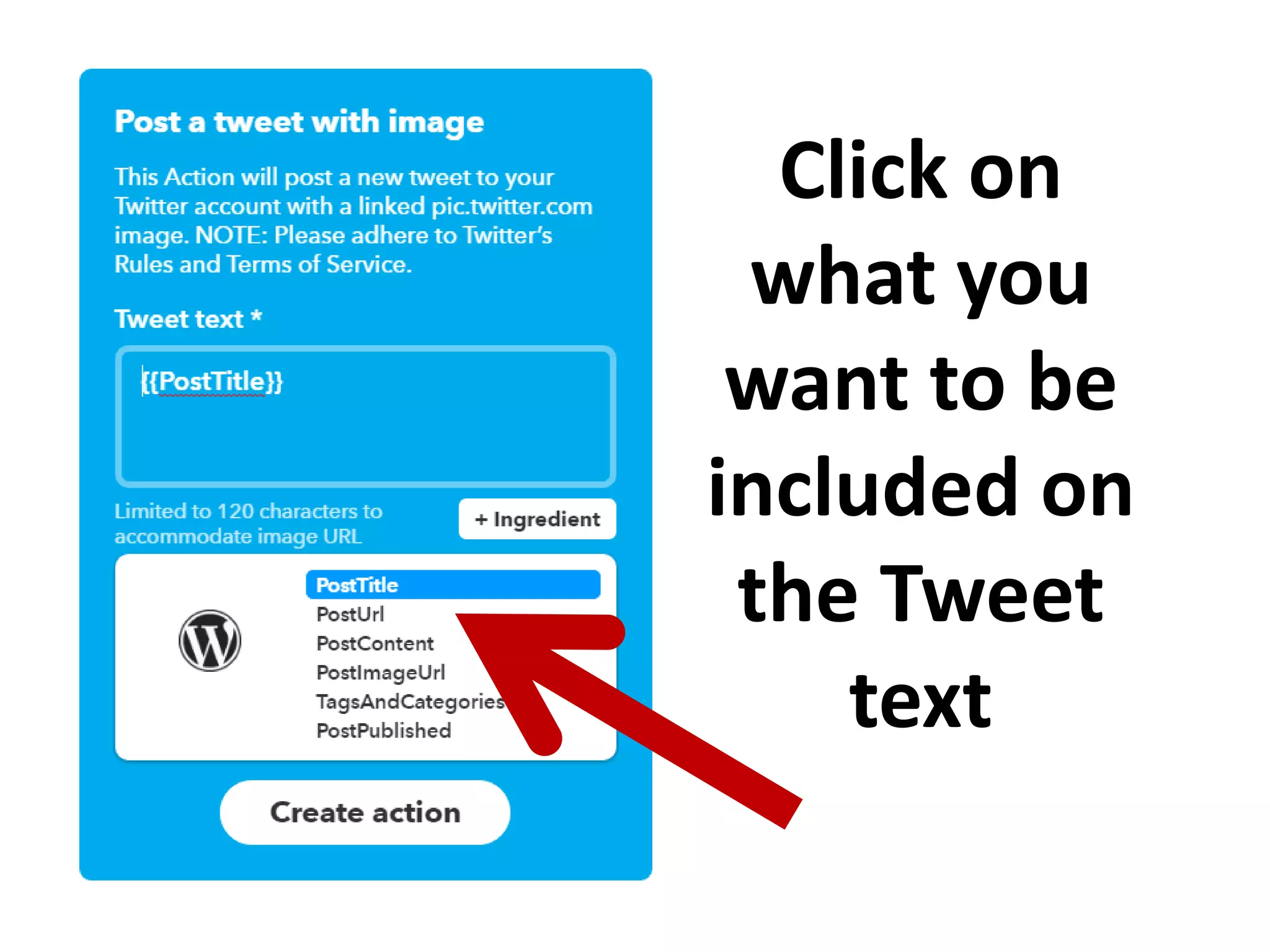
Click on
what you
want to be
included on
the Tweet
text
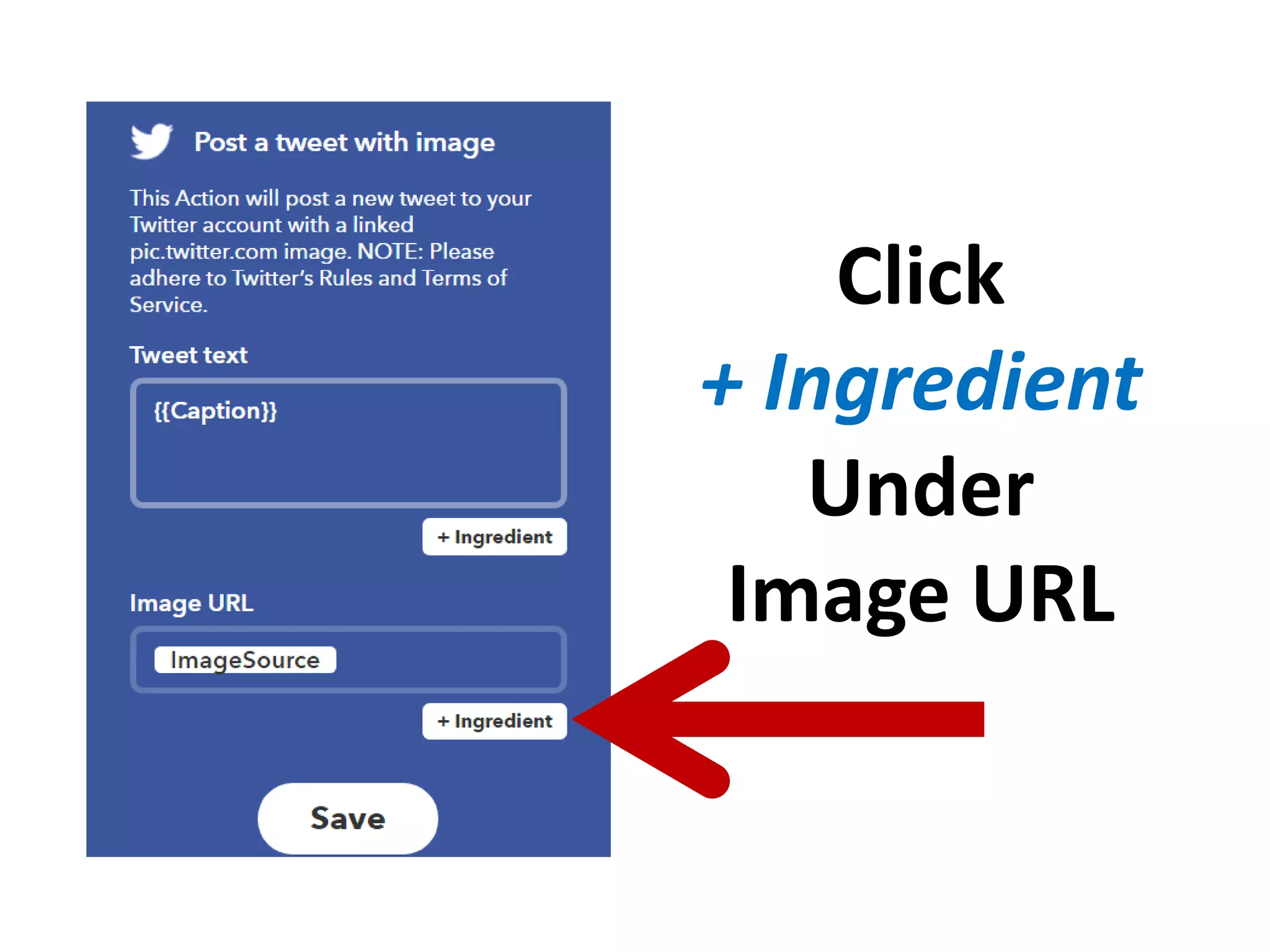
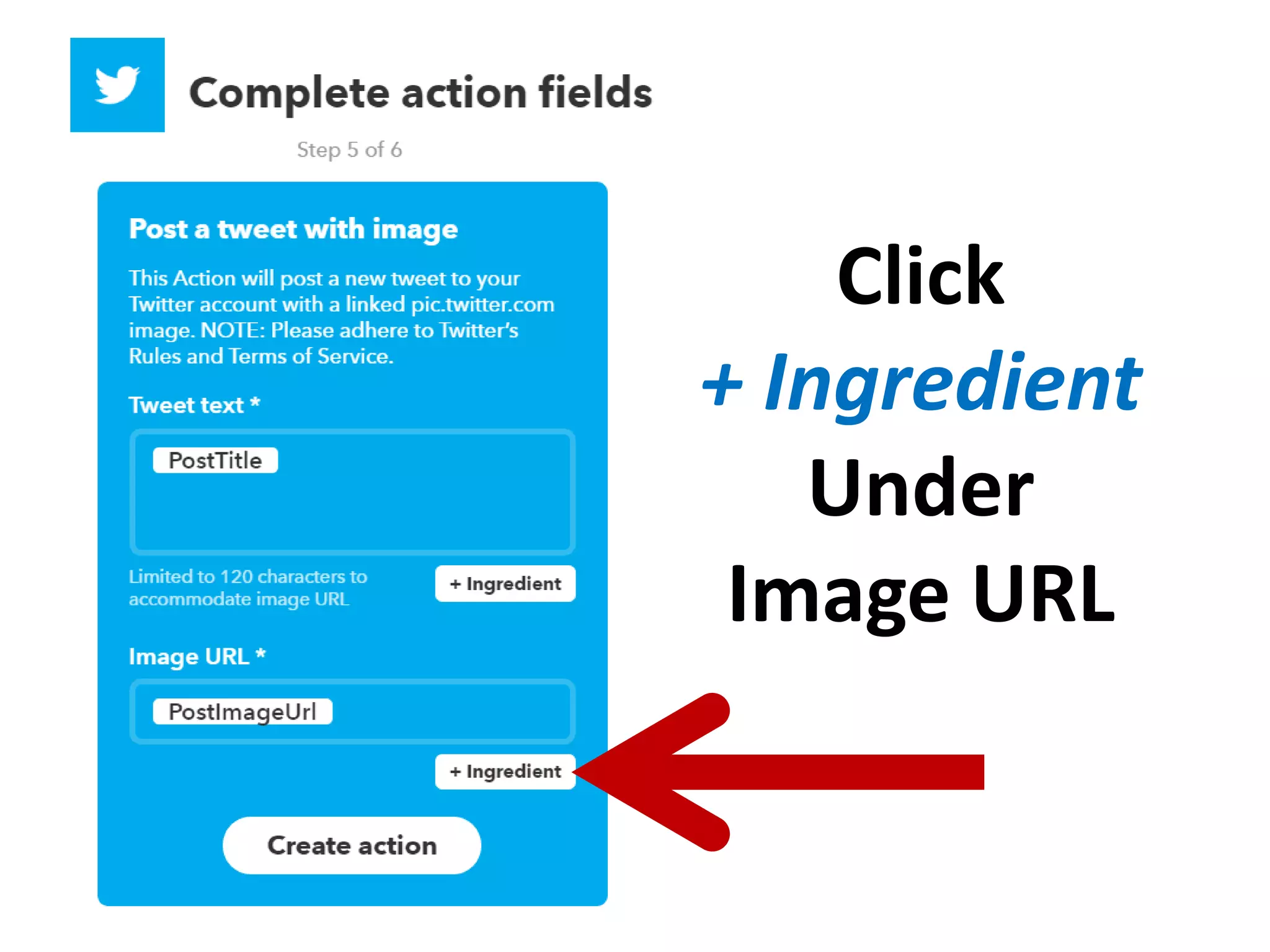
Click
+ Ingredient
Under
Image URL
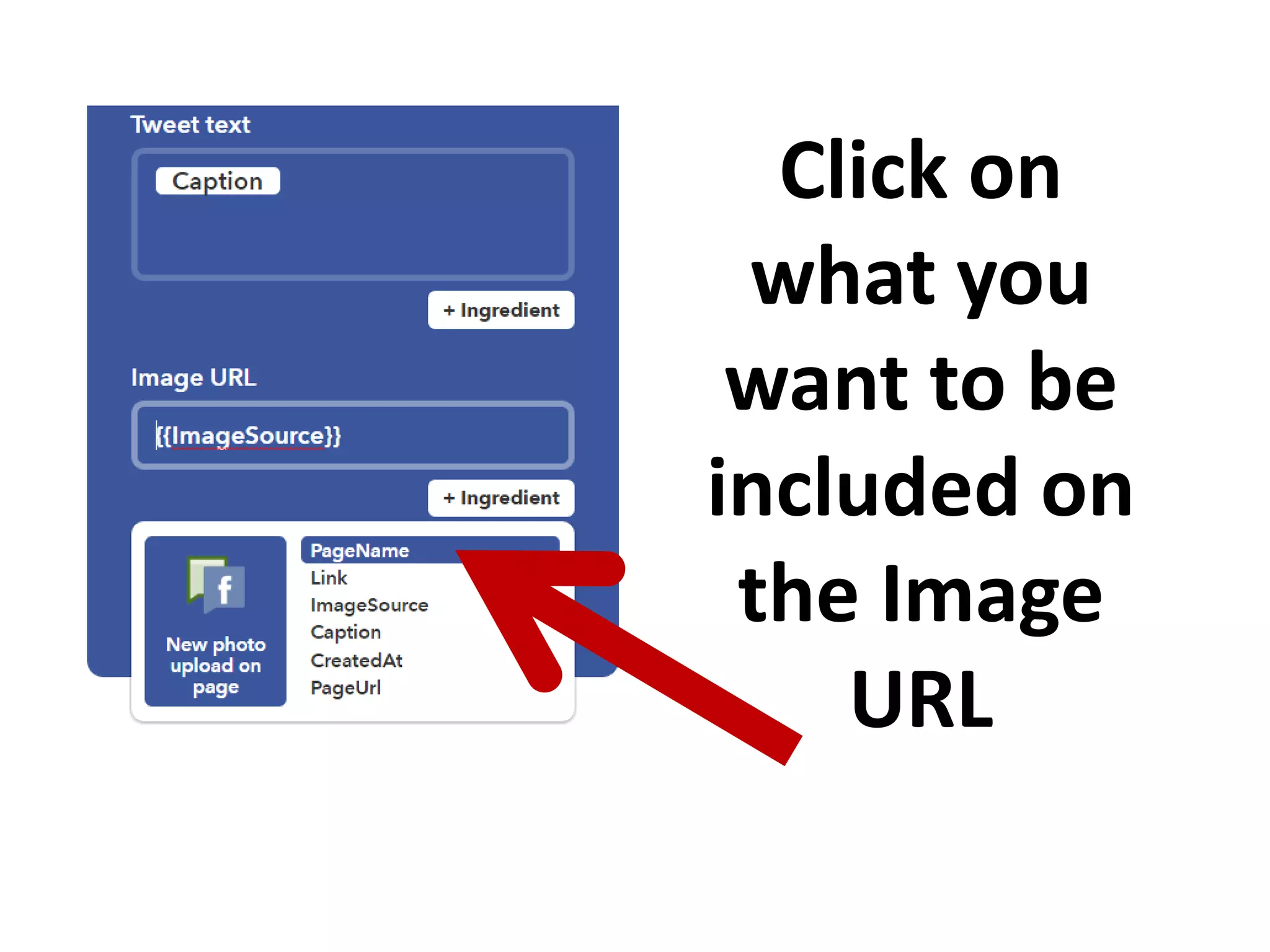
Click on
what you
want to be
included on
the Image
URL
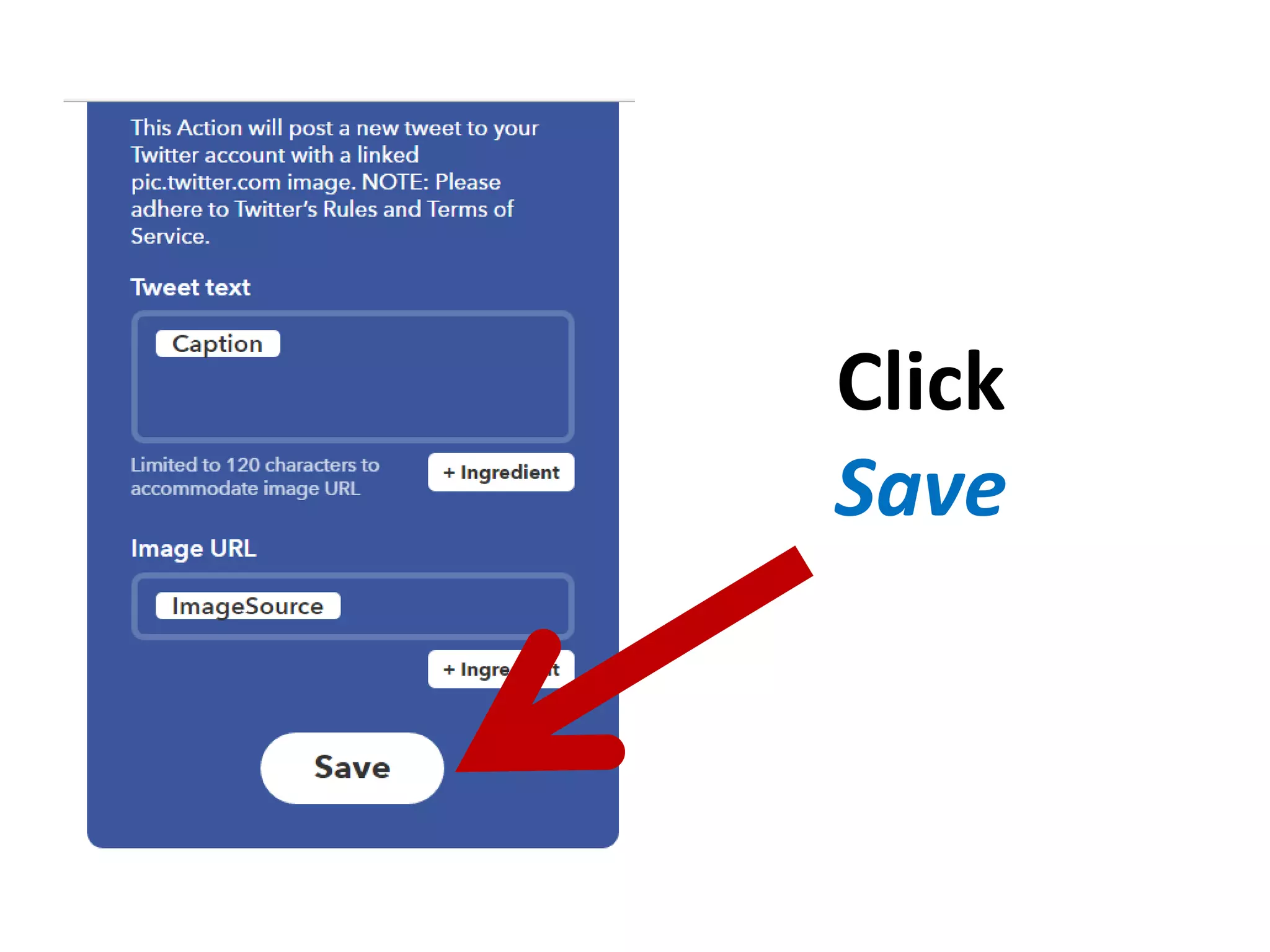
Click
Save
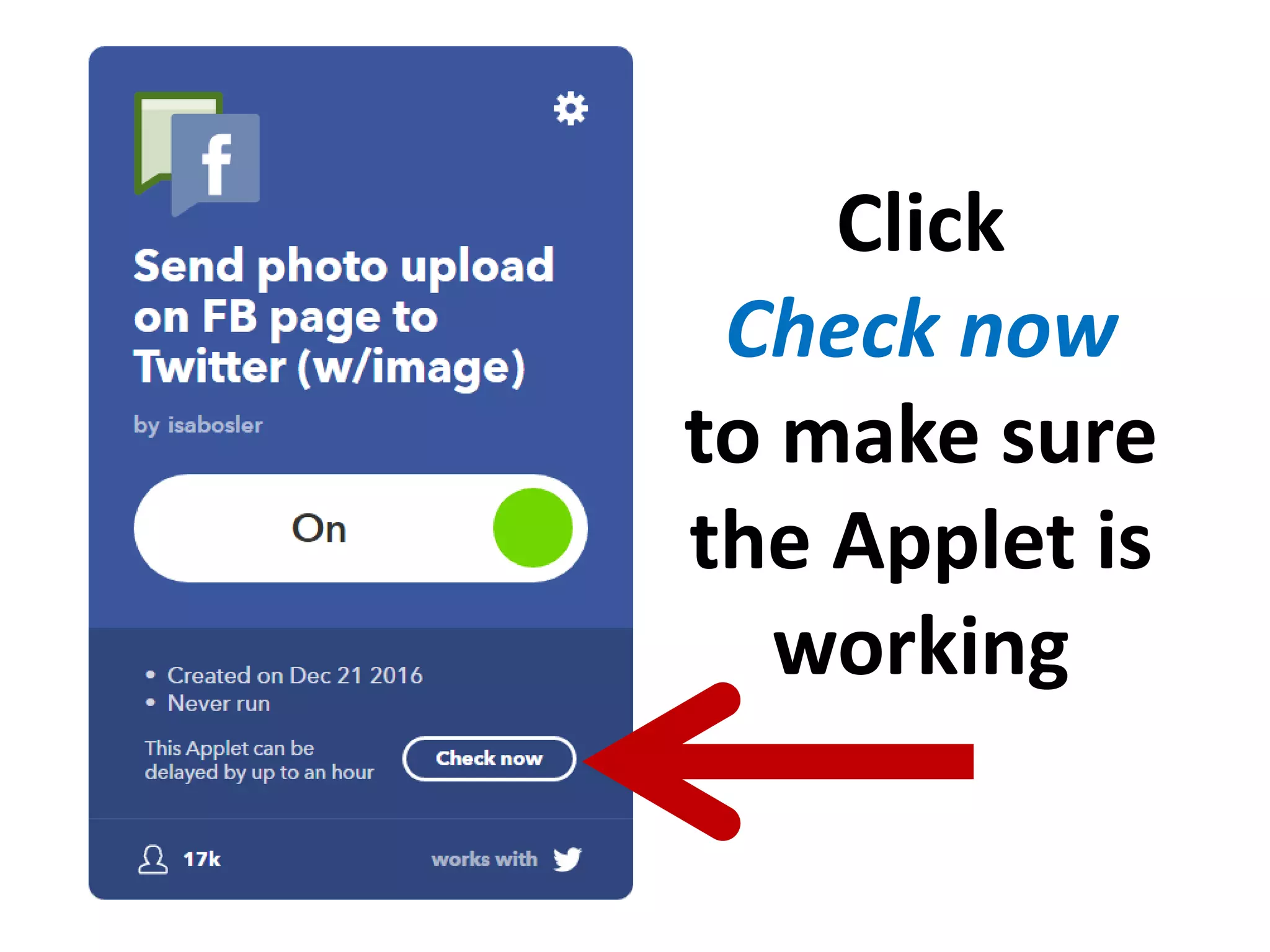
Click
Check now
to make sure
the Applet is
working
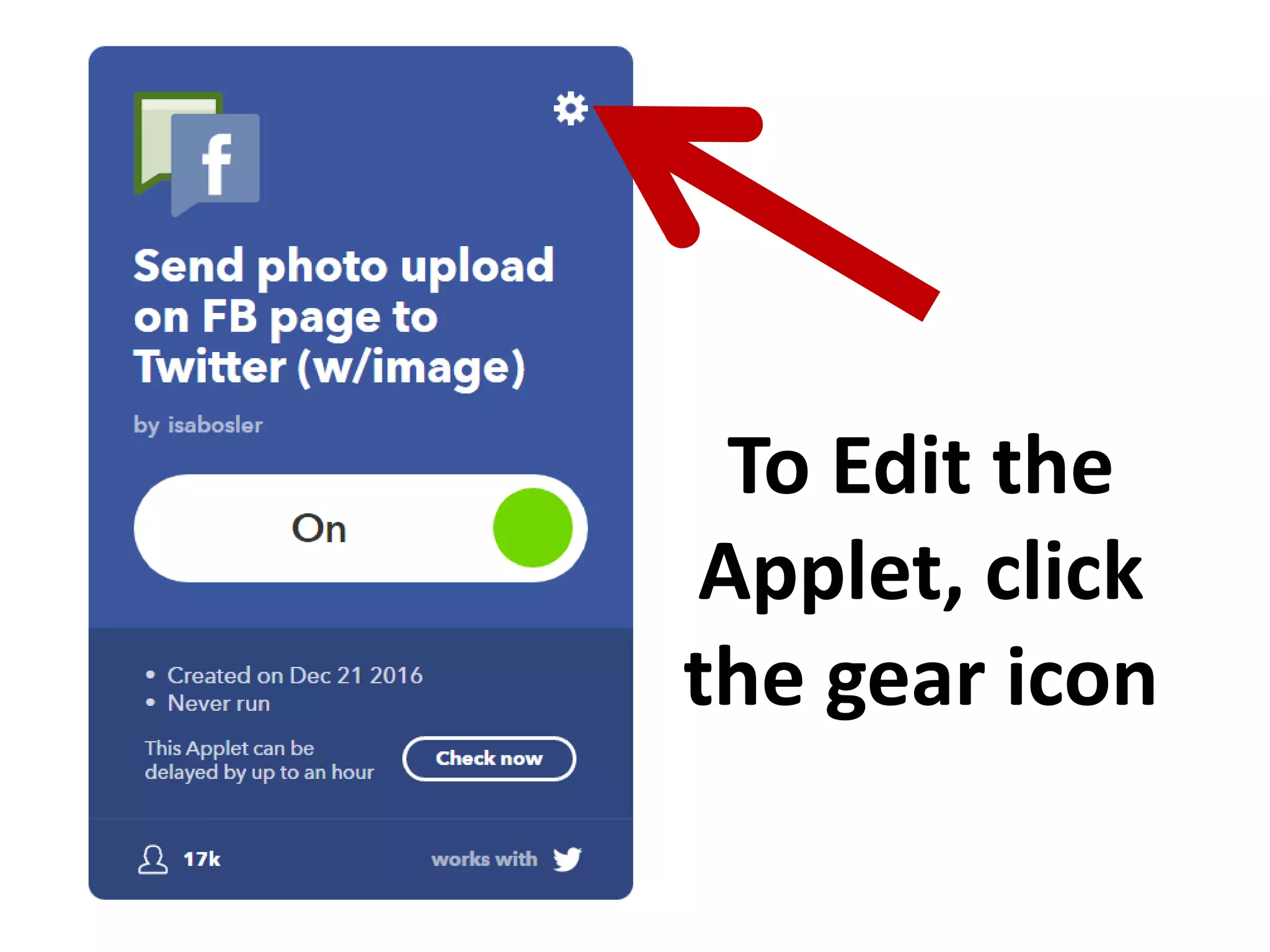
To Edit the
Applet, click
the gear icon
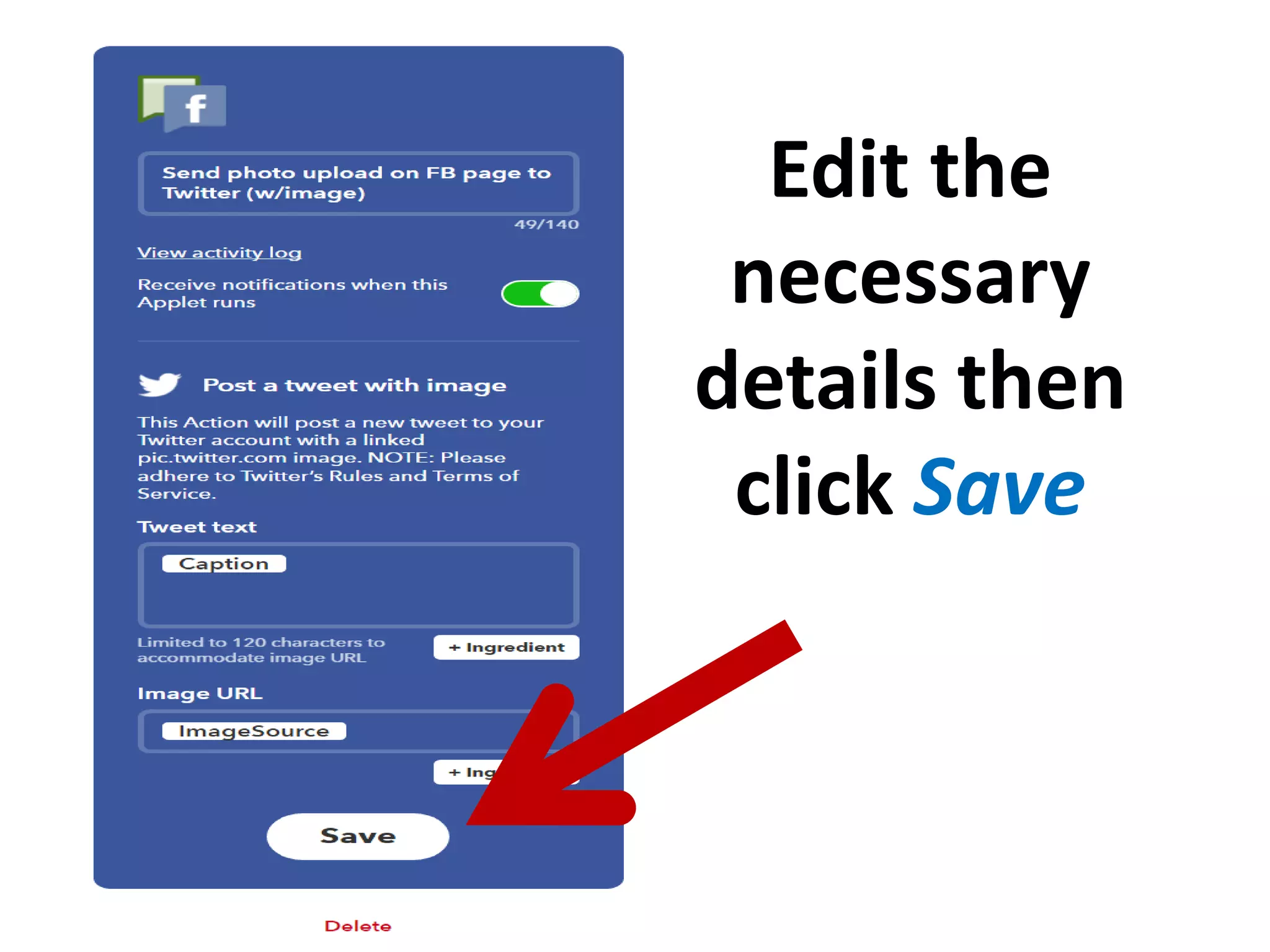
Edit the
necessary
details then
click Save
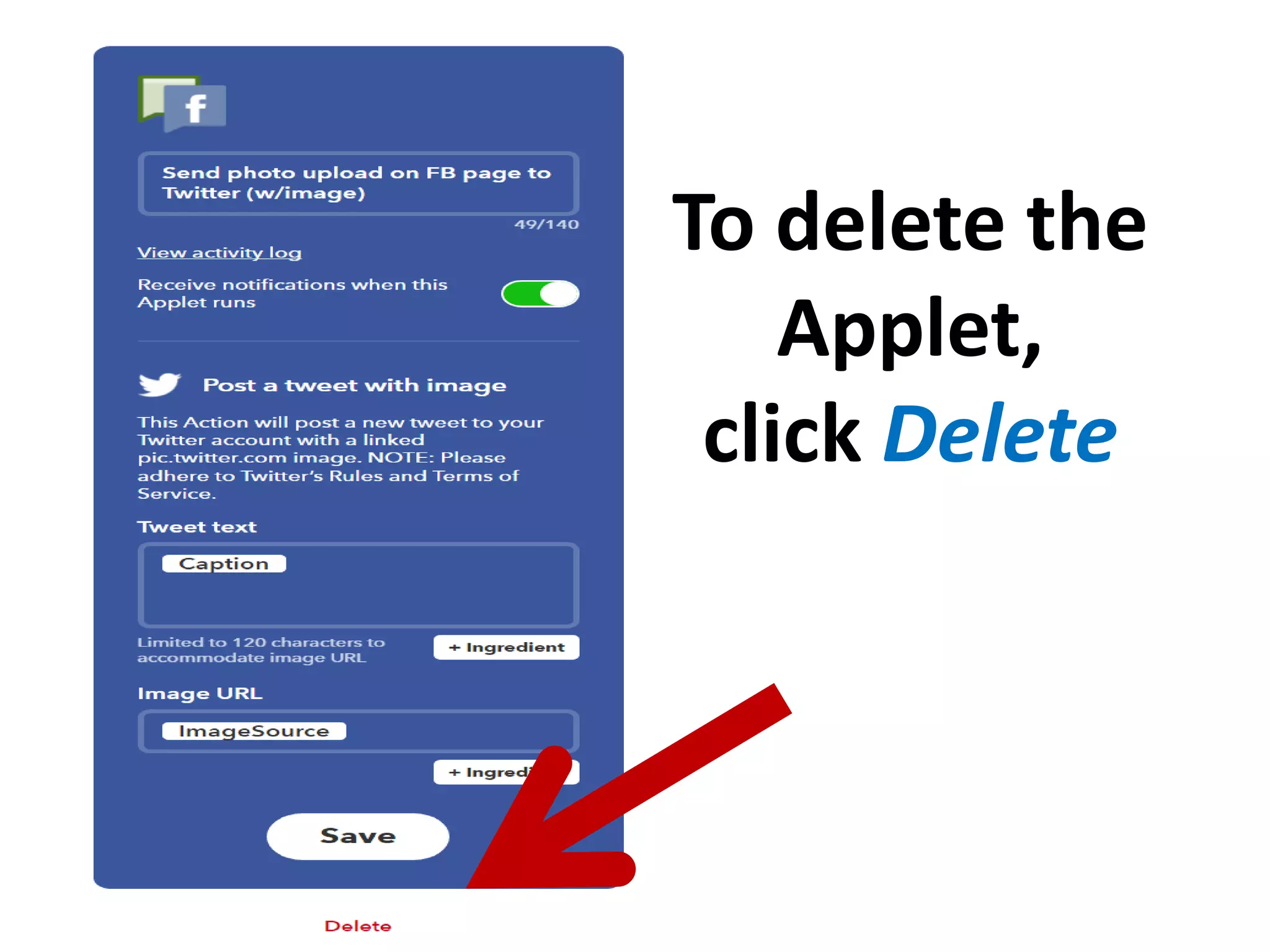
To delete the
Applet,
click Delete
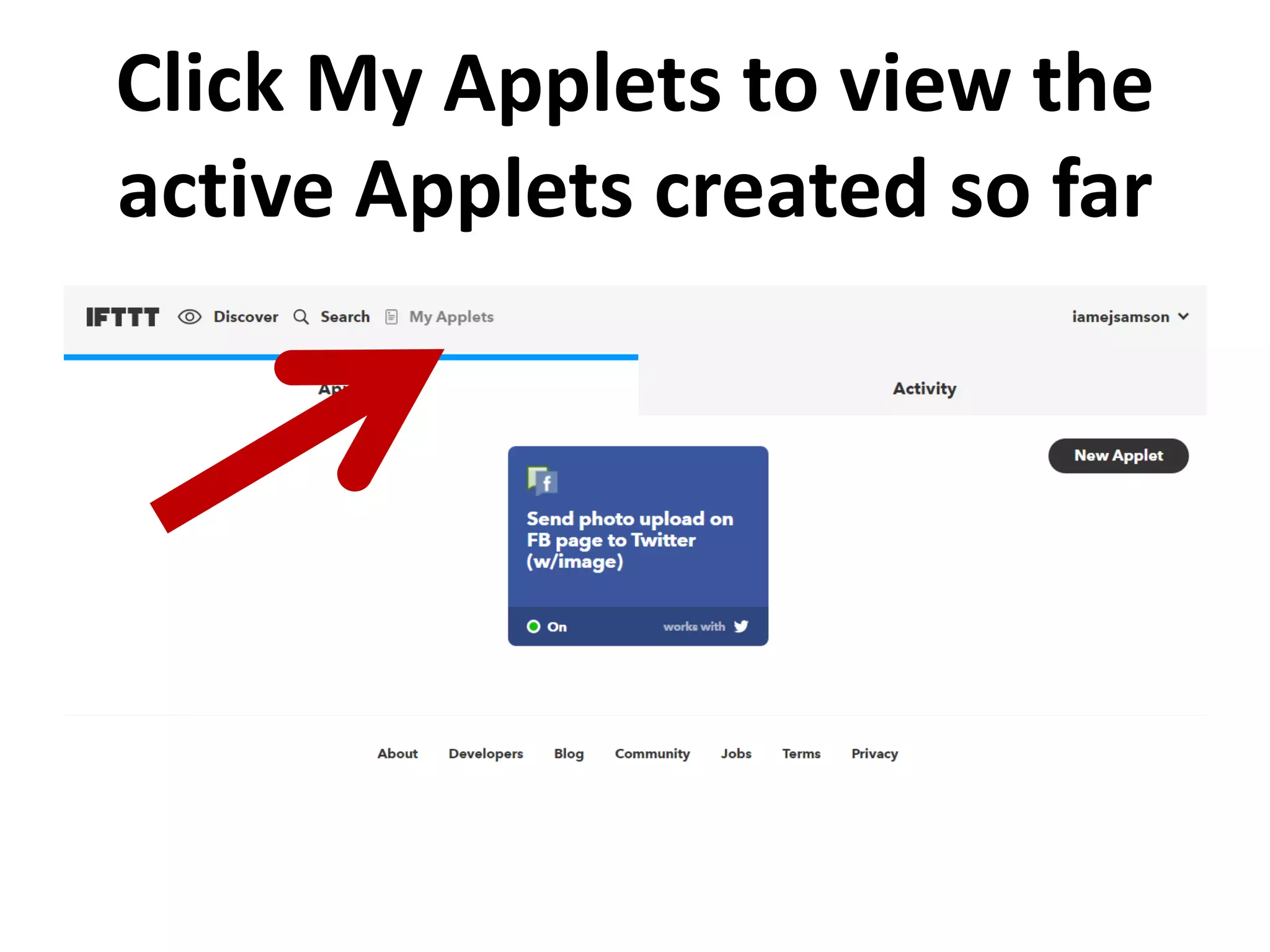
Click My Applets to view the
active Applets created so far
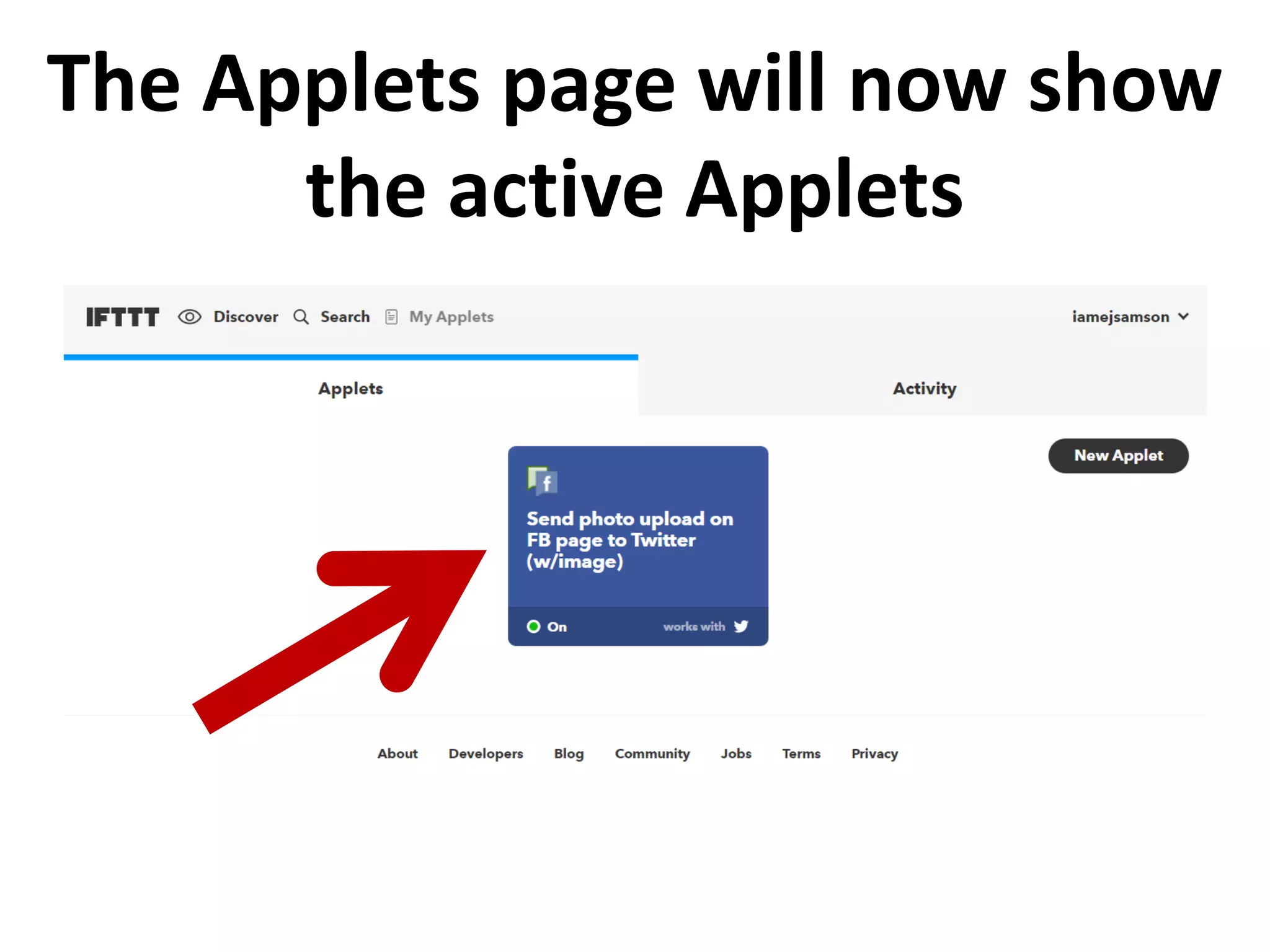
The Applets page will now show
the active Applets
Next, let’s create an
Applet in another way with
Wordpress and Facebook
We will set it so that all blog
posts published in
Wordpress will be posted
on Twitter as well.
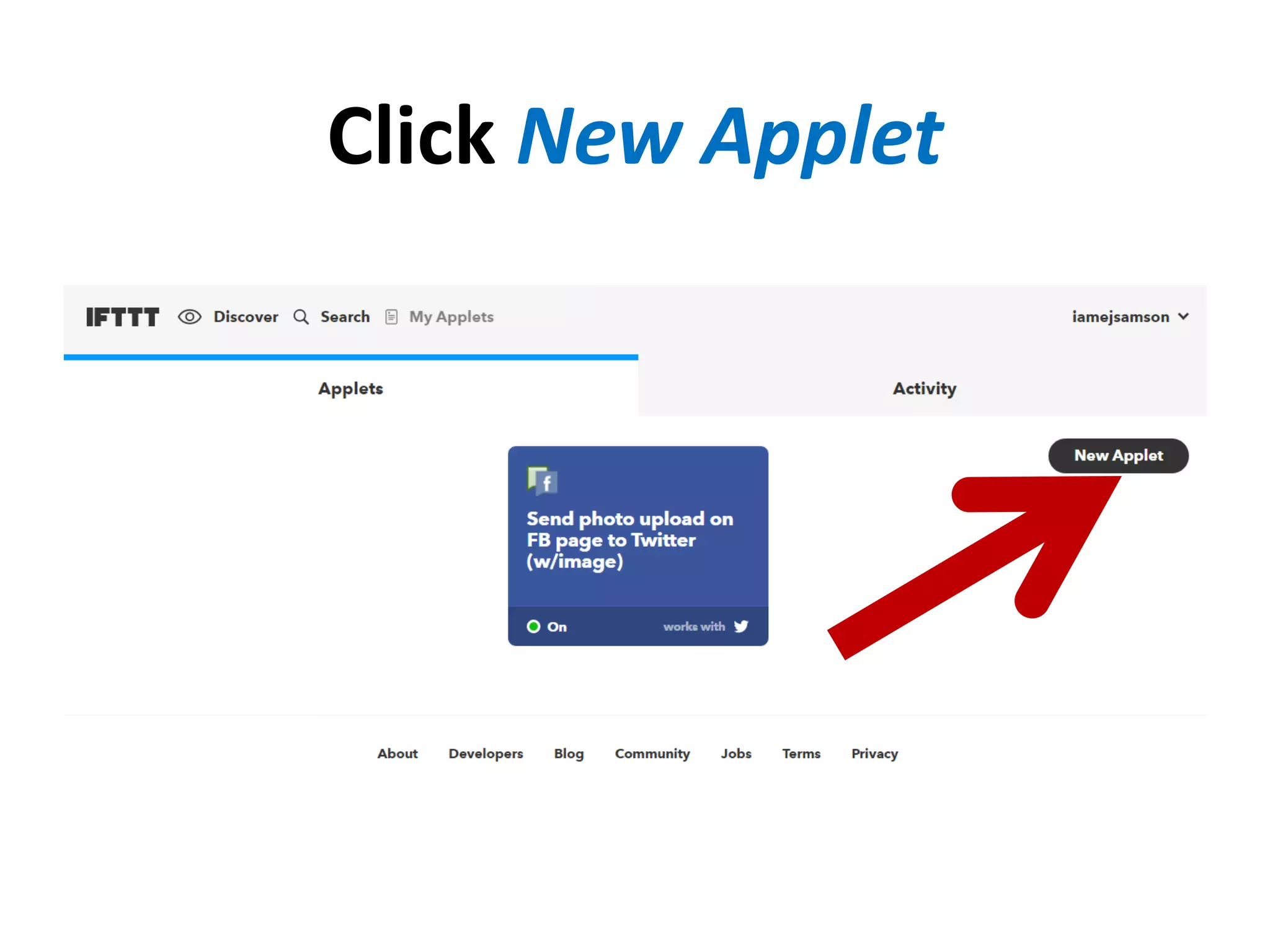
Click New Applet
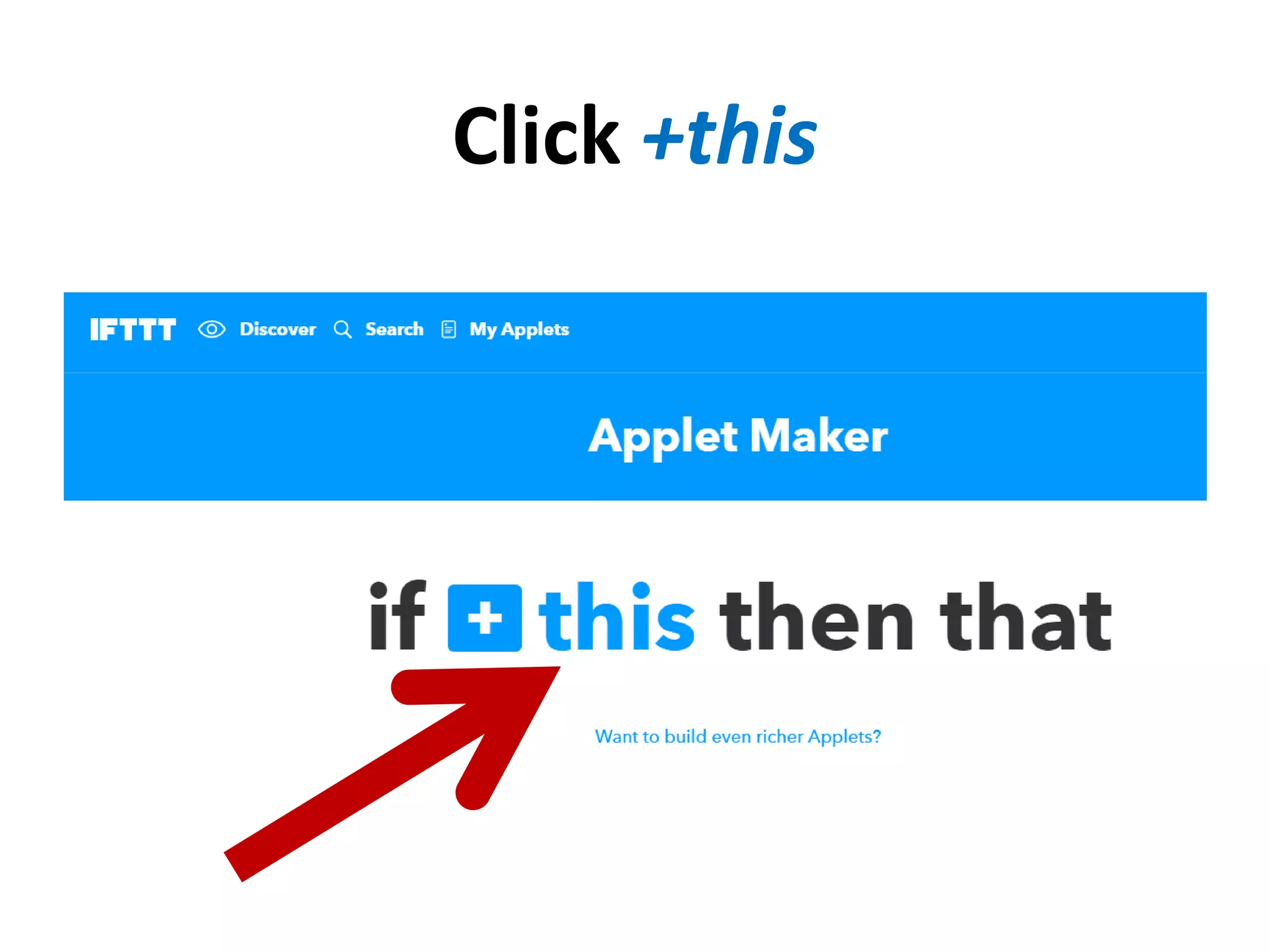
Click +this
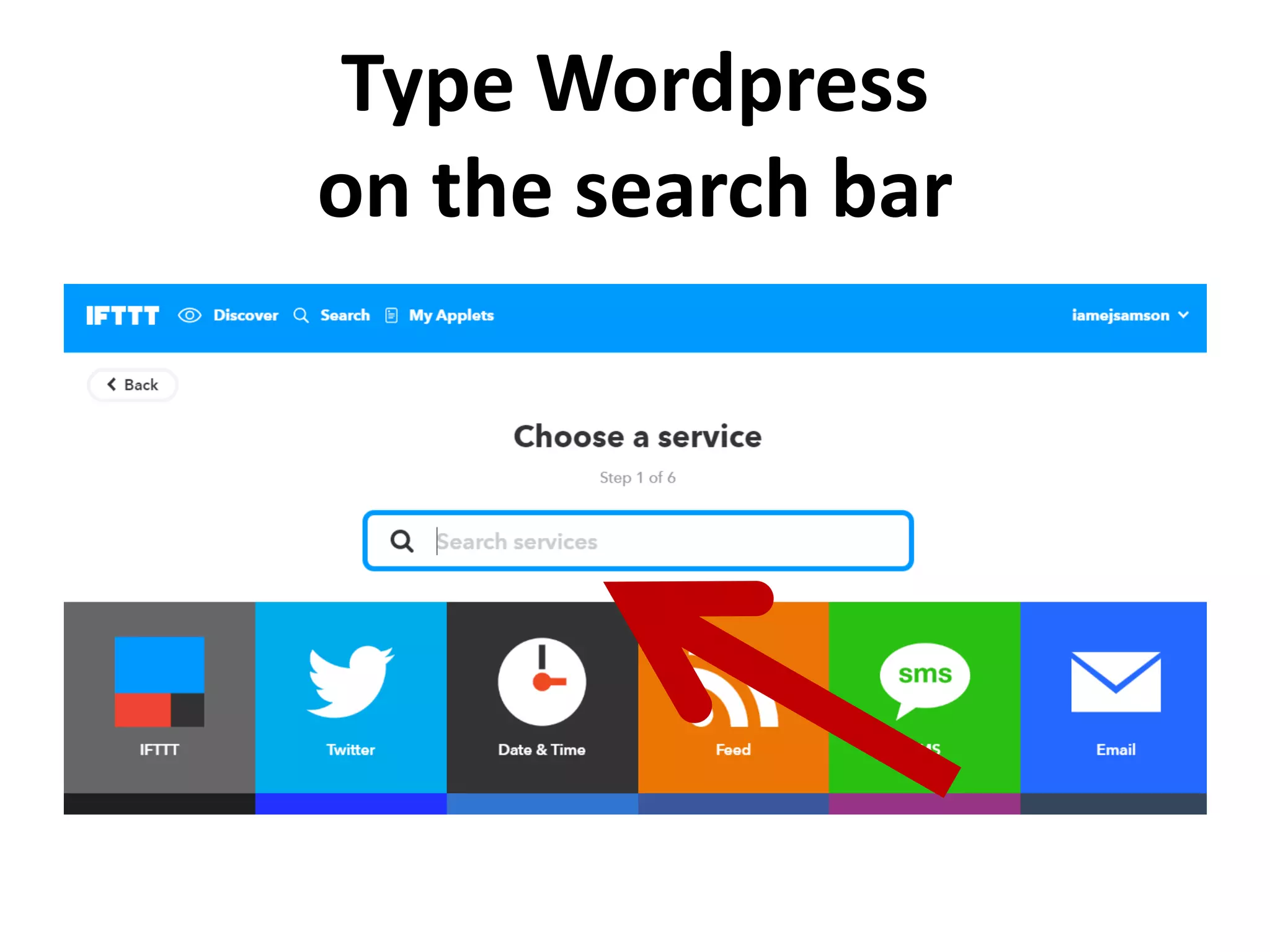
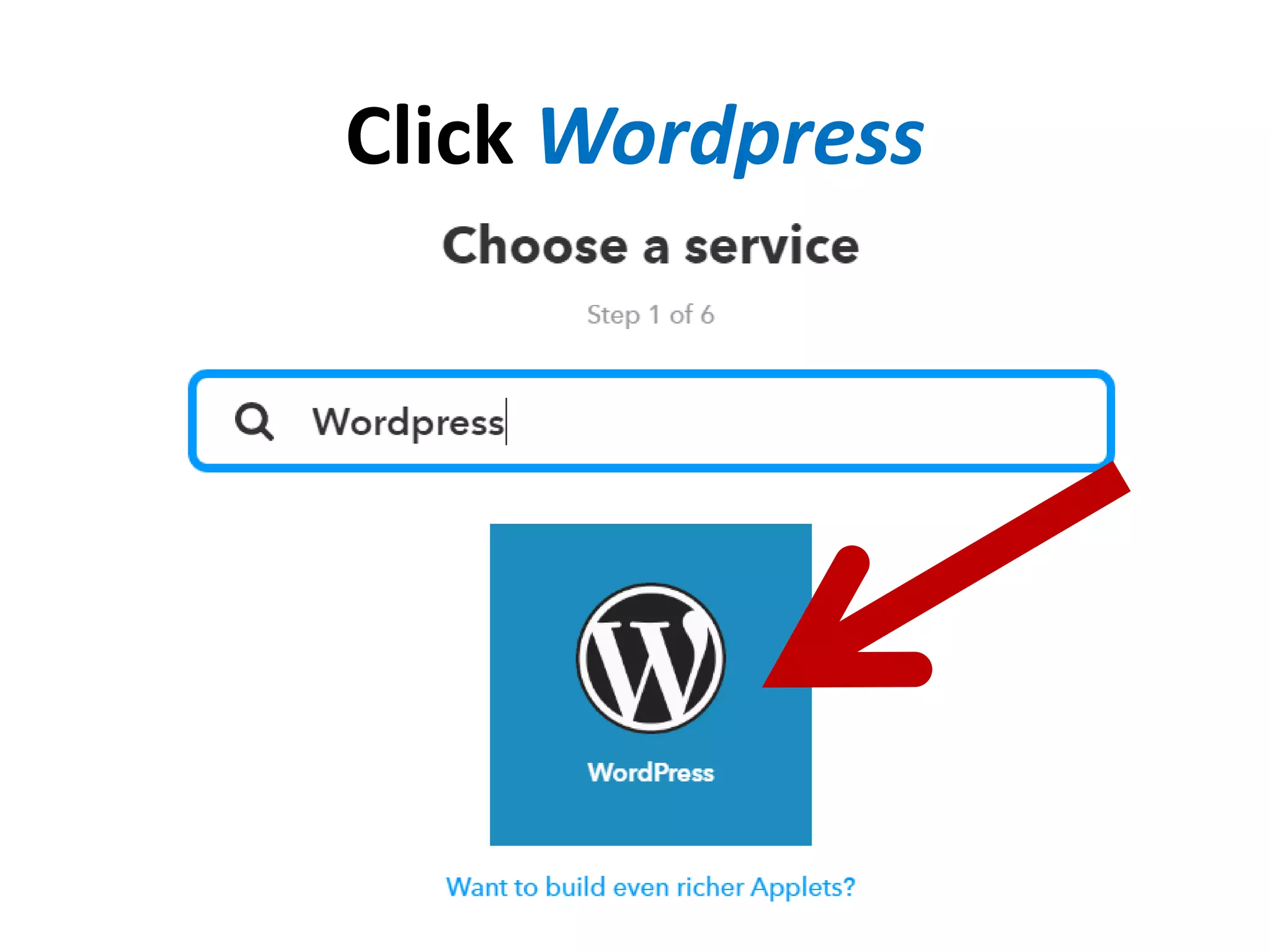
Type Wordpress
on the search bar
Click Wordpress
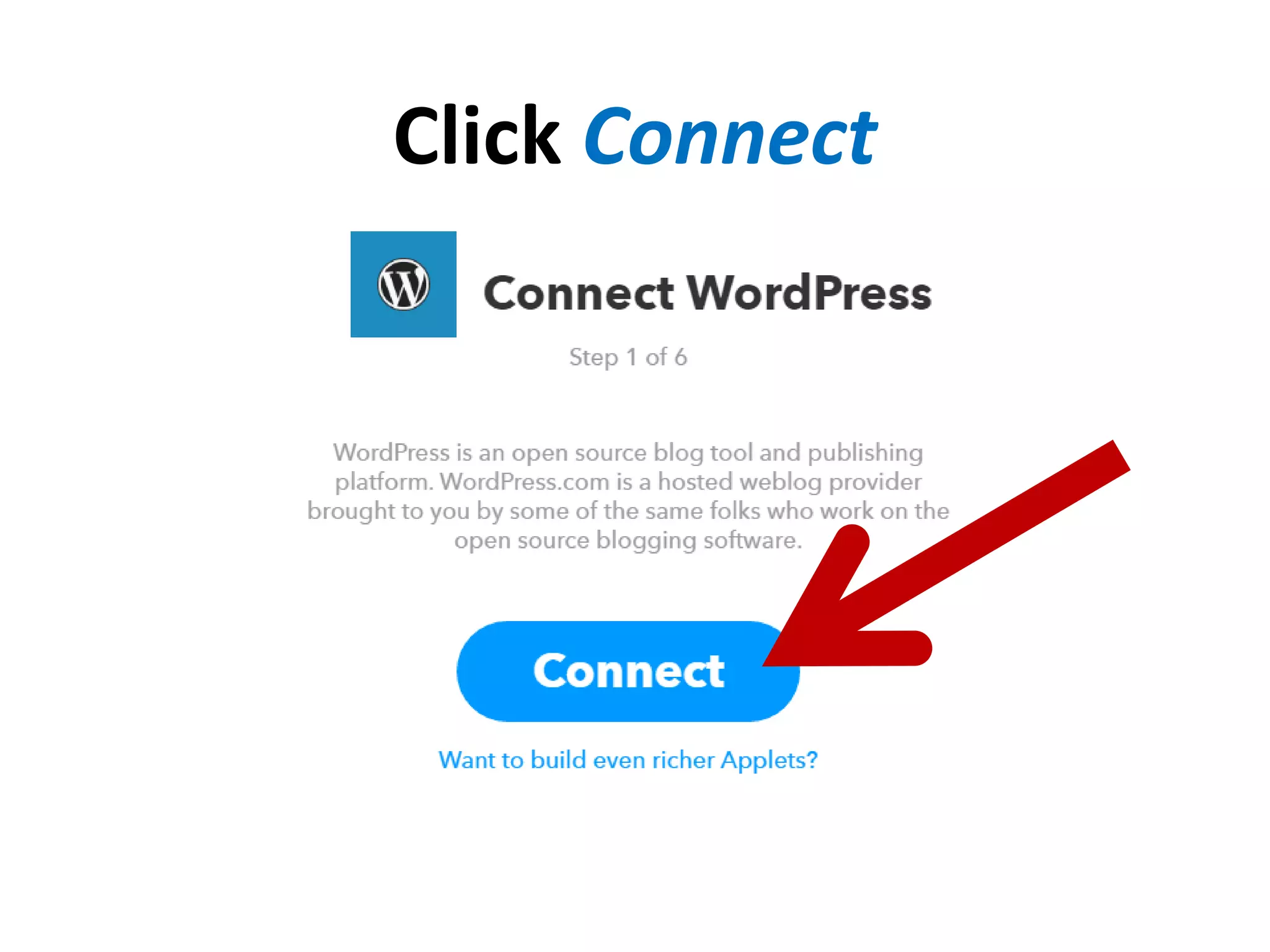
Click Connect
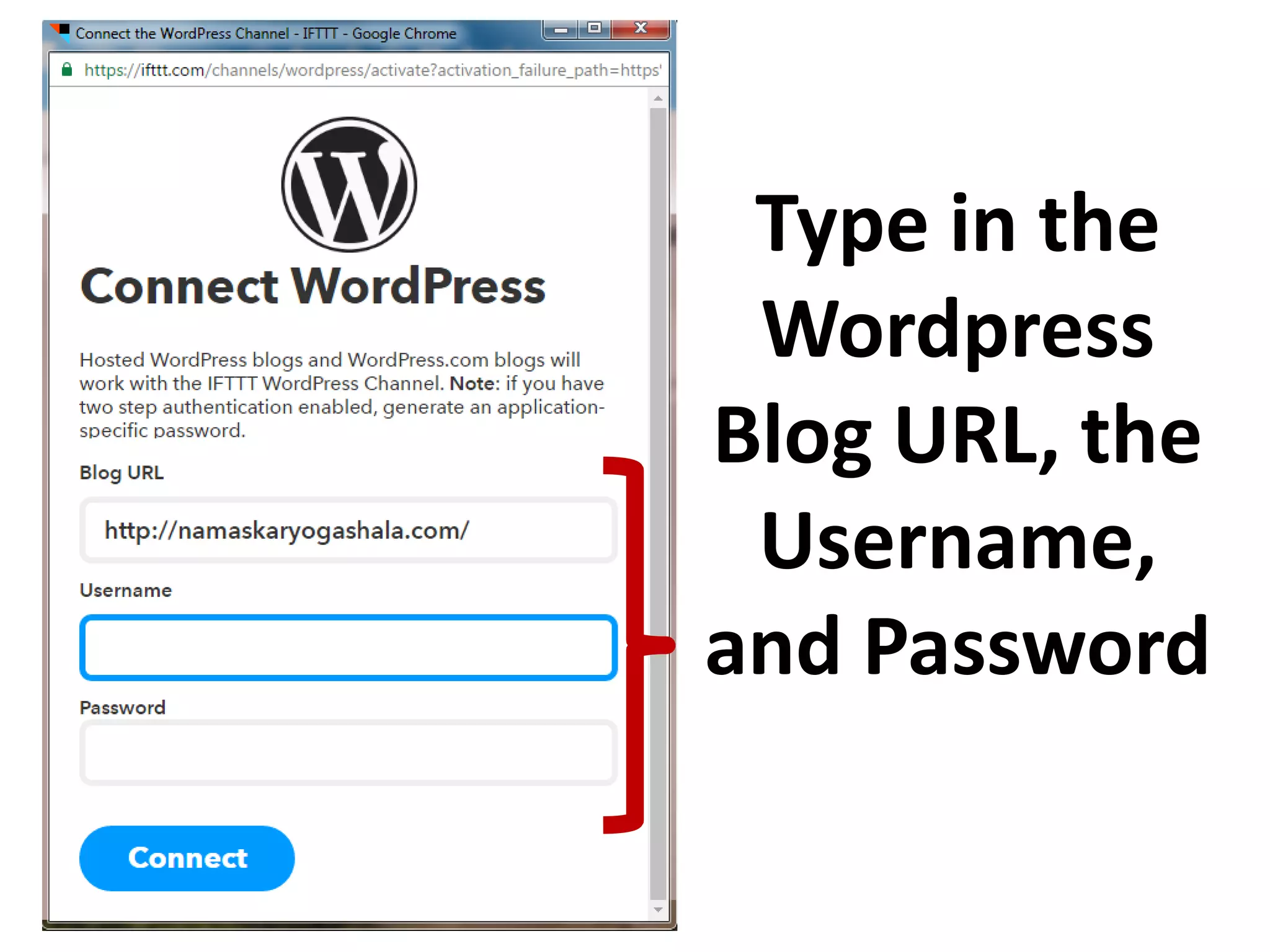
Type in the
Wordpress
Blog URL, the
Username,
and Password
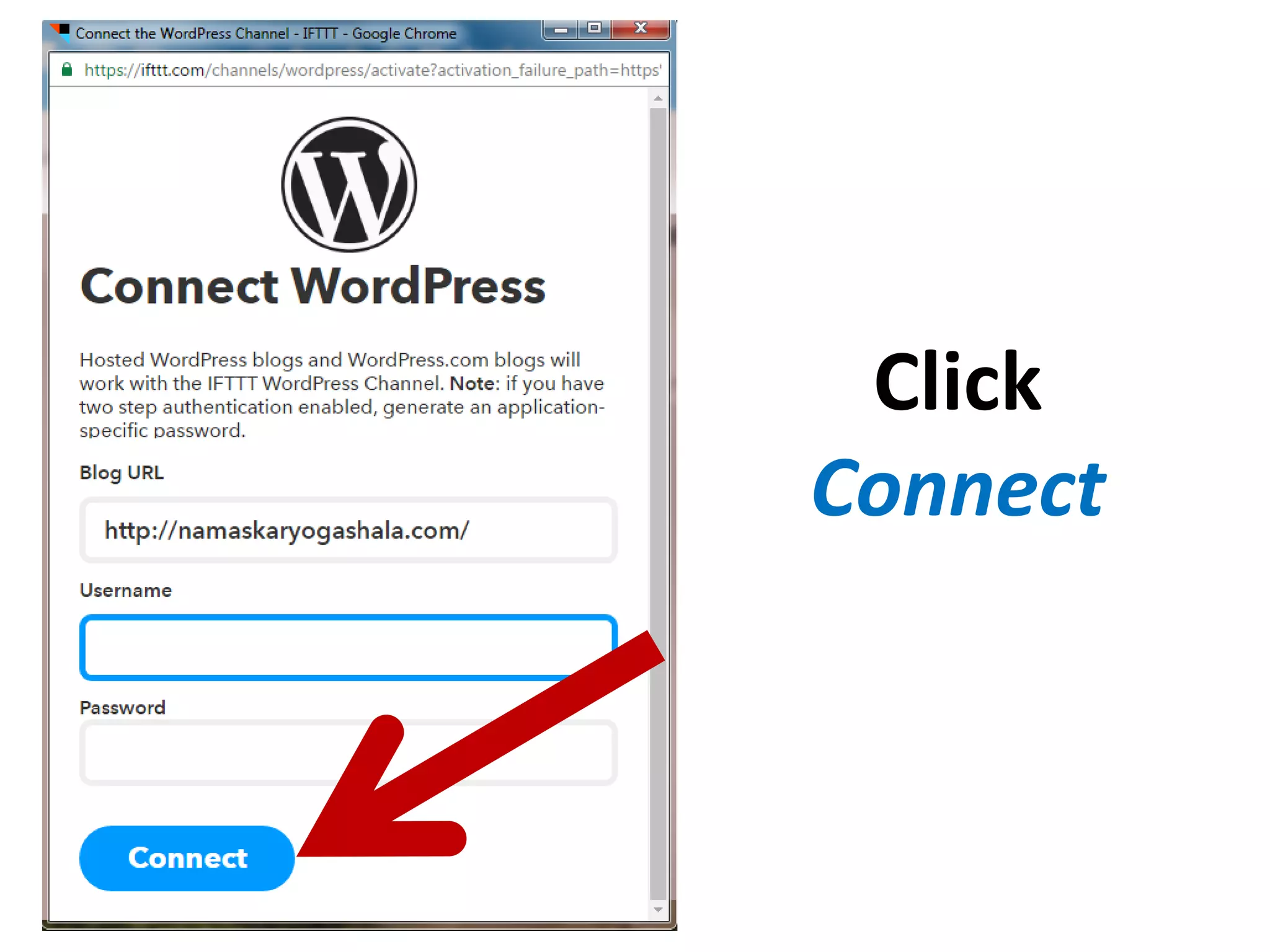
Click
Connect
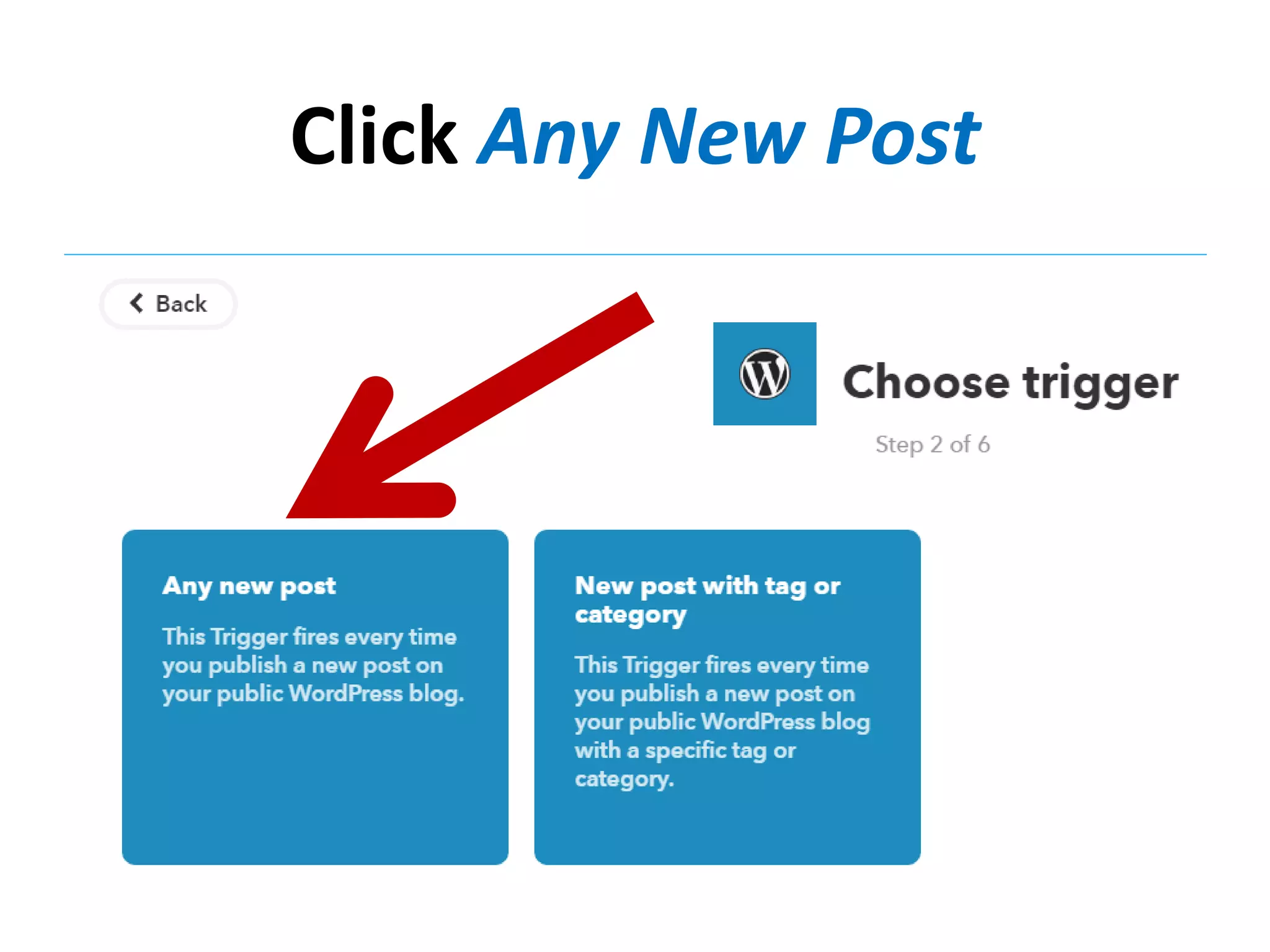
Click Any New Post
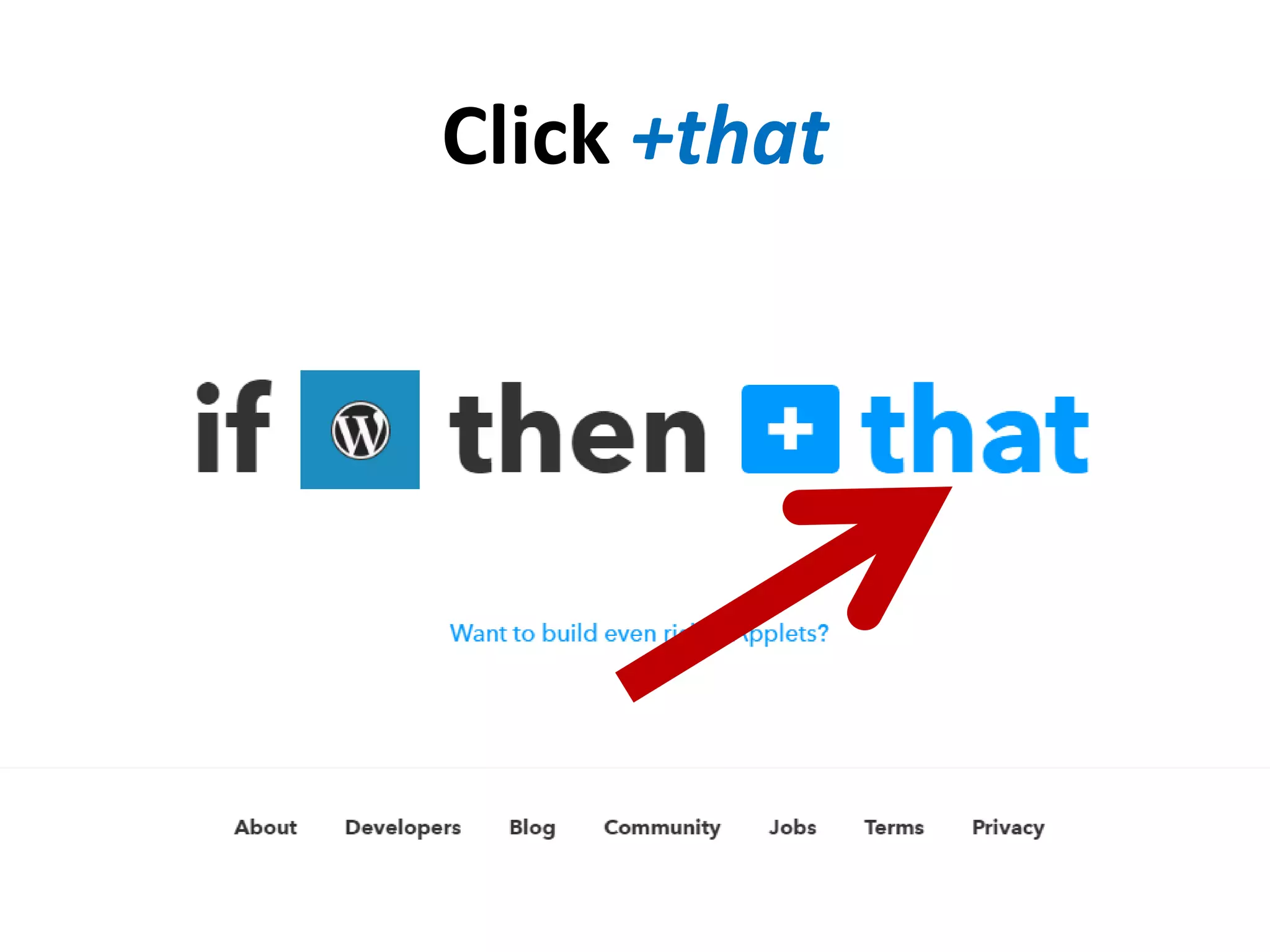
Click +that
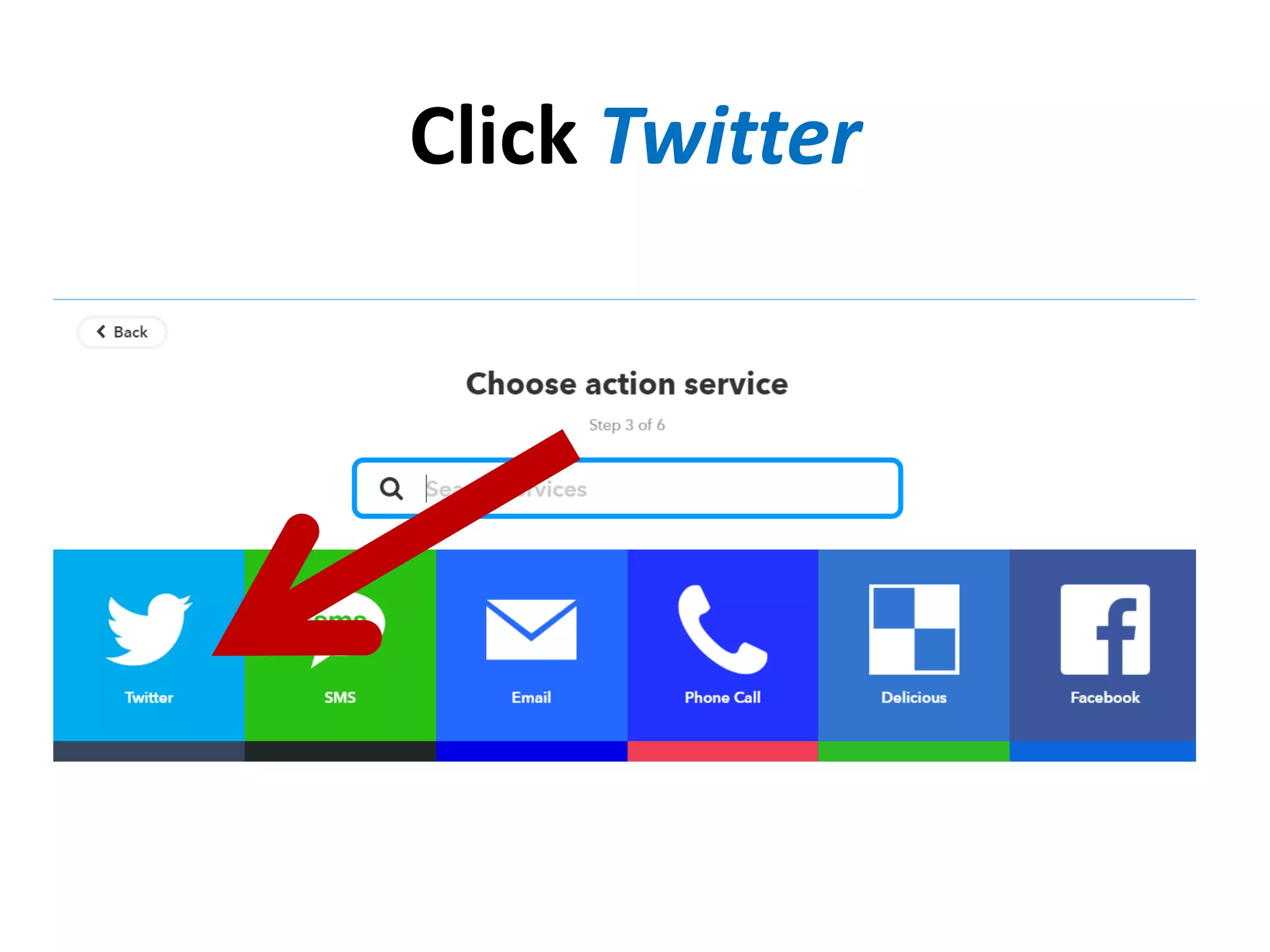
Click Twitter
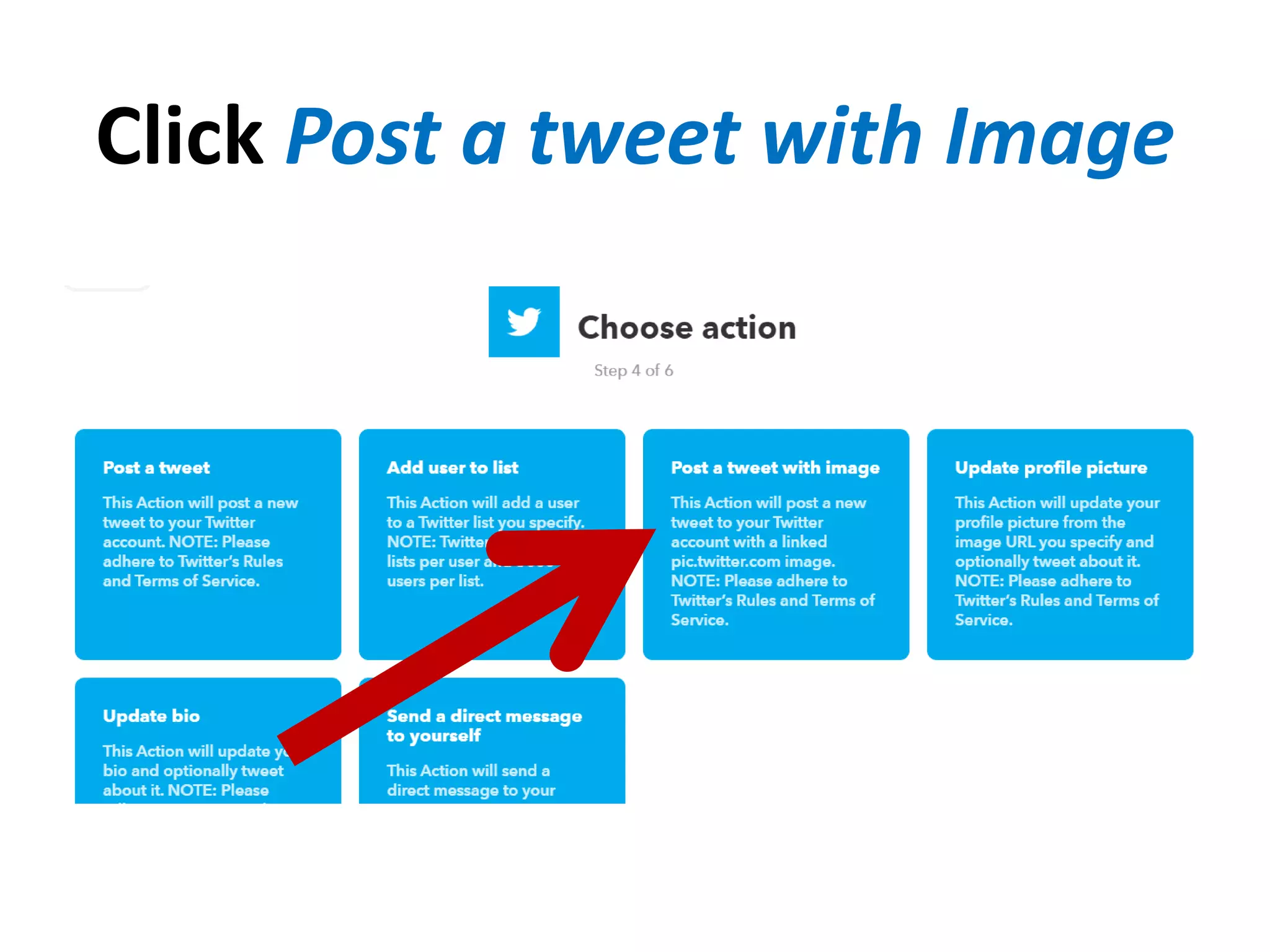
Click Post a tweet with Image
Now let’s
configure
the Tweet
text and
Image URL
Click
+ Ingredient
Under
Tweet text
Click on
what you
want to be
included on
the Tweet
text
Click
+ Ingredient
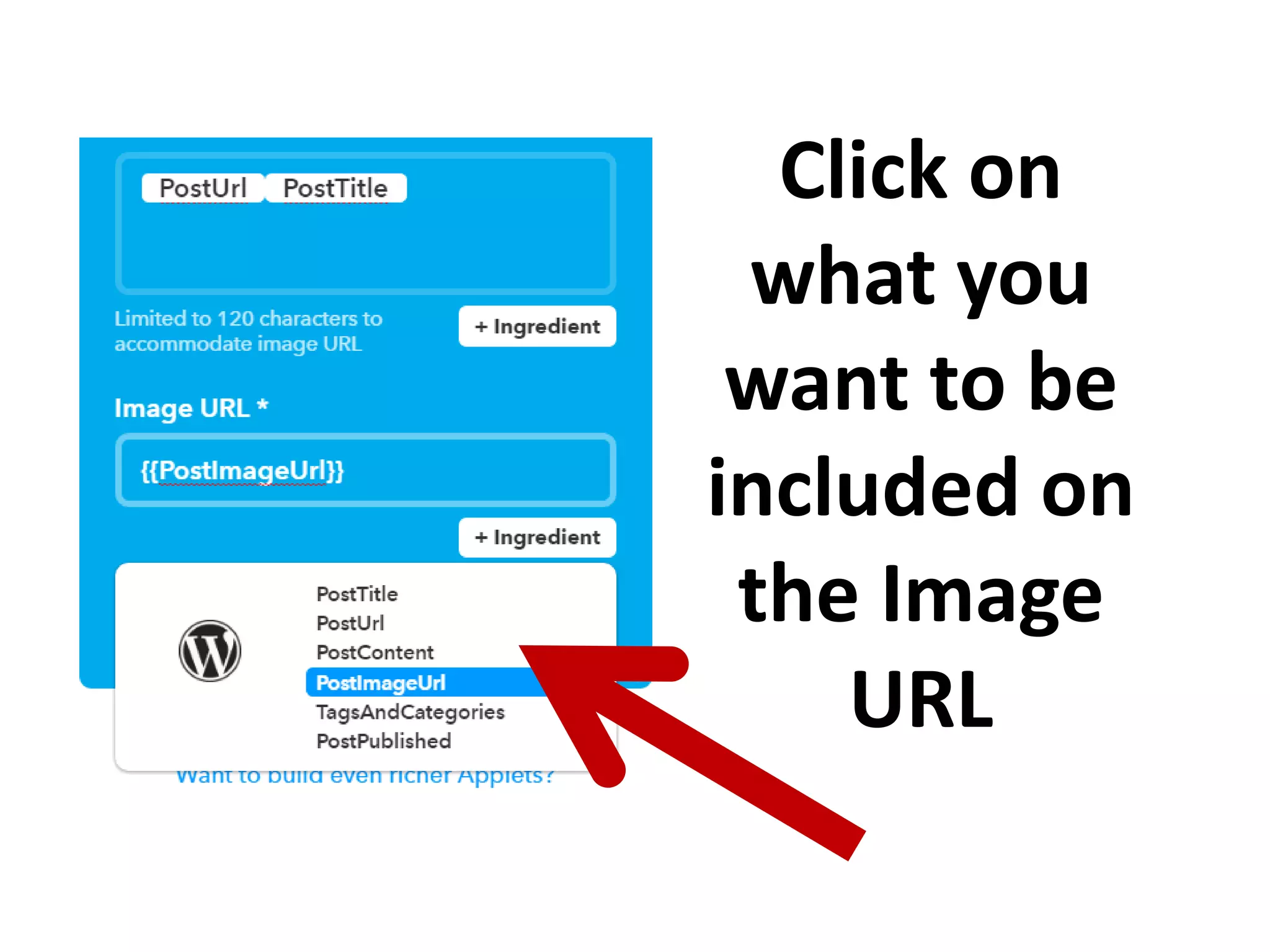
Under
Image URL
Click on
what you
want to be
included on
the Image
URL
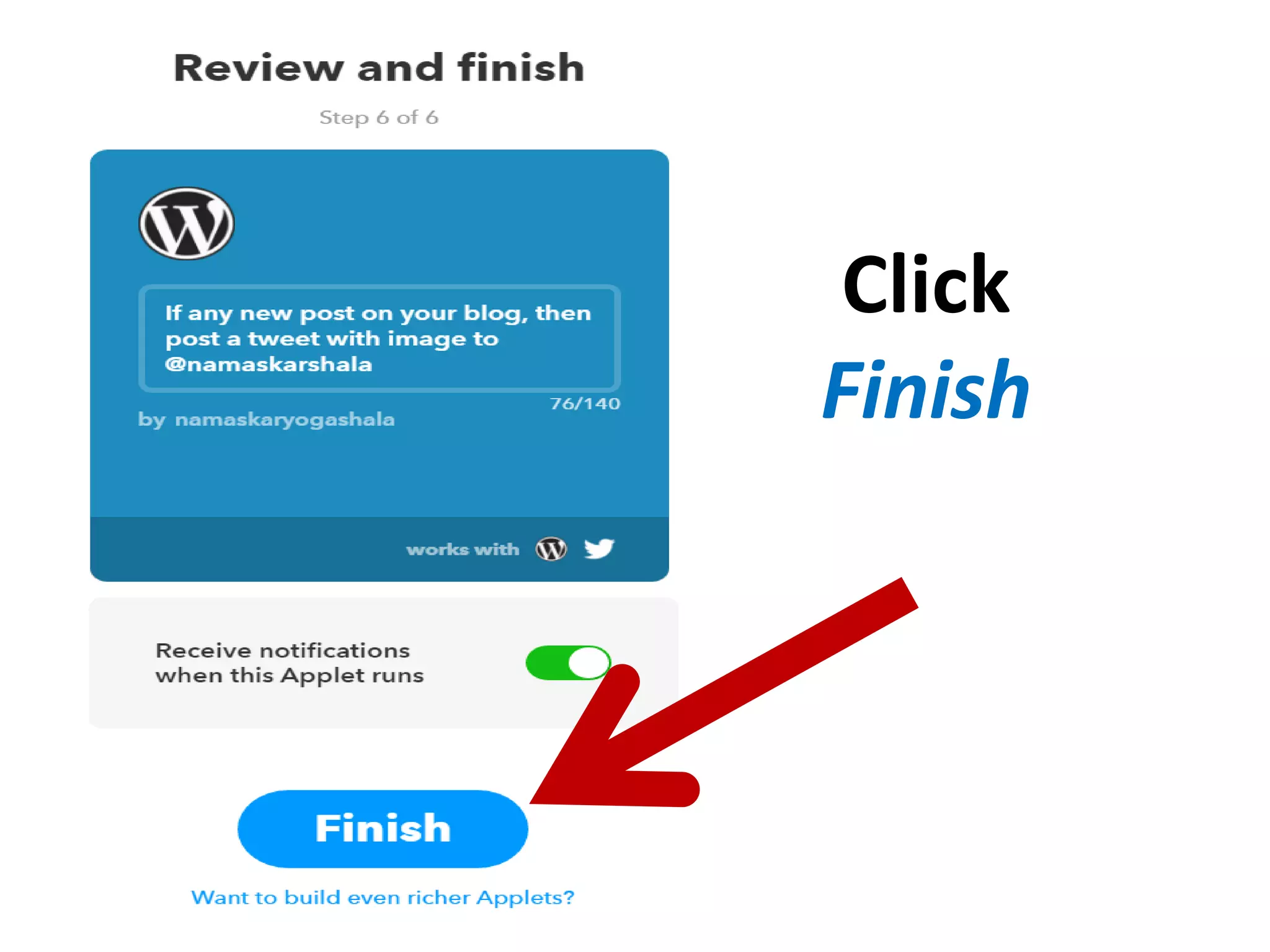
Click
Finish
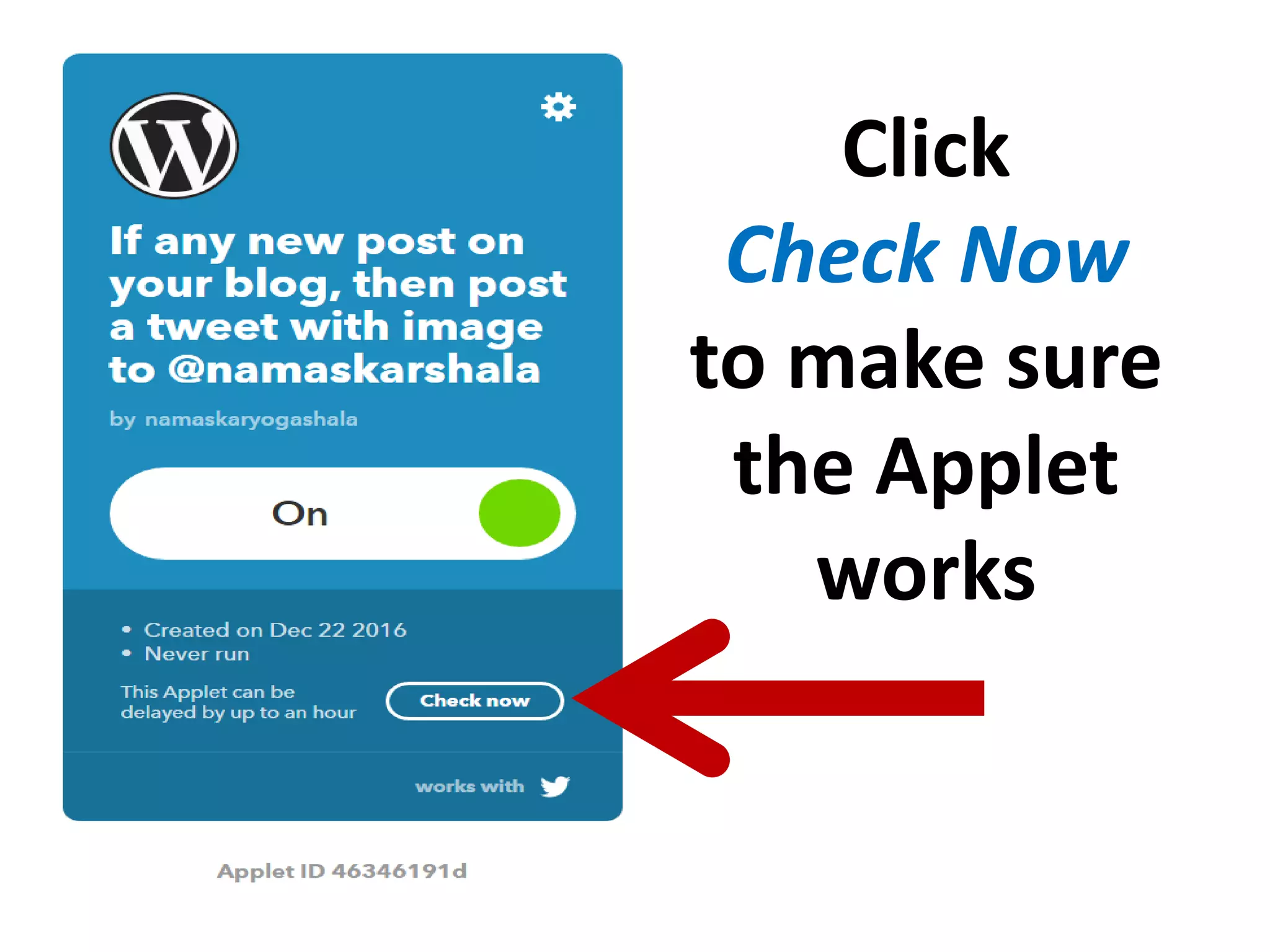
Click
Check Now
to make sure
the Applet
works
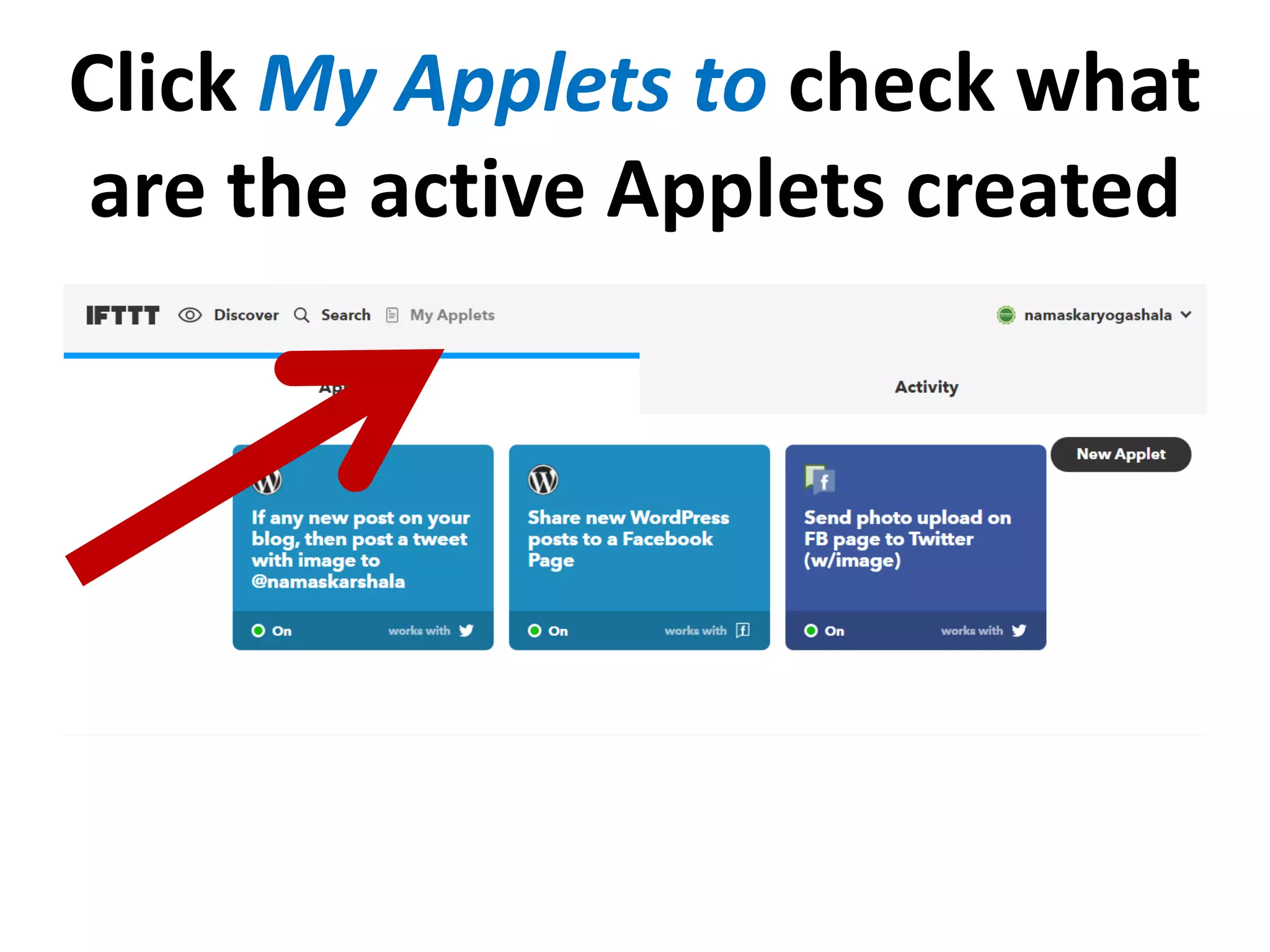
Click My Applets to check what
are the active Applets created
Now let’s check one of the
autoposts by IFTTT
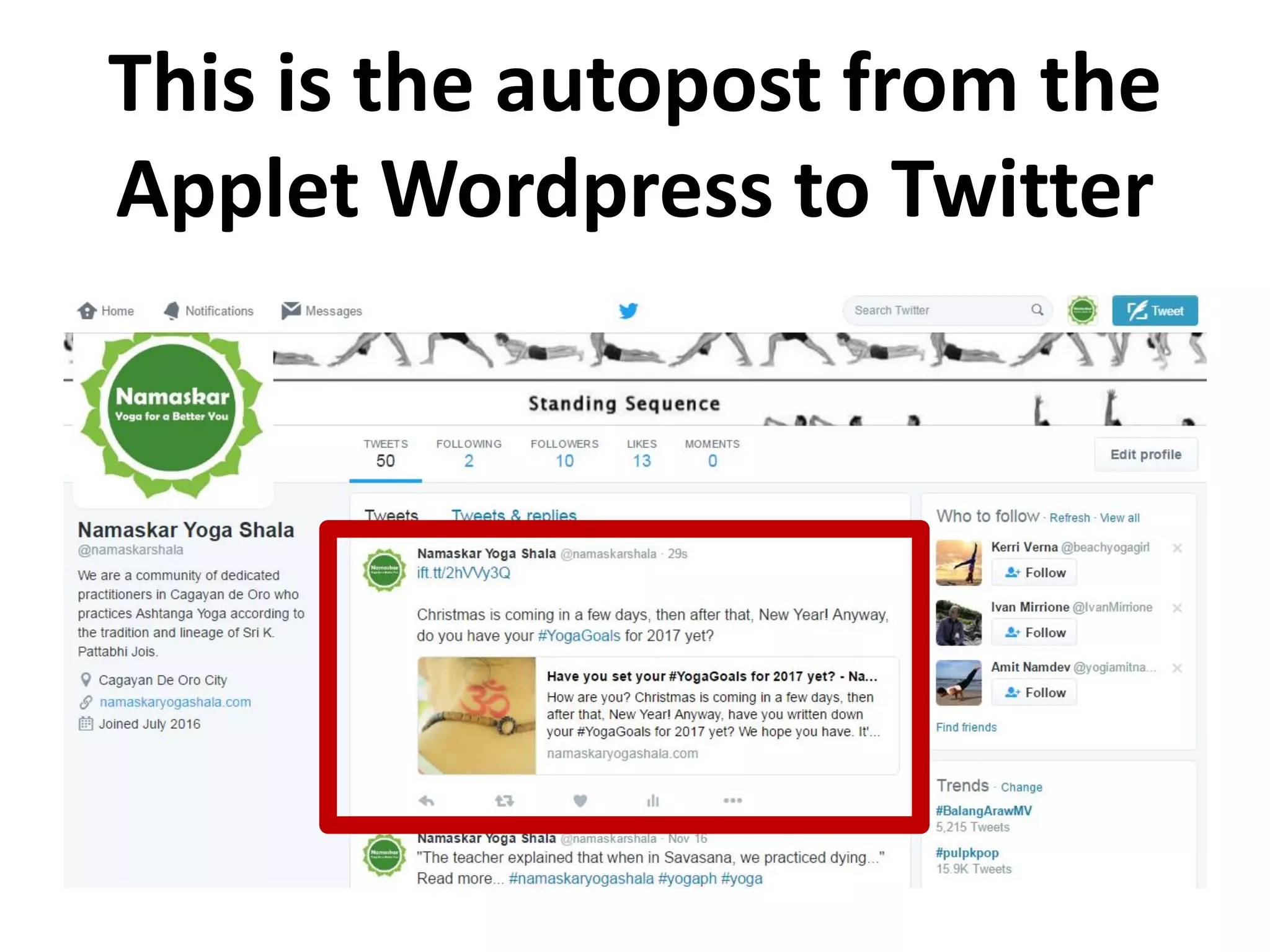
This is the autopost from the
Applet Wordpress to Twitter
So that’s it!
We just learned the
basics in IFTTT.
Thank you for checking
this tutorial!

How to Use IFTTT