


How to Install the
Facebook Pixel in
Unbounce
By EJ Samson
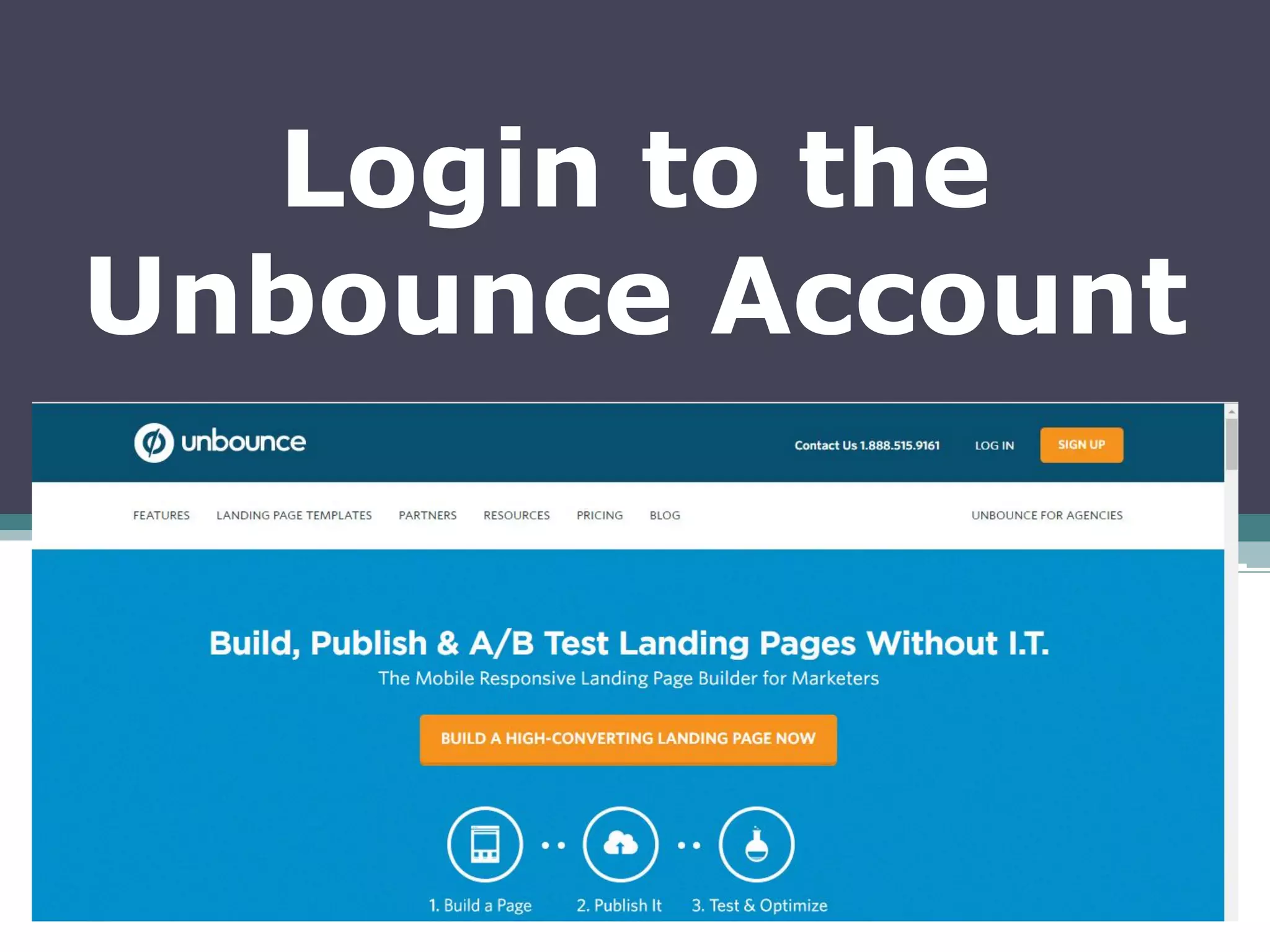
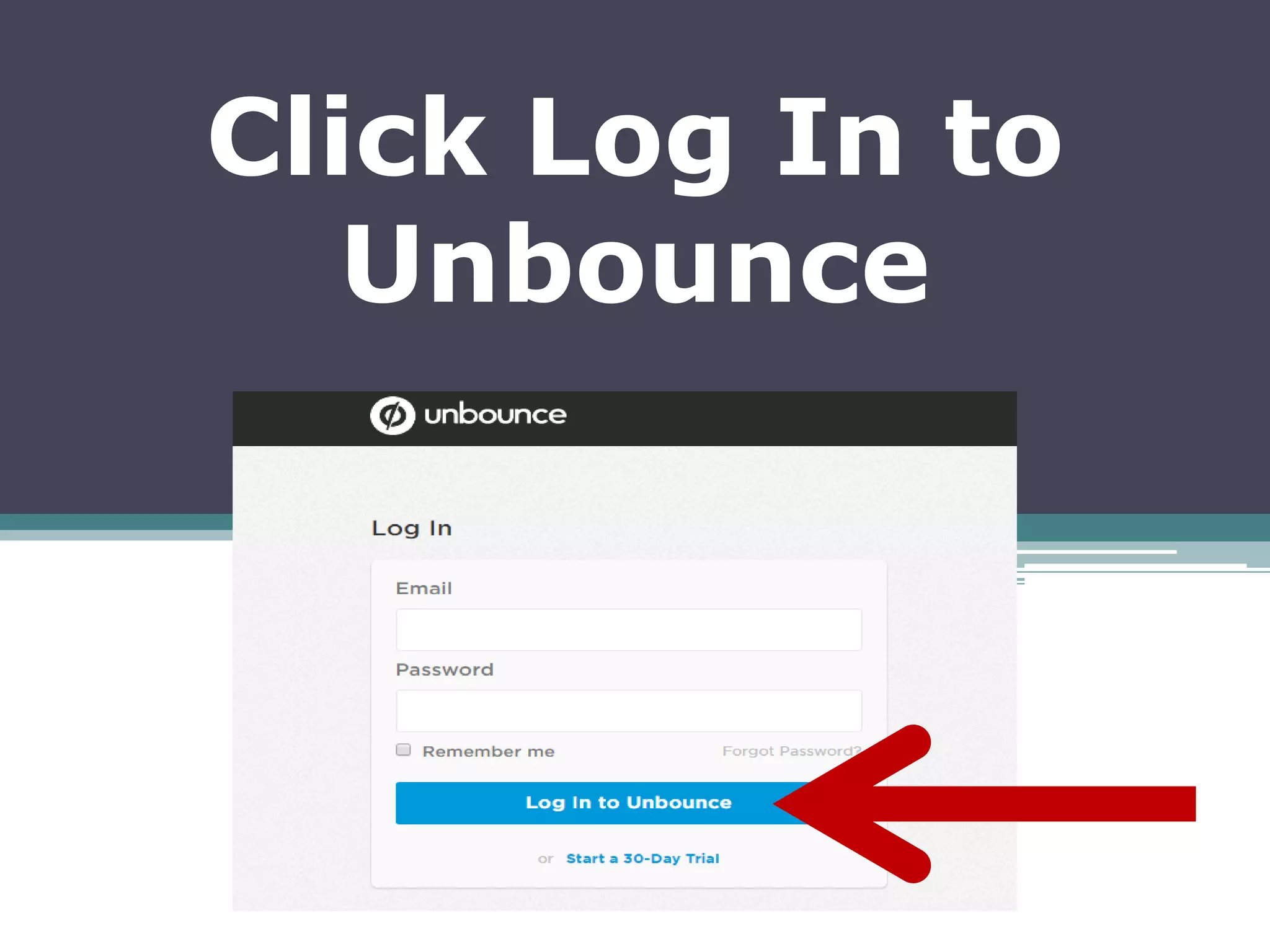
Login to the
Unbounce Account
Click Login
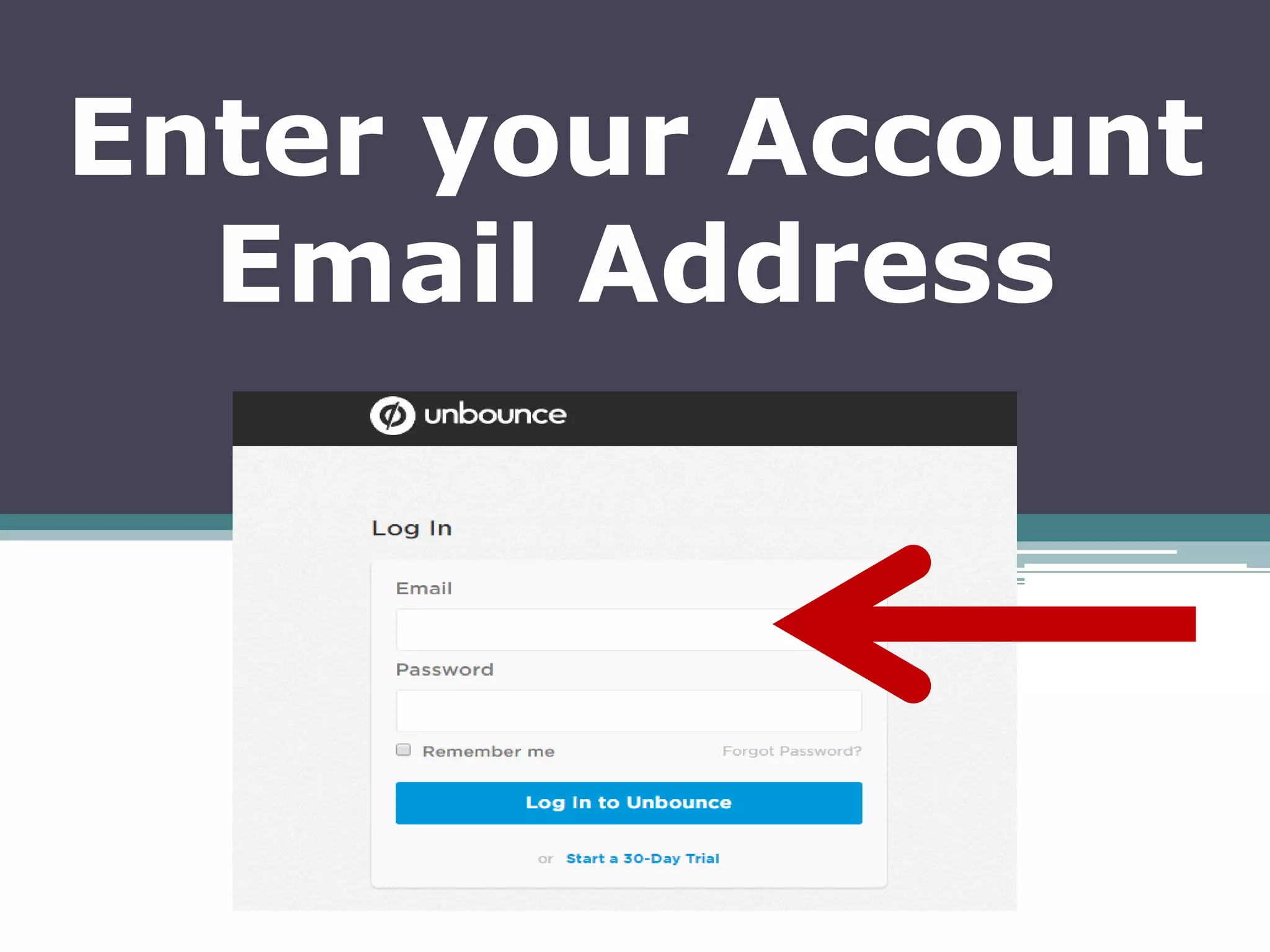
Enter your Account
Email Address
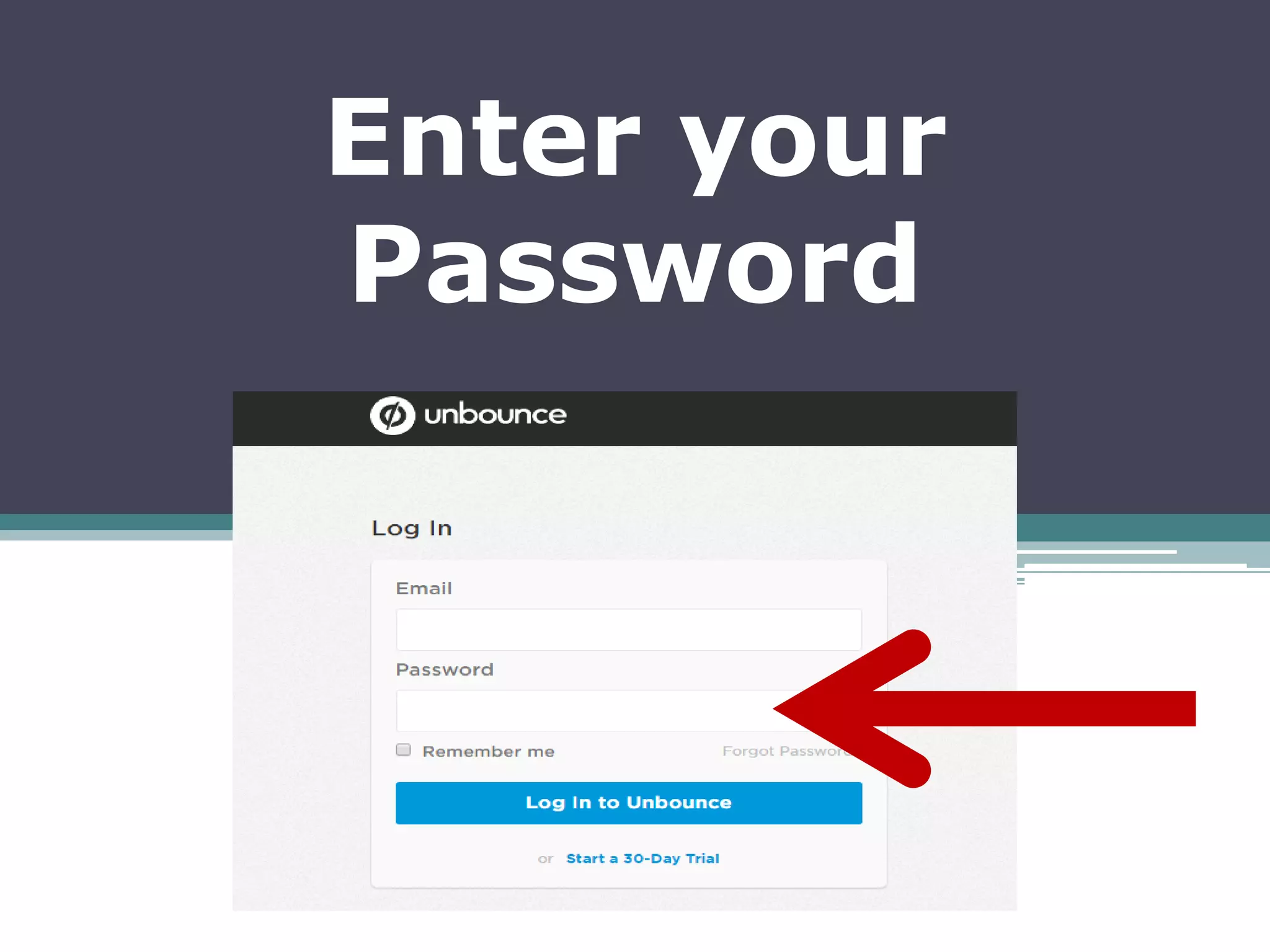
Enter your
Password
Click Log In to
Unbounce
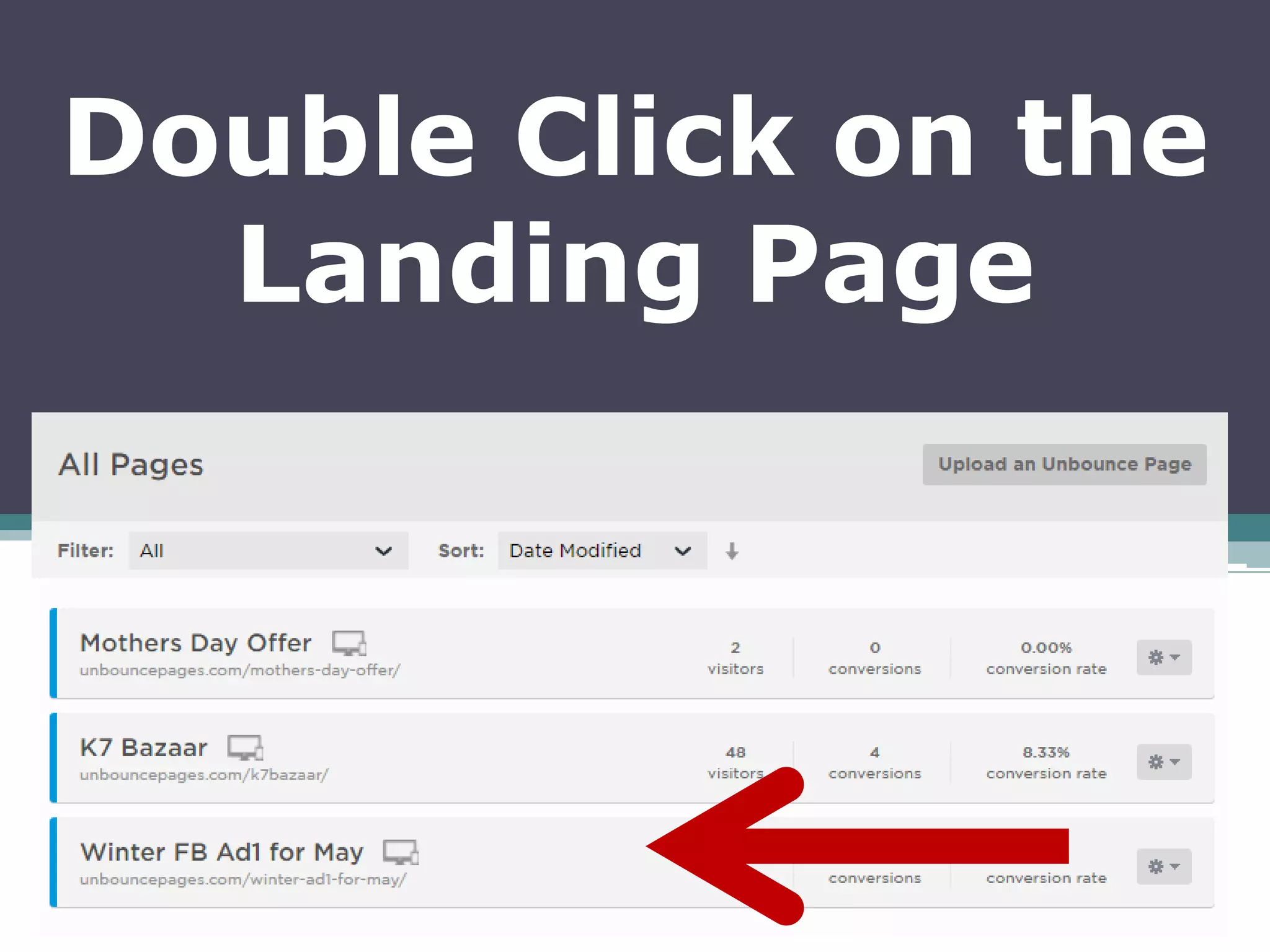
Double Click on the
Landing Page
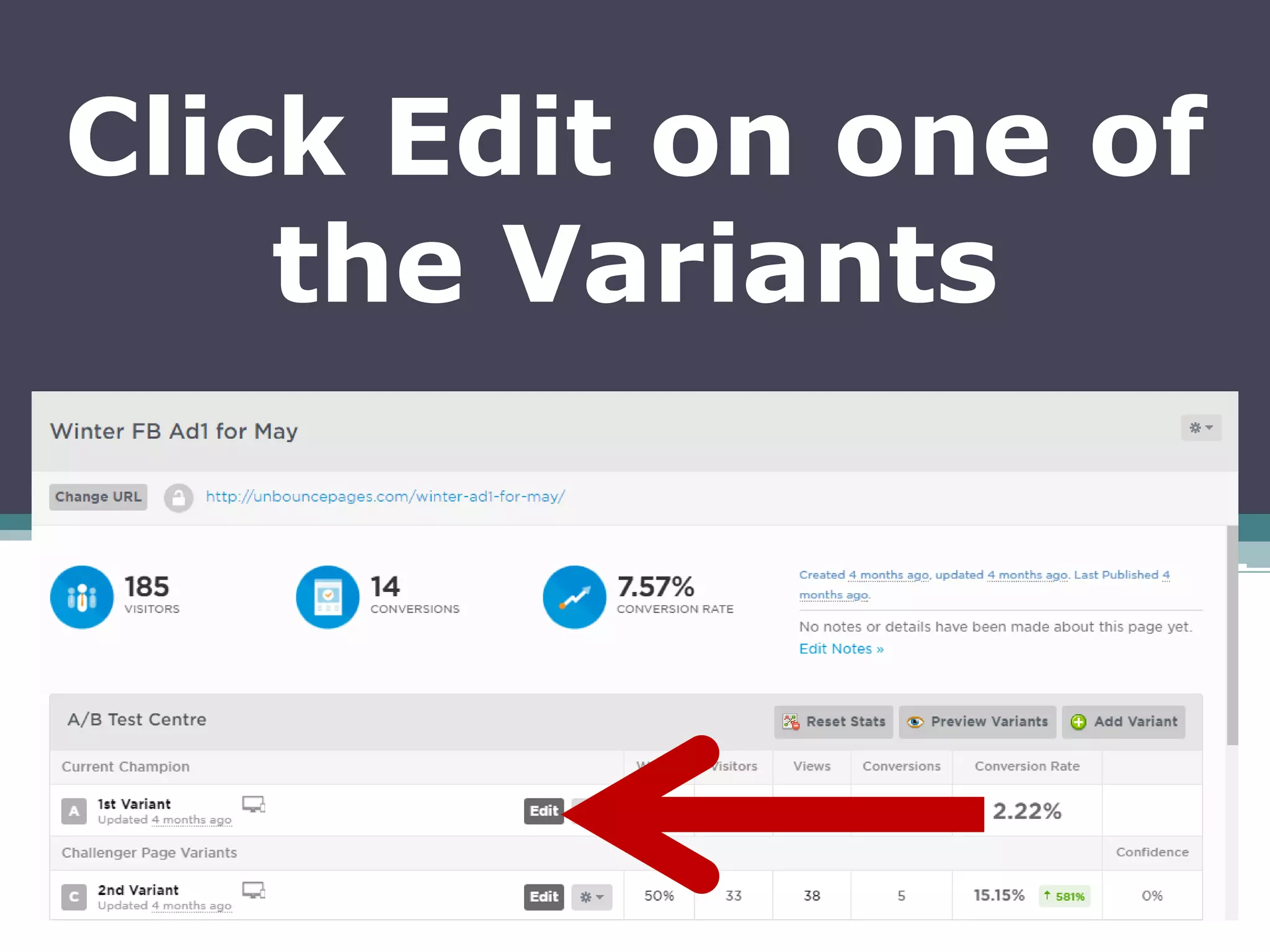
Click Edit on one of
the Variants
Wait for the Page
Builder to Load
Since we will be
tracking Leads and
Sign Ups,
we will insert the
Facebook Pixel onto
the Thank You Page
We will be using the
Form Confirmation
Dialog as the Thank
You Page
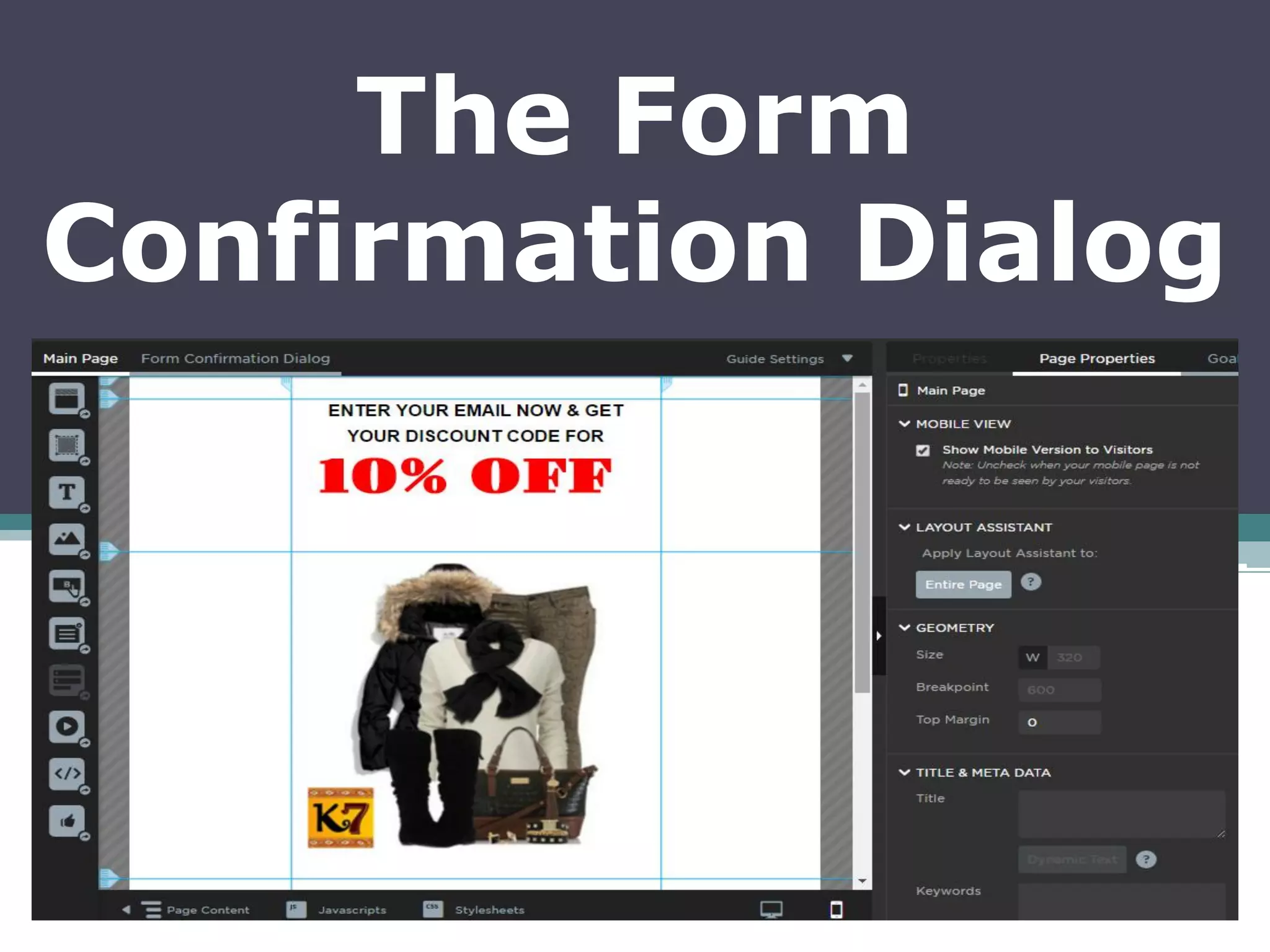
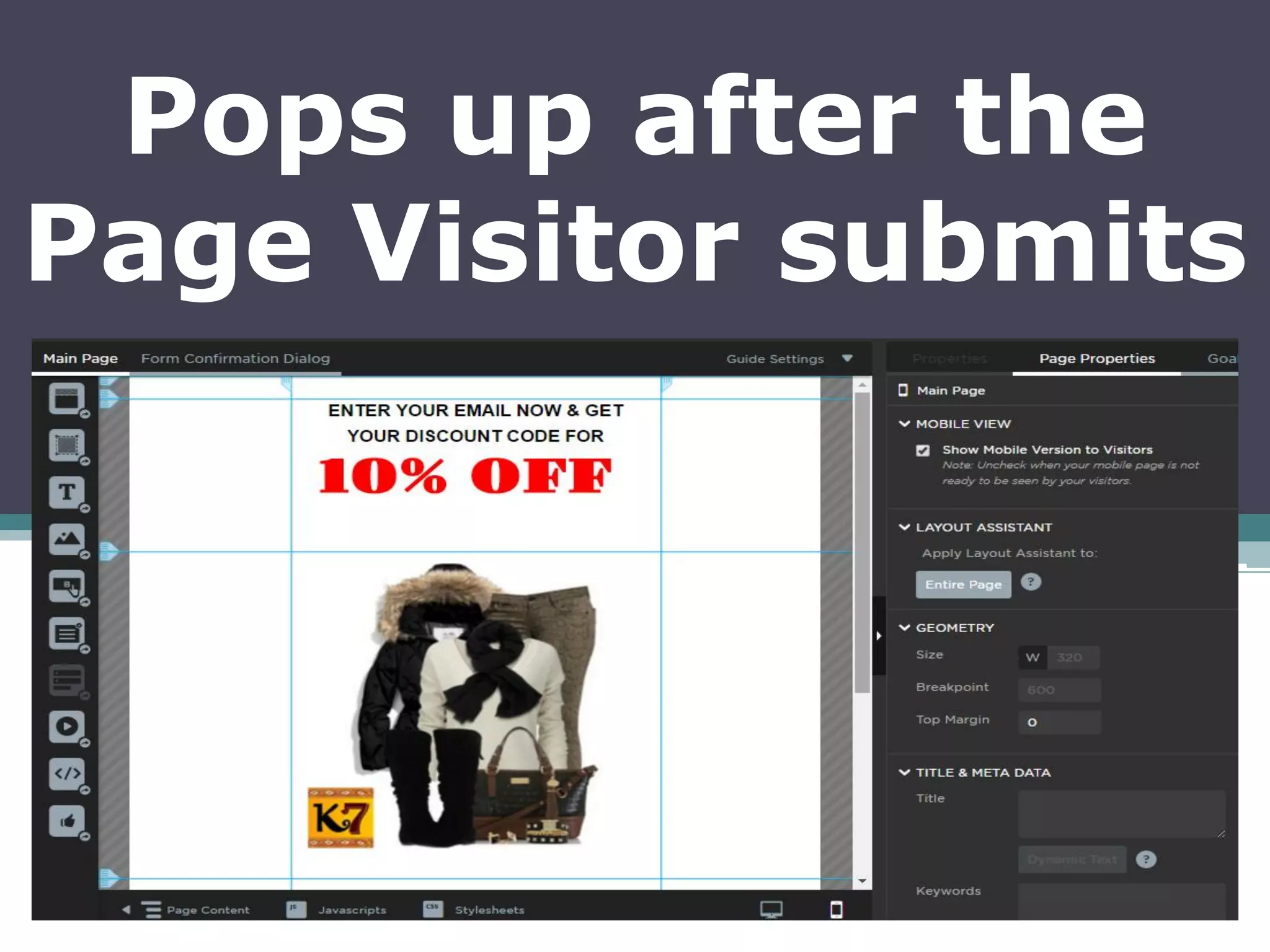
The Form
Confirmation Dialog
Pops up after the
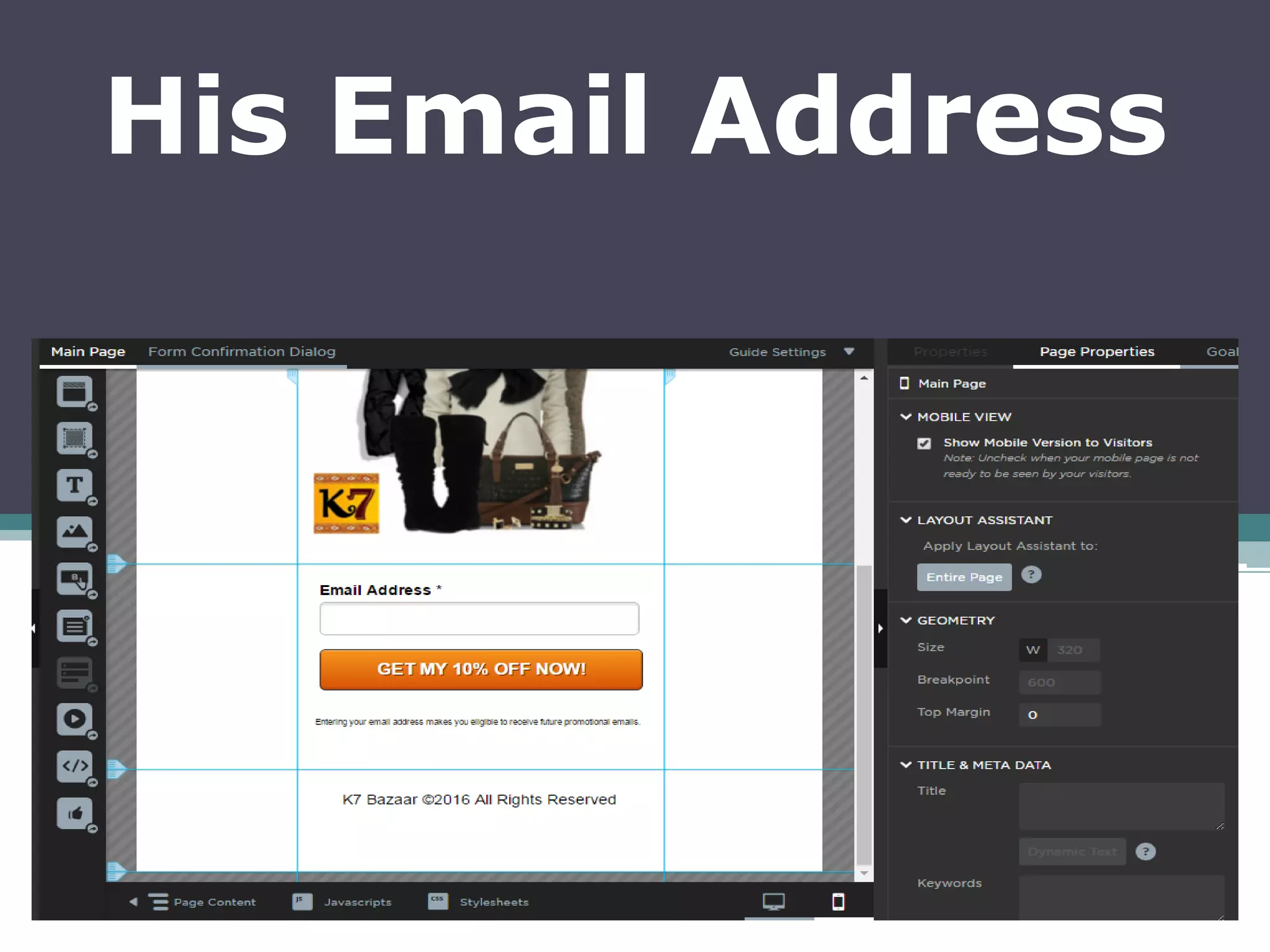
Page Visitor submits
His Email Address
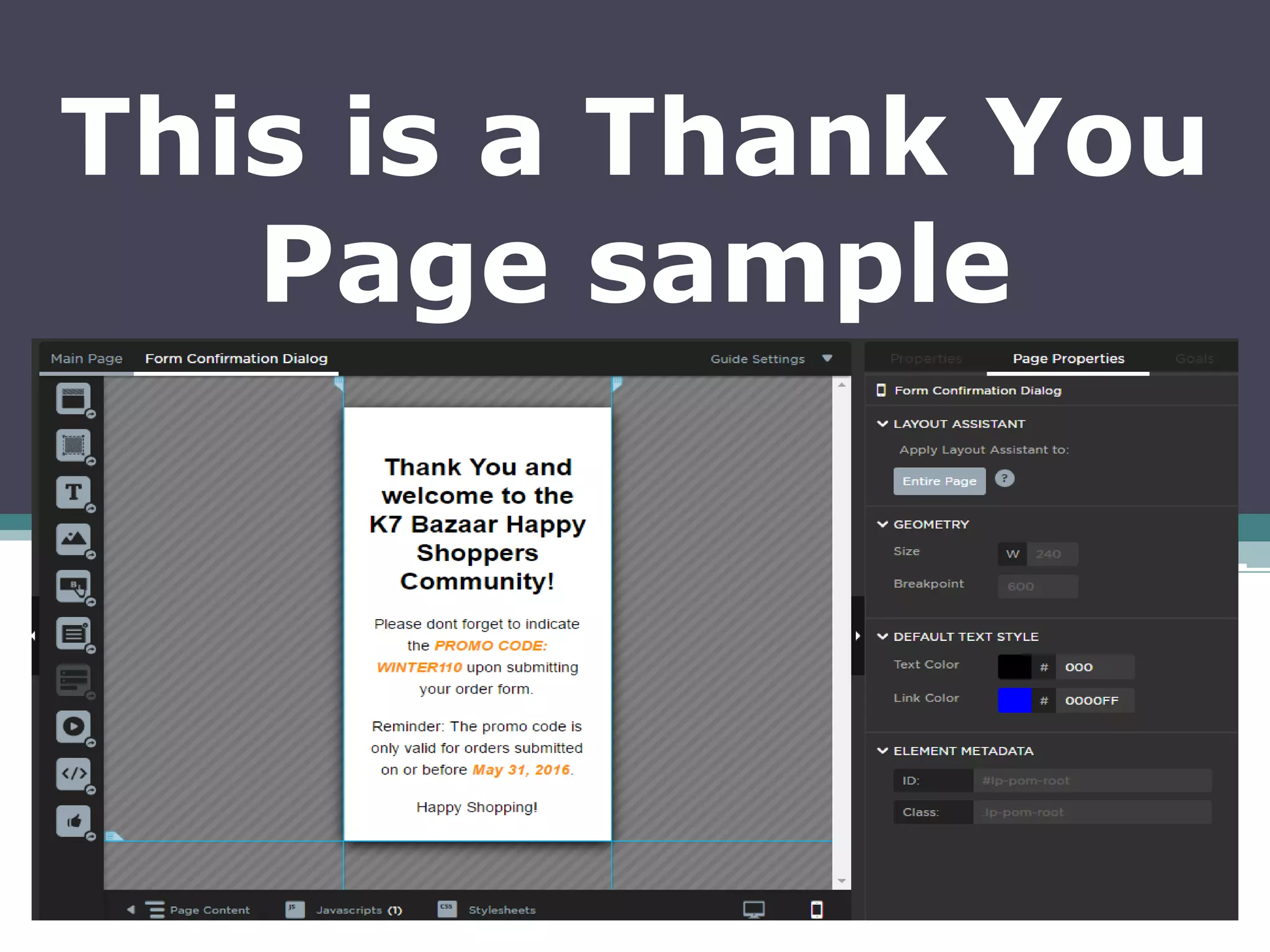
This is a Thank You
Page sample
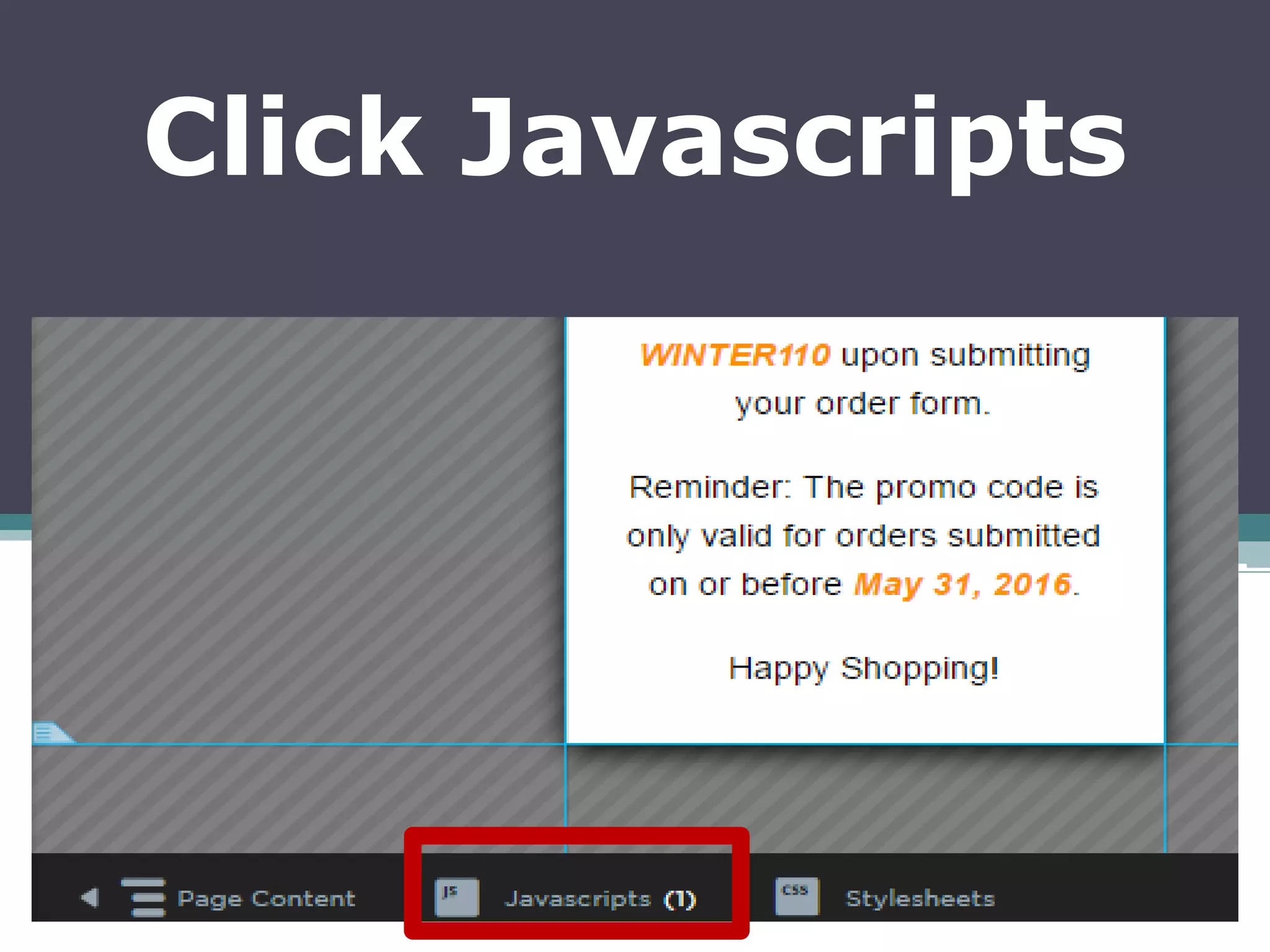
Click Javascripts
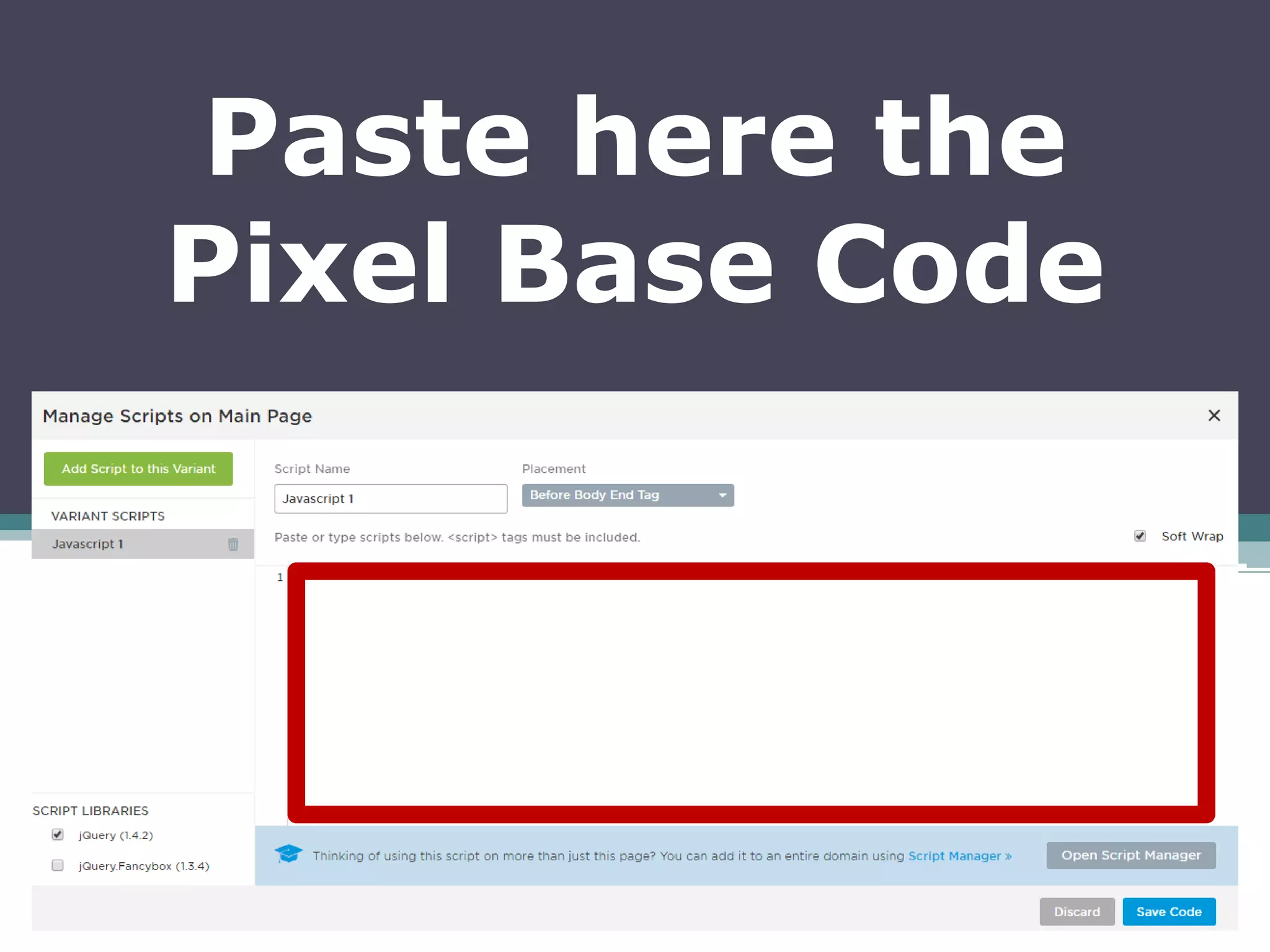
Paste here the
Pixel Base Code
Copy the Pixel Base
Code from the email
Or from the
Facebook Business
Page
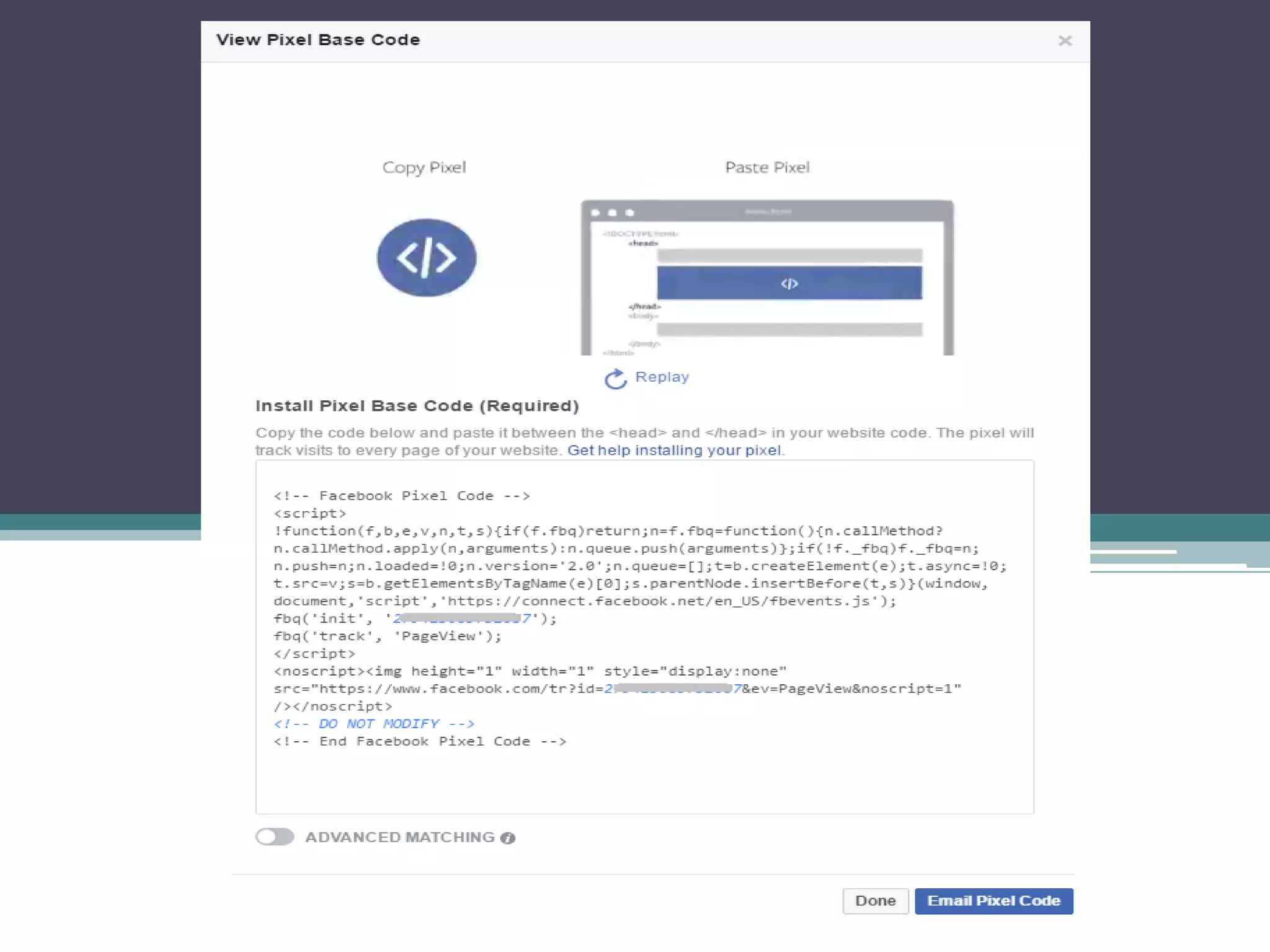
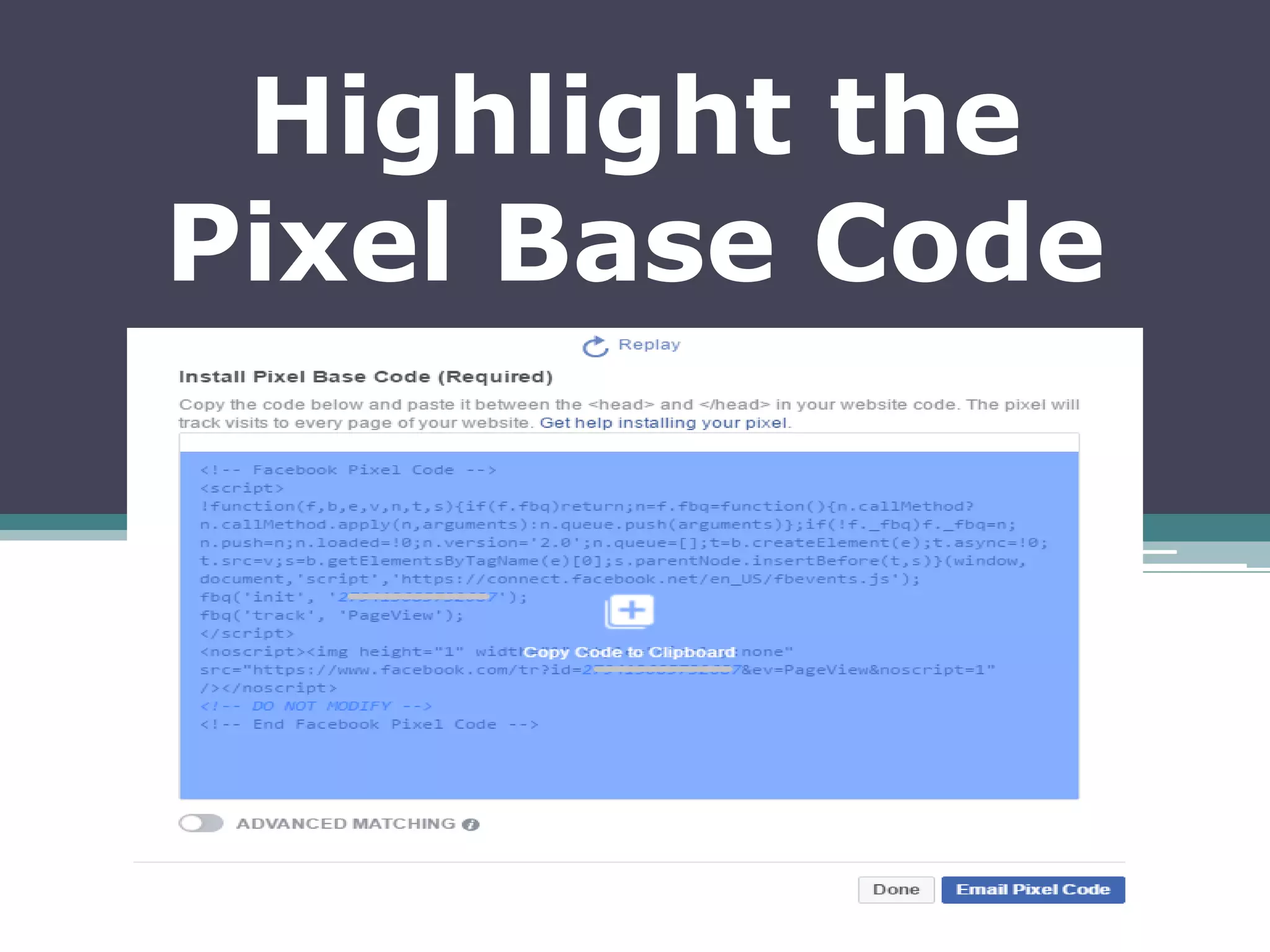
Highlight the
Pixel Base Code
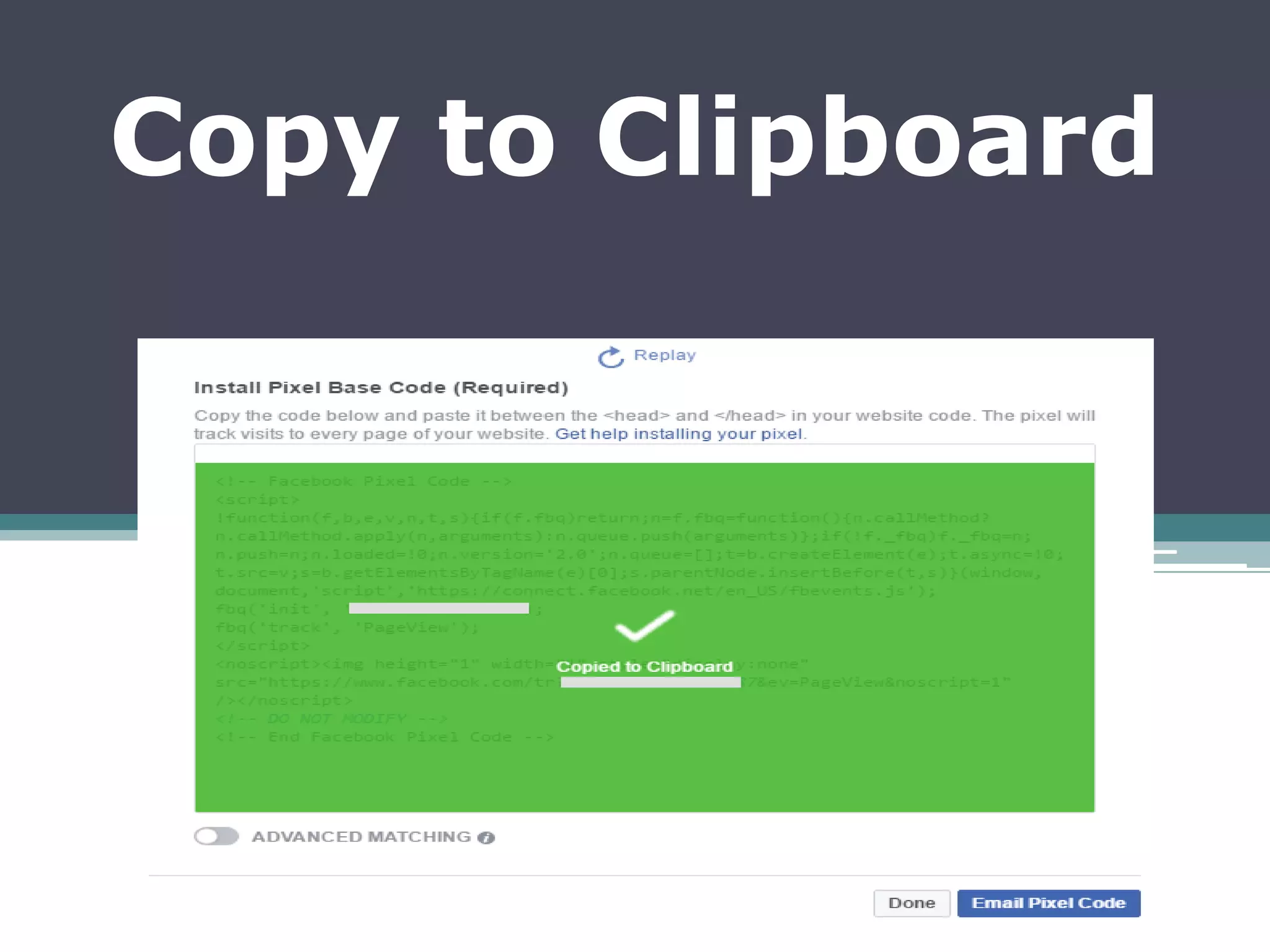
Copy to Clipboard
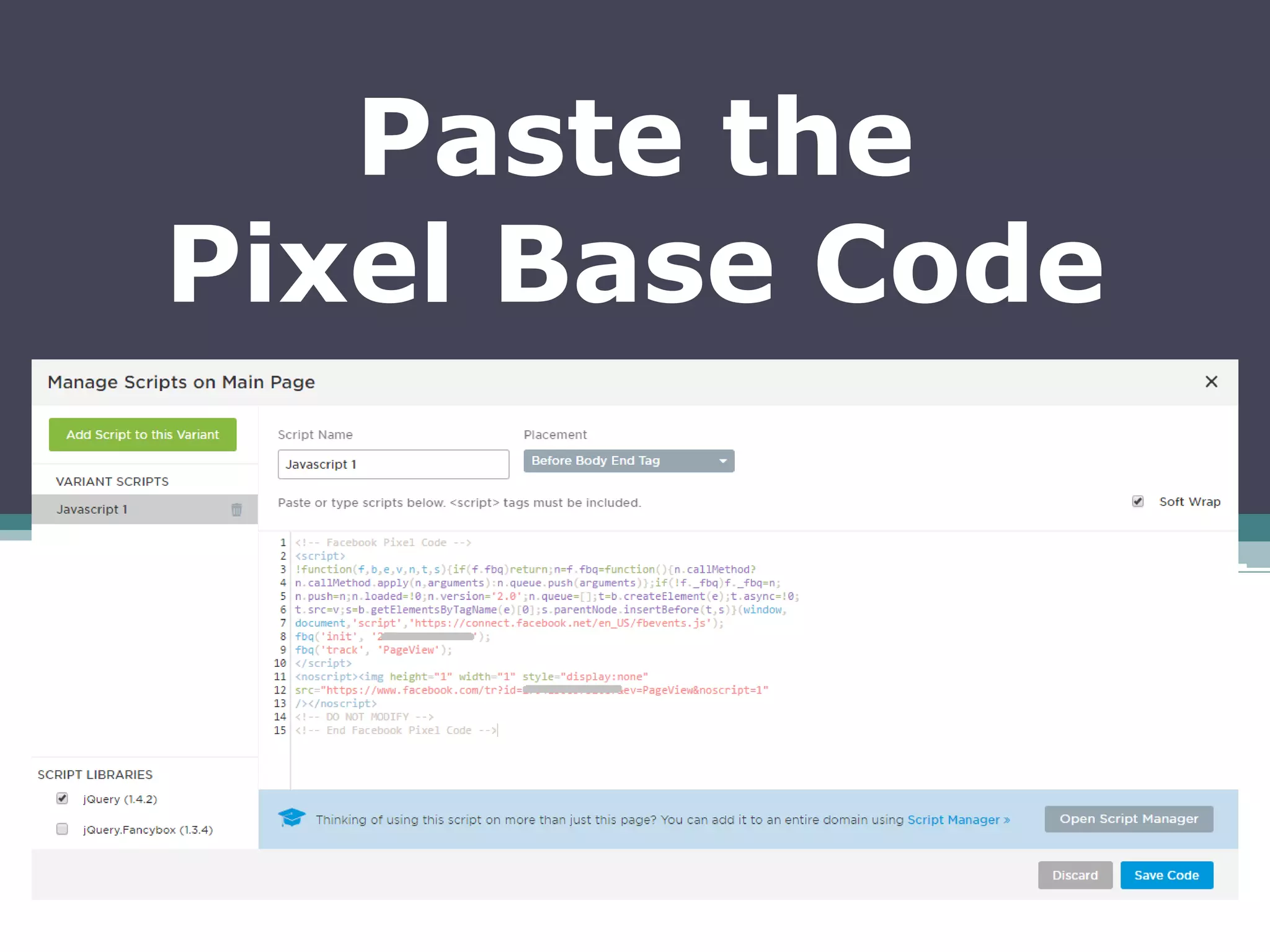
Paste the
Pixel Base Code
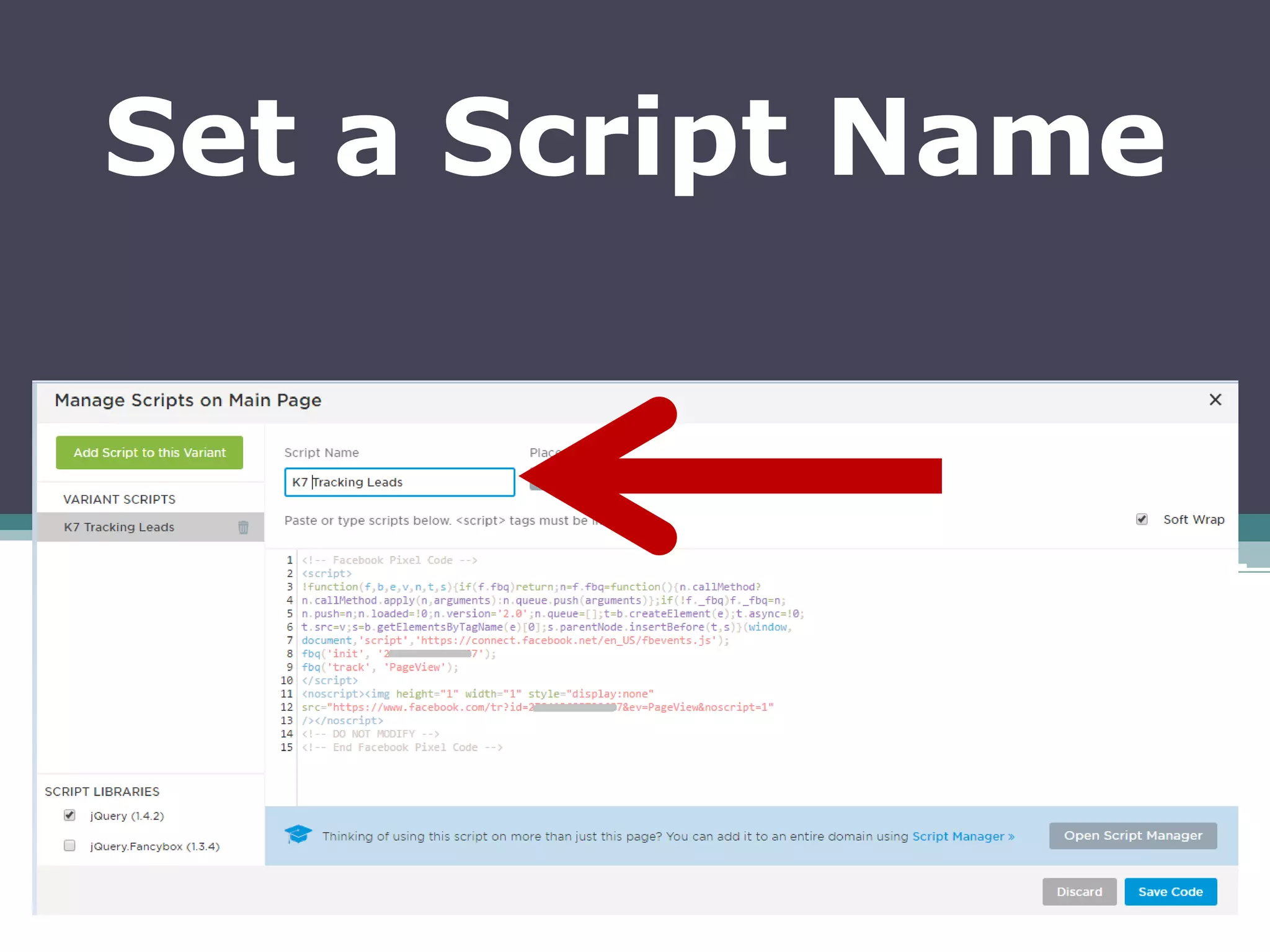
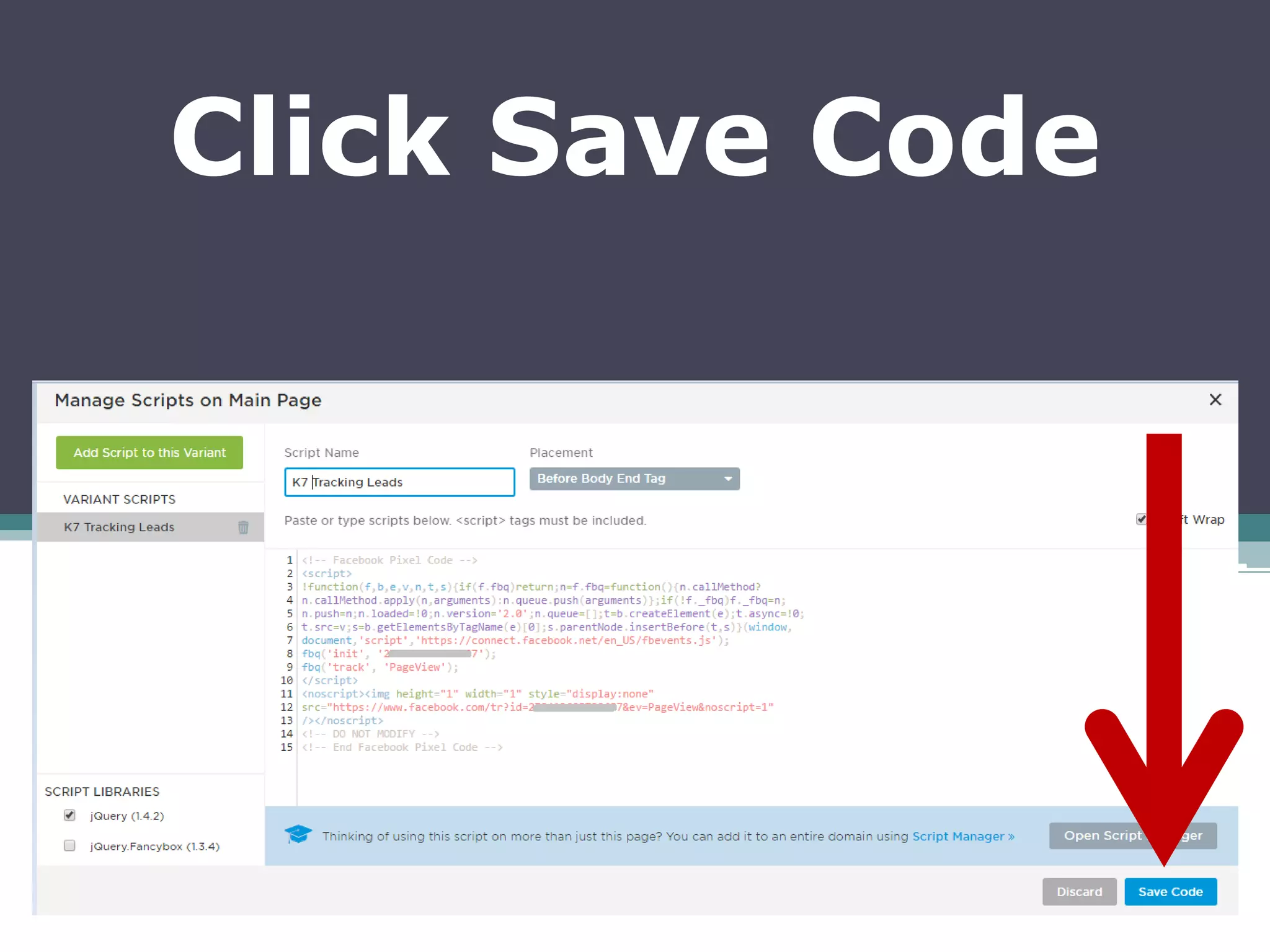
Set a Script Name
Click Save Code
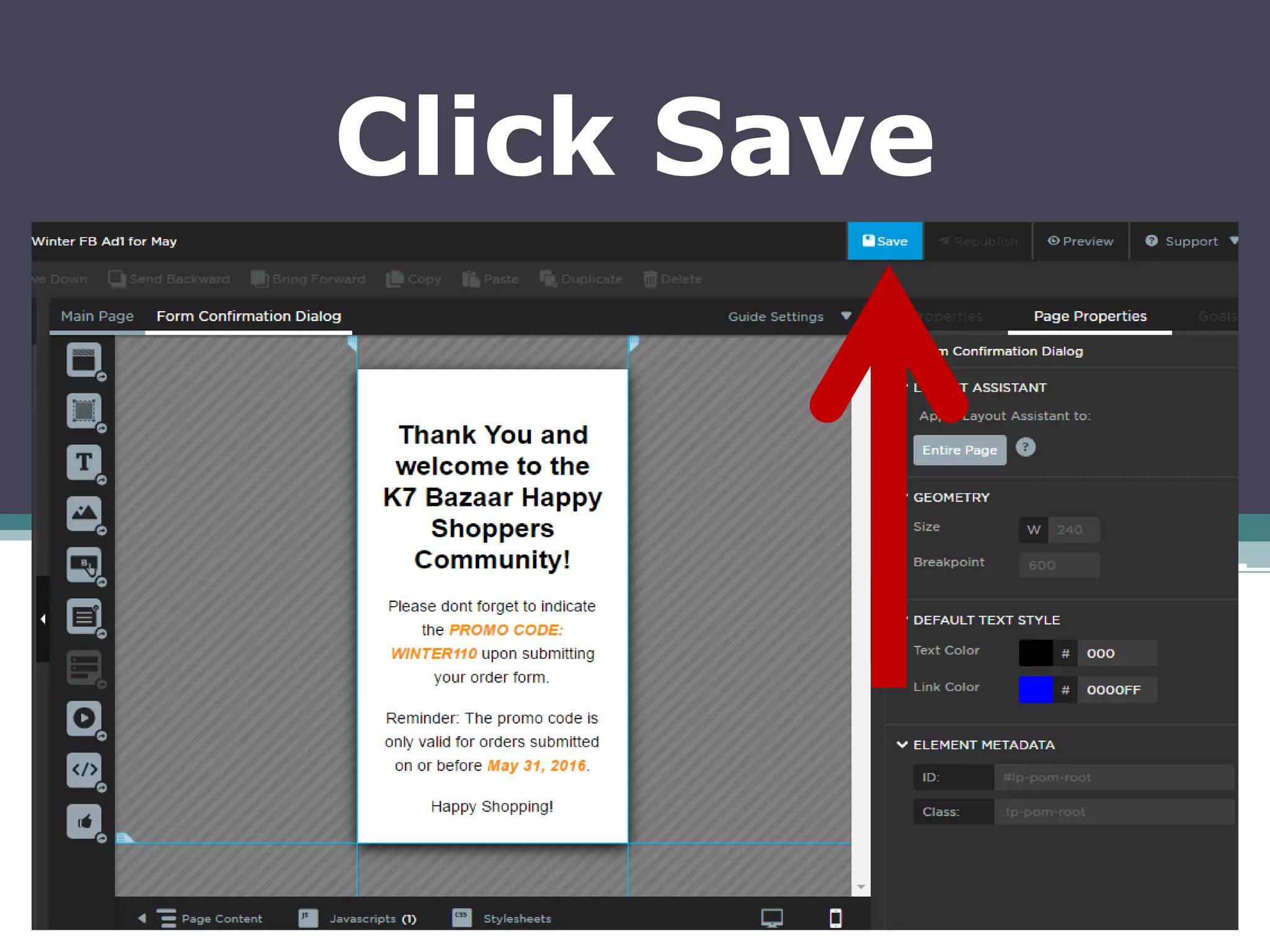
Click Save
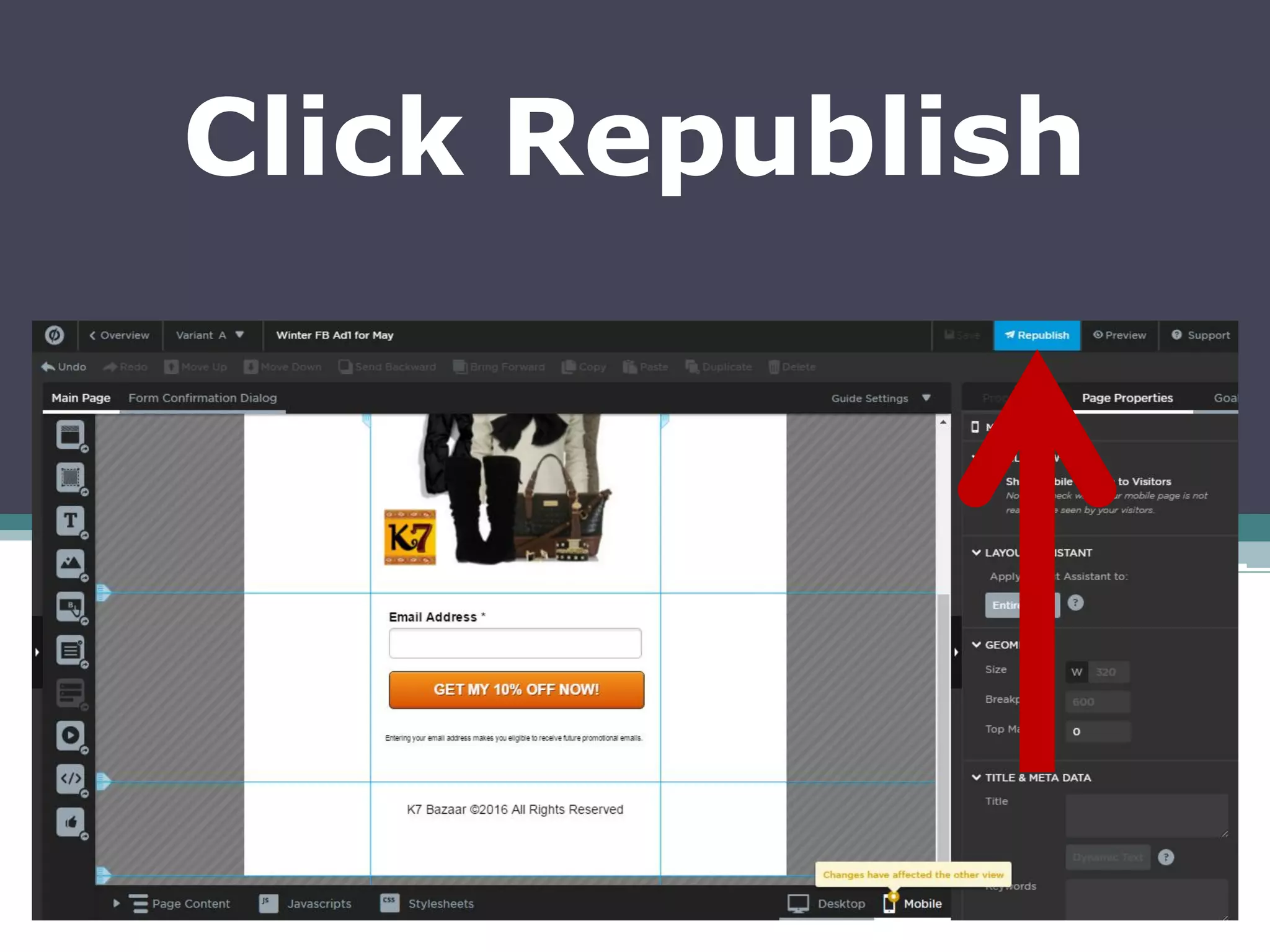
Click Republish
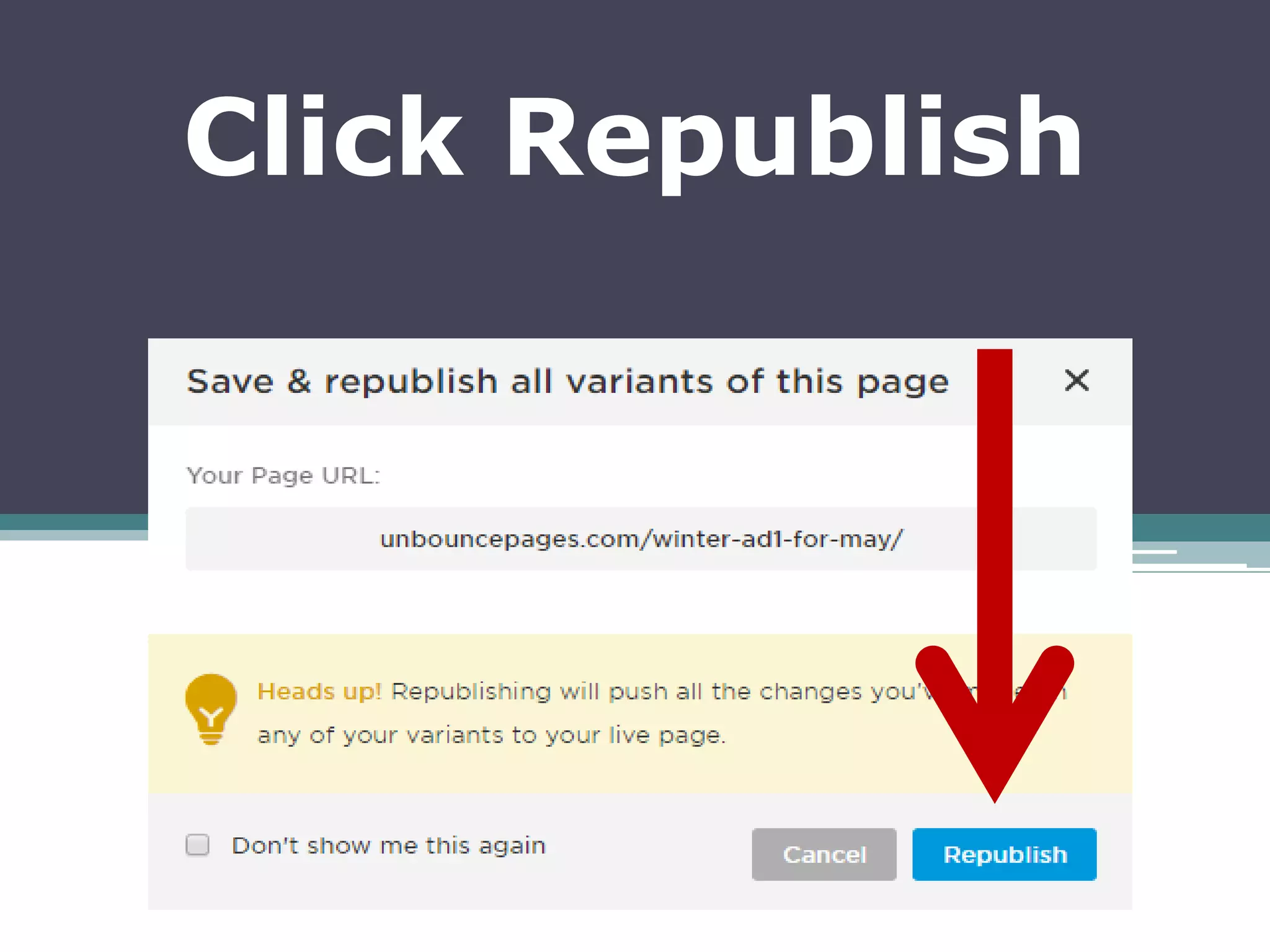
Click Republish
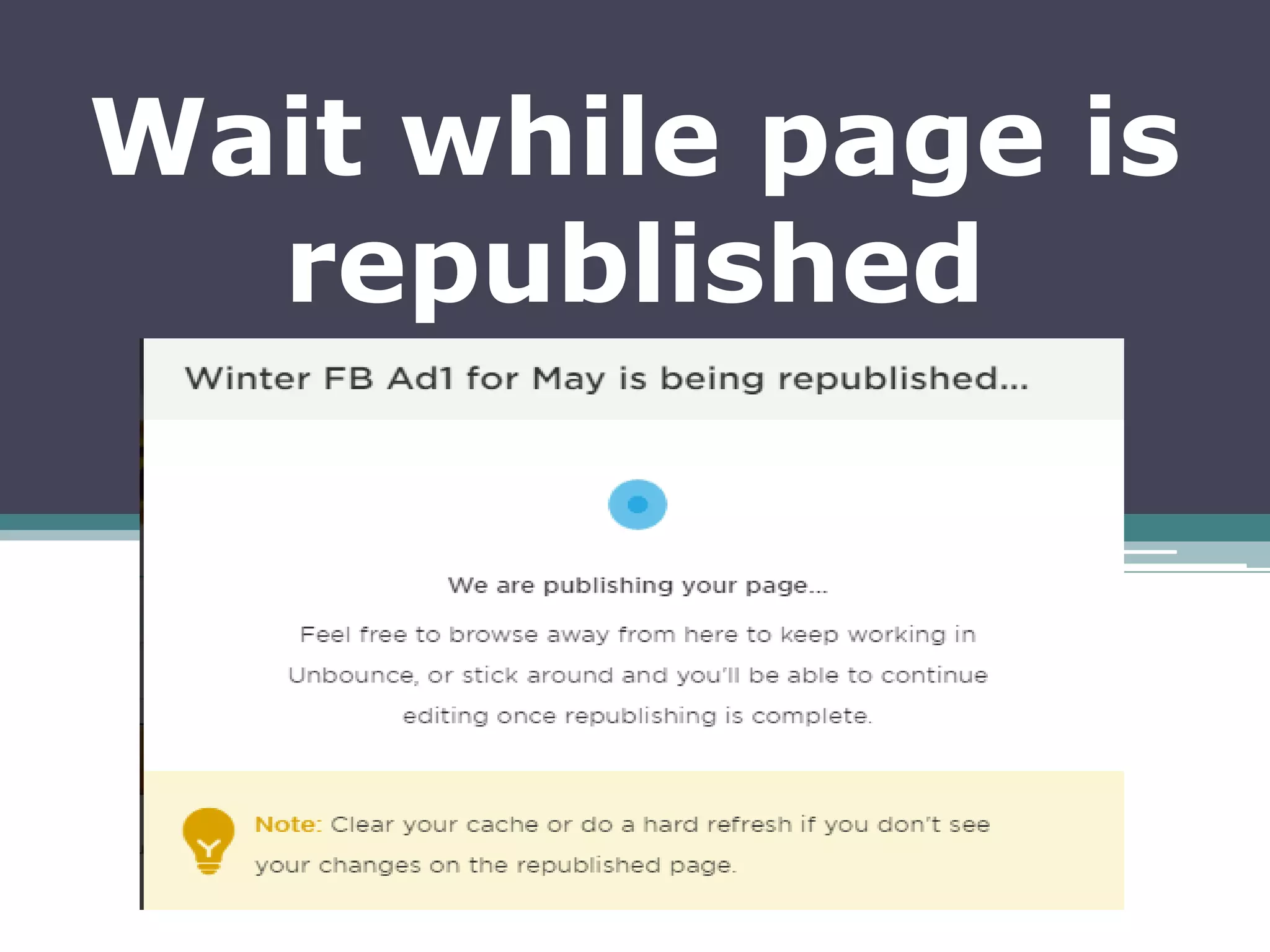
Wait while page is
republished
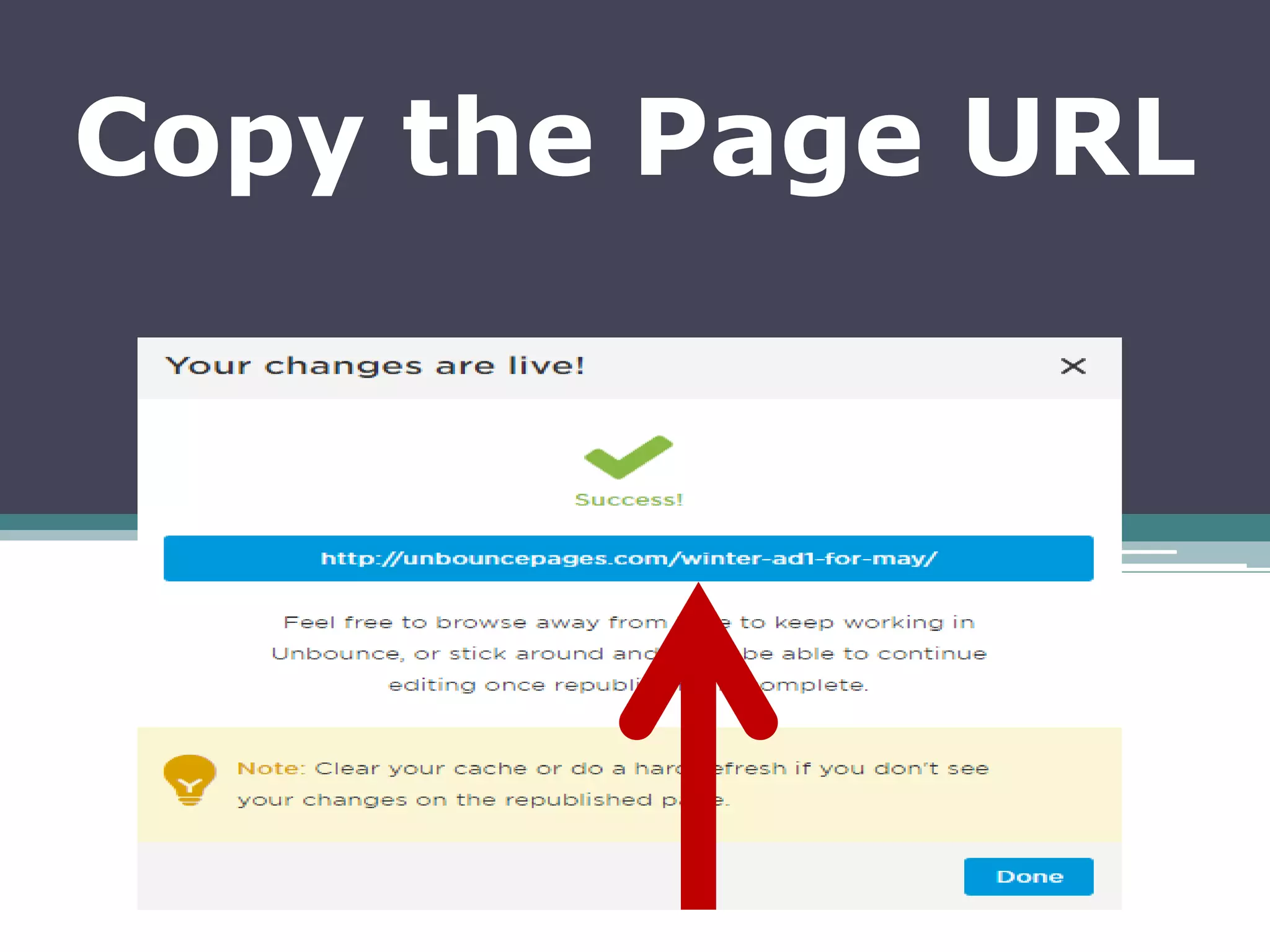
Copy the Page URL
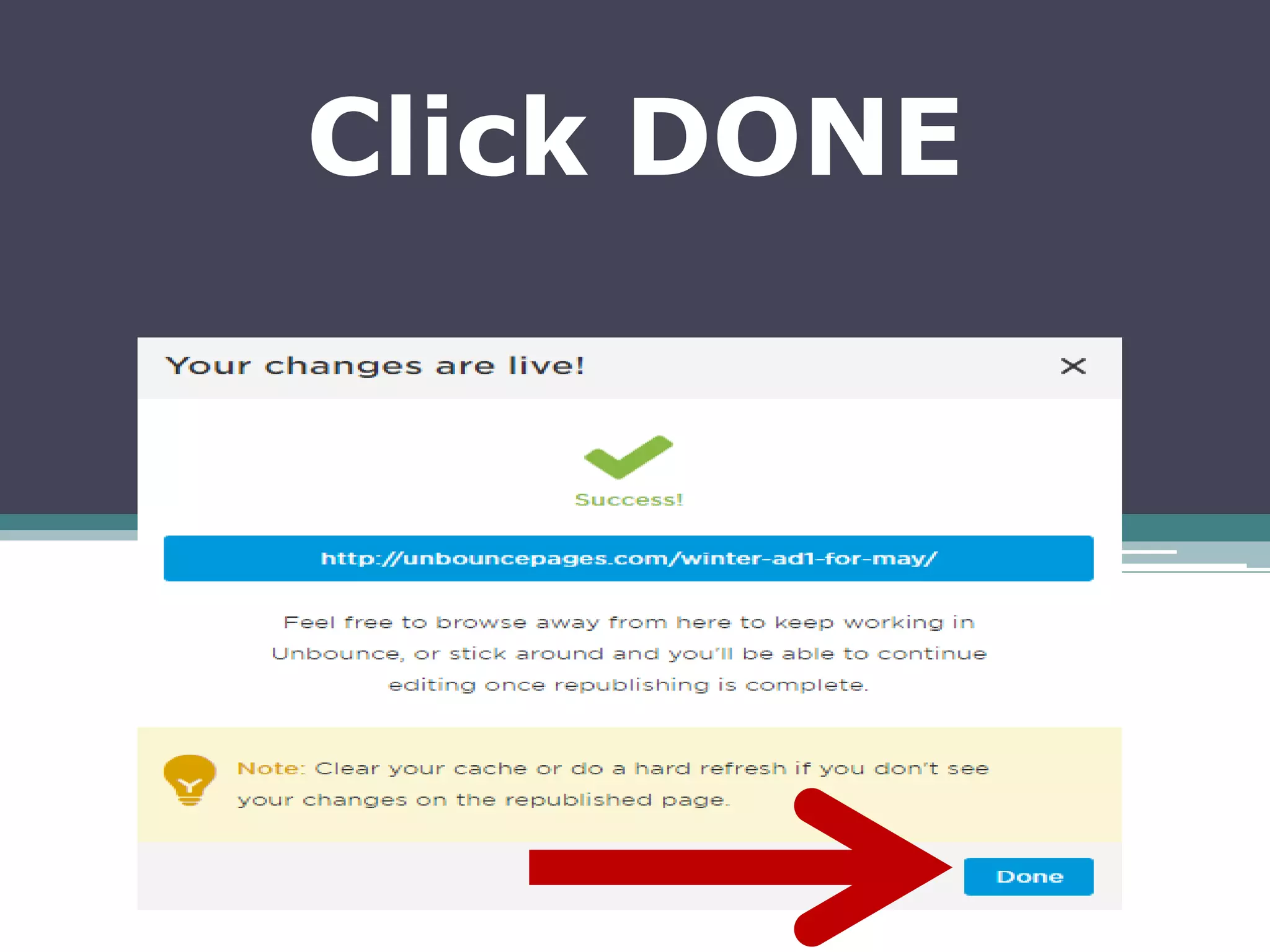
Click DONE
Now let’s check if
the Pixel Base Code
is working
By using the
Facebook Pixel
Helper
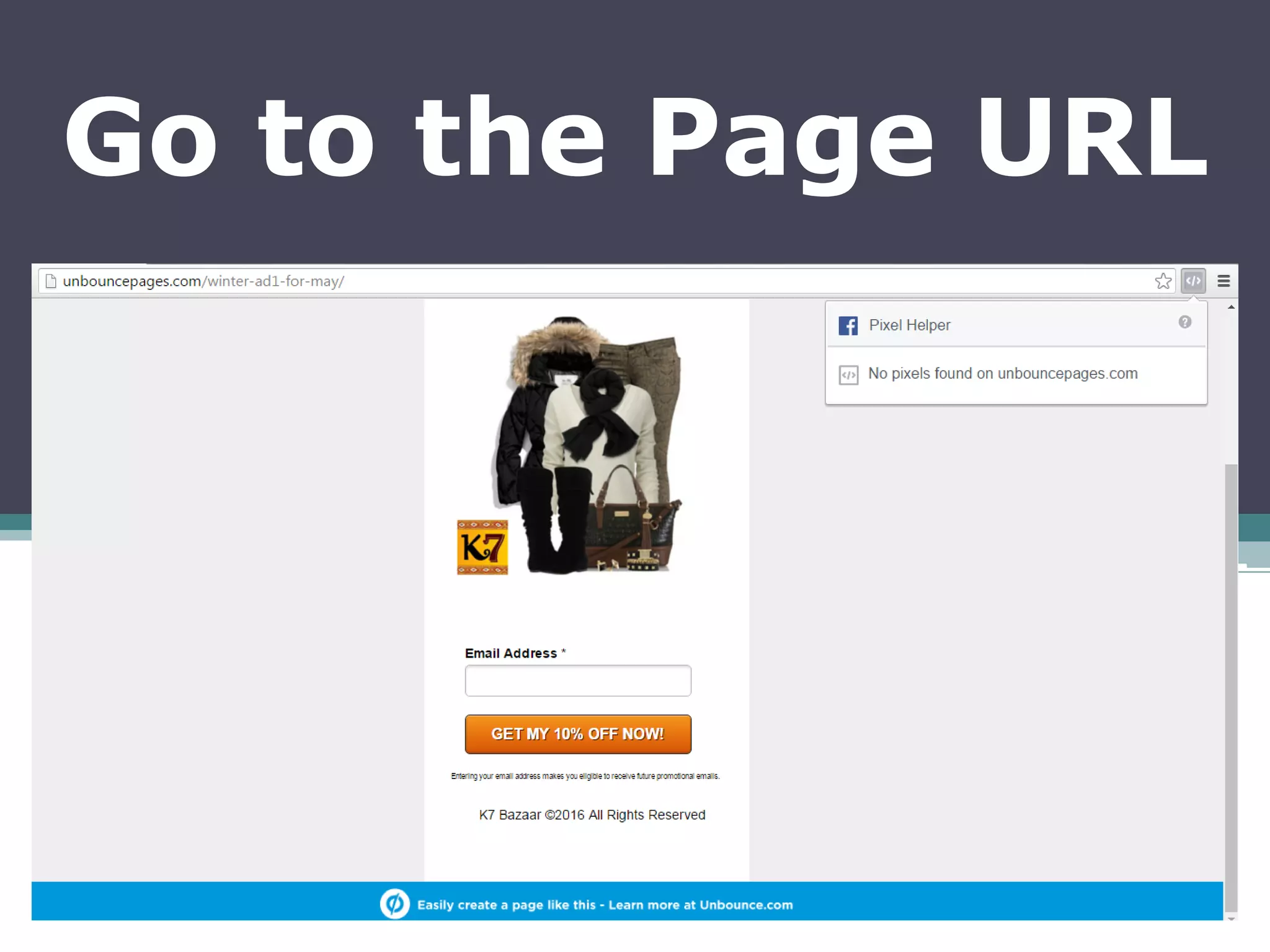
Go to the Page URL
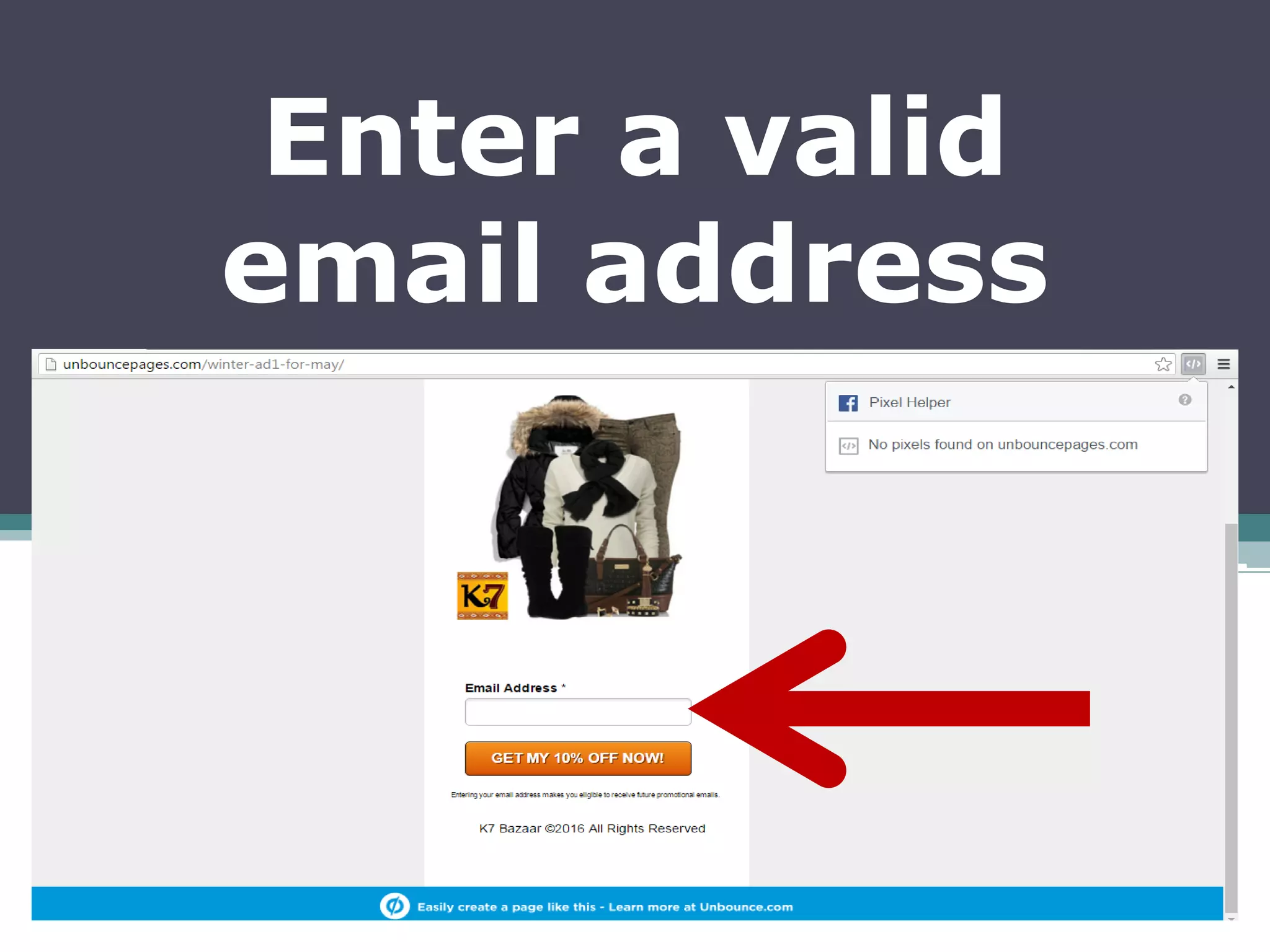
Enter a valid
email address
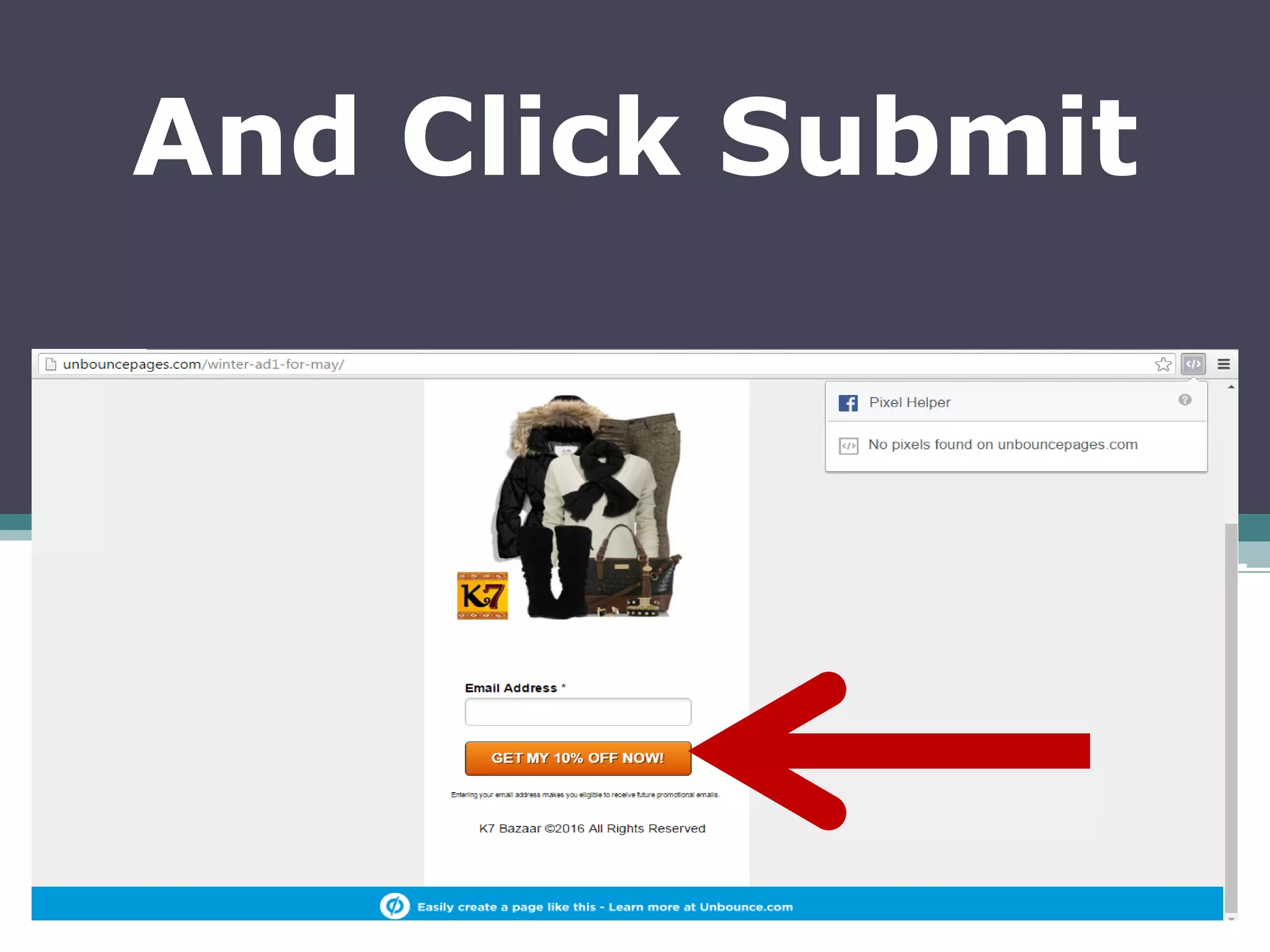
And Click Submit
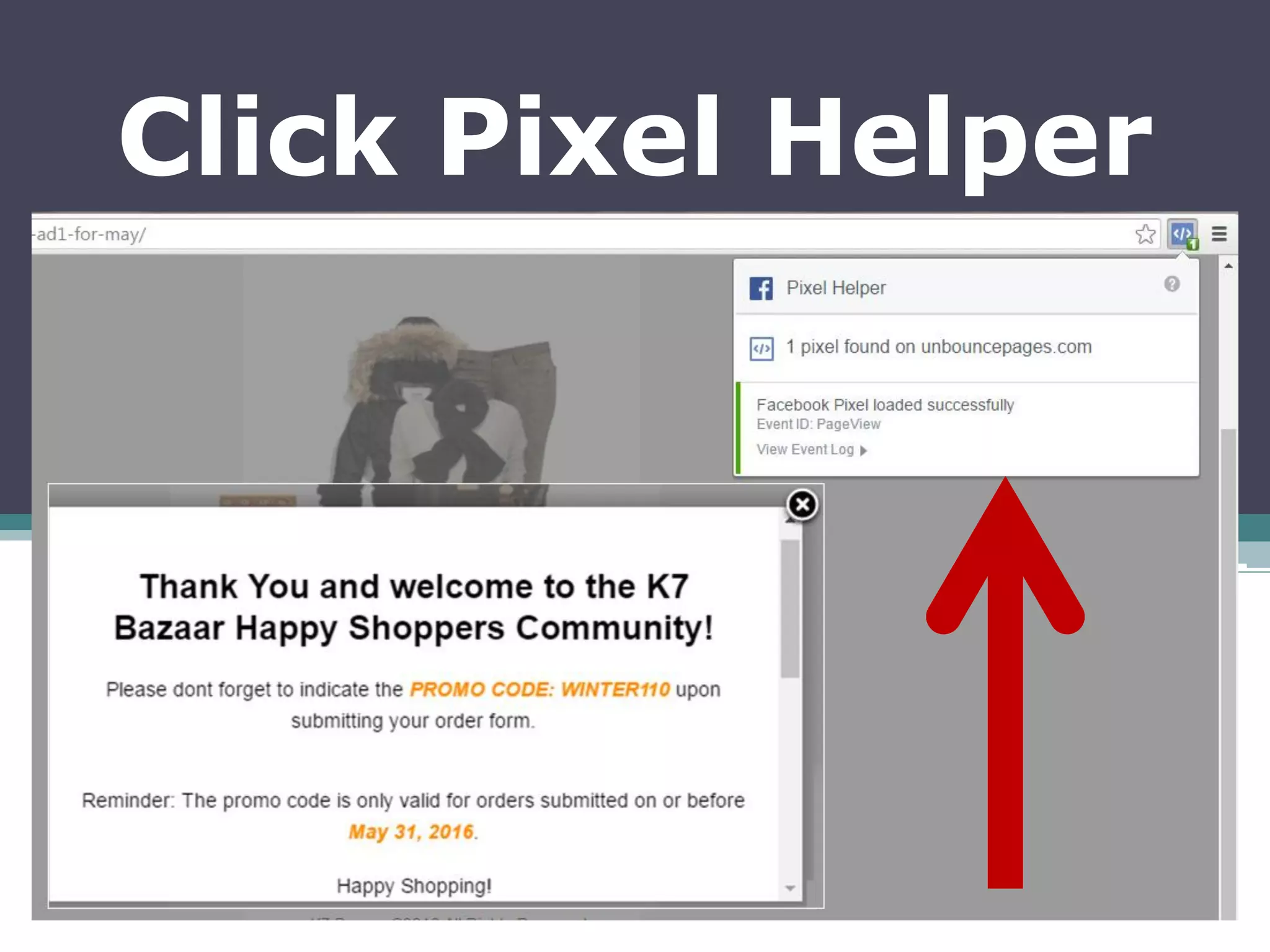
Click Pixel Helper
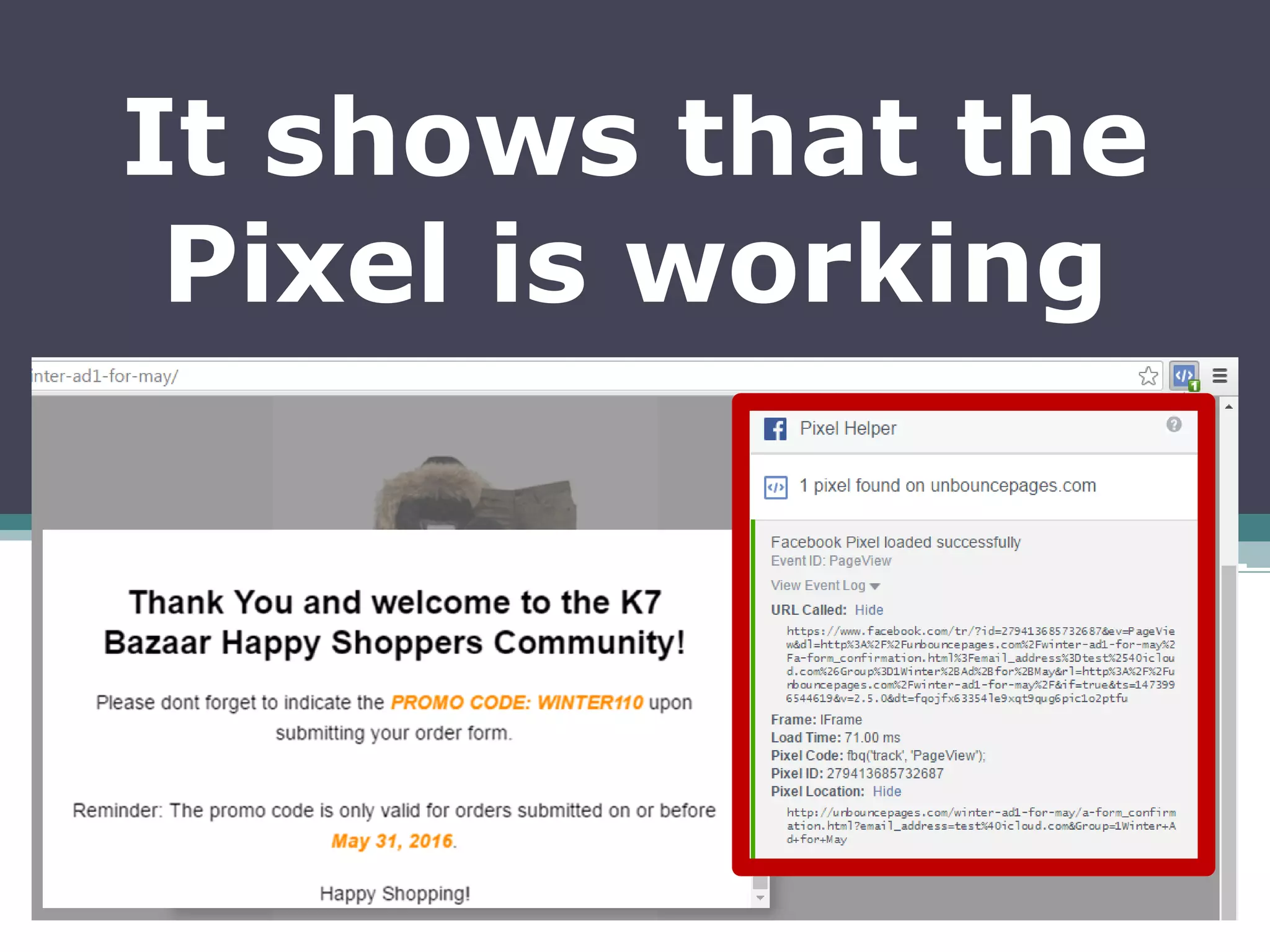
It shows that the
Pixel is working
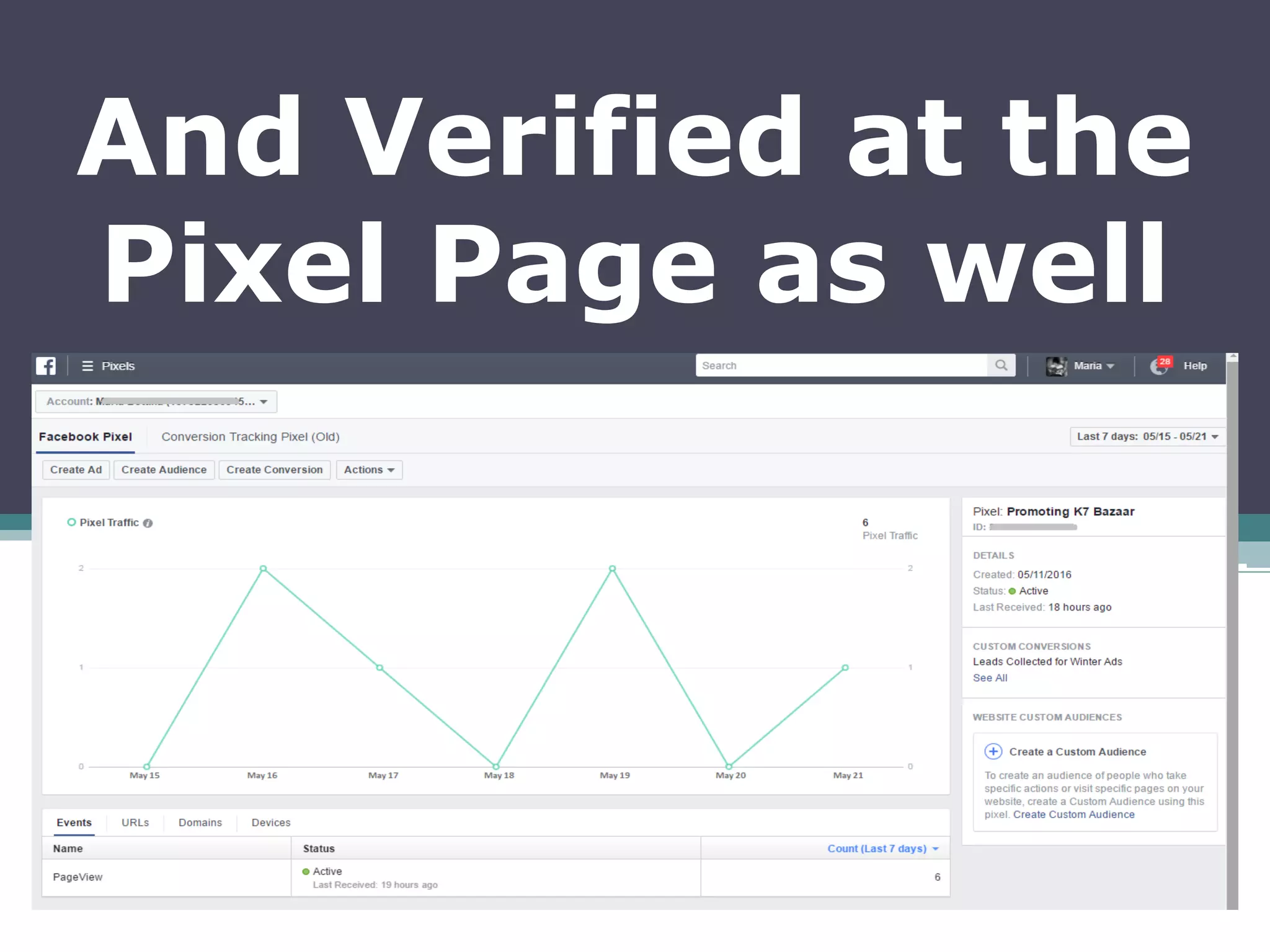
And Verified at the
Pixel Page as well
So that’s it!
We just learned how
to install the
Facebook Pixel Base
Code in Unbounce
Thank you for
following this
Tutorial

How to Install the Facebook Pixel in Unbounce