Software Development and Version Management
with CVS and TortoiseCVS
Madrid, 16th August 2012
Pablo Arriazu Ruiz
Possible new features for SOLab development
What is CVS?
 Concurrent Versioning System.
 Used to track and coordinate source code changes.
 Helps the work with several developers:
• Tracks the change and who changes it.
• Allows to work simultaneously in the same source code, even in the
same file.
 Avoids you for keeping backups of the process.
 Important tool for the Free Software Community
http://www.nongnu.org/cvs/
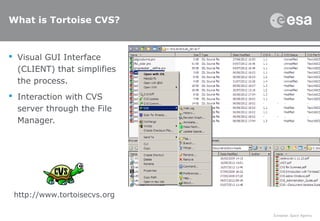
What is Tortoise CVS?
 Visual GUI Interface
(CLIENT) that simplifies
the process.
 Interaction with CVS
server through the File
Manager.
http://www.tortoisecvs.org
The Copy-Modify-Merge model
 The developer downloads a working copy (checking out) from the
shared repository.
 The developer edits his working copy (on his computer = sandbox)
 The developer finishes his changes and commits them into CVS with a
log message explaining the purpose of the changes.
 Other developers can ask for the changes in the library, CVS
automatically updates their working copies.
 If two developers commit changes in the same file, CVS detects the
conflict and saves a differences file.
 A developer selects what is the adequate solution for the conflict and
merges both versions into a unified revision.
Starting to work with CVS:
Participate in a project
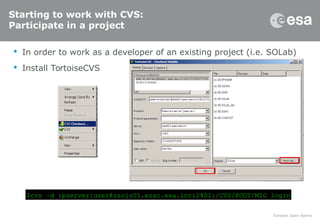
 In order to work as a developer of an existing project (i.e. SOLab)
 Install TortoiseCVS
$cvs –d :pserver:user@ssols01.esac.esa.int:2401:/CVS/ROOT/MIG login
Starting to work with CVS (2)
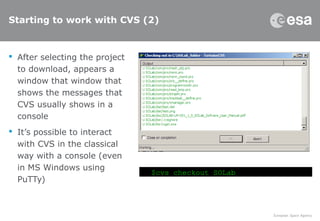
 After selecting the project
to download, appears a
window that window that
shows the messages that
CVS usually shows in a
console
 It’s possible to interact
with CVS in the classical
way with a console (even
in MS Windows using
PuTTy)
$cvs checkout SOLab
Changing the content of a project
 When a new file is added it must be specified
• TortoiseCVS detects ASCII/Binary
• After adding [remove] a file it’s compulsory to commit
–
– add -kb for binaries
 Commit after changing the content of a file
• Upgrades the revision: 1.1->1.2
$cvs add NewDocument.txt
$cvs commit [-f] –m “bug solved” NewDocument.txt
Branching and tagging
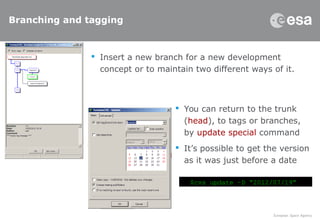
 Insert a new branch for a new development
concept or to maintain two different ways of it.
 You can return to the trunk
(head), to tags or branches,
by update special command
 It’s possible to get the version
as it was just before a date
$cvs update –D “2012/07/19”
Merging a branch
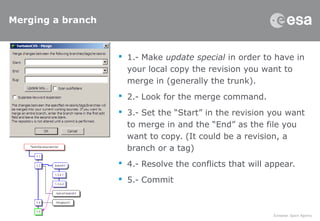
 1.- Make update special in order to have in
your local copy the revision you want to
merge in (generally the trunk).
 2.- Look for the merge command.
 3.- Set the “Start” in the revision you want
to merge in and the “End” as the file you
want to copy. (It could be a revision, a
branch or a tag)
 4.- Resolve the conflicts that will appear.
 5.- Commit
But, there are more developers…
 Updating the files you obtain the last situation on the repository
 Some letters appear before the files:
• C – File changed in both locally and CVS
• M – File changed in local copy
• P – File had changed in CVS, so the local copy has been updated
• U – File has been created in your machine
• A – File added to CVS, but not yet committed
• R – File removed from CVS,
$cvs update [-q]
When a conflict appears
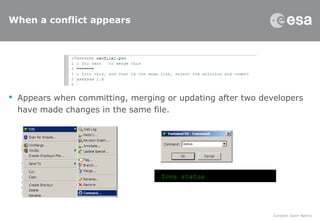
 Appears when committing, merging or updating after two developers
have made changes in the same file.
$cvs status
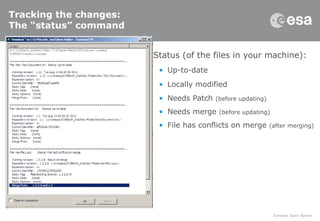
Tracking the changes:
The “status” command
 Status (of the files in your machine):
• Up-to-date
• Locally modified
• Needs Patch (before updating)
• Needs merge (before updating)
• File has conflicts on merge (after merging)
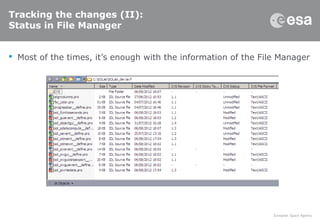
Tracking the changes (II):
Status in File Manager
 Most of the times, it’s enough with the information of the File Manager
Tracking the changes (III):
What are the changes?
 Log shows the comment
made in every commit.
 If comments are correctly
you will know the meaning of
the changes done without
reading the code.
$cvs log [file]
Tracking the changes (IV):
Who has made the changes?
 Annotate allows to know the
who, when and in what
revision have changed every
line in the code.
 By default only shows the
trunk’s changes. To watch the
annotation from a branch add
the tag –r [revision number]
$cvs annotate [file]
Tracking the changes (V):
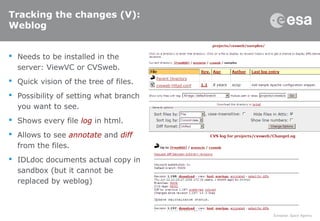
Weblog
 Needs to be installed in the
server: ViewVC or CVSweb.
 Quick vision of the tree of files.
 Possibility of setting what branch
you want to see.
 Shows every file log in html.
 Allows to see annotate and diff
from the files.
 IDLdoc documents actual copy in
sandbox (but it cannot be
replaced by weblog)
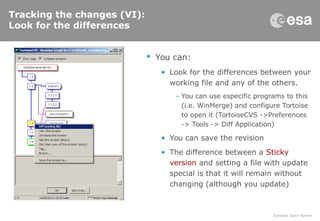
Tracking the changes (VI):
Look for the differences
 You can:
• Look for the differences between your
working file and any of the others.
– You can use especific programs to this
(i.e. WinMerge) and configure Tortoise
to open it (TortoiseCVS ->Preferences
-> Tools -> Diff Application)
• You can save the revision
• The difference between a Sticky
version and setting a file with update
special is that it will remain without
changing (although you update)
Reverting changes
 Probably, the needing of going back to a previous revision will appear:
 The new file will appear as revision 1.5
$cvs update –j 1.4 –j 1.3 [file]
$cvs commit –m ”reverted to 1.3” [file]
Revisions, versions? Tags
 Revisions are internal characteristics of the development process,
every time you change anything, it’s advisable to do it
 Every time you commit the revision number (last one) increases by
one: 1.1->1.2
 In branches the revision number comes from the starting file, an even
number setted by CVS and the revision number
 Versions are deliverable snapshots of the code that are used by the
final user.
• The same version of the Application can have a different name of revision
for every file, but the user doesn’t matters this
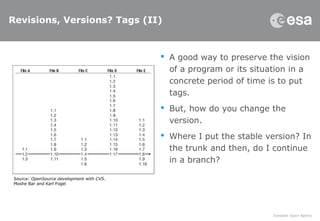
Revisions, Versions? Tags (II)
 A good way to preserve the vision
of a program or its situation in a
concrete period of time is to put
tags.
 But, how do you change the
version.
 Where I put the stable version? In
the trunk and then, do I continue
in a branch?
Source: OpenSource development with CVS.
Moshe Bar and Karl Fogel
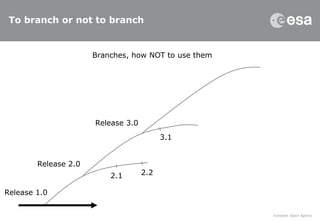
To branch or not to branch
Release 1.0
Release 2.0
Release 3.0
Branches, how NOT to use them
2.1 2.2
3.1
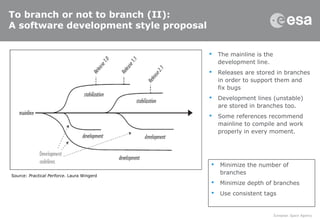
To branch or not to branch (II):
A software development style proposal
 The mainline is the
development line.
 Releases are stored in branches
in order to support them and
fix bugs
 Development lines (unstable)
are stored in branches too.
 Some references recommend
mainline to compile and work
properly in every moment.
Source: Practical Perforce. Laura Wingerd
 Minimize the number of
branches
 Minimize depth of branches
 Use consistent tags
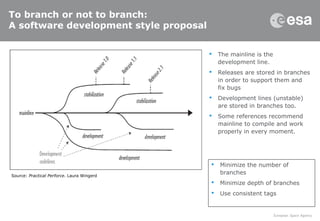
To branch or not to branch:
A software development style proposal
 The mainline is the
development line.
 Releases are stored in branches
in order to support them and
fix bugs
 Development lines (unstable)
are stored in branches too.
 Some references recommend
mainline to compile and work
properly in every moment.
Source: Practical Perforce. Laura Wingerd
 Minimize the number of
branches
 Minimize depth of branches
 Use consistent tags
Some good practices
 Always comment every change.
• “If you don’t have anything to comment you don’t have anything to commit”
 Use tags to set up points you will probably want to go back.
• Tagging is a good way to set the version number, stability points, start of
developments, etc.
 Tag Root-of-(name of the branch) in the file it comes from.
 Put a tag in every merge.
 Commit at least at the end of the day and update every morning.
• You are not alone: in this way all the group will work with updated code.
Releases? 2.1?
 A release in CVS is a copy without the administrative CVS (hidden by
default) data in the working copy.
 Check out in another folder, this will disconnect your copy to the
server.
 To change the revision first number you can use this code:
 Be careful of this, once there is a file in this way, all the new files will
use the same version first number.
$cvs commit –r 2 [file]
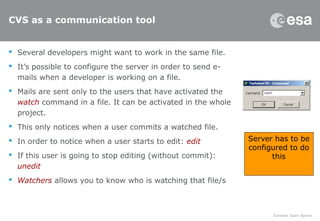
CVS as a communication tool
 Several developers might want to work in the same file.
 It’s possible to configure the server in order to send e-
mails when a developer is working on a file.
 Mails are sent only to the users that have activated the
watch command in a file. It can be activated in the whole
project.
 This only notices when a user commits a watched file.
 In order to notice when a user starts to edit: edit
 If this user is going to stop editing (without commit):
unedit
 Watchers allows you to know who is watching that file/s
Server has to be
configured to do
this
CVS as a communication tool (II):
reminding people to use watch
 If users don’t set edit, CVS sends a mail when commit.
 Watch on makes the copy on your computer read-only.
 Turns read-and-write only after edit command.
 This could be unconfortable for developers
 Too much mails (start editing and commiting) could make them
annoying and developers won’t read them.
 watch off is possible
History
 Has to be activated in server
 Shows every action taken in the server
 Not quite useful, not easy to read the result
Mantis integration
 Mantis is a bugtracking software
 It can be synchronized with CVS
 After commiting it’s possible to read the log message
 Useful as the number of users and developers grow
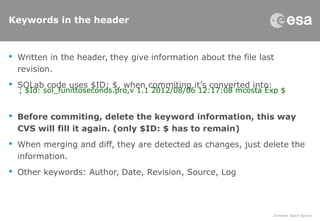
Keywords in the header
 Written in the header, they give information about the file last
revision.
 SOLab code uses $ID: $, when commiting it’s converted into:
 Before commiting, delete the keyword information, this way
CVS will fill it again. (only $ID: $ has to remain)
 When merging and diff, they are detected as changes, just delete the
information.
 Other keywords: Author, Date, Revision, Source, Log
; $Id: sol_funittoseconds.pro,v 1.1 2012/08/06 12:17:08 mcosta Exp $
SOLab
 It’s important to select a development methodology, especially to
make the branches functionality practical.
 Some of these features could be added to the SOLab coding process
 They will be more interesting as the number of users and developers
grow.

How to use CVS applied to SOLab

  • 1.
    Software Development andVersion Management with CVS and TortoiseCVS Madrid, 16th August 2012 Pablo Arriazu Ruiz Possible new features for SOLab development
  • 2.
    What is CVS? Concurrent Versioning System.  Used to track and coordinate source code changes.  Helps the work with several developers: • Tracks the change and who changes it. • Allows to work simultaneously in the same source code, even in the same file.  Avoids you for keeping backups of the process.  Important tool for the Free Software Community http://www.nongnu.org/cvs/
  • 3.
    What is TortoiseCVS?  Visual GUI Interface (CLIENT) that simplifies the process.  Interaction with CVS server through the File Manager. http://www.tortoisecvs.org
  • 4.
    The Copy-Modify-Merge model The developer downloads a working copy (checking out) from the shared repository.  The developer edits his working copy (on his computer = sandbox)  The developer finishes his changes and commits them into CVS with a log message explaining the purpose of the changes.  Other developers can ask for the changes in the library, CVS automatically updates their working copies.  If two developers commit changes in the same file, CVS detects the conflict and saves a differences file.  A developer selects what is the adequate solution for the conflict and merges both versions into a unified revision.
  • 5.
    Starting to workwith CVS: Participate in a project  In order to work as a developer of an existing project (i.e. SOLab)  Install TortoiseCVS $cvs –d :pserver:user@ssols01.esac.esa.int:2401:/CVS/ROOT/MIG login
  • 6.
    Starting to workwith CVS (2)  After selecting the project to download, appears a window that window that shows the messages that CVS usually shows in a console  It’s possible to interact with CVS in the classical way with a console (even in MS Windows using PuTTy) $cvs checkout SOLab
  • 7.
    Changing the contentof a project  When a new file is added it must be specified • TortoiseCVS detects ASCII/Binary • After adding [remove] a file it’s compulsory to commit – – add -kb for binaries  Commit after changing the content of a file • Upgrades the revision: 1.1->1.2 $cvs add NewDocument.txt $cvs commit [-f] –m “bug solved” NewDocument.txt
  • 8.
    Branching and tagging Insert a new branch for a new development concept or to maintain two different ways of it.  You can return to the trunk (head), to tags or branches, by update special command  It’s possible to get the version as it was just before a date $cvs update –D “2012/07/19”
  • 9.
    Merging a branch 1.- Make update special in order to have in your local copy the revision you want to merge in (generally the trunk).  2.- Look for the merge command.  3.- Set the “Start” in the revision you want to merge in and the “End” as the file you want to copy. (It could be a revision, a branch or a tag)  4.- Resolve the conflicts that will appear.  5.- Commit
  • 10.
    But, there aremore developers…  Updating the files you obtain the last situation on the repository  Some letters appear before the files: • C – File changed in both locally and CVS • M – File changed in local copy • P – File had changed in CVS, so the local copy has been updated • U – File has been created in your machine • A – File added to CVS, but not yet committed • R – File removed from CVS, $cvs update [-q]
  • 11.
    When a conflictappears  Appears when committing, merging or updating after two developers have made changes in the same file. $cvs status
  • 12.
    Tracking the changes: The“status” command  Status (of the files in your machine): • Up-to-date • Locally modified • Needs Patch (before updating) • Needs merge (before updating) • File has conflicts on merge (after merging)
  • 13.
    Tracking the changes(II): Status in File Manager  Most of the times, it’s enough with the information of the File Manager
  • 14.
    Tracking the changes(III): What are the changes?  Log shows the comment made in every commit.  If comments are correctly you will know the meaning of the changes done without reading the code. $cvs log [file]
  • 15.
    Tracking the changes(IV): Who has made the changes?  Annotate allows to know the who, when and in what revision have changed every line in the code.  By default only shows the trunk’s changes. To watch the annotation from a branch add the tag –r [revision number] $cvs annotate [file]
  • 16.
    Tracking the changes(V): Weblog  Needs to be installed in the server: ViewVC or CVSweb.  Quick vision of the tree of files.  Possibility of setting what branch you want to see.  Shows every file log in html.  Allows to see annotate and diff from the files.  IDLdoc documents actual copy in sandbox (but it cannot be replaced by weblog)
  • 17.
    Tracking the changes(VI): Look for the differences  You can: • Look for the differences between your working file and any of the others. – You can use especific programs to this (i.e. WinMerge) and configure Tortoise to open it (TortoiseCVS ->Preferences -> Tools -> Diff Application) • You can save the revision • The difference between a Sticky version and setting a file with update special is that it will remain without changing (although you update)
  • 18.
    Reverting changes  Probably,the needing of going back to a previous revision will appear:  The new file will appear as revision 1.5 $cvs update –j 1.4 –j 1.3 [file] $cvs commit –m ”reverted to 1.3” [file]
  • 19.
    Revisions, versions? Tags Revisions are internal characteristics of the development process, every time you change anything, it’s advisable to do it  Every time you commit the revision number (last one) increases by one: 1.1->1.2  In branches the revision number comes from the starting file, an even number setted by CVS and the revision number  Versions are deliverable snapshots of the code that are used by the final user. • The same version of the Application can have a different name of revision for every file, but the user doesn’t matters this
  • 20.
    Revisions, Versions? Tags(II)  A good way to preserve the vision of a program or its situation in a concrete period of time is to put tags.  But, how do you change the version.  Where I put the stable version? In the trunk and then, do I continue in a branch? Source: OpenSource development with CVS. Moshe Bar and Karl Fogel
  • 21.
    To branch ornot to branch Release 1.0 Release 2.0 Release 3.0 Branches, how NOT to use them 2.1 2.2 3.1
  • 22.
    To branch ornot to branch (II): A software development style proposal  The mainline is the development line.  Releases are stored in branches in order to support them and fix bugs  Development lines (unstable) are stored in branches too.  Some references recommend mainline to compile and work properly in every moment. Source: Practical Perforce. Laura Wingerd  Minimize the number of branches  Minimize depth of branches  Use consistent tags
  • 23.
    To branch ornot to branch: A software development style proposal  The mainline is the development line.  Releases are stored in branches in order to support them and fix bugs  Development lines (unstable) are stored in branches too.  Some references recommend mainline to compile and work properly in every moment. Source: Practical Perforce. Laura Wingerd  Minimize the number of branches  Minimize depth of branches  Use consistent tags
  • 24.
    Some good practices Always comment every change. • “If you don’t have anything to comment you don’t have anything to commit”  Use tags to set up points you will probably want to go back. • Tagging is a good way to set the version number, stability points, start of developments, etc.  Tag Root-of-(name of the branch) in the file it comes from.  Put a tag in every merge.  Commit at least at the end of the day and update every morning. • You are not alone: in this way all the group will work with updated code.
  • 25.
    Releases? 2.1?  Arelease in CVS is a copy without the administrative CVS (hidden by default) data in the working copy.  Check out in another folder, this will disconnect your copy to the server.  To change the revision first number you can use this code:  Be careful of this, once there is a file in this way, all the new files will use the same version first number. $cvs commit –r 2 [file]
  • 26.
    CVS as acommunication tool  Several developers might want to work in the same file.  It’s possible to configure the server in order to send e- mails when a developer is working on a file.  Mails are sent only to the users that have activated the watch command in a file. It can be activated in the whole project.  This only notices when a user commits a watched file.  In order to notice when a user starts to edit: edit  If this user is going to stop editing (without commit): unedit  Watchers allows you to know who is watching that file/s Server has to be configured to do this
  • 27.
    CVS as acommunication tool (II): reminding people to use watch  If users don’t set edit, CVS sends a mail when commit.  Watch on makes the copy on your computer read-only.  Turns read-and-write only after edit command.  This could be unconfortable for developers  Too much mails (start editing and commiting) could make them annoying and developers won’t read them.  watch off is possible
  • 28.
    History  Has tobe activated in server  Shows every action taken in the server  Not quite useful, not easy to read the result
  • 29.
    Mantis integration  Mantisis a bugtracking software  It can be synchronized with CVS  After commiting it’s possible to read the log message  Useful as the number of users and developers grow
  • 30.
    Keywords in theheader  Written in the header, they give information about the file last revision.  SOLab code uses $ID: $, when commiting it’s converted into:  Before commiting, delete the keyword information, this way CVS will fill it again. (only $ID: $ has to remain)  When merging and diff, they are detected as changes, just delete the information.  Other keywords: Author, Date, Revision, Source, Log ; $Id: sol_funittoseconds.pro,v 1.1 2012/08/06 12:17:08 mcosta Exp $
  • 31.
    SOLab  It’s importantto select a development methodology, especially to make the branches functionality practical.  Some of these features could be added to the SOLab coding process  They will be more interesting as the number of users and developers grow.