2
By definition, rotation is a
movement in circles. It is
synonymous to spinning,
revolving, turning, whirling or
circling
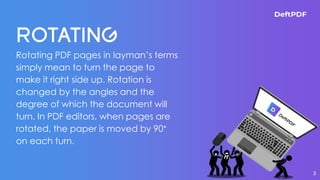
Rotating PDF pages in layman’s terms
simply mean to turn the page to
make it right side up. Rotation is
changed by the angles and the
degree of which the document will
turn. In PDF editors, when pages are
rotated, the paper is moved by 90°
on each turn.
3
“
5
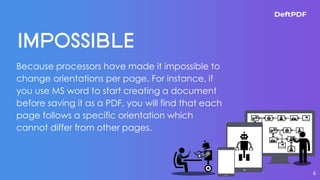
Because processors have made it impossible to
change orientations per page. For instance, if
you use MS word to start creating a document
before saving it as a PDF, you will find that each
page follows a specific orientation which
cannot differ from other pages.
6
Please note that rotating PDF pages in Adobe will require you to subscribe and pay a certain fee
to be able to use organization tools such as rotating PDF pages.
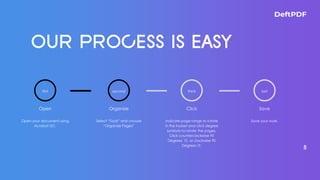
8
first
Open
Open your document using
Acrobat DC.
Organize
Select “Tools” and choose
“Organize Pages”
second
Click
Indicate page range to rotate
in the toolset and click degree
symbols to rotate the pages.
Click counterclockwise 90
Degrees ⟲ or clockwise 90
Degrees ⟳.
third
Save
Save your work.
last
Please note that rotating PDF pages in Adobe will require you to subscribe and pay a certain fee
to be able to use organization tools such as rotating PDF pages.
“
10
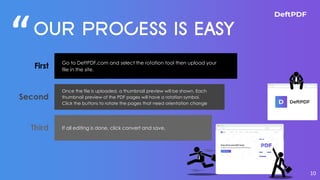
First Go to DeftPDF.com and select the rotation tool then upload your
file in the site.
Second
Once the file is uploaded, a thumbnail preview will be shown. Each
thumbnail preview of the PDF pages will have a rotation symbol.
Click the buttons to rotate the pages that need orientation change
Third If all editing is done, click convert and save.
Please note that rotating PDF pages in Adobe will require you to subscribe and pay a certain fee
to be able to use organization tools such as rotating PDF pages.
Other than our Rotate tool, you
can also try our “Combine and
reorder” tool which also allows
PDF page organizing. This tool is
best used for those looking to
do more than just rotating
pages as it can rotate, merge
and organize the pages
according to the order they
prefer. With the drag and drop
design, organizing pages is
easier than ever.
12
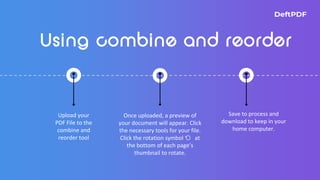
Upload your
PDF File to the
combine and
reorder tool
Once uploaded, a preview of
your document will appear. Click
the necessary tools for your file.
Click the rotation symbol ⟲ at
the bottom of each page’s
thumbnail to rotate.
Save to process and
download to keep in your
home computer.
Please note that rotating PDF pages in Adobe will require you to subscribe and pay a certain fee
to be able to use organization tools such as rotating PDF pages.
EDIT PDF – You can
easily edit your PDF
pages with just a few
clicks. Our online tool
will edit existing text,
erase content, add
forms, create
signatures or even
add photos in your
document.
TRANSLATE PDF – Got
a file you can’t
understand? Erase the
language barrier and
use DeftPDF translate
tools to help you
understand files in
different languages.
SPLIT PDF PAGES –
Keeping a
confidential part of
the document can be
a drag so we’re
providing a split tool
for those pages you
want to separate.
15
Please note that rotating PDF pages in Adobe will require you to subscribe and pay a certain fee
to be able to use organization tools such as rotating PDF pages.
17
DeftPDF is an online software company that focuses on tools specific for PDF
documents. Our software is dedicated on helping you manage your files for free.
DeftPDF has various tools available for free such as PDF converters, PDF editors,
mergers, splitter, PDF translators, and of course, our rotation tool. Our software
provides solutions for any PDF dilemmas and promises to keep these files sacred within
the encrypted server then deleted a few hours after you’re done with processing
these documents.
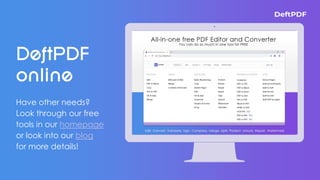
Have other needs?
Look through our free
tools in our homepage
or look into our blog
for more details!
You can always stay updated with us, just
subscribe or follow our social media channels!
Subscribe by registering to our site!
Watch our video tutorials in YouTube
✓ Follow us on Facebook
✓ Follow us on Instagram
✓ Follow us on LinkedIn
✓ Follow us on Twitter
Click on the yellow links to go to the social media page

How to rotate PDF pages

  • 2.
    2 By definition, rotationis a movement in circles. It is synonymous to spinning, revolving, turning, whirling or circling
  • 3.
    Rotating PDF pagesin layman’s terms simply mean to turn the page to make it right side up. Rotation is changed by the angles and the degree of which the document will turn. In PDF editors, when pages are rotated, the paper is moved by 90° on each turn. 3
  • 5.
  • 6.
    Because processors havemade it impossible to change orientations per page. For instance, if you use MS word to start creating a document before saving it as a PDF, you will find that each page follows a specific orientation which cannot differ from other pages. 6
  • 7.
    Please note thatrotating PDF pages in Adobe will require you to subscribe and pay a certain fee to be able to use organization tools such as rotating PDF pages.
  • 8.
    8 first Open Open your documentusing Acrobat DC. Organize Select “Tools” and choose “Organize Pages” second Click Indicate page range to rotate in the toolset and click degree symbols to rotate the pages. Click counterclockwise 90 Degrees ⟲ or clockwise 90 Degrees ⟳. third Save Save your work. last
  • 9.
    Please note thatrotating PDF pages in Adobe will require you to subscribe and pay a certain fee to be able to use organization tools such as rotating PDF pages.
  • 10.
    “ 10 First Go toDeftPDF.com and select the rotation tool then upload your file in the site. Second Once the file is uploaded, a thumbnail preview will be shown. Each thumbnail preview of the PDF pages will have a rotation symbol. Click the buttons to rotate the pages that need orientation change Third If all editing is done, click convert and save.
  • 11.
    Please note thatrotating PDF pages in Adobe will require you to subscribe and pay a certain fee to be able to use organization tools such as rotating PDF pages.
  • 12.
    Other than ourRotate tool, you can also try our “Combine and reorder” tool which also allows PDF page organizing. This tool is best used for those looking to do more than just rotating pages as it can rotate, merge and organize the pages according to the order they prefer. With the drag and drop design, organizing pages is easier than ever. 12
  • 13.
    Upload your PDF Fileto the combine and reorder tool Once uploaded, a preview of your document will appear. Click the necessary tools for your file. Click the rotation symbol ⟲ at the bottom of each page’s thumbnail to rotate. Save to process and download to keep in your home computer.
  • 14.
    Please note thatrotating PDF pages in Adobe will require you to subscribe and pay a certain fee to be able to use organization tools such as rotating PDF pages.
  • 15.
    EDIT PDF –You can easily edit your PDF pages with just a few clicks. Our online tool will edit existing text, erase content, add forms, create signatures or even add photos in your document. TRANSLATE PDF – Got a file you can’t understand? Erase the language barrier and use DeftPDF translate tools to help you understand files in different languages. SPLIT PDF PAGES – Keeping a confidential part of the document can be a drag so we’re providing a split tool for those pages you want to separate. 15
  • 16.
    Please note thatrotating PDF pages in Adobe will require you to subscribe and pay a certain fee to be able to use organization tools such as rotating PDF pages.
  • 17.
    17 DeftPDF is anonline software company that focuses on tools specific for PDF documents. Our software is dedicated on helping you manage your files for free. DeftPDF has various tools available for free such as PDF converters, PDF editors, mergers, splitter, PDF translators, and of course, our rotation tool. Our software provides solutions for any PDF dilemmas and promises to keep these files sacred within the encrypted server then deleted a few hours after you’re done with processing these documents.
  • 18.
    Have other needs? Lookthrough our free tools in our homepage or look into our blog for more details!
  • 19.
    You can alwaysstay updated with us, just subscribe or follow our social media channels! Subscribe by registering to our site! Watch our video tutorials in YouTube ✓ Follow us on Facebook ✓ Follow us on Instagram ✓ Follow us on LinkedIn ✓ Follow us on Twitter Click on the yellow links to go to the social media page