How to Lock/Unlock BitLocker
Drive without Restarting
BitLocker is a great encryption tool integrated into
Windows 10, but we can’t use it to lock a BitLocker
encrypted drive because Microsoft hasn’t provided this
feature so far. If you want to lock BitLocker drive to
prevent unauthorized access data on a volume that
uses BitLocker Drive Encryption, you can use one of the
following ways to lock the BitLocker drive without
restarting the system.
• Option 1: Lock BitLocker drive with CMD
• Option 2: Lock BitLocker drive with iSumsoft
BitLocker Reader
How to lock/unlock BitLocker drive with CMD
Locks a BitLocker-protected drive to prevent access to it unless the
unlock key is provided. Before locking the BitLocker drive with CMD,
please make sure that the BitLocker password has been set for that
drive and the auto-lock function has been turned off. After shutting
down the system, the drive will automatically lock itself.
Step 1: Open the Command Prompt as administrator.
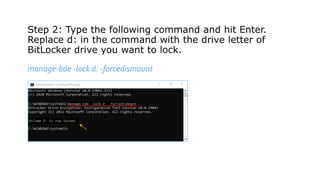
Step 2: Type the following command and hit Enter.
Replace d: in the command with the drive letter of
BitLocker drive you want to lock.
manage-bde -lock d: -forcedismount
Step 3: Close the Command Prompt. Your BitLocker drive
is now locked and you’re unable to access it without
providing your BitLocker password.
Note: If you want to unlock a BitLocker drive from an
elevated Command Prompt. Just type this command
and press Enter.
manage-bde -unlock d: -password
When prompted, type the BitLocker password for this
drive and hit Enter. It will unlock your drive
immediately.
How to use iSumsoft BitLocker Reader to
lock/unlock a BitLocker drive
iSumsoft BitLocker Reader is a popular third-party encryption software
which is designed to manage Bitlocker drive on Windows OS. It has a
powerful function-Lock Drive can help you easily and effectively lock and
unlock BitLocker encrypted drives in the graphical user interface (GUI).
You can use the following steps to lock a BitLocker encrypted drive
without restarting your Windows PC.
Step 1: Download and install iSumsoft BitLocker Reader on your PC. After installation, launch
this tool.
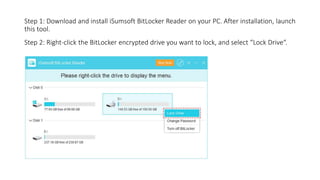
Step 2: Right-click the BitLocker encrypted drive you want to lock, and select “Lock Drive“.
Step 3: When the operation completes successfully, the drive is locked
without requiring you to restart the computer.
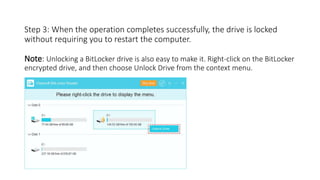
Note: Unlocking a BitLocker drive is also easy to make it. Right-click on the BitLocker
encrypted drive, and then choose Unlock Drive from the context menu.
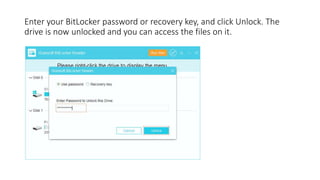
Enter your BitLocker password or recovery key, and click Unlock. The
drive is now unlocked and you can access the files on it.
See Also
https://www.isumsoft.com/windows-10/lock-bitlocker-drive-
without-restarting-windows-10.html

How to Lock/Unlock BitLocker Drive without Restarting Windows 10

  • 1.
    How to Lock/UnlockBitLocker Drive without Restarting
  • 2.
    BitLocker is agreat encryption tool integrated into Windows 10, but we can’t use it to lock a BitLocker encrypted drive because Microsoft hasn’t provided this feature so far. If you want to lock BitLocker drive to prevent unauthorized access data on a volume that uses BitLocker Drive Encryption, you can use one of the following ways to lock the BitLocker drive without restarting the system. • Option 1: Lock BitLocker drive with CMD • Option 2: Lock BitLocker drive with iSumsoft BitLocker Reader
  • 3.
    How to lock/unlockBitLocker drive with CMD Locks a BitLocker-protected drive to prevent access to it unless the unlock key is provided. Before locking the BitLocker drive with CMD, please make sure that the BitLocker password has been set for that drive and the auto-lock function has been turned off. After shutting down the system, the drive will automatically lock itself. Step 1: Open the Command Prompt as administrator.
  • 4.
    Step 2: Typethe following command and hit Enter. Replace d: in the command with the drive letter of BitLocker drive you want to lock. manage-bde -lock d: -forcedismount
  • 5.
    Step 3: Closethe Command Prompt. Your BitLocker drive is now locked and you’re unable to access it without providing your BitLocker password. Note: If you want to unlock a BitLocker drive from an elevated Command Prompt. Just type this command and press Enter. manage-bde -unlock d: -password When prompted, type the BitLocker password for this drive and hit Enter. It will unlock your drive immediately.
  • 6.
    How to useiSumsoft BitLocker Reader to lock/unlock a BitLocker drive iSumsoft BitLocker Reader is a popular third-party encryption software which is designed to manage Bitlocker drive on Windows OS. It has a powerful function-Lock Drive can help you easily and effectively lock and unlock BitLocker encrypted drives in the graphical user interface (GUI). You can use the following steps to lock a BitLocker encrypted drive without restarting your Windows PC.
  • 7.
    Step 1: Downloadand install iSumsoft BitLocker Reader on your PC. After installation, launch this tool. Step 2: Right-click the BitLocker encrypted drive you want to lock, and select “Lock Drive“.
  • 8.
    Step 3: Whenthe operation completes successfully, the drive is locked without requiring you to restart the computer. Note: Unlocking a BitLocker drive is also easy to make it. Right-click on the BitLocker encrypted drive, and then choose Unlock Drive from the context menu.
  • 9.
    Enter your BitLockerpassword or recovery key, and click Unlock. The drive is now unlocked and you can access the files on it.
  • 10.