1/15
May 11, 2025
How to Install Portainer Docker UI Web Interface on
Debian 12
greenwebpage.com/community/how-to-install-portainer-docker-ui-web-interface-on-debian-12/
Tutorials
by Karim Buzdar
May 11, 2025
Portainer is a robust tool for container management that offers an intuitive web interface
for easy management of Docker environments. It allows users to effortlessly control
containers, images, networks, and volumes using a graphical interface rather than
needing to navigate Docker’s intricate command line. From system preparation to the first
login into the Portainer web interface, this manual will guide you through all the steps
necessary for installing Portainer on Debian 12.
Prerequisites
Before installing Portainer, ensure the following components are available:
Debian 12 (Bookworm) is already installed and updated.
Access to a user account with sudo permission.
Available internet for package downloads.
Recommended – 1GB RAM.
Installing Docker
2/15
Portainer needs the installation of Docker first. Follow these steps to install it on Debian
12:
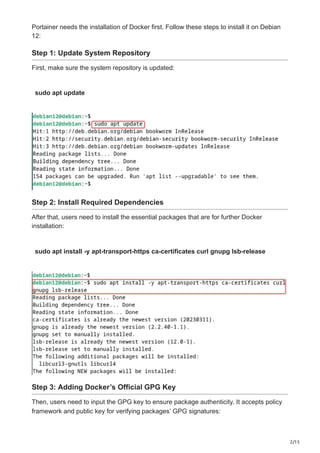
Step 1: Update System Repository
First, make sure the system repository is updated:
sudo apt update
Step 2: Install Required Dependencies
After that, users need to install the essential packages that are for further Docker
installation:
sudo apt install -y apt-transport-https ca-certificates curl gnupg lsb-release
Step 3: Adding Docker’s Official GPG Key
Then, users need to input the GPG key to ensure package authenticity. It accepts policy
framework and public key for verifying packages’ GPG signatures:
3/15
curl -fsSL https://download.docker.com/linux/debian/gpg | sudo gpg –dearmor -o
/usr/share/keyrings/docker-archive-keyring.gpg
Step 4: Setting Up the Docker Repository
Add the Docker repository to your system:
echo “deb [arch=$(dpkg –print-architecture) signed-
by=/usr/share/keyrings/docker-archive-keyring.gpg]
https://download.docker.com/linux/debian $(lsb_release -cs) stable” | sudo tee
/etc/apt/sources.list.d/docker.list > /dev/null
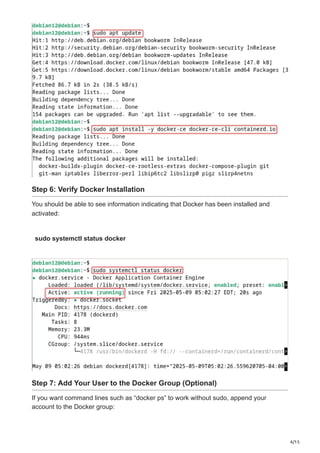
Step 5: Install Docker Engine
Update unused packages and install the program:
sudo apt update
sudo apt install -y docker-ce docker-ce-cli containerd.io
4/15
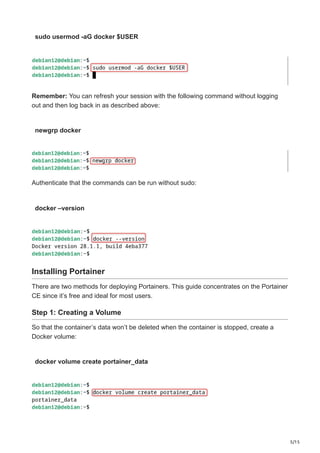
Step 6: Verify Docker Installation
You should be able to see information indicating that Docker has been installed and
activated:
sudo systemctl status docker
Step 7: Add Your User to the Docker Group (Optional)
If you want command lines such as “docker ps” to work without sudo, append your
account to the Docker group:
5/15
sudo usermod -aG docker $USER
Remember: You can refresh your session with the following command without logging
out and then log back in as described above:
newgrp docker
Authenticate that the commands can be run without sudo:
docker –version
Installing Portainer
There are two methods for deploying Portainers. This guide concentrates on the Portainer
CE since it’s free and ideal for most users.
Step 1: Creating a Volume
So that the container’s data won’t be deleted when the container is stopped, create a
Docker volume:
docker volume create portainer_data
6/15
Step 2: Install the Portainer Server
Portainer can be installed in two different methods: we can either use Docker CLI or
Docker Compose. Both methods will be discussed.
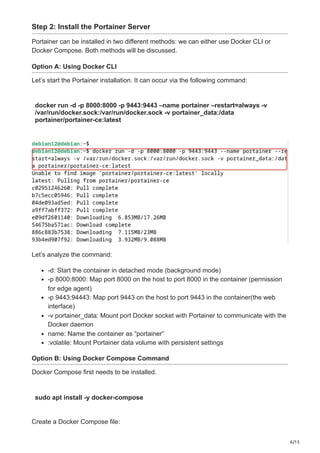
Option A: Using Docker CLI
Let’s start the Portainer installation. It can occur via the following command:
docker run -d -p 8000:8000 -p 9443:9443 –name portainer –restart=always -v
/var/run/docker.sock:/var/run/docker.sock -v portainer_data:/data
portainer/portainer-ce:latest
Let’s analyze the command:
-d: Start the container in detached mode (background mode)
-p 8000:8000: Map port 8000 on the host to port 8000 in the container (permission
for edge agent)
-p 9443:94443: Map port 9443 on the host to port 9443 in the container(the web
interface)
-v portainer_data: Mount port Docker socket with Portainer to communicate with the
Docker daemon
name: Name the container as “portainer”
:volatile: Mount Portainer data volume with persistent settings
Option B: Using Docker Compose Command
Docker Compose first needs to be installed.
sudo apt install -y docker-compose
Create a Docker Compose file:
7/15
mkdir -p ~/portainer
cd ~/portainer
nano docker-compose.yml
Add the following content to the file:
version: ‘3’
services:
portainer:
image: portainer/portainer-ce:latest
container_name: portainer
restart: always
ports:
– “8000:8000”
– “9443:9443”
volumes:
– /var/run/docker.sock:/var/run/docker.sock
– portainer_data:/data
volumes:
portainer_data:
Just modify it with an editor of your choice or run Docker Compose on the URL.
8/15
docker-compose up -d
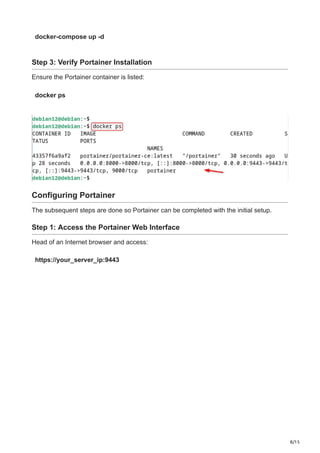
Step 3: Verify Portainer Installation
Ensure the Portainer container is listed:
docker ps
Configuring Portainer
The subsequent steps are done so Portainer can be completed with the initial setup.
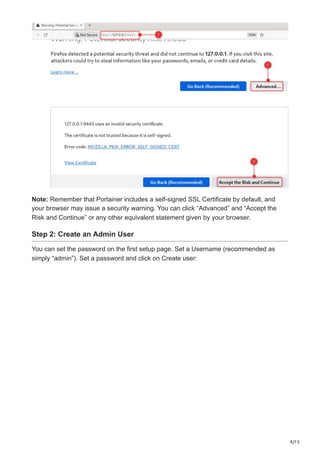
Step 1: Access the Portainer Web Interface
Head of an Internet browser and access:
https://your_server_ip:9443
9/15
Note: Remember that Portainer includes a self-signed SSL Certificate by default, and
your browser may issue a security warning. You can click “Advanced” and “Accept the
Risk and Continue” or any other equivalent statement given by your browser.
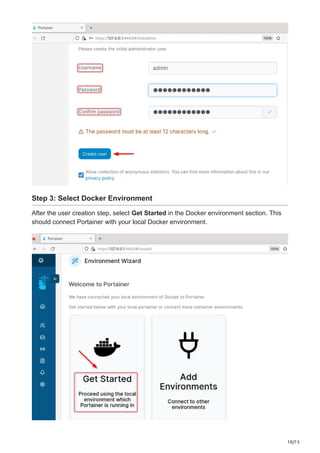
Step 2: Create an Admin User
You can set the password on the first setup page. Set a Username (recommended as
simply “admin”). Set a password and click on Create user:
10/15
Step 3: Select Docker Environment
After the user creation step, select Get Started in the Docker environment section. This
should connect Portainer with your local Docker environment.
11/15
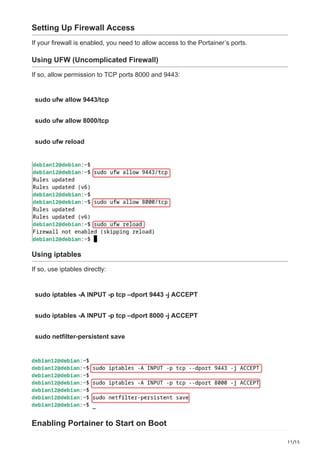
Setting Up Firewall Access
If your firewall is enabled, you need to allow access to the Portainer’s ports.
Using UFW (Uncomplicated Firewall)
If so, allow permission to TCP ports 8000 and 9443:
sudo ufw allow 9443/tcp
sudo ufw allow 8000/tcp
sudo ufw reload
Using iptables
If so, use iptables directly:
sudo iptables -A INPUT -p tcp –dport 9443 -j ACCEPT
sudo iptables -A INPUT -p tcp –dport 8000 -j ACCEPT
sudo netfilter-persistent save
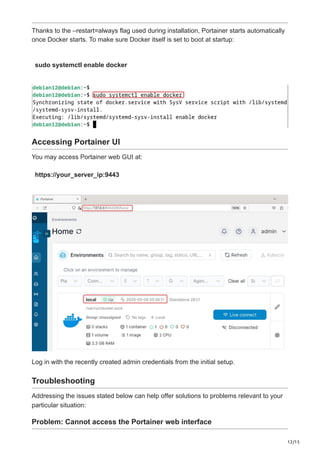
Enabling Portainer to Start on Boot
12/15
Thanks to the –restart=always flag used during installation, Portainer starts automatically
once Docker starts. To make sure Docker itself is set to boot at startup:
sudo systemctl enable docker
Accessing Portainer UI
You may access Portainer web GUI at:
https://your_server_ip:9443
Log in with the recently created admin credentials from the initial setup.
Troubleshooting
Addressing the issues stated below can help offer solutions to problems relevant to your
particular situation:
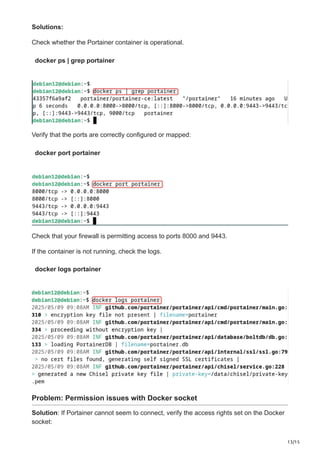
Problem: Cannot access the Portainer web interface
13/15
Solutions:
Check whether the Portainer container is operational.
docker ps | grep portainer
Verify that the ports are correctly configured or mapped:
docker port portainer
Check that your firewall is permitting access to ports 8000 and 9443.
If the container is not running, check the logs.
docker logs portainer
Problem: Permission issues with Docker socket
Solution: If Portainer cannot seem to connect, verify the access rights set on the Docker
socket:
14/15
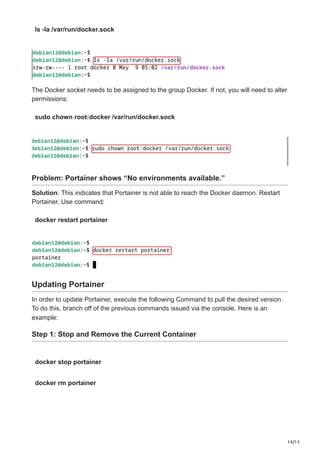
ls -la /var/run/docker.sock
The Docker socket needs to be assigned to the group Docker. If not, you will need to alter
permissions:
sudo chown root:docker /var/run/docker.sock
Problem: Portainer shows “No environments available.”
Solution: This indicates that Portainer is not able to reach the Docker daemon. Restart
Portainer. Use command:
docker restart portainer
Updating Portainer
In order to update Portainer, execute the following Command to pull the desired version.
To do this, branch off of the previous commands issued via the console. Here is an
example:
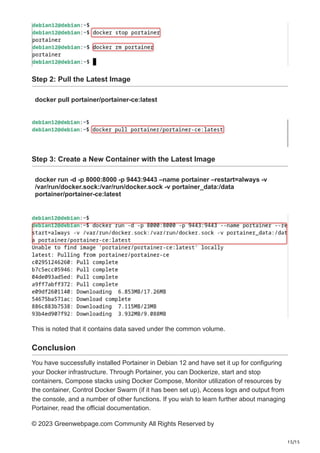
Step 1: Stop and Remove the Current Container
docker stop portainer
docker rm portainer
15/15
Step 2: Pull the Latest Image
docker pull portainer/portainer-ce:latest
Step 3: Create a New Container with the Latest Image
docker run -d -p 8000:8000 -p 9443:9443 –name portainer –restart=always -v
/var/run/docker.sock:/var/run/docker.sock -v portainer_data:/data
portainer/portainer-ce:latest
This is noted that it contains data saved under the common volume.
Conclusion
You have successfully installed Portainer in Debian 12 and have set it up for configuring
your Docker infrastructure. Through Portainer, you can Dockerize, start and stop
containers, Compose stacks using Docker Compose, Monitor utilization of resources by
the container, Control Docker Swarm (if it has been set up), Access logs and output from
the console, and a number of other functions. If you wish to learn further about managing
Portainer, read the official documentation.
© 2023 Greenwebpage.com Community All Rights Reserved by

How to Install Portainer Docker UI Web Interface on Debian 12.pdf

  • 1.
    1/15 May 11, 2025 Howto Install Portainer Docker UI Web Interface on Debian 12 greenwebpage.com/community/how-to-install-portainer-docker-ui-web-interface-on-debian-12/ Tutorials by Karim Buzdar May 11, 2025 Portainer is a robust tool for container management that offers an intuitive web interface for easy management of Docker environments. It allows users to effortlessly control containers, images, networks, and volumes using a graphical interface rather than needing to navigate Docker’s intricate command line. From system preparation to the first login into the Portainer web interface, this manual will guide you through all the steps necessary for installing Portainer on Debian 12. Prerequisites Before installing Portainer, ensure the following components are available: Debian 12 (Bookworm) is already installed and updated. Access to a user account with sudo permission. Available internet for package downloads. Recommended – 1GB RAM. Installing Docker
  • 2.
    2/15 Portainer needs theinstallation of Docker first. Follow these steps to install it on Debian 12: Step 1: Update System Repository First, make sure the system repository is updated: sudo apt update Step 2: Install Required Dependencies After that, users need to install the essential packages that are for further Docker installation: sudo apt install -y apt-transport-https ca-certificates curl gnupg lsb-release Step 3: Adding Docker’s Official GPG Key Then, users need to input the GPG key to ensure package authenticity. It accepts policy framework and public key for verifying packages’ GPG signatures:
  • 3.
    3/15 curl -fsSL https://download.docker.com/linux/debian/gpg| sudo gpg –dearmor -o /usr/share/keyrings/docker-archive-keyring.gpg Step 4: Setting Up the Docker Repository Add the Docker repository to your system: echo “deb [arch=$(dpkg –print-architecture) signed- by=/usr/share/keyrings/docker-archive-keyring.gpg] https://download.docker.com/linux/debian $(lsb_release -cs) stable” | sudo tee /etc/apt/sources.list.d/docker.list > /dev/null Step 5: Install Docker Engine Update unused packages and install the program: sudo apt update sudo apt install -y docker-ce docker-ce-cli containerd.io
  • 4.
    4/15 Step 6: VerifyDocker Installation You should be able to see information indicating that Docker has been installed and activated: sudo systemctl status docker Step 7: Add Your User to the Docker Group (Optional) If you want command lines such as “docker ps” to work without sudo, append your account to the Docker group:
  • 5.
    5/15 sudo usermod -aGdocker $USER Remember: You can refresh your session with the following command without logging out and then log back in as described above: newgrp docker Authenticate that the commands can be run without sudo: docker –version Installing Portainer There are two methods for deploying Portainers. This guide concentrates on the Portainer CE since it’s free and ideal for most users. Step 1: Creating a Volume So that the container’s data won’t be deleted when the container is stopped, create a Docker volume: docker volume create portainer_data
  • 6.
    6/15 Step 2: Installthe Portainer Server Portainer can be installed in two different methods: we can either use Docker CLI or Docker Compose. Both methods will be discussed. Option A: Using Docker CLI Let’s start the Portainer installation. It can occur via the following command: docker run -d -p 8000:8000 -p 9443:9443 –name portainer –restart=always -v /var/run/docker.sock:/var/run/docker.sock -v portainer_data:/data portainer/portainer-ce:latest Let’s analyze the command: -d: Start the container in detached mode (background mode) -p 8000:8000: Map port 8000 on the host to port 8000 in the container (permission for edge agent) -p 9443:94443: Map port 9443 on the host to port 9443 in the container(the web interface) -v portainer_data: Mount port Docker socket with Portainer to communicate with the Docker daemon name: Name the container as “portainer” :volatile: Mount Portainer data volume with persistent settings Option B: Using Docker Compose Command Docker Compose first needs to be installed. sudo apt install -y docker-compose Create a Docker Compose file:
  • 7.
    7/15 mkdir -p ~/portainer cd~/portainer nano docker-compose.yml Add the following content to the file: version: ‘3’ services: portainer: image: portainer/portainer-ce:latest container_name: portainer restart: always ports: – “8000:8000” – “9443:9443” volumes: – /var/run/docker.sock:/var/run/docker.sock – portainer_data:/data volumes: portainer_data: Just modify it with an editor of your choice or run Docker Compose on the URL.
  • 8.
    8/15 docker-compose up -d Step3: Verify Portainer Installation Ensure the Portainer container is listed: docker ps Configuring Portainer The subsequent steps are done so Portainer can be completed with the initial setup. Step 1: Access the Portainer Web Interface Head of an Internet browser and access: https://your_server_ip:9443
  • 9.
    9/15 Note: Remember thatPortainer includes a self-signed SSL Certificate by default, and your browser may issue a security warning. You can click “Advanced” and “Accept the Risk and Continue” or any other equivalent statement given by your browser. Step 2: Create an Admin User You can set the password on the first setup page. Set a Username (recommended as simply “admin”). Set a password and click on Create user:
  • 10.
    10/15 Step 3: SelectDocker Environment After the user creation step, select Get Started in the Docker environment section. This should connect Portainer with your local Docker environment.
  • 11.
    11/15 Setting Up FirewallAccess If your firewall is enabled, you need to allow access to the Portainer’s ports. Using UFW (Uncomplicated Firewall) If so, allow permission to TCP ports 8000 and 9443: sudo ufw allow 9443/tcp sudo ufw allow 8000/tcp sudo ufw reload Using iptables If so, use iptables directly: sudo iptables -A INPUT -p tcp –dport 9443 -j ACCEPT sudo iptables -A INPUT -p tcp –dport 8000 -j ACCEPT sudo netfilter-persistent save Enabling Portainer to Start on Boot
  • 12.
    12/15 Thanks to the–restart=always flag used during installation, Portainer starts automatically once Docker starts. To make sure Docker itself is set to boot at startup: sudo systemctl enable docker Accessing Portainer UI You may access Portainer web GUI at: https://your_server_ip:9443 Log in with the recently created admin credentials from the initial setup. Troubleshooting Addressing the issues stated below can help offer solutions to problems relevant to your particular situation: Problem: Cannot access the Portainer web interface
  • 13.
    13/15 Solutions: Check whether thePortainer container is operational. docker ps | grep portainer Verify that the ports are correctly configured or mapped: docker port portainer Check that your firewall is permitting access to ports 8000 and 9443. If the container is not running, check the logs. docker logs portainer Problem: Permission issues with Docker socket Solution: If Portainer cannot seem to connect, verify the access rights set on the Docker socket:
  • 14.
    14/15 ls -la /var/run/docker.sock TheDocker socket needs to be assigned to the group Docker. If not, you will need to alter permissions: sudo chown root:docker /var/run/docker.sock Problem: Portainer shows “No environments available.” Solution: This indicates that Portainer is not able to reach the Docker daemon. Restart Portainer. Use command: docker restart portainer Updating Portainer In order to update Portainer, execute the following Command to pull the desired version. To do this, branch off of the previous commands issued via the console. Here is an example: Step 1: Stop and Remove the Current Container docker stop portainer docker rm portainer
  • 15.
    15/15 Step 2: Pullthe Latest Image docker pull portainer/portainer-ce:latest Step 3: Create a New Container with the Latest Image docker run -d -p 8000:8000 -p 9443:9443 –name portainer –restart=always -v /var/run/docker.sock:/var/run/docker.sock -v portainer_data:/data portainer/portainer-ce:latest This is noted that it contains data saved under the common volume. Conclusion You have successfully installed Portainer in Debian 12 and have set it up for configuring your Docker infrastructure. Through Portainer, you can Dockerize, start and stop containers, Compose stacks using Docker Compose, Monitor utilization of resources by the container, Control Docker Swarm (if it has been set up), Access logs and output from the console, and a number of other functions. If you wish to learn further about managing Portainer, read the official documentation. © 2023 Greenwebpage.com Community All Rights Reserved by