EASY TO MANAGE DOCKER WITH
PORTAINER.IO
By : Agusto Xaverius
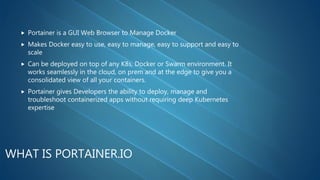
WHAT IS PORTAINER.IO
 Portainer is a GUI Web Browser to Manage Docker
 Makes Docker easy to use, easy to manage, easy to support and easy to
scale
 Can be deployed on top of any K8s, Docker or Swarm environment. It
works seamlessly in the cloud, on prem and at the edge to give you a
consolidated view of all your containers.
 Portainer gives Developers the ability to deploy, manage and
troubleshoot containerized apps without requiring deep Kubernetes
expertise
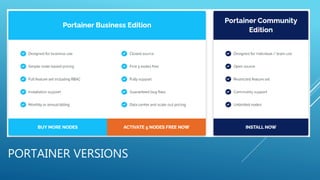
PORTAINER VERSIONS
INSTALL PORTAINER CE
 Install with Docker On Linux
 Install with Docker On WSL / Docker Desktop
 Install with Docker on Windows Container Service
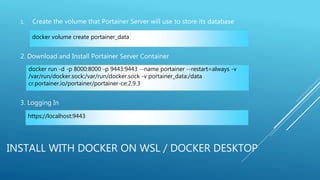
INSTALL WITH DOCKER ON WSL / DOCKER DESKTOP
1. Create the volume that Portainer Server will use to store its database
2. Download and Install Portainer Server Container
3. Logging In
docker volume create portainer_data
docker run -d -p 8000:8000 -p 9443:9443 --name portainer --restart=always -v
/var/run/docker.sock:/var/run/docker.sock -v portainer_data:/data
cr.portainer.io/portainer/portainer-ce:2.9.3
https://localhost:9443
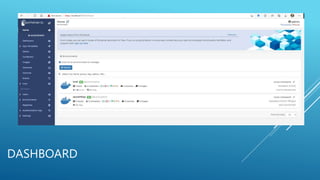
DASHBOARD
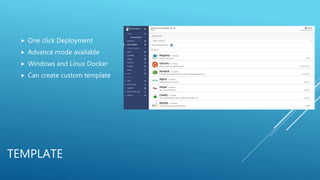
TEMPLATE
 One click Deployment
 Advance mode available
 Windows and Linux Docker
 Can create custom template
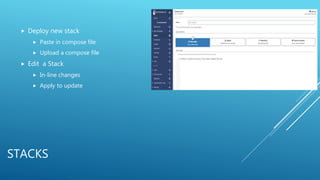
STACKS
 Deploy new stack
 Paste in compose file
 Upload a compose file
 Edit a Stack
 In-line changes
 Apply to update
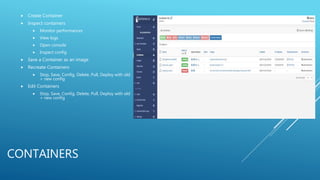
CONTAINERS
 Create Container
 Inspect containers
 Monitor performances
 View logs
 Open console
 Inspect config
 Save a Container as an image
 Recreate Containers
 Stop, Save, Config, Delete, Pull, Deploy with old
+ new config
 Edit Containers
 Stop, Save, Config, Delete, Pull, Deploy with old
+ new config
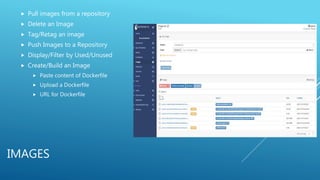
IMAGES
 Pull images from a repository
 Delete an Image
 Tag/Retag an image
 Push Images to a Repository
 Display/Filter by Used/Unused
 Create/Build an Image
 Paste content of Dockerfile
 Upload a Dockerfile
 URL for Dockerfile
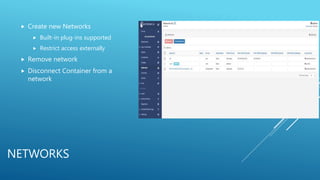
NETWORKS
 Create new Networks
 Built-in plug-ins supported
 Restrict access externally
 Remove network
 Disconnect Container from a
network
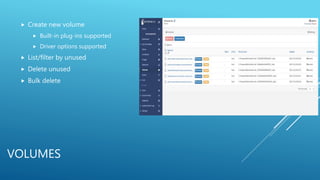
VOLUMES
 Create new volume
 Built-in plug-ins supported
 Driver options supported
 List/filter by unused
 Delete unused
 Bulk delete
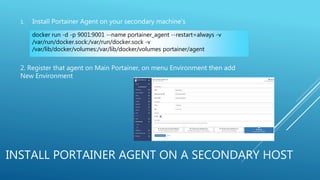
INSTALL PORTAINER AGENT ON A SECONDARY HOST
1. Install Portainer Agent on your secondary machine’s
2. Register that agent on Main Portainer, on menu Environment then add
New Environment
docker run -d -p 9001:9001 --name portainer_agent --restart=always -v
/var/run/docker.sock:/var/run/docker.sock -v
/var/lib/docker/volumes:/var/lib/docker/volumes portainer/agent
DEMO
LINKS
1. https://www.portainer.io/
2. https://shownotes.opensourceisawesome.com/installing-portainer/
3. https://www.youtube.com/watch?v=FFh-k-
oI4UQ&list=PLVC_EioTH4HqWQ73gdbVWtuxlUHFnq1Wq&index=8 (Racher vs. Portainer –
Which one should I choose)
4. https://sudonull.com/post/66766-Overview-of-Docker-Container-Management-GUIs-Flant-
Blog

Easy to manage docker with portainer

  • 1.
    EASY TO MANAGEDOCKER WITH PORTAINER.IO By : Agusto Xaverius
  • 2.
    WHAT IS PORTAINER.IO Portainer is a GUI Web Browser to Manage Docker  Makes Docker easy to use, easy to manage, easy to support and easy to scale  Can be deployed on top of any K8s, Docker or Swarm environment. It works seamlessly in the cloud, on prem and at the edge to give you a consolidated view of all your containers.  Portainer gives Developers the ability to deploy, manage and troubleshoot containerized apps without requiring deep Kubernetes expertise
  • 3.
  • 4.
    INSTALL PORTAINER CE Install with Docker On Linux  Install with Docker On WSL / Docker Desktop  Install with Docker on Windows Container Service
  • 5.
    INSTALL WITH DOCKERON WSL / DOCKER DESKTOP 1. Create the volume that Portainer Server will use to store its database 2. Download and Install Portainer Server Container 3. Logging In docker volume create portainer_data docker run -d -p 8000:8000 -p 9443:9443 --name portainer --restart=always -v /var/run/docker.sock:/var/run/docker.sock -v portainer_data:/data cr.portainer.io/portainer/portainer-ce:2.9.3 https://localhost:9443
  • 6.
  • 7.
    TEMPLATE  One clickDeployment  Advance mode available  Windows and Linux Docker  Can create custom template
  • 8.
    STACKS  Deploy newstack  Paste in compose file  Upload a compose file  Edit a Stack  In-line changes  Apply to update
  • 9.
    CONTAINERS  Create Container Inspect containers  Monitor performances  View logs  Open console  Inspect config  Save a Container as an image  Recreate Containers  Stop, Save, Config, Delete, Pull, Deploy with old + new config  Edit Containers  Stop, Save, Config, Delete, Pull, Deploy with old + new config
  • 10.
    IMAGES  Pull imagesfrom a repository  Delete an Image  Tag/Retag an image  Push Images to a Repository  Display/Filter by Used/Unused  Create/Build an Image  Paste content of Dockerfile  Upload a Dockerfile  URL for Dockerfile
  • 11.
    NETWORKS  Create newNetworks  Built-in plug-ins supported  Restrict access externally  Remove network  Disconnect Container from a network
  • 12.
    VOLUMES  Create newvolume  Built-in plug-ins supported  Driver options supported  List/filter by unused  Delete unused  Bulk delete
  • 13.
    INSTALL PORTAINER AGENTON A SECONDARY HOST 1. Install Portainer Agent on your secondary machine’s 2. Register that agent on Main Portainer, on menu Environment then add New Environment docker run -d -p 9001:9001 --name portainer_agent --restart=always -v /var/run/docker.sock:/var/run/docker.sock -v /var/lib/docker/volumes:/var/lib/docker/volumes portainer/agent
  • 14.
  • 15.
    LINKS 1. https://www.portainer.io/ 2. https://shownotes.opensourceisawesome.com/installing-portainer/ 3.https://www.youtube.com/watch?v=FFh-k- oI4UQ&list=PLVC_EioTH4HqWQ73gdbVWtuxlUHFnq1Wq&index=8 (Racher vs. Portainer – Which one should I choose) 4. https://sudonull.com/post/66766-Overview-of-Docker-Container-Management-GUIs-Flant- Blog