Outlook Form
Better way for consistent email communication
By Akash J
How to enable Developer option
• Open MS Outlook > Go
to File > Options >
Customize Ribbon.
• In Customize Ribbon
under the Main Tabs,
check the Developer
option (make it enable).
• Click OK and check
whether your Outlook’s
Main Tab is showing
Developer option.
Steps to create Form
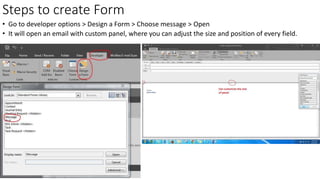
• Go to developer options > Design a Form > Choose message > Open
• It will open an email with custom panel, where you can adjust the size and position of every field.
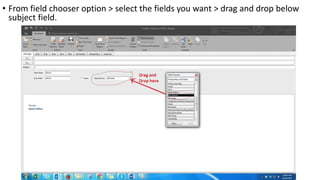
• From field chooser option > select the fields you want > drag and drop below
subject field.
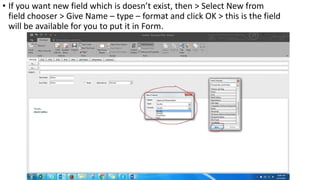
• If you want new field which is doesn’t exist, then > Select New from
field chooser > Give Name – type – format and click OK > this is the field
will be available for you to put it in Form.
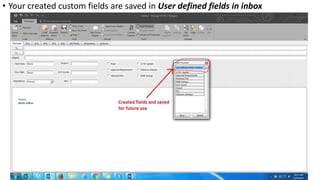
• Your created custom fields are saved in User defined fields in inbox
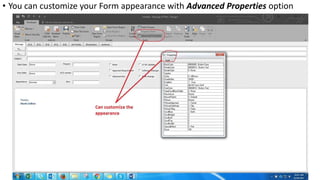
• You can customize your Form appearance with Advanced Properties option
Saving Form for future use
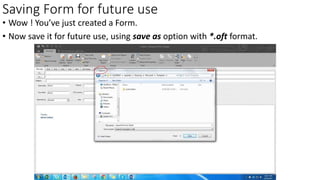
• Wow ! You’ve just created a Form.
• Now save it for future use, using save as option with *.oft format.
Using Form for communication
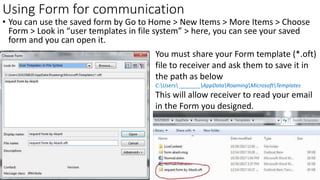
• You can use the saved form by Go to Home > New Items > More Items > Choose
Form > Look in “user templates in file system” > here, you can see your saved
form and you can open it.
You must share your Form template (*.oft)
file to receiver and ask them to save it in
the path as below
C:Users _______AppDataRoamingMicrosoftTemplates
This will allow receiver to read your email
in the Form you designed.
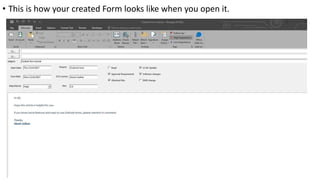
• This is how your created Form looks like when you open it.
• You can customize your Form to fit your function request and can create
number of forms for number of functions.
• We can have fields where we can just tick the field which is required, or we can
set an importance to that email up to three different levels, or can give a due
date to complete the task.
• The example shown in this Article is a simple Form. There are more complicated
Forms we can make with more options.
• Forms are easy for tracking and tracing emails.
• More convenient way of communication for daily task requests through email.
Thanks !

How to create Outlook Form with example

  • 1.
    Outlook Form Better wayfor consistent email communication By Akash J
  • 2.
    How to enableDeveloper option • Open MS Outlook > Go to File > Options > Customize Ribbon. • In Customize Ribbon under the Main Tabs, check the Developer option (make it enable). • Click OK and check whether your Outlook’s Main Tab is showing Developer option.
  • 3.
    Steps to createForm • Go to developer options > Design a Form > Choose message > Open • It will open an email with custom panel, where you can adjust the size and position of every field.
  • 4.
    • From fieldchooser option > select the fields you want > drag and drop below subject field.
  • 5.
    • If youwant new field which is doesn’t exist, then > Select New from field chooser > Give Name – type – format and click OK > this is the field will be available for you to put it in Form.
  • 6.
    • Your createdcustom fields are saved in User defined fields in inbox
  • 7.
    • You cancustomize your Form appearance with Advanced Properties option
  • 8.
    Saving Form forfuture use • Wow ! You’ve just created a Form. • Now save it for future use, using save as option with *.oft format.
  • 9.
    Using Form forcommunication • You can use the saved form by Go to Home > New Items > More Items > Choose Form > Look in “user templates in file system” > here, you can see your saved form and you can open it. You must share your Form template (*.oft) file to receiver and ask them to save it in the path as below C:Users _______AppDataRoamingMicrosoftTemplates This will allow receiver to read your email in the Form you designed.
  • 10.
    • This ishow your created Form looks like when you open it.
  • 11.
    • You cancustomize your Form to fit your function request and can create number of forms for number of functions. • We can have fields where we can just tick the field which is required, or we can set an importance to that email up to three different levels, or can give a due date to complete the task. • The example shown in this Article is a simple Form. There are more complicated Forms we can make with more options. • Forms are easy for tracking and tracing emails. • More convenient way of communication for daily task requests through email.
  • 12.