Logging in via remote desktop
If you are unable to access the remote desktop via the college website and alternate method is to
use remote desktop application on your pc.
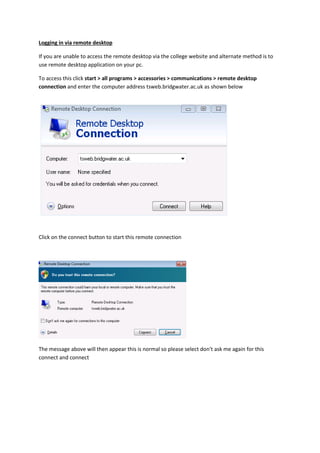
To access this click start > all programs > accessories > communications > remote desktop
connection and enter the computer address tsweb.bridgwater.ac.uk as shown below
Click on the connect button to start this remote connection
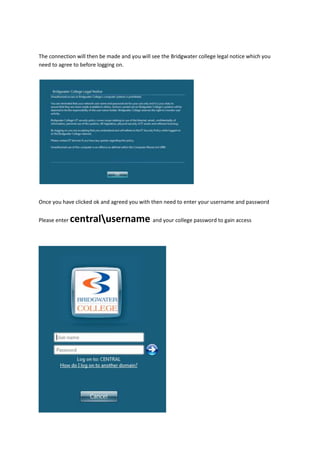
The message above will then appear this is normal so please select don’t ask me again for this
connect and connect
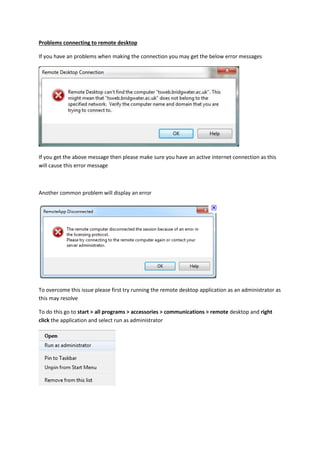
The connection will then be made and you will see the Bridgwater college legal notice which you
need to agree to before logging on.
Once you have clicked ok and agreed you with then need to enter your username and password
Please enter centralusername and your college password to gain access
Problems connecting to remote desktop
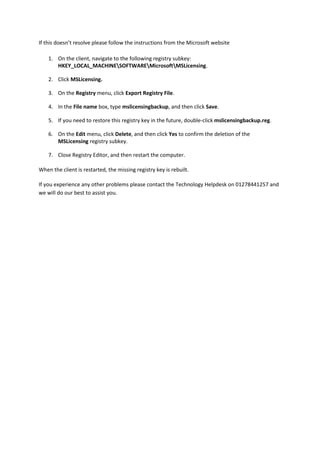
If you have an problems when making the connection you may get the below error messages
If you get the above message then please make sure you have an active internet connection as this
will cause this error message
Another common problem will display an error
To overcome this issue please first try running the remote desktop application as an administrator as
this may resolve
To do this go to start > all programs > accessories > communications > remote desktop and right
click the application and select run as administrator
If this doesn’t resolve please follow the instructions from the Microsoft website
1. On the client, navigate to the following registry subkey:
HKEY_LOCAL_MACHINESOFTWAREMicrosoftMSLicensing.
2. Click MSLicensing.
3. On the Registry menu, click Export Registry File.
4. In the File name box, type mslicensingbackup, and then click Save.
5. If you need to restore this registry key in the future, double-click mslicensingbackup.reg.
6. On the Edit menu, click Delete, and then click Yes to confirm the deletion of the
MSLicensing registry subkey.
7. Close Registry Editor, and then restart the computer.
When the client is restarted, the missing registry key is rebuilt.
If you experience any other problems please contact the Technology Helpdesk on 01278441257 and
we will do our best to assist you.

Remote Desktop for Windows 7

  • 1.
    Logging in viaremote desktop If you are unable to access the remote desktop via the college website and alternate method is to use remote desktop application on your pc. To access this click start > all programs > accessories > communications > remote desktop connection and enter the computer address tsweb.bridgwater.ac.uk as shown below Click on the connect button to start this remote connection The message above will then appear this is normal so please select don’t ask me again for this connect and connect
  • 2.
    The connection willthen be made and you will see the Bridgwater college legal notice which you need to agree to before logging on. Once you have clicked ok and agreed you with then need to enter your username and password Please enter centralusername and your college password to gain access
  • 3.
    Problems connecting toremote desktop If you have an problems when making the connection you may get the below error messages If you get the above message then please make sure you have an active internet connection as this will cause this error message Another common problem will display an error To overcome this issue please first try running the remote desktop application as an administrator as this may resolve To do this go to start > all programs > accessories > communications > remote desktop and right click the application and select run as administrator
  • 4.
    If this doesn’tresolve please follow the instructions from the Microsoft website 1. On the client, navigate to the following registry subkey: HKEY_LOCAL_MACHINESOFTWAREMicrosoftMSLicensing. 2. Click MSLicensing. 3. On the Registry menu, click Export Registry File. 4. In the File name box, type mslicensingbackup, and then click Save. 5. If you need to restore this registry key in the future, double-click mslicensingbackup.reg. 6. On the Edit menu, click Delete, and then click Yes to confirm the deletion of the MSLicensing registry subkey. 7. Close Registry Editor, and then restart the computer. When the client is restarted, the missing registry key is rebuilt. If you experience any other problems please contact the Technology Helpdesk on 01278441257 and we will do our best to assist you.