Download to read offline
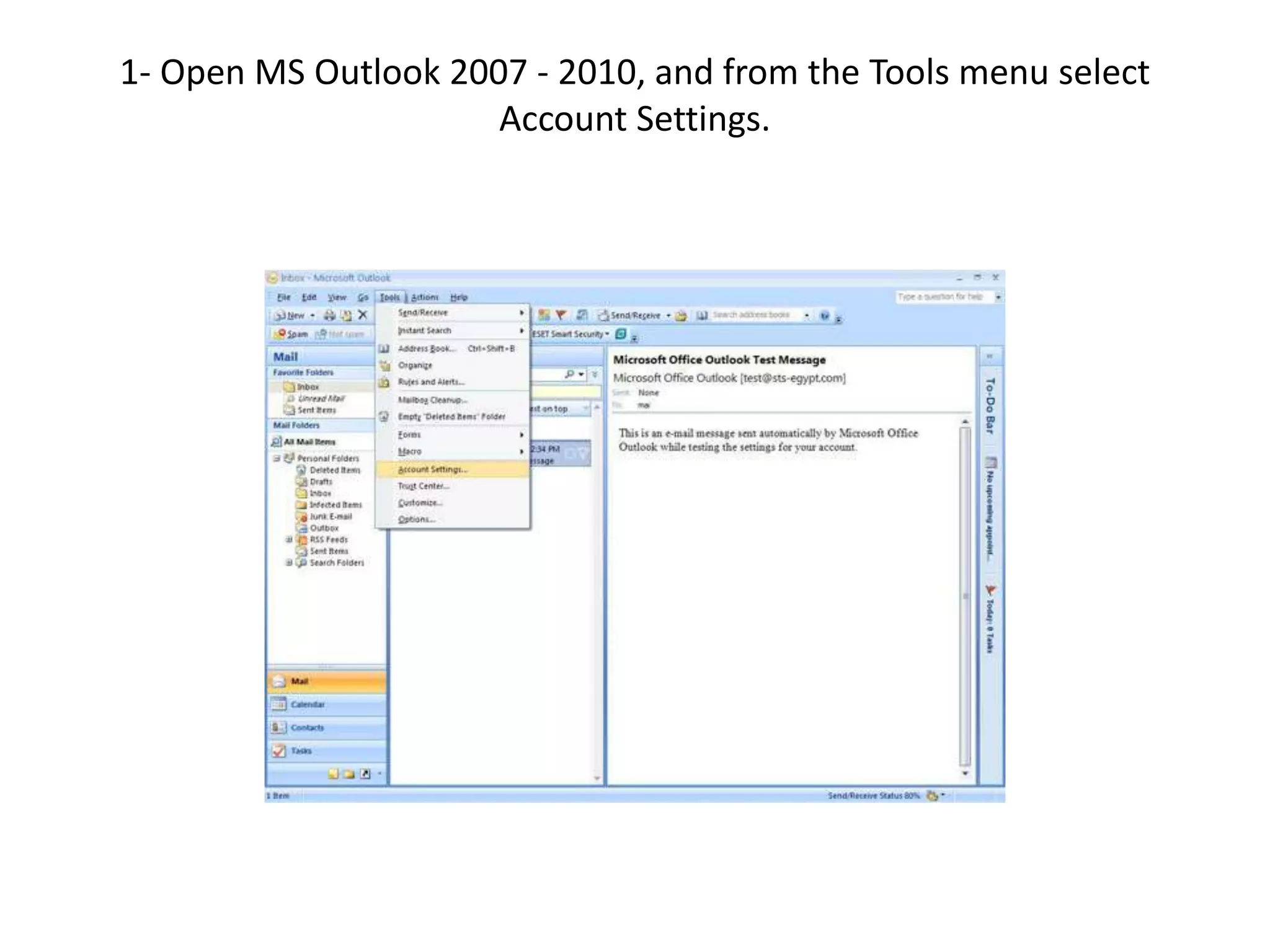
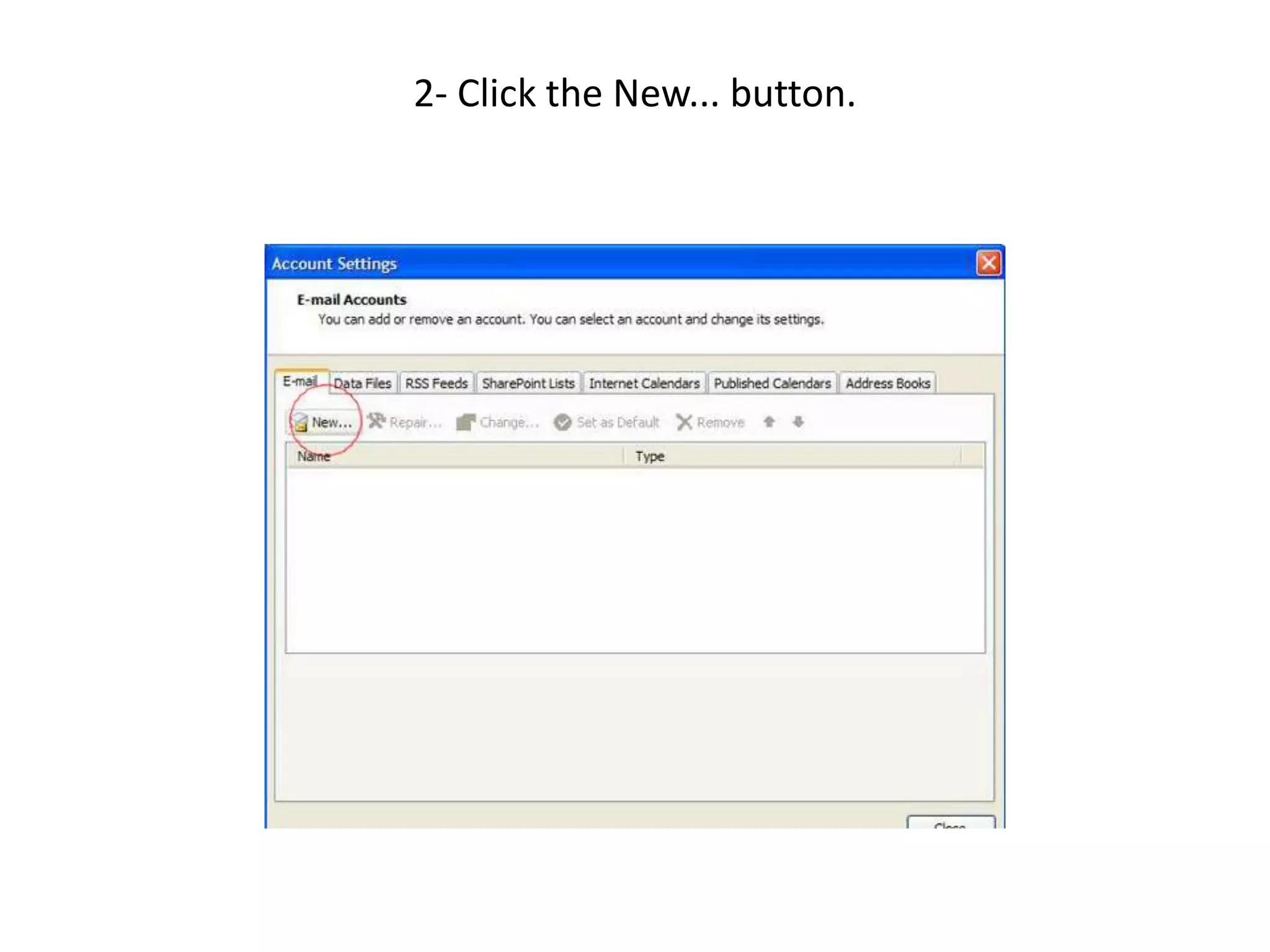
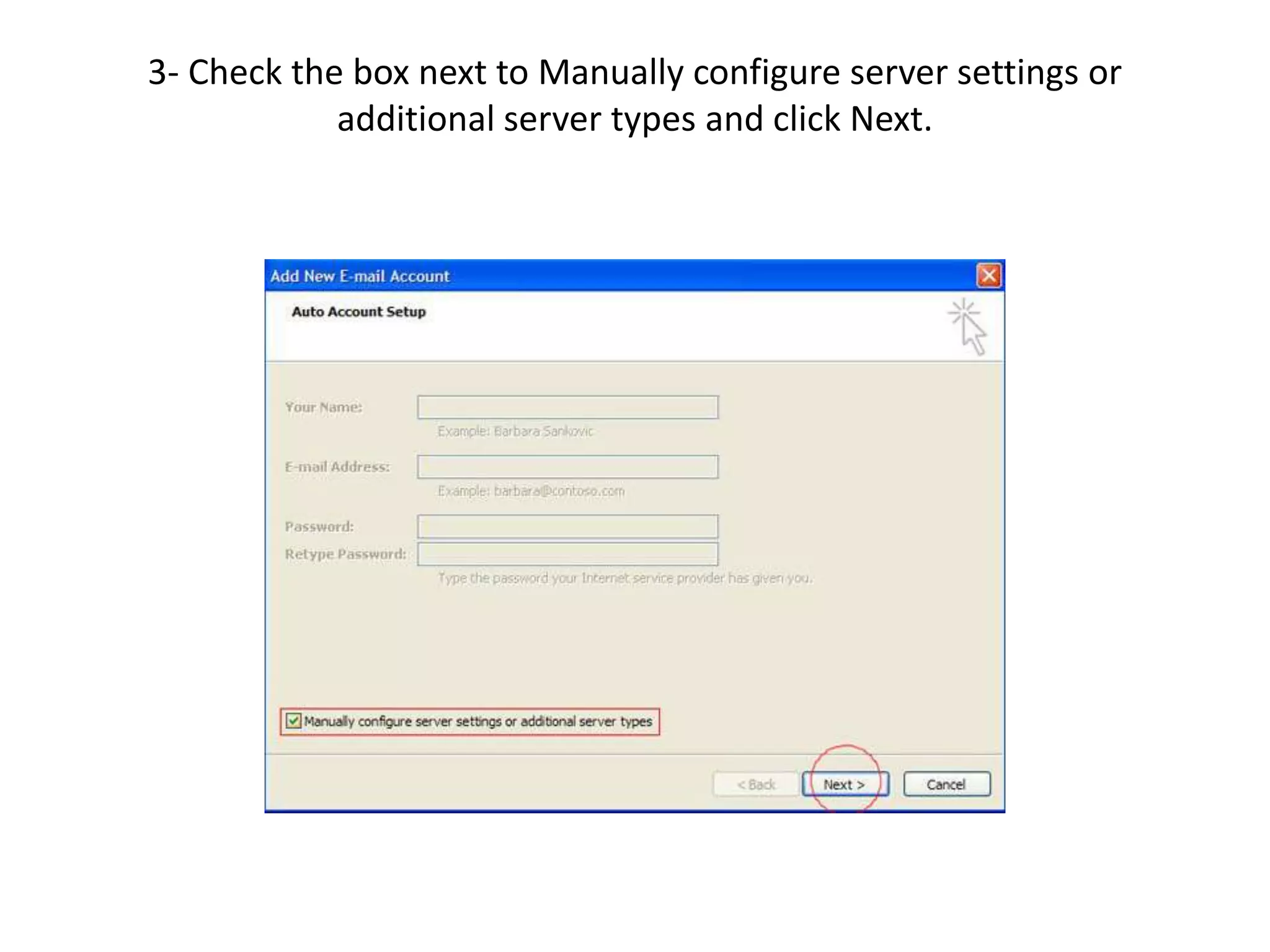
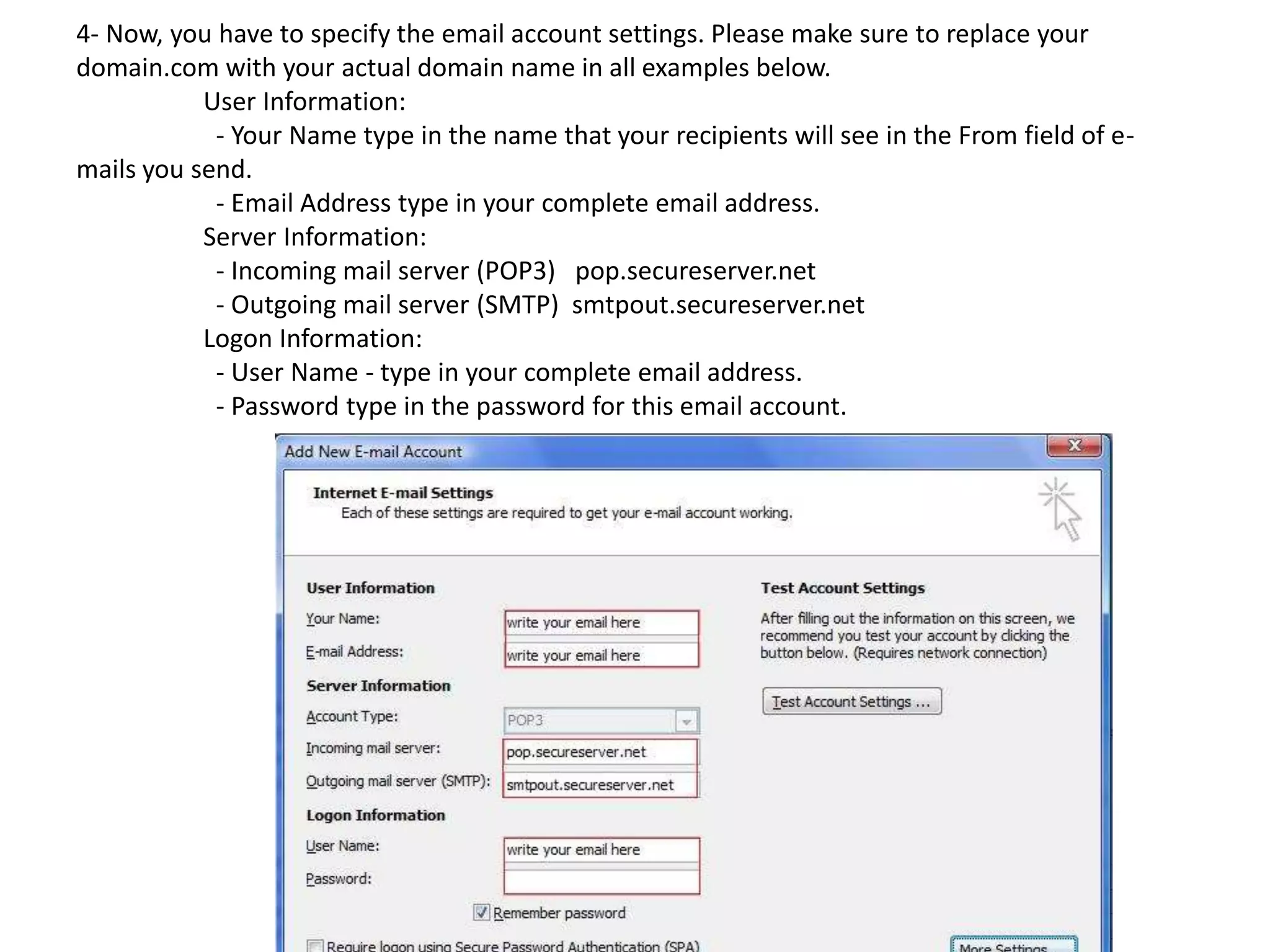
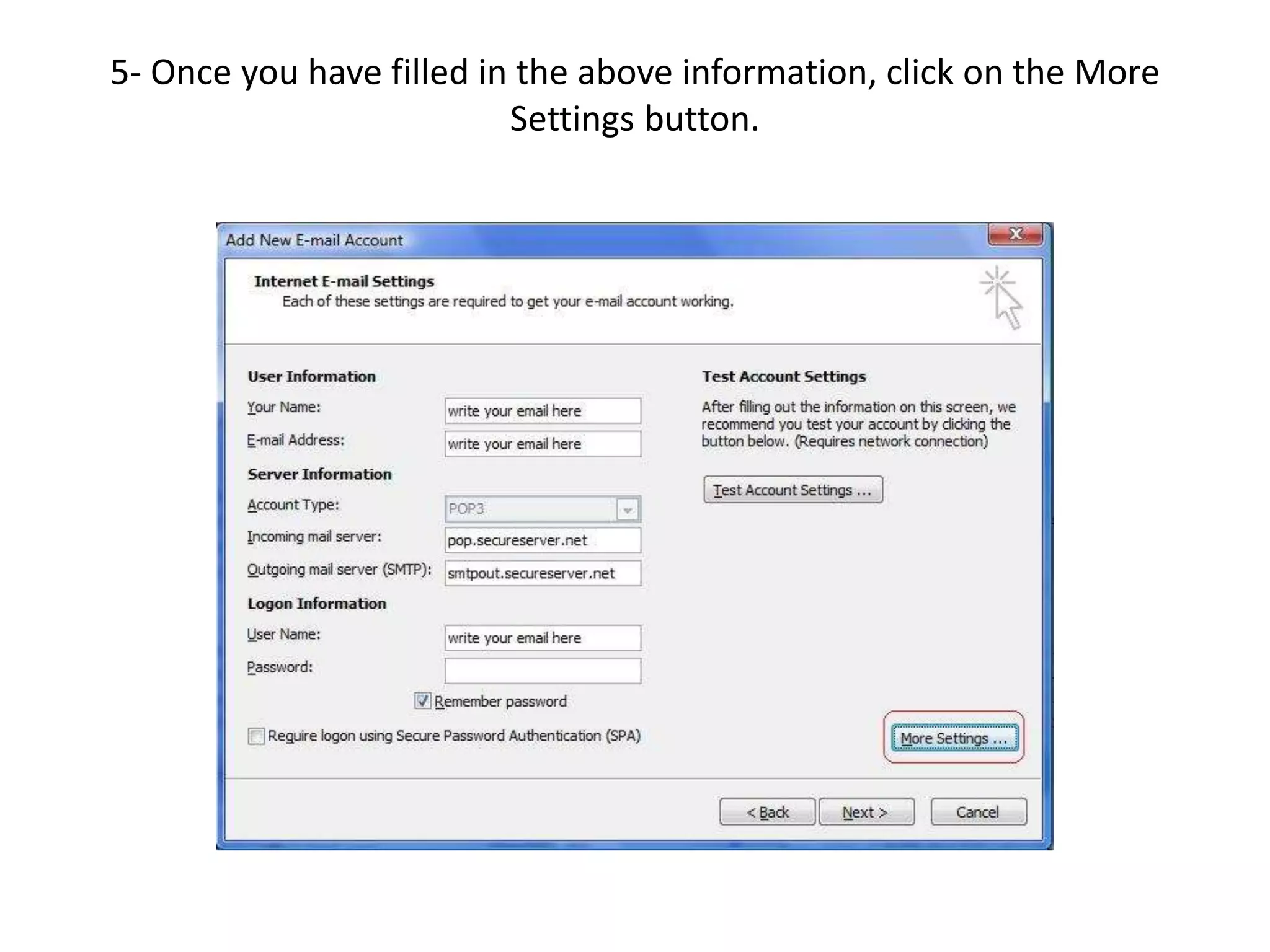
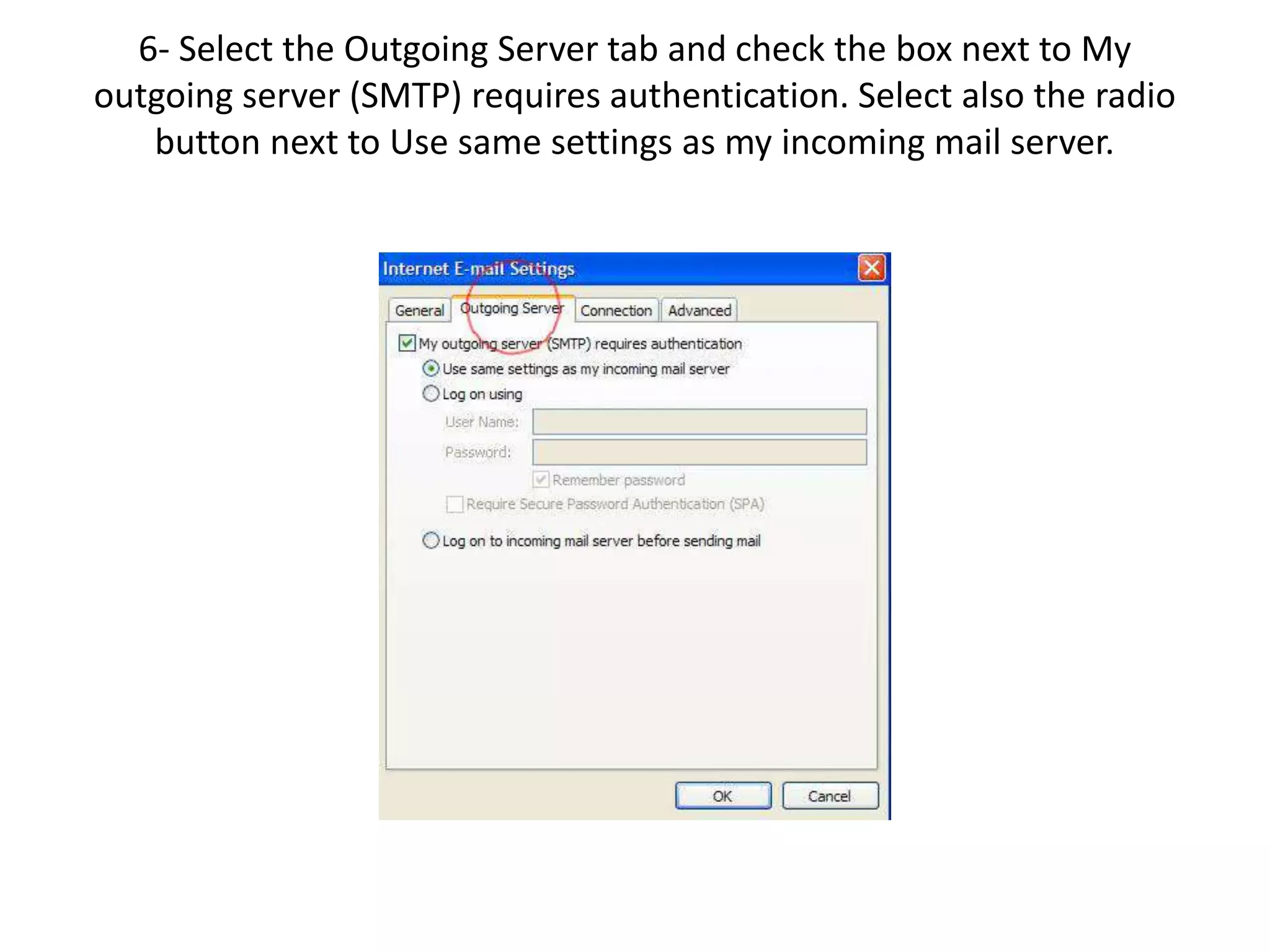
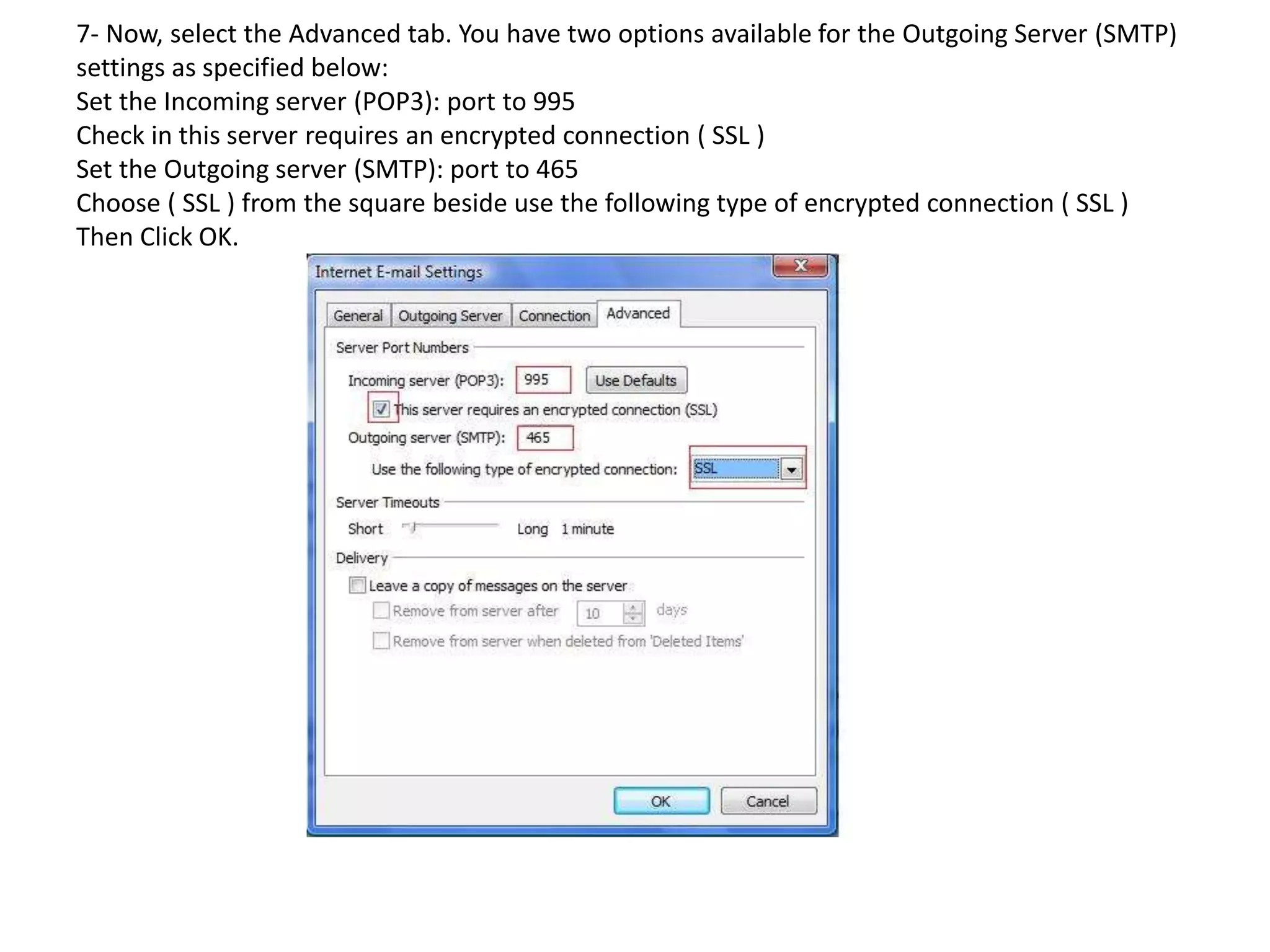
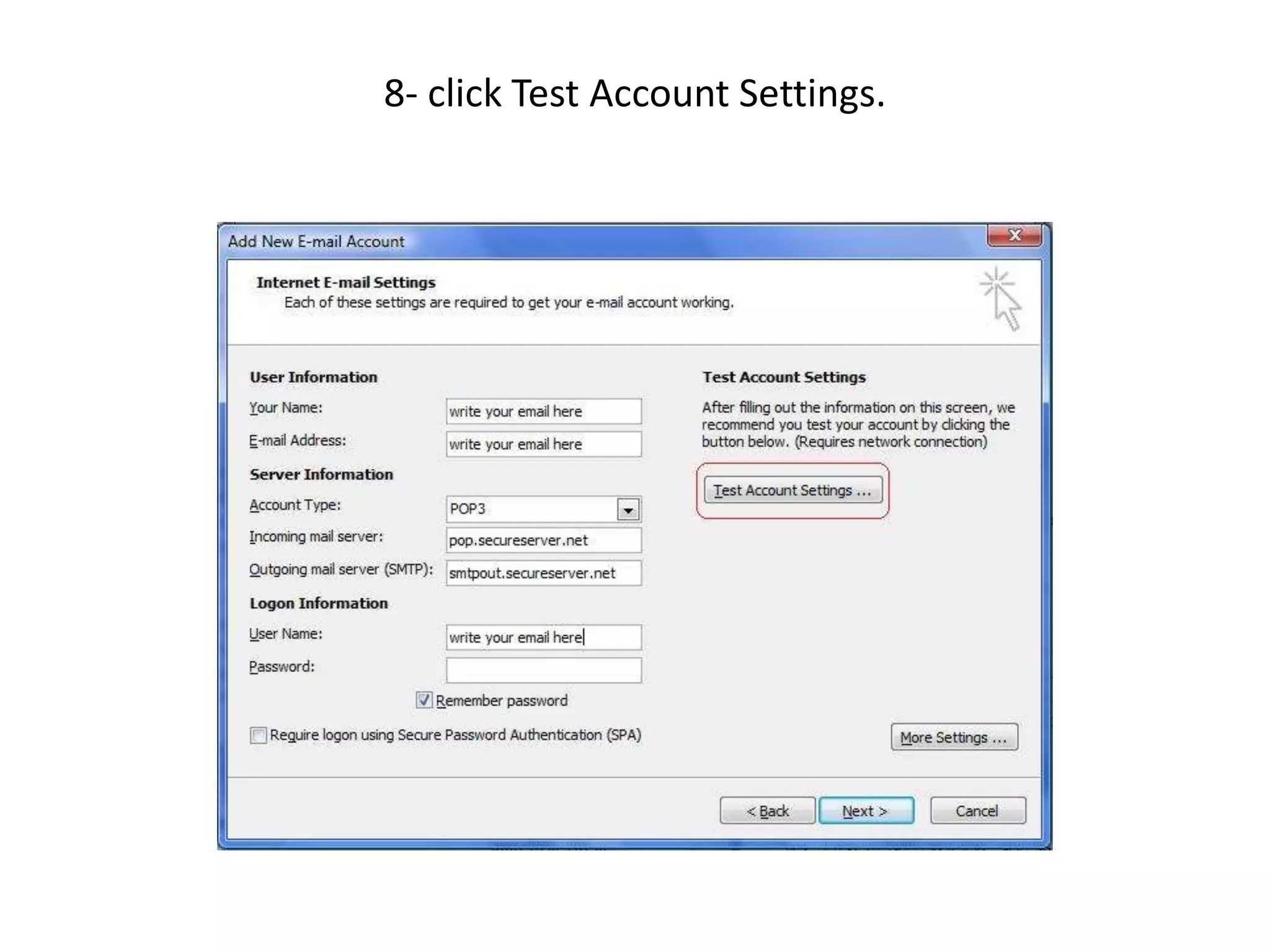

This document provides instructions for configuring an email account in Microsoft Outlook 2007-2010 by manually entering server settings. The steps are: 1. Open Account Settings in Outlook and click New to add an account 2. Specify the user information like name and email address, and server information like POP3 and SMTP server names 3. Provide the logon information including the full email address as the user name and password 4. Click More Settings and configure the Outgoing Server settings to require authentication and use the same settings as the incoming mail server 5. Configure the Advanced settings including specifying ports and enabling encryption 6. Test the account settings and finish setup


![Number_Guessing_Game_Dsbsbssbzboc[1].pptx](https://cdn.slidesharecdn.com/ss_thumbnails/numberguessinggamedoc1-251206215042-a076fc05-thumbnail.jpg?width=640&height=640&fit=bounds)


