Mail Server Configuration
Using App passwords in
Odoo 17
Enterprise
Introduction
Enterprise
In Odoo 17, we can securely configure an email server to send
and receive emails within the application. This is useful for
features like sending quotations, invoices, and notifications via
email. If our email service provider (e.g., Gmail, Outlook)
supports app passwords, we can use them to authenticate our
Odoo instance with the email server.
Enterprise
Prerequisites
Before configuring the mail server, ensure that you have
enabled two-factor authentication (2FA) for your email
account. This is a security requirement for generating app
passwords.
Enterprise
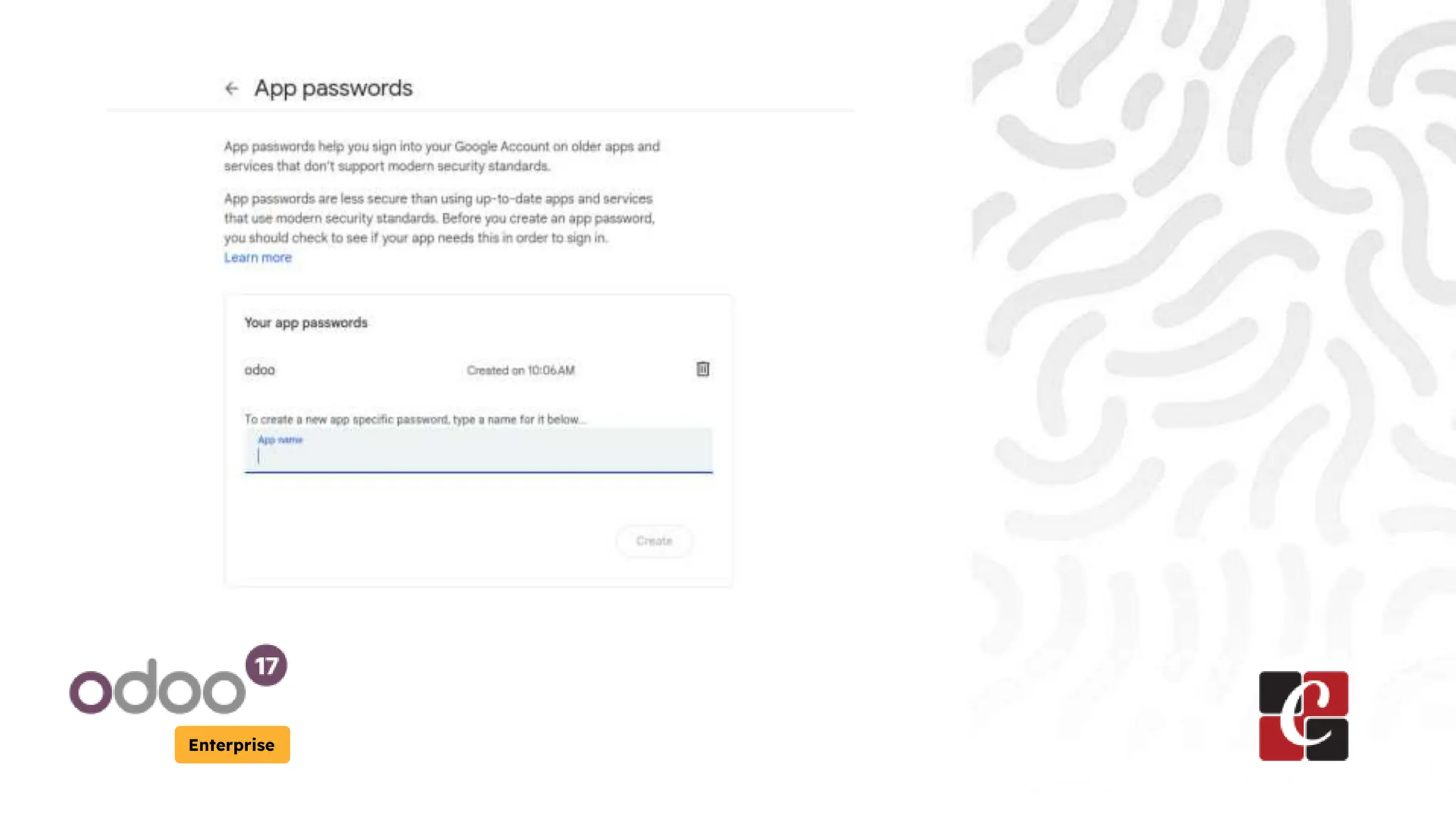
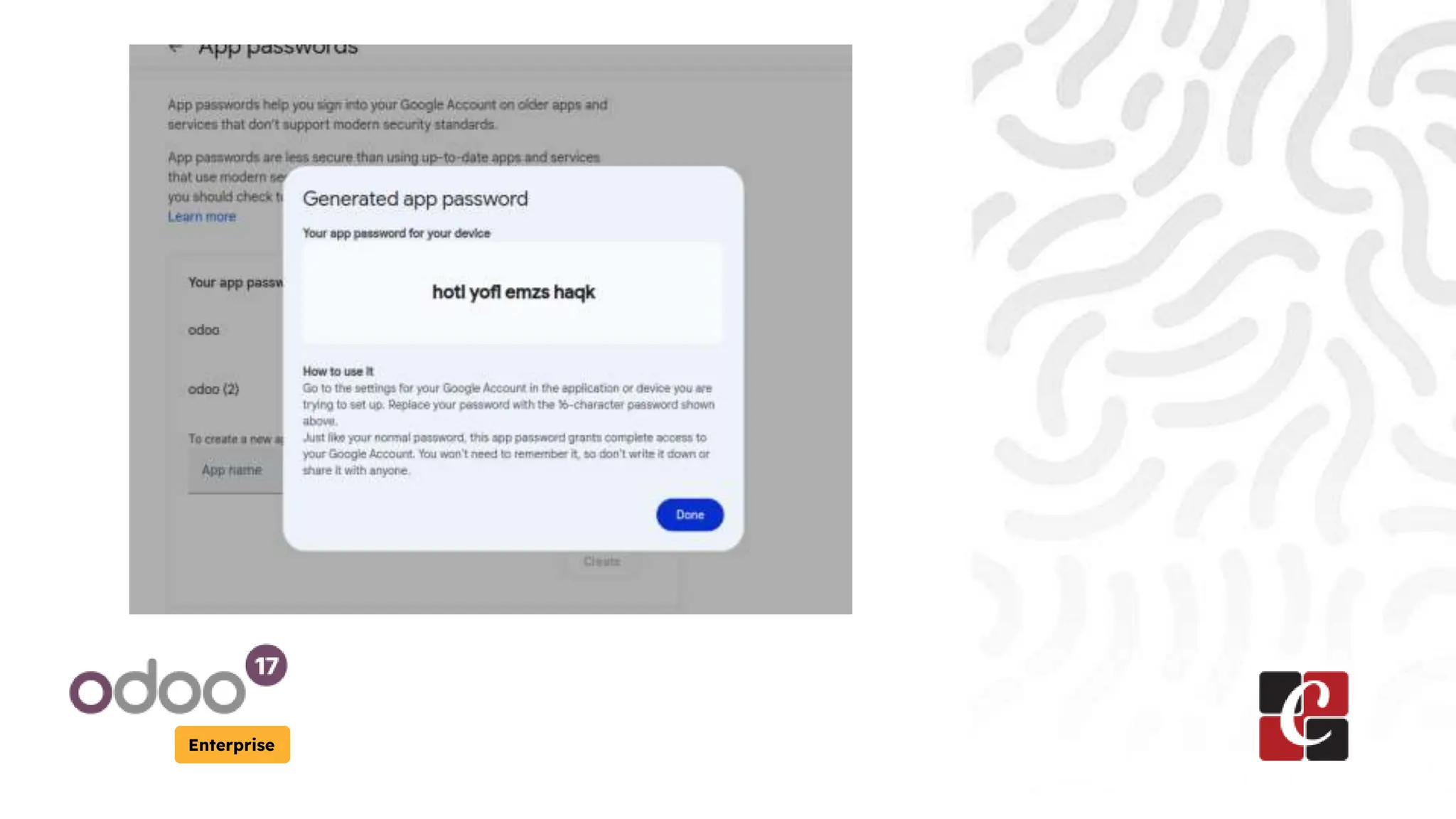
Generating an App Password
● Log in to your email account and navigate to the security
settings.
● Locate the option to generate app passwords or manage
authorized applications.
● Generate a new app password specifically for Odoo 17.
Enterprise
Enterprise
Enterprise
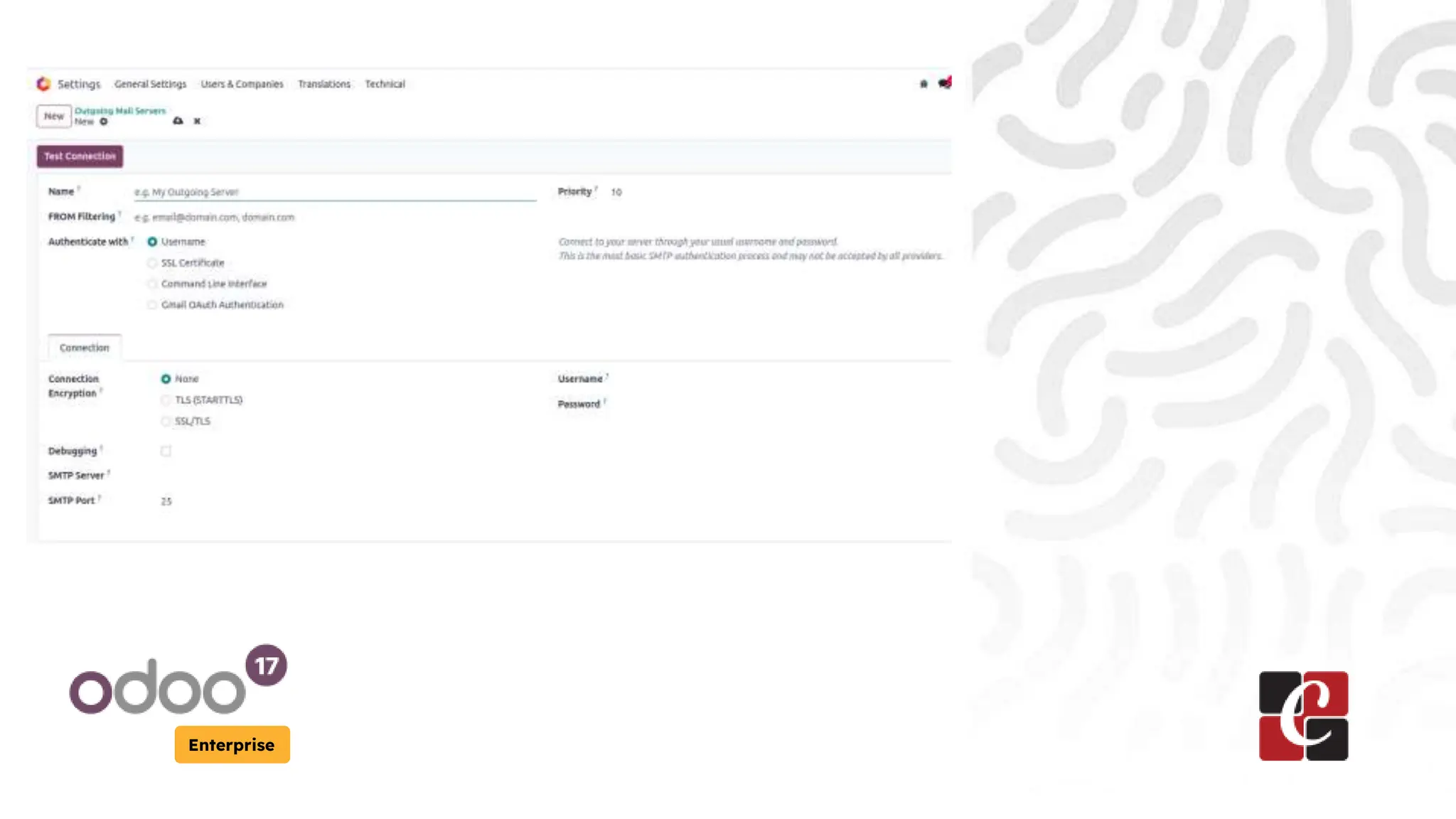
Configuring the Outgoing Mail Server
● In Odoo 17, go to Settings > Technical > Email > Outgoing
Mail Servers.
● Create a new outgoing mail server or edit an existing
one.
Enterprise
Enterprise
Configuring the Outgoing Mail Server
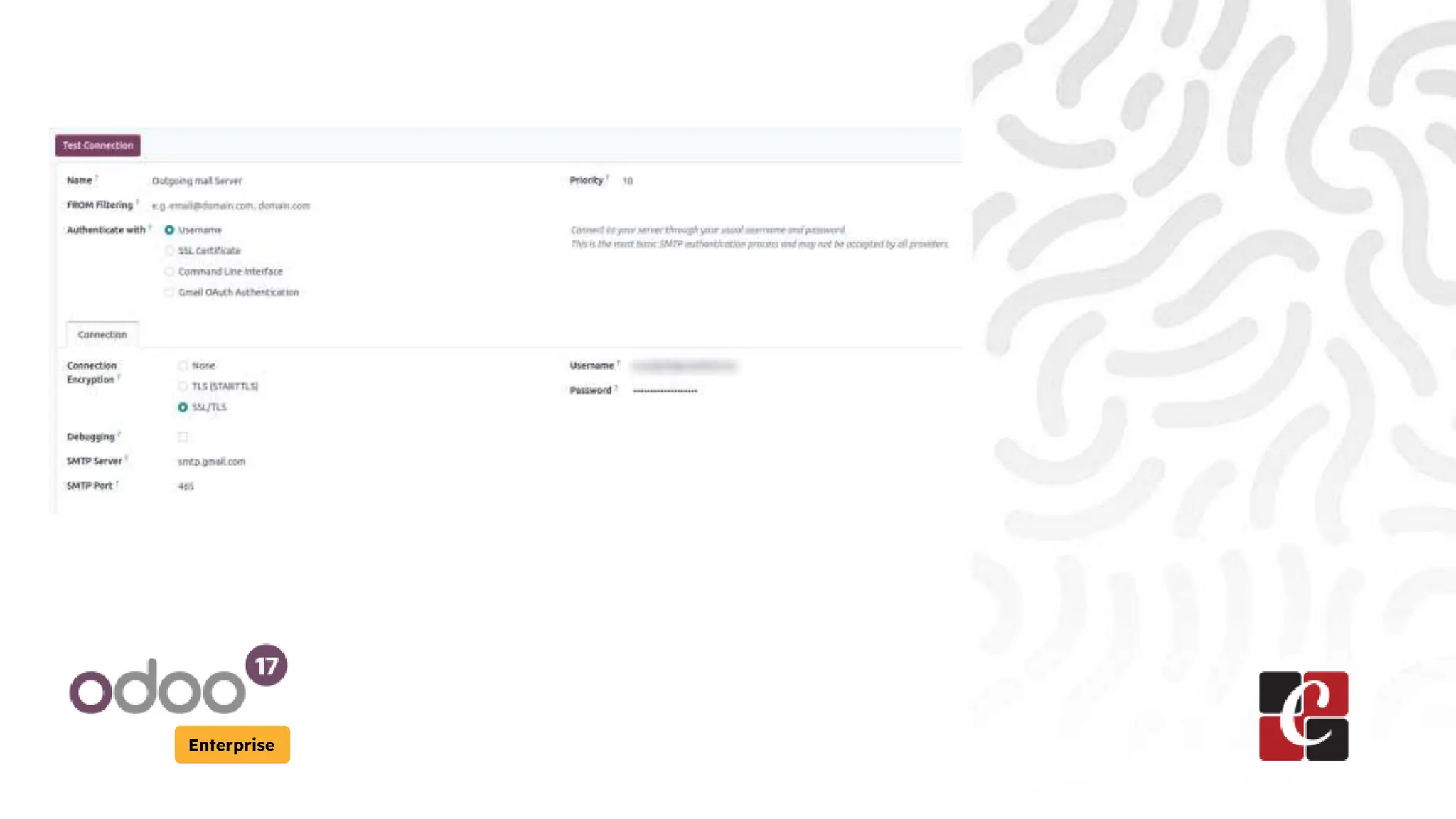
● Enter your email server information (SMTP server, port,
encryption type).
● Select "User" as the authentication method in the
"Credentials" section.
● Enter your email address in the "Email From" field.
● Enter the app password you generated earlier as the
"Password".
● Test the connection and save the settings.
Enterprise
Enterprise
Configuring the Incoming Mail Server (Optional)
● To receive emails in Odoo 17, go to Settings > Technical >
Email > Incoming Mail Servers.
● Create a new incoming mail server or edit an existing
one.
Enterprise
Configuring the Incoming Mail Server (Optional)
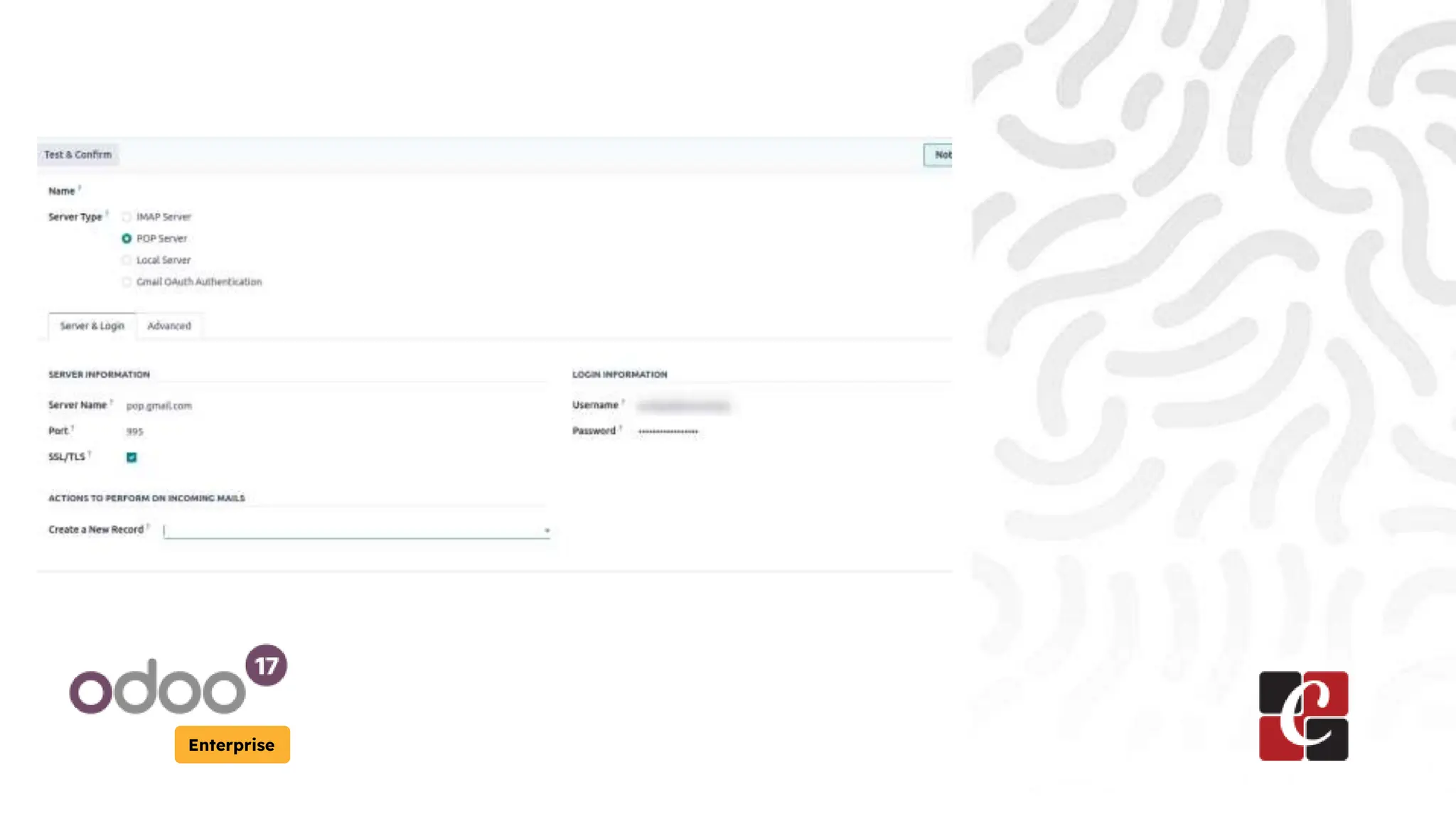
● Enter your email server information (IMAP/POP server,
port, encryption type).
● Enter your email address in the "Email" field.
● Enter the app password as the "Password".
● Configure other settings like mail filtering, actions, etc.,
as needed.
● Test the connection and save the settings.
Enterprise
Enterprise
By following these steps, we can securely configure our
mail server in Odoo 17 using app passwords, allowing us
to seamlessly send and receive emails within the Odoo
application.
For More Info.
Check our company website for related
blogs and Odoo book.
Check our YouTube channel for
functional and technical videos in Odoo.
Enterprise
www.cybrosys.com

Mail Server Configuration Using App passwords in Odoo 17

  • 1.
    Mail Server Configuration UsingApp passwords in Odoo 17 Enterprise
  • 2.
    Introduction Enterprise In Odoo 17,we can securely configure an email server to send and receive emails within the application. This is useful for features like sending quotations, invoices, and notifications via email. If our email service provider (e.g., Gmail, Outlook) supports app passwords, we can use them to authenticate our Odoo instance with the email server.
  • 3.
    Enterprise Prerequisites Before configuring themail server, ensure that you have enabled two-factor authentication (2FA) for your email account. This is a security requirement for generating app passwords.
  • 4.
    Enterprise Generating an AppPassword ● Log in to your email account and navigate to the security settings. ● Locate the option to generate app passwords or manage authorized applications. ● Generate a new app password specifically for Odoo 17.
  • 5.
  • 6.
  • 7.
    Enterprise Configuring the OutgoingMail Server ● In Odoo 17, go to Settings > Technical > Email > Outgoing Mail Servers. ● Create a new outgoing mail server or edit an existing one.
  • 8.
  • 9.
    Enterprise Configuring the OutgoingMail Server ● Enter your email server information (SMTP server, port, encryption type). ● Select "User" as the authentication method in the "Credentials" section. ● Enter your email address in the "Email From" field. ● Enter the app password you generated earlier as the "Password". ● Test the connection and save the settings.
  • 10.
  • 11.
    Enterprise Configuring the IncomingMail Server (Optional) ● To receive emails in Odoo 17, go to Settings > Technical > Email > Incoming Mail Servers. ● Create a new incoming mail server or edit an existing one.
  • 12.
    Enterprise Configuring the IncomingMail Server (Optional) ● Enter your email server information (IMAP/POP server, port, encryption type). ● Enter your email address in the "Email" field. ● Enter the app password as the "Password". ● Configure other settings like mail filtering, actions, etc., as needed. ● Test the connection and save the settings.
  • 13.
  • 14.
    Enterprise By following thesesteps, we can securely configure our mail server in Odoo 17 using app passwords, allowing us to seamlessly send and receive emails within the Odoo application.
  • 15.
    For More Info. Checkour company website for related blogs and Odoo book. Check our YouTube channel for functional and technical videos in Odoo. Enterprise www.cybrosys.com