
EclipseCon NA 2014 | Eclipse Tips and Tricks
1
Noopur Gupta
Eclipse JDT/UI Committer
IBM India
noopur_gupta@in.ibm.com
EclipseCon NA 2014 | Eclipse Tips and Tricks
2
EclipseCon NA 2014 | Eclipse Tips and Tricks
3
EclipseCon NA 2014 | Eclipse Tips and Tricks
4
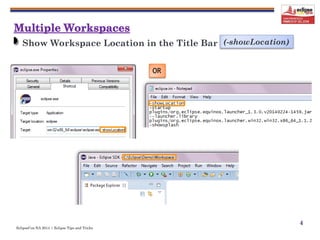
Show Workspace Location in the Title Bar
OR
(-showLocation)
EclipseCon NA 2014 | Eclipse Tips and Tricks
5
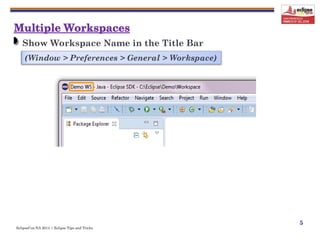
Show Workspace Name in the Title Bar
(Window > Preferences > General > Workspace)
EclipseCon NA 2014 | Eclipse Tips and Tricks
6
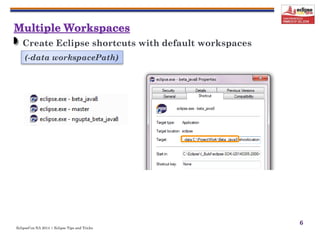
Create Eclipse shortcuts with default workspaces
(-data workspacePath)
EclipseCon NA 2014 | Eclipse Tips and Tricks
7
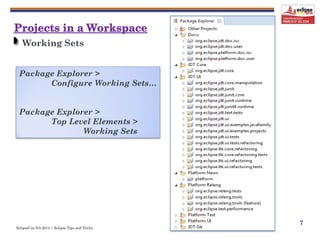
Working Sets
Package Explorer >
Configure Working Sets…
Package Explorer >
Top Level Elements >
Working Sets
EclipseCon NA 2014 | Eclipse Tips and Tricks
8
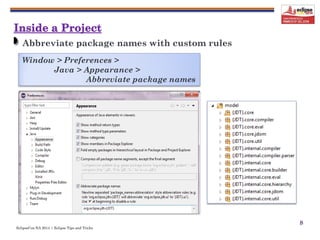
Abbreviate package names with custom rules
Window > Preferences >
Java > Appearance >
Abbreviate package names
EclipseCon NA 2014 | Eclipse Tips and Tricks
9
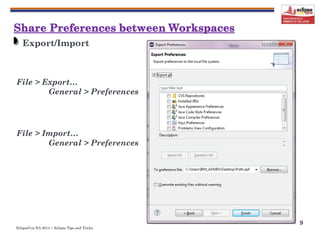
Export/Import
File > Export…
General > Preferences
File > Import…
General > Preferences
EclipseCon NA 2014 | Eclipse Tips and Tricks
10
EclipseCon NA 2014 | Eclipse Tips and Tricks
11
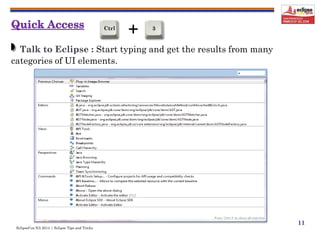
Talk to Eclipse : Start typing and get the results from many
categories of UI elements.
+Ctrl 3
EclipseCon NA 2014 | Eclipse Tips and Tricks
+Ctrl O
12
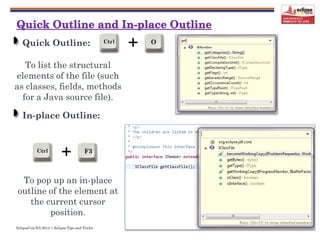
Quick Outline:
To list the structural
elements of the file (such
as classes, fields, methods
for a Java source file).
In-place Outline:
To pop up an in-place
outline of the element at
the current cursor
position.
+Ctrl F3
EclipseCon NA 2014 | Eclipse Tips and Tricks
13
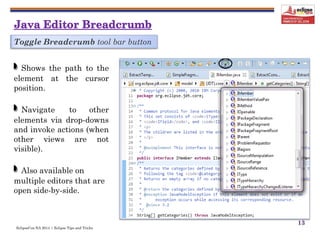
Toggle Breadcrumb tool bar button
Shows the path to the
element at the cursor
position.
Navigate to other
elements via drop-downs
and invoke actions (when
other views are not
visible).
Also available on
multiple editors that are
open side-by-side.
EclipseCon NA 2014 | Eclipse Tips and Tricks
14
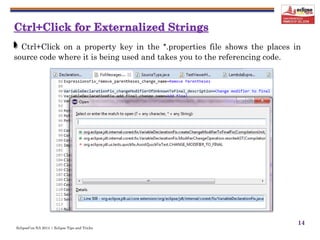
Ctrl+Click on a property key in the *.properties file shows the places in
source code where it is being used and takes you to the referencing code.
EclipseCon NA 2014 | Eclipse Tips and Tricks
15
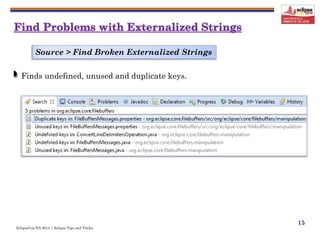
Finds undefined, unused and duplicate keys.
Source > Find Broken Externalized Strings
EclipseCon NA 2014 | Eclipse Tips and Tricks
16
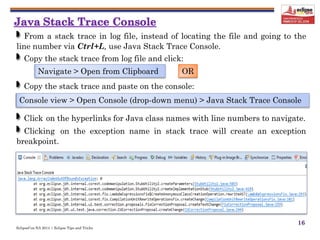
From a stack trace in log file, instead of locating the file and going to the
line number via Ctrl+L, use Java Stack Trace Console.
Copy the stack trace from log file and click:
Copy the stack trace and paste on the console:
Click on the hyperlinks for Java class names with line numbers to navigate.
Clicking on the exception name in stack trace will create an exception
breakpoint.
Navigate > Open from Clipboard
Console view > Open Console (drop-down menu) > Java Stack Trace Console
OR
EclipseCon NA 2014 | Eclipse Tips and Tricks
17
EclipseCon NA 2014 | Eclipse Tips and Tricks
18
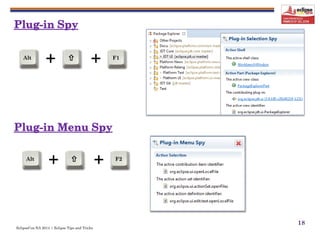
+ +Alt  F1
+ +Alt  F2
EclipseCon NA 2014 | Eclipse Tips and Tricks
19
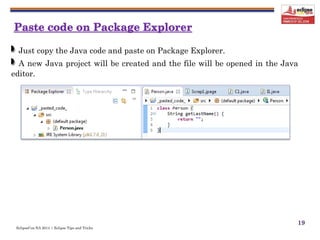
Just copy the Java code and paste on Package Explorer.
A new Java project will be created and the file will be opened in the Java
editor.
EclipseCon NA 2014 | Eclipse Tips and Tricks
20
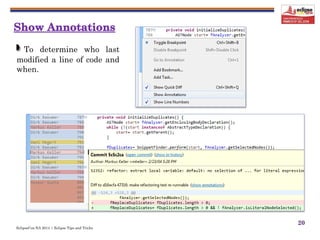
To determine who last
modified a line of code and
when.
EclipseCon NA 2014 | Eclipse Tips and Tricks

+Ctrl 
21
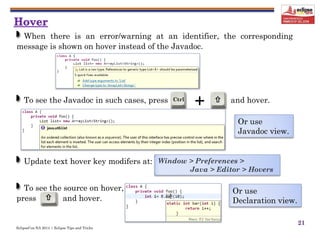
To see the Javadoc in such cases, press and hover.
When there is an error/warning at an identifier, the corresponding
message is shown on hover instead of the Javadoc.
Update text hover key modifers at: Window > Preferences >
Java > Editor > Hovers
To see the source on hover,
press and hover.
Or use
Javadoc view.
Or use
Declaration view.
EclipseCon NA 2014 | Eclipse Tips and Tricks
22
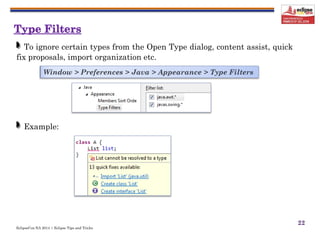
To ignore certain types from the Open Type dialog, content assist, quick
fix proposals, import organization etc.
Window > Preferences > Java > Appearance > Type Filters
Example:
EclipseCon NA 2014 | Eclipse Tips and Tricks
23
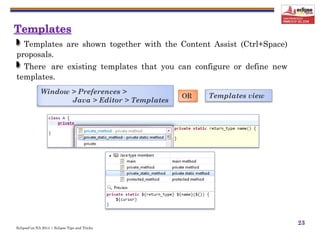
Templates are shown together with the Content Assist (Ctrl+Space)
proposals.
There are existing templates that you can configure or define new
templates.
Window > Preferences >
Java > Editor > Templates
OR Templates view
EclipseCon NA 2014 | Eclipse Tips and Tricks
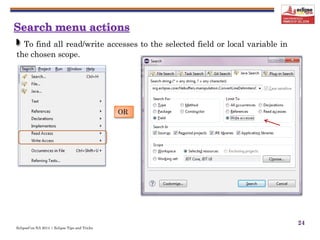
24
To find all read/write accesses to the selected field or local variable in
the chosen scope.
OR
EclipseCon NA 2014 | Eclipse Tips and Tricks
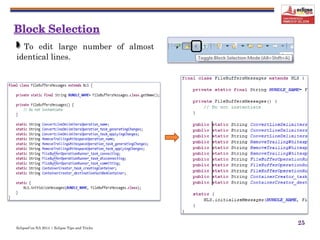
25
To edit large number of almost
identical lines.
EclipseCon NA 2014 | Eclipse Tips and Tricks
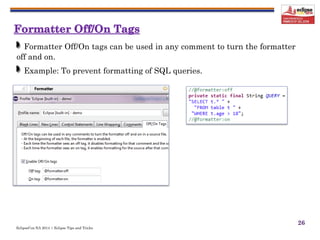
26
Formatter Off/On tags can be used in any comment to turn the formatter
off and on.
Example: To prevent formatting of SQL queries.
EclipseCon NA 2014 | Eclipse Tips and Tricks
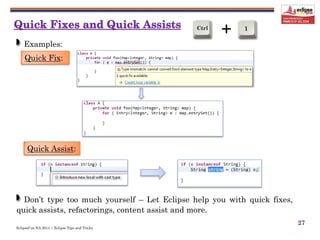
+Ctrl 1
27
Don’t type too much yourself – Let Eclipse help you with quick fixes,
quick assists, refactorings, content assist and more.
Examples:
Quick Assist:
Quick Fix:
EclipseCon NA 2014 | Eclipse Tips and Tricks
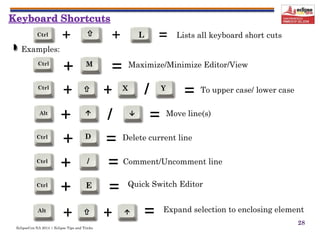
+ = Delete current lineCtrl D
+ / = Move line(s)Alt  
+ = Maximize/Minimize Editor/ViewCtrl M
+ + = To upper case/ lower caseCtrl  X
+ = Comment/Uncomment lineCtrl /
/ Y
+ = Quick Switch EditorCtrl E
+ +Alt   = Expand selection to enclosing element
+ + = Lists all keyboard short cutsCtrl  L
28
Examples:
EclipseCon NA 2014 | Eclipse Tips and Tricks
29
EclipseCon NA 2014 | Eclipse Tips and Tricks
30
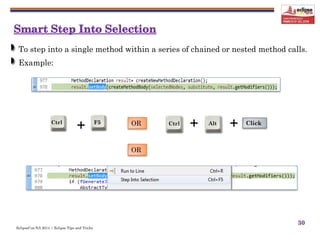
To step into a single method within a series of chained or nested method calls.
Example:
+ +Ctrl Alt Click
+Ctrl F5 OR
OR
EclipseCon NA 2014 | Eclipse Tips and Tricks
31
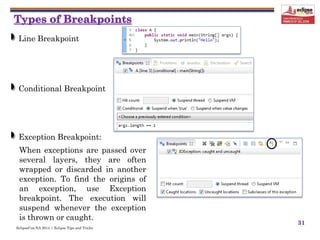
Line Breakpoint
Conditional Breakpoint
Exception Breakpoint:
When exceptions are passed over
several layers, they are often
wrapped or discarded in another
exception. To find the origins of
an exception, use Exception
breakpoint. The execution will
suspend whenever the exception
is thrown or caught.
EclipseCon NA 2014 | Eclipse Tips and Tricks
32
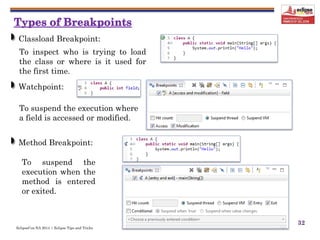
Classload Breakpoint:
To inspect who is trying to load
the class or where is it used for
the first time.
Watchpoint:
To suspend the execution where
a field is accessed or modified.
Method Breakpoint:
To suspend the
execution when the
method is entered
or exited.
EclipseCon NA 2014 | Eclipse Tips and Tricks
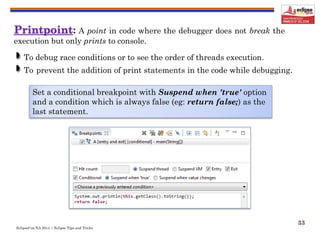
33
: A point in code where the debugger does not break the
execution but only prints to console.
To debug race conditions or to see the order of threads execution.
To prevent the addition of print statements in the code while debugging.
Set a conditional breakpoint with Suspend when 'true' option
and a condition which is always false (eg: return false;) as the
last statement.
EclipseCon NA 2014 | Eclipse Tips and Tricks
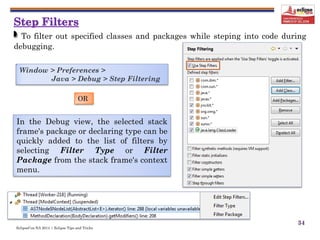
34
To filter out specified classes and packages while steping into code during
debugging.
In the Debug view, the selected stack
frame's package or declaring type can be
quickly added to the list of filters by
selecting Filter Type or Filter
Package from the stack frame's context
menu.
Window > Preferences >
Java > Debug > Step Filtering
OR
EclipseCon NA 2014 | Eclipse Tips and Tricks
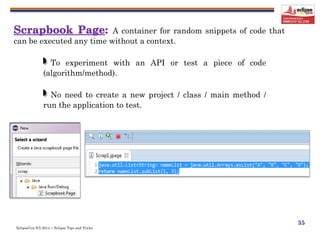
35
A container for random snippets of code that
can be executed any time without a context.
To experiment with an API or test a piece of code
(algorithm/method).
No need to create a new project / class / main method /
run the application to test.
EclipseCon NA 2014 | Eclipse Tips and Tricks
36
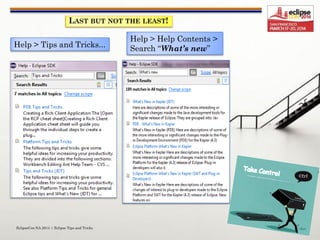
LAST BUT NOT THE LEAST!
Help > Help Contents >
Search “What’s new”Help > Tips and Tricks...
EclipseCon NA 2014 | Eclipse Tips and Tricks
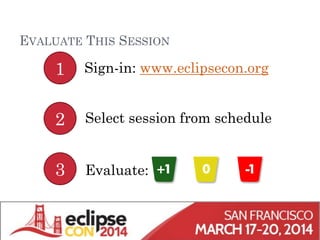
EVALUATE THIS SESSION
Sign-in: www.eclipsecon.org
Select session from schedule
Evaluate:
1
2
3

Eclipse Tips & Tricks - EclipseCon North America 2014

  • 1.
    EclipseCon NA 2014| Eclipse Tips and Tricks 1 Noopur Gupta Eclipse JDT/UI Committer IBM India noopur_gupta@in.ibm.com
  • 2.
    EclipseCon NA 2014| Eclipse Tips and Tricks 2
  • 3.
    EclipseCon NA 2014| Eclipse Tips and Tricks 3
  • 4.
    EclipseCon NA 2014| Eclipse Tips and Tricks 4 Show Workspace Location in the Title Bar OR (-showLocation)
  • 5.
    EclipseCon NA 2014| Eclipse Tips and Tricks 5 Show Workspace Name in the Title Bar (Window > Preferences > General > Workspace)
  • 6.
    EclipseCon NA 2014| Eclipse Tips and Tricks 6 Create Eclipse shortcuts with default workspaces (-data workspacePath)
  • 7.
    EclipseCon NA 2014| Eclipse Tips and Tricks 7 Working Sets Package Explorer > Configure Working Sets… Package Explorer > Top Level Elements > Working Sets
  • 8.
    EclipseCon NA 2014| Eclipse Tips and Tricks 8 Abbreviate package names with custom rules Window > Preferences > Java > Appearance > Abbreviate package names
  • 9.
    EclipseCon NA 2014| Eclipse Tips and Tricks 9 Export/Import File > Export… General > Preferences File > Import… General > Preferences
  • 10.
    EclipseCon NA 2014| Eclipse Tips and Tricks 10
  • 11.
    EclipseCon NA 2014| Eclipse Tips and Tricks 11 Talk to Eclipse : Start typing and get the results from many categories of UI elements. +Ctrl 3
  • 12.
    EclipseCon NA 2014| Eclipse Tips and Tricks +Ctrl O 12 Quick Outline: To list the structural elements of the file (such as classes, fields, methods for a Java source file). In-place Outline: To pop up an in-place outline of the element at the current cursor position. +Ctrl F3
  • 13.
    EclipseCon NA 2014| Eclipse Tips and Tricks 13 Toggle Breadcrumb tool bar button Shows the path to the element at the cursor position. Navigate to other elements via drop-downs and invoke actions (when other views are not visible). Also available on multiple editors that are open side-by-side.
  • 14.
    EclipseCon NA 2014| Eclipse Tips and Tricks 14 Ctrl+Click on a property key in the *.properties file shows the places in source code where it is being used and takes you to the referencing code.
  • 15.
    EclipseCon NA 2014| Eclipse Tips and Tricks 15 Finds undefined, unused and duplicate keys. Source > Find Broken Externalized Strings
  • 16.
    EclipseCon NA 2014| Eclipse Tips and Tricks 16 From a stack trace in log file, instead of locating the file and going to the line number via Ctrl+L, use Java Stack Trace Console. Copy the stack trace from log file and click: Copy the stack trace and paste on the console: Click on the hyperlinks for Java class names with line numbers to navigate. Clicking on the exception name in stack trace will create an exception breakpoint. Navigate > Open from Clipboard Console view > Open Console (drop-down menu) > Java Stack Trace Console OR
  • 17.
    EclipseCon NA 2014| Eclipse Tips and Tricks 17
  • 18.
    EclipseCon NA 2014| Eclipse Tips and Tricks 18 + +Alt  F1 + +Alt  F2
  • 19.
    EclipseCon NA 2014| Eclipse Tips and Tricks 19 Just copy the Java code and paste on Package Explorer. A new Java project will be created and the file will be opened in the Java editor.
  • 20.
    EclipseCon NA 2014| Eclipse Tips and Tricks 20 To determine who last modified a line of code and when.
  • 21.
    EclipseCon NA 2014| Eclipse Tips and Tricks  +Ctrl  21 To see the Javadoc in such cases, press and hover. When there is an error/warning at an identifier, the corresponding message is shown on hover instead of the Javadoc. Update text hover key modifers at: Window > Preferences > Java > Editor > Hovers To see the source on hover, press and hover. Or use Javadoc view. Or use Declaration view.
  • 22.
    EclipseCon NA 2014| Eclipse Tips and Tricks 22 To ignore certain types from the Open Type dialog, content assist, quick fix proposals, import organization etc. Window > Preferences > Java > Appearance > Type Filters Example:
  • 23.
    EclipseCon NA 2014| Eclipse Tips and Tricks 23 Templates are shown together with the Content Assist (Ctrl+Space) proposals. There are existing templates that you can configure or define new templates. Window > Preferences > Java > Editor > Templates OR Templates view
  • 24.
    EclipseCon NA 2014| Eclipse Tips and Tricks 24 To find all read/write accesses to the selected field or local variable in the chosen scope. OR
  • 25.
    EclipseCon NA 2014| Eclipse Tips and Tricks 25 To edit large number of almost identical lines.
  • 26.
    EclipseCon NA 2014| Eclipse Tips and Tricks 26 Formatter Off/On tags can be used in any comment to turn the formatter off and on. Example: To prevent formatting of SQL queries.
  • 27.
    EclipseCon NA 2014| Eclipse Tips and Tricks +Ctrl 1 27 Don’t type too much yourself – Let Eclipse help you with quick fixes, quick assists, refactorings, content assist and more. Examples: Quick Assist: Quick Fix:
  • 28.
    EclipseCon NA 2014| Eclipse Tips and Tricks + = Delete current lineCtrl D + / = Move line(s)Alt   + = Maximize/Minimize Editor/ViewCtrl M + + = To upper case/ lower caseCtrl  X + = Comment/Uncomment lineCtrl / / Y + = Quick Switch EditorCtrl E + +Alt   = Expand selection to enclosing element + + = Lists all keyboard short cutsCtrl  L 28 Examples:
  • 29.
    EclipseCon NA 2014| Eclipse Tips and Tricks 29
  • 30.
    EclipseCon NA 2014| Eclipse Tips and Tricks 30 To step into a single method within a series of chained or nested method calls. Example: + +Ctrl Alt Click +Ctrl F5 OR OR
  • 31.
    EclipseCon NA 2014| Eclipse Tips and Tricks 31 Line Breakpoint Conditional Breakpoint Exception Breakpoint: When exceptions are passed over several layers, they are often wrapped or discarded in another exception. To find the origins of an exception, use Exception breakpoint. The execution will suspend whenever the exception is thrown or caught.
  • 32.
    EclipseCon NA 2014| Eclipse Tips and Tricks 32 Classload Breakpoint: To inspect who is trying to load the class or where is it used for the first time. Watchpoint: To suspend the execution where a field is accessed or modified. Method Breakpoint: To suspend the execution when the method is entered or exited.
  • 33.
    EclipseCon NA 2014| Eclipse Tips and Tricks 33 : A point in code where the debugger does not break the execution but only prints to console. To debug race conditions or to see the order of threads execution. To prevent the addition of print statements in the code while debugging. Set a conditional breakpoint with Suspend when 'true' option and a condition which is always false (eg: return false;) as the last statement.
  • 34.
    EclipseCon NA 2014| Eclipse Tips and Tricks 34 To filter out specified classes and packages while steping into code during debugging. In the Debug view, the selected stack frame's package or declaring type can be quickly added to the list of filters by selecting Filter Type or Filter Package from the stack frame's context menu. Window > Preferences > Java > Debug > Step Filtering OR
  • 35.
    EclipseCon NA 2014| Eclipse Tips and Tricks 35 A container for random snippets of code that can be executed any time without a context. To experiment with an API or test a piece of code (algorithm/method). No need to create a new project / class / main method / run the application to test.
  • 36.
    EclipseCon NA 2014| Eclipse Tips and Tricks 36 LAST BUT NOT THE LEAST! Help > Help Contents > Search “What’s new”Help > Tips and Tricks...
  • 37.
    EclipseCon NA 2014| Eclipse Tips and Tricks
  • 38.
    EVALUATE THIS SESSION Sign-in:www.eclipsecon.org Select session from schedule Evaluate: 1 2 3