Hardware
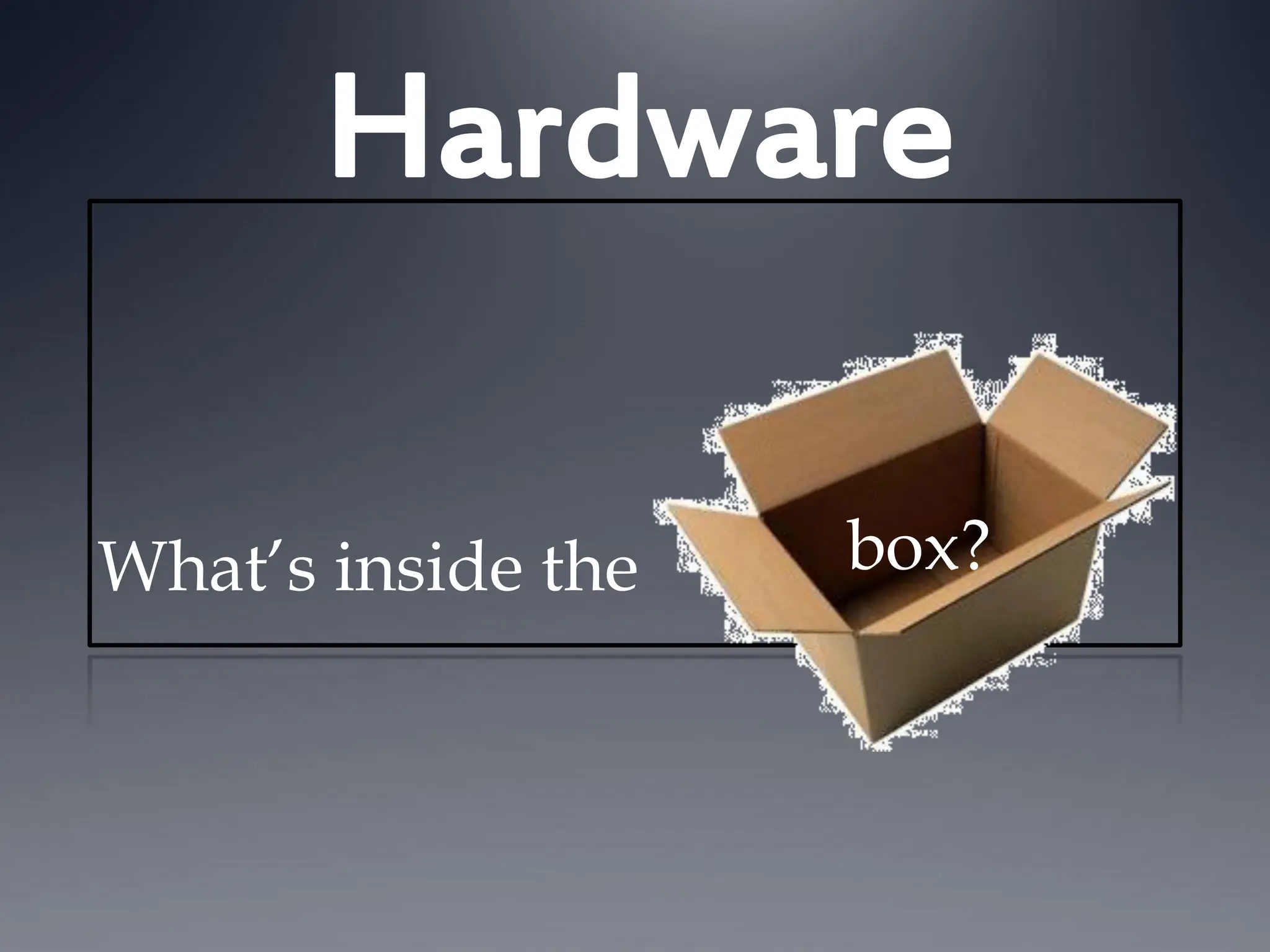
What’s inside the box?
Inside the case…
 Motherboard
 CPU
 Hard Disk
 Memory
 Video Card
 SoundCard
 Ethernet Card
 Optical Drive
 Power Supply
 Fan
http://www.youtube.com/watch?v=-GQmtITMdas
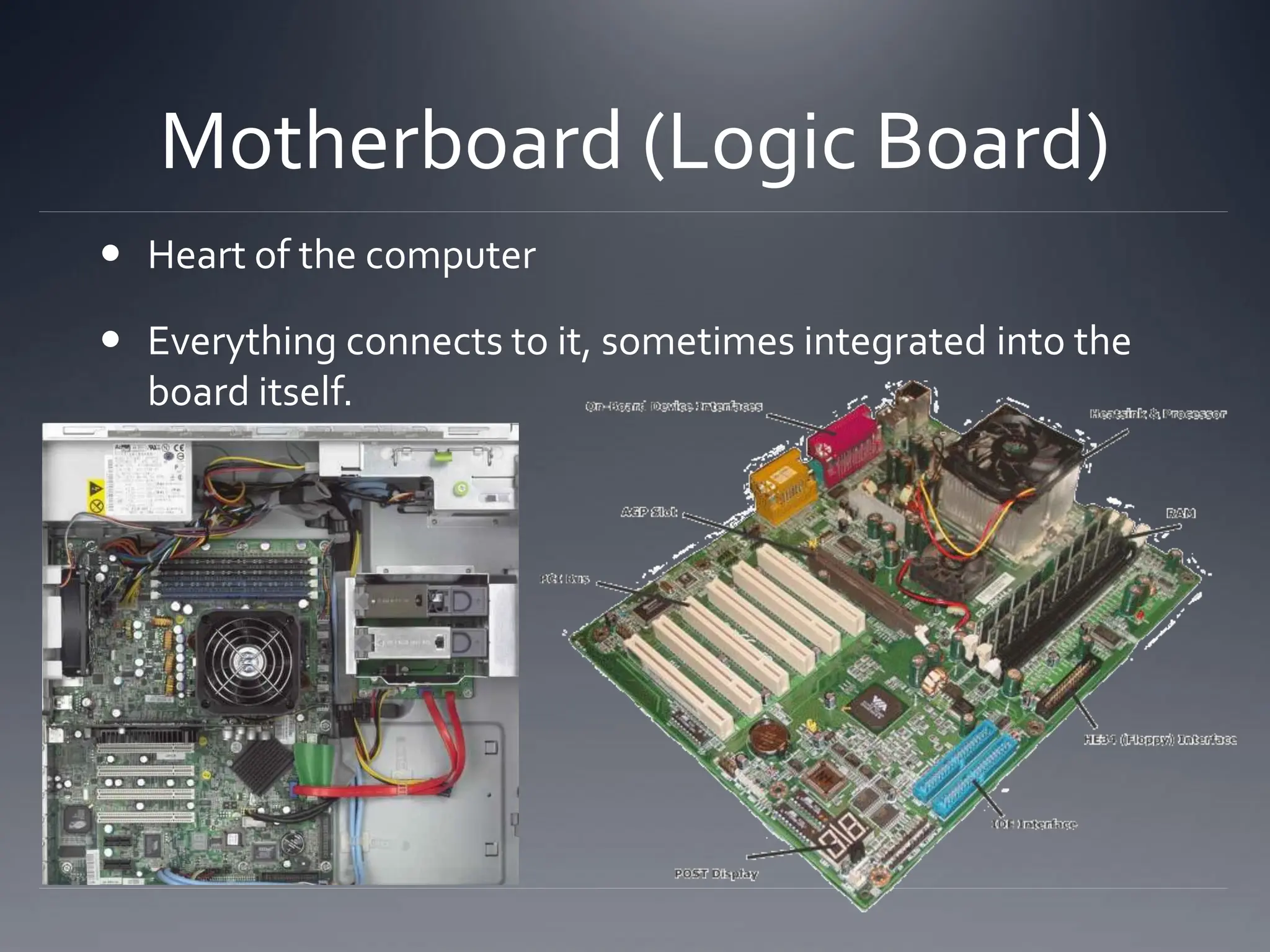
Motherboard (Logic Board)
 Heart of the computer
 Everything connects to it, sometimes integrated into the
board itself.
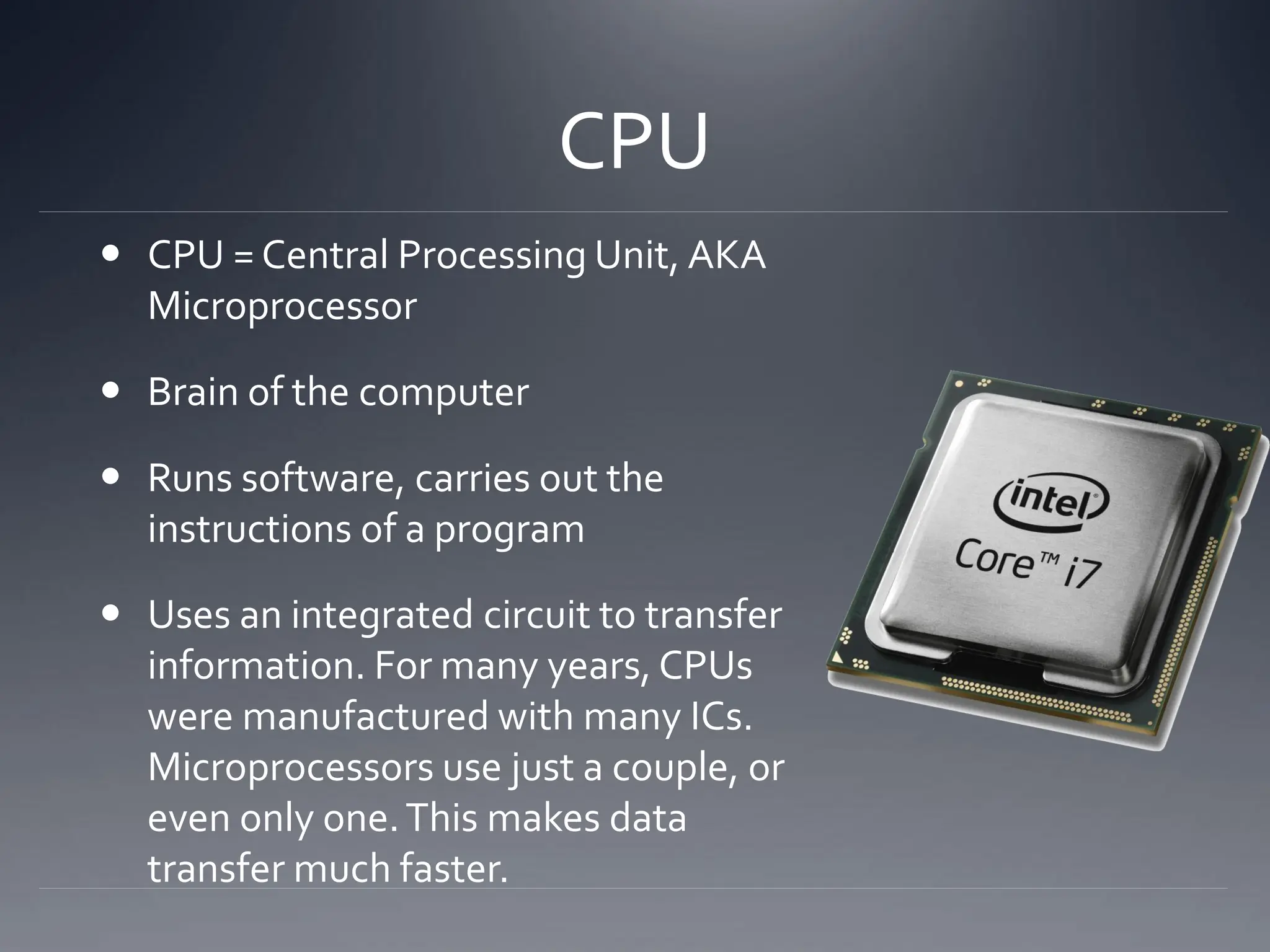
CPU
 CPU = Central Processing Unit, AKA
Microprocessor
 Brain of the computer
 Runs software, carries out the
instructions of a program
 Uses an integrated circuit to transfer
information. For many years, CPUs
were manufactured with many ICs.
Microprocessors use just a couple, or
even only one.This makes data
transfer much faster.
Moore’s Law
 Intel co-founderGordon E. Moore in 1965:
 The number of transistors that can be placed inexpensively on an
IC doubles approximately every two years, expected to continue
like this for at least 10 years
 As transistor counts climb so does the ability to increase device
complexity and integrate many capabilities onto a chip.
 Once you reach a physical limit on the size of a CPU, the focus
starts moving towards multi-core CPUs (parallel computing) and
increasing the space on hard drives.
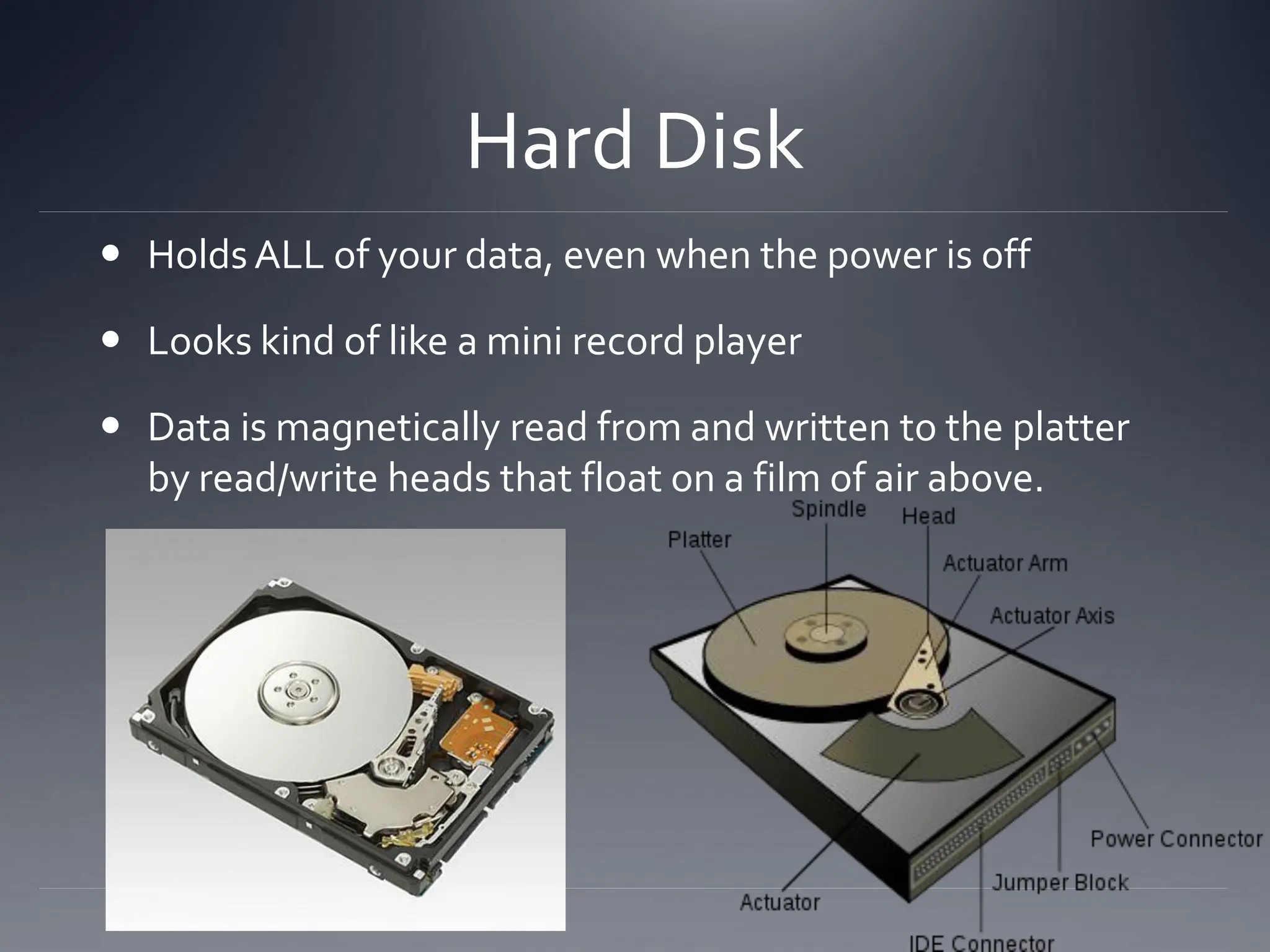
Hard Disk
 Holds ALL of your data, even when the power is off
 Looks kind of like a mini record player
 Data is magnetically read from and written to the platter
by read/write heads that float on a film of air above.
Hard Disk (cont.)
 In the hard disk is a series of microscopic wells in a
ferromagnetic platter.
 Data is stored by using special magnet to push/pull
electrons into and out of these wells.
 This is the basis for binary: an electron is present = 1, no
electrons present = 0.
 Like Moore’s Law for CPUs, we are learning how to hold
more data in smaller spaces, which makes some people a
lot of
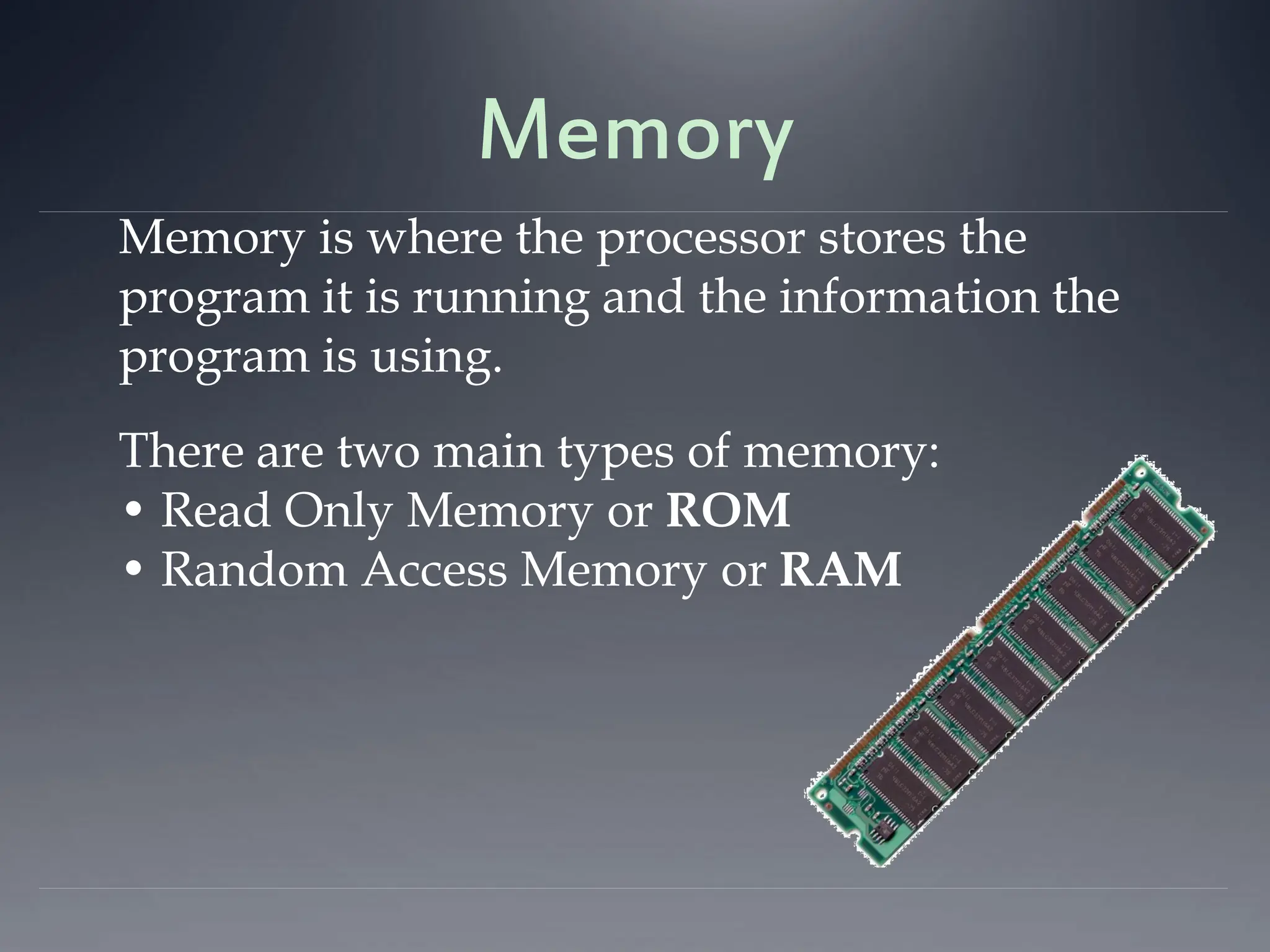
Memory
Memory is where the processor stores the
program it is running and the information the
program is using.
There are two main types of memory:
• Read Only Memory or ROM
• Random Access Memory or RAM
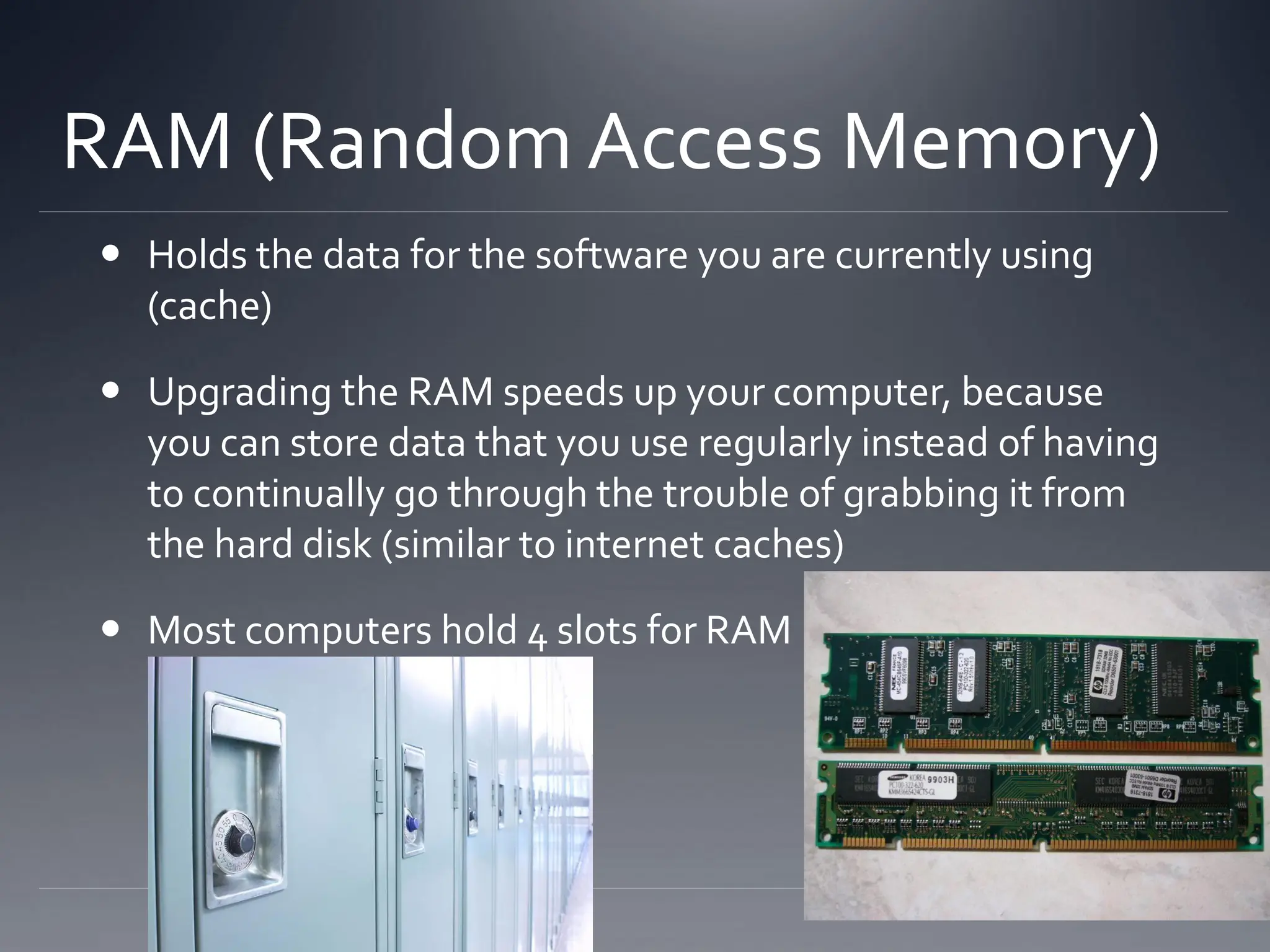
RAM (Random Access Memory)
 Holds the data for the software you are currently using
(cache)
 Upgrading the RAM speeds up your computer, because
you can store data that you use regularly instead of having
to continually go through the trouble of grabbing it from
the hard disk (similar to internet caches)
 Most computers hold 4 slots for RAM
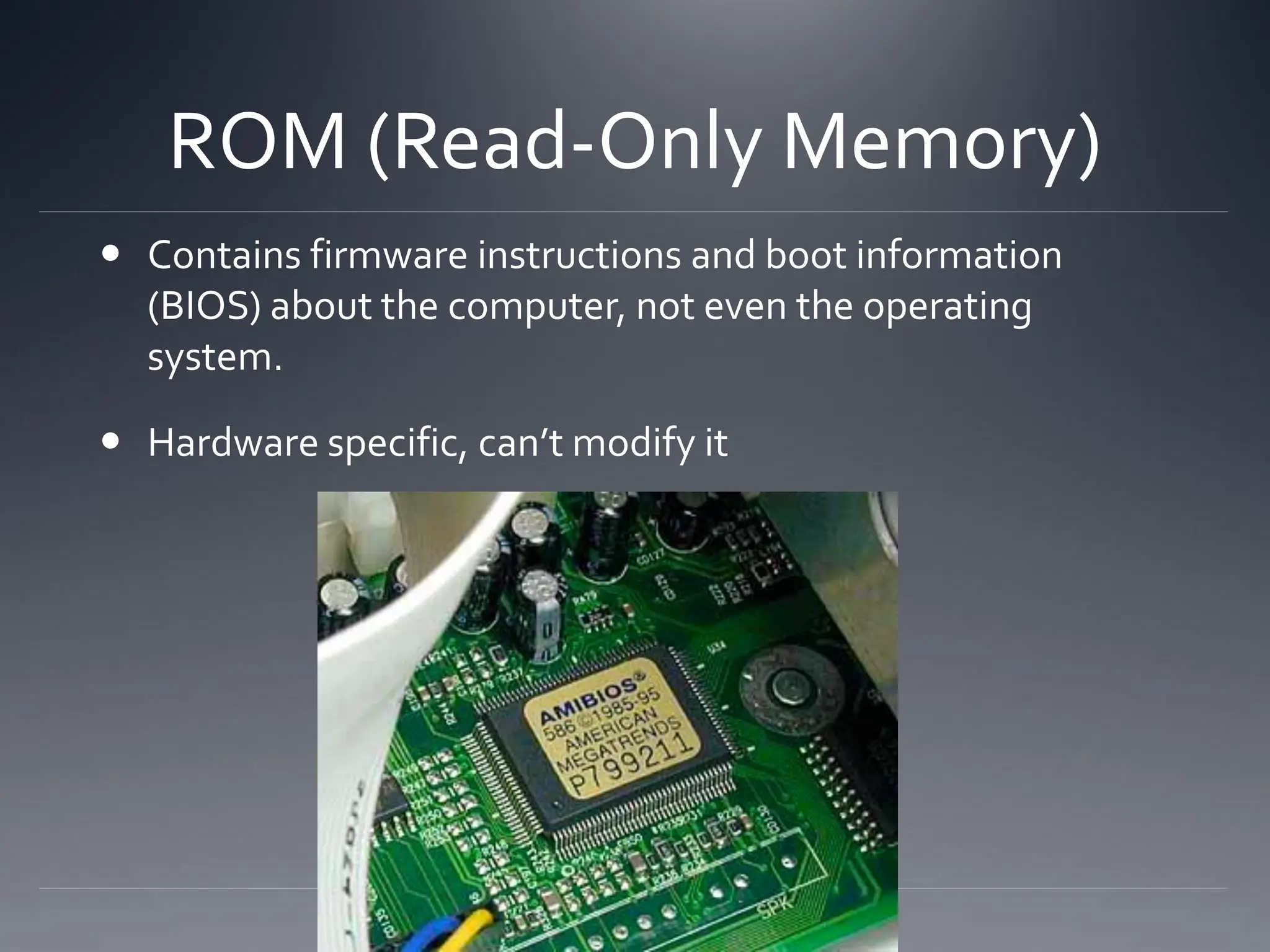
ROM (Read-Only Memory)
 Contains firmware instructions and boot information
(BIOS) about the computer, not even the operating
system.
 Hardware specific, can’t modify it
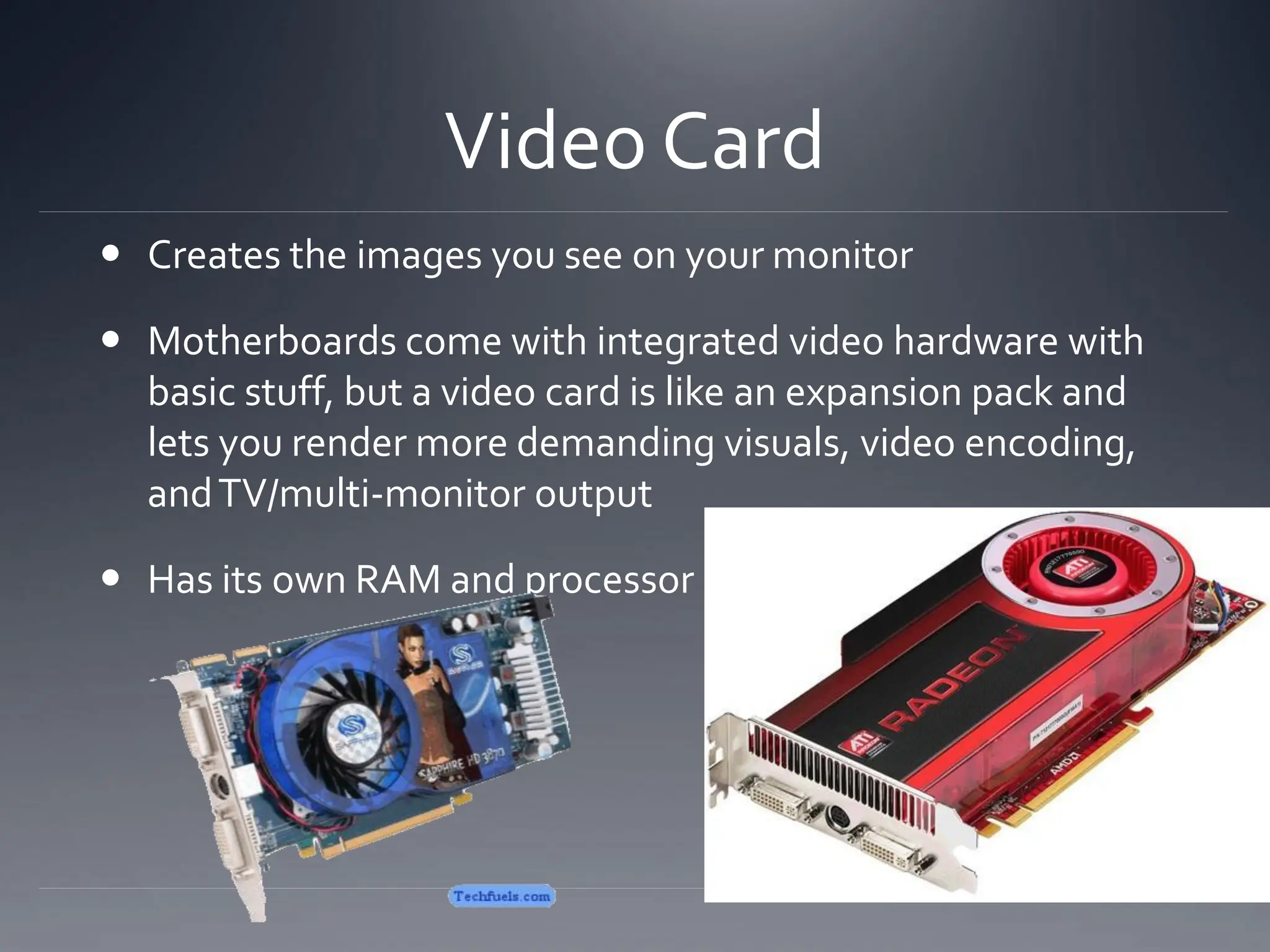
Video Card
 Creates the images you see on your monitor
 Motherboards come with integrated video hardware with
basic stuff, but a video card is like an expansion pack and
lets you render more demanding visuals, video encoding,
andTV/multi-monitor output
 Has its own RAM and processor
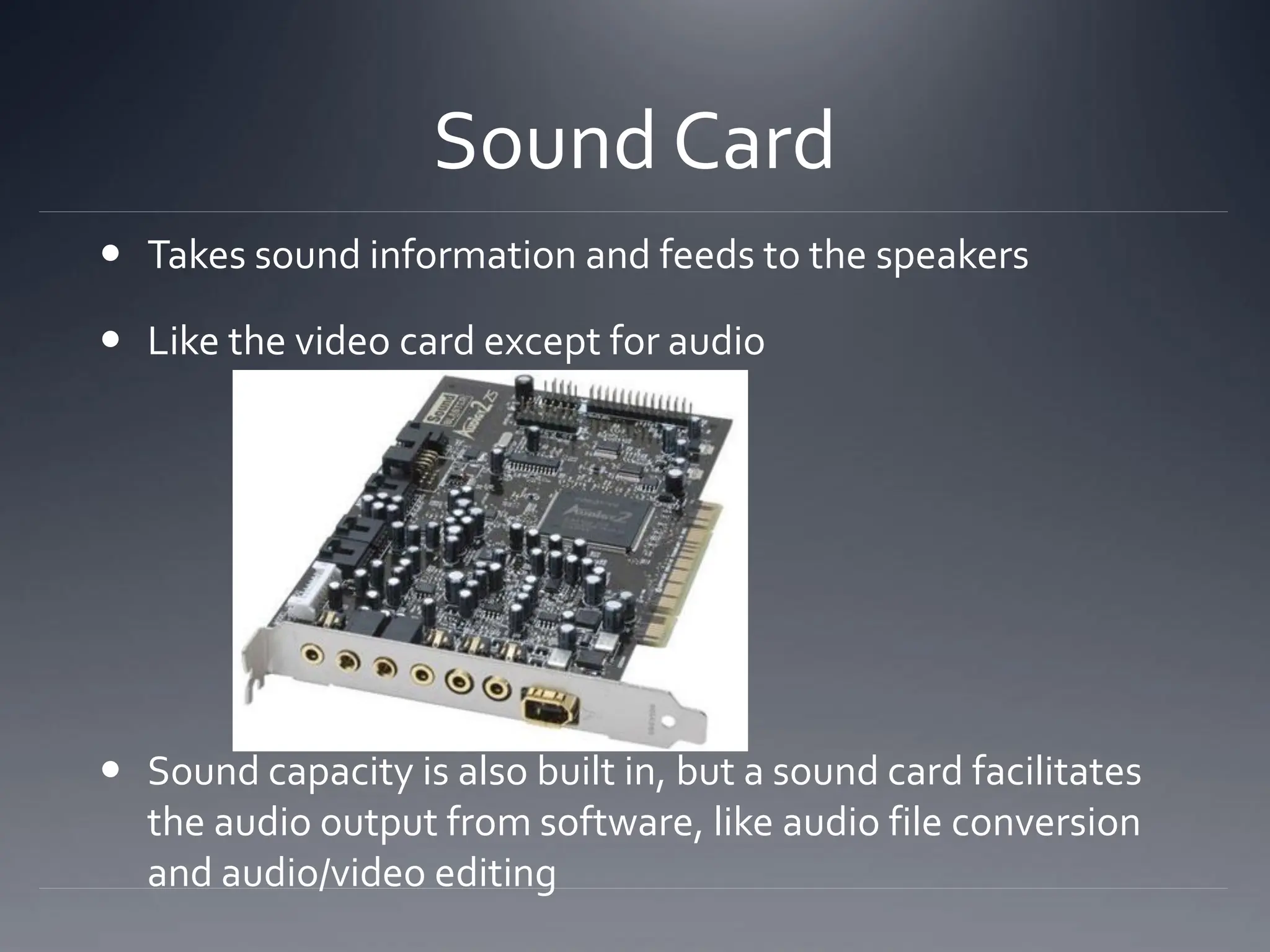
Sound Card
 Takes sound information and feeds to the speakers
 Like the video card except for audio
 Sound capacity is also built in, but a sound card facilitates
the audio output from software, like audio file conversion
and audio/video editing
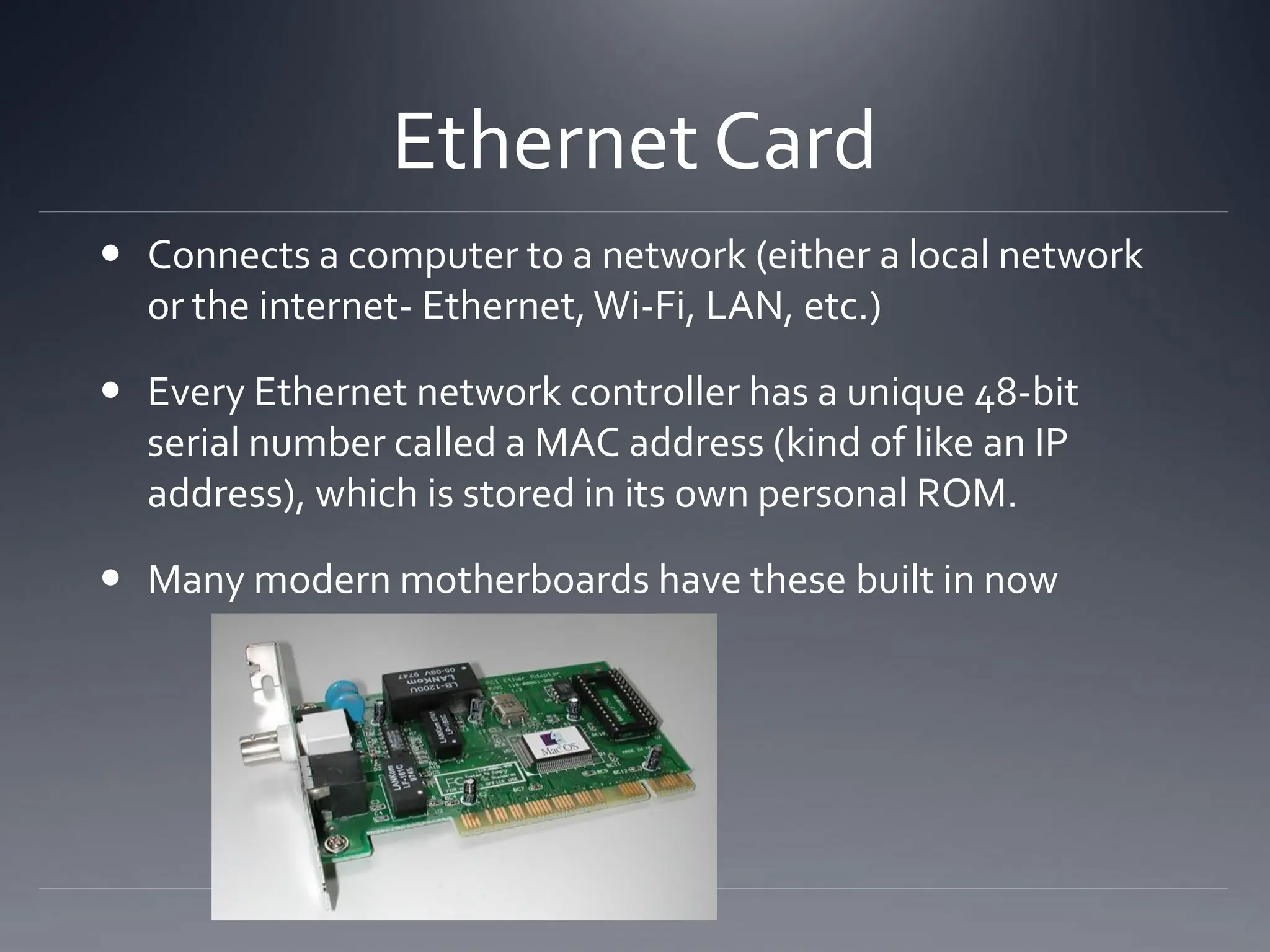
Ethernet Card
 Connects a computer to a network (either a local network
or the internet- Ethernet, Wi-Fi, LAN, etc.)
 Every Ethernet network controller has a unique 48-bit
serial number called a MAC address (kind of like an IP
address), which is stored in its own personal ROM.
 Many modern motherboards have these built in now
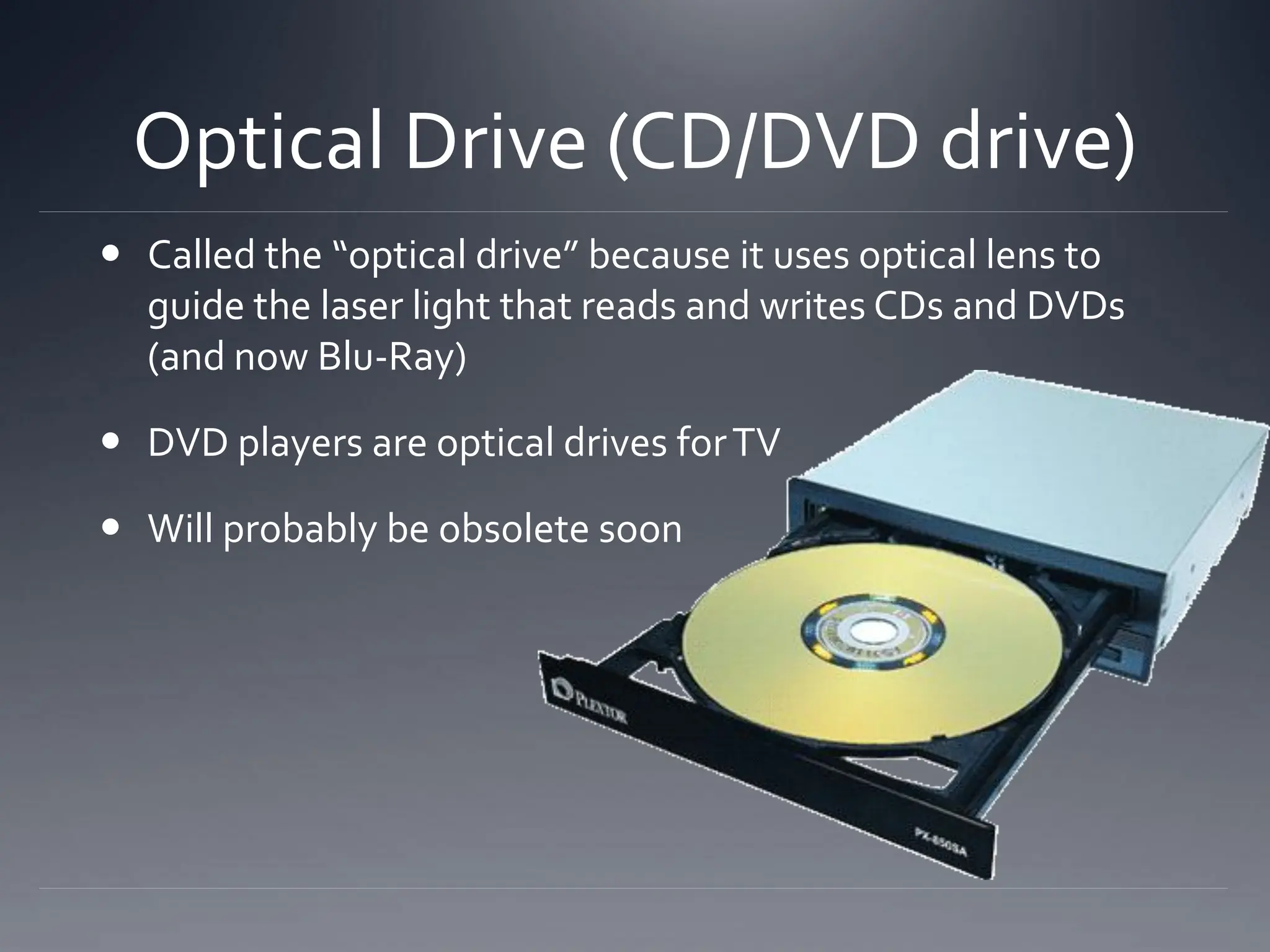
Optical Drive (CD/DVD drive)
 Called the “optical drive” because it uses optical lens to
guide the laser light that reads and writes CDs and DVDs
(and now Blu-Ray)
 DVD players are optical drives forTV
 Will probably be obsolete soon
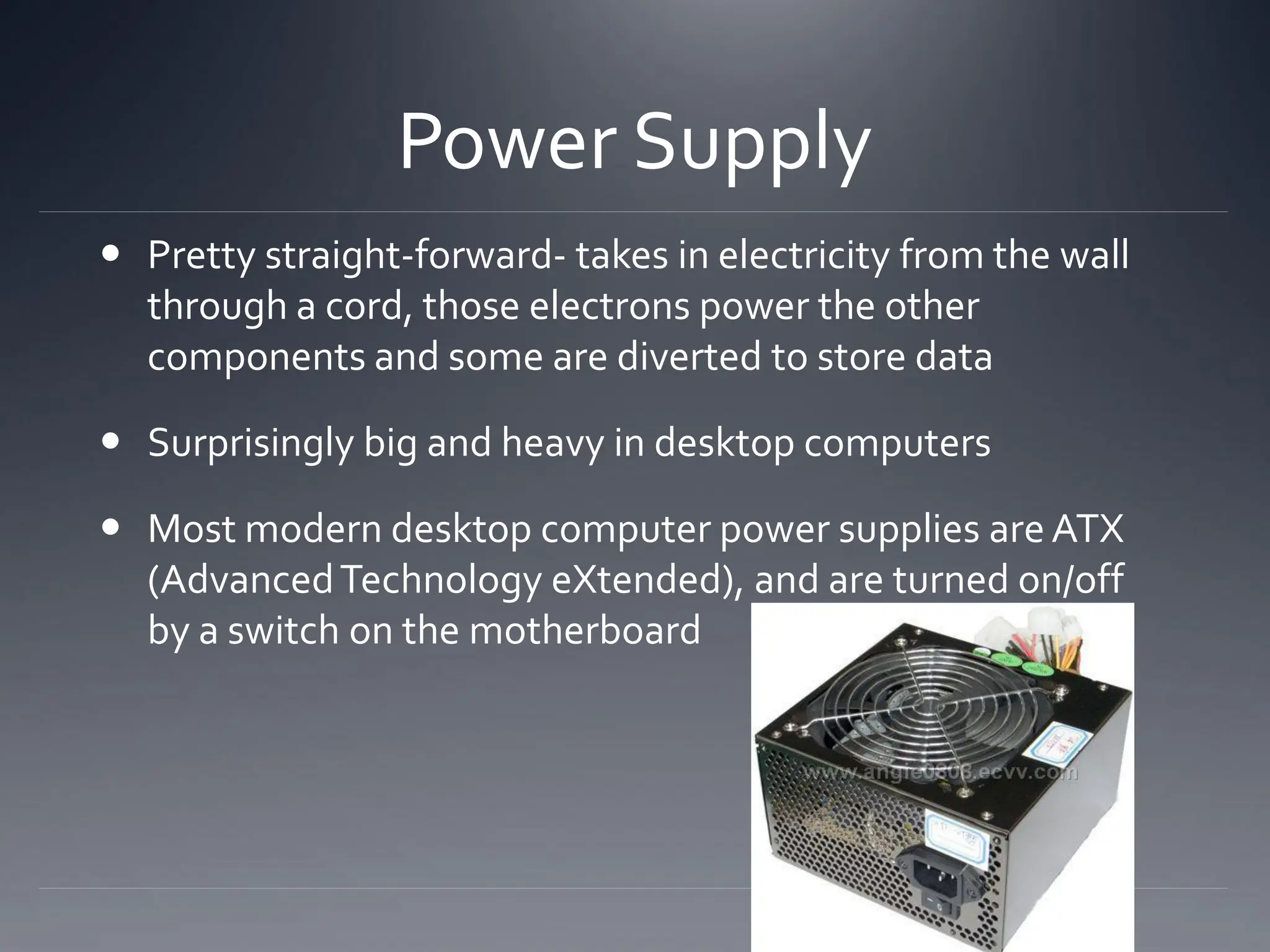
Power Supply
 Pretty straight-forward- takes in electricity from the wall
through a cord, those electrons power the other
components and some are diverted to store data
 Surprisingly big and heavy in desktop computers
 Most modern desktop computer power supplies are ATX
(AdvancedTechnology eXtended), and are turned on/off
by a switch on the motherboard
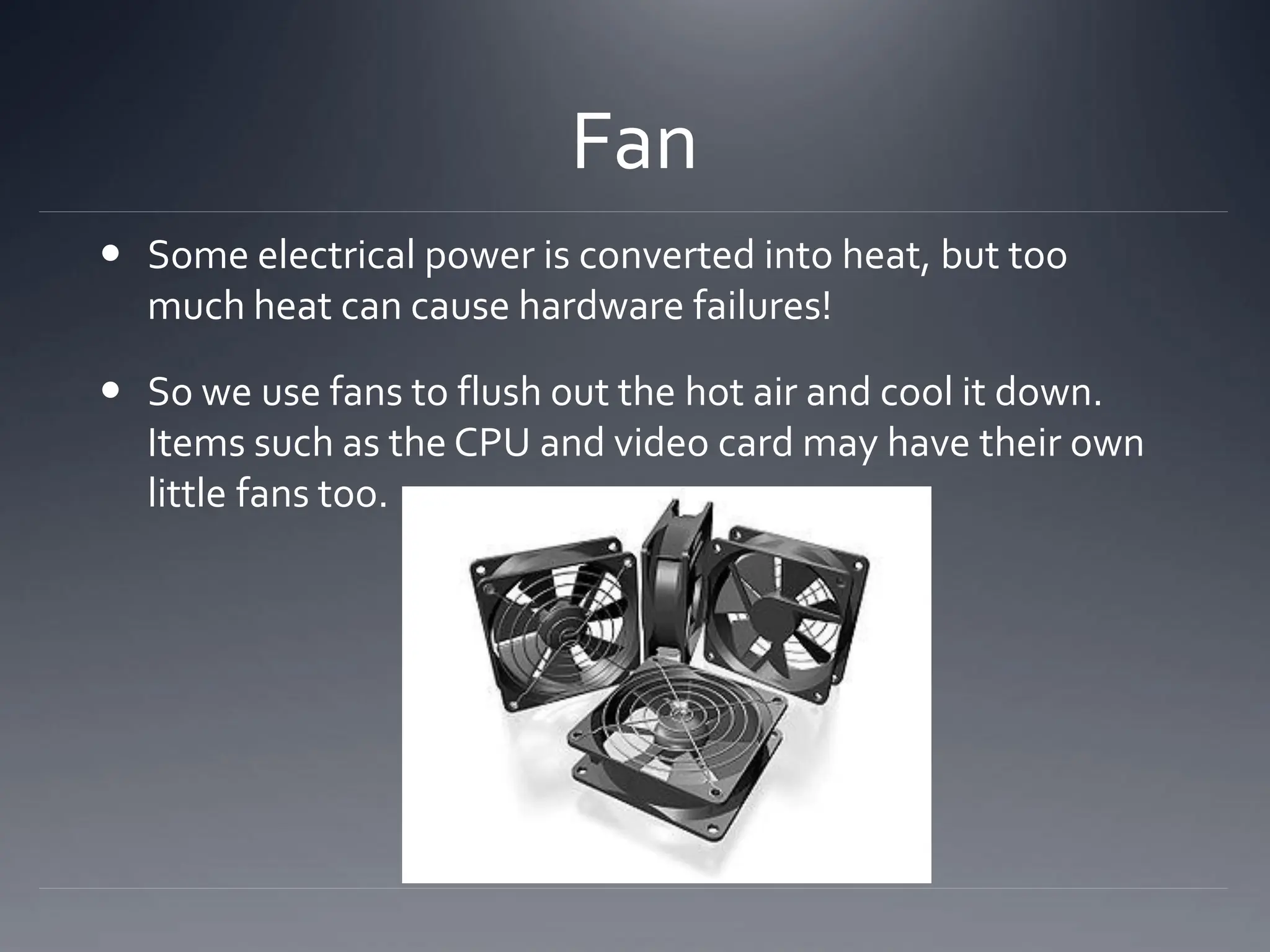
Fan
 Some electrical power is converted into heat, but too
much heat can cause hardware failures!
 So we use fans to flush out the hot air and cool it down.
Items such as the CPU and video card may have their own
little fans too.
More!!!
 I/O devices
 Monitor
 A few fun things
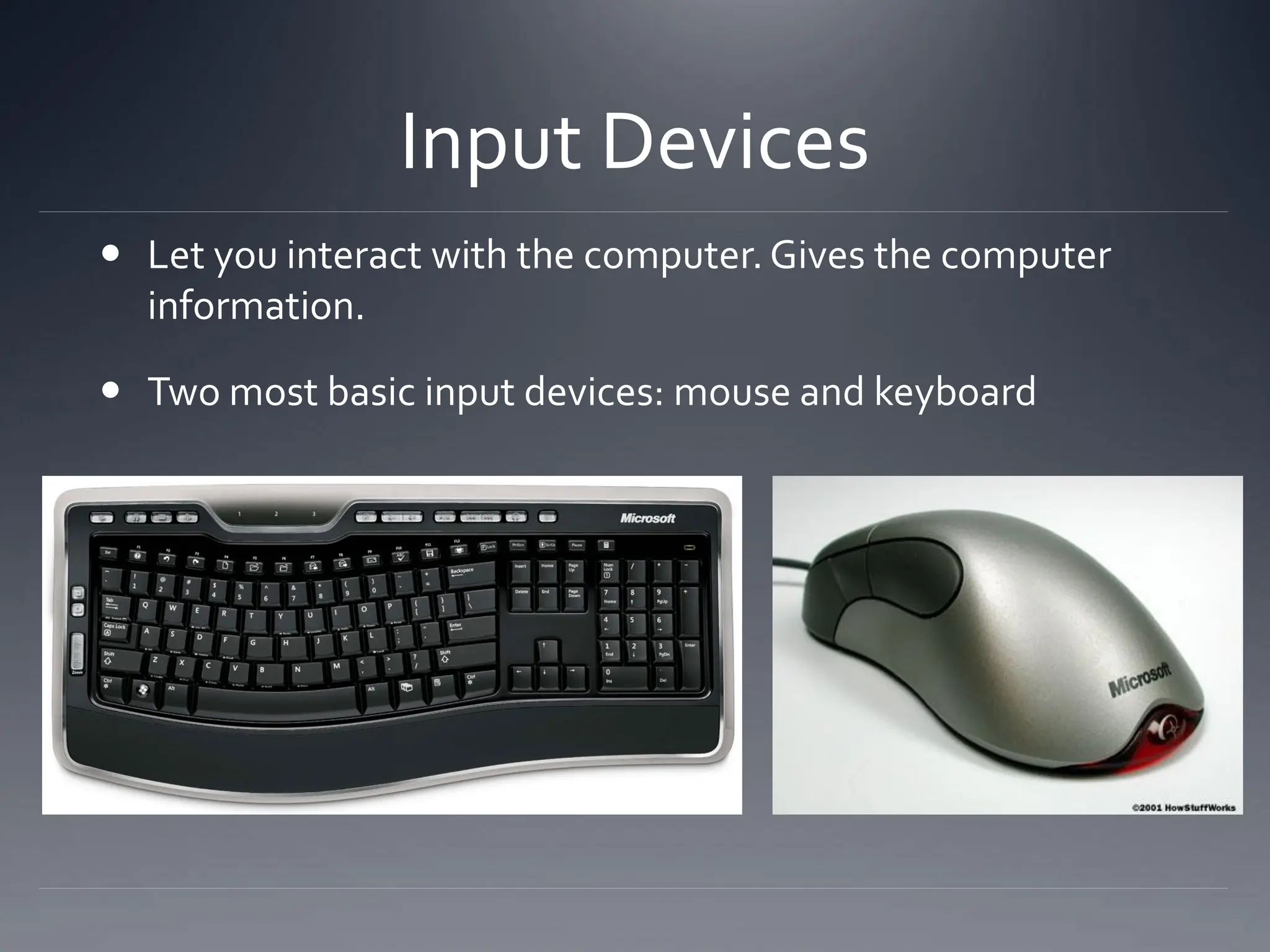
Input Devices
 Let you interact with the computer. Gives the computer
information.
 Two most basic input devices: mouse and keyboard
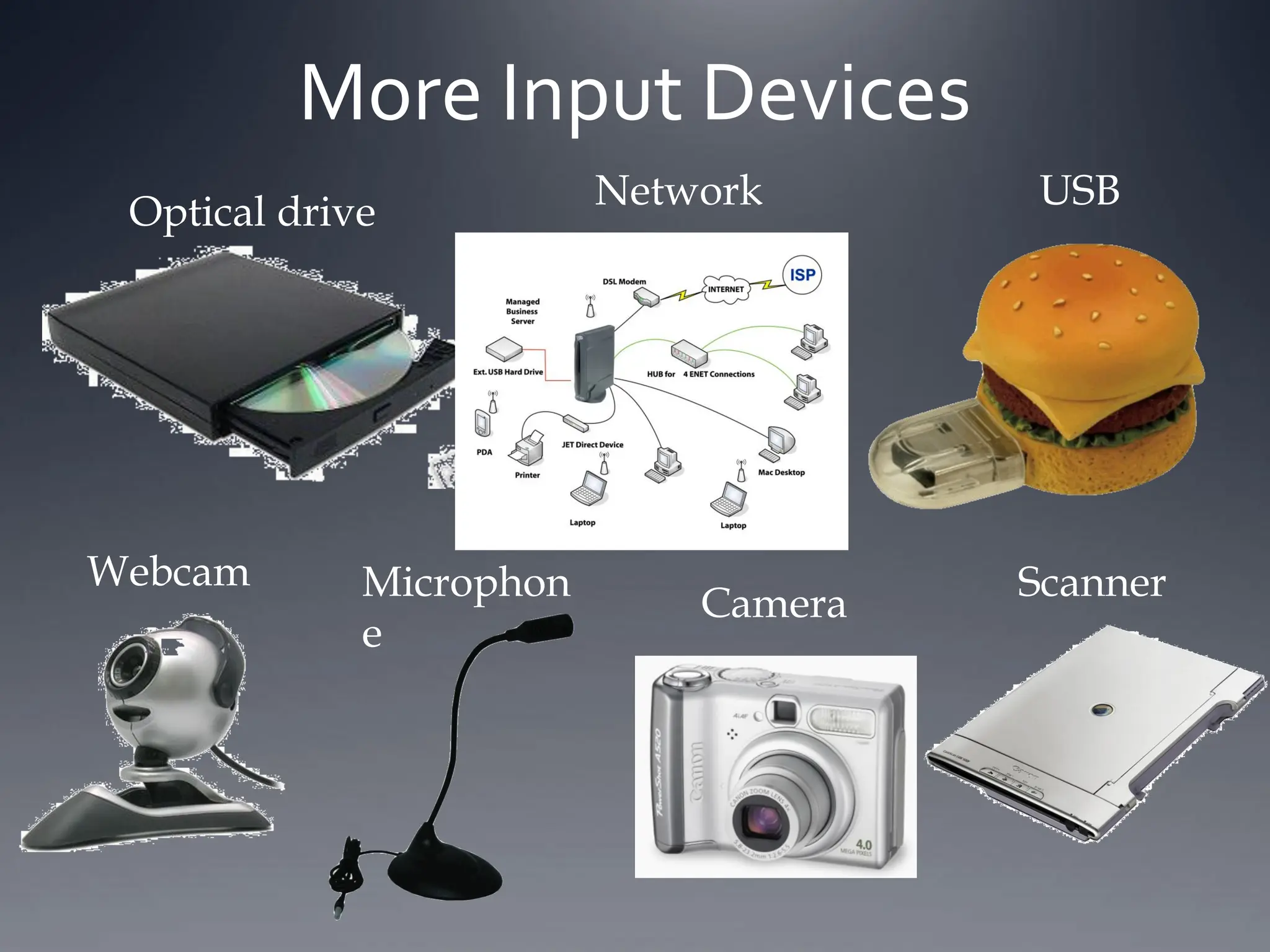
Optical drive
Webcam Scanner
USB
More Input Devices
Microphon
e
Network
Camera
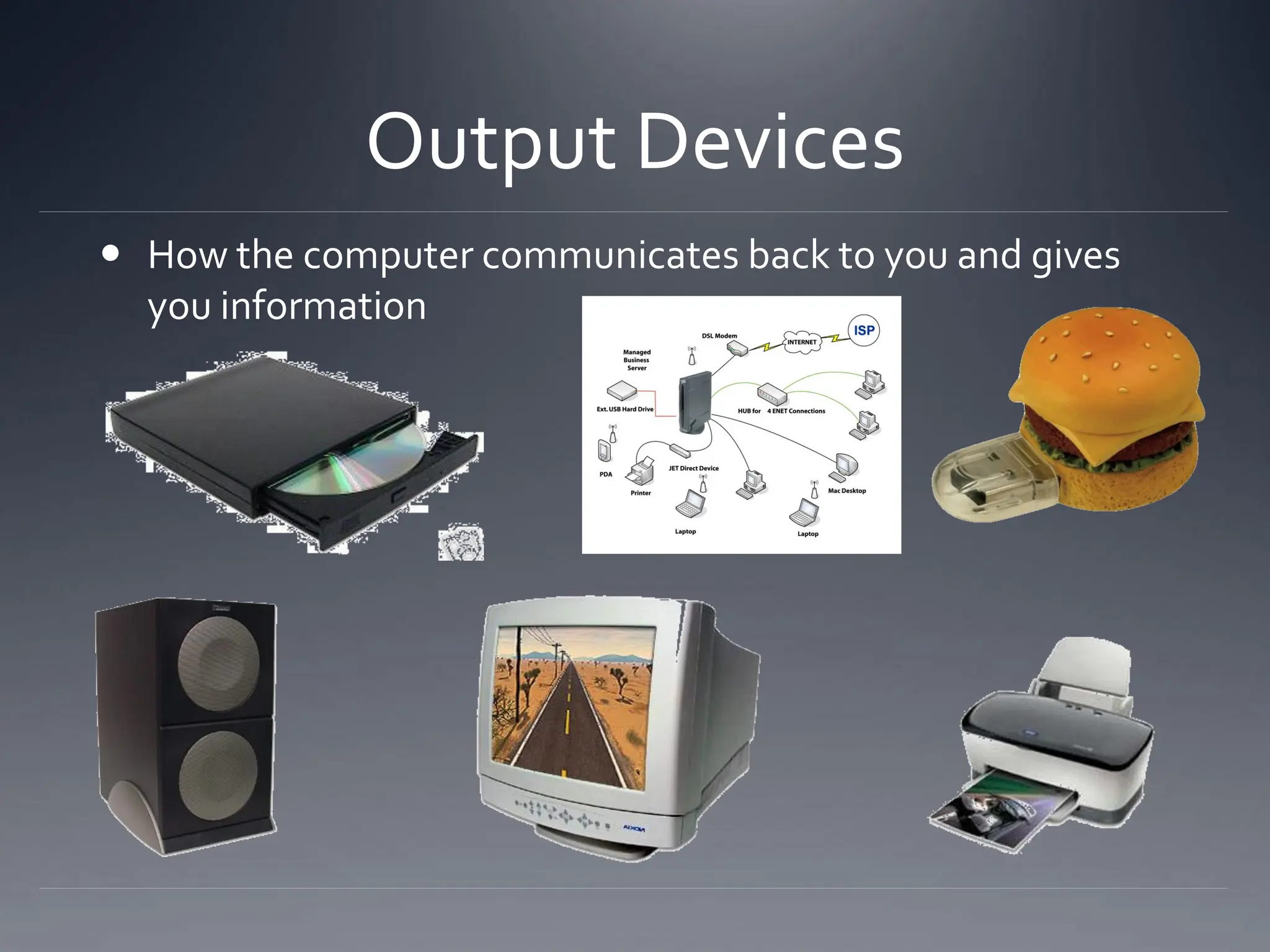
 How the computer communicates back to you and gives
you information
Output Devices
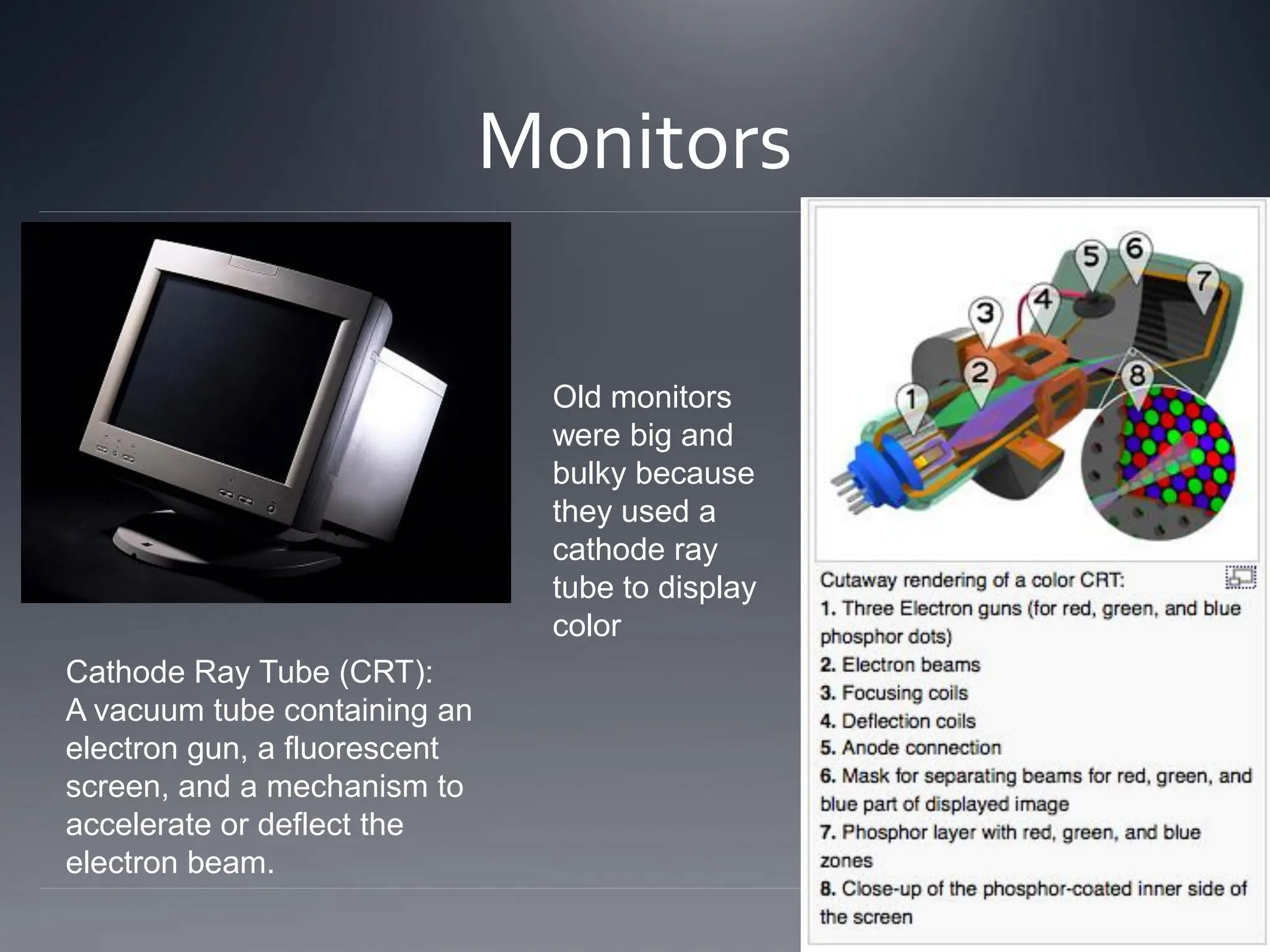
Monitors
Old monitors
were big and
bulky because
they used a
cathode ray
tube to display
color
Cathode Ray Tube (CRT):
A vacuum tube containing an
electron gun, a fluorescent
screen, and a mechanism to
accelerate or deflect the
electron beam.
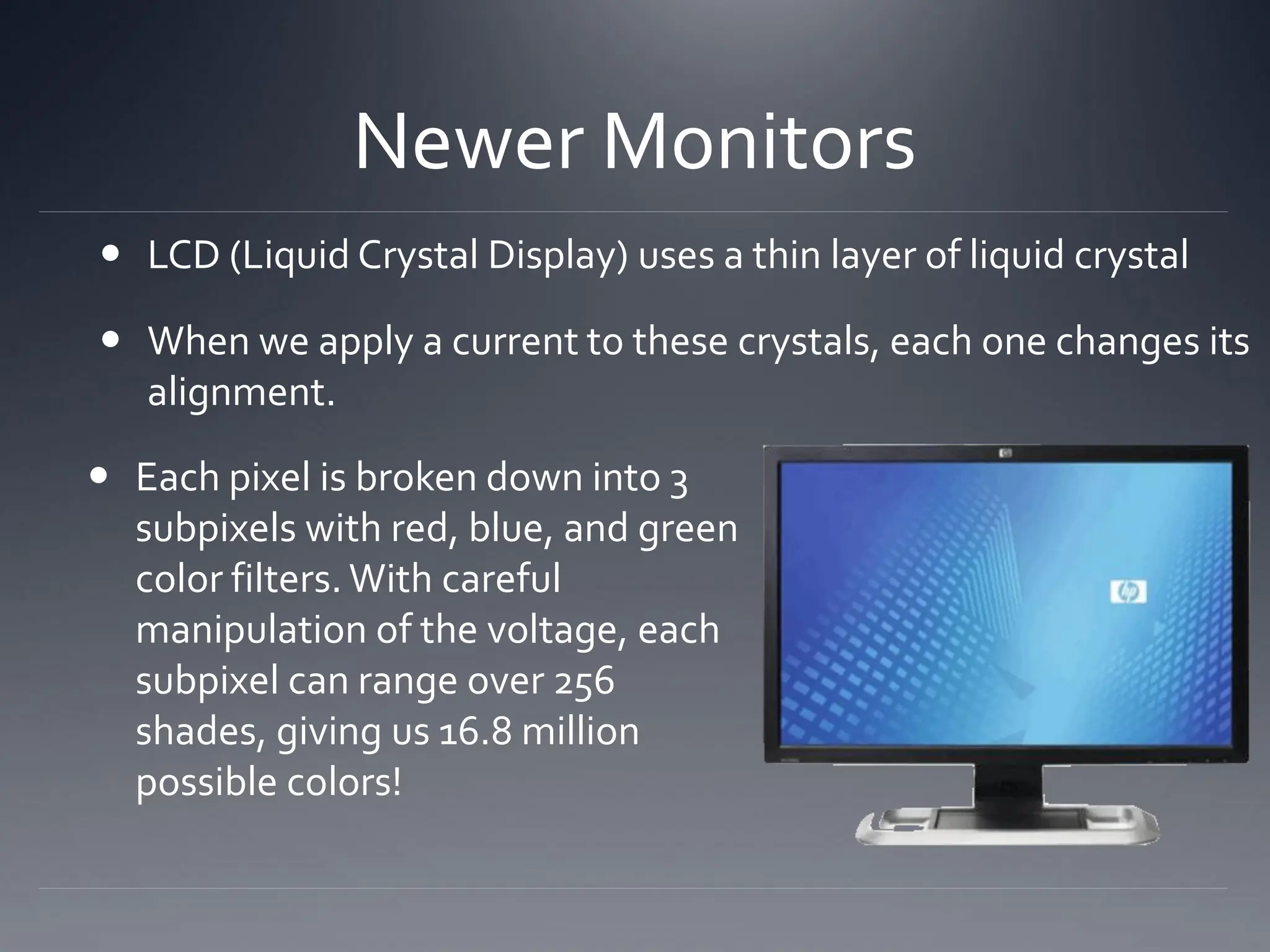
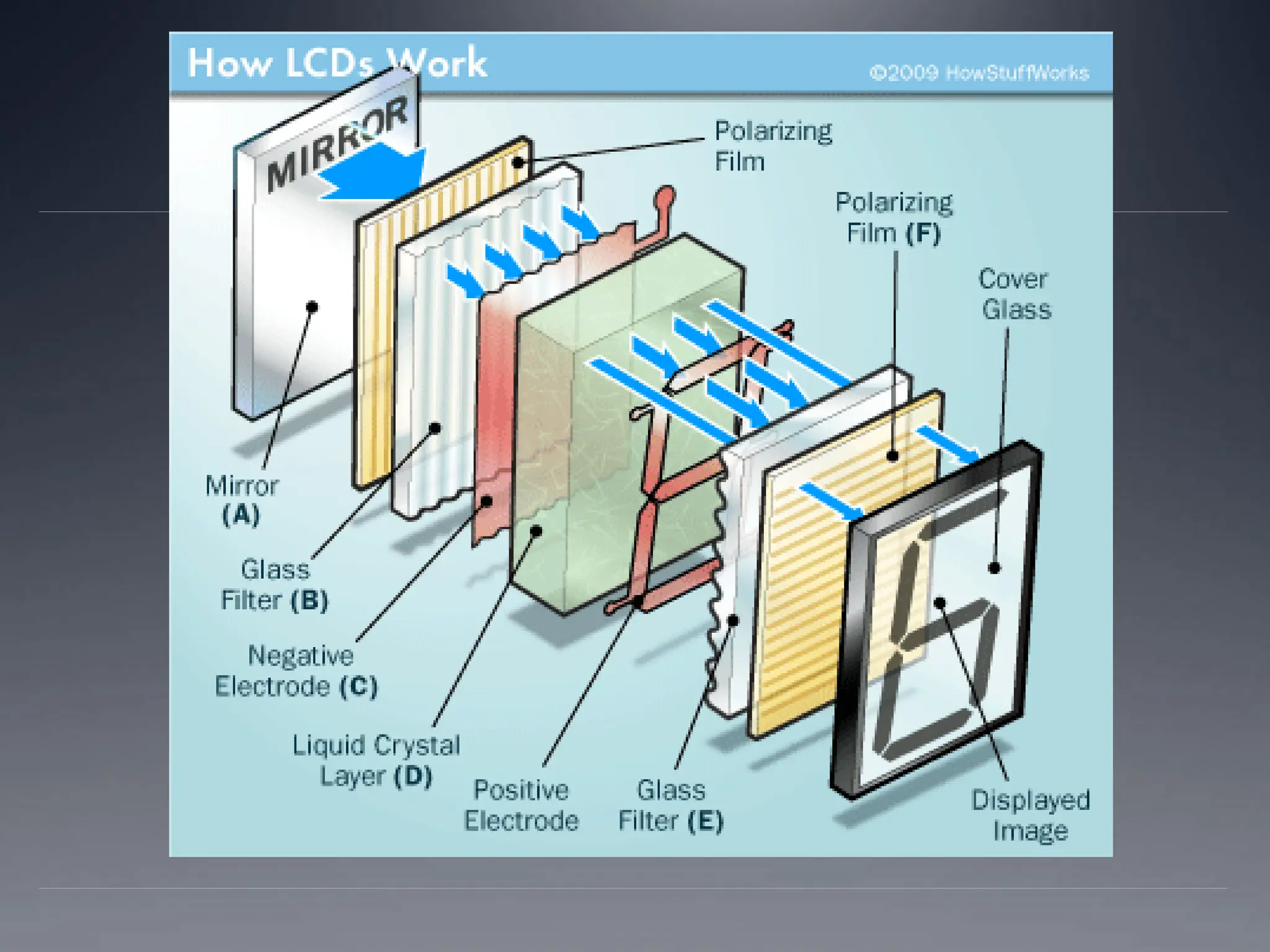
 LCD (Liquid Crystal Display) uses a thin layer of liquid crystal
 When we apply a current to these crystals, each one changes its
alignment.
Newer Monitors
 Each pixel is broken down into 3
subpixels with red, blue, and green
color filters. With careful
manipulation of the voltage, each
subpixel can range over 256
shades, giving us 16.8 million
possible colors!
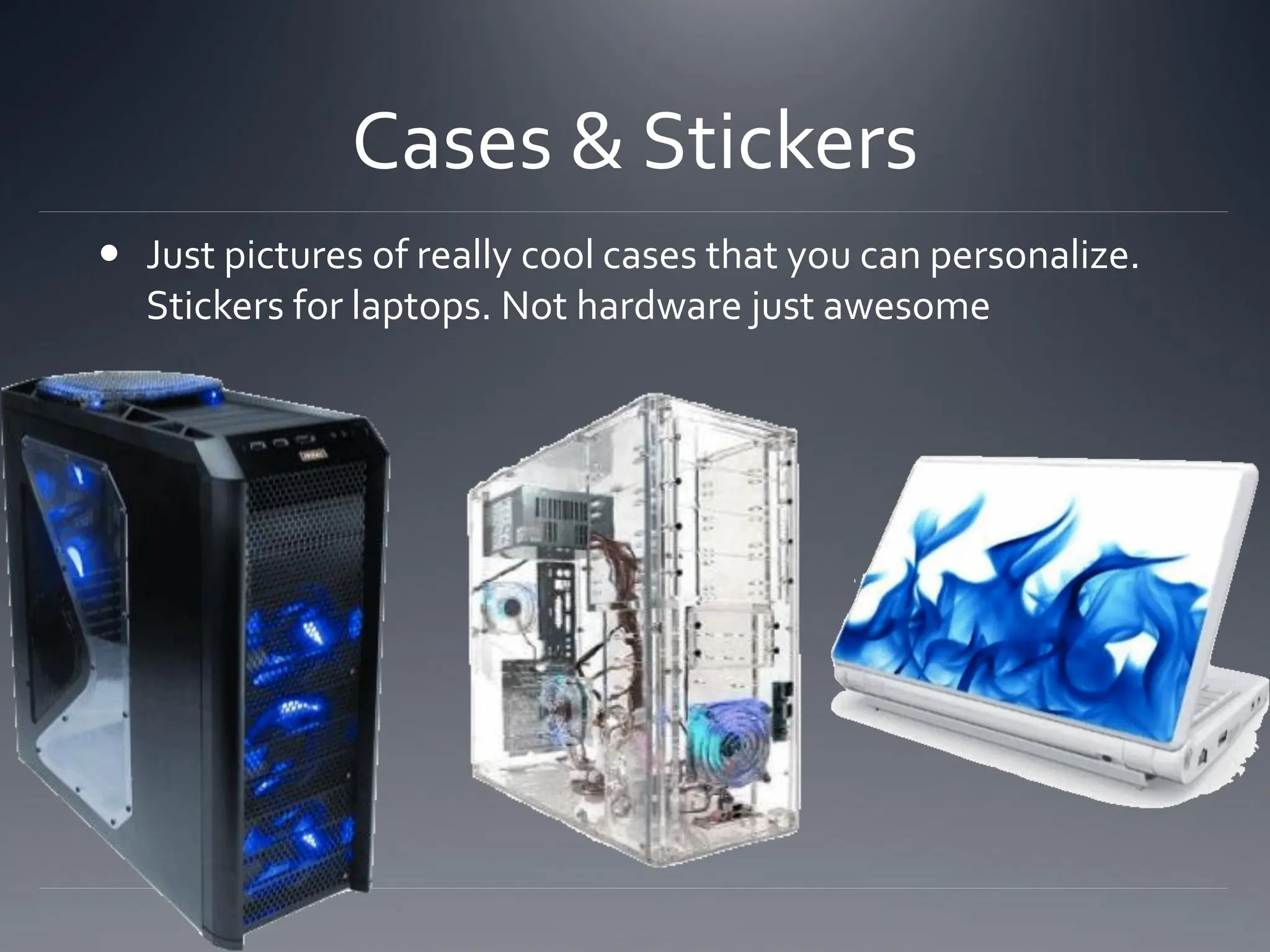
Cases & Stickers
 Just pictures of really cool cases that you can personalize.
Stickers for laptops. Not hardware just awesome
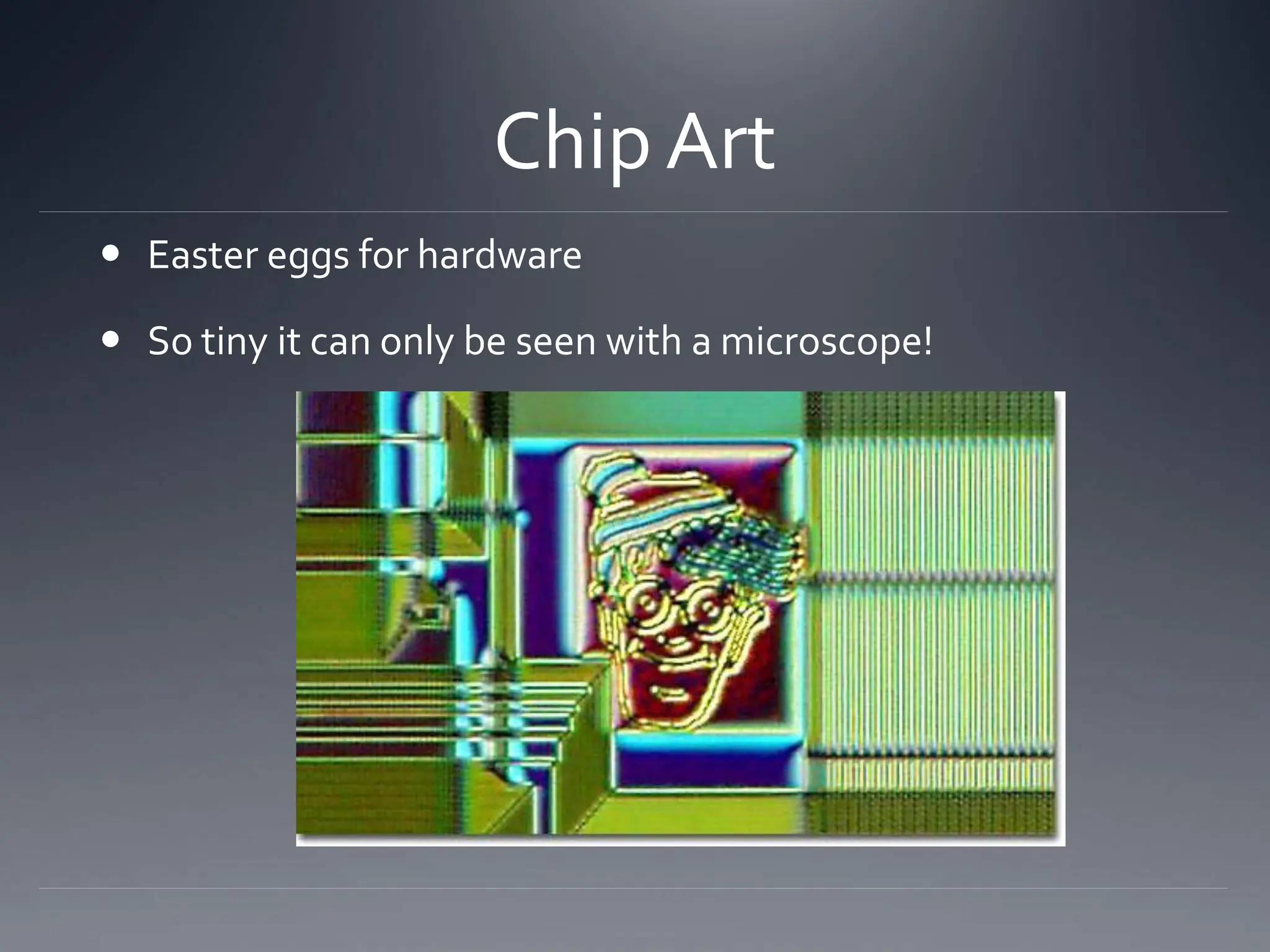
Chip Art
 Easter eggs for hardware
 So tiny it can only be seen with a microscope!
Any Questions?

hardware_computer__This shows the tools needed to operate a computer.pdf

  • 1.
  • 2.
    Inside the case… Motherboard  CPU  Hard Disk  Memory  Video Card  SoundCard  Ethernet Card  Optical Drive  Power Supply  Fan http://www.youtube.com/watch?v=-GQmtITMdas
  • 3.
    Motherboard (Logic Board) Heart of the computer  Everything connects to it, sometimes integrated into the board itself.
  • 4.
    CPU  CPU =Central Processing Unit, AKA Microprocessor  Brain of the computer  Runs software, carries out the instructions of a program  Uses an integrated circuit to transfer information. For many years, CPUs were manufactured with many ICs. Microprocessors use just a couple, or even only one.This makes data transfer much faster.
  • 5.
    Moore’s Law  Intelco-founderGordon E. Moore in 1965:  The number of transistors that can be placed inexpensively on an IC doubles approximately every two years, expected to continue like this for at least 10 years  As transistor counts climb so does the ability to increase device complexity and integrate many capabilities onto a chip.  Once you reach a physical limit on the size of a CPU, the focus starts moving towards multi-core CPUs (parallel computing) and increasing the space on hard drives.
  • 6.
    Hard Disk  HoldsALL of your data, even when the power is off  Looks kind of like a mini record player  Data is magnetically read from and written to the platter by read/write heads that float on a film of air above.
  • 7.
    Hard Disk (cont.) In the hard disk is a series of microscopic wells in a ferromagnetic platter.  Data is stored by using special magnet to push/pull electrons into and out of these wells.  This is the basis for binary: an electron is present = 1, no electrons present = 0.  Like Moore’s Law for CPUs, we are learning how to hold more data in smaller spaces, which makes some people a lot of
  • 8.
    Memory Memory is wherethe processor stores the program it is running and the information the program is using. There are two main types of memory: • Read Only Memory or ROM • Random Access Memory or RAM
  • 9.
    RAM (Random AccessMemory)  Holds the data for the software you are currently using (cache)  Upgrading the RAM speeds up your computer, because you can store data that you use regularly instead of having to continually go through the trouble of grabbing it from the hard disk (similar to internet caches)  Most computers hold 4 slots for RAM
  • 10.
    ROM (Read-Only Memory) Contains firmware instructions and boot information (BIOS) about the computer, not even the operating system.  Hardware specific, can’t modify it
  • 11.
    Video Card  Createsthe images you see on your monitor  Motherboards come with integrated video hardware with basic stuff, but a video card is like an expansion pack and lets you render more demanding visuals, video encoding, andTV/multi-monitor output  Has its own RAM and processor
  • 12.
    Sound Card  Takessound information and feeds to the speakers  Like the video card except for audio  Sound capacity is also built in, but a sound card facilitates the audio output from software, like audio file conversion and audio/video editing
  • 13.
    Ethernet Card  Connectsa computer to a network (either a local network or the internet- Ethernet, Wi-Fi, LAN, etc.)  Every Ethernet network controller has a unique 48-bit serial number called a MAC address (kind of like an IP address), which is stored in its own personal ROM.  Many modern motherboards have these built in now
  • 14.
    Optical Drive (CD/DVDdrive)  Called the “optical drive” because it uses optical lens to guide the laser light that reads and writes CDs and DVDs (and now Blu-Ray)  DVD players are optical drives forTV  Will probably be obsolete soon
  • 15.
    Power Supply  Prettystraight-forward- takes in electricity from the wall through a cord, those electrons power the other components and some are diverted to store data  Surprisingly big and heavy in desktop computers  Most modern desktop computer power supplies are ATX (AdvancedTechnology eXtended), and are turned on/off by a switch on the motherboard
  • 16.
    Fan  Some electricalpower is converted into heat, but too much heat can cause hardware failures!  So we use fans to flush out the hot air and cool it down. Items such as the CPU and video card may have their own little fans too.
  • 17.
    More!!!  I/O devices Monitor  A few fun things
  • 18.
    Input Devices  Letyou interact with the computer. Gives the computer information.  Two most basic input devices: mouse and keyboard
  • 19.
    Optical drive Webcam Scanner USB MoreInput Devices Microphon e Network Camera
  • 20.
     How thecomputer communicates back to you and gives you information Output Devices
  • 21.
    Monitors Old monitors were bigand bulky because they used a cathode ray tube to display color Cathode Ray Tube (CRT): A vacuum tube containing an electron gun, a fluorescent screen, and a mechanism to accelerate or deflect the electron beam.
  • 22.
     LCD (LiquidCrystal Display) uses a thin layer of liquid crystal  When we apply a current to these crystals, each one changes its alignment. Newer Monitors  Each pixel is broken down into 3 subpixels with red, blue, and green color filters. With careful manipulation of the voltage, each subpixel can range over 256 shades, giving us 16.8 million possible colors!
  • 24.
    Cases & Stickers Just pictures of really cool cases that you can personalize. Stickers for laptops. Not hardware just awesome
  • 25.
    Chip Art  Eastereggs for hardware  So tiny it can only be seen with a microscope!
  • 26.