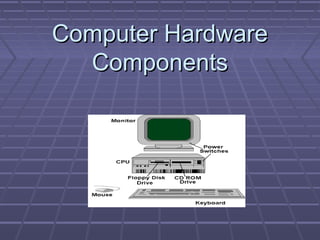
Computer Hardware
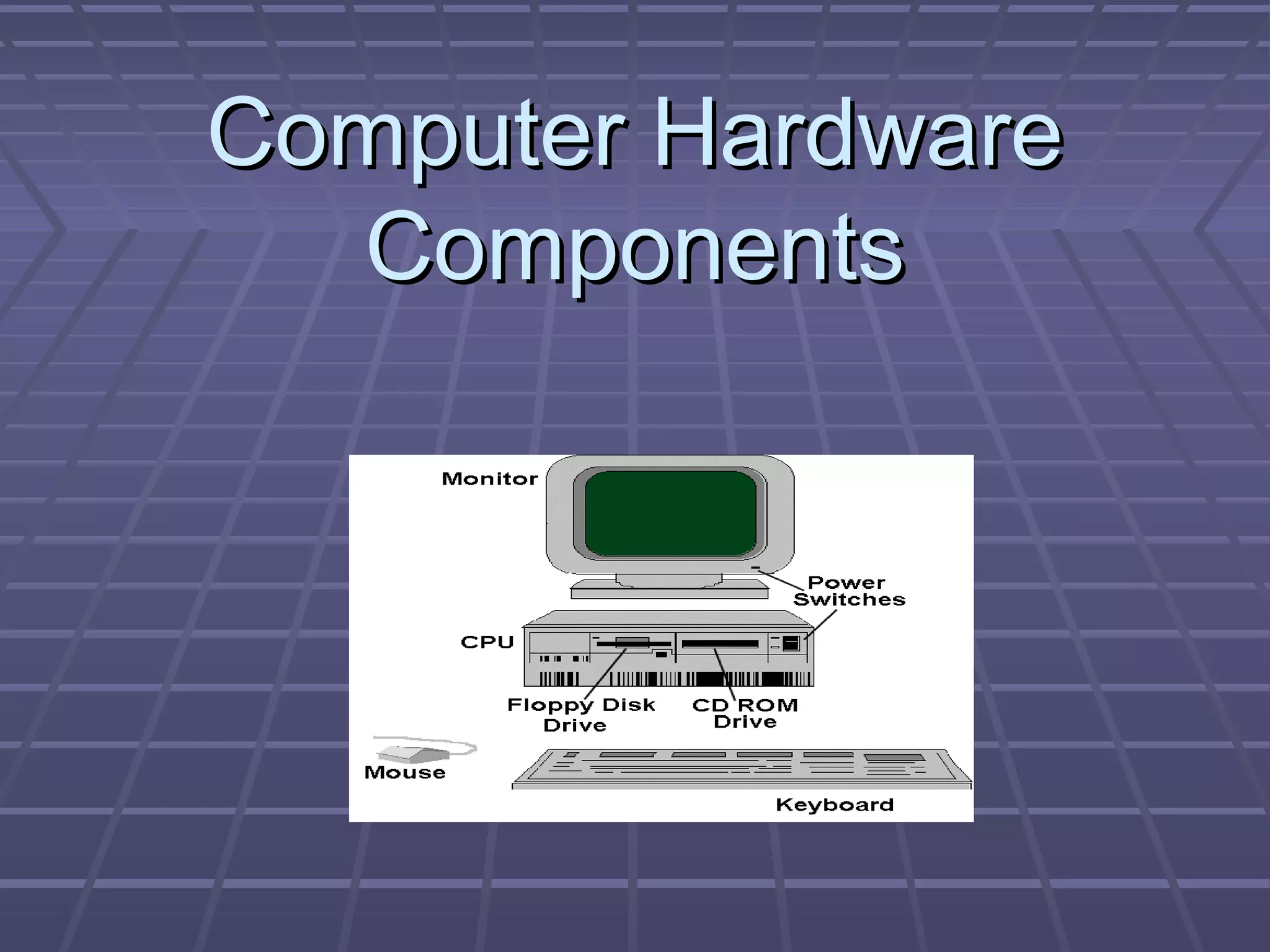
Computer Hardware
Components
Components
Computer Hardware
Computer Hardware
components
components
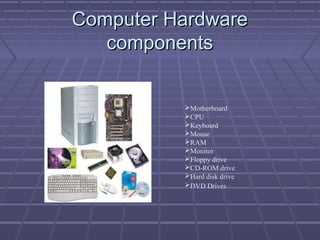
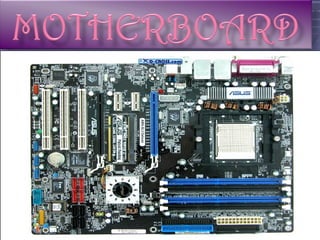
Motherboard
CPU
Keyboard
Mouse
RAM
Monitor
Floppy drive
CD-ROM drive
Hard disk drive
DVD Drives
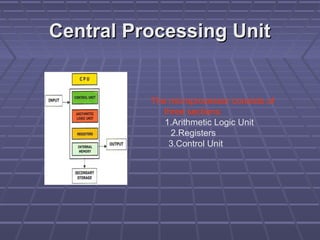
Central Processing Unit
The microprocessor consists of
three sections:
1.Arithmetic Logic Unit
2.Registers
3.Control Unit
MOTHERBOARD
MOTHERBOARD
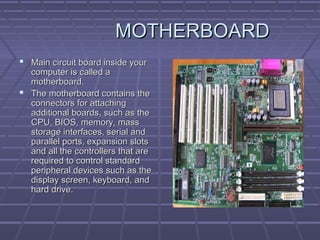
 Main circuit board inside your
Main circuit board inside your
computer is called a
motherboard.
motherboard.
 The motherboard contains the
The motherboard contains the
connectors for attaching
additional boards, such as the
CPU, BIOS, memory, mass
storage interfaces, serial and
parallel ports, expansion slots
and all the controllers that are
required to control standard
peripheral devices such as the
display screen, keyboard, and
hard drive.
hard drive.
MOTHERBOARD
MOTHERBOARD
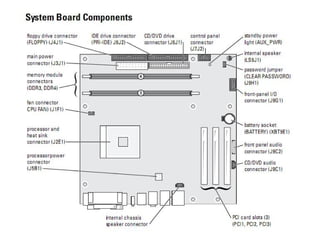
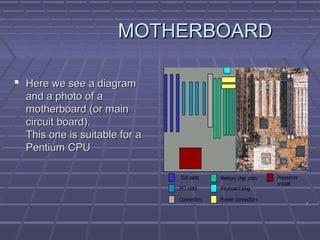
 Here we see a diagram
Here we see a diagram
and a photo of a
and a photo of a
motherboard (or main
circuit board).
circuit board).
This one is suitable for a
Pentium CPU
Pentium CPU
PCI SLOTS
PCI SLOTS
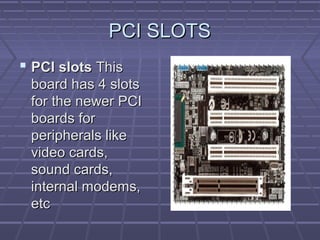
 PCI slots
PCI slots This
This
board has 4 slots
board has 4 slots
for the newer PCI
for the newer PCI
boards for
boards for
peripherals like
peripherals like
video cards,
video cards,
sound cards,
sound cards,
internal modems,
internal modems,
etc
etc
MEMORY SLOT
MEMORY SLOT
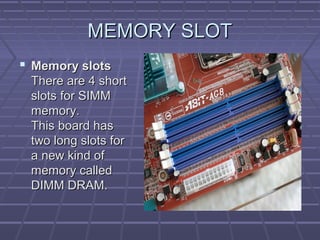
 Memory slots
Memory slots
There are 4 short
There are 4 short
slots for SIMM
slots for SIMM
memory.
memory.
This board has
This board has
two long slots for
two long slots for
a new kind of
a new kind of
memory called
memory called
DIMM DRAM.
DIMM DRAM.
MOTHERBOARD
MOTHERBOARD
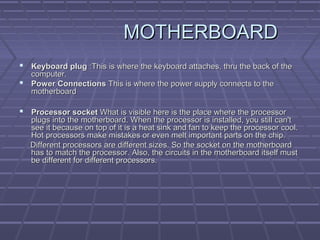
 Keyboard plug
Keyboard plug :This is where the keyboard attaches, thru the back of the
:This is where the keyboard attaches, thru the back of the
computer.
computer.
 Power Connections
Power Connections This is where the power supply connects to the
This is where the power supply connects to the
motherboard
motherboard
 Processor socket
Processor socket What is visible here is the place where the processor
What is visible here is the place where the processor
plugs into the motherboard. When the processor is installed, you still can't
see it because on top of it is a heat sink and fan to keep the processor cool.
Hot processors make mistakes or even melt important parts on the chip.
Different processors are different sizes. So the socket on the motherboard
has to match the processor. Also, the circuits in the motherboard itself must
be different for different processors.
RAM
RAM
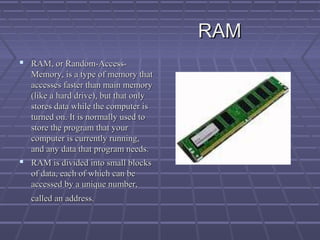
 RAM, or Random-Access-
RAM, or Random-Access-
Memory, is a type of memory that
accesses faster than main memory
(like a hard drive), but that only
stores data while the computer is
turned on. It is normally used to
store the program that your
computer is currently running,
and any data that program needs.
 RAM is divided into small blocks
RAM is divided into small blocks
of data, each of which can be
accessed by a unique number,
called an address.
called an address.
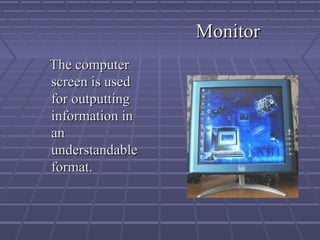
Monitor
Monitor
The computer
The computer
screen is used
screen is used
for outputting
for outputting
information in
information in
an
an
understandable
understandable
format.
format.
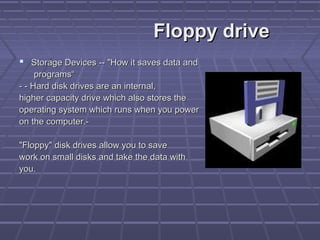
Floppy drive
Floppy drive
 Storage Devices -- "How it saves data and
Storage Devices -- "How it saves data and
programs“
programs“
- - Hard disk drives are an internal,
higher capacity drive which also stores the
operating system which runs when you power
on the computer.-
on the computer.-
"Floppy" disk drives allow you to save
work on small disks and take the data with
you.
you.
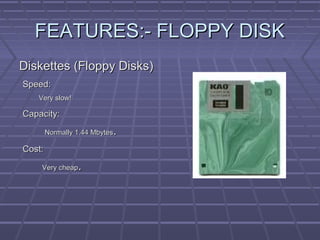
FEATURES:- FLOPPY DISK
Diskettes (Floppy Disks)
Speed:
Speed:
Very slow!
Very slow!
Capacity:
Capacity:
Normally 1.44 Mbytes
Normally 1.44 Mbytes.
.
Cost:
Cost:
Very cheap
Very cheap.
.
EXTRA FEATURES
EXTRA FEATURES
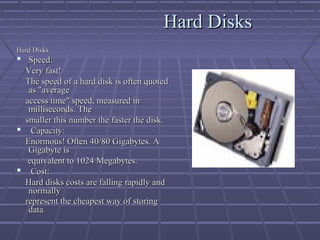
Hard Disks
Hard Disks
Hard Disks
Hard Disks
 Speed:
Speed:
Very fast!
Very fast!
The speed of a hard disk is often quoted
as "average
as "average
access time" speed, measured in
milliseconds. The
milliseconds. The
smaller this number the faster the disk.
 Capacity:
Capacity:
Enormous! Often 40/80 Gigabytes. A
Gigabyte is
Gigabyte is
equivalent to 1024 Megabytes.
 Cost:
Cost:
Hard disks costs are falling rapidly and
normally
normally
represent the cheapest way of storing
data
data.
.
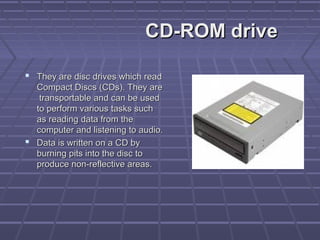
CD-ROM drive
CD-ROM drive
 They are disc drives which read
They are disc drives which read
Compact Discs (CDs). They are
transportable and can be used
to perform various tasks such
as reading data from the
computer and listening to audio.
 Data is written on a CD by
Data is written on a CD by
burning pits into the disc to
produce non-reflective areas.
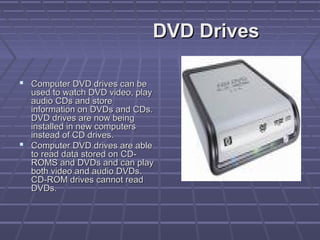
DVD Drives
DVD Drives
 Computer DVD drives can be
Computer DVD drives can be
used to watch DVD video, play
audio CDs and store
audio CDs and store
information on DVDs and CDs.
DVD drives are now being
installed in new computers
instead of CD drives.
 Computer DVD drives are able
Computer DVD drives are able
to read data stored on CD-
ROMS and DVDs and can play
both video and audio DVDs.
CD-ROM drives cannot read
DVDs.
DVDs.

computer hardware component.pdf

  • 1.
  • 2.
  • 5.
    Central Processing Unit CentralProcessing Unit The microprocessor consists of three sections: 1.Arithmetic Logic Unit 2.Registers 3.Control Unit
  • 6.
    MOTHERBOARD MOTHERBOARD  Main circuitboard inside your Main circuit board inside your computer is called a computer is called a motherboard. motherboard.  The motherboard contains the The motherboard contains the connectors for attaching connectors for attaching additional boards, such as the additional boards, such as the CPU, BIOS, memory, mass CPU, BIOS, memory, mass storage interfaces, serial and storage interfaces, serial and parallel ports, expansion slots parallel ports, expansion slots and all the controllers that are and all the controllers that are required to control standard required to control standard peripheral devices such as the peripheral devices such as the display screen, keyboard, and display screen, keyboard, and hard drive. hard drive.
  • 7.
    MOTHERBOARD MOTHERBOARD  Here wesee a diagram Here we see a diagram and a photo of a and a photo of a motherboard (or main motherboard (or main circuit board). circuit board). This one is suitable for a This one is suitable for a Pentium CPU Pentium CPU
  • 8.
    PCI SLOTS PCI SLOTS PCI slots PCI slots This This board has 4 slots board has 4 slots for the newer PCI for the newer PCI boards for boards for peripherals like peripherals like video cards, video cards, sound cards, sound cards, internal modems, internal modems, etc etc
  • 9.
    MEMORY SLOT MEMORY SLOT Memory slots Memory slots There are 4 short There are 4 short slots for SIMM slots for SIMM memory. memory. This board has This board has two long slots for two long slots for a new kind of a new kind of memory called memory called DIMM DRAM. DIMM DRAM.
  • 10.
    MOTHERBOARD MOTHERBOARD  Keyboard plug Keyboardplug :This is where the keyboard attaches, thru the back of the :This is where the keyboard attaches, thru the back of the computer. computer.  Power Connections Power Connections This is where the power supply connects to the This is where the power supply connects to the motherboard motherboard  Processor socket Processor socket What is visible here is the place where the processor What is visible here is the place where the processor plugs into the motherboard. When the processor is installed, you still can't plugs into the motherboard. When the processor is installed, you still can't see it because on top of it is a heat sink and fan to keep the processor cool. see it because on top of it is a heat sink and fan to keep the processor cool. Hot processors make mistakes or even melt important parts on the chip. Hot processors make mistakes or even melt important parts on the chip. Different processors are different sizes. So the socket on the motherboard Different processors are different sizes. So the socket on the motherboard has to match the processor. Also, the circuits in the motherboard itself must has to match the processor. Also, the circuits in the motherboard itself must be different for different processors. be different for different processors.
  • 11.
    RAM RAM  RAM, orRandom-Access- RAM, or Random-Access- Memory, is a type of memory that Memory, is a type of memory that accesses faster than main memory accesses faster than main memory (like a hard drive), but that only (like a hard drive), but that only stores data while the computer is stores data while the computer is turned on. It is normally used to turned on. It is normally used to store the program that your store the program that your computer is currently running, computer is currently running, and any data that program needs. and any data that program needs.  RAM is divided into small blocks RAM is divided into small blocks of data, each of which can be of data, each of which can be accessed by a unique number, accessed by a unique number, called an address. called an address.
  • 12.
    Monitor Monitor The computer The computer screenis used screen is used for outputting for outputting information in information in an an understandable understandable format. format.
  • 13.
    Floppy drive Floppy drive Storage Devices -- "How it saves data and Storage Devices -- "How it saves data and programs“ programs“ - - Hard disk drives are an internal, - - Hard disk drives are an internal, higher capacity drive which also stores the higher capacity drive which also stores the operating system which runs when you power operating system which runs when you power on the computer.- on the computer.- "Floppy" disk drives allow you to save "Floppy" disk drives allow you to save work on small disks and take the data with work on small disks and take the data with you. you.
  • 14.
    FEATURES:- FLOPPY DISK FEATURES:-FLOPPY DISK Diskettes (Floppy Disks) Diskettes (Floppy Disks) Speed: Speed: Very slow! Very slow! Capacity: Capacity: Normally 1.44 Mbytes Normally 1.44 Mbytes. . Cost: Cost: Very cheap Very cheap. .
  • 15.
  • 16.
    Hard Disks Hard Disks HardDisks Hard Disks  Speed: Speed: Very fast! Very fast! The speed of a hard disk is often quoted The speed of a hard disk is often quoted as "average as "average access time" speed, measured in access time" speed, measured in milliseconds. The milliseconds. The smaller this number the faster the disk. smaller this number the faster the disk.  Capacity: Capacity: Enormous! Often 40/80 Gigabytes. A Enormous! Often 40/80 Gigabytes. A Gigabyte is Gigabyte is equivalent to 1024 Megabytes. equivalent to 1024 Megabytes.  Cost: Cost: Hard disks costs are falling rapidly and Hard disks costs are falling rapidly and normally normally represent the cheapest way of storing represent the cheapest way of storing data data. .
  • 17.
    CD-ROM drive CD-ROM drive They are disc drives which read They are disc drives which read Compact Discs (CDs). They are Compact Discs (CDs). They are transportable and can be used transportable and can be used to perform various tasks such to perform various tasks such as reading data from the as reading data from the computer and listening to audio. computer and listening to audio.  Data is written on a CD by Data is written on a CD by burning pits into the disc to burning pits into the disc to produce non-reflective areas. produce non-reflective areas.
  • 18.
    DVD Drives DVD Drives Computer DVD drives can be Computer DVD drives can be used to watch DVD video, play used to watch DVD video, play audio CDs and store audio CDs and store information on DVDs and CDs. information on DVDs and CDs. DVD drives are now being DVD drives are now being installed in new computers installed in new computers instead of CD drives. instead of CD drives.  Computer DVD drives are able Computer DVD drives are able to read data stored on CD- to read data stored on CD- ROMS and DVDs and can play ROMS and DVDs and can play both video and audio DVDs. both video and audio DVDs. CD-ROM drives cannot read CD-ROM drives cannot read DVDs. DVDs.