GUIDELINE: SITECORE 9
INSTALLATION
PREREQUISITES
STEPS TO SETUP SITECORE 9
TIPS TO FIX ERROR WHILE SETUP 
PRADEEP GUPTA
PREREQUISITES
• Windows 10
• Web deploy 3.6
• Solr & NSSM (to create Solr web service)
• SQL 2016 or later Version
• JRE 8 or later Version
• SIF Installation Framework
• Packages for XP Single
• SIFLess.exe (For Quick Installation)
CHECKLIST BEFORE START
• Windows 10
• .NET Framework 4.6.2 or later
• Web Deploy 3.6 (download URL)
• IIS Configured (with the help of “Turn Windows Features on and off”)
• Create two directory as:
Sitecore InstanceName
Sitecore9_Repository
• Create Directory as ~/Sitecore9_Directory/License/ and
put the License.xml
LET’S START…
• Install JRE 8 or later version, download from JRE
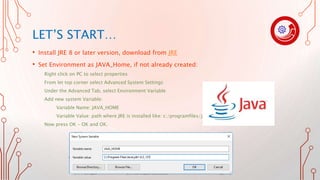
• Set Environment as JAVA_Home, if not already created:
Right click on PC to select properties
From let top corner select Advanced System Settings
Under the Advanced Tab, select Environment Variable
Add new system Variable:
Variable Name: JAVA_HOME
Variable Value: path where JRE is installed like: c:/programfiles/java/jre
Now press OK - OK and OK.
SQL SERVER
Here we are going to setup things with SQL 2017,
• Install SQL Server 2017 if not, download from SQL
• Install SQL Management Studio 2017 if not, download from SSMS
• Install SQL Server Data Tool 2017 if not, download from SSDT
SOLR
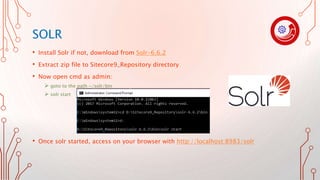
• Install Solr if not, download from Solr-6.6.2
• Extract zip file to Sitecore9_Repository directory
• Now open cmd as admin:
 goto to the path ~/solr/bin
 solr start
• Once solr started, access on your browser with http://localhost:8983/solr
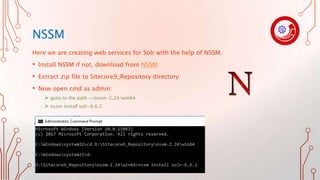
NSSM
Here we are creating web services for Solr with the help of NSSM.
• Install NSSM if not, download from NSSM
• Extract zip file to Sitecore9_Repository directory
• Now open cmd as admin:
 goto to the path ~/nssm-2.24/win64
 nssm install solr-6.6.2
CONTINUE WITH NSSM
• Once run the command to install nssm for solr, will open a popup:
Path: ~/solr/bin/solr.config
Startup Directory: will be automatically filled
Arguments: start –f –p 8983
• Once clicked on OK will show another popup as success.
Service “Service Name” installed Successfully.
• Please note after success fully creation for web services of solr, please check solr services
is running or not?
• If not, start solr service.
• May be it will be paused automatically and while trying to start/restart getting error as
“contact to admin” etc. 
In this case try to install another version of nssm by clicking here and follow all the above steps on this slide.
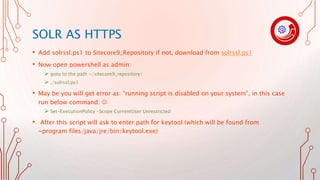
SOLR AS HTTPS
• Add solrssl.ps1 to Sitecore9_Repository if not, download from solrssl.ps1
• Now open powershell as admin:
 goto to the path ~/sitecore9_repository/
 ./solrssl.ps1
• May be you will get error as: “running script is disabled on your system”, in this case
run below command: 
 Set-ExecutionPolicy -Scope CurrentUser Unrestricted
• After this script will ask to enter path for keytool (which will be found from
~program files/java/jre/bin/keytool.exe)
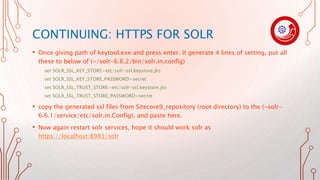
CONTINUING: HTTPS FOR SOLR
• Once giving path of keytool.exe and press enter. It generate 4 lines of setting, put all
these to below of (~/solr-6.6.2/bin/solr.in.config)
set SOLR_SSL_KEY_STORE=etc/solr-ssl.keystore.jks
set SOLR_SSL_KEY_STORE_PASSWORD=secret
set SOLR_SSL_TRUST_STORE=etc/solr-ssl.keystore.jks
set SOLR_SSL_TRUST_STORE_PASSWORD=secret
• copy the generated ssl files from Sitecore9_repository (root directory) to the (~solr-
6.6.1/service/etc/solr.in.Config), and paste here.
• Now again restart solr services, hope it should work solr as
https://localhost:8983/solr
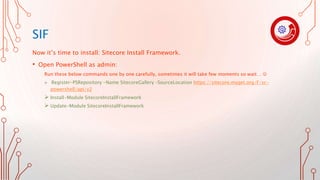
SIF
Now it’s time to install: Sitecore Install Framework.
• Open PowerShell as admin:
Run these below commands one by one carefully, sometimes it will take few moments so wait… 
 Register-PSRepository -Name SitecoreGallery –SourceLocation https://sitecore.myget.org/F/sc-
powershell/api/v2
 Install-Module SitecoreInstallFramework
 Update-Module SitecoreInstallFramework
SITECORE PACKAGE FOR XP SINGLE
• To add Sitecore packages in your sitecore9_Repository directory, you must download
below packages by accessing https://dev.sitecore.net/
• And download “Sitecore 9.0.0 rev. 171002 (WDP XP0 packages).zip” by logged in
with your credentials and extract this:
Sitecore 9.0.0 rev. 171002 (OnPrem)_single.scwdp.zip
Sitecore 9.0.0 rev. 171002 (OnPrem)_xp0xconnect.scwdp.zip
XP0 Configuration files rev.171002.zip
SITECORE CONFIGS
• First of all we extract XP0 Configuration files rev.171002.zip to
~/Sitecore9_Repository/Configs/
• Now will open sitecore-solr.json and xconnect-solr.json and will check path and
service name of solr is correct or not 
SIFLESS.EXE
• Now it’s time to take help of SIFLess, [for more info visit Blog]
• Download SIFLess.zip and extract to ~/Sitecore9_Repository/SIF/
• After this run SIFLess.exe and on EZ Mode fill all the field
• Click on test once everything getting green checks, click on Generate button.
CONTINUING WITH SIFLESS.EXE
Now will run generated final script to create sitecore 9 instance.
• Open PowerShell as admin:
 goto to the path ~/Sitecore9_Repository/SIF/
 ./SIFXXXXX.PS1
Now Sitecore will be Installed. Congrats…
REFERENCES
• Viet Hoang’s Blog, Thanx Viet.
• SIFLess.exe really great tool to save time and full-proof.
• https://stackoverflow.com
@ The content in this PPT is only to help while setup sitecore 9 on your local, with
non-profitable.
ANY FEEDBACK?
As said, The biggest room in this world is the room for improvement. So, your
suggestions would be deeply appreciated.

Guidlines sitecore9 installation

  • 1.
    GUIDELINE: SITECORE 9 INSTALLATION PREREQUISITES STEPSTO SETUP SITECORE 9 TIPS TO FIX ERROR WHILE SETUP  PRADEEP GUPTA
  • 2.
    PREREQUISITES • Windows 10 •Web deploy 3.6 • Solr & NSSM (to create Solr web service) • SQL 2016 or later Version • JRE 8 or later Version • SIF Installation Framework • Packages for XP Single • SIFLess.exe (For Quick Installation)
  • 3.
    CHECKLIST BEFORE START •Windows 10 • .NET Framework 4.6.2 or later • Web Deploy 3.6 (download URL) • IIS Configured (with the help of “Turn Windows Features on and off”) • Create two directory as: Sitecore InstanceName Sitecore9_Repository • Create Directory as ~/Sitecore9_Directory/License/ and put the License.xml
  • 4.
    LET’S START… • InstallJRE 8 or later version, download from JRE • Set Environment as JAVA_Home, if not already created: Right click on PC to select properties From let top corner select Advanced System Settings Under the Advanced Tab, select Environment Variable Add new system Variable: Variable Name: JAVA_HOME Variable Value: path where JRE is installed like: c:/programfiles/java/jre Now press OK - OK and OK.
  • 5.
    SQL SERVER Here weare going to setup things with SQL 2017, • Install SQL Server 2017 if not, download from SQL • Install SQL Management Studio 2017 if not, download from SSMS • Install SQL Server Data Tool 2017 if not, download from SSDT
  • 6.
    SOLR • Install Solrif not, download from Solr-6.6.2 • Extract zip file to Sitecore9_Repository directory • Now open cmd as admin:  goto to the path ~/solr/bin  solr start • Once solr started, access on your browser with http://localhost:8983/solr
  • 7.
    NSSM Here we arecreating web services for Solr with the help of NSSM. • Install NSSM if not, download from NSSM • Extract zip file to Sitecore9_Repository directory • Now open cmd as admin:  goto to the path ~/nssm-2.24/win64  nssm install solr-6.6.2
  • 8.
    CONTINUE WITH NSSM •Once run the command to install nssm for solr, will open a popup: Path: ~/solr/bin/solr.config Startup Directory: will be automatically filled Arguments: start –f –p 8983 • Once clicked on OK will show another popup as success. Service “Service Name” installed Successfully. • Please note after success fully creation for web services of solr, please check solr services is running or not? • If not, start solr service. • May be it will be paused automatically and while trying to start/restart getting error as “contact to admin” etc.  In this case try to install another version of nssm by clicking here and follow all the above steps on this slide.
  • 9.
    SOLR AS HTTPS •Add solrssl.ps1 to Sitecore9_Repository if not, download from solrssl.ps1 • Now open powershell as admin:  goto to the path ~/sitecore9_repository/  ./solrssl.ps1 • May be you will get error as: “running script is disabled on your system”, in this case run below command:   Set-ExecutionPolicy -Scope CurrentUser Unrestricted • After this script will ask to enter path for keytool (which will be found from ~program files/java/jre/bin/keytool.exe)
  • 10.
    CONTINUING: HTTPS FORSOLR • Once giving path of keytool.exe and press enter. It generate 4 lines of setting, put all these to below of (~/solr-6.6.2/bin/solr.in.config) set SOLR_SSL_KEY_STORE=etc/solr-ssl.keystore.jks set SOLR_SSL_KEY_STORE_PASSWORD=secret set SOLR_SSL_TRUST_STORE=etc/solr-ssl.keystore.jks set SOLR_SSL_TRUST_STORE_PASSWORD=secret • copy the generated ssl files from Sitecore9_repository (root directory) to the (~solr- 6.6.1/service/etc/solr.in.Config), and paste here. • Now again restart solr services, hope it should work solr as https://localhost:8983/solr
  • 11.
    SIF Now it’s timeto install: Sitecore Install Framework. • Open PowerShell as admin: Run these below commands one by one carefully, sometimes it will take few moments so wait…   Register-PSRepository -Name SitecoreGallery –SourceLocation https://sitecore.myget.org/F/sc- powershell/api/v2  Install-Module SitecoreInstallFramework  Update-Module SitecoreInstallFramework
  • 12.
    SITECORE PACKAGE FORXP SINGLE • To add Sitecore packages in your sitecore9_Repository directory, you must download below packages by accessing https://dev.sitecore.net/ • And download “Sitecore 9.0.0 rev. 171002 (WDP XP0 packages).zip” by logged in with your credentials and extract this: Sitecore 9.0.0 rev. 171002 (OnPrem)_single.scwdp.zip Sitecore 9.0.0 rev. 171002 (OnPrem)_xp0xconnect.scwdp.zip XP0 Configuration files rev.171002.zip
  • 13.
    SITECORE CONFIGS • Firstof all we extract XP0 Configuration files rev.171002.zip to ~/Sitecore9_Repository/Configs/ • Now will open sitecore-solr.json and xconnect-solr.json and will check path and service name of solr is correct or not 
  • 14.
    SIFLESS.EXE • Now it’stime to take help of SIFLess, [for more info visit Blog] • Download SIFLess.zip and extract to ~/Sitecore9_Repository/SIF/ • After this run SIFLess.exe and on EZ Mode fill all the field • Click on test once everything getting green checks, click on Generate button.
  • 15.
    CONTINUING WITH SIFLESS.EXE Nowwill run generated final script to create sitecore 9 instance. • Open PowerShell as admin:  goto to the path ~/Sitecore9_Repository/SIF/  ./SIFXXXXX.PS1 Now Sitecore will be Installed. Congrats…
  • 16.
    REFERENCES • Viet Hoang’sBlog, Thanx Viet. • SIFLess.exe really great tool to save time and full-proof. • https://stackoverflow.com @ The content in this PPT is only to help while setup sitecore 9 on your local, with non-profitable.
  • 17.
    ANY FEEDBACK? As said,The biggest room in this world is the room for improvement. So, your suggestions would be deeply appreciated.