Guide to Talenox Employee Apps
An HR experience designed for people first.
made with ♥
Welcome to Talenox! Here’s a guide to explore the various functions you
have access to. First, click on the link in your invite email sent by your HR to
activate your account. If you have activated your account, click on
“Log In” button on the top right of Talenox home page as shown.
logging in to Talenox
talenox.com
Click
here
Once you are at the Log In page, fill up your Email and Password .
When you are ready, click on “Sign In” to access your account.
logging in to Talenox
talenox.com
Fill up and
Click here
Great! You have accessed your account. First, you are greeted with 3 apps -
My Profile, Payslip and Leave. Let’s start with My Profile app.
Click on the “My Profile” icon.
(to contact us for help, you can click on the bottom right blue chat button)
Dashboard View
talenox.com
Click here
This is where you can
contact us for help :)
In My Profile, which is your own profile, you’ll be able to update your personal
and Next-of-Kin details if you would like to be granted leave types like
Maternity, Paternity and Marriage Leave. You can also view your job details.
My Profile app
talenox.com
Over at Payslip app, you are presented with your own payslip for the current
month. You can expand and collapse the pay items by clicking on the arrow
found on the left of each item. To print the physical payslip or save a pdf
copy, click on “Print Payslip”.
Payslip app
talenox.com
Click to view
payslip (.pdf)
Here’s the .pdf payslip under “Print Payslip” view. This is where you can print
the physical copy of your payslip or save as .pdf for loan and credit card
applications. To get back to previous page, click on “Back” keyboard button.
talenox.com
Payslip app
If you are presented with an empty screen, it means that HR has not
published the payslip for the month. To get to the payslips of the previous
months, just click the left button.
talenox.com
Payslip app
To view previous
pay slips
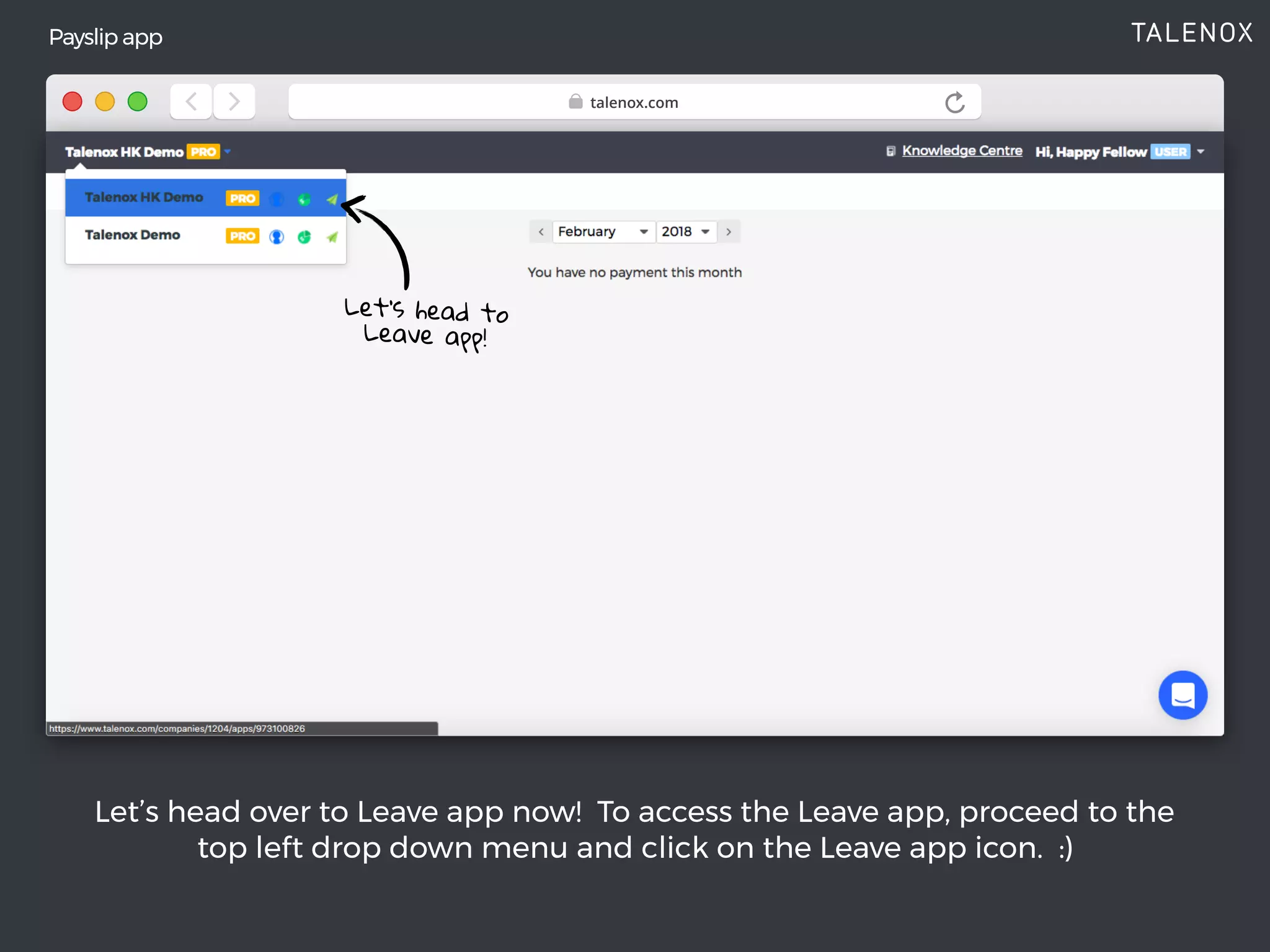
Let’s head over to Leave app now! To access the Leave app, proceed to the
top left drop down menu and click on the Leave app icon. :)
talenox.com
Payslip app
Let’s head to
Leave app!
In Leave app, you’ll be shown the status view first. Over here, you can view
your own or other team mates’ applications, depending on the view settings.
To head over to calendar view, click on Manage Leave Policies on the left and
choose “Leave Calendar”.
Leave app - Status View / Leave Status
talenox.com
In the Month View / Leave Calendar, you can view the various Leave
applications of other team members. Over here, you can apply leave by
clicking on the Apply Leave” button on the top right.
talenox.com
Leave app - Month View / Leave Calendar
Click to
Apply Leave
Select from a list of various Leave Types (Annual Leave, Sick Leave, Off-in-lieu
and every other statutory leave you are entitled to).
talenox.com
Leave app - Applying Leave
Choose Leave
Type
In Step 3, you can choose to apply leave for a single day or for multiple days.
If the Leave Balance is not sufficient, an error message will be shown on the
top right. As you choose the days, the period will be reflected on the
calendar (shown on the right).
talenox.com
Choose Single Day
or Multiple Days
Leave app - Applying Leave
Once you have chosen the days for leave applcation, you can view which
days are working or non-working days, which is set by your HR.
Upon adding in your Remarks, click on “Submit Application”.
talenox.com
Time to submit
your leave
application!
Leave app - Applying Leave
Now that you have learnt how to apply leave, you can take a look at your
Leave Profile. To view your Leave Profile, head to the secondary navigation
bar and click on “My Leave Profile” on the dropdown menu.
talenox.com
Click on My
Leave Profile
Leave app - Applying Leave
In My Leave Profile, the first tab you are presented with is Leave Entitlement.
To understand the in-depth details, click on the help ticker for the
breakdown
talenox.com
Leave app - My Leave Profile
Click on help
ticker (i) for
details
The second tab is Activities. These are the leave that you have applied.
You can sort it easily with the sorting function on the top header row.
talenox.com
Leave app - My Leave Profile
Well, hope that you have a great overview of what you can do on Talenox.
Have fun using it! In the event if you need help, you can click on the bottom
right blue chat button to reach out to us.
Let’s go through some additional features for Approvers next.
In-App Chat
talenox.com
In Approver View, you’ll be able to Approve, Reject and View leave
applications of team mates under your approval structure.
talenox.com
Leave app (Approver)
Over at Leave Balances, you are able to have an overview of everyone in your
approval structure. To view each team mate’s Leave Profile, click on the
employee’s name.
talenox.com
Leave app (Approver)
Click to access
each team mate’s
Leave Profile
Here’s how the Leave Profile looks like, which is similar to that of an
employee’s view. Have a great time on Talenox! :)
talenox.com
Leave app (Approver)
To read more awesome articles on HR and Technology,
get it from Talenox.

Guide to Talenox Employee Apps

  • 1.
    Guide to TalenoxEmployee Apps An HR experience designed for people first. made with ♥
  • 2.
    Welcome to Talenox!Here’s a guide to explore the various functions you have access to. First, click on the link in your invite email sent by your HR to activate your account. If you have activated your account, click on “Log In” button on the top right of Talenox home page as shown. logging in to Talenox talenox.com Click here
  • 3.
    Once you areat the Log In page, fill up your Email and Password . When you are ready, click on “Sign In” to access your account. logging in to Talenox talenox.com Fill up and Click here
  • 4.
    Great! You haveaccessed your account. First, you are greeted with 3 apps - My Profile, Payslip and Leave. Let’s start with My Profile app. Click on the “My Profile” icon. (to contact us for help, you can click on the bottom right blue chat button) Dashboard View talenox.com Click here This is where you can contact us for help :)
  • 5.
    In My Profile,which is your own profile, you’ll be able to update your personal and Next-of-Kin details if you would like to be granted leave types like Maternity, Paternity and Marriage Leave. You can also view your job details. My Profile app talenox.com
  • 6.
    Over at Payslipapp, you are presented with your own payslip for the current month. You can expand and collapse the pay items by clicking on the arrow found on the left of each item. To print the physical payslip or save a pdf copy, click on “Print Payslip”. Payslip app talenox.com Click to view payslip (.pdf)
  • 7.
    Here’s the .pdfpayslip under “Print Payslip” view. This is where you can print the physical copy of your payslip or save as .pdf for loan and credit card applications. To get back to previous page, click on “Back” keyboard button. talenox.com Payslip app
  • 8.
    If you arepresented with an empty screen, it means that HR has not published the payslip for the month. To get to the payslips of the previous months, just click the left button. talenox.com Payslip app To view previous pay slips
  • 9.
    Let’s head overto Leave app now! To access the Leave app, proceed to the top left drop down menu and click on the Leave app icon. :) talenox.com Payslip app Let’s head to Leave app!
  • 10.
    In Leave app,you’ll be shown the status view first. Over here, you can view your own or other team mates’ applications, depending on the view settings. To head over to calendar view, click on Manage Leave Policies on the left and choose “Leave Calendar”. Leave app - Status View / Leave Status talenox.com
  • 11.
    In the MonthView / Leave Calendar, you can view the various Leave applications of other team members. Over here, you can apply leave by clicking on the Apply Leave” button on the top right. talenox.com Leave app - Month View / Leave Calendar Click to Apply Leave
  • 12.
    Select from alist of various Leave Types (Annual Leave, Sick Leave, Off-in-lieu and every other statutory leave you are entitled to). talenox.com Leave app - Applying Leave Choose Leave Type
  • 13.
    In Step 3,you can choose to apply leave for a single day or for multiple days. If the Leave Balance is not sufficient, an error message will be shown on the top right. As you choose the days, the period will be reflected on the calendar (shown on the right). talenox.com Choose Single Day or Multiple Days Leave app - Applying Leave
  • 14.
    Once you havechosen the days for leave applcation, you can view which days are working or non-working days, which is set by your HR. Upon adding in your Remarks, click on “Submit Application”. talenox.com Time to submit your leave application! Leave app - Applying Leave
  • 15.
    Now that youhave learnt how to apply leave, you can take a look at your Leave Profile. To view your Leave Profile, head to the secondary navigation bar and click on “My Leave Profile” on the dropdown menu. talenox.com Click on My Leave Profile Leave app - Applying Leave
  • 16.
    In My LeaveProfile, the first tab you are presented with is Leave Entitlement. To understand the in-depth details, click on the help ticker for the breakdown talenox.com Leave app - My Leave Profile Click on help ticker (i) for details
  • 17.
    The second tabis Activities. These are the leave that you have applied. You can sort it easily with the sorting function on the top header row. talenox.com Leave app - My Leave Profile
  • 18.
    Well, hope thatyou have a great overview of what you can do on Talenox. Have fun using it! In the event if you need help, you can click on the bottom right blue chat button to reach out to us. Let’s go through some additional features for Approvers next. In-App Chat talenox.com
  • 19.
    In Approver View,you’ll be able to Approve, Reject and View leave applications of team mates under your approval structure. talenox.com Leave app (Approver)
  • 20.
    Over at LeaveBalances, you are able to have an overview of everyone in your approval structure. To view each team mate’s Leave Profile, click on the employee’s name. talenox.com Leave app (Approver) Click to access each team mate’s Leave Profile
  • 21.
    Here’s how theLeave Profile looks like, which is similar to that of an employee’s view. Have a great time on Talenox! :) talenox.com Leave app (Approver)
  • 22.
    To read moreawesome articles on HR and Technology, get it from Talenox.