Google Sites
Building a Personal/Professional Website
A Workshop by Melissa Gast-Goodman Fall 2015
Workshop Agenda
• Introduction to Google Sites
• Purpose of using Google Sites at
Georgia Southern
• How Google Sites can be used by faculty
and staff
• Locating the Google Sites App
• Creating a Google Site
• Exemplar
• Assessing Activity
• Resources
What is Google Sites?
Google Sites is the easiest way to make information accessible to
people who need quick, up-to-date access. People can work
together on a Site to add file attachments, information from
other Google applications (like Google Docs, Google Calendar,
YouTube and Picasa), and new free-form content.
Google Sites is the preferred platform for Georgia Southern
University faculty and staff to host a personal or internal website.
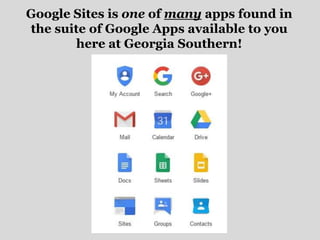
Google Sites is one of many apps found in
the suite of Google Apps available to you
here at Georgia Southern!
Google Sites Offers:
• Single-click page creation
• No HTML knowledge required
• Customization options
• Templates for a growing list of page types
• Upload files and attachments
• Embed rich content (Google docs, spreadsheets, video
and calendars)
• Collaboration
• Search with Google
How Can You Use
Google Sites?
• Personal/Professional Website
• Supplemental Classroom Instruction
• Internal Website
• Portfolio
• Team Collaboration
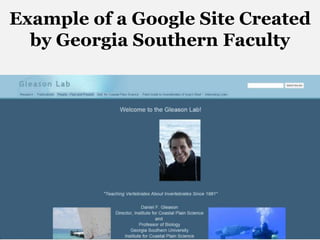
Example of a Google Site Created
by Georgia Southern Faculty
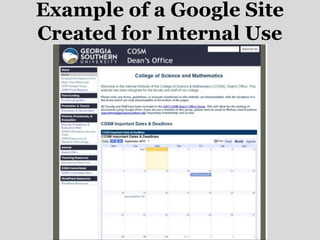
Example of a Google Site
Created for Internal Use
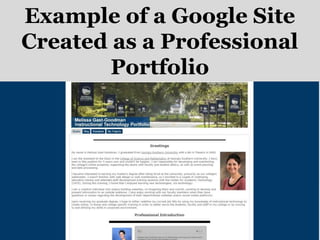
Example of a Google Site
Created as a Professional
Portfolio
Let’s Get Started!
Login to myGeorgiaSouthern
Locate myapps on your
dashboard
Locate Google Apps icon in the
upper right-hand corner
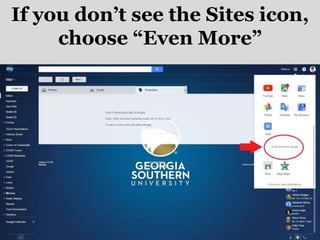
If you don’t see the Sites icon,
choose “Even More”
Scroll down to “Home &
Office” and locate “Sites”
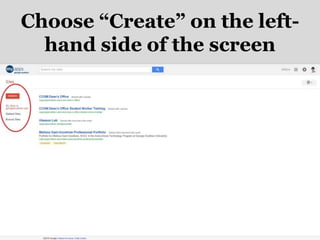
Choose “Create” on the left-
hand side of the screen
Browse the gallery for a template
or start with a blank one
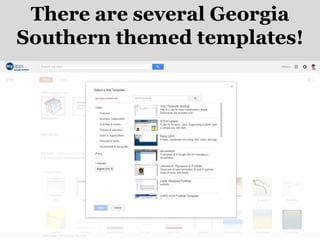
There are several Georgia
Southern themed templates!
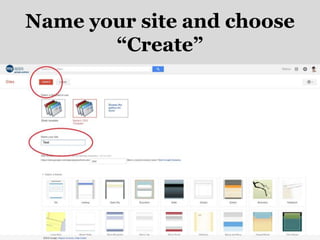
Name your site and choose
“Create”
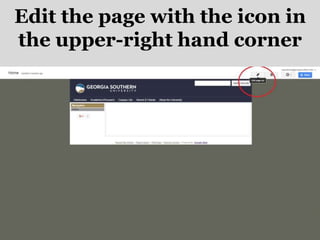
Edit the page with the icon in
the upper-right hand corner
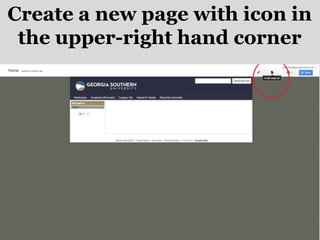
Create a new page with icon in
the upper-right hand corner
The “Gear” icon gives you even
more options!
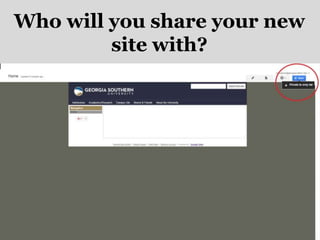
Who will you share your new
site with?
Keep it private, share it with
specific people, or the world!
Resources
COSM Dean’s Office Internal Website
https://sites.google.com/a/georgiasouthern.edu/cosm-dean-s-office/
Gleason Lab Website
https://sites.google.com/a/georgiasouthern.edu/gleasonlab/
Melissa Gast-Goodman Professional Portfolio
https://sites.google.com/a/georgiasouthern.edu/melissa-gast-goodman-
professional-portfolio/
Welcome to Google Sites
www.google.com/sites/overview.html

Google Sites Online Workshop Fall 2015

  • 1.
    Google Sites Building aPersonal/Professional Website A Workshop by Melissa Gast-Goodman Fall 2015
  • 2.
    Workshop Agenda • Introductionto Google Sites • Purpose of using Google Sites at Georgia Southern • How Google Sites can be used by faculty and staff • Locating the Google Sites App • Creating a Google Site • Exemplar • Assessing Activity • Resources
  • 3.
    What is GoogleSites? Google Sites is the easiest way to make information accessible to people who need quick, up-to-date access. People can work together on a Site to add file attachments, information from other Google applications (like Google Docs, Google Calendar, YouTube and Picasa), and new free-form content. Google Sites is the preferred platform for Georgia Southern University faculty and staff to host a personal or internal website.
  • 4.
    Google Sites isone of many apps found in the suite of Google Apps available to you here at Georgia Southern!
  • 5.
    Google Sites Offers: •Single-click page creation • No HTML knowledge required • Customization options • Templates for a growing list of page types • Upload files and attachments • Embed rich content (Google docs, spreadsheets, video and calendars) • Collaboration • Search with Google
  • 6.
    How Can YouUse Google Sites? • Personal/Professional Website • Supplemental Classroom Instruction • Internal Website • Portfolio • Team Collaboration
  • 7.
    Example of aGoogle Site Created by Georgia Southern Faculty
  • 8.
    Example of aGoogle Site Created for Internal Use
  • 9.
    Example of aGoogle Site Created as a Professional Portfolio
  • 10.
  • 11.
  • 12.
    Locate myapps onyour dashboard
  • 13.
    Locate Google Appsicon in the upper right-hand corner
  • 14.
    If you don’tsee the Sites icon, choose “Even More”
  • 15.
    Scroll down to“Home & Office” and locate “Sites”
  • 16.
    Choose “Create” onthe left- hand side of the screen
  • 17.
    Browse the galleryfor a template or start with a blank one
  • 18.
    There are severalGeorgia Southern themed templates!
  • 19.
    Name your siteand choose “Create”
  • 20.
    Edit the pagewith the icon in the upper-right hand corner
  • 21.
    Create a newpage with icon in the upper-right hand corner
  • 22.
    The “Gear” icongives you even more options!
  • 23.
    Who will youshare your new site with?
  • 24.
    Keep it private,share it with specific people, or the world!
  • 25.
    Resources COSM Dean’s OfficeInternal Website https://sites.google.com/a/georgiasouthern.edu/cosm-dean-s-office/ Gleason Lab Website https://sites.google.com/a/georgiasouthern.edu/gleasonlab/ Melissa Gast-Goodman Professional Portfolio https://sites.google.com/a/georgiasouthern.edu/melissa-gast-goodman- professional-portfolio/ Welcome to Google Sites www.google.com/sites/overview.html