Gitting Better
Gitting Better
kinda
Hats Off
Gitting Better
Hello,World!
Overview
Hats Off
Gitting Better
Hello,World!
Overview
Gitting Better
Hello,World!
What Git is ?
What Git is ?
NOT
Git is not...
... a convenient backup solution for your source code
Git is not...
... a convenient backup solution for your source code
but
 it
 is
 pretty
 good
 at
 it!
 :D
Git is not...
... another pain in the ass you have to deal with
Git is not...
... another pain in the ass you have to deal with
but
 it
 is
 pretty
 good
 at
 it!
 :(
What Git is...
... a distributed version control and
source code management system.
What Git is...
... a distributed version control and
source code management system.
First off, Git is a version control system,
a simple command line tool for keeping a history on
the state of your source code projects.
You use it as you might use something like
Subversion, CVS or Perforce.
First off, Git is a version control system,
a simple command line tool for keeping a history on
the state of your source code projects.
You use it as you might use something like
Subversion, CVS or Perforce.
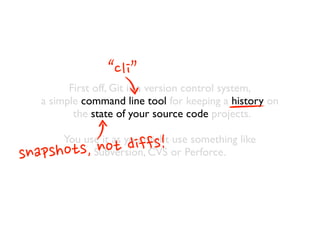
First off, Git is a version control system,
a simple command line tool for keeping a history on
the state of your source code projects.
You use it as you might use something like
Subversion, CVS or Perforce.
“cli”
snapshots,
 not
 diffs!
Git allows groups of people to work on the same
documents (often code) at the same time, and without
stepping on each other’s toes.
Git allows groups of people to work on the same
documents (often code) at the same time, and without
stepping on each other’s toes.
Git allows groups of people to work on the same
documents (often code) at the same time, and without
stepping on each other’s toes.
NO
 MUTEX,
 YAY!
You tell it to track files in your project and
periodically commit the state of the project when
you want a saved point.
You can share that history with
other developers for collaboration,
merge between their work and yours, and
compare or revert to previous versions of
the project or individual files.
You tell it to track files in your project and
periodically commit the state of the project when
you want a saved point.
You can share that history with
other developers for collaboration,
merge between their work and yours, and
compare or revert to previous versions of
the project or individual files.
Git is fully distributed, which means that it can
work almost entirely offline.
In contrast toVCS tools like Perforce or Subversion,
Git does nearly all of its operations without needing a
network connection, including history viewing,
difference viewing and commiting.
This means that Git is very fast compared to other
systems partially due to the fact that none of these
operations has any dependency on network latency.
Git is fully distributed, which means that it can
work almost entirely offline.
In contrast toVCS tools like Perforce or Subversion,
Git does nearly all of its operations without needing a
network connection, including history viewing,
difference viewing and commiting.
This means that Git is very fast compared to other
systems partially due to the fact that none of these
operations has any dependency on network latency.
Git is also very space efficient.
It is even smaller than the Subversion checkout,
which is pretty amazing, considering that
the Git clone contains the entire history of the project
— every version of every file back to the first commit,
whereas the Subversion checkout is just the last
version of the project.
Git is also very space efficient.
It is even smaller than the Subversion checkout,
which is pretty amazing, considering that
the Git clone contains the entire history of the project
— every version of every file back to the first commit,
whereas the Subversion checkout is just the last
version of the project.
Probably the most compelling feature of Git is
Gits branching model.
Instead of the popularVCS branching method of
simply cloning into a separate directory for a branch,
Git lets you switch between branches in
a single working directory.
Creating and switching between branches is
nearly instant, not all of your branches need to
be shared, and it’s easy to
stash partially completed work.
Probably the most compelling feature of Git is
Gits branching model.
Instead of the popularVCS branching method of
simply cloning into a separate directory for a branch,
Git lets you switch between branches in
a single working directory.
Creating and switching between branches is
nearly instant, not all of your branches need to
be shared, and it’s easy to
stash partially completed work.
Instead of only having branches for
major development line departures,
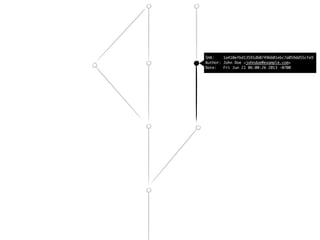
Git developers routinely create, merge and destroy
multiple branches a week, or even per day.
Often each feature or bug you are working on can have
its own branch, merged in only when it is complete.This
model allows you to experiment quickly, easily and
safely - without having to go through hoops to get back
to where you where. It enables and encourages a non-
linear development cycle, where you can work on
multiple lines of thought in parallel without them
stepping on each other.
Instead of only having branches for
major development line departures,
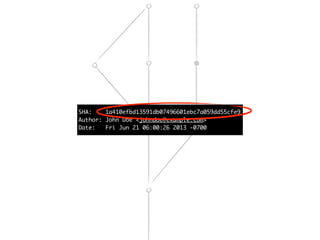
Git developers routinely create, merge and destroy
multiple branches a week, or even per day.
Often each feature or bug you are working on can have
its own branch, merged in only when it is complete.This
model allows you to experiment quickly, easily and
safely - without having to go through hoops to get back
to where you where. It enables and encourages a non-
linear development cycle, where you can work on
multiple lines of thought in parallel without them
stepping on each other.
As it is primarily a command line tool,
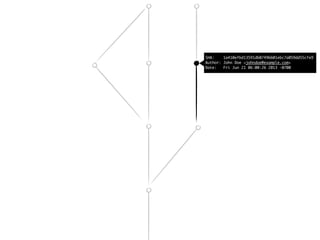
most of the examples in this course will
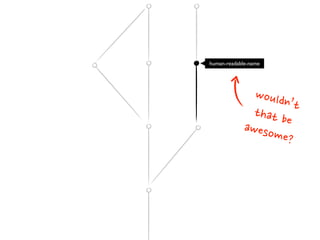
show the command line versions of the functions.
As it is primarily a command line tool,
most of the examples in this course will
show the command line versions of the functions.
As it is primarily a command line tool,
most of the examples in this course will
show the command line versions of the functions.
on
 a
 Mac
 :D
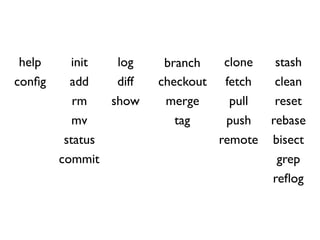
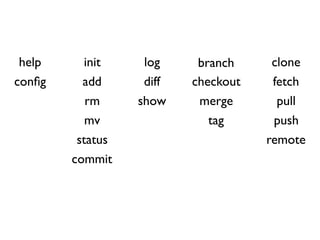
help config
init
add
rm
mv
status
commit
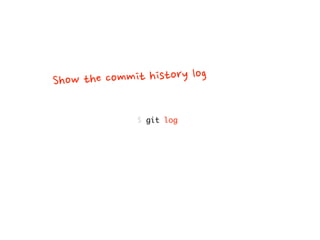
log
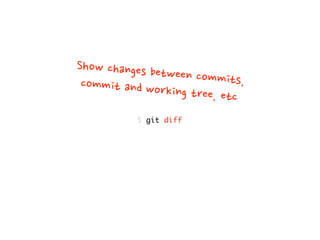
diff
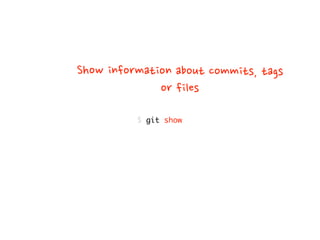
show
branch
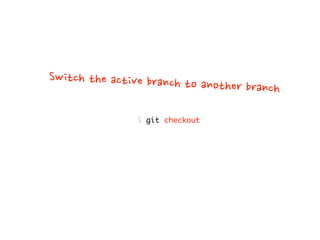
checkout
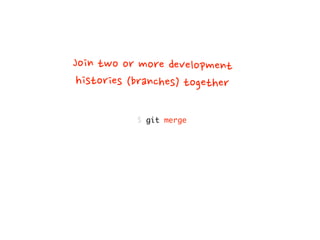
merge
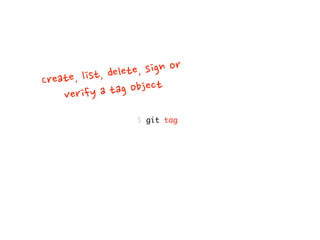
tag
clone
fetch
pull
push
remote
stash
clean
reset
rebase
bisect
grep
reflog
help
config
init
add
rm
mv
status
commit
log
diff
show
branch
checkout
merge
tag
clone
fetch
pull
push
remote
stash
clean
reset
rebase
bisect
grep
reflog
help
config
init
add
rm
mv
status
commit
log
diff
show
branch
checkout
merge
tag
clone
fetch
pull
push
remote
stash
clean
reset
rebase
bisect
grep
reflog
Getting
 Started
help
config
init
add
rm
mv
status
commit
log
diff
show
branch
checkout
merge
tag
clone
fetch
pull
push
remote
stash
clean
reset
rebase
bisect
grep
reflog
Basic
 stuff
help
config
init
add
rm
mv
status
commit
log
diff
show
branch
checkout
merge
tag
clone
fetch
pull
push
remote
stash
clean
reset
rebase
bisect
grep
reflog
History
help
config
init
add
rm
mv
status
commit
log
diff
show
branch
checkout
merge
tag
clone
fetch
pull
push
remote
stash
clean
reset
rebase
bisect
grep
reflog
Branching!
help
config
init
add
rm
mv
status
commit
log
diff
show
branch
checkout
merge
tag
clone
fetch
pull
push
remote
stash
clean
reset
rebase
bisect
grep
reflog
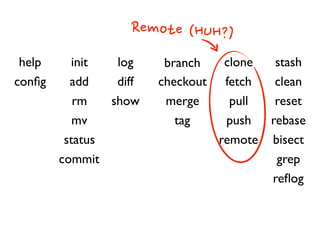
Remote
 (HUH?)
help
config
init
add
rm
mv
status
commit
log
diff
show
branch
checkout
merge
tag
clone
fetch
pull
push
remote
stash
clean
reset
rebase
bisect
grep
reflog
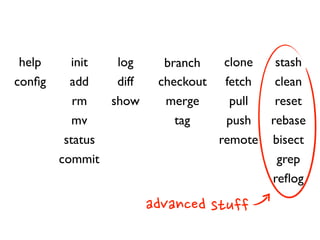
advanced
 stuff
help
config
init
add
rm
mv
status
commit
log
diff
show
branch
checkout
merge
tag
clone
fetch
pull
push
remote
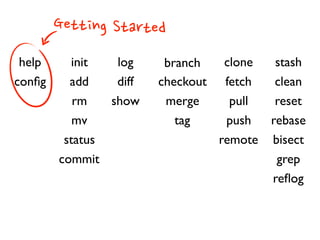
Getting Started
help  config
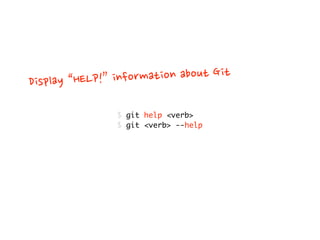
$ git help verb
$ git verb --help
Display
 “HELP!”
 information
 about
 Git
demo
$ git config --system key value
$ git config --global key value
$ git config --local key value
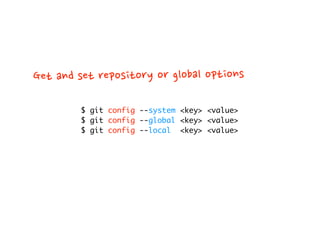
Get
 and
 set
 repository
 or
 global
 options
$ git config --system key value
$ git config --global key value
$ git config --local key value
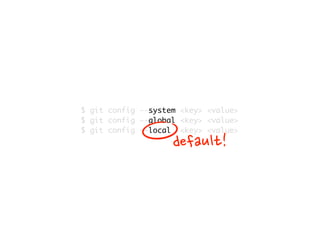
default!
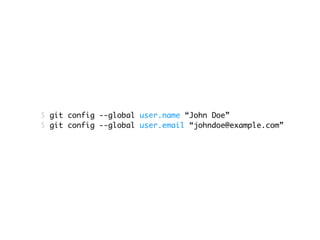
$ git config --global user.name “John Doe”
$ git config --global user.email “johndoe@example.com”
demo
Basic Commands
init, add, rm, mv, status  commit
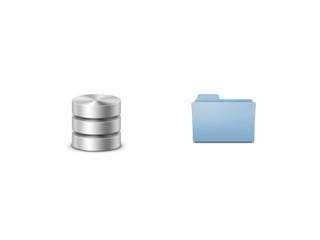
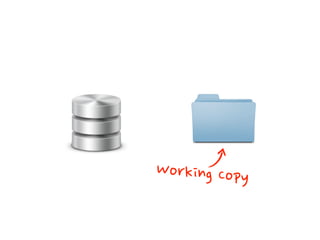
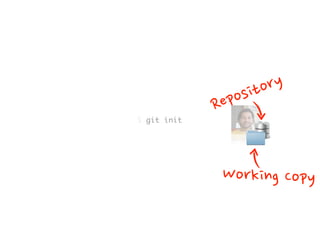
Working
 Copy
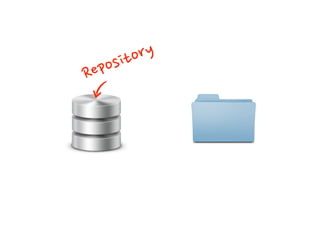
Repository
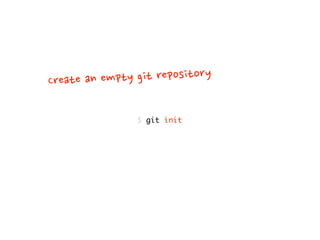
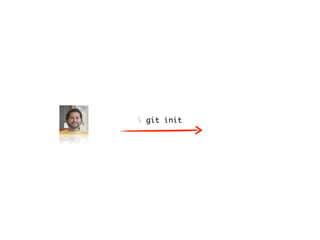
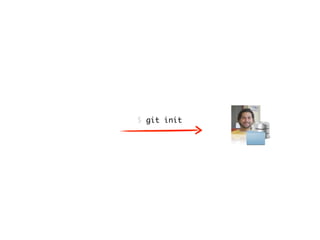
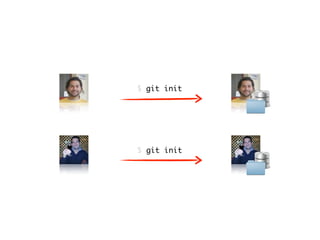
$ git init
Create
 an
 empty
 git
 repository
$ git init
$ git init
$ git init
Repository
Working
 Copy
$ git init
$ git init
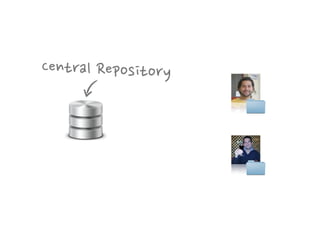
Central
 Repository
demo
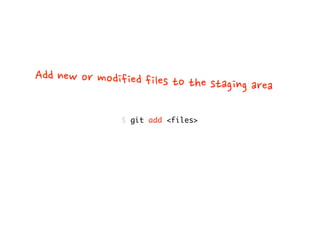
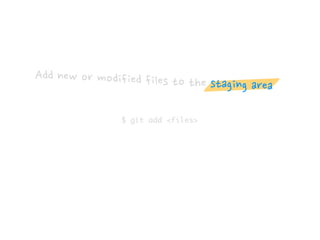
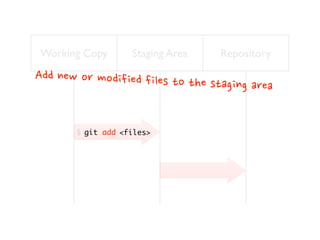
$ git add files
Add
 new
 or
 modified
 files
 to
 the
 staging
 area
$ git add files
Add
 new
 or
 modified
 files
 to
 the
 staging
 area
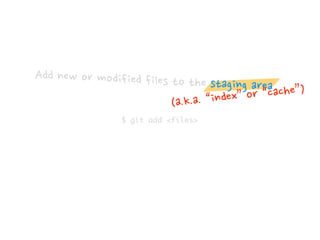
$ git add files
Add
 new
 or
 modified
 files
 to
 the
 staging
 area
(a.k.a.
 “index”
 or
 “cache”)
Now Pay Attention!
The Three States
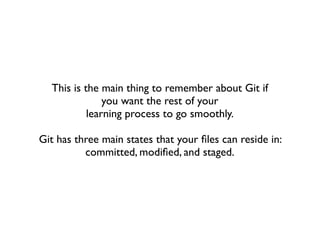
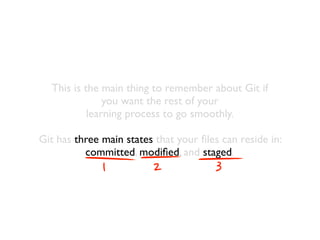
This is the main thing to remember about Git if
you want the rest of your
learning process to go smoothly.
Git has three main states that your files can reside in:
committed, modified, and staged.
This is the main thing to remember about Git if
you want the rest of your
learning process to go smoothly.
Git has three main states that your files can reside in:
committed, modified, and staged.
1 2 3
Committed means that the data is
safely stored in your local database.
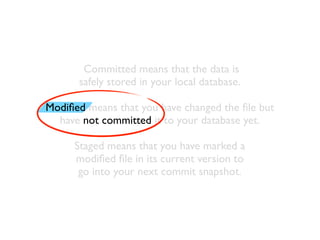
Modified means that you have changed the file but
have not committed it to your database yet.
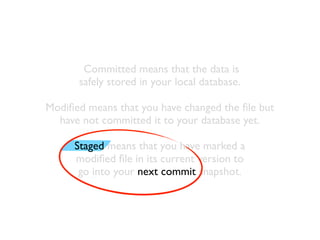
Staged means that you have marked a
modified file in its current version to
go into your next commit snapshot.
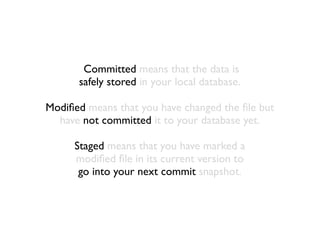
Committed means that the data is
safely stored in your local database.
Modified means that you have changed the file but
have not committed it to your database yet.
Staged means that you have marked a
modified file in its current version to
go into your next commit snapshot.
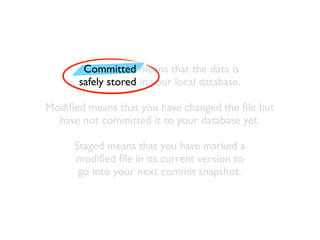
Committed means that the data is
safely stored in your local database.
Modified means that you have changed the file but
have not committed it to your database yet.
Staged means that you have marked a
modified file in its current version to
go into your next commit snapshot.
Committed means that the data is
safely stored in your local database.
Modified means that you have changed the file but
have not committed it to your database yet.
Staged means that you have marked a
modified file in its current version to
go into your next commit snapshot.
Committed means that the data is
safely stored in your local database.
Modified means that you have changed the file but
have not committed it to your database yet.
Staged means that you have marked a
modified file in its current version to
go into your next commit snapshot.
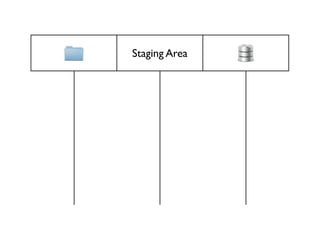
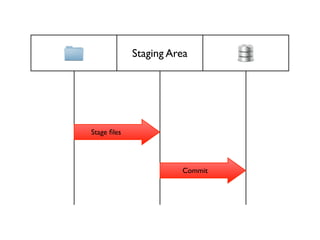
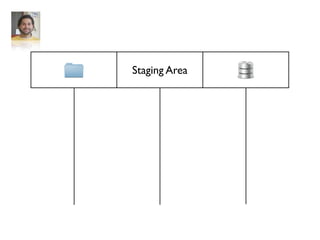
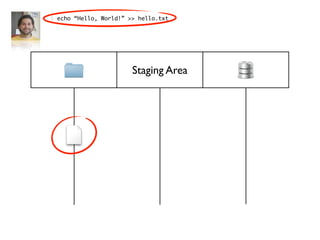
Staging Area
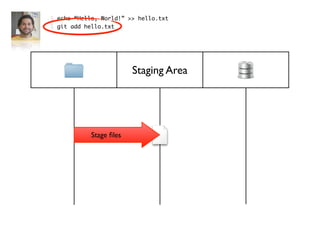
Staging Area
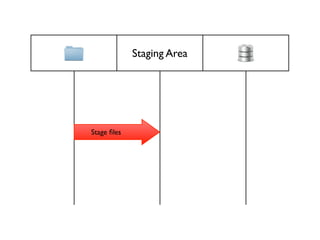
Stage files
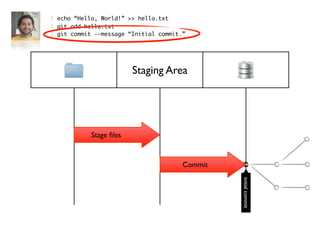
Staging Area
Stage files
Commit
Working Copy Staging Area Repository
git add$
Add
 new
 or
 modified
 files
 to
 the
 staging
 area
files
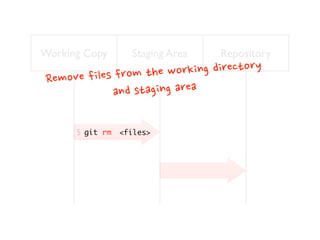
Remove
 files
 from
 the
 working
 directory
and
 staging
 area
git rm$ files
Working Copy Staging Area Repository
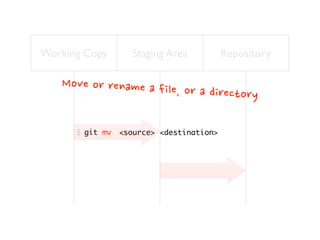
Move
 or
 rename
 a
 file,
 or
 a
 directory
git mv$ source destination
Working Copy Staging Area Repository
demo
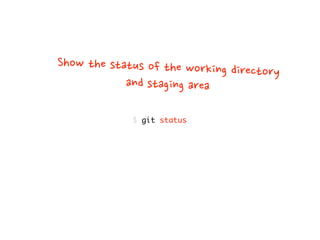
$ git status
Show
 the
 status
 of
 the
 working
 directory
and
 staging
 area
demo

Gitting better