Muhammad Rizwan – Corvit Systems
Git Mastery
What is Git?
Tracking changes in our work
for reproducibility and collaboration.
What is Git?
Git is a free and open source
distributed version control system designed to handle
everything from small to very large projects with speed and efficiency.
It was created by Linus Torvalds in 2005 to develop Linux Kernel.
Git has the functionality, performance, security and flexibility that most
teams and individual developers need. It also serves as an important
distributed version-control DevOps tool.
Git Intuition
Whether we're working individually or with a team, it's important that
we have a system to track changes to our projects so that we can
revert to previous versions and so that others can reproduce our work
and contribute to it. Git is a distributed versional control system that
allows us do exactly this. Git runs locally on our computer and it keeps
track of our files and their histories. To enable collaboration with
others, we can use a remote host (GitHub, GitLab, BitBucket, etc.) to
host our files and their histories. We'll use git to push our local changes
and pull other's changes to and from the remote host.
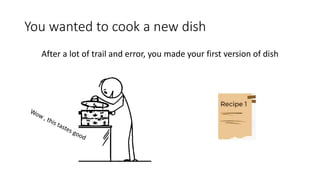
You wanted to cook a new dish
After a lot of trail and error, you made your first version of dish
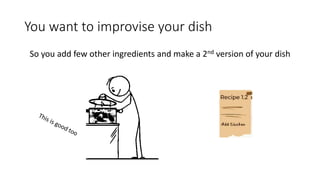
You want to improvise your dish
So you add few other ingredients and make a 2nd version of your dish
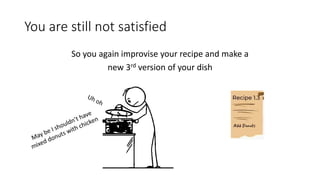
You are still not satisfied
So you again improvise your recipe and make a
new 3rd version of your dish
And what if you have a team
and everyone wanted to taste each version of your dish
and add their own ingredients
and contribute to your masterpiece
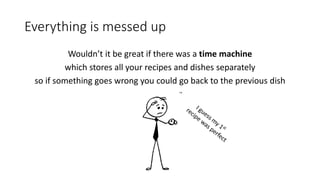
Everything is messed up
Wouldn’t it be great if there was a time machine
which stores all your recipes and dishes separately
so if something goes wrong you could go back to the previous dish
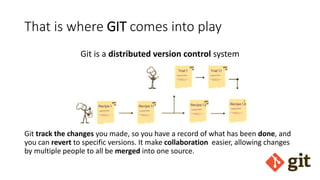
That is where GIT comes into play
Git is a distributed version control system
Git track the changes you made, so you have a record of what has been done, and
you can revert to specific versions. It make collaboration easier, allowing changes
by multiple people to all be merged into one source.
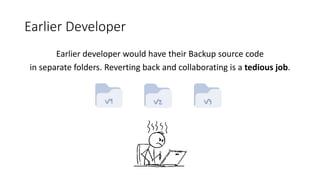
Earlier Developer
Earlier developer would have their Backup source code
in separate folders. Reverting back and collaborating is a tedious job.
Types of VCS
- Centralized Version Control System (CVCS)
- Distributed Version Control System (DVCS)
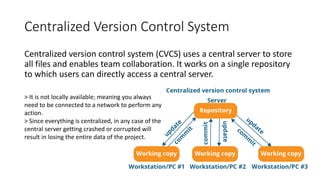
Centralized Version Control System
Centralized version control system (CVCS) uses a central server to store
all files and enables team collaboration. It works on a single repository
to which users can directly access a central server.
> It is not locally available; meaning you always
need to be connected to a network to perform any
action.
> Since everything is centralized, in any case of the
central server getting crashed or corrupted will
result in losing the entire data of the project.
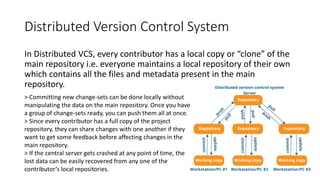
Distributed Version Control System
In Distributed VCS, every contributor has a local copy or “clone” of the
main repository i.e. everyone maintains a local repository of their own
which contains all the files and metadata present in the main
repository.
> Committing new change-sets can be done locally without
manipulating the data on the main repository. Once you have
a group of change-sets ready, you can push them all at once.
> Since every contributor has a full copy of the project
repository, they can share changes with one another if they
want to get some feedback before affecting changes in the
main repository.
> If the central server gets crashed at any point of time, the
lost data can be easily recovered from any one of the
contributor’s local repositories.
Features of Git
Git provides with all the Distributed VCS facilities to the user that was
mentioned earlier. Git repositories are very easy to find and access.
Some companies that use Git for version control are: Facebook, Zynga,
Quora, Twitter, eBay, Salesforce, Microsoft and many more.
- Free and open source
- Speed, Scalable, Secure, Reliable, Economical
- Support Non-linear development
- Distributed development, Easy Branching
Git
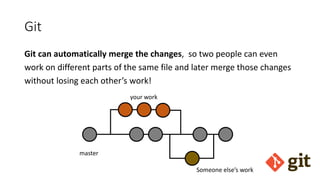
Git can automatically merge the changes, so two people can even
work on different parts of the same file and later merge those changes
without losing each other’s work!
master
your work
Someone else’s work
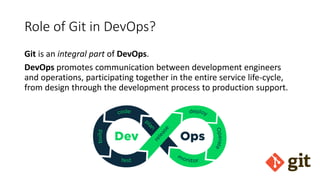
Role of Git in DevOps?
Git is an integral part of DevOps.
DevOps promotes communication between development engineers
and operations, participating together in the entire service life-cycle,
from design through the development process to production support.
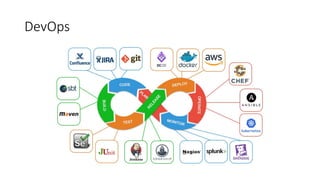
DevOps
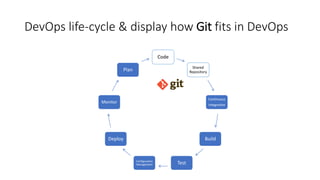
DevOps life-cycle & display how Git fits in DevOps
Code
Shared
Repository
Continuous
Integration
Build
Test
Configuration
Management
Deploy
Monitor
Plan
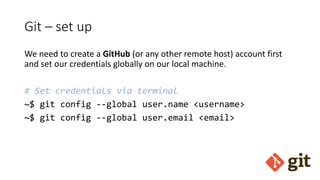
Git – set up
We need to create a GitHub (or any other remote host) account first
and set our credentials globally on our local machine.
# Set credentials via terminal
~$ git config --global user.name <username>
~$ git config --global user.email <email>
Git – set up
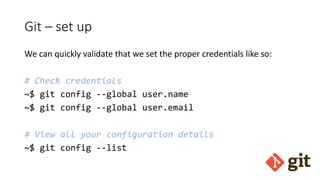
We can quickly validate that we set the proper credentials like so:
# Check credentials
~$ git config --global user.name
~$ git config --global user.email
# View all your configuration details
~$ git config --list
Git – Create
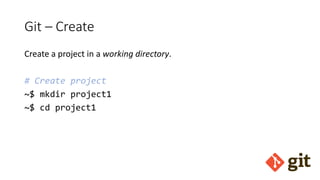
Create a project in a working directory.
# Create project
~$ mkdir project1
~$ cd project1
Git – Create
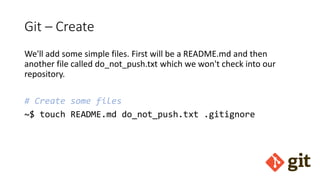
We'll add some simple files. First will be a README.md and then
another file called do_not_push.txt which we won't check into our
repository.
# Create some files
~$ touch README.md do_not_push.txt .gitignore
Git – Create
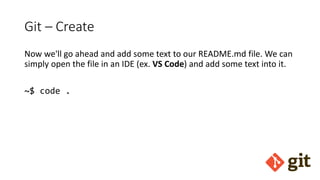
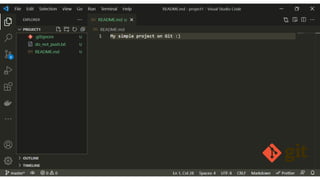
Now we'll go ahead and add some text to our README.md file. We can
simply open the file in an IDE (ex. VS Code) and add some text into it.
~$ code .
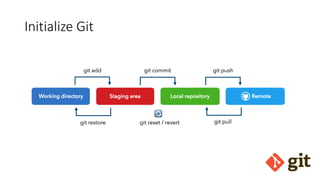
Initialize Git
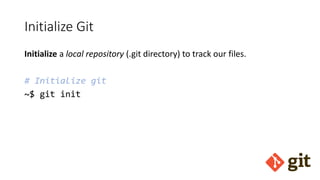
Initialize Git
Initialize a local repository (.git directory) to track our files.
# Initialize git
~$ git init
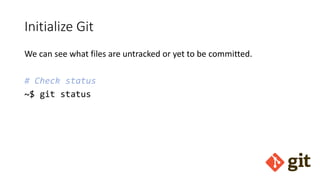
Initialize Git
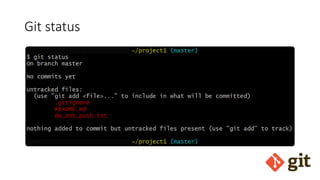
We can see what files are untracked or yet to be committed.
# Check status
~$ git status
Git status
Git – Add to stage
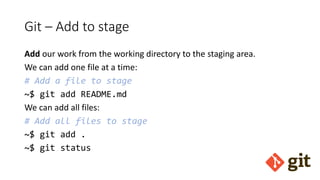
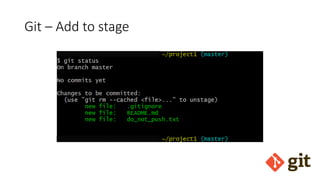
Add our work from the working directory to the staging area.
We can add one file at a time:
# Add a file to stage
~$ git add README.md
We can add all files:
# Add all files to stage
~$ git add .
~$ git status
Git – Add to stage
Git – Commit to repo
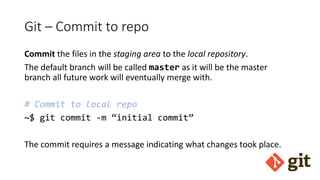
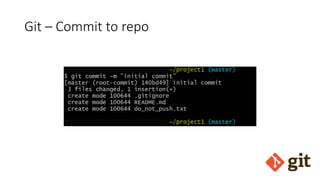
Commit the files in the staging area to the local repository.
The default branch will be called master as it will be the master
branch all future work will eventually merge with.
# Commit to local repo
~$ git commit -m “initial commit”
The commit requires a message indicating what changes took place.
Git – Commit to repo
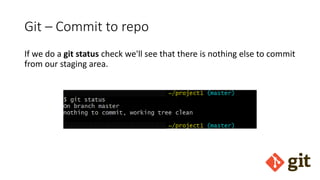
If we do a git status check we'll see that there is nothing else to commit
from our staging area.
Git – Push to remote
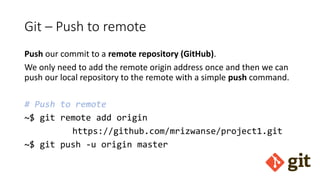
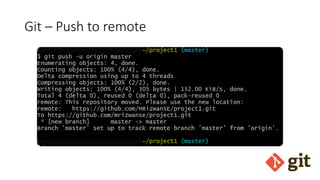
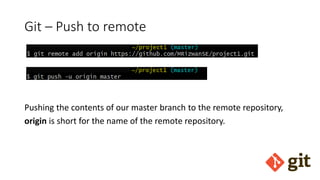
Push our commit to a remote repository (GitHub).
We only need to add the remote origin address once and then we can
push our local repository to the remote with a simple push command.
# Push to remote
~$ git remote add origin
https://github.com/mrizwanse/project1.git
~$ git push -u origin master
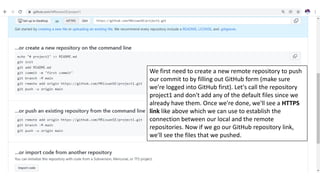
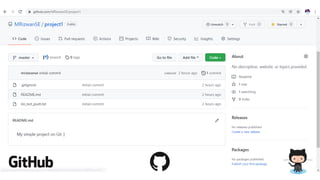
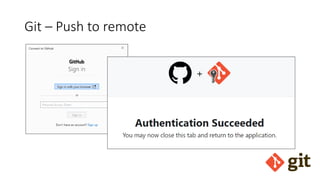
We first need to create a new remote repository to push
our commit to by filling out GitHub form (make sure
we're logged into GitHub first). Let's call the repository
project1 and don't add any of the default files since we
already have them. Once we're done, we'll see a HTTPS
link like above which we can use to establish the
connection between our local and the remote
repositories. Now if we go our GitHub repository link,
we'll see the files that we pushed.
Git – Push to remote
Pushing the contents of our master branch to the remote repository,
origin is short for the name of the remote repository.
Git – Push to remote
Why is Git so popular?
Git is a distributed version control system(VCS) that enables the
developers to manage the changes offline and allows you to branch
and merge whenever required, giving them full control over the local
code base. It is fast and also suitable for handling massive code bases
scattered across multiple developers, which makes it the most popular
tool used.
What is the difference between Git vs GitHub?
Git is just a version control system that manages and tracks changes to
your source code whereas
GitHub is a cloud-based hosting platform that manages all your Git
repositories.

Git Mastery

  • 1.
    Muhammad Rizwan –Corvit Systems Git Mastery
  • 2.
    What is Git? Trackingchanges in our work for reproducibility and collaboration.
  • 3.
    What is Git? Gitis a free and open source distributed version control system designed to handle everything from small to very large projects with speed and efficiency. It was created by Linus Torvalds in 2005 to develop Linux Kernel. Git has the functionality, performance, security and flexibility that most teams and individual developers need. It also serves as an important distributed version-control DevOps tool.
  • 4.
    Git Intuition Whether we'reworking individually or with a team, it's important that we have a system to track changes to our projects so that we can revert to previous versions and so that others can reproduce our work and contribute to it. Git is a distributed versional control system that allows us do exactly this. Git runs locally on our computer and it keeps track of our files and their histories. To enable collaboration with others, we can use a remote host (GitHub, GitLab, BitBucket, etc.) to host our files and their histories. We'll use git to push our local changes and pull other's changes to and from the remote host.
  • 5.
    You wanted tocook a new dish After a lot of trail and error, you made your first version of dish
  • 6.
    You want toimprovise your dish So you add few other ingredients and make a 2nd version of your dish
  • 7.
    You are stillnot satisfied So you again improvise your recipe and make a new 3rd version of your dish
  • 8.
    And what ifyou have a team and everyone wanted to taste each version of your dish and add their own ingredients and contribute to your masterpiece
  • 9.
    Everything is messedup Wouldn’t it be great if there was a time machine which stores all your recipes and dishes separately so if something goes wrong you could go back to the previous dish
  • 10.
    That is whereGIT comes into play Git is a distributed version control system Git track the changes you made, so you have a record of what has been done, and you can revert to specific versions. It make collaboration easier, allowing changes by multiple people to all be merged into one source.
  • 11.
    Earlier Developer Earlier developerwould have their Backup source code in separate folders. Reverting back and collaborating is a tedious job.
  • 12.
    Types of VCS -Centralized Version Control System (CVCS) - Distributed Version Control System (DVCS)
  • 13.
    Centralized Version ControlSystem Centralized version control system (CVCS) uses a central server to store all files and enables team collaboration. It works on a single repository to which users can directly access a central server. > It is not locally available; meaning you always need to be connected to a network to perform any action. > Since everything is centralized, in any case of the central server getting crashed or corrupted will result in losing the entire data of the project.
  • 14.
    Distributed Version ControlSystem In Distributed VCS, every contributor has a local copy or “clone” of the main repository i.e. everyone maintains a local repository of their own which contains all the files and metadata present in the main repository. > Committing new change-sets can be done locally without manipulating the data on the main repository. Once you have a group of change-sets ready, you can push them all at once. > Since every contributor has a full copy of the project repository, they can share changes with one another if they want to get some feedback before affecting changes in the main repository. > If the central server gets crashed at any point of time, the lost data can be easily recovered from any one of the contributor’s local repositories.
  • 15.
    Features of Git Gitprovides with all the Distributed VCS facilities to the user that was mentioned earlier. Git repositories are very easy to find and access. Some companies that use Git for version control are: Facebook, Zynga, Quora, Twitter, eBay, Salesforce, Microsoft and many more. - Free and open source - Speed, Scalable, Secure, Reliable, Economical - Support Non-linear development - Distributed development, Easy Branching
  • 16.
    Git Git can automaticallymerge the changes, so two people can even work on different parts of the same file and later merge those changes without losing each other’s work! master your work Someone else’s work
  • 17.
    Role of Gitin DevOps? Git is an integral part of DevOps. DevOps promotes communication between development engineers and operations, participating together in the entire service life-cycle, from design through the development process to production support.
  • 18.
  • 19.
    DevOps life-cycle &display how Git fits in DevOps Code Shared Repository Continuous Integration Build Test Configuration Management Deploy Monitor Plan
  • 20.
    Git – setup We need to create a GitHub (or any other remote host) account first and set our credentials globally on our local machine. # Set credentials via terminal ~$ git config --global user.name <username> ~$ git config --global user.email <email>
  • 21.
    Git – setup We can quickly validate that we set the proper credentials like so: # Check credentials ~$ git config --global user.name ~$ git config --global user.email # View all your configuration details ~$ git config --list
  • 22.
    Git – Create Createa project in a working directory. # Create project ~$ mkdir project1 ~$ cd project1
  • 23.
    Git – Create We'lladd some simple files. First will be a README.md and then another file called do_not_push.txt which we won't check into our repository. # Create some files ~$ touch README.md do_not_push.txt .gitignore
  • 24.
    Git – Create Nowwe'll go ahead and add some text to our README.md file. We can simply open the file in an IDE (ex. VS Code) and add some text into it. ~$ code .
  • 25.
  • 26.
    Initialize Git Initialize alocal repository (.git directory) to track our files. # Initialize git ~$ git init
  • 28.
    Initialize Git We cansee what files are untracked or yet to be committed. # Check status ~$ git status
  • 29.
  • 30.
    Git – Addto stage Add our work from the working directory to the staging area. We can add one file at a time: # Add a file to stage ~$ git add README.md We can add all files: # Add all files to stage ~$ git add . ~$ git status
  • 31.
    Git – Addto stage
  • 32.
    Git – Committo repo Commit the files in the staging area to the local repository. The default branch will be called master as it will be the master branch all future work will eventually merge with. # Commit to local repo ~$ git commit -m “initial commit” The commit requires a message indicating what changes took place.
  • 33.
  • 34.
    Git – Committo repo If we do a git status check we'll see that there is nothing else to commit from our staging area.
  • 35.
    Git – Pushto remote Push our commit to a remote repository (GitHub). We only need to add the remote origin address once and then we can push our local repository to the remote with a simple push command. # Push to remote ~$ git remote add origin https://github.com/mrizwanse/project1.git ~$ git push -u origin master
  • 36.
    We first needto create a new remote repository to push our commit to by filling out GitHub form (make sure we're logged into GitHub first). Let's call the repository project1 and don't add any of the default files since we already have them. Once we're done, we'll see a HTTPS link like above which we can use to establish the connection between our local and the remote repositories. Now if we go our GitHub repository link, we'll see the files that we pushed.
  • 37.
    Git – Pushto remote Pushing the contents of our master branch to the remote repository, origin is short for the name of the remote repository.
  • 38.
    Git – Pushto remote
  • 39.
    Git – Pushto remote
  • 41.
    Why is Gitso popular? Git is a distributed version control system(VCS) that enables the developers to manage the changes offline and allows you to branch and merge whenever required, giving them full control over the local code base. It is fast and also suitable for handling massive code bases scattered across multiple developers, which makes it the most popular tool used.
  • 42.
    What is thedifference between Git vs GitHub? Git is just a version control system that manages and tracks changes to your source code whereas GitHub is a cloud-based hosting platform that manages all your Git repositories.