Stash Tags areobjects used to label specific points in
the commit history of a repository
Provide a way to reference specific commits
Frequently used to mark software release
versions (v1.0,v1.1,v2.0 etc.)
- Lightweight and Annotated
Two Types
6.
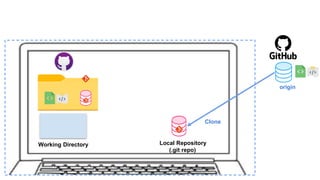
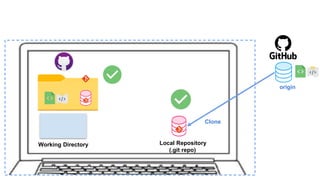
Clone
Creates a localcopy of the entire repository
- Files ,Commit History ,Branches and Tags
Cloning is done from an existing remote
repository
- Usually called origin
- Permissions are required
Repo URL required
- Can be obtained from the hosting platform
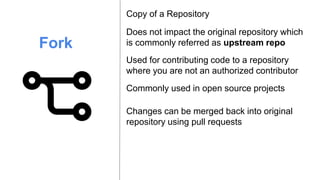
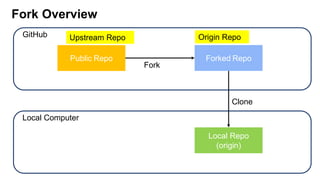
Fork
Copy of aRepository
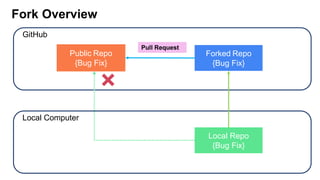
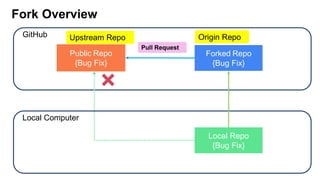
Changes can be merged back into original
repository using pull requests
Does not impact the original repository which
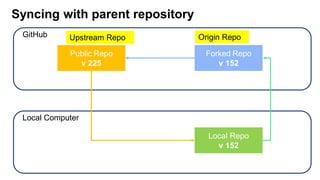
is commonly referred as upstream repo
Used for contributing code to a repository
where you are not an authorized contributor
Commonly used in open source projects
9.
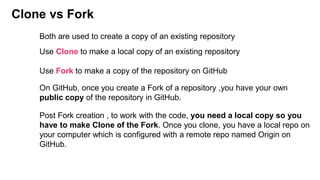
Clone vs Fork
UseClone to make a local copy of an existing repository
Use Fork to make a copy of the repository on GitHub
Both are used to create a copy of an existing repository
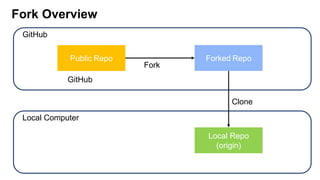
On GitHub, once you create a Fork of a repository ,you have your own
public copy of the repository in GitHub.
Post Fork creation , to work with the code, you need a local copy so you
have to make Clone of the Fork. Once you clone, you have a local repo on
your computer which is configured with a remote repo named Origin on
GitHub.
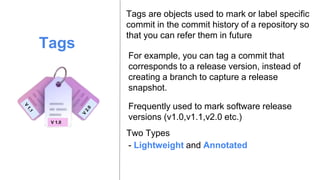
Tags
Tags are objectsused to mark or label specific
commit in the commit history of a repository so
that you can refer them in future
Frequently used to mark software release
versions (v1.0,v1.1,v2.0 etc.)
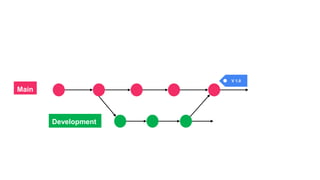
For example, you can tag a commit that
corresponds to a release version, instead of
creating a branch to capture a release
snapshot.
- Lightweight and Annotated
Two Types
V 1.0
13.
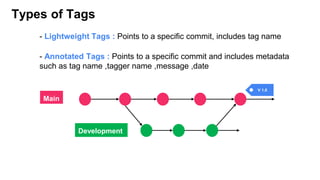
Types of Tags
-Lightweight Tags : Points to a specific commit, includes tag name
- Annotated Tags : Points to a specific commit and includes metadata
such as tag name ,tagger name ,message ,date
Main
Development
V 1.0
Discarding changes inGitHub Desktop
Discarded files are moved to Trash/Recycle Bin
You can discard all uncommitted changes in one or more files
If you have uncommitted changes that you don't want to keep,
you can discard the changes.
You can discard changes in one or more lines
18.
Undoing a commitin GitHub Desktop
Useful if you made a mistake in the changes you included.
Not possible if you have already pushed the commit to the remote
repository.
Restores the changes from a commit to working directory,
so you can make further changes before re-committing.
19.
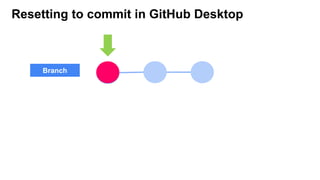
Resetting to commitin GitHub Desktop
Allows set your local history back to your latest pushed
commit/non-local commit
It resets the HEAD of the repo to the commit you selected, keeping all the
changes in the working directory and in the commits in between.
Reset to Commit allows for discarding more than one
commit at a time
20.
Amending a commitin GitHub Desktop
Helpful in scenarios like edit the commit message or including/excluding
changes in the commit
Replaces the previous commit with a new commit to the current branch
It is way to modify the most recent commit you have
made in your current branch
Ideally you should only amend a commit that you haven't pushed to the
remote repository.
To amend a commit that has been pushed to the remote repository, you will
need to use a force push to overwrite the commit history in the remote
repository.
21.
Reordering commits inGitHub Desktop
To reorder commits which are already pushed to remote branch ,force
push is required.
Reordering allows to alter a branch’s commit history to provide a more
meaningful progression of commits
22.
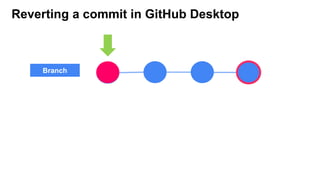
Reverting a commitin GitHub Desktop
When you revert to a previous commit, the revert is also a commit. The
original commit also remains in the repository's history.
You can revert a specific commit to remove its changes from your
branch
When you revert multiple commits, it's best to revert in order from
newest to oldest. If you revert commits in a different order, you may see
merge conflicts.
23.
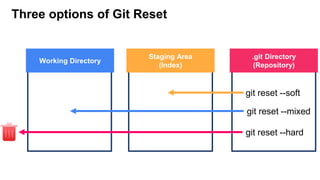
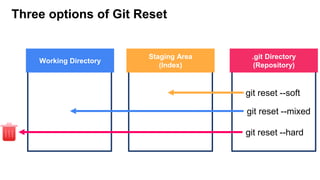
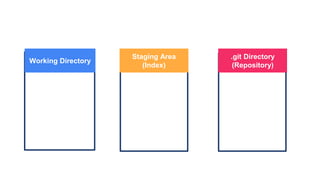
Three options ofGit Reset
Working Directory
Staging Area
(Index)
.git Directory
(Repository)
git reset --soft
git reset --mixed
git reset --hard
24.
Three options ofGit Reset
Working Directory
Staging Area
(Index)
.git Directory
(Repository)
git reset --soft
git reset --mixed
git reset --hard
25.
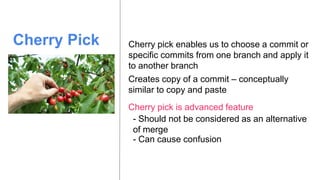
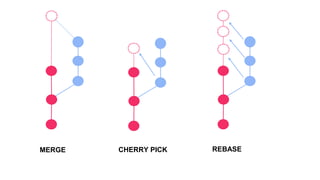
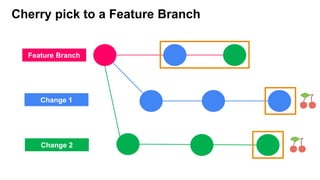
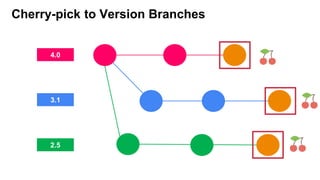
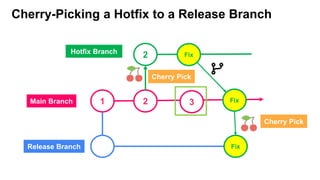
Cherry Pick Cherrypick enables us to choose a commit or
specific commits from one branch and apply it
to another branch
Cherry pick is advanced feature
- Should not be considered as an alternative
of merge
Creates copy of a commit – conceptually
similar to copy and paste
- Can cause confusion
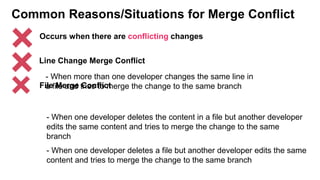
Common Reasons/Situations forMerge Conflict
Line Change Merge Conflict
- When one developer deletes a file but another developer edits the same
content and tries to merge the change to the same branch
File Merge Conflict
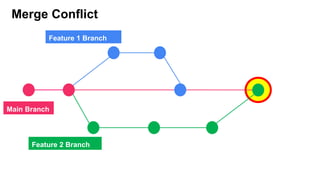
- When more than one developer changes the same line in
a file and tries to merge the change to the same branch
- When one developer deletes the content in a file but another developer
edits the same content and tries to merge the change to the same
branch
Occurs when there are conflicting changes
33.
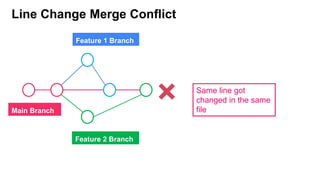
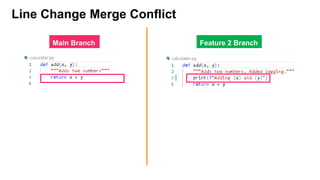
Line Change MergeConflict
Main Branch
Feature 2 Branch
Feature 1 Branch
Same line got
changed in the same
file
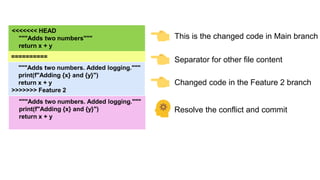
<<<<<<< HEAD
"""Adds twonumbers"""
return x + y
==========
"""Adds two numbers. Added logging."""
print(f"Adding {x} and {y}")
return x + y
>>>>>>> Feature 2
This is the changed code in Main branch
Separator for other file content
Changed code in the Feature 2 branch
Resolve the conflict and commit
"""Adds two numbers. Added logging."""
print(f"Adding {x} and {y}")
return x + y
36.
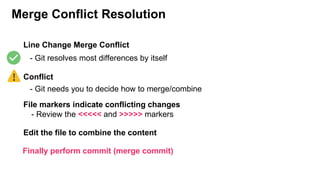
Merge Conflict Resolution
LineChange Merge Conflict
Conflict
- Git resolves most differences by itself
- Git needs you to decide how to merge/combine
File markers indicate conflicting changes
Edit the file to combine the content
Finally perform commit (merge commit)
- Review the <<<<< and >>>>> markers
37.
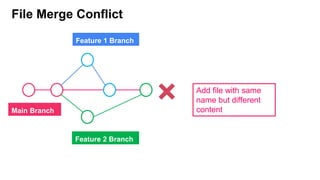
File Merge Conflict
MainBranch
Feature 2 Branch
Feature 1 Branch
Add file with same
name but different
content
38.
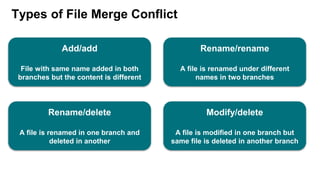
Types of FileMerge Conflict
Add/add
File with same name added in both
branches but the content is different
Rename/rename
A file is renamed under different
names in two branches
Rename/delete
A file is renamed in one branch and
deleted in another
Modify/delete
A file is modified in one branch but
same file is deleted in another branch
39.
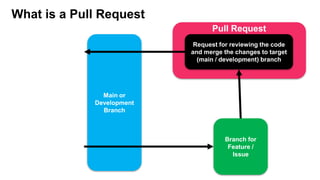
What is aPull Request
Main or
Development
Branch
Branch for
Feature /
Issue
Request for reviewing the code
and merge the changes to target
(main / development) branch
Pull Request
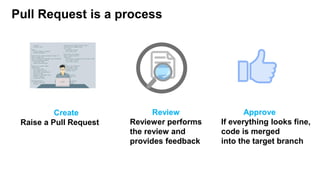
Pull Request isa process
Create
Raise a Pull Request
Review
Reviewer performs
the review and
provides feedback
Approve
If everything looks fine,
code is merged
into the target branch
42.
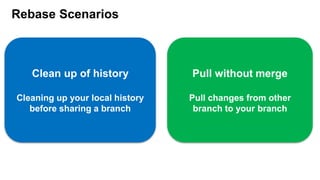
Rebase Scenarios
Pull withoutmerge
Pull changes from other
branch to your branch
Clean up of history
Cleaning up your local history
before sharing a branch
43.
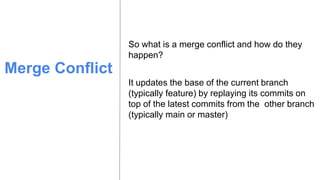
Merge Conflict
So whatis a merge conflict and how do they
happen?
It updates the base of the current branch
(typically feature) by replaying its commits on
top of the latest commits from the other branch
(typically main or master)
44.
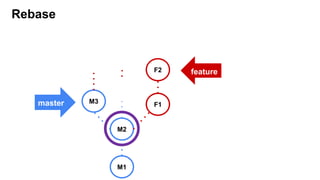
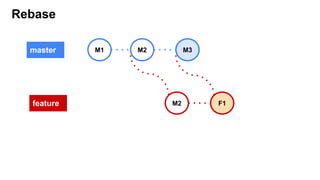
Rebase
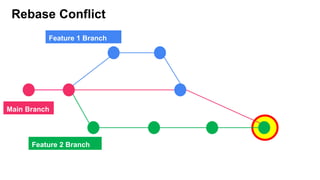
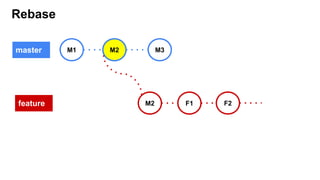
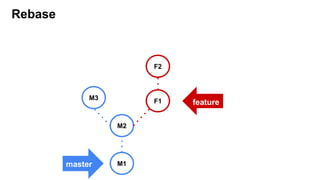
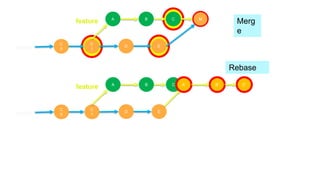
Rebase is usedto integrate changes from one
branch onto another branch
It updates the base of the current branch
(typically feature) by replaying its commits on
top of the latest commits from the other branch
(typically main or master)
45.
Never use Rebaseon a branch which is shared with other
developers
Use Rebase carefully !!
As Rebase alters the history of the branch ,in case other
developers are working ,it would be causing merge
conflicts and inconsistency in the codebase.
Rebasing and then force-pushing (git push --force) can
overwrite others' changes if they have pushed commits to
the same branch.
Merge
Combine changes fromone branch to
another
- Takes commits from source branch
Combine history of one branch into another
- Integrates into the target branch
How features and bug fixes are added
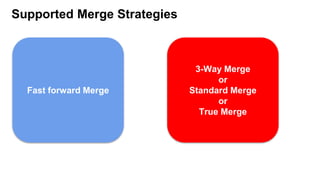
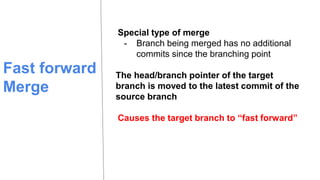
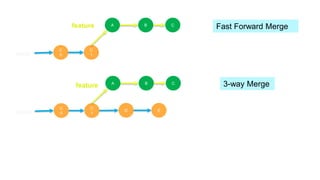
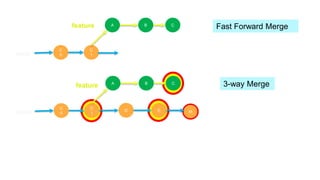
Fast forward
Merge
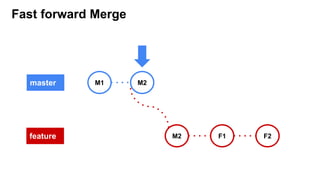
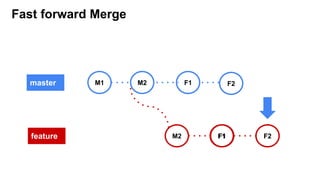
Special typeof merge
- Branch being merged has no additional
commits since the branching point
The head/branch pointer of the target
branch is moved to the latest commit of the
source branch
Causes the target branch to “fast forward”
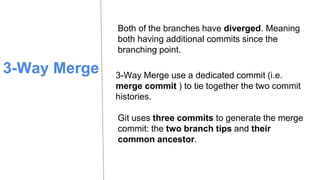
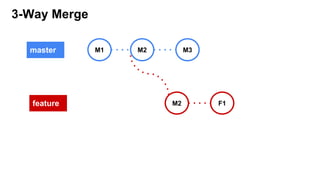
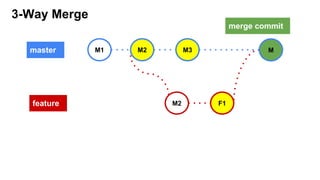
3-Way Merge
Both ofthe branches have diverged. Meaning
both having additional commits since the
branching point.
3-Way Merge use a dedicated commit (i.e.
merge commit ) to tie together the two commit
histories.
Git uses three commits to generate the merge
commit: the two branch tips and their
common ancestor.
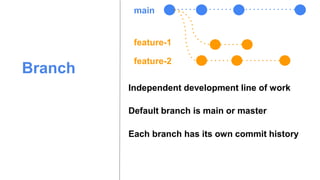
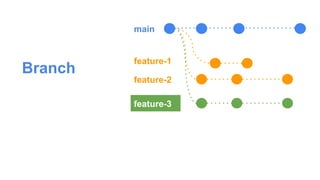
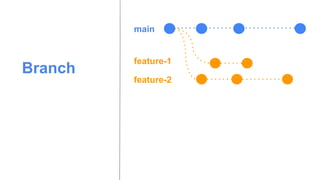
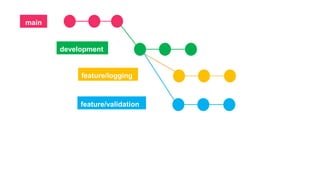
Branch
Default branch ismain or master
Independent development line of work
Each branch has its own commit history
main
feature-1
feature-2
61.
Branch
Branches isolate yourdevelopment work
from other branches in the repository
- Allows working on different features or bugs
without affecting the main codebase
Developers can create new branches
- Part of their daily workflow
Changes made on one branch
- Do not affect other branches
- Until they are merged
62.
What We WouldDo with Branches ?
❏ Create a new branch
❏ Create a branch from a previous commit
❏ Publish a branch to remote
❏ Compare branches
❏ Choose a branch and make few changes
❏ Rename a branch
❏ Delete a branch
Local Branches
- Alocal branch exists only on your local machine.
- When you create a new branch in GitHub Desktop, you're creating
a local branch. This branch is a copy of your code that you can
work on independently.
- Any changes you make to local branch are saved locally,
meaning they won't be visible to others until you push the branch
to a remote repository.
65.
Remote (tracking) Branches
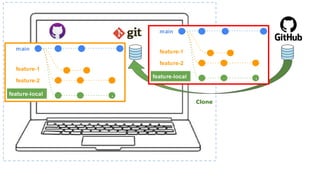
-Remote tracking branches are basically local branches that have a
special connection to a branch on a remote repository ,such as
GitHub.
- When you clone a repository, GitHub Desktop automatically
creates remote tracking branches that mirror the branches on the
remote.
- Remote tracking branches are used for collaboration and staying
synchronized
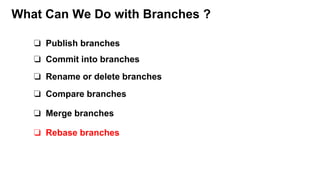
What Can WeDo with Branches ?
❏ Publish branches
❏ Commit into branches
❏ Merge branches
❏ Compare branches
❏ Rename or delete branches
❏ Rebase branches
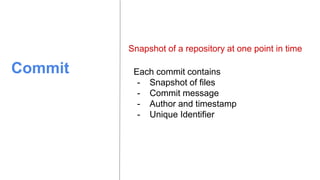
Commit Each commitcontains
- Snapshot of files
- Commit message
- Author and timestamp
- Unique Identifier
Snapshot of a repository at one point in time
77.
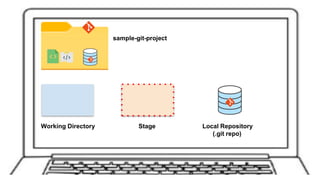
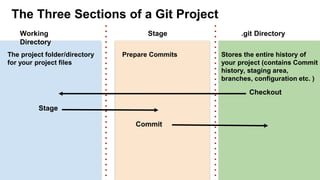
Working
Directory
Stage .git Directory
TheThree Sections of a Git Project
The project folder/directory
for your project files
Prepare Commits Stores the entire history of
your project (contains Commit
history, staging area,
branches, configuration etc. )
Checkout
Stage
Commit
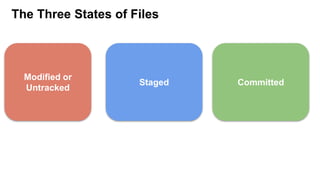
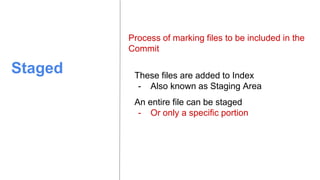
Staged These filesare added to Index
- Also known as Staging Area
An entire file can be staged
- Or only a specific portion
Process of marking files to be included in the
Commit
81.
Committed
- Commit becomespart of repo’s History
Represents files that have been added
permanently to the repository
82.
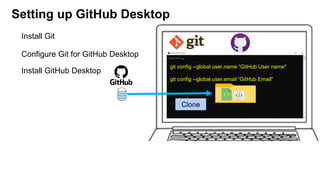
Setting up GitHubDesktop
Configure Git for GitHub Desktop
Install GitHub Desktop
Install Git
git config --global user.name “GitHub User name"
git config --global user.email “GitHub Email"
Clone
83.
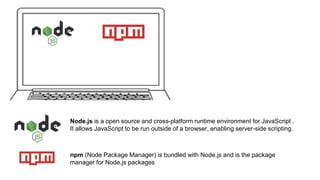
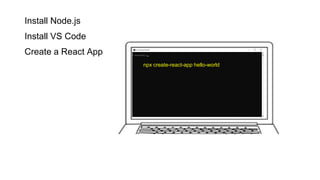
Node.js is aopen source and cross-platform runtime environment for JavaScript .
It allows JavaScript to be run outside of a browser, enabling server-side scripting.
npm (Node Package Manager) is bundled with Node.js and is the package
manager for Node.js packages
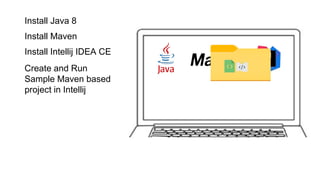
Install Java 8
InstallMaven
Install Intellij IDEA CE
Create and Run
Sample Maven based
project in Intellij
86.
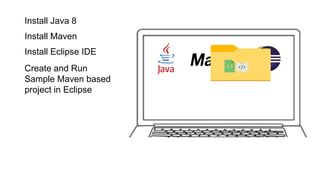
Install Java 8
InstallMaven
Install Eclipse IDE
Create and Run
Sample Maven based
project in Eclipse
87.
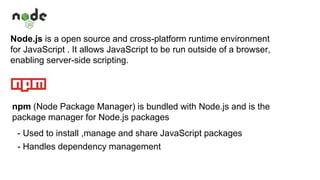
Node.js is aopen source and cross-platform runtime environment
for JavaScript . It allows JavaScript to be run outside of a browser,
enabling server-side scripting.
npm (Node Package Manager) is bundled with Node.js and is the
package manager for Node.js packages
- Used to install ,manage and share JavaScript packages
- Handles dependency management
88.
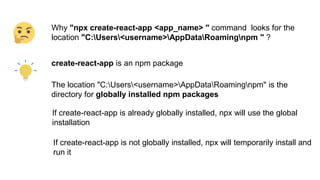
Why "npx create-react-app<app_name> " command looks for the
location "C:Users<username>AppDataRoamingnpm " ?
create-react-app is an npm package
The location "C:Users<username>AppDataRoamingnpm" is the
directory for globally installed npm packages
If create-react-app is already globally installed, npx will use the global
installation
If create-react-app is not globally installed, npx will temporarily install and
run it
Stash
After stashing changeson a branch, you can
safely change branches or make other
changes to your current branch
If you have saved changes that you are not
ready to commit yet, you can stash the
changes for later.
94.
Stash - Thechanges are temporarily removed from
the files
When you stash changes
- You can choose to restore or discard the
changes later.
Stashes are local operation , they are not
pushed
You can only stash one per branch at a time
with GitHub Desktop
95.
Fork
Fork is usedto create a copy of a repository in
GitHub
Changes can be merged back into original
repository using pull requests
Does not impact the original repository which
is commonly referred as upstream repo
Used for contributing code to a repository
where you are not an authorized contributor
Commonly used in open source projects
96.
Clone vs Fork
UseClone to make a local copy of an existing repository
Use Fork to make a copy of the repository on GitHub
Both are used to create a copy of an existing repository
On GitHub, once you create a Fork of a repository ,you have your own
public copy of the repository in GitHub.
Post Fork creation , to work with the code, you need a local copy so you
have to make Clone of the Fork. Once you clone, you have a local repo on
your computer which is configured with a remote repo named Origin on
GitHub.
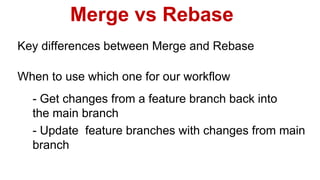
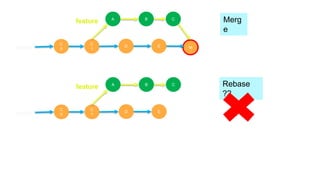
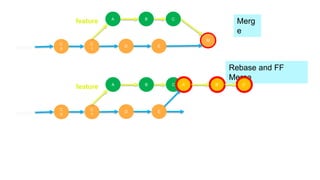
Merge vs Rebase
Keydifferences between Merge and Rebase
- Get changes from a feature branch back into
the main branch
- Update feature branches with changes from main
branch
When to use which one for our workflow
102.
Scenario 1 :Incorporating
changes from Feature to Main