git for the uninitiated
Paul Litwin
Fred Hutchinson Cancer Research Center
plitwin@fredhutch.org
@plitwin
Slides can be found here…
• http://tinyurl.com/litwin-sea-web
Litwin Git for the Unitiated 2
Session Itinerary
• Why distributed version control?
• git basics
• Command line git
• Using git from VS Code
• Using git from Visual Studio
• Branching and merging
• Wrap up
Litwin Git for the Unitiated 3
Why distributed version control?
Git is a free and open source distributed
version control system designed to handle
everything from small to very large projects
with speed and efficiency
Created by Linux creator, Linus Torvalds
Litwin Git for the Unitiated 5
The name git?
Litwin Git for the Unitiated 6
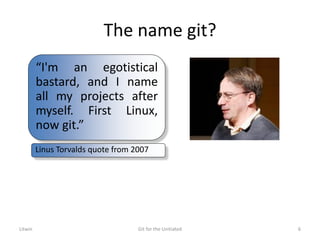
“I'm an egotistical
bastard, and I name
all my projects after
myself. First Linux,
now git.”
Linus Torvalds quote from 2007
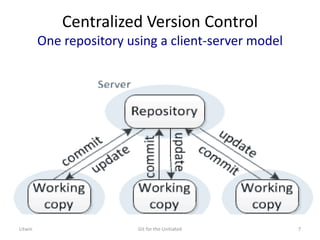
Centralized Version Control
One repository using a client-server model
Litwin Git for the Unitiated 7
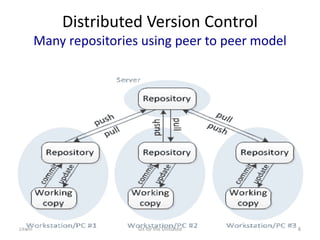
Distributed Version Control
Many repositories using peer to peer model
Litwin Git for the Unitiated 8
Comparing centralized (tfs) vs distributed (git)
Attribute Centralized
TFS, SVN, PVCS
Distributed
git, Mercurial
Repositories 1 Many
Model Client-server Peer-to-peer
Speed of common
operations
Slower Fast against local repo
Redundancy of system None; single point of
failure
Redundancy built in
Offline work More difficult Easy
Merging of changes When you check
changes in
When you sync changes
(push/pull)
Litwin Git for the Unitiated 9
git Basics
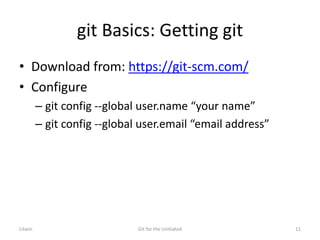
git Basics: Getting git
• Download from: https://git-scm.com/
• Configure
– git config --global user.name “your name”
– git config --global user.email “email address”
Litwin Git for the Unitiated 11
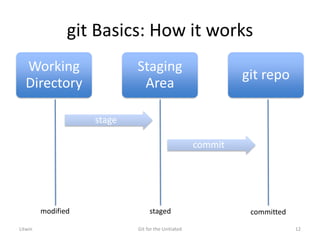
git Basics: How it works
Working
Directory
stage
Staging
Area
commit
git repo
modified staged committed
Litwin Git for the Unitiated 12
Command line git
Using Command Line
• Windows
– use command prompt
– you may need to add git to the path (find git.exe and
add this folder to the system path)
• Control Panel|(System and Security)*|System|Advanced
System Settings|Environment Variables and select Path and
click Edit
* Windows 8/10 only
• Mac
– use terminal program
Litwin Git for the Unitiated 14
Creating a local repo
• git init
– creates a local repository in current folder by
creating a hidden .git subfolder
Litwin Git for the Unitiated 15
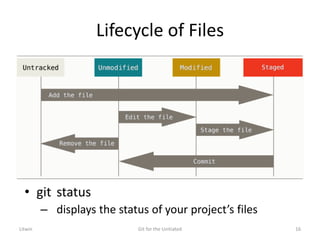
Lifecycle of Files
• git status
– displays the status of your project’s files
Litwin Git for the Unitiated 16
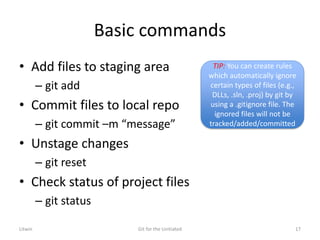
Basic commands
• Add files to staging area
– git add
• Commit files to local repo
– git commit –m “message”
• Unstage changes
– git reset
• Check status of project files
– git status
TIP: You can create rules
which automatically ignore
certain types of files (e.g.,
DLLs, .sln, .proj) by git by
using a .gitignore file. The
ignored files will not be
tracked/added/committed
Litwin Git for the Unitiated 17
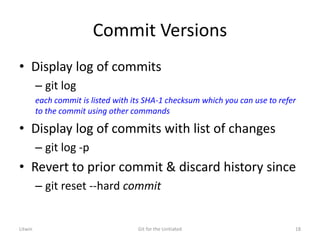
Commit Versions
• Display log of commits
– git log
each commit is listed with its SHA-1 checksum which you can use to refer
to the commit using other commands
• Display log of commits with list of changes
– git log -p
• Revert to prior commit & discard history since
– git reset --hard commit
Litwin Git for the Unitiated 18
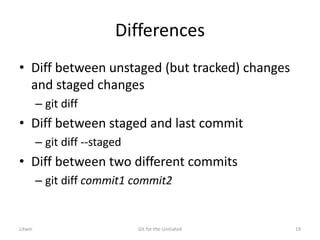
Differences
• Diff between unstaged (but tracked) changes
and staged changes
– git diff
• Diff between staged and last commit
– git diff --staged
• Diff between two different commits
– git diff commit1 commit2
Litwin Git for the Unitiated 19
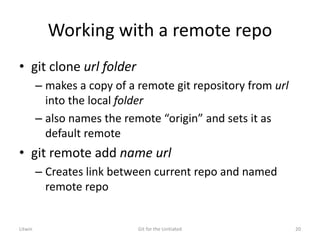
Working with a remote repo
• git clone url folder
– makes a copy of a remote git repository from url
into the local folder
– also names the remote “origin” and sets it as
default remote
• git remote add name url
– Creates link between current repo and named
remote repo
Litwin Git for the Unitiated 20
Git Hosting Services
• GitHub
– free for public, open source repos
– $ for private repos
• Bitbucket
– free for up to 5-person team private repos
• VS Online
– free for up to 5-person team private repos
Litwin Git for the Unitiated 21
Exchanging changes with remote
• git pull
– downloads remote changes and merges them into
your repo
• git push
– uploads local committed changes to remote
– git push –u origin master
• pushes content to origin remote from master branch
and remembers your remote and branch settings
Litwin Git for the Unitiated 22
Litwin Git for the Unitiated 23
Litwin Git for the Unitiated 24
Using git from VSCode
Code and git (1 of 3)
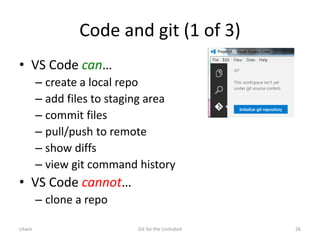
• VS Code can…
– create a local repo
– add files to staging area
– commit files
– pull/push to remote
– show diffs
– view git command history
• VS Code cannot…
– clone a repo
Litwin Git for the Unitiated 26
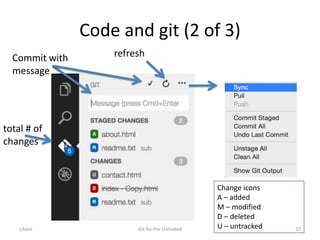
Code and git (2 of 3)
total # of
changes
Change icons
A – added
M – modified
D – deleted
U – untracked
Commit with
message
refresh
Litwin Git for the Unitiated 27
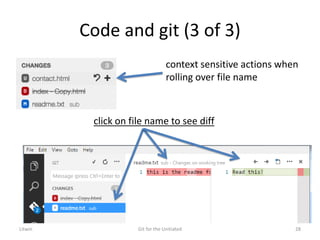
Code and git (3 of 3)
context sensitive actions when
rolling over file name
click on file name to see diff
Litwin Git for the Unitiated 28
Using git from Visual Studio
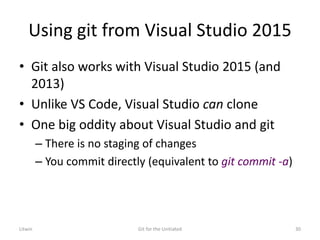
Using git from Visual Studio 2015
• Git also works with Visual Studio 2015 (and
2013)
• Unlike VS Code, Visual Studio can clone
• One big oddity about Visual Studio and git
– There is no staging of changes
– You commit directly (equivalent to git commit -a)
Litwin Git for the Unitiated 30
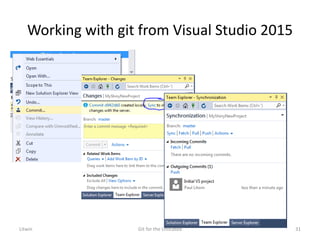
Working with git from Visual Studio 2015
Litwin Git for the Unitiated 31
Branching and merging
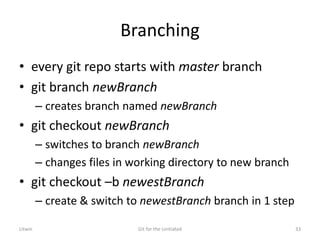
Branching
• every git repo starts with master branch
• git branch newBranch
– creates branch named newBranch
• git checkout newBranch
– switches to branch newBranch
– changes files in working directory to new branch
• git checkout –b newestBranch
– create & switch to newestBranch branch in 1 step
Litwin Git for the Unitiated 33
Merging
• Two steps
1. git checkout branchToMergeTo
2. git merge branchToMergeFrom
Any merge conflicts will need to be resolved and the resulting changes
committed
• Deleting a branch
– git branch –d branchToDelete
Litwin Git for the Unitiated 34
More on branches
• git branch
– no arguments; lists all branches
• git branch --merged
– lists all branches you have merged with
• git branch --no-merged
– lists all branches you have not merged with
• git diff branch1 branch2
– shows differences between two branches
Litwin Git for the Unitiated 35
Branches & remotes
• gets a little more complicated
– git fetch remote
• download all history from remote but don’t integrate
– git pull remote branch
• download & merge remote commits into local branch
– git push remote branch
• send branch commits to remote branch
Homework: Read chapter 3 (Git Branching) of
https://git-scm.com/book/en/v2 for more on branching
Litwin Git for the Unitiated 36
Stashing
• git stash
– temporarily stashes away all tracked changes so you
can switch to another branch
• git stash apply
– reapplies most recently stashed changes
• git stash drop
– deletes most recently stash
• git stash pop
– reapplies most recently stashed changes and deletes
the stash
Litwin Git for the Unitiated 37
Wrap Up
Wrap Up
• git is a distributed source control repository that
has a lot of power & a groundswell of developer
community support
• You can use git from
– command line
– VS Code
– Visual Studio
– other git GUI tools
• I’ve only scratched the surface of git
– See next slide for resources where you can learn more
Litwin Git for the Unitiated 39
Resources
• Download git
– http://git-scm.com
• Various resources
– https://git-scm.com/documentation
• Free book -- Pro Git
– https://git-scm.com/book/en/v2
• Interactive tutorial
– https://try.github.io/
• Cheat sheets
– http://www.git-tower.com/blog/git-cheat-sheet/
– http://ndpsoftware.com/git-cheatsheet.html
– https://training.github.com/kit/downloads/github-git-cheat-sheet.pdf
• Git GUI tools (useful for visualizing branches)
– Source Tree: https://www.sourcetreeapp.com/
– GitHub Desktop: https://desktop.github.com/
Litwin Git for the Unitiated 40
Slides can be found here…
• http://tinyurl.com/litwin-sea-web
Litwin Git for the Unitiated 41
Thank you!

Git for uninitiated

  • 1.
    git for theuninitiated Paul Litwin Fred Hutchinson Cancer Research Center plitwin@fredhutch.org @plitwin
  • 2.
    Slides can befound here… • http://tinyurl.com/litwin-sea-web Litwin Git for the Unitiated 2
  • 3.
    Session Itinerary • Whydistributed version control? • git basics • Command line git • Using git from VS Code • Using git from Visual Studio • Branching and merging • Wrap up Litwin Git for the Unitiated 3
  • 4.
  • 5.
    Git is afree and open source distributed version control system designed to handle everything from small to very large projects with speed and efficiency Created by Linux creator, Linus Torvalds Litwin Git for the Unitiated 5
  • 6.
    The name git? LitwinGit for the Unitiated 6 “I'm an egotistical bastard, and I name all my projects after myself. First Linux, now git.” Linus Torvalds quote from 2007
  • 7.
    Centralized Version Control Onerepository using a client-server model Litwin Git for the Unitiated 7
  • 8.
    Distributed Version Control Manyrepositories using peer to peer model Litwin Git for the Unitiated 8
  • 9.
    Comparing centralized (tfs)vs distributed (git) Attribute Centralized TFS, SVN, PVCS Distributed git, Mercurial Repositories 1 Many Model Client-server Peer-to-peer Speed of common operations Slower Fast against local repo Redundancy of system None; single point of failure Redundancy built in Offline work More difficult Easy Merging of changes When you check changes in When you sync changes (push/pull) Litwin Git for the Unitiated 9
  • 10.
  • 11.
    git Basics: Gettinggit • Download from: https://git-scm.com/ • Configure – git config --global user.name “your name” – git config --global user.email “email address” Litwin Git for the Unitiated 11
  • 12.
    git Basics: Howit works Working Directory stage Staging Area commit git repo modified staged committed Litwin Git for the Unitiated 12
  • 13.
  • 14.
    Using Command Line •Windows – use command prompt – you may need to add git to the path (find git.exe and add this folder to the system path) • Control Panel|(System and Security)*|System|Advanced System Settings|Environment Variables and select Path and click Edit * Windows 8/10 only • Mac – use terminal program Litwin Git for the Unitiated 14
  • 15.
    Creating a localrepo • git init – creates a local repository in current folder by creating a hidden .git subfolder Litwin Git for the Unitiated 15
  • 16.
    Lifecycle of Files •git status – displays the status of your project’s files Litwin Git for the Unitiated 16
  • 17.
    Basic commands • Addfiles to staging area – git add • Commit files to local repo – git commit –m “message” • Unstage changes – git reset • Check status of project files – git status TIP: You can create rules which automatically ignore certain types of files (e.g., DLLs, .sln, .proj) by git by using a .gitignore file. The ignored files will not be tracked/added/committed Litwin Git for the Unitiated 17
  • 18.
    Commit Versions • Displaylog of commits – git log each commit is listed with its SHA-1 checksum which you can use to refer to the commit using other commands • Display log of commits with list of changes – git log -p • Revert to prior commit & discard history since – git reset --hard commit Litwin Git for the Unitiated 18
  • 19.
    Differences • Diff betweenunstaged (but tracked) changes and staged changes – git diff • Diff between staged and last commit – git diff --staged • Diff between two different commits – git diff commit1 commit2 Litwin Git for the Unitiated 19
  • 20.
    Working with aremote repo • git clone url folder – makes a copy of a remote git repository from url into the local folder – also names the remote “origin” and sets it as default remote • git remote add name url – Creates link between current repo and named remote repo Litwin Git for the Unitiated 20
  • 21.
    Git Hosting Services •GitHub – free for public, open source repos – $ for private repos • Bitbucket – free for up to 5-person team private repos • VS Online – free for up to 5-person team private repos Litwin Git for the Unitiated 21
  • 22.
    Exchanging changes withremote • git pull – downloads remote changes and merges them into your repo • git push – uploads local committed changes to remote – git push –u origin master • pushes content to origin remote from master branch and remembers your remote and branch settings Litwin Git for the Unitiated 22
  • 23.
    Litwin Git forthe Unitiated 23
  • 24.
    Litwin Git forthe Unitiated 24
  • 25.
  • 26.
    Code and git(1 of 3) • VS Code can… – create a local repo – add files to staging area – commit files – pull/push to remote – show diffs – view git command history • VS Code cannot… – clone a repo Litwin Git for the Unitiated 26
  • 27.
    Code and git(2 of 3) total # of changes Change icons A – added M – modified D – deleted U – untracked Commit with message refresh Litwin Git for the Unitiated 27
  • 28.
    Code and git(3 of 3) context sensitive actions when rolling over file name click on file name to see diff Litwin Git for the Unitiated 28
  • 29.
    Using git fromVisual Studio
  • 30.
    Using git fromVisual Studio 2015 • Git also works with Visual Studio 2015 (and 2013) • Unlike VS Code, Visual Studio can clone • One big oddity about Visual Studio and git – There is no staging of changes – You commit directly (equivalent to git commit -a) Litwin Git for the Unitiated 30
  • 31.
    Working with gitfrom Visual Studio 2015 Litwin Git for the Unitiated 31
  • 32.
  • 33.
    Branching • every gitrepo starts with master branch • git branch newBranch – creates branch named newBranch • git checkout newBranch – switches to branch newBranch – changes files in working directory to new branch • git checkout –b newestBranch – create & switch to newestBranch branch in 1 step Litwin Git for the Unitiated 33
  • 34.
    Merging • Two steps 1.git checkout branchToMergeTo 2. git merge branchToMergeFrom Any merge conflicts will need to be resolved and the resulting changes committed • Deleting a branch – git branch –d branchToDelete Litwin Git for the Unitiated 34
  • 35.
    More on branches •git branch – no arguments; lists all branches • git branch --merged – lists all branches you have merged with • git branch --no-merged – lists all branches you have not merged with • git diff branch1 branch2 – shows differences between two branches Litwin Git for the Unitiated 35
  • 36.
    Branches & remotes •gets a little more complicated – git fetch remote • download all history from remote but don’t integrate – git pull remote branch • download & merge remote commits into local branch – git push remote branch • send branch commits to remote branch Homework: Read chapter 3 (Git Branching) of https://git-scm.com/book/en/v2 for more on branching Litwin Git for the Unitiated 36
  • 37.
    Stashing • git stash –temporarily stashes away all tracked changes so you can switch to another branch • git stash apply – reapplies most recently stashed changes • git stash drop – deletes most recently stash • git stash pop – reapplies most recently stashed changes and deletes the stash Litwin Git for the Unitiated 37
  • 38.
  • 39.
    Wrap Up • gitis a distributed source control repository that has a lot of power & a groundswell of developer community support • You can use git from – command line – VS Code – Visual Studio – other git GUI tools • I’ve only scratched the surface of git – See next slide for resources where you can learn more Litwin Git for the Unitiated 39
  • 40.
    Resources • Download git –http://git-scm.com • Various resources – https://git-scm.com/documentation • Free book -- Pro Git – https://git-scm.com/book/en/v2 • Interactive tutorial – https://try.github.io/ • Cheat sheets – http://www.git-tower.com/blog/git-cheat-sheet/ – http://ndpsoftware.com/git-cheatsheet.html – https://training.github.com/kit/downloads/github-git-cheat-sheet.pdf • Git GUI tools (useful for visualizing branches) – Source Tree: https://www.sourcetreeapp.com/ – GitHub Desktop: https://desktop.github.com/ Litwin Git for the Unitiated 40
  • 41.
    Slides can befound here… • http://tinyurl.com/litwin-sea-web Litwin Git for the Unitiated 41 Thank you!