Ammel’s (lol) guide to GIF making
Software Needed

1. GOM Media Player - http://www.gomlab.com/eng/GMP_download.html
2. Photoscape - http://www.photoscape.org/ps/main/download.php

Part A (to make captures for the GIF)

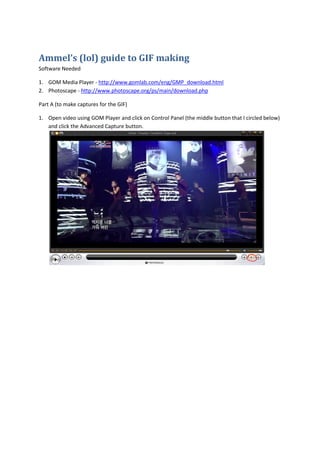
1. Open video using GOM Player and click on Control Panel (the middle button that I circled below)
   and click the Advanced Capture button.
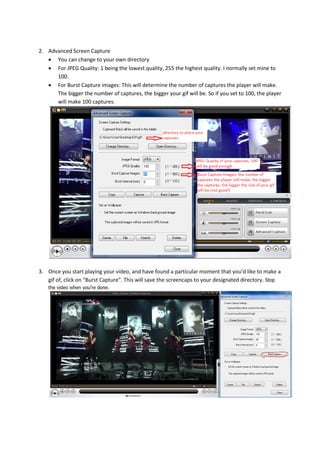
2. Advanced Screen Capture
    You can change to your own directory
    For JPEG Quality: 1 being the lowest quality, 255 the highest quality. I normally set mine to
      100.
    For Burst Capture images: This will determine the number of captures the player will make.
      The bigger the number of captures, the bigger your gif will be. So if you set to 100, the player
      will make 100 captures.


3. Once you start playing your video, and have found a particular moment that you’d like to make a
   gif of, click on “Burst Capture”. This will save the screencaps to your designated directory. Stop
    the video when you’re done.
Part B
Open Photoscape
 Batch Editor (you can skip this and go to Step 2 if you do not want to edit your captures
 Animated GIF
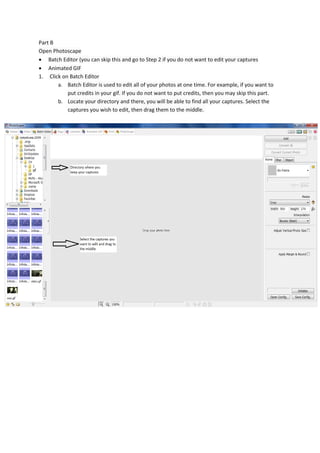
1. Click on Batch Editor
       a. Batch Editor is used to edit all of your photos at one time. For example, if you want to
           put credits in your gif. If you do not want to put credits, then you may skip this part.
       b. Locate your directory and there, you will be able to find all your captures. Select the
           captures you wish to edit, then drag them to the middle.
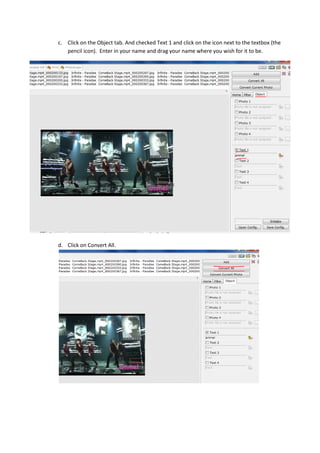
c. Click on the Object tab. And checked Text 1 and click on the icon next to the textbox (the
   pencil icon). Enter in your name and drag your name where you wish for it to be.


d. Click on Convert All.
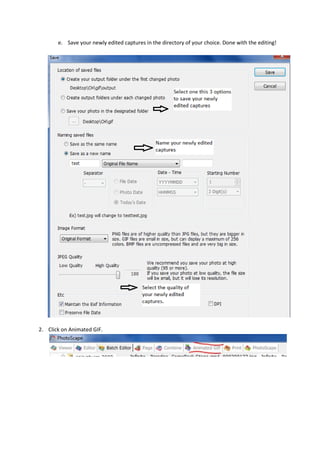
e. Save your newly edited captures in the directory of your choice. Done with the editing!


2. Click on Animated GIF.
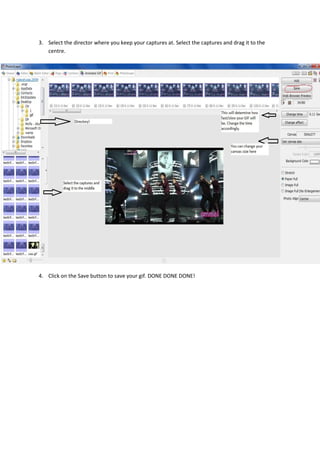
3. Select the director where you keep your captures at. Select the captures and drag it to the
   centre.


4. Click on the Save button to save your gif. DONE DONE DONE!

Gif making

  • 1.
    Ammel’s (lol) guideto GIF making Software Needed 1. GOM Media Player - http://www.gomlab.com/eng/GMP_download.html 2. Photoscape - http://www.photoscape.org/ps/main/download.php Part A (to make captures for the GIF) 1. Open video using GOM Player and click on Control Panel (the middle button that I circled below) and click the Advanced Capture button.
  • 2.
    2. Advanced ScreenCapture  You can change to your own directory  For JPEG Quality: 1 being the lowest quality, 255 the highest quality. I normally set mine to 100.  For Burst Capture images: This will determine the number of captures the player will make. The bigger the number of captures, the bigger your gif will be. So if you set to 100, the player will make 100 captures. 3. Once you start playing your video, and have found a particular moment that you’d like to make a gif of, click on “Burst Capture”. This will save the screencaps to your designated directory. Stop the video when you’re done.
  • 3.
    Part B Open Photoscape Batch Editor (you can skip this and go to Step 2 if you do not want to edit your captures  Animated GIF 1. Click on Batch Editor a. Batch Editor is used to edit all of your photos at one time. For example, if you want to put credits in your gif. If you do not want to put credits, then you may skip this part. b. Locate your directory and there, you will be able to find all your captures. Select the captures you wish to edit, then drag them to the middle.
  • 4.
    c. Click onthe Object tab. And checked Text 1 and click on the icon next to the textbox (the pencil icon). Enter in your name and drag your name where you wish for it to be. d. Click on Convert All.
  • 5.
    e. Save yournewly edited captures in the directory of your choice. Done with the editing! 2. Click on Animated GIF.
  • 6.
    3. Select thedirector where you keep your captures at. Select the captures and drag it to the centre. 4. Click on the Save button to save your gif. DONE DONE DONE!