Making my front coverFor my music magazine on Photoshop
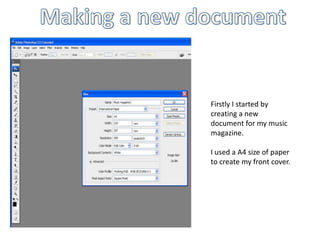
Making a new document  Firstly I started by creating a new document for my music magazine.I used a A4 size of paper to create my front cover.
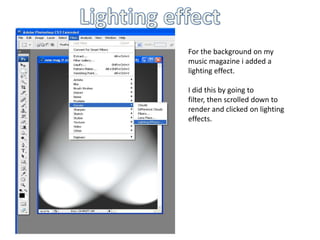
Lighting effect  For the background on my music magazine i added a lighting effect. I did this by going to filter, then scrolled down to render and clicked on lighting effects.
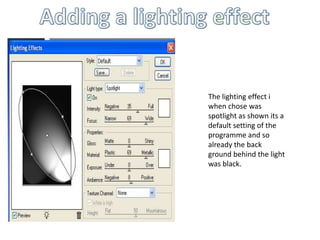
Adding a lighting effect The lighting effect i when chose was spotlight as shown its a default setting of the programme and so already the back ground behind the light was black.
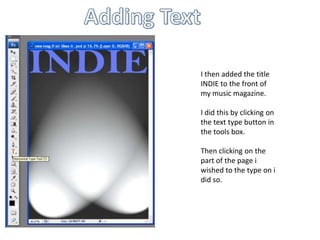
Adding Text I then added the title INDIE to the front of my music magazine. I did this by clicking on the text type button in the tools box.Then clicking on the part of the page i wished to the type on i did so.
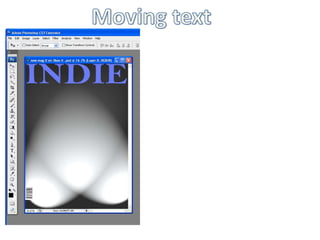
Moving text
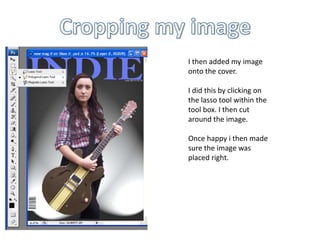
Cropping my image I then added my image onto the cover. I did this by clicking on the lasso tool within the tool box. I then cut around the image. Once happy i then made sure the image was placed right.
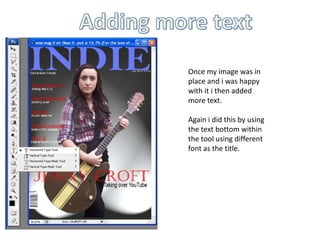
Adding more textOnce my image was in place and i was happy with it i then added more text.Again i did this by using the text bottom within the tool using different font as the title.
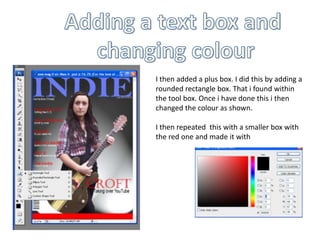
Adding a text box and changing colourI then added a plus box. I did this by adding a rounded rectangle box. That i found within the tool box. Once i have done this i then changed the colour as shown.I then repeated  this with a smaller box with the red one and made it with

front cover

  • 1.
    Making my frontcoverFor my music magazine on Photoshop
  • 2.
    Making a newdocument Firstly I started by creating a new document for my music magazine.I used a A4 size of paper to create my front cover.
  • 3.
    Lighting effect For the background on my music magazine i added a lighting effect. I did this by going to filter, then scrolled down to render and clicked on lighting effects.
  • 4.
    Adding a lightingeffect The lighting effect i when chose was spotlight as shown its a default setting of the programme and so already the back ground behind the light was black.
  • 5.
    Adding Text Ithen added the title INDIE to the front of my music magazine. I did this by clicking on the text type button in the tools box.Then clicking on the part of the page i wished to the type on i did so.
  • 6.
  • 7.
    Cropping my imageI then added my image onto the cover. I did this by clicking on the lasso tool within the tool box. I then cut around the image. Once happy i then made sure the image was placed right.
  • 8.
    Adding more textOncemy image was in place and i was happy with it i then added more text.Again i did this by using the text bottom within the tool using different font as the title.
  • 9.
    Adding a textbox and changing colourI then added a plus box. I did this by adding a rounded rectangle box. That i found within the tool box. Once i have done this i then changed the colour as shown.I then repeated this with a smaller box with the red one and made it with