05/31/2025 Varun Arora1
Design and Development of
Applications
Unit-1
Create Your First Android App
2.
Contents
● Android Studio
●Creating "Hello World" app in Android Studio
● Basic app development workflow with Android
Studio
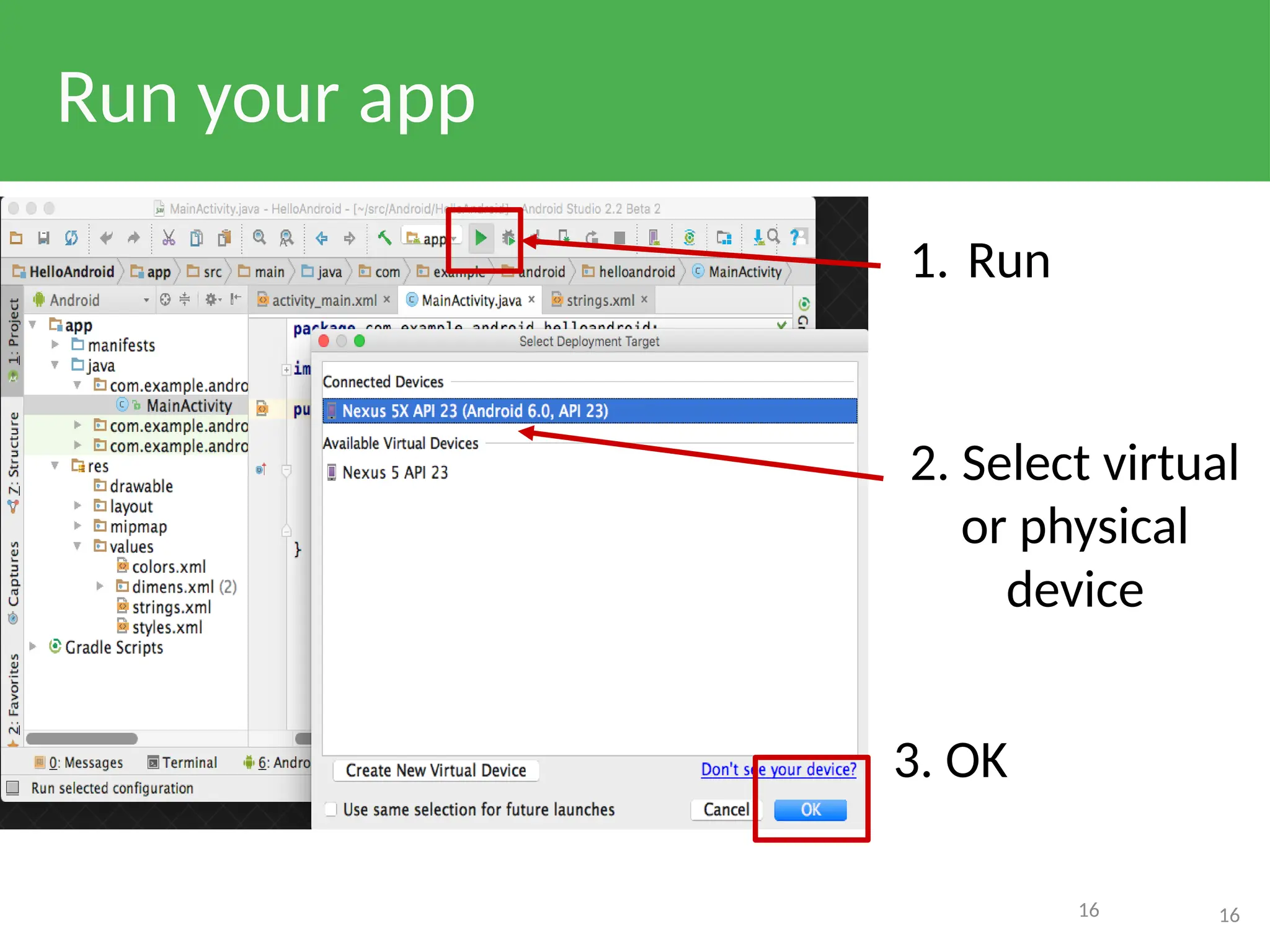
● Running apps on virtual and physical devices
2
3.
Prerequisites
● Java ProgrammingLanguage
● Object-oriented programming
● XML - properties / attributes
● Using an IDE for development and debugging
3
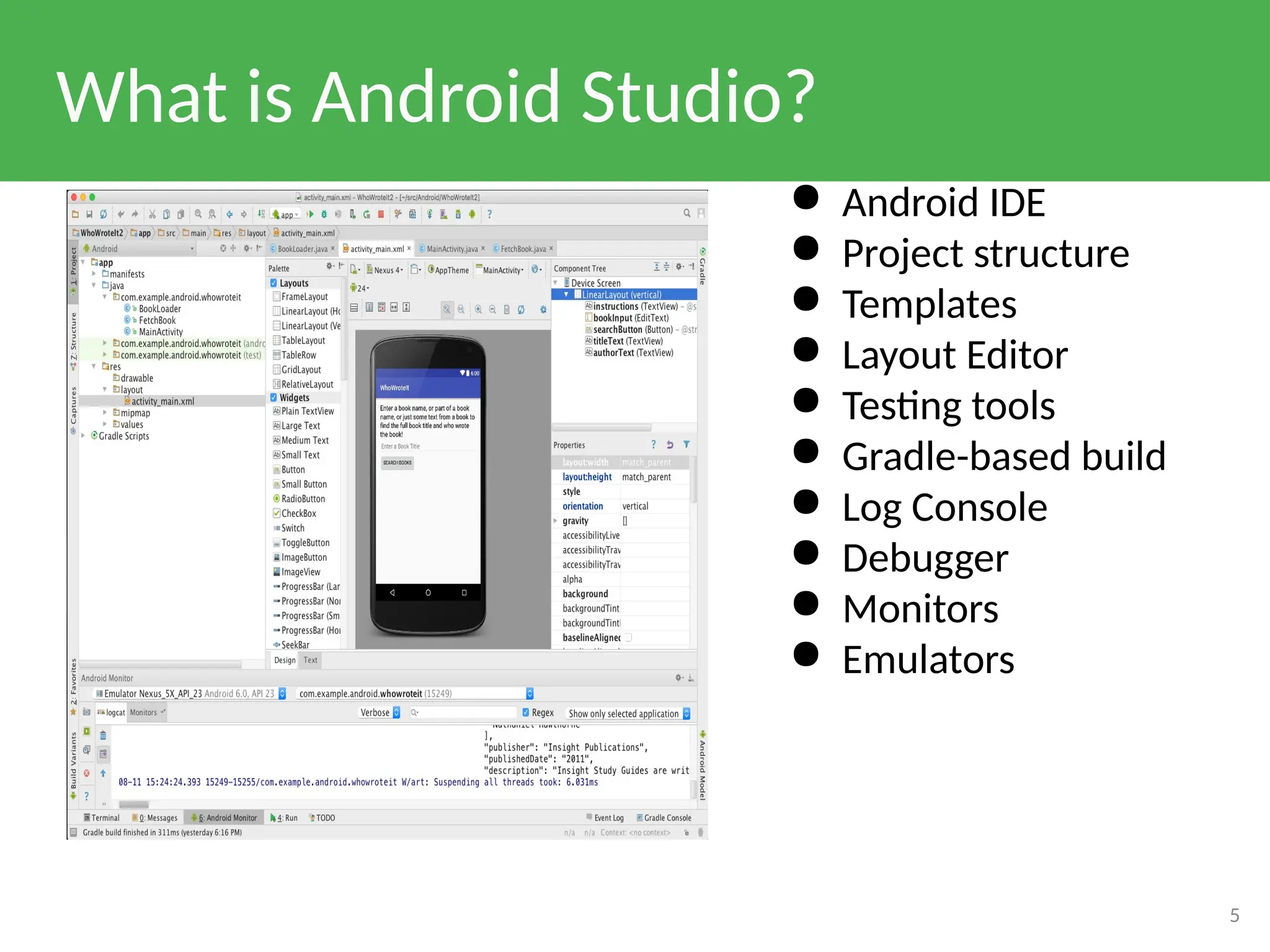
What is AndroidStudio?
5
● Android IDE
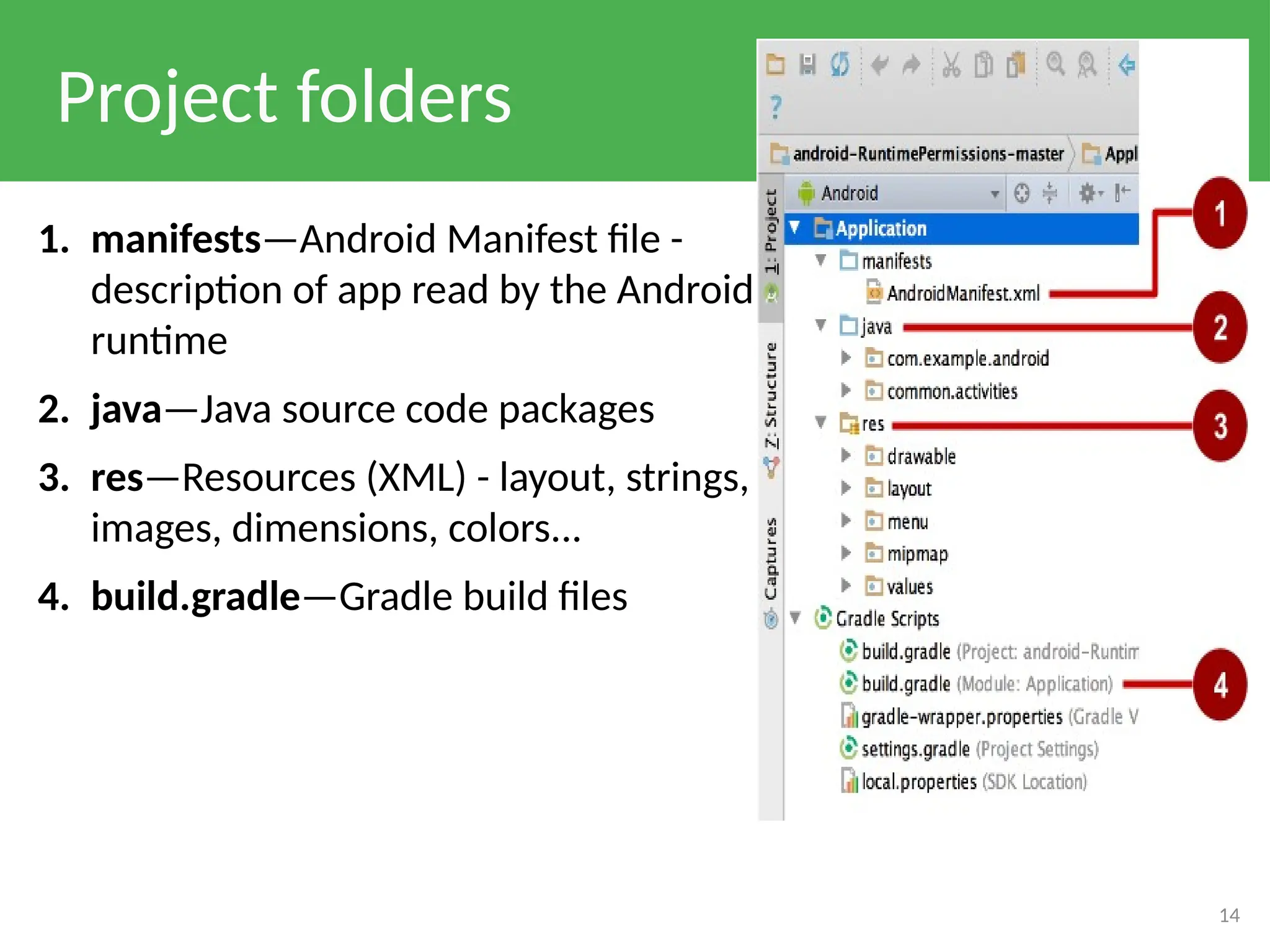
● Project structure
● Templates
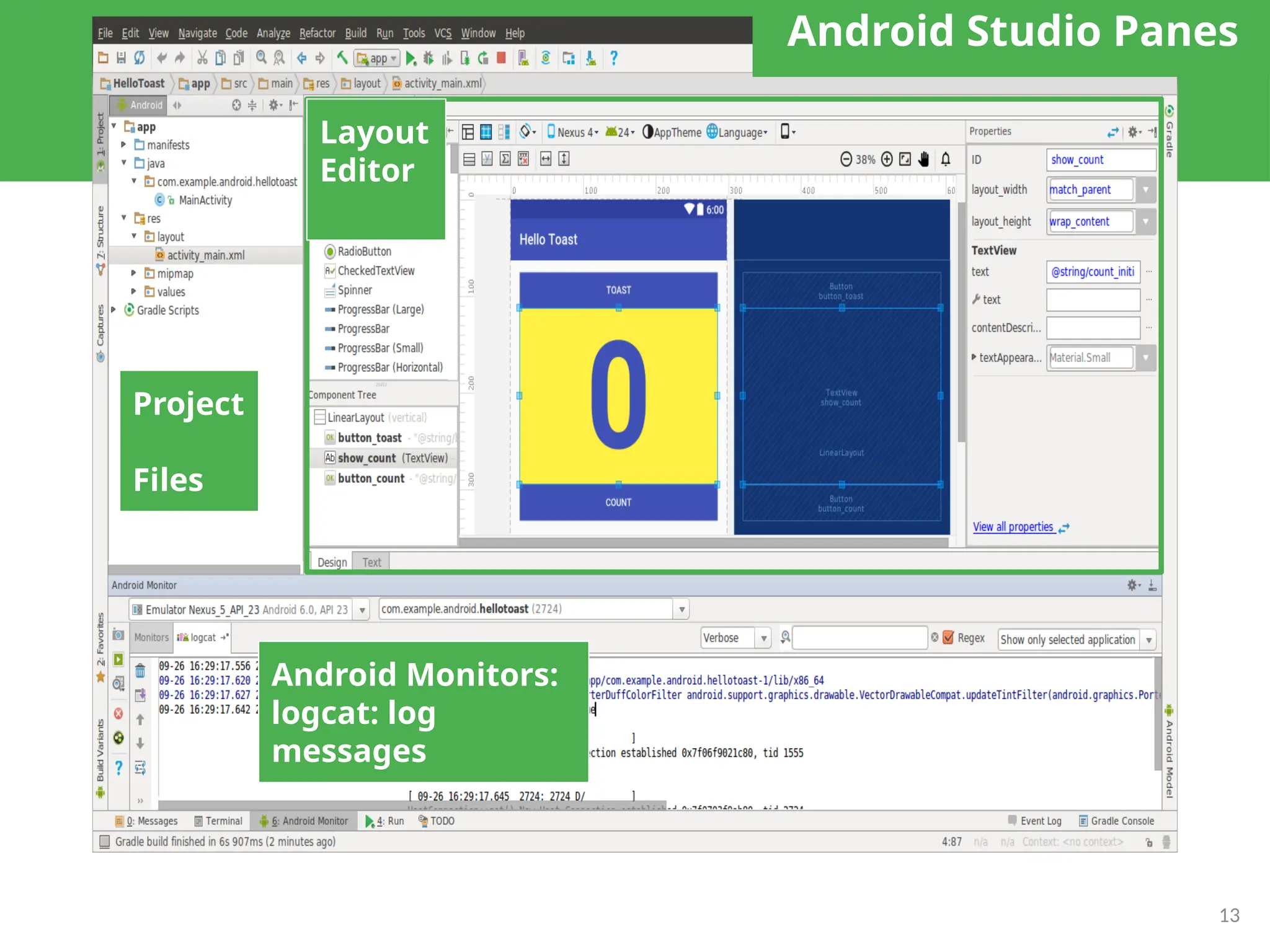
● Layout Editor
● Testing tools
● Gradle-based build
● Log Console
● Debugger
● Monitors
● Emulators
6.
Installation Overview
● Mac,Windows, or Linux
● Requires Java Development Kit (JDK) 1.7 or
better from Oracle Java SE downloads page
● Set JAVA_HOME to JDK installation location
● Download and install Android Studio from
http://developer.android.com/sdk/index.html
● See 1.1 P Install Android Studio for details
6
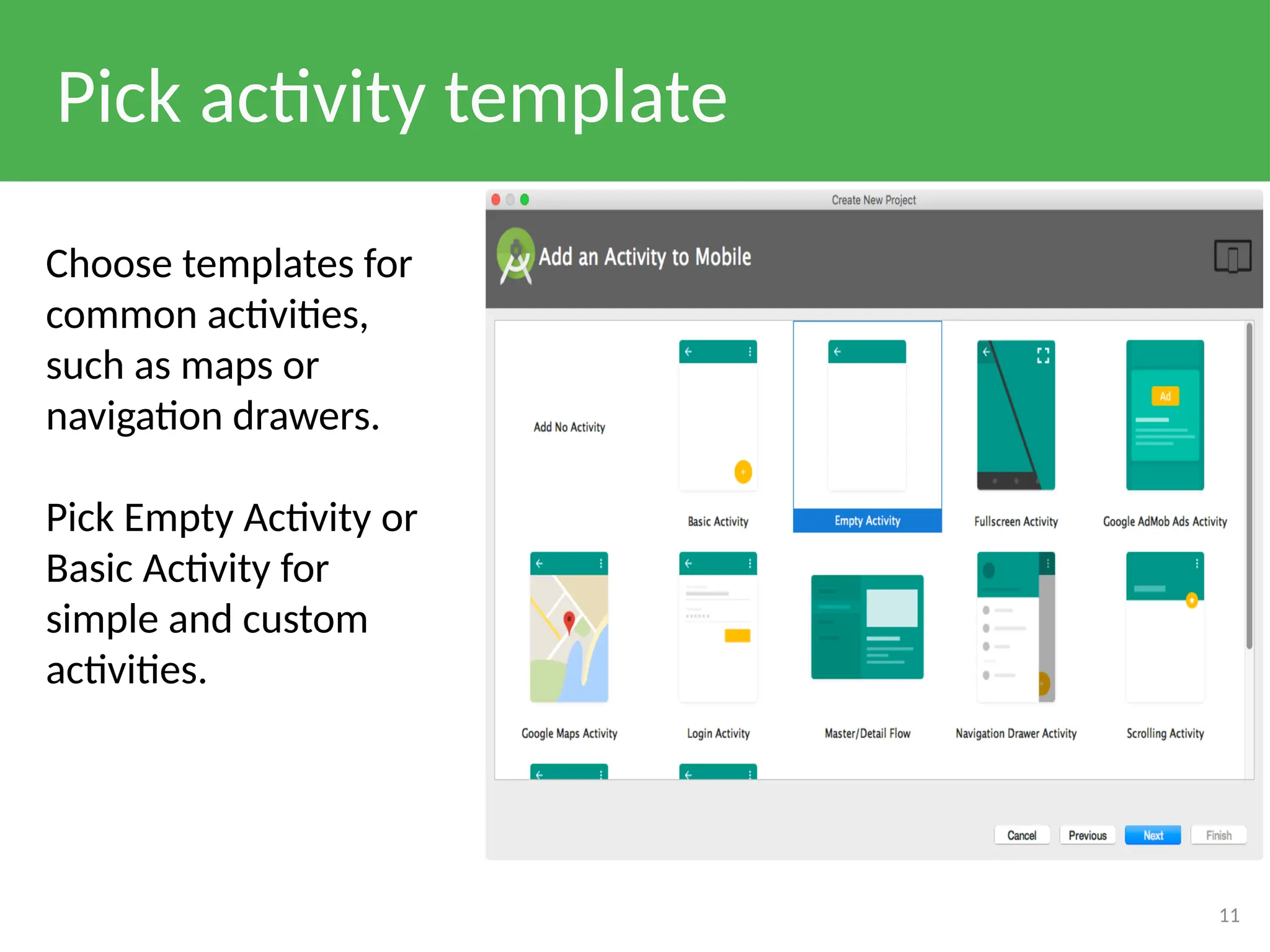
Pick activity template
11
Choosetemplates for
common activities,
such as maps or
navigation drawers.
Pick Empty Activity or
Basic Activity for
simple and custom
activities.
12.
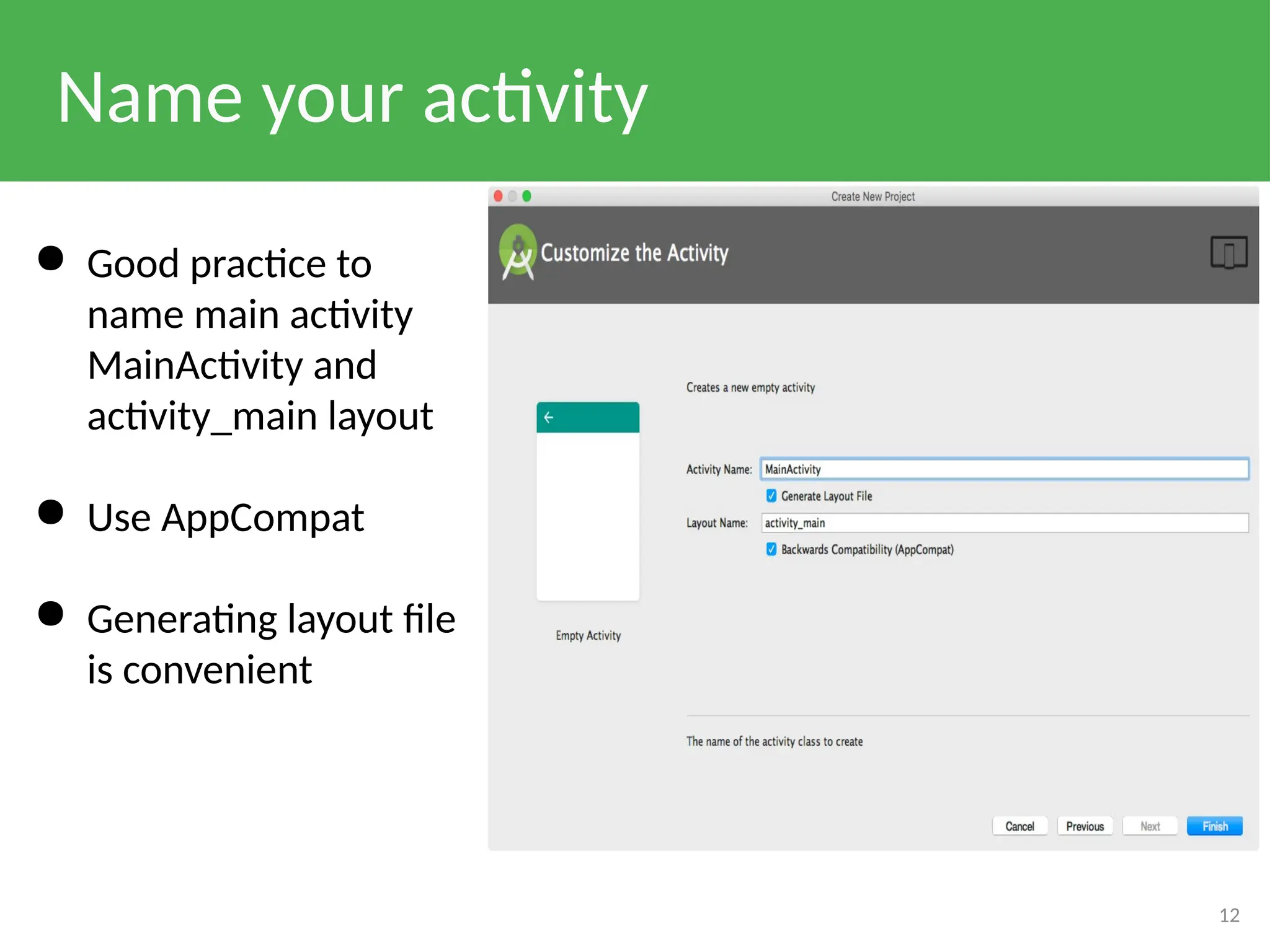
Name your activity
12
●Good practice to
name main activity
MainActivity and
activity_main layout
● Use AppCompat
● Generating layout file
is convenient
Gradle build system
●Modern build subsystem in Android Studio
● Three build.gradle:
○ project
○ module
○ settings
● Typically not necessary to know low-level Gradle details
● Learn more about gradle at https://gradle.org/
15
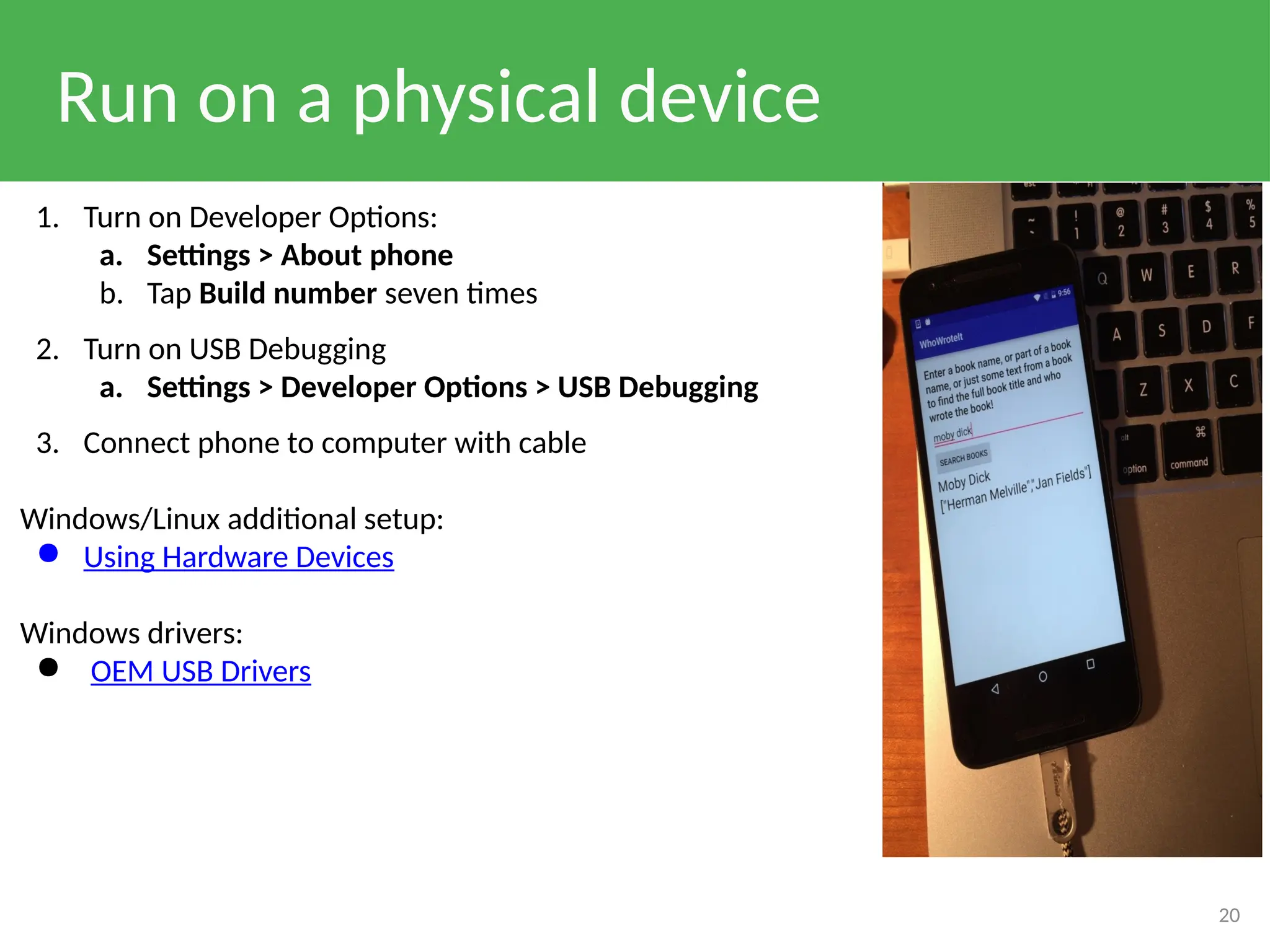
Run on aphysical device
20
1. Turn on Developer Options:
a. Settings > About phone
b. Tap Build number seven times
2. Turn on USB Debugging
a. Settings > Developer Options > USB Debugging
3. Connect phone to computer with cable
Windows/Linux additional setup:
● Using Hardware Devices
Windows drivers:
● OEM USB Drivers
21.
Get feedback asyour app runs
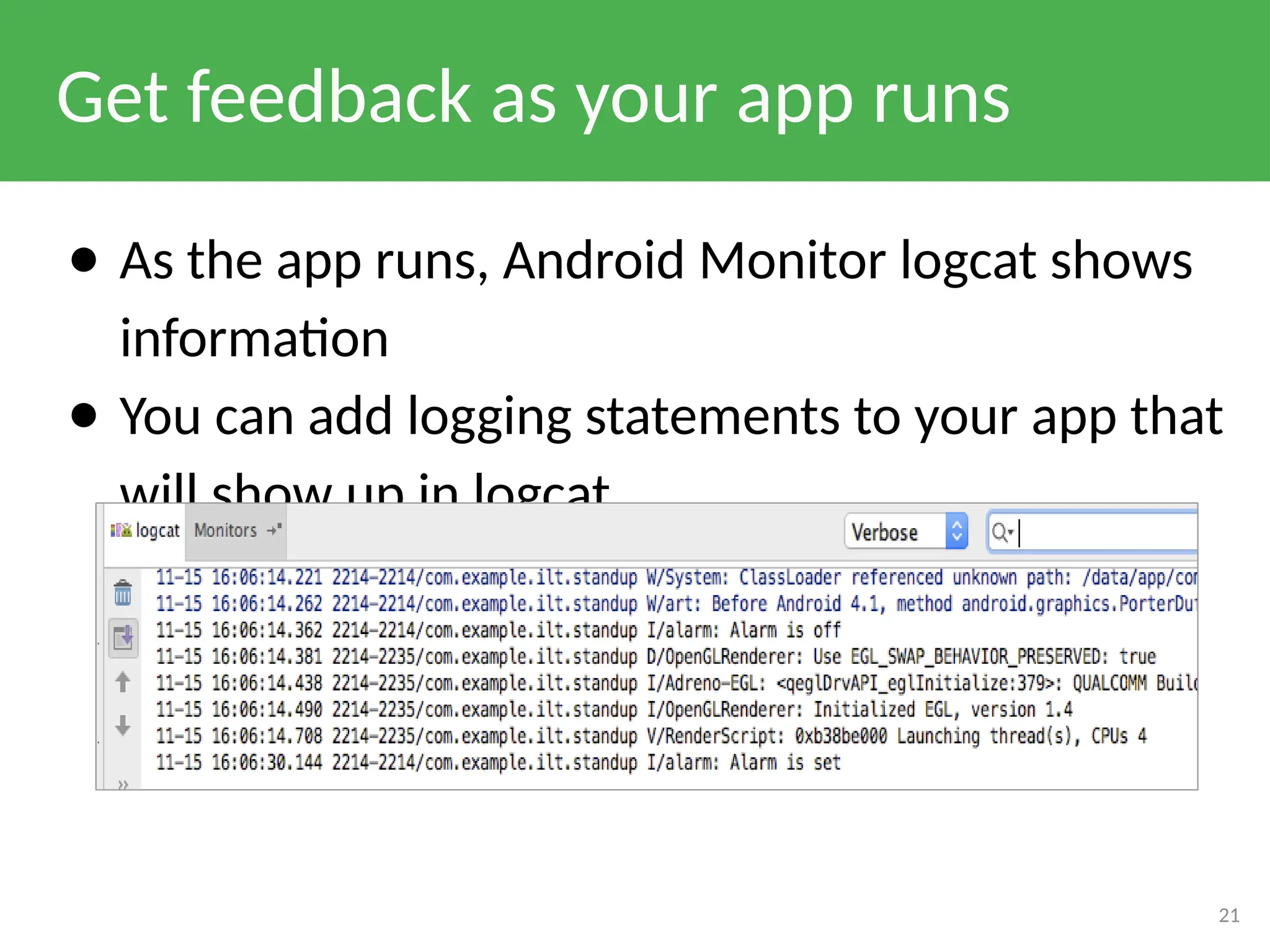
● As the app runs, Android Monitor logcat shows
information
● You can add logging statements to your app that
will show up in logcat.
21
22.
Logging
import android.util.Log;
// Useclass name as tag
private static final String TAG =
MainActivity.class.getSimpleName()
;
// Show message in Android
Monitor, logcat pane 22
23.
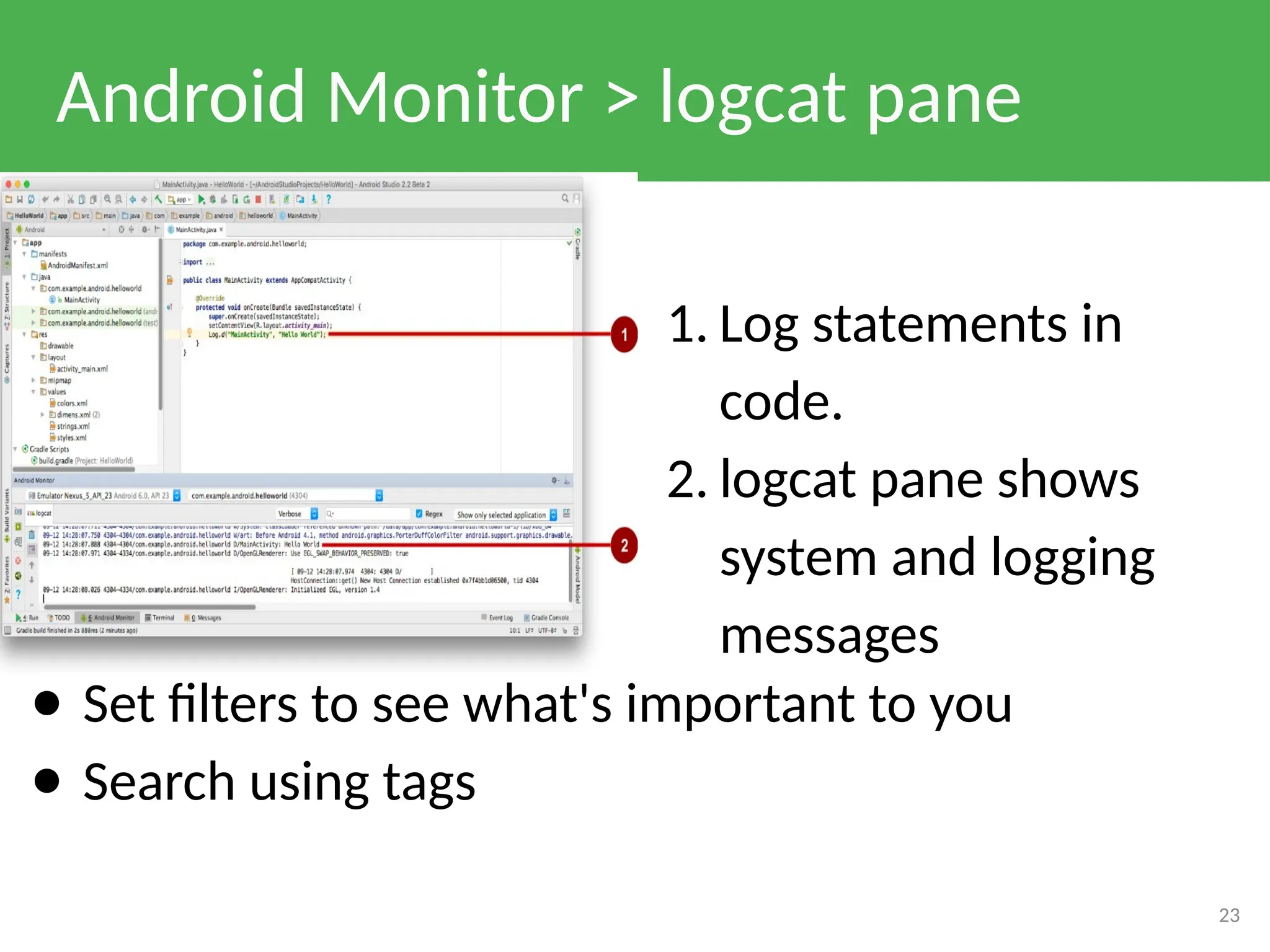
Android Monitor >logcat pane
1. Log statements in
code.
2. logcat pane shows
system and logging
messages
23
● Set filters to see what's important to you
● Search using tags