This work is licensed under the Apache 2.0 License
Day 2
Android Studio
This work is licensed under the Apache 2.0 License
Community Page
This work is licensed under the Apache 2.0 License
a
Our Social Handles
GDSC_ICOER
What We Did In Last Session
This work is licensed under
the Apache 2.0 License
This work is licensed under the Apache 2.0 License
What is Kotlin?
ā— Kotlin is a programming language
developed by JetBrains.
ā— Kotlin was made open source in the year
2011.
ā— Previously Java was considered as the
official language of Android Development.
This work is licensed under the Apache 2.0 License
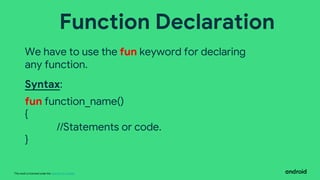
Function Declaration
We have to use the fun keyword for declaring
any function.
Syntax:
fun function_name()
{
//Statements or code.
}
This work is licensed under the Apache 2.0 License
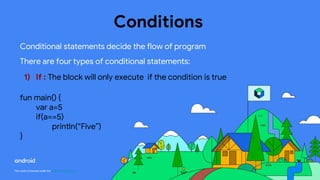
Conditions
Conditional statements decide the flow of program
There are four types of conditional statements:
1) If : The block will only execute if the condition is true
fun main() {
var a=5
if(a==5)
println(ā€œFiveā€)
}
This work is licensed under the Apache 2.0 License
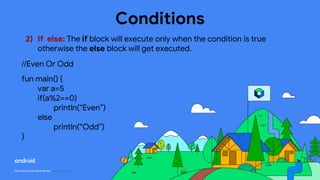
Conditions
2) If else: The if block will execute only when the condition is true
otherwise the else block will get executed.
//Even Or Odd
fun main() {
var a=5
if(a%2==0)
println(ā€œEvenā€)
else
println(ā€œOddā€)
}
This work is licensed under the Apache 2.0 License
Conditions
3) If else if else:
//Even Or Odd Or Zero
fun main() {
var a=5
if(a==0)
println(ā€œZeroā€)
else if(a%2==0)
println(ā€œEvenā€)
else
println(ā€œOddā€)
}
This work is licensed under the Apache 2.0 License
Conditions
4) If else:
//Even Or Odd Or Zero
fun main() {
var a=5
if(a==0)
println(ā€œZeroā€)
else
{
if(a%2==0)
println(ā€œEvenā€)
else
println(ā€œOddā€)
}
}
This work is licensed under the Apache 2.0 License
Conditions
5) Nested if:
fun main() {
var a=5
if(a%2!=0) {
if(a>=5) {
println(ā€œCan be five or greaterā€)
}
}
}
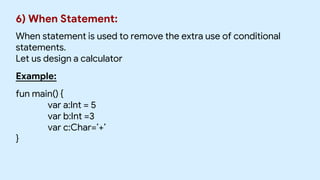
6) When Statement:
When statement is used to remove the extra use of conditional
statements.
Let us design a calculator
Example:
fun main() {
var a:Int = 5
var b:Int =3
var c:Char=’+’
}
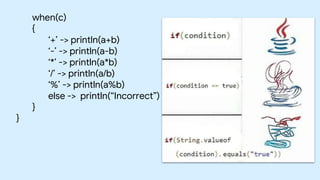
when(c)
{
ā€˜+’ -> println(a+b)
ā€˜-’ -> println(a-b)
ā€˜*’ -> println(a*b)
ā€˜/’ -> println(a/b)
ā€˜%’ -> println(a%b)
else -> println(ā€œIncorrectā€)
}
}
This work is licensed under the Apache 2.0 License
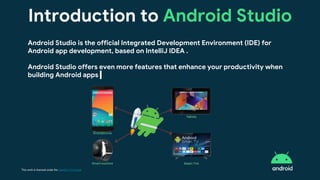
Introduction to Android Studio
Android Studio is the official Integrated Development Environment (IDE) for
Android app development, based on IntelliJ IDEA .
Android Studio offers even more features that enhance your productivity when
building Android apps
This work is licensed under the Apache 2.0 License
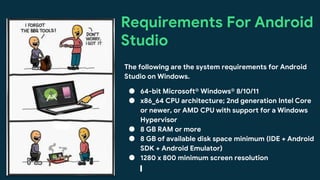
Requirements For Android
Studio
The following are the system requirements for Android
Studio on Windows.
ā— 64-bit MicrosoftĀ® WindowsĀ® 8/10/11
ā— x86_64 CPU architecture; 2nd generation Intel Core
or newer, or AMD CPU with support for a Windows
Hypervisor
ā— 8 GB RAM or more
ā— 8 GB of available disk space minimum (IDE + Android
SDK + Android Emulator)
ā— 1280 x 800 minimum screen resolution
This work is licensed under the Apache 2.0 License
Set up Android
Studio :)
Install and set up Android Studio, so
that you can create your own projects
and run them on a device or emulator.
This work is licensed under the Apache 2.0 License
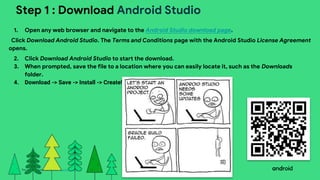
Step 1 : Download Android Studio
1. Open any web browser and navigate to the Android Studio download page.
Click Download Android Studio. The Terms and Conditions page with the Android Studio License Agreement
opens.
2. Click Download Android Studio to start the download.
3. When prompted, save the file to a location where you can easily locate it, such as the Downloads
folder.
4. Download -> Save -> Install -> Create!
This work is licensed under the Apache 2.0 License
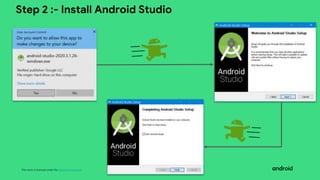
Step 2 :- Install Android Studio
This work is licensed under the Apache 2.0 License
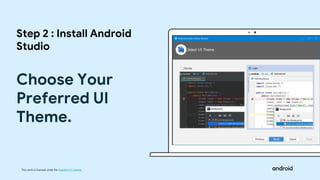
Choose Your
Preferred UI
Theme.
Step 2 : Install Android
Studio
This work is licensed under the Apache 2.0 License
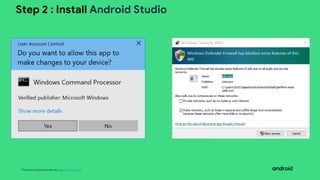
Step 2 : Install Android Studio
This work is licensed under the Apache 2.0 License
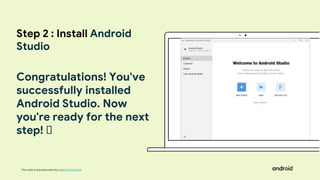
Congratulations! You've
successfully installed
Android Studio. Now
you're ready for the next
step! 🄳
Step 2 : Install Android
Studio
This work is licensed under the Apache 2.0 License
Android Studio
This work is licensed under the Apache 2.0 License
Step 3 : Create First Project
1. Double click the Android Studio icon to launch Android Studio.
This work is licensed under the Apache 2.0 License
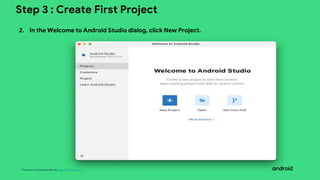
Step 3 : Create First Project
2. In the Welcome to Android Studio dialog, click New Project.
This work is licensed under the Apache 2.0 License
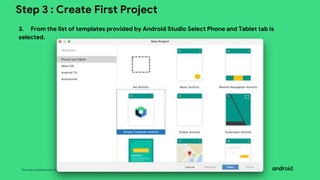
Step 3 : Create First Project
3. From the list of templates provided by Android Studio Select Phone and Tablet tab is
selected.
This work is licensed under the Apache 2.0 License
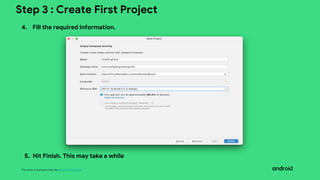
Step 3 : Create First Project
4. Fill the required information.
5. Hit Finish. This may take a while
This work is licensed under the Apache 2.0 License
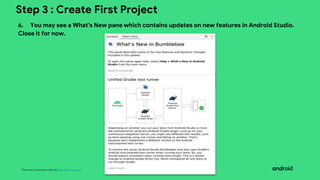
Step 3 : Create First Project
6. You may see a What's New pane which contains updates on new features in Android Studio.
Close it for now.
This work is licensed under the Apache 2.0 License
Step 3 : Create First Project
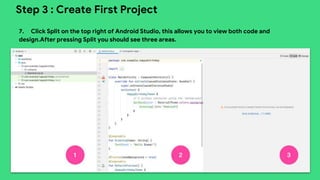
7. Click Split on the top right of Android Studio, this allows you to view both code and
design.After pressing Split you should see three areas.
This work is licensed under the Apache 2.0 License
Step 3 : Create First Project
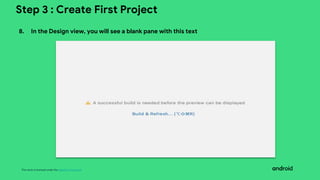
8. In the Design view, you will see a blank pane with this text
This work is licensed under the Apache 2.0 License
Step 3 : Create First Project
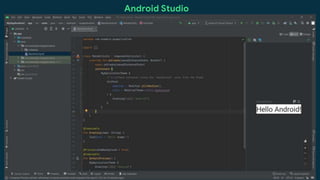
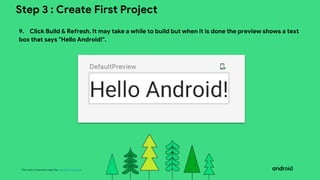
9. Click Build & Refresh. It may take a while to build but when it is done the preview shows a text
box that says "Hello Android!".
This work is licensed under the Apache 2.0 License
Step 4 : Set Up Android Emulator
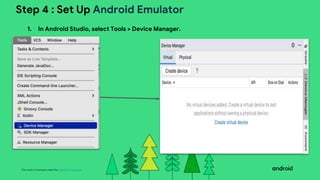
1. In Android Studio, select Tools > Device Manager.
This work is licensed under the Apache 2.0 License
Step 4 : Set Up Android Emulator
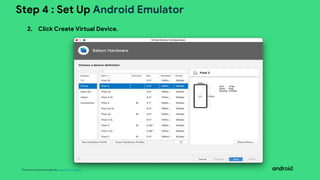
2. Click Create Virtual Device.
This work is licensed under the Apache 2.0 License
Step 4 : Set Up Android Emulator
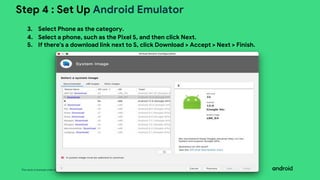
3. Select Phone as the category.
4. Select a phone, such as the Pixel 5, and then click Next.
5. If there's a download link next to S, click Download > Accept > Next > Finish.
This work is licensed under the Apache 2.0 License
Step 4 : Set Up Android Emulator
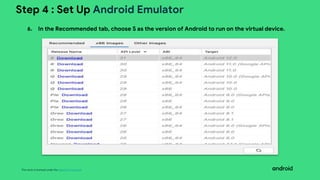
6. In the Recommended tab, choose S as the version of Android to run on the virtual device.
This work is licensed under the Apache 2.0 License
Step 4 : Set Up Android Emulator
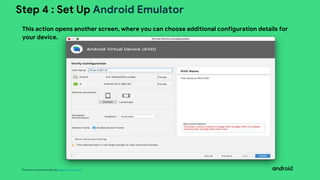
This action opens another screen, where you can choose additional configuration details for
your device.
This work is licensed under the Apache 2.0 License
Step 4 : Set Up Android Emulator
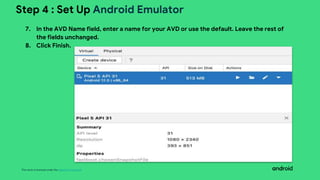
7. In the AVD Name field, enter a name for your AVD or use the default. Leave the rest of
the fields unchanged.
8. Click Finish.
This work is licensed under the Apache 2.0 License
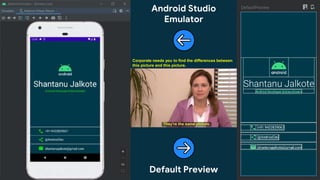
Android Studio
Emulator
Default Preview
Corporate needs you to find the differences between
this picture and this picture.
This work is licensed under the Apache 2.0 License
Run your first app on the Android Emulator
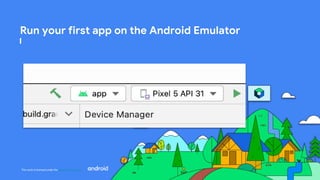
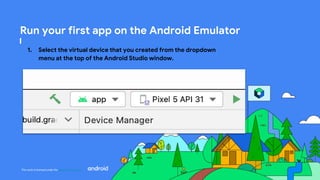
1. Select the virtual device that you created from the dropdown
menu at the top of the Android Studio window.
This work is licensed under the Apache 2.0 License
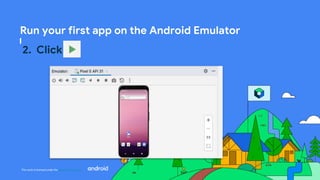
Run your first app on the Android Emulator
2. Click
This work is licensed under the Apache 2.0 License
Run your first app on the Android Emulator
This work is licensed under the Apache 2.0 License
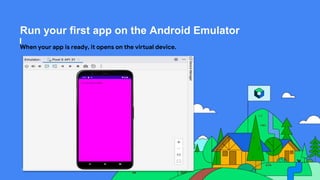
Run your first app on the Android Emulator
When your app is ready, it opens on the virtual device.
This work is licensed under the Apache 2.0 License
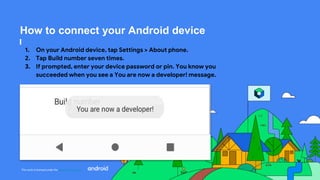
How to connect your Android device
1. On your Android device, tap Settings > About phone.
2. Tap Build number seven times.
3. If prompted, enter your device password or pin. You know you
succeeded when you see a You are now a developer! message.
This work is licensed under the Apache 2.0 License
How to connect your Android device
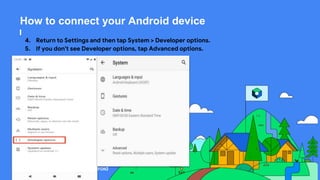
4. Return to Settings and then tap System > Developer options.
5. If you don't see Developer options, tap Advanced options.
This work is licensed under the Apache 2.0 License
How to connect your Android device
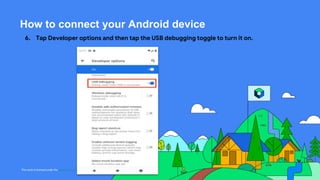
6. Tap Developer options and then tap the USB debugging toggle to turn it on.
This work is licensed under the Apache 2.0 License
How to connect your Android device
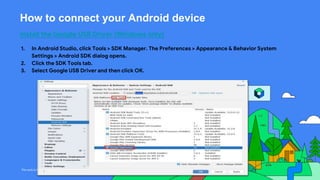
Install the Google USB Driver (Windows only)
1. In Android Studio, click Tools > SDK Manager. The Preferences > Appearance & Behavior System
Settings > Android SDK dialog opens.
2. Click the SDK Tools tab.
3. Select Google USB Driver and then click OK.
This work is licensed under the Apache 2.0 License
Run your app on the Android device with a cable
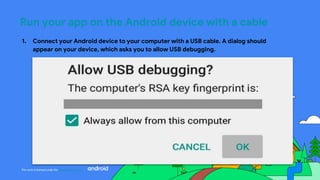
1. Connect your Android device to your computer with a USB cable. A dialog should
appear on your device, which asks you to allow USB debugging.
This work is licensed under the Apache 2.0 License
Run your app on the Android device with a cable
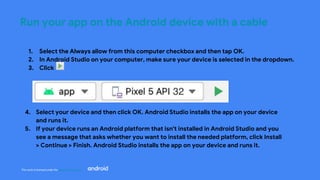
1. Select the Always allow from this computer checkbox and then tap OK.
2. In Android Studio on your computer, make sure your device is selected in the dropdown.
3. Click
4. Select your device and then click OK. Android Studio installs the app on your device
and runs it.
5. If your device runs an Android platform that isn't installed in Android Studio and you
see a message that asks whether you want to install the needed platform, click Install
> Continue > Finish. Android Studio installs the app on your device and runs it.
This work is licensed under the Apache 2.0 License
Run your app on the Android device with Wi-Fi
Get started
1. Ensure that your computer and device are connected to the same wireless network.
2. Ensure that your device runs Android 11 or higher. For more information, see Check &
update your Android version.
3. Ensure that your computer has the latest version of Android Studio. To download it,
see Android Studio.
4. Ensure that your computer has the latest version of the SDK Platform Tools.
This work is licensed under the Apache 2.0 License
Run your app on the Android device with Wi-Fi
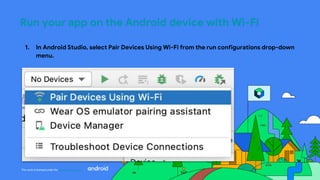
1. In Android Studio, select Pair Devices Using Wi-Fi from the run configurations drop-down
menu.
This work is licensed under the Apache 2.0 License
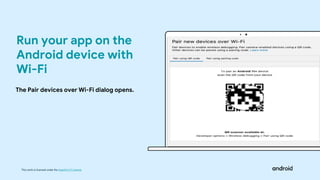
The Pair devices over Wi-Fi dialog opens.
Run your app on the
Android device with
Wi-Fi
This work is licensed under the Apache 2.0 License
Run your app on the Android device with Wi-Fi
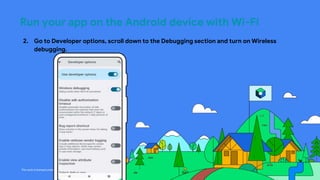
2. Go to Developer options, scroll down to the Debugging section and turn on Wireless
debugging.
This work is licensed under the Apache 2.0 License
Run your app on the Android device with Wi-Fi
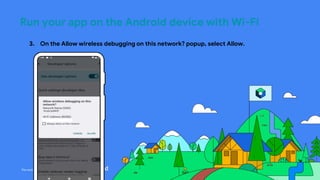
3. On the Allow wireless debugging on this network? popup, select Allow.
This work is licensed under the Apache 2.0 License
Run your app on the Android device with Wi-Fi
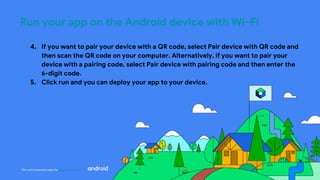
4. If you want to pair your device with a QR code, select Pair device with QR code and
then scan the QR code on your computer. Alternatively, if you want to pair your
device with a pairing code, select Pair device with pairing code and then enter the
6-digit code.
5. Click run and you can deploy your app to your device.
thank you

Day2GDSC.pptx

  • 1.
    This work islicensed under the Apache 2.0 License Day 2 Android Studio
  • 2.
    This work islicensed under the Apache 2.0 License Community Page
  • 3.
    This work islicensed under the Apache 2.0 License a Our Social Handles GDSC_ICOER
  • 4.
    What We DidIn Last Session This work is licensed under the Apache 2.0 License
  • 5.
    This work islicensed under the Apache 2.0 License What is Kotlin? ā— Kotlin is a programming language developed by JetBrains. ā— Kotlin was made open source in the year 2011. ā— Previously Java was considered as the official language of Android Development.
  • 6.
    This work islicensed under the Apache 2.0 License Function Declaration We have to use the fun keyword for declaring any function. Syntax: fun function_name() { //Statements or code. }
  • 7.
    This work islicensed under the Apache 2.0 License Conditions Conditional statements decide the flow of program There are four types of conditional statements: 1) If : The block will only execute if the condition is true fun main() { var a=5 if(a==5) println(ā€œFiveā€) }
  • 8.
    This work islicensed under the Apache 2.0 License Conditions 2) If else: The if block will execute only when the condition is true otherwise the else block will get executed. //Even Or Odd fun main() { var a=5 if(a%2==0) println(ā€œEvenā€) else println(ā€œOddā€) }
  • 9.
    This work islicensed under the Apache 2.0 License Conditions 3) If else if else: //Even Or Odd Or Zero fun main() { var a=5 if(a==0) println(ā€œZeroā€) else if(a%2==0) println(ā€œEvenā€) else println(ā€œOddā€) }
  • 10.
    This work islicensed under the Apache 2.0 License Conditions 4) If else: //Even Or Odd Or Zero fun main() { var a=5 if(a==0) println(ā€œZeroā€) else { if(a%2==0) println(ā€œEvenā€) else println(ā€œOddā€) } }
  • 11.
    This work islicensed under the Apache 2.0 License Conditions 5) Nested if: fun main() { var a=5 if(a%2!=0) { if(a>=5) { println(ā€œCan be five or greaterā€) } } }
  • 12.
    6) When Statement: Whenstatement is used to remove the extra use of conditional statements. Let us design a calculator Example: fun main() { var a:Int = 5 var b:Int =3 var c:Char=’+’ }
  • 13.
    when(c) { ā€˜+’ -> println(a+b) ā€˜-’-> println(a-b) ā€˜*’ -> println(a*b) ā€˜/’ -> println(a/b) ā€˜%’ -> println(a%b) else -> println(ā€œIncorrectā€) } }
  • 14.
    This work islicensed under the Apache 2.0 License Introduction to Android Studio Android Studio is the official Integrated Development Environment (IDE) for Android app development, based on IntelliJ IDEA . Android Studio offers even more features that enhance your productivity when building Android apps
  • 15.
    This work islicensed under the Apache 2.0 License Requirements For Android Studio The following are the system requirements for Android Studio on Windows. ā— 64-bit MicrosoftĀ® WindowsĀ® 8/10/11 ā— x86_64 CPU architecture; 2nd generation Intel Core or newer, or AMD CPU with support for a Windows Hypervisor ā— 8 GB RAM or more ā— 8 GB of available disk space minimum (IDE + Android SDK + Android Emulator) ā— 1280 x 800 minimum screen resolution
  • 16.
    This work islicensed under the Apache 2.0 License Set up Android Studio :) Install and set up Android Studio, so that you can create your own projects and run them on a device or emulator.
  • 17.
    This work islicensed under the Apache 2.0 License Step 1 : Download Android Studio 1. Open any web browser and navigate to the Android Studio download page. Click Download Android Studio. The Terms and Conditions page with the Android Studio License Agreement opens. 2. Click Download Android Studio to start the download. 3. When prompted, save the file to a location where you can easily locate it, such as the Downloads folder. 4. Download -> Save -> Install -> Create!
  • 18.
    This work islicensed under the Apache 2.0 License Step 2 :- Install Android Studio
  • 19.
    This work islicensed under the Apache 2.0 License Choose Your Preferred UI Theme. Step 2 : Install Android Studio
  • 20.
    This work islicensed under the Apache 2.0 License Step 2 : Install Android Studio
  • 21.
    This work islicensed under the Apache 2.0 License Congratulations! You've successfully installed Android Studio. Now you're ready for the next step! 🄳 Step 2 : Install Android Studio
  • 22.
    This work islicensed under the Apache 2.0 License Android Studio
  • 23.
    This work islicensed under the Apache 2.0 License Step 3 : Create First Project 1. Double click the Android Studio icon to launch Android Studio.
  • 24.
    This work islicensed under the Apache 2.0 License Step 3 : Create First Project 2. In the Welcome to Android Studio dialog, click New Project.
  • 25.
    This work islicensed under the Apache 2.0 License Step 3 : Create First Project 3. From the list of templates provided by Android Studio Select Phone and Tablet tab is selected.
  • 26.
    This work islicensed under the Apache 2.0 License Step 3 : Create First Project 4. Fill the required information. 5. Hit Finish. This may take a while
  • 27.
    This work islicensed under the Apache 2.0 License Step 3 : Create First Project 6. You may see a What's New pane which contains updates on new features in Android Studio. Close it for now.
  • 28.
    This work islicensed under the Apache 2.0 License Step 3 : Create First Project 7. Click Split on the top right of Android Studio, this allows you to view both code and design.After pressing Split you should see three areas.
  • 29.
    This work islicensed under the Apache 2.0 License Step 3 : Create First Project 8. In the Design view, you will see a blank pane with this text
  • 30.
    This work islicensed under the Apache 2.0 License Step 3 : Create First Project 9. Click Build & Refresh. It may take a while to build but when it is done the preview shows a text box that says "Hello Android!".
  • 31.
    This work islicensed under the Apache 2.0 License Step 4 : Set Up Android Emulator 1. In Android Studio, select Tools > Device Manager.
  • 32.
    This work islicensed under the Apache 2.0 License Step 4 : Set Up Android Emulator 2. Click Create Virtual Device.
  • 33.
    This work islicensed under the Apache 2.0 License Step 4 : Set Up Android Emulator 3. Select Phone as the category. 4. Select a phone, such as the Pixel 5, and then click Next. 5. If there's a download link next to S, click Download > Accept > Next > Finish.
  • 34.
    This work islicensed under the Apache 2.0 License Step 4 : Set Up Android Emulator 6. In the Recommended tab, choose S as the version of Android to run on the virtual device.
  • 35.
    This work islicensed under the Apache 2.0 License Step 4 : Set Up Android Emulator This action opens another screen, where you can choose additional configuration details for your device.
  • 36.
    This work islicensed under the Apache 2.0 License Step 4 : Set Up Android Emulator 7. In the AVD Name field, enter a name for your AVD or use the default. Leave the rest of the fields unchanged. 8. Click Finish.
  • 37.
    This work islicensed under the Apache 2.0 License Android Studio Emulator Default Preview Corporate needs you to find the differences between this picture and this picture.
  • 38.
    This work islicensed under the Apache 2.0 License Run your first app on the Android Emulator 1. Select the virtual device that you created from the dropdown menu at the top of the Android Studio window.
  • 39.
    This work islicensed under the Apache 2.0 License Run your first app on the Android Emulator 2. Click
  • 40.
    This work islicensed under the Apache 2.0 License Run your first app on the Android Emulator
  • 41.
    This work islicensed under the Apache 2.0 License Run your first app on the Android Emulator When your app is ready, it opens on the virtual device.
  • 42.
    This work islicensed under the Apache 2.0 License How to connect your Android device 1. On your Android device, tap Settings > About phone. 2. Tap Build number seven times. 3. If prompted, enter your device password or pin. You know you succeeded when you see a You are now a developer! message.
  • 43.
    This work islicensed under the Apache 2.0 License How to connect your Android device 4. Return to Settings and then tap System > Developer options. 5. If you don't see Developer options, tap Advanced options.
  • 44.
    This work islicensed under the Apache 2.0 License How to connect your Android device 6. Tap Developer options and then tap the USB debugging toggle to turn it on.
  • 45.
    This work islicensed under the Apache 2.0 License How to connect your Android device Install the Google USB Driver (Windows only) 1. In Android Studio, click Tools > SDK Manager. The Preferences > Appearance & Behavior System Settings > Android SDK dialog opens. 2. Click the SDK Tools tab. 3. Select Google USB Driver and then click OK.
  • 46.
    This work islicensed under the Apache 2.0 License Run your app on the Android device with a cable 1. Connect your Android device to your computer with a USB cable. A dialog should appear on your device, which asks you to allow USB debugging.
  • 47.
    This work islicensed under the Apache 2.0 License Run your app on the Android device with a cable 1. Select the Always allow from this computer checkbox and then tap OK. 2. In Android Studio on your computer, make sure your device is selected in the dropdown. 3. Click 4. Select your device and then click OK. Android Studio installs the app on your device and runs it. 5. If your device runs an Android platform that isn't installed in Android Studio and you see a message that asks whether you want to install the needed platform, click Install > Continue > Finish. Android Studio installs the app on your device and runs it.
  • 48.
    This work islicensed under the Apache 2.0 License Run your app on the Android device with Wi-Fi Get started 1. Ensure that your computer and device are connected to the same wireless network. 2. Ensure that your device runs Android 11 or higher. For more information, see Check & update your Android version. 3. Ensure that your computer has the latest version of Android Studio. To download it, see Android Studio. 4. Ensure that your computer has the latest version of the SDK Platform Tools.
  • 49.
    This work islicensed under the Apache 2.0 License Run your app on the Android device with Wi-Fi 1. In Android Studio, select Pair Devices Using Wi-Fi from the run configurations drop-down menu.
  • 50.
    This work islicensed under the Apache 2.0 License The Pair devices over Wi-Fi dialog opens. Run your app on the Android device with Wi-Fi
  • 51.
    This work islicensed under the Apache 2.0 License Run your app on the Android device with Wi-Fi 2. Go to Developer options, scroll down to the Debugging section and turn on Wireless debugging.
  • 52.
    This work islicensed under the Apache 2.0 License Run your app on the Android device with Wi-Fi 3. On the Allow wireless debugging on this network? popup, select Allow.
  • 53.
    This work islicensed under the Apache 2.0 License Run your app on the Android device with Wi-Fi 4. If you want to pair your device with a QR code, select Pair device with QR code and then scan the QR code on your computer. Alternatively, if you want to pair your device with a pairing code, select Pair device with pairing code and then enter the 6-digit code. 5. Click run and you can deploy your app to your device.
  • 54.