First Semester Project How Literature Represents the Human Condition
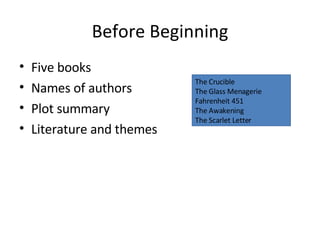
Before Beginning Five books Names of authors Plot summary Literature and themes The Crucible The Glass Menagerie Fahrenheit 451 The Awakening The Scarlet Letter
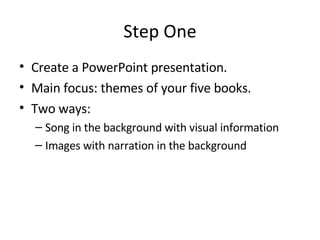
Step One Create a PowerPoint presentation. Main focus: themes of your five books. Two ways: Song in the background with visual information Images with narration in the background
First slide First Slide Includes: “ How Literature Represents the Human Condition”  Names of your group members. English III Honors Mrs. Palacio’s ___ Block
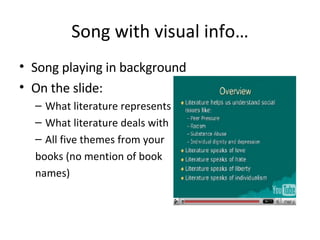
Song with visual info… Song playing in background On the slide: What literature represents What literature deals with All five themes from your  books (no mention of book  names)
Next Slide Theme of book one Title of the book this theme applies to, and author. Brief plot summary.
Next Slide How the theme applies to the book. What this particular book says about us as human beings.
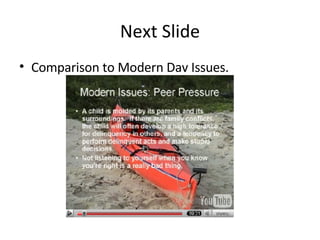
Next Slide Comparison to Modern Day Issues.
Next Slide Agree/Disagree with what this book says about human nature On to the next book…
Images with Narration First slide includes: Name of book and author Theme  What it says about us as human beings Plot summary is narrated in the background and not typed on the slide.
Next slide Modern Day Issues with theme (typed and narrated)
Next slide Agree/Disagree Pose a debatable question Answer it Next book…so on and so forth
How to Record Sound Two options Using PowerPoint (*recommended) or Using Audacity Let’s start with PowerPoint…
PowerPoint Recorder Listen Carefully Sound icon  Voice narration takes precedence You’ll need: Sound card Microphone Speakers Automatic Time Saver
PowerPoint Recorder Recording the narration In Normal view, select the slide that you want to start the recording on.  On the  Slide Show  tab, in the  Set Up  group, click  Record Narration
PowerPoint Recorder Click  Set Microphone Level , follow the directions to set your microphone level, and then click  OK . To embed the narration, click  OK  again.
PowerPoint Recorder The  Record Narration  dialog box appears. Do one of the following:  To start the narration on the first slide in the presentation, click  First Slide .  To start the narration on the currently selected slide, click  Current Slide . In Slide Show view, speak the narrative text into the microphone, and then click the slide to advance to the next slide. Follow this process for each slide that you want to add narration to.  TIP   To pause or resume the narration, right-click the slide, and then on the shortcut menu click either  Pause Narration  or  Resume Narration . Click the black Exit screen.  The narration is automatically saved, and a message appears asking if you want to save the timings for the presentation as well. Do the following:  To save the timings, click  Save . Your slides appear in Slide Sorter view, with the slide timings shown below each slide.
Important Even if you choose to record your voice with the PowerPoint recorder, you should download the Audacity recorder for later use by following these steps…
Audacity http://audacity.sourceforge.net/ Download the Audacity installer that applies to your computer system (Windows 98, XP, Vista, etc.) Select SAVE.
Audacity Save to your desktop. When the download is complete, select RUN.
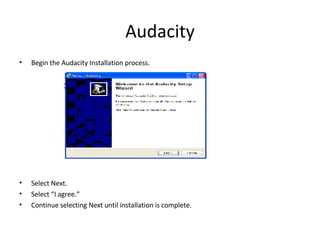
Audacity Begin the Audacity Installation process. Select Next. Select “I agree.” Continue selecting Next until installation is complete.
Audacity The Audacity Recorder will now open. Click on the red circle when you are ready to begin recording. When you are ready to save, if this screen appears, click OK and continue saving.
Audacity Open your powerpoint presentation. Select “Insert” from the tool bar. Select “Sound” then “Sound from file” Select the file you just saved. When this screen appears, select Automatically.  Your recording will play when the presentation reaches the assigned screen. Right click on the sound icon to make sure the sound works.
Songs Songs must be saved as WAV (wave) files.  MP3 files will not work. The Audacity recorder will convert any MP3 songs you have saved onto your computer into a WAV file. Follow these steps…
Step One Open your audacity recorder. Select File, then Open. Select the song you want to use. Select File, then Export as WAV.  Save file.
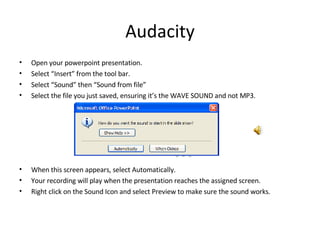
Audacity Open your powerpoint presentation. Select “Insert” from the tool bar. Select “Sound” then “Sound from file” Select the file you just saved, ensuring it’s the WAVE SOUND and not MP3. When this screen appears, select Automatically.  Your recording will play when the presentation reaches the assigned screen. Right click on the Sound Icon and select Preview to make sure the sound works.

First Semester Project2

  • 1.
    First Semester ProjectHow Literature Represents the Human Condition
  • 2.
    Before Beginning Fivebooks Names of authors Plot summary Literature and themes The Crucible The Glass Menagerie Fahrenheit 451 The Awakening The Scarlet Letter
  • 3.
    Step One Createa PowerPoint presentation. Main focus: themes of your five books. Two ways: Song in the background with visual information Images with narration in the background
  • 4.
    First slide FirstSlide Includes: “ How Literature Represents the Human Condition” Names of your group members. English III Honors Mrs. Palacio’s ___ Block
  • 5.
    Song with visualinfo… Song playing in background On the slide: What literature represents What literature deals with All five themes from your books (no mention of book names)
  • 6.
    Next Slide Themeof book one Title of the book this theme applies to, and author. Brief plot summary.
  • 7.
    Next Slide Howthe theme applies to the book. What this particular book says about us as human beings.
  • 8.
    Next Slide Comparisonto Modern Day Issues.
  • 9.
    Next Slide Agree/Disagreewith what this book says about human nature On to the next book…
  • 10.
    Images with NarrationFirst slide includes: Name of book and author Theme What it says about us as human beings Plot summary is narrated in the background and not typed on the slide.
  • 11.
    Next slide ModernDay Issues with theme (typed and narrated)
  • 12.
    Next slide Agree/DisagreePose a debatable question Answer it Next book…so on and so forth
  • 13.
    How to RecordSound Two options Using PowerPoint (*recommended) or Using Audacity Let’s start with PowerPoint…
  • 14.
    PowerPoint Recorder ListenCarefully Sound icon Voice narration takes precedence You’ll need: Sound card Microphone Speakers Automatic Time Saver
  • 15.
    PowerPoint Recorder Recordingthe narration In Normal view, select the slide that you want to start the recording on. On the Slide Show tab, in the Set Up group, click Record Narration
  • 16.
    PowerPoint Recorder Click Set Microphone Level , follow the directions to set your microphone level, and then click OK . To embed the narration, click OK again.
  • 17.
    PowerPoint Recorder The Record Narration dialog box appears. Do one of the following: To start the narration on the first slide in the presentation, click First Slide . To start the narration on the currently selected slide, click Current Slide . In Slide Show view, speak the narrative text into the microphone, and then click the slide to advance to the next slide. Follow this process for each slide that you want to add narration to. TIP   To pause or resume the narration, right-click the slide, and then on the shortcut menu click either Pause Narration or Resume Narration . Click the black Exit screen. The narration is automatically saved, and a message appears asking if you want to save the timings for the presentation as well. Do the following: To save the timings, click Save . Your slides appear in Slide Sorter view, with the slide timings shown below each slide.
  • 18.
    Important Even ifyou choose to record your voice with the PowerPoint recorder, you should download the Audacity recorder for later use by following these steps…
  • 19.
    Audacity http://audacity.sourceforge.net/ Downloadthe Audacity installer that applies to your computer system (Windows 98, XP, Vista, etc.) Select SAVE.
  • 20.
    Audacity Save toyour desktop. When the download is complete, select RUN.
  • 21.
    Audacity Begin theAudacity Installation process. Select Next. Select “I agree.” Continue selecting Next until installation is complete.
  • 22.
    Audacity The AudacityRecorder will now open. Click on the red circle when you are ready to begin recording. When you are ready to save, if this screen appears, click OK and continue saving.
  • 23.
    Audacity Open yourpowerpoint presentation. Select “Insert” from the tool bar. Select “Sound” then “Sound from file” Select the file you just saved. When this screen appears, select Automatically. Your recording will play when the presentation reaches the assigned screen. Right click on the sound icon to make sure the sound works.
  • 24.
    Songs Songs mustbe saved as WAV (wave) files. MP3 files will not work. The Audacity recorder will convert any MP3 songs you have saved onto your computer into a WAV file. Follow these steps…
  • 25.
    Step One Openyour audacity recorder. Select File, then Open. Select the song you want to use. Select File, then Export as WAV. Save file.
  • 26.
    Audacity Open yourpowerpoint presentation. Select “Insert” from the tool bar. Select “Sound” then “Sound from file” Select the file you just saved, ensuring it’s the WAVE SOUND and not MP3. When this screen appears, select Automatically. Your recording will play when the presentation reaches the assigned screen. Right click on the Sound Icon and select Preview to make sure the sound works.