Facebook Business Page

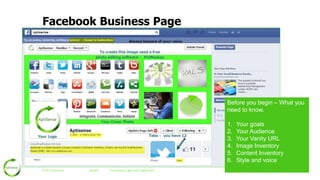
Before you begin – What you
need to know.
1.
2.
3.
4.
5.
6.
© 2013 Aptisense

#wrsbrc

Presented by: @krcraft & @gdiver62

Your goals
Your Audience
Your Vanity URL
Image Inventory
Content Inventory
Style and voice
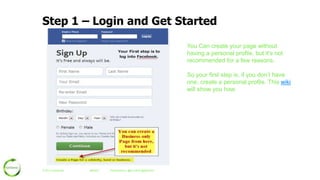
Step 1 – Login and Get Started
You Can create your page without
having a personal profile, but it‟s not
recommended for a few reasons.

So your first step is, if you don‟t have
one, create a personal profile. This wiki
will show you how.

© 2013 Aptisense

#wrsbrc

Presented by: @krcraft & @gdiver62
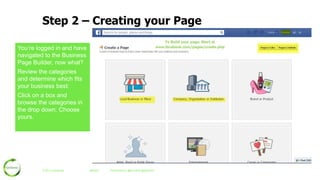
Step 2 – Creating your Page
You‟re logged in and have
navigated to the Business
Page Builder, now what?
Review the categories
and determine which fits
your business best:

Click on a box and
browse the categories in
the drop down. Choose
yours.

© 2013 Aptisense

#wrsbrc

Presented by: @krcraft & @gdiver62
Categories
Categories are not as critical, so avoid
spending too much time debating for two
reasons.

1. You can change this at any time.
2. They‟ll still help within Graph Search
Do take a little time to review each
category. For storefronts, the Local Places
has the best impact, though you can‟t
display your web address in the visible
about section.

© 2013 Aptisense

#wrsbrc

Presented by: @krcraft & @gdiver62
Add your Company Name.
Having keywords in your Page
title can be a good idea
because the keywords help
your Page to come up in
Facebook search.
You have a limit of 70
characters for your Page name.
Unfortunately you can‟t use
fancy capitalization like
AptiSense, only capital is at the
beginning.
You can change your page
name, up to the point you
gather 200 fans.

© 2013 Aptisense

#wrsbrc

Presented by: @krcraft & @gdiver62
Setting up your About Section
 You have 200 Characters for
a short about us.
 Add your website

 Choose a unique web
address – normally your
company name. Try not to
stray too far from the correct
spelling. If not available, you
many need to get creative.
 Answer the questions – these
are mandatory

© 2013 Aptisense

#wrsbrc

Presented by: @krcraft & @gdiver62
Add your Profile Picture

Your profile picture is
the image that will
appear as your avatar
in all posts, replies
and messages.
Choose wisely 

© 2013 Aptisense

#wrsbrc

Presented by: @krcraft & @gdiver62
Add your Page to your Favorites

© 2013 Aptisense

#wrsbrc

Presented by: @krcraft & @gdiver62
Create your first ad – or not
As part of your set up – you‟re
encouraged to create an ad to get
As
your name out.
It‟s not a bad idea, but I‟d recommend
building some content on your page
first, getting comfortable with how to
navigate and use your page
effectively, then invest in paid
advertising down the road.

You can skip this portion and move
on to starting to build your page.

© 2013 Aptisense

#wrsbrc

Presented by: @krcraft & @gdiver62
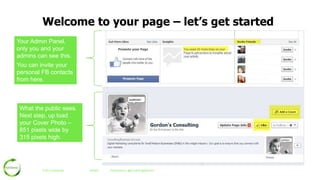
Welcome to your page – let’s get started
Your Admin Panel,
only you and your
admins can see this.
You can invite your
personal FB contacts
from here.

What the public sees.
Next step, up load
your Cover Photo –
851 pixels wide by
315 pixels high.

© 2013 Aptisense

#wrsbrc

Presented by: @krcraft & @gdiver62
Your Admin Panel
Where you‟ll see
activity on your
page; such as
„likes‟ and „shares‟

If a Fan messages
you, here is where
it will appear.

When you‟re ready to
advertise, here is
where you‟ll start

© 2013 Aptisense

Where you invite
you‟re personal
Facebook contacts

#wrsbrc

Presented by: @krcraft & @gdiver62
Share Something and build an audience
You‟ll find our page here. One of the
best ways to share your fan page is to
invite your personal friends and family
from Facebook and email those that you
have a personal relationship with and
the authorization to share with.

For example, the URL for AptiSense is
https://www.facebook.com/Aptisense
and you‟ll find our info there.

© 2013 Aptisense

#wrsbrc

Presented by: @krcraft & @gdiver62
Share a post with Facebook’s
native scheduler
You have three options to create a
post:
 Status
 Photo/Video or,

 Offer/Event.
Most of your work will be within
the status or photo. To add video
you‟ll need to have it on your hard
drive to upload. YouTube videos
are shared via the status.

© 2013 Aptisense

#wrsbrc

Presented by: @krcraft & @gdiver62
Schedule your Post
1. Write your own comments on the
post you are sharing
2. You can change the thumbnail
picture to one you like
better, choose FB provided or
upload your own
3. Change if you like the information
in the snippet Facebook creates
4. Schedule your post by using the
drop down menu – you can go out
quite a way.
5. Click “Schedule” and your post will
appear on your page at the
appointed time.

1
2

3

4

© 2013 Aptisense

#wrsbrc

Presented by: @krcraft & @gdiver62

5
See your post in the Activity Log
Your post is scheduled to
go at the time you‟ve
selected, what can you do
from here?

1. Wait until it‟s posted and
share through your
personal page
2. Schedule it for a
different time
3. Delete the post and
start over or replace it.
What you can‟t do is edit
what you‟ve written.

© 2013 Aptisense

#wrsbrc

Presented by: @krcraft & @gdiver62
Add or Change your Cover Photo
The sizing is
851 pixels
wide by 315
pixels high.
FB terms of
service notes
that the image
can have only
20% text.

© 2013 Aptisense

#wrsbrc

Presented by: @krcraft & @gdiver62
Edit your About Section
Your opportunity to add more
information about the page you
are building, for the benefit of your
audience.
You can:

 Add more web presences, blog
address, etc
 The information on the about
section, changes by category
so explore and fill in as much
as you can and are comfortable
with.
 Then edit your settings, you
can restrict who will see you
page by age, country, etc.
© 2013 Aptisense

#wrsbrc

Presented by: @krcraft & @gdiver62
Admin – Page Info

© 2013 Aptisense

#wrsbrc

Presented by: @krcraft & @gdiver62
Admin – Settings/Permissions

© 2013 Aptisense

#wrsbrc

Presented by: @krcraft & @gdiver62
Admin – Admin Roles

It is highly recommended that
you have a second person as
an Admin.

© 2013 Aptisense

#wrsbrc

Presented by: @krcraft & @gdiver62
Admin - More

For the creation of your tabs
there are native apps in
Facebook for your Twitter,
Pinterest, and YouTube feeds.
I‟d recommend looking at third
party apps like ShortStack,
TabSite and Allure as well to
add more punch and power.

© 2013 Aptisense

#wrsbrc

Presented by: @krcraft & @gdiver62
Congratulations – your set up and ready

Use your keywords to help
you get found in Facebook‟s
native Graph Search and in
return in SERP‟s for your
category .
© 2013 Aptisense

#wrsbrc

Presented by: @krcraft & @gdiver62
Resources
Facebook‟s: How to Create a Business Page - https://www.facebook.com/business/build
HubSpots: Create a Facebook Business Page in 5 Easy Steps: http://bit.ly/18jBbkp

© 2013 Aptisense

#wrsbrc

Presented by: @krcraft & @gdiver62

SetUp A Facebook Page from Scratch

  • 1.
    Facebook Business Page Beforeyou begin – What you need to know. 1. 2. 3. 4. 5. 6. © 2013 Aptisense #wrsbrc Presented by: @krcraft & @gdiver62 Your goals Your Audience Your Vanity URL Image Inventory Content Inventory Style and voice
  • 2.
    Step 1 –Login and Get Started You Can create your page without having a personal profile, but it‟s not recommended for a few reasons. So your first step is, if you don‟t have one, create a personal profile. This wiki will show you how. © 2013 Aptisense #wrsbrc Presented by: @krcraft & @gdiver62
  • 3.
    Step 2 –Creating your Page You‟re logged in and have navigated to the Business Page Builder, now what? Review the categories and determine which fits your business best: Click on a box and browse the categories in the drop down. Choose yours. © 2013 Aptisense #wrsbrc Presented by: @krcraft & @gdiver62
  • 4.
    Categories Categories are notas critical, so avoid spending too much time debating for two reasons. 1. You can change this at any time. 2. They‟ll still help within Graph Search Do take a little time to review each category. For storefronts, the Local Places has the best impact, though you can‟t display your web address in the visible about section. © 2013 Aptisense #wrsbrc Presented by: @krcraft & @gdiver62
  • 5.
    Add your CompanyName. Having keywords in your Page title can be a good idea because the keywords help your Page to come up in Facebook search. You have a limit of 70 characters for your Page name. Unfortunately you can‟t use fancy capitalization like AptiSense, only capital is at the beginning. You can change your page name, up to the point you gather 200 fans. © 2013 Aptisense #wrsbrc Presented by: @krcraft & @gdiver62
  • 6.
    Setting up yourAbout Section  You have 200 Characters for a short about us.  Add your website  Choose a unique web address – normally your company name. Try not to stray too far from the correct spelling. If not available, you many need to get creative.  Answer the questions – these are mandatory © 2013 Aptisense #wrsbrc Presented by: @krcraft & @gdiver62
  • 7.
    Add your ProfilePicture Your profile picture is the image that will appear as your avatar in all posts, replies and messages. Choose wisely  © 2013 Aptisense #wrsbrc Presented by: @krcraft & @gdiver62
  • 8.
    Add your Pageto your Favorites © 2013 Aptisense #wrsbrc Presented by: @krcraft & @gdiver62
  • 9.
    Create your firstad – or not As part of your set up – you‟re encouraged to create an ad to get As your name out. It‟s not a bad idea, but I‟d recommend building some content on your page first, getting comfortable with how to navigate and use your page effectively, then invest in paid advertising down the road. You can skip this portion and move on to starting to build your page. © 2013 Aptisense #wrsbrc Presented by: @krcraft & @gdiver62
  • 10.
    Welcome to yourpage – let’s get started Your Admin Panel, only you and your admins can see this. You can invite your personal FB contacts from here. What the public sees. Next step, up load your Cover Photo – 851 pixels wide by 315 pixels high. © 2013 Aptisense #wrsbrc Presented by: @krcraft & @gdiver62
  • 11.
    Your Admin Panel Whereyou‟ll see activity on your page; such as „likes‟ and „shares‟ If a Fan messages you, here is where it will appear. When you‟re ready to advertise, here is where you‟ll start © 2013 Aptisense Where you invite you‟re personal Facebook contacts #wrsbrc Presented by: @krcraft & @gdiver62
  • 12.
    Share Something andbuild an audience You‟ll find our page here. One of the best ways to share your fan page is to invite your personal friends and family from Facebook and email those that you have a personal relationship with and the authorization to share with. For example, the URL for AptiSense is https://www.facebook.com/Aptisense and you‟ll find our info there. © 2013 Aptisense #wrsbrc Presented by: @krcraft & @gdiver62
  • 13.
    Share a postwith Facebook’s native scheduler You have three options to create a post:  Status  Photo/Video or,  Offer/Event. Most of your work will be within the status or photo. To add video you‟ll need to have it on your hard drive to upload. YouTube videos are shared via the status. © 2013 Aptisense #wrsbrc Presented by: @krcraft & @gdiver62
  • 14.
    Schedule your Post 1.Write your own comments on the post you are sharing 2. You can change the thumbnail picture to one you like better, choose FB provided or upload your own 3. Change if you like the information in the snippet Facebook creates 4. Schedule your post by using the drop down menu – you can go out quite a way. 5. Click “Schedule” and your post will appear on your page at the appointed time. 1 2 3 4 © 2013 Aptisense #wrsbrc Presented by: @krcraft & @gdiver62 5
  • 15.
    See your postin the Activity Log Your post is scheduled to go at the time you‟ve selected, what can you do from here? 1. Wait until it‟s posted and share through your personal page 2. Schedule it for a different time 3. Delete the post and start over or replace it. What you can‟t do is edit what you‟ve written. © 2013 Aptisense #wrsbrc Presented by: @krcraft & @gdiver62
  • 16.
    Add or Changeyour Cover Photo The sizing is 851 pixels wide by 315 pixels high. FB terms of service notes that the image can have only 20% text. © 2013 Aptisense #wrsbrc Presented by: @krcraft & @gdiver62
  • 17.
    Edit your AboutSection Your opportunity to add more information about the page you are building, for the benefit of your audience. You can:  Add more web presences, blog address, etc  The information on the about section, changes by category so explore and fill in as much as you can and are comfortable with.  Then edit your settings, you can restrict who will see you page by age, country, etc. © 2013 Aptisense #wrsbrc Presented by: @krcraft & @gdiver62
  • 18.
    Admin – PageInfo © 2013 Aptisense #wrsbrc Presented by: @krcraft & @gdiver62
  • 19.
    Admin – Settings/Permissions ©2013 Aptisense #wrsbrc Presented by: @krcraft & @gdiver62
  • 20.
    Admin – AdminRoles It is highly recommended that you have a second person as an Admin. © 2013 Aptisense #wrsbrc Presented by: @krcraft & @gdiver62
  • 21.
    Admin - More Forthe creation of your tabs there are native apps in Facebook for your Twitter, Pinterest, and YouTube feeds. I‟d recommend looking at third party apps like ShortStack, TabSite and Allure as well to add more punch and power. © 2013 Aptisense #wrsbrc Presented by: @krcraft & @gdiver62
  • 22.
    Congratulations – yourset up and ready Use your keywords to help you get found in Facebook‟s native Graph Search and in return in SERP‟s for your category . © 2013 Aptisense #wrsbrc Presented by: @krcraft & @gdiver62
  • 23.
    Resources Facebook‟s: How toCreate a Business Page - https://www.facebook.com/business/build HubSpots: Create a Facebook Business Page in 5 Easy Steps: http://bit.ly/18jBbkp © 2013 Aptisense #wrsbrc Presented by: @krcraft & @gdiver62

Editor's Notes

  • #4 Avoid Local Business or Place, unless you have a physical storefront that people come to – because if you do, Facebook will change it into a place where folks can check in.