Process flow
Fleet
Facade ERP
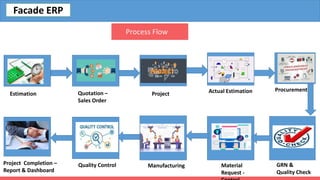
Process Flow
Estimation Quotation –
Sales Order
Project Actual Estimation
Material
Request -
Procurement
GRN &
Quality Check
Manufacturing
Quality Control
Project Completion –
Report & Dashboard
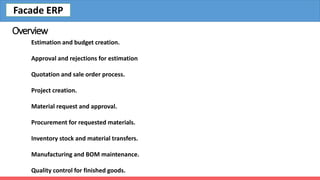
Overview
Estimation and budget creation.
Approval and rejections for estimation
Quotation and sale order process.
Project creation.
Material request and approval.
Procurement for requested materials.
Inventory stock and material transfers.
Manufacturing and BOM maintenance.
Quality control for finished goods.
Facade ERP
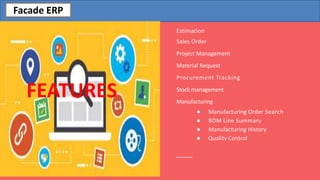
Estimation
Sales Order
Project Management
Material Request
Procurement Tracking
Stock management
Manufacturing
● Manufacturing Order Search
● BOM Line Summary
● Manufacturing History
● Quality Control
FEATURES
Facade ERP
Estimation
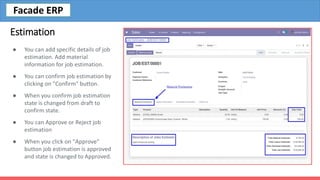
● You can add specific details of job
estimation. Add material
information for job estimation.
● You can confirm job estimation by
clicking on "Confirm" button.
● When you confirm job estimation
state is changed from draft to
confirm state.
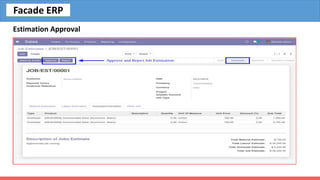
● You can Approve or Reject job
estimation
● When you click on "Approve"
button job estimation is approved
and state is changed to Approved.
Facade ERP
Estimation Approval
Facade ERP
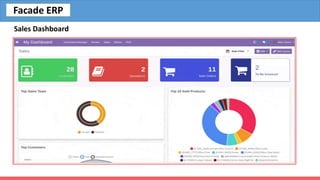
Sales Dashboard
Facade ERP
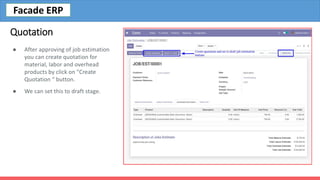
Quotation
● After approving of job estimation
you can create quotation for
material, labor and overhead
products by click on "Create
Quotation “ button.
● We can set this to draft stage.
Facade ERP
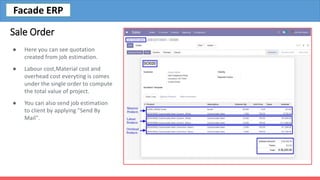
Sale Order
● Here you can see quotation
created from job estimation.
● Labour cost,Material cost and
overhead cost everyting is comes
under the single order to compute
the total value of project.
● You can also send job estimation
to client by applying "Send By
Mail".
Facade ERP
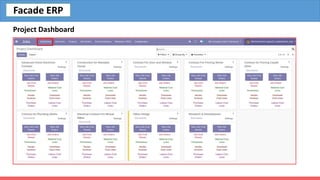
Project Dashboard
Facade ERP
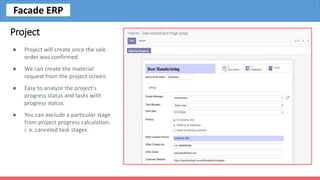
Project
● Project will create once the sale
order was confirmed.
● We can create the material
request from the project screen.
● Easy to analyze the project's
progress status and tasks with
progress status.
● You can exclude a particular stage
from project progress calculation.
i. e. canceled task stages.
Facade ERP
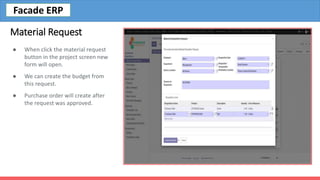
Material Request
● When click the material request
button in the project screen new
form will open.
● We can create the budget from
this request.
● Purchase order will create after
the request was approved.
Facade ERP
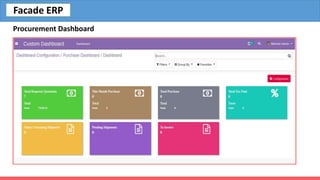
Procurement Dashboard
Facade ERP
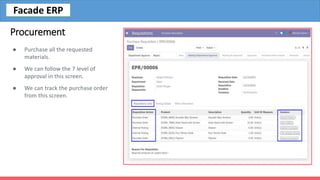
Procurement
● Purchase all the requested
materials.
● We can follow the 7 level of
approval in this screen.
● We can track the purchase order
from this screen.
Facade ERP
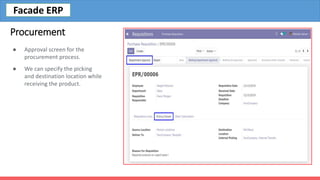
Procurement
● Approval screen for the
procurement process.
● We can specify the picking
and destination location while
receiving the product.
Facade ERP
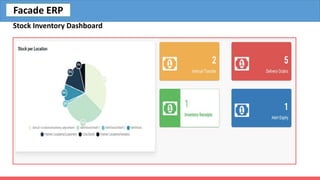
Stock Inventory Dashboard
Facade ERP
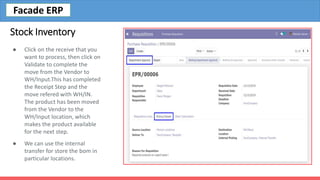
Stock Inventory
● Click on the receive that you
want to process, then click on
Validate to complete the
move from the Vendor to
WH/Input.This has completed
the Receipt Step and the
move refered with WH/IN.
The product has been moved
from the Vendor to the
WH/Input location, which
makes the product available
for the next step.
● We can use the internal
transfer for store the bom in
particular locations.
Facade ERP
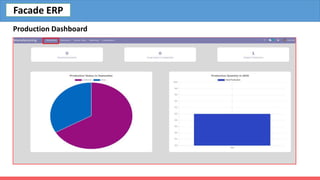
Production Dashboard
Facade ERP
Production
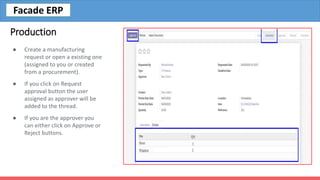
● Create a manufacturing
request or open a existing one
(assigned to you or created
from a procurement).
● If you click on Request
approval button the user
assigned as approver will be
added to the thread.
● If you are the approver you
can either click on Approve or
Reject buttons.
Facade ERP
Production
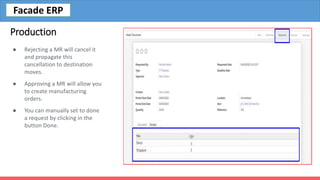
● Rejecting a MR will cancel it
and propagate this
cancellation to destination
moves.
● Approving a MR will allow you
to create manufacturing
orders.
● You can manually set to done
a request by clicking in the
button Done.
Facade ERP
Production
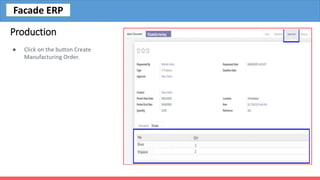
● Click on the button Create
Manufacturing Order.
Facade ERP
Production
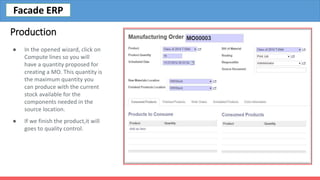
● In the opened wizard, click on
Compute lines so you will
have a quantity proposed for
creating a MO. This quantity is
the maximum quantity you
can produce with the current
stock available for the
components needed in the
source location.
● If we finish the product,it will
goes to quality control.
Facade ERP
Quality Control
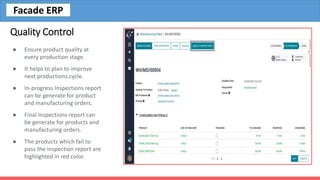
● Ensure product quality at
every production stage.
● It helps to plan to improve
next productions cycle.
● In-progress Inspections report
can be generate for product
and manufacturing orders.
● Final Inspections report can
be generate for products and
manufacturing orders.
● The products which fail to
pass the inspection report are
highlighted in red color.
Facade ERP
Finished Product:
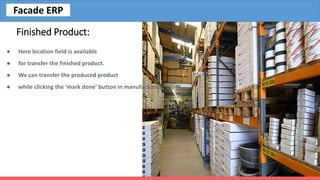
● Here location field is available
● for transfer the finished product.
● We can transfer the produced product
● while clicking the ‘mark done’ button in manufacturing.
Facade ERP
Delivery Management :
● The Final product is shipped to the project location
● The delivery management is scheduled and tracked.
Facade ERP
Banibro IT Solutions
No.4, Ambalavanar Street
Adheenam Nagar, Arumbakkam,
Chennai, Tamil Nadu, India
Mobile: +91 944 44 22 531
Email: info@banibro.com
Mr. SIJESH L
Business Relationship Manager
Mobile: 0091-9342258771
Email : sijesh@banibro.com

Facade erp

  • 2.
    Process flow Fleet Facade ERP ProcessFlow Estimation Quotation – Sales Order Project Actual Estimation Material Request - Procurement GRN & Quality Check Manufacturing Quality Control Project Completion – Report & Dashboard
  • 3.
    Overview Estimation and budgetcreation. Approval and rejections for estimation Quotation and sale order process. Project creation. Material request and approval. Procurement for requested materials. Inventory stock and material transfers. Manufacturing and BOM maintenance. Quality control for finished goods. Facade ERP
  • 4.
    Estimation Sales Order Project Management MaterialRequest Procurement Tracking Stock management Manufacturing ● Manufacturing Order Search ● BOM Line Summary ● Manufacturing History ● Quality Control FEATURES Facade ERP
  • 5.
    Estimation ● You canadd specific details of job estimation. Add material information for job estimation. ● You can confirm job estimation by clicking on "Confirm" button. ● When you confirm job estimation state is changed from draft to confirm state. ● You can Approve or Reject job estimation ● When you click on "Approve" button job estimation is approved and state is changed to Approved. Facade ERP
  • 6.
  • 7.
  • 8.
    Quotation ● After approvingof job estimation you can create quotation for material, labor and overhead products by click on "Create Quotation “ button. ● We can set this to draft stage. Facade ERP
  • 9.
    Sale Order ● Hereyou can see quotation created from job estimation. ● Labour cost,Material cost and overhead cost everyting is comes under the single order to compute the total value of project. ● You can also send job estimation to client by applying "Send By Mail". Facade ERP
  • 10.
  • 11.
    Project ● Project willcreate once the sale order was confirmed. ● We can create the material request from the project screen. ● Easy to analyze the project's progress status and tasks with progress status. ● You can exclude a particular stage from project progress calculation. i. e. canceled task stages. Facade ERP
  • 12.
    Material Request ● Whenclick the material request button in the project screen new form will open. ● We can create the budget from this request. ● Purchase order will create after the request was approved. Facade ERP
  • 13.
  • 14.
    Procurement ● Purchase allthe requested materials. ● We can follow the 7 level of approval in this screen. ● We can track the purchase order from this screen. Facade ERP
  • 15.
    Procurement ● Approval screenfor the procurement process. ● We can specify the picking and destination location while receiving the product. Facade ERP
  • 16.
  • 17.
    Stock Inventory ● Clickon the receive that you want to process, then click on Validate to complete the move from the Vendor to WH/Input.This has completed the Receipt Step and the move refered with WH/IN. The product has been moved from the Vendor to the WH/Input location, which makes the product available for the next step. ● We can use the internal transfer for store the bom in particular locations. Facade ERP
  • 18.
  • 19.
    Production ● Create amanufacturing request or open a existing one (assigned to you or created from a procurement). ● If you click on Request approval button the user assigned as approver will be added to the thread. ● If you are the approver you can either click on Approve or Reject buttons. Facade ERP
  • 20.
    Production ● Rejecting aMR will cancel it and propagate this cancellation to destination moves. ● Approving a MR will allow you to create manufacturing orders. ● You can manually set to done a request by clicking in the button Done. Facade ERP
  • 21.
    Production ● Click onthe button Create Manufacturing Order. Facade ERP
  • 22.
    Production ● In theopened wizard, click on Compute lines so you will have a quantity proposed for creating a MO. This quantity is the maximum quantity you can produce with the current stock available for the components needed in the source location. ● If we finish the product,it will goes to quality control. Facade ERP
  • 23.
    Quality Control ● Ensureproduct quality at every production stage. ● It helps to plan to improve next productions cycle. ● In-progress Inspections report can be generate for product and manufacturing orders. ● Final Inspections report can be generate for products and manufacturing orders. ● The products which fail to pass the inspection report are highlighted in red color. Facade ERP
  • 24.
    Finished Product: ● Herelocation field is available ● for transfer the finished product. ● We can transfer the produced product ● while clicking the ‘mark done’ button in manufacturing. Facade ERP
  • 25.
    Delivery Management : ●The Final product is shipped to the project location ● The delivery management is scheduled and tracked. Facade ERP
  • 26.
    Banibro IT Solutions No.4,Ambalavanar Street Adheenam Nagar, Arumbakkam, Chennai, Tamil Nadu, India Mobile: +91 944 44 22 531 Email: info@banibro.com Mr. SIJESH L Business Relationship Manager Mobile: 0091-9342258771 Email : sijesh@banibro.com