COMPUTER STUDIES
FORM 2 SIMPLIFIED NOTES
QUICK REVISION NOTES
An Updated Well-Organized Detailed Revision Notes for the
Current Form 2 Syllabus.
THIS IS A FREE SAMPLE OF THE
ORIGINAL NOTES
CONTACT US FOR FULL VERSION OF THE NOTES
Mr Isaboke 0746 222 000
MWALIMU CONSULTANCY
SERIES 1
mwalimuconsultancy@gmail.com
CONTACT MWALIMU CONSULTANCY 0746-222-000 FOR COMPLETE NOTES.
Page | 2
Copyright ©Mwalimu
All rights reserved. This book or any portion thereof may not be reproduced or used in
any manner whatsoever without the express written permission of the publisher except
for the use of brief quotations in a book review.
Printed in Kenya
00100
Nairobi
+254-746-222-000
mwalimuconsultancy@gmail.com
Mwalimu Consultancy Ltd.
mwalimuconsultancy@gmail.com
CONTACT MWALIMU CONSULTANCY 0746-222-000 FOR COMPLETE NOTES.
Page | 3
CHAPTER 1
WORD PROCESSORS
This chapter introduces the student to what Word Processors are, and how they are used.
 Definition of a Word Processor
 Purpose of Word Processing
 Using a Word Processor
 Format and edit a document
 Create and edit a table
 Create and edit a mail merge document
 Print a document
 Insert and edit objects
1.1 DEFINITION OF A WORD PROCESSOR
A Word Processor (WP) is an application or a program (software) that converts letters into words,
words into sentences, sentences into paragraph and paragraph into a document for purposes of
communication. This process is known as Word Processing.
There are several word processors available for users in the work place and in schools. Examples
include: Ms-Word, Word Perfect, WonderWord, WordPro and so on.
1.2 Features of Word Processors
All word processors possess certain features that are unique to them. The following are some of the
features of WP.
1. Cursor – all WP possess a blinking cursor that shows the user where next to type. You can only
be able to type exactly at the position of the cursor. Once you type, the cursor then moves to the
next available space.
2. Formatting and Editing –Formatting is changing the appearance of text by selecting
font(typeface or hand writing style), colour, alignment, indentation (moving text away from the
margins), bolding, changing size, underline, italic and making bulleted list. Editing is correcting
errors and ensuring clarity and accuracy like removing spelling and grammar mistakes.
mwalimuconsultancy@gmail.com
CONTACT MWALIMU CONSULTANCY 0746-222-000 FOR COMPLETE NOTES.
Page | 4
3. Spelling and grammar check- WPs have the ability to check the spelling and the grammar of a
document. This can be set to indicate such mistakes by showing different colours on them. For
example in Ms-Word, spelling mistakes are underlined in red and grammar are underlined in green.
The user then has the chance to correct the mistakes either immediately or after completing the
task being done. Refer to section 1.5 for details.
4. Word Wrap- WPs have the ability to take an incomplete word to the next line automatically
without pressing the enter key. This is known as word wrap.
5. Thesauras- this is a Greek word for storehouse. It stores synonyms and antonyms of different
words. The user of the WP has the option to obtain different words which mean the same or
opposite as the word to be changed.
6. Auto-correct- word which is frequently used with WP can be made to automatically be corrected
or be completed by WP in the process of typing, hence the name auto-correct. Refer to section
1.4 for details.
7. Undo and redo- any action done by the user of the WP, can be undone by these two features. If
the user types some words which was not intended, one has the option to click undo button for the
action to be omitted or if one had deleted some word or sentence or paragraph by mistake, one
simply presses the redo button to have the same deleted items back to the right place.
8. Mail Merge- this is the ability of WP to create a common letter, e-mail or labels and add different
addresses or particulars to each letter for different people at the same time. It has three main parts:
creating main letter, creating addresses and merging the addresses to the letter. Refer to section
1.7 for details.
9. Dictionary – WP has a dictionary where certain words can be added, to make them accepted by
WP such that it will not show the red colour symbolizing that it is a spelling mistake or a non
English word. You can add nouns from a different language and WP will recognize them as part
of the English language. Depending on the default language used by the computer, certain words
may not be accepted though they are English words. You need to add such words to the dictionary
of WP. For example, British English will accept labour, but American will only accept labor and
so on.
mwalimuconsultancy@gmail.com
CONTACT MWALIMU CONSULTANCY 0746-222-000 FOR COMPLETE NOTES.
Page | 5
1.3 Purpose of a Word Processor
The purpose of a WP from the definition above is to create documents for purposes of
communication. The essence of any word processing is to enable messages to be created for
onward transmission to the reader. Such documents in the work place include letters, reports,
circulars, emails, newsletters, memos and so on. The documents can then be printed, or conveyed
through other means such as e-mails, or through facsimile (fax).
1.4 Using a Word Processing Package
1.4.1 Getting started
The first thing is to load the WP application you intend to use. The example that follows will make
use Microsoft Word (MS-Word) as a platform since most schools and organisations use the same.
The operating system under which the MS-Word is running is known as Windows Xp.
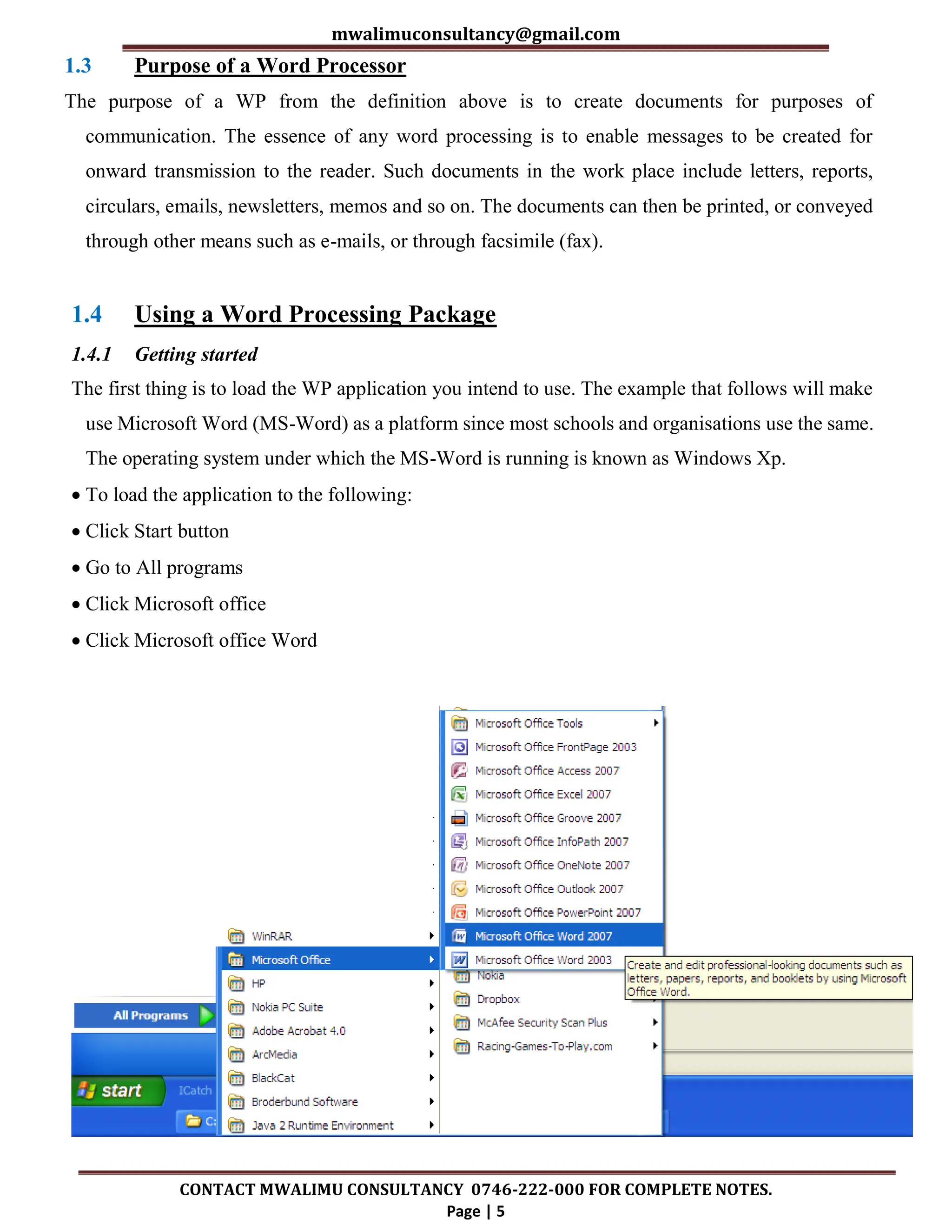
 To load the application to the following:
 Click Start button
 Go to All programs
 Click Microsoft office
 Click Microsoft office Word
mwalimuconsultancy@gmail.com
CONTACT MWALIMU CONSULTANCY 0746-222-000 FOR COMPLETE NOTES.
Page | 6
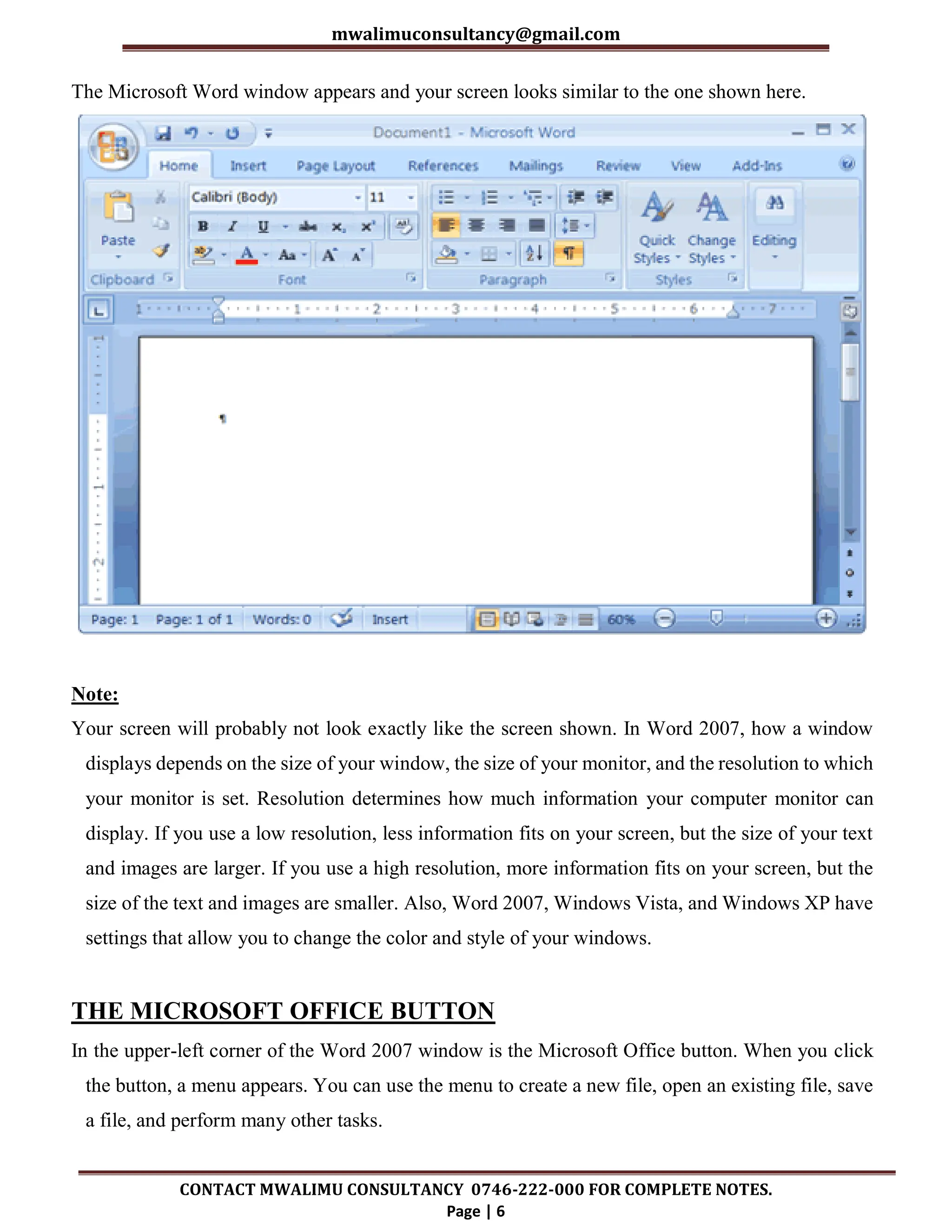
The Microsoft Word window appears and your screen looks similar to the one shown here.
Note:
Your screen will probably not look exactly like the screen shown. In Word 2007, how a window
displays depends on the size of your window, the size of your monitor, and the resolution to which
your monitor is set. Resolution determines how much information your computer monitor can
display. If you use a low resolution, less information fits on your screen, but the size of your text
and images are larger. If you use a high resolution, more information fits on your screen, but the
size of the text and images are smaller. Also, Word 2007, Windows Vista, and Windows XP have
settings that allow you to change the color and style of your windows.
THE MICROSOFT OFFICE BUTTON
In the upper-left corner of the Word 2007 window is the Microsoft Office button. When you click
the button, a menu appears. You can use the menu to create a new file, open an existing file, save
a file, and perform many other tasks.
mwalimuconsultancy@gmail.com
CONTACT MWALIMU CONSULTANCY 0746-222-000 FOR COMPLETE NOTES.
Page | 7
THE QUICK ACCESS TOOLBAR
Next to the Microsoft Office button is the Quick Access toolbar. The Quick Access toolbar provides
you with access to commands you frequently use. By default Save, Undo, and Redo appear on the
Quick Access toolbar. You can use Save to save your file, Undo to rollback an action you have
taken, and Redo to reapply an action you have rolled back.
THE TITLE BAR
Next to the Quick Access toolbar is the Title bar. The Title bar displays the title of the document on
which you are currently working. Word names the first new document you open Document1. As
you open additional new documents, Word names them sequentially. When you save your
document, you assign the document a new name.
THE RIBBON
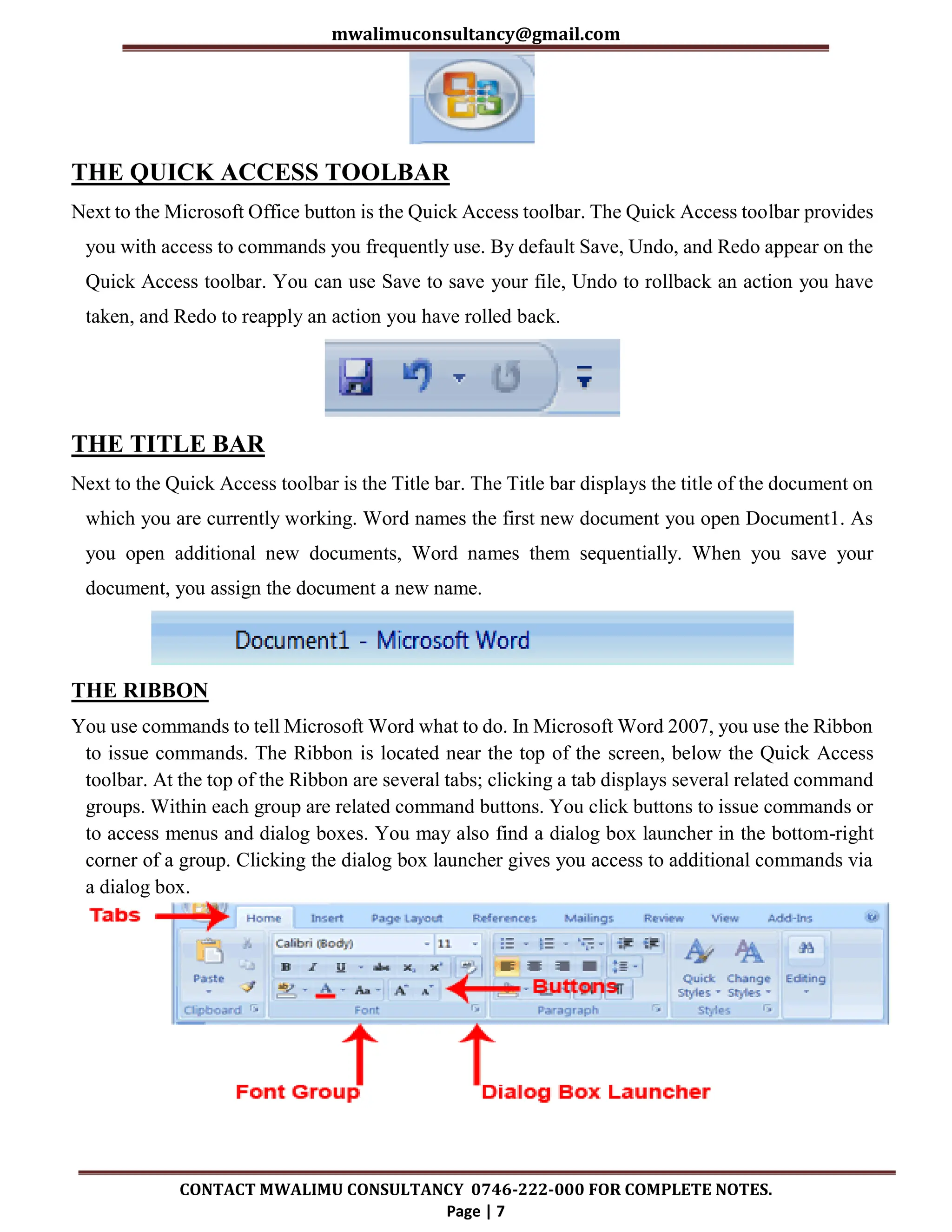
You use commands to tell Microsoft Word what to do. In Microsoft Word 2007, you use the Ribbon
to issue commands. The Ribbon is located near the top of the screen, below the Quick Access
toolbar. At the top of the Ribbon are several tabs; clicking a tab displays several related command
groups. Within each group are related command buttons. You click buttons to issue commands or
to access menus and dialog boxes. You may also find a dialog box launcher in the bottom-right
corner of a group. Clicking the dialog box launcher gives you access to additional commands via
a dialog box.
mwalimuconsultancy@gmail.com
CONTACT MWALIMU CONSULTANCY 0746-222-000 FOR COMPLETE NOTES.
Page | 8
THE RULER
The ruler is found below the Ribbon.
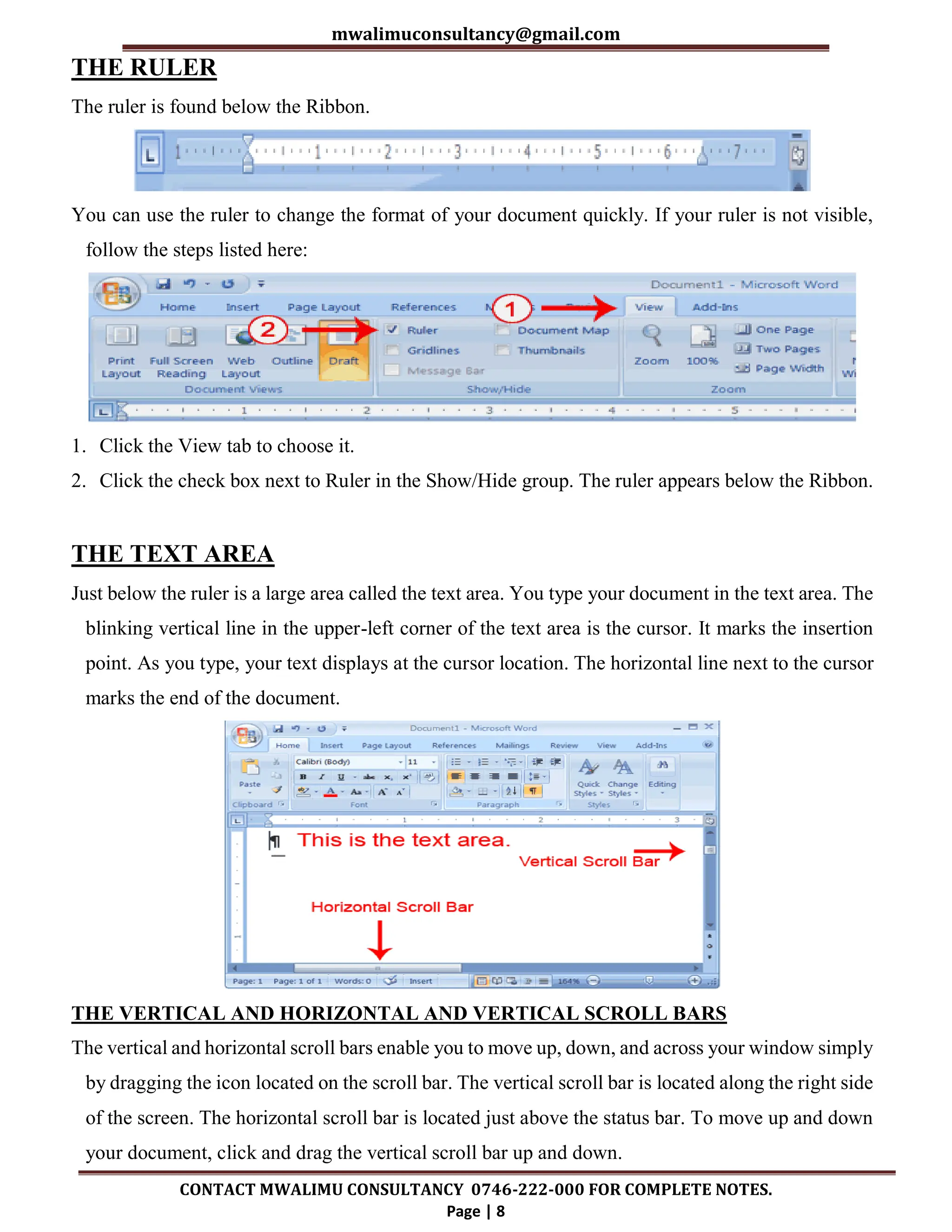
You can use the ruler to change the format of your document quickly. If your ruler is not visible,
follow the steps listed here:
1. Click the View tab to choose it.
2. Click the check box next to Ruler in the Show/Hide group. The ruler appears below the Ribbon.
THE TEXT AREA
Just below the ruler is a large area called the text area. You type your document in the text area. The
blinking vertical line in the upper-left corner of the text area is the cursor. It marks the insertion
point. As you type, your text displays at the cursor location. The horizontal line next to the cursor
marks the end of the document.
THE VERTICAL AND HORIZONTAL AND VERTICAL SCROLL BARS
The vertical and horizontal scroll bars enable you to move up, down, and across your window simply
by dragging the icon located on the scroll bar. The vertical scroll bar is located along the right side
of the screen. The horizontal scroll bar is located just above the status bar. To move up and down
your document, click and drag the vertical scroll bar up and down.
mwalimuconsultancy@gmail.com
CONTACT MWALIMU CONSULTANCY 0746-222-000 FOR COMPLETE NOTES.
Page | 9
To move back and forth across your document, click and drag the horizontal scroll bar back and
forth. You won't see a horizontal scroll bar if the width of your document fits on your screen.
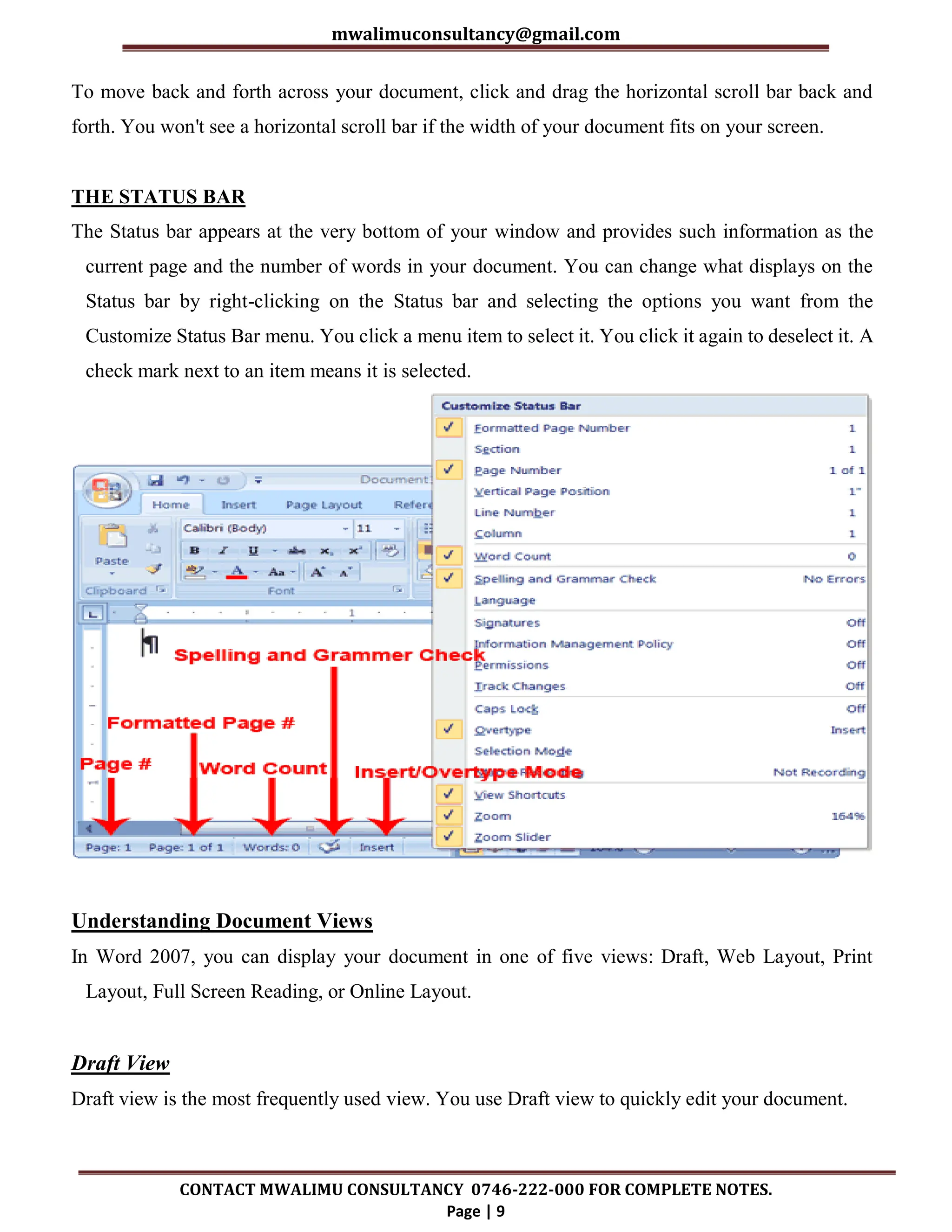
THE STATUS BAR
The Status bar appears at the very bottom of your window and provides such information as the
current page and the number of words in your document. You can change what displays on the
Status bar by right-clicking on the Status bar and selecting the options you want from the
Customize Status Bar menu. You click a menu item to select it. You click it again to deselect it. A
check mark next to an item means it is selected.
Understanding Document Views
In Word 2007, you can display your document in one of five views: Draft, Web Layout, Print
Layout, Full Screen Reading, or Online Layout.
Draft View
Draft view is the most frequently used view. You use Draft view to quickly edit your document.
mwalimuconsultancy@gmail.com
CONTACT MWALIMU CONSULTANCY 0746-222-000 FOR COMPLETE NOTES.
Page | 10
Web Layout
Web Layout view enables you to see your document as it would appear in a browser such as Internet
Explorer.
Print Layout
The Print Layout view shows the document as it will look when it is printed.
Reading Layout
Reading Layout view formats your screen to make reading your document more comfortable.
Outline View
Outline view displays the document in outline form. You can display headings without the text. If
you move a heading, the accompanying text moves with it. You should use Draft view for these
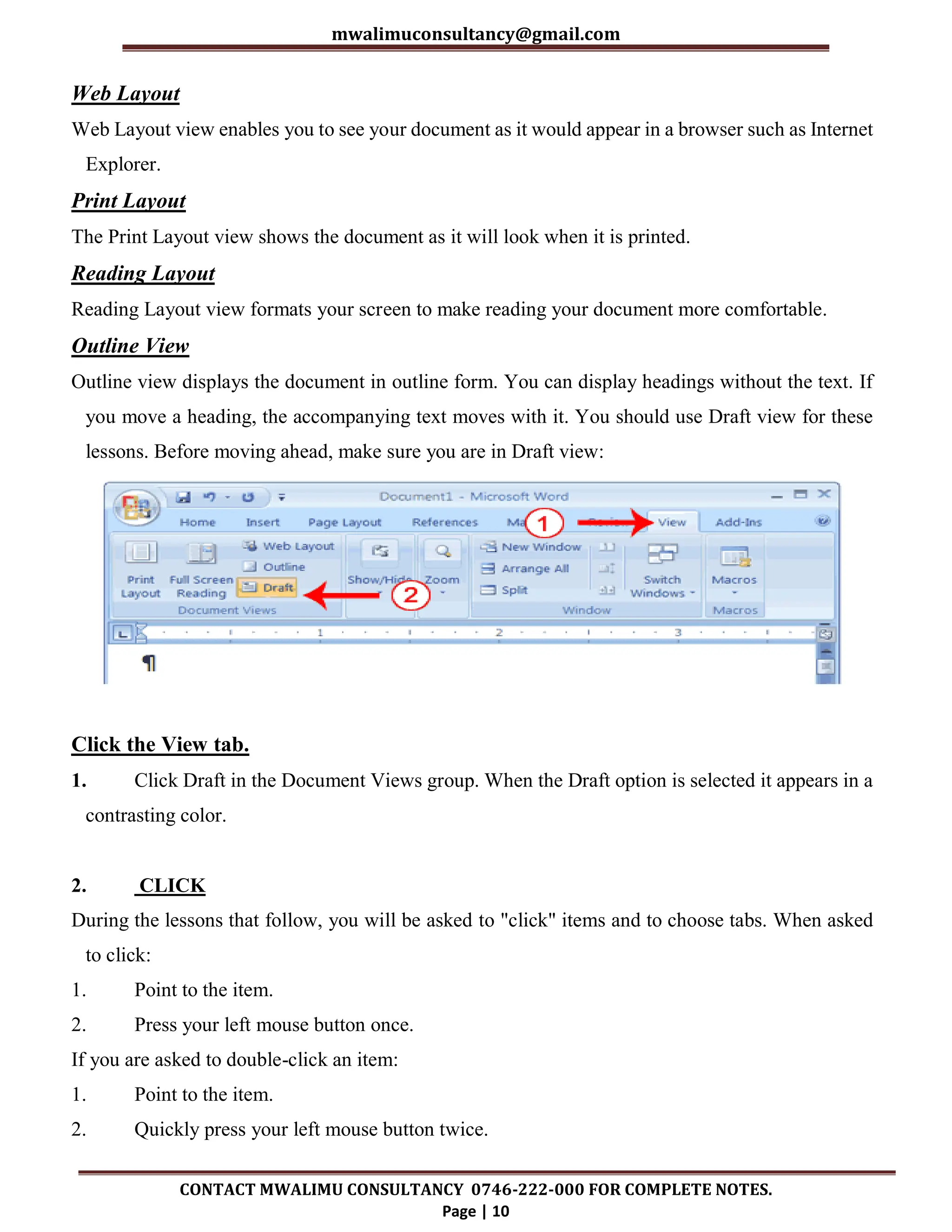
lessons. Before moving ahead, make sure you are in Draft view:
Click the View tab.
1. Click Draft in the Document Views group. When the Draft option is selected it appears in a
contrasting color.
2. CLICK
During the lessons that follow, you will be asked to "click" items and to choose tabs. When asked
to click:
1. Point to the item.
2. Press your left mouse button once.
If you are asked to double-click an item:
1. Point to the item.
2. Quickly press your left mouse button twice.
mwalimuconsultancy@gmail.com
CONTACT MWALIMU CONSULTANCY 0746-222-000 FOR COMPLETE NOTES.
Page | 11
If
you are asked to right-click:
1. Point to the item.
2. Press your right mouse button.
If you are asked to choose a tab, click the tab.
UNDERSTANDING NONPRINTING CHARACTERS
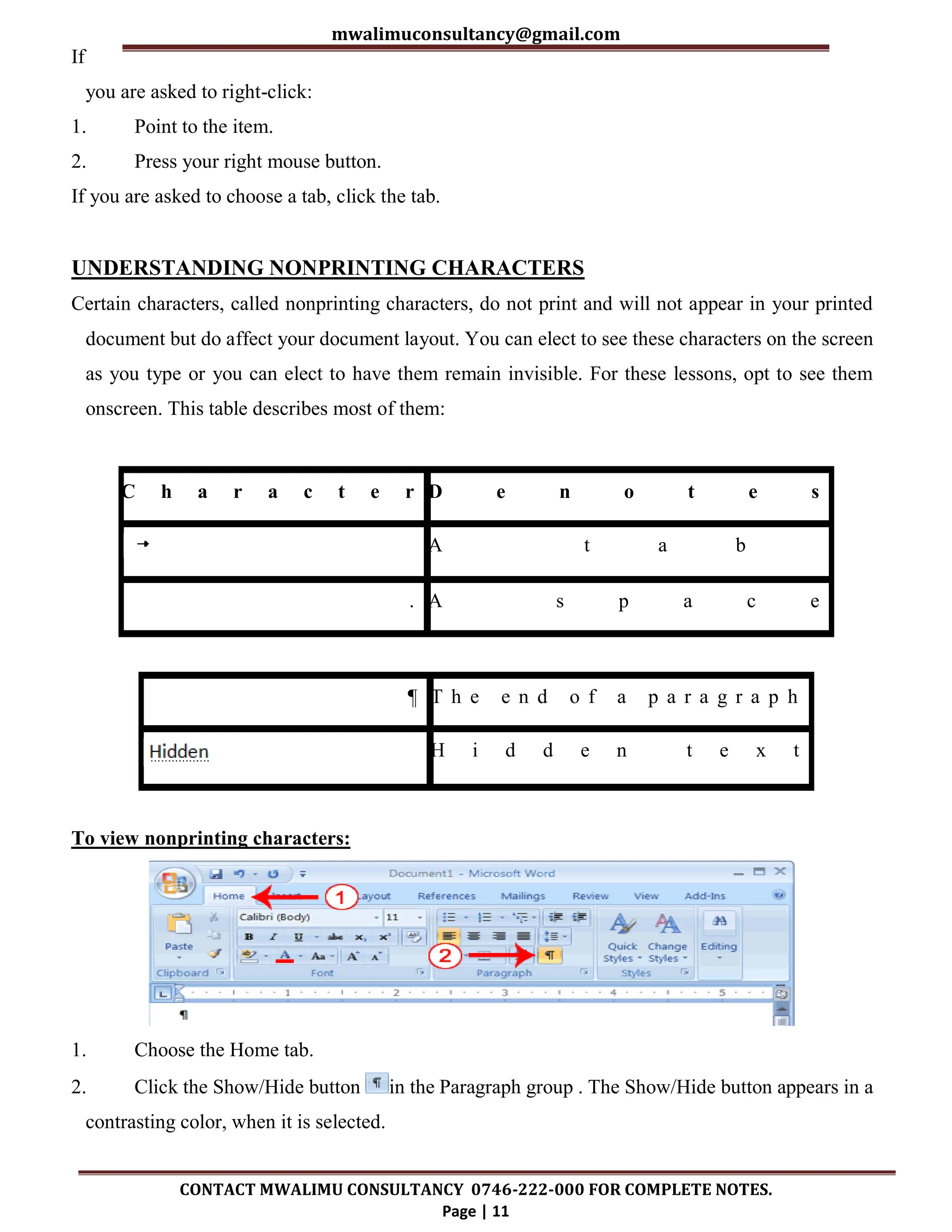
Certain characters, called nonprinting characters, do not print and will not appear in your printed
document but do affect your document layout. You can elect to see these characters on the screen
as you type or you can elect to have them remain invisible. For these lessons, opt to see them
onscreen. This table describes most of them:
C h a r a c t e r D e n o t e s
A t a b
. A s p a c e
¶ T h e e n d o f a p a r a g r a p h
H i d d e n t e x t
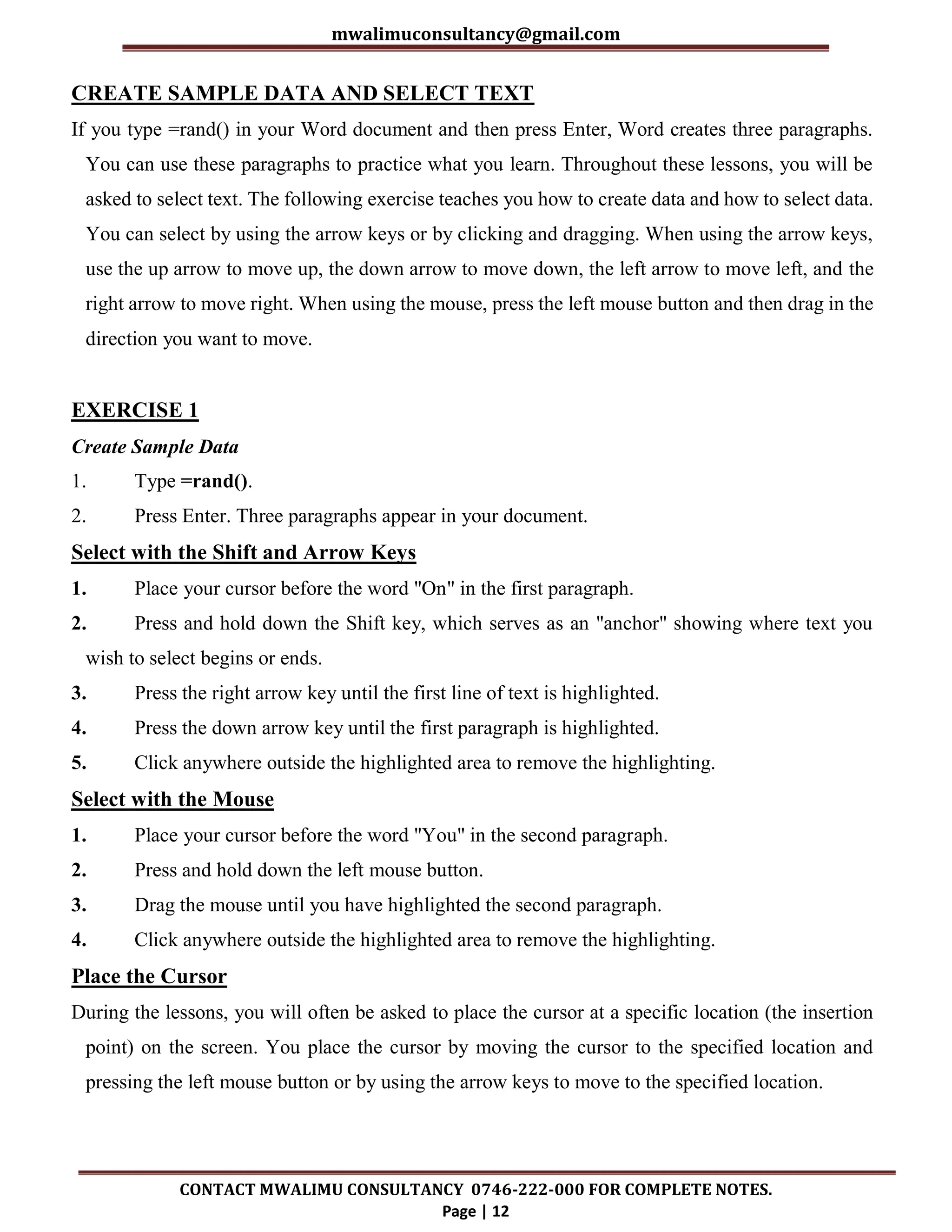
To view nonprinting characters:
1. Choose the Home tab.
2. Click the Show/Hide button in the Paragraph group . The Show/Hide button appears in a
contrasting color, when it is selected.
mwalimuconsultancy@gmail.com
CONTACT MWALIMU CONSULTANCY 0746-222-000 FOR COMPLETE NOTES.
Page | 12
CREATE SAMPLE DATA AND SELECT TEXT
If you type =rand() in your Word document and then press Enter, Word creates three paragraphs.
You can use these paragraphs to practice what you learn. Throughout these lessons, you will be
asked to select text. The following exercise teaches you how to create data and how to select data.
You can select by using the arrow keys or by clicking and dragging. When using the arrow keys,
use the up arrow to move up, the down arrow to move down, the left arrow to move left, and the
right arrow to move right. When using the mouse, press the left mouse button and then drag in the
direction you want to move.
EXERCISE 1
Create Sample Data
1. Type =rand().
2. Press Enter. Three paragraphs appear in your document.
Select with the Shift and Arrow Keys
1. Place your cursor before the word "On" in the first paragraph.
2. Press and hold down the Shift key, which serves as an "anchor" showing where text you
wish to select begins or ends.
3. Press the right arrow key until the first line of text is highlighted.
4. Press the down arrow key until the first paragraph is highlighted.
5. Click anywhere outside the highlighted area to remove the highlighting.
Select with the Mouse
1. Place your cursor before the word "You" in the second paragraph.
2. Press and hold down the left mouse button.
3. Drag the mouse until you have highlighted the second paragraph.
4. Click anywhere outside the highlighted area to remove the highlighting.
Place the Cursor
During the lessons, you will often be asked to place the cursor at a specific location (the insertion
point) on the screen. You place the cursor by moving the cursor to the specified location and
pressing the left mouse button or by using the arrow keys to move to the specified location.
mwalimuconsultancy@gmail.com
CONTACT MWALIMU CONSULTANCY 0746-222-000 FOR COMPLETE NOTES.
Page | 13
EXERCISE 2
The Arrow Keys
1. Use the down arrow key to move down your document.
2. Use the right arrow key to move to the right.
3. Use the up arrow key to move up.
4. Use the left arrow key to move to the left.
Cursor
1. Move around you document by using you mouse and clicking in a variety of location.
2. Click in a location and type. Note what happens.
EXECUTE COMMANDS WITH KEYBOARD SHORTCUTS
There are many methods you can use to accomplish tasks when using Word. Generally, you choose
an option by clicking the option on the Ribbon. However, you can also use shortcut keys. A key
name followed by a plus and a letter means to hold down the key while pressing the letter. For
example, Ctrl+b means you should hold down the Ctrl key while pressing "b." A shorthand
notation of the above would read as follows:
Press Ctrl+b. Typists who are slowed down by using a mouse usually prefer using keys.
Start a New Paragraph
When you type in Microsoft Word, you do not need to press a key to move to a new line. To start a
new paragraph, press the Enter key.
EXIT WORD
Typically, you save your work before exiting. The exit button is located in the extreme right corner
of your window.
Close and Save
1. Click the Microsoft Office button. A menu appears.
2. Click Exit Word, which is in the bottom-right corner.
mwalimuconsultancy@gmail.com
CONTACT MWALIMU CONSULTANCY 0746-222-000 FOR COMPLETE NOTES.
Page | 14
3. You will be prompted: "Do you want to save changes to Document1?" To save your changes,
click Yes. Otherwise, click No. If you click Yes, the Save As dialog box appears.
4. Specify the correct folder in the Save In box.
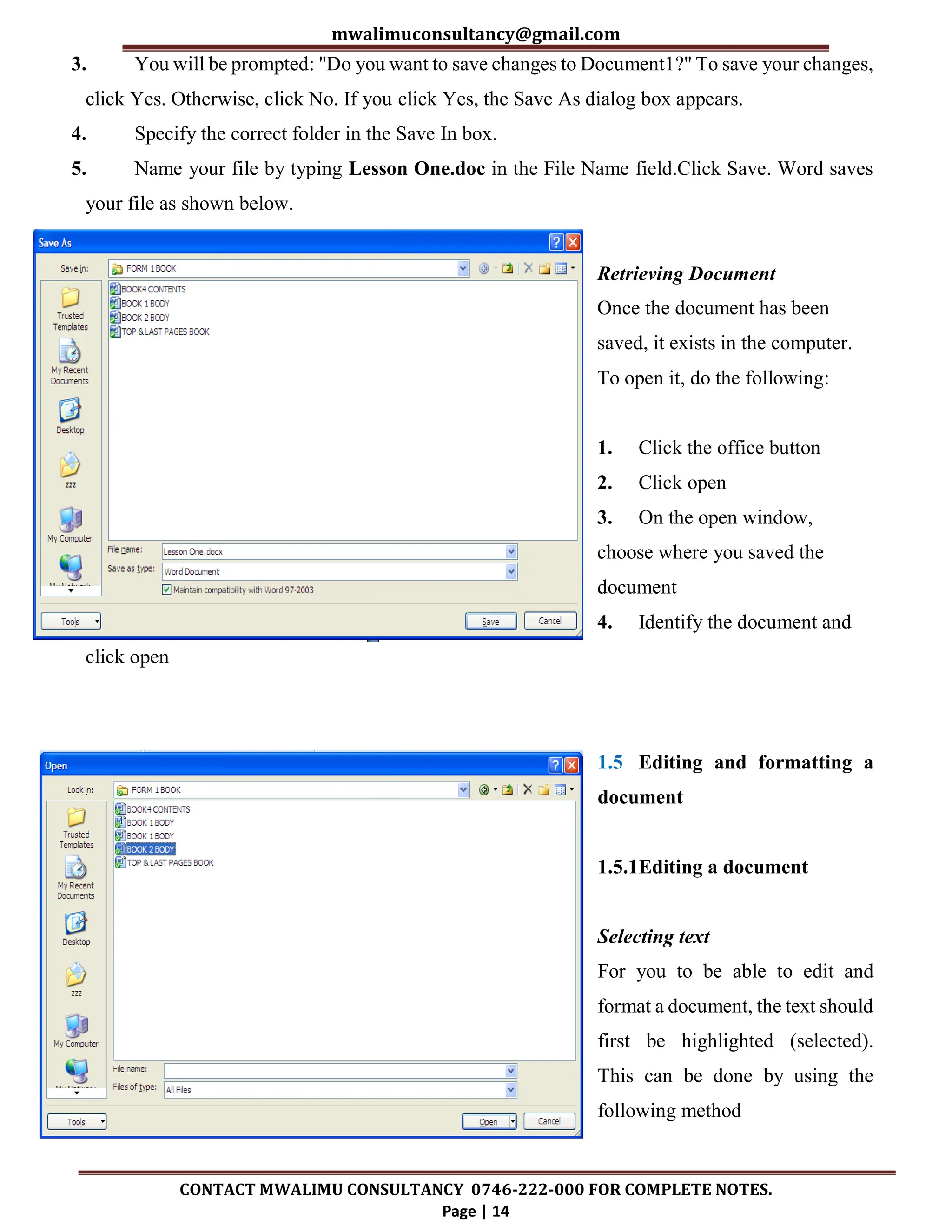
5. Name your file by typing Lesson One.doc in the File Name field.Click Save. Word saves
your file as shown below.
Retrieving Document
Once the document has been
saved, it exists in the computer.
To open it, do the following:
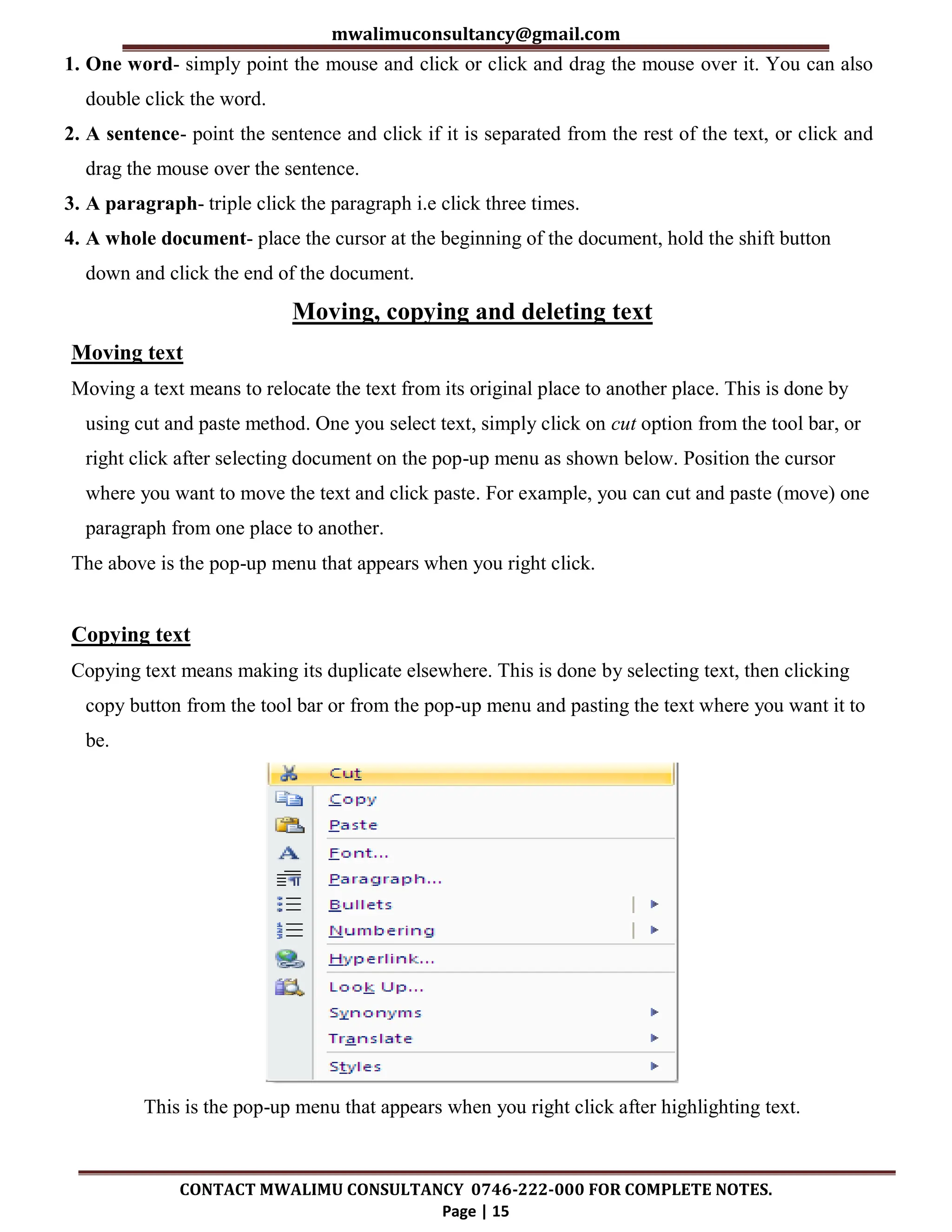
1. Click the office button
2. Click open
3. On the open window,
choose where you saved the
document
4. Identify the document and
click open
1.5 Editing and formatting a
document
1.5.1Editing a document
Selecting text
For you to be able to edit and
format a document, the text should
first be highlighted (selected).
This can be done by using the
following method
mwalimuconsultancy@gmail.com
CONTACT MWALIMU CONSULTANCY 0746-222-000 FOR COMPLETE NOTES.
Page | 15
1. One word- simply point the mouse and click or click and drag the mouse over it. You can also
double click the word.
2. A sentence- point the sentence and click if it is separated from the rest of the text, or click and
drag the mouse over the sentence.
3. A paragraph- triple click the paragraph i.e click three times.
4. A whole document- place the cursor at the beginning of the document, hold the shift button
down and click the end of the document.
Moving, copying and deleting text
Moving text
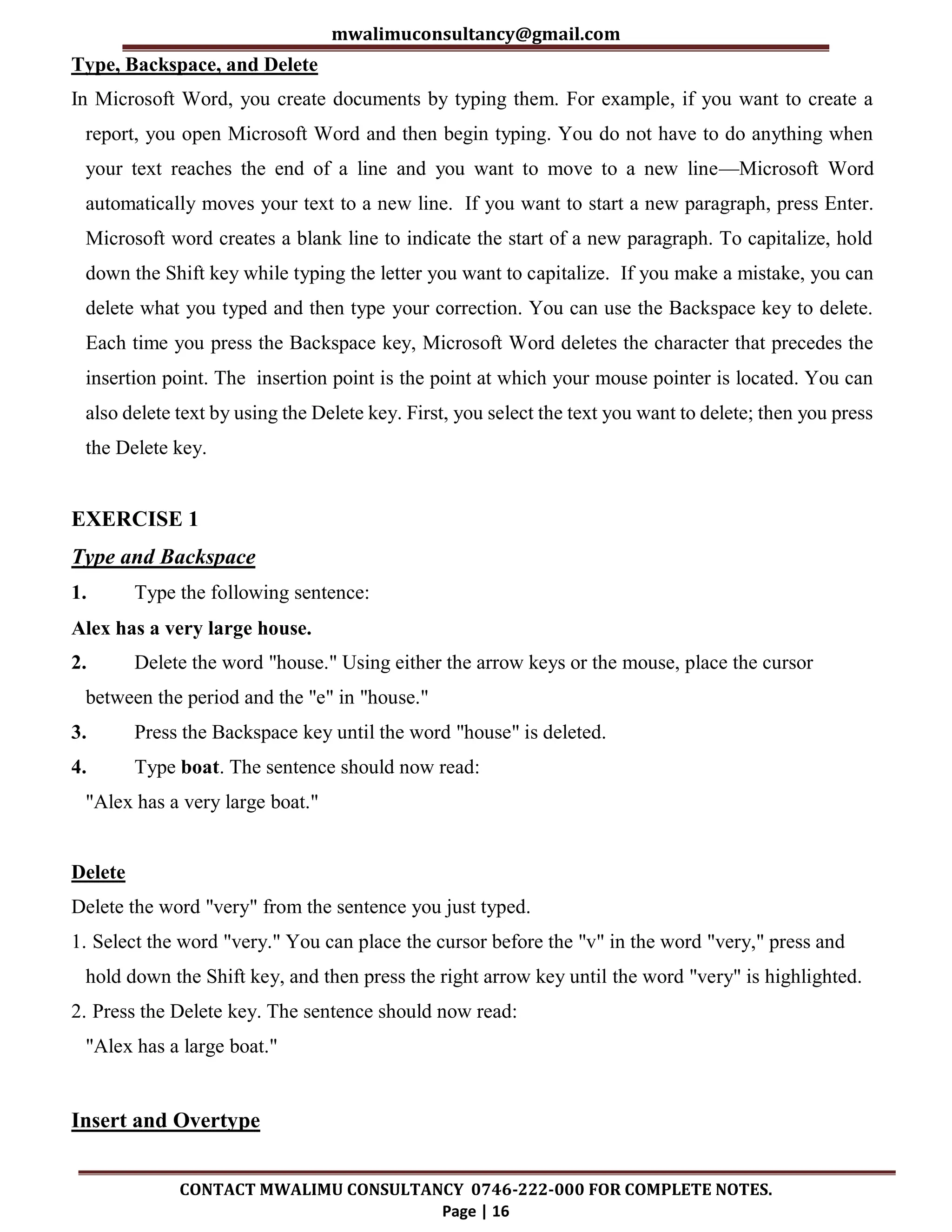
Moving a text means to relocate the text from its original place to another place. This is done by
using cut and paste method. One you select text, simply click on cut option from the tool bar, or
right click after selecting document on the pop-up menu as shown below. Position the cursor
where you want to move the text and click paste. For example, you can cut and paste (move) one
paragraph from one place to another.
The above is the pop-up menu that appears when you right click.
Copying text
Copying text means making its duplicate elsewhere. This is done by selecting text, then clicking
copy button from the tool bar or from the pop-up menu and pasting the text where you want it to
be.
This is the pop-up menu that appears when you right click after highlighting text.
mwalimuconsultancy@gmail.com
CONTACT MWALIMU CONSULTANCY 0746-222-000 FOR COMPLETE NOTES.
Page | 16
Type, Backspace, and Delete
In Microsoft Word, you create documents by typing them. For example, if you want to create a
report, you open Microsoft Word and then begin typing. You do not have to do anything when
your text reaches the end of a line and you want to move to a new line—Microsoft Word
automatically moves your text to a new line. If you want to start a new paragraph, press Enter.
Microsoft word creates a blank line to indicate the start of a new paragraph. To capitalize, hold
down the Shift key while typing the letter you want to capitalize. If you make a mistake, you can
delete what you typed and then type your correction. You can use the Backspace key to delete.
Each time you press the Backspace key, Microsoft Word deletes the character that precedes the
insertion point. The insertion point is the point at which your mouse pointer is located. You can
also delete text by using the Delete key. First, you select the text you want to delete; then you press
the Delete key.
EXERCISE 1
Type and Backspace
1. Type the following sentence:
Alex has a very large house.
2. Delete the word "house." Using either the arrow keys or the mouse, place the cursor
between the period and the "e" in "house."
3. Press the Backspace key until the word "house" is deleted.
4. Type boat. The sentence should now read:
"Alex has a very large boat."
Delete
Delete the word "very" from the sentence you just typed.
1. Select the word "very." You can place the cursor before the "v" in the word "very," press and
hold down the Shift key, and then press the right arrow key until the word "very" is highlighted.
2. Press the Delete key. The sentence should now read:
"Alex has a large boat."
Insert and Overtype
mwalimuconsultancy@gmail.com
CONTACT MWALIMU CONSULTANCY 0746-222-000 FOR COMPLETE NOTES.
Page | 17
While creating your document, you may find you need to insert text—place new text between
existing text. Suppose, you type the sentence, "Alex has a large boat." After typing it, you decide
you want to change the sentence to "Alex has a large blue boat." With Microsoft Word, inserting
a word, phrase, or even several paragraphs is easy.
Alternatively, you may want to overtype text—replace old text with new text. For example, suppose
you type the sentence, "Alex has a large blue boat." After typing it, you decide you want to change
the sentence to "Alex has a large gray boat." With Microsoft Word, overtyping the word blue with
the word gray is also easy. Before you attempt to insert or overtype, you should check the mode
you are in—Insert or Overtype. You right-click the Status bar and then use the Customize Status
Bar menu to place the Insert/Overtype button on the Status bar. You can then use the
Insert/Overtype button to switch between Insert and Overtype mode. When you are in Insert mode,
you can insert text. When you are in Overtype mode, you can overtype text. By default, Microsoft
Word is in the Insert mode.
EXERCISE 2
Placing the Insert/Overtype button on the Status bar
1. Right-click the Status bar. The Customize Status Bar menu appears.
2. Click Overtype. The Insert/Overtype button appears on the Status bar.
3. If the word Insert appears on the Status bar, you are in Insert mode.
4. If the word Overtype appears on the Status bar, click the word Overtype and it will change
to Insert, thereby changing Word to Insert mode.
Insert
Make sure you are in Insert mode before proceeding. You are going to insert the word "blue"
between the words "large" and "boat."
1. Place the cursor after the space between the words "large" and "boat."
2. Type the word blue.
3. Press the spacebar to add a space.
4. The sentence should now read:
"Alex has a large blue boat."
mwalimuconsultancy@gmail.com
CONTACT MWALIMU CONSULTANCY 0746-222-000 FOR COMPLETE NOTES.
Page | 18
Overtype
You can type over the current text (replace the current text with new text) in the Overtype mode. Do
the following to change to the Overtype mode.
 Click "Insert" on the Status bar. The word Insert changes to Overtype.
Change the word "blue" to "gray."
1. Place the cursor before the letter "b" in "blue."
2. Type the word gray.
3. The sentence should now read:
"Alex has a large gray boat."
Note: You can overtype text without changing to Overtype mode by selecting the text you want to
overtype and then typing.
1.5.2 Find and Replace
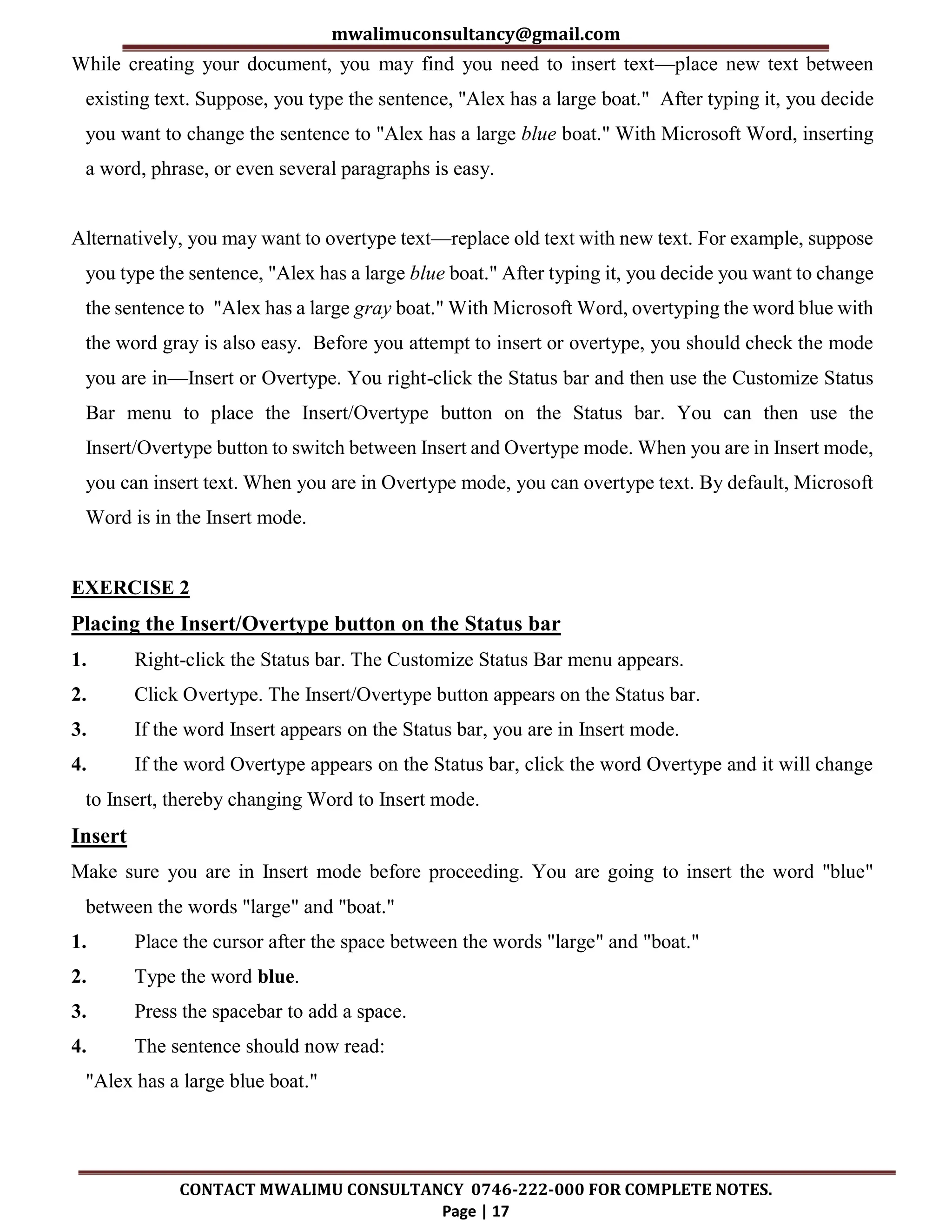
In Microsoft Word 2007, When you click find
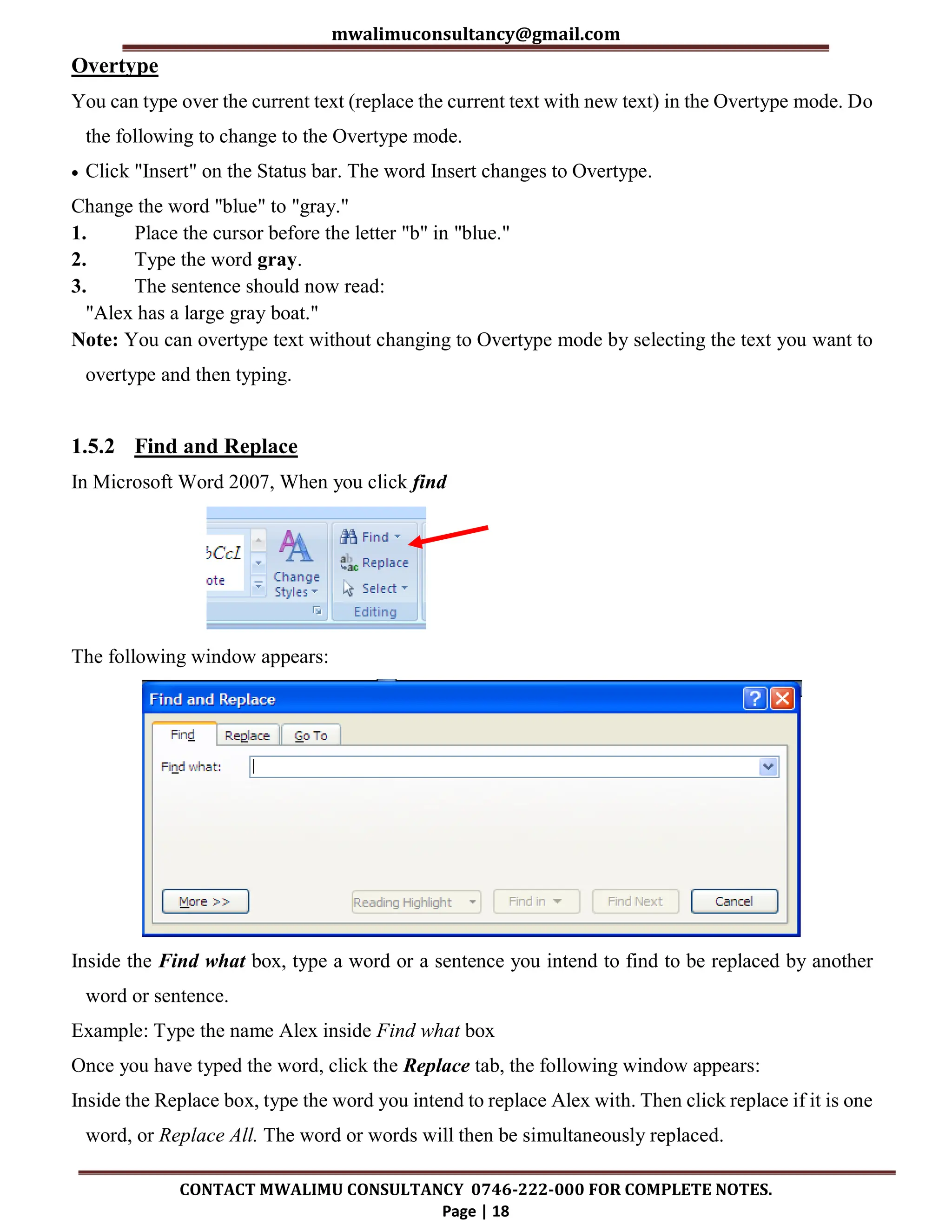
The following window appears:
Inside the Find what box, type a word or a sentence you intend to find to be replaced by another
word or sentence.
Example: Type the name Alex inside Find what box
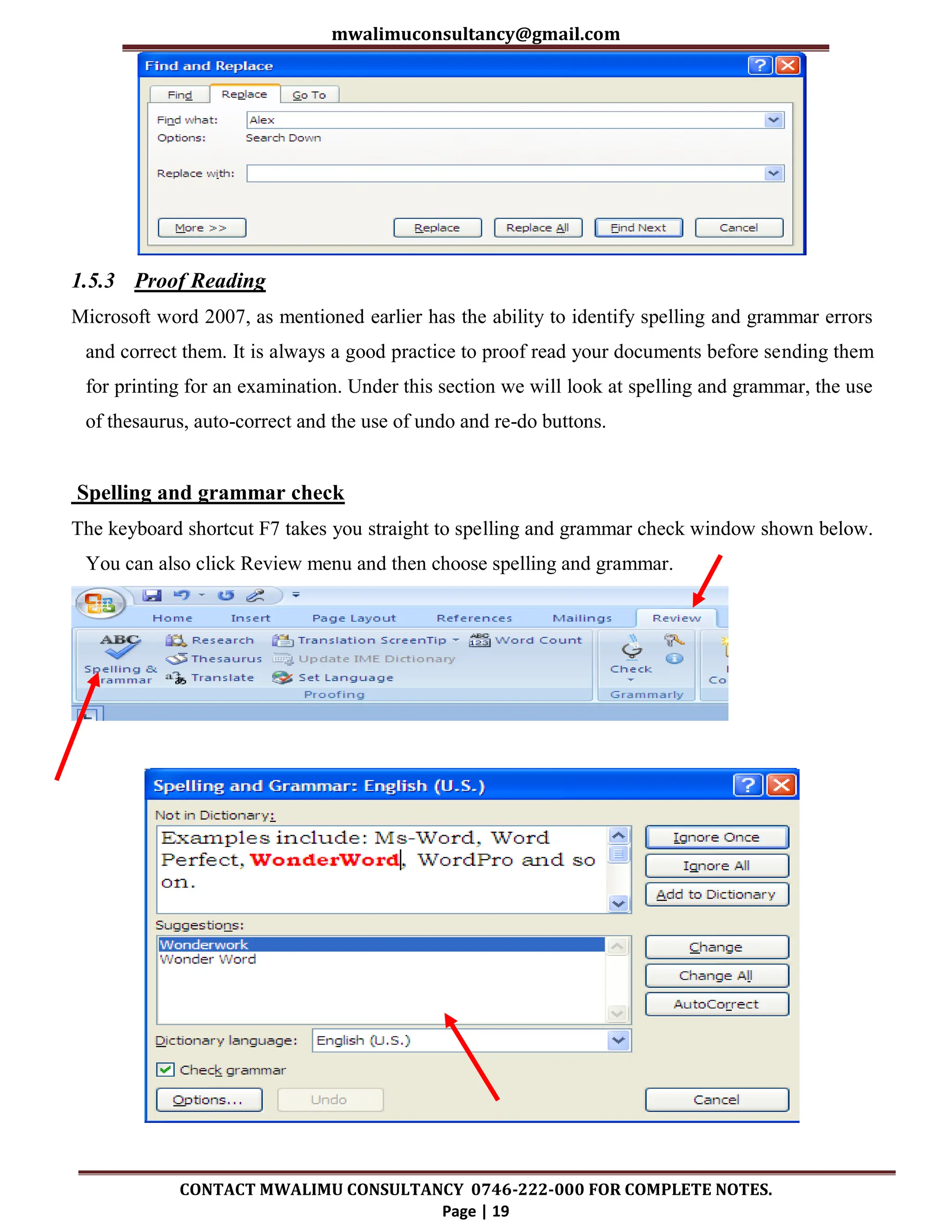
Once you have typed the word, click the Replace tab, the following window appears:
Inside the Replace box, type the word you intend to replace Alex with. Then click replace if it is one
word, or Replace All. The word or words will then be simultaneously replaced.
mwalimuconsultancy@gmail.com
CONTACT MWALIMU CONSULTANCY 0746-222-000 FOR COMPLETE NOTES.
Page | 19
1.5.3 Proof Reading
Microsoft word 2007, as mentioned earlier has the ability to identify spelling and grammar errors
and correct them. It is always a good practice to proof read your documents before sending them
for printing for an examination. Under this section we will look at spelling and grammar, the use
of thesaurus, auto-correct and the use of undo and re-do buttons.
Spelling and grammar check
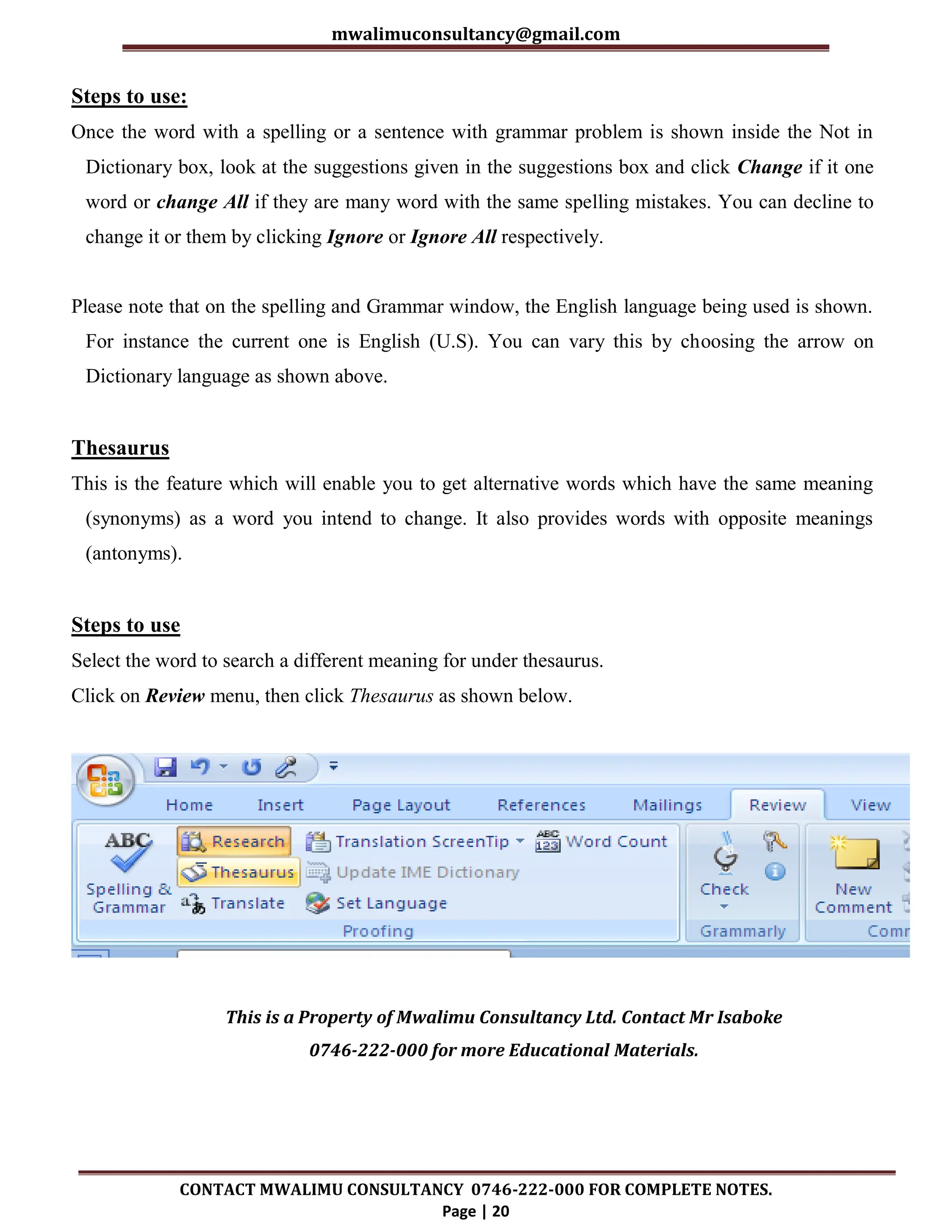
The keyboard shortcut F7 takes you straight to spelling and grammar check window shown below.
You can also click Review menu and then choose spelling and grammar.
mwalimuconsultancy@gmail.com
CONTACT MWALIMU CONSULTANCY 0746-222-000 FOR COMPLETE NOTES.
Page | 20
Steps to use:
Once the word with a spelling or a sentence with grammar problem is shown inside the Not in
Dictionary box, look at the suggestions given in the suggestions box and click Change if it one
word or change All if they are many word with the same spelling mistakes. You can decline to
change it or them by clicking Ignore or Ignore All respectively.
Please note that on the spelling and Grammar window, the English language being used is shown.
For instance the current one is English (U.S). You can vary this by choosing the arrow on
Dictionary language as shown above.
Thesaurus
This is the feature which will enable you to get alternative words which have the same meaning
(synonyms) as a word you intend to change. It also provides words with opposite meanings
(antonyms).
Steps to use
Select the word to search a different meaning for under thesaurus.
Click on Review menu, then click Thesaurus as shown below.
This is a Property of Mwalimu Consultancy Ltd. Contact Mr Isaboke
0746-222-000 for more Educational Materials.
mwalimuconsultancy@gmail.com
CONTACT MWALIMU CONSULTANCY 0746-222-000 FOR COMPLETE NOTES.
Page | 21
Example:
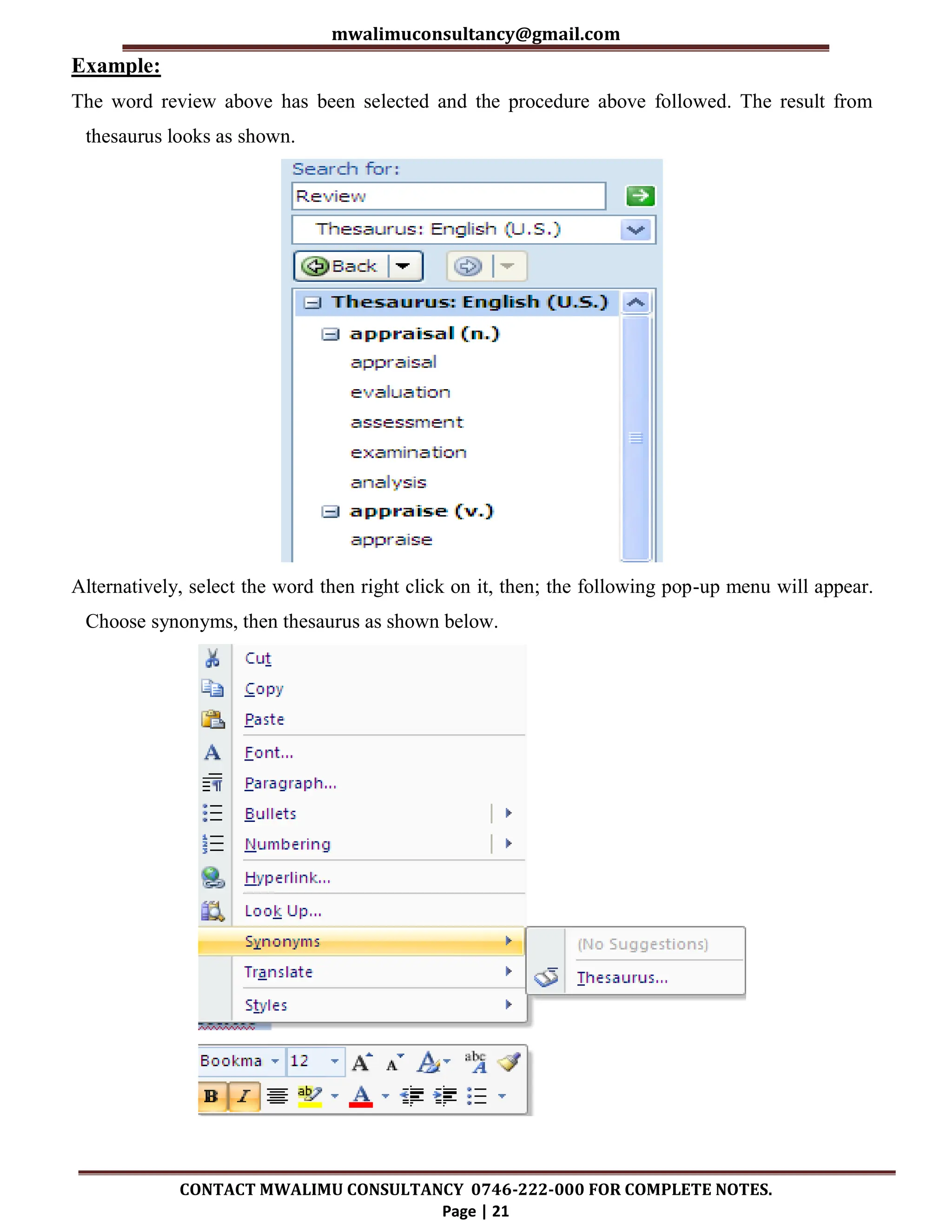
The word review above has been selected and the procedure above followed. The result from
thesaurus looks as shown.
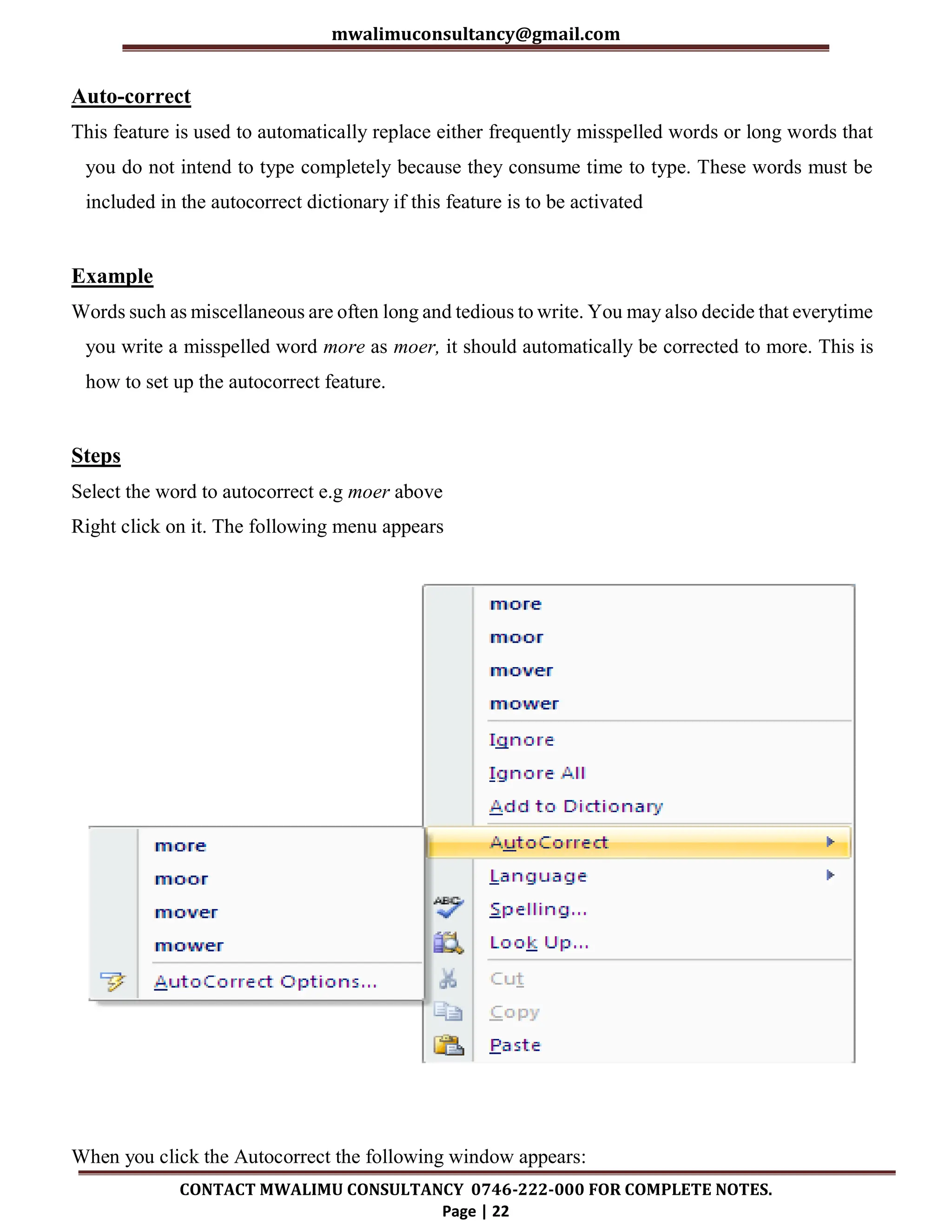
Alternatively, select the word then right click on it, then; the following pop-up menu will appear.
Choose synonyms, then thesaurus as shown below.
mwalimuconsultancy@gmail.com
CONTACT MWALIMU CONSULTANCY 0746-222-000 FOR COMPLETE NOTES.
Page | 22
Auto-correct
This feature is used to automatically replace either frequently misspelled words or long words that
you do not intend to type completely because they consume time to type. These words must be
included in the autocorrect dictionary if this feature is to be activated
Example
Words such as miscellaneous are often long and tedious to write. You may also decide that everytime
you write a misspelled word more as moer, it should automatically be corrected to more. This is
how to set up the autocorrect feature.
Steps
Select the word to autocorrect e.g moer above
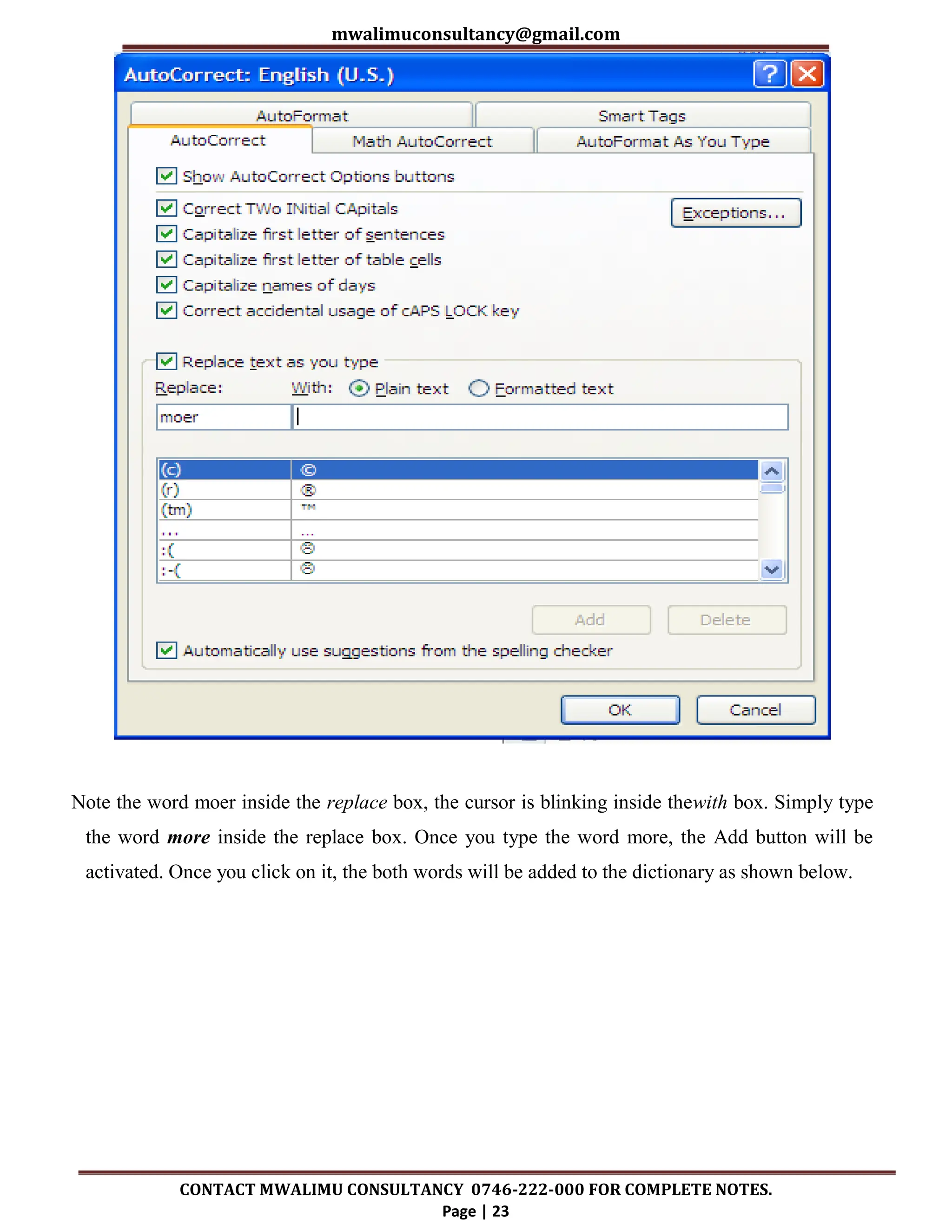
Right click on it. The following menu appears
When you click the Autocorrect the following window appears:
mwalimuconsultancy@gmail.com
CONTACT MWALIMU CONSULTANCY 0746-222-000 FOR COMPLETE NOTES.
Page | 23
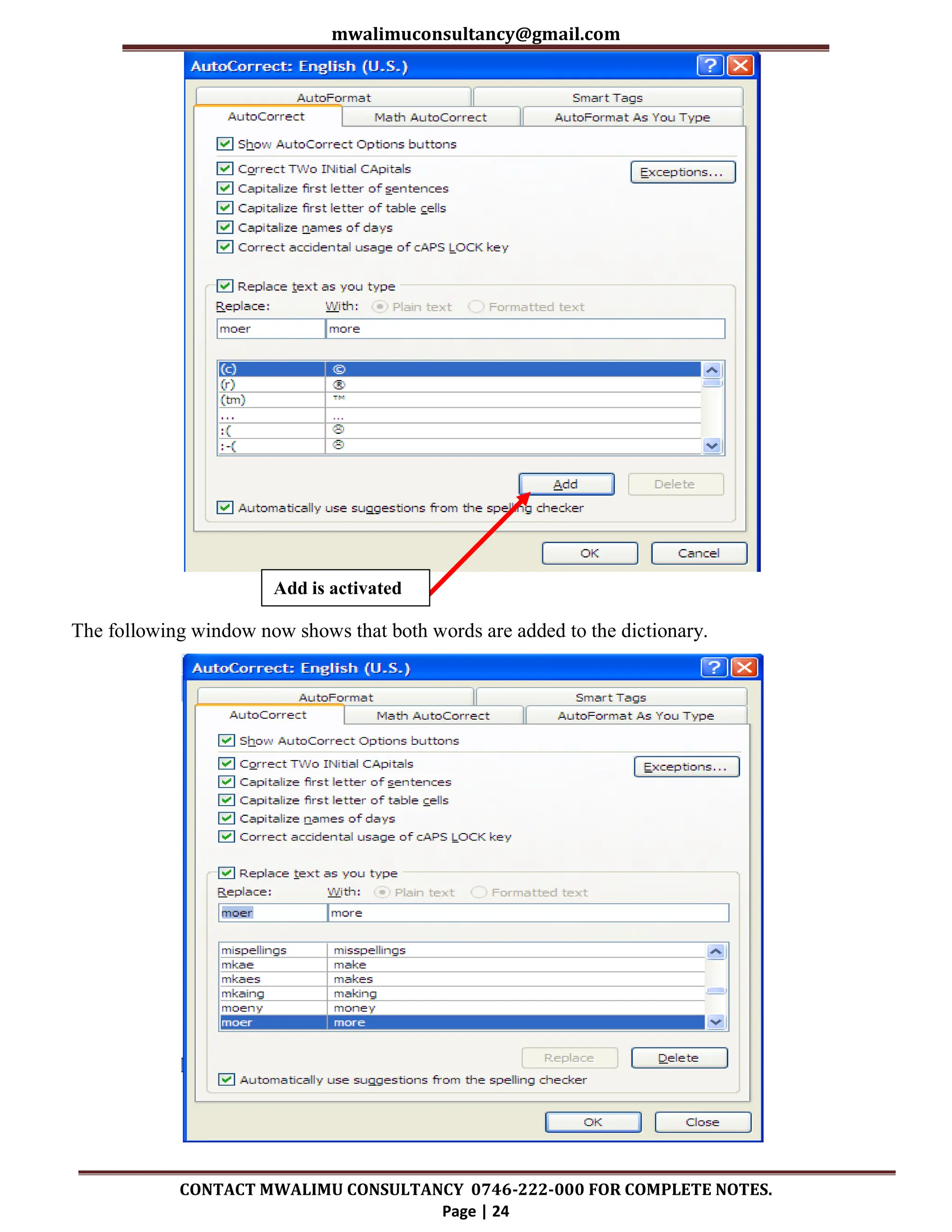
Note the word moer inside the replace box, the cursor is blinking inside thewith box. Simply type
the word more inside the replace box. Once you type the word more, the Add button will be
activated. Once you click on it, the both words will be added to the dictionary as shown below.
mwalimuconsultancy@gmail.com
CONTACT MWALIMU CONSULTANCY 0746-222-000 FOR COMPLETE NOTES.
Page | 24
The following window now shows that both words are added to the dictionary.
Add is activated
mwalimuconsultancy@gmail.com
CONTACT MWALIMU CONSULTANCY 0746-222-000 FOR COMPLETE NOTES.
Page | 25
This
process is the same for long words like miscellaneous. Simply enter a short form under autocorrect
e.g. misc. Once entered, it will always correct it to the full word immediately you press space bar
from the keyboard.
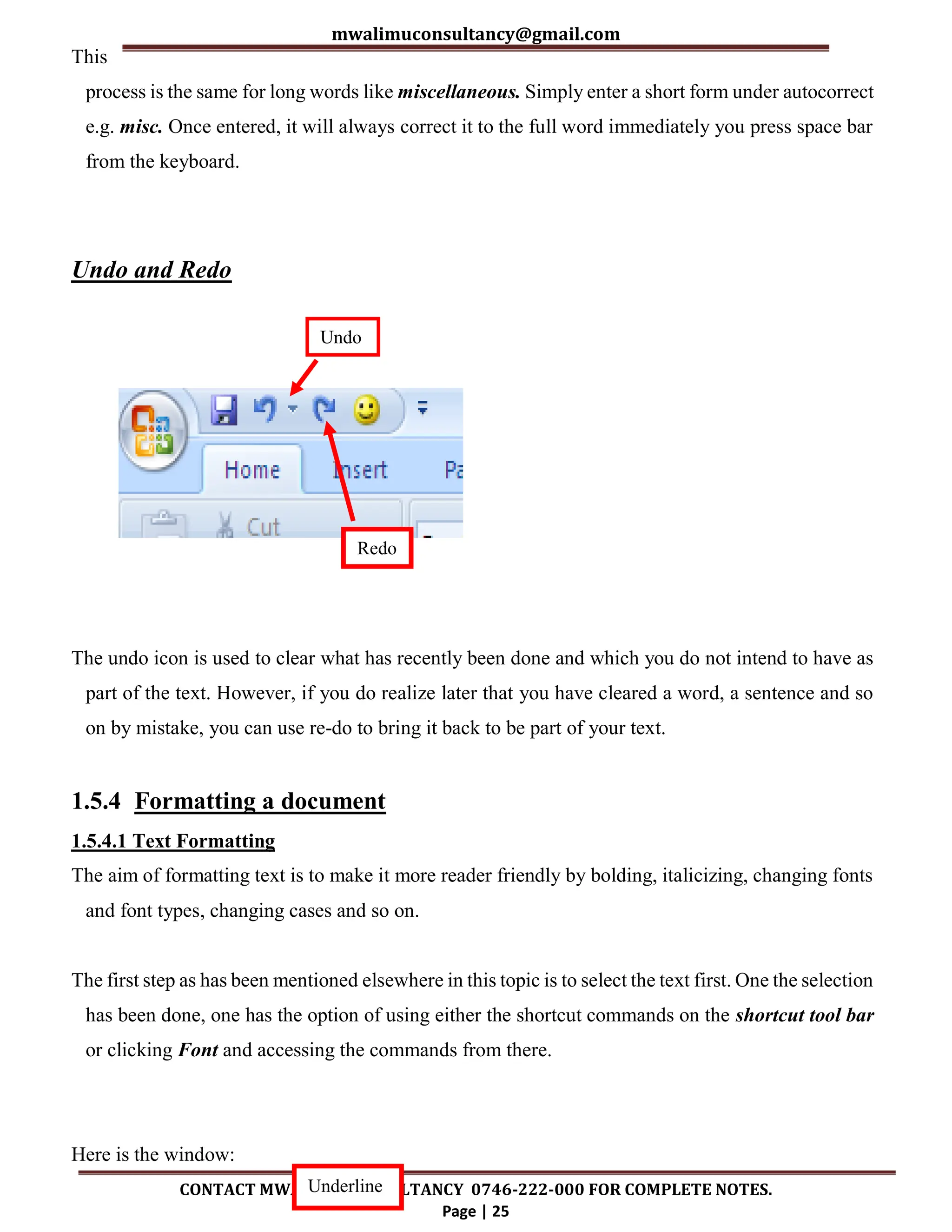
Undo and Redo
The undo icon is used to clear what has recently been done and which you do not intend to have as
part of the text. However, if you do realize later that you have cleared a word, a sentence and so
on by mistake, you can use re-do to bring it back to be part of your text.
1.5.4 Formatting a document
1.5.4.1 Text Formatting
The aim of formatting text is to make it more reader friendly by bolding, italicizing, changing fonts
and font types, changing cases and so on.
The first step as has been mentioned elsewhere in this topic is to select the text first. One the selection
has been done, one has the option of using either the shortcut commands on the shortcut tool bar
or clicking Font and accessing the commands from there.
Here is the window:
Undo
Redo
Underline
mwalimuconsultancy@gmail.com
CONTACT MWALIMU CONSULTANCY 0746-222-000 FOR COMPLETE NOTES.
Page | 26
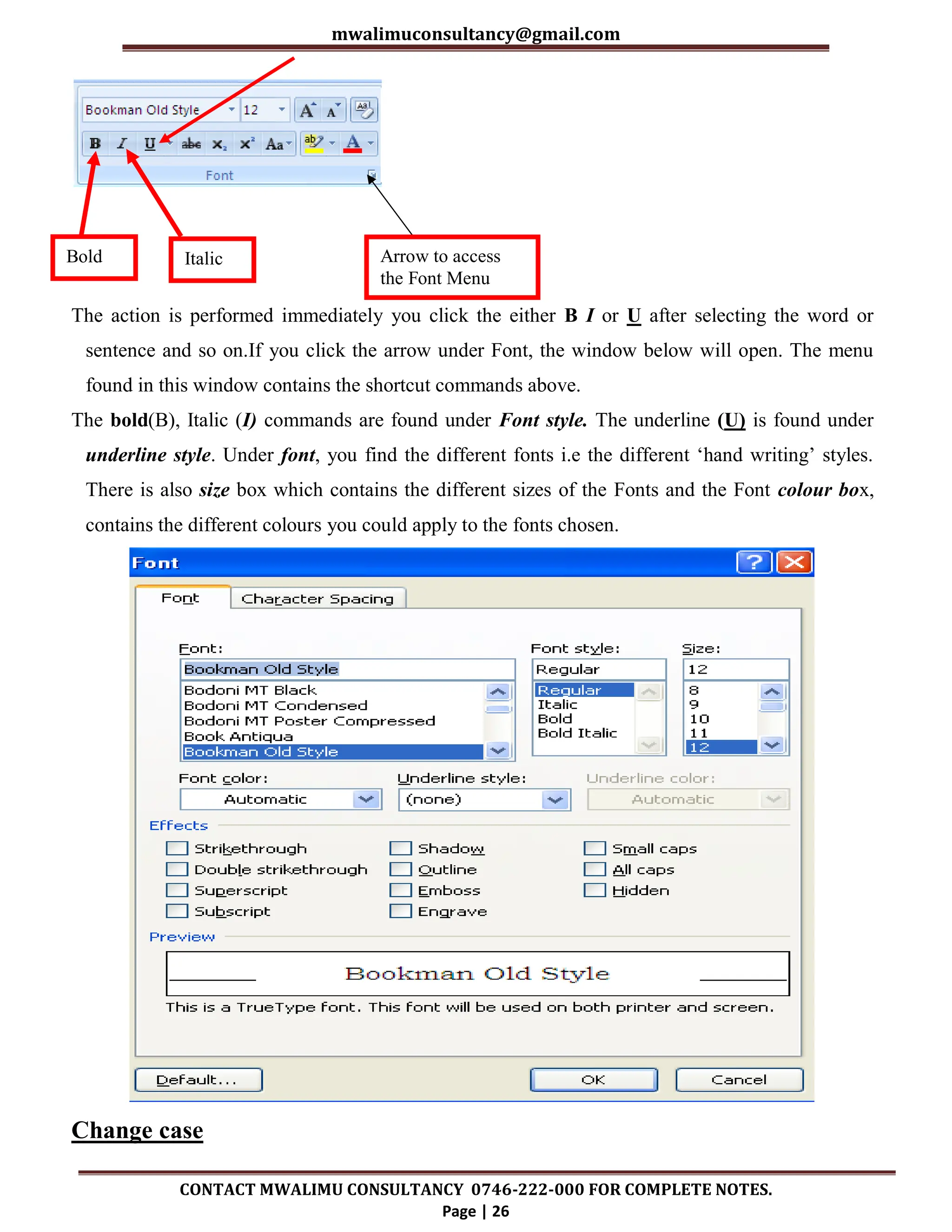
The action is performed immediately you click the either B I or U after selecting the word or
sentence and so on.If you click the arrow under Font, the window below will open. The menu
found in this window contains the shortcut commands above.
The bold(B), Italic (I) commands are found under Font style. The underline (U) is found under
underline style. Under font, you find the different fonts i.e the different ‘hand writing’ styles.
There is also size box which contains the different sizes of the Fonts and the Font colour box,
contains the different colours you could apply to the fonts chosen.
Change case
Bold Italic Arrow to access
the Font Menu
mwalimuconsultancy@gmail.com
CONTACT MWALIMU CONSULTANCY 0746-222-000 FOR COMPLETE NOTES.
Page | 27
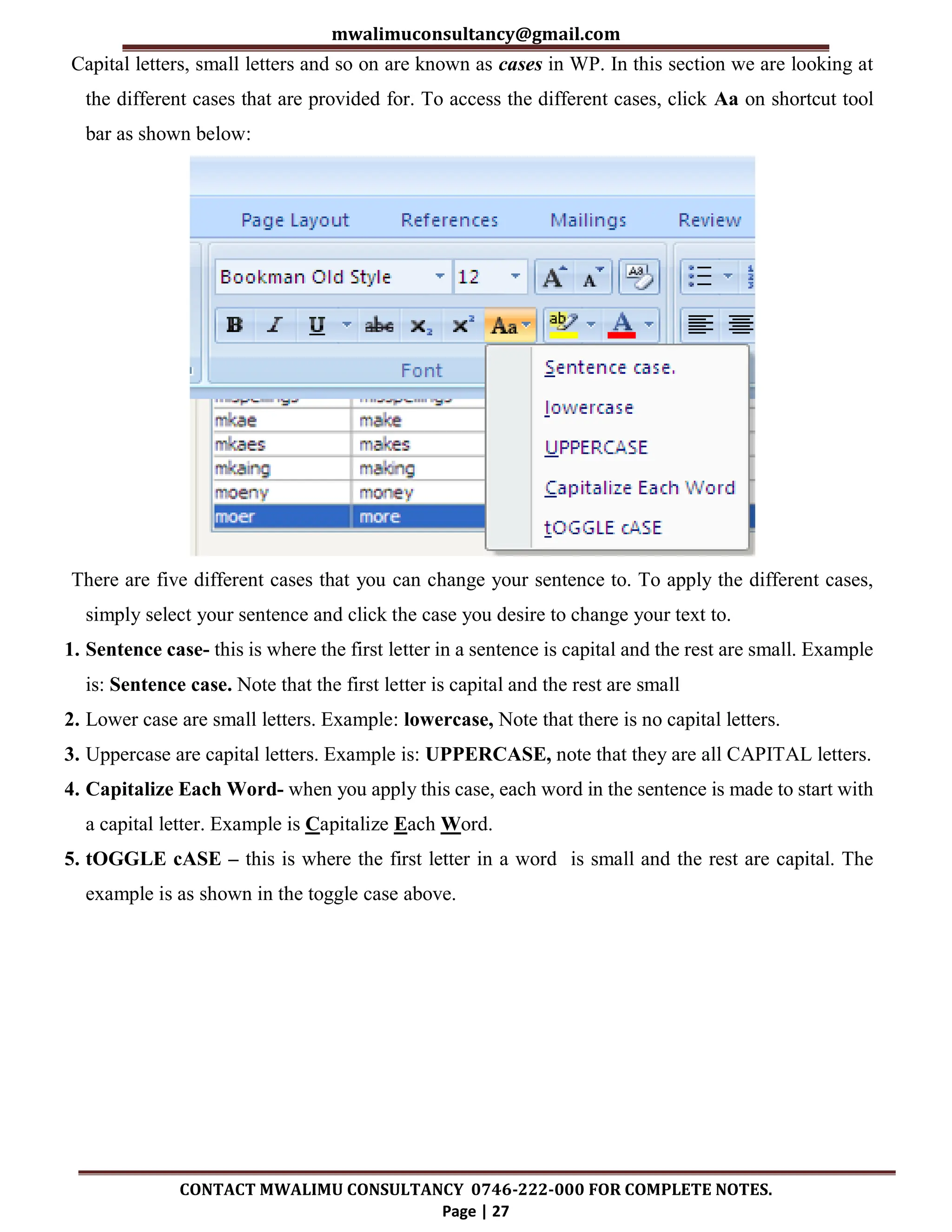
Capital letters, small letters and so on are known as cases in WP. In this section we are looking at
the different cases that are provided for. To access the different cases, click Aa on shortcut tool
bar as shown below:
There are five different cases that you can change your sentence to. To apply the different cases,
simply select your sentence and click the case you desire to change your text to.
1. Sentence case- this is where the first letter in a sentence is capital and the rest are small. Example
is: Sentence case. Note that the first letter is capital and the rest are small
2. Lower case are small letters. Example: lowercase, Note that there is no capital letters.
3. Uppercase are capital letters. Example is: UPPERCASE, note that they are all CAPITAL letters.
4. Capitalize Each Word- when you apply this case, each word in the sentence is made to start with
a capital letter. Example is Capitalize Each Word.
5. tOGGLE cASE – this is where the first letter in a word is small and the rest are capital. The
example is as shown in the toggle case above.
mwalimuconsultancy@gmail.com
CONTACT MWALIMU CONSULTANCY 0746-222-000 FOR COMPLETE NOTES.
Page | 28
NOTE!
This is a Sample of the Well Organized Detailed Simplified Notes
Available.
Call/Text/WhatsApp 0746-222-000 for the Complete Notes.
mwalimuconsultancy@gmail.com
CONTACT MWALIMU CONSULTANCY 0746-222-000 FOR COMPLETE NOTES.
Page | 29
FOR THE FOLLOWING;
 ONLINE TUITION
 REVISION NOTES
 SCHEMES OF WORK
 SETBOOKS VIDEOS
 TERMLY EXAMS
 QUICK REVISION KITS
 KCSE TOPICALS
 KCSE PREMOCKS
 TOP SCHOOLS PREMOCKS
 JOINT PREMOCKS
 KCSE MOCKS
 TOP SCHOOLS MOCKS
 JOINT MOCKS
 KCSE POSTMOCKS
 TOP SCHOOLS PREDICTIONS
 KCSE PREDICTIONS
 KCSE REVEALED SETS
CALL/TEXT 0746 222 000
mwalimuconsultancy@gmail.com
CONTACT MWALIMU CONSULTANCY 0746-222-000 FOR COMPLETE NOTES.
Page | 30
mwalimuconsultancy@gmail.com
THIS IS A PROPERTY OF MWALIMU
CONSULTANCY LTD.
POWERED BY MR
ISABOKE
SUCCESS

F2 COMPUTER SIMPLIFIED NOTES SP - Copy.pdf

  • 1.
    COMPUTER STUDIES FORM 2SIMPLIFIED NOTES QUICK REVISION NOTES An Updated Well-Organized Detailed Revision Notes for the Current Form 2 Syllabus. THIS IS A FREE SAMPLE OF THE ORIGINAL NOTES CONTACT US FOR FULL VERSION OF THE NOTES Mr Isaboke 0746 222 000 MWALIMU CONSULTANCY SERIES 1
  • 2.
    mwalimuconsultancy@gmail.com CONTACT MWALIMU CONSULTANCY0746-222-000 FOR COMPLETE NOTES. Page | 2 Copyright ©Mwalimu All rights reserved. This book or any portion thereof may not be reproduced or used in any manner whatsoever without the express written permission of the publisher except for the use of brief quotations in a book review. Printed in Kenya 00100 Nairobi +254-746-222-000 mwalimuconsultancy@gmail.com Mwalimu Consultancy Ltd.
  • 3.
    mwalimuconsultancy@gmail.com CONTACT MWALIMU CONSULTANCY0746-222-000 FOR COMPLETE NOTES. Page | 3 CHAPTER 1 WORD PROCESSORS This chapter introduces the student to what Word Processors are, and how they are used.  Definition of a Word Processor  Purpose of Word Processing  Using a Word Processor  Format and edit a document  Create and edit a table  Create and edit a mail merge document  Print a document  Insert and edit objects 1.1 DEFINITION OF A WORD PROCESSOR A Word Processor (WP) is an application or a program (software) that converts letters into words, words into sentences, sentences into paragraph and paragraph into a document for purposes of communication. This process is known as Word Processing. There are several word processors available for users in the work place and in schools. Examples include: Ms-Word, Word Perfect, WonderWord, WordPro and so on. 1.2 Features of Word Processors All word processors possess certain features that are unique to them. The following are some of the features of WP. 1. Cursor – all WP possess a blinking cursor that shows the user where next to type. You can only be able to type exactly at the position of the cursor. Once you type, the cursor then moves to the next available space. 2. Formatting and Editing –Formatting is changing the appearance of text by selecting font(typeface or hand writing style), colour, alignment, indentation (moving text away from the margins), bolding, changing size, underline, italic and making bulleted list. Editing is correcting errors and ensuring clarity and accuracy like removing spelling and grammar mistakes.
  • 4.
    mwalimuconsultancy@gmail.com CONTACT MWALIMU CONSULTANCY0746-222-000 FOR COMPLETE NOTES. Page | 4 3. Spelling and grammar check- WPs have the ability to check the spelling and the grammar of a document. This can be set to indicate such mistakes by showing different colours on them. For example in Ms-Word, spelling mistakes are underlined in red and grammar are underlined in green. The user then has the chance to correct the mistakes either immediately or after completing the task being done. Refer to section 1.5 for details. 4. Word Wrap- WPs have the ability to take an incomplete word to the next line automatically without pressing the enter key. This is known as word wrap. 5. Thesauras- this is a Greek word for storehouse. It stores synonyms and antonyms of different words. The user of the WP has the option to obtain different words which mean the same or opposite as the word to be changed. 6. Auto-correct- word which is frequently used with WP can be made to automatically be corrected or be completed by WP in the process of typing, hence the name auto-correct. Refer to section 1.4 for details. 7. Undo and redo- any action done by the user of the WP, can be undone by these two features. If the user types some words which was not intended, one has the option to click undo button for the action to be omitted or if one had deleted some word or sentence or paragraph by mistake, one simply presses the redo button to have the same deleted items back to the right place. 8. Mail Merge- this is the ability of WP to create a common letter, e-mail or labels and add different addresses or particulars to each letter for different people at the same time. It has three main parts: creating main letter, creating addresses and merging the addresses to the letter. Refer to section 1.7 for details. 9. Dictionary – WP has a dictionary where certain words can be added, to make them accepted by WP such that it will not show the red colour symbolizing that it is a spelling mistake or a non English word. You can add nouns from a different language and WP will recognize them as part of the English language. Depending on the default language used by the computer, certain words may not be accepted though they are English words. You need to add such words to the dictionary of WP. For example, British English will accept labour, but American will only accept labor and so on.
  • 5.
    mwalimuconsultancy@gmail.com CONTACT MWALIMU CONSULTANCY0746-222-000 FOR COMPLETE NOTES. Page | 5 1.3 Purpose of a Word Processor The purpose of a WP from the definition above is to create documents for purposes of communication. The essence of any word processing is to enable messages to be created for onward transmission to the reader. Such documents in the work place include letters, reports, circulars, emails, newsletters, memos and so on. The documents can then be printed, or conveyed through other means such as e-mails, or through facsimile (fax). 1.4 Using a Word Processing Package 1.4.1 Getting started The first thing is to load the WP application you intend to use. The example that follows will make use Microsoft Word (MS-Word) as a platform since most schools and organisations use the same. The operating system under which the MS-Word is running is known as Windows Xp.  To load the application to the following:  Click Start button  Go to All programs  Click Microsoft office  Click Microsoft office Word
  • 6.
    mwalimuconsultancy@gmail.com CONTACT MWALIMU CONSULTANCY0746-222-000 FOR COMPLETE NOTES. Page | 6 The Microsoft Word window appears and your screen looks similar to the one shown here. Note: Your screen will probably not look exactly like the screen shown. In Word 2007, how a window displays depends on the size of your window, the size of your monitor, and the resolution to which your monitor is set. Resolution determines how much information your computer monitor can display. If you use a low resolution, less information fits on your screen, but the size of your text and images are larger. If you use a high resolution, more information fits on your screen, but the size of the text and images are smaller. Also, Word 2007, Windows Vista, and Windows XP have settings that allow you to change the color and style of your windows. THE MICROSOFT OFFICE BUTTON In the upper-left corner of the Word 2007 window is the Microsoft Office button. When you click the button, a menu appears. You can use the menu to create a new file, open an existing file, save a file, and perform many other tasks.
  • 7.
    mwalimuconsultancy@gmail.com CONTACT MWALIMU CONSULTANCY0746-222-000 FOR COMPLETE NOTES. Page | 7 THE QUICK ACCESS TOOLBAR Next to the Microsoft Office button is the Quick Access toolbar. The Quick Access toolbar provides you with access to commands you frequently use. By default Save, Undo, and Redo appear on the Quick Access toolbar. You can use Save to save your file, Undo to rollback an action you have taken, and Redo to reapply an action you have rolled back. THE TITLE BAR Next to the Quick Access toolbar is the Title bar. The Title bar displays the title of the document on which you are currently working. Word names the first new document you open Document1. As you open additional new documents, Word names them sequentially. When you save your document, you assign the document a new name. THE RIBBON You use commands to tell Microsoft Word what to do. In Microsoft Word 2007, you use the Ribbon to issue commands. The Ribbon is located near the top of the screen, below the Quick Access toolbar. At the top of the Ribbon are several tabs; clicking a tab displays several related command groups. Within each group are related command buttons. You click buttons to issue commands or to access menus and dialog boxes. You may also find a dialog box launcher in the bottom-right corner of a group. Clicking the dialog box launcher gives you access to additional commands via a dialog box.
  • 8.
    mwalimuconsultancy@gmail.com CONTACT MWALIMU CONSULTANCY0746-222-000 FOR COMPLETE NOTES. Page | 8 THE RULER The ruler is found below the Ribbon. You can use the ruler to change the format of your document quickly. If your ruler is not visible, follow the steps listed here: 1. Click the View tab to choose it. 2. Click the check box next to Ruler in the Show/Hide group. The ruler appears below the Ribbon. THE TEXT AREA Just below the ruler is a large area called the text area. You type your document in the text area. The blinking vertical line in the upper-left corner of the text area is the cursor. It marks the insertion point. As you type, your text displays at the cursor location. The horizontal line next to the cursor marks the end of the document. THE VERTICAL AND HORIZONTAL AND VERTICAL SCROLL BARS The vertical and horizontal scroll bars enable you to move up, down, and across your window simply by dragging the icon located on the scroll bar. The vertical scroll bar is located along the right side of the screen. The horizontal scroll bar is located just above the status bar. To move up and down your document, click and drag the vertical scroll bar up and down.
  • 9.
    mwalimuconsultancy@gmail.com CONTACT MWALIMU CONSULTANCY0746-222-000 FOR COMPLETE NOTES. Page | 9 To move back and forth across your document, click and drag the horizontal scroll bar back and forth. You won't see a horizontal scroll bar if the width of your document fits on your screen. THE STATUS BAR The Status bar appears at the very bottom of your window and provides such information as the current page and the number of words in your document. You can change what displays on the Status bar by right-clicking on the Status bar and selecting the options you want from the Customize Status Bar menu. You click a menu item to select it. You click it again to deselect it. A check mark next to an item means it is selected. Understanding Document Views In Word 2007, you can display your document in one of five views: Draft, Web Layout, Print Layout, Full Screen Reading, or Online Layout. Draft View Draft view is the most frequently used view. You use Draft view to quickly edit your document.
  • 10.
    mwalimuconsultancy@gmail.com CONTACT MWALIMU CONSULTANCY0746-222-000 FOR COMPLETE NOTES. Page | 10 Web Layout Web Layout view enables you to see your document as it would appear in a browser such as Internet Explorer. Print Layout The Print Layout view shows the document as it will look when it is printed. Reading Layout Reading Layout view formats your screen to make reading your document more comfortable. Outline View Outline view displays the document in outline form. You can display headings without the text. If you move a heading, the accompanying text moves with it. You should use Draft view for these lessons. Before moving ahead, make sure you are in Draft view: Click the View tab. 1. Click Draft in the Document Views group. When the Draft option is selected it appears in a contrasting color. 2. CLICK During the lessons that follow, you will be asked to "click" items and to choose tabs. When asked to click: 1. Point to the item. 2. Press your left mouse button once. If you are asked to double-click an item: 1. Point to the item. 2. Quickly press your left mouse button twice.
  • 11.
    mwalimuconsultancy@gmail.com CONTACT MWALIMU CONSULTANCY0746-222-000 FOR COMPLETE NOTES. Page | 11 If you are asked to right-click: 1. Point to the item. 2. Press your right mouse button. If you are asked to choose a tab, click the tab. UNDERSTANDING NONPRINTING CHARACTERS Certain characters, called nonprinting characters, do not print and will not appear in your printed document but do affect your document layout. You can elect to see these characters on the screen as you type or you can elect to have them remain invisible. For these lessons, opt to see them onscreen. This table describes most of them: C h a r a c t e r D e n o t e s A t a b . A s p a c e ¶ T h e e n d o f a p a r a g r a p h H i d d e n t e x t To view nonprinting characters: 1. Choose the Home tab. 2. Click the Show/Hide button in the Paragraph group . The Show/Hide button appears in a contrasting color, when it is selected.
  • 12.
    mwalimuconsultancy@gmail.com CONTACT MWALIMU CONSULTANCY0746-222-000 FOR COMPLETE NOTES. Page | 12 CREATE SAMPLE DATA AND SELECT TEXT If you type =rand() in your Word document and then press Enter, Word creates three paragraphs. You can use these paragraphs to practice what you learn. Throughout these lessons, you will be asked to select text. The following exercise teaches you how to create data and how to select data. You can select by using the arrow keys or by clicking and dragging. When using the arrow keys, use the up arrow to move up, the down arrow to move down, the left arrow to move left, and the right arrow to move right. When using the mouse, press the left mouse button and then drag in the direction you want to move. EXERCISE 1 Create Sample Data 1. Type =rand(). 2. Press Enter. Three paragraphs appear in your document. Select with the Shift and Arrow Keys 1. Place your cursor before the word "On" in the first paragraph. 2. Press and hold down the Shift key, which serves as an "anchor" showing where text you wish to select begins or ends. 3. Press the right arrow key until the first line of text is highlighted. 4. Press the down arrow key until the first paragraph is highlighted. 5. Click anywhere outside the highlighted area to remove the highlighting. Select with the Mouse 1. Place your cursor before the word "You" in the second paragraph. 2. Press and hold down the left mouse button. 3. Drag the mouse until you have highlighted the second paragraph. 4. Click anywhere outside the highlighted area to remove the highlighting. Place the Cursor During the lessons, you will often be asked to place the cursor at a specific location (the insertion point) on the screen. You place the cursor by moving the cursor to the specified location and pressing the left mouse button or by using the arrow keys to move to the specified location.
  • 13.
    mwalimuconsultancy@gmail.com CONTACT MWALIMU CONSULTANCY0746-222-000 FOR COMPLETE NOTES. Page | 13 EXERCISE 2 The Arrow Keys 1. Use the down arrow key to move down your document. 2. Use the right arrow key to move to the right. 3. Use the up arrow key to move up. 4. Use the left arrow key to move to the left. Cursor 1. Move around you document by using you mouse and clicking in a variety of location. 2. Click in a location and type. Note what happens. EXECUTE COMMANDS WITH KEYBOARD SHORTCUTS There are many methods you can use to accomplish tasks when using Word. Generally, you choose an option by clicking the option on the Ribbon. However, you can also use shortcut keys. A key name followed by a plus and a letter means to hold down the key while pressing the letter. For example, Ctrl+b means you should hold down the Ctrl key while pressing "b." A shorthand notation of the above would read as follows: Press Ctrl+b. Typists who are slowed down by using a mouse usually prefer using keys. Start a New Paragraph When you type in Microsoft Word, you do not need to press a key to move to a new line. To start a new paragraph, press the Enter key. EXIT WORD Typically, you save your work before exiting. The exit button is located in the extreme right corner of your window. Close and Save 1. Click the Microsoft Office button. A menu appears. 2. Click Exit Word, which is in the bottom-right corner.
  • 14.
    mwalimuconsultancy@gmail.com CONTACT MWALIMU CONSULTANCY0746-222-000 FOR COMPLETE NOTES. Page | 14 3. You will be prompted: "Do you want to save changes to Document1?" To save your changes, click Yes. Otherwise, click No. If you click Yes, the Save As dialog box appears. 4. Specify the correct folder in the Save In box. 5. Name your file by typing Lesson One.doc in the File Name field.Click Save. Word saves your file as shown below. Retrieving Document Once the document has been saved, it exists in the computer. To open it, do the following: 1. Click the office button 2. Click open 3. On the open window, choose where you saved the document 4. Identify the document and click open 1.5 Editing and formatting a document 1.5.1Editing a document Selecting text For you to be able to edit and format a document, the text should first be highlighted (selected). This can be done by using the following method
  • 15.
    mwalimuconsultancy@gmail.com CONTACT MWALIMU CONSULTANCY0746-222-000 FOR COMPLETE NOTES. Page | 15 1. One word- simply point the mouse and click or click and drag the mouse over it. You can also double click the word. 2. A sentence- point the sentence and click if it is separated from the rest of the text, or click and drag the mouse over the sentence. 3. A paragraph- triple click the paragraph i.e click three times. 4. A whole document- place the cursor at the beginning of the document, hold the shift button down and click the end of the document. Moving, copying and deleting text Moving text Moving a text means to relocate the text from its original place to another place. This is done by using cut and paste method. One you select text, simply click on cut option from the tool bar, or right click after selecting document on the pop-up menu as shown below. Position the cursor where you want to move the text and click paste. For example, you can cut and paste (move) one paragraph from one place to another. The above is the pop-up menu that appears when you right click. Copying text Copying text means making its duplicate elsewhere. This is done by selecting text, then clicking copy button from the tool bar or from the pop-up menu and pasting the text where you want it to be. This is the pop-up menu that appears when you right click after highlighting text.
  • 16.
    mwalimuconsultancy@gmail.com CONTACT MWALIMU CONSULTANCY0746-222-000 FOR COMPLETE NOTES. Page | 16 Type, Backspace, and Delete In Microsoft Word, you create documents by typing them. For example, if you want to create a report, you open Microsoft Word and then begin typing. You do not have to do anything when your text reaches the end of a line and you want to move to a new line—Microsoft Word automatically moves your text to a new line. If you want to start a new paragraph, press Enter. Microsoft word creates a blank line to indicate the start of a new paragraph. To capitalize, hold down the Shift key while typing the letter you want to capitalize. If you make a mistake, you can delete what you typed and then type your correction. You can use the Backspace key to delete. Each time you press the Backspace key, Microsoft Word deletes the character that precedes the insertion point. The insertion point is the point at which your mouse pointer is located. You can also delete text by using the Delete key. First, you select the text you want to delete; then you press the Delete key. EXERCISE 1 Type and Backspace 1. Type the following sentence: Alex has a very large house. 2. Delete the word "house." Using either the arrow keys or the mouse, place the cursor between the period and the "e" in "house." 3. Press the Backspace key until the word "house" is deleted. 4. Type boat. The sentence should now read: "Alex has a very large boat." Delete Delete the word "very" from the sentence you just typed. 1. Select the word "very." You can place the cursor before the "v" in the word "very," press and hold down the Shift key, and then press the right arrow key until the word "very" is highlighted. 2. Press the Delete key. The sentence should now read: "Alex has a large boat." Insert and Overtype
  • 17.
    mwalimuconsultancy@gmail.com CONTACT MWALIMU CONSULTANCY0746-222-000 FOR COMPLETE NOTES. Page | 17 While creating your document, you may find you need to insert text—place new text between existing text. Suppose, you type the sentence, "Alex has a large boat." After typing it, you decide you want to change the sentence to "Alex has a large blue boat." With Microsoft Word, inserting a word, phrase, or even several paragraphs is easy. Alternatively, you may want to overtype text—replace old text with new text. For example, suppose you type the sentence, "Alex has a large blue boat." After typing it, you decide you want to change the sentence to "Alex has a large gray boat." With Microsoft Word, overtyping the word blue with the word gray is also easy. Before you attempt to insert or overtype, you should check the mode you are in—Insert or Overtype. You right-click the Status bar and then use the Customize Status Bar menu to place the Insert/Overtype button on the Status bar. You can then use the Insert/Overtype button to switch between Insert and Overtype mode. When you are in Insert mode, you can insert text. When you are in Overtype mode, you can overtype text. By default, Microsoft Word is in the Insert mode. EXERCISE 2 Placing the Insert/Overtype button on the Status bar 1. Right-click the Status bar. The Customize Status Bar menu appears. 2. Click Overtype. The Insert/Overtype button appears on the Status bar. 3. If the word Insert appears on the Status bar, you are in Insert mode. 4. If the word Overtype appears on the Status bar, click the word Overtype and it will change to Insert, thereby changing Word to Insert mode. Insert Make sure you are in Insert mode before proceeding. You are going to insert the word "blue" between the words "large" and "boat." 1. Place the cursor after the space between the words "large" and "boat." 2. Type the word blue. 3. Press the spacebar to add a space. 4. The sentence should now read: "Alex has a large blue boat."
  • 18.
    mwalimuconsultancy@gmail.com CONTACT MWALIMU CONSULTANCY0746-222-000 FOR COMPLETE NOTES. Page | 18 Overtype You can type over the current text (replace the current text with new text) in the Overtype mode. Do the following to change to the Overtype mode.  Click "Insert" on the Status bar. The word Insert changes to Overtype. Change the word "blue" to "gray." 1. Place the cursor before the letter "b" in "blue." 2. Type the word gray. 3. The sentence should now read: "Alex has a large gray boat." Note: You can overtype text without changing to Overtype mode by selecting the text you want to overtype and then typing. 1.5.2 Find and Replace In Microsoft Word 2007, When you click find The following window appears: Inside the Find what box, type a word or a sentence you intend to find to be replaced by another word or sentence. Example: Type the name Alex inside Find what box Once you have typed the word, click the Replace tab, the following window appears: Inside the Replace box, type the word you intend to replace Alex with. Then click replace if it is one word, or Replace All. The word or words will then be simultaneously replaced.
  • 19.
    mwalimuconsultancy@gmail.com CONTACT MWALIMU CONSULTANCY0746-222-000 FOR COMPLETE NOTES. Page | 19 1.5.3 Proof Reading Microsoft word 2007, as mentioned earlier has the ability to identify spelling and grammar errors and correct them. It is always a good practice to proof read your documents before sending them for printing for an examination. Under this section we will look at spelling and grammar, the use of thesaurus, auto-correct and the use of undo and re-do buttons. Spelling and grammar check The keyboard shortcut F7 takes you straight to spelling and grammar check window shown below. You can also click Review menu and then choose spelling and grammar.
  • 20.
    mwalimuconsultancy@gmail.com CONTACT MWALIMU CONSULTANCY0746-222-000 FOR COMPLETE NOTES. Page | 20 Steps to use: Once the word with a spelling or a sentence with grammar problem is shown inside the Not in Dictionary box, look at the suggestions given in the suggestions box and click Change if it one word or change All if they are many word with the same spelling mistakes. You can decline to change it or them by clicking Ignore or Ignore All respectively. Please note that on the spelling and Grammar window, the English language being used is shown. For instance the current one is English (U.S). You can vary this by choosing the arrow on Dictionary language as shown above. Thesaurus This is the feature which will enable you to get alternative words which have the same meaning (synonyms) as a word you intend to change. It also provides words with opposite meanings (antonyms). Steps to use Select the word to search a different meaning for under thesaurus. Click on Review menu, then click Thesaurus as shown below. This is a Property of Mwalimu Consultancy Ltd. Contact Mr Isaboke 0746-222-000 for more Educational Materials.
  • 21.
    mwalimuconsultancy@gmail.com CONTACT MWALIMU CONSULTANCY0746-222-000 FOR COMPLETE NOTES. Page | 21 Example: The word review above has been selected and the procedure above followed. The result from thesaurus looks as shown. Alternatively, select the word then right click on it, then; the following pop-up menu will appear. Choose synonyms, then thesaurus as shown below.
  • 22.
    mwalimuconsultancy@gmail.com CONTACT MWALIMU CONSULTANCY0746-222-000 FOR COMPLETE NOTES. Page | 22 Auto-correct This feature is used to automatically replace either frequently misspelled words or long words that you do not intend to type completely because they consume time to type. These words must be included in the autocorrect dictionary if this feature is to be activated Example Words such as miscellaneous are often long and tedious to write. You may also decide that everytime you write a misspelled word more as moer, it should automatically be corrected to more. This is how to set up the autocorrect feature. Steps Select the word to autocorrect e.g moer above Right click on it. The following menu appears When you click the Autocorrect the following window appears:
  • 23.
    mwalimuconsultancy@gmail.com CONTACT MWALIMU CONSULTANCY0746-222-000 FOR COMPLETE NOTES. Page | 23 Note the word moer inside the replace box, the cursor is blinking inside thewith box. Simply type the word more inside the replace box. Once you type the word more, the Add button will be activated. Once you click on it, the both words will be added to the dictionary as shown below.
  • 24.
    mwalimuconsultancy@gmail.com CONTACT MWALIMU CONSULTANCY0746-222-000 FOR COMPLETE NOTES. Page | 24 The following window now shows that both words are added to the dictionary. Add is activated
  • 25.
    mwalimuconsultancy@gmail.com CONTACT MWALIMU CONSULTANCY0746-222-000 FOR COMPLETE NOTES. Page | 25 This process is the same for long words like miscellaneous. Simply enter a short form under autocorrect e.g. misc. Once entered, it will always correct it to the full word immediately you press space bar from the keyboard. Undo and Redo The undo icon is used to clear what has recently been done and which you do not intend to have as part of the text. However, if you do realize later that you have cleared a word, a sentence and so on by mistake, you can use re-do to bring it back to be part of your text. 1.5.4 Formatting a document 1.5.4.1 Text Formatting The aim of formatting text is to make it more reader friendly by bolding, italicizing, changing fonts and font types, changing cases and so on. The first step as has been mentioned elsewhere in this topic is to select the text first. One the selection has been done, one has the option of using either the shortcut commands on the shortcut tool bar or clicking Font and accessing the commands from there. Here is the window: Undo Redo Underline
  • 26.
    mwalimuconsultancy@gmail.com CONTACT MWALIMU CONSULTANCY0746-222-000 FOR COMPLETE NOTES. Page | 26 The action is performed immediately you click the either B I or U after selecting the word or sentence and so on.If you click the arrow under Font, the window below will open. The menu found in this window contains the shortcut commands above. The bold(B), Italic (I) commands are found under Font style. The underline (U) is found under underline style. Under font, you find the different fonts i.e the different ‘hand writing’ styles. There is also size box which contains the different sizes of the Fonts and the Font colour box, contains the different colours you could apply to the fonts chosen. Change case Bold Italic Arrow to access the Font Menu
  • 27.
    mwalimuconsultancy@gmail.com CONTACT MWALIMU CONSULTANCY0746-222-000 FOR COMPLETE NOTES. Page | 27 Capital letters, small letters and so on are known as cases in WP. In this section we are looking at the different cases that are provided for. To access the different cases, click Aa on shortcut tool bar as shown below: There are five different cases that you can change your sentence to. To apply the different cases, simply select your sentence and click the case you desire to change your text to. 1. Sentence case- this is where the first letter in a sentence is capital and the rest are small. Example is: Sentence case. Note that the first letter is capital and the rest are small 2. Lower case are small letters. Example: lowercase, Note that there is no capital letters. 3. Uppercase are capital letters. Example is: UPPERCASE, note that they are all CAPITAL letters. 4. Capitalize Each Word- when you apply this case, each word in the sentence is made to start with a capital letter. Example is Capitalize Each Word. 5. tOGGLE cASE – this is where the first letter in a word is small and the rest are capital. The example is as shown in the toggle case above.
  • 28.
    mwalimuconsultancy@gmail.com CONTACT MWALIMU CONSULTANCY0746-222-000 FOR COMPLETE NOTES. Page | 28 NOTE! This is a Sample of the Well Organized Detailed Simplified Notes Available. Call/Text/WhatsApp 0746-222-000 for the Complete Notes.
  • 29.
    mwalimuconsultancy@gmail.com CONTACT MWALIMU CONSULTANCY0746-222-000 FOR COMPLETE NOTES. Page | 29 FOR THE FOLLOWING;  ONLINE TUITION  REVISION NOTES  SCHEMES OF WORK  SETBOOKS VIDEOS  TERMLY EXAMS  QUICK REVISION KITS  KCSE TOPICALS  KCSE PREMOCKS  TOP SCHOOLS PREMOCKS  JOINT PREMOCKS  KCSE MOCKS  TOP SCHOOLS MOCKS  JOINT MOCKS  KCSE POSTMOCKS  TOP SCHOOLS PREDICTIONS  KCSE PREDICTIONS  KCSE REVEALED SETS CALL/TEXT 0746 222 000
  • 30.
    mwalimuconsultancy@gmail.com CONTACT MWALIMU CONSULTANCY0746-222-000 FOR COMPLETE NOTES. Page | 30 mwalimuconsultancy@gmail.com THIS IS A PROPERTY OF MWALIMU CONSULTANCY LTD. POWERED BY MR ISABOKE SUCCESS